Fatelegend
WIRELESS KEYBOARD
User Manual
PACKING LIST
 x1
x1  x1
x1 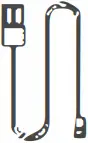 x1
x1 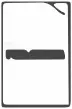 x1
x1  x1
x1  x1
x1
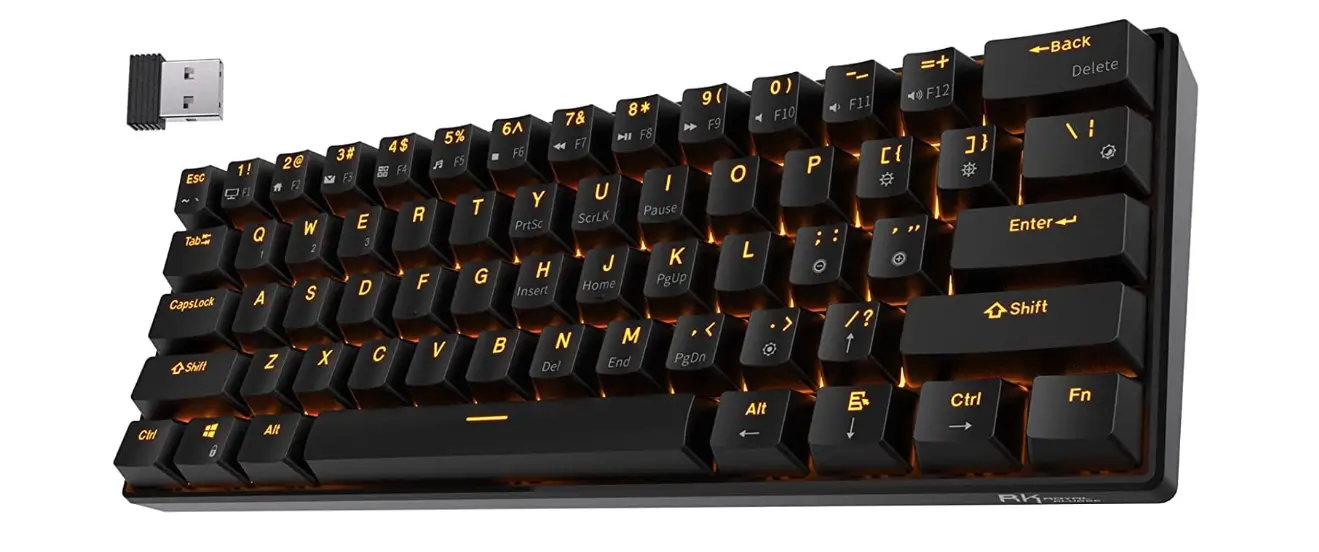
1. Keyboard x 1 4. User Manual x 1
2. USB Receiver x 1 5 Instruction Card x 1
3. Charging Cable x 1 6. FAQ Card x 1
INSTRUCTIONS
Initial Use:
- Please charge the keyboard when you use it for the first time.
- Turn on the switch on the upper right corner of keyboard, and it is in the factory default 2.4G mode.
- Take out USB receiver and plug it into the computer. When the driver is installed successfully, the product will start to serve.
Mode Switch:
BT1 Mode
- Short press BT1 mode switch button and its indicator will flash slowly showing that the keyboard is in BT1 mode.
- Long press BT1 mode switch button for 3s and its indicator will flash quickly showing that the keyboard enters pairing state. Turn on the Bluetooth of your laptop, if your computer system is Win 7 or earlier, please select to connect “BT3.0 Keyboard“. If your device system is Win 8 or later, iOS or macOS, please select to connect “BT5.0 KB“.
BT2 Mode
Refer to BT1 connection instructions.
DIAGRAM
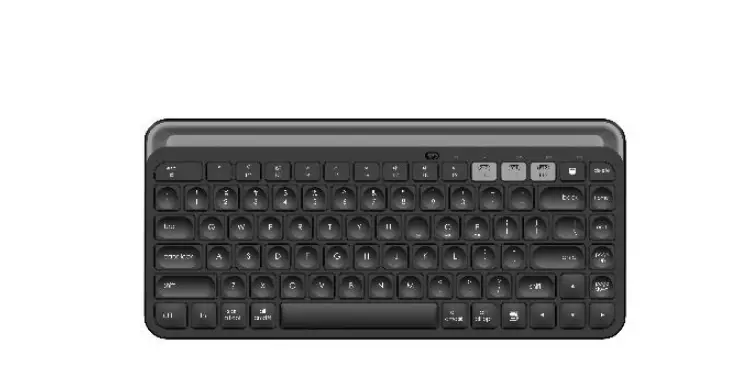
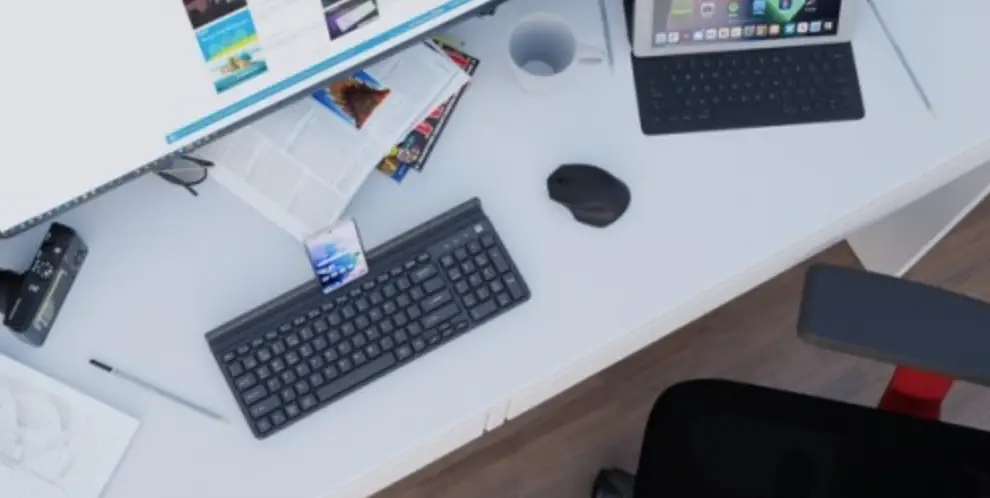
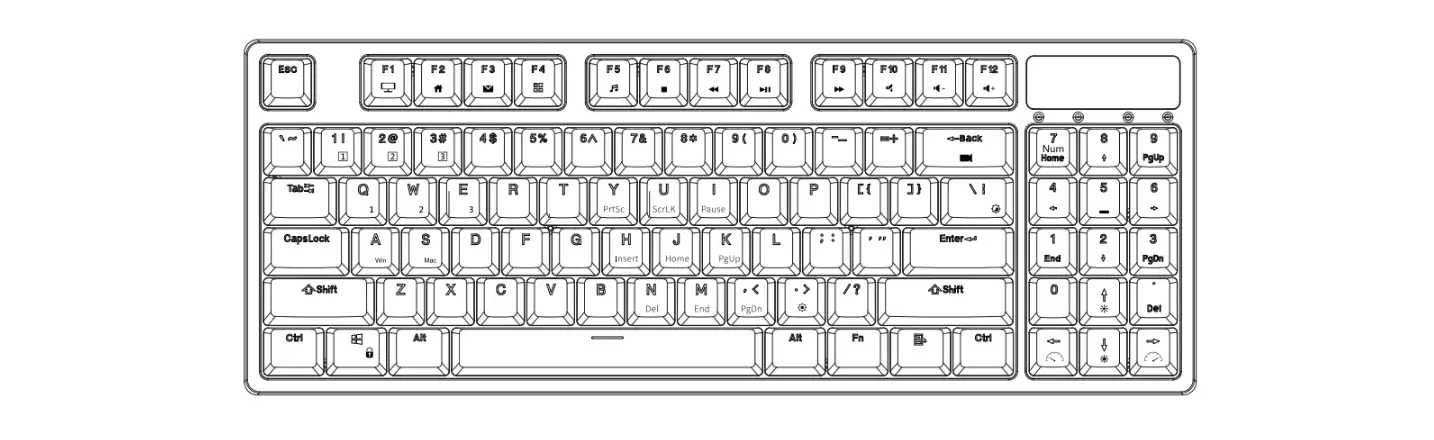
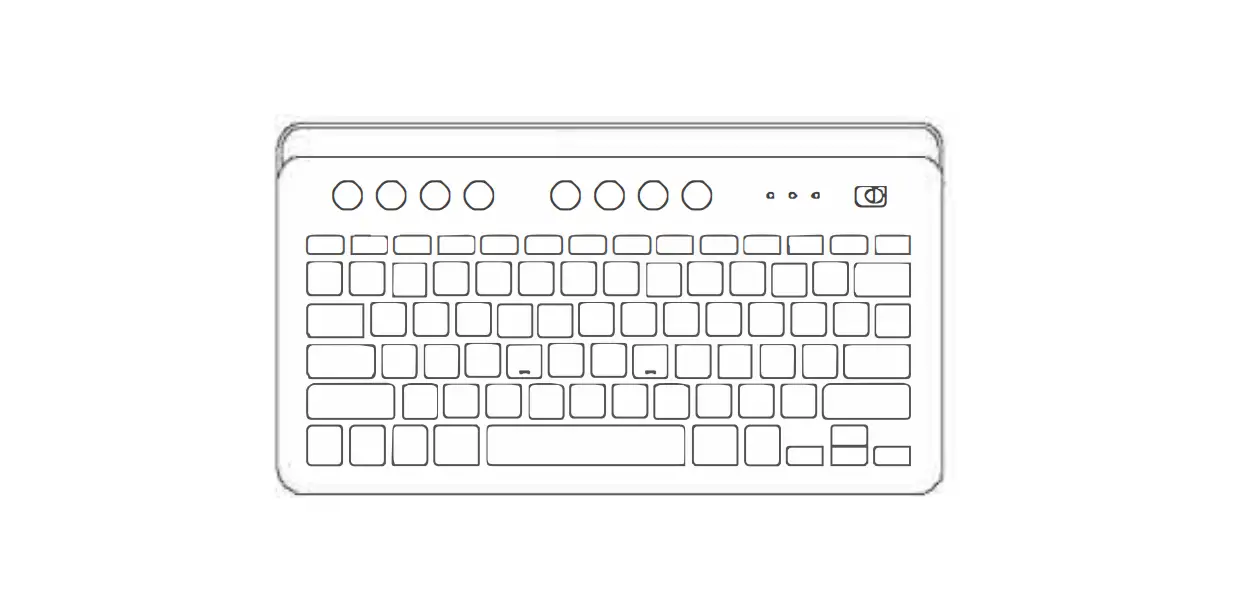
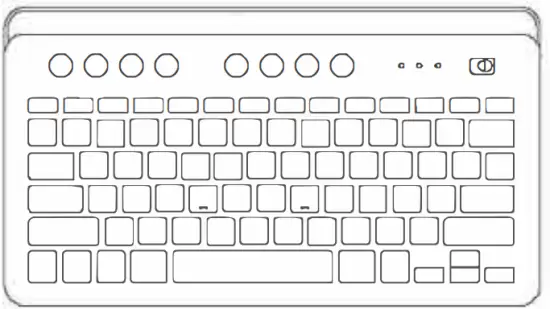
1. Multi-mode Switch. The product supports 2.4G, BT1 and BT2 connection. It can be connected with and control 3 devices. User can switch modes via the corresponding mode switch button to control the corresponding device.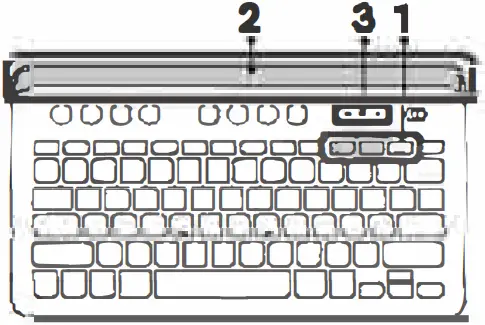 2. Integrated Holder. The top integrated holder can hold phone, tablet or other mobile devices easily. It can maintain an appropriate angle to make you easy to read when typing.
3. Rechargeable Design. Built-in large capacity Lithium battery, It can be recharged via the attached charging cable. When the keyboard is in low battery level  , it’s red power indicator light will flash. It’s red charging indicator fight
  steys on when charging and turns off when finished charging.
4. If your device system is iOS or macOS, it’ suggested to connect “BT5.0 KB” via Bluetooth. And the keyboard function will automatically adapt to iOS or macOS system.
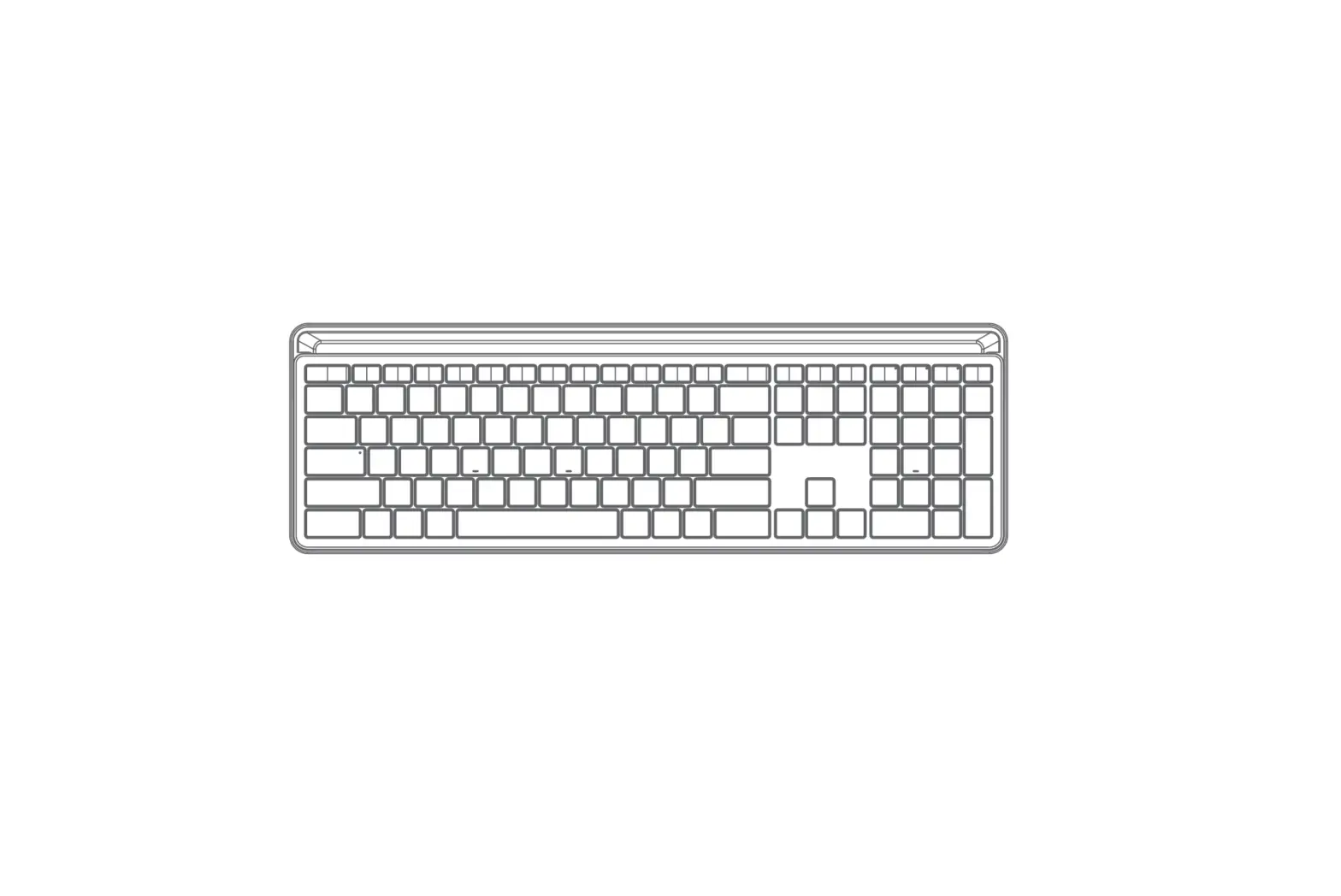
MULTIMEDIA SHORTCUTS
 |  |  |  |  | |
| Default functions | Stop | Previous Track | Pause | Next Track | Home Page |
 |  |  | |||
| Default functions | Lock Screen | Backlight Brightness Adjustment | Backlight Color Switch | ||
 |  |  |  |  | |
| Default functions | On-screen Keyboard | Decrease Brightness | Increase Brightness | Mute | Decrease Volume |
| FN Combination Functions | F1 | F2 | F3 | F4 | F5 |
 |  |  |  |  | |
| Default functions | Increase Volume | Print Screen | Search | Change Language | 2.4G Mode Key |
| FN Combination Functions | F6 | F7 | F8 | F9 | F10 |
 |  | ||||
| Default functions | BT1 Mode Key | BT2 Mode Key | |||
| FN Combination Functions | F11 | F12 | |||
Solution to Keyboard’s 2.4G mode connection Issue
- Turn on the power switch and switch the keyboard to 2.4G mode.
- Press FN and
 button for 3-5 seconds and release until the indicator of 2 4G mode flashes.
 - Plug the receiver into the computer, it is successfully connected when the indicator of 2.4G mode stops flashing. It can work then.
 button for 3-5 seconds and release until the indicator of 2 4G mode flashes.
Solution to keyboard’s BT1 mode connection issue
- Clear the Bluetooth connection list of computer.
- Turn on the power switch and switch it to
 mode.
mode. - Long press the button of
 mode for over 3s and release until its indicator light flashes.
 - Turn on the Bluetooth of computers. If your computer system is Win 7 or earlier, please select to connect “BT3.0 Keyboard”. If your device system is Win 8 or Later, iOS or macOS, please select to connect “BT5.0 KB”. The keyboard’s
 mode can work after successful connection.
 mode.
mode. mode for over 3s and release until its indicator light flashes.
 mode can work after successful connection.
BT2 Mode
Refer to BT1 mode solutions.
NOTE
If the product is still unworkable after above solutions, you could repeat those steps for a few times. If your problem can’t get solved yet, please contact our Customer Service for help (Email: [email protected])
THANKS
FCC Statement
This device complies with part 15 of the FCC rules. Operation is subject to the following two conditions: (1) this device may not cause harmful interference, and (2) this device must accept any interference received, including interference that may cause undesired operation.
Changes or modifications not expressly approved by the party responsible for compliance could void the user’s authority to operate the equipment.
NOTE: This equipment has been tested and found to comply with the limits for a Class B digital device, pursuant to part 15 of the FCC Rules. These limits are designed to provide reasonable protection against harmful interference in a residential installation. This equipment generates uses and can radiate radio frequency energy and, if not installed and used in accordance with the instructions, may cause harmful interference to radio communications. However, there is no guarantee that interference will not occur in a particular installation. If this equipment does cause harmful interference to radio or television reception, which can be determined by turning the equipment off and on, the user is encouraged to try to correct the interference by one or more of the following measures:
• Reorient or relocate the receiving antenna.
• Increase the separation between the equipment and receiver.
• Connect the equipment into an outlet on a circuit different from that to which the receiver is connected.
• Consult the dealer or an experienced radio/TV technician for help.
The device has been evaluated to meet general RF exposure requirement. The device can be used in portable exposure condition without restriction.