Control 384 Ultra-Compact Portable 2×2 USB Audio Interface
Product Information
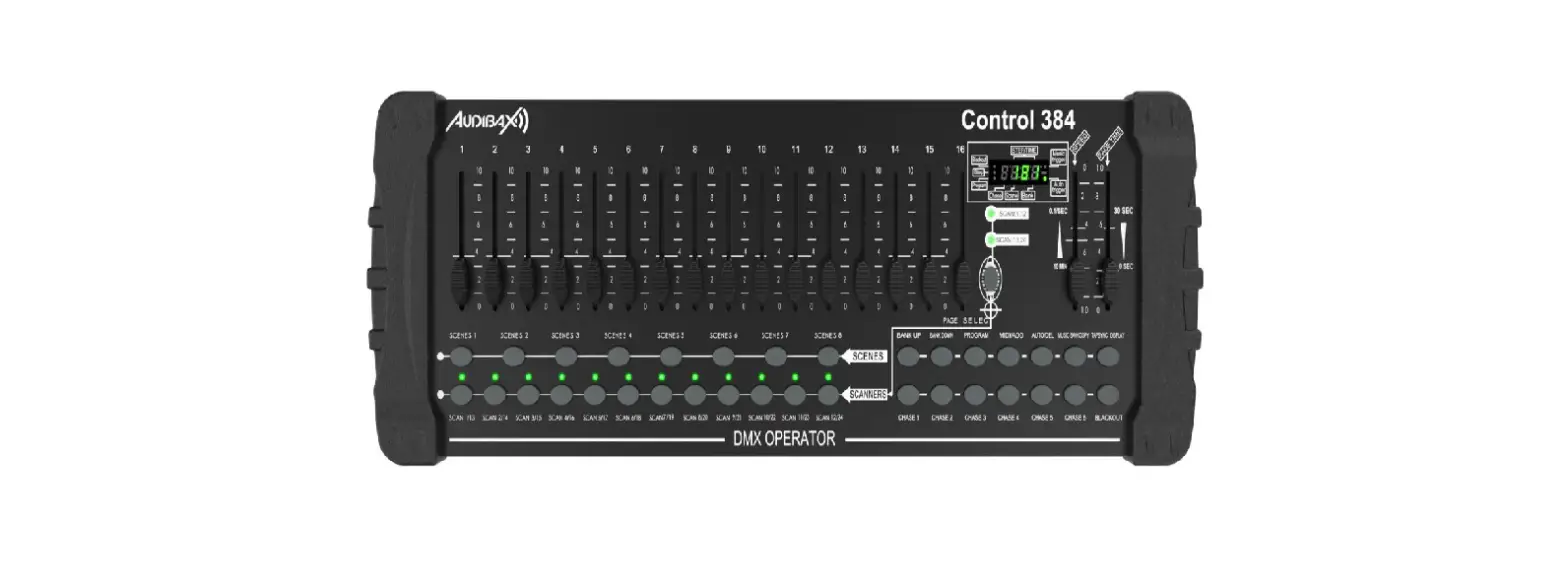
The Control 384 is a DMX-512 Controller designed for controlling
lighting fixtures. It comes with a power adapter, manual, and an
LED gooseneck lamp.
Features:
- DMX-512 Controller
- DC 9-12V 500mA, 90V~240V Power Adapter
- LED gooseneck lamp
Product Overview (front):
- Button or Fader
- Scanner select buttons
- Scanner indicator LEDS
- Scene select buttons
- Channel faders
- Program button
- Music/Bank Copy button
- LED display window
- Mode Indicator LEDS
- Bank Up button
- Bank Down button
- Tap Display button
- Blackout button
- Midi/ADD button
- Auto/Del button
- Chaser buttons
- Speed fader
- Fade-Time fader
- Page select button
Product Usage Instructions
Connecting the DMX Output:
In the Controller mode, at the last fixture in the chain, the
DMX output has to be connected with a DMX terminator to prevent
electrical noise from disturbing and corrupting the DMX control
signals. Follow these steps:
- Obtain a DMX terminator, which is an XLR connector with a 120W
(ohm) resistor connected across pins 2 and 3. - Plug the DMX terminator into the output socket on the last
projector in the chain.
Note: If you wish to connect DMX-controllers with other
XLR-outputs, you will need to use adapter-cables.
DMX Dipswitch Setup:
Refer to the DMX Dipswitch Quick Reference Chart to set up the
DMX address. Each dip switch position represents a different DMX
address. Follow the chart to set the desired address.
Safety Instructions:
Before using the product, please read the safety instructions
provided in the manual carefully. They contain important
information about installation, usage, and maintenance.
Control 384
4.4 Technical Specifications Dimensions: 520x183x73mm Weight: 3.0Kg Operation Range: DC 9V-12V 500Ma MIN Maximum ambient temperatura: 45°C Data input: locking 3-pin XLR male socket Data output: locking 3-pin XLR female socket Data pin configuration: pin 1 shield, pin 2(-), pin 3 (+) Protocols: DMX-512 USITT
15
USER´S MANUAL
Control 384
Please read the manual before using the product
Control 384
Contents 1. Before you begin
1.1 What are included……………………………………………………………………………………………………………..2 1.2 Unpacking instructions……………………………………………………………………………………………………….2 1.3 Safety instructions………………………………………………………………………………………………………………2 2. Installation 2.1 Features…………………………………………………………………………………………………………………………….2 2.2 General overview………………………………………………………………………………………………………………3 2.3 Product overview (front)…………………………………………………………………………………………………….3 2.4 Product overview (rear panel)……………………………………………………………………………………………4 2.5 Common terms………………………………………………………………………………………………………………….4 3. Operating instructions 3.1 SETUP
3.1.1 Setting up the System………………………………………………………………………………………………….5 3.1.2 Fixture Addressing……………………………………………………………………………………………………….5 3.1.3 Pan and tilt channels…………………………………………………………………………………………………..5 3.1.4 Resetting the system……………………………………………………………………………………………………6 3.1.5 Copy Scanner…………………………………………………………………………………………………………….6 3.1.6 Fade Time Assign………………………………………………………………………………………………………..6 3.2 OPERATION 3.2.1 Manual Mode…………………………………………………………………………………………………………….6 3.2.2 Review Scene or Chase………………………………………………………………………………………………7 3.3 PROGRAMMING 3.3.1 Entering program mode……………………………………………………………………………………………..7 3.3.2 Create a scene…………………………………………………………………………………………………………..7 3.3.3 Running a Program……………………………………………………………………………………………………..7 3.3.4 Check Program…………………………………………………………………………………………………………..8 3.3.5 Editing a Program……………………………………………………………………………………………………….8 3.3.6 Copy a Program…………………………………………………………………………………………………………8 3.4 CHASE PROGRAMMING 3.4.1 Create a chase…………………………………………………………………………………………………………..8 3.4.2 Running a Chase………………………………………………………………………………………………………..9 3.4.3 Checking a Chase……………………………………………………………………………………………………..9 3.4.4 Edit Chase (Copy Bank into Chase)…………………………………………………………………………….9 3.4.5 Edit Chase (Copy Scene into Chase)………………………………………………………………………….9 3.4.6 Edit Chase (Insert Scene into a Chase)……………………………………………………………………….9 3.4.7 Delete a scene in a Chase………………………………………………………………………………………….9 3.4.8 Delete a Chase…………………………………………………………………………………………………………10 3.4.9 Delete all Chase Programs………………………………………………………………………………………..10 3.5 SCENE PROGRAMMING (STEPS) 3.5.1 Insert a scene……………………………………………………………………………………………………………10 3.5.2 Copy a scene…………………………………………………………………………………………………………..10 3.5.3 Delete a scene…………………………………………………………………………………………………………10 3.5.4 Delete all scenes……………………………………………………………………………………………………….11 3.6 PLAYBACK 3.6.1 Running in Sound-Mode……………………………………………………………………………………………11 3.6.2 Running in Auto-Mode………………………………………………………………………………………………11 3.6.3 Blackout……………………………………………………………………………………………………………………11 3.7 MIDI OPERATION………………………………………………………………………………………………………………11 4. APPENDIX 4.1 DMX Primer………………………………………………………………………………………………………………………12 4.2 Fixture Linking…………………………………………………………………………………………………………………..12 4.3 DMX dipswitch quick reference chart………………………………………………………………………………13 4.4 Technical specifications……………………………………………………………………………………………………15
1
USER´S MANUAL
14
Control 384
In the Controller mode, at the last fixture in the chain, the DMX output has to be connected with a DMX terminator. This prevents electrical noise from disturbing and corrupting the DMX control signals. The DMX terminator is simply an XLR connector with a 120W (ohm) resistor connected across pins 2and 3, which is then plugged into the output socket on the last projector in the chain. The connections are illustrated below.
If you wish to connect DMX-controllers with other XLR-outputs, you need to use adapter-cables.
The transform of the controller line of 3 pins and 5 pins (plug and socket)
5Pins canon (socket) Pin 1: GND (SCREEN) Pin 2: Signal(-) Pin 3: Signal(+) Pin 4: N/C Pin 5: N/C
3Pins canon (plug) Pin 1: GND (SCREEN) Pin 2: Signal(-) Pin 3: Signal(+)
3Pins canon (socket) Pin 1: GND (SCREEN) Pin 2: Signal (-) Pin 3: Signal(+)
5Pins canon (plug) Pin 1: GND(SCREEN) Pin 2: Signal(-) Pin 3: Signal(+) Pin 4: N/C Pin 5: N/C
4.3 DMX Dipswitch Quick Reference Chart
DMX Address Quick Reference Chart
Dip Switch Posion
#9 0 0 0 0 0 0 0 0 1 1 1 1 1 1 1 1
DMX DIP SWITCH SET #8 0 0 0 0 1 1 1 1 0
00 0 1 1 1 1
0=OFF 1=ON #7 0 0 1 1 0 0 1 1 0 0 1 1 0 0 1 1
X=OFForON #6 0 1 0 1 0 1 0 1 0 1 0 1 0 1 0 1
#1 #2 #3 #4 #5
0 0 0 0 0
32 64 96 128 160 192 224 256 288 320 352 384 416 448 480
1 0 0 0 0
1 33 65 97 129 161 193 225 257 289 321 353 385 417 449 481
0 1 0 0 0
2 34 66 98 130 162 194 226 258 290 322 354 386 418 450 482
1 1 0 0 0
3 35 67 99 131 163 195 227 259 291 323 355 387 419 451 483
0 0 1 0 0 4 36 68 100 132 164 196 228 260 292 324 356 388 420 452 484
1 0 1 0 0 5 37 69 101 133 165 197 229 261 293 325 357 389 421 453 485
0 1 1 0 0
6 38 70 102 134 166 198 230 262 294 326 358 390 422 454 486
1 1 1 0 0 7 39 71 103 135 167 199 231 263 295 327 359 391 423 455 487
0 0 0 1 0 8 40 72 104 136 168 200 232 264 296 328 360 392 424 456 488
1 0 0 1 0
9 41 73 105 137 169 201 233 265 297 329 361 393 425 457 489
0 1 0 1 0
10 42 74 106 138 170 202 234 266 298 330 362 394 426 458 490
1 1 0 1 0
11 43 75 107 139 171 203 235 267 299 331 363 395 427 459 491
0 0 1 1 0
12 44 76 108 140 172 204 236 268 300 332 364 396 428 460 492
1 0 1 1 0
13 45 77 109 141 173 205 237 269 301 333 365 397 429 461 493
0 1 1 1 0 14 46 78 110 142 174 206 238 270 302 334 366 398 430 462 494
1 1 1 1 0
15 47 79 111 143 175 207 239 271 303 335 367 399 431 463 495
13
USER´S MANUAL
1. Before you begin 1.1 What are included
1) DMX-512 Controller 2) DC 9-12V 500mA, 90V~240V Power Adapter 3) Manual 4) LED gooseneck lamp
1.2 Unpacking Instructions
Immediately upon receiving a fixture, carefully unpack the carton, check the contents to ensure that all parts are present, and have been received in good condition. Notify the shipper immediately and retain packing material for inspection if any parts appear damaged from shipping or the carton itself shows signs of mishandling. Save the carton and all packing materials. In the event that a fixture must be returned to the factory, it is important that the fixture be returned in the original factory box and packing.
1.3 Safety Instructions
Please read these instructions carefully, which includes important information about the installation, usage and maintenance.
· Please keep this User Guide for future consultation. If you sell the unit to another user, be sure that they also receive this instruction booklet. · Always make sure that you are connecting to the proper voltage and that the line voltage you are connecting to is not higher than that stated on decal or rear panel of the fixture. · This product is intended for indoor use only! · To prevent risk of fire or shock, do not expose fixture to rain or moisture. Make sure there are no flammable materials close to the unit while operating. · The unit must be installed in a location with adequate ventilation, at least 50cm from adjacent surfaces. Be sure that no ventilation slots are blocked. · Always disconnect from power source before servicing or replacing lamp or fuse and be sure to replace with same lamp source. · In the event of serious operating problem, stop using the unit immediately. Never try to repair the unit by yourself. Repairs carried out by unskilled people can lead to damage or malfunction. Please contact the nearest authorized technical assistance center. Always use the same type spare parts. · Don’t connect the device to a dimmer pack. · Make sure power cord is never crimped or damaged. · Never disconnect power cord by pulling or tugging on the cord. · Do not operate this device under 113° F ambient temperature conditions.
2. INTRODUCTION 2.1 Features
· DMX512/1990 Standard · Controls 24 intelligent lights of up to 16 channels, totally 384 channels · 30 banks, each with 8 scenes; 6 chase, each with up to 240 scenes · Record up to 6 chases with fade time and speeds · 16 sliders for direct control of channels · MIDI control over banks, chases and blackout
2
Control 384
· Built-in microphone for music mode · Auto mode program controlled by fade time sliders *DMX in/out: 3pinXRL · LED gooseneck lamp · Plastic end housing
2.2 General Overview
· The Controller is a universal intelligent lighting controller. It allows the control of 24 fixtures composed of 16 channels each and up to 240 programmable scenes. Six chase banks can contain up to 240 steps composed of the saved scenes and in any order. Programs can be triggered by music, midi, automatically or manually. All chases can be executed at the same time. · On the surface you will find various programming tools such as 16 universal channel sliders, quick access scanner and scene buttons, and an LED display indicator for easier navigation of controls and menu functions.
2.3 Product Overview (front)
Item 1 2 3
4
5 6 7 8 9 10 11 12 13 14 15 16 17 18
Button or Fader Scanner select buttons Scanner indicator LEDS Scene select buttons
Channel faders
Program button Music/Bank Copy button LED display window Mode Indicator LEDS Bank Up button Bank Down button Tap Display button Blackout button Midi/ADD button Auto/Del button Chaser buttons Speed fader Fade-Time fader Page select button
Function Fixture selection Indicates the fixtures currently selected Universal bump buttons representing scene location for storage and selection For adjusting DMX values, Ch. 1~16 can be adjusted immediately after pressing the respective scanner select button Used to enter programming mode Used to activate Music mode and as the copy command during programming
Status window displays pertinent operational data Provides operating mode status, (manual, music or auto) Function button to traverse Scene/ Steps in banks or chases Function button to traverse Scene/ Steps in banks or chases Sets the chase speed by tapping, and toggles between values and percentages. Sets the shutter or dimmer value of all fixtures to “0” causing all light output to cease Activates MIDI external control and also used to confirm the record/save process
Used to activate Auto mode and as the delete function key during programming Chase memory 1 ~6 This will adjust the hold time of a scene or a step within a chase
Also considered a cross-fade, sets the interval time between two scenes in a chase In manual mode, press to toggle between pages of control
3
USER´S MANUAL
MIDI NOTE 00 to 07 08 to 15 16 to 23 24 to 31 32 to 39 40 to 47 48 to 55 56 to 63 64 to 71 72 to 79 80 to 87
FUNCTION (TURN ON/OFF) Scenes 1~8in BANK1 Scenes 1~8in BANK 2 Scenes 1~8 in BANK 3 Scenes 1~8in BANK 4 Scenes 1~8 in BANK 5 Scenes 1 -8 in BANK6 Scenes 1-8 in BANK 7 Scenes 1~8 in BANK 8 Scenes 1 ~8 in BANK 9 Scenes 1~8in BANK 10 Scenes 1~8 in BANK 11
MIDI NOTE 00 to 07 08 to 15 16 to 23 24 to 31 32 to 39 40 to 47 48 to 55 56 to 63 64 to 71 72 to 79 80 to 87
FUNCTION (TURN ON/OFF) Scenes 1~8in BANK 12 Scenes 1~8 in BANK 13 Scenes 1~8in BANK 14 Scenes 1~8 in BANK 15 Chase 1 Chase 2 Chase 3 Chase 4 Chase 5 Chase 6 BLACKOUT
4. APPENDIX 4.1 DMX Primer There are 512 channels in a DMX-512 connection. Channels may be assigned in any manner. A fixture capable of receiving DMX 512 will require one or a number of sequential channels. The user must assign a starting address on the fixture that indicates the first channel reserved in the controller. There are many different types of DMX controllable fixtures and they all may vary in the total number of channels required. Choosing a start address should be plann¬ed in advance. Channels should never overlap. If they do, this will result in erratic operation of the fixtures whose starting address is set incorrectly. You can however, control multiple fixtures of the same type using the same starting address as long as the intended result is that of unison movement or operation. In other words, the fixtures will be slaved together and all respond exactly the same.
DMX fixtures are designed to receive data through a serial Daisy Chain. A Daisy Chain connection is where the DATA OUT of one fixture connects to the DATA IN of the next fixture. The order in which the fixtures are connected is not important and has no effect on how a controller communicates to each fixture. Use an order that provides for the easiest and most direct cabling. Connect fixtures using shielded two conductor twisted pair cable with three pin XLR male to female connectors. The shield connection is pin 1, while pin 2 is Data Negative (S-) and pin 3 is Data positive (S+).
4.2 Fixture Linking Occupation of the XLR-connection:
DMX-OUTPUT XLR mounting-socket:
DMX-OUTPUT XLR mounting-plug:
1- Ground 2- Signal (-) 3- Signal (+)
1- Ground 2- Signal (-) 3- Signal (+)
Caution: At the last fixture, the DMX-cable has to be terminated with a terminator. Solder a 1200 resistor between Signal (-) and Signal (+) into a 3-pin XLR-plug and plug it in the DMX-output of the last fixture.
12
Control 384
Notes: When deleting a scene the physical location is not removed, however, all 192 DMX channels available to the scene will be set to value 0.
3.5.4 Delete All Scenes Action: 1) Press and hold the PROGRAM button and the BANK DOWN button while turning off power to the controller. 2) Turn the controller back on. Notes: CAUTION! This process is irreversible. All scenes with data will be set to 0.
3.6 Playback 3.6.1 Running In Sound-Mode Action: 1) Press the MUSIC BANK COPY button until the MUSIC LED turns on. 2) Select the program BANK to run in sound active mode using the BANK UP /DOWN buttons. 3) Alternatively you can press a single CHASE button (1-6) or several CHASE buttons in sequence and all selected chases will loop in the order selected. 4) You can adjust the duration time using the FADE TIME fader. Notes: In the Sound mode, programs will be triggered by the sound using its built-in microphone. Multiple chases selected will loop and run in the order originally selected.
3.6.2 Running In Auto-Mode Action: 1) Press the AUTO DEL button until the AUTO LED turns on. 2) If a CHASE button is not pressed the controller will automatically run a BANK program 3) Change BANK programs by using BANKUP/DOWN buttons. 4) Alternatively you can press a single CHASE button (1~6) or several CHASE buttons in sequence and all selected chases will loop in the order selected. 5) You can adjust the time between steps by moving the SPEED fader and the duration of the step by moving the FADE TIME fader. Notes: In the Auto mode, programs will be triggered by controllers fade and speed time as set on the faders. Multiple chases selected will loop and run in the order originally selected.
3.6.3 Blackout The Blackout button brings all lighting output to 0 or off.
3.7 Midi Operation The controller will only respond to MIDI commands on the MIDI channel which it is set to full stop. All MIDI control is performed using Note on commands. All other MIDI instructions are ignored. To stop a chase, send the blackout on note. Action: 1) Press and hold the MIDI/ADD button for about 3 seconds 2) Select the MIDI control channel (1~16) via the BANK UP/DOWN buttons to set. 3) Press and hold the MIDI/ADD button for 3 seconds to save settings. 4) To release MIDI control, press any other button except the BANK buttons during Notes: This is the Channel that the controller will receive MIDI note commands.
11
2.4 Product Overview (rear panel)
USER´S MANUAL
Item 21
22 23
24
25
Button or Fader
Function
MIDI input port
For external triggering of Banks and Chases using a MIDI device
DMX output connector DMX control signal
DC Input jack
Main power feed
USB Lamp socket
ON/OFF power switch Turns the controller on and off
2.5 Common Terms
The following are common terms used in intelligent light programming. Blackout is a state by where all lighting fixtures light output are set to 0 or off, usually on a temporary basis. DMX-512 is an industry standard digital communication protocol used in entertainment lighting equipment. For more information, read Sections “DMX Primer” and “DMX Control Mode” in the Appendix. Fixture refers to your lighting instrument or other device such as a fogger or dimmer of which you can control. Programs are a bunch of scenes stacked one after another. It can be programmed as either a single scene or multiple scenes in sequence. Scenes are static lighting states. Sliders also known as faders. Chases can also be called programs. A chase consists of a bunch of scenes stacked one after another. Scanner refers to a lighting instrument with a pan and tilt mirror; however, in the ILS-CON controller it can be used to control any DMX-512 compatible device as a generic fixture. MIDI is a standard for representing musical information in a digital format. A MIDI input would provide external triggering of scenes using midi device such as a midi keyboard. Stand Alone refers to a fixture, s ability to function independently of an external controller and usually in sync to music, due to a built in microphone. Fade slider is used to adjust the time between scenes within a chase. Speed slider affects the amount of time a scene will hold its state. It is also considered a wait time. Shutter is a mechanical device in the lighting fixture that allows you to block the lights path. It is often used to lessen the intensity of the light output and to strobe. Patching refers to the process of assigning fixtures a DMX channel or. Playbacks can be either scenes or chases that are directly called to execution by the user. A playback can also be considered program memory that can be recalled during a show.
4
Control 384
3. OPERATING INSTRUCTIONS 3.1 Setup 3.1.1 Setting Up The System
1) Plug the AC to DC power supply to the system back panel and to the mains outlet. 2) Plug in your DMX cable(s) to your intelligent lighting as described in the fixtures respective manual. For a quick Primer on DMX see the “DMX Primer” section in the Appendix of this manual.
3.1.2 Fixture Addressing
The Controller is programmed to control 32 channels of DMX per fixture, therefore the fixtures you wish to control with the corresponding “SCANNER” buttons on the unit, must be spaced 16 channels apart.
FIXTURE OR SCANNER#
1 2 3 4 5 6 7 8 9 10 11 12
DEFAULT DMX
STARTING ADDRESS
1 17 33 49 65 81 97 113 129 145 161 177
BINARYDIPSWITCH SETTINGS TO THE “ONPOSITION”
1 1,5 1,6 1,5,6 1,7 1,5,7 1,6,7 1,5,6,7 1,8 1,5,8 1,6,8 1,5,6,8
FIXTURE OR SCANNER#
13 14 15 16 17 18 19 20 21 22 23 24
DEFAULT DMX
STARTING ADDRESS
193 209 225 241 257 273 289 305 321 337 353 369
BINARYDIPSWITCH SETTINGS TO THE “ONPOSITION”
1,7,8 1,5,7,8 1,6,7,8 1,5,6,7,8
1,9 1,5,9 1,6,9 1,5,6,9 1,7,9 1,5,7,9 1,6,7,9 1,5,6,7,9
Please refer to your individual fixture’s manual for DMX addressing instructions. The table above refers to a standard 9 dipswitch binary configurable device.
3.1.3 Pan and Tilt Channels Because not all intelligent lighting fixtures are alike or share the same control attributes. The Controller allows the user to assign the wheel the correct pan and tilt channel for every individual fixture. Action: 1) Press and hold PROGRAM & TAPSYNC different DMX cannel. Faders are given a channel buttons together (1) time to access the number and are labeled on the surface of the channel as signment mode. 2) Press a SCANNER button or PAGE SELECT button that represents the fixture whose faders you would like to reassign 3) Move one fader of 16 channels to select the pan cannel. 4) Press the TAPSYNC DISPLAY button to select pan / tilt. 5) Move one fader of 16 channel to select the tilt cannel 6) Press and hold PROGRAM & APSYNC DISPLY buttons to exit and save setting. All LEDs will blink
5
USER´S MANUAL
3.4.8 Delete A Chase Action: 1) Press and hold the PROGRAM button to enter programming mode 2) Press the CHASE button (1~6) to be deleted 3) Press and hold AUTO DEL button and the respective CHASE button to delete the chase. All LEDs will blink.
3.4.9 Delete All Chase Programs CAUTION! This procedure will result in irrevocable loss of chase step memory. The individual scenes and program banks will be preserved. Action: 1) Turn OFF controller 2) Press and hold the BANK DOWN button and the AUTO DEL button while turning ON the controller. 3) AII LEDs will blink.
3.5 Scene Programming (Steps) 3.5.1 Insert a Scene Action: 1) Press and hold the PROGRAM button to enter programming mode 2) Press the desired CHASE button 3) Press the TAPSYNC DISPLAY to switch the LED display to steps view 4) Use the BANKUP/DOWN buttons to navigate steps and locate the insert point of the new scene The display will read the step number 5) Press MIDI/ADD button to prepare the insert 6) Use the BANKUP/DOWN button to locate the SCENE 7) Press the SCENE button that corresponds to the scene to be inserted 8) Press MIDI/ADD button to insert the scene. All LEDs will blink. Notes: /.e. To insert a scene between Steps 05 and 06 navigate using BANK buttons until the display reads STEP05.
3.5.2 Copy a Scene Action: 1) Press and hold the PROGRAM button to enter programming mode 2) Select the BANK that contains the scene to be copied using the BANK UP/DOWN buttons 3) Press the SCENE button that corresponds to the scene to be copied 4) Press MIDI/ADD button to copy the scene 5) Select the destination BANK that contains the scene memory to record onto using the BANKUP/DOWN buttons 6) Press the desired SCENE button to complete copy. All LEDs will blink
3.5.3 Delete a Scene Action: 1) Press and hold the PROGRAM button to enter programming mode. 2) Select the BANK that contains the scene to be deleted by using the BANK UP/ DOWN buttons. 3) Press and hold the AUTO DEL button. 4) Press the SCENE button that corresponds to the scene you want to delete. All LEDs will blink.
10
Control 384
3.4.2 Running AChase Action: 1) Press a CHASE button then press the AUTO DEL button. 2) Adjust the Chase speed by tapping the TAPSYNC DISPLAY button twice at a rate of your choosing. Notes: The time between 2 taps will set the chase speed (up to 10 minutes)
3.4.3 Checking A Chase Action: 1) Press and hold the PROGRAM button until the LED is light. 2) Select the desired CHASE button. 3) Press the TAPSYNC DISPLAY button to switch the LED display to steps. 4) Review each scene/step individually by using the BANK UP/DOWN buttons.
3.4.4 Edit Chase (Copy Bank Into Chase) Action: 1) Press and hold the PROGRAM button Notes to enter programming mode. 2) Press the desired CHASE button. 3) Select the BANK to be copied using the BANK UP/DOWN buttons. 4) Press MUSIC/BANK COPY button to prepare copy. 5) Press MIDI/ADD button to copy the bank. All LEDs will blink.
3.4.5 Edit Chase (Copy Scene Into Chase) Action: 1) Press and hold the PROGRAM button to enter programming mode. 2) Press the desired CHASE button 3) Select the BANK that contains the scene to be copied using the BANK UP/DOWN buttons. 4) Press the SCENE button that corresponds to the scene to be copied. 5) Press MIDI/ADD button to copy the scene. All LEDs will blink.
3.4.6 Edit Chase (Insert Scene Into A Chase) Action: 1) Press and hold the PROGRAM button to enter programming mode 2) Press the desired CHASE button 3) Press the TAPSYNC DISPLAY to switch the LED display to steps view 4) Use the BANK UP/DOWN buttons to navigate steps and locate the insert point of the new scene. The display will read the step number. 5) Press MIDI/ADD button to prepare the insert 6) Use the BANK UP/DOWN button to locate the SCENE 7) Press the SCENE button that corresponds to the scene to be inserted 8) Press MIDI/ADD button to insert the scene. All LEDs will blink Notes: /.e. To insert a scene between Steps 05 and 06 navigate using BANK buttons until the display reads STEP05.
3.4.7 Delete a Scene in a Chase Action: 1) Press and hold the PROGRAM button to enter programming mode 2) Press the desired CHASE button that contains the scene to be deleted 3) Press the TAPSYNC DISPLAY button to switch the LED display to steps 4) Select the scene/step to be deleted using the BANK UP/DOWN buttons 5) Press AUTO DEL button to delete the step/scene.AII LEDs will blink
9
Notes: All pan/tilt can be reassigned to output on a different DMX channel. Press AUTO/DEL buttons to delete the channel assignment mode. All pan/tilt can be reassigned to output on a different DMX channel.
USER´S MANUAL
3.1.4 Resetting The System Warning: This will reset the controller to its factory defaults. This will erase all programs and settings. Action: 1) Turn off the unit. 2) Press and hold BANK UP and AUTO/DEL. Turn on power to the unit (while still holding BANK UP and AUTO/DEL).
3.1.5 Copy Scanner Example: Copying Scanner 1 into Scanner 2 Action: 1) Press and hold SCANNER button # 1. 2) While holding button # 1 press SCANNER button #2. 3) Release SCANNER button # 1 first before releasing SCANNER button # 2. 4) All SCANNER LED indicators will flash to confirm successful copy. Notes: To save time, you can copy the settings of one Scanner button to another.
3.1.6 Fade Time Assign You can choose whether the board’s fade time during scene execution is implemented broadly to all output channels or only to the Pan & Tilt move¬ment channels. This is relevant because often you will want gobos and colors to change quickly while not affecting the movement of the light. Action: 1) Turn OFF the controller. 2) Hold the BLACKOUT and TAPSYNC DISPLAY buttons simultaneously. 3) Turn ON the controller. 4) Press the TAPSYNC DISPLAY button to toggle between the two modes. Either all channels (A) or select channel Pan & Tilt only (P) 5) Press BLACKOUT and TAPSYNC DISPLAY to save settings. All LEDs will blink to confirm. Notes: A: All channels P: Only Pan & Tilt
3.2 Operation 3.2.1 Manual Mode The manual mode allows direct control of all scanners. You are able to move them and change attributes by using the channel faders. Action: 1) Press the AUTO DEL button repeatedly until the MANUAL LED is lit. 2) Selects SCANNER button. 3) Move faders to change fixture attributes. TAPSYNC DISPLAY button: Press to toggle the output indicator on the LED display between DMX values (0-255) and percentage (0-100)
6
Control 384
Notes: All changes made while in Manual Mode are temporary and will not be recorded.
3.2.2 Review Scene Or Chase This instruction assumes that you have already recorded scenes and chases on the controller. Otherwise skip section and go to programming. Action: (Scene Review) 1) Select any one of the 30 banks by pressing the BANK UP/DOWN buttons. 2) Select a SCENE button (1 ~8) to review. 3) Move wheel and faders to change fixture attributes. Action: (Chase Review) 1) Press anyone of the 6 CHASE buttons. 2) Press the TAP DISPLAY button to view the step number on the display. 3) Press the BANK UP/DOWN buttons review all scenes in the chase. Notes: Make sure you are still in MANUAL Mode.
3.3 Programming A program (bank) is a sequence of different scenes (or steps) that will be called up one after another. ln the controller 30 programs can be created of 8 scenes in each.
3.3.1Entering Program Mode 1) Press the Program button until the LED blinks.
3.3.2 Create A Scene A scene is a static lighting state. Scenes are stored in banks. There are 30 bank memories on the controller and each bank can hold 8 scene memories. The controller can save 240 scenes total. Action: 1) Press the PROGRAM button until the LED blinks. 2) Position SPEED and FADE TIME sliders all the way down. 3) Select the SCANNERS you wish to include in your scene. 4) Compose a look by moving the sliders and wheel. Tap MIDI/REC button. 5) Choose a BANK (01-30) to change if necessary. 6) Select a SCENES button to store. 7) Repeat steps 3 through 7 as necessary. 8 scenes can be recorded in a Program. 8) To exit program mode, hold the PROGRAM button. Notes: Deselect Blackout if LED is lit. You can select more than one fixture. There are 8 scenes available in every bank. All LEDs will flash to confirm. The LED display will now indicate the Scene number and Bank number used.
3.3.3 Running A Program Action: 1) Use BANKUP/DOWN buttons to change Program banks if necessary. 2) Press the AUTO DEL button repeat¬edly until the AUTO LED turns on. 3) Adjust the PROGRAM speed via the SPEED fader and the loop rate via the FADE TIME fader.
7
USER´S MANUAL
4) Alternatively you can tap the TAPSYNC DISPLAY button twice. The time between two taps sets the time between SCENES (up to 10 minutes). Notes: Deselect Blackout if LED is lit. Also called a Tap-Sync.
3.3.4 Check Program Action: 1) Press and hold the PROGRAM button until the LED blinks. 2) Use the BANK UP/DOWN buttons to select the PROGRAM bank to review. 3) Press the SCENES buttons to review each scene individually.
3.3.5 Editing A Program Scenes will need to be modified manually. Action: 1) Press and hold the PROGRAM button until the LED blinks. 2) Use BANK UP/DOWN buttons to change Program banks if necessary. 3) Select the desired fixture via the SCANNERS button. 4) Adjust and change fixture attributes using the channel faders and wheel. 5) Press the MIDI/ADD button to prepare the save. 6) Select the desired SCENES button to save. Notes: Deselect Blackout if LED is lit.
3.3.6 Copy A Program Action: 1) Press and hold the PROGRAM button until the LED blinks. 2) Use BANK UP/DOWN buttons to select the PROGRAM bank you will copy. 3) Press the MIDI/ADD button to prepare the copy. 4) Use BANK UP/DOWN buttons to select the destination PROGRAM bank. 5) Press the MUSIC BANK COPY button to execute the copy. All LEDs on the controller will blink. Notes: All 8 scenes in a Program bank will be copied.
3.4 Chase Programming A chase is created by using previously created scenes. Scenes become steps in a chase and can be arranged in any order you choose. It is highly recommended that prior to programming chases for the first time; you delete all chases from memory. See “Delete All Chases” for instructions.
3.4.1 Create A Chase A Chase can contain 240 scenes as steps. The term steps and scenes are used interchangeably. Action: 1) Press the PROGRAM button until the LED blinks. 2) Press the CHASE (1 ~6) button you wish to program. 3) Change BANK if necessary to locate a scene. 4) Select the SCENE to insert. 5) Tap the MIDI/ADD button to store. 6) Repeat steps 3 ~ 5 to add additional steps in the chase. Up to 240 steps can be recorded. 7) Press and hold the PROGRAM button to save the chase.
8
Control 384
4.4 Especificaciones técnicas Dimensiones: 520x183x73mm Peso: 3.0Kg Rango de operación: DC 9V-12V 500Ma MIN Temperatura ambiente máxima: 45°C Entrada de datos: macho XLR de 3 pines con bloqueo Salida de datos: hembra XLR de 3 pines con bloqueo Configuración de pin de datos: pin 1 escudo, pin 2 (-), pin 3 (+) Protocolos: DMX-512 USITT
15
MANUAL DE USUARIO
Control 384
Por favor, lea el manual antes de usar el producto
Control 384
Contenido 1. Antes de comenzar
1.1 Contenido…………………………………………………………………………………………………………………………2 1.2 Instrucciones de desembalaje……………………………………………………………………………………………2 1.3 Instrucciones de seguridad………………………………………………………………………………………………..2 2. Introducción 2.1 Características…………………………………………………………………………………………………………………..2 2.2 Visión general…………………………………………………………………………………………………………………….3 2.3 Vista general del producto (frente)……………………………………………………………………………………3 2.4 Vista general del producto (panel trasero)………………………………………………………………………..4 2.5 Términos comunes……………………………………………………………………………………………………………..4 3. Instrucciones de operación 3.1 CONFIGURACIÓN
3.1.1 Configuración del sistema…………………………………………………………………………………………..5 3.1.2 Direccionamiento de dispositivos………………………………………………………………………………..5 3.1.3 Canales panorámicos y de inclinación……………………………………………………………………….5 3.1.4 Restablecimiento del sistema……………………………………………………………………………………..6 3.1.5 Escáner de copias………………………………………………………………………………………………………6 3.1.6 Fade Time Asignar………………………………………………………………………………………………………6 3.2 OPERACIÓN 3.2.1 Modo Manual…………………………………………………………………………………………………………….6 3.2.2 Revisa Escena o Chase……………………………………………………………………………………………….7 3.3 PROGRAMACIÓN 3.3.1 Entrar en el modo de programación…………………………………………………………………………..7 3.3.2 Crear una escena………………………………………………………………………………………………………7 3.3.3 Ejecutar un programa ………………………………………………………………………………………………..7 3.3.4 Ver programa……………………………………………………………………………………………………………..8 3.3.5 Edición de un programa……………………………………………………………………………………………..8 3.3.6 Copiar un programa…………………………………………………………………………………………………..8 3.4 PROGRAMACIÓN DE CHASE 3.4.1 Crear una chase…………………………………………………………………………………………………………8 3.4.2 Correr una Chase……………………………………………………………………………………………………….9 3.4.3 Comprobación de un Chase………………………………………………………………………………………9 3.4.4 Editar Chase (Copiar banco en Chase)………………………………………………………………………9 3.4.5 Editar Chase (Copiar escena en Chase)…………………………………………………………………….9 3.4.6 Editar Chase (Insertar Escena en un Chase)………………………………………………………………..9 3.4.7 Eliminar una escena en un Chase……………………………………………………………………………….9 3.4.8 Eliminar un Chase……………………………………………………………………………………………………..10 3.4.9 Eliminar todos los programas de Chase…………………………………………………………………….10 3.5 PROGRAMACIÓN DE ESCENAS (PASOS) 3.5.1 Insertar una escena…………………………………………………………………………………………………..10 3.5.2 Copia una escena……………………………………………………………………………………………………10 3.5.3 Eliminar una escena………………………………………………………………………………………………….10 3.5.4 Eliminar todas las escenas…………………………………………………………………………………………11 3.6 REPRODUCCIÓN 3.6.1 Funcionamiento en modo de sonido………………………………………………………………………..11 3.6.2 Funcionamiento en modo automático……………………………………………………………………..11 3.6.3 Apagón…………………………………………………………………………………………………………………….11 3.7 FUNCIONAMIENTO MIDI……………………………………………………………………………………………………11 4. APÉNDICE 4.1 Cartilla DMX……………………………………………………………………………………………………………………..12 4.2 Vinculación de accesorios……………………………………………………………………………………………….12 4.3 Tabla de referencia rápida de interruptores DMX…………………………………………………………….13 4.4 Especificaciones técnicas………………………………………………………………………………………………..15
1
Posición de interuptor Dip
MANUAL DE USUARIO
Dirección DMX
14
Control 384
En el modo Controlador, en el último dispositivo de la cadena, la salida DMX debe conectarse con un terminador DMX. Esto evita que el ruido eléctrico perturbe y corrompa las señales de control DMX. El terminador DMX es simplemente un conector XLR con una resistencia de 120 W (ohmios) conectada entre los pines 2 y 3, que luego se enchufa en el enchufe de salida del último proyector de la cadena. Las conexiones se ilustran a continuación.
Si desea conectar controladores DMX con otras salidas XLR, necesita usar cables adaptadores.
La transformación de la línea del controlador de 3 pines y 5 pines (enchufe y enchufe)
Canon de 5 pines (enchufe) Pin 1: TIERRA (PANTALLA) Pin 2: Señal (-) Pin 3: Señal (+) Clavija 4: N/C Clavija 5: N/C
Canon de 3 pines (enchufe) Pin 1: TIERRA (PANTALLA) Pin 2: señal (-) Pin 3: Señal (+)
Canon de 3 pines (enchufe) Pin 1: TIERRA (PANTALLA) Clavija 2: Señal (-) Pin 3: Señal (+)
Canon de 5 pines (enchufe) Pin 1: TIERRA (PANTALLA) Pin 2: Señal (-) Pin 3: Señal (+) Clavija 4: N/C Clavija 5: N/C
4.3 Tabla de referencia rápida de conmutadores DIP DMX
Tabla de referencia rápida de direcciones DMX
Posición del interruptor DIP
#9 0 0 0 0 0 0 0 0 1 1 1 1 1 1 1 1
DMX DIP SWITCH #8 0 0 0 0 1 1 1 1 0 0 0 0 1 1 1 1 SET 0=OFF 1=ON #7 0 0 1 1 0 0 1 1 0 0 1 1 0 0 1 1
X=OFForON #6 0 1 0 1 0 1 0 1 0 1 0 1 0 1 0 1
#1 #2 #3 #4 #5
0 0 0 0 0
32 64 96 128 160 192 224 256 288 320 352 384 416 448 480
1 0 0 0 0
1 33 65 97 129 161 193 225 257 289 321 353 385 417 449 481
0 1 0 0 0
2 34 66 98 130 162 194 226 258 290 322 354 386 418 450 482
1 1 0 0 0
3 35 67 99 131 163 195 227 259 291 323 355 387 419 451 483
0 0 1 0 0
4 36 68 100 132 164 196 228 260 292 324 356 388 420 452 484
1 0 1 0 0
5 37 69 101 133 165 197 229 261 293 325 357 389 421 453 485
0 1 1 0 0
6 38 70 102 134 166 198 230 262 294 326 358 390 422 454 486
1 1 1 0 0
7 39 71 103 135 167 199 231 263 295 327 359 391 423 455 487
0 0 0 1 0
8 40 72 104 136 168 200 232 264 296 328 360 392 424 456 488
1 0 0 1 0
9 41 73 105 137 169 201 233 265 297 329 361 393 425 457 489
0 1 0 1 0
10 42 74 106 138 170 202 234 266 298 330 362 394 426 458 490
1 1 0 1 0
11 43 75 107 139 171 203 235 267 299 331 363 395 427 459 491
0 0 1 1 0
12 44 76 108 140 172 204 236 268 300 332 364 396 428 460 492
1 0 1 1 0
13 45 77 109 141 173 205 237 269 301 333 365 397 429 461 493
0 1 1 1 0
14 46 78 110 142 174 206 238 270 302 334 366 398 430 462 494
1 1 1 1 0
15 47 79 111 143 175 207 239 271 303 335 367 399 431 463 495
13
MANUAL DE USUARIO
Antes de comezar 1.1 Qué están incluidos 1) Controlador DMX-512 2) Adaptador de corriente CC 9-12 V 500 mA, 90 V ~ 240 V 3) Manual 4) Lámpara de cuello de cisne LED
1.2 Instrucciones de desembalaje Inmediatamente después de recibir un accesorio, desembale con cuidado la caja, verifique el contenido para asegurarse de que todas las piezas estén presentes y se hayan recibido en buenas condiciones. Notifique al remitente de inmediato y conserve el material de embalaje para su inspección si alguna pieza parece dañada por el envío o si la caja muestra signos de maltrato. Guarde la caja y todos los materiales de embalaje.
1.3 Instrucciones de seguridad Lea atentamente estas instrucciones, que incluyen información importante sobre la instalación, el uso y el mantenimiento. · Guarde esta Guía del usuario para futuras consultas. Si vende la unidad a otro usuario, asegúrese de que también reciba este folleto de instrucciones. · Siempre asegúrese de que está conectando al voltaje adecuado y que el voltaje de línea al que se está conectando no es más alto que el indicado en la etiqueta o en el panel trasero del aparato. · ¡Este producto está diseñado para uso en interiores solamente! · Para evitar el riesgo de incendio o descarga eléctrica, no exponga el accesorio a la lluvia ni a la humedad. Asegúrese de que no haya materiales inflamables cerca de la unidad mientras está en funcionamiento. · La unidad debe instalarse en un lugar con ventilación adecuada, al menos a 50 cm de las superficies adyacentes. Asegúrese de que no haya ranuras de ventilación bloqueadas. · Desconecte siempre de la fuente de alimentación antes de reparar o reemplazar la lámpara o el fusible y asegúrese de reemplazar con la misma fuente de lámpara. · En caso de un problema de funcionamiento grave, deje de utilizar la unidad inmediatamente. Nunca intente reparar la unidad usted mismo. Las reparaciones realizadas por personas no cualificadas pueden provocar daños o fallos de funcionamiento. Póngase en contacto con el centro de asistencia técnica autorizado más cercano. Utilice siempre recambios del mismo tipo. ·No conecte el dispositivo a un regulador de intensidad. ·Asegúrese de que el cable de alimentación nunca esté doblado o dañado. ·Nunca desconecte el cable de alimentación tirando o tirando del cable. ·No opere este dispositivo bajo condiciones de temperatura ambiente de 113° F.
2. INTRODUCCIÓN 2.1 Características
· Estándar DMX512/1990 · Controla 24 luces inteligentes de hasta 16 canales, en total 384 canales · 30 bancos, cada uno con 8 escenas; 6 chases, cada una con hasta 240 escenas · Graba hasta 6 secuencias con tiempo y velocidades de desvanecimiento · 16 controles deslizantes para control directo de canales · Control MIDI sobre bancos, secuencias y apagón
2
Control 384
· Micrófono incorporado para el modo de música · Programa de modo automático controlado por controles deslizantes de tiempo de atenuación · Entrada/salida DMX: 3pinXRL · Lámpara de cuello de cisne LED · Carcasa final de plástico
2.2 Visión general · Es un controlador de iluminación inteligente universal. Permite el control de 24 aparatos compuestos de 16 canales cada uno y hasta 240 escenas programables. Seis chase banks pueden contener hasta 240 steps compuestos por las escenas guardadas y en cualquier orden. Los programas pueden activarse con música, midi. automática o manualmente. Todas las secuencias se pueden ejecutar al mismo tiempo. · En la superficie encontrará varias herramientas de programación, como 16 controles deslizantes de canales universales, botones de escena y escáner de acceso rápido, y un indicador de pantalla LED para facilitar la navegación por los controles y las funciones del menú.
2.3 Descripción general del producto (frente)
Art. Botón o Fader 1 Botones de selección del escáner 2 Indicadores LED del escáner 3 Botones de selección de escena
4 Atenuadores de canal
5 Botón de programa 6 Botón de copia de música/banco
7 ventana de visualización LED 8 Indicadores LED de modo 9 Botón Banco arriba 10 Botón Banco abajo 11 Toque el botón Mostrar 12 botón de apagón
13 Botón MIDI/AÑADIR
14 Botón Automático/Borrar
15 Botones de persecución 16 Fader de velocidad 17 Fader de tiempo de fundido
18 Botón de selección de página
Función Selección de accesorios Indica los aparatos actualmente seleccionados Botones de golpe universales que representan la ubicación de la escena para el almacenamiento y la selección Para ajustar los valores DMX, Ch. 1~16 se puede ajustar inmediatamente después de presionar el botón de selección del escáner respectivo Se utiliza para entrar en el modo de programación Se utiliza para activar el modo Música y como comando de copia durante la programación La ventana de estado muestra los datos operativos pertinentes Proporciona el estado del modo de funcionamiento (manual, música o automático) Botón de función para atravesar escenas/pasos en bancos o secuenc ias Botón de función para atravesar escenas/pasos en bancos o secuencias Establece la velocidad de chase tocando y alterna entre valores y porcentajes. Establece el valor del obturador o del atenuador de todos los dispositivos en “0”, lo que hace que cese toda la salida de luz Activa el control externo MIDI y también se utiliza para confirmar el proceso de grabación/guardado Se utiliza para activar el modo automático y como tecla de función de borrado durante la programación Persecución de memoria 1 ~ 6 Esto ajustará el tiempo de espera de una escena o un paso dentro de una persecución. También considerado un fundido cruzado, establece el intervalo de tiempo entre dos escenas en una persecución. En modo manual, presione para alternar entre las páginas de control
3
MANUAL DE USUARIO
NOTA MIDI 00 to 07 08 to 15 16 to 23 24 to 31 32 to 39 40 to 47 48 to 55 56 to 63 64 to 71 72 to 79 80 to 87
FUNCIÓN(ENCENDIDO/APAGADO) Escenas 1~8 en BANK1 Escenas 1~8 en BANK 2 Escenas 1~8 en BANK 3 Escenas 1~8 en BANK 4 Escenas 1~8 en BANK 5 Escenas 1 -8 en BANK6 Escenas 1-8 en BANK 7 Escenas 1~8 en BANK 8 Escenas 1 ~ 8 en BANK 9 Escenas 1~8 en BANK 10 Escenas 1~8 en BANK 11
NOTA MIDI 00 to 07 08 to 15 16 to 23 24 to 31 32 to 39 40 to 47 48 to 55 56 to 63 64 to 71 72 to 79 80 to 87
FUNCIÓN (ENCENDIDO/APAGADO) Escenas 1~8 en BANK 12 Escenas 1~8 en BANK 13 Escenas 1~8 en BANK 14 Escenas 1~8 en BANK 15 Chase 1 Chase 2 Chase 3 Chase 4 Chase 5 Chase 6 BLACKOUT
4. APÉNDICE 4.1 Introducción a DMX Hay 512 canales en una conexión DMX-512. Los canales se pueden asignar de cualquier manera. Un dispositivo capaz de recibir DMX 512 requerirá uno o varios canales secuenciales. El usuario debe asignar una dirección de inicio en el aparato que indique el primer canal reservado en el controlador. Hay muchos tipos diferentes de dispositivos controlables por DMX y todos ellos pueden variar en el número total de canales requeridos. La elección de una dirección de inicio debe planificarse con antelación. Los canales nunca deben superponerse. Si lo hacen, esto dará como resultado un funcionamiento errático de los dispositivos cuya dirección de inicio esté configurada incorrectamente. Sin embargo, puede controlar varios dispositivos del mismo tipo utilizando la misma dirección de inicio siempre que el resultado previsto sea el de movimiento u operación al unísono. En otras palabras, las luminarias estarán esclavizadas juntas y todas responderán exactamente igual.
Los dispositivos DMX están diseñados para recibir datos a través de un Daisy Chain en serie. Una conexión Daisy Chain es donde la SALIDA DE DATOS de un dispositivo se conecta a la ENTRADA DE DATOS del siguiente dispositivo. El orden en que se conectan los dispositivos no es importante y no tiene efecto sobre cómo un controlador se comunica con cada dispositivo. Utilice un orden que proporcione el cableado más sencillo y directo. Conecte las luminarias utilizando un cable de par trenzado blindado de dos conductores con conectores XLR macho a hembra de tres pines. La conexión de blindaje es el pin 1, mientras que el pin 2 es Datos negativos (S-) y el pin 3 es Datos positivos (S+).
4.2 Vinculación de accesorios
SALIDA DMX Toma de montaje XLR:
SALIDA DMX Enchufe de montaje XLR:
1- Tierra 2- Señal (-) 3- Señal (+)
1- Tierra 2- Señal (-) 3- Señal (+)
Precaución: en el último dispositivo, el cable DMX debe terminarse con un terminador. Suelde una resistencia de 1200 entre Signal (-) y Signal (+) en un conector XLR de 3 pines y conéctelo a la salida DMX del último dispositivo.
12
Control 384
Notas: Al eliminar una escena, la ubicación física no se elimina; sin embargo, los 192 canales DMX disponibles para la escena se establecerán en el valor 0.
3.5.4 Eliminar todas las escenas Acción: 1) Mantenga presionado el botón PROGRAM y el botón BANK DOWN mientras apaga el controlador. 2) Vuelva a encender el controlador. Notas: ¡Este proceso es irreversible. Todas las escenas con datos se establecerán en 0!
3.6 Reproducción 3.6.1 Funcionamiento en modo de sonido Acción: 1) Pulse el botón MUSIC BANK COPY hasta que se encienda el LED MUSIC. 2) Seleccione el programa BANCO para ejecutar en modo activo por sonido utilizando los botones BANCO ARRIBA/ABAJO. 3) Alternativamente, puede presionar un solo botón CHASE (1-6) o varios botones CHASE en secuencia y todas las secuencias seleccionadas se repetirán en el orden seleccionado. 4) Puede ajustar el tiempo de duración utilizando el fader FADE TIME. Notas: En el modo de sonido, los programas se activarán por el sonido usando su micrófono incorporado. Múltiples secuencias seleccionadas se repetirán y ejecutarán en el orden seleccionado originalmente.
3.6.2 Funcionamiento en modo automático Acción: 1) Pulse el botón AUTO DEL hasta que se encienda el LED AUTO. 2) Si no se presiona un botón CHASE, el controlador ejecutará automáticamente un programa BANK 3) Cambie los programas BANK usando los botones BANKUP/DOWN. 4) Alternativamente, puede presionar un solo botón CHASE (1~6) o varios botones CHASE en secuencia y todas las secuencias seleccionadas se repetirán en el orden seleccionado. 5) Puede ajustar el tiempo entre pasos moviendo el fader SPEED y la duración del paso moviendo el fader FADE TIME. Notas: En el modo automático, los programas se activarán mediante el desvanecimiento de los controladores y el tiempo de velocidad según lo establecido en los desvanecedores. Múltiples secuencias seleccionadas se repetirán y ejecutarán en el orden seleccionado originalmente.
3.6.3 Blackout: El botón Blackout lleva toda la salida de iluminación a 0 o apagada.
3.7 Operación Midi El controlador solo responderá a los comandos MIDI en el canal MIDI que está configurado para detenerse por completo. Todo el control MIDI se realiza utilizando los comandos Note on. Todas las demás instrucciones MIDI se ignoran. Para detener el chase, envíe el apagón en nota. Acción: 1) Mantenga presionado el botón MIDI/ADD durante unos 3 segundos 2) Seleccione el canal de control MIDI (1~16) a través de los botones BANK UP/DOWN para configurar. 3) Mantenga presionado el botón MIDI/ADD durante 3 segundos para guardar la configuración. 4) Para liberar el control MIDI, presione cualquier otro botón excepto los botones BANK durante Notas: Este es el canal en el que el controlador recibirá los comandos de notas MIDI.
11
2.4 Descripción general del producto (panel trasero)
MANUAL DE USUARIO
Artículo Botón o Fader 21 Puerto de entrada midi
22 Conector de salida DMX
23 Conector de entrada de CC
24 Toma de lámpara USB
25
Interruptor de encendido/apagado
Función Para activación externa de bancos y secuencias usando un dispositivo MIDI Señal de control DMX Alimentación de energía principal
Enciende y apaga el controlador
2.5 Términos communes Los siguientes son términos comunes utilizados en la programación de luces inteligentes. El Blackout es un estado en el que la salida de luz de todos los accesorios de iluminación se establece en 0 o se apaga, generalmente de forma temporal. DMX-512 es un protocolo de comunicación digital estándar de la industria utilizado en equipos de iluminación de entretenimiento. Para obtener más información, lea las Secciones “Principio de DMX” y “Modo de control DMX” en el Apéndice. El accesorio se refiere a su instrumento de iluminación u otro dispositivo, como un nebulizador o un atenuador, que puede controlar. Los programas son un montón de escenas apiladas una tras otra. Se puede programar como una sola escena o múltiples escenas en secuencia. Las escenas son estados de iluminación estáticos. Deslizadores también conocidos como faders. Chases también se pueden llamar programas. Una chase consiste en un montón de escenas apiladas una tras otra. Escáner se refiere a un instrumento de iluminación con un espejo panorámico e inclinable; sin embargo, en el controlador ILS-CON puede usarse para controlar cualquier dispositivo compatible con DMX-512 como dispositivo genérico. MIDI es un estándar para representar información musical en un formato digital. Una entrada MIDI proporcionaría activación externa de escenas usando un dispositivo midi como un teclado midi. Stand Alone se refiere a un accesorio, la capacidad de funcionar independientemente de un controlador externo y, por lo general, sincronizado con la música, debido a un micrófono incorporado. El control deslizante Fade se usa para ajustar el tiempo entre escenas dentro de una persecución. El control deslizante de velocidad afecta la cantidad de tiempo que una escena mantendrá su estado. También se considera un tiempo de espera. El obturador es un dispositivo mecánico en el accesorio de iluminación que le permite bloquear la trayectoria de las luces. A menudo se usa para disminuir la intensidad de la salida de luz y como luz estroboscópica. Patching se refiere al proceso de asignar dispositivos a un canal DMX o. Las reproducciones pueden ser escenas o secuencias que el usuario llama directamente a la ejecución. Una reproducción también se puede considerar una memoria de programa que se puede recuperar durante un espectáculo.
4
Control 384
3. INSTRUCCIONES DE FUNCIONAMIENTO 3.1 Configuración 3.1.1 Configuración del sistema
1) Conecte la fuente de alimentación de CA a CC al panel posterior del sistema y al tomacorriente. 2) Conecte su(s) cable(s) DMX a su iluminación inteligente como se describe en el manual respectivo de las luminarias. Para obtener una introducción rápida a DMX, consulte la sección “Principios de DMX” en el Apéndice de este manual.
3.1.2 Direccionamiento de dispositivos El controlador está programado para controlar 32 canales de DMX por dispositivo, por lo tanto, los dispositivos que desea controlar con los botones “SCANNER” correspondientes en la unidad deben estar separados por 16 canales.
APARATO DIRECCIÓN
O ESCÁNER# DE INICIO
DMX POR
DEFECTO
1
1
2
17
3
33
4
49
5
65
6
81
7
97
8
113
9
129
10
145
11
161
12
177
AJUSTES DEL INTERRUPTOR DIPS BINARIO A LA “POSICIÓN”
1 1,5 1,6 1,5,6 1,7 1,5,7 1,6,7 1,5,6,7 1,8 1,5,8 1,6,8 1,5,6,8
APARATO DIRECCIÓN
O ESCÁNER# DE INICIO
DMX POR
DEFECTO
13
193
14
209
15
225
16
241
17
257
18
273
19
289
20
305
21
321
22
337
23
353
24
369
AJUSTES DEL INTERRUPTOR DIPS BINARIO A LA “POSICIÓN”
1,7,8 1,5,7,8 1,6,7,8 1,5,6,7,8
1,9 1,5,9 1,6,9 1,5,6,9 1,7,9 1,5,7,9 1,6,7,9 1,5,6,7,9
Consulte el manual de su dispositivo individual para obtener instrucciones sobre el direccionamiento DMX. La tabla anterior se refiere a un dispositivo configurable binario estándar de 9 interruptores DIP.
3.1.1 Canales de giro e inclinación Porque no todas las luminarias inteligentes son iguales o comparten los mismos atributos de control. El controlador permite al usuario asignar a la rueda el canal de giro e inclinación correcto para cada dispositivo individual. Acción: 1) Mantenga presionado PROGRAM & TAPSYNC en diferentes canales DMX. A los faders se les dan botones de un canal juntos (1) vez para acceder al número y están etiquetados en la superficie del canal como modo de señalización. 2) Presione un botón SCANNER o un botón PAGE SELECT que represente el aparato cuyos faders le gustaría reasignar 3) Mueva un fader de 16 canales para seleccionar el canal panorámico. 4) Presione el botón TAPSYNC DISPLAY para seleccionar pan/tilt. 5) Mueva un fader de 16 canales para seleccionar el canal de inclinación 6) Mantenga presionados los botones PROGRAM & APSYNC DISPLY para salir y guardar la configuración. Todos los LED parpadearán
5
MANUAL DE USUARIO
3.4.8 Eliminar una chase Acción: 1) Mantenga presionado el botón PROGRAM para ingresar al modo de programación 2) Pulse el botón CHASE (1~6) para borrar 3) Mantenga presionado el botón AUTO DEL y el botón CHASE respectivo para eliminar la secuencia. Todos los LED parpadearán.
3.4.9 Eliminar todos los programas de Chase ¡PRECAUCIÓN! Este procedimiento resultará en la pérdida irrevocable de la memoria de pasos de persecución. Se conservarán las escenas individuales y los bancos de programas. Acción: 1) Apague el controlador 2) Mantenga presionado el botón BANK DOWN y el botón AUTO DEL mientras enciende el controlador. 3) Todos los LED parpadearán.
3.5 Programación de Escenas (Pasos) 3.5.1 Insertar AScene Acción: 1) Mantenga presionado el botón PROGRAM para ingresar al modo de programación 2) Presione el botón CHASE deseado 3) Presione TAPSYNC DISPLAY para cambiar la pantalla LED a la vista de pasos 4) Use los botones BANKUP/DOWN para navegar por los pasos y ubicar el punto de inserción de la nueva escena La pantalla leerá el número de paso 5) Pulse el botón MIDI/ADD para preparar la inserción 6) Use el botón BANKUP/DOWN para ubicar la ESCENA 7) Pulse el botón ESCENA que corresponda a la escena que se va a insertar 8) Presione el botón MIDI/ADD para insertar la escena. Todos los LED parpadearán. Notas:/.mi. Para insertar una escena entre los pasos 05 y 06, navegue usando los botones BANK hasta que la pantalla muestre STEP05.
3.5.2 Copiar AScene Acción: 1) Mantenga presionado el botón PROGRAM para ingresar al modo de programación 2) Seleccione el BANCO que contiene la escena a copiar usando los botones BANK UP/DOWN 3) Pulse el botón SCENE que corresponda a la escena que desea copiar 4) Presione el botón MIDI/ADD para copiar la escena 5) Seleccione el BANCO de destino que contiene la memoria de escena para grabar usando los botones BANKUP/DOWN 6) Presione el botón SCENE deseado para completar la copia. Todos los LED parpadearán
3.5.3 Eliminar una escena Acción: 1) Mantenga presionado el botón PROGRAM para ingresar al modo de programación. 2) Seleccione el BANCO que contiene la escena a borrar utilizando los botones BANCO ARRIBA/ABAJO. 3) Mantenga presionado el botón AUTO DEL. 4) Presione el botón SCENE que corresponda a la escena que desea eliminar. Todos los LED parpadearán.
10
Control 384
3.4.2 Ejecución de una persecución Acción : 1) Presione un botón CHASE y luego presione el botón AUTO DEL. 2) Ajuste la velocidad de Chase tocando dos veces el botón TAPSYNC DISPLAY a la velocidad que elija. Notas: El tiempo entre 2 toques establecerá la velocidad de chase (hasta 10 minutos)
3.4.3 Comprobación de una chase Acción : 1) Mantenga presionado el botón PROGRAMAR hasta que se encienda el LED. 2) Seleccione el botón CHASE deseado. 3) Presione el botón TAPSYNC DISPLAY para cambiar la pantalla LED a pasos. 4) Revise cada escena/paso individualmente usando los botones BANK UP/DOWN.
3.4.4 Editar Chase (Copiar banco en Chase) Acción : 1) Mantenga presionado el botón PROGRAM Notas para ingresar al modo de programación. 2) Presione el botón CHASE deseado. 3) Seleccione el BANK a copiar usando los Botones BANK UP/DOWN. 4) Presione el botón MUSIC/BANK COPY para preparar la copia. 5) Pulse el botón MIDI/ADD para copiar el banco. Todos los LED parpadearán.
3.4.5 Editar Chase (Copiar escena en Chase) Acción : 1) Mantenga presionado el botón PROGRAM para ingresar al modo de programación. 2) Presione el botón CHASE deseado 3) Seleccione el BANK que contiene la escena a copiar usando los botones BANK UP/DOWN. 4) Presione el botón ESCENA que corresponda a la escena que desea copiar. 5) Presione el botón MIDI/ADD para copiar la escena. Todos los LED parpadearán.
3.4.6 Editar secuencia (insertar escena en una secuencia) Acción : 1) Mantenga presionado el botón PROGRAM para ingresar al modo de programación 2) Presione el botón CHASE deseado 3) Presione TAPSYNC DISPLAY para cambiar la pantalla LED a la vista de pasos 4) Use los botones BANK UP/DOWN para navegar por los pasos y ubicar el punto de inserción de la nueva escena. La pantalla leerá el número de paso. 5) Pulse el botón MIDI/ADD para preparar la inserción 6) Use el botón BANK UP/DOWN para ubicar la SCENE 7) Pulse el botón ESCENA que corresponda a la escena que se va a insertar 8) Presione el botón MIDI/ADD para insertar la escena. Todos los LED parpadearán Notas: /.mi. Para insertar una escena entre los pasos 05 y 06, navegue usando los botones BANK hasta que la pantalla muestre STEP05.
3.4.7 Eliminar una escena en un chase Acción: 1) Mantenga presionado el botón PROGRAM para ingresar al modo de programación 2) Presione el botón CHASE deseado que contiene la escena que desea eliminar 3) Presione el botón TAPSYNC DISPLAY para cambiar la pantalla LED a pasos 4) Seleccione la escena/paso a borrar usando los botones BANK UP/DOWN 5) Presione el botón AUTO DEL para eliminar el paso/escena. Todos los LED parpadearán
9
MANUAL DE USUARIO
Notas: Todo el pan/tilt se puede reasignar a la salida en un canal DMX diferente. Presione los botones AUTO/DEL para eliminar el modo de asignación de canales. Todo el pan/tilt se puede reasignar a la salida en un canal DMX diferente.
3.1.4 Restablecimiento del sistema Advertencia: Esto restablecerá el controlador a sus valores predeterminados de fábrica. Esto borrará todos los programas y configuraciones. Acción: 1) Apague la unidad. 2) Mantenga presionado BANK UP y AUTO/DEL. Encienda la unidad (mientras mantiene presionados BANK UP y AUTO/DEL).
3.1.5 Escáner de copias Ejemplo: copia del escáner 1 en el escáner 2 Acción : 1) Mantenga presionado el botón SCANNER # 1. 2) Mientras mantiene presionado el botón #1, presione el botón SCANNER #2. 3) Suelte el botón SCANNER # 1 primero antes de soltar el botón SCANNER # 2. 4) Todos los indicadores LED del ESCÁNER parpadearán para confirmar la copia exitosa. Notas: Para ahorrar tiempo, puede copiar la configuración de un botón del escáner a otro.
3.1.6 Asignación de tiempo de fundido Puede elegir si el tiempo de atenuación de la placa durante la ejecución de la escena se implementa ampliamente en todos los canales de salida o solo en los canales de movimiento Pan & Tilt. Esto es importante porque a menudo deseará que los gobos y los colores cambien rápidamente sin afectar el movimiento de la luz. Acción : 1) Apague el controlador. 2) Mantenga presionado BLACKOUT y TAPSYNC botones DISPLAY simultáneamente. 3) Encienda el controlador. 4) Presione el botón TAPSYNC DISPLAY para alternar entre los dos modos. O todos los canales (A) o seleccione el canal Pan & Tilt solamente (P) 5) Presione BLACKOUT y TAPSYNC DISPLAY para guardar la configuración. Todos los LED parpadearán para confirmar. Notas: R: Todos los canales P: Solo movimiento panorámico e inclinación
3.2 Funcionamiento 3.2.1 Modo manual El modo manual permite el control directo de todos los escáneres. Puede moverlos y cambiar los atributos usando los faders de canal. Acción : 1) Presione el botón AUTO DEL repetidamente hasta que se encienda el LED MANUAL. 2) Selecciona el botón SCAN. 3) Mueva los faders para cambiar los atributos de los dispositivos. Botón PANTALLA TAPSYNC: Presione para alternar el indicador de salida en la pantalla LED entre valores DMX (0-255) y porcentaje (0-100)
6
Control 384
Notas: Todos los cambios realizados en el modo manual son temporales y no se registrarán.
3.2.1 Revisar escena o chase Esta instrucción asume que ya ha grabado escenas y secuencias en el controlador. De lo contrario, omita la sección y vaya a la programación. Acción: (Revisión de la escena) 1) Seleccione cualquiera de los 30 bancos presionando los botones BANK UP/DOWN. 2) Seleccione un botón SCENE (1 ~ 8) para revisar. 3) Mueva la rueda y los faders para cambiar los atributos de los dispositivos. Acción: (Revisión de Chase) 1) Presione cualquiera de los 6 botones CHASE. 2) Presione el botón TAP DISPLAY para ver el número de paso en la pantalla. 3) Pulse los botones BANK UP/DOWN para revisar todas las escenas de chase. Notas: Asegúrese de que todavía está en modo MANUAL.
3.3 Programación Un programa (BANK) es una secuencia de diferentes escenas (o pasos) que se llamarán uno tras otro. En el controlador se pueden crear 30 programas de 8 escenas cada uno.
3.3.1Acceso al modo de programación 1) Presione el botón Programa hasta que el LED parpadee.
3.3.2 Crear una escena Una escena es un estado de iluminación estático. Las escenas se almacenan en bancos. Hay 30 memorias de banco en el controlador y cada banco puede contener 8 memorias de escena. El controlador puede guardar 240 escenas en total. Acción: 1) Presione el botón PROGRAMAR hasta que el LED parpadee. 2) Coloque los controles deslizantes SPEED y FADE TIME completamente hacia abajo. 3) Seleccione los SCANNERS que desea incluir en su escena. 4) Componga un look moviendo los controles deslizantes y la rueda. Toque el botón MIDI/REC. 5) Elija un BANK (01-30) para cambiar si es necesario. 6) Seleccione un botón SCENES para almacenar. 7) Repita los pasos 3 a 7 según sea necesario. Se pueden grabar 8 escenas en un programa. 8) Para salir del modo de programa, mantenga presionado el botón PROGRAM. Notas: Deseleccione Blackout si el LED está encendido. Puede seleccionar más de un aparato. Hay 8 escenas disponibles en cada banco. Todos los LED parpadearán para confirmar. La pantalla LED indicará ahora el número de escena y el número de banco utilizados.
3.3.3 Ejecutar un programa Acción : 1) Use los botones BANKUP/DOWN para cambiar los bancos de programa si es necesario. 2) Presione el botón AUTO DEL repetidamente hasta que se encienda el LED AUTO. 3) Ajuste la velocidad del PROGRAMA a través del fader SPEED y la velocidad del bucle a través del fader FADE TIME.
7
MANUAL DE USUARIO
4) Alternativamente, puede tocar el botón TAPSYNC DISPLAY dos veces. El tiempo entre dos toques establece el tiempo entre ESCENAS (hasta 10 minutos). Notas: Deseleccione Blackout si el LED está encendido. También llamado Tap-Sync.
3.3.3 Programa de verificación Acción : 1) Mantenga presionado el botón PROGRAMAR hasta que el LED parpadee. 2) Use los botones BANK UP/DOWN para seleccionar el banco PROGRAM para revisar. 3) Presione los botones ESCENAS para revisar cada escena individualmente.
3.3.4 Edición de un programa Las escenas deberán modificarse manualmente. Acción: 1) Mantenga presionado el botón PROGRAM hasta que el LED parpadee. 2) Use los botones BANK UP/DOWN para cambiar los bancos de programa si es necesario. 3) Seleccione el dispositivo deseado mediante el Botón SCANNERS. 4) Ajuste y cambie los atributos de los dispositivos usando los faders y la rueda del canal. 5) Pulse el botón MIDI/ADD para preparar el guardado. 6) Seleccione el botón SCENES deseado para guardar. Notas: Deseleccione Blackout si el LED está encendido.
3.3.6 Copiar un programa Acción : 1) Mantenga presionado el botón PROGRAM hasta que el LED parpadee. 2) Utilice los botones BANK UP/DOWN para seleccionar el banco de PROGRAM que desea copiar. 3) Pulse el botón MIDI/ADD para preparar la copia. 4) Use los botones BANK UP/DOWN para seleccionar el banco de PROGRAMA de destino. 5) Pulse el botón MUSIC BANK COPY para ejecutar la copia. Todos los LED del controlador parpadearán. Notas: Se copiarán las 8 escenas de un banco de programa.
3.2 Programación de Chase Una persecución se crea utilizando escenas creadas previamente. Las escenas se convierten en pasos de chase y se pueden organizar en el orden que elijas. Es muy recomendable que antes de programar secuencias por primera vez; borras todas las persecuciones de la memoria. Consulte “Eliminar todas las secuencias” para obtener instrucciones.
3.4.1 Crear Chase Un Chase puede contener 240 escenas como pasos. Los términos pasos y escenas se usan indistintamente. Acción : 1) Presione el botón PROGRAM hasta que el LED parpadee. 2) Presione el botón CHASE (1 ~ 6) que desea programar. 3) Cambie de BANK si es necesario para localizar una escena. 4) Seleccione la ESCENA a insertar. 5) Toque el botón MIDI/ADD para almacenar. 6) Repita los pasos 3 ~ 5 para agregar pasos adicionales en la persecución. Se pueden grabar hasta 240 pasos. 7) Mantenga presionado el botón PROGRAM para guardar el chase.
8