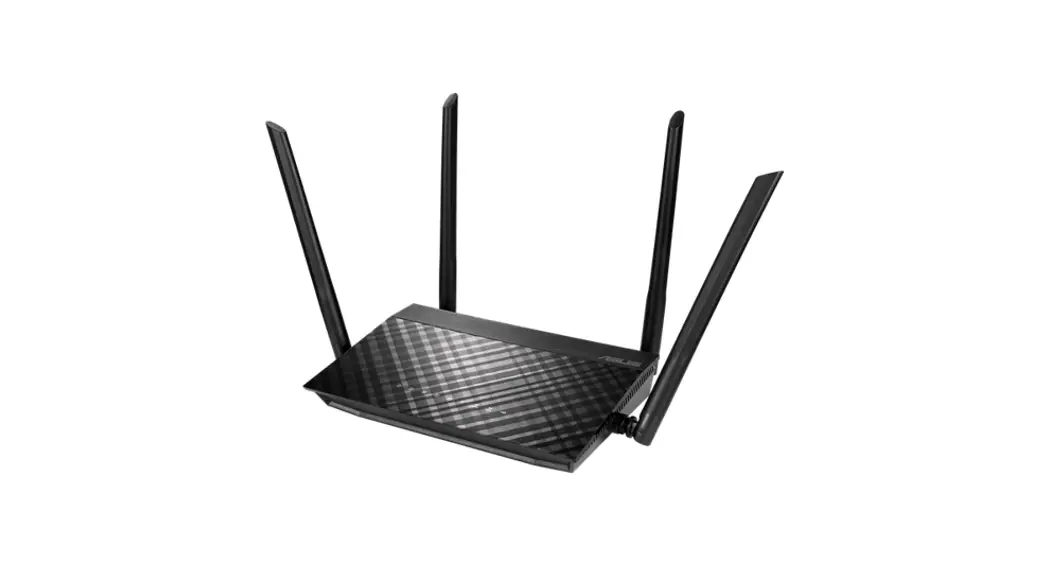
 IN SEARCH OF INCREDIBLE
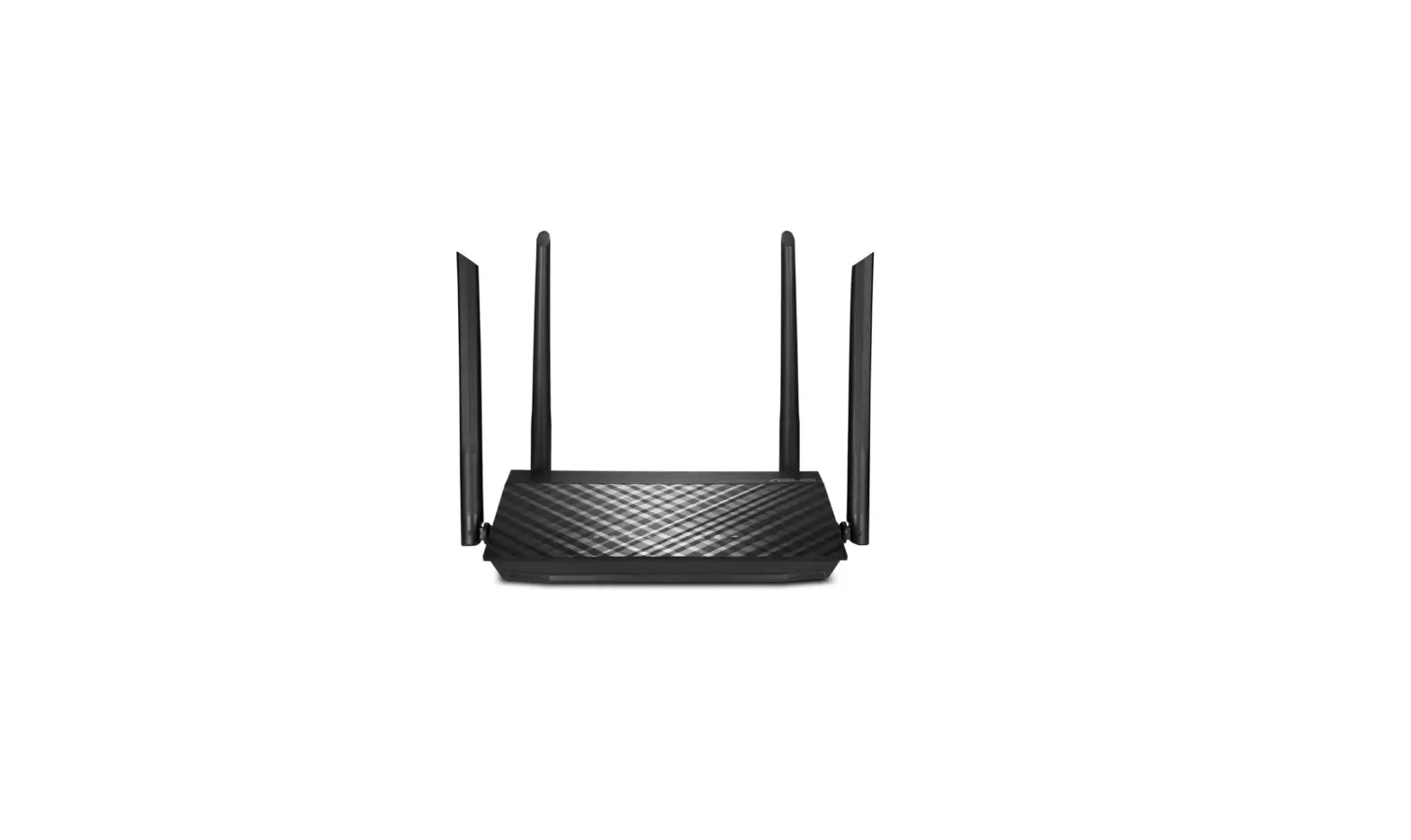
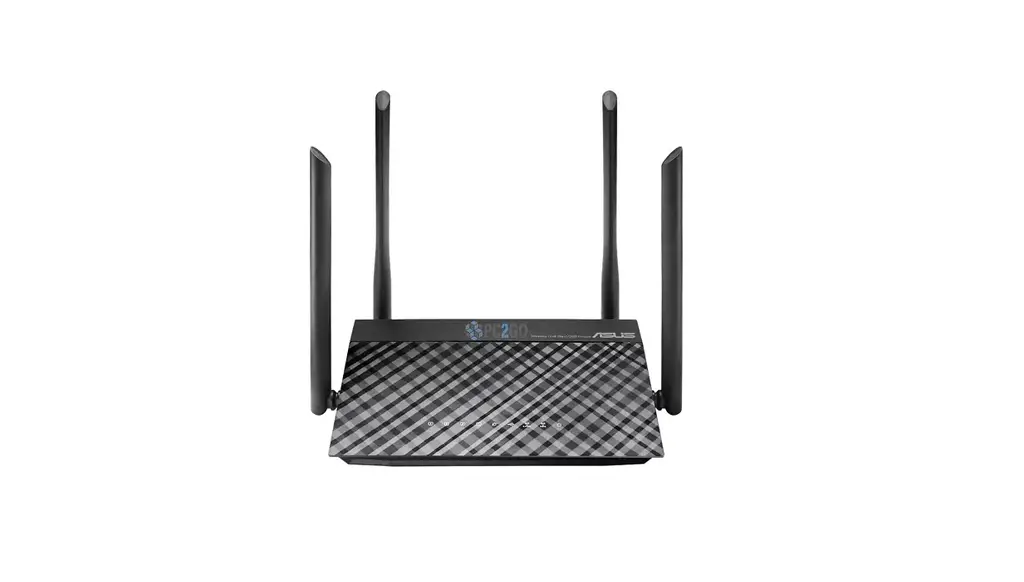
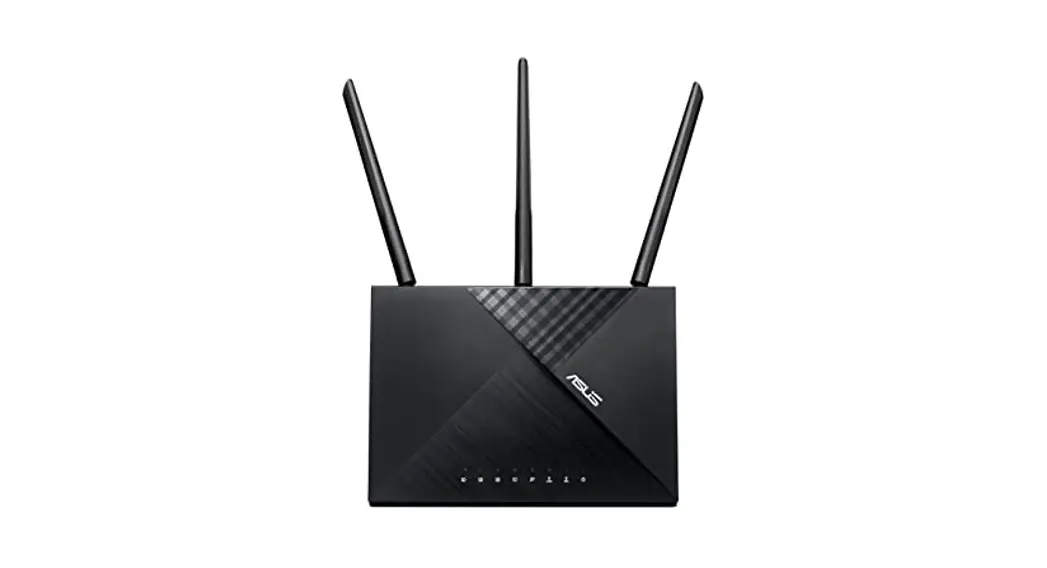
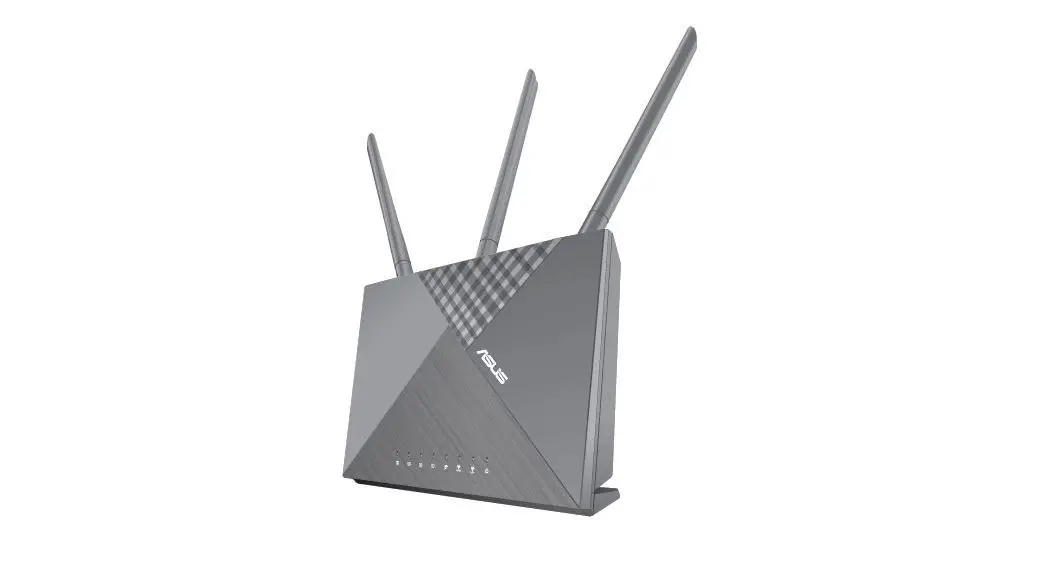
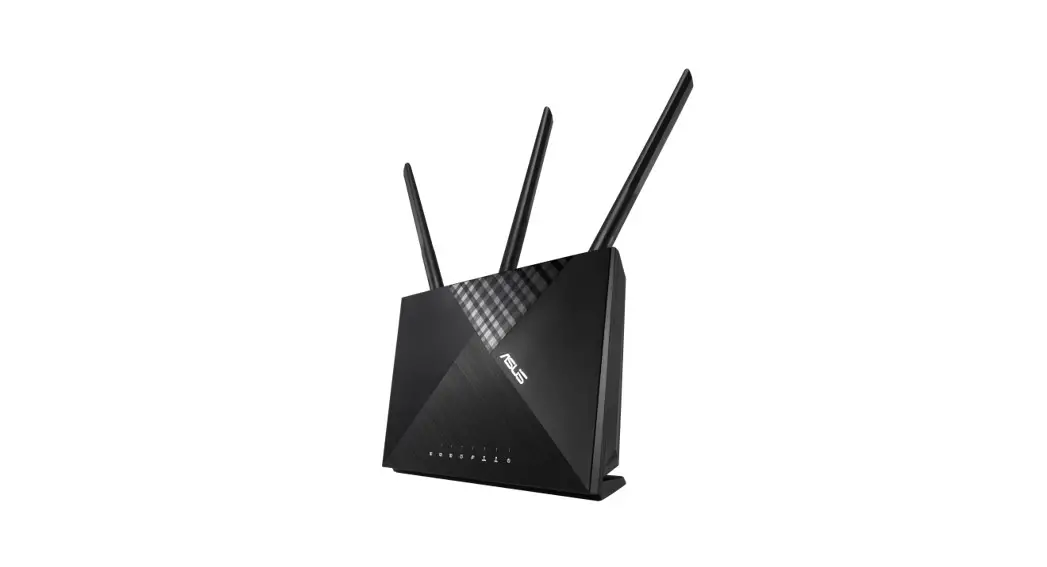
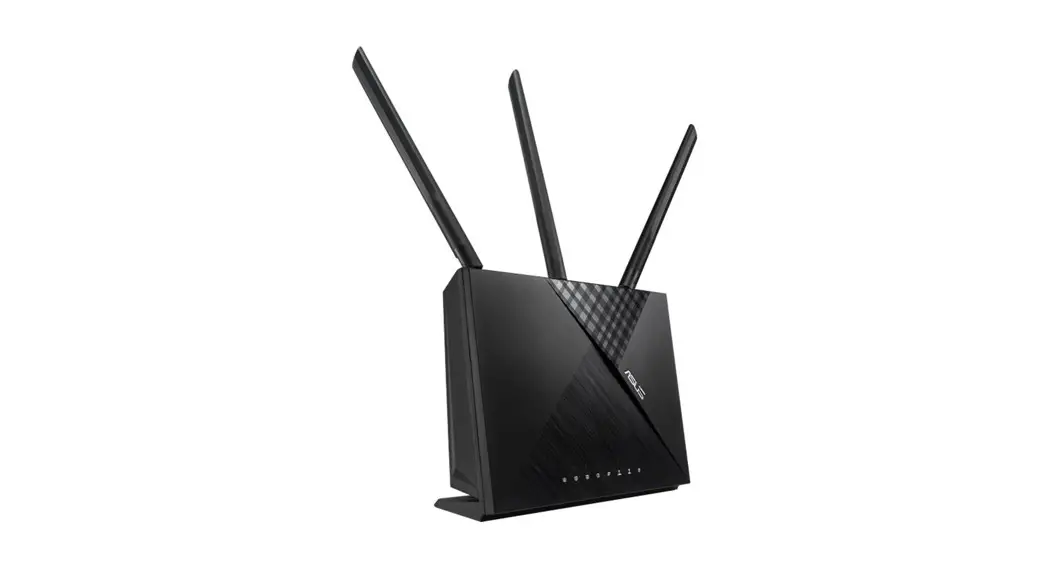
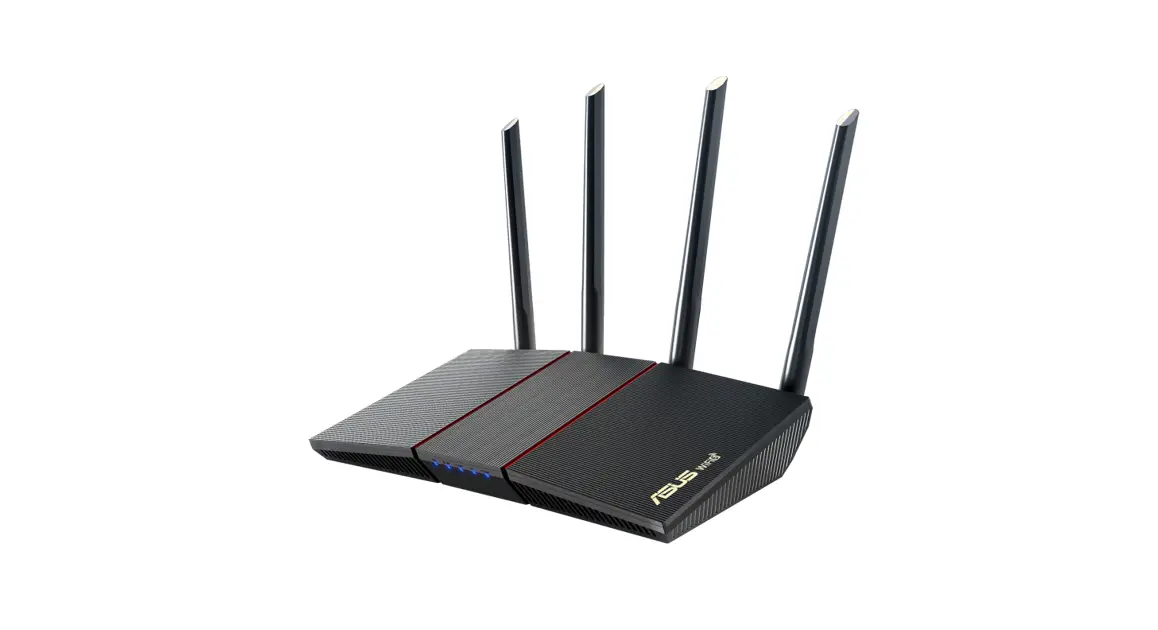
RT-AC1200GE WiFi Routers
Fast. Easy. Setup!
User Guide
Prepare your Modem
Connect your modem to the router with the network cable provided.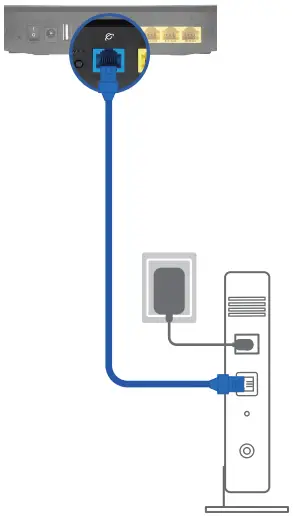
Power on the modem.
Plug modem to the power outlet and power on.
Power on your cable/DSL modem.
Check your cable/DSL modem LED lights to ensure the connection is active.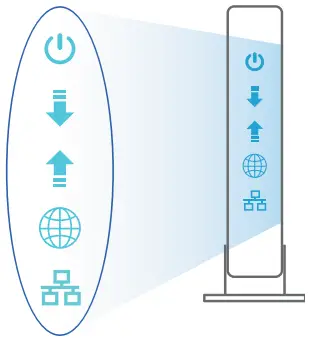
Power on your Router
Plug in the power adapter and press the power button at the back of your router.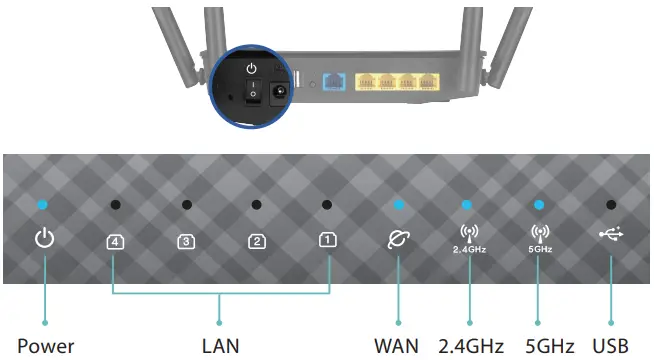
Check the WAN and 2.4G / 5G LED lights to ensure the hardware connection is ready (see the picture above).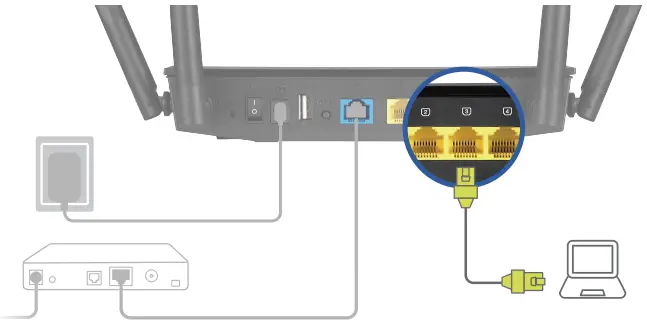
Connect your PC to the router via Wi-Fi or using an additional network cable (not included).
Login and Connect

Open a web browser. You will be redirected to the ASUS Setup Wizard. If not, navigate to http://router.asus.com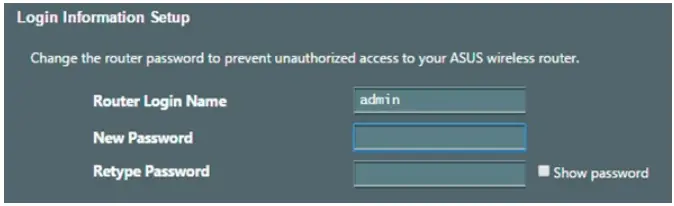
Set up the router login information. Assign unique login name and password for your router to prevent unauthorized access.
Security
Record your login information here.
| Router | Login Name | |
| Password | ||
| 2.4 GHz | Network Name(SSID) | |
| Password | ||
| 5 GHz | Network Name(SSID) | |
| Password |
IN SEARCH OF INCREDIBLE
 All-guides – Innovative Search Service of Online Manuals