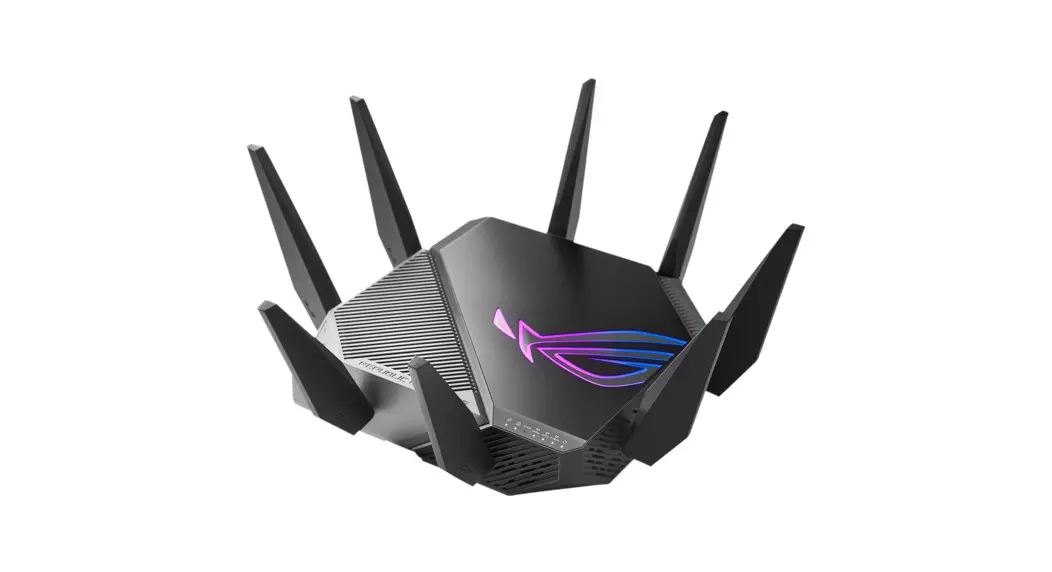


QUICK START GUIDE
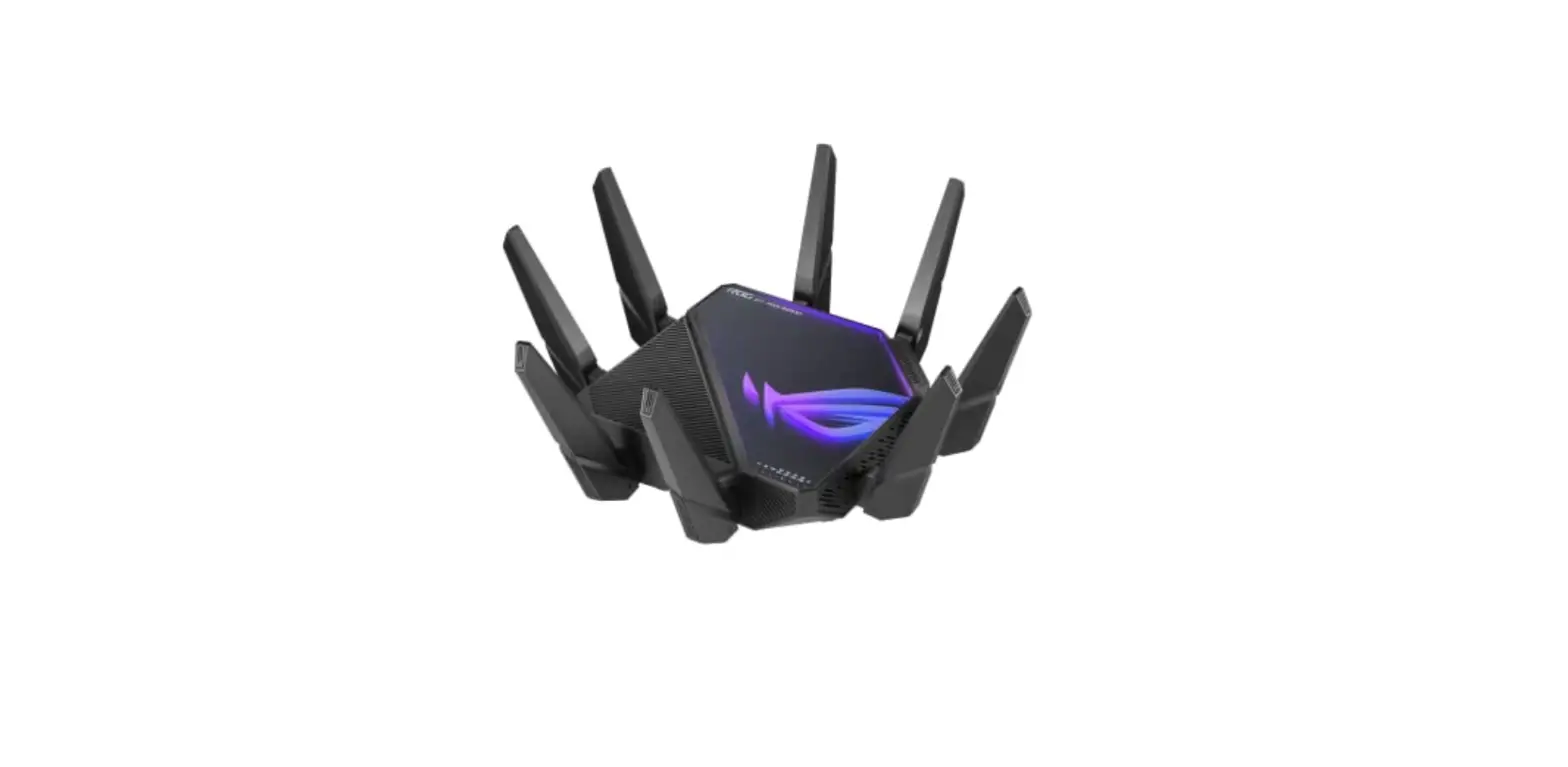
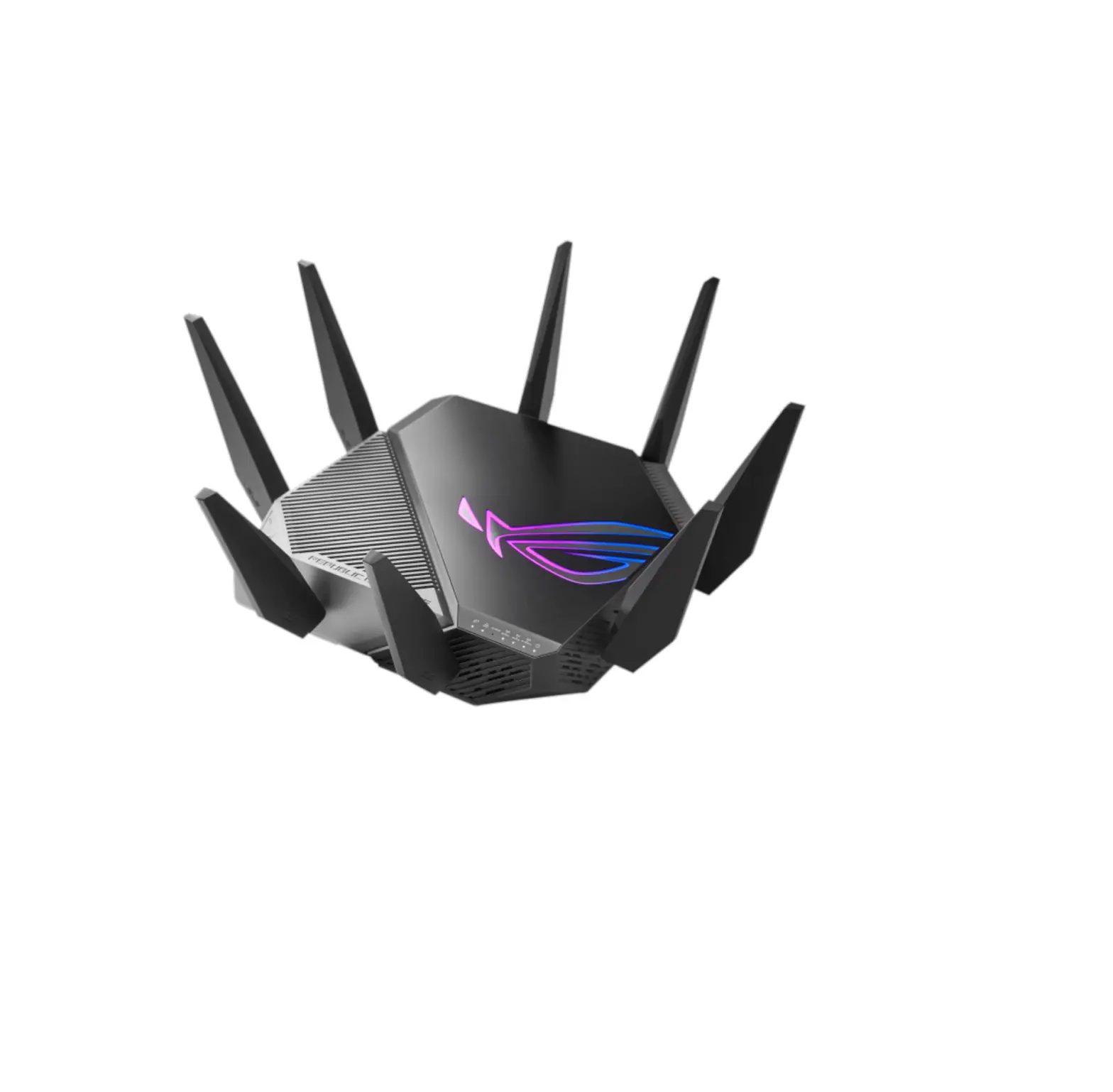
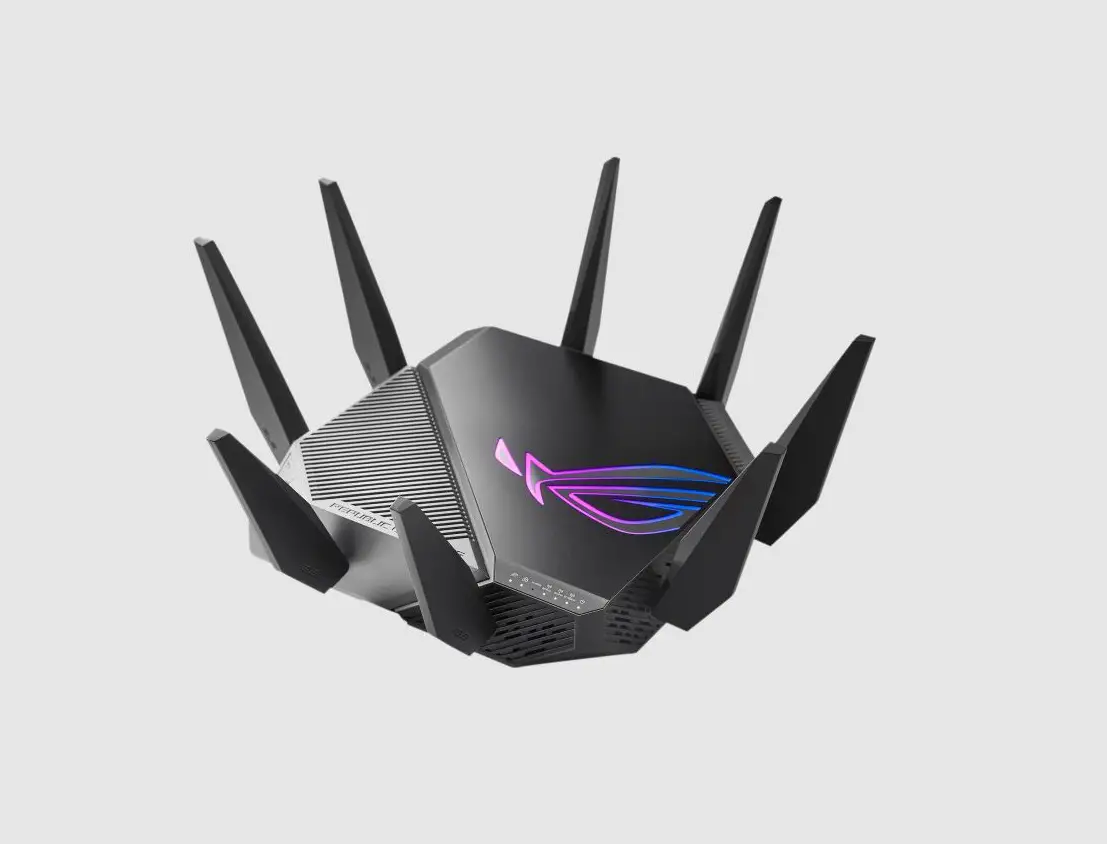
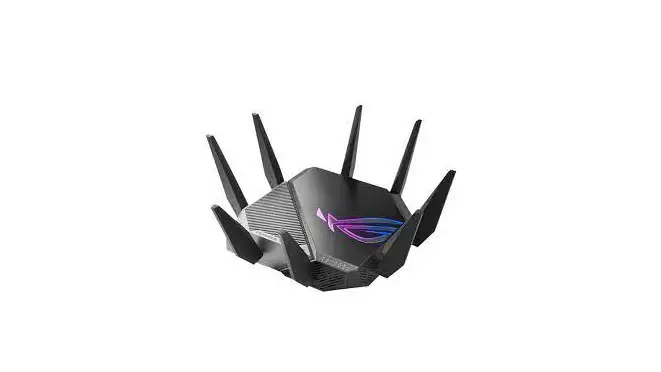
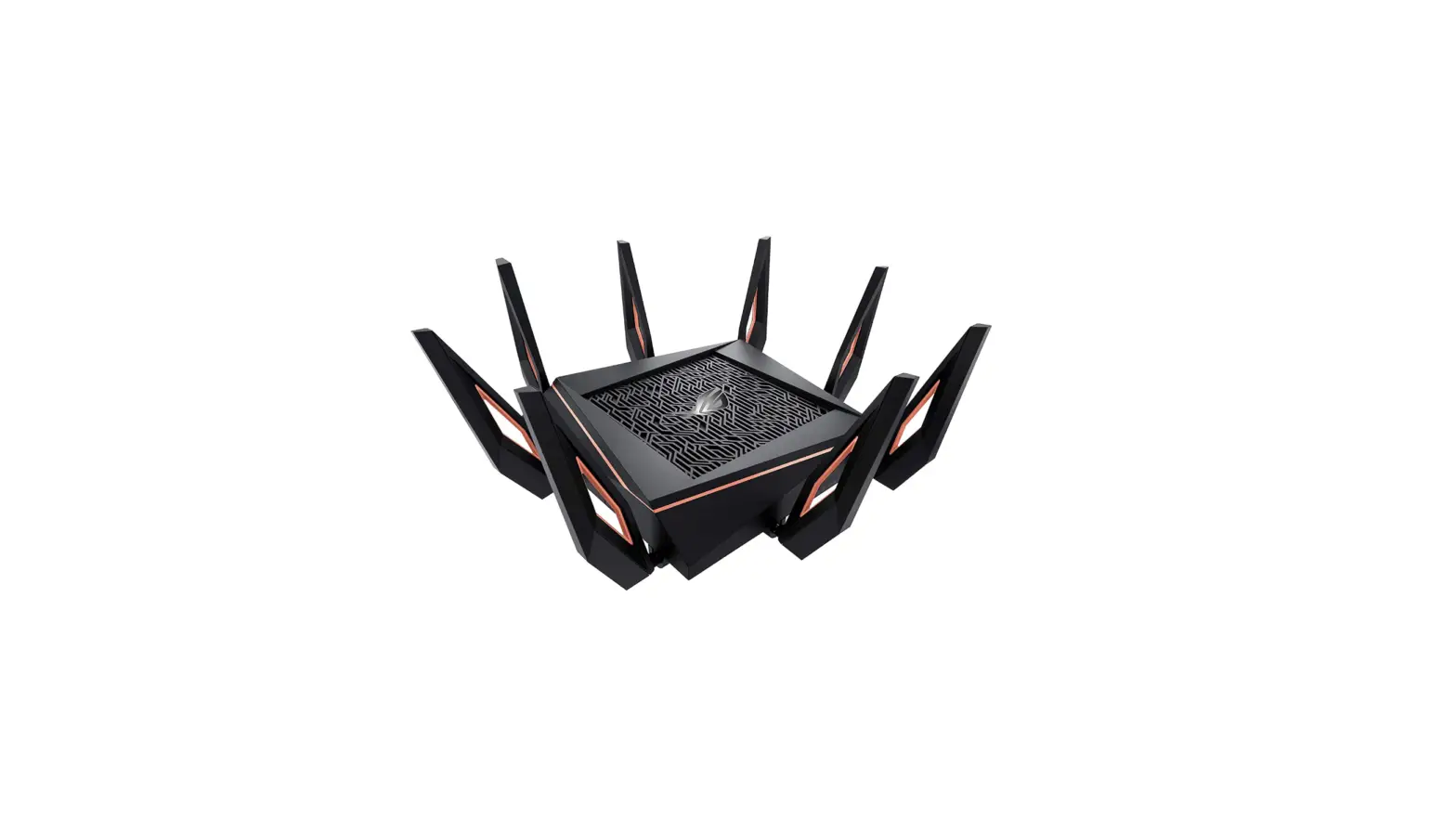
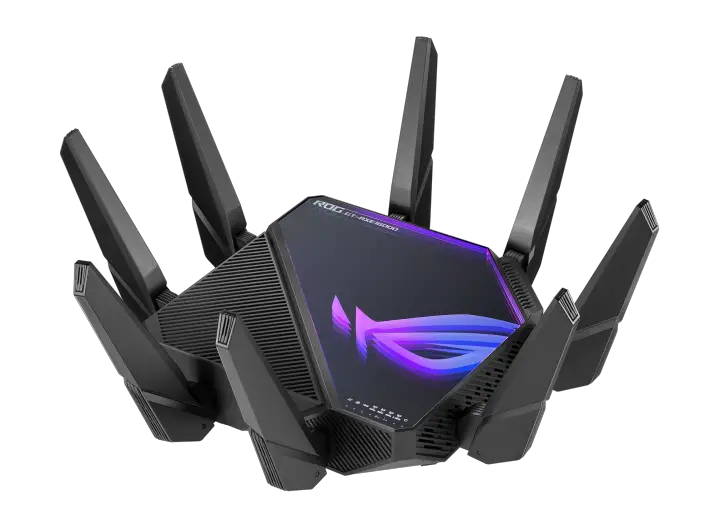
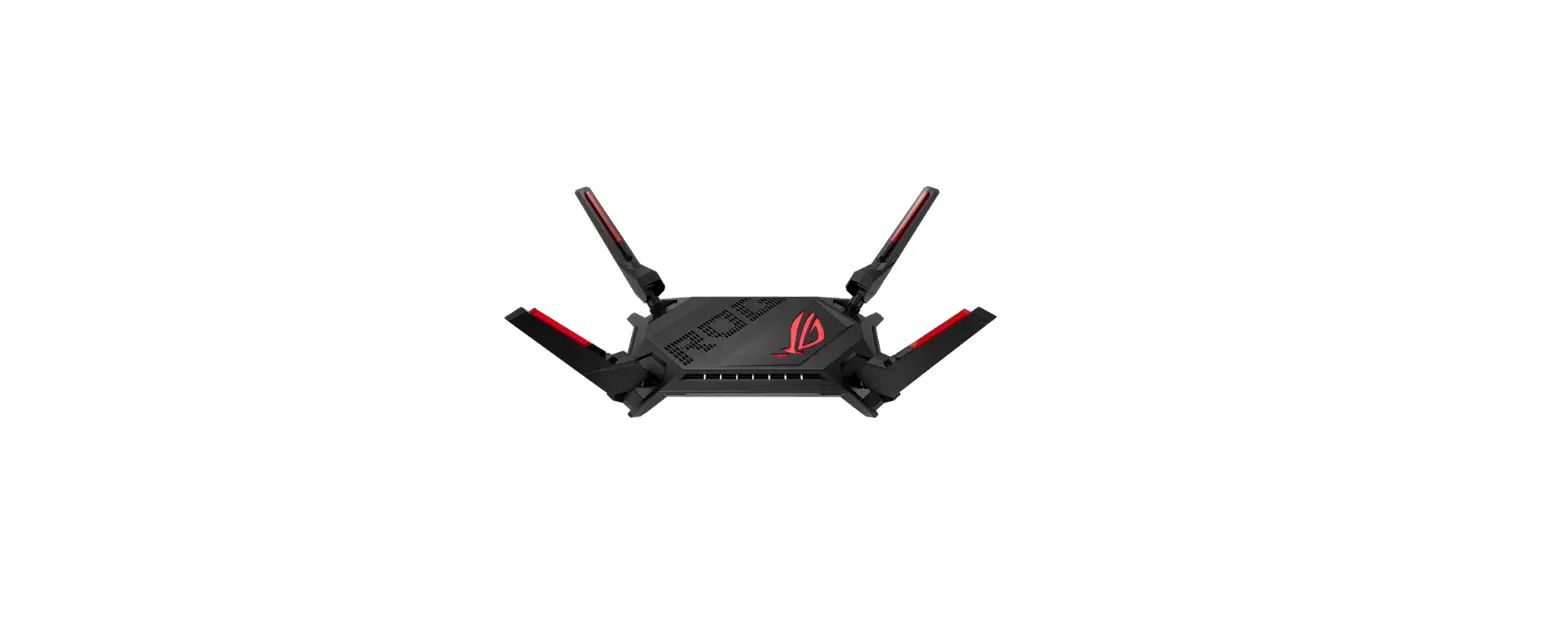
ROG Rapture GT-AXE11000 Tri-band Gaming Router
Package contents
 | ROG GT-AXE11000 Wireless Router |
| 8 * wireless antennas |
| AC adapter |
| Network cable (RJ-45) |
| Quick Start Guide |
 NOTE: If any of the items is damaged or missing, contact your retailer.
A quick look at your ROG router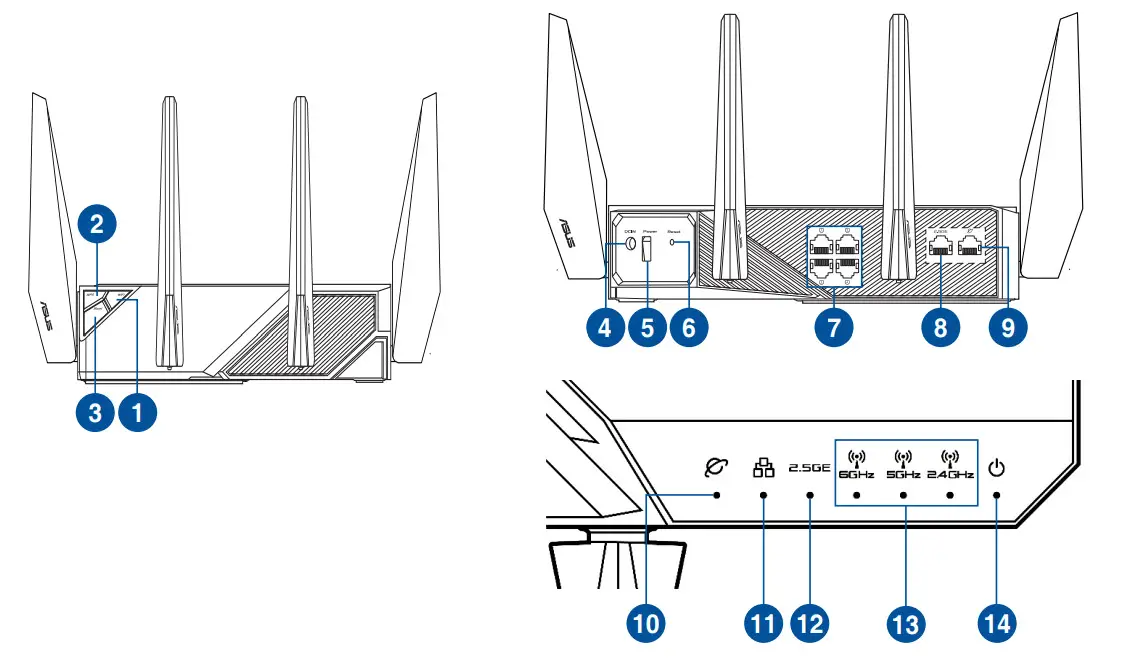
| 1 | Wi-Fi On/Off button | 8 | 2.5G WAN/LAN port |
| 2 | WPS button | 9 | WAN (Internet) port |
| 3 | Boost Key | 10 | WAN (Internet) LED |
| 4 | Power (DCIN) port | 11 | LAN LED |
| 5 | Power button | 12 | 2.5G WAN/LAN port LED |
| 6 | Reset Button | 13 | 6GHz /5GHz / 2.4GHz Wi-Fi LED |
| 7 | LAN ports | 14 | Power LED |
Specifications:
| DC Power adapter | DC Output: +19V with max 3.42A current DC Output: +19.5V with max 3.33A current | ||
| Operating Temperature | 0~40°C | Storage | 0~70°C |
| Operating Humidity | 50~90% | Storage | 20~90% |
Preparing your modem
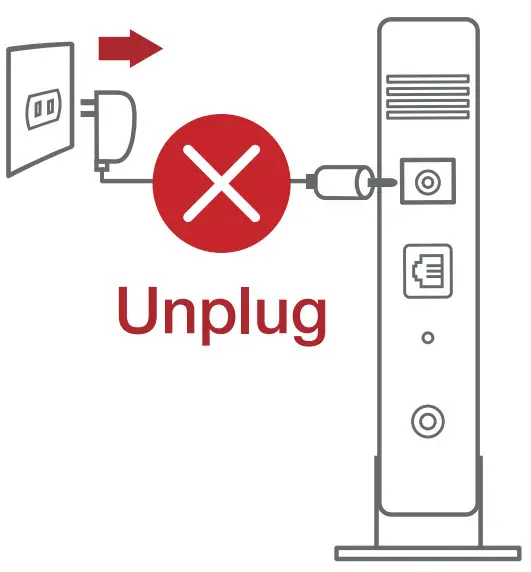
- Unplug the power cable/DSL modem. If it has a battery backup, remove the battery.
 NOTE: If you are using DSL for the Internet, you will need your username/password from your Internet Service Provider (ISP) to properly configure the router.
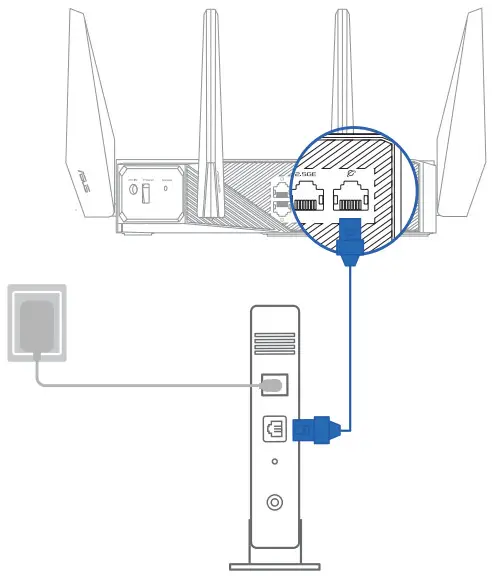
- Connect your modem to the router with the bundled network cable.

- Power on your cable/DSL modem.
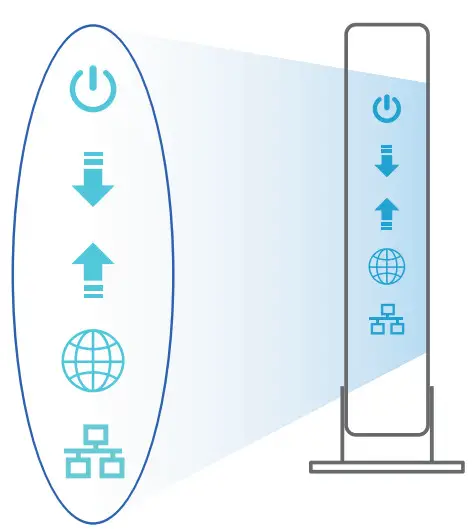
- Check your cable/DSL modem LED lights to ensure the connection is active.
Setting up your ROG router
You can set up your ROG router via a wired or wireless connection.
A. Wired connection
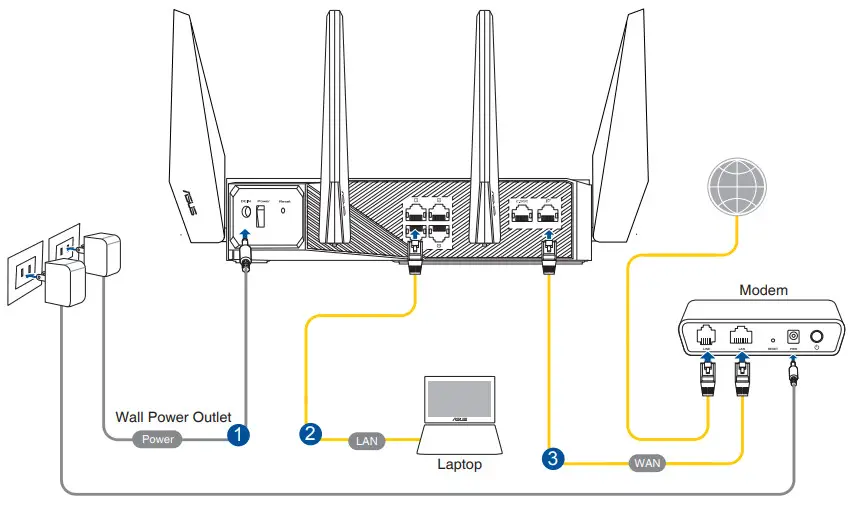
- Plug your router into a power outlet and power it on. Connect the network cable from your computer to a LAN port on your router.

- The web GUI launches automatically when you open a web browser. If it does not auto-launch, enter http://router.asus.com
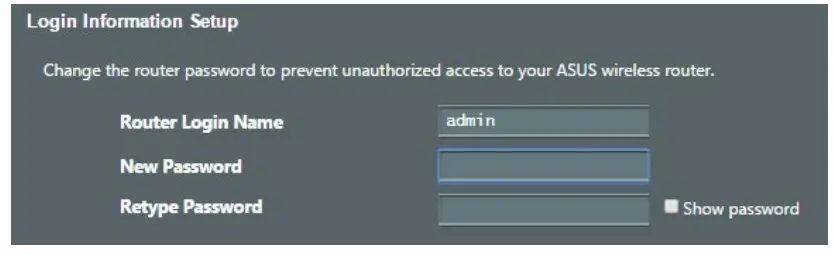
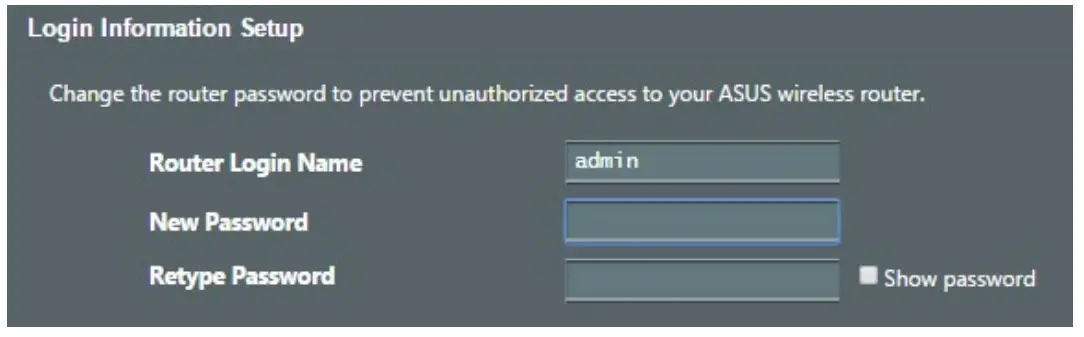
- Set up a password for your router to prevent unauthorized access.
B.Wireless connection
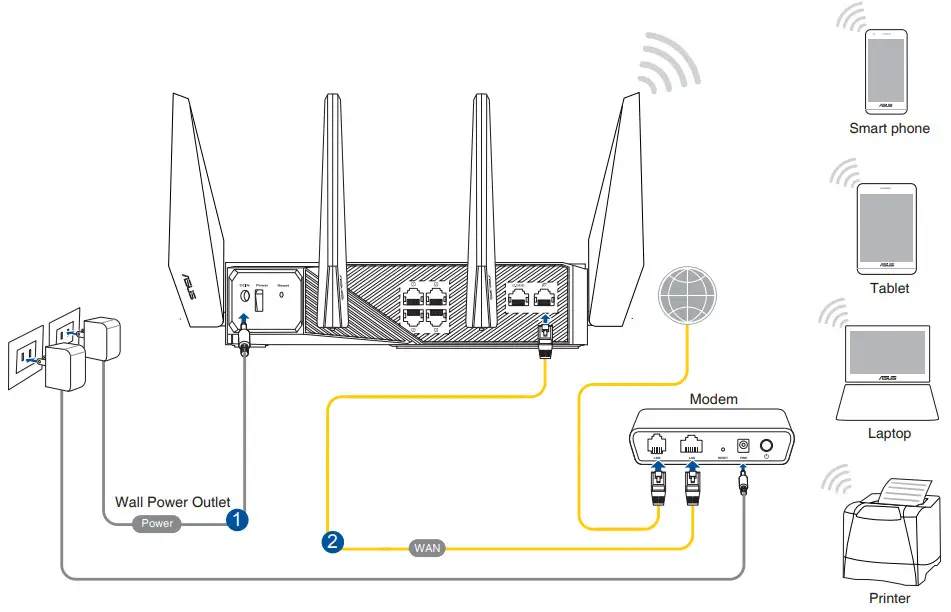
- Plug your router into a power outlet and power it on

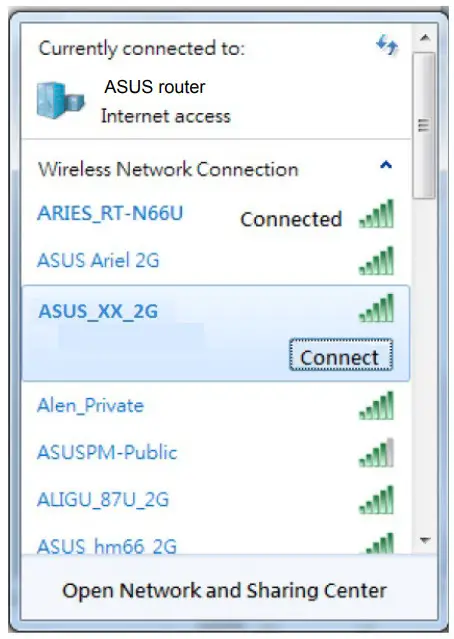
- Connect to the network name(SSID) shown on the product label on the back side of the router. For better network security, change to a unique SSID and assign a password.

2.4G Wi-Fi Name (SSID): ASUS_XX_2G 5G Wi-Fi Name (SSID): ASUS_XX_5G 6G Wi-Fi Name (SSID): ASUS_XX_6G * XX refers to the last two digits of the 2.4GHz MAC address. You can find it on the label on the back of your ROG router.
* If no 6GHz SSID is displayed, please check whether your OS and client device are fully licensed to support the newly released 6GHz band. You can check with your OS and client device provider for Wi-Fi 6E driver release schedule. - Once connected, the web GUI launches automatically when you open a web browser. If it does not auto-launch, enter http://router.asus.com.
- Set up a password for your router to prevent unauthorized access.
Remembering your wireless router settings
• Remember your wireless settings as you complete the router setup.
| Router Name: | Password: |
| 2.4GHz network SSID: | Password: |
| 5GHz network SSID: | Password: |
| 6GHz network SSID: | Password: |
FAQ
Where can I find more information about the wireless router?
- Technical support site: https://www.asus.com/support
- Customer Hotline: refer to the Support Hotline section in this Quick Start Guide
ASUS Recycling/Takeback Services
ASUS recycling and takeback programs come from our commitment to the highest standards for protecting our environment. We believe in providing solutions for you to be able to responsibly recycle our products, batteries, other components, as well as packaging materials. Please go to http://csr.asus.com/english/Takeback.htm for detailed recycling information in different regions.
REACH
Complying with the REACH (Registration, Evaluation, Authorisation, and Restriction of Chemicals) regulatory framework, we published the chemical substances in our products at the ASUS REACH website at http://csr.asus.com/english/REACH.htm
Federal Communications Commission Statement
This device complies with Part 15 of the FCC Rules. Operation is subject to the following two conditions:
- This device may not cause harmful interference.
- This device must accept any interference received, including interference that may cause undesired operation.
This equipment has been tested and found to comply with the limits for a class B digital device, pursuant to part 15 of the FCC Rules. These limits are designed to provide reasonable protection against harmful interference in a residential installation. This equipment generates, uses, and can radiate radio frequency energy, and if not installed and used in accordance with the instructions, may cause harmful interference to radio communications. However, there is no guarantee that interference will not occur in a particular installation. If this equipment does cause harmful interference to radio or television reception, which can be determined by turning the equipment off and on, the user is encouraged to try to correct the interference by one or more of the following measures:
- Reorient or relocate the receiving antenna.
- Increase the separation between the equipment and receiver.
- Connect the equipment into an outlet on a circuit different from that to which the receiver is connected.
- Consult the dealer or an experienced radio/TV technician for help.
 WARNING! Any changes or modifications not expressly approved by the party responsible for compliance could void the user’s authority to operate the equipment.
Prohibition of Co-location
This device and its antenna(s) must not be co-located or operating in conjunction with any other antenna or transmitter.
IMPORTANT NOTE:
Radiation Exposure Statement: This equipment complies with FCC radiation exposure limits set forth for an uncontrolled environment. End users must follow the specific operating instructions for satisfying RF exposure compliance. To maintain compliance with FCC exposure compliance requirements, please follow operation instructions as documented in this manual. WARNING! This equipment must be installed and operated in accordance with provided instructions and the antenna(s) used for this transmitter must be installed to provide a separation distance of at least 27cm from all persons and must not be co-located or operating in conjunction with any other antenna or transmitter.
The operation of this device is prohibited on oil platforms, cars, trains, boats, and aircraft, except that operation of this device is permitted in large aircraft while flying above 10,000 feet. Operation of transmitters in the 5.925-7.125 GHz band is prohibited for control of or Communications with unmanned aircraft systems. This device is restricted to indoor use.
Networks Global Hotline Information
| Area | Country/ Region | Hotline Numbers | Service Hours |
| Americas | USA Canada | 1-812-282-2787 | 8:30-12:00 EST Mon-Fri 9:00-18:00 EST Sat-Sun |
| Mexico | 001-8008367847 | 08:00-20:00 CST Mon-Fri 08:00-15:00 CST Sat |
NOTE: For more information, visit the ASUS support site at: https://www.asus.com/support
 ASUS Global
 ASUS Corporate Social Responsibility
 Assistance officielle | ASUS France