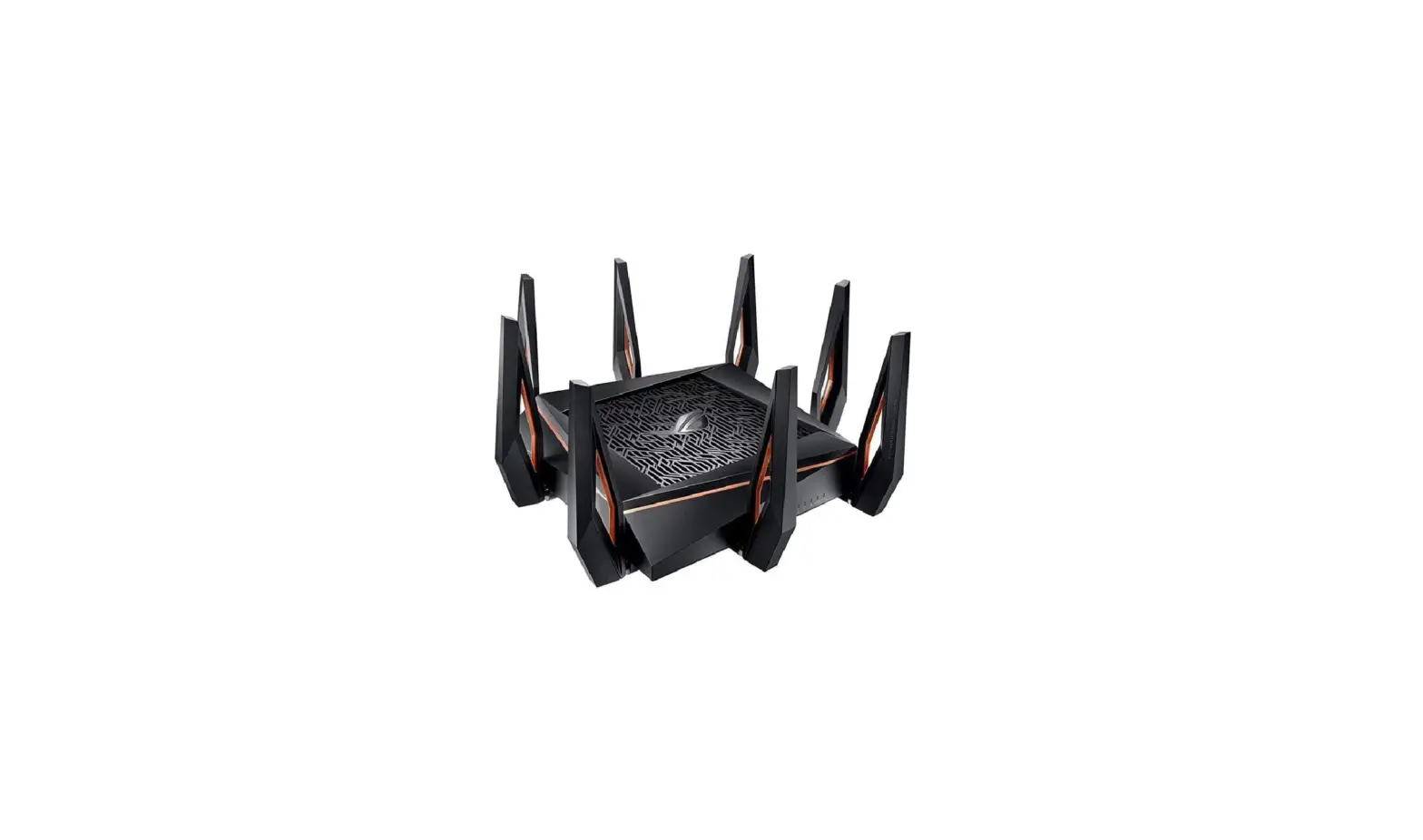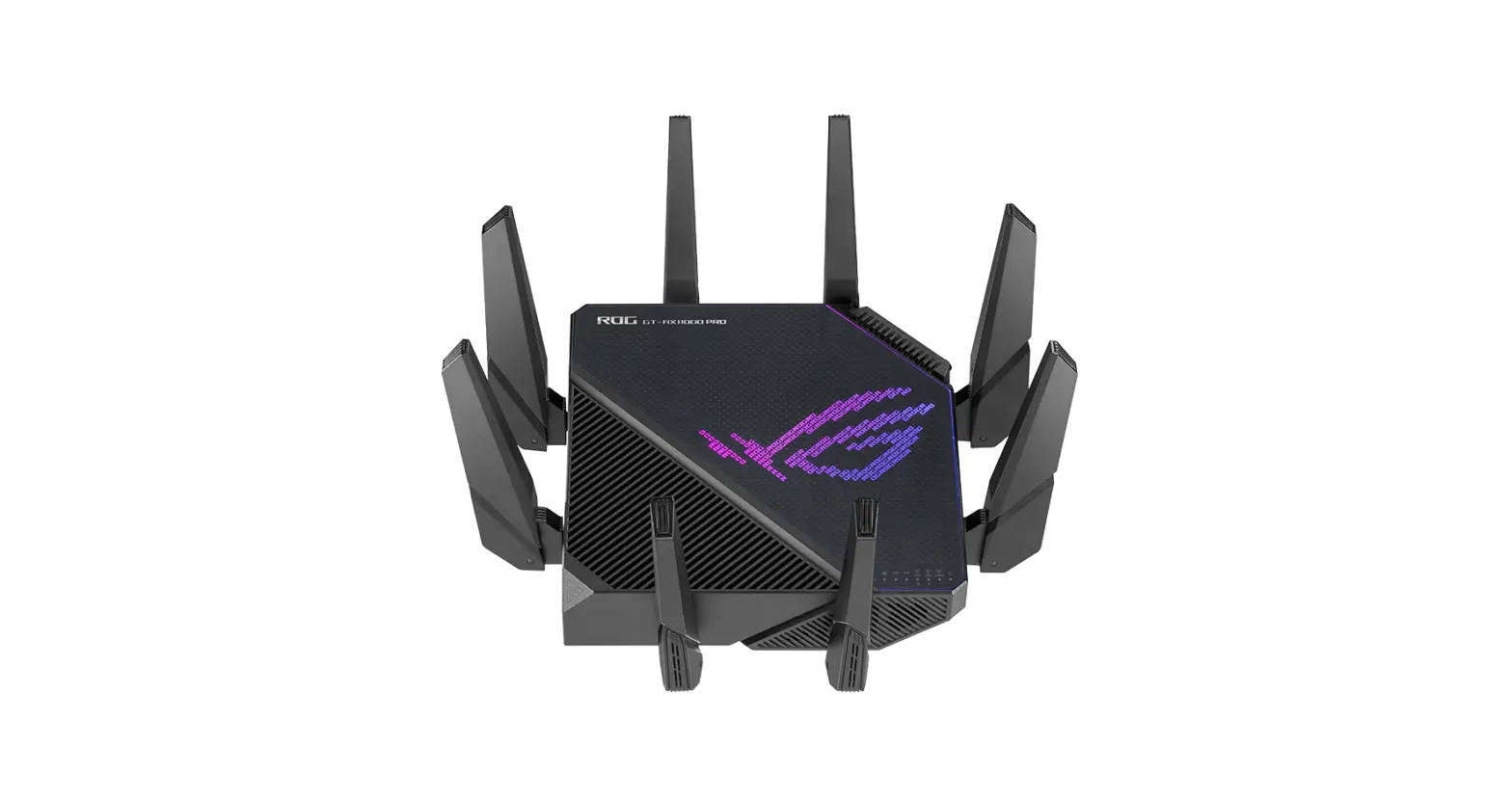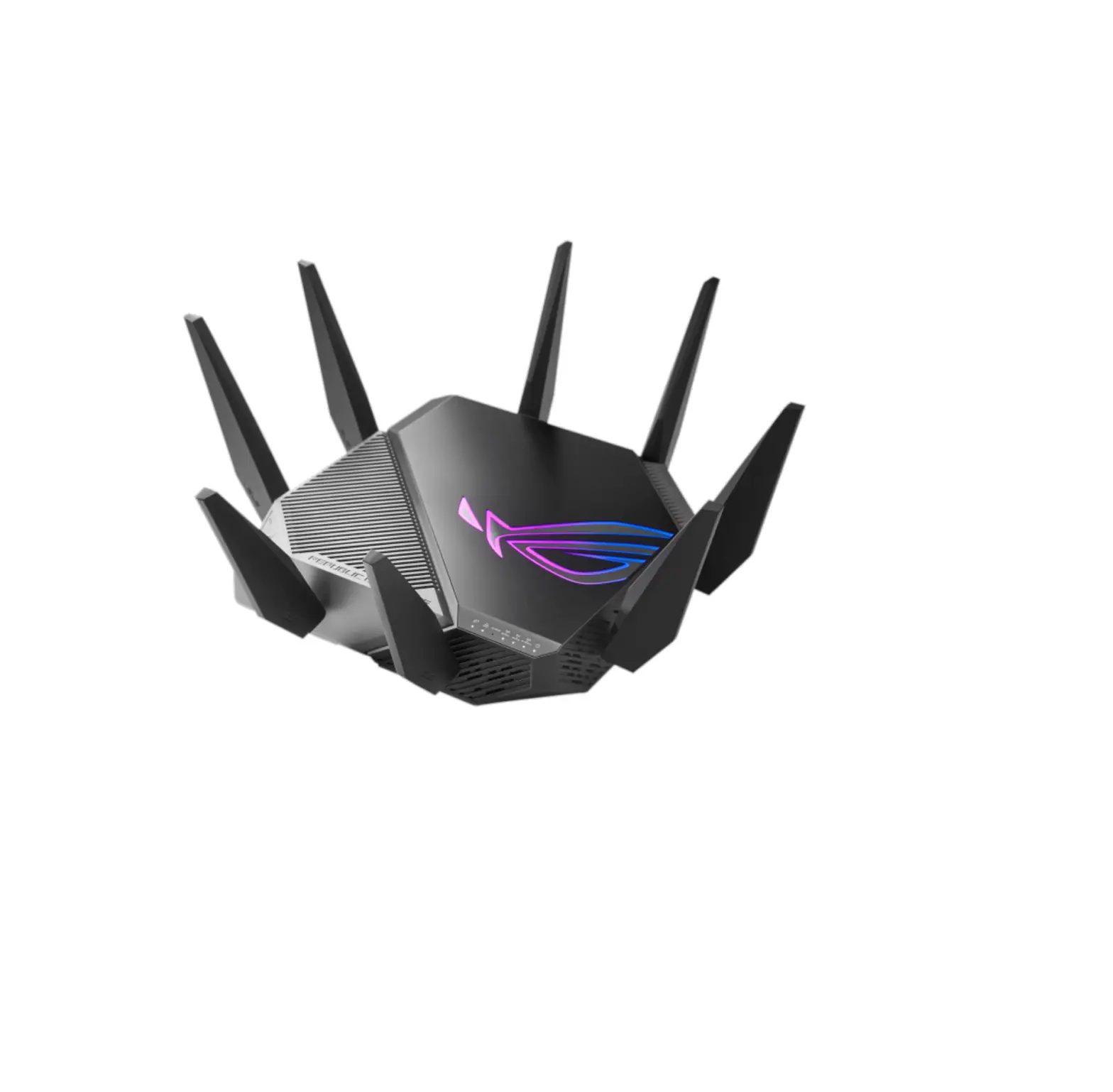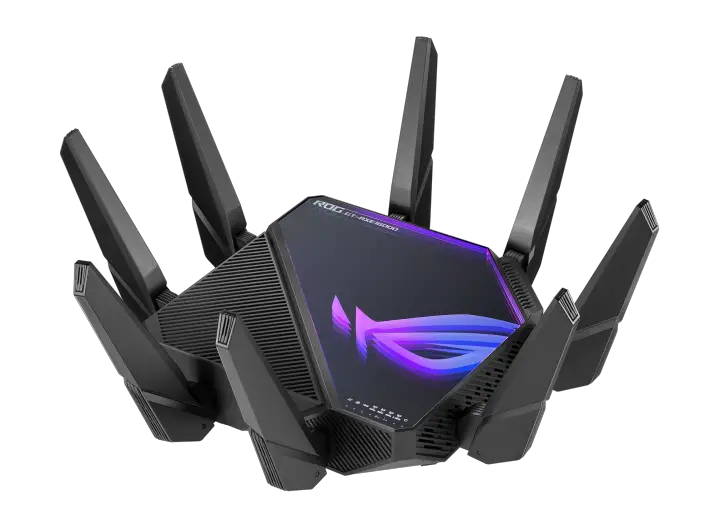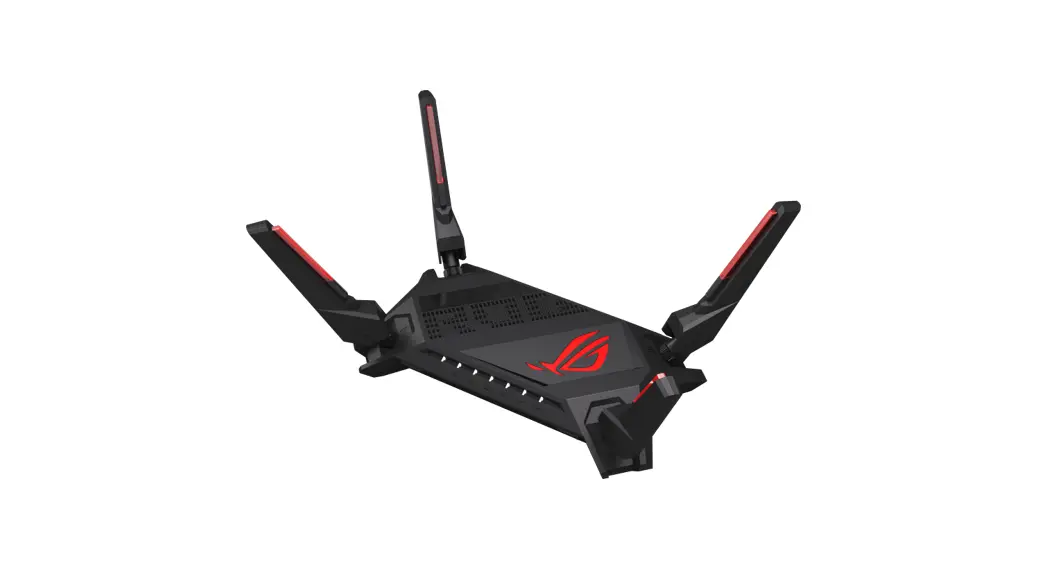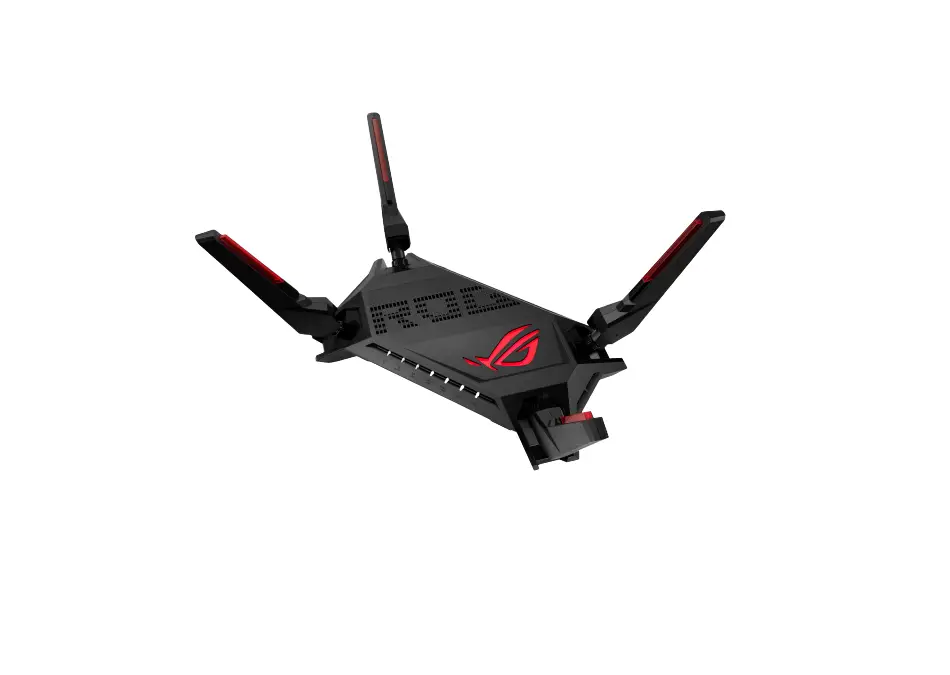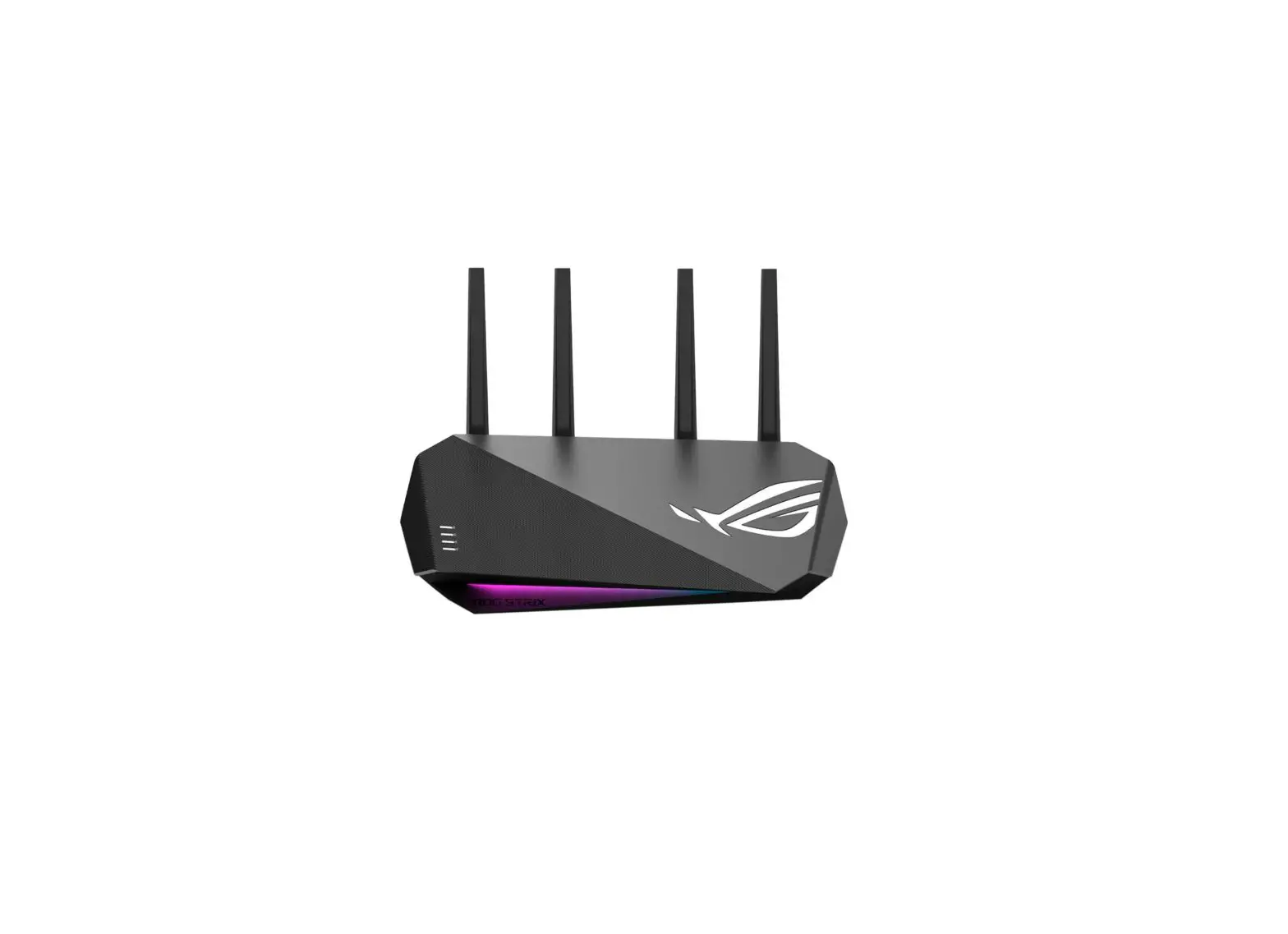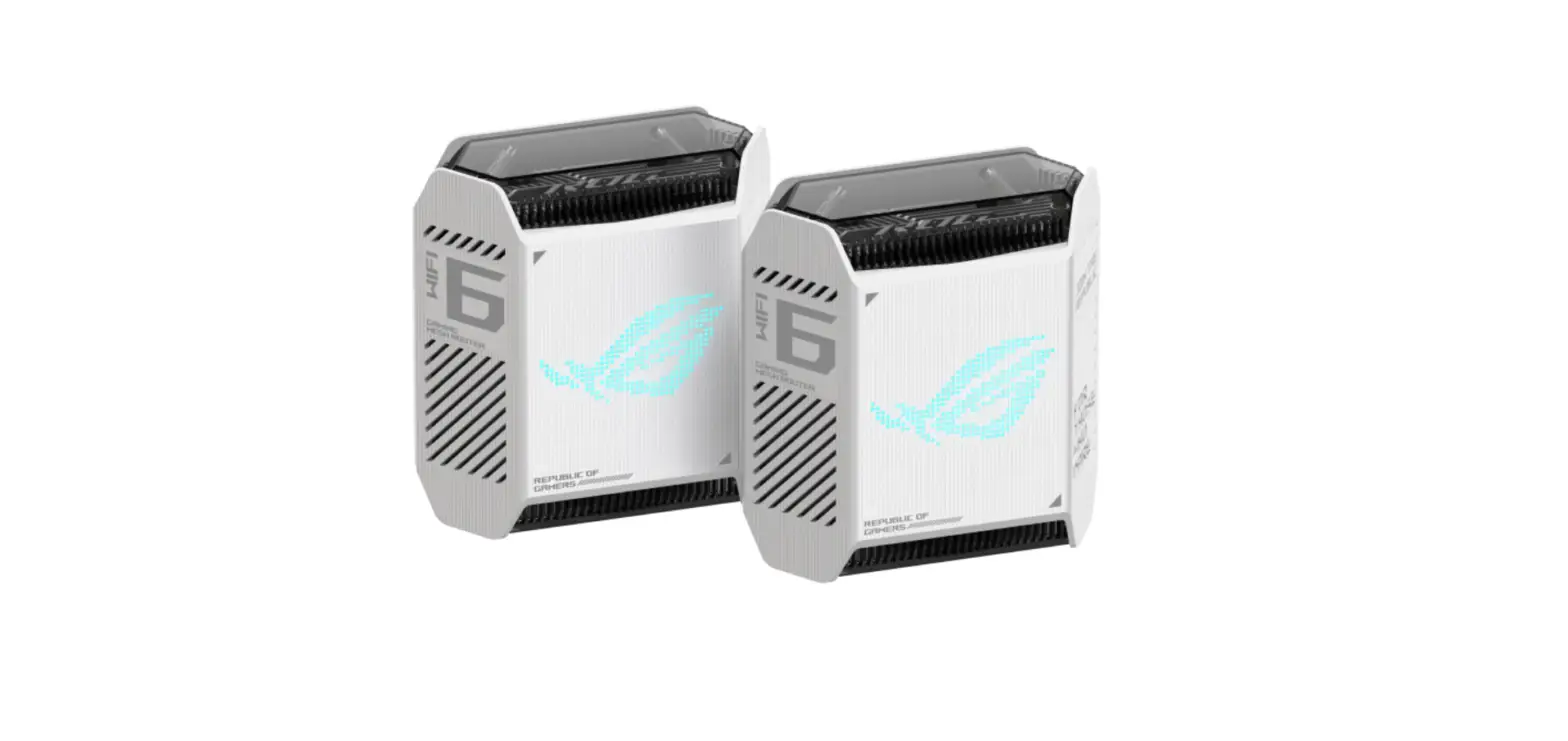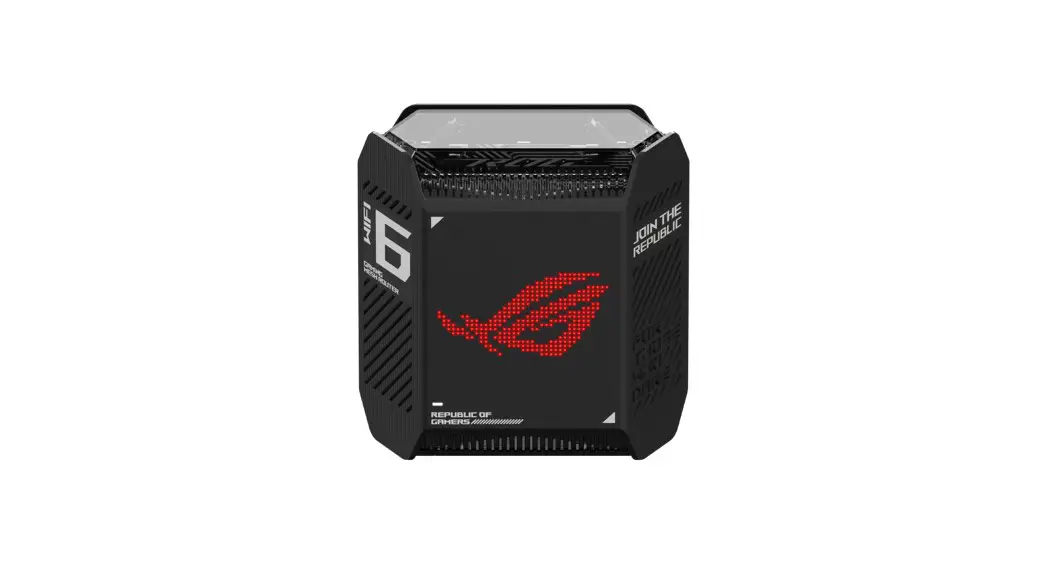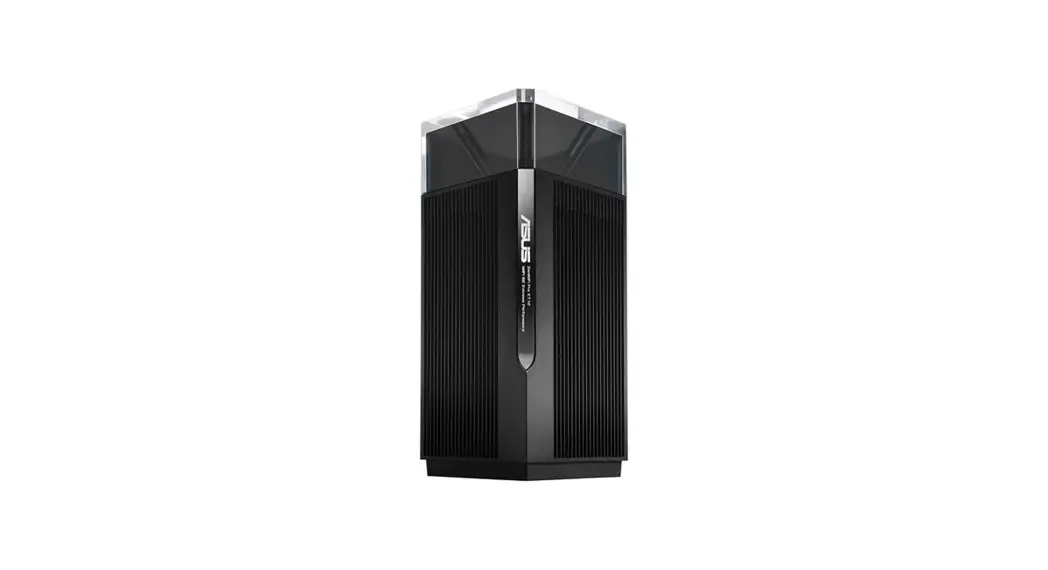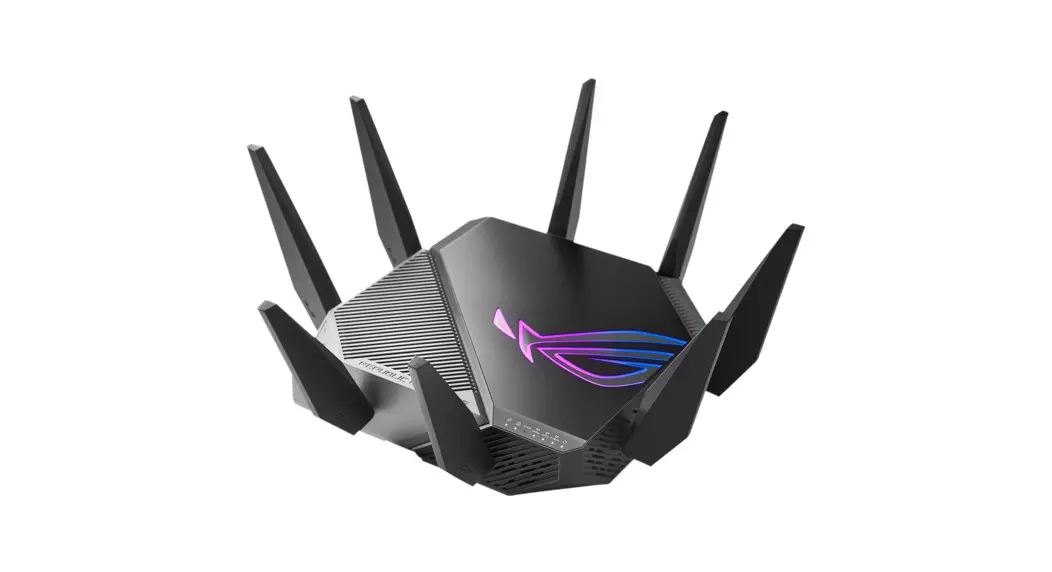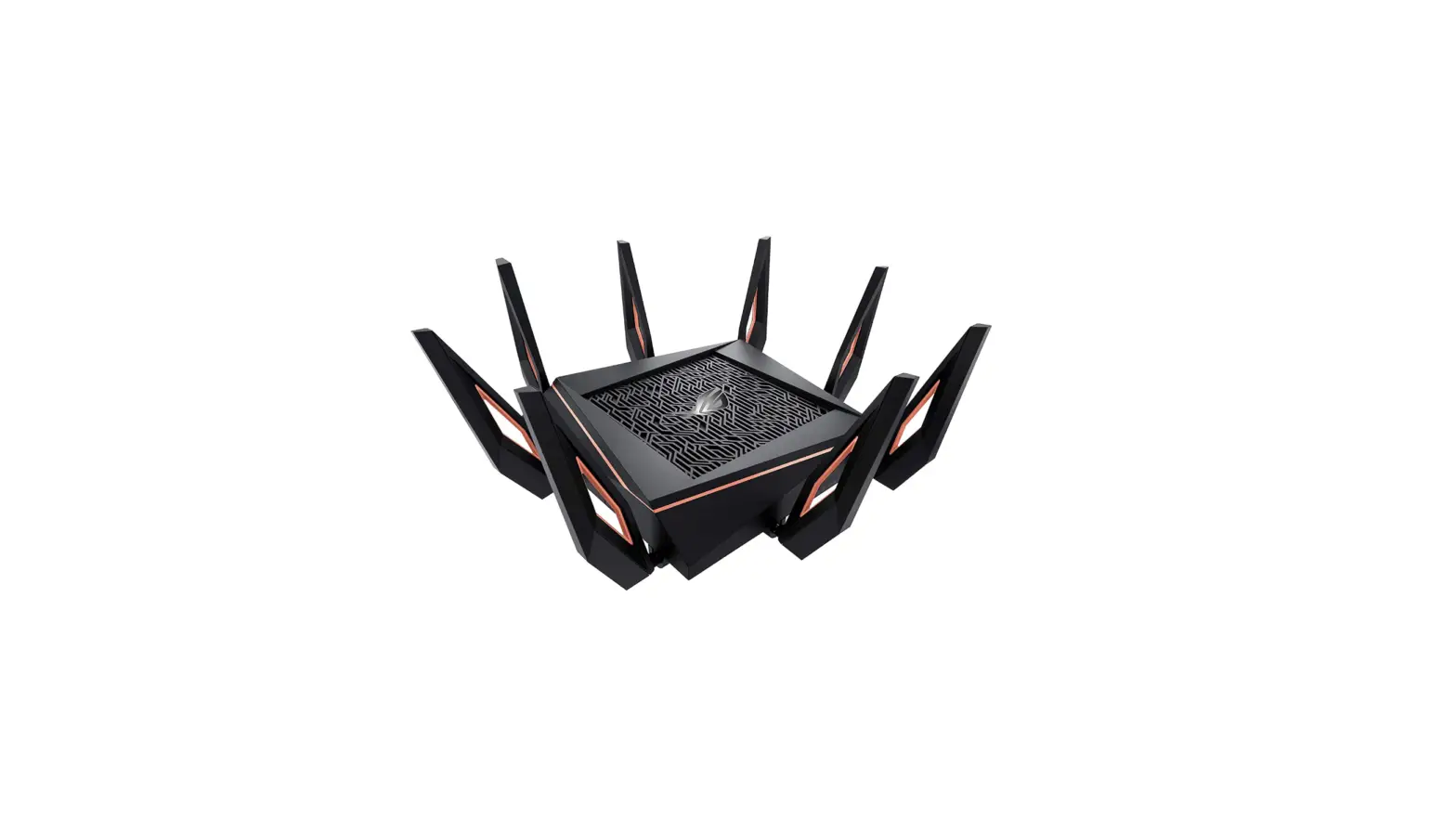

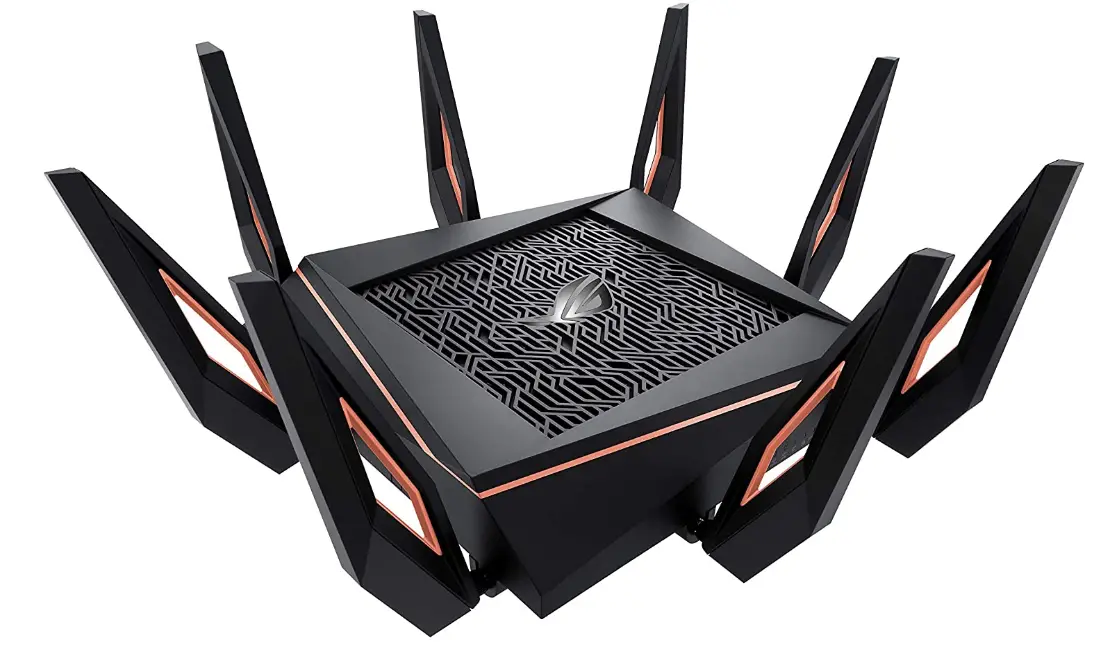
ASUS GT-AXE11000 ROG Rapture Tri-band Gaming Router
If no 6GHz SSID is displayed, please check whether your OS and the client device are fully licensed to support the newly released 6GHz band. You can check with your OS and client device provider for the Wi-Fi 6E driver release schedule.
Hardware Explanations


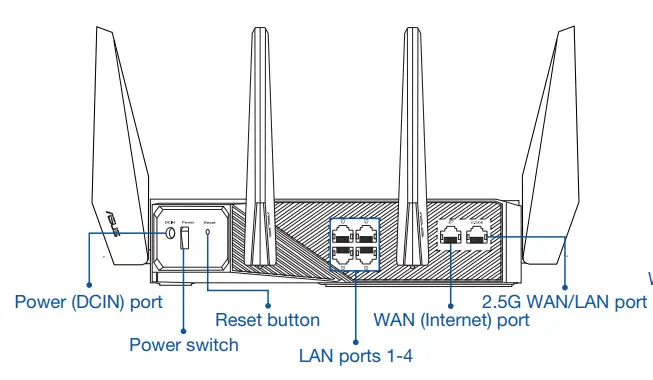
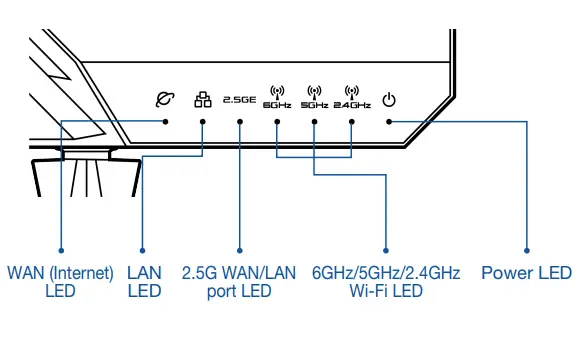
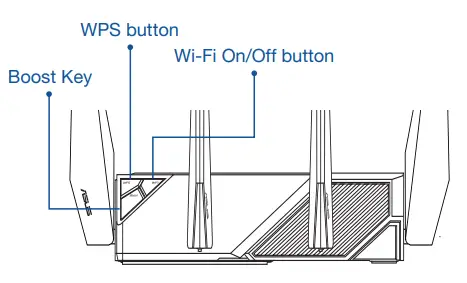
Specifications
| DC Power adapter | DC Output: +19V with max 3.42A current DC Output: +19.5V with max 3.33A current | ||
| Operating Temperature | 0~40oC | Storage | 0~70oC |
| Operating Humidity | 50~90% | Storage | 20~90% |
One Router Setup Steps
Prepare your Modem
- Unplug the power of cable / DSL modem. If it has a battery backup, remove the battery.

- Connect your modem to the WAN port at the back side of the router with the network cable provided.
- Power on the modem. Plug the modem into the power outlet and power it on.

- Check the modem LED lights to ensure the connection is active.

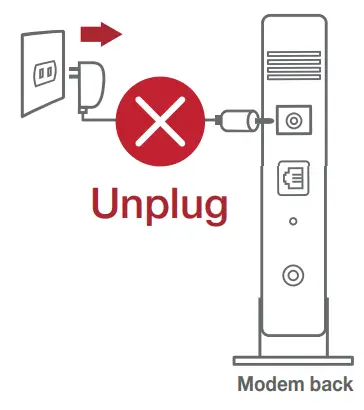
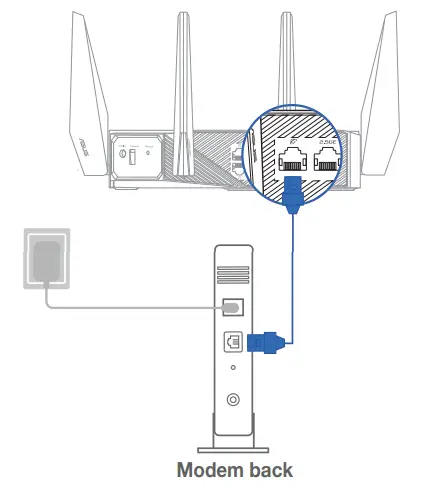
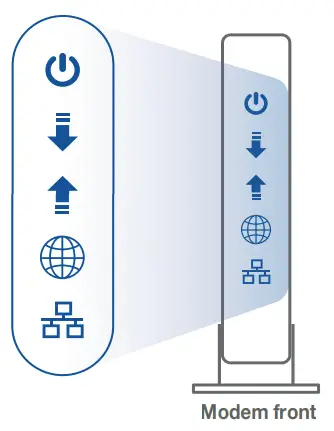
If you are using DSL for the internet, you will need your username/password from your Internet service provider (ISP) to properly configure your router.
Install your Router
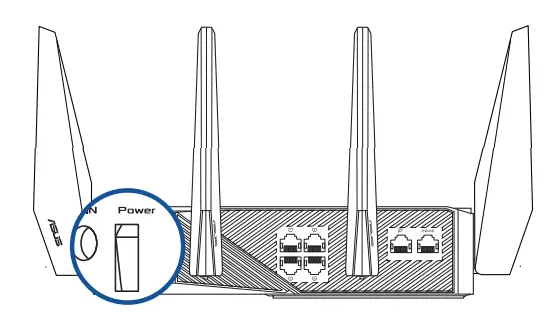
- Plug the adapter into the DCIN port, and press the Power switch.

- The power LED will light up when the hardware is ready.
 – Via app
 - [App] On your iOS or Android mobile device, go to the app store, search for ASUS Router, and download the app.


- [App] On your iOS or Android mobile device, tap Settings > Wi-Fi, and connect to the default network SSID shown on the product label on the back side of the router. Or scan the QR code on the product label to connect the default network SSID.
 XX refers to the last two digits of the 2.4GHz MAC address. You can find it on the label on the back of your ROG router.
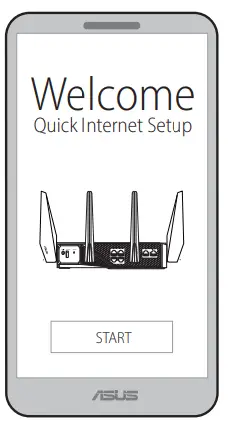
 - [App] Launch ASUS Router App and follow the instructions to complete the setup.
 – Or via a web browser
 - [Wired] Connect your PC to the LAN port at the back side of the router using an additional network cable.
 [Wireless] Connect to the network with the default SSID shown on the product label on the back side of your router “ASUS_XX”.
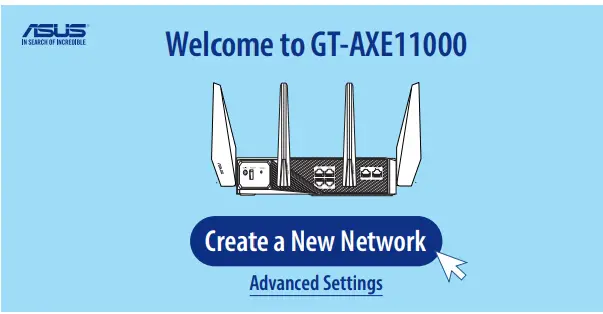
- [Wired / Wireless] Open a web browser. You will be redirected to the ASUS Setup Wizard. If not, navigate to http://router.asus.com.
Follow the instructions to complete the setup.

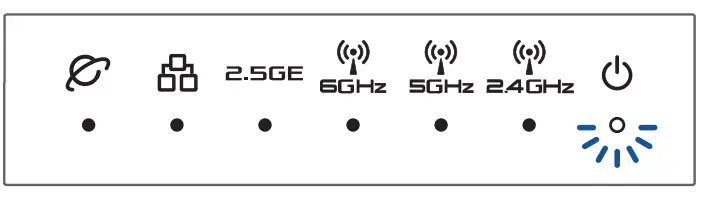 – Via app

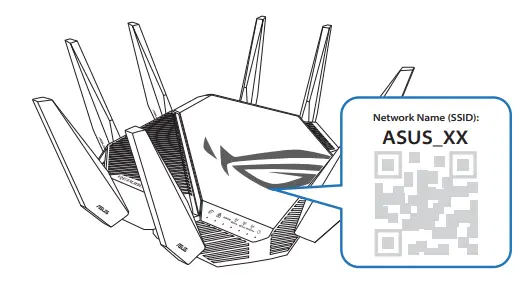 XX refers to the last two digits of the 2.4GHz MAC address. You can find it on the label on the back of your ROG router.
 – Or via a web browser
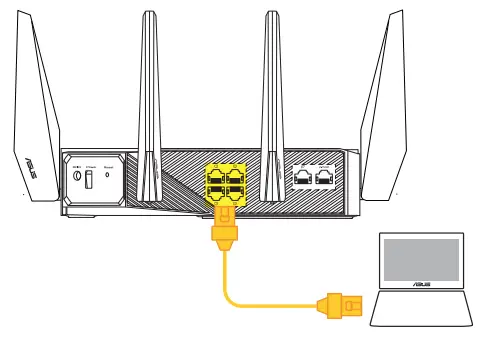 [Wireless] Connect to the network with the default SSID shown on the product label on the back side of your router “ASUS_XX”.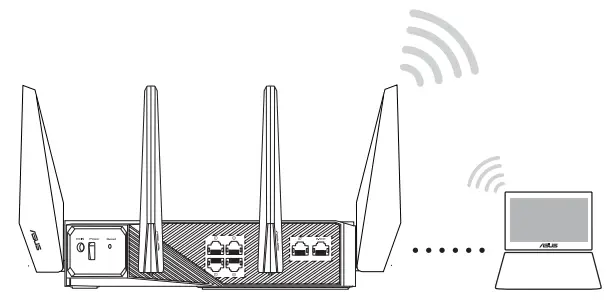

2.5G Port WAN Type Setup Steps
Prepare your Router
Connect the modem to the 2.5G port with a network cable.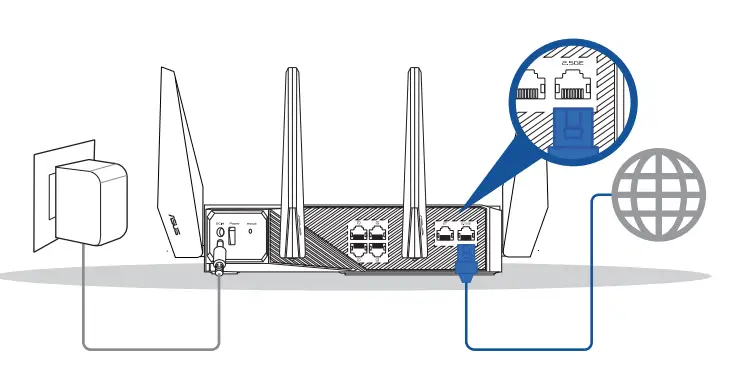
Login and Connect – Setting to 2.5G WAN under factory default settings
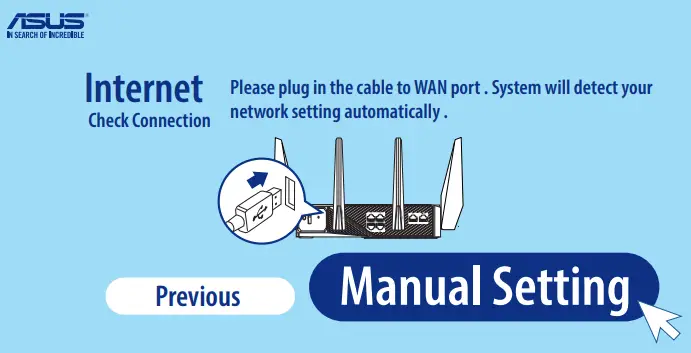
- [ASUS Setup Wizard] Select “manual setting”.

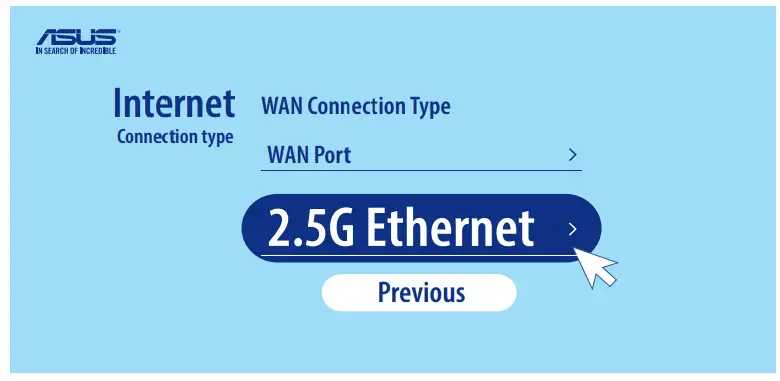
- [ASUS Setup Wizard] Select “2.5G Ethernet”, then follow the instructions to complete the setup of SSID and login information.
 – Switching from 1G WAN to 2.5G WAN
- [Dashboard] Go to Dashboard, and open the “WAN” setting.
- [Dashboard] Choose “2.5G WAN” as

 – Switching from 1G WAN to 2.5G WAN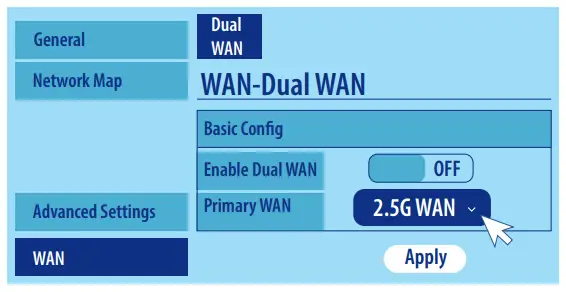
Start to Use
- After following the setup steps, the router will reboot for a second and start to connect to the Internet with a 2.5G port.
 The 2.5G LED will indicate white light.
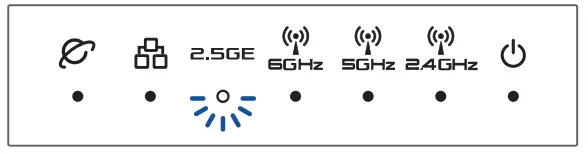 The 2.5G LED will indicate white light.
CONTACT INFORMATION (FAQ)
Where can I find more information about the wireless router?
- Online FAQ site: https://www.asus.com/Networking/GT-AXE11000/HelpDesk/
- Driver & Firmware update site: https://www.asus.com/Networking/GT-AXE11000/HelpDesk_Download/
- Customer Hotline: refer to the Networks Global Hotline Information section in this Quick Start Guide
- You can get the user manual online at https://www.asus.com/Networking/GT-AXE11000/HelpDesk_Manual/
Networks Global Hotline Information
| Area | Country/ Region | Hotline Number | Service Hours |
|
Europe | Cyprus | 800-92491 | 09:00-13:00 ; 14:00-18:00 Mon-Fri |
| France | 0033-170949400 | 09:00-18:00 Mon-Fri | |
| 0049-1805010920 | |||
| Germany | 0049-1805010923 | 09:00-18:00 Mon-Fri 10:00-17:00 Mon-Fri | |
| (component support) | |||
| 0049-2102959911 (Fax) | |||
| Hungary | 0036-15054561 | 09:00-17:30 Mon-Fri | |
| Italy | 06 97626662 | 09:00-13:00; 14:00-18:00 Mon-Fri | |
| Greece | 00800-44142044 | 09:00-13:00 ; 14:00-18:00 Mon-Fri | |
| Austria | 0043-820240513 | 09:00-18:00 Mon-Fri | |
| Netherlands/ Luxembourg | 0031-591570290 | 09:00-17:00 Mon-Fri | |
| Belgium | 0032-78150231 | 09:00-17:00 Mon-Fri | |
| Norway | 0047-2316-2682 | 09:00-18:00 Mon-Fri | |
| Sweden | 0046-858769407 | 09:00-18:00 Mon-Fri | |
| Finland | 00358-969379690 | 10:00-19:00 Mon-Fri | |
| Denmark | 0045-38322943 | 09:00-18:00 Mon-Fri | |
| Poland | 0048-225718040 | 08:30-17:30 Mon-Fri | |
| Spain | 0034-902889688 | 09:00-18:00 Mon-Fri | |
| Portugal | 00351-707500310 | 09:00-18:00 Mon-Fri | |
| Slovak Republic | 00421-232162621 | 08:00-17:00 Mon-Fri | |
| Czech Republic | 00420-596766888 | 08:00-17:00 Mon-Fri | |
| Switzerland-German | 0041-848111010 | 09:00-18:00 Mon-Fri | |
| Switzerland-French | 0041-848111014 | 09:00-18:00 Mon-Fri | |
| Switzerland-Italian | 0041-848111012 | 09:00-18:00 Mon-Fri | |
| United Kingdom | 0044-1442265548 | 09:00-17:00 Mon-Fri | |
| Ireland | 0035-31890719918 | 09:00-17:00 Mon-Fri | |
| Russia and CIS | 008-800-100-ASUS | 09:00-18:00 Mon-Fri | |
| Ukraine | 0038-0445457727 | 09:00-18:00 Mon-Fri | |
|
Asia-Pacific | Australia | 1300-278788 | 09:00-18:00 Mon-Fri |
| New Zealand | 0800-278788 | 09:00-18:00 Mon-Fri | |
| Japan | 0800-1232787 | 09:00-19:00 Mon-Sun | |
| 0081-570783886 ( Non-Toll Free ) | 09:00-19:00 Mon-Sun | ||
| Korea | 0082-215666868 | 09:30-17:00 Mon-Fri | |
| Thailand | 0066-24011717 | 09:00-18:00 Mon-Fri | |
| 1800-8525201 | |||
| Singapore | 0065-64157917 | 11:00-19:00 Mon-Fri | |
| 0065-67203835 | 11:00-19:00 Mon-Fri | ||
| ( Repair Status Only ) | 11:00-13:00 Sat | ||
| Malaysia | 1300-88-3495 | 9:00-18:00 Mon-Fri | |
| Philippine | 1800-18550163 | 09:00-18:00 Mon-Fri | |
| India | 1800-2090365 | 09:00-18:00 Mon-Sat | |
| India(WL/NW) | 09:00-21:00 Mon-Sun | ||
| Indonesia | 0062-2129495000 | 09:30-17:00 Mon-Fri | |
| 500128 (Local Only) | 9:30 – 12:00 Sat | ||
| Vietnam | 1900-555581 | 08:00-12:00 13:30-17:30 Mon-Sat | |
| Hong Kong | 00852-35824770 | 10:00-19:00 Mon-Sat | |
| Taiwan | 0800-093-456; 02-81439000 | 9:00-12:00 Mon-Fri; 13:30-18:00 Mon-Fri | |
|
Americas | USA | 1-812-282-2787 | 8:30-12:00 EST Mon-Fri |
| Canada | 9:00-18:00 EST Sat-Sun | ||
| Mexico | 001-8008367847 | 08:00-20:00 CST Mon-Fri | |
| 08:00-15:00 CST Sat | |||
| Brazil | 4003 0988 (Capital) 0800 880 0988 (demais localidades) | 9:00am-18:00 Mon-Fri | |
|
Middle East + Africa | Egypt | 800-2787349 | 09:00-18:00 Sun-Thu |
| Saudi Arabia | 800-1212787 | 09:00-18:00 Sat-Wed | |
| UAE | 00971-42958941 | 09:00-18:00 Sun-Thu | |
| Turkey | 0090-2165243000 | 09:00-18:00 Mon-Fri | |
| South Africa | 0861-278772 | 08:00-17:00 Mon-Fri | |
| Israel | *6557/00972-39142800 | 08:00-17:00 Sun-Thu | |
| *9770/00972-35598555 | 08:30-17:30 Sun-Thu | ||
|
Balkan Countries | Romania | 0040-213301786 | 09:00-18:30 Mon-Fri |
| Bosnia Herzegovina | 00387-33773163 | 09:00-17:00 Mon-Fri | |
| Bulgaria | 00359-70014411 | 09:30-18:30 Mon-Fri | |
| 00359-29889170 | 09:30-18:00 Mon-Fri | ||
| Croatia | 00385-16401111 | 09:00-17:00 Mon-Fri | |
| Montenegro | 00382-20608251 | 09:00-17:00 Mon-Fri | |
| Serbia | 00381-112070677 | 09:00-17:00 Mon-Fri | |
| Slovenia | 00368-59045400 | 08:00-16:00 Mon-Fri | |
| 00368-59045401 | |||
| Baltic Countries | Estonia | 00372-6671796 | 09:00-18:00 Mon-Fri |
| Latvia | 00371-67408838 | 09:00-18:00 Mon-Fri | |
| Lithuania-Kaunas | 00370-37329000 | 09:00-18:00 Mon-Fri | |
| Lithuania-Vilnius | 00370-522101160 | 09:00-18:00 Mon-Fri |
NOTE: For more information, visit the ASUS support site at: https://www.asus.com/support/
ASUS Recycling/Takeback Services
ASUS recycling and takeback programs come from our commitment to the highest standards for protecting our environment. We believe in providing solutions for you to be able to responsibly recycle our products, batteries, other components, as well as packaging materials. Please go to http://csr.asus.com/english/Takeback.htm for detailed recycling information in different regions.
REACH
Complying with the REACH (Registration, Evaluation, Authorisation, and Restriction of Chemicals) regulatory framework, we published the chemical substances in our products on the ASUS REACH website at http://csr.asus.com/english/REACH.htm
Federal Communications Commission Statement
This device complies with Part 15 of the FCC Rules. Operation is subject to the following two conditions:
- This device may not cause harmful interference.
- This device must accept any interference received, including interference that may cause undesired operation.
This equipment has been tested and found to comply with the limits for a class B digital device, pursuant to part 15 of the FCC Rules. These limits are designed to provide reasonable protection against harmful interference in a residential installation. This equipment generates, uses and can radiate radio frequency energy and, if not installed and used in accordance with the instructions, may cause harmful interference to radio communications. However, there is no guarantee that interference will not occur in a particular installation. If this equipment does cause harmful interference to radio or television reception, which can be determined by turning the equipment off and on, the user is encouraged to try to correct the interference by one or more of the following measures:
- Reorient or relocate the receiving antenna.
- Increase the separation between the equipment and the receiver.
- Connect the equipment to an outlet on a circuit different from that to which the receiver is connected.
- Consult the dealer or an experienced radio/TV technician for help.
WARNING! Any changes or modifications not expressly approved by the party responsible for compliance could void the user’s authority to operate the equipment.
Prohibition of Co-location
This device and its antenna(s) must not be co-located or operating in conjunction with any other antenna or transmitter.
IMPORTANT NOTE:
Radiation Exposure Statement: This equipment complies with FCC radiation exposure limits set forth for an uncontrolled environment. End users must follow the specific operating instructions for satisfying RF exposure compliance. To maintain compliance with FCC exposure compliance requirements, please follow operation instructions as documented in this manual. This device is restricted to indoor use.
WARNING! This equipment must be installed and operated in accordance with provided instructions and the antenna(s) used for this transmitter must be installed to provide a separation distance of at least 27cm from all persons and must not be co-located or operating in conjunction with any other antenna or transmitter.
The operation of this device is prohibited on oil platforms, cars, trains, boats, and aircraft, except that operation of this device is permitted in large aircraft while flying above 10,000 feet. Operation of transmitters in the 5.925-7.125 GHz band is prohibited for control of or Communications with unmanned aircraft systems. This device is restricted to indoor use.
Antenna Information
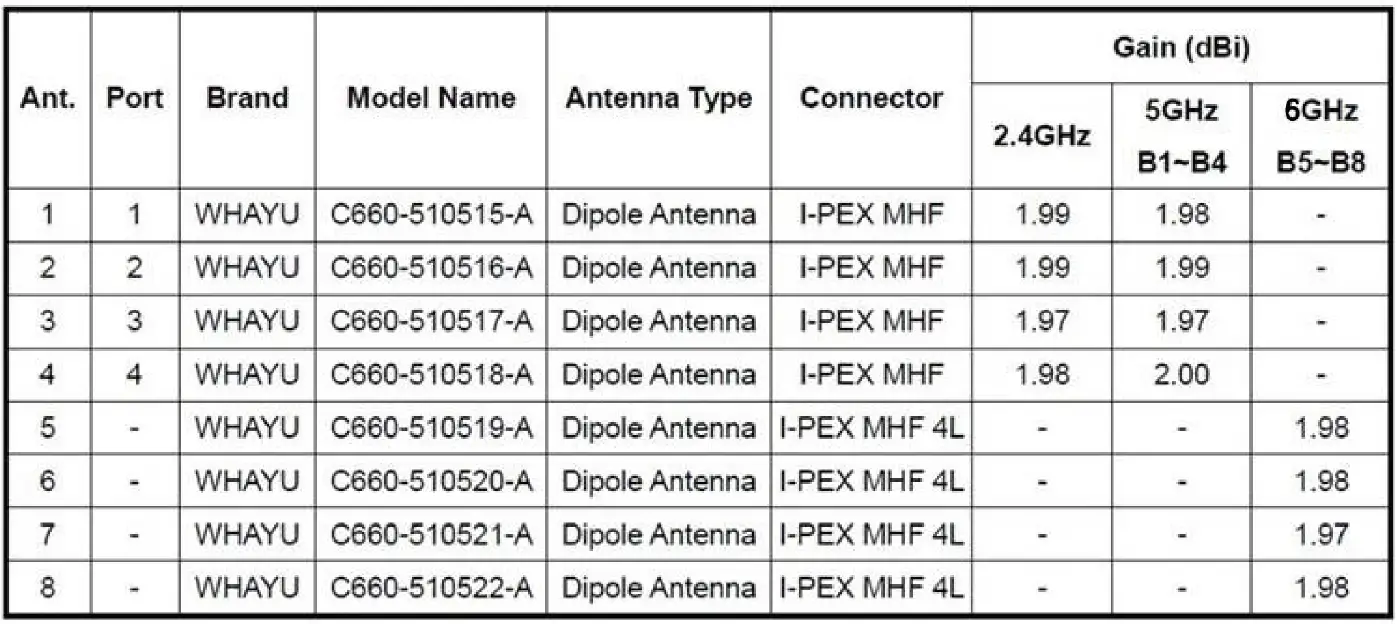
Note: The above information was declared by the manufacturer. The maximum antenna gain permitted for devices in the bands 5250-5350 MHz and 5470-5725 MHz shall be such that the equipment still complies with the e.i.r.p. limit. The maximum antenna gain permitted for devices in the band 5725-5850 MHz shall be such that the equipment still complies with the e.i.r.p. limits specified for point-to-point and non-point-to-point operation as appropriate. For indoor use only.
FREQUENTLY ASKED QUESTIONS
What is the ASUS GT-AXE11000 ROG Rapture Tri-band Gaming Router?
The ASUS GT-AXE11000 ROG Rapture Tri-band Gaming Router is a high-performance gaming router designed specifically for gamers, offering advanced features and technologies to optimize gaming experiences.
What is the maximum wireless speed supported by the ASUS GT-AXE11000?
The ASUS GT-AXE11000 supports a maximum wireless speed of up to 11000 Mbps, with one 2.4 GHz band offering speeds up to 1148 Mbps, and two 5 GHz bands providing speeds up to 4804 Mbps each.
Does the ASUS GT-AXE11000 router support tri-band connectivity?
Yes, the ASUS GT-AXE11000 router supports tri-band connectivity, allowing devices to connect to three separate wireless bands simultaneously, providing a dedicated band for gaming.
Does the ASUS GT-AXE11000 router have built-in gaming-specific features?
Yes, the ASUS GT-AXE11000 router includes several gaming-specific features such as Game Boost, Game Radar, and VPN Fusion, which prioritize gaming traffic, optimize connections, and enhance security during gaming sessions.
Can I prioritize gaming traffic over other internet activities with the ASUS GT-AXE11000?
Yes, the ASUS GT-AXE11000 router offers Quality of Service (QoS) features that allow you to prioritize gaming traffic, ensuring a smoother gaming experience even when other devices on the network are consuming bandwidth.
Does the ASUS GT-AXE11000 router support advanced security features?
Yes, the ASUS GT-AXE11000 router includes advanced security features such as AiProtection Pro, which offers commercial-grade security and protects against common online threats.
Can I connect multiple devices to the ASUS GT-AXE11000 simultaneously?
Yes, the ASUS GT-AXE11000 router supports multiple device connections, allowing you to connect multiple devices such as gaming consoles, PCs, smartphones, and smart home devices at the same time.
Does the ASUS GT-AXE11000 router support MU-MIMO technology?
Yes, the ASUS GT-AXE11000 router supports MU-MIMO (Multi-User Multiple Input Multiple Output) technology, which allows for simultaneous data transmission to multiple devices, improving overall network efficiency.
Can I set up a guest network with the ASUS GT-AXE11000 router?
Yes, the ASUS GT-AXE11000 router supports the creation of a separate guest network, allowing you to provide internet access to guests without giving them access to your main network.
Does the ASUS GT-AXE11000 router have Ethernet ports?
Yes, the ASUS GT-AXE11000 router is equipped with multiple Gigabit Ethernet ports, allowing you to connect wired devices directly for a stable and reliable internet connection.
Can I manage and control the ASUS GT-AXE11000 router remotely?
Yes, the ASUS GT-AXE11000 router supports remote management, allowing you to monitor and adjust network settings from anywhere using a web interface or dedicated mobile app.
Is the ASUS GT-AXE11000 router compatible with virtual private network (VPN) connections?
Yes, the ASUS GT-AXE11000 router supports VPN connections, allowing you to set up a secure connection to a VPN server for enhanced privacy and security.
Does the ASUS GT-AXE11000 router have USB ports?
Yes, the ASUS GT-AXE11000 router includes USB ports, enabling you to connect USB devices such as external storage drives or printers for sharing and network-attached storage (NAS) capabilities.
Can I set up parental controls on the ASUS GT-AXE11000 router?
Yes, the ASUS GT-AXE11000 router offers comprehensive parental control features that allow you to manage and restrict internet access for specific devices or users based on customizable settings.
VIDEO – PRODUCT OVERVIEW
DOWNLOAD THE PDF LINK: ASUS GT-AXE11000 ROG Rapture Tri-band Gaming Router Quick Start Guide