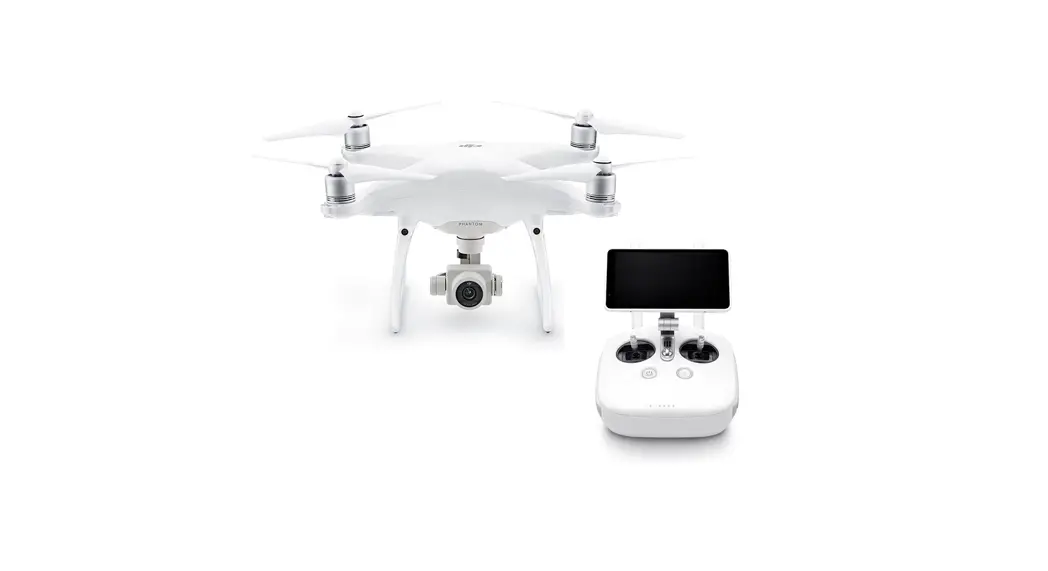
 4 Pro Plus v2.0 Drone Quadcopter UAV
User Guide
Phantom 4 Pro+ V2.0
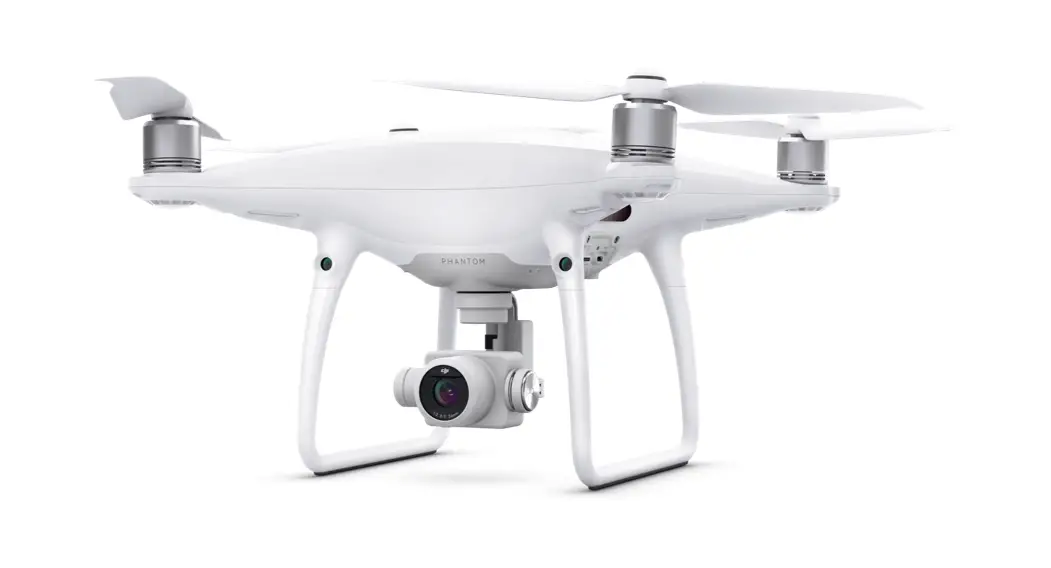
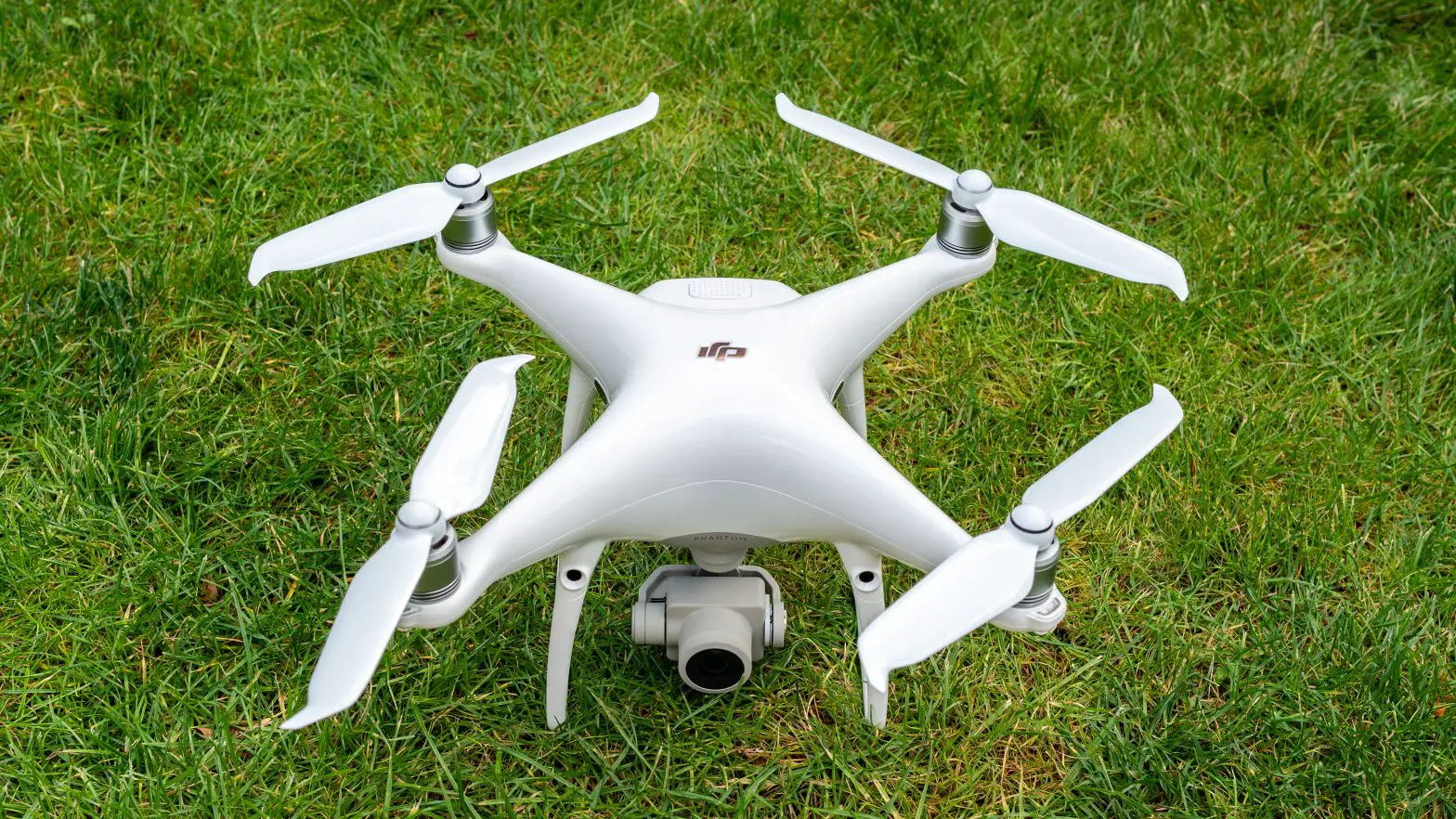
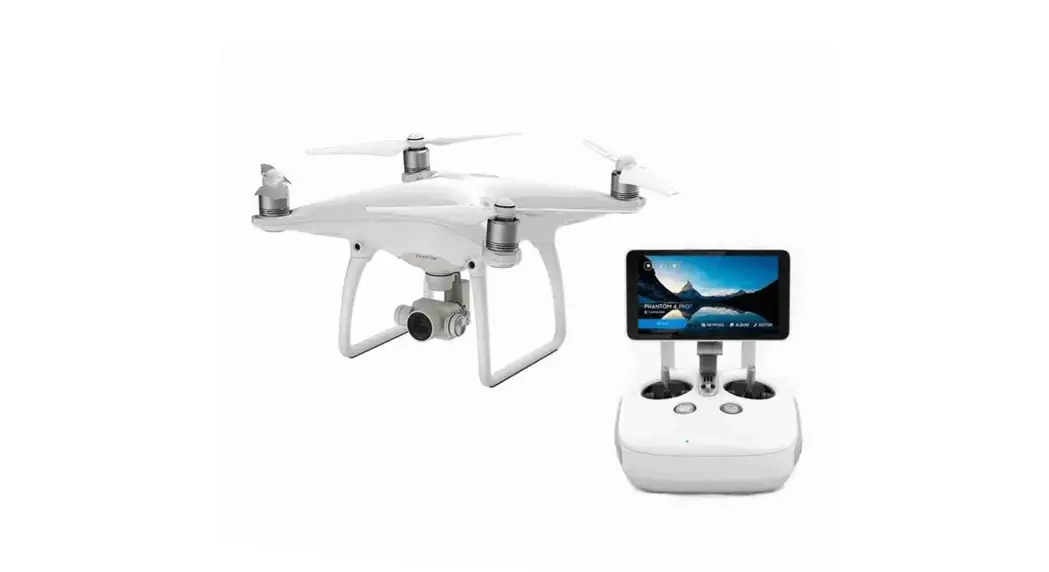
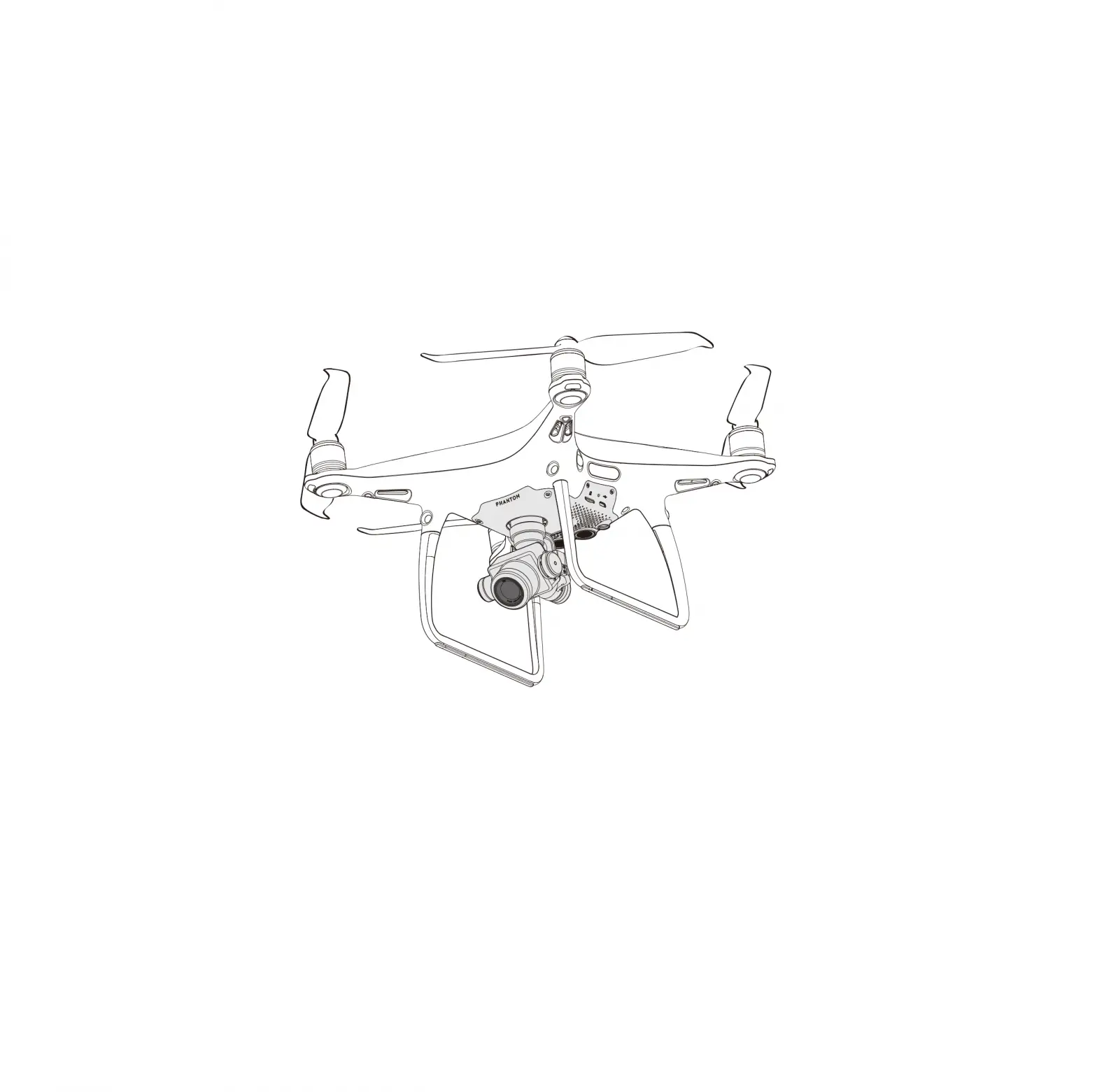
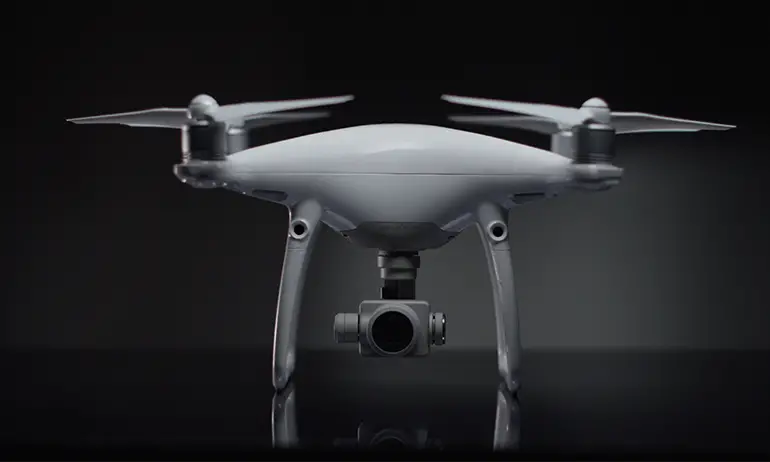
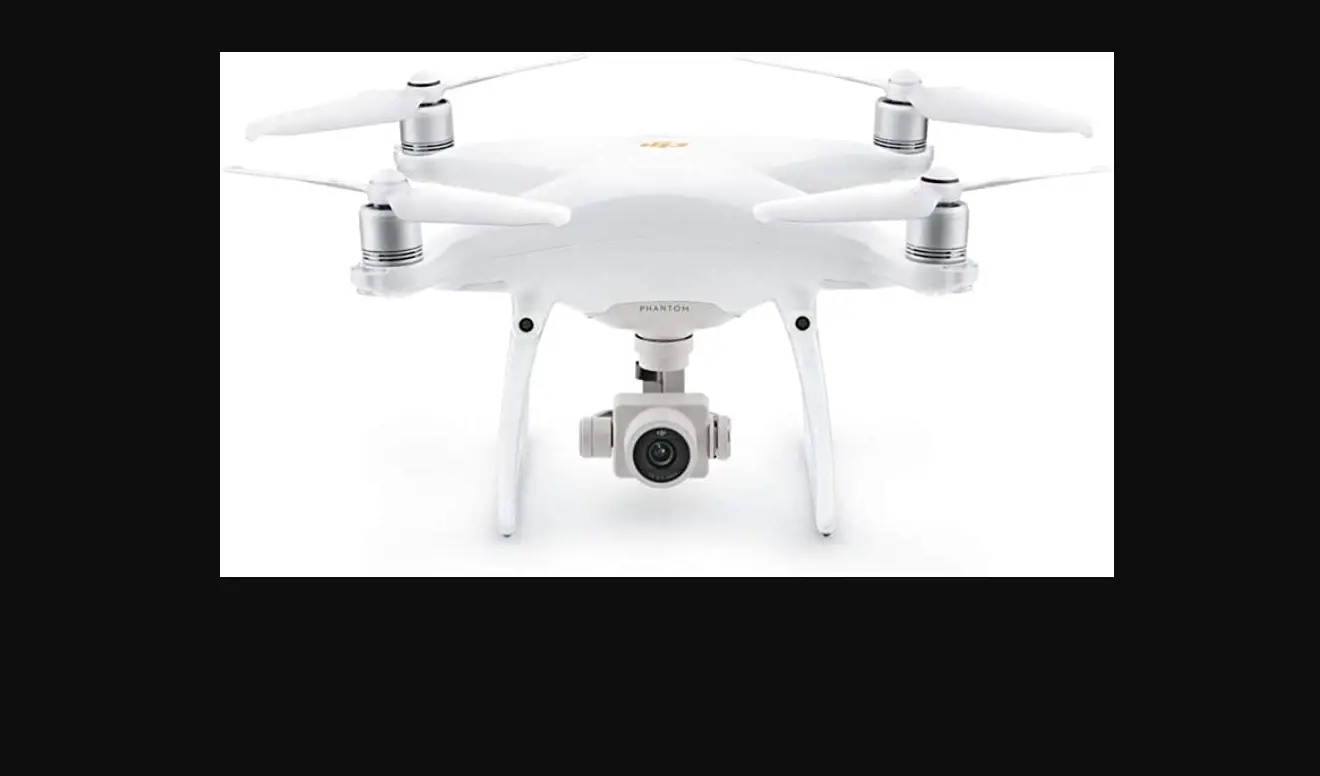
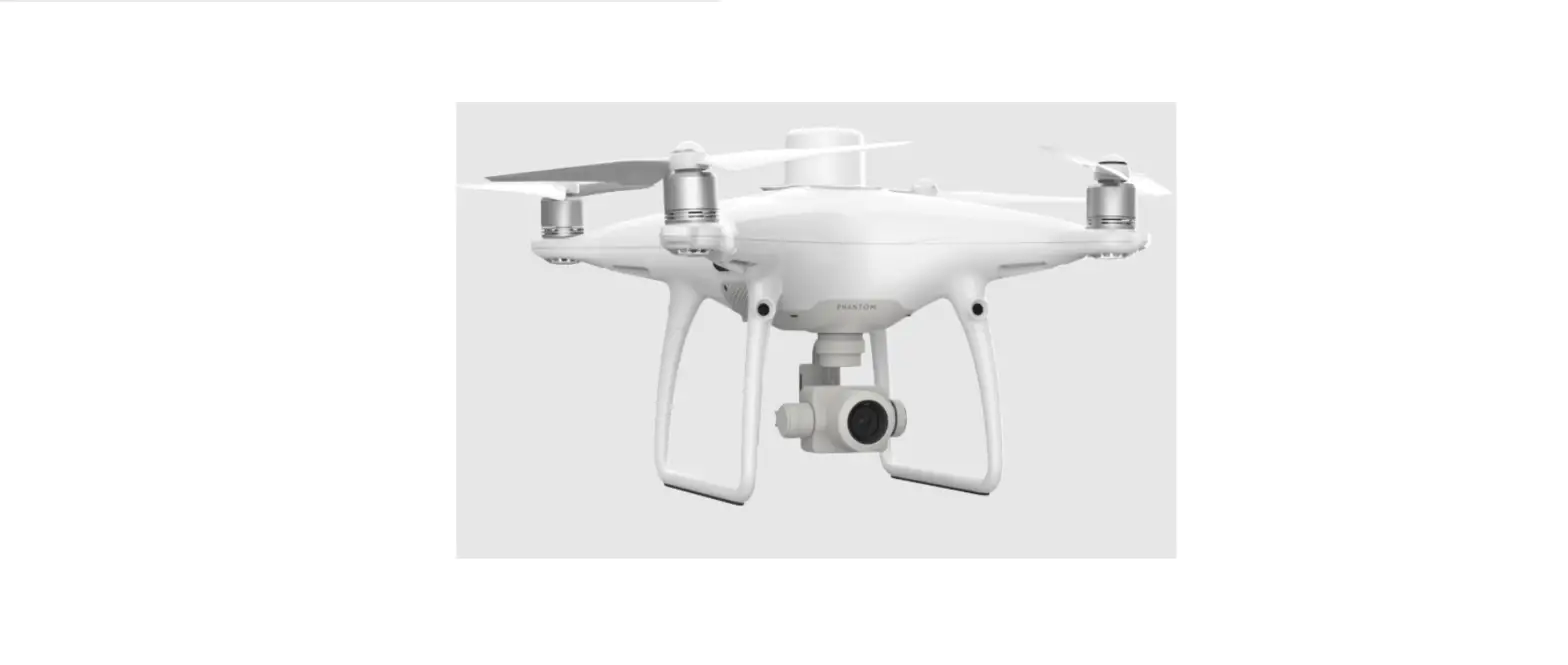
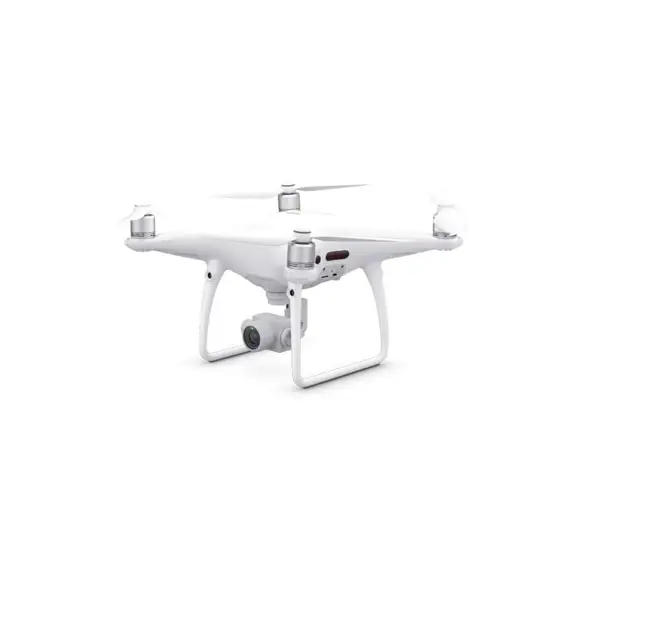
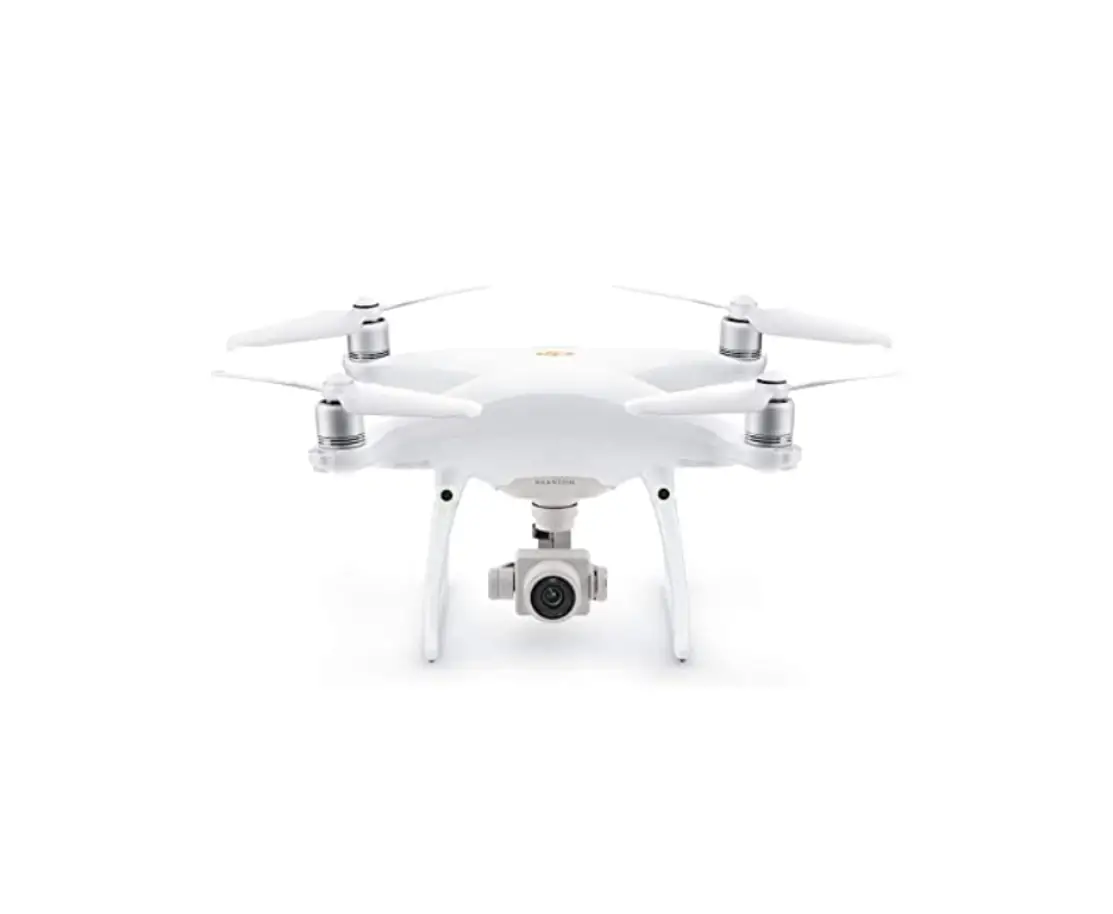
The DJI PHANTOM™ 4 Pro+ V2.0 is a smart prosumer flying camera capable of shooting 4K video at 60 fps and at up to 100 Mbps, and capturing 20 megapixel stills. 4 directions of obstacle avoidance allow it to intelligently avoid obstacles during flight. Using TapFilm and ActiveTrackTm through the DJI GO™ 4 app, you can fly anywhere visible on your screen or track a moving subject smoothly and easily with a simple tap. The camera uses a 1-inch CMOS sensor offering unprecedented clarity, lower noise, and better quality images.
In addition to the above features, improved propulsion system efficiency means aircraft noise is 4dB (60%) lower than on the Phantom 4 Pro+ V2.0.
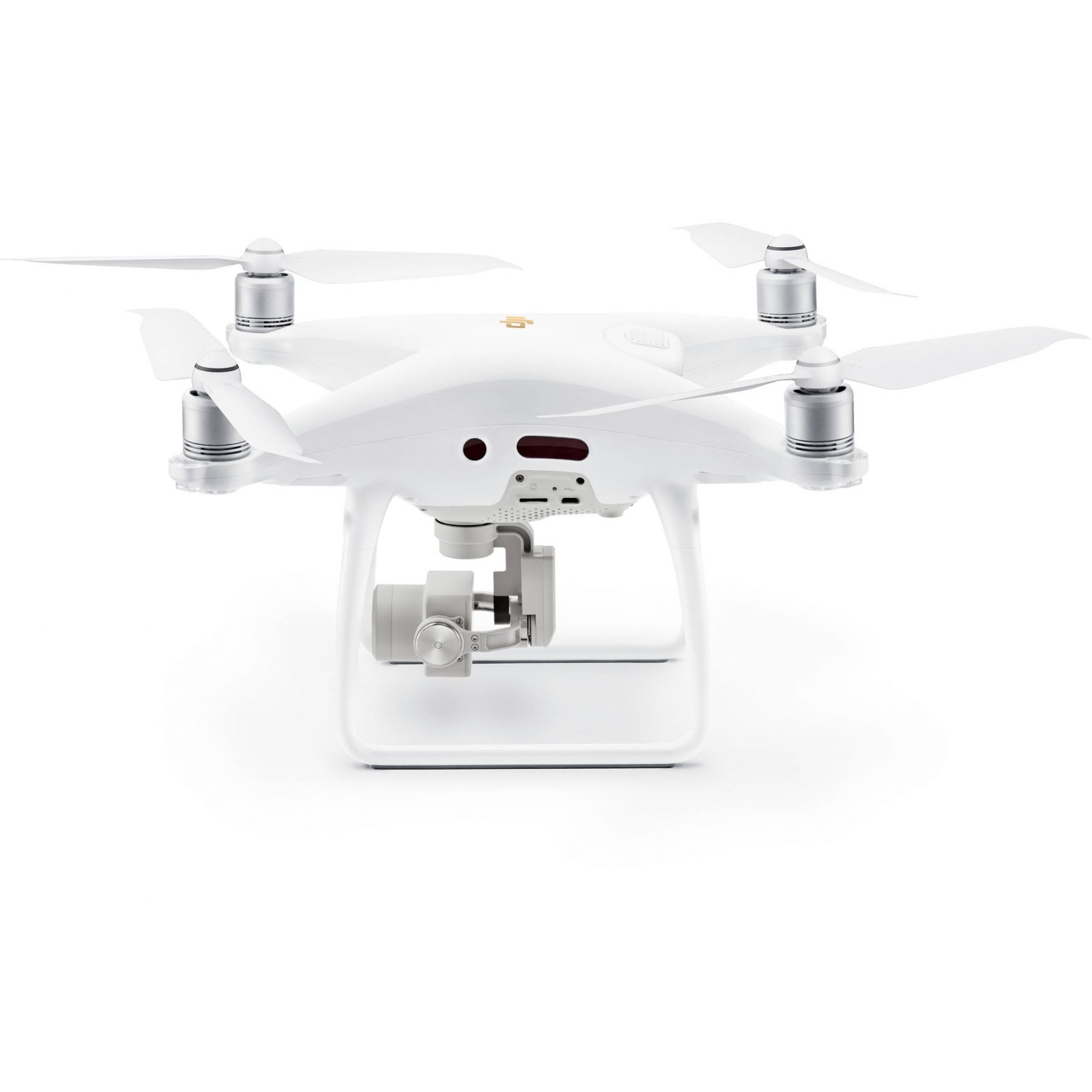
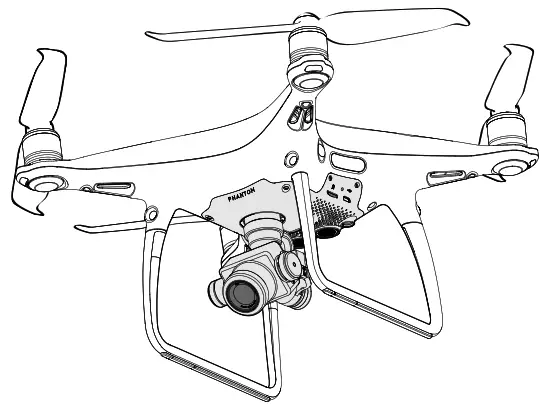
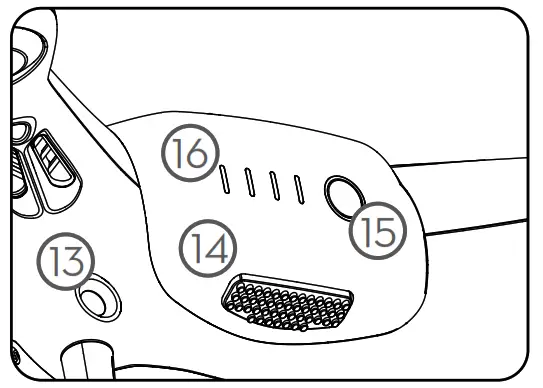
| 1. Gimbal and Camera | 9. Motors |
| 2. Downward Vision System* | 10. Propellers |
| 3. Micro USB Port | 11. Aircraft Status Indicators |
| 4. Camera/Linking Status Indicator and Link Button | 12. Antennas |
| 5. Camera Micro SD Card Slot | 13. Rear Vision System |
| 6. Forward Vision System | 14. Intelligent Flight Battery |
| 7. Infrared Sensing System* | 15. Power Button |
| 8. Front LEDs | 16. Battery Level Indicators |
* The Vision and Infrared Sensing Systems are affected by surrounding conditions. Read the Disclaimer and Safety Guidelines
and watch the tutorials in the DJI GO 4 app or on the official DJI website to learn more. http://www.dji.com/phantom-4-pro-v2
Remote Controller
The powerful remote controller of the Phantom 4 Pro+ V2.0 has a transmission range extending up to 6.2 mi (10 km)*. Itfeatures physical buttons and dials to control exposure, camera tilt, photo capture, and video recording. Built into the remote controller is DJI’s latest long-range transmission technology OCUSYNC™ , providing a live HD view from the Phantom’s camera directly on the display. Dual frequency support makes the HD video downlink morestable.
| 1. Power Button | 13. Gimbal Dial |
| 2. Return-to-Home (RTH) Button | 14. Camera Settings Dial |
| 3. Control Sticks | 15. Record Button |
| 4. Speaker | 16. Flight Mode Switch |
| 5. Status LED | 17. Shutter Button |
| 6. Battery Level LEDs | 18. Intelligent Flight Pause Button |
| 7. Power Port | 19. C1 and C2 Buttons (customizable) |
| 8. Display Screen | 20. Micro USB Port |
| 9. Sleep/Wake Button | 21. HDMI Port |
| 10. Microphone | 22. Micro SD Card Slot |
| 11. Antennas | 23. USB Port |
| 12. Handle Bar |
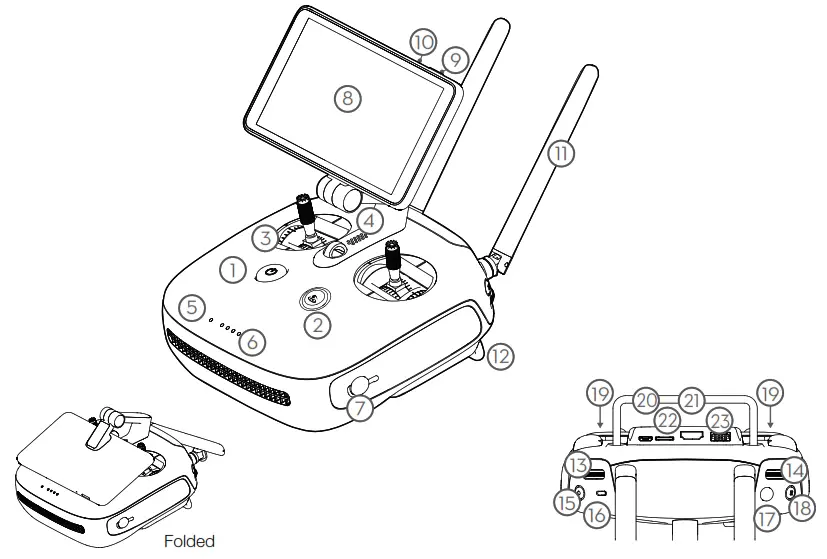
The default flight control is known as Mode 2. The left stick controls the aircraft’s altitude and heading, while the right stick controls its forward, backward, left and right movements. The gimbal dial controls the camera’s tilt.
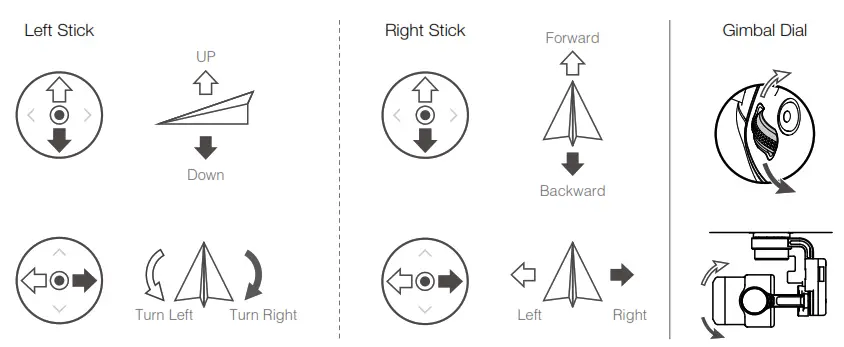
* The remote controller is able to reach its maximum transmission distance (FCC) in a wide open area with no Electro-Magnetic Interference, and at an altitude of about 400 feet (120 meters).
Watch the Tutorial Videos
Watch the tutorial videos at www.dji.com or in the DJI GO 4 app.
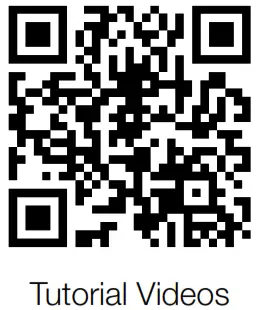 www.dji.com/phantom-4-pro-v2/info#video
Check the Battery Levels
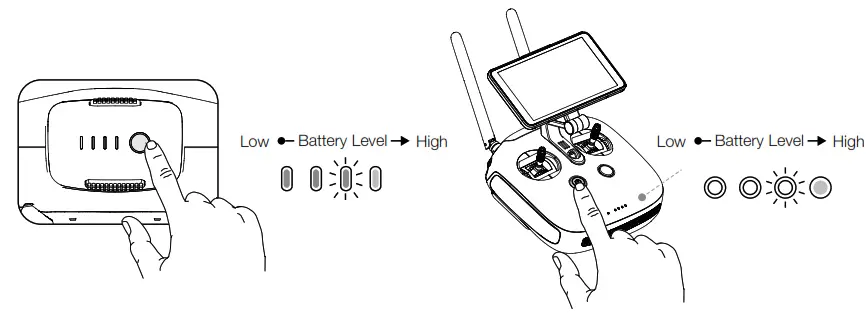
Press once to check the battery level. Press once, then again and hold to turn on/off.
Charge the Batteries
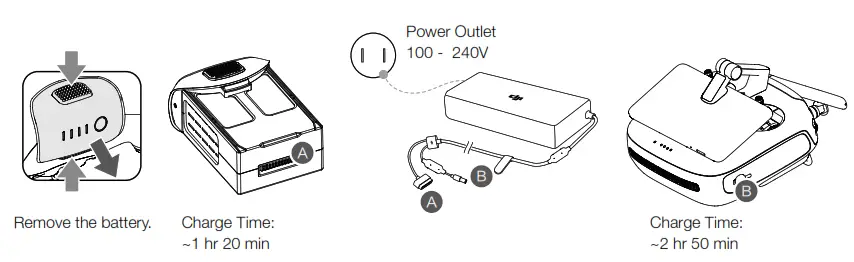
 When charging is complete, the battery level indicators will automatically turn off.
 When charging is complete, the battery level indicators will automatically turn off.
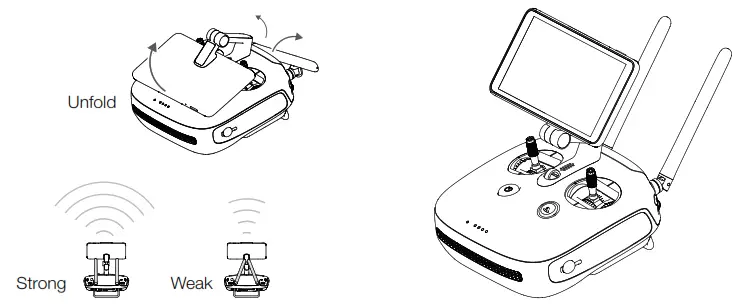
Prepare the Remote Controller
Prepare for Takeoff
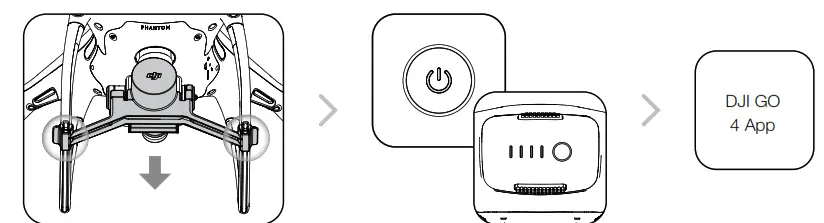 | ||
| Remove the gimbal clamp from the camera. | Power on the remote controller and the aircraft. | Complete first-time setup in DJI GO 4 and tap GO FLY. |
 First-time activation requires your DJI account and internet connection.
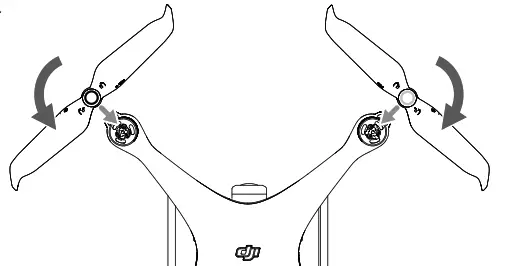
 | ||
| Black propeller rings go on motors with black dots. | Silver propeller rings go on motors without black dots. | Press the propeller down onto the mounting plate and rotate in the lock direction  until secure. until secure. |
 Check that the propellers are secure before each flight.
Flight
Ready to Go (GPS)
Before taking off, make sure the Aircraft Status Bar in the DJI GO 4 app indicates ‘Ready to Go (GPS)’ or ‘Ready to Go (Vision)’ if flying indoors.
In the DJI GO 4 App:
 | Auto Takeoff The aircraft will take off and hover at an altitude of 4 feet (1.2 meters). |
 | Return-to-Home (RTH) Bring the aircraft back to the Home Point. Tap again to stop the procedure. |
 | TapFly Tap on your screen to fly your Phantom in that direction, avoiding obstacles as it flies. |
| Auto Landing The aircraft will land vertically and stop its motors. |
 | Normal You are in control of the Phantom, with satellite and Return-to-Home support. |
 | ActiveTrack Mark an object on your screen to track it as it moves. |
- Watch the tutorial in the DJI GO 4 app or on the official DJI website to learn more.
- Always set an appropriate RTH altitude before takeoff. When the aircraft is returning to the Home Point, you should guide it with the control sticks. Refer to the Disclaimer and Safety Guidelines for more details.
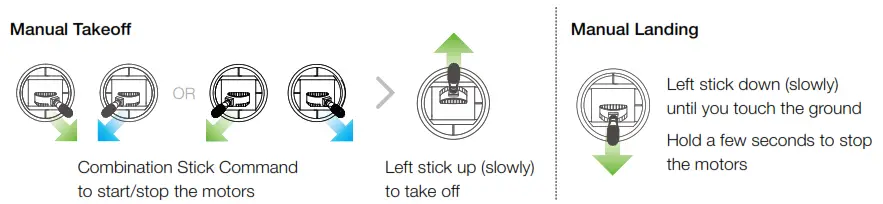
- Rotating propellers can be dangerous. Do not start the motors when there are people nearby.
- Always keep your hands on the remote controller so long as the motor is still spinning.
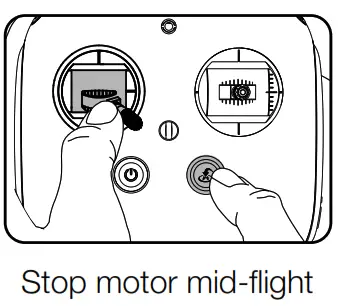
- Stop motor mid-flight: Pull the left stick to the bottom inside corner while simultaneously pressing the RTH button. Only stop motors mid-flight in emergency situations when doing so can reduce the risk of damage or injury. Refer to the user manual for details.
 It’s important to understand basic flight guidelines, for the safety of both you and those around you. Don’t forget to read the Disclaimer and Safety Guidelines.
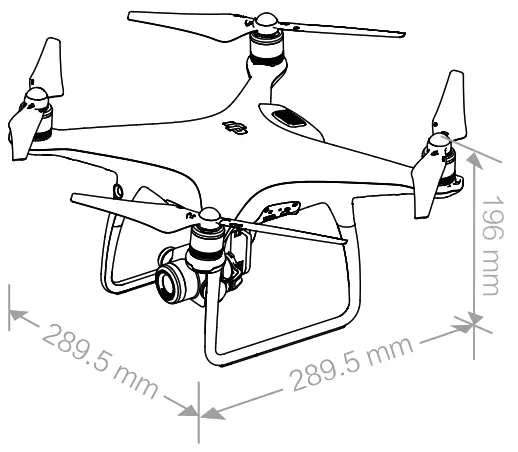
Specifications
| Aircraft | ||
| Weight (Battery & Propellers Included) | 1375 g | |
| Max Ascent Speed | S-mode: 6 m/s; P-mode: 5 m/s | |
| Max Descent Speed | S-mode: 4 m/s; P-mode: 3 m/s 45 mph (72 kph) (S-mode); 36mph (58 kph) (A-mode); | |
| Max Speed | 31 mph (50 kph) (P-mode) | |
| Max Service Ceiling Above Sea Level | 19685 ft (6000 m) | |
| Max Flight Time | Approx. 30 minutes | |
| Operating Temperature | 32° to 104° F ( 0° to 40° C) | |
| GNSS | GPS+GLONASS | |
| Operating Frequency | 2.400 – 2.483 GHz and 5.725 – 5.850 GHz | |
| Transmitter Power (EIRP) | 2.4 GHz: ≤26 dBm (FCC); ≤20 dBm (CE); ≤20 dBm (SRRC) 5.8 GHz: ≤26 dBm (FCC); ≤14 dBm (CE); ≤26 dBm (SRRC) | |
| Hover Accuracy Range | Vertical: ±0.1 m (With Vision Positioning); ±0.5 m (With GPS Positioning) Horizontal: ±0.3 m (With Vision Positioning); ±1.5 m (With GPS Positioning) | |
| Gimbal | ||
| Controllable Range | Pitch: -90° to +30° | |
| Vision System | ||
| Velocity Range | ≤31 mph (50 kph) at 6.6 ft (2 m) above ground | |
| Altitude Range | 0 – 33 ft (0 – 10 m) | |
| Operating Range | 0 – 33 ft (0 – 10 m) | |
| Obstacle Sensory Range | 2 – 98 ft (0.7 – 30 m) | |
| Operating Environment | Surfaces with clear patterns and adequate lighting (> 15 lux) | |
| Infrared Sensing System | ||
| Obstacle Sensory Range | 0.6 – 23 ft (0.2 – 7 m) | |
| Operating Environment | Surface with diffuse reflection material, and reflectivity > 8% (such as wall, trees, humans, etc.) | |
| Camera | ||
| Sensor | 1’’ CMOS; Effective pixels: 20M | |
| Lens | FOV (Field of View) 84°, 8.8 mm (35 mm format equivalent: 24 mm), f/2.8 – f/11, auto focus at 1 m – ∞ | |
| ISO Range | Video: 100 – 3200 (Auto); 100 – 6400 (Manual); Photo: 100 – 3200 (Auto); 100 – 12800 (Manual) | |
| Mechanical Shutter | 8 – 1/2000 s | |
| Electronic Shutter | 8 – 1/8000 s | |
| Max Image Size | 3:2 Aspect Ratio: 5472×3648; 4:3 Aspect Ratio: 4864×3648; 16:9 Aspect Ratio: 5472×3078 | |
| Still Photography Modes | Single Shot Burst Shooting: 3/5/7/10/14 frames Auto Exposure Bracketing (AEB): 3/5 bracketed frames at 0.7EV Bias Interval: 2/3/5/7/10/15/30/60 s | |
| Video Recording Modes | H.265 ● C4K: 4096×2160 24/25/30p ● 4K: 3840×2160 24/25/30p ● 2.7K: 2720×1530 24/25/3 0/48/50/60p ● FHD: 1920×1080 24/25/30/48/50/60/120p ● HD: 1280×720 24/25/30/48/50/60/120p | H.264 ● C4K: 4096×2160 24/25/30/48/50/60p ● 4K: 3840×2160 24/25/30/48/50/60p ● 2.7K: 2720×1530 24/25/30/48/50/60p ● FHD: 1920×1080 24/25/30/48/50/60/120p ● HD: 1280×720 24/25/30/48/50/60/120p |
| Video Storage Bitrate | 100 Mbps | |
| Supported File Systems | FAT32 (≤ 32 GB); exFAT (> 32 GB) | |
| Photo | JPEG, RAW (DNG), JPEG + RAW | |
| Video | MP4/MOV (AVC/H.264; HEVC/H.265) | |
| Supported SD Cards | Micro SD, Max Capacity: 128 GB. Class 10 or UHS-1 rating required | |
| Operating Temperature | 32° to 104° F (0° to 40° C) | |
| Remote Controller | ||
| Operating Frequency | 2.400 – 2.483 GHz and 5.725 – 5.850 GHz | |
| Max Transmission Distance (Unobstructed, free of interference) | 2.4 GHz: 10 km (FCC); 6 km (CE); 6 km (SRRC) 5.8 GHz: 10 km (FCC); 6 km (CE); 6 km (SRRC) | |
| Operating Temperature | 32° – 104° F (0° – 40° C) | |
| Battery | 6000 mAh LiPo 2S | |
| Transmitter Power (EIRP) | 2.4 GHz: ≤26 dBm (FCC); ≤20 dBm (CE); ≤20 dBm (SRRC) 5.8 GHz: ≤26 dBm (FCC); ≤14 dBm (CE); ≤20 dBm (SRRC) | |
| Operating Voltage | 1.2 A @ 7.4 V | |
| Built-in Display Device | 5.5 inch screen, 1920×1080, 1000 cd/m² Android system, 4G RAM + 16G ROM | |
| Charger | ||
| Voltage | 17.4 V | |
| Rated Power | 100 W | |
| Intelligent Flight Battery (PH4-5870mAh-15.2V) | ||
| Capacity | 5870 mAh | |
| Voltage | 15.2 V | |
| Battery Type | LiPo 4S | |
| Energy | 89.2 Wh | |
| Net Weight | 468 g | |
| Charging Temperature Range | 41° to 104° F (5° to 40° C) | |
| Max Charging Power | 100 W | |
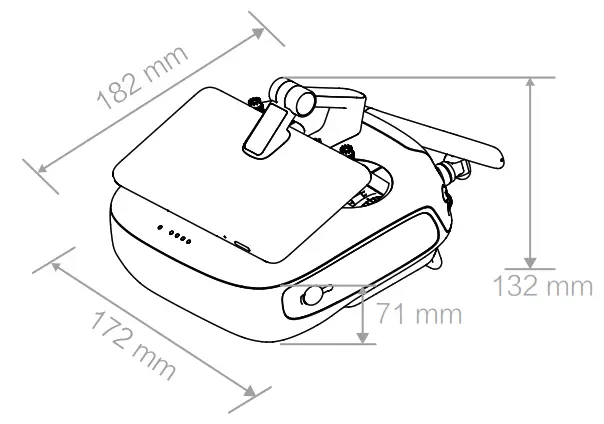
For more information, read the User Manual:
http://www.dji.com/phantom-4-pro-v2
※ This content is subject to change without prior notice.
PHANTOM is a trademark of DJI.
Copyright © 2021 DJI All Rights Reserved. DJI incorporates HDMI™ technology.
The terms HDMI and HDMI High-Definition Multimedia
Interface, and the HDMI Logo are trademarks or
registered trademarks of HDMI Licensing LLC in the
United States and other countries.
 DJI - Official Website