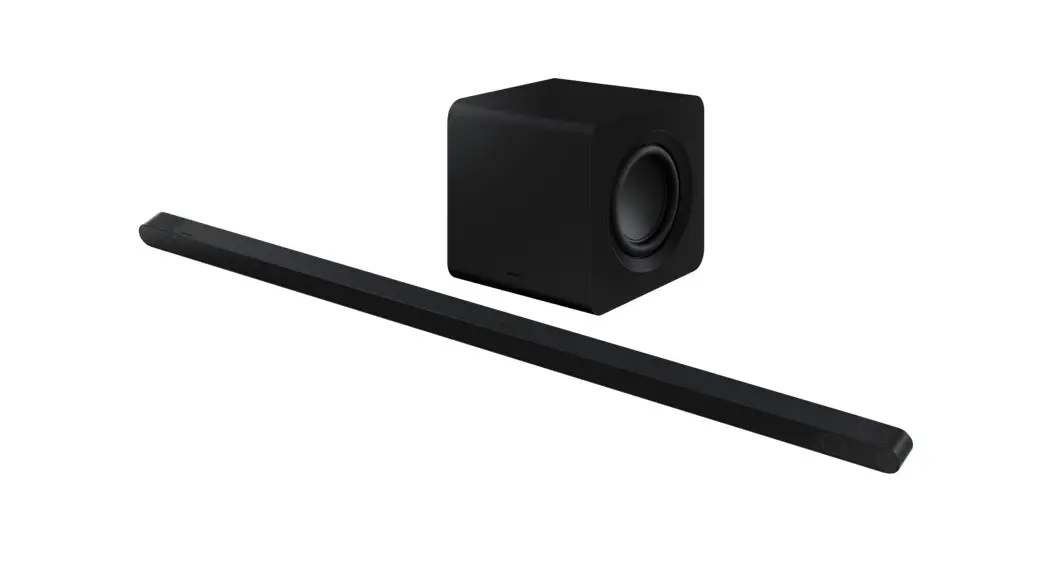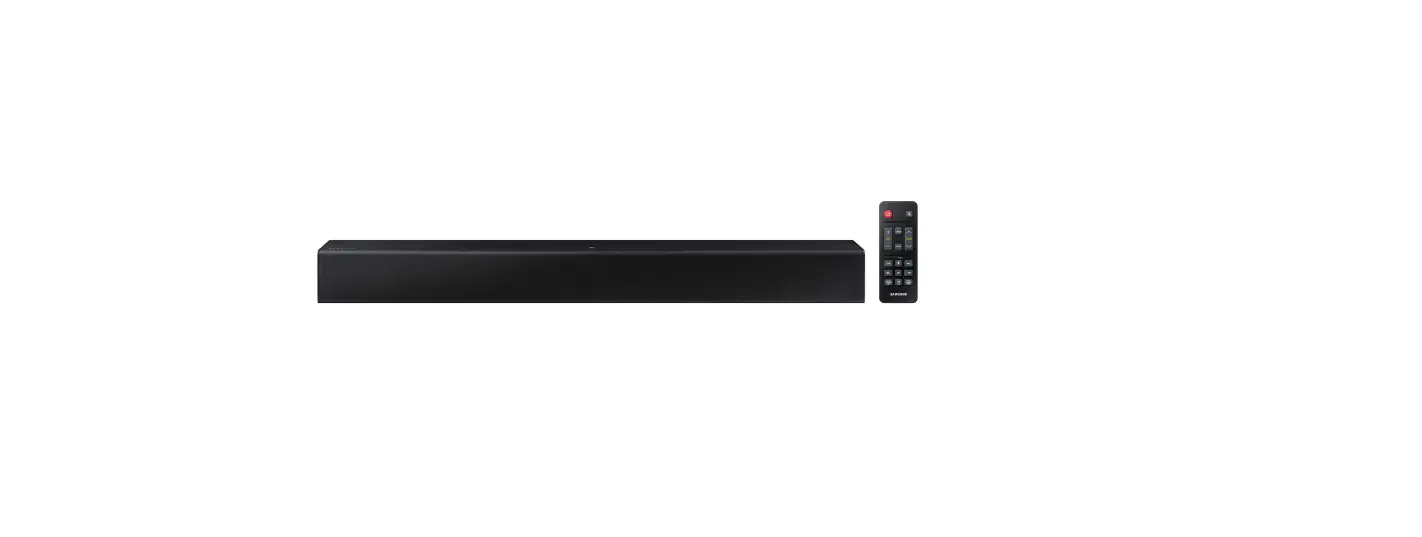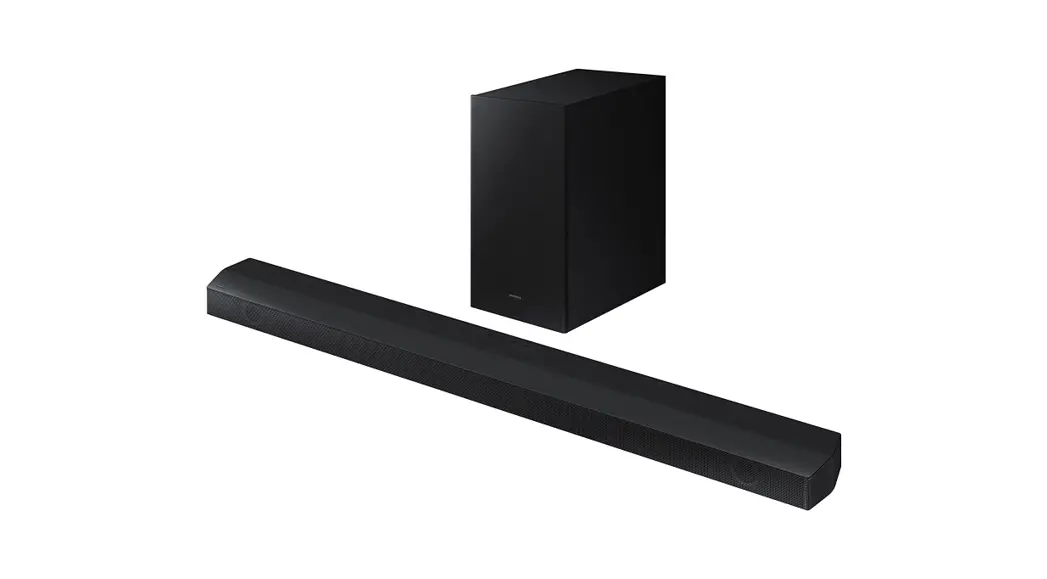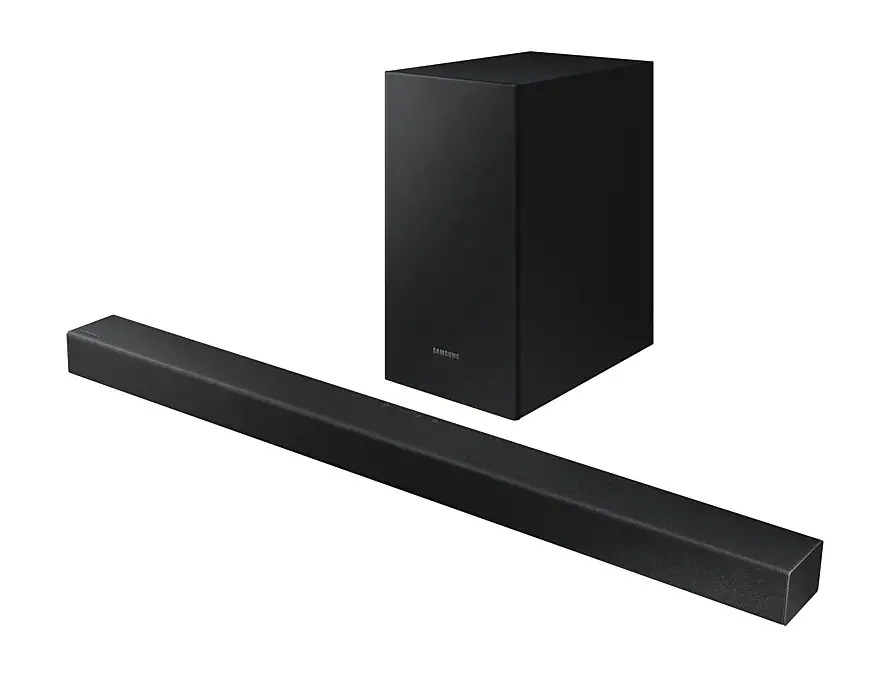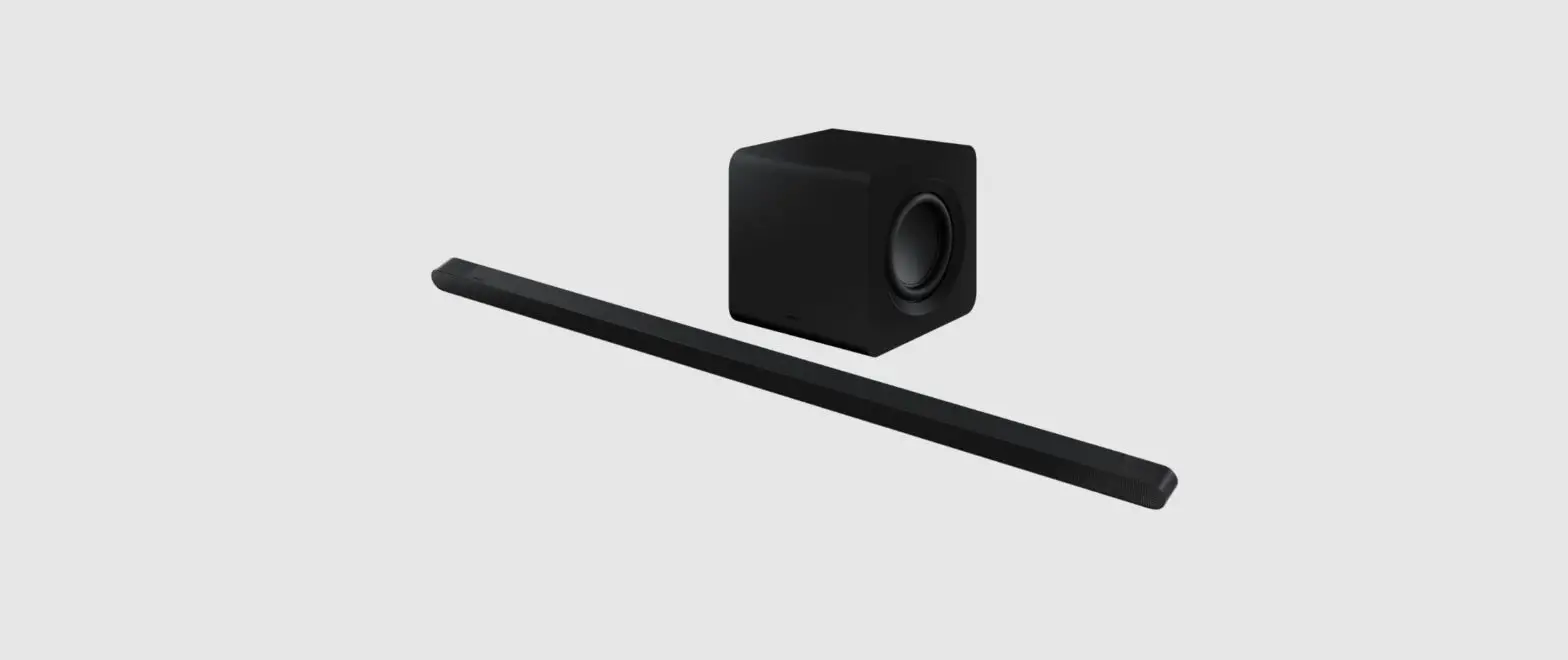
SAMSUNG HW-S800B Soundbar User Manual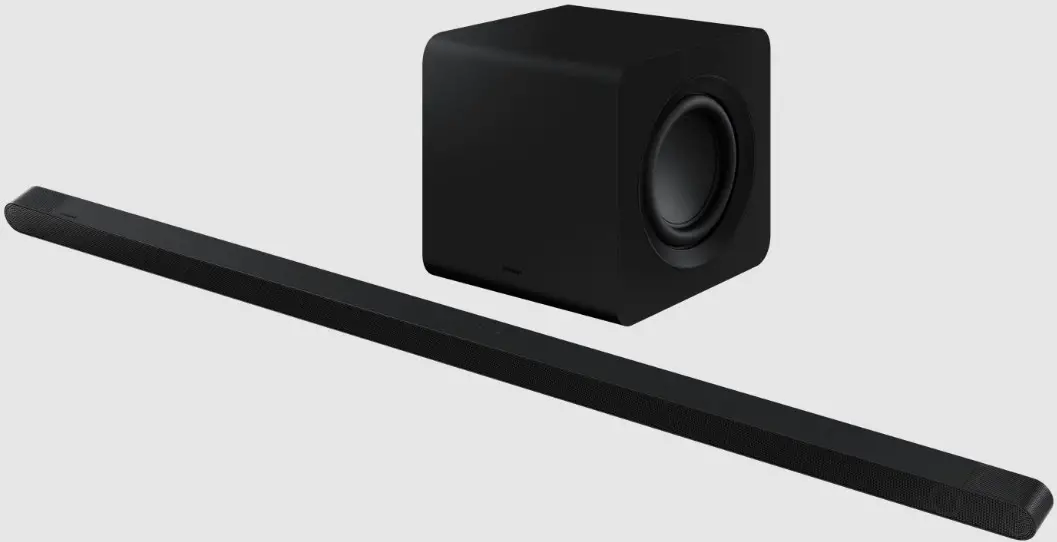
SAFETY INFORMATION
SAFETY WARNINGS
TO REDUCE THE RISK OF ELECTRIC SHOCK, DO NOT REMOVE THE COVER (OR BACK).
NO USER-SERVICEABLE PARTS ARE INSIDE. REFER SERVICING TO QUALIFIED SERVICE PERSONNEL.
Refer to the table below for an explanation of symbols which may be on your Samsung product.
 |  CAUTION CAUTIONRISK OF ELECTRIC SHOCK. DO NOT OPEN. |
| This symbol indicates that high voltage is present inside. It is dangerous to make any kind of contact with any internal part of this product. |
| This symbol indicates that this product has included important literature concerning operation and maintenance. |
 | Class II product : This symbol indicates that a safety connection to electrical earth (ground) is not required.If this symbol is not present on a product with a power cord, the product MUST have a reliable connection to protective earth(ground). |
 | AC voltage : Rated voltage marked with this symbol is AC voltage. |
 | DC voltage : Rated voltage marked with this symbol is DC voltage. |
 | Caution. Consult Instructions for use : This symbol instructs the user to consult the user manual for further safety related information. |
WARNING
- To reduce the risk of fire or electric shock, do not expose this appliance to rain or moisture.
CAUTION
- TO PREVENT ELECTRIC SHOCK, MATCH WIDE BLADE OF PLUG TO WIDE SLOT, FULLY INSERT.
- This apparatus shall always be connected to a AC outlet with a protective grounding connection.
- To disconnect the apparatus from the mains, the plug must be pulled out from the mains socket, therefore the mains plug shall be readily operable.
- Do not expose this apparatus to dripping or splashing. Do not put objects filled with liquids, such as vases, on the apparatus.
- To turn this apparatus off completely, you must pull the power plug out of the wall socket. Consequently, the power plug must be easily and readily accessible at all times
PRECAUTIONS
- Ensure that the AC power supply in your house complies with the power requirements listed on the identification sticker located on the bottom of your product. Install your product horizontally, on a suitable base (furniture), with enough space around it for ventilation (7~10 cm). Make sure the ventilation slots are not covered. Do not place the unit on amplifiers or other equipment which may become hot. This unit is designed for continuous use.
To fully turn off the unit, disconnect the AC plug from the wall outlet. Unplug the unit if you intend to leave it unused for a long period of time. - During thunderstorms, disconnect the AC plug from the wall outlet. Voltage peaks due to lightning could damage the unit.
- Do not expose the unit to direct sunlight or other heat sources. This could lead to overheating and cause the unit to malfunction.
- Protect the product from moisture (i.e. vases), and excess heat (e.g. a fireplace) or equipment creating strong magnetic or electric fields. Unplug the power cable from the AC wall socket if the unit malfunctions. Your product is not intended for industrial use. It is for personal use only. Condensation may occur if your product has been stored in cold temperatures. If transporting the unit during the winter, wait approximately 2 hours until the unit has reached room temperature before using.
- Fire or explosion may occur, resulting in damage to the remote control or personal injury.
- Do not apply shock to the remote control.
- Be careful not to let foreign substances such as metal, liquid, or dust come in contact with the charging terminal of the remote control.
- When the remote control is damaged or you smell smoke or burning fumes, immediately stop operation and then repair it at the Samsung service centre.
- Do not arbitrarily disassemble the remote control.
- Be careful not to let infants or pets suck or bite the remote control. Fire or explosion may occur, resulting in damage to the remote control or personal injury
CHECKING THE COMPONENTS
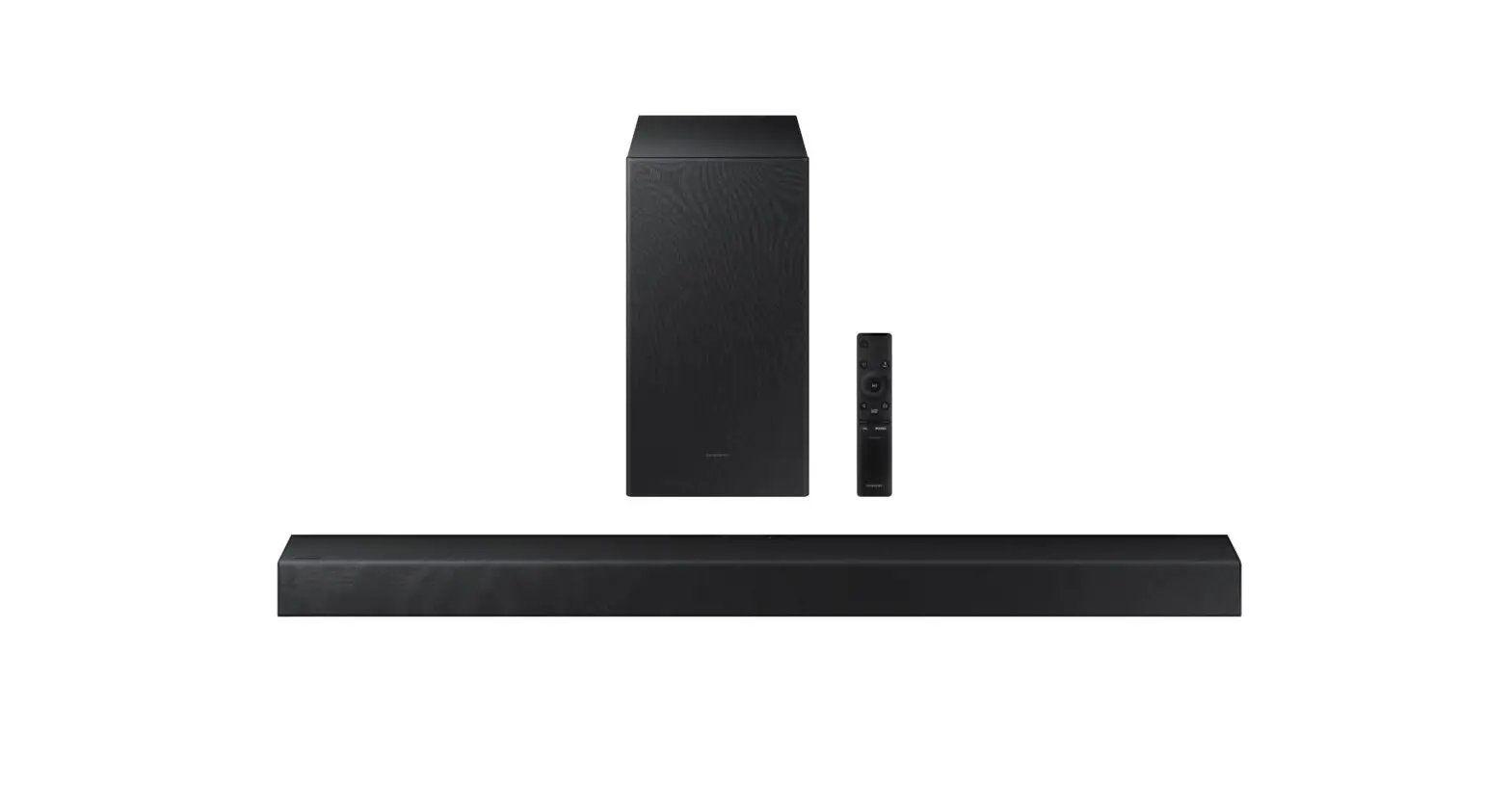
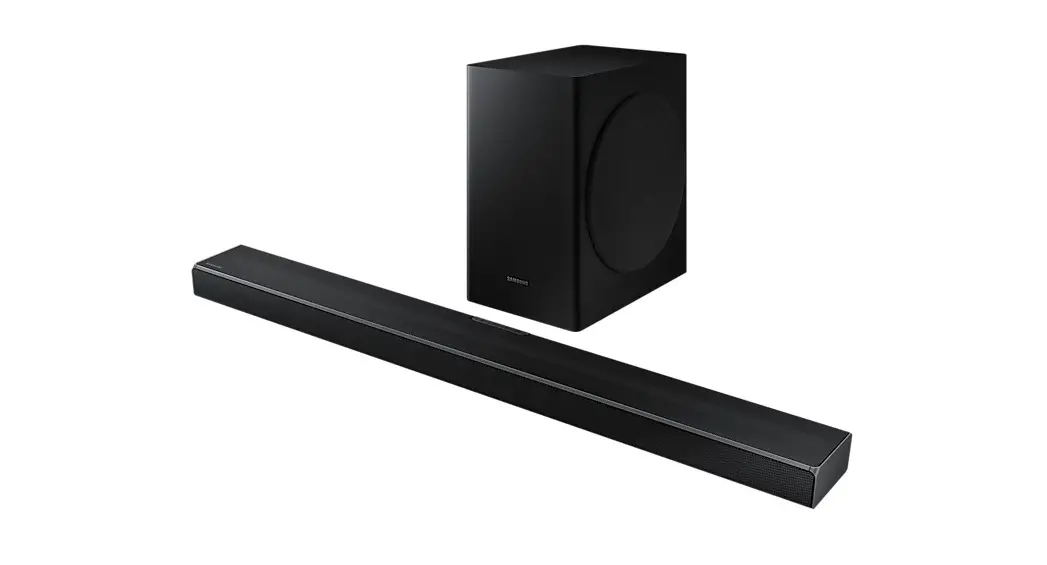
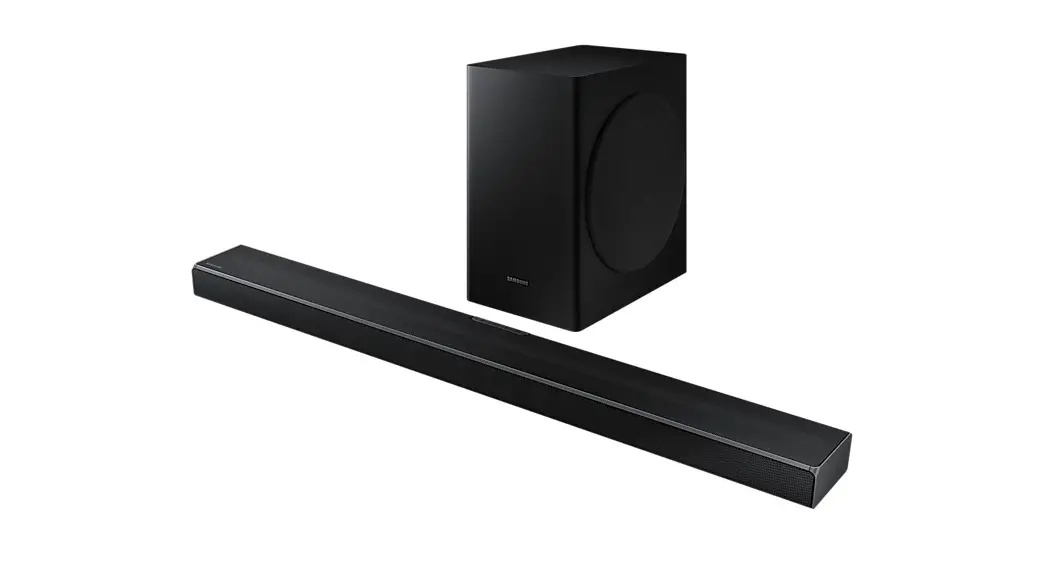
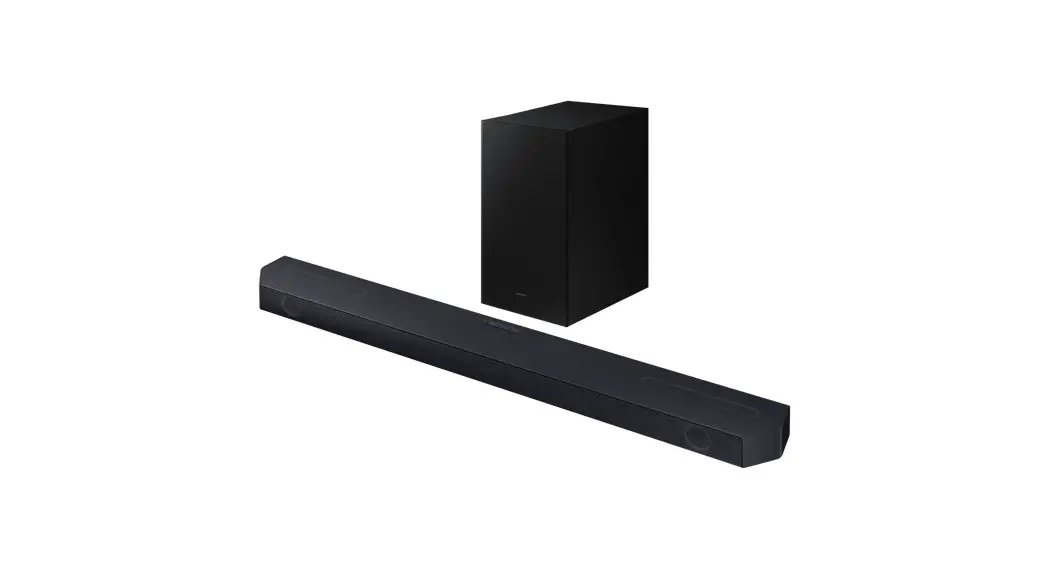
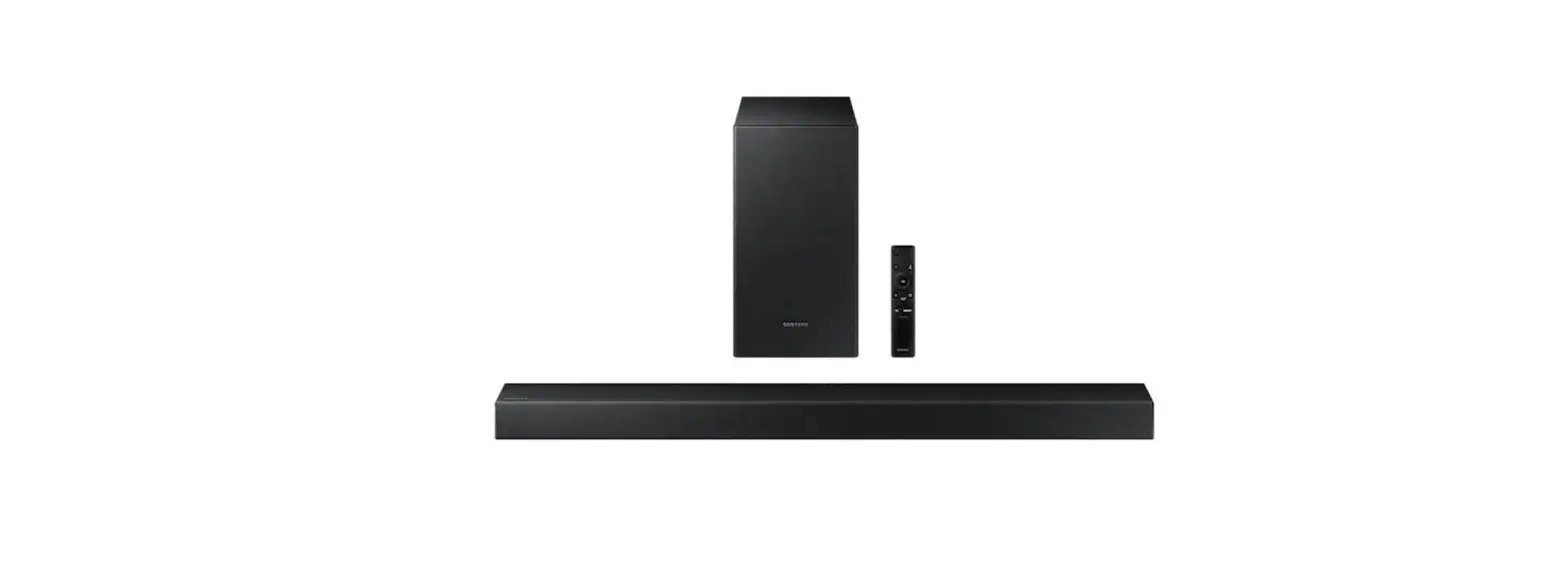
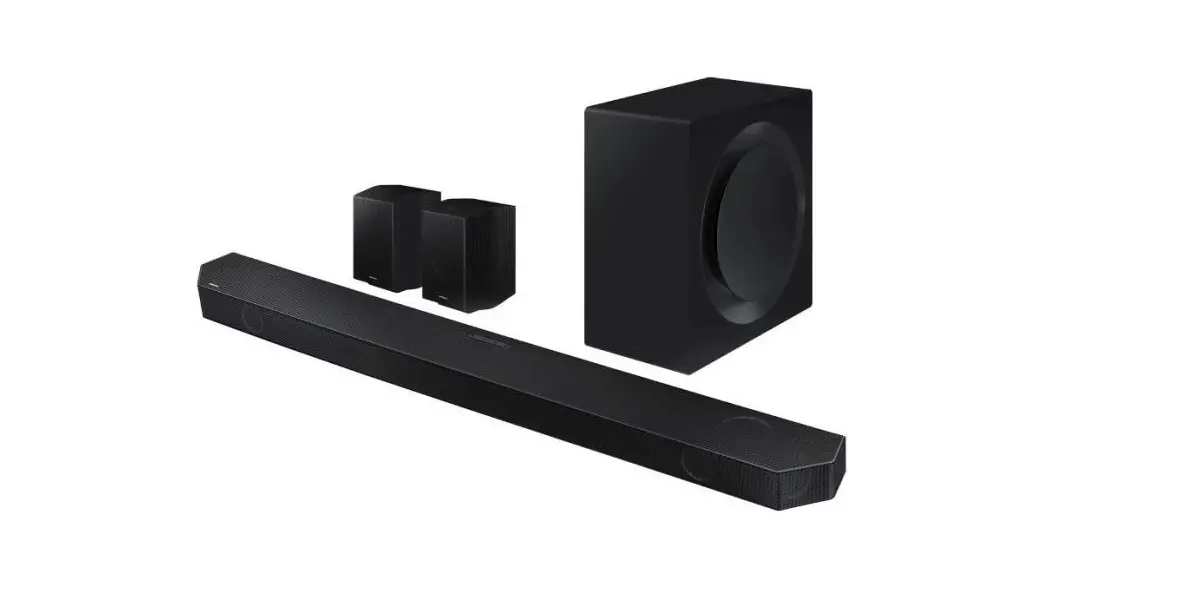
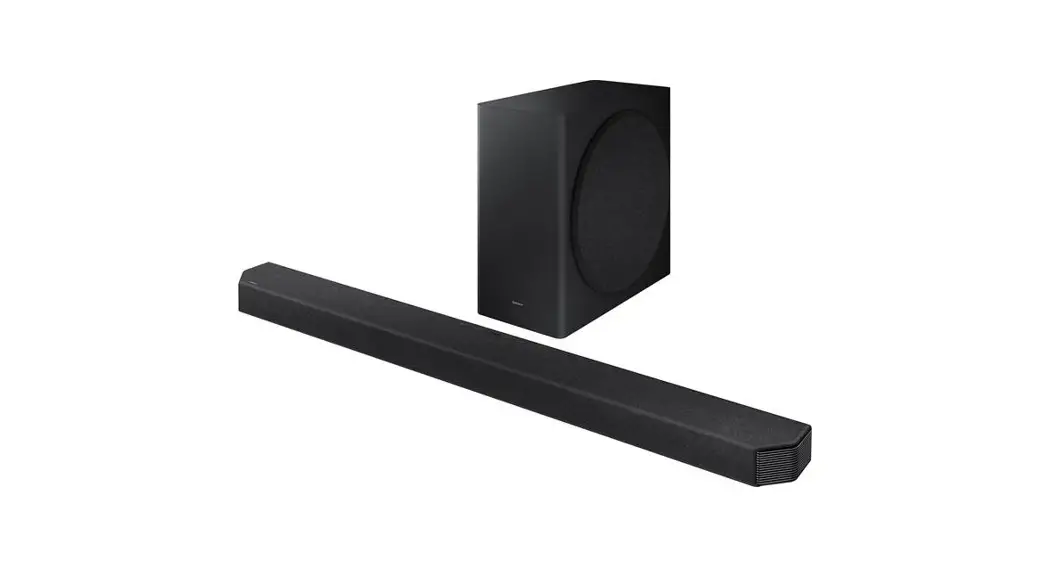
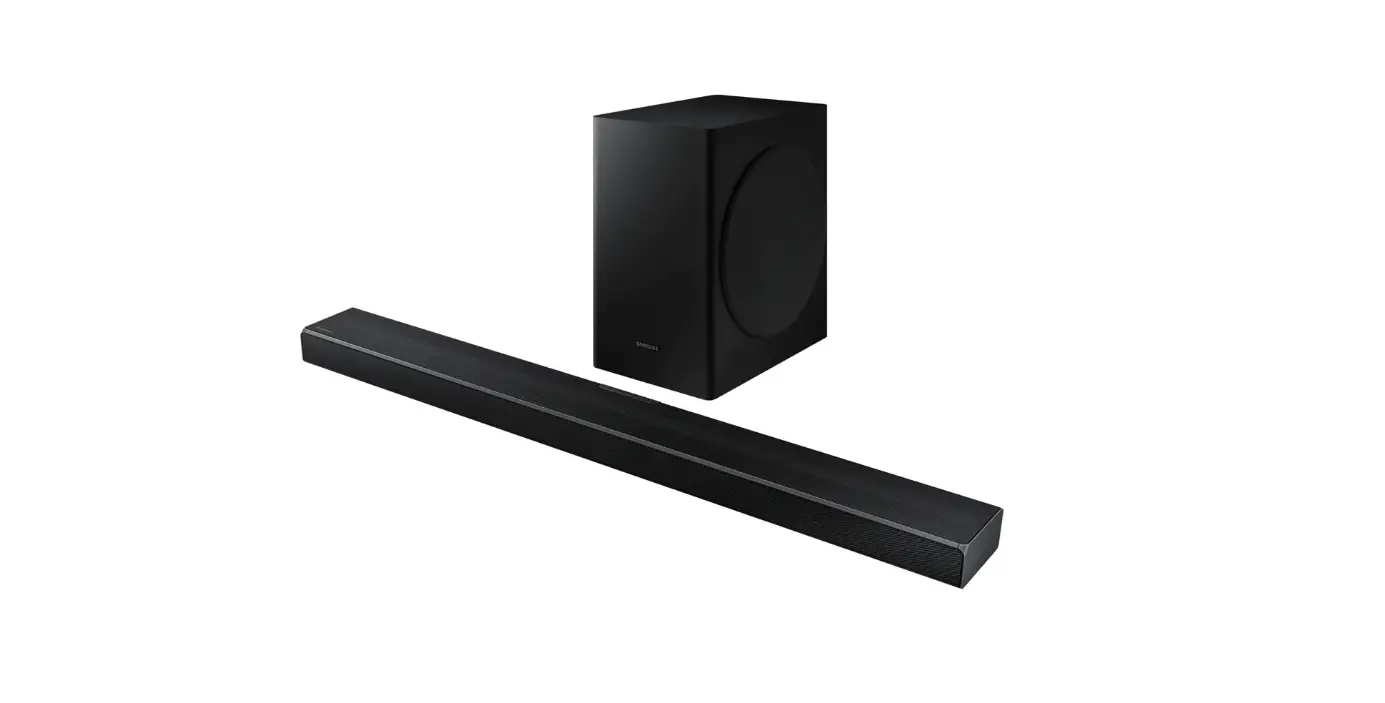
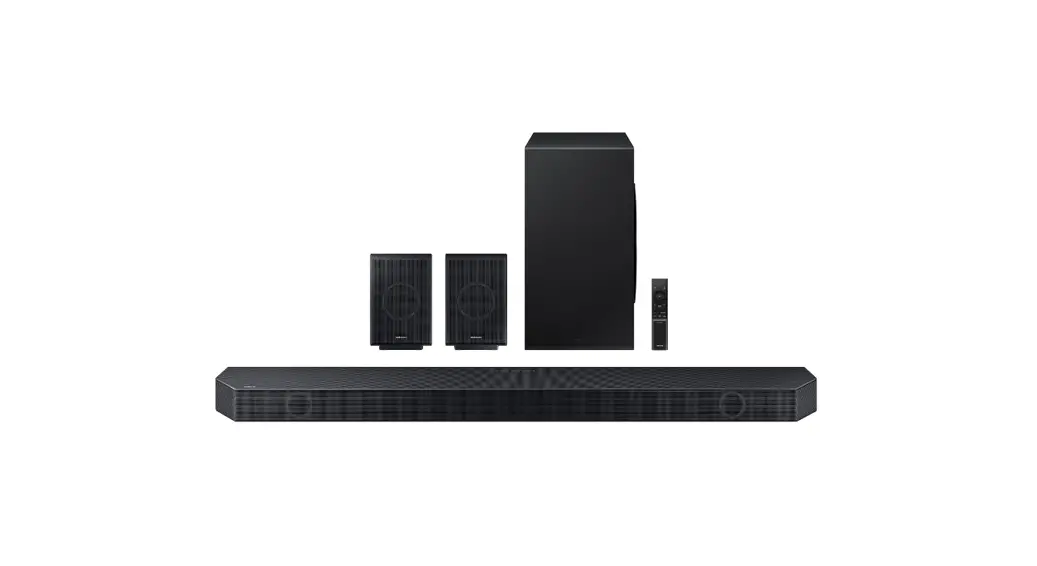
Soundbar Main Unit / Soundbar Remote Control / Subwoofer / Power Cord X 2 (Subwoofer, Soundbar) / AC/DC Adapter / HDMI to Micro HDMI Cable / Wall Mount Guide / Holder-Screw X 2 / Screw (M5 X L55) X 4 / Screw Anchor X 4 / Bracket-Wall Mount X 2
NOTE
- For more information about the power supply and power consumption, refer to the label attached to the product. (Label: Bottom of the Soundbar Main Unit)
- To purchase additional components or optional cables, contact a Samsung Service Centre or Samsung Customer Care.
PRODUCT OVERVIEW
Top Panel of the Soundbar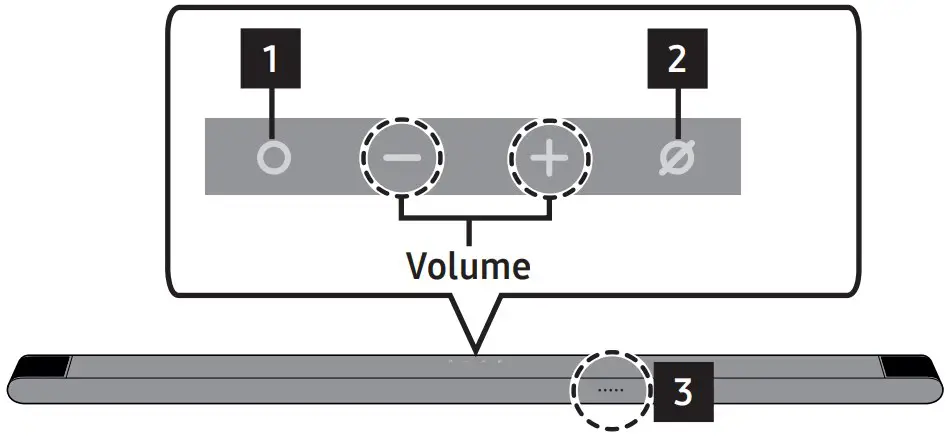
| 1 | (Multi Function) Button In standby mode, press the (Multi Function)button to turn on the Soundbar.Press the (Multi Function) button to change the mode. |
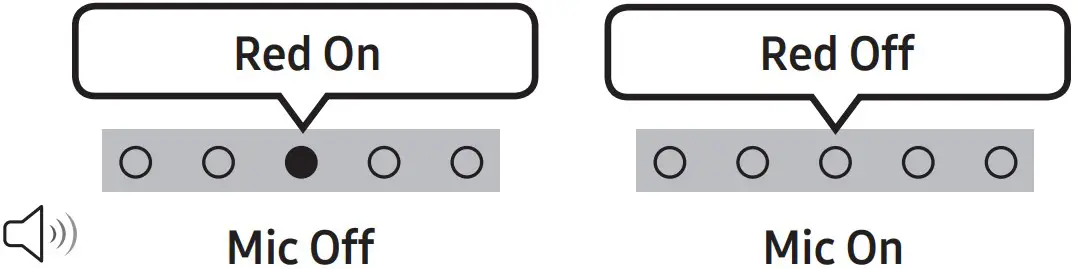
| 2 | (Mic On/Off) Button Press the button to turn the microphone on or off. When the microphone is off, the LED indicator will light red. |
| 3 | LED indicator The LED Indicator flashes, glows, or changes colour depending on the Soundbar’s current mode or status. |
Rear Panel of the Soundbar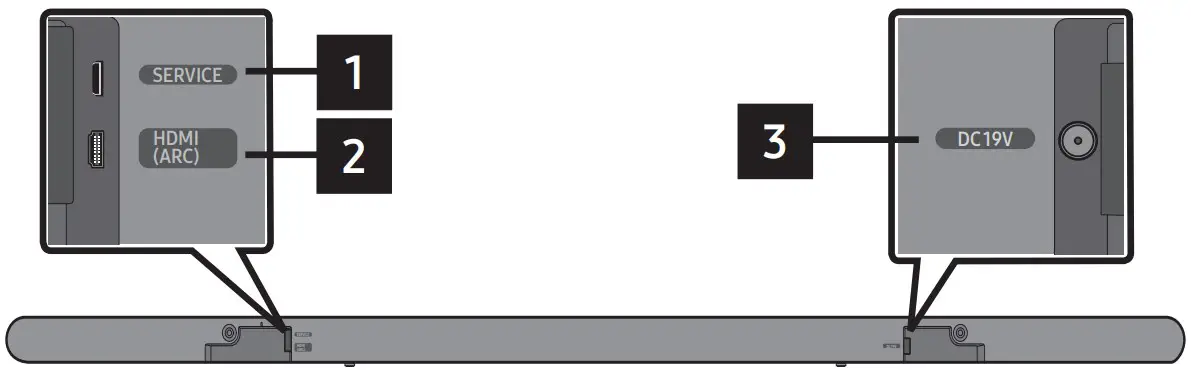
| 1 | SERVICE Connect a USB storage device to upgrade the product’s software. |
| 2 | HDMI (ARC) Connect to the HDMI jack on a TV. |
| 3 | DC 19V Connect the AC/DC power adapter. (Power Supply In) |
CONNECTING THE SOUNDBAR
Connecting the power and units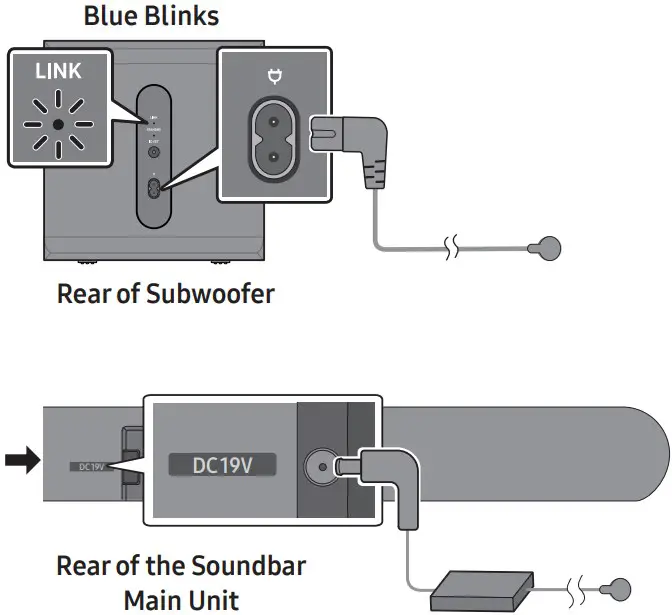
- The LINK LED indicator stops blinking and glows a solid blue when a connection is established between the Soundbar and the Wireless Subwoofer.
USING A WIRED CONNECTION
HDMI to Micro HDMI Cable
Connecting using an HDMI to Micro HDMI Cable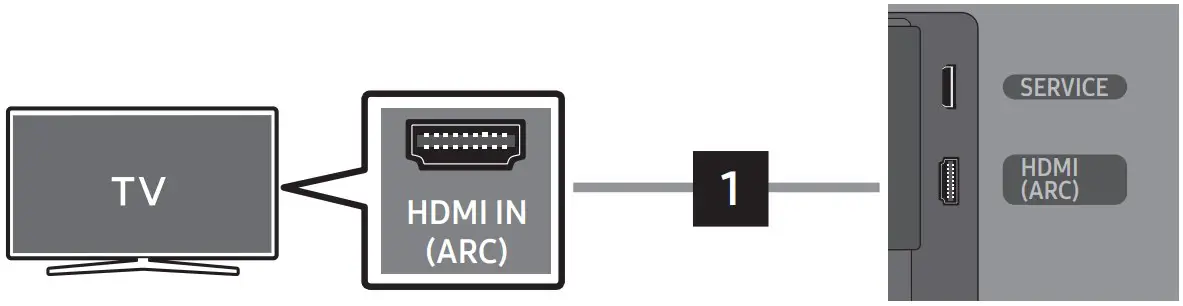
NOTE
- When using an HDMI to Micro HDMI cable, take caution not to break the cable terminal.
- When the TV sound is not output, press the (Multi Function) button at the top of the Soundbar or the (Source) button on the remote control to select the “TV ARC” mode.
- The recommended cable is High Speed HDMI Cable with Ethernet.
Using the Q-Symphony Function
For Q-Symphony, the Soundbar syncs with a Samsung TV to output sound through two devices for optimum surround effect. When the Soundbar is connected, the menu, “TV+Soundbar” appears under the Sound Output menu of the TV. (The message above differs with the TV model.)
- TV menu example: TV + [AV] Soundbar series name (HDMI/Wi-Fi)
NOTE
- It can operate according to the Codec supported by TV.
- This function is supported only when the HDMI Cable or Wi-Fi is connected.
- The message displayed may differ with the TV model.
- Ensure that your TV and Soundbar are connected to the same wireless router/frequency.
- This function is available in some Samsung TVs and some Soundbar models.
Using the Spacefit Sound
Provides optimized sound quality by analyzing the listening spaces.
USING A WIRELESS CONNECTION
Connecting via Bluetooth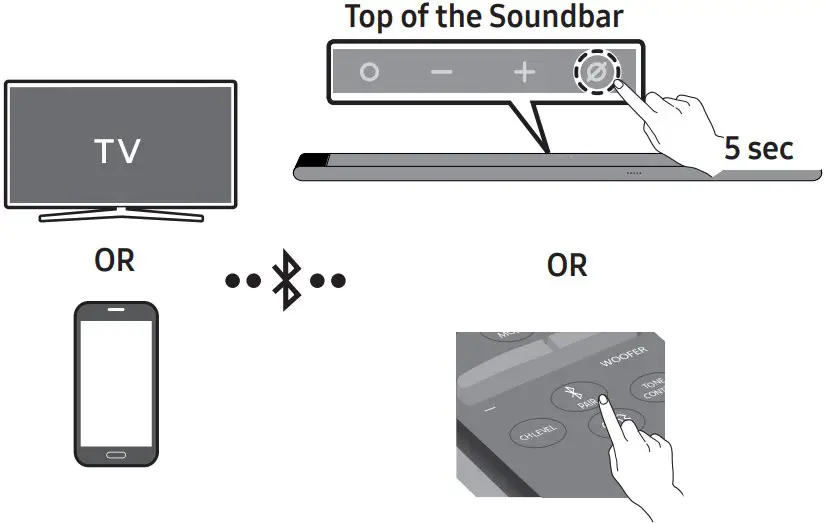
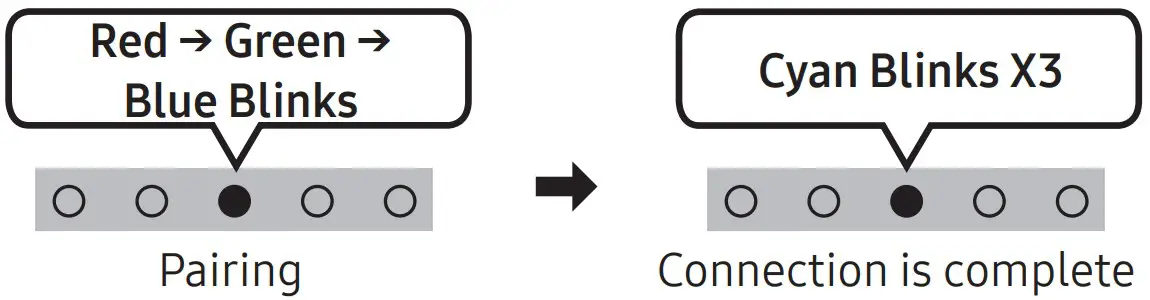
NOTE
- If asked for a PIN code when connecting a Bluetooth device, enter <0000>.
Connecting via Wi-Fi (Wireless Network)
- To connect a Soundbar to a mobile device via a wireless network (Wi-Fi), the SmartThings app is required.
- Connect your mobile device (smartphone, tablet, etc.) to the Wi-Fi network the TV is connected to.
- Install and launch the SmartThings app on your mobile device (smartphone, tablet, etc.).
- Follow the instructions in the app screen on the mobile device to connect the Soundbar to your Wi-Fi network.
TROUBLESHOOTING
Before seeking assistance, check the following.
Soundbar does not turn on.
- Check whether the power cord of the Soundbar is correctly inserted into the outlet.
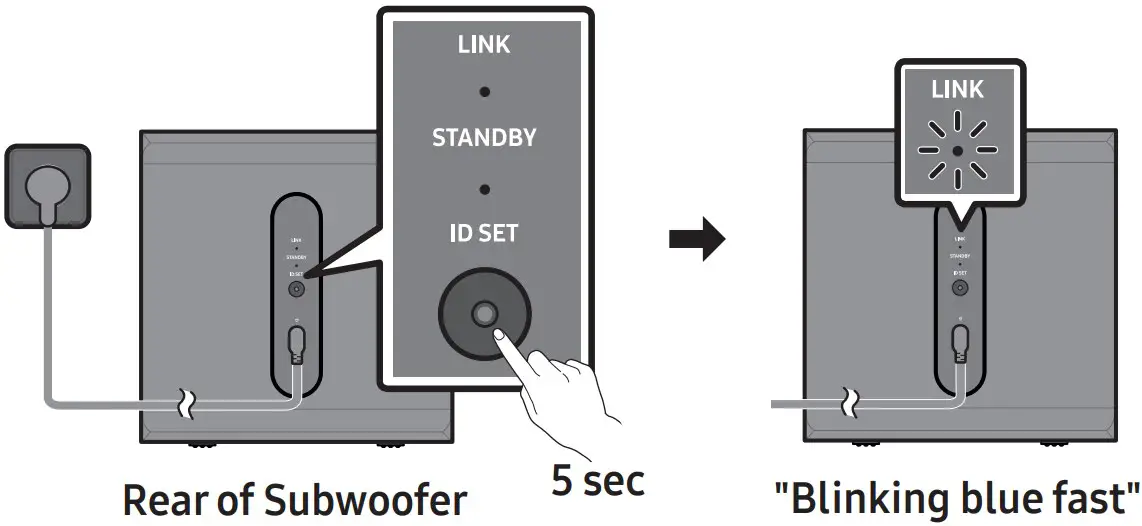
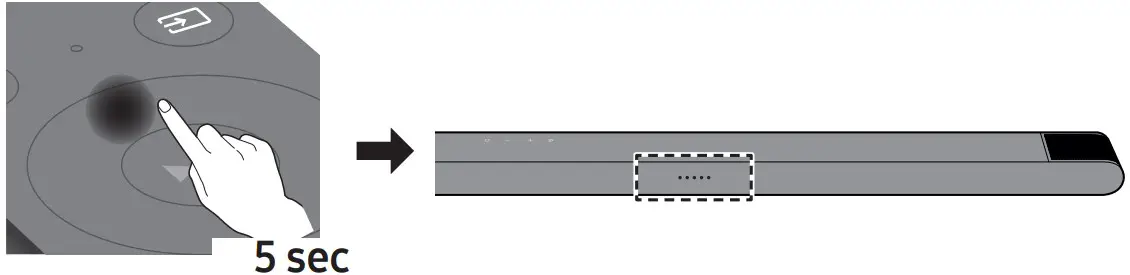
If the subwoofer does not connect automatically
- Turn off the Soundbar main.
- Press and hold ID SET on the rear of the subwoofer for at least 5 seconds.

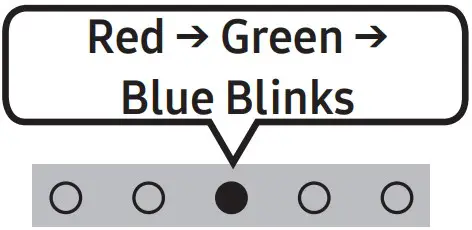
- Press the Up button on the remote control for

LED indicator
- Check if the LINK LED is solid blue (connection complete).
- The LINK LED indicator stops blinking and glows a solid blue when a connection is established between the Soundbar and the Wireless Subwoofer.
Soundbar works erratically.
- After removing the power cord, insert it again.
- Try again after initialising the product.
- If there is no signal, the Soundbar automatically turns off after a certain period of time. Turn on the power
If the remote control does not work.
- Point the remote directly at the soundbar.
- Recharge the remote control.
The Soundbar indicator turns solid red.
- The microphone is turned off. Turn on the microphone.

Sound is not output from the soundbar.
- The volume of the Soundbar is too low or muted. Adjust the volume.
- When any external device (STB, Bluetooth device, mobile device, etc.) is connected, adjust the volume of the external device.
- For sound output of the TV, select Soundbar. (Samsung TV: Home → Menu → Settings → All Settings → Sound → Sound Output → Select Soundbar)
- Remove the cable from the Soundbar and then reconnect it.
Sound is not output from the subwoofer.
- Check whether the LED on the rear of the Subwoofer lights in blue. Reconnect it when the blue LED blinks or the red LED lights.
If the TV is not connected via HDMI (ARC)
- Check whether the HDMI cable is correctly connected to the ARC terminal.
- Connection may not be possible due to the connected external device (set-top box, game console, etc.). Directly connect the Soundbar.
- HDMI-CEC may not be activated on the TV. Turn on the CEC on the TV menu. (Samsung TV: Home → Menu → Settings → All Settings → Connection → External Device Manager → Anynet+ (HDMI-CEC) ON)
Soundbar will not connect via Bluetooth.
- When connecting a new device, switch to “BT PAIRING” for connection. (Press the PAIR button on the remote control or press the (Mic On/Off) button on the body for at least 5 seconds.)
- Reconnect it after removing the Bluetooth speaker list on the device to connect. (Samsung TV: Home→ Menu → Settings→ All Settings → Sound → Sound Output → Bluetooth Speaker List)
Sound drops out when connected via Bluetooth.
- Some devices can cause radio interference if they are located too close to the Soundbar. e. g. microwaves, wireless routers, etc.
- If your device that is connected via Bluetooth moves too far away from the soundbar, it may cause the sound to drop out. Move the device closer to the soundbar.
- If a part of your body is in contact with the Bluetooth transceiver or the product is installed on metal furniture, the sound may drop out. Check the installation environment and conditions for use.
Soundbar will not connect to Wi-Fi.
- Make sure the wireless router is turned on and then reconnect the wireless router after rebooting.
- The soundbar will not connect if the wireless signal is too weak. Try moving the router closer to the soundbar, or eliminating any obstacles that are between the soundbar and the router, if possible
The soundbar does not turn on automatically with the TV.
- When you turn off the Soundbar while watching TV, power synchronization with the TV is disabled. First turn off the TV.
LICENCE

Dolby, Dolby Atmos, and the double-D symbol are registered trademarks of Dolby Laboratories Licensing Corporation.
Manufactured under license from Dolby Laboratories.
Confidential unpublished works.
Copyright © 2012-2021 Dolby Laboratories. All rights reserved.

For DTS patents, see http://patents.dts.com. Manufactured under license from DTS, Inc. (for companies headquartered in the U.S./Japan/ Taiwan) or under license from DTS Licensing Limited (for all other companies). DTS, Digital Surround, Virtual:X, and the DTS logo are registered trademarks or trademarks of DTS, Inc. in the United States and other countries. © 2021 DTS, Inc. ALL RIGHTS RESERVED.

The terms HDMI, HDMI High-Definition Multimedia Interface, HDMI Trade dress and the HDMI Logos are trademarks or registered trademarks of HDMI Licensing Administrator, Inc.
- Use your phone, tablet or computer as a remote control for Spotify. Go to spotify.com/connect to learn how
- The Spotify Software is subject to third party licenses found here: https://www.spotify.com/connect/third-partylicenses.

- Apple, Airplay, iPhone, iPad, and Mac are trademarks of Apple Inc., registered in the U.S. and other countries.
- Use of the Works with Apple badge means that an accessory has been designed to work specifically with the technology identified in the badge and has been certified by the developer to meet Apple performance standards.
[ENERGY STAR] ENERGY STAR qualified model only
- Your Samsung product is ENERGY STAR qualified in its factory default setting. Change to certain features, settings and functionality in this product can change the power consumption, possibly beyond the limits required for ENERGY STAR qualification.
- Environmental Protection Agency and Department of Energy. ENERGY STAR is a joint program of the Government agencies, designed to promote energy efficient products and practices.
Refer to www.energystar.gov for more information of the ENERGY STAR Program.
ENERGY STAR qualified model only
(Applicable to Thin Client models only)
As an ENERGY STAR® Partner, SAMSUNG has determined that this product meets the ENERGY STAR® guidelines for energy efficiency.
- The ENERGY STAR Program has been to reduced greenhouse gas emissions and save energy through voluntary labeling.
- Power management setting of this product have been enabled by default, and have various timing setting from 1 minutes to 5 hours.
- The product can wake with a button press on the chassis from sleep mode.
ENERGY STAR qualified model only (The other models)
- As an ENERGY STAR Partner, Samsung has determined that this product or product models meets the ENERGY STAR guideline for energy efficiency.
To send inquiries and requests for questions regarding open sources, contact Samsung Open Source (http://opensource.samsung.com)
IMPORTANT NOTES ABOUT SERVICE
Figures and illustrations in this User Manual are provided for reference only and may differ from actual product appearance.
SPECIFICATIONS AND GUIDE
| Model Name HW-S800B / HW-S801B | |
| Weight 1.4 kg | Dimensions (W x H x D) 1160.0 x 38.0 x 39.9 mm |
| Operating Temperature Range +5°C to +35°C | Operating Humidity Range 10 % ~ 75 % |
| AMPLIFIERRated Output power (20 W x 2) + (10 W x 2) + (20 W x 2) + (10 W x 1) + (10 W x 2) | |
| Supported play formats Dolby 5.1ch / Dolby Digital Plus /Dolby ATMOS (Dolby Digital Plus) / DTS 5.1ch / LPCM 2ch | |
| Subwoofer Name HW-S800B : PS-WB85D HW-S801B : PS-WB86D | |
| Weight 6.4 kg | Dimensions (W x H x D) 238.0 x 240.8 x 238.0 mm |
| AMPLIFIERRated Output power 200 W | |
NOTE
- Samsung Electronics Co., Ltd reserves the right to change the specifications without notice.
- Weight and dimensions are approximate.
Precaution : The Soundbar will restart automatically if you turn on/turn off Wi-Fi.
To deactivate Wi-Fi connection:
Press and hold the CH LEVEL button on the remote control of the Soundbar for more than 30 seconds to turn on or off the Wi-Fi connection.
To deactivate Bluetooth connection:
Press and hold the TONE CONTROL button on the remote control of the Soundbar for more than 30 seconds to turn on or off the Bluetooth connection.
For India Only
This product is RoHS compliant
This marking on the product, accessories or literature indicates that the product and its electronic accessories (e. g. charger, headset, and USB cable) should not be disposed of with other household waste at the end of their working life. To prevent possible harm to the environment or the human health from uncontrolled waste disposal, please separate these items from other types of waste and recycle them responsibly to promote the sustainable reuse of material resources.
For more information on safe disposal and recycling visit our website. www.samsung.com/in/support or contact
our Helpline numbers1800 40 SAMSUNG(7267864) 1800 5 SAMSUNG(7267864)
You can access the FULL MANUAL on Samsung’s on-line customer support centre by scanning the QR code on the left.
To see the manual on your PC or mobile device, download the manual in document format from Samsung’s
website. (http://www.samsung.com/support)
© 2022 Samsung Electronics Co., Ltd. All rights reserved.
Contact SAMSUNG WORLD WIDE
If you have any questions or comments relating to Samsung products, please contact the SAMSUNG customer care Centre
| Country/Area | Samsung Service Centre | Web Site | Country/Area | Samsung Service Centre( | Web Site | ||
| CHINA | 400-810-5858 | www.samsung.com/cn/support | MALAYSIA | 1800-22-8899 (HHP)1800-88-9999 (OTH)+603-7713 7420(Overseas contact) | www.samsung.com/my/support | ||
| TAIWAN | 0800-32-9999 (All Product) 0809-05-5237 (Only for HHP)0809-00-5237 (B2B / Dealer)0809-02-6868 (Samsung pay) | www.samsung.com/tw/support | |||||
INDONESIA | 021-5699-77770800-112-8888(All Product, Toll Free) 0800-112-7777(All Product, Toll Free) | www.samsung.com/id/support | |||||
| HONG KONG | 3698 4698 ( All Product)3698 4688 ( B2B )3698 4633 (eStore)2121 9088 ( Samsung pay ) | www.samsung.com/hk/support (Chinese) www.samsung.com/hk_en/ support (English) | |||||
| PHILIPPINES | Dedicated Hotline for Mobile Phones:#GALAXY (just dial #425299) All Products :1-800-10-7267864[ PLDT – Toll Free ] 1-800-8-7267864[ Globe – Toll Free ]84222111 [ Landline ] | www.samsung.com/ph/support | |||||
| MACAU | 0800 333 | ||||||
| SINGAPORE | 1800 7267864 |1800-SAMSUNG (Other)1800 4252997 |1800-GALAXYS (HHP) | www.samsung.com/sg/support | |||||
| AUSTRALIA | 1300 362 603 (Other)1300 425 299 (HHP) | www.samsung.com/au/support | |||||
| NEW ZEALAND | 0800 726 786 (All Product)0800 6 726 786 (Support for Smart Mobile Devices) | www.samsung.com/nz/support | |||||
| INDIA | 1800 5 SAMSUNG(1800 5 7267864) (Toll-Free)1800 40 SAMSUNG(1800 40 7267864) (Toll-Free) | www.samsung.com/in/support | |||||
| VIETNAM | Toll free numbers:_ 1800 588 889 (All Product)_ 1800-588-855 (HHP)Hotline: (028)73056888 | www.samsung.com/vn/support | |||||
| NEPAL | 16600172667(Toll Free for NTC Only) 9801572667(Toll Free for Ncell users) | ||||||
| THAILAND | Hotline no : 1282 1800-29-3232(Toll free for all product) | www.samsung.com/th/support | |||||
| BANGLADESH | 08000-300-300 (Toll free)09612-300-300 | www.samsung.com/bd/support | |||||
| MYANMAR | +95-1-2399-888VIP HHP +95-1-2399-990 | www.samsung.com/mm/support | |||||
| SRI LANKA | 011 SAMSUNG (011 7267864) | samsungsrilanka.lk/support | |||||
| CAMBODIA | 1800-20-3232 (Toll free) | www.samsung.com/th/support | |||||
| LAOS | +856-214-17333 | ||||||

References
 Samsung Open Source
 Patents - DTS
-
Spotify - Connect
-
ENERGY STAR | The simple choice for energy efficiency.
 Product Help & Support | Samsung Australia
-
Product Help & Support | Samsung Bangladesh
-
产品帮助与支持 | 三星电子 中国
-
Samsung Hong Kong | Mobile | TV | Home Appliances
-
產品支援 | 三星電子 香港
-
Temukan Bantuan & Support Produk Samsung | Samsung Indonesia
-
Product Help & Support | Samsung India
-
ကုန်ပစ္စည်း အကူအညီနှင့် ပံ့ပိုးရေး | Samsung Myanmar
-
Product Help & Support | Samsung Malaysia
-
Samsung Product Helps & Online Support | Samsung New Zealand
-
Product Help & Support | Samsung Philippines
-
Product Help & Support - Get help, find answers | Samsung SG
-
Support Home | Official Samsung Support US
-
ความช่วยเหลือและการสนับสนุนผลิตภัณฑ์ซัมซุง | Samsung Thailand
-
產品協助與支援 | Samsung 台灣
-
Trợ giúp và hỗ trợ sản phẩm | Samsung Việt Nam
-
Page not found - Spotify
 Samsung Open Source
 Patents - DTS
 Spotify - Connect
 ENERGY STAR | The simple choice for energy efficiency.
 Product Help & Support | Samsung Australia
 Page not found - Spotify