
Product features
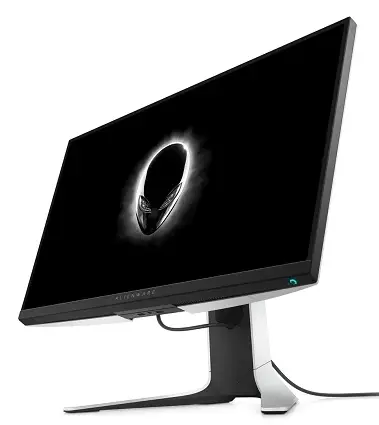
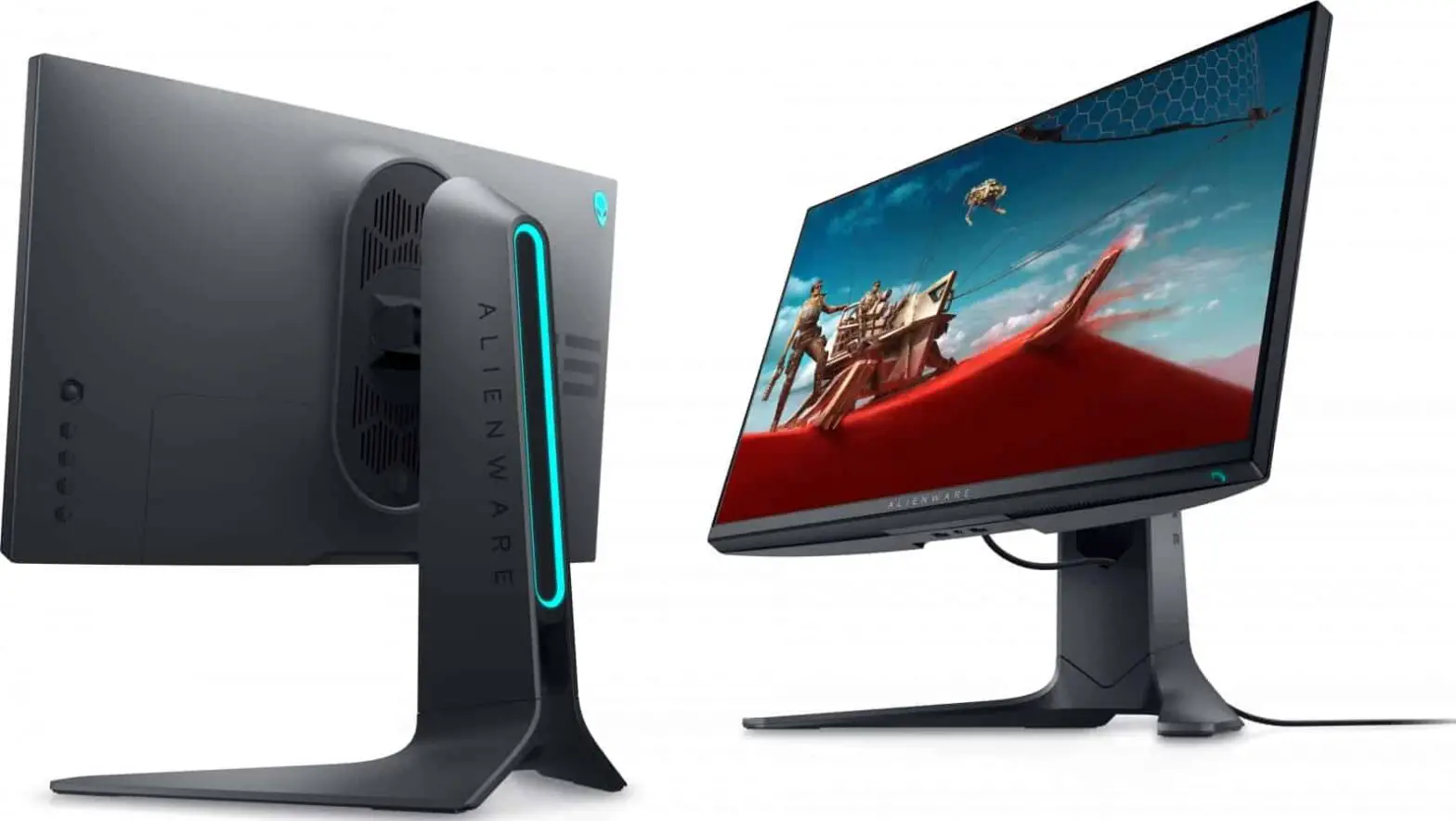
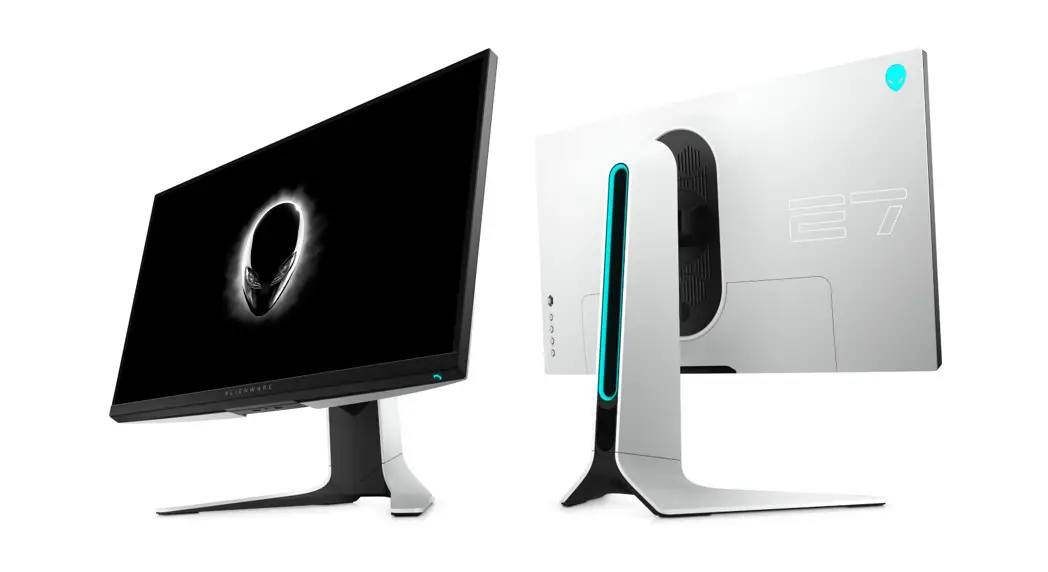
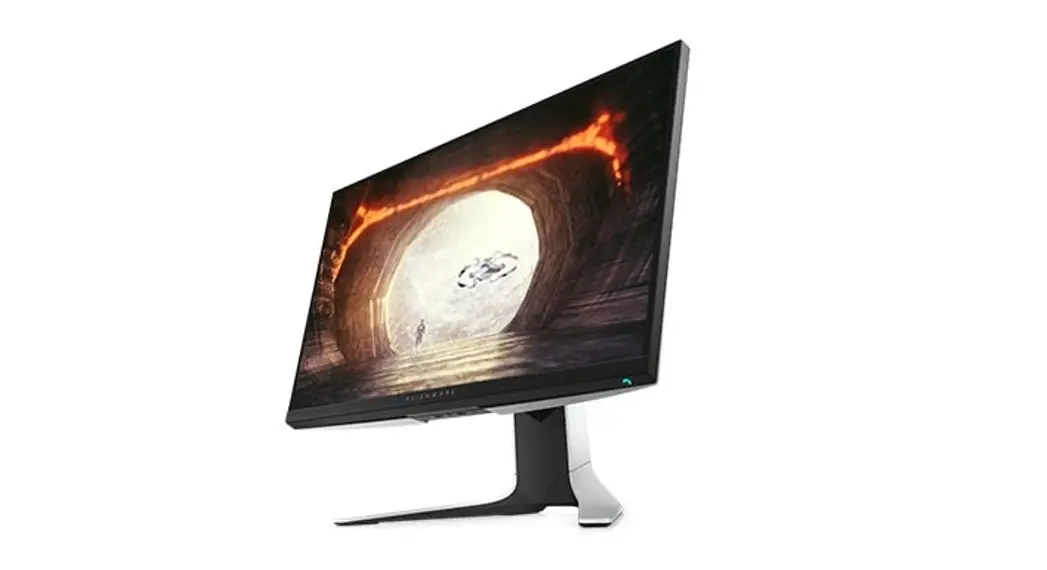
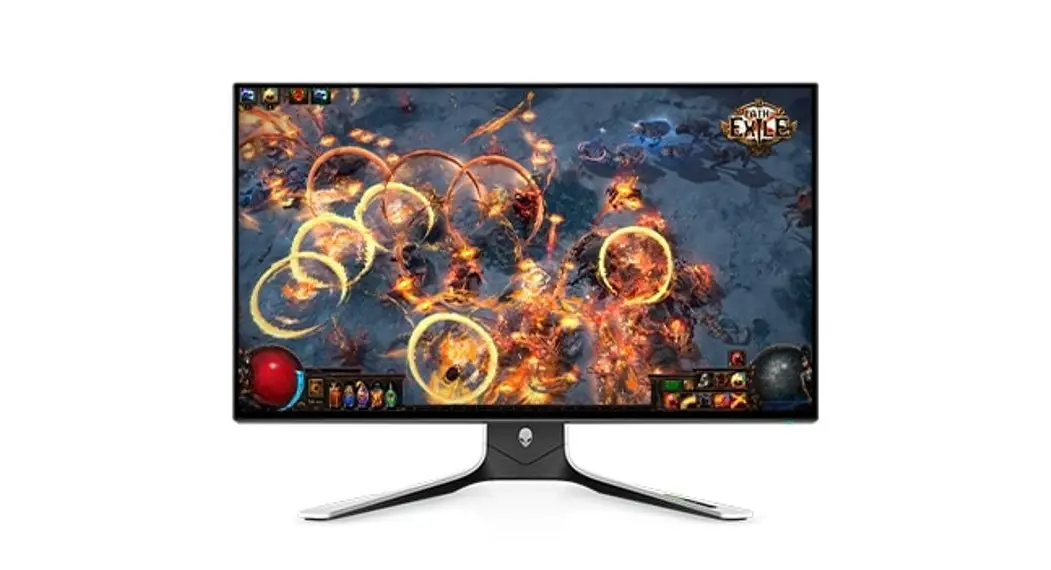
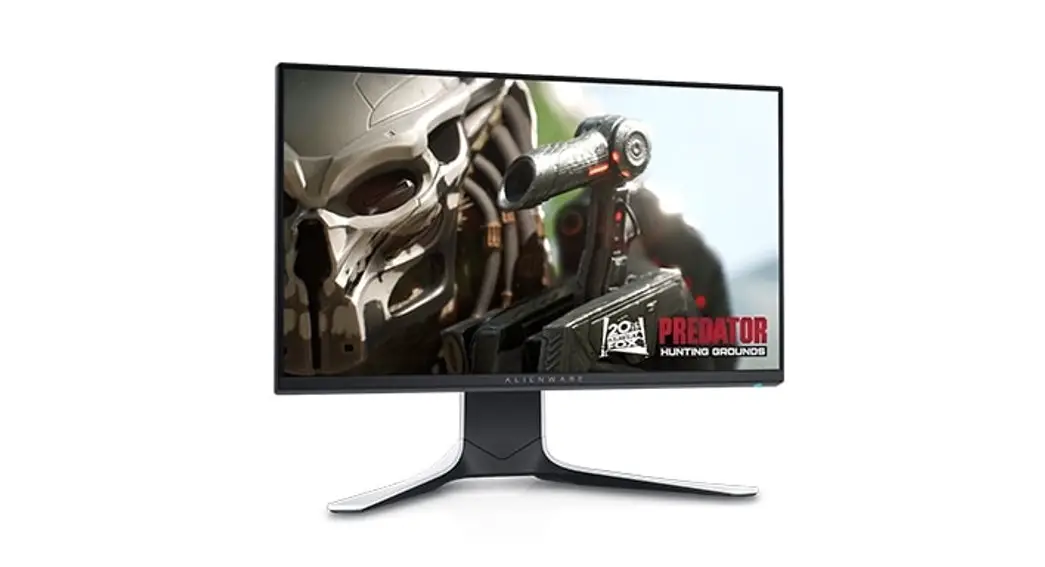
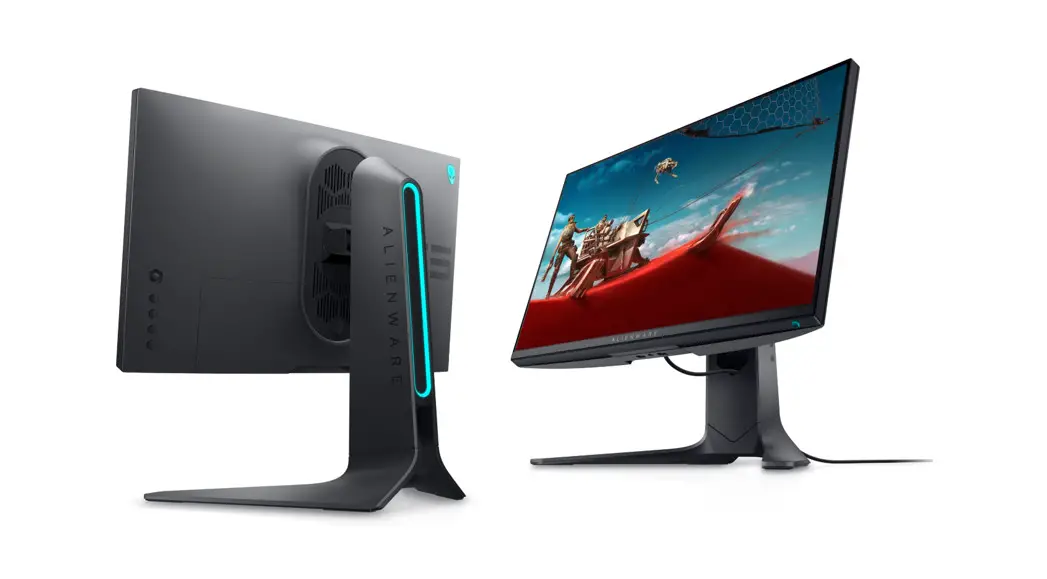
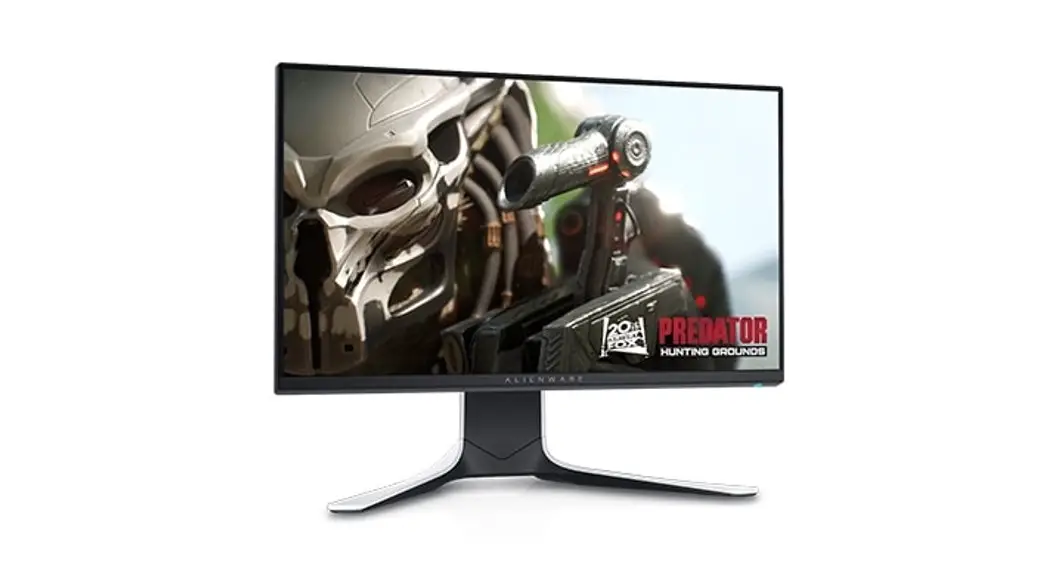
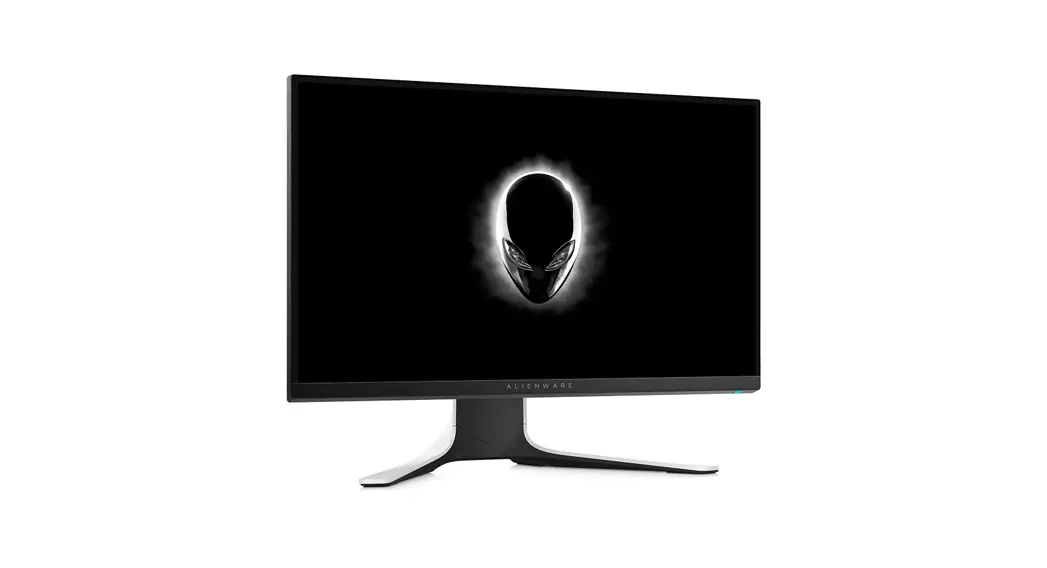
The Alienware AW2720HF monitor has an active matrix, Thin-Film Transistor (TFT), Liquid Crystal Display (LCD), and LED backlight. The monitor features include:
- 68.5 cm (27 inch) viewable area (measured diagonally). Resolution: Up to 1920 x 1080 through DisplayPort and HDMI, with full-screen support or lower resolutions, supporting an extremely high refresh rate of 240 Hz.
- NVIDIA® G-SYNC® Compatible Certification and AMD FreeSync™ Premium Technology minimize graphic distortions like screen tearing and stuttering for smoother, fluid gameplay.
- Supports an extremely high refresh rate of 240 Hz and a rapid response time of 1 ms gray to gray in Extreme mode*.
- Color gamut of sRGB 99%.
- Tilt, swivel, pivot, and height adjustment capabilities.
- Removable stand and Video Electronics Standards Association (VESA™) 100 mm mounting holes for flexible mounting solutions.
- Digital connectivity via 1 DisplayPort and 2 HDMI ports.
- Equipped with 1 USB upstream port and 4 USB downstream ports.
- Plug and play capability if supported by your system.
- On-Screen Display (OSD) adjustments for ease of setup and screen optimization.
- AW2720HF offers a couple of preset modes including FPS (First-Person Shooter), MOBA/RTS (Real-Time Strategy), RPG (Role-Playing Game), SPORTS (Racing), and three customizable game modes for the user’s own preference. In addition, key enhanced gaming features such as Timer, Frame Rate, and Display Alignment are provided to help improve gamer’s performance and provide a best-in-game advantage.
- < 0.3 W in Standby Mode.
- Optimize eye comfort with a flicker-free screen.
 WARNING: The possible long-term effects of blue light emission from the monitor may cause damage to the eyes, including eye fatigue, digital eye strain, and so on. ComfortView feature is designed to reduce the amount of blue light emitted from the monitor to optimize eye comfort.
* The 1 ms gray-to-gray mode is achievable in the Extreme mode to reduce visible motion blur and increased image responsiveness. However, this may introduce some slight and noticeable visual artifacts into the image. As every system setup and every gamer’s needs are different, Alienware recommends that users experiment with the different modes to find the setting that is right for
About your monitor them.
Identifying parts and controls
Front view
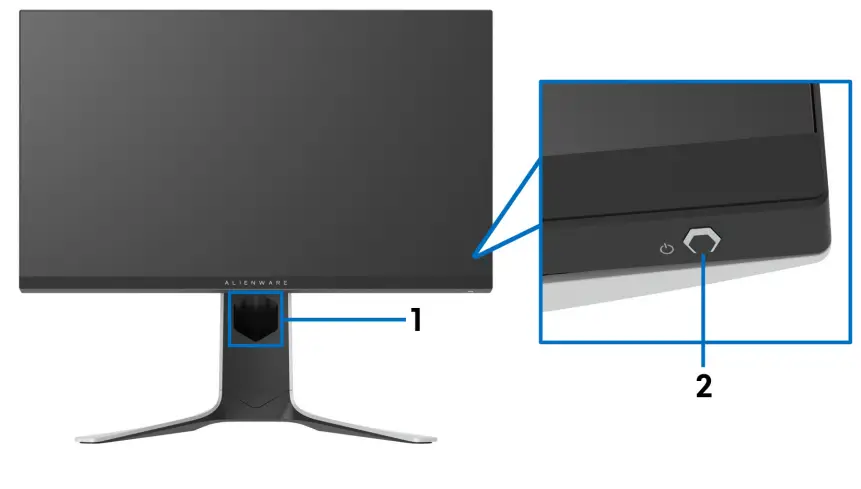
| Label | Description | Use |
| 1 | Cable-management slot (on the front side of the stand) | To organize the cables neatly. |
| 2 | Power On/Off button (with LED indicator) | To turn the monitor on or off. Solid blue light indicates that the monitor is turned on and functioning normally. Blinking white light indicates that the monitor is in Standby Mode. |
Back view
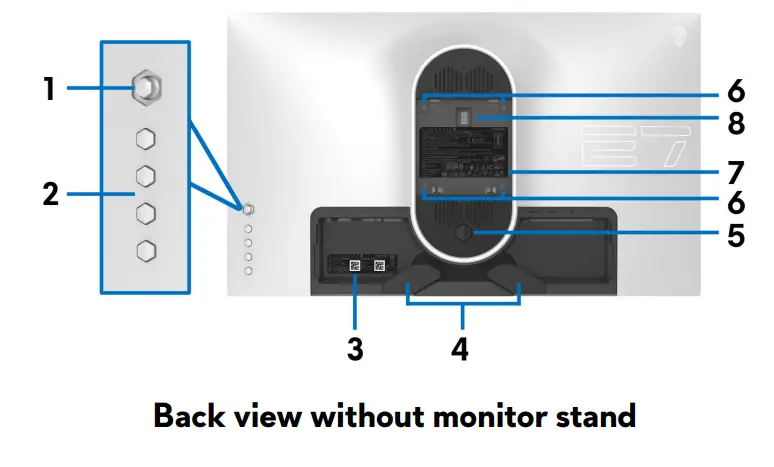
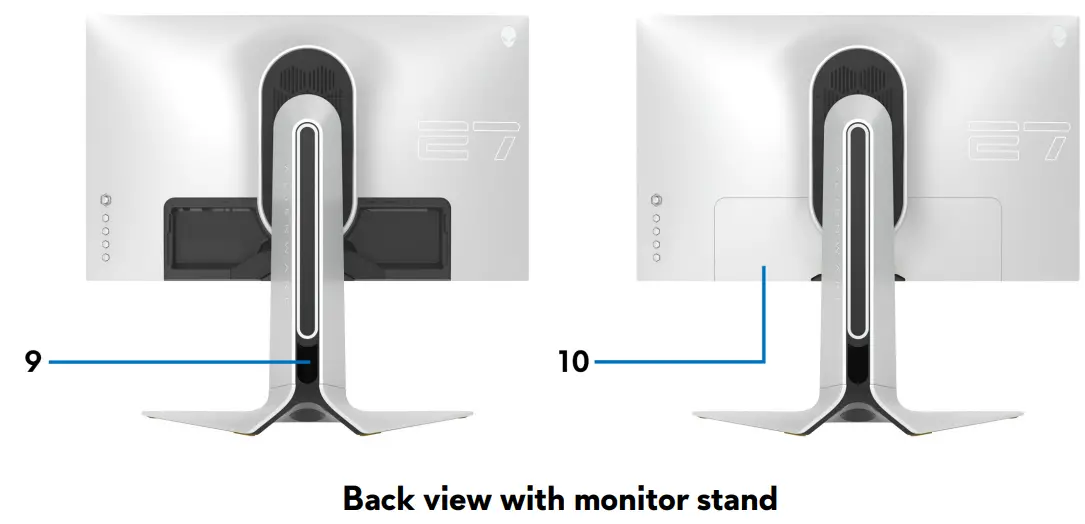
| Label | Description | Use |
| 1 | Joystick | Use it to control the OSD menu. |
| 2 | Function buttons | For more information, see Operating the monitor. |
| 3 | Barcode, serial number, and Service Tag label | Refer to this label if you need to contact Dell for technical support. |
| 4 | Cable-management clip | To organize the cables neatly. |
| 5 | Stand release button | Releases stand from the monitor. |
| 6 | VESA mounting holes (100 mm x 100 mm – behind VESA Cover) | Wall mount monitor using VESA- compatible wall mount kit (100 mm x 100 mm). |
| 7 | Regulatory label | Lists the regulatory approvals. |
| 8 | Lighting dock connector | When the stand riser is attached to the monitor, the dock supplies power to the light on the stand. |
| 9 | Cable-management slot (at the back of the stand) | To organize cables by routing them through this slot. |
| 10 | I/O cover | Protects the I/O ports. |
Rear and bottom view
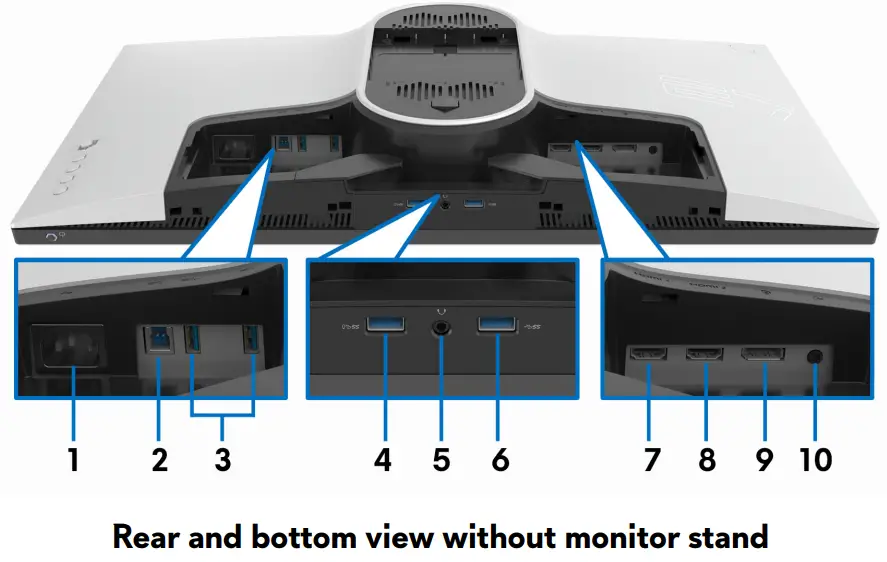
| Label | Description | Use |
| 1 | Power connector | Connect the power cable (shipped with your monitor). |
| 2 | USB upstream port | Connect the USB cable (shipped with your monitor) to this port and your computer to enable the USB ports on your monitor. |
| 3, 6 | USB downstream ports (3) | Connect your USB device.* NOTE: To use these ports, you must connect the USB cable (shipped with your monitor) to the USB-upstream port on the monitor and to your computer. |
| 4 | USB downstream port with Power Charging | Connect to charge your USB device. |
| 5 | Headphone port | Connect headphones or speakers. CAUTION: Increasing the audio output beyond 50% on the volume control or equalizer may increase the output voltage on the headphones thereby increasing the sound pressure levels. |
| 7 | HDMI port (HDMI 1) | Connect your computer with the HDMI cable (shipped with your monitor). |
| 8 | HDMI port (HDMI 2) | Connect your computer with the HDMI cable (shipped with your monitor). |
| 9 | DisplayPort | Connect your computer with DisplayPort- DisplayPort cable (shipped with your monitor). |
| 10 | Line-out port | Connect your speakers. NOTE: This port does not support headphones. |
* To avoid signal interference, when a wireless USB device has been connected to a USB downstream port, it is not recommended to connect any other USB devices to the adjacent port.
Monitor specifications
| Model | AW2720HF |
| Screen type | Active matrix – TFT LCD |
| Panel technology | Fast IPS |
| Aspect ratio | 16:9 |
| Viewable image | |
| Diagonal | 685.0 mm (27 in.) |
| Width (active area) | 596.7 mm (23.49 in.) |
| Height (active area) | 335.7 mm (13.22 in.) |
| Total area | 200302.8 mm2 (310.47 in2) |
| Pixel pitch | 0.3108 mm x 0.3108 mm |
| Pixel per inch (PPI) | 82 |
| Viewing angle Vertical Horizontal | 178° (typical) 178° (typical) |
| Luminance output | 350 cd/m² (typical) |
| Contrast ratio | 1000 to 1 (typical) |
| Faceplate coating | Anti-glare treatment of the front polarizer (Haze 25%, 3H) |
| Backlight | WLED |
| Response time | • 1 ms gray to gray in Extreme Mode * • 2 ms gray to gray in Super Fast Mode • 4 ms gray to gray in Fast Mode* The 1 ms gray-to-gray mode is achievable in the Extreme mode to reduce visible motion blur and increased image responsiveness. However, this may introduce some slight and noticeable visual artifacts into the image. As every system setup and every gamer’s needs are different, Alienware recommends that users experiment with the different modes to find the setting that is right for them. |
| Color depth | 16.78 million colors |
| Color gamut | sRGB 99% |
| Built-in devices | • USB 3.0 Super-Speed hub (with 1 USB 3.0 upstream port) • 4 x USB 3.0 downstream port (including 1 port that supports power charging) |
| Connectivity | • 1 x DisplayPort version 1.2 (rear) • 2 x HDMI port version 2.0 (rear) • 1 x USB 3.0 upstream port (rear) • 4 x USB 3.0 downstream ports (bottom: 2; rear: 2) • 1 x headphone port (bottom) • 1 x audio line-out port (rear) |
| Border width (edge of the monitor to the active area) | |
| Top Left/Right Bottom | 8.0 mm 8.0 mm/8.0 mm 23.2 mm |
| Adjustability | |
| Height adjustable stand | 0 to 130 mm |
| Tilt | -5° to 21° |
| Swivel | -20° to 20° |
| Pivot | -90° to 90° |
| Dell Display Manager (DDM) Compatibility | Easy Arrange and other key features |
Resolution specifications
| Model | AW2720HF |
| Horizontal scan range | • DisplayPort 1.2: 255 to 255 kHz (automatic) • HDMI 2.0: 30 to 255 kHz (automatic) |
| Vertical scan range | • DisplayPort 1.2: 48 to 240 Hz (automatic) • HDMI 2.0: 48 to 240 Hz (automatic) |
| Maximum preset resolution | • DisplayPort: 1920 x 1080 @ 240 Hz • HDMI: 1920 x 1080 @ 240 Hz |
Supported video modes
| Model | AW2720HF |
| Video display capabilities (HDMI & DisplayPort playback) | 480i, 480p, 576i, 576p, 720p, 1080i, 1080p, FHD |
About your monitor