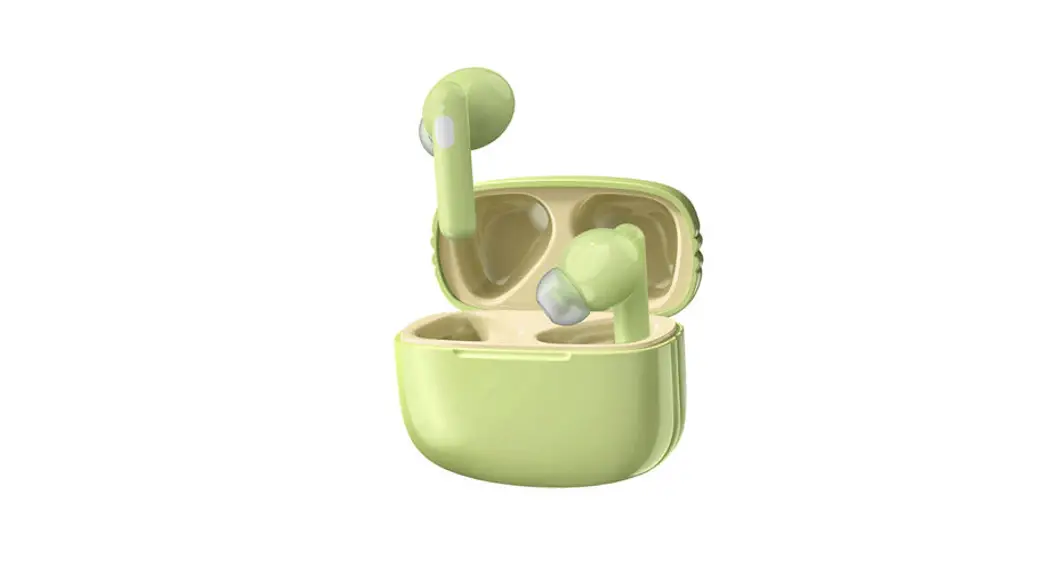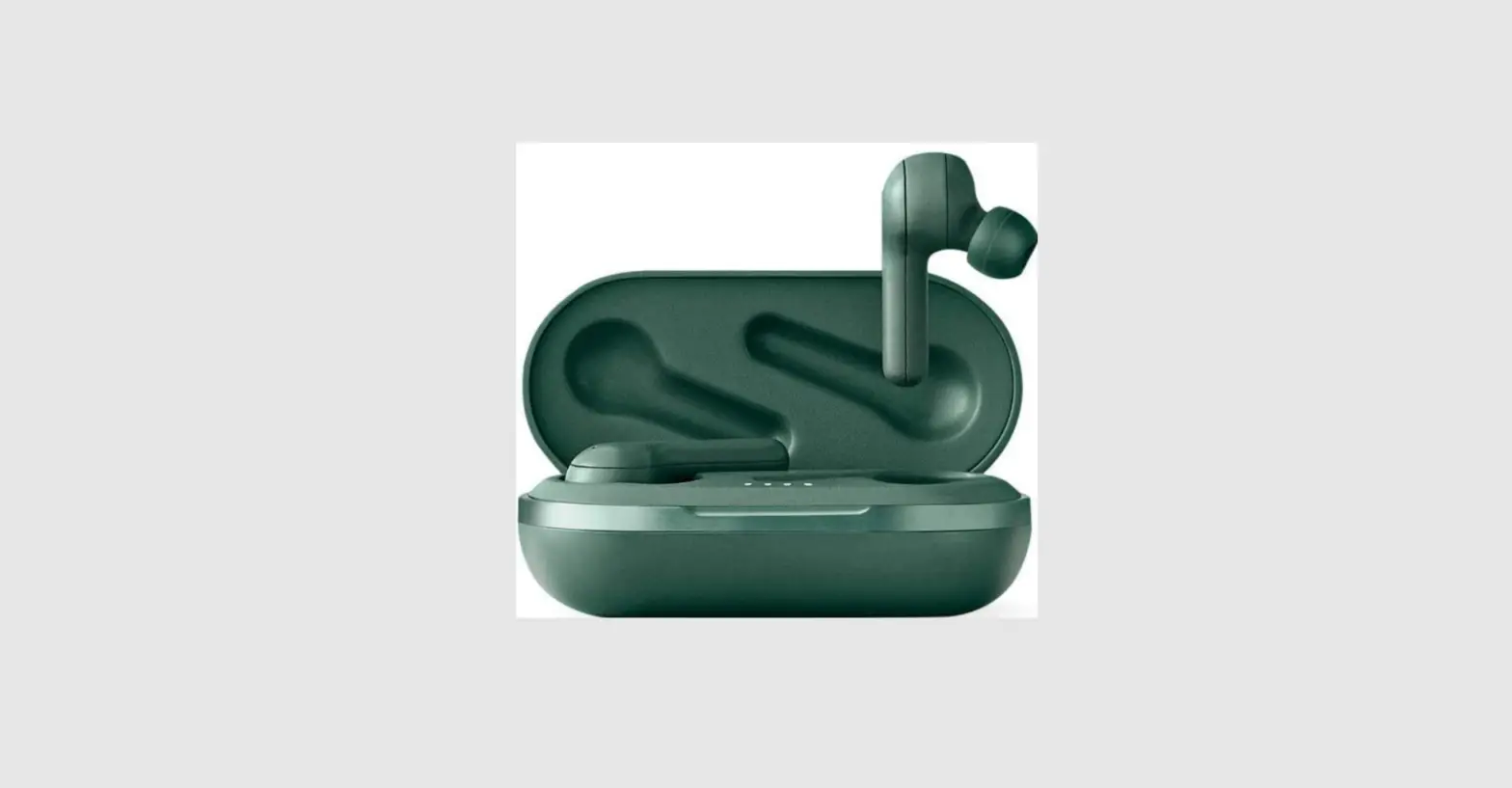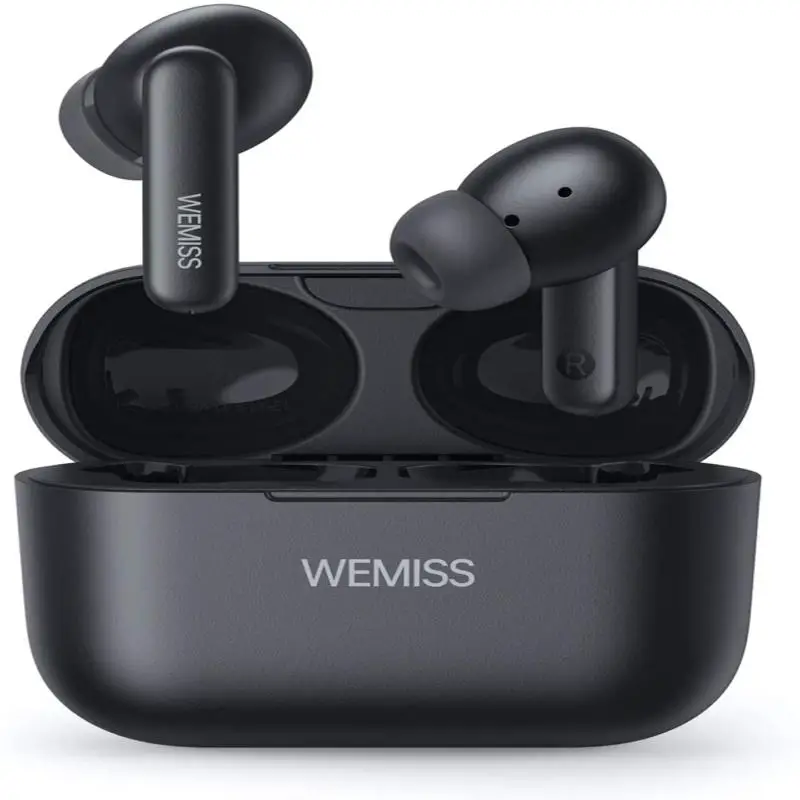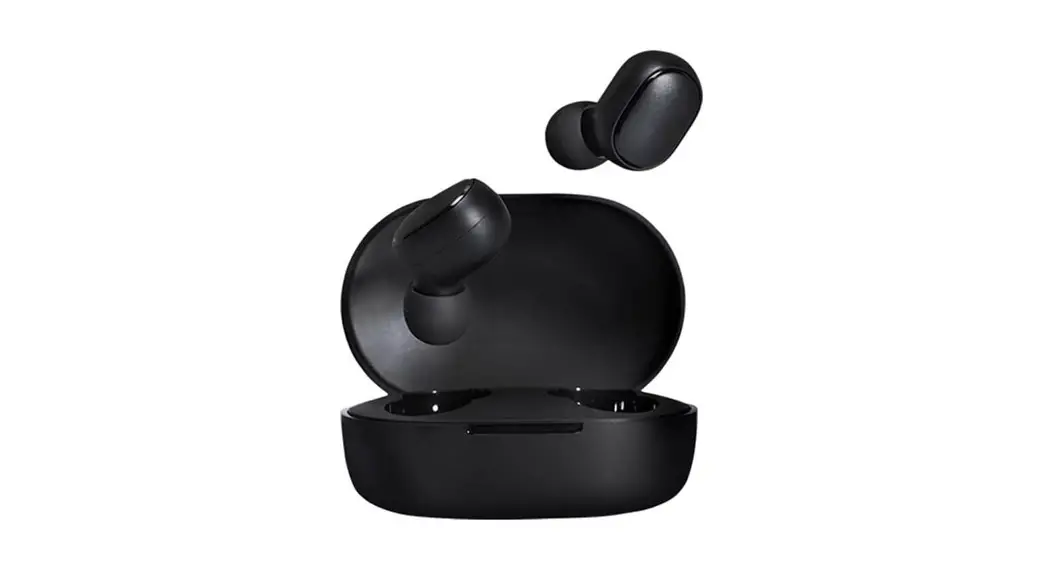

iSound
USER GUIDE
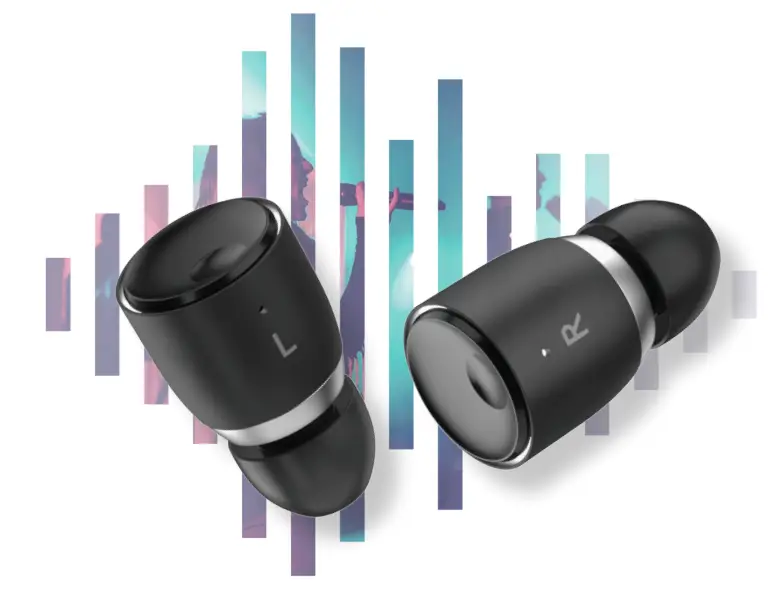
Wireless Earbuds
IN THE BOX
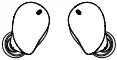
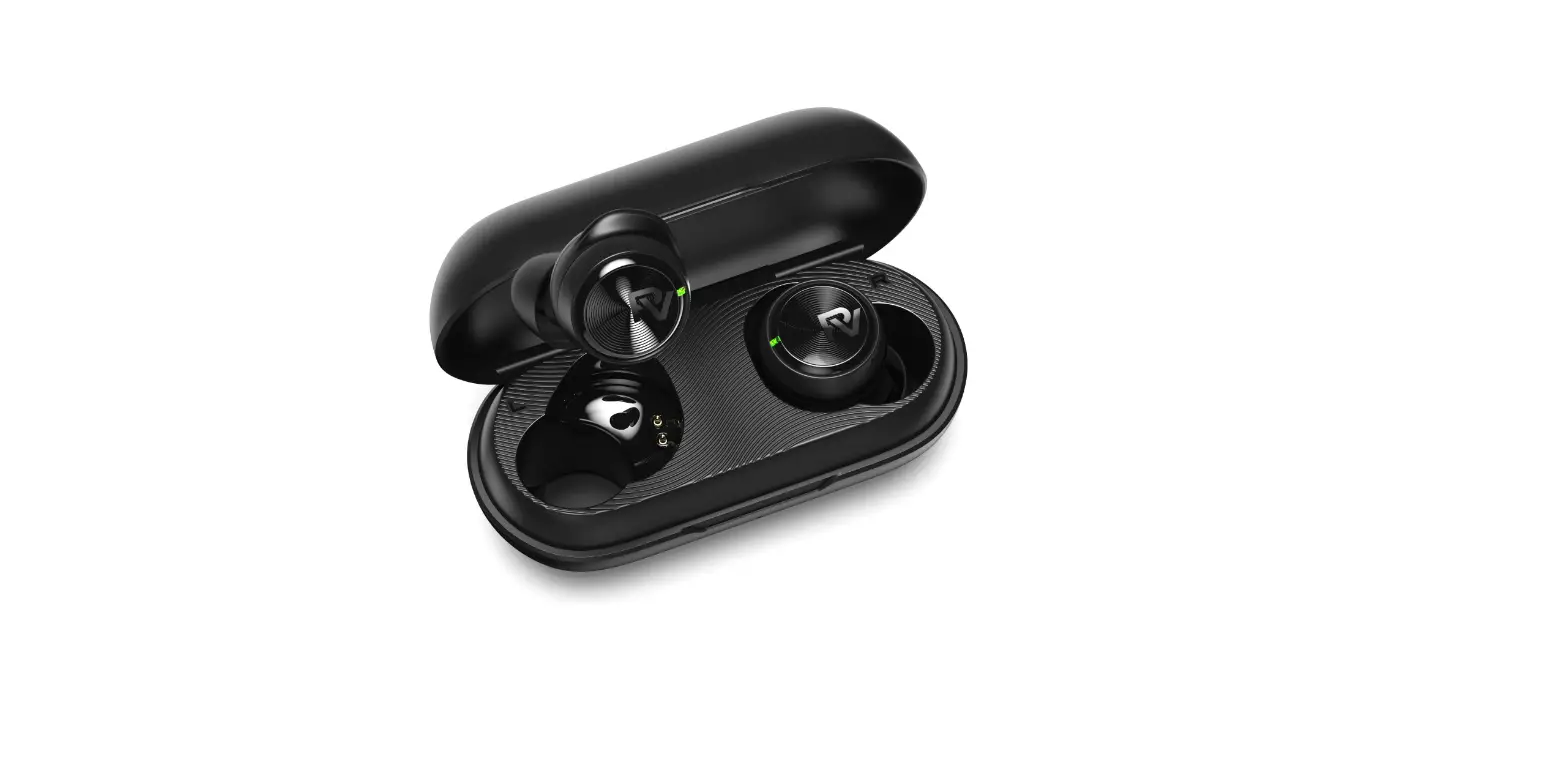
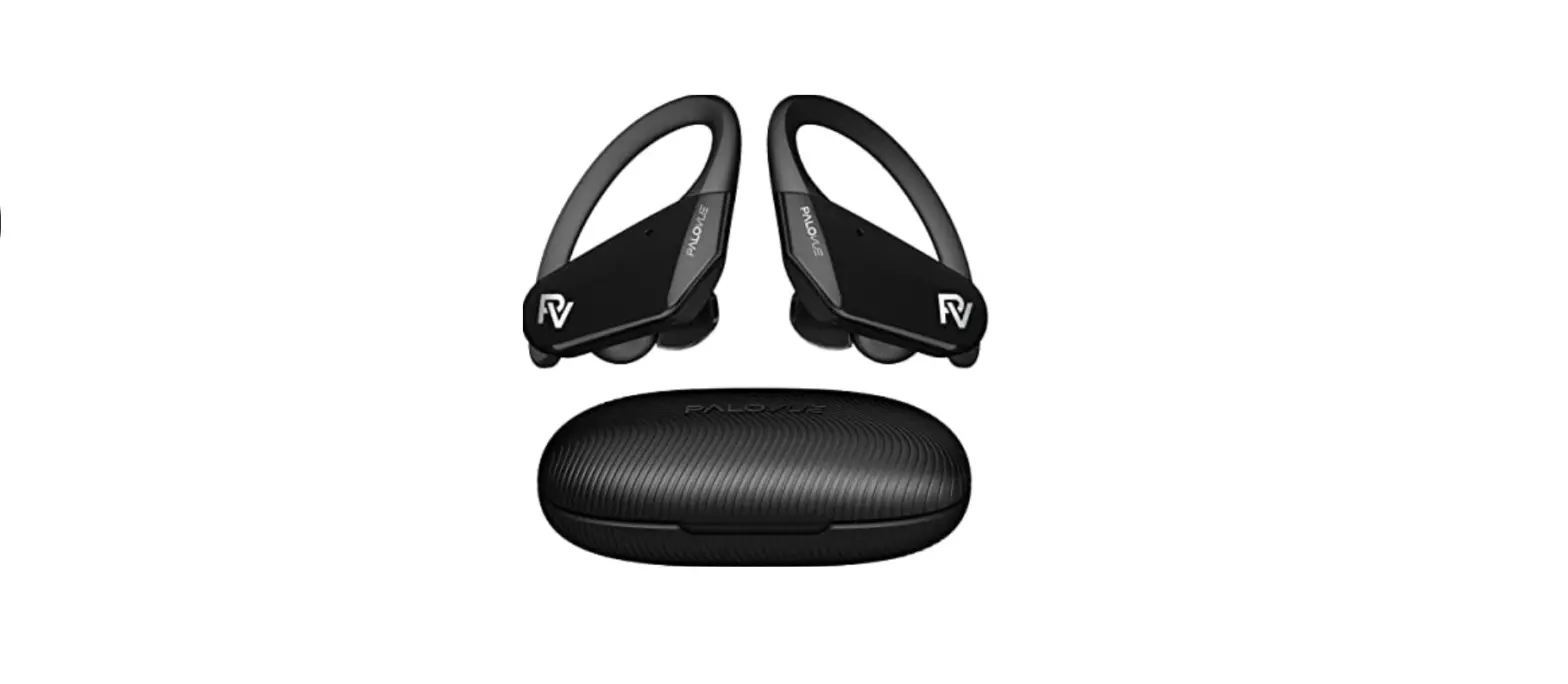
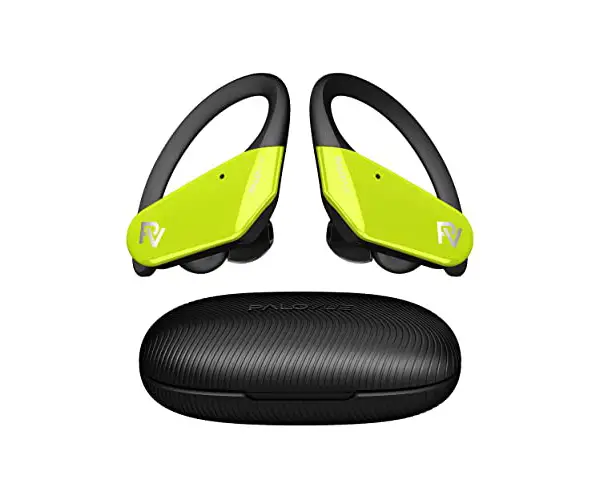
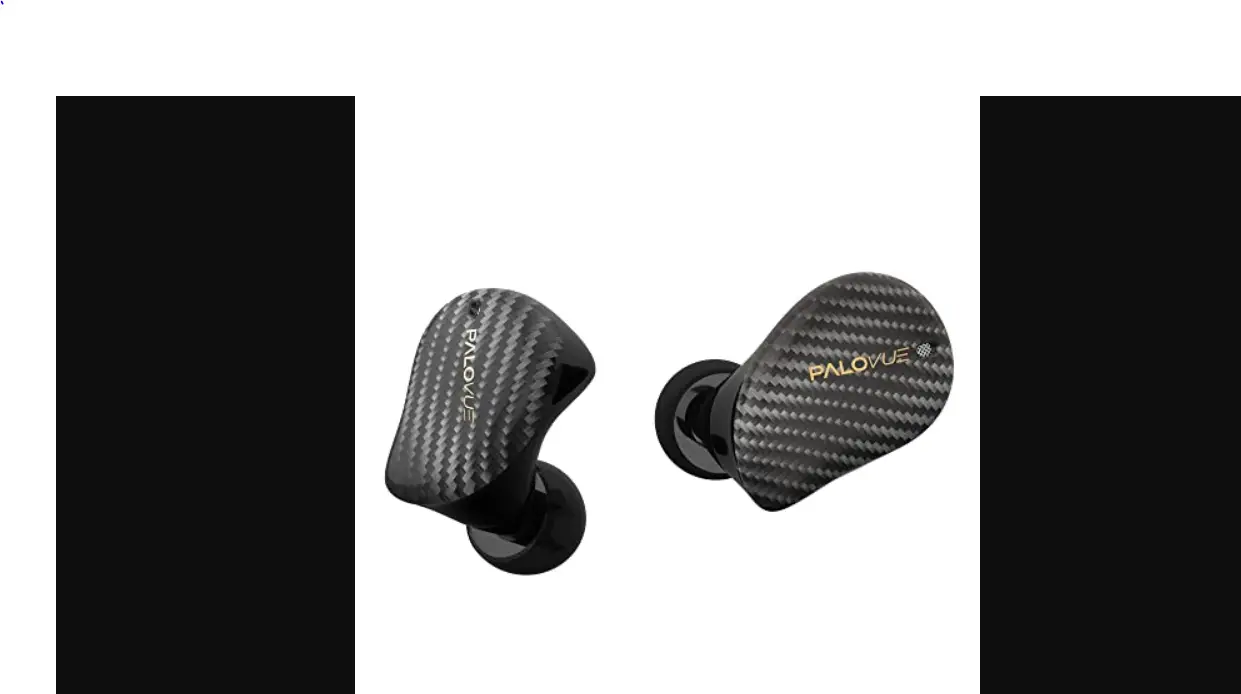
PALOVUE® Wireless Earbuds Charging Case


Charging Case Strap Silicone Eartips (Size XS/S/M/L/XL)

USB Charging Cable
PRODUCT OVERVIEW
iSound TWS iSound Charging Case
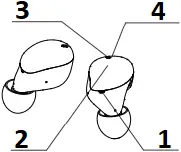
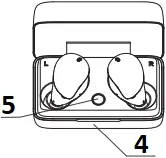
- Mic 1
- Touch point Area
- Mic 2
- LED Area
- Button
PAIRING
To pair to a Bluetooth audio device
1. Start with the iSound TWS inside the charging case with the lid closed.
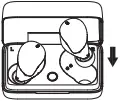
2. Open the charging case, press and hold the case button until the Charging case LED blinks blue and green. The TWS LED will also blink green at the same time.
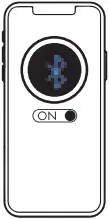
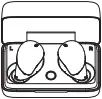 3. On you Bluetooth audio device, go to Bluetooth settings and select “Palovue iSound”. Once connected, the TWS LED will turn off.
FIT
- Your Palovue iSound TWS comes with five sizes of eartips (XS/S/M/L/XL).
- Fit the TWS snugly within your ears so that they are completely sealed.
- To achieve the most comfortable fit and sound for your TWS, take time to test out the various tip sizes to find the best fitting size. It is normal to use differently sized tips in each ear.
Silicone Eartips (Size XS/S/M/L/XL)
CHARGING – TWS
TWS
- The Palovue iSound TWS is capable of 5 hours of playback when fully charged. The charging case gives you 4 additional recharge cycles or 20 hours additional playback.*
- The TWS will start charging once they are placed into the charging case and the lid closed. The charging case LED will indicate the charging status:
• Charging: Solid red light on case.
• Fully charged: Solid green light on case. - Quick-Charge feature: A 15 minute charge will provide up to 1 hour of playback*. A full Charge of the earbuds can take up to 2 hours when charging from a discharged state.
________________________
* The specifications are required from laboratory tested data.
Playback time is tested under laboratory condition of AAC file format at 50% volume. Actual playback time may vary with different device settings, environment, usage and other factors.
CHARGING – CASE
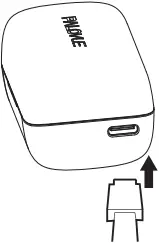
- Close the lid and attach the USB-C charging cable to the charging case.
- The case LED will indicate the charging status:
• LED is solid red = Charging
• LED is solid green = Fully charged
PALOVUE® TWS APP
- The Palovue® TWS App lets you do the following:
• Customize the sound profile of your iSound TWS.
• Update your earbuds when new features and improvements are available.




DETAILS
TURNING ON /OFF
AUTO POWER ON/OFF
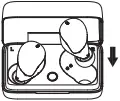
- Turn OFF – Placing your iSound TWS into the charging case will automatically turn them off.
- Turn ON – Opening the charging case will automatically turn them on.
- The TWS will automatically power off after 15 minutes when not in use.
TAP CONTROLS- MUSIC & CALLS
| MUSIC PLAYBACK | CALLS | |
|
| RIGHT TWS: Increase volume LEFT TWS: Decrease volume | – |
|
| Play/ Pause music | Answer/ End call |
|
| RIGHT TWS: Voice assistant | – |
|
| RIGHT TWS: Next track LEFT TWS: Previous track | Reject call |


TROUBLESHOOTING
- Soft reset: If your iSound TWS are not responding or connecting intermittently, place them in the charging case, close the lid for at least 5 seconds and plug the case into charge. This will turn the TWS off and perform a soft reset.
- Factory reset: If that does not resolve the issue, we recommend resetting the TWS to their original factory settings. Before starting this process please “FORGET” or “REMOVE” your Palovue® iSound device from the Bluetooth menu on all your connected audio devices.
• Place both TWS in the charging case and close the lid.
• Open the charging case, press & hold the case button until the case LED starts blinking green (about 8-12 seconds)
• Release the button, close the case and wait for 5 seconds.
• The iSound TWS has been reset and is ready to pair.
SPECIFICATIONS
| Bluetooth | 5.0 |
| Codec | Qualcomm® aptX™/SBC |
| Driver type | Custom 7mm Dynamic Driver |
| Sensitivity | 110 ± 3 dB at 1 kHz |
| Frequency range | 20 hz – 20 kHz |
| Effective range | 10m (30 feet) |
| Water resistance | IPX4 |
| Playtime | 5h* |
| Charging time | 2 hours |
| Quick Charge | 15 min = 1 hour play time |
* The specifications are required from laboratory tested data. Playback time is tested under laboratory condition of AAC file format at 50% volume. Actual playback time may vary with different device settings, environment, usage and other factors.
TELEC
You can find the TELEC certificate information on the charging case.
FCC
- This device complies with part 15 of the FCC Rules. Operation is subject to the following two conditions:
(1) This device may not cause harmful interference, and
(2) this device must accept any interference received, including interference that may cause undesired operation. - Changes or modifications not expressly approved by the party responsible for compliance could void the user’s authority to operate the equipment.
- NOTE: This equipment has been tested and found to comply with the limits for a Class B digital device, pursuant to part 15 of the FCC Rules. These limits are designed to provide reasonable protection against harmful interference in a residential installation. This equipment generates, uses and can radiate radio frequency energy and, if not installed and used in accordance with the instructions, may cause harmful interference to radio communications. However, there is no guarantee that interference will not occur in a particular installation.
- If this equipment does cause harmful interference to radio or television reception, which can be determined by turning the equipment off and on, the user is encouraged to try to correct the interference by one or more of the following measures:
– Reorient or relocate the receiving antenna.
– Increase the separation between the equipment and receiver.
– Connect the equipment into an outlet on a circuit different from that to which the receiver is connected.
– Consult the dealer or an experienced radio/TV technician for help.
WATERPROOF
- The Palovue® iSound features an IPX4 waterproof rating. The iSound TWS is designed to handle sweat, rain and general forms of exercise.
- The Palovue® iSound TWS are not designed for swimming, showering or exposure to pool or ocean water.
- The charging case is not water resistant, so please ensure your earbuds are completely dry before charging.
www.palovue.com
Manufacturer: Foneric Electronics Co. Ltd.
Made in China
[email protected]
FCC ID: 2ARYG-ISOUND

As the sample is too small, the product name, trademark, model, MIC ID and LOGO are printed on the outer package.