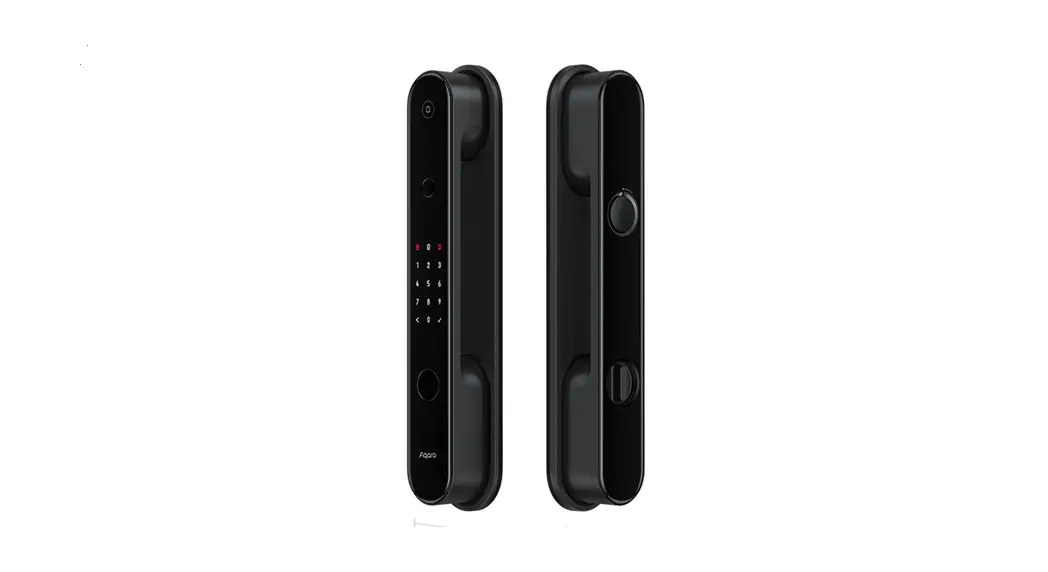
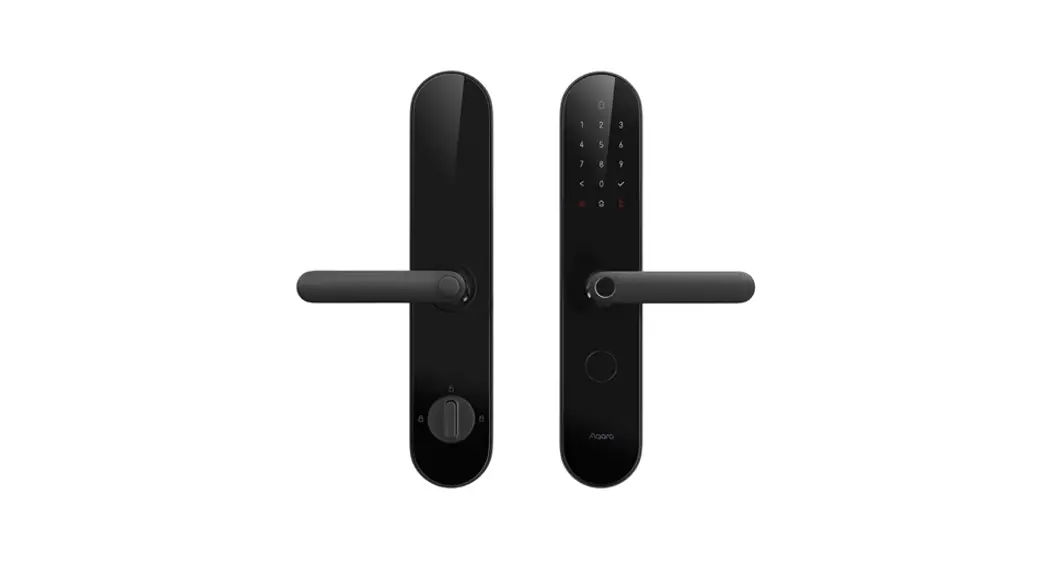
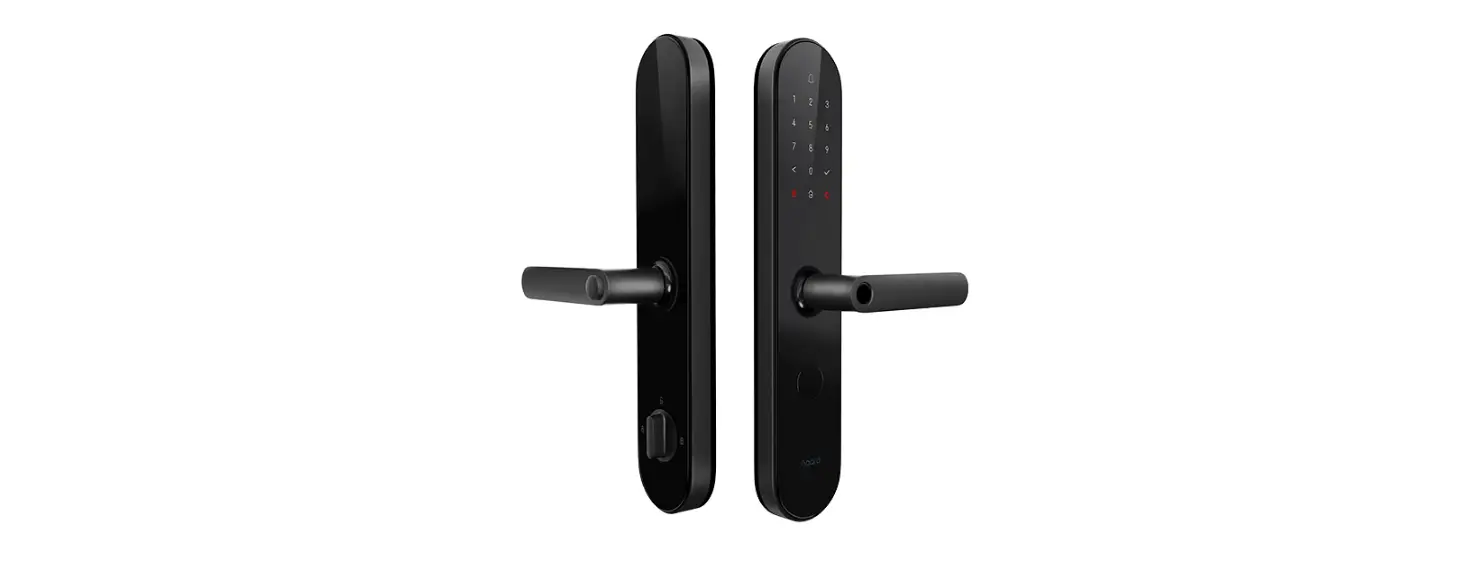
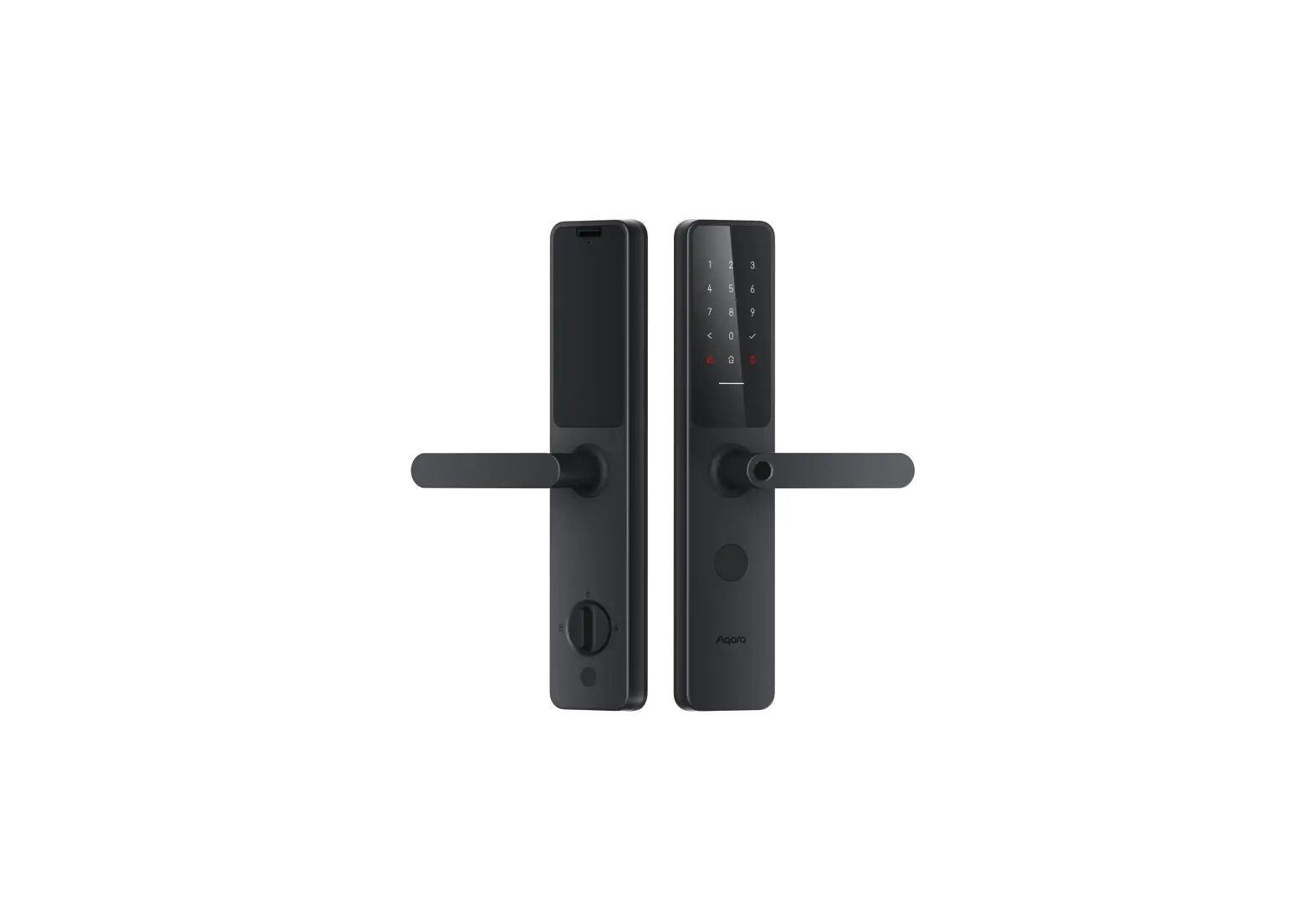
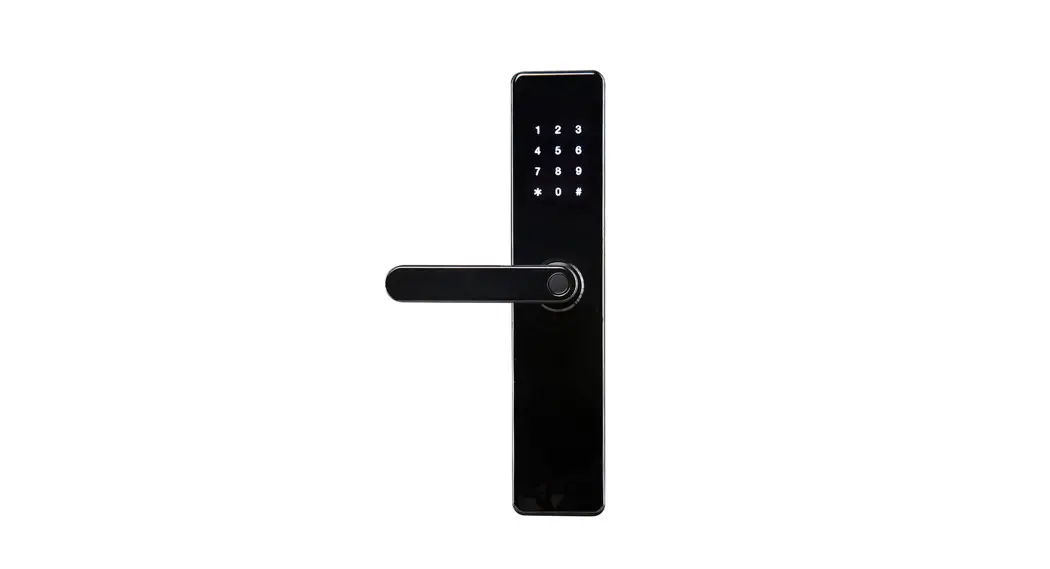
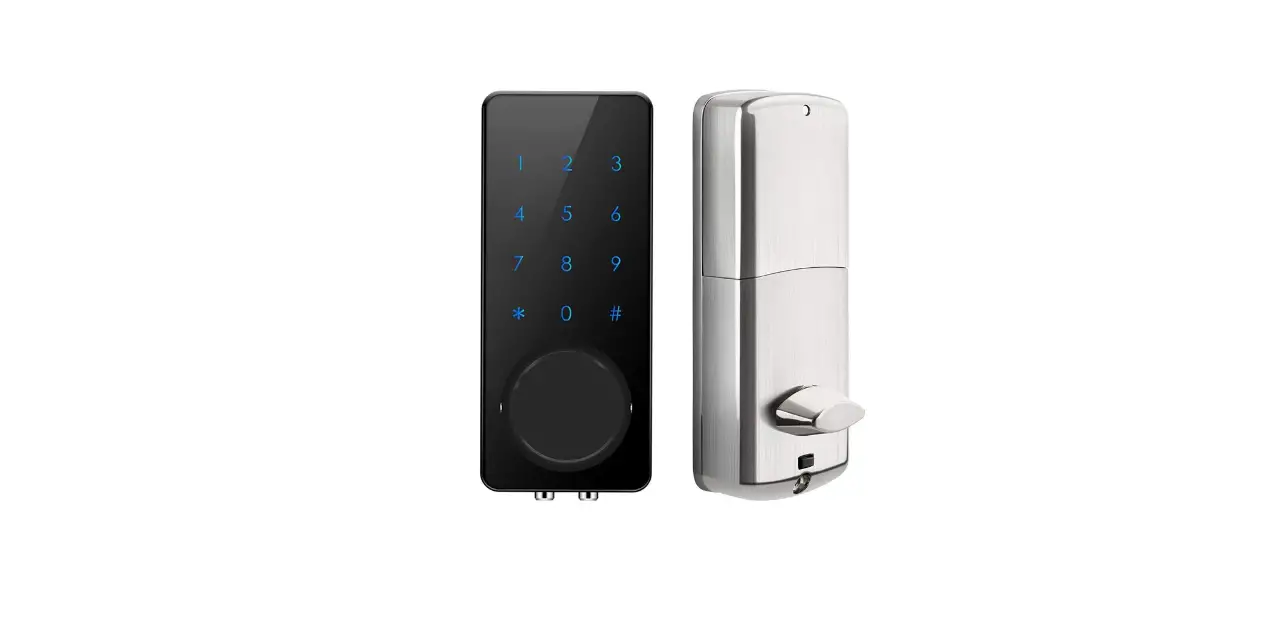
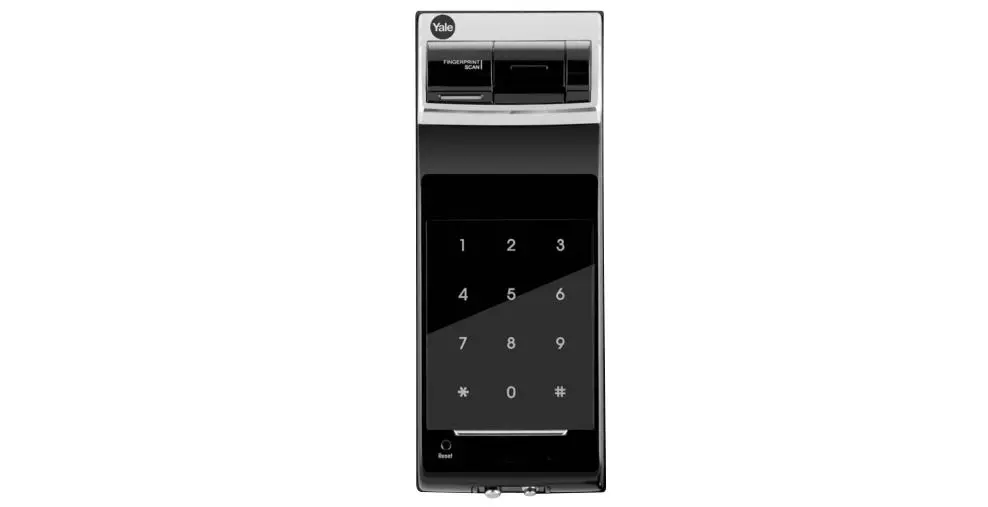
D100 Smart Door Lock Edition
Product Information:
Product Name: D100 Zigbee Edition Smart Door Lock
Model Number: D100 Zigbee 01
Dimensions: 393.8*74.2*58.6mm
Weight: 4.2kg
Battery: 2480mAh7.2V
Connectivity: Zigbee, Bluetooth 5.0, NFC
Product Usage Instructions:
- Make sure to hire professionals for the installation process as
it requires specialized tools. - Open the battery cover and install the provided lithium
battery. Replace the battery when it is low to prevent failure in
opening the door by authentication. - In case of low battery or battery failure, you can use the
USB-C emergency power supply or the mechanical key to open the
door. - To activate the child lock, turn the child lock switch to the
left. This deactivates the unlock button. To deactivate the child
lock, turn the switch to the right. - To enter the setup mode, short press the setting button. Prior
to entering the setup, make sure to add the door lock and users
through the Aqara Home app. - Use the reset button for a long press of 5 seconds to perform a
factory reset. This will clear all saved users. - In case of an emergency, use the emergency unlocking knob to
mechanically open the door by pushing or pulling the handle.
Please refer to the electronic instruction or scan the provided
code for installation reservation and further information.
D100 Zigbee 01
Smart Door Lock D100 Zigbee Edition User Manual
11
D100 Zigbee Edition
19
AqaraD100NFC Aqara Home Apple HomeKitAqaraHomeKit
* *
7s
Type-C
01
/NFC
Aqara Home APP
02
5
90°
1 Type-C
2 5
5
03
1 Aqara Home APP “Aqara Home APP” APP”+”APP
10m 2 APP
3 HomeKit iOS iOS””APP”+”” “Aqara Home APP” HomeKit”HomeKit H o m e K i t HomeKit/
1Apple HomeKit Apple TV(4tvOS 12.0)iPad( iOS 12.0)HomePodiPodiPhone iPad(iOS 12.0)
2iPhoneiPadApple TVHomePodHomeKit
04
3Works with Apple HomeKit iPod touchiPhoneiPadMFiApple Apple
4Apple, HomeKit, HomePod, iPad, Apple TViPhone Apple Inc.
1 1
2 2
2
1 2
1
2
3
2
2
05
4
2 5
2
1
2
2 Type-C ;
Type-C
5V/2A
“” APP
06
“”
· / · · HomeKit · //
Aqara Home APP
D100 Zigbee ZNMS20LM 393.8*74.2*58.6mm 4.2kg 2480mAh7.2V Type-C 5V Zigbee, Bluetooth 5.0,NFC BGA 374-2019 C GA 374-2019GA/T 73-2015 0~93% RH -10~55 DZFDS-L-B-I/ZNMS20LM GA 374-2019 *
07
Pb Hg Cd Cr(VI) PBB
O
O
O
O
O
O
O
O
O
O
X
O
X
O
O
X
O
O
O
O
PCBA
O
O
O
O
O
O
O
O
O
O
PBDE
O O O O
O
O
SJ/T 11364
O: GB/T 26572
X : GB/T 26572
Bluetooth®
7 8-15
08
3
3
1
30
D100 Zigbee
1 2 3 4 5 6
1
2 3 4 5
09
*
400-990-7930 (10:00-18:00) “” www.aqara.com/support [email protected] 18 www.aqara.com
10
Product Introduction
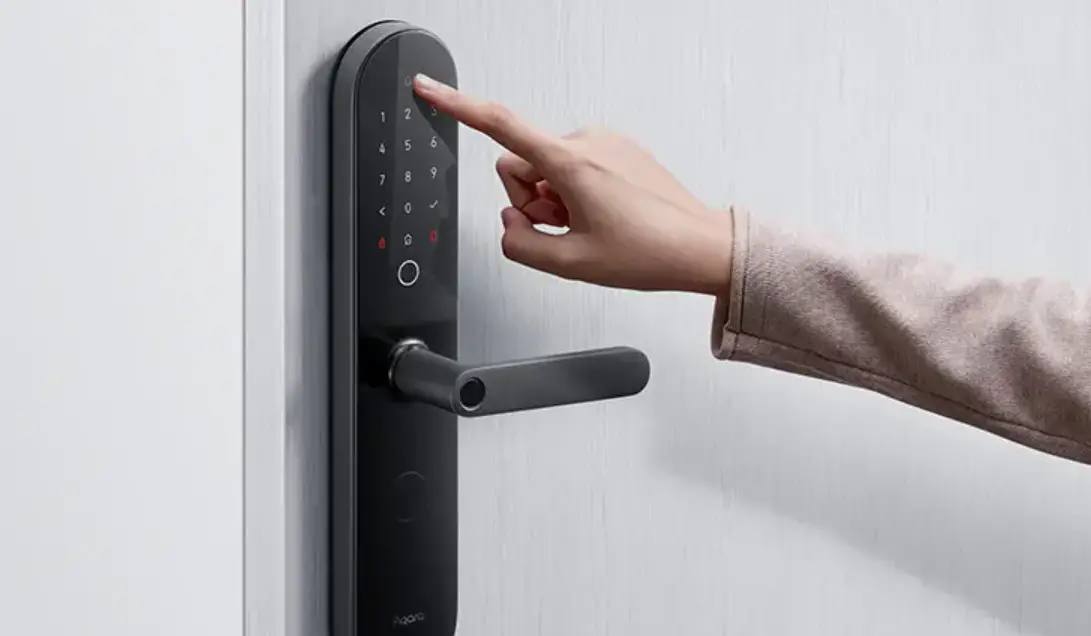
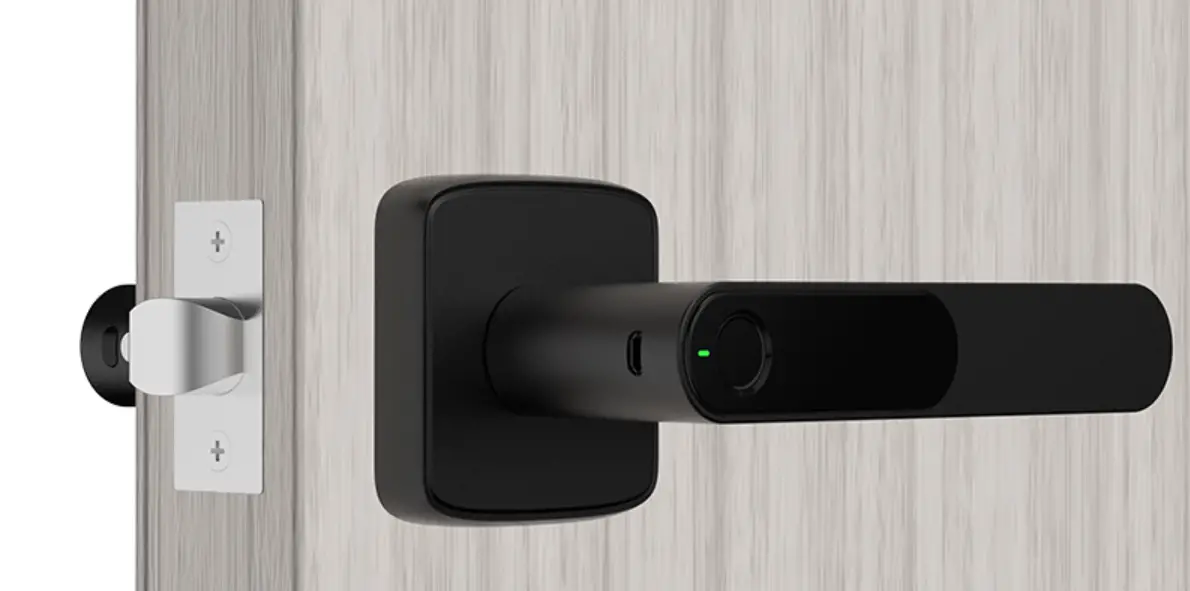
Aqara Smart Door Lock D100 Zigbee Edition incorporates multiple ways of unlocking including: fingerprint, password, Bluetooth of the mobile phone, NFC and mechanical key. The integrated lock body can enable the full-automatic function of opening (automatic unlock) at one touch as well as automatic locking. The door lock is featured with such functions as lock state inspection, low battery reminders, lockpicking warning and error trial warning. Meanwhile, Aqara Home and Apple HomeKit are already supported, which means that the lock can cooperate with other smart devices that support Aqara or HomeKit to fulfill the multiple functions in smart home applications like smart automation control and alarm.
* Aqara hub is required to receive the abnormal state warnings, check unlock records remotely, perform smart automation, initiate the away mode and other relevant functions.
Doorbell button
Interactive indicator light White: Authenticated Red: Failed
Warning flash for unlocked Flash: The door is le opened
Away mode button Tips: “Protection” mode activates within 7 seconds
a er going out.
Back button
Emergency power supply (USB-C)
Tips: Emergency power supply is available in case the door
lock battery runs out to result in the failure of unlocking by authentication. Speaker
Fingerprint identification area Low battery indicator light Flashing: Low battery Password input area/NFC identification area
Enter button
Keyhole cover plate
Press down the cover plate
Rotate a er bouncing 11
Here opens the battery cover
Child lock switch
Turn le to activate the child lock, so that the unlock
button will be deactivated
Turn right to deactivate the child lock, so that the unlock
button will be activated. Setting button
Enter the setup by short press Tips: Prior to entering the setup,
please add the door lock and users through Aqara Home app.
To ensure electrical contact of battery, please install this battery cover.
Setting
Reset
Indoor charging port Here opens the battery cover
12
Battery compartment
Unlocking key Short press: Unlock Reset button Reset by long press for 5 seconds: Resetting will clear all saved users. Emergency unlocking knob
Turn the knob 90° clockwise or counterclockwise to the horizontal direction to open double lock.
Mechanically open the door by pushing or pulling the handle in case of any emergency
Door Lock Installation
Please hire professionals to install as the dangerous professional tools are used in the process of installation.
Scan the code to reserve the installation or check the electronic instruction.
Preparation for Use
1 Please open the battery cover and install the lithium battery. When it is in low power, please replace it in time, otherwise the power running out will lead to the failure to open the door by authentication (able to plug in USB-C emergency power supply or open the door through mechanical key).
2 Press and hold the “Reset” button for 5 seconds, release it a er hearing the voice prompt, and so the resetting is finished.
Notes: The user information will be cleared a er resetting thus the door will be unable to be locked. Please finish the door lock setting according to this instruction as soon as possible.
Press and hold for 5 seconds and release a er hearing the voice prompt 13
Quick Setup
1 Add the device to the Aqara Home app Search for “Aqara Home” in the Apple App Store, Google Play, Xiaomi GetApps, Huawei App Gallery, or scan the following QR code to download the Aqara Home app. Open the home page of this app, and click “+” in the upper right corner of the page to add the device as prompted.
Tips: Following adding, the hub device under the account will be automatically connected without manual configuration. The Bluetooth communication can take effect within 10 meters and its distance may be affected by the wall and other obstacles. 2 Adding the users Add the user to enter the door lock device page to add the owner (administrator by default) as the app prompts. Notes: The lock will not be locked normally without adding the user. 3 Adding the device to HomeKit (for iOS users) When the door lock first powered, open the Apple “Home” app, click “+” in the upper right corner to select “Add Accessory”, scan or manually enter the HomeKit setting code according to the prompt (open the indoor battery cover to get the HomeKit setting code), and complete the addition operation according to the prompt. Currently HomeKit is exclusively available to lock or unlock and set the smart automation control.
14
User Instructions
1. This device works with HomeKit technology. Controlling this HomeKit-enabled accessory automatically and away from home requires a Apple TV (the 4th generation with tvOS 12.0 or higher), iPad (iOS 12.0 or higher), or HomePod set up as a home hub, and iPod, iPhone or iPad (iOS 12.0 or higher).
2. Communication between this product and iPhone, iPad, Apple TV and HomePod is secured by HomeKit technology.
3. Use of the Works with Apple badge means that an accessory has been designed to work specifically with the technology identified in the badge and has been certified by the developer to meet Apple performance standards. Apple is not responsible for the operation of this device or its compliance with safety and regulatory standards.
4. Apple, HomeKit, HomePod, iPad, Apple TV and iPhone are trademarks of Apple Inc. registered in the U.S. and other countries.
How to Use
Successful authentication: Interactive indicator flashes in white with the authentication sound prompt in case of no silent mode enabled. Authentication failed: Interactive indicator flashes in red with failed sound prompt in case of no silent mode enabled.
1Unlock by fingerprint
1
2
1 Attach the finger to the fingerprint identification area;
2 A er passing the authentication, push or pull the handle to open the door.
15
2Unlock by password 2
Enter the password and press the Enter button; 2 A er passing the authentication, push or pull the handle to open the door.
3. Unlock by the emergency key
Press down the cover plate of the emergency keyhole; 2 Rotate the cover plate a er it bounced back; 2 Insert and rotate the key to unlock.
Notes: Do not put the emergency key in the house, but keep it in a safe and accessible place for the use in case of emergency.
4. Unlock from indoors 2
1 Turn the child lock switch to the right position to release the lock of the button
2 A er short pressing the button for opening, push or pull the handle to open the door.
5. Charge the Lithium battery
Remove the battery for charging: 2
A er opening the back panel cover, press down the battery cover to disassemble switch and open the battery cover; 2 Take out the lithium battery and charge it with USB-C charging cable.
Charging is ongoing if the indicator light is in red; The battery is fully charged when the indicator light is in green.
16
Directly charge on the door:
Directly charge the lock by connecting the USB-C charging cable to the indoor back panel.
Notes: Please charge the battery using the 5V2A charger. Exceeding this input parameter may cause battery damage or danger.
Disclaimer: In case of any battery damage, electric leakage or fire caused by not following the instruction, our company will not bear any legal liability arising therefrom. For more use instructions and product information, please scan the QR code in the Chapter “Door Lock Installation”, or operate as guided by the app.
Precautions: Please watch your hands when opening the door.
Local Settings Mode
In case of any inconvenience to use Aqara Home app, briefly press the “Setting” button under the battery cover of the door lock and then you can proceed as follows
· Add/remove common users; · Set the volume of door lock; · Reset and bind to HomeKit; · Set the voice and language of the door lock (Chinese/English/Russian). Tips: Prior to entering the local setting mode, please finish the operation of adding the door lock and users through Aqara Home App.
17
Specifications
Product Name: Smart Door Lock D100 Zigbee Edition Product Model: ZNMS20LM Product Size: 393.8*74.2*58.6 mm Net Weight: 4.2kg Power Supply Mode: 2480mAh lithium-ion battery (7.2V ), USB-C emergency power supply (5V) Wireless Protocols: Zigbee, Bluetooth 5.0, NFC Operating Humidity: 0-93% RH, non-condensing Operating Temperature: -10°C -55°C *The Bluetooth® word mark and logos are registered trademarks owned by Bluetooth SIG, Inc. and any use of such marks by Lumi United Technology Co., Ltd. is under license. Other trademarks and trade names are those of their respective owners.
* Please read this manual carefully before using the product and keep it properly. Online Customer Service: www.aqara.com/support E-mail: [email protected] Manufacturer: Lumi United Technology Co., Ltd. Address: 8th Floor, JinQi Wisdom Valley, No.1 Tangling Road, Liuxian Ave, Taoyuan Residential District, Nanshan District, Shenzhen, China. See www.aqara.com for more information of the product.
18
Aqara D100 Zigbee Edition , , , , Bluetooth , NFC , .. , ( ).
* , , , , .
: :
:
:
7 ,
.
(USB Type-C)
:
/ NFC
19
:
,
.
:
,
.
,
:
, Aqara Home,
.
To ensure electrical contact of battery, please install this battery cover.
Setting
Reset
20
:
5 , : .
90°
, .
. .
,
1 . , , / , ( Type-C ).
2 5 , , . .
: , . , .
5 , ,
.
21
1 Aqara Home QR- «Aqara Home» ; , «+» .
: . 10 . , , .
2 ( ). ( ).
3 HomeKit ( iOS) «» iOS, «+» « », HomeKit (
22
, HomeKit), . HomeKit / .
1. , Apple HomeKit. , Apple TV (4- tvOS 12.0 ), iPad ( iOS 12.0 ) HomePod iPod, iPhone iPad ( iOS 12.0 ).
2. iPhone, iPad, HomePod Apple TV HomeKit.
3. « Apple» , , Apple. Apple .
4. Apple, HomeKit, HomePod, iPad, Apple TV iPhone Apple Inc., .
23
: , , . : , , .
1.
1
2
2.
2
1 , , ;
2 , .
; 2 , .
3.
;
2 ;
2
.
: , .
24
4.
1
,
.
2
2
, , .
5.
: 2
, ; 2 Type-C.
; .
:
Type-C , .
: 5 2 . .
: , . .
QR- « » .
25
: , .
«» , :
· / ; · ; · HomeKit; ·
( //). : , Aqara Home, .
: D100 Zigbee Edition : ZNMS20LM : 393,874,258,6 : 4,2 : 2480 (7,2 ), Type-C (5 ) : Zigbee, Bluetooth 5.0NFC : 0~93% ,
26
: -10~55 . -20° ~ 55°C.
* . *H Bluetooth® Bluetooth SIG, Inc. .
1. – . , .
2. . .
3. , .
4. . 5. ,
. 6. .
. , . , .
27
: 1. ; 2.
. *
* . : www.aqara.com/support . : [email protected] : Lumi United Technology Co., Ltd. : 8th Floor, JinQi Wisdom Valley, No.1 Tangling Road, Liuxian Ave, Taoyuan Residential District, Nanshan District, Shenzhen, China. – : www.aqara.com
28
 Aqara - Smart Home Automation Devices for Better Living