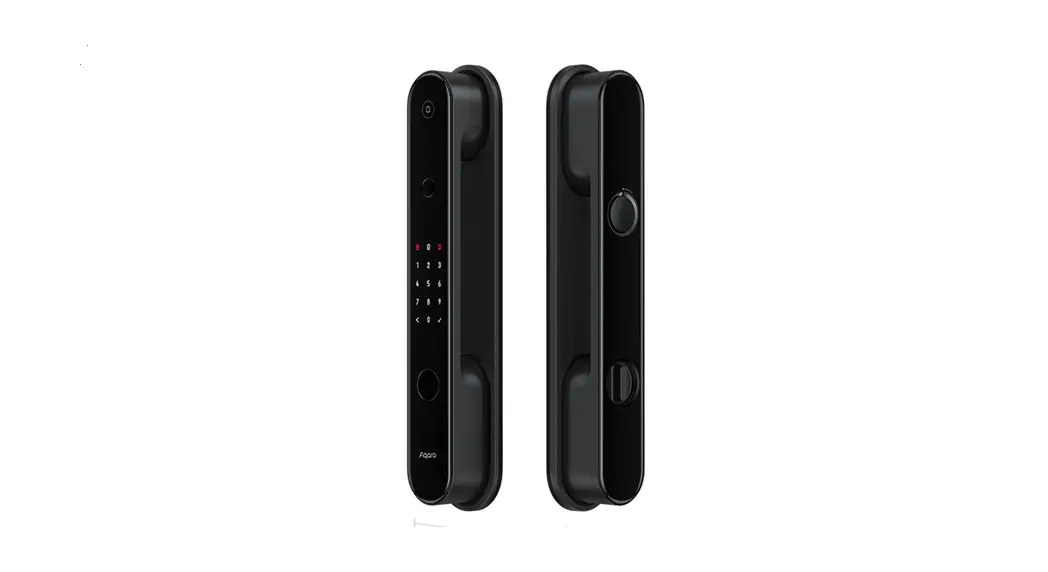
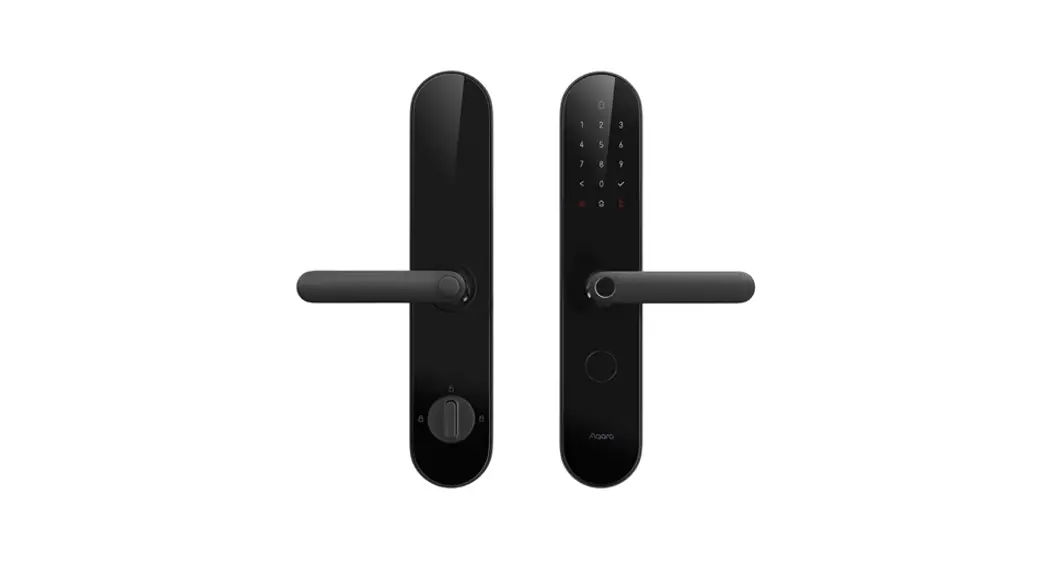
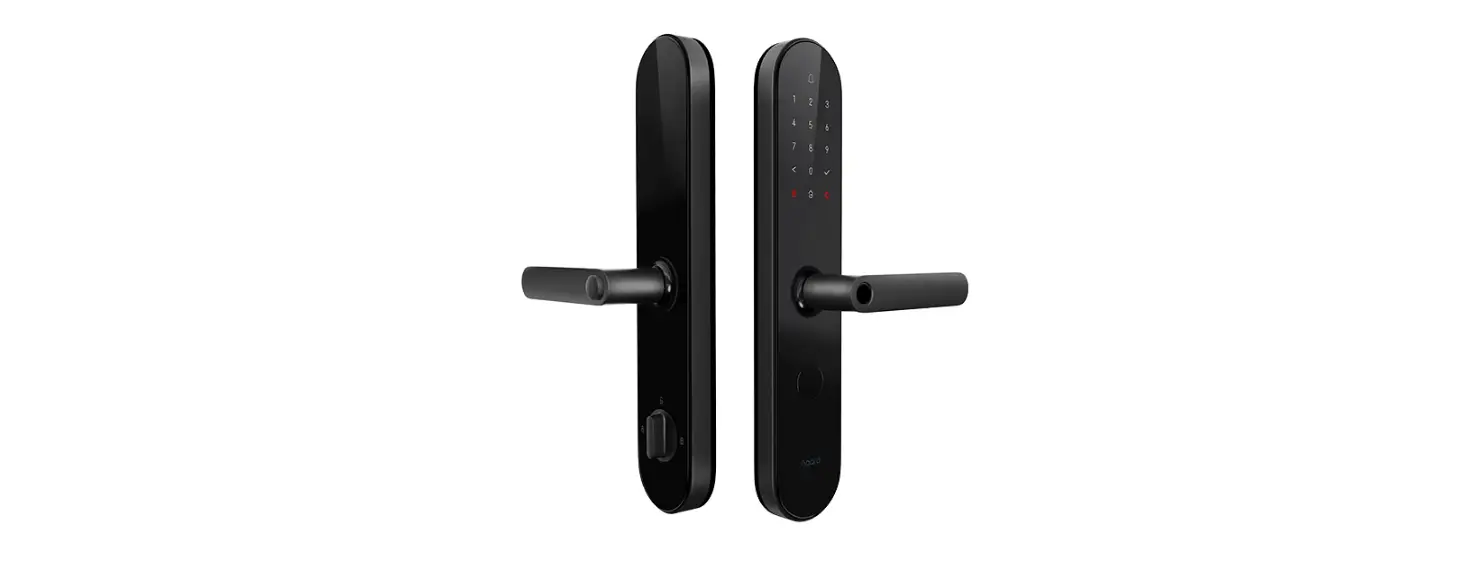
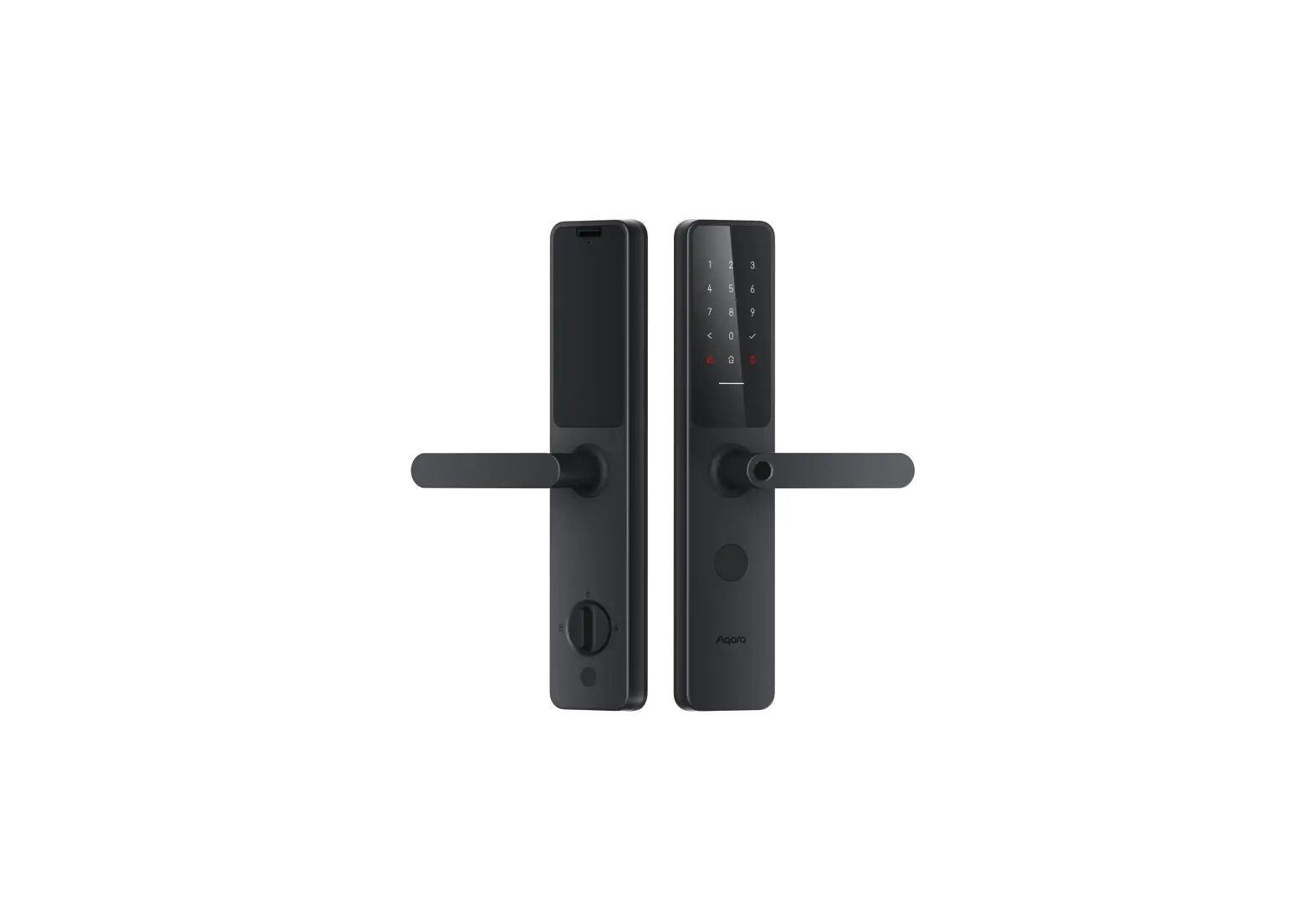
U100 Smart Door Lock
Product Information
An Aqara Hub is required for this product. Some functions may
require specific models of the Aqara Hub. For more details, please
visit www.aqara.com/en/support.html.
What’s in the Box
- Fingerprint Area Keyhole Sliding Cover
- Emergency Power Supply (USB-C)
- Reset Button
- Keypad NFC Area Enter Button/Locking Button
- Speaker
- Battery Compartment Set Button HomeKit Button
Instructions for Product Usage
Instructions before Installation
Before using this product, you need to download the Aqara Home
app and register an account. No such operations are required if you
directly connect this product with the Apple Home app, however,
unique features such as fingerprint recognition, auto-lock, and
others will not be able to be experienced.
To get started:
- Sign up for an Aqara Home account.
- Add Smart Lock U100 to your account.
- Follow the app installation tutorial to complete the
installation.
Device Installation
- Use a PH1 standard Phillips head screwdriver for
installation. - Adjust the latch according to the measurements:
- If the measurement is 2 3/8 in (60mm), install directly.
- If the measurement is 2 3/4 in (70mm), rotate the latch 180
degrees to extend the length.
- Fix the latch, ensuring that the TOP is facing up.
- Install the strike plate to the door frame.
- Pass the outer panel connector cable through the deadbolt
inside the door and secure the outer panel with the mounting plate
and opposite-pull screw. - Remove the battery cover and use the removal tool to take off
the knob cover. - After installation, rotate the tailpiece to check if it moves
smoothly when locking or unlocking. If there is any jam, ensure
that the tailpiece is placed in the center of the mounting plate
opening and there is no interference with other parts. - Fix the connector cable of the outer panel to the inner
panel. - Fix the inner panel to the mounting plate indoors and cover the
knob. - Once the battery is successfully installed, a voice prompt will
indicate that the installation is complete.
Preparation before Use
- A smartphone or tablet that supports Wi-Fi or a cellular
network (with iOS or Android system) is required. - Ensure there is a stable 2.4G Wi-Fi connection and internet
connection. - Open the battery cover and insert 4 AA batteries.
Device Binding & Initialization
To bind and initialize the device:
- Download the Aqara Home app from the Apple App Store or Google
Play. - Open the app and tap the “+” button in the upper right corner
of the homepage to enter the device addition page. - Select “Smart Lock U100” and follow the instructions to install
the door lock device. The actual operations may vary due to updates
in the Aqara Home app. Please follow the instructions provided by
the app.
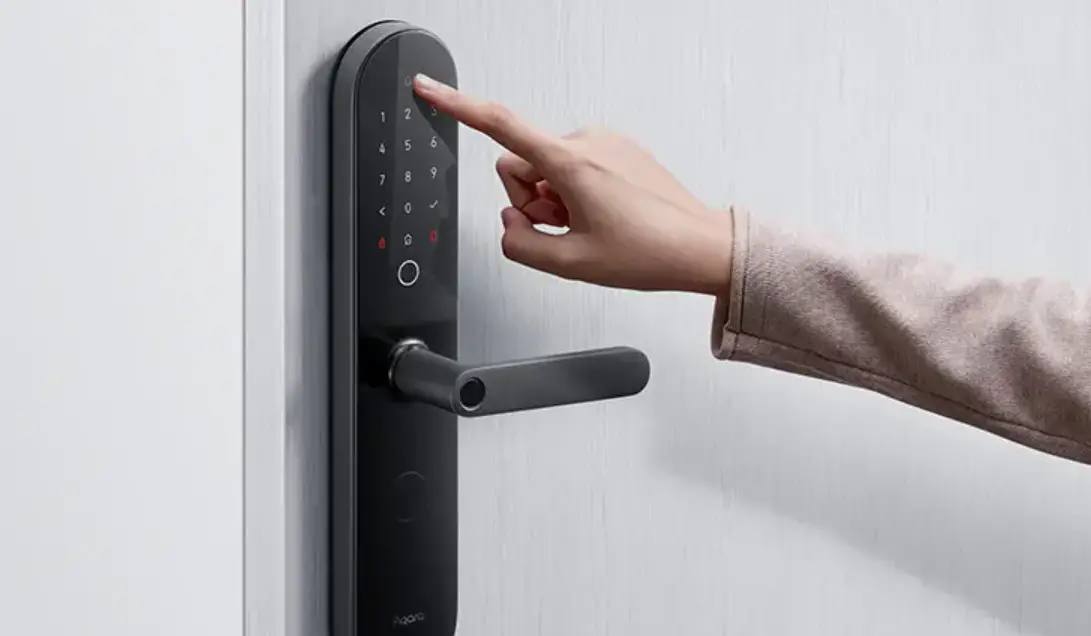
Product Introduction U100 is an IoT-enabled smart lock that supports multiple unlocking methods, such as fingerprint, password, NFC card and Apple Home Key, etc. Through in-depth customization of the fingerprint module and deep optimization algorithm, it provides a smooth experience of unlocking the door through fingerprints. The door lock can be configured through the Aqara Home app. Along with other Aqara smart devices, it can realize various smart automation for your connected home, and provide you with a convenient and safe experience.
* An Aqara Hub is required. Some functions require specific models of the Aqara Hub. Please visit www.aqara.com/en/support.html for more details.
What’s in the Box
Outer Panel × 1 Inner Panel × 1
AA Battery × 4
TOP
Deadbolt × 1
Strike Plate Kit × 1
Mounting Plate × 1 User Manual × 1
Mechanical Key × 2
Knob Removal Tool × 1
Installation Diagram × 1
Opposite-Pull Screw Kit × 1
Bolt & Strike Plate Screw Kit × 1
Mounting Plate Screw Kit × 1
Fingerprint Area Keyhole Sliding Cover
Tips: Use the key to unlock it after gliding the cover plate
Emergency Power Supply (USB-C)
Reset Button
Long press for 3 seconds to reset. Note: It will clear previous users setting.
Keypad NFC Area Enter Button/Locking Button
Note: Click the button to lock the door after the plate is awakened.
Speaker
Battery Compartment Set Button HomeKit Button
Press to connect with iOS devices
Open the battery cover
Instructions before Installation Before using this product, you need to download the Aqara Home app and register an account. No such operations are required if you directly connect this product with the Apple Home app, however, unique features such as fingerprint recognition, auto-lock, and others will not be able to be experienced.
Aqara Home
Sign up for Aqara Home account, then add Smart Lock U100 and follow the app installation tutorial to install.
Installation Videos
Or scan the following QR code to check the installation video.
A PH1 standard Phillips head screwdriver is required for installation.
Tools necessary only for new doors or adjusting existing door holes: Drill, Hole Saws, Wood Mortise Chisel, Pencil, Tape Measure, Level
Drill
Hole Saws
Wood Mortise Pencil
Tape Measure
Level
Chisel
Device Installation
1. Measure the backset: the distance from the edge of the door to the center of the deadbolt hole. It should be 2 in (60 mm) or 2 ¾ in (70 mm).
0
10 20 30 40 50 60
2 in (60 mm)
70
or 2 ¾ in
(70 mm)
2. Adjust the latch according to the measurements.
2 in (60 mm) 2 ¾ in (70 mm)
Install directly if it’s 2 3/8 in (60mm)
If it’s 2 3/4 in (70mm), rotate the latch 180 degree to extend the length.
3. Fix the latch. Make sure that the “TOP” is facing up.
4. Install the strike plate to the door frame.
5. Pass the outer panel connector cable through the deadbolt inside the door and strengthen the outer panel with the mounting plate and opposite-pull screw.
6. Remove the battery cover, then take off the knob cover with the removal tool.
After installation, please rotate the tailpiece to check if it is smooth when locking or unlocking. If there is a jam, please check if the tailpiece is placed in the center of the mounting plate opening and if there is no interference with other parts.
7. Fix the connector cable of the outer panel to the inner panel.
8. Fix the inner panel to the mounting plate indoors and cover the knob.
9. Once the battery installed successfully, a voice prompt will be played to indicate the installation is completed.
Preparation before Use
1. A smartphone or tablet that supports Wi-Fi or a cellular network (with iOS or Android system) is required. 2. Please make sure that there is a 2.4G Wi-Fi connection and your internet connection is stable. 3. Please open the battery cover and put in 4 AA batteries
Note: It is recommended to use original batteries or alkaline batteries, as others may leak and thus cause damage to the product when used for a long time. [Warning] Please replace the battery when it is low. Otherwise, verification and door opening will fail when the battery runs out. In this case, you can charge the lock with USB-C emergency power supply or unlock with the key. 4. Long press the “Reset” button for 3 seconds, and release the button after you hear the voice prompt. Then the reset completes. Notes: The door lock cannot be locked normally as the user information will be cleared after reset. Please set the door lock by following instructions as soon as possible.
Device Binding & Initialization Download the Aqara Home app: Search for “Aqara Home” in the Apple App Store or Google Play. Or scan the following QR code to download the Aqara Home app.
Open the app, tap “+” in the upper right corner of the homepage to enter the page of “Add the device”. Choose “Smart Lock U100” and then install the door lock device according to the instructions. The actual operations are subject to change due to the updates of the Aqara Home app. Please following the instructions of the app.
Add the User Enter the page of the door lock device and add the door lock owner according to the instructions on the app.
Notes: The door lock cannot be locked normally without adding users.
Add the Device to HomeKit (for iOS users) After the door lock is powered on for the first time, click “+” at the upper right corner of the Apple Home app in the iOS, select “Add Accessory” or open Aqara Home app. Tap “Bind HomeKit” in the “General Settings” column of the setting on the detail page of the door lock. Scan or manually input the HomeKit code as prompted (HomeKit code can be found when you open the battery cover of the indoor door lock). Then add users according to the instructions. HomeKit only supports the lock and unlock, smart automation setting and Apple Home Key.
Add to Apple Home Key (for iOS users) After it is connected with HomeKit, one virtual door card will be automatically generated in the Apple “Wallet” app. You can use an iPhone or Apple Watch, which supports the Apple Home Key function to unlock by holding it close to the door lock.
Product Instructions 1. To control this HomeKit-enabled accessory, the latest version of iOS or iPadOS is recommended. Controlling this HomeKit-en-
abled accessory automatically and away from home requires a HomePod, HomePod mini, or Apple TV set up as a home hub. It is recommended that you update to the latest software and operating system. 2. To use home keys, iPhone XS or later with iOS 15 or later and Apple Watch Series 4 or later with watchOS 8 or later are required. 3. Use of the Works with Apple badge means that an accessory has been designed to work specifically with the technology identified in the badge and has been certified by the developer to meet Apple performance standards. Apple is not responsible for the operation of this device or its compliance with safety and regulatory standards.
Connect Google or Alexa app
To unlock via Google or Alexa, please first, buy and bind the Aqara hub. For details, please scan the code and learn how to bind.
Product Specifications Smart Lock U100 Model: SDL-D01 / DL-D01D Wireless Protocols: Zigbee, Bluetooth 5.0, NFC Powering Modes: 4 AA Batteries (6V ); USB-C Emergency Port (5V ) Dimensions: 5.3 × 2.9 × 3.5 in. (135.8 × 74.8 × 88.4 mm) Operating Temperature: -35°C ~ 66°C (-31°F ~ 150.8°F) Operating Humidity: 0 ~ 93% RH, no condensation
FCC ID: 2AKIT-SDLD01 Federal Communications Commission (FCC) compliance statement: 1. This device complies with part 15 of the FCC Rules. Operation is subject to the following two conditions: (1) This device may not cause harmful interference, and (2) this device must accept any interference received, including interference that may cause undesired operation. 2. Changes or modifications not expressly approved by the party responsible for compliance could void the user’s authority to operate the equipment.
Note: This equipment has been tested and found to comply with the limits for a Class B digital device, pursuant to part 15 of the FCC Rules. These limits are designed to provide reasonable protection against harmful interference in a residential installation. This equipment generates, uses and can radiate radio frequency energy and, if not installed and used in accordance with the instructions, may cause harmful interference to radio communications. However, there is no guarantee that interference will not occur in a particular installation. If this equipment does cause harmful interference to radio or television reception, which can be determined by turning the equipment off and on, the user is encouraged to try to correct the interference by one or more of the following measures: –Reorient or relocate the receiving antenna. –Increase the separation between the equipment and receiver. –Connect the equipment into an outlet on a circuit different from that to which the receiver is connected. –Consult the dealer or an experienced radio/TV technician for help. RF Exposure statement: This equipment complies with FCC radiation exposure limits set forth for an uncontrolled environment. This equipment should be installed and operated with minimum distance of 20 cm between the radiator and your body. This transmitter must not be co-located or operating in conjunction with any other antenna or transmitter.
IC:22635-SDLD01 IC:22635-DLD01D
IC NOTICE TO CANADIAN USERS
This device contains licence-exempt transmitter(s)/receiver(s) that comply with Innovation, Science and Economic Development Canada’s licence-exempt RSS(s). Operation is subject to the following two conditions: (1) This device may not cause interference. (2) This device must accept any interference, including interference that may cause undesired operation of the device. This Class B digital apparatus complies with Canadian ICES003. This device complies with RSS247 of Industry Canada. Operation is subject to the condition that this device does not cause harmful interference. This equipment complies with IC radiation exposure limits set forth for an uncontrolled environment. This equipment should be installed and operated with minimum distance of 20 cm between the radiator and your body. This transmitter must not be co-located or operating in conjunction with any other antenna or transmitter.
L’émetteur/récepteur exempt de licence contenu dans le présent appareil est conforme aux CNR d’Innovation, Sciences et Développement économique Canada applicables aux appareils radio exempts de licence. L’exploitation est autorisée aux deux conditions suivantes : (1) L’appareil ne doit pas produire de brouillage; (2) L’appareil doit accepter tout brouillage radioélectrique subi, même si le brouillage est susceptible d’en compromettre le fonctionnement. Cet appareil numérique de la Classe B conforme à la norme NMB003 du Canada. Cet appareil est conforme à la norme RSS 247 d’Industrie Canada. Le fonctionnement est soumis à la condition que cet appareil ne provoque pas d’interférences nuisibles. Cet équipement est conforme aux limites d’exposition aux rayonnements de la IC établies pour unenvironnement non contrôé. Cet équipement doit être installé et fonctionner à au moins 20cm de distance d’un radiateur ou de votre corps.Cet émetteur ne doit pas être co-localisé ou fonctionner en conjonction avec une autre antenne ou un autre émetteur.
Online Customer Service: www.aqara.com/en/support.html Manufacturer: Lumi United Technology Co., Ltd. Address: Room 801-804, Building 1, Chongwen Park, Nanshan iPark, No. 3370, Liuxian Avenue, Fuguang Community, Taoyuan Residential District, Nanshan District, Shenzhen, China Email: [email protected]