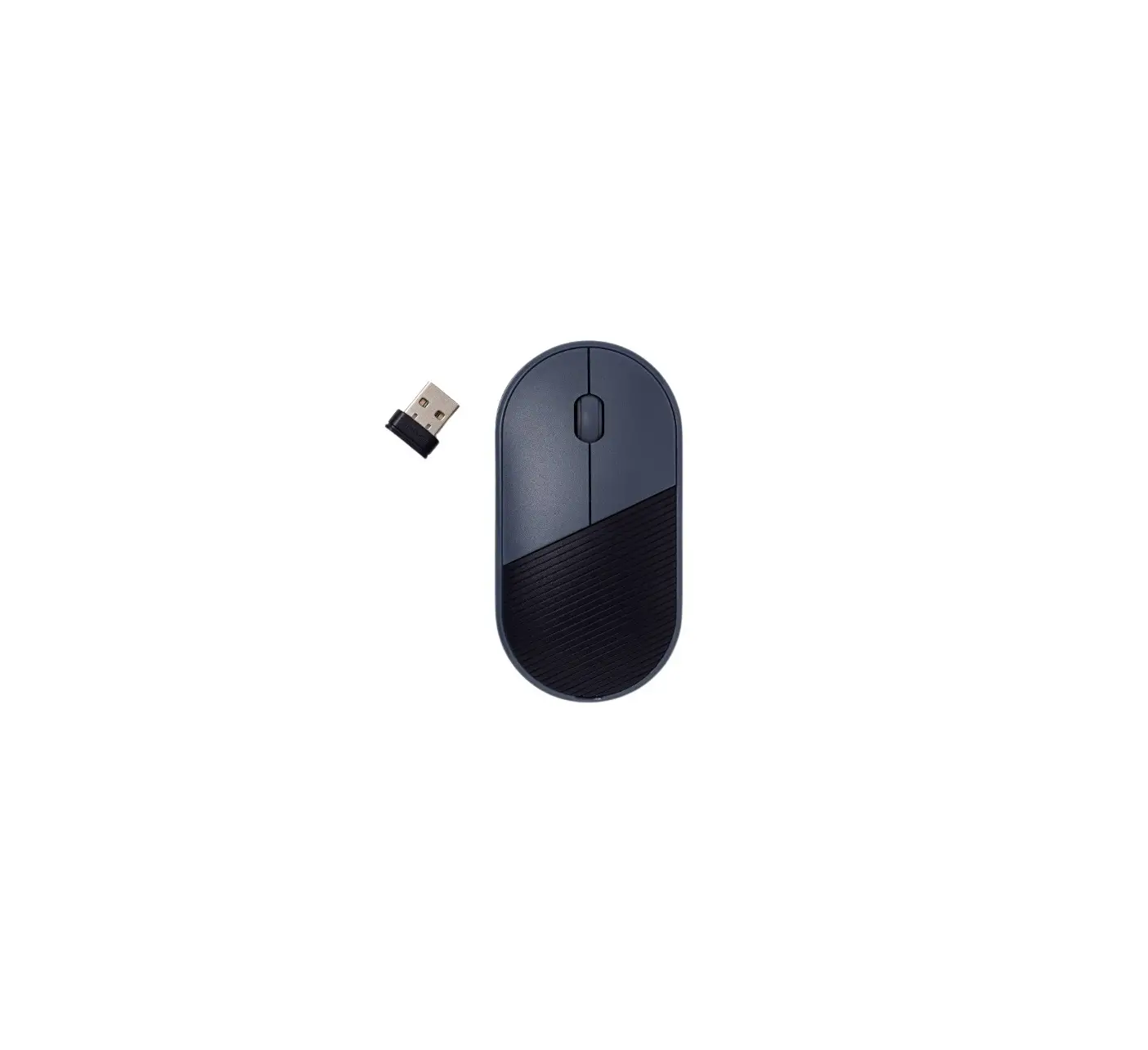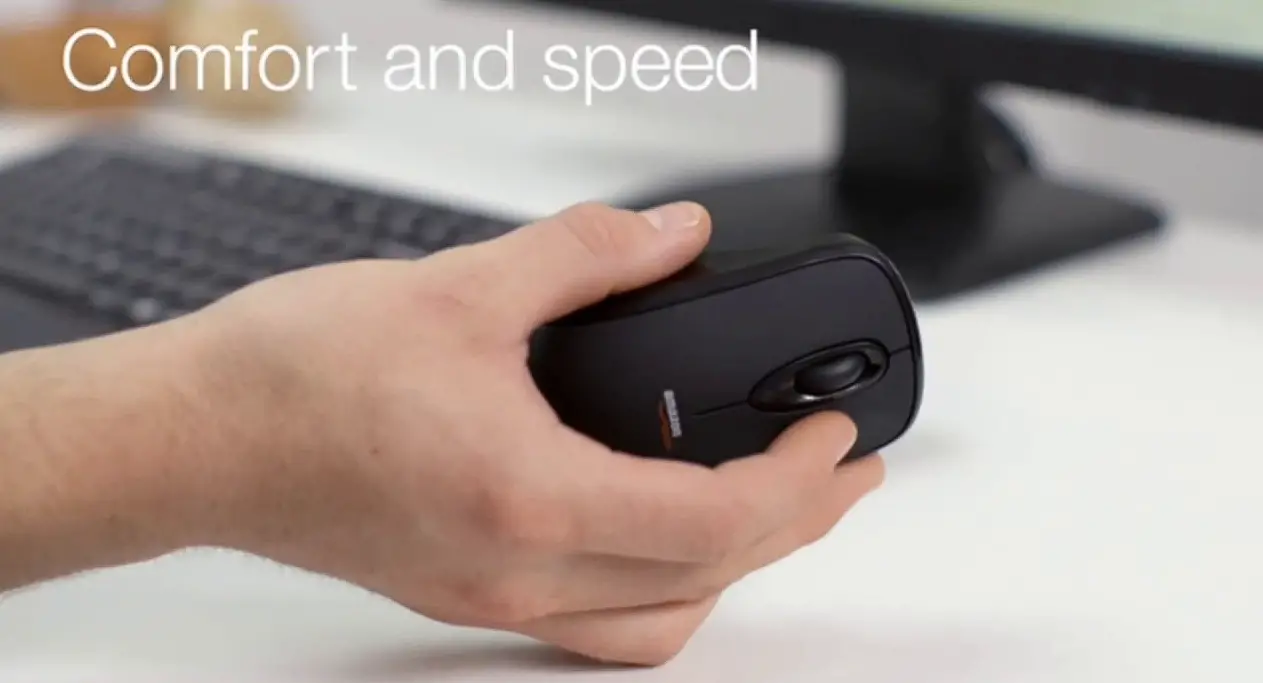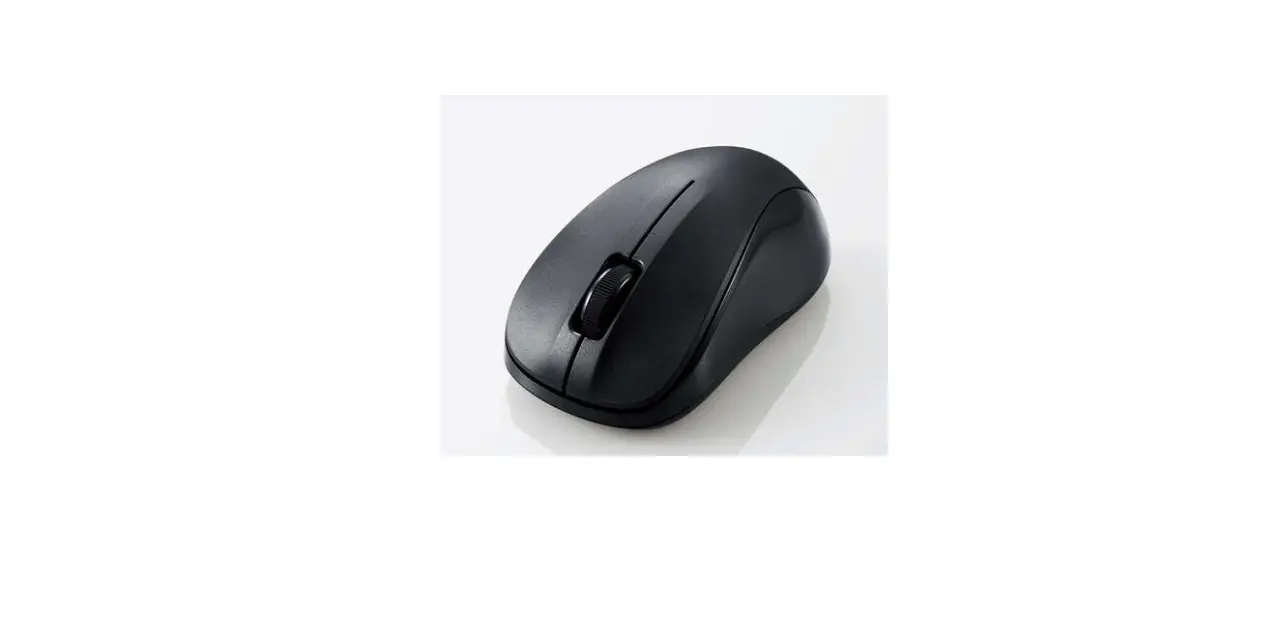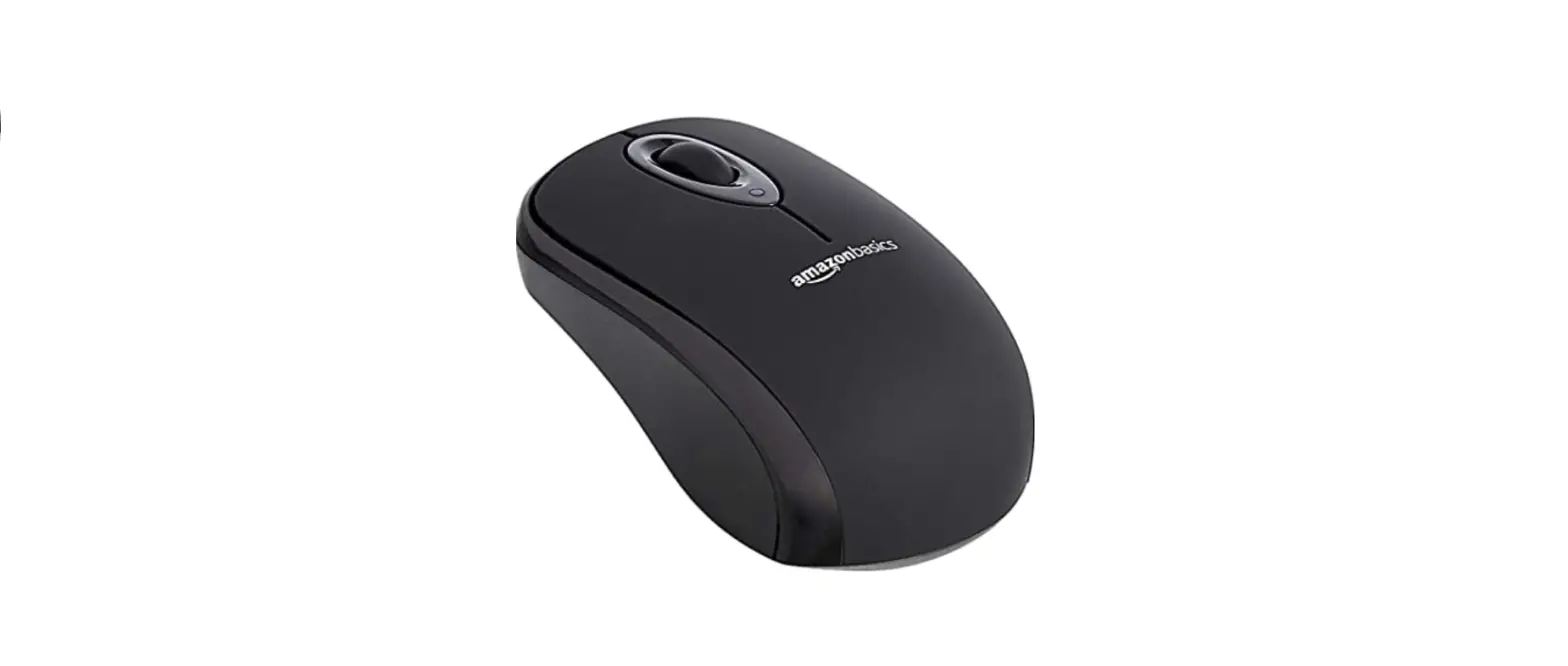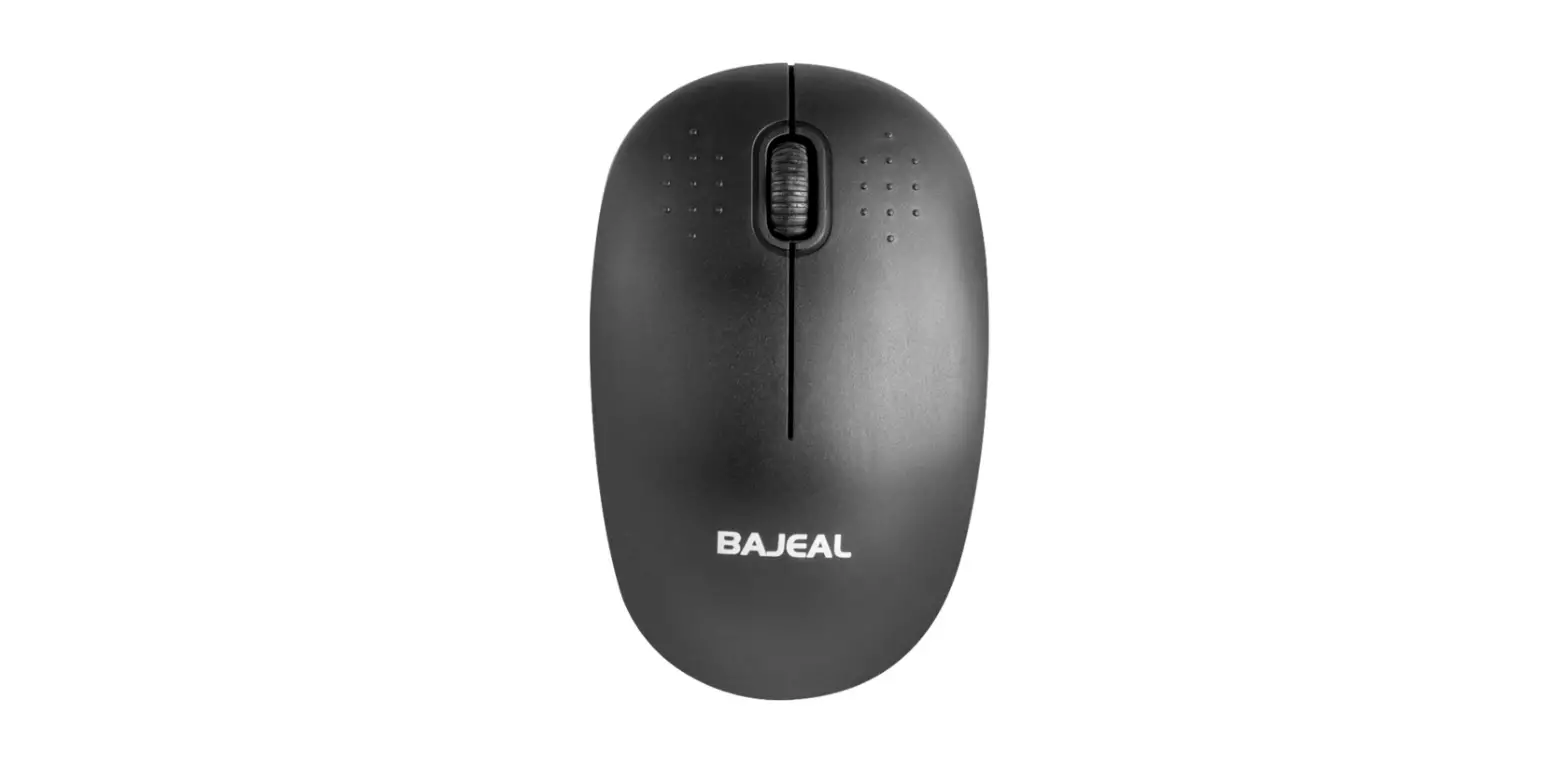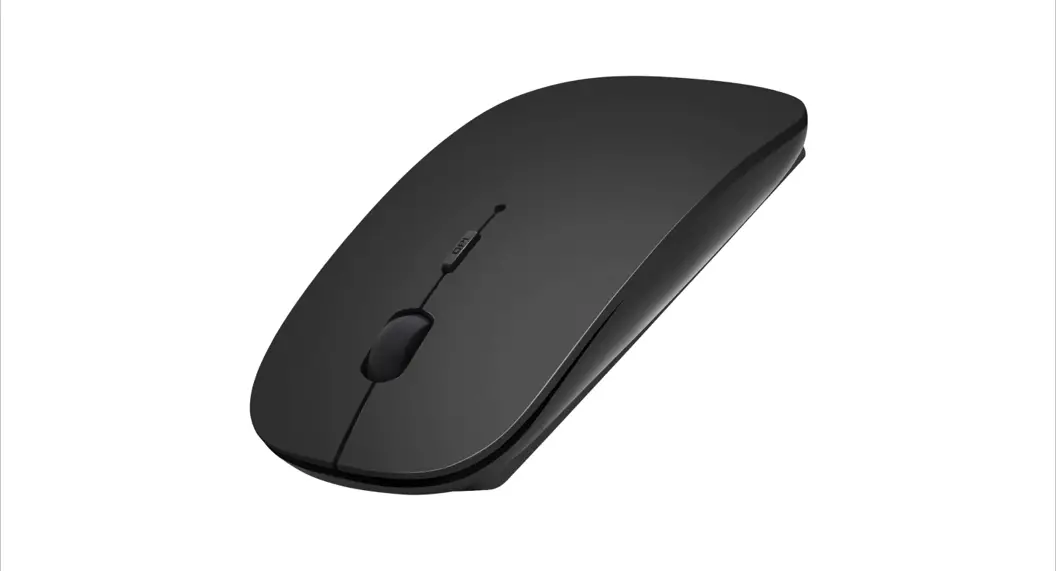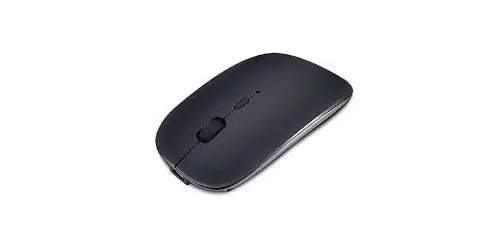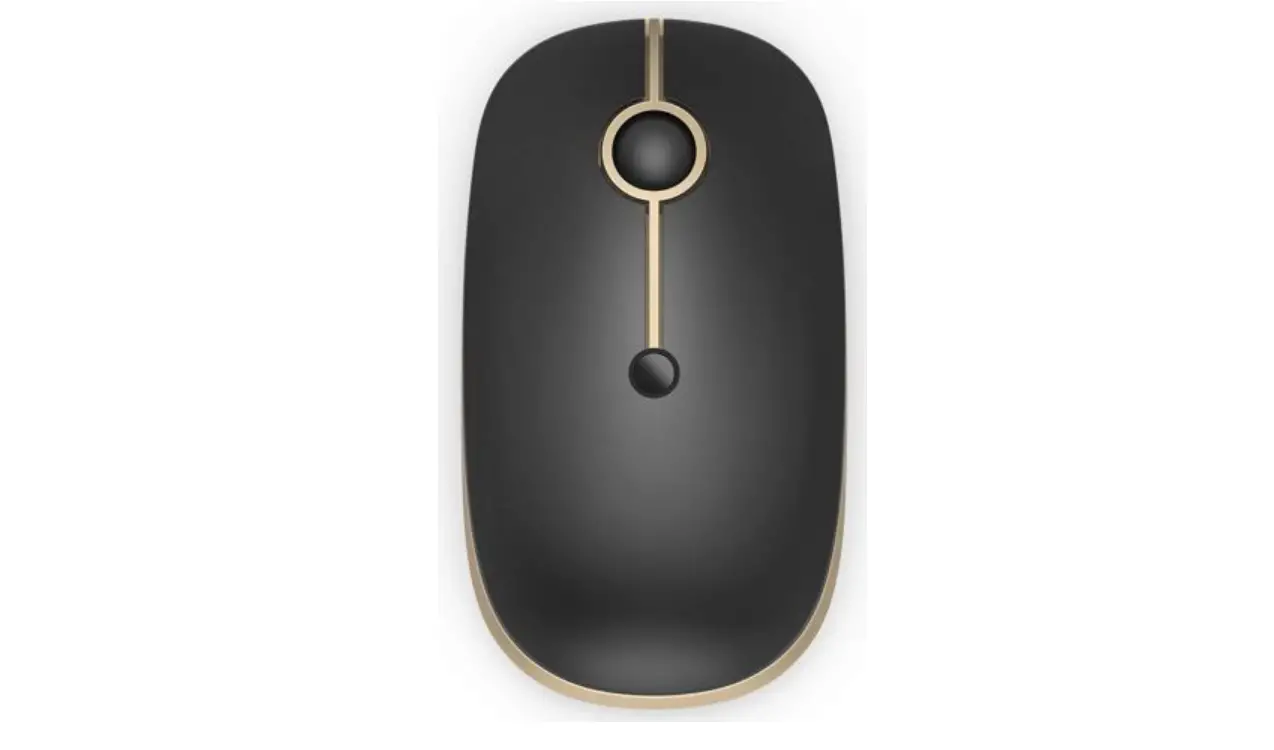

wireless mouse
included
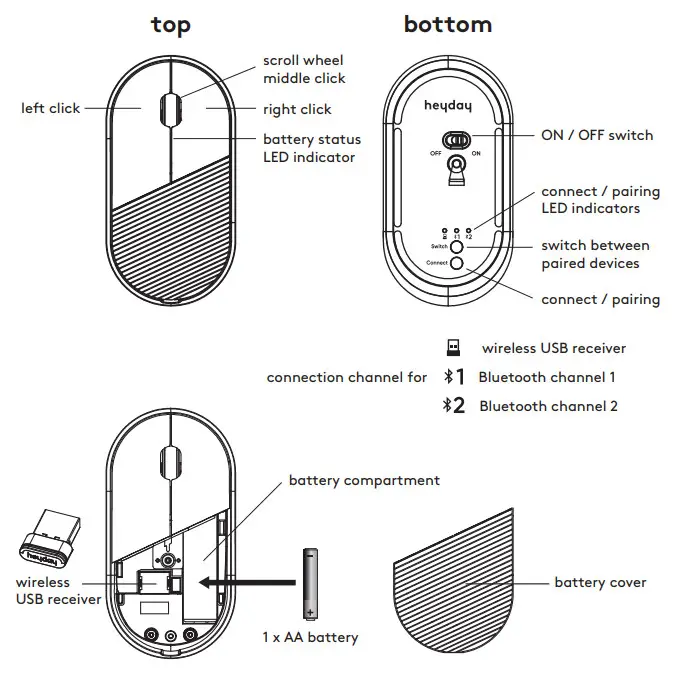
- Wireless mouse (connect via wireless USB receiver or Bluetooth)
- USB receiver
- 1 x AA battery
detailed setup
This mouse can be paired with up to 3 different devices
Use the “Switch” button to change the channel from wireless USB receiver channel and 2 other Bluetooth channels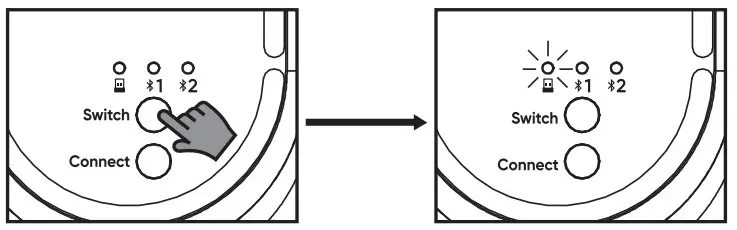
- Short press the “Switch” button ONCE will show you the current channel
for example, if this mouse is currently set on “wireless USB receiver” The LED indicator will flash for 3 seconds
 - Short press the “Switch” button AGAIN
To switch from different channels, press “Switch” again within that 3 seconds to switch to other channels
connect via wireless USB receiver
It is plug and plays for USB receiver, makes sure power is on, the channel is set, and then just plug in USB receiver into the available USB A port on the device
 LED indicator will flash for 3 seconds
Troubleshooting
If it is not working, try the below steps to repair the mouse and USB receiver
- Turn off your mouse and re-plug in the USB receiver, turn on the power (make sure channel is set on )
- Press the “Connect” button (keep mouse close to receiver)
- If it does not work after 10 seconds, repeat step 1 to 3
connect via Bluetooth on PC
- Turn on your mouse and set it on either Bluetooth channel
 1 or2
1 or2 - Click on Start Menu (bottom left corner of your screen) Go to Settings -> Device -> Bluetooth & other devices Turn on Bluetooth -> Add Bluetooth or another device -> Add a device (Bluetooth)
- Press and HOLD “Connect” button to set mouse in the discoverable mode so that it can be seen by your device (LED will start flashing fast)
- Click on “heyday mouse” to connect (LED will stop flashing and light up for 3 seconds when pairing is completed)
connect via Bluetooth in iOS
- Turn on your mouse and set it on either Bluetooth channel 1 or 2
- lick on the Apple menu (top left corner of your screen) Go to System Preferences -> Bluetooth -> Turn Bluetooth on to set up Bluetooth device
- Press and HOLD “Connect” button to set the mouse in the discoverable mode so that it can be seen by your device (LED will start flashing fast)
- Click on “heyday mouse” to connect (LED will stop flashing and light up for 3 seconds when pairing is completed)
- Troubleshooting
lf it is not working, try the below steps to re-setup
- Turn off your mouse and turn on the power again (make sure the channel is set on 1 or 2)
- Make sure to turn on Bluetooth on your device
- Press and HOLD “Connect” button to set mouse in pairing mode, make sure it is discoverable on your device, and connect with your mouse
- If it does not work after 10 seconds, repeat step 1 to 3
If it is not working on previously paired devices, make sure to turn on Bluetooth on that device and set the mouse on the correct Bluetooth channel For example, a tablet has paired with1, and a laptop has paired with2 Set mouse on 1 if you want to use the mouse on that tablet
low battery
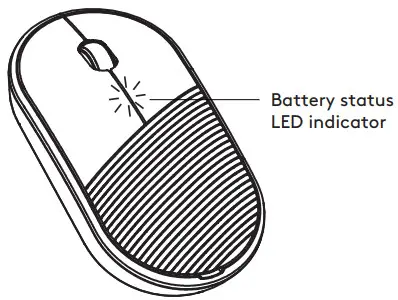
If this LED starts blinking, it means you need to change the battery
need some help?
Can’t get it to pair? Just have a question?
 |  |
| call us at: 877-698-4883 | online at: TargetTechSupport.com |
safety
- Do not use near any water source
- Do not modify or repair this device
- Do not use in high temperatures or extreme weather
- Do not use chemical detergents to clean your device, use a soft dry cloth
heyday 
FCC ID: PRDMU99 Model: B29 MC:XXXXX Input: 1.5V 50mA Made in CHINA
This device complies with Part 15 of the FCC rules. Operation is subject to the following two conditions:
1) this device may not cause harmful interference, and 2) this device must accept interference received, including interference that may cause undesired operation.
Warning: Changes or modifications to this unit not expressly approved by the party responsible for compliance could void the user’s authority to operate the equipment.
NOTE: This equipment has been tested and found to comply with the limits for a Class B digital device, pursuant to Part 15 of the FCC Rules. These limits are designed to provide reasonable protection against harmful interference in a residential installation. This equipment generates, uses, and can radiate radio frequency energy and, if not installed and used in accordance with the instructions, may cause harmful interference to radio communications. However, there is no guarantee that interference will not occur in a particular installation. If this equipment does cause harmful interference to radio or television reception, which can be determined by turning the equipment off and on, the user is encouraged to try to correct the interference by one or more of the following measures:
• Reorient or relocate the receiving antenna.
• Increase the separation between the equipment and receiver.
• Connect the equipment into an outlet on a circuit different from that to which the receiver is connected.
• Consult the dealer or an experienced radio/TV technician for help.
TargetCorp. Mpls. MN, 55403 Phone: 877-698-4883
Radiation Exposure Statement:
The product complies with the FCC portable RF exposure limit set forth for an uncontrolled environment and is safe for intended operation as described in this manual. The further RF exposure reduction can be achieved if the product can be kept as far as possible from the user body or set the device to lower output power if such function is available. FCC Caution: Any changes or modifications not expressly approved by the party responsible for compliance could void the user’s authority to operate this equipment.
NOTE: Do not mix old and new batteries and do not mix alkaline, standard (zinc-carbon), or rechargeable (nicad, NiMH, etc.) batteries.
Battery life may vary depending on the user and computing conditions. The Bluetooth® word mark and logos are registered trademarks owned by Bluetooth SIG, Inc. and any use of such marks by TargetCorp. is under license. Other trademarks and trade names are those of their respective owners.