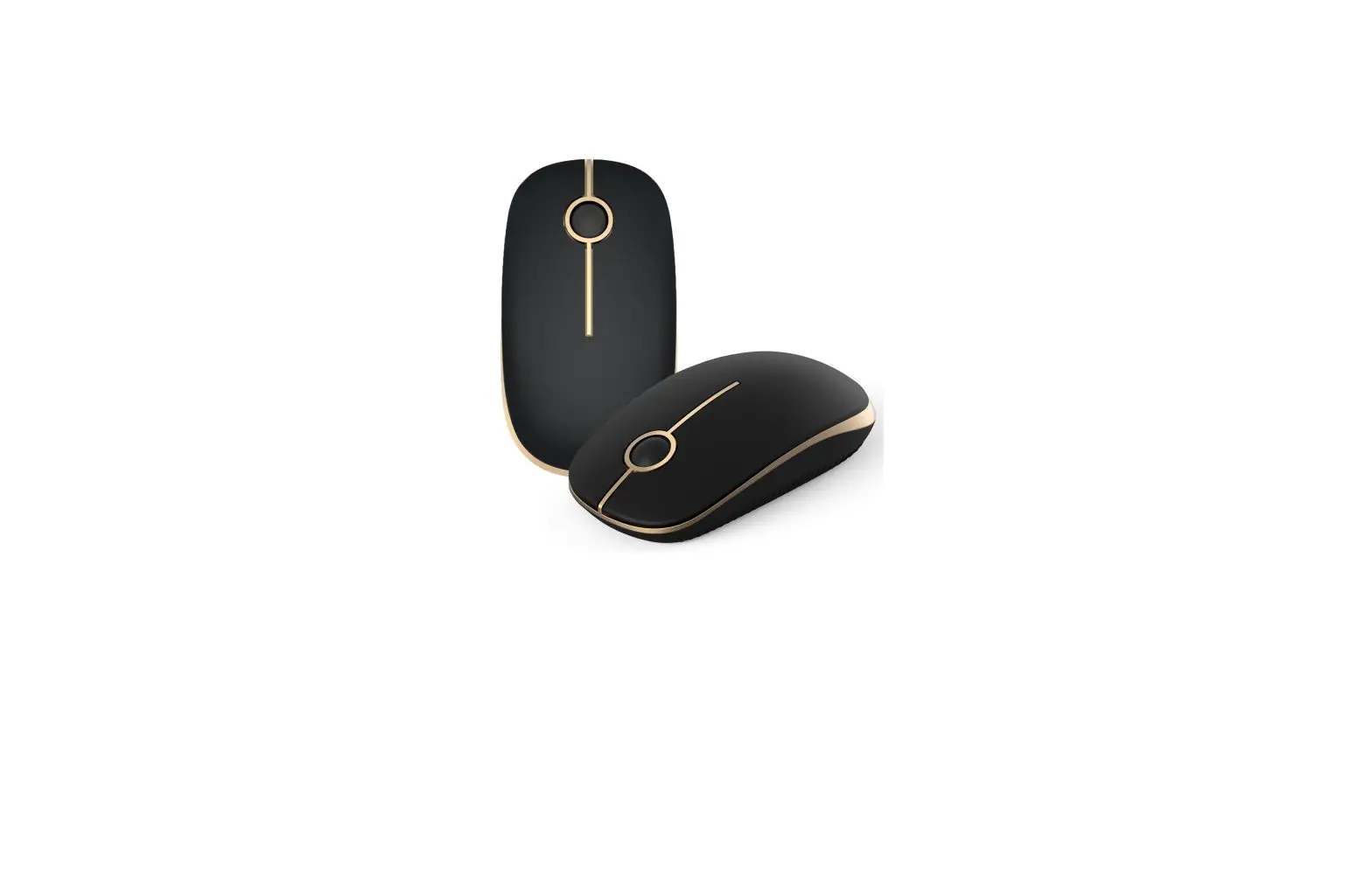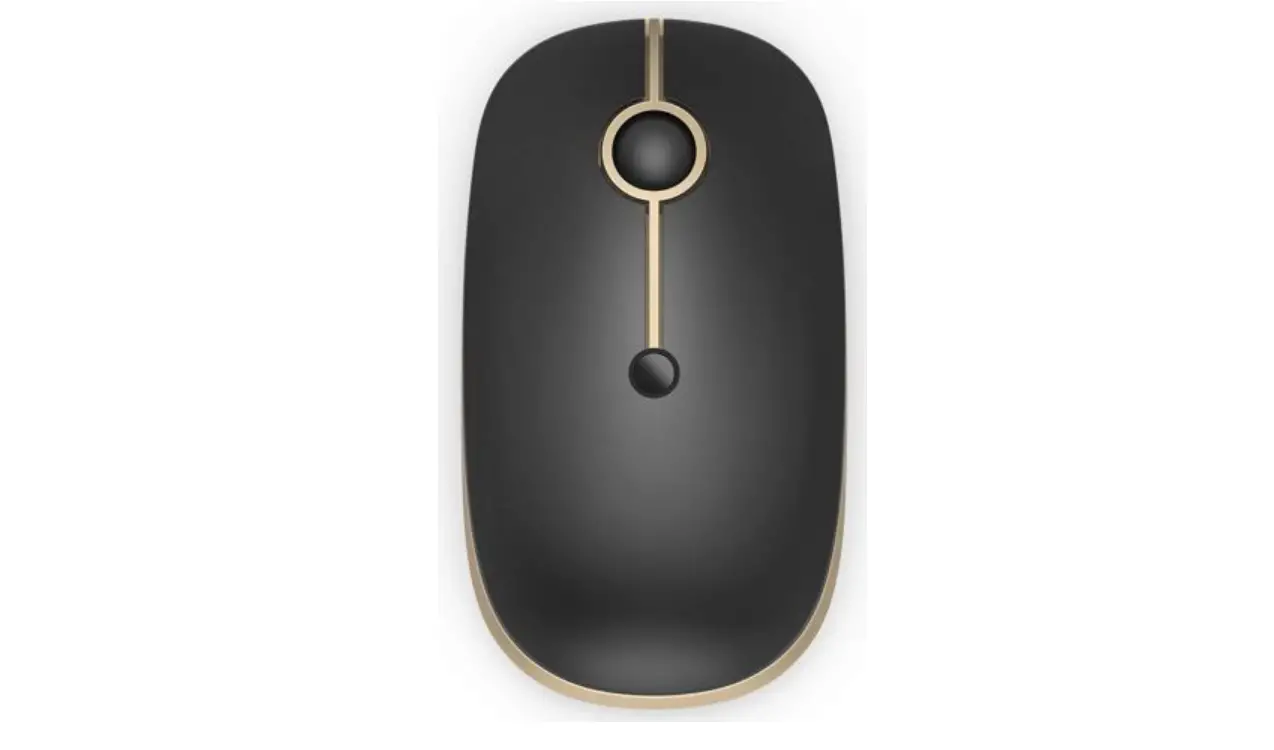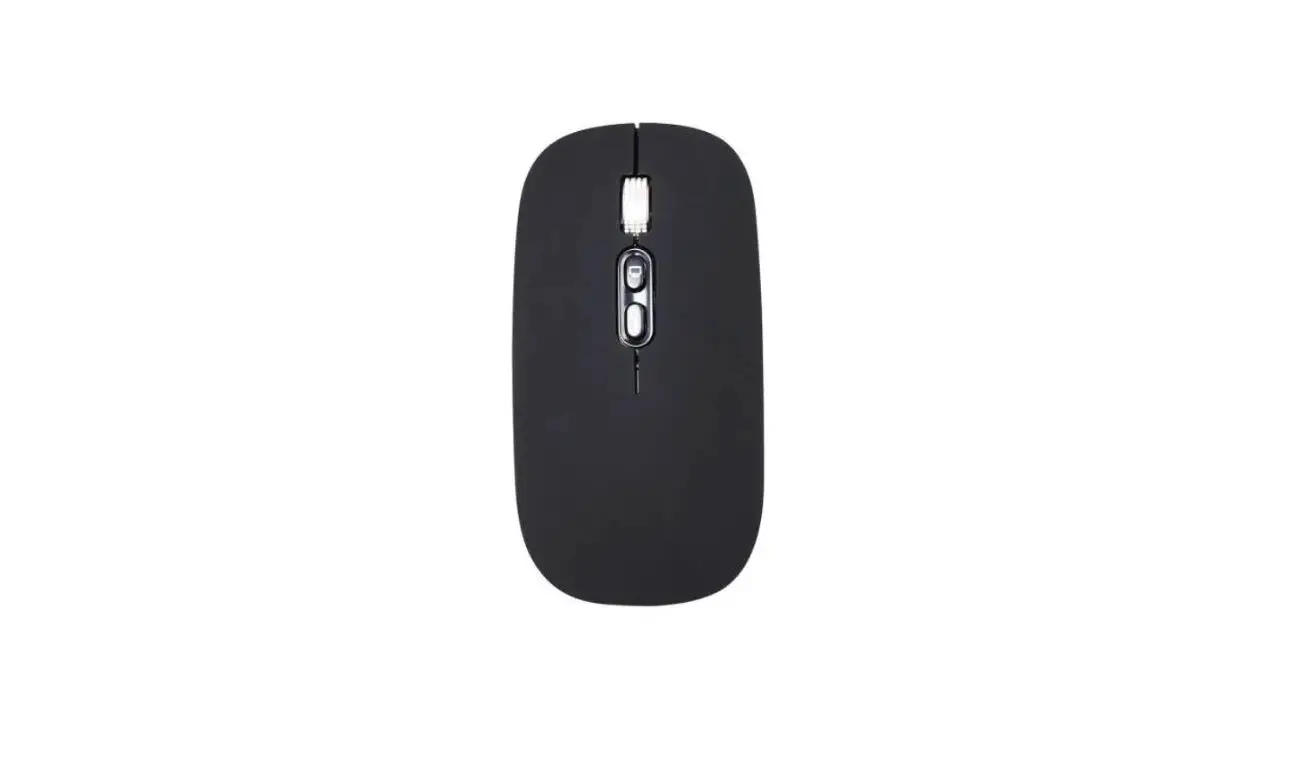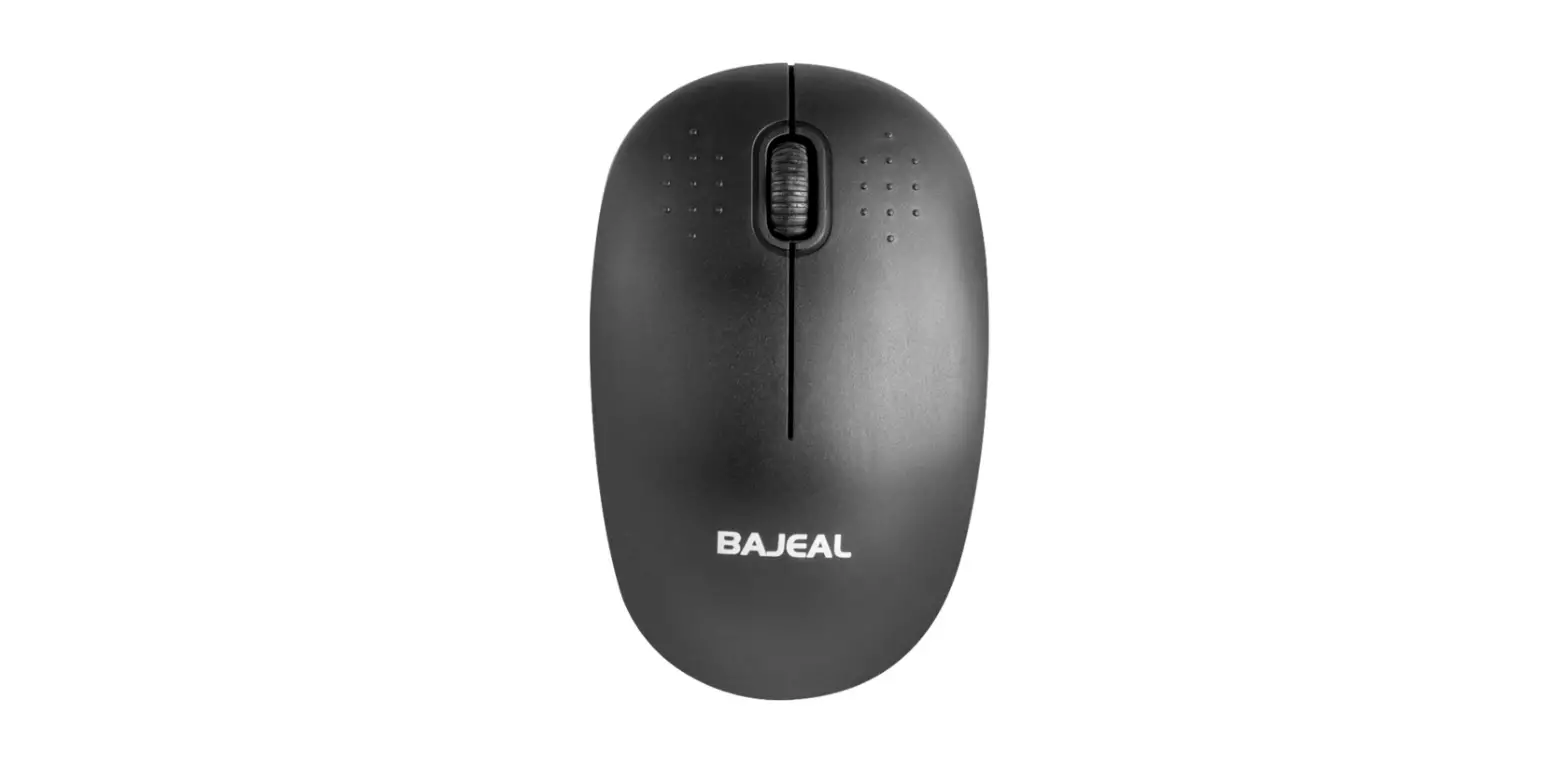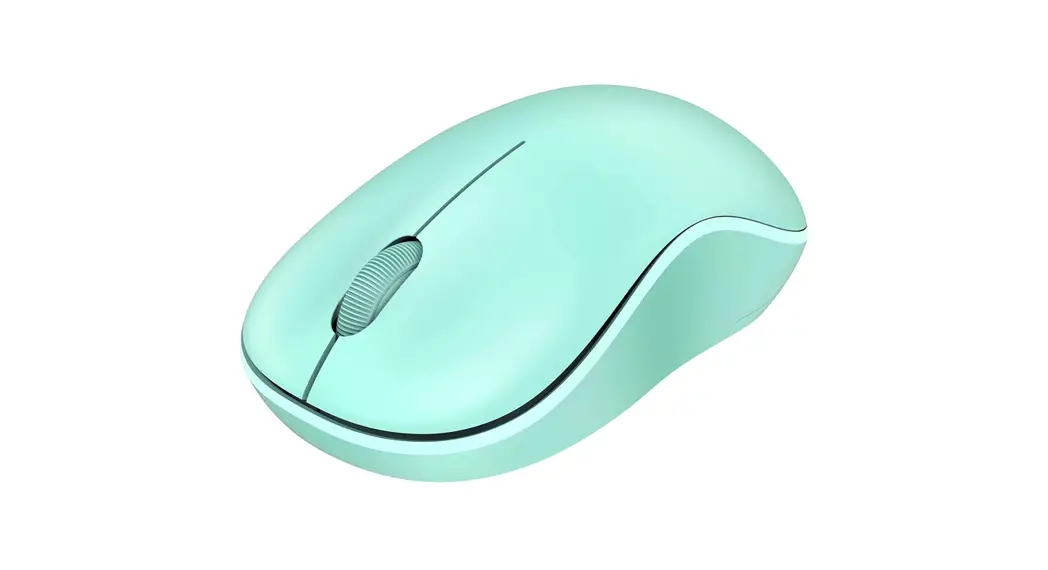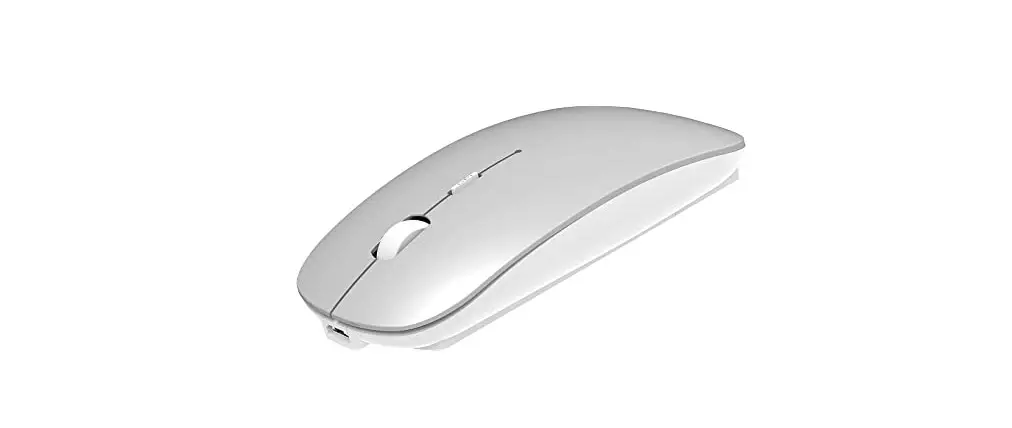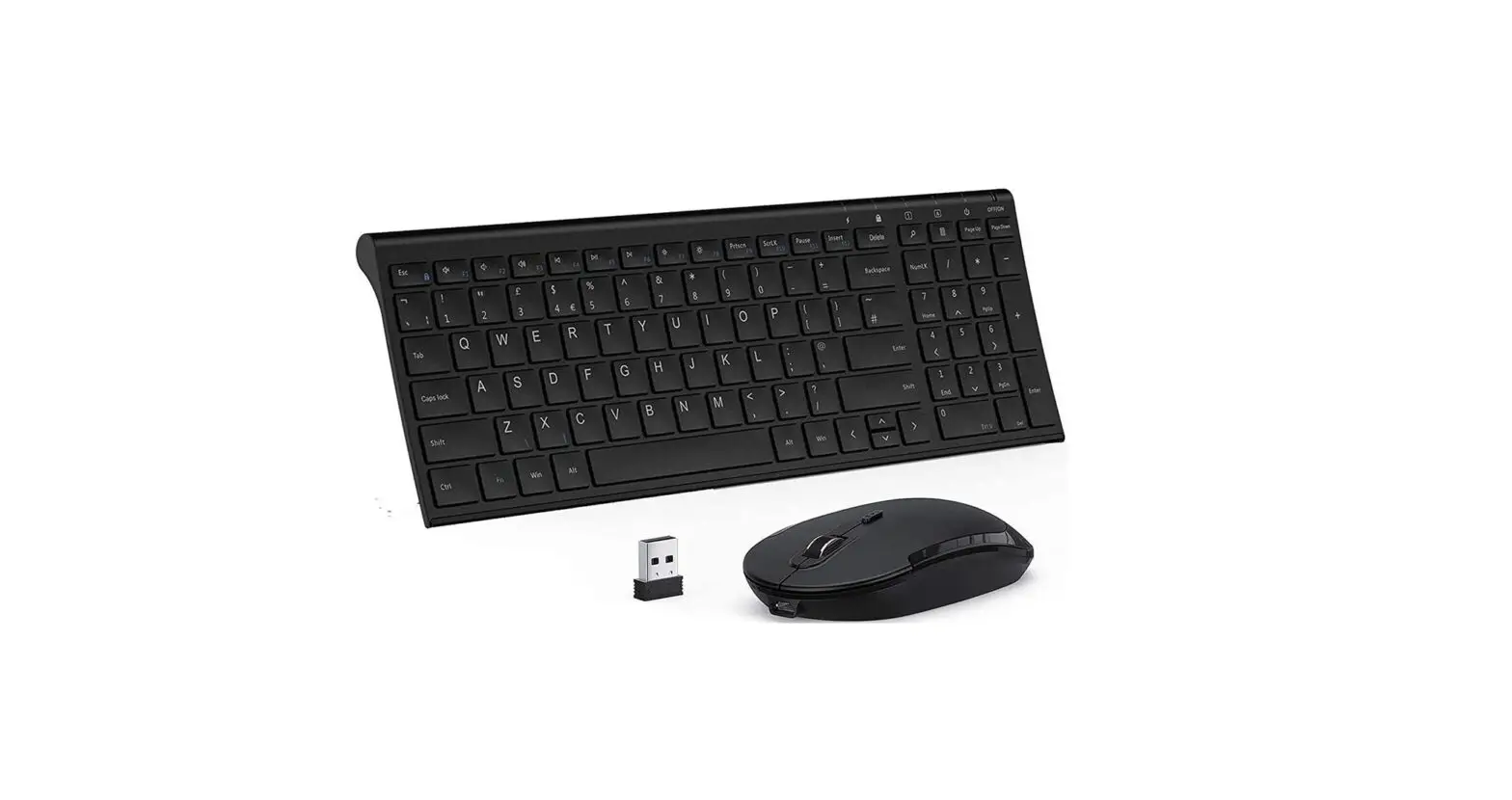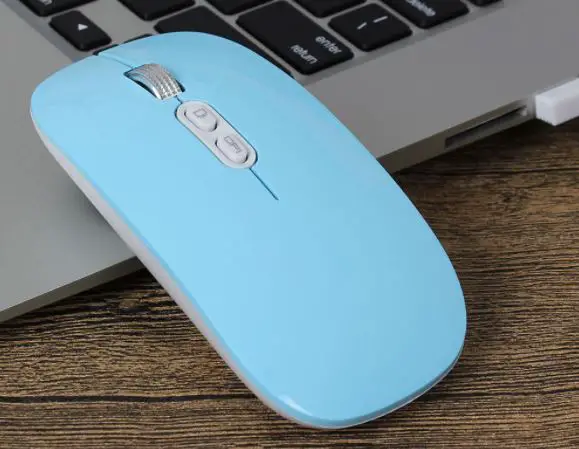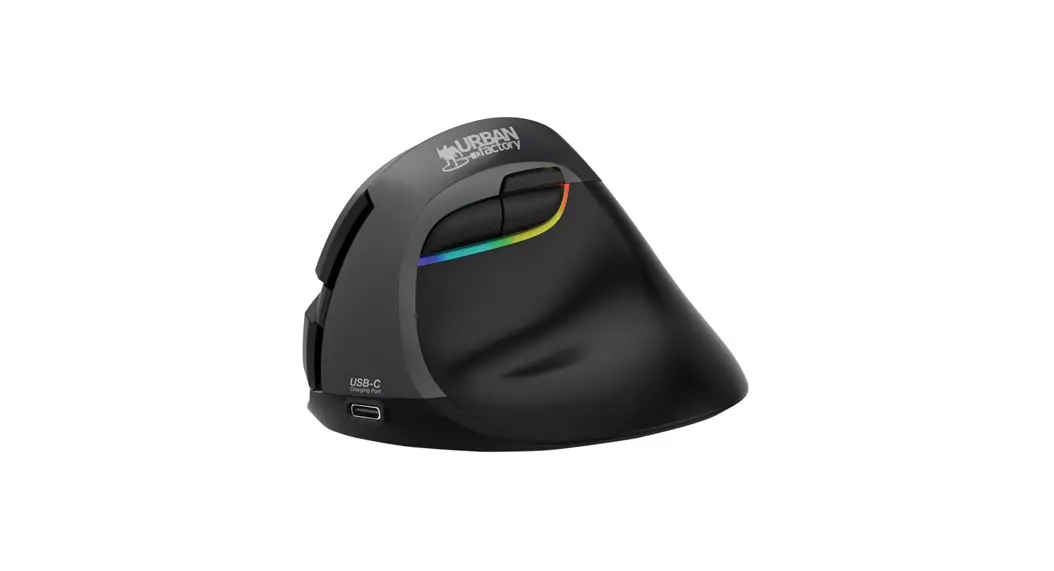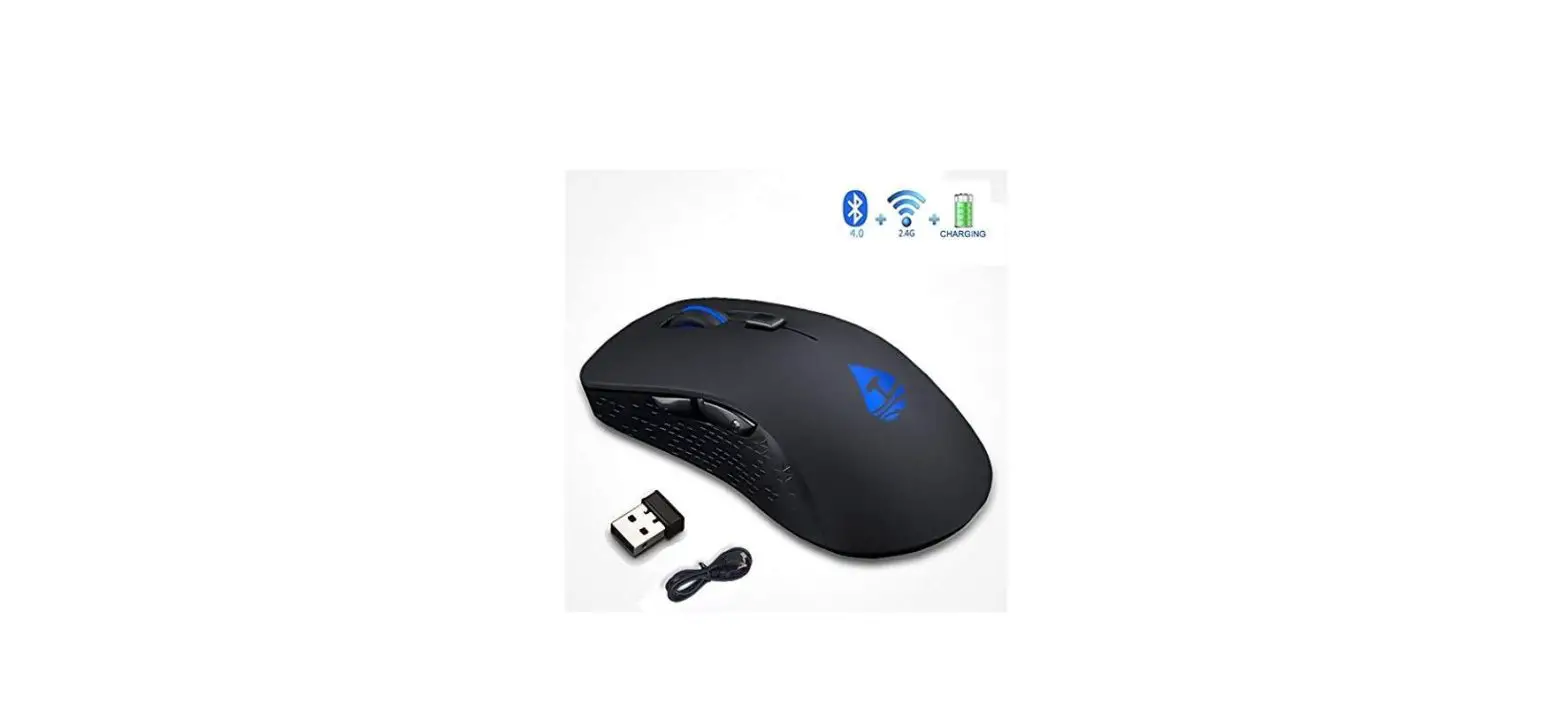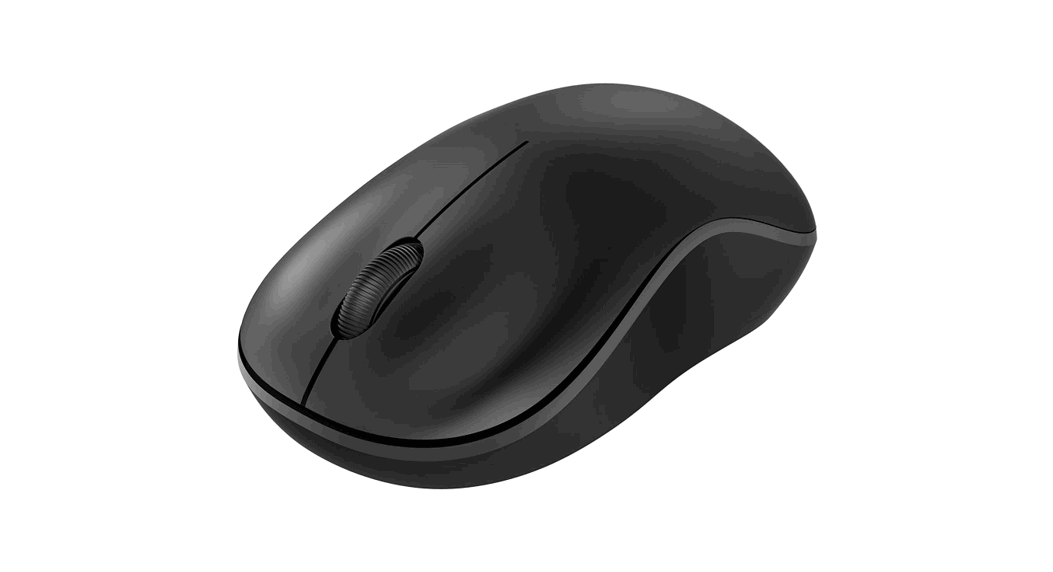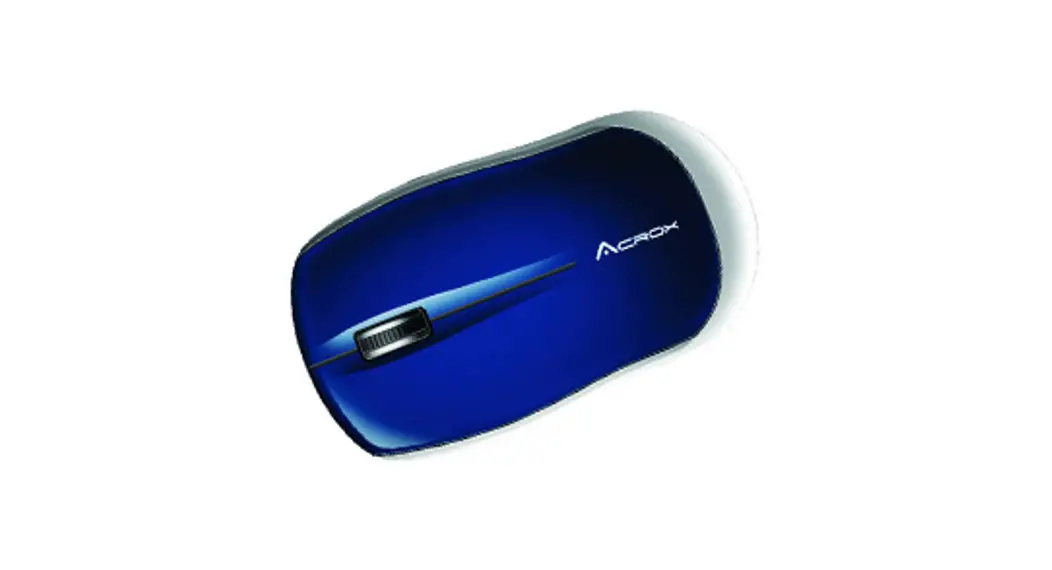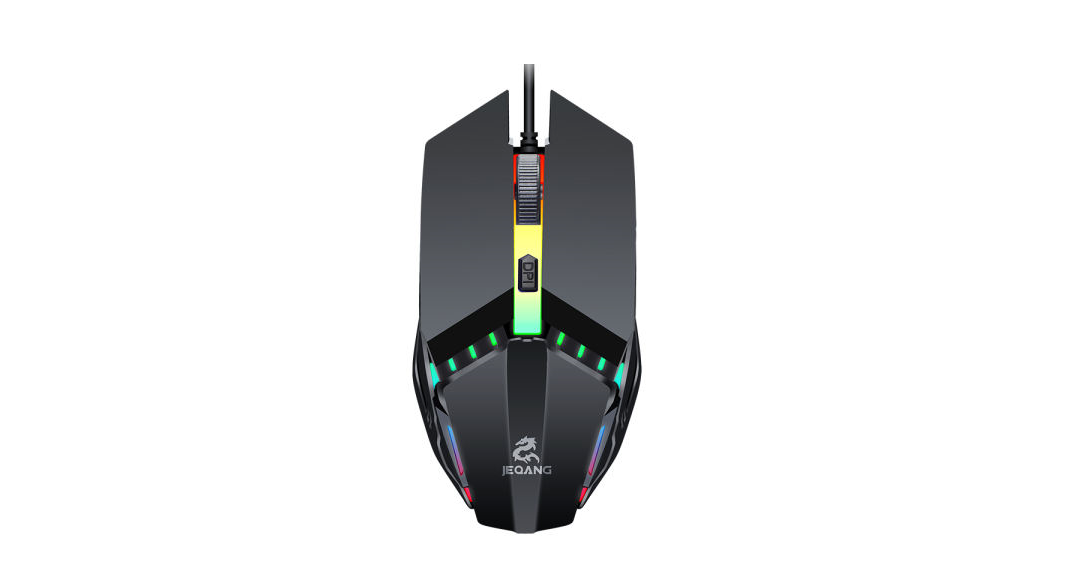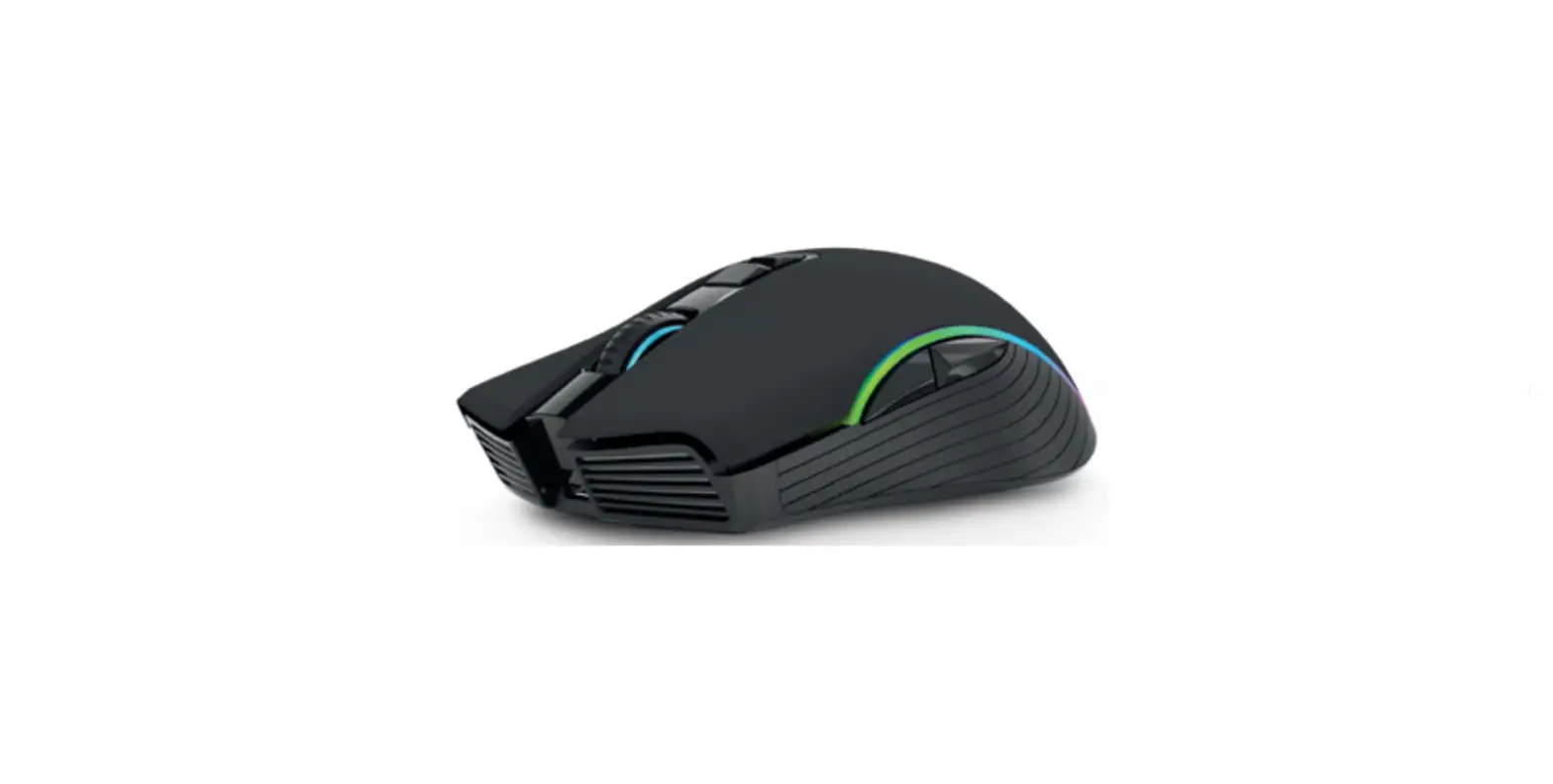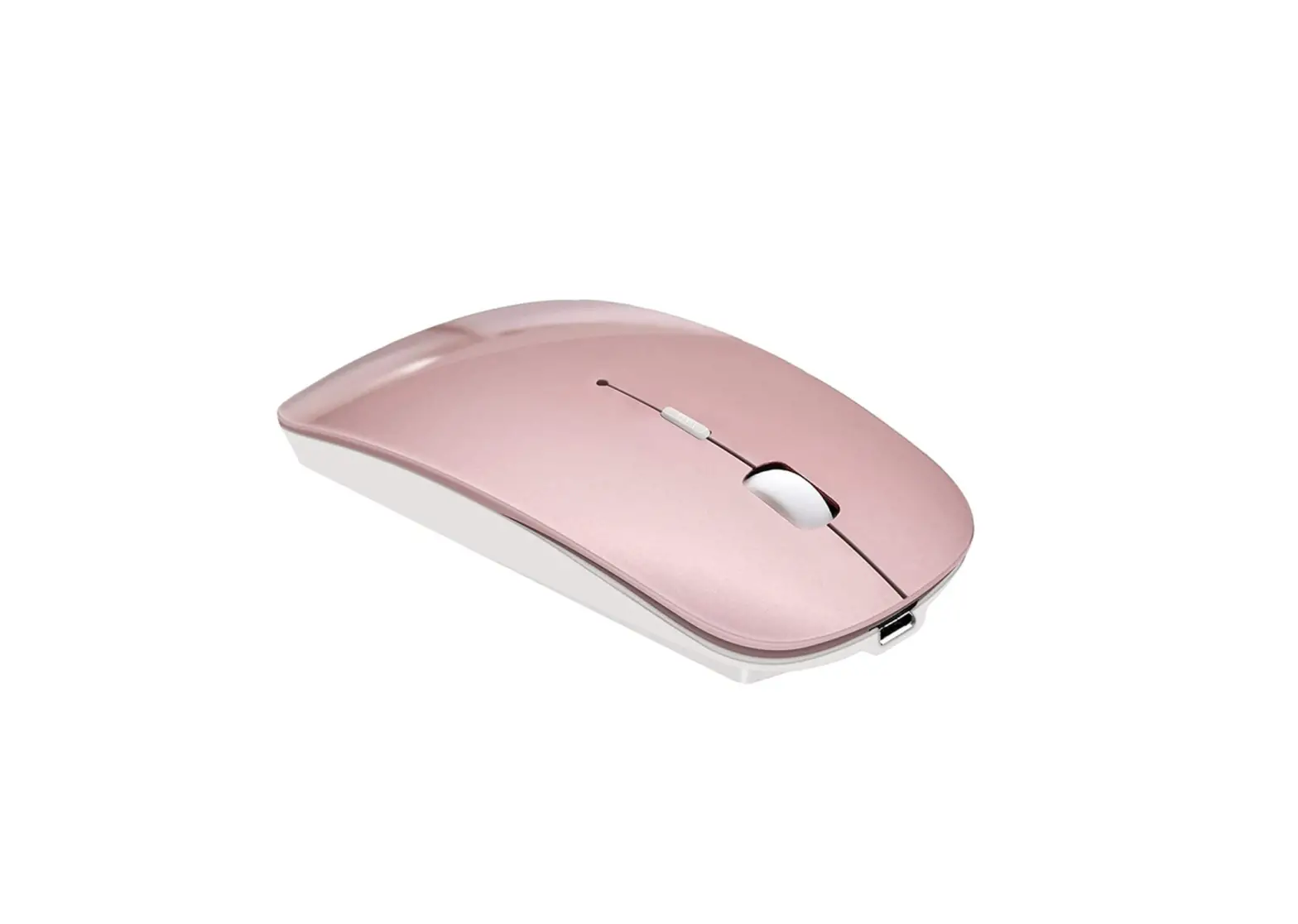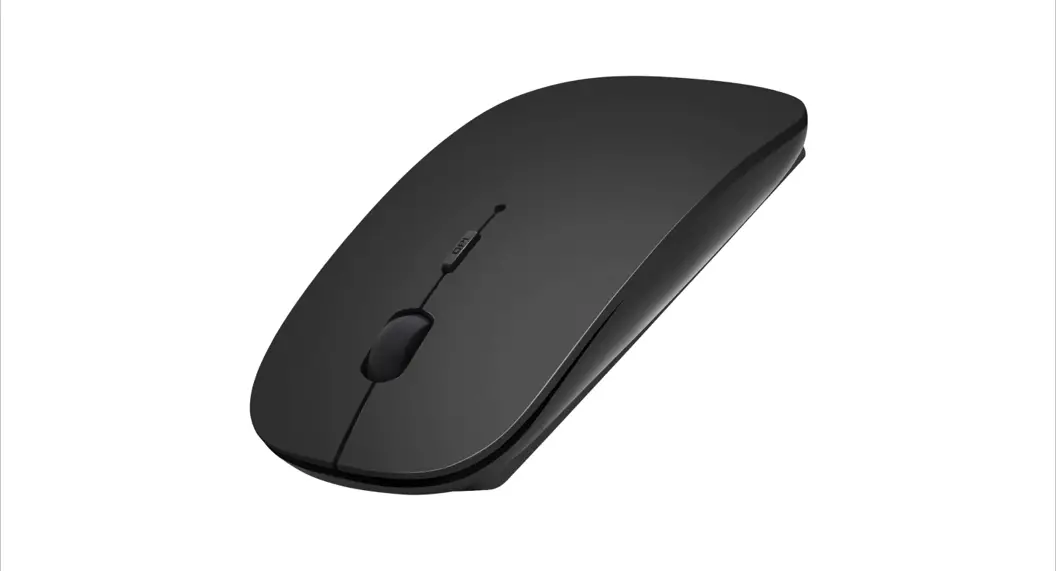

Bluetooth / 2.4G dual-function wireless mouse
Operation manual 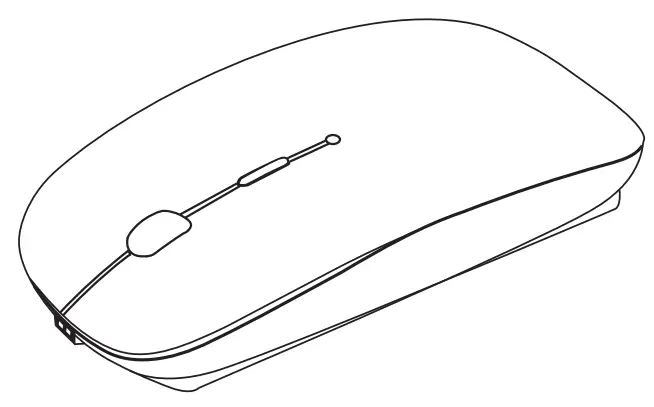
 | 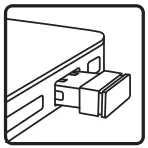 |
| 10M distance | Super miniature |
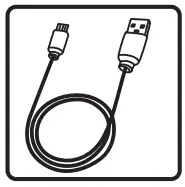 |  |
| MICRO | 500 million times |
 | |
| For right and left hand | |
Thank you for purchasing this portable wireless mouse for business, home, and office use. It is an innovative and easy-to-use Bluetooth / 2.4g/dual-function wireless mouse that will bring you a new wireless transmission experience.
| Commodity basic parameter list | |
| Use method | Bluetooth/wireless 2.4GUSB |
| Resolution | 1000dpi/1200dpi/1600dpi |
| Rated working voltage | 3V |
| Mouse button count | 4 |
| Rated working current | 40uS-10tnA |
| Color | 8 colors to choose |
| Rechargeable battery | Built-in polymer battery |
| Transmission distance | 3-10 meter distance |
| Frequency range | 2402-2480MHz |
| Working environment | -10 degree-45 degree |
| Receiving sensitivity | -75dbm (standard) |
| System support | Windows 8/10/MACOSX, Windows7 and below please use 2.4GUSB connection |
| Commodity size | L:112mmxW:57mmxH:20mm |
| Package content | Wireless mouse charging line instruction |
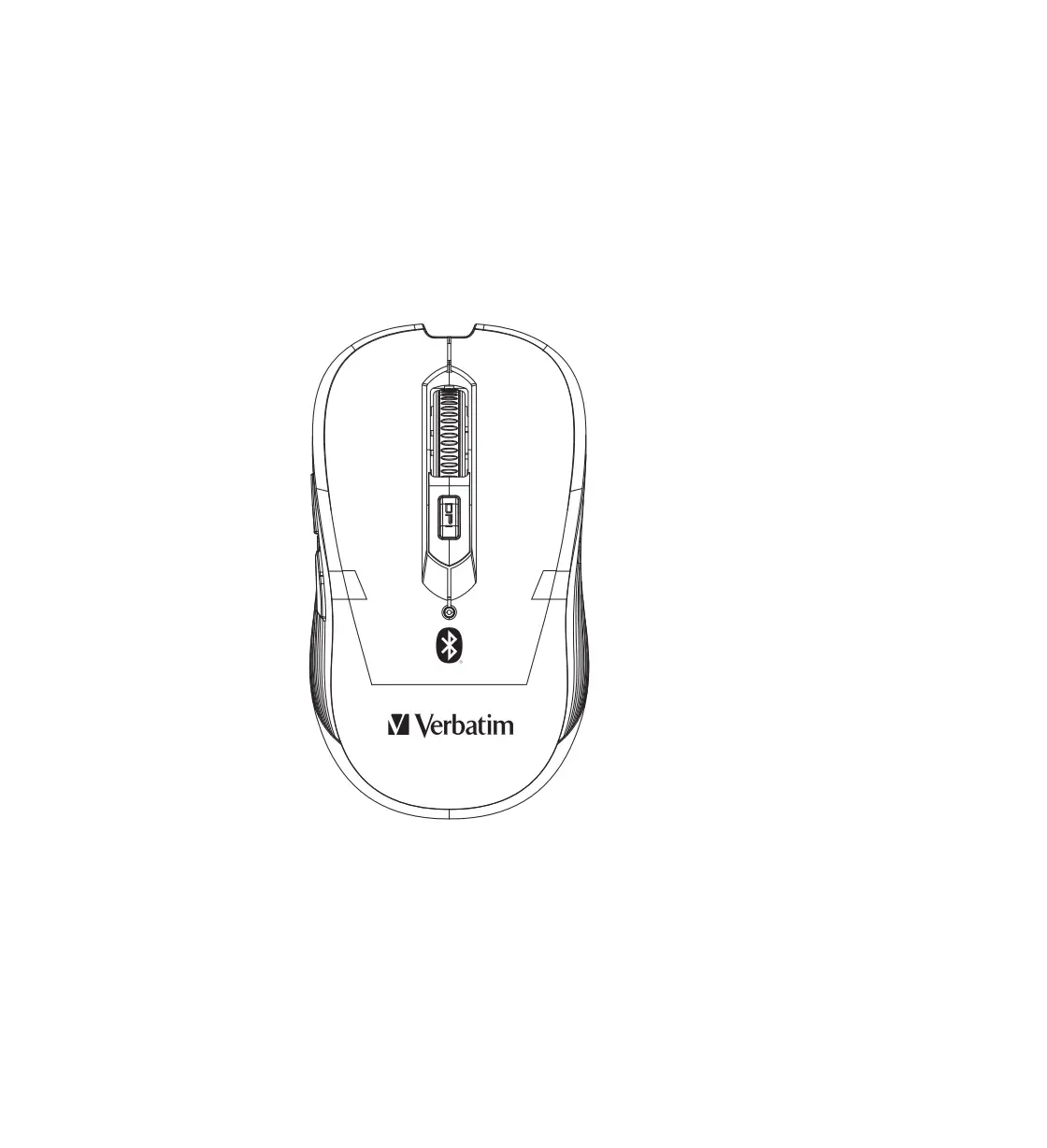
Front simple diagram illustration
 Simple Illustration Of Bottom Part
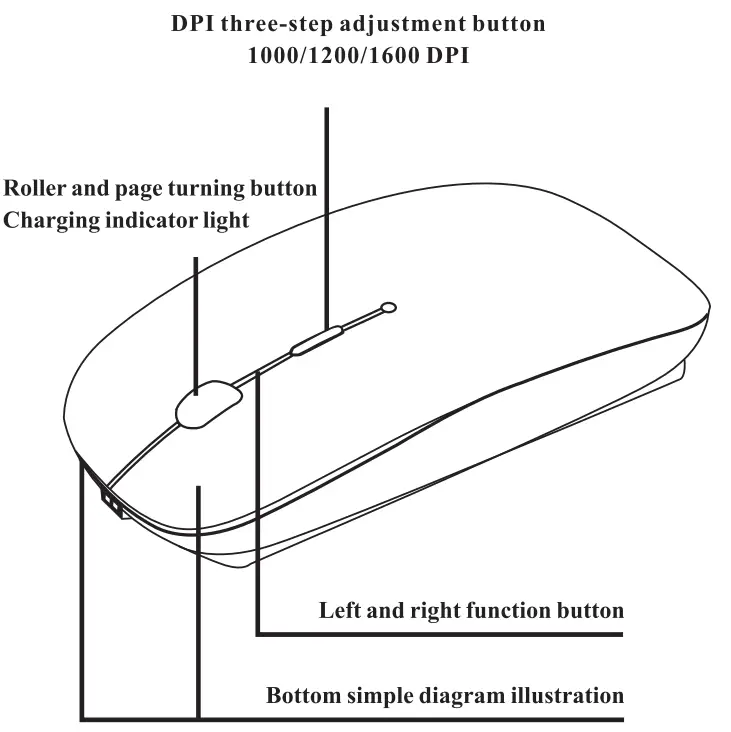 Simple Illustration Of Bottom Part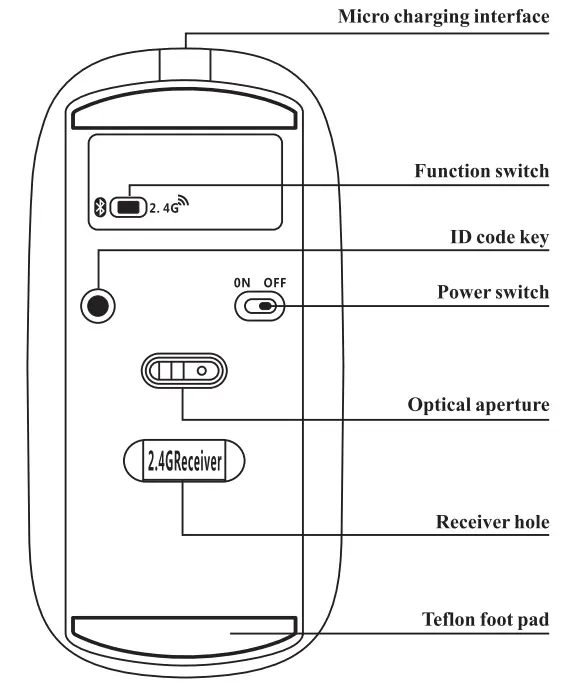
Basic operation
1:2.4G wireless USB receiver connection method
A.Insert the wireless USB receiver into the computer and wait for the computer to recognize the receiver. B.Switch the function switch at the bottom of the mouse to ”  ” mode and turn on the power switch of the mouse; Photoelectric sensor hole at the bottom will have a yellow light off, then you can use the mouse directly.
2:Bluetooth connection
A.First connection: switch the function switch at the bottom of the mouse to Bluetooth ” 0 ” mode; Long press the “ID key” for 3 seconds and then release it. At this time, the “photosensitive hole” at the bottom of the mouse is in the flashing state of blue light.
B.Open the Bluetooth interface on the computer, select the Bluetooth device to search, and when “Bluetooth mouse” comes up, click “connect”; When the computer prompts that the blue light at the bottom of the mouse stops flashing and goes drafter the connection is successful, the mouse with Bluetooth function can be used normally.
C.Bluetooth back connection: after connecting the computer, you only need to turn on the power switch of the mouse for the next use, and there is no need to repeat the connection; If you need to connect to another computer, use the first connection method. When multiple computers switch between Bluetooth devices, Bluetooth_mouse, which already has a Bluetooth interface, needs to be removed and re-connected the first time.
D.Sleep wake: if the mouse is not used for a long time, it will automatically enter the deep sleep state; To re-use the mouse, you need to press the mouse button to wake up; It takes 1-2 seconds to wake up.
3:Charging the mouse
Charge the mouse using the standard Micro USB cable; When the voltage is lower than 3.3v, a low voltage alarm will be given. (blue light will slowly flash in the photoelectric sensor hole at the bottom, and prompt to charge in time once a second). When charging, the roller is a red light on, when full of charge, the red light will be off, and the green light will be on. General charge time is about 2 hours, do not charge too long; Try to charge your computer directly using a USB.
About the battery
The rechargeable Bluetooth mouse can be used for one month on a single charge (2 hours of continuous use every day). When used up, it can be fully charged in 1.5-2 hours. (when charging, there is a red indicator light in the mouse roller; Fully charged when the red light goes out and the green light comes on.
In order to extend the battery life, it is recommended that when the mouse is not used, please turn the mouse switch off and turn off the mouse. Don’t charge for long periods of time. If not used for a long time, try to charge the mouse, and put the mouse power switch in the off position. Do not discard batteries or throw them into the fire. When replacing the battery, please put the old battery into the battery recycling box.
Simple troubleshooting(Bluetooth function)
- The computer can not detect the mouse
Please make sure the mouse turns on the power switch first and press the small black button at the bottom for 3-5 seconds. Be careful not to press other mouse buttons when you press them. Observe whether the bottom photosensitive hole has blue light flashing; Blue light flashing indicates that the mouse can enter the pairing state and send a Bluetooth signal; No blue light flashing, indicates that the mouse is not energized or unable to enter the pairing state; Please check whether the battery is installed correctly, whether the battery power is enough, and whether the operation process is correct; If there is no problem above, the mouse still cannot enter the pairing state, please contact the customer service for consultation at this time.
- The mouse can enter the pairing state. If the computer still cannot detect the mouse, please check whether the computer’s Bluetooth hardware driver is installed correctly and can receive the Bluetooth signal. If the computer Bluetooth driver is normal, please contact customer service for advice.
For the computer Bluetooth hardware inspection method, please refer to the hardware driver provided on the official website of the computer, or download third-party software such as “360 driver master” inspection, upgrade and fully install; Apple system computer please directly connect to the network to test the upgrade. (Bluetooth hardware detection experience for reference).
Attentive Tips
This product is designed strictly according to the process of wireless electronic devices, and it is ergonomic. The damage caused due to the use for a long time continuously or incorrect use method has no relation with this product. For a more pleasant life, please arrange your schedule reasonably.
FCC Statement
This equipment has been tested and found to comply with the limits for a Class B digital device, pursuant to Part 15 of the FCC Rules. These limits are designed to provide reasonable protection against harmful interference in a residential installation. This equipment generates uses and can radiate radio frequency energy and, if not installed and used in accordance with the instructions, may cause harmful interference to radio communications. However, there is no guarantee that interference will not occur in a particular installation. If this equipment does cause harmful interference to radio or television reception, which can be determined by turning the equipment off and on, the user is encouraged to try to correct the interference by one or more of the following measures:
— Reorient or relocate the receiving antenna.
— Increase the separation between the equipment and receiver.
— Connect the equipment into an outlet on a circuit different from that to which the receiver is connected.
— Consult the dealer or an experienced radio/TV technician for help.
This device complies with FCC PART15 Rules. Operation is subject to the following two conditions:
(1) This device may not cause harmful interference, and
(2) this device must accept any interference received, including interference that may cause undesired operation.
Changes or modifications not expressly approved by the party responsible for compliance could void the user’s authority to operate the equipment.