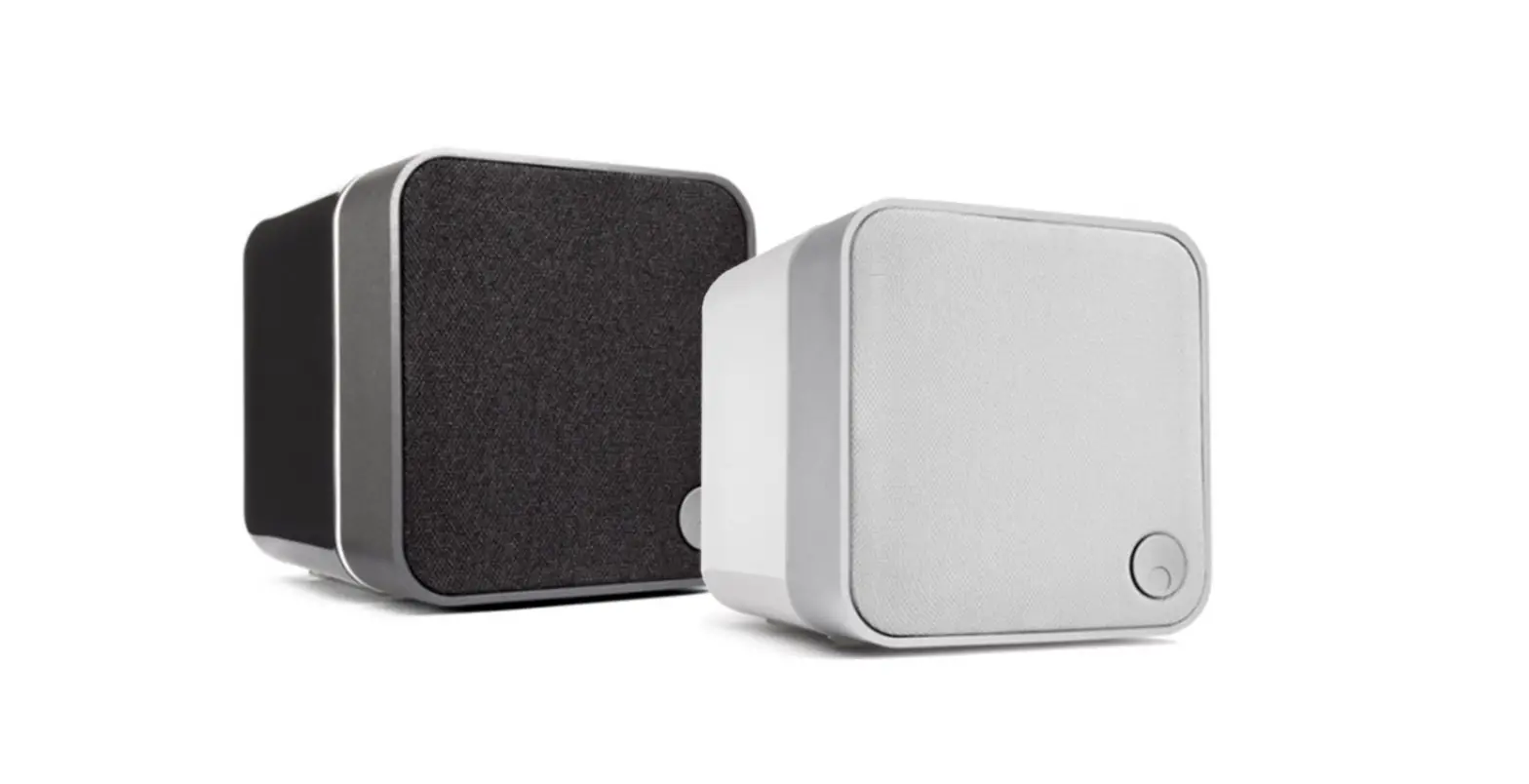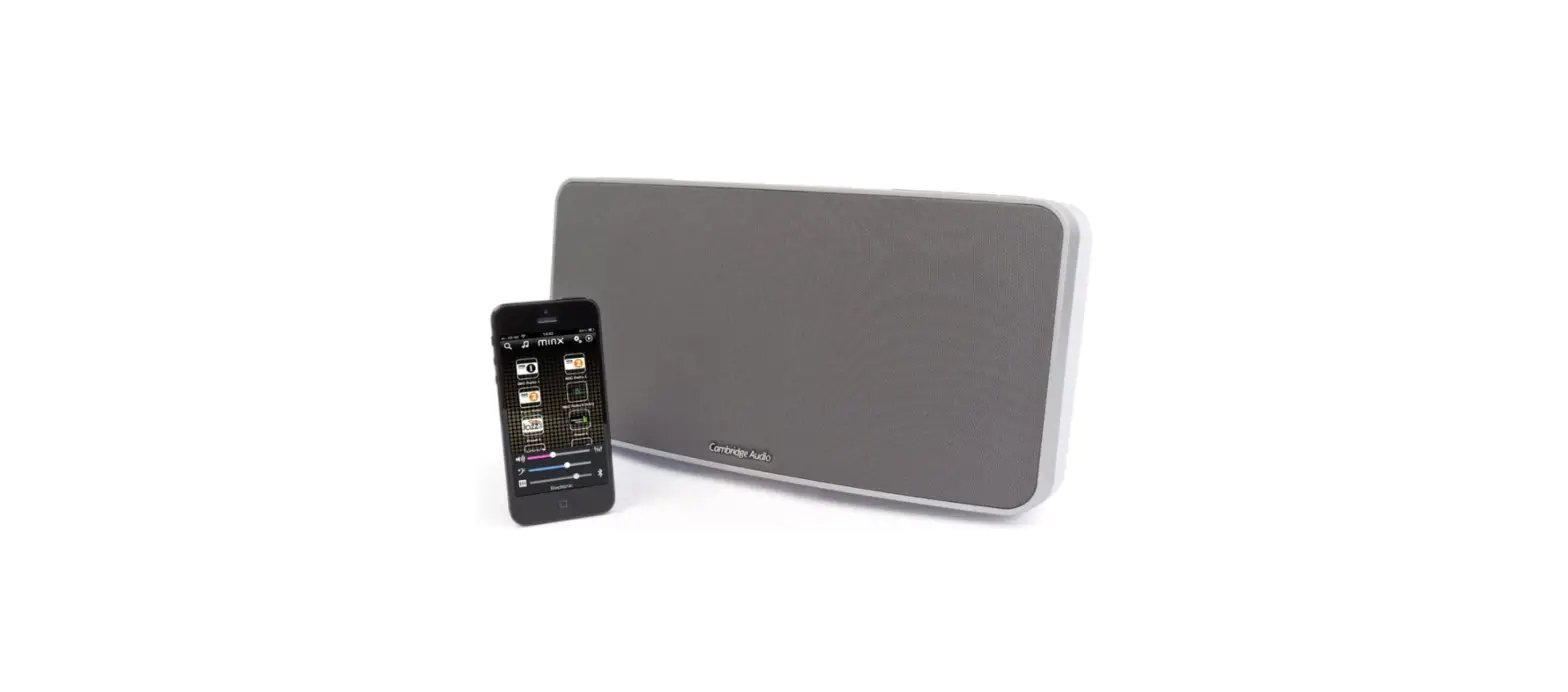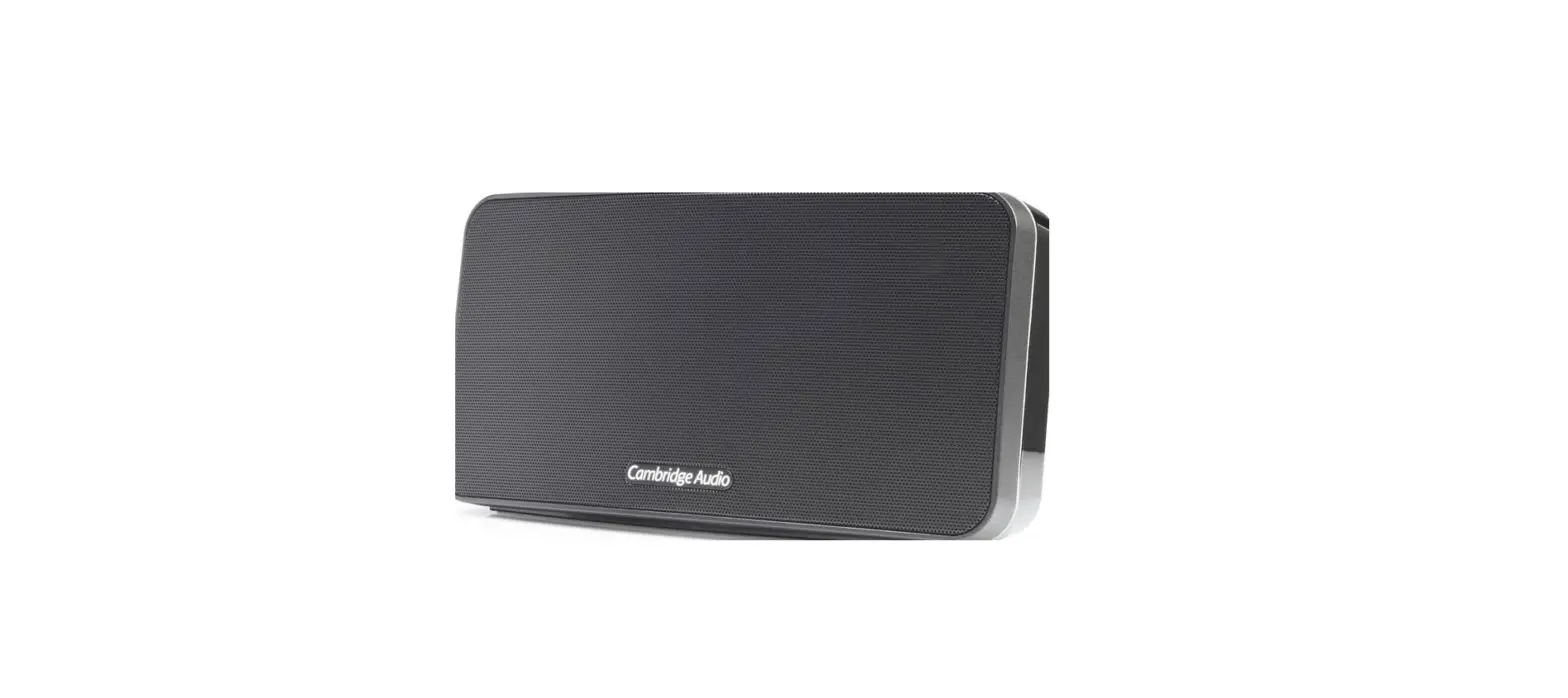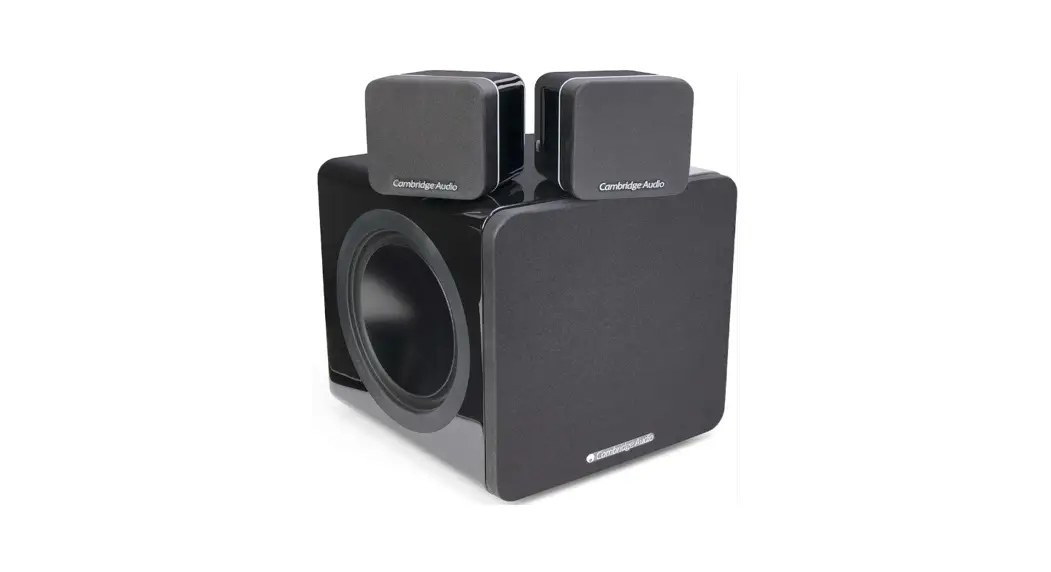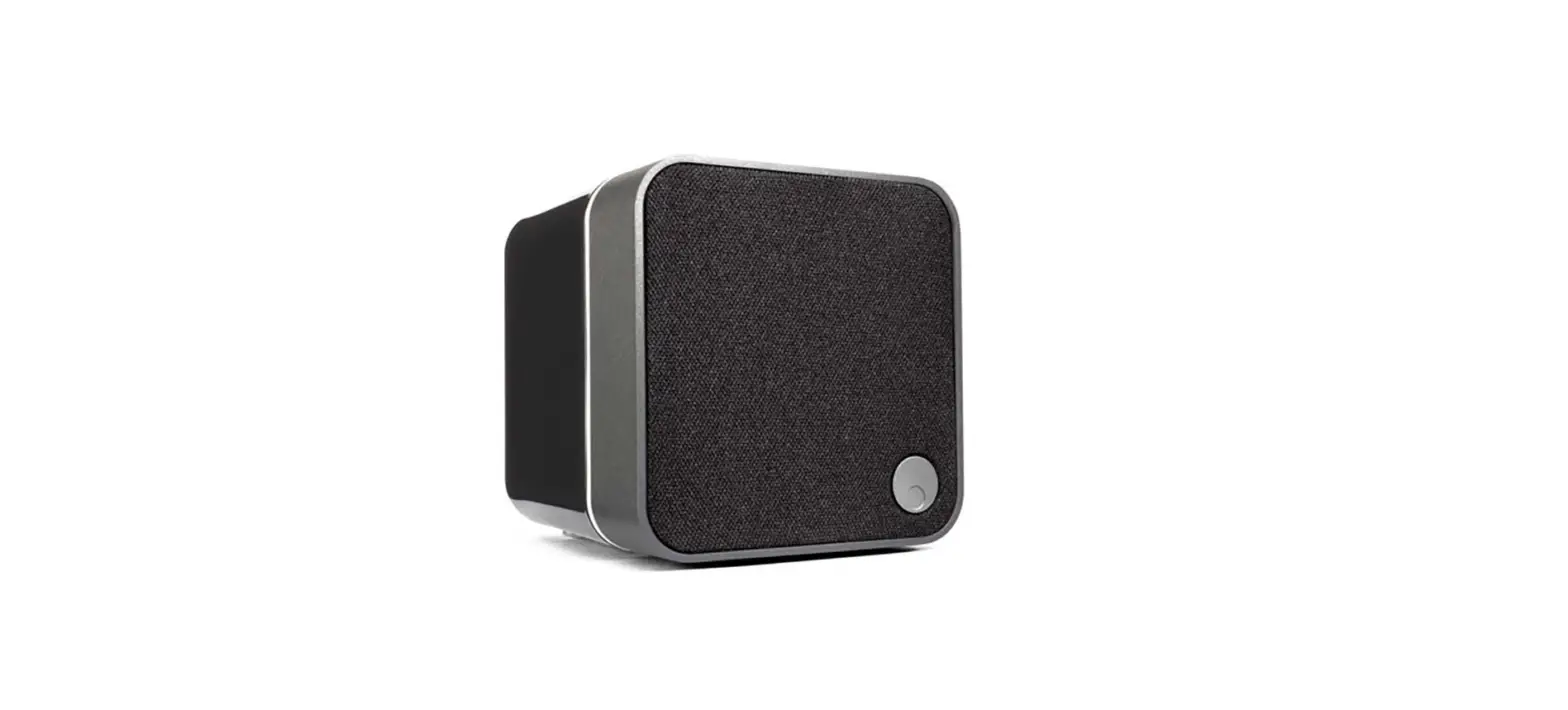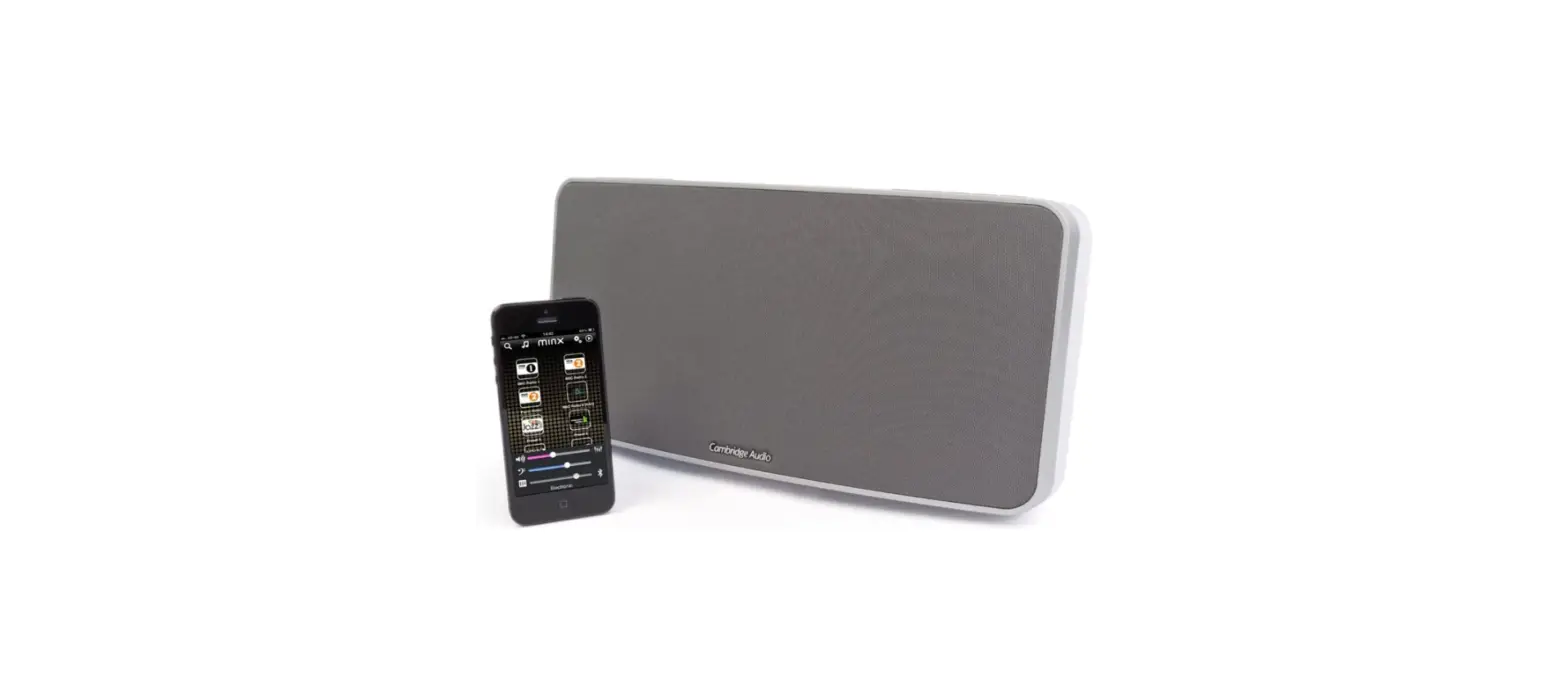

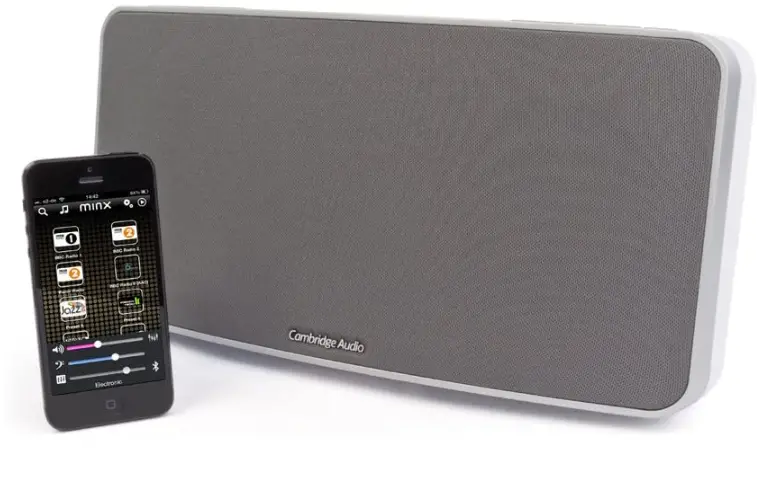
Cambridge MINXAIR100 Audio Minx Air 100 Speaker
 Important safety instructions
 Important safety instructions
For your own safety please read the following important safety instructions carefully before attempting to connect this unit to the mains power supply. They will also enable you to get the best performance from and prolong the life of the unit:
- Read these instructions.
- Keep these instructions.
- Heed all warnings.
- Follow all instructions.
- Do not use this apparatus near water.
- Clean only with a dry cloth.
- Do not block any ventilation openings. Install in accordance with the manufacturer’s instructions.
- Do not install near any heat sources such as radiators, heat registers, stoves, or other apparatus (including amplifiers) that produce heat.
- Do not defeat the safety purpose of the polarized or grounding-type plug. A polarized plug has two blades with one wider than the other. A grounding-type plug has two blades and a third grounding prong. The wide blade or the third prong are provided for your safety. If the provided plug does not fit into your outlet, consult an electrician for replacement of the obsolete outlet.
- Protect the power cord from being walked on or pinched, particularly at plugs, convenience receptacles and the point where they exit from the apparatus.
- Only use attachments/accessories specified by the manufacturer.
- Unplug this apparatus during lightning storms or when unused for long periods of time.
- Refer all servicing to qualified service personnel. Servicing is required when the apparatus has been damaged in any way, such as the power-supply cord or plug having been damaged, liquid has been spilled or objects have fallen into the apparatus, the apparatus has been exposed to rain or moisture, does not operate normally, or has been dropped.
Top panel controls
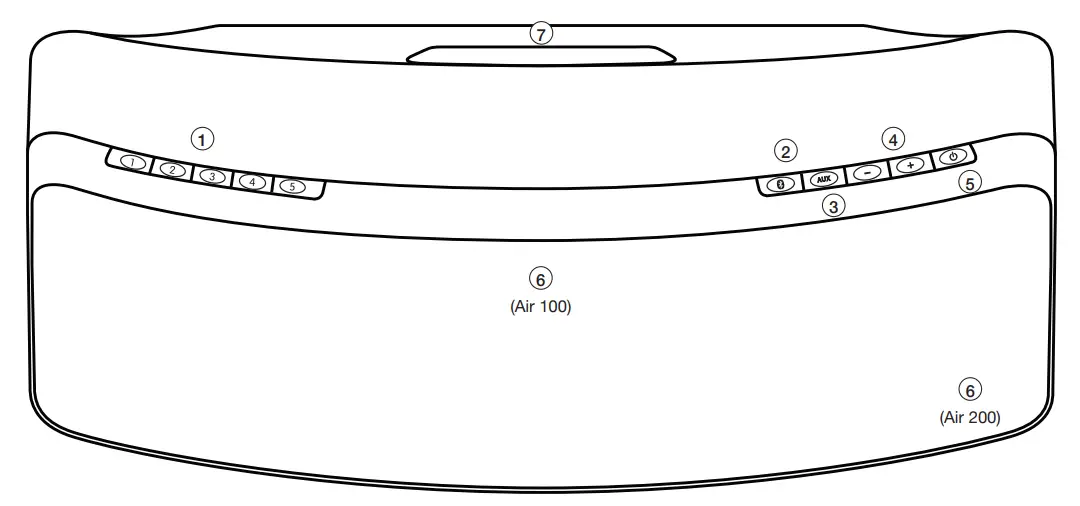
- Internet radio presets
We have preloaded Air with 10 of our favorite internet radio stations. Presets 1-5 can be played by pressing the corresponding preset button. To change the assigned stations use the free Air App for Android or Apple devices, see the later section. - Bluetooth button (Pairing)
Used to pair (connect to) Bluetooth devices so that they can be played back wirelessly. When pressed, the front LED will blink blue for approximately 30 seconds. This indicates that the system is in pairing mode. See later section. - AUX button
Selects AUX/MP3 inputs. Pressing this button will toggle between Aux and MP3 inputs. - Volume controls
Controls the player’s volume. - Standby/On button
Controls the standby state of the unit. When the LED is illuminated red, the system is in its low-power standby state. When the unit is first turned on, it takes approximately 20 seconds to fully power up and become active. During this phase, the LED on the front of the unit will blink red on and off . - LED indicator/IR receiver (behind grille)
LED indicator
IR receiver
A clear unobstructed line of sight between the remote handset and the IR receiver is required for reliable operation. - Port/Handle
The bass port doubles as a handle for moving your Air from room to room. In use the port provides both an extended low frequency response and cooling. The airflow in/out of the port should not be obstructed.

Rear panel controls
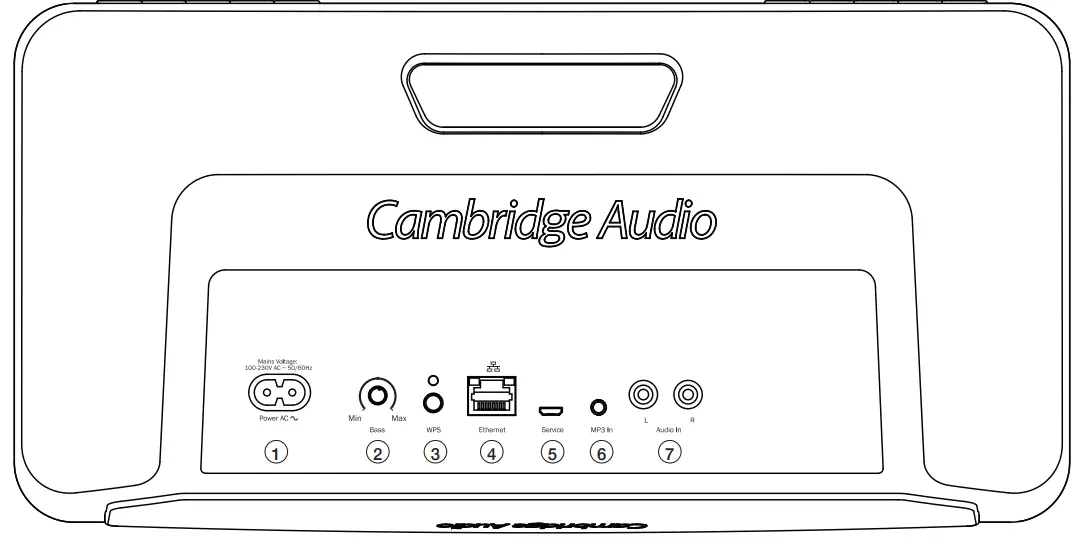
- AC power socket
Figure-8 type mains inlet. - Bass control
Changing this setting allows the bass/low frequency response of the Air to be tailored to your taste and the acoustics of your room. - WPS button/Status light
If your router also features Wireless Protected Setup (WPS) this button can simplify connection to your network. See later section. - Ethernet socket
The Air can be connected to your network via Wi-Fi or Ethernet.
Note: For wireless connection, unplug the ethernet cable and restart the Air. - Service port
For use by authorised Cambridge Audio service personnel only. Do not connect anything here as damage may result. - MP3 input (3.5mm mini jack)
For connection to the headphone of MP3 players or similar. - Audio input (RCA/Phono sockets)
For connection to the line-level outputs of CD players, Set-top boxes or other analogue sources.
Remote control
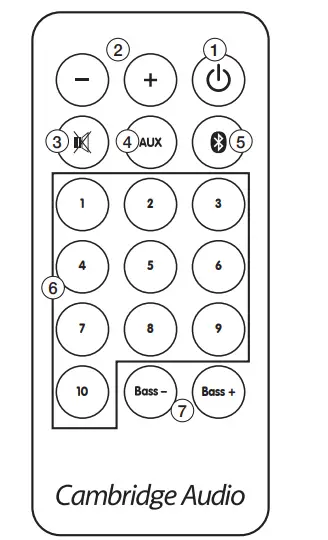
- Standby/On button
Controls the standby state of the unit. When the LED is illuminated red, the system is in its low-power standby state. When the unit is first turned on it takes approximately 20 seconds to fully power up and become active. During this phase, the LED will blink red on and off. - Volume buttons
Controls the player’s volume. - Mute button
Press to mute and press again to unmute the unit. - AUX Button
Selects AUX/MP3 inputs. Pressing this button will toggle between Aux and MP3 inputs. - Bluetooth button (Pairing)
Used to pair (connect to) Bluetooth devices so that they can be played back wirelessly. When the button has pressed the LED on the unit will blink blue for approximately 30 seconds. This indicates that the system is in pairing mode. See the later section. - Presets buttons 1 – 10
Press to recall an internet radio preset. As shipped from the factory 10 stations will have been pre-assigned, 5 can be accessed from the top panel buttons, all 10 can be accessed via the remote. To change the assigned stations use the free Air App for Android or Apple devices, see the later section. - Bass controls
Allows setting of the bass/low-frequency response of the unit tailored to your taste and the acoustics of your room.
Getting started
Note: If you make a mistake during the connection process, reset the Air. To do this, press and hold the Standby/On button and WPS button on the rear panel for 10-15 seconds until the Air switches off, then repeat the connection process.
Network connections
Before you can use your Air for Internet Radio/Streaming you must have the following:
- A broadband internet connection (such as ADSL) to a suitable internet service provider (ISP).
- A network connection either wirelessly via 802.11b/g or n Wi-Fi or wired Ethernet connection (10 or 100 M bits/sec via an RJ45 connection).
If your wireless network is configured to use Wired Equivalent Privacy (WEP) or Wi-Fi Protected Access (WPA) data encryption then you will need to know your WEP or WPA key so you can get the Air to communicate with the network.
IMPORTANT:
Before you continue, make sure that your wireless access point or router is powered up and working with your broadband internet service (use your computer to verify this). To get this part of the system working you must read the instructions supplied with the wireless access point or router.
The Air can be configured to connect to a wired or wireless network.
For wired setup, see the later section ‘Connecting to a wired network’.
Connecting to a wireless network
- Connect the Air to the mains power and press the button on top of the unit. Wait for up to 20 seconds for the flashing light on the rear panel to flash green and orange. If the light does not flash
 after 20 seconds, please carry out a factory reset as detailed above, and start again.
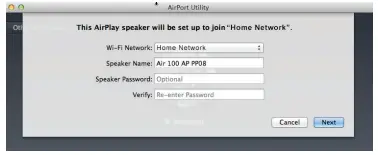
Apple Wireless Accessory Configuration
If you have an Apple mobile device, go to the ‘Settings -> Wi-Fi’ menu. Choose the Air showing under ‘Set up New AirPlay Speaker’ and follow the instructions.
Note: For Mac with OS X, once connected the setup will then proceed to Airport utility. Follow the instructions.
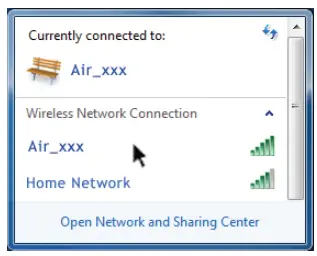
Otherwise, proceed to the next section. - Go to your computer/tablet and click on the Wi-Fi/network logo and select Air_XXX.

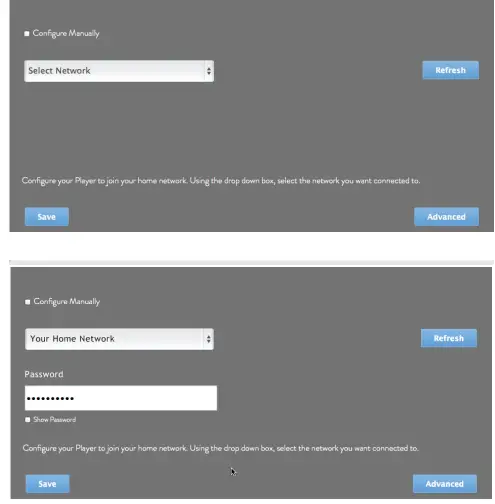
- Open a new page in your internet browser (Internet Explorer, Safari, Chrome etc). In the address bar of your browser, go to http://192.168.1.1/ to load the setup page.

Note: If you don’t know your Wi-Fi password key, it’s commonly found on a label on your internet modem/router. - After a few seconds, the Air will be connected to your network (successful connection is indicated by a solid green light on the rear of the product). This can take up to 30 seconds.
Note:- If the light on the rear continues flashing green, this indicates that the Air has been unsuccessful with the Wi-Fi connection.
Carry out a reset and repeat the process. - If your computer/tablet has not already done so automatically, change the Wi-Fi/network setting on your computer/tablet back to your home network.
- If the light on the rear continues flashing green, this indicates that the Air has been unsuccessful with the Wi-Fi connection.
 after 20 seconds, please carry out a factory reset as detailed above, and start again.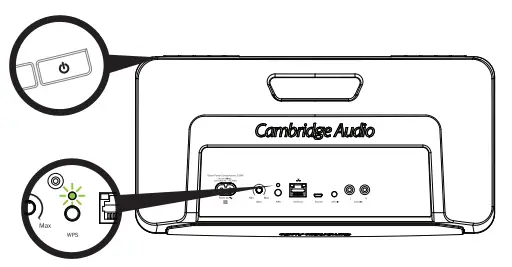
Connecting to a wireless network using WPS
If your router supports WPS (Wi-Fi Protected Setup) then this is a simple method to connect the Air to your network without needing to know your Wi-Fi network key or broadcast network name SSID. WPS allows two devices to discover each other for a short time (usually a minute or two) after the WPS buttons have been pressed on both devices.
To connect using WPS simply press the WPS button on your router (please consult router instructions for details) then shortly after press the WPS button on the rear panel of the Air (briefly press it once).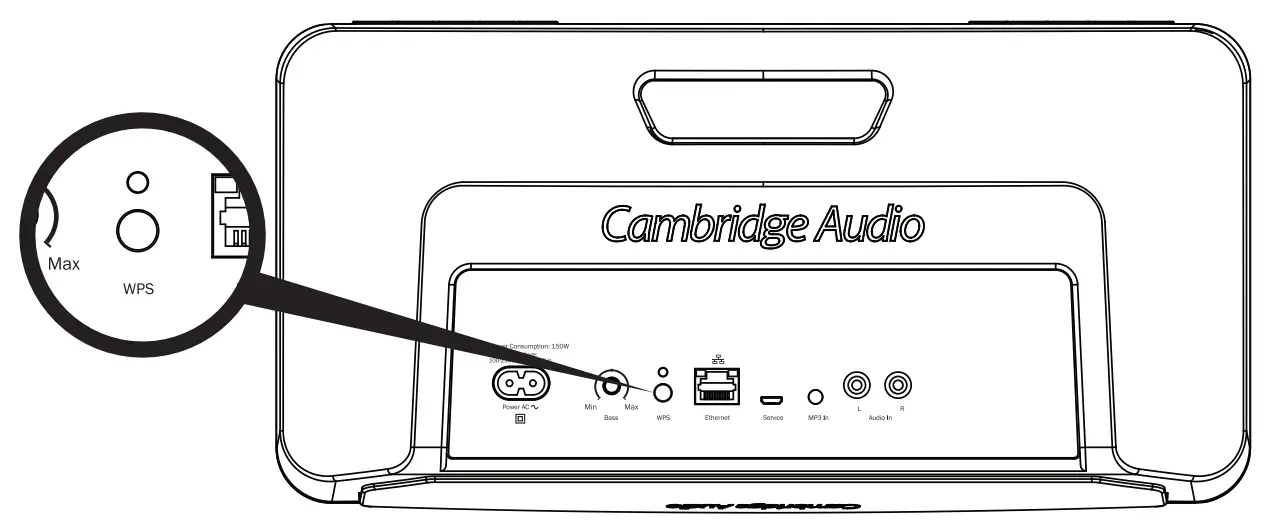
The WPS light on the rear of the Air will flash orange > green > red for up to 2 minutes whilst the Air looks for your router. If the connection is successful connection the WPS light will turn solid green and your Wi-Fi connection is ready.
Connecting to a wired network
Note: Make sure that the Air is switched off before plugging in the Ethernet cable.
Plug one end of a network cable (Category 5/5E straight-through Ethernet cable) into the LAN port on the back of the unit and the other end directly to a free port on your router.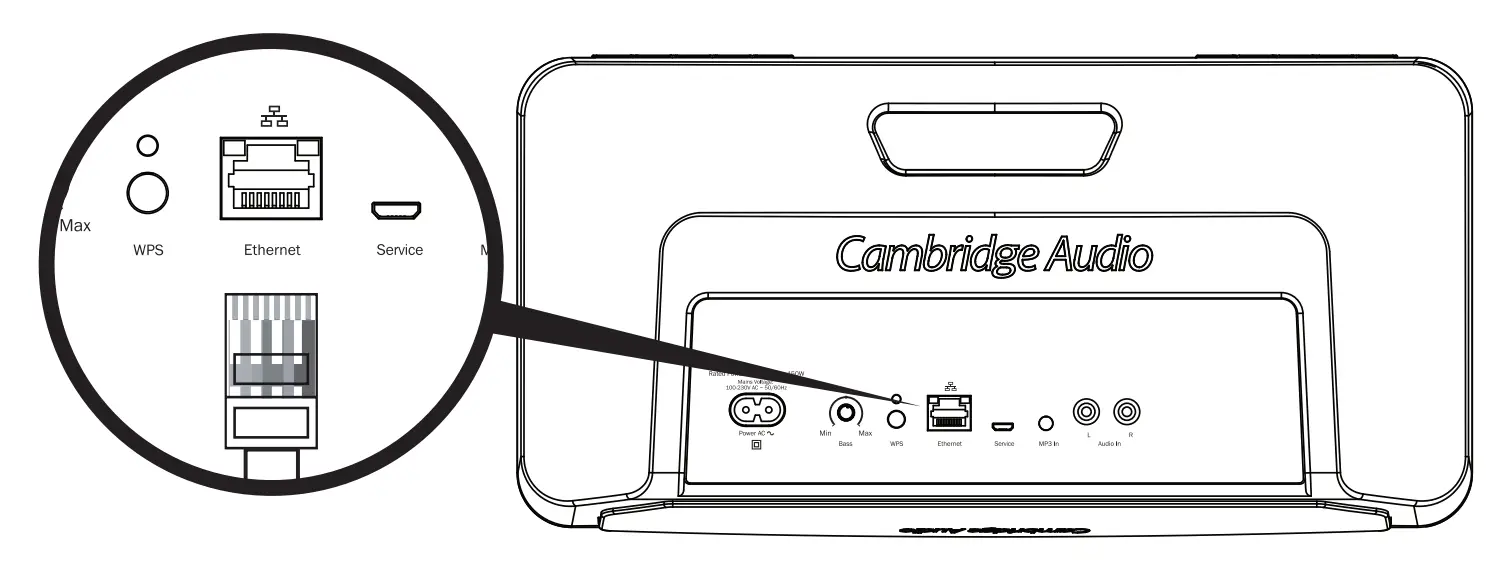
Note: Only connect the LAN port of the player to an Ethernet port that supports 10BASE-T or 100BASE-TX. Connecting to any other ports or jacks, such as a phone jack, can damage the unit. Now turn on your Air. The Air should automatically connect to your network via DHCP; this means it will be given an IP address by your router automatically.
Playing Internet Radio
The Cambridge Audio Air 100/200 Wireless Music Systems allow playback of over 20,000 internet radio stations.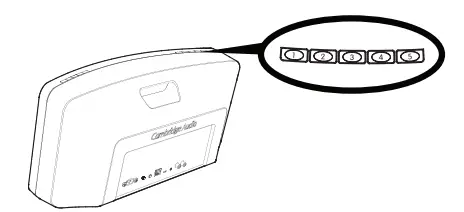
When a station is recalled in this way the LED will blink slowly whilst the station is being acquired before turning on permanently once the station is playing, this can take a few seconds.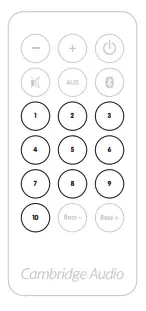
Setting your own presets is done via our free Android and Apple control Apps. which are available via the App Store and Google Play Store.
These apps allow browsing of the full range of 20,000+ stations, setting and recall of presets plus full control of your Air unit for volume, bass/treble and more.
Download and install the Control App to your device and follow the built in instructions.
Once any Internet radio station is selected and playing via the Air it can be set to a preset simply by pressing and holding the desired preset button on the top of the unit for approximately 4 seconds. If the station is stored successfully the LED on the unit will blink twice.
To set the stations back to the default preset values (also resets all other settings) use the ‘Reset to factory’ default option as described at the end of this manual.
Playing audio from Apple AirPlay devices
When the Air is connected to your home network it will appear as an Apple AirPlay device for audio playback from any Apple device that are on the same network.
When you open iTunes on a network-connected computer, or open a compatible Music App on an iPad, iPhone or iPod that is also connected to the same network you will see the AirPlay logo. Tap the AirPlay logo and you will be able to select the Air as the playback device.
Select your Air device and start playback, wait a few seconds for music to start playing before adjusting volume.
Playing audio from Bluetooth Audio devices
To play content from a suitable phone, tablet or laptop which features Bluetooth Audio you fist need to pair that device with the Air.
Pairing
Ensure the Air is turned on.
Press the button on the top of the unit or on the remote handset. The unit will enter Bluetooth pairing mode. This is indicated by the LED flashing Blue. The unit will remain in Bluetooth pairing mode for 30 seconds. If you have not paired within this time the unit will exit pairing mode. You can re-enter pairing by simply pressing the button again.
When the Air is in pairing mode open the Bluetooth settings on your mobile device. These vary dependant on your device but typically you will find a menu called Bluetooth in your settings menu. Enable Bluetooth on your device and select Pairing (or Connect or similar).
Make sure you are within 10m of the Air with a clear line of sight. Your device should show a list of Bluetooth devices it can see. One of these should be “Air 100 XXXX” or “Air 200 XXXX” where the XXXX will be a unique serial number for your unit. Simply select your Air from the list and your device should pair to it automatically. When the device has successfully paired with your Air the LED of the Wireless Music System will stop flashing. After pairing, you should be able to select the Air as the playback device for your Bluetooth phone/tablet without needing to go through the pairing process again unless you wish to use a different device.
Playing back from Bluetooth
When you start playing audio on your paired device the option to stream over Bluetooth should be available. Select Bluetooth or the appropriate name for your Air, Bluetooth playback should begin. You can use both the volume controls on your Bluetooth device and the Wireless Music System to control the level. To stop/pause Bluetooth audio, use the playback controls on the Bluetooth device itself.
Audio playback from local analog sources
To play from a local audio source (such as a MP3 player or CD player) simply connect the audio source to either the “MP3 In” input (3.5mm stereo mini-jack) or the “Audio In” (RCA/Phono) connectors on the rear panel of the unit.
Pressing the AUX button on top of the unit will toggle between Audio In and MP3 In source.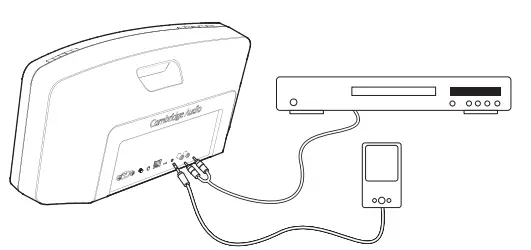
The volume controls on the Wireless Music System can be used to adjust the volume in a normal way.
Note: Starting to stream audio via AirPlay, Internet radio or Bluetooth always takes priority and causes the Air to automatically switch to that streaming source. To return to analog audio playback from streaming simply press the AUX button on the top of the unit, this will stop streaming playback and return the unit to the analogue sources.
Spotify Connect
Spotify lets you listen to millions of songs – the artists you love, the latest hits and discoveries just for you. If you are a Spotify Premium user, you can control your Air using the Spotify app.
- Connect your Air to the same Wi-Fi network as your computer, phone or tablet running the Spotify app.
- Open the Spotify app, and play any song.
- Tap the song image in the bottom left of the screen.
- Tap the Connect icon
 .
. - Pick your Air from the list.
For information on how to set up and use Spotify Connect please visit www.spotify.com/connect.
The Spotify Software is subject to third-party licenses found here: www.spotify.com/connect/third-party-licenses.
 .
.Bass Control
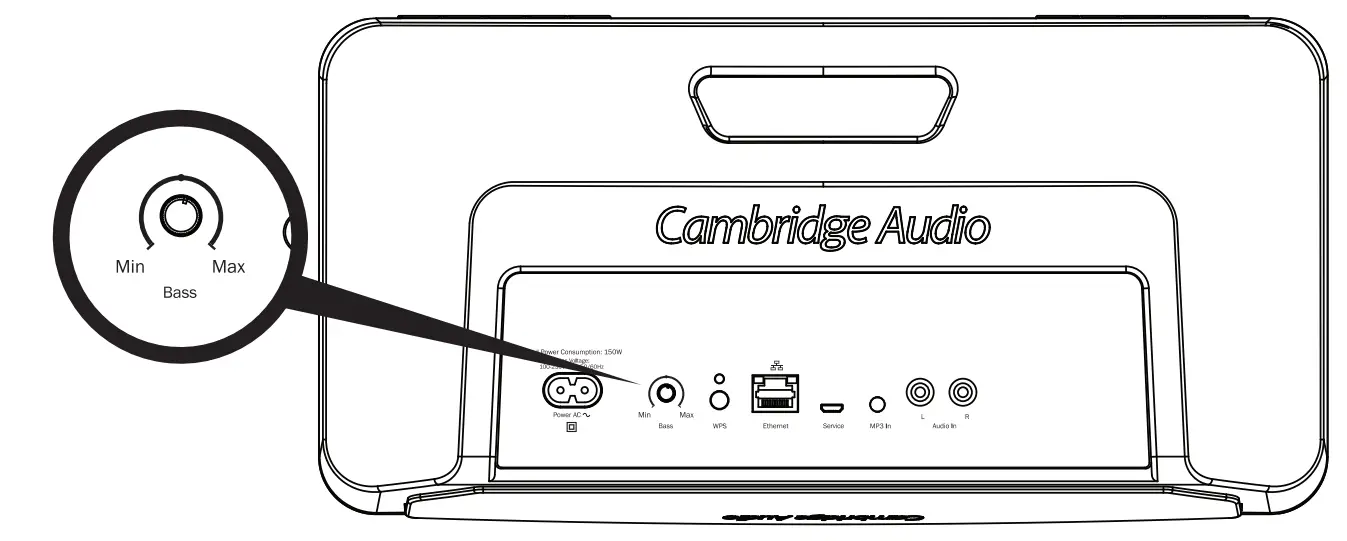
The Bass control can be found on the rear panel of the Cambridge Audio Air 100/200 Wireless Music System. Changing this setting allows the bass/low frequency response of the unit to be tailored to your taste and the acoustics of your room.
In particular, placing the Air in the corner of a room can increase its bass response or in open space decrease it, this control is designed in such a way as to allow the bass response to be adjusted to achieve a natural sound balance in every room.
The Remote handset also includes Bass – and Bass + buttons which do the same thing, these allow assessment and adjustment of the sound balance at a distance.
Renaming your Air
As default, the Air will be named by its serial number, e.g. ‘Air 100 008571’. This is how it will appear in the app or when selecting it as your AirPlay or Bluetooth speaker.
If you wish, you can rename the Air to something of your choice – for example, ‘Air Living Room’, or ‘Ben’s Air’. The easiest way to do this is during the setup process.
To do this, go to ‘Settings > Devices’ within the app and select the
Air speaker that you wish to rename. Then press ‘i’ button. This will open a webpage within the app where you can rename the Air.
Type the desired new name into the AirPlay Device Name box, and press ‘Change Name’. You will now get a ‘new settings were successfully applied message’, and your Air will have been renamed.
You may need to close and restart the app to reconnect to your newly re-named Air speaker.
Resetting to factory defaults
To reset your Air back to its factory defaults follow the steps below:
WARNING! this will clear any network information, reset the name, EQ, Bass/Volume settings, and change the internet radio presets back to the factory defined settings
Turn On the unit.
When the small LED above the WPS button on the rear panel is slowly flashing green press and hold the WPS button and Standby button simultaneously for 5 seconds or until the WPS indicator changes to yellow.
The system will now restore the factory settings and power off in approximately 10 seconds.
Auto Power Down
To help save energy the Cambridge Audio Air Wireless Music System will automatically power down if no user activity or audio playback is detected within an adjustable user defined time period. The factory default condition is for the unit to switch-off after eight hours, however this can be adjusted by using the Auto Power Down settings in the iOS and Android Applications.
Help and Troubleshooting
If you experience problems please contact us immediately via our helpline phone numbers (as stated on the sticker affixed to your Air) or via our website. The following description of the status lights of the Air may be useful for troubleshooting and in any correspondence with us.
WPS LED (next to the WPS button on the rear panel)
- Solid Green – The unit is connected to a network.
- Flashing Green (fast) – The unit is starting up.
- Flashing Green (slow) – The unit is in the process of connecting to a network
- Flashing Green/Amber/ Red – The unit is in WPS connect mode.
- Flashing Green/Amber – The unit is ready for entry of a Wi-Fi network key via the App.
- Flashing Yellow (slow) – There is a problem with the network. Check that the router is switched on and not out of range.
Troubleshooting
If you experience any trouble with your Air, then you may find it useful to visit the help section on our webpage at https://techsupport.cambridgeaudio.com.
General Help guidelines:
If you have trouble connecting the Air to your network, these steps may help to resolve the problem:
- Confirm that a connected PC can access the Internet (i.e. can browse the web) using the same network.
- If you have an encrypted Wi-Fi network, check that you have entered the correct key or passphrase into the Air. Remember that text-format keys are case sensitive.
If your Air can connect to the network successfully but is unable to play particular internet radio stations, it may be due to one of the following causes: - The station is not broadcasting at this time of the day (remember it may be located in a different time zone).
- The station has reached the maximum allowed number of simultaneous listeners.
- The station is not broadcasting anymore.
- The link in our database is simply out of date.
- The Internet connection between the server (often located in a different country) and you is slow.
- Try using a PC to play back the stream via the broadcaster’s website.
For all servicing, in or out of warranty, please contact your dealer.
For setup videos, help guides and more FAQs please visit: https://www.cambridgeaudio.com/products/wireless-speakers/air-100 or https://www.cambridgeaudio.com/products/wireless-speakers/air-200
Technical specifications
- Model: Air 100 / Air 200
- Description: Wireless Music System
- Technical features: Apple AirPlay technology Bluetooth technology (aptX, AAC and SBC compatible) Internet radio
Aux input (RCA and 3.5mm)
Digital Signal Processing (DSP)
High quality class-D digital amplifier
Remote control
Adjustable bass control - Drive units: Air 100
2 x 100mm (4″) Balanced ModeRadiator (BMR) drivers
Air 200
2 x 57mm (2.25″) Balanced Mode
Radiator (BMR) drivers 1 x 165mm (6.5″) subwoofer - Amplifier power output: Air 100: 100W
Air 200: 200W - Input voltage: 100V – 240V (50/60Hz)
- Standby power consumption: <0.5W
- Auto Power Down (APD): Adjustable from 23hrs 45minutes to
15 minutes, or OFF - Wi-Fi: IEEE 802.11 b/g
- Wi-Fi encryption: WEP, WPA, WPA2
- Ethernet: IEEE 802.3, 10 Base-T or 100 Base-T
- Air 100
- Height: 182mm (7.2″)
- Width: 354mm (13.9″)
- Depth: 118mm (4.6″)
- Net weight: 4.1kg (9.0lbs)
- Air 200
- Height: 220mm (7.2″)
- Width: 450mm (17.7″)
- Depth: 174mm (6.9″)
- Net weight: 5.1kg (11.2lbs)
- AirPlay compatibility: AirPlay works with iPhone, iPad, and iPod touch with iOS 4.3.3 or later, Mac with OS X Mountain Lion, and Mac and PC with iTunes 10.2.2 or later.
AirPlay, iPad, iPhone and iPod touch are trademarks of Apple Inc., registered in the U.S. and other countries.
Note: The Air can use SBC, aptX and AAC CODECs for the Bluetooth link. These are used for the Bluetooth link itself and do not represent the music file playback ability of the Air.
For both AirPlay and Bluetooth the file playback ability is determined by those file types your source device (phone/tablet etc.) can play, i.e. if your phone can play it (and send it over Bluetooth or AirPlay) Air can play it!
WARNING: TO REDUCE THE RISK OF FIRE OR ELECTRIC SHOCK, DO NOT EXPOSE THIS APPARATUS TO RAIN OR MOISTURE AND OBJECTS FILLED WITH LIQUIDS, SUCH AS VASES, SHOULD NOT BE PLACED ON THIS APPARATUS.
Batteries (battery pack or batteries installed) shall not be exposed to excessive heat such as sunshine, fire or the like.
TO COMPLETELY DISCONNECT THIS APPARATUS FROM THE AC MAINS, DISCONNECT THE POWER SUPPLY CORD PLUG FROM THE AC RECEPTACLE. POUR DECONNECTER COMPLETEMENT L’APPAREIL DU RESEAU D’ALIMENTATION, DECONNECTER LE CORDON D’ALIMENTATION DE LA PRISE MURALE.
THE MAINS PLUG OF THE POWER SUPPLY CORD SHALL REMAIN READILY ACCESSIBLE. LA PRISE DU RESEAU D’ALIMENTATION DOIT DEMEURER AISEMENT ACCESSIBLE”.The lightning flash with the arrowhead symbol within an equilateral triangle is intended to alert the user to the presence of un-insulated ‘dangerous voltage’ within the product’s enclosure that may be of sufficient magnitude to constitute a risk of electric shock to persons.
The exclamation point within an equilateral triangle is intended to alert the user to the presence of important operating and maintenance instructions in the service literature relevant to this appliance.
The symbol on this product indicates that it is of CLASS II (double insulated) construction.
WEEE symbol
The crossed-out wheeled bin is the European Union symbol for indicating separate collection for electrical and electronic equipment. This product contains electrical and electronic equipment which should be reused, recycled or recovered and should not be disposed of with unsorted regular waste. Please return the unit or contact the authorised dealer from whom you purchased this product for more information.
CE mark
This product complies with European Low Voltage (2006/95/EC), Electromagnetic Compatibility (2004/108/EC) and Environmentally-friendly design of Energy-related Products (2009/125/EC) Directives when used and installed according to this instruction manual. For continued compliance only Cambridge Audio accessories should be used with this product and servicing must be referred to qualified service personnel.
RCM (Regulatory Compliance Mark)
This product meets the Safety, EMC and Radio Communications requirements of the ERAC and ACMA.
CU-TR Mark
This product meets Russia, Byelorussia and Kazakhstan electronic safety approvals.
Ventilation
Important
The unit will become hot when in use. Do not stack multiple units on top of each other. Do not place in an enclosed area such as a bookcase or in a cabinet without sufficient ventilation.
Ensure that small objects do not fall through any ventilation grille. If this happens, switch off immediately, disconnect from the mains supply and contact your dealer for advice.
Please ensure there is ample ventilation (at least 20 cm clearance on the top, side and rear). Do not put any objects on top of this unit. Do not situate it on a rug or other soft surface and do not obstruct any air inlets or outlet grilles. Do not cover the ventilation grilles with items such as newspapers, tablecloths, curtains, etc.
Positioning
Choose the installation location carefully. Avoid placing it in direct sunlight or close to a source of heat. No naked flame sources, such as lighted candles, should be placed on the unit. Also avoid locations subject to vibration and excessive dust, cold or moisture. The unit can be used in a moderate climate.
This unit must be installed on a sturdy, level surface. Do not place in a sealed area such as a bookcase or in a cabinet. Do not place the unit on an unstable surface or shelf. The unit may fall, causing serious injury to a child or adult as well as serious damage to the product. Do not place other equipment on top of the unit.
Due to stray magnetic fields, turntables or CRT TVs should not be located nearby due to possible interference.
Electronic audio components have a running-in period of around a week (if used several hours per day). This will allow the new components to settle down and the sonic properties will improve over this time.
Power sources
The unit should be operated only from the type of power source indicated on the marking label. If you are not sure of the type of power supply to your home, consult your product dealer or local power company.
This unit can be left in Standby mode when not in use and will draw <0.5W in this state. To turn the unit off, unplug it from the main socket.
Overloading
Do not overload wall outlets or extension cords as this can result in a risk of fire or electric shock. Overloaded AC outlets, extension cords, frayed power cords, damaged or cracked wire insulation and broken plugs are dangerous. They may result in a shock or fire hazard.
Be sure to insert each power cord securely. To prevent hum and noise, do not bundle the interconnect leads with the power cord or speaker leads.
Cleaning
To clean the unit, wipe its case with a dry, lint-free cloth. Do not use any cleaning fluids containing alcohol, ammonia or abrasives. Do not spray an aerosol at or near the unit.
Battery disposal
Please dispose of any discharged batteries according to local environmental/electronic waste disposal guidelines.
Connections
Before making any connections, make sure all power is turned off and only use suitable interconnects.
Servicing
These units are not user serviceable. Never attempt to repair, disassemble or reconstruct the unit if there seems to be a problem. A serious electric shock could result if this precautionary measure is ignored. In the event of a problem or failure, please contact your dealer.
This unit is intended to be used in conjunction with the Wi-Fi Dongle please observe the statements below when using with Wi-Fi.
Wi-Fi information
FCC Statement
Air 100
FCC ID: YKBMA101-013
Air 200
FCC ID: YKBMA201-014
IC ID: 9095A-MA101013 IC ID: 9095A-MA201014
DECLARATION OF CONFORMITY WITH FCC RULES FOR ELECTROMAGNETIC COMPATIBILITY
We, Cambridge Audio, of Gallery Court, Hankey Place, London SE1 4BB, declare under our sole responsibility that this device, Air 100/200 with Wi-Fi module to which this declaration relates, complies with Part 15 of the FCC Rules. Operation is subject to the following two conditions:
- This device may not cause harmful interference, and
- this device must accept any interference received, including interference that may cause undesired operation.
Caution: Exposure to Radio Frequency Radiation.
The device shall be used in such a manner that the potential for human contact during normal operation is minimized.
When connecting an external antenna to the device, the antenna shall be placed in such a manner to minimize the potential for human contact during normal operation. This transmitter must not be co-located or operating in conjunction with any other antenna or transmitter.
Federal Communications Commission Notice
This equipment has been tested and found to comply with the limits for a Class B digital device, pursuant to Part 15 of the FCC Rules. These limits are designed to provide reasonable protection against harmful interference in a residential installation.
This equipment generates, uses, and can radiate radio frequency energy, and if not installed and used in accordance with the instructions, may cause harmful interference to radio communications. However, there is no guarantee that interference will not occur in a particular installation. If this equipment does cause harmful interference to radio or television reception, which can be determined by turning the equipment off and on, the user is encouraged to try and correct the interference by one or more of the following measures:
- Reorient or relocate the receiving antenna.
- Increase the distance between the equipment and the receiver.
- Connect the equipment to an outlet on a circuit different from that to which the receiver is connected.
- Consult the dealer or an experienced radio/TV technician for help.
FCC Caution: Any changes or modifications not expressly approved by the party responsible for compliance could void the user’s authority to operate this equipment.
IMPORTANT Note:
FCC Radiation Exposure Statement:
This equipment complies with FCC radiation exposure limits set forth for an uncontrolled environment. This equipment should be installed and operated with a minimum distance of 20cm between the radiator and your body.
This transmitter must not be co-located or operating in conjunction with any other antenna or transmitter.
2.4GHz operation of this product in the USA is firmware-limited to channels 1 through 11.
Modifications
The FCC requires the user to be notified that any changes or modifications to this device that are not expressly approved by Cambridge Audio, may void the user’s authority to operate the equipment.
Canada-Industry Canada (IC)
IC number:
9095A-MA101013 (Air 100) / 9095A-MA201014 (Air 200)
This radio transmitter model number 9095A-MA101013 (Air 100) / 9095A-MA201014 (Air 200) has been approved by Industry Canada.
This Class B digital apparatus complies with Canadian standard ICES-003. This device complies with Industry Canada License exempt RSS standard(s). Operation is subject to the following two conditions.
- this device may not cause interference and
- this device must accept any interference, including interference that may cause undesired operation of the device.
IMPORTANT Note:
IC Radiation Exposure Statement
This equipment complies with RSS-102 limits set forth for an uncontrolled environment. This equipment should be installed and operated with a minimum distance of 20cm between the radiator and your body.
The transmitter must not be co-located or operating in conjunction with any other antenna or transmitter.
Industrie Canada (IC)
Nombre IC:
9095A-MA101013 (Air 100) / 9095A-MA201014 (Air 200)
Europe-European Union Notice
Radio products with the CE 1588 or CE alert marking comply with the R&TTE Directive (1995/5/EC) issued by the Commission of the European Community.
Compliance with this directive implies conformity to the following European Norms.
- EN 60950-1 – Product Safety.
- EN 300 328 – Technical requirement for radio equipment.
- EN 301 489 – General EMC requirements for radio equipment.
Limited warranty
Cambridge Audio warrants this product to be free from defects in materials and workmanship (subject to the terms set forth below). Cambridge Audio will repair or replace (at Cambridge Audio’s option) this product or any defective parts in this product. Warranty periods may vary from country to country. If in doubt consult your dealer and ensure that you retain proof of purchase.
To obtain warranty service, please contact the Cambridge Audio authorised dealer from which you purchased this product. If your dealer is not equipped to perform the repair of your Cambridge Audio product, it can be returned by your dealer to Cambridge Audio or an authorised Cambridge Audio service agent. You will need to ship this product in either its original packaging or packaging affording an equal degree of protection.
Proof of purchase in the form of a bill of sale or receipted invoice, which is evidence that this product is within the warranty period, must be presented to obtain warranty service.
This warranty is invalid if (a) the factory-applied serial number has been altered or removed from this product or (b) this product was not purchased from a Cambridge Audio authorised dealer. You may call Cambridge Audio or your local country Cambridge Audio distributor to confirm that you have an unaltered serial number and/or you made a purchase from a Cambridge Audio authorised dealer.
This warranty does not cover cosmetic damage or damage due to acts of God, accident, misuse, abuse, negligence, commercial use, or modification of, or to any part of, the product. This warranty does not cover damage due to improper operation, maintenance or installation, or attempted repair by anyone other than Cambridge Audio or a Cambridge Audio dealer, or authorised service agent which is authorised to do Cambridge Audio warranty work. Any unauthorized repairs will void this warranty. This warranty does not cover products sold AS IS or WITH ALL FAULTS.
REPAIRS OR REPLACEMENTS AS PROVIDED UNDER THIS WARRANTY ARE THE EXCLUSIVE REMEDY OF THE CONSUMER. CAMBRIDGE AUDIO SHALL NOT BE LIABLE FOR ANY INCIDENTAL OR CONSEQUENTIAL DAMAGES FOR BREACH OF ANY EXPRESS OR IMPLIED WARRANTY IN THIS PRODUCT. EXCEPT TO THE EXTENT PROHIBITED BY LAW, THIS WARRANTY IS EXCLUSIVE AND IN LIEU OF ALL OTHER EXPRESS AND IMPLIED WARRANTIES WHATSOEVER INCLUDING, BUT NOT LIMITED TO, THE WARRANTY OF MERCHANTABILITY AND FITNESS FOR A PRACTICAL PURPOSE.
Some countries and US states do not allow the exclusion or limitation of incidental or consequential damages or implied warranties so the above exclusions may not apply to you. This warranty gives you specific legal rights, and you may have other statutory rights, which vary from state to state or country to country.
For any service, in or out of warranty, please contact your dealer.
Cambridge Audio is a brand of Audio Partnership Plc
Registered Office: Gallery Court, Hankey Place London SE1 4BB, United Kingdom
Registered in England No. 2953313
www.cambridgeaudio.com
FAQS
There’s only one power cord and one back panel for the speaker. The sound is amazing, totally worth it’s value…
The Minx Air 100 has a universal power supply that will work with 100V – 240V.
You could play Pandora through the Minx Air 200 by using the Pandora App on your tablet or smartphone and playing through a wireless Bluetooth connection to the Minx Air 200. You could also connect a cable from any device playing Pandora directly into the Minx Air 200 for a wired connection.
Yes – as long as you have Bluetooth or Airplay, you can enjoy wireless Pandora from your computer.
Cambridge audio says it should work, but I could not get Apple AirPlay to work with the Cambridge Audio Minx Air 200 with either an iPad or iPhone. Bluetooth connection works fine, although I think AirPlay would produce better sound.
plastic
Yes as it has an aux in – you’ll need a microphone preamp as it does not have a mic input – hope this helps
Due to our dealer agreements, we are only able to sell this item within the United States. A Minx Air 200 purchased from us would be compatible with 110-120V~60Hz power sources. You may be able to locate a dealer near you that would have proper warranty and voltage requirements using the URL to the list of authorized re-sellers below: http://www.cambridgeaudio.com/dealers