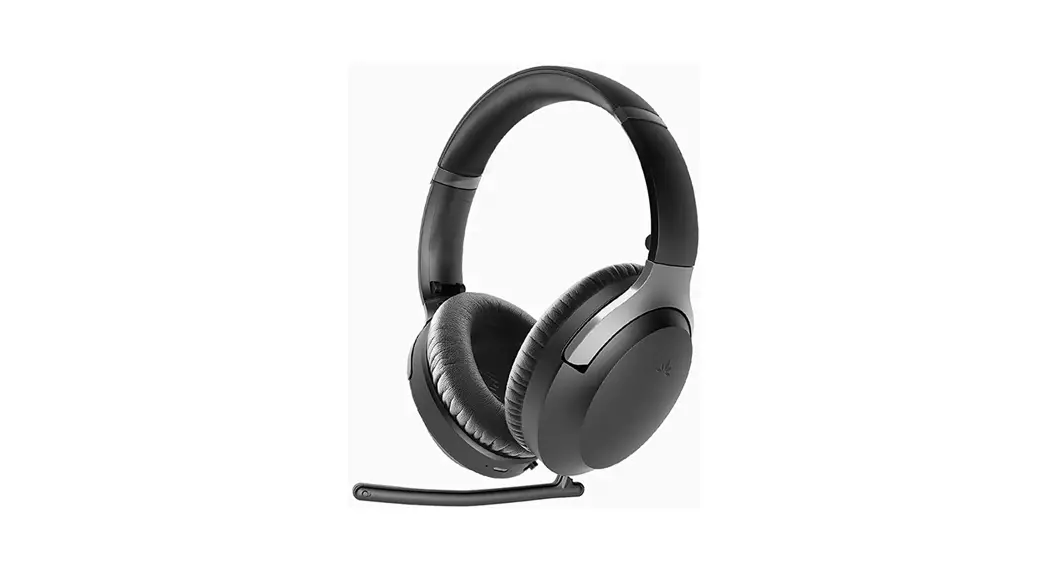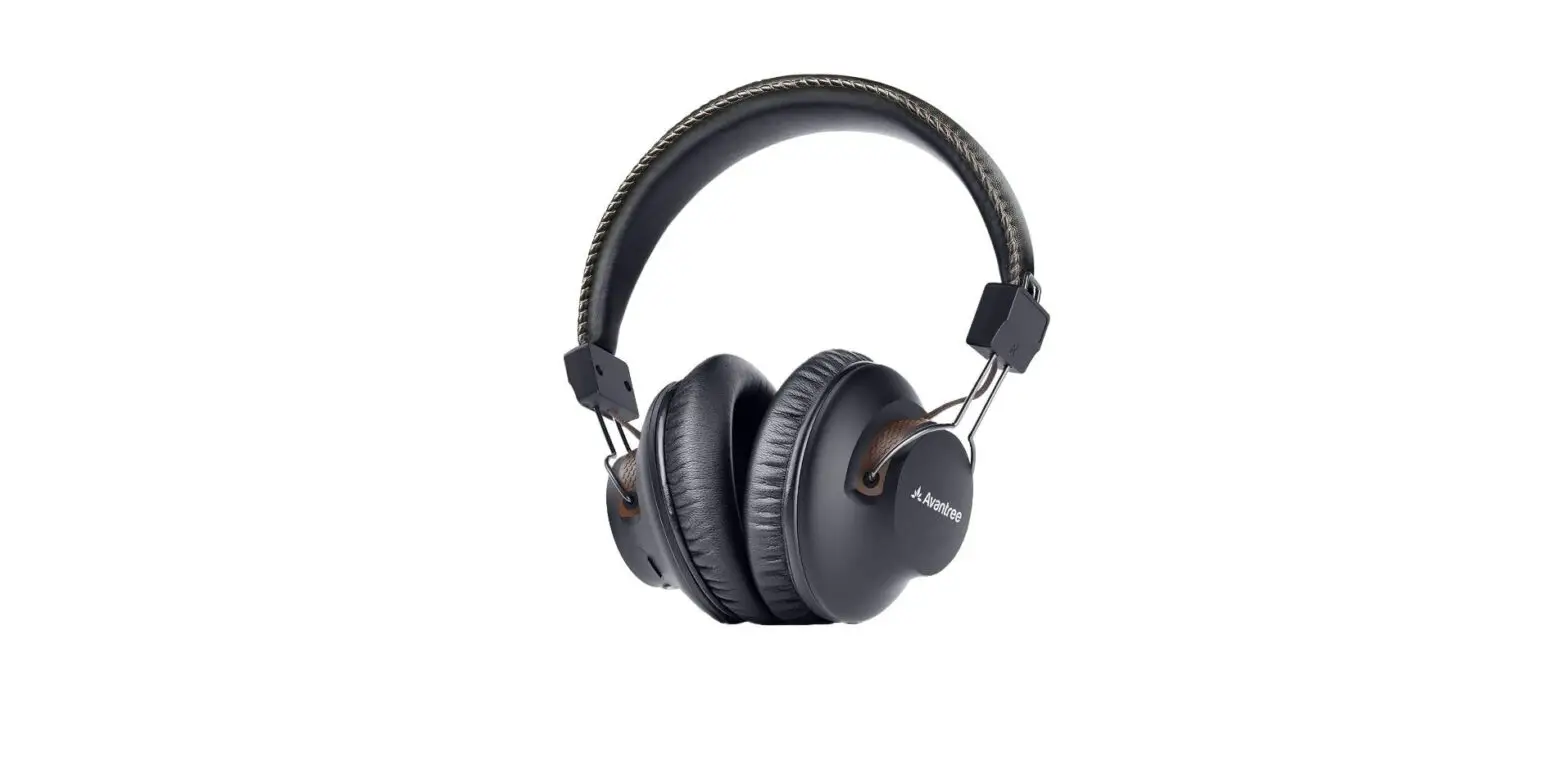
Avantree AS90TA Aria Me Personalized Audio Wireless HD Headphones with Charging Stand User Manual
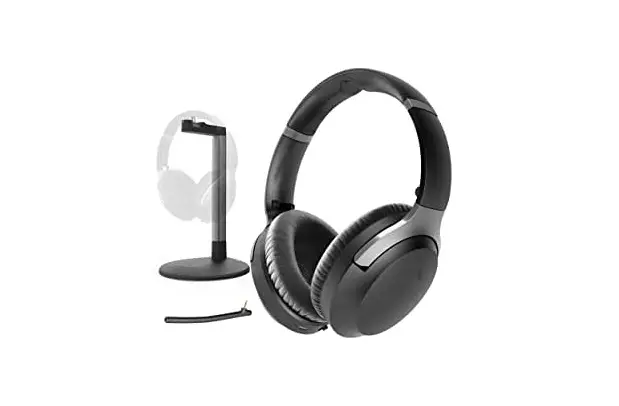
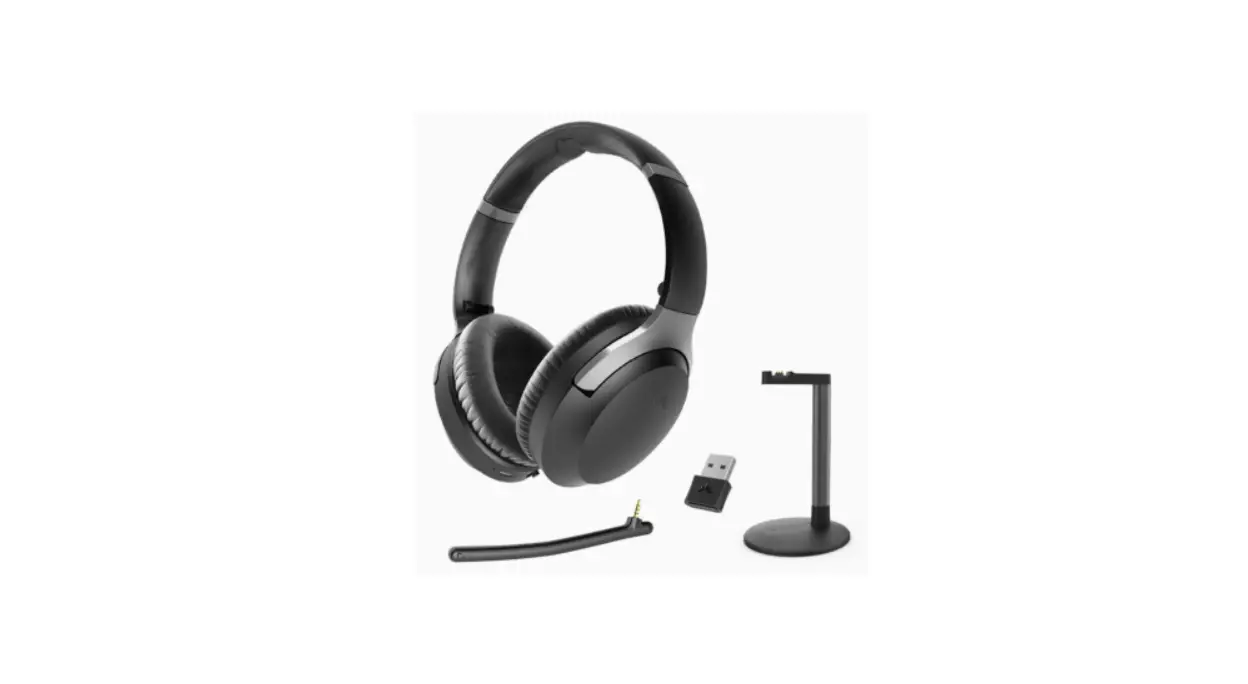
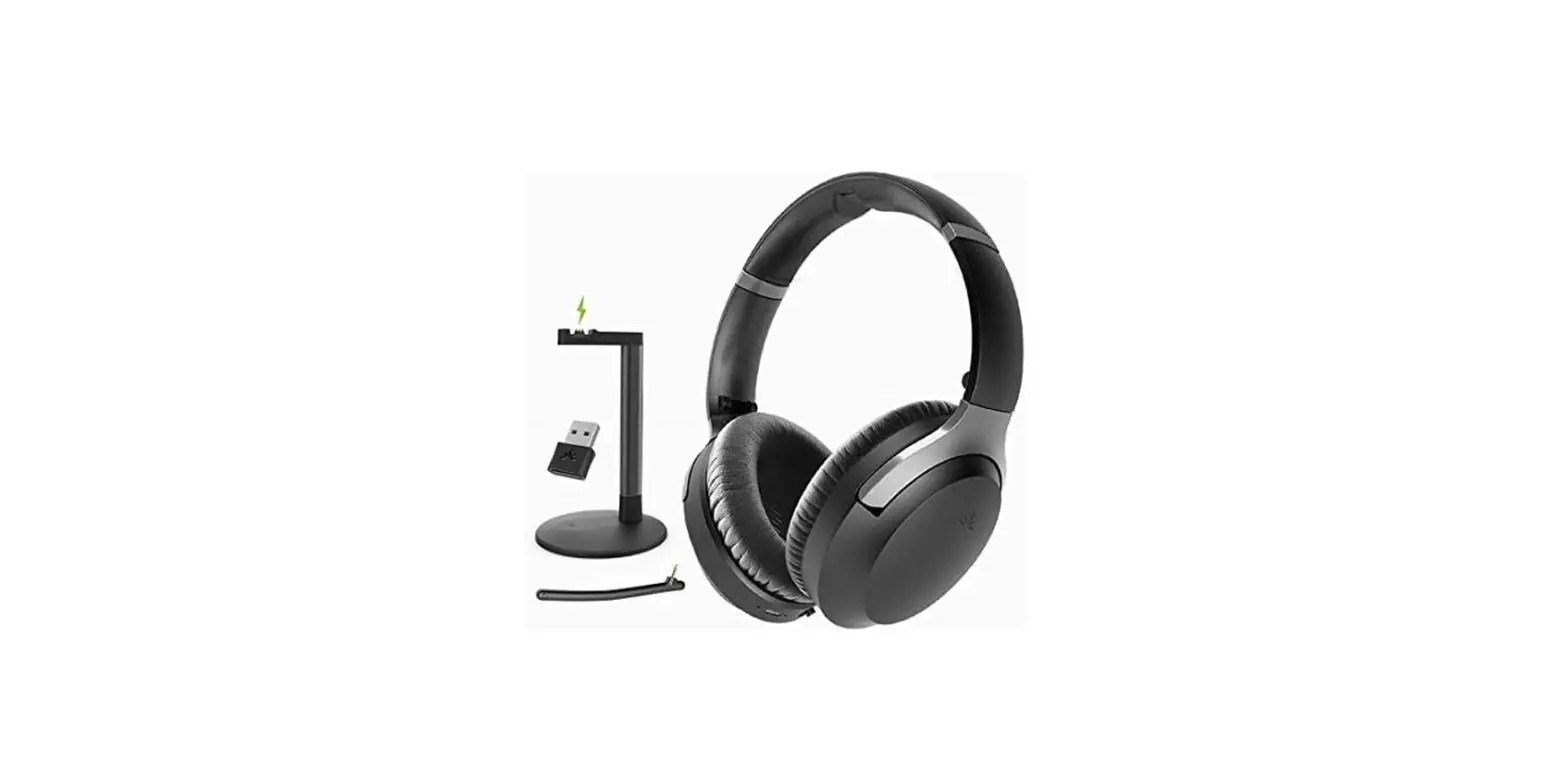
What’s in the box?
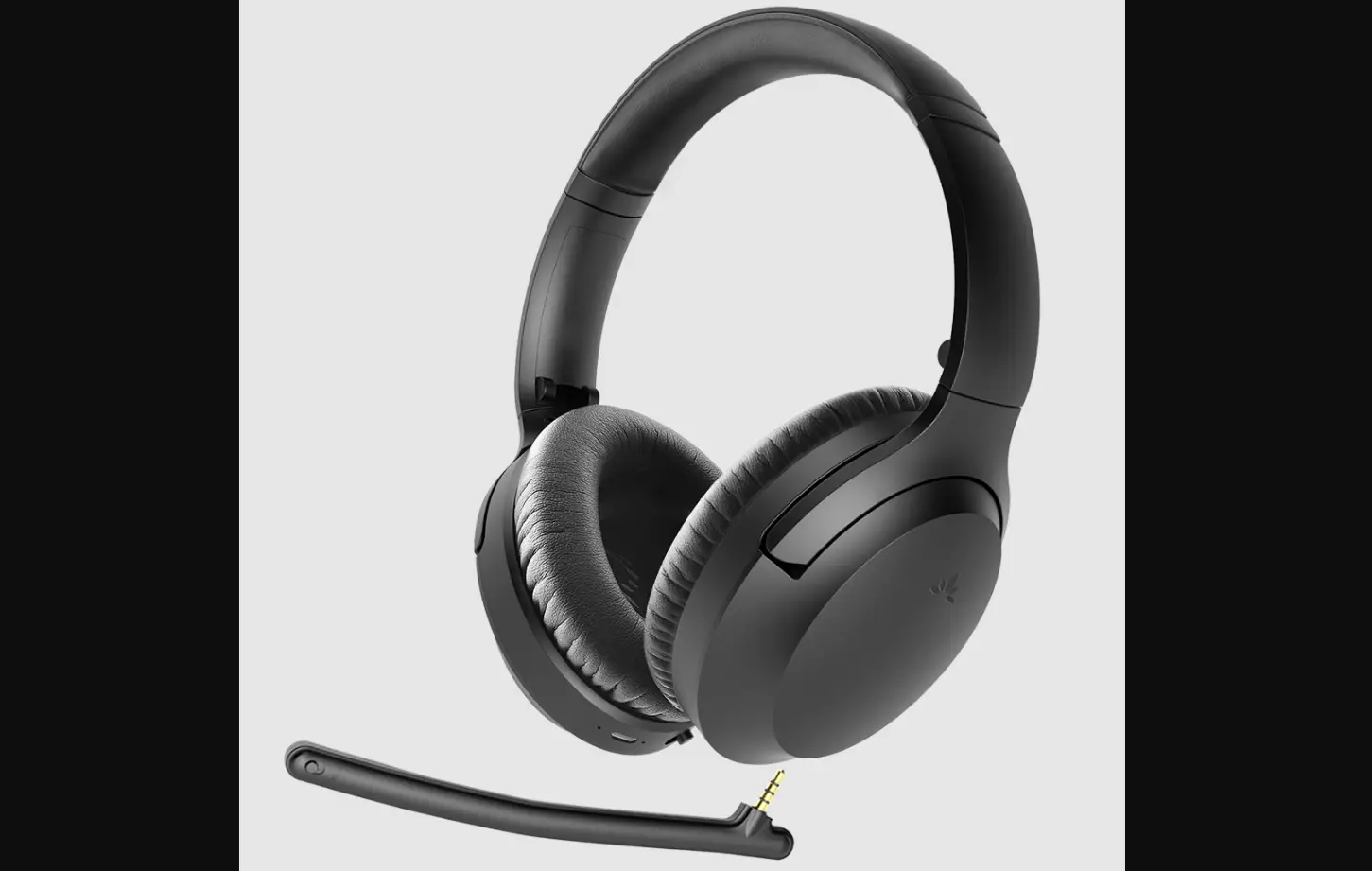
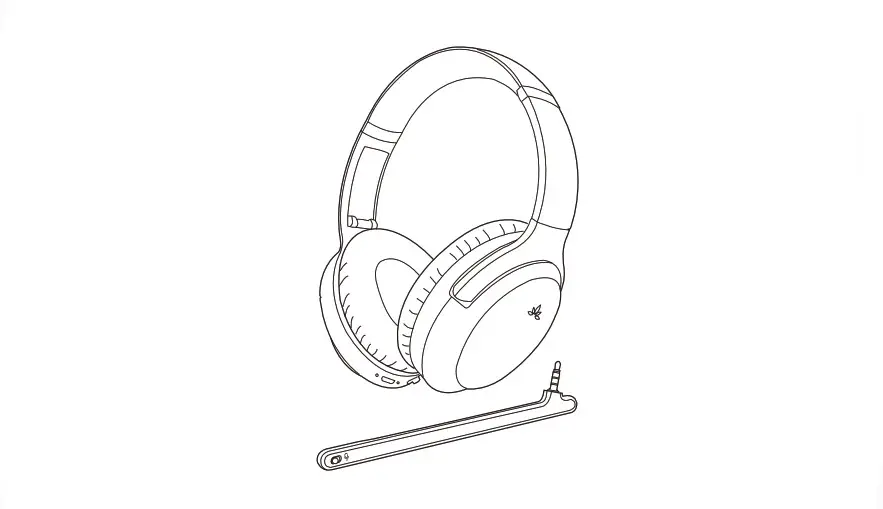
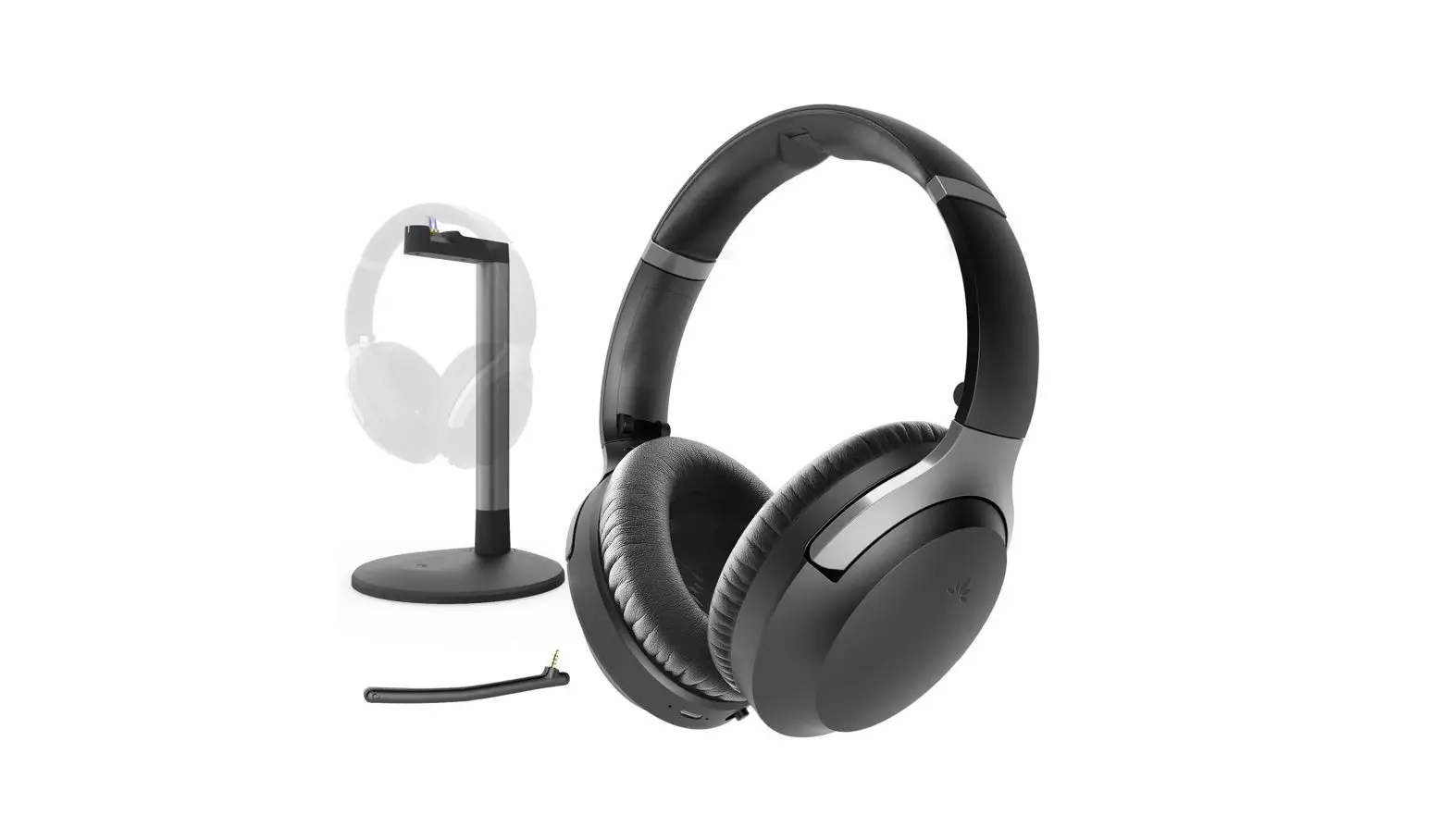
- AS90TA wireless headphones x 1
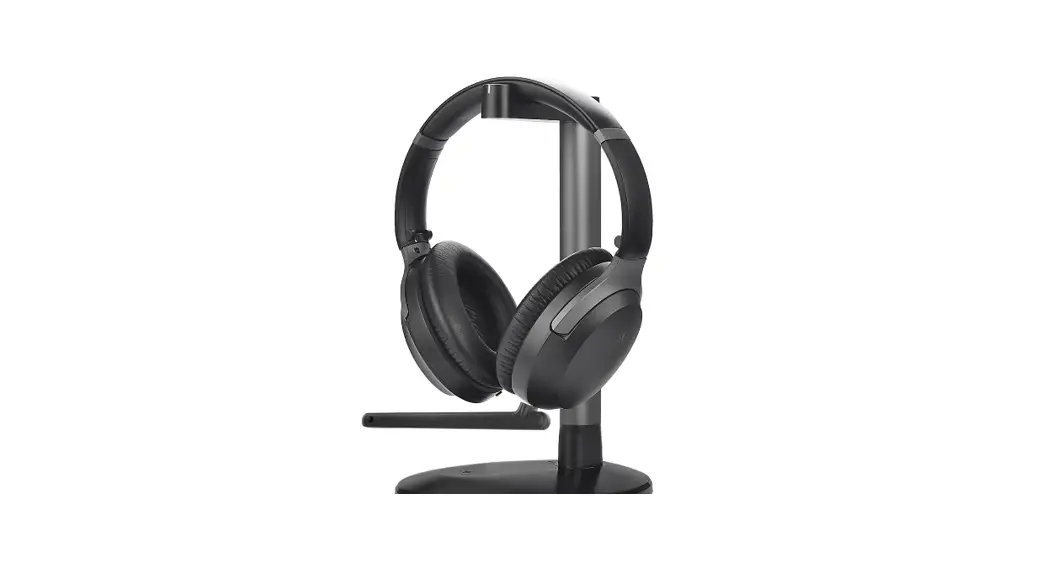
- Charging stand x 1
- Detachable boom microphone x 1
- Hard travel case x 1
- USB charging cable x 1
- Audio cable x 1
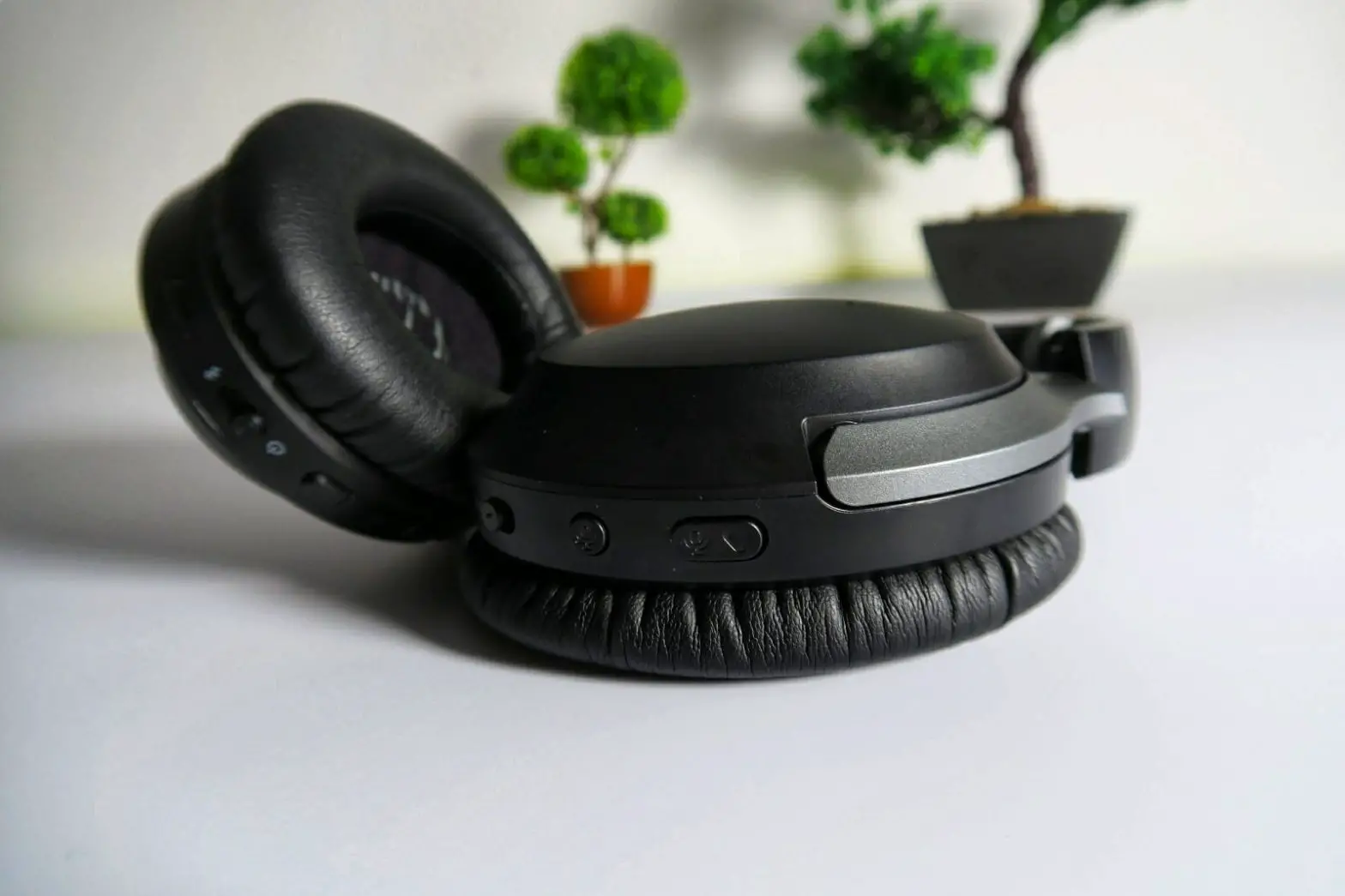
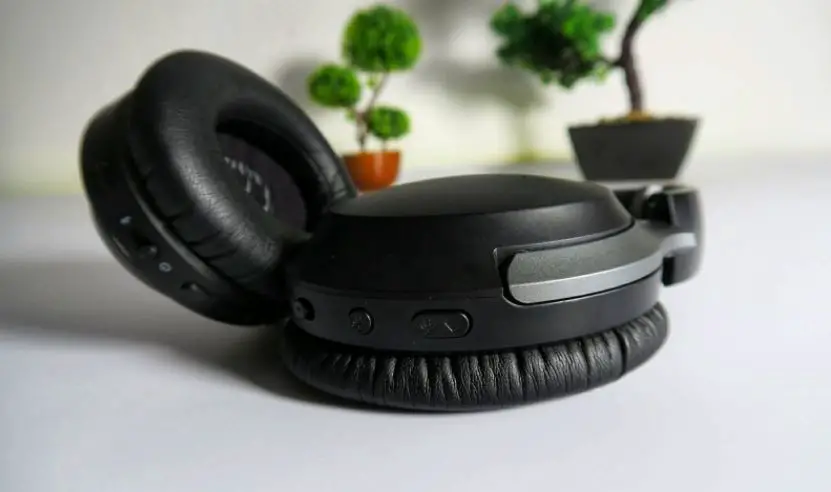
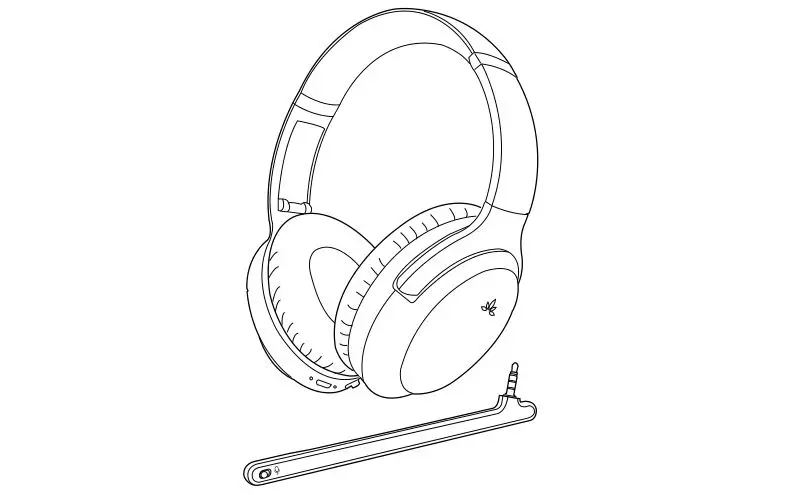
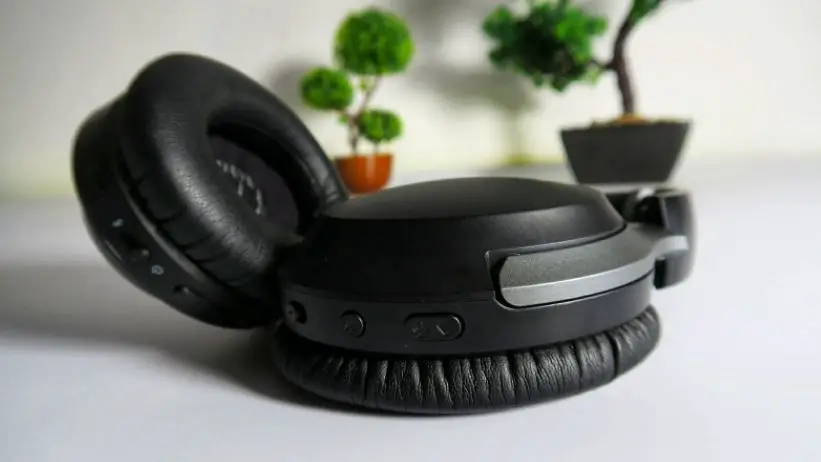
Product Overview
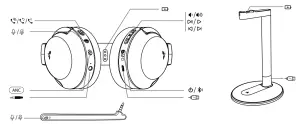
Basic Operation

- Power ON
 Slide the power switch to middle position
 - Power OFF
 Slide the power switch to
 - Pairing Mode Slide the power switch to
 and hold for 3s till LED blinks RED & BLUE alternately
- Power ON

- Play / Pause music
 Press once
 - Volume up / down
 Press / once
 - Next / Previous track Hold / for 2s
- Play / Pause music

- Answer / End a call
 Press once
 - Last number redial Press twice
- Reject a call – Hold 2s during an incoming call
- Activate / Deactivate Voice Assistant – Press once
- Answer / End a call

- Activate ANC
 (Power ON status)
 - Deactivate ANC

- Activate ANC

- Headset without boom mic
 Press once to mute / unmute
with Boom Mic – Mute On Mute Off
- Headset without boom mic

- Activate Voice Prompts- Hold for 2s until you hear “Custom Profile ON”
- Deactivate Voice Prompts- Hold for 2s until you hear “Custom Profile OFF”
- Activate Voice Prompts- Hold for

- Activate Voice Prompts – Hold BOTH [
 ] and [
  ] for 1s
 - Deactivate Voice Prompts – Hold BOTH [ ] and [ ] for 1s
- Activate Voice Prompts – Hold BOTH [

- Clear paired history – Hold BOTH [ ] and [ ] for 5s till LED blinks PINK for 2s, then the headphones enter into PAIRING MODE automatically.
- Clear paired history – Hold BOTH [

 Slide the power switch to
 Press / once
 Press once
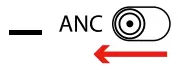 (Power ON status)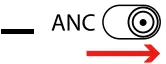

 Press once to mute / unmute
 Mute Off


 ] and [
LED indications
| Working Status | LED indicator |
| Pairing Mode | Blinks BLUE & RED alternately |
| Reconnecting | Blinks BLUE |
| Disconnected | Blinks BLUE once every 2s |
| Connected with SBC Codec | Blinks BLUE (WHITE) once every 5s |
| Connected with AptX Codec | Blinks BLUE(WHITE) twice every 5s |
| Connected with AptX-LL Codec | Remains BLUE (WHITE) |
| Connected with AptX-HD Codec | Blinks BLUE (WHITE) three times every 5s |
| Low Battery | Blinks RED once every 1min |
Note: When headphones streaming audio with activated Custom Profile in Bluetooth Mode, LED turns WHITE
Bluetooth Pairing
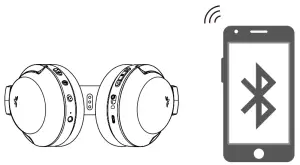
Put the headphones into Pairing Mode (On 1st use, it will enter PAIRING MODE automatically once turned on.)
Pair to mobile device
Set the headphones into Pairing Mode as above. Activate Bluetooth on your phone and set it to search for new devices. Select “Avantree AS90TA”, once successfully paired you’ll hear “connected”.
To add another cell phone
Connect with the FIRST phone as above, and then turn off the headphones. Connect headphones with SECOND phone as above. Tap and select “Avantree AS90TA” on the FIRST phone Now, Avantree Aria Me connected with TWO phones simultaneously
Reconnection
Normally, when the next time you turn on Avantree Me, it will automatically reconnect the last paired device. Alternatively, Slide the power switch to [ ] once
  then release to enter into its Reconnection Mode.
Custom Audio Function
Please ensure your headphones are CONNECTED via Bluetooth to your phone!
- Install the “Avantree Audio” app from Google Play or the Apple App store
- Launch the app and follow the on-screen instructions to register or login to your account
- Select “Avantree AS90TA” from the list of Avantree devices. The app will display “Connected” once the headphones and app are successfully connected
- Tap on the navigation menu “
 ” and select “CREATE AUDIO PROFILE” then follow the instructions to perform a 2-3 minute hearing test. To ensure a consistent result we recommend you complete the test in one sitting.
Once you complete the hearing test and save it as a custom ‘profile’, it will be auto-uploaded onto the headphones and the Custom Audio Function of the headphones will be activated.
To switch profiles, tap on “MY AUDIO PROFILES” via the navigation menu “ ” and select your desired profile. Tap “APPLY” then “START” to upload and activate the profile on the headphones.
Please note: Hearing test results generated from the app are used to modify the sound output of designated Avantree products only and are not intended for use in any medical applications.
Turn Custom Audio Profile ON/OFF
While playing audio in Bluetooth mode, toggle the custom audio processing ON/OFF by pressing and holding for  2s until you hear “Custom profile ON”/“Custom profile OFF”. You can check the headphones audio processing state by the LED indicator while streaming audio:
Custom Audio profile ON – LED flashes WHITE
Custom Audio profile OFF – LED flashes BLUE
Note: Once the Custom Audio profile is uploaded and activated, all the audio received via Bluetooth will be processed using your personal hearing profile. This works even if you connect your headphones to another phone or even a Bluetooth enabled PC
Using the AUX Input
Use the supplied 3.5mm audio cable to connect to a non-Bluetooth device, or if the headphone battery is depleted
Notes
- If you wish to use the ANC function in wired mode, please check the battery level and turn on the headphones first.
- The button controls, microphone and custom audio functions do NOT work in wired mode.
Charging
When the LED flashes RED once every 60 seconds, please recharge your headphones.
Please place the headphones onto the charging dock or plug it into a USB wall charger (DC 5V/0.5-2A) using the included micro USB cable. Normally it will take about 2 hours to fully charge. Place the headphones onto the charging dock, the LED indicator on the stand will stay solid WHITE while charging and turn GREEN when charging is complete. While charging, the headphones’ LED will turn RED and will turn off once charging is complete
To assemble the hanger onto the base – please match the arrow on the hanger support with the UNLOCK position on the base. Insert and twist clockwise until it clicks into position.
Note: To avoid damage to headphones, please DO NOT charge the headphones using both the desktop charging stand and the micro USB cable at the same time.
Clear pairing history
f you have issues with the audio stream skipping or cutting out when using Avantree Aria Me (AS90TA), please try to clear pairing history as following:
Firstly, turn on the headset (Non-calling Status), then Hold BOTH [  ] and [
 ] for 5s till LED blinks PINK for 2s, then the headphones enter into PAIRING MODE automatically.
Troubleshooting
https://avantree.com/catalogsearch/result?q=Aria+Podio
No sound with PC?
- Under Playback Devices select the Avantree AS90TA as the default playback device
- When using AS90TA to make VOIP calls from an app, please select the AS90TA, Hands-Free for Microphone and Speaker device
No sound using a Bluetooth transmitter to watch TV?
- Ensure the Bluetooth transmitter and headphones are connected properly
- Check that your audio OUTPUT is functioning properly
- AUX & RCA (red and white) outputs on TV – test audio with any wired headphone
- OPTICAL output on TV – set your TV audio format to “PCM/LPCM” or turns off Dolby/DTS
- Change your TV audio out device setting to External speakers/Headset
Headphones do not pair with Bluetooth device
- Ensure the AS90TA is in Pairing mode – LED will flash BLUE and RED alternately.
- For Bluetooth transmitter, ensure the transmitter is in Pairing mode – please refer to user manual.
- For mobile phones, tablets and PCs:
- Turn the Bluetooth off then on again.
- Delete/forget the “Avantree AS90TA” from your device’s Bluetooth list and then try to pair again
- Clear the headphone’s pairing history, and pair again