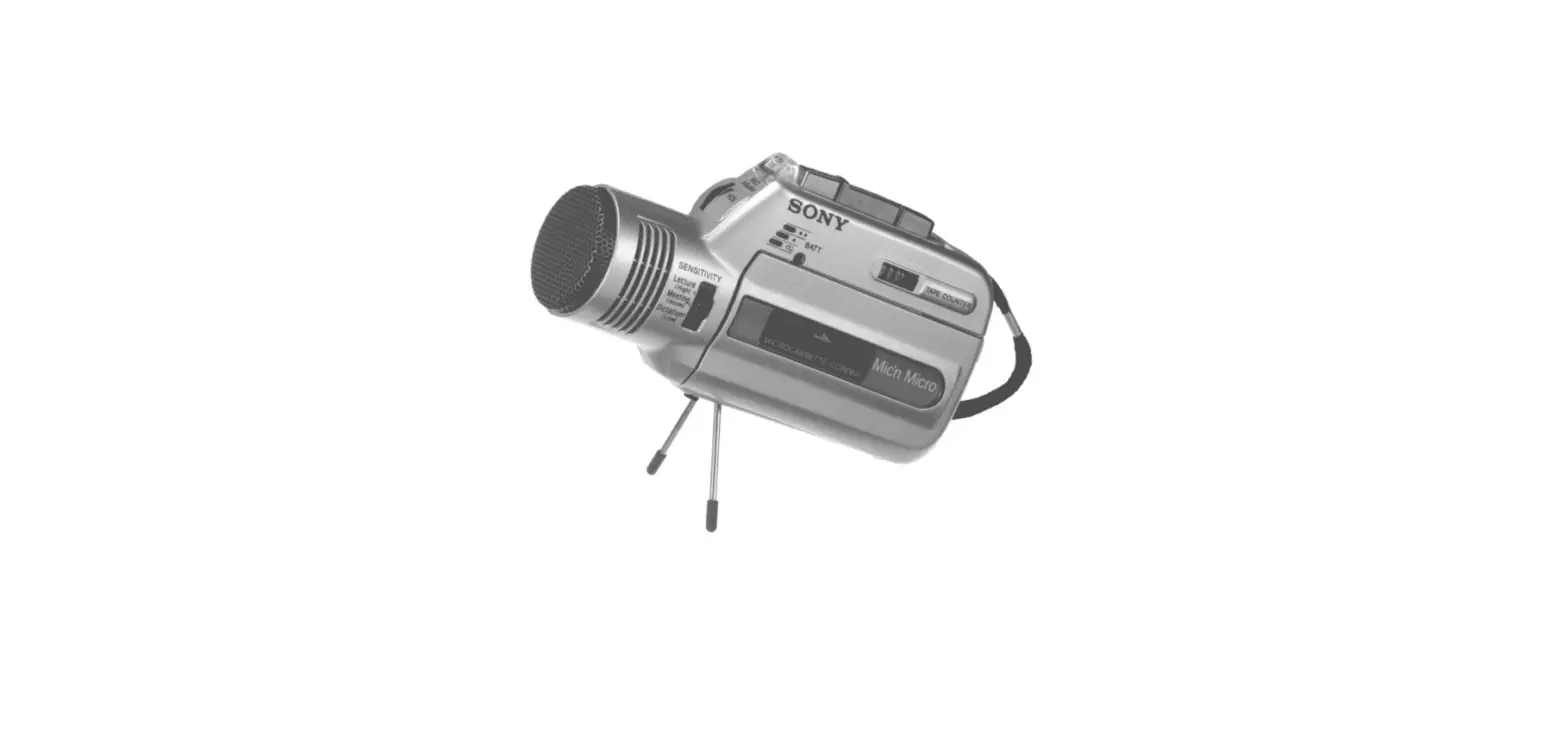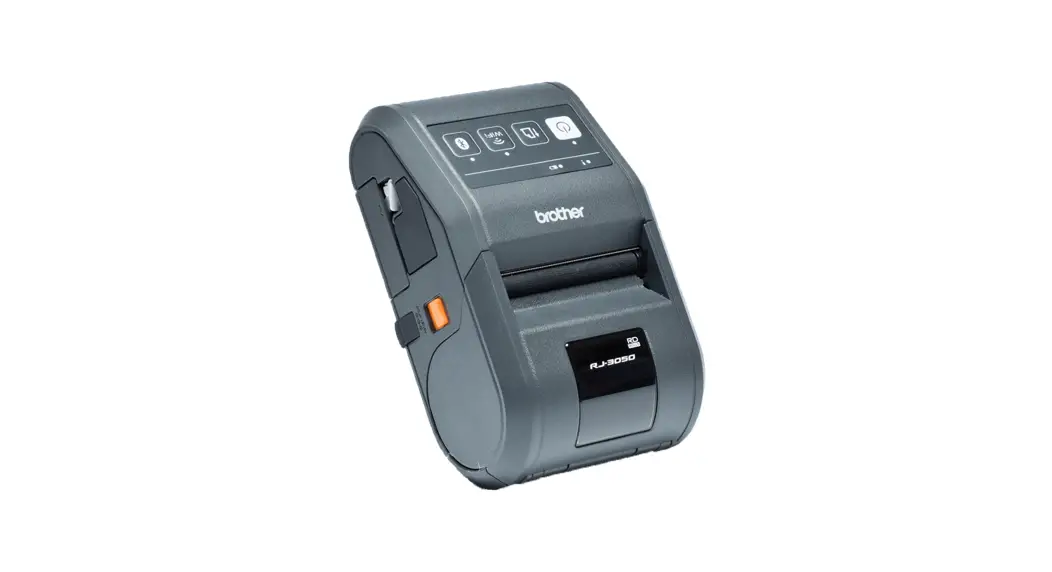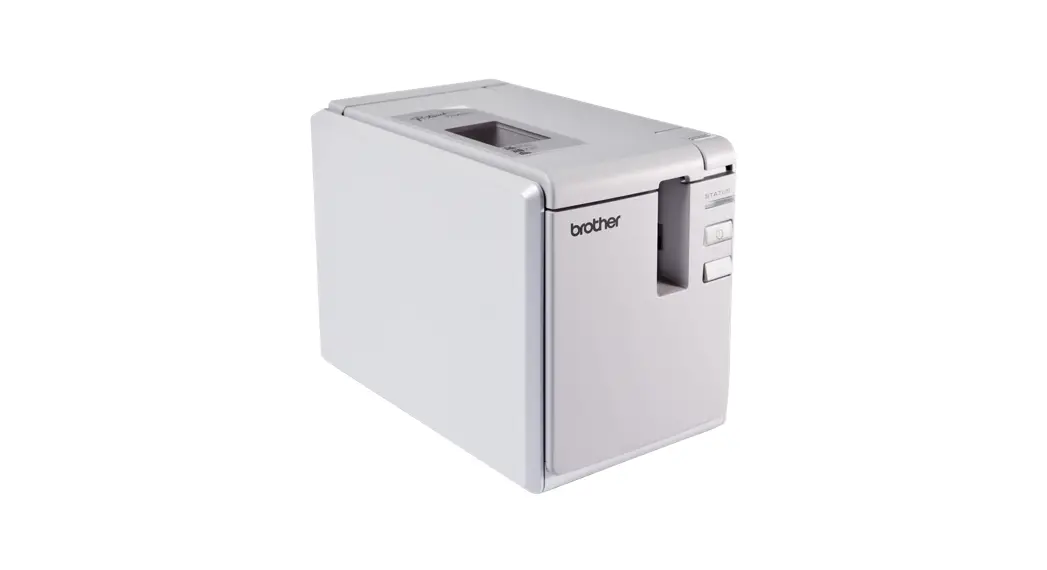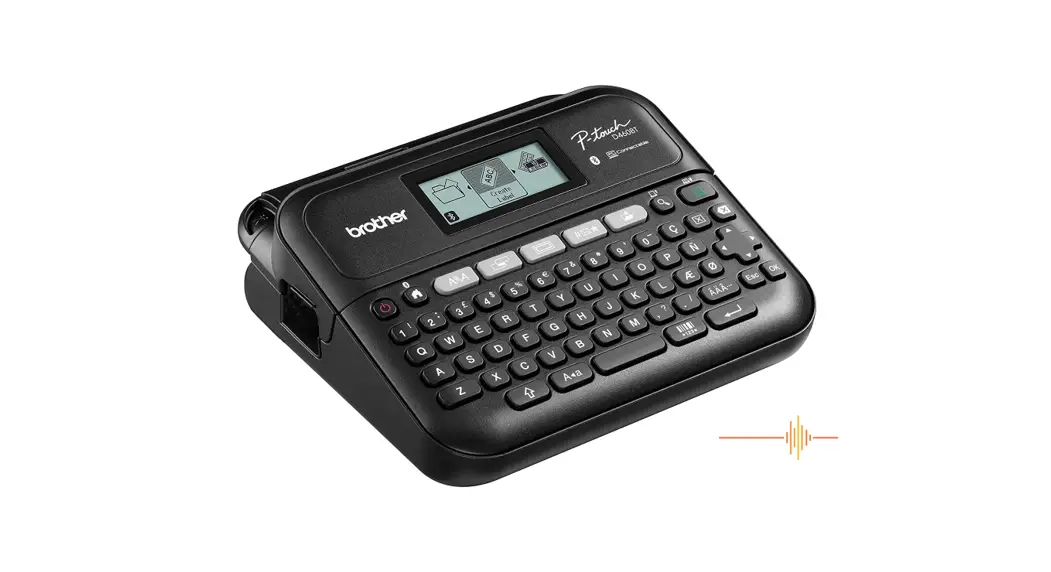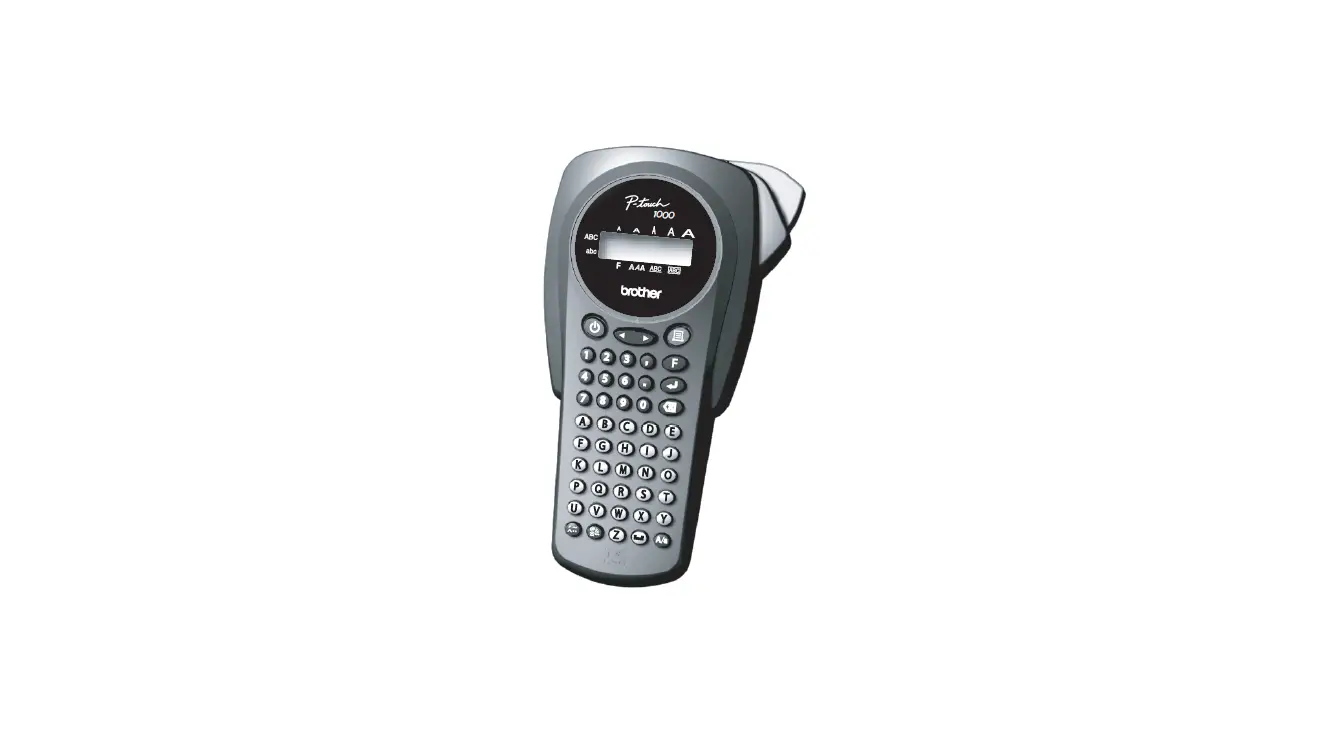

Brother LN9961001 Microcassette Recorder User Manual
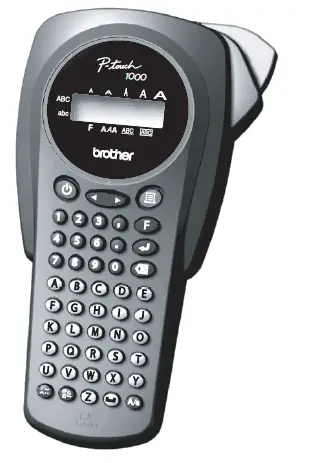
GENERAL PRECAUTIONS
- Use only Brother TZ tapes with this machine. Do not use tapes that do not have the mark.
- Do not pull on the tape being fed from the P-touch, otherwise, the tape cassette may be damaged.
- Do not attempt to cut the tape while printing or feeding since this will damage the tape.
- Do not clean the machine with alcohol or other organic solvents. Only use a soft, dry cloth.
- Remove the batteries and disconnect the AC adapter if you do not intend to use the machine for an extended period of time.
Note: If power is disconnected for more than three minutes, all text is shown in the dis-play and any text files stored in the memory will be lost. Language and unit settings will also be cleared. - Do not put any foreign objects into or heavy objects on the machine.
- Do not expose the machine to extremely high temperatures or high humidity. Never leave it on the dashboard or in the back of your car.
- Avoid using the machine in extremely dusty places. Keep it out of both direct sunlight and rain.
- Do not leave any rubber or vinyl on the machine for an extended period of time, otherwise, the machine may be stained.
- Do not touch the print head mechanism. If the head is touched, clean it immediately with a soft wipe (e.g. a cotton swab) to avoid permanent damage.
- To avoid injuries, do not touch the cutter’s edge.
- Use only the AC adapter designed exclusively for this machine. Use of any other adapter may void the warranty.
SPECIFICATIONS
- Dimensions: 4.32″ (W) ✕ 7.84″ (D) ✕ 2.2″ (H) (108mm (W) ✕ 196mm (D) ✕ 55mm (H))
- Weight: 0.74 lbs. (335g) (without batteries and tape cassette)
- Power supply: Six AAA-size alkaline batteries or optional AC adapter (model AD-30/AD-24)
- Tape cassette: Brother TZ tape 1/4″ / 3/8″ / 1/2″ (width) (6mm, 9mm, 12mm (width))
- Cutter unit: TC-5 (replacement)
POWER SUPPLY & TAPE CASSETTES
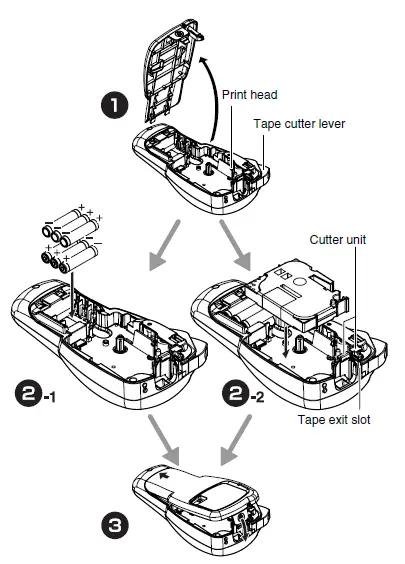
- a Remove the back cover by pressing in the rough area at the top end of the machine and then flip away from the machine.
If a tape cassette is already installed, remove it by pulling it straight up. Also, if batteries are already installed, remove them. - b-1 Insert the batteries into the battery compartment with the positive end of the bottom three batteries pointing away from the cutter lever, and the positive end of the top three batteries pointing toward the tape cutter lever.
Always replace all six batteries at the same time using brand new ones.
b- 2 Insert a tape cassette, making sure that it snaps into place.- Make sure that the end of the tape feeds under the tape guides.
- Be sure to remove the paper tab when installing a new tape cassette.
- If the ink ribbon is loose, use your finger to wind the toothed wheel in the direction of the arrow on the cassette.
- Use only Brother TZ tapes with this machine.

- c Attach the back cover by inserting the two hooks at the bottom into the slots on the machine, then push down firmly on the cover until it snaps into place.
After you have installed the tape, feed the tape (see FEEDING) once and then push in the tape cutter lever to cut the tape.

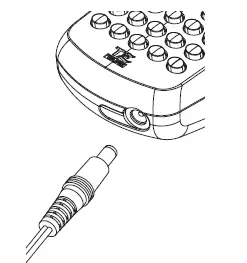
Optional AC adapter (model AD-30/AD-24)
- Insert the plug on the adapter cord into the adapter jack on the bottom end of the machine.
- Plug the other end of the adapter to the nearest standard electrical outlet.

Cutter unit (replacement)
If the cutter blade becomes blunt after repetitive use and the tape cannot be cut cleanly, re-place with new cutter unit (stock no. TC-5) by obtaining from an authorized brother dealer.
KEYBOARD & LCD
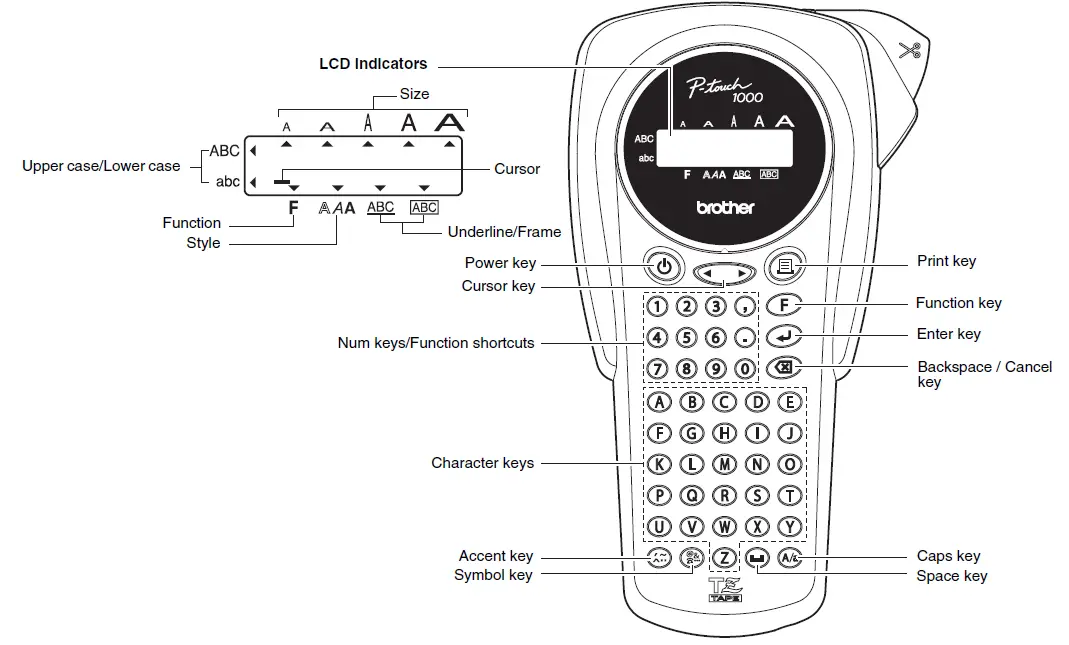
The LCD shows one row of 8 characters; however,
the text that you enter can be up to 55 characters in length.
Power On/Off
Press a to turn the machine on and off.
The machine automatically turns off if no key is pressed within 5 minutes.
GETTING STARTED
- Start your machine
Supply power by using six AAA batteries or the optional AC adapter, and then press .
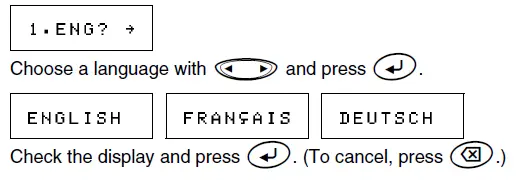
. - Set the language (English/French/German)

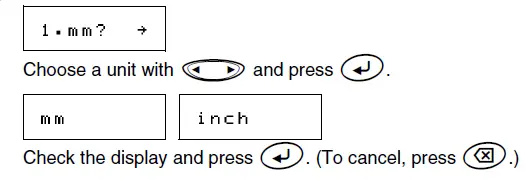
- Set the unit (mm/inch)

NOTE:
- You can also display the languages and units by pressing the corresponding Num keys (1-3).
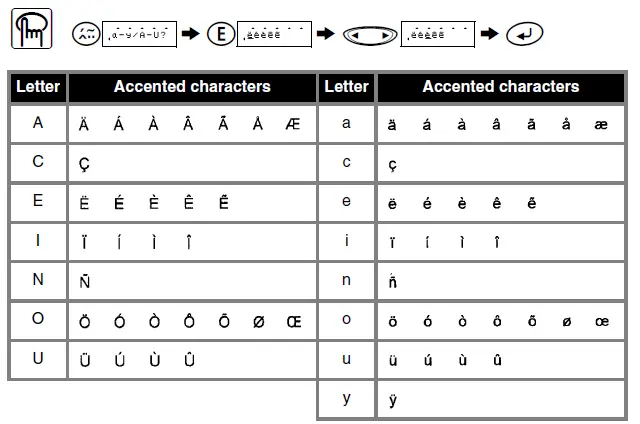
- The available accented characters depend on the language setting.

MAKING TEXT
Switching UPPER CASE/LOWER CASE 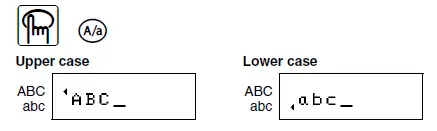
Making A TWO LINE LABEL
Move the cursor to where the second line starts and press .
.
NOTE: Use either 9 mm or 12 mm wide tape for two-line labels. 
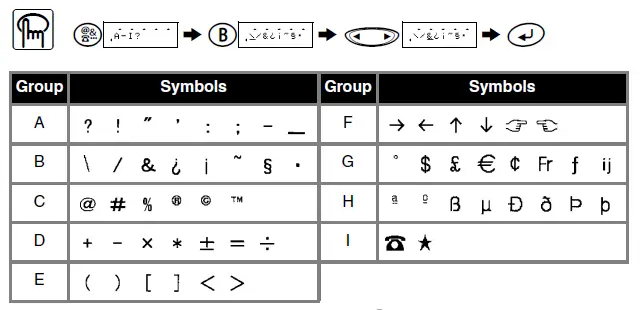
Entering SYMBOLS
NOTE:
- You can also display the symbols by pressing
 them.
them. - To go to the next group, press
 .
. - To skip to a different group, press the corresponding character key of the group.
- You can also scroll the symbols in each group by pressing the corresponding character key of the group repeatedly.
 them.
them. .
.Entering ACCENTED CHARACTERS
NOTE:;
- You can also display the characters by pressing
 them.
them. - To go to the next letter group, press g.
- To skip to a different letter group, press the corresponding character key.
- You can also scroll the characters in each letter group by pressing the corresponding character key repeatedly.
 them.
them.DESIGNING LABELS
Setting FONT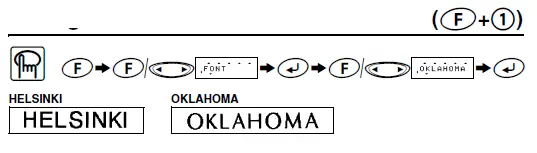
Setting SIZE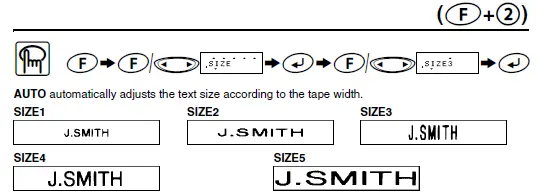
Setting STYLE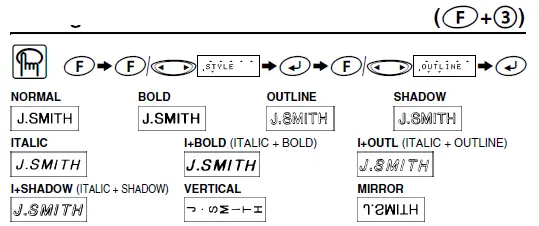
NOTE:
- Two-line texts are printed in NORMAL regardless of the setting.
- Use clear tape in MIRROR, so the labels appear on the other side when stuck on glass, windows or other transparent surfaces.
Setting UNDERLINE/FRAME 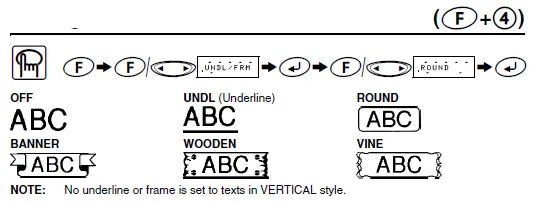
NOTE: No underline or frame is set to texts in VERTICAL style.
Setting TAB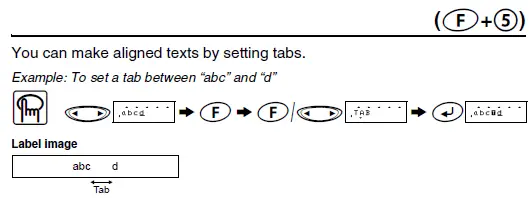
Setting TAB LENGTH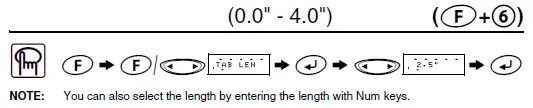
Setting LABEL LENGTH
Using AUTO FORMAT
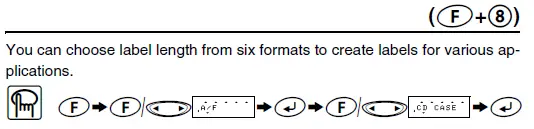
To CLEAR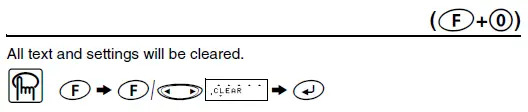
PRINTING
TEXT PREVIEW 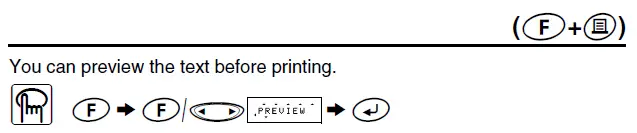
NOTE:
- The LCD shows the whole text and the label length (mm/inch), then returns to the original text.
- Only the text can be previewed, but not the font, style, size, underline/frame or any additional features.
FEEDING (TAPE FEED)

PRINTING
NOTE:
- To cut off the label, push in the tape cutter lever on the upper-right corner of the machine.
- To prevent damage to the tape, do not try to cut while the message PRINT or FEED is displayed.
TAPE MARGIN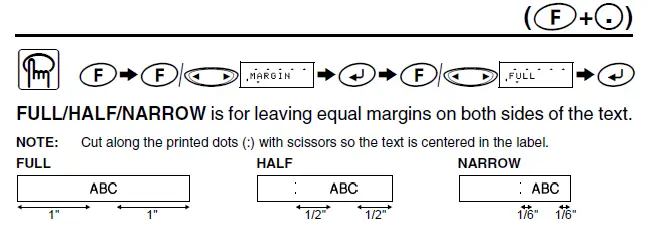
CHAIN is for printing more than 1 copy of a label with minimum margin
<e.g. 1>. You can also create a label containing texts in various styles; print
a text in one style, and before feeding, enter the second text in another style
<e.g. 2>.
NOTE: FEED THE TAPE BEFORE USING THE CUTTER (see FEEDING/PRINTING). Otherwise
A PART OF THE TEXT MAY BE CUT OFF. Do not try to pull the tape since this may damage the tape cassette.
Print Option/REPEAT PRINTING 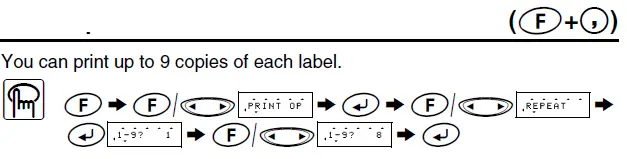
NOTE:
- When the tape margin is set to CHAIN, FEED THE TAPE BEFORE USING THE CUTTER
(see FEEDING/PRINTING). Otherwise, A PART OF THE TEXT MAY BE CUT OFF. Do not try to pull the tape since this may damage the tape cassette. - When the tape margin is set to FULL/HALF/NARROW, cut along the printed dots (:) with scissors to separate the labels.
Print Option/NUMBERING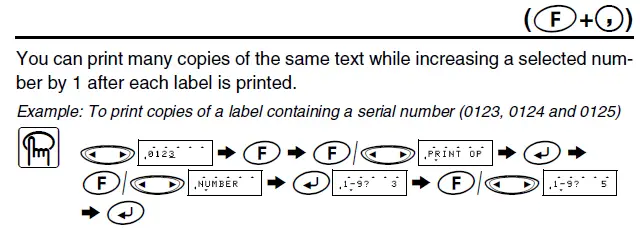
NOTE:
- The last number that will be printed must be larger than the number selected in the text, otherwise, the message ERROR appears.
- When the tape margin is set to CHAIN, FEED THE TAPE BEFORE USING THE CUTTER (see FEEDING/PRINTING). Otherwise, A PART OF THE TEXT MAY BE CUT OFF. Do not try to pull the tape since this may damage the tape cassette.
- When the tape margin is set to FULL/HALF/NARROW, cut along the printed dots (:) with scissors to separate the labels.
MEMORY
You can store up to 9 frequently used text files and recall them to create labels more quickly and easily. (Total memory size: about 300 characters.) 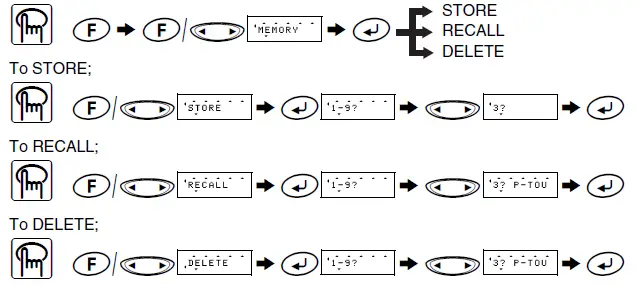
FUNCTION SHORTCUTS
In addition to the basic steps to search for a function, PT-1000 provides you with function shortcuts so you can easily jump to a frequently used function just by pressing and the shortcut key shown in the table below. To confirm, press
 (or the shortcut key again).
| Key | LCD message | Function | Key | LCD message | Function |
| 1 | FONT | Character font | 8 | A/F | Auto Format |
| 2 | SIZE | Character size | 9 | MEMORY | Memory |
| 3 | STYLE | Print style | 0 | CLEAR | Clear text + style |
| 4 | UNDL/FRM | Underline/Frame |  | MARGIN | Tape margin |
| 5 | TAB | Tab setting |  | PRINT OP | Repeat/Numbering |
| 6 | TAB LEN | Tab length |  | PREVIEW | Text preview |
| 7 | LENGTH | Label length |  | FEED | Tape feed |
NOTE: PRINT OP contains two functions, REPEAT PRINTING and NUMBERING.
For PREVIEW and FEED, press to preview/feed after the LCD message appears.
NOTE: You can also refer to the chart engraved on the back of the machine.
ERROR MESSAGE LIST
| ERROR | An error occurred. |
| BATTERY | The batteries are weak. |
| B A T T E R Y | The batteries are empty. |
| FULL | The maximum number of characters (55 characters) have already been entered or the memory is full. |
| LONG TXT | The text length exceeds the selected label length. |
TROUBLESHOOTING
| Problem | Solution |
| The display stays blank after you have turned on the machine. | • Check that the batteries are correctly inserted. • If the batteries are weak, replace them. • Check that the adapter is correctly connected. |
| The machine does not print, or the printed characters are blurred. | • Check that the tape cassette has been inserted correctly. • If the tape cassette is empty, replace it. • Check that the character size is appropriate for the width of the tape that is used. |
| The printed characters are not formed properly. | • If the batteries are weak, replace them. |
| Striped tape appears. | • The tape cassette is empty. Replace it. |
| The memory has cleared on its own. | • The batteries may be weak. Replace them. |
| A blank horizontal line appears through the printed label. | • There may be some dust on the print head. Remove the tape cassette and use a dry cotton swab to gently wipe the print head with an up-and-down motion. |
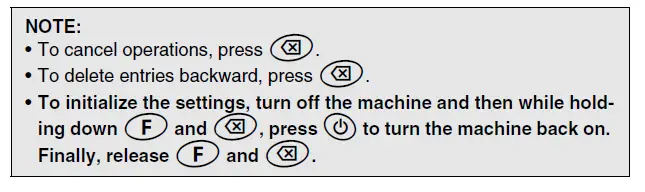
| The machine has “locked up” (i.e., nothing happens when a key is pressed, even though the machine is on). | • Turn off the machine, and then while holding downand , press a to turn the machine back on. Finally, release and . , press a to turn the machine back on. Finally, release and .Note: The text and formats in the display and all text files stored in the memory are erased. Also, the language and unit settings will be cleared. |
Download PDF: Brother LN9961001 Microcassette Recorder User Manual