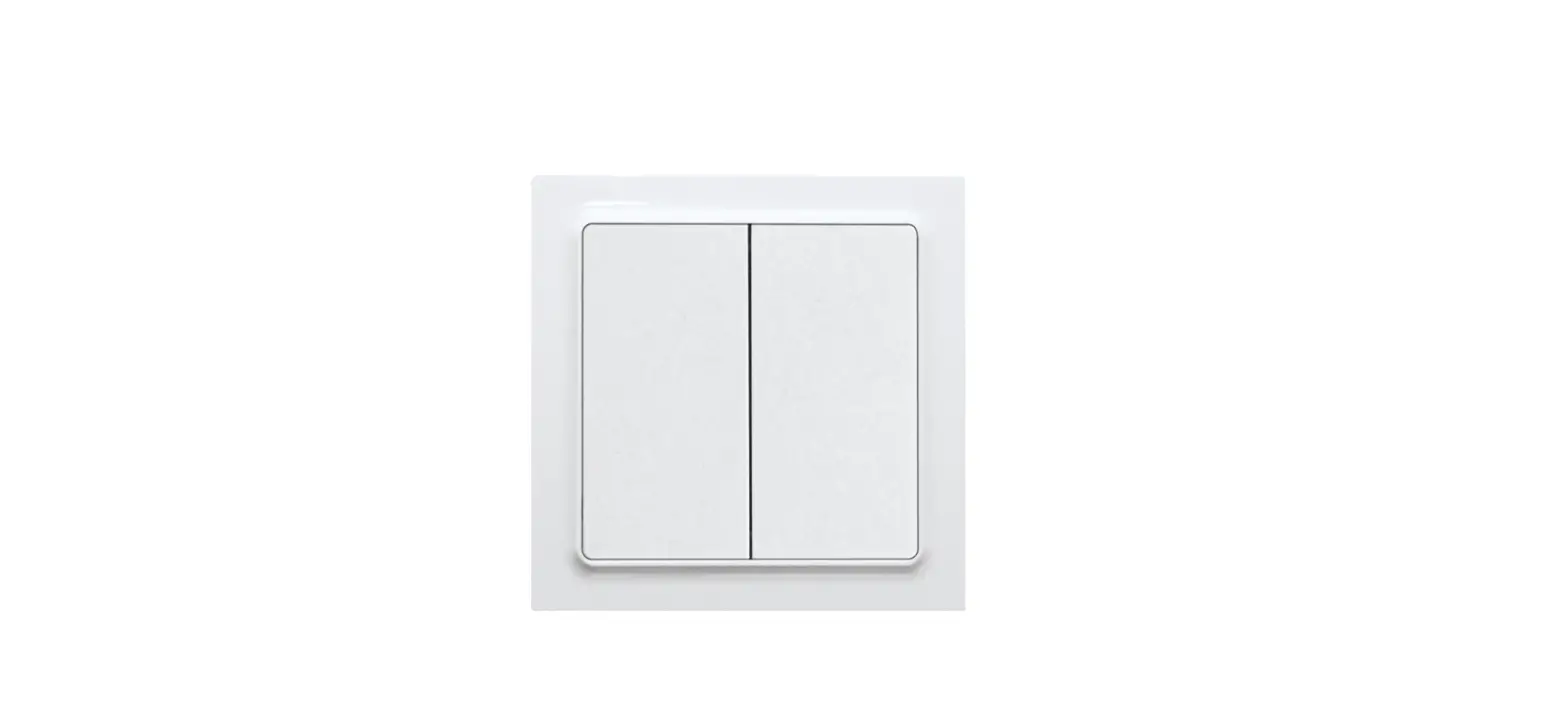
Product Information:
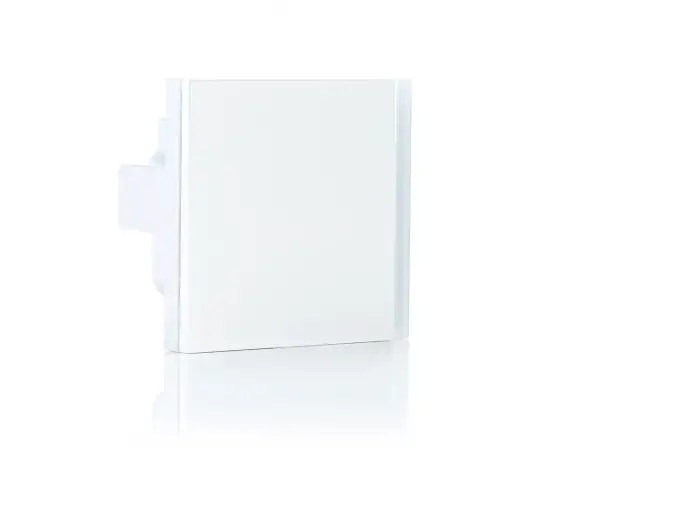
Product Name: Universal Push-Button Module
Art. No. 42911 ST (1-gang)
Art. No. 42921 ST (2-gang)
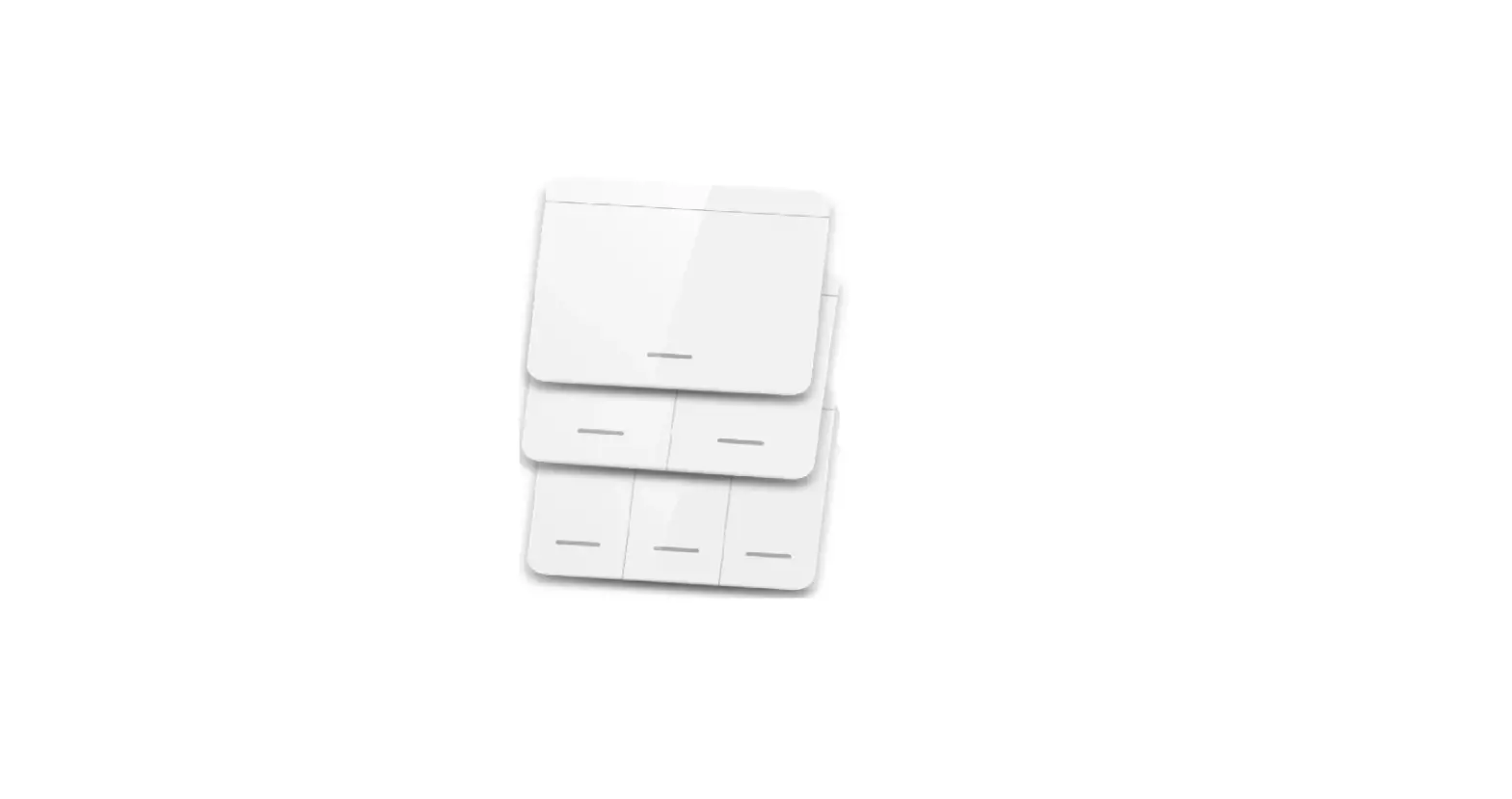
Art. No. 42931 ST (3-gang)
Art. No. 42941 ST (4-gang)
Manufacturer: Jung
Website: www.jung.de
Telephone: +49 2355 806-0
Fax: +49 2355 806-204
Email: [email protected]
Product Usage Instructions:
1. Safety instructions:
– This product should only be mounted and connected by electrically
skilled persons to avoid serious injuries, fire, or property
damage.
– Use only the enclosed plastic screws for fastening the module to
the supporting frame to ensure safe operation.
– Be cautious of electrostatic discharges that can cause defects in
the device.
– Keep this manual with you as it is an integral part of the
product.
2. System information:
– This device is a part of the KNX system and complies with the KNX
directives.
– Detailed technical knowledge obtained in KNX training courses is
necessary for proper understanding.
– The device can be updated using the Jung ETS Service App.
– The device is KNX Data Secure capable, offering protection
against manipulation in building automation. It requires detailed
specialist knowledge and a device certificate for safe
commissioning.
– The device is planned, installed, and commissioned with ETS
version 5.7.7 and higher or 6.0.5.
3. Intended use:
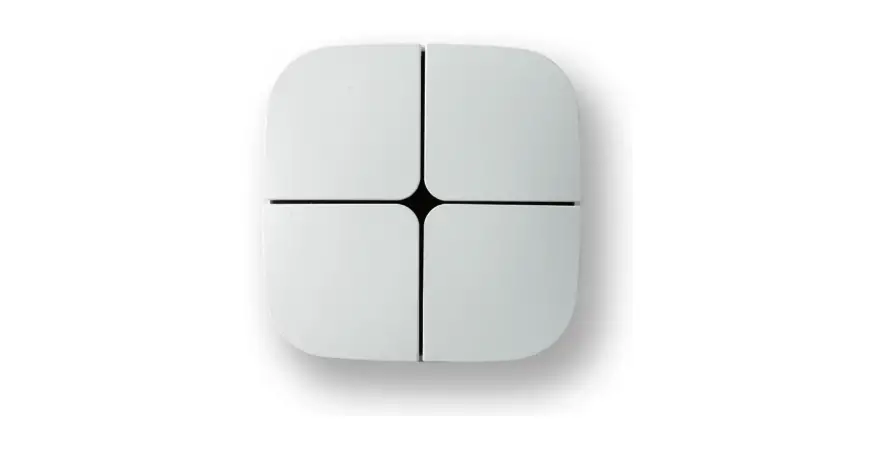
– The Universal Push-Button Module is designed to include up to
four additional operating areas.
4. Product characteristics:
– Push-button sensor module
5. Operation:
– To operate a function or load:
Switch: Short press on the button.
Dim: Long press on the button. The dimming
process ends when the button is released.
Move shading: Long press on the
button.
Stop or adjust shading: Short press on the
button.
Open scene: Short press on the
button.
Save scene: Long press on the button.
Set value, e.g. brightness or temperature
setpoint: Short press on the button.
6. Information for electrically skilled persons:
6.1 Mounting and electrical connection:
– Cover live parts in the installation environment to avoid
electric shock.
– Snap the adapter frame onto the push-button sensor module,
ensuring the correct orientation and noting the marking TOP.
– Mount and connect the device according to the provided
image.
Please refer to the complete user manual for more detailed
instructions and information.
Operating instructions
Universal push-button module, 1-gang Art. no. 42911 ST
Universal push-button module, 2-gang Art. no. 42921 ST
Universal push-button module, 3-gang Art. no. 42931 ST
Universal push-button module, 4-gang Art. no. 42941 ST
ALBRECHT JUNG GMBH & CO. KG Volmestraße 1 58579 Schalksmühle GERMANY
Telefon: +49 2355 806-0 Telefax: +49 2355 806-204 [email protected] www.jung.de
28.02.2023 32407603 j0082407603
Universal push-button module
Table of Contents
1 Safety instructions ………………………………………………………………………………………………. 3 2 System information …………………………………………………………………………………………….. 3 3 Intended use ……………………………………………………………………………………………………… 3 4 Product characteristics ………………………………………………………………………………………… 4 5 Operation ………………………………………………………………………………………………………….. 4 6 Information for electrically skilled persons ……………………………………………………………… 5
6.1 Mounting and electrical connection……………………………………………………………… 5 6.2 Commissioning ………………………………………………………………………………………… 7
6.2.1 Safe-state mode ……………………………………………………………………………. 8 6.2.2 Master reset………………………………………………………………………………….. 9 7 Mounting operating areas, mounting buttons ………………………………………………………… 10 8 Flashing frequencies of the LEDs ……………………………………………………………………….. 10 9 Technical data ………………………………………………………………………………………………….. 10 10 Accessories ……………………………………………………………………………………………………… 11 11 Warranty………………………………………………………………………………………………………….. 11
32407603 j0082407603
2 / 11
28.02.2023
Universal push-button module
1 Safety instructions
Electrical devices may only be mounted and connected by electrically skilled persons.
Serious injuries, fire or property damage possible. Please read and follow manual fully.
Use only the enclosed plastic screws for fastening to the supporting frame! Otherwise safe operation cannot be ensured. Electrostatic discharges can cause defects in the device.
This manual is an integral part of the product, and must remain with the customer.
2 System information
This device is a product of the KNX system and complies with the KNX directives. Detailed technical knowledge obtained in KNX training courses is a prerequisite to proper understanding.
The function of this device depends upon the software. Detailed information on loadable software and attainable functionality as well as the software itself can be obtained from the manufacturer´s product database.
The device can be updated. Firmware can be easily updated with the Jung ETS Service App (additional software).
The device is KNX Data Secure capable. KNX Data Secure offers protection against manipulation in building automation and can be configured in the ETS project. Detailed specialist knowledge is required. A device certificate, which is attached to the device, is required for safe commissioning. During mounting, the device certificate must be removed from the device and stored securely.
The device is planned, installed and commissioned with ETS version 5.7.7 and higher or 6.0.5.
3 Intended use
Operation of loads, e.g. light on/off, dimming, blinds up/down, brightness values, temperatures, calling up and saving light scenes, etc.
Mounting in appliance box with dimensions according to DIN 49073
32407603 j0082407603
3 / 11
28.02.2023
Universal push-button module
4 Product characteristics
The push-button sensor functions switching, dimming, controlling blinds, value transmitter, calling up moods, etc.
Measurement of the room temperature Temperature measurement optionally with internal device sensor and external
sensor connected via communication object Completion with set of buttons Two red status LEDs per operating area A blue operation LED as an orientation light and to indicate the programming
status Alarm signalling and brightness reduction LED functions can be set separately Integrated bus coupling unit One, two or three functions per operating area Button function or rockers function, vertical or horizontal Disable or function switch-over of all or of individual button functions possible
with disabling function Connection of push-button sensor extension module to expand the universal
push-button sensor module to include up to four additional operating areas
5 Operation
Operating a function or load
Depending on the programming, an operating area can have up to three functions assigned to it upper/left, lower/right, entire surface. Operation depends on the specific function.
Switch: Short press on button. Dim: Long press on button. The dimming process ends when the button is re-
leased. Move shading: Long press on button. Stop or adjust shading: Short press on button. Open scene: Short press on button. Save scene: Long press on button. Set value, e.g. brightness or temperature setpoint: Short press on button.
32407603 j0082407603
4 / 11
28.02.2023
Universal push-button module
6 Information for electrically skilled persons
6.1 Mounting and electrical connection
DANGER!
Electric shock when live parts are touched. Electric shocks can be fatal. Cover up live parts in the installation environment.
Snapping on the adapter frame With the adapter frame (3) in the correct orientation, snap it from the front onto the push-button sensor module (4) (see figure 1). Note the marking TOP.
Mounting and connecting the device
Image 1: Mounting the push-button sensor module
(1)
Supporting frame
(2)
Design frame
(3)
Adapter frame
(4)
Push-button sensor module
(5)
Fastening screws
(6)
Buttons
(7)
KNX device connection terminal
(8)
Box screws
Supporting frame side A for A design ranges, CD design ranges and FD design. Supporting frame side B for LS design ranges.
32407603 j0082407603
5 / 11
28.02.2023
Universal push-button module
When the push-button sensor extension module is used (see figure 2): preferably mounted vertically. Use large supporting frame (14). When mounting on only one appliance box, countersink the lower screws into the wall, e.g. with a ø 6 x10 mm hole. Use supporting frame as template.
DANGER!
When mounting with 230 V devices under a common cover, e.g. socket outlets, there is a danger of electrical shocks in the event of a fault! Electric shocks can be fatal. Do not install any 230 V devices in combination with a push-button sensor extension module under a common cover!
Mount supporting frame (1) or (14) in the correct position onto an appliance box. Note marking TOP ; marking A or B in front. Use only the enclosed box screws (8).
Push frame (2) onto supporting frame. Mount the push-button sensor extension module (15) preferably below. Route
connecting cable (16) between supporting frame and intermediate web. Push-button sensor extension module: Insert connecting cable (16) in the cor-
rect orientation into slot (17) in the push-button module. Do not crimp the connecting cable (see figure 2). Connect the push-button sensor module (4) to the KNX with the KNX device connection terminal (7) and push onto the supporting frame. Fix the push-button sensor module(s) to supporting frame using the supplied plastic screws (5). Tighten the plastic screws only lightly. Before mounting the buttons (6), program the physical address into the device. The device should be used in an air-tight appliance box. Drafts cause incorrect temperature values to be measured.
32407603 j0082407603
6 / 11
28.02.2023
Universal push-button module
Image 2: Mounting with push-button sensor extension module
6.2 Commissioning
Preconditions in secure operation Secure commissioning is activated in the ETS. Device certificate entered/scanned or added to the ETS project. A high resolution camera should be used to scan the QR code. Document all passwords and keep them safe.
Programming the physical address and application program
Project design and commissioning with ETS version 5.7.7 and higher or 6.0.5. The device is connected and ready for operation. The buttons are not mounted yet. If the device contains no or an incorrect application program, the blue operation LED flashes slowly.
32407603 j0082407603
7 / 11
28.02.2023
Universal push-button module
Image 3: Activating programming mode
Activating programming mode
Push-button sensor module 4gang, 3gang 2gang 1gang
Prog. push-button (9) + (10) (9) + (11) (9) + (12)
Press the push-button at the top left (9) and keep it pressed. Then press pushbutton at the lower right (10, 11 or 12):
The operation LED (13) flashes quickly.
Programming the physical address. The operation LED (13) returns to its previous state off, on, or flashing slowly.
Programming the application program.
The operation LED flashes slowly (approx. 0.75 Hz) while the application program is programmed.
6.2.1 Safe-state mode
The safe-state mode stops the execution of the loaded application program.
If the device does not work properly – for instance as a result of errors in the project design or during commissioning – the execution of the loaded application program can be halted by activating the safe-state mode. The device remains passive in safestate mode, since the application program is not being executed (state of execution: terminated).
Only the system software of the device is still functional. ETS diagnosis functions and programming of the device are possible.
32407603 j0082407603
8 / 11
28.02.2023
Universal push-button module
Activating safe-state mode
Switch off the bus voltage. Press and hold the button at the bottom left and the button at the bottom right
(see figure 3), depending on the device version (1 … 4-gang). Switch on the bus voltage.
The safe-state mode is activated. The operation LED flashes slowly (approx. 1 Hz).
Do not release the buttons until the operation LED flashes.
Deactivating safe-state mode
Switch off the voltage or carry out ETS programming.
6.2.2 Master reset
The master reset restores the basic device settings (physical address 15.15.255, firmware remains in place). The device must then be recommissioned with the ETS.
In secure operation: A master reset deactivates device security. The device can then be recommissioned with the device certificate.
If the device – for instance as a result of errors in the project design or during commissioning – does not work properly, the loaded application program can be deleted from the device by performing a master reset. The master reset resets the device to delivery state. Afterwards, the device can be put into operation again by programming the physical address and application program.
Performing a master reset
Precondition: The safe-state mode is activated. Press and hold the button at the top left and the button at the bottom right (see figure 3) for more than five seconds until the operation LED flashes quickly (approx. 4 Hz), depending on the device version (1 … 4-gang). Release the buttons.
The device performs a master reset.
The device restarts. The operation LED flashes slowly.
Resetting the device to its default settings
Devices can be reset to factory settings with the ETS Service App. This function uses the firmware contained in the device that was active at the time of delivery (delivered state). Restoring the factory settings causes the devices to lose their physical address and configuration.
32407603 j0082407603
9 / 11
28.02.2023
Universal push-button module
7 Mounting operating areas, mounting buttons
The buttons are available as a complete set of buttons (see figure 4). Individual buttons or the complete set of buttons can be replaced by buttons with icons.
The physical address is loaded into the device. Place the buttons on the device in the correct orientation and snap in with a short push. Note the marking TOP.
Image 4: Button assignment
8 Flashing frequencies of the LEDs
State of operation Application discharged
Safe-state mode Flashing status Alarm signal Master reset Programming mode Full-surface operation
Operation LED Approx. 0.75 Hz
Approx. 1 Hz Approx. 2 Hz Approx. 2 Hz Approx. 4 Hz Approx. 8 Hz Approx. 8 Hz
Status LED With On button pressed –Approx. 2 Hz Approx. 2 Hz —-Approx. 8 Hz
9 Technical data
KNX KNX medium Safety Commissioning mode Rated voltage KNX
Current consumption KNX Without extension module With extension module
Connection mode KNX Connecting cable KNX
32407603 j0082407603
10 / 11
TP256 KNX Data Secure (X-mode)
S-mode DC 21 … 32 V SELV
5 … 8 mA 5 … 11 mA
Device connection terminal EIB-Y (St)Y 2x2x0.8
28.02.2023
Universal push-button module
Protection class Temperature measuring range Ambient temperature Storage/transport temperature
III -5 … +45°C +5 … +45°C -25 … +70°C
10 Accessories
Cover kit 1-gang Cover kit 2-gang Cover kit 3-gang Cover kit 4-gang Push-button extension module, 1-gang Push-button extension module, 2-gang Push-button extension module, 3-gang Push-button extension module, 4-gang
Art. no. ..401 TSA.. Art. no. ..402 TSA.. Art. no. ..403 TSA.. Art. no. ..404 TSA.. Art. no. 4091 TSEM Art. no. 4092 TSEM Art. no. 4093 TSEM Art. no. 4094 TSEM
11 Warranty
The warranty is provided in accordance with statutory requirements via the specialist trade.
ALBRECHT JUNG GMBH & CO. KG Volmestraße 1 58579 Schalksmühle GERMANY
Telefon: +49 2355 806-0 Telefax: +49 2355 806-204 [email protected] www.jung.de
32407603 j0082407603
11 / 11
28.02.2023
References
 JUNG - OVERVIEW
-
JUNG - Cover kit 1-gang A range F 40 Push-button sensors / room controllers Design KNX OVERVIEW
-
JUNG - Cover kit 3-gang A range F 40 Push-button sensors / room controllers Design KNX OVERVIEW
-
JUNG - Cover kit 4-gang A range F 40 Push-button sensors / room controllers Design KNX OVERVIEW
-
JUNG - Cover kit 2-gang A range F 40 Push-button sensors / room controllers Design KNX OVERVIEW
-
JUNG - OVERVIEW
-
JUNG - OVERVIEW
-
JUNG - OVERVIEW
-
JUNG - OVERVIEW
-
JUNG - OVERVIEW
-
JUNG - OVERVIEW
-
JUNG - OVERVIEW
-
JUNG - Switches and systems
 JUNG - OVERVIEW
 JUNG - Switches and systems