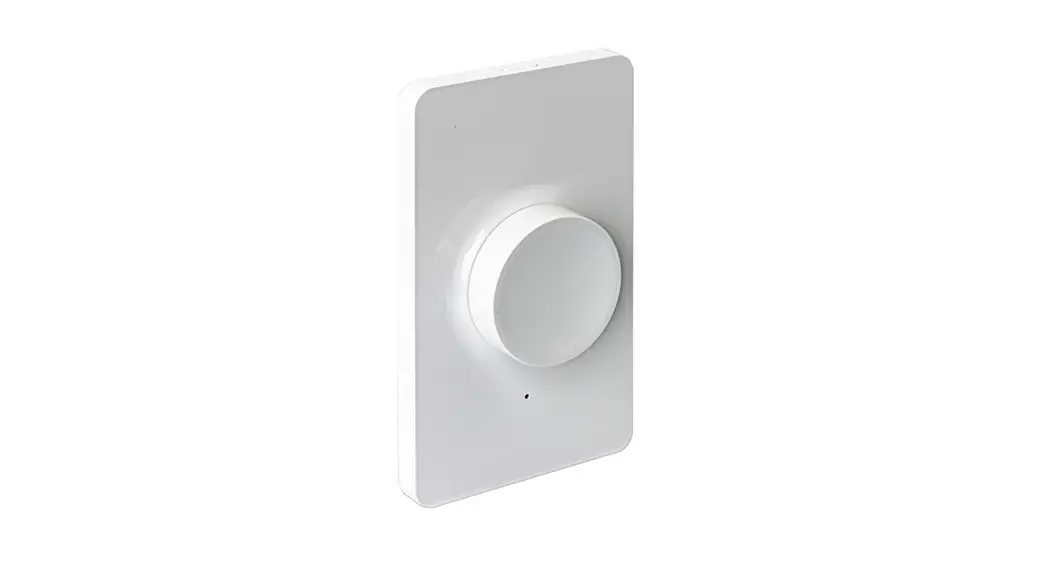
LF-BL-A3 Bluetooth Dimmer
Product Information:
| Model | Input Voltage Range | Output Voltage Range* | Max Input Current | Max Output Current | Operating Temperature | Max Recommended Communication Distance (varies by device) | Weight |
|---|---|---|---|---|---|---|---|
| Bluetooth Dimmer | Not specified in the manual | Not specified in the manual | Not specified in the manual | Not specified in the manual | Not specified in the manual | 80 ft (25 m) | 1.6 oz (45 g) |
Product Usage Instructions:
Downloading the App:
The app can be downloaded by scanning the provided QR code or by
searching for “Open-Lit” in the Apple App Store or Google Play
Store.
Phone/Tablet App Registration:
- Ensure Bluetooth is enabled on your device.
- Open the app and select “Register” on the top right.
- Select a password and email combination for your account, then
press the “Register” button. - Return to the home screen and log in.
Note: The dimmer can only be paired to one account at a time.
However, the same account can be used on multiple devices to access
the same dimmer.
Pairing Dimmer to Phone/Tablet:
- Once logged in, and with your device on the appropriate setting
(RGB, CCT, or single color dimming), press the “Add device”
button. - Select the “Add Bluetooth device” option.
- A configuration screen will be displayed which will
automatically pair the dimmer and the phone/tablet. - Once the process is finished, the app will return to the home
screen, where the dimmer will now appear.
Renaming or Removing Dimmer:
Once a dimmer is successfully paired, you can change the name of
the paired dimmer by swiping to the left on the dimmer name and
selecting the “rename” button. Select the “delete” option to unpair
the dimmer from the account.
Light Function:
The dimmer features 6 brightness presets. There is also a
brightness control slider and a master on/off button located on the
screen.
Mode Selection:
This screen features 3 preset patterns.
Timing:
Up to 16 on or off timer settings can be saved to automate the
dimmer function. The dimmer will remain on the same setting it was
using previously when powered back on.
Device Name:
Note: Each time the mode on the dimmer is changed, the dimmer
will need to be re-paired with the account on the phone/tablet.
Note: RGB and white cannot be used at the same time.
User Manual
Bluetooth Dimmer
Safety and Notes
· Product should be installed and serviced in accordance with applicable national, state, and local building and electrical codes.
· To reduce the risk of electric shock, ensure that the main power source and circuit breakers are switched off before performing any installation or wiring procedures.
· Failure to properly secure dimmer, may result in damage, for which the manufacturer does not assume responsibility.
· Intended for indoor use only. · Auto-transmitting function relays signal
to additional compatible dimmers in 80 ft (25 m) range.
Specifications
Model Input Voltage Range Output Voltage Range* Max Input Current
Max Output Current Operating Temperature Max Recommended Communication Distance (varies by device) Weight
LF-BL-A3 924 VDC 924 VDC
6 Amps 6 Amps -22°131° F (-30°55° C)
80 ft (25 m)
1.6 oz (45 g)
1.1in 27.94mm
.43in 10.92mm
4.78in 121.51mm
7.14in 181.36mm
*Output voltage will not exceed input voltage.
Wiring Diagram
Power Supply (not included)
Reset Button
Downloading the App
The app can be downloaded by scanning the above QR code or by searching for “Open-Lit” in the Apple App Store or Google Play Store.
Phone/Tablet App Registration
DC Input (5.5 mm x 2 mm)
DC Output (5.5 mm x 2 mm)
The reset button can be used to unpair dimmer. If dimmer has issues pairing, this can also be used to reset to default settings.
1. Ensure Bluetooth is enabled on the device.
2. Open the app and select “Register” on the top right.
3. Select an password and email combo for account, then press “Register” button.
4. Return to home screen and log in.
Note: Dimmer can only be paired to one account at a time. However, the same account can be used on multiple devices to access the same dimmer.
2 3
Pairing Dimmer to Phone/Tablet
1. Once logged in, and with device on the appropriate setting (RGB, CCT, or single color dimming), press “Add device” button.
2. Select “Add Bluetooth device” option.
Pairing Dimmer (cont.)
3. A configuration screen will be displayed which will automatically pair the dimmer and the phone/tablet.
4. Once the process is finished, app will return to the home screen, where the dimmer will now appear.
3
4 1
2
Renaming or Removing Dimmer
Once a dimmer is successfully paired, the name of the paired dimmer can be changed by swiping to the left on the dimmer name and selecting “rename” button. Select the delete option to unpair the dimmer from the account.
Light Function
There are 6 brightness presets. A brightness control slider and a master on/off button are also located on this screen.
Mode Selection This screen features 3 preset patterns.
Timing Up to 16 on or off timer settings can be saved to automate dimmer function. The dimmer will remain on the same setting it was using previously when powered back on.
Device Name
Note: Each time the mode on the dimmer is changed, the dimmer will need to be re-paired with account on phone/tablet.
Note: RGB and white can not be used at the same time.