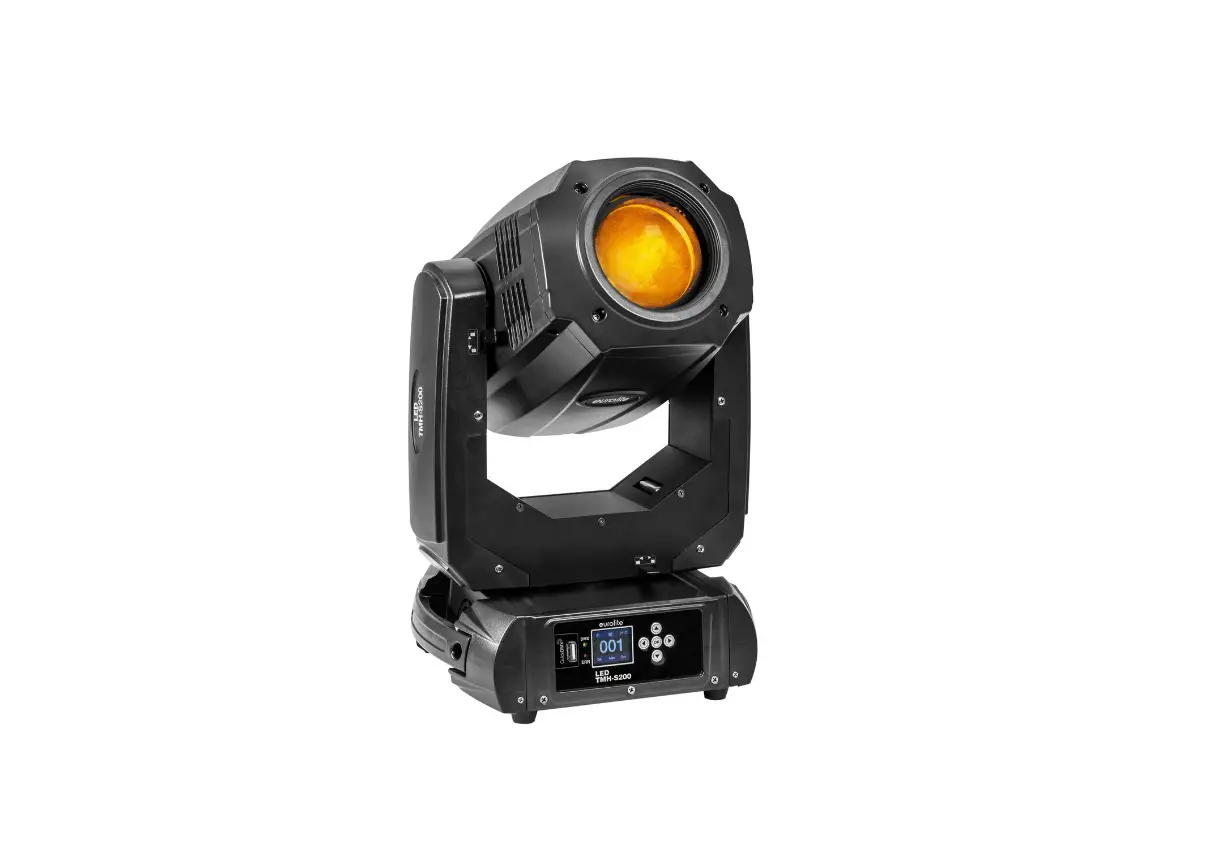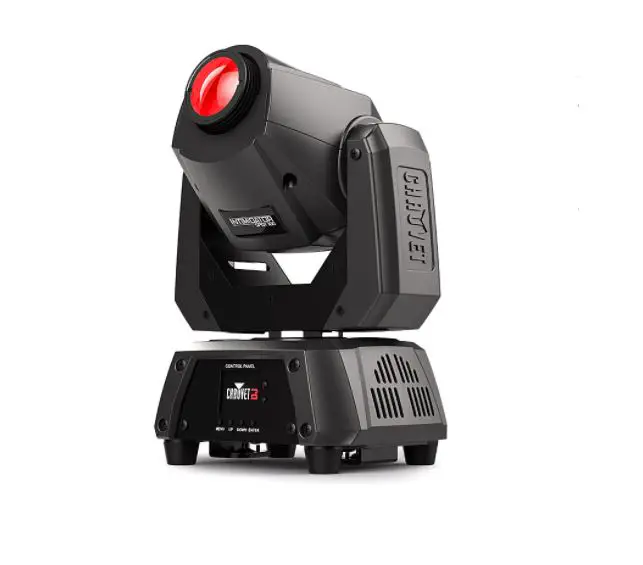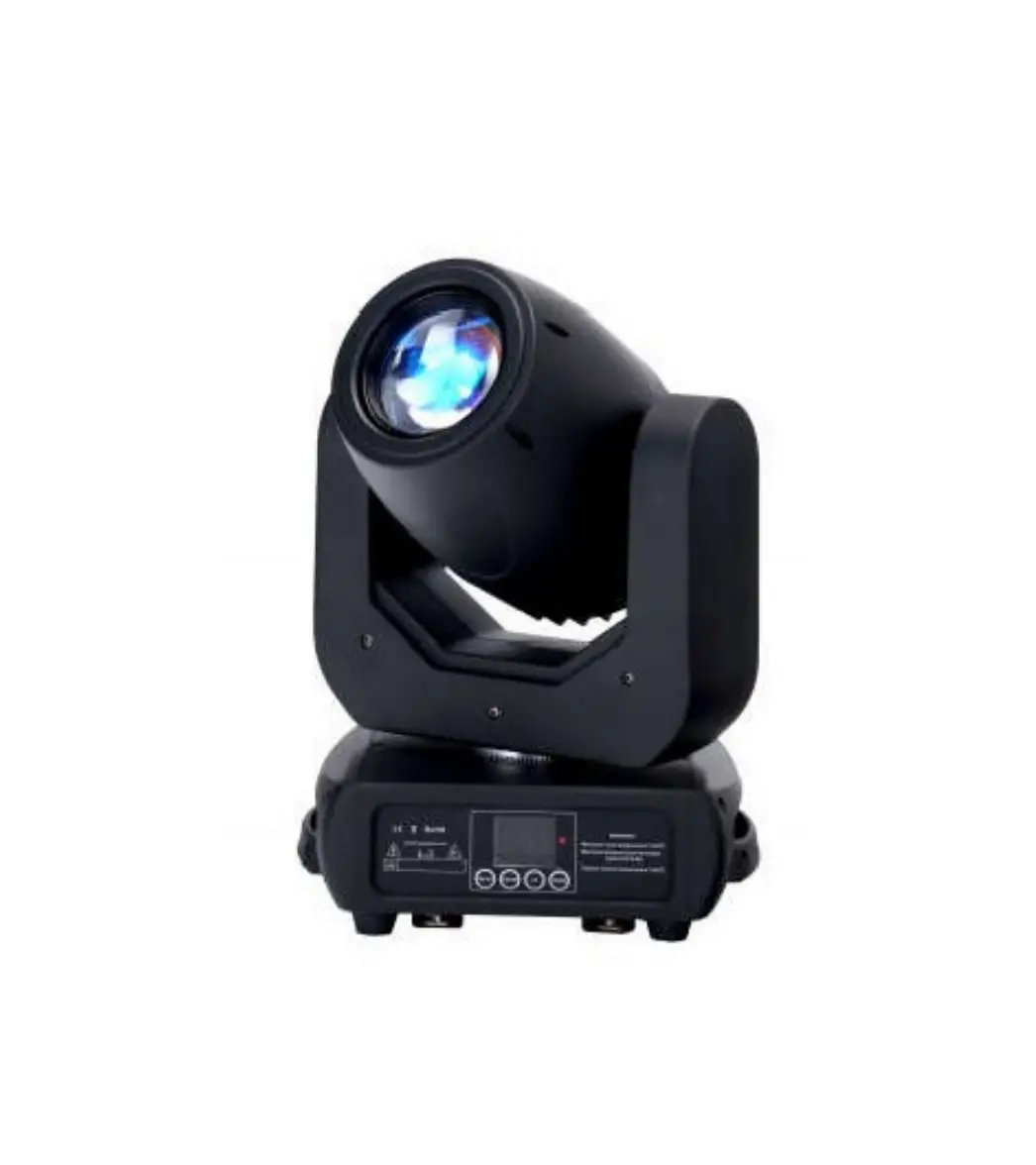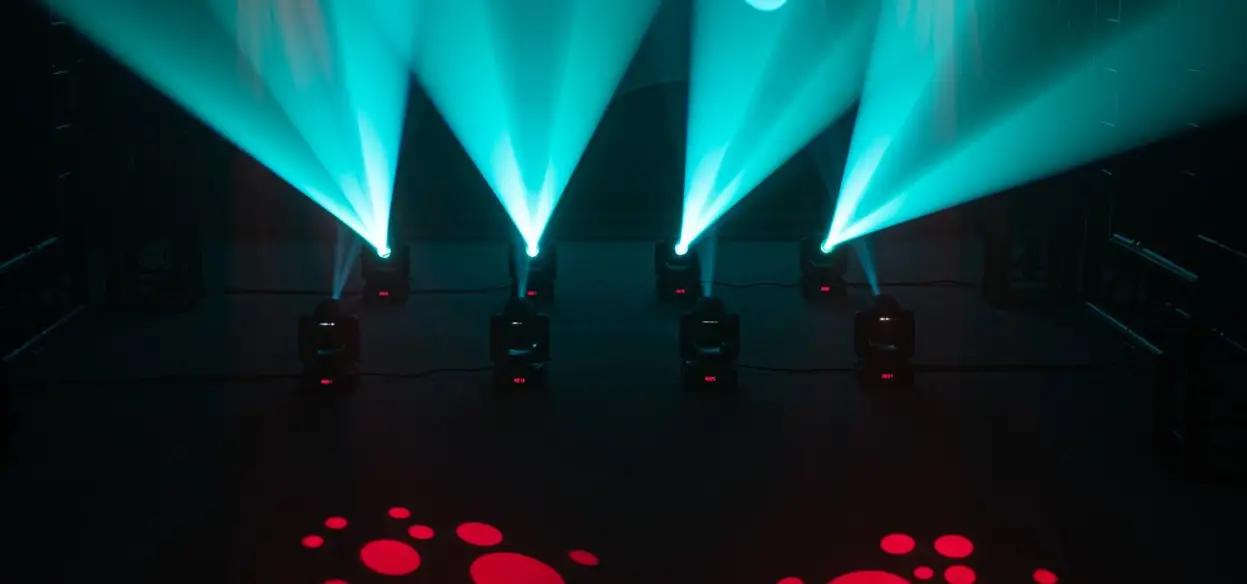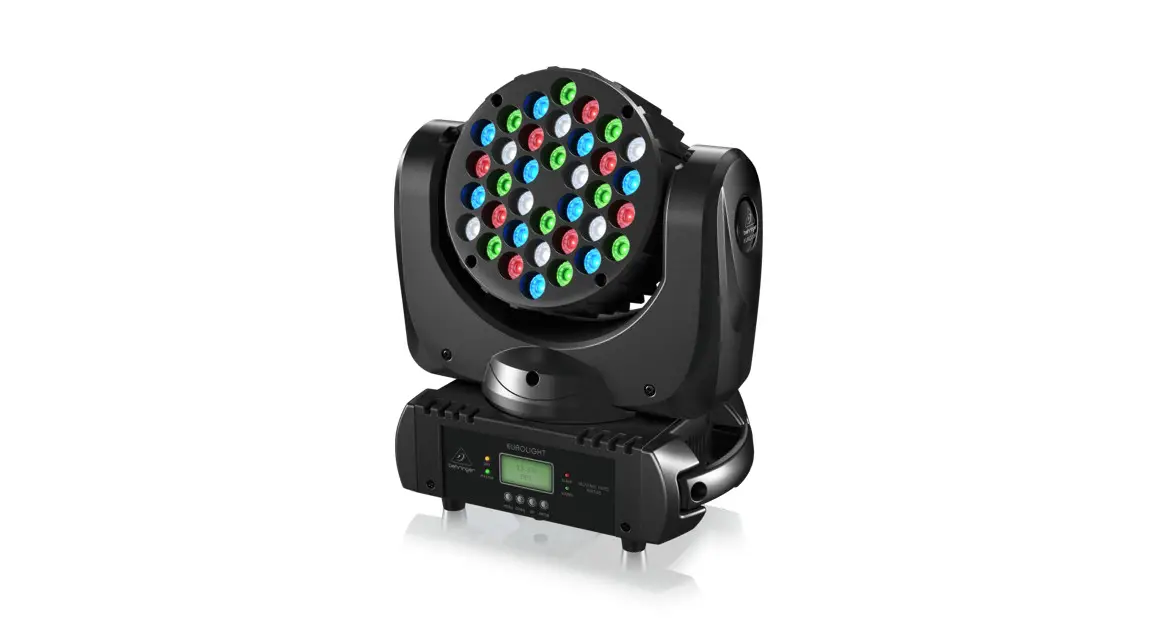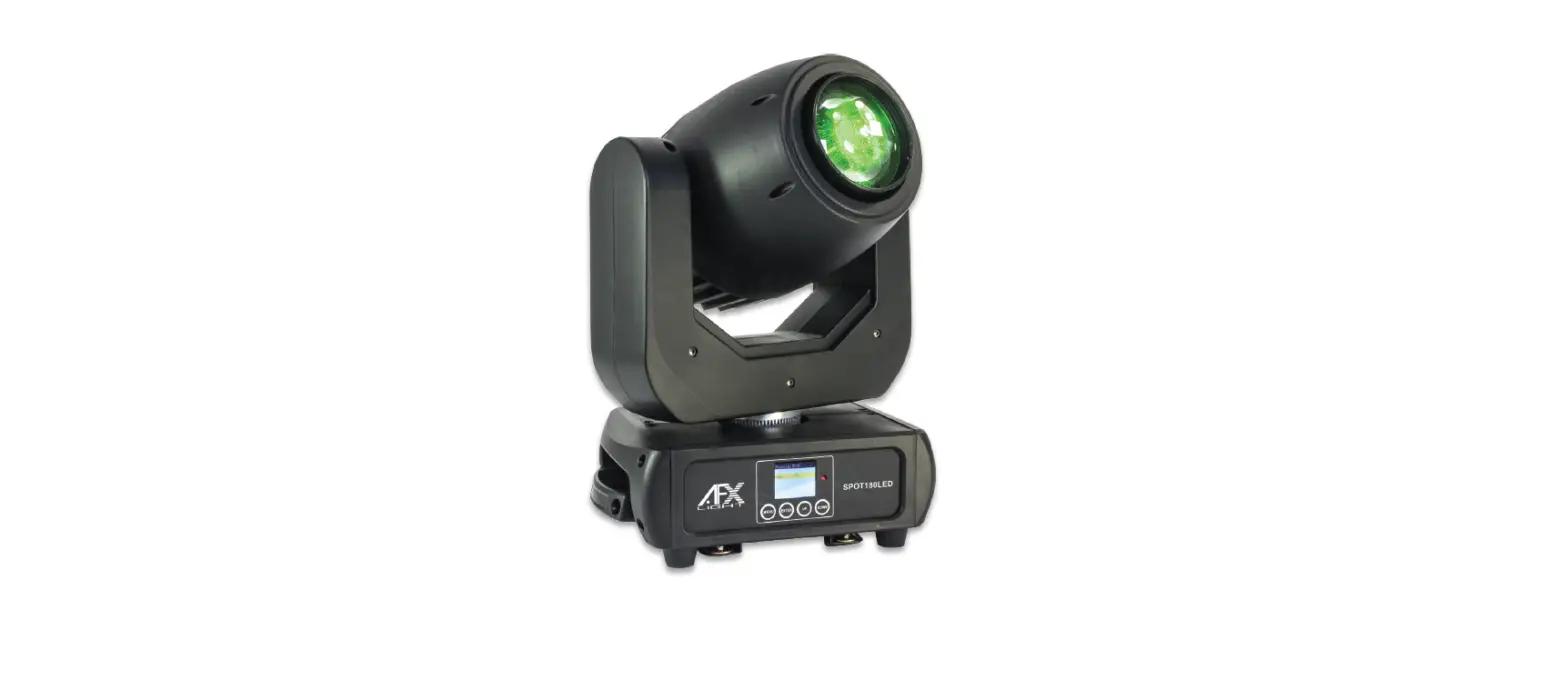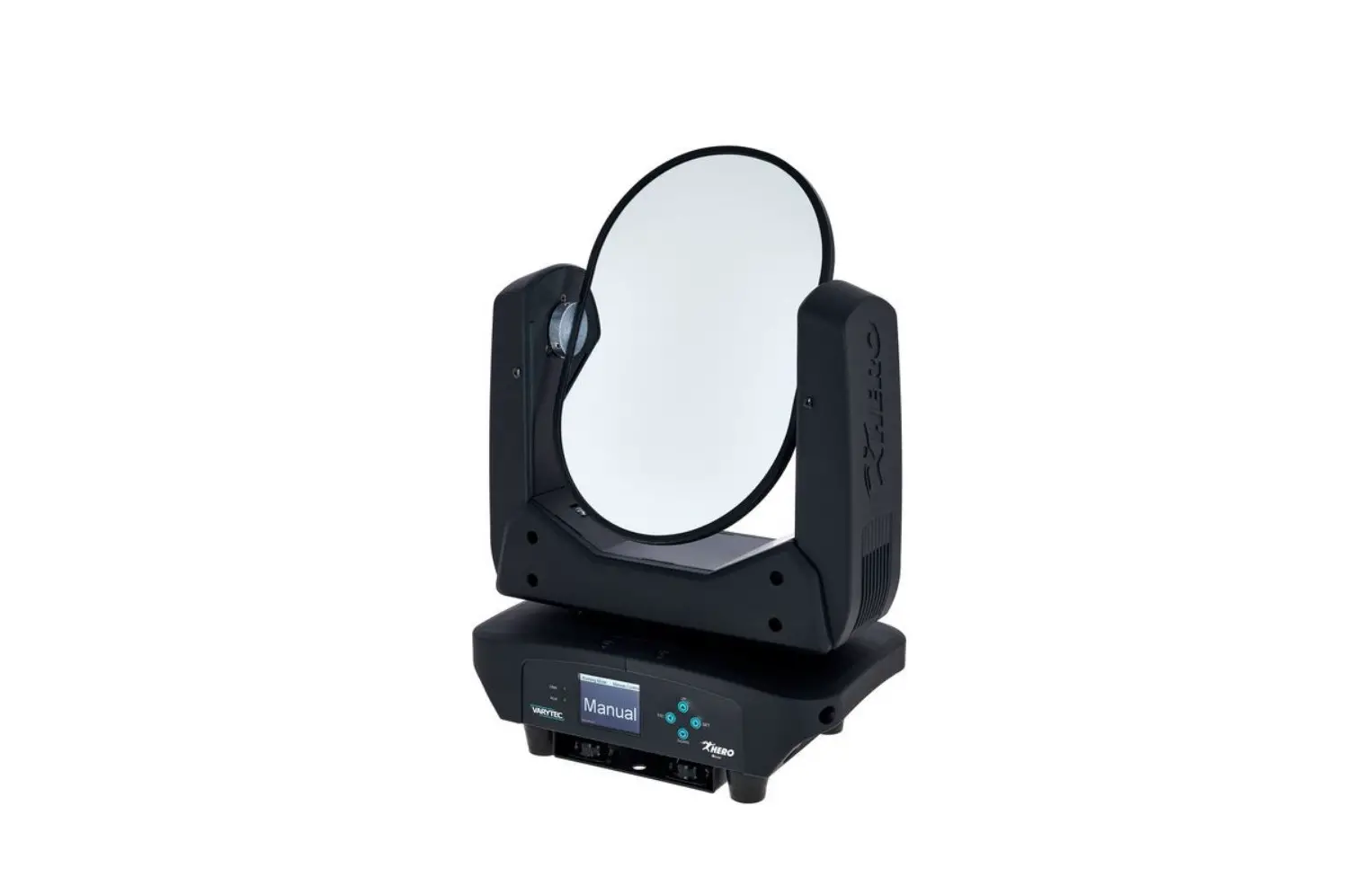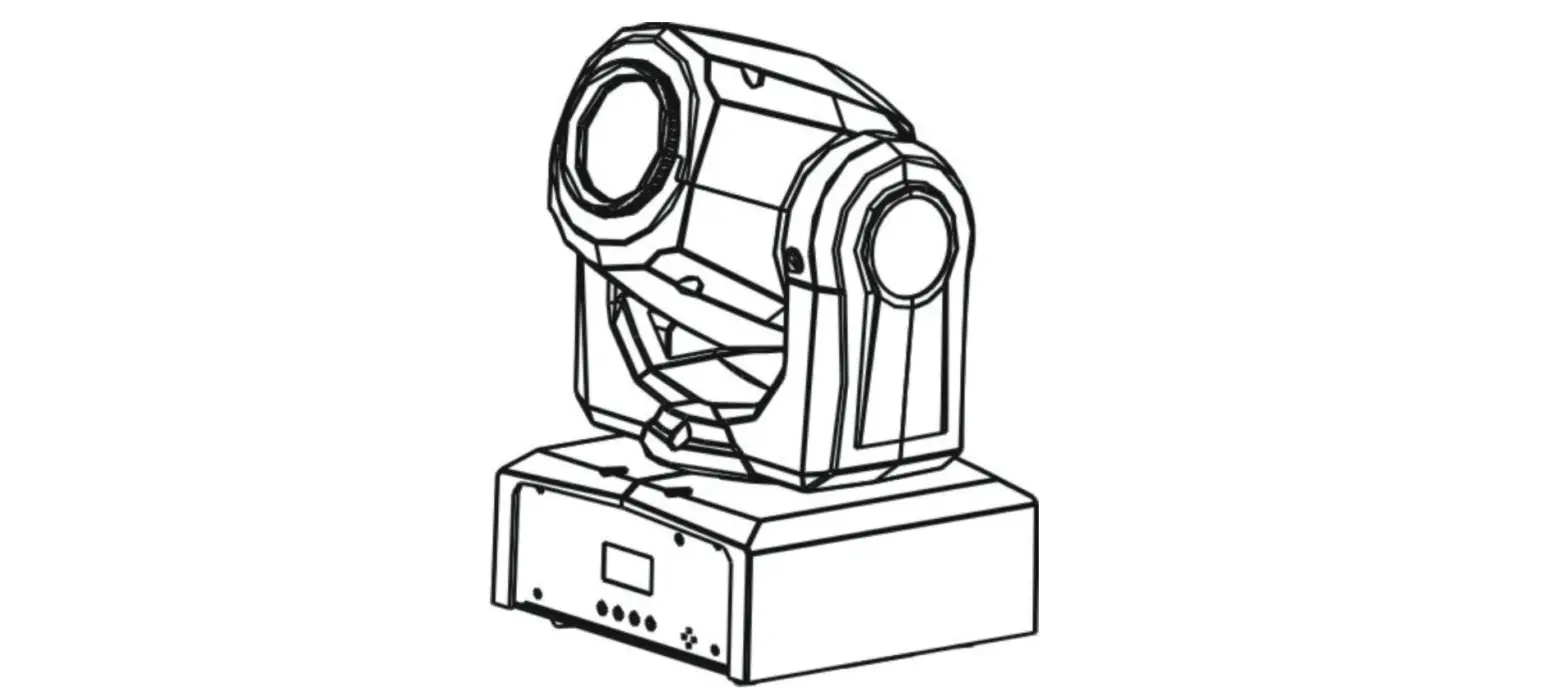
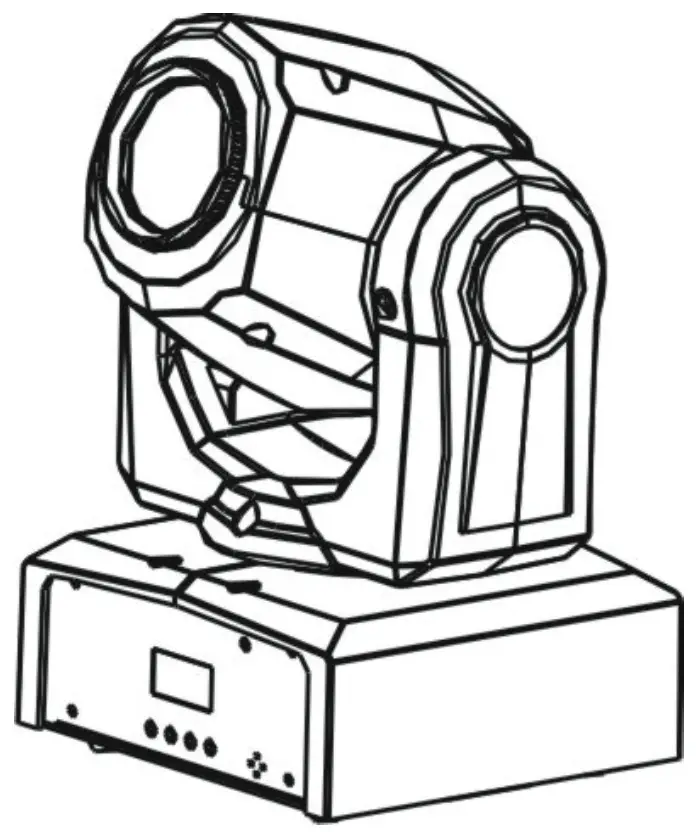
EQUINOX EQLED004B Fusion Spot Xp MKIII Moving Head
Safety Instruction
WARNING
Please keep this User Guide for future consultation. If you sell the unit to another user be sure that they also receive this. Unpack and check carefully that there is no transportation damage before using the unit.
- Before operating, ensure that the voltage and frequency of the power supply match the power requirements of the unit.
- It’s important to ground the yellow/green conductor to earth in order to avoid electric shock.
- The unit is for indoor use only. Use only in a dry location.
- The unit must be installed in a location with adequate ventilation, at least 50cm from adjacent surfaces. Be sure that no ventilation slots are blocked.
- Disconnect the mains power before replacement or servicing.
- Make sure there are no flammable materials close to the unit while operating as they may cause a fire hazard.
- Always use a safety cable when installing this unit. Do not carry the unit with its head only; always carry it using the base.
- The maximum ambient temperature is: 40°. Don’t operate it where the temperature is higher than this.
- In the event of a serious operating problem stop using the unit immediately. Never try to repair the unit by yourself. Repairs carried out by unskilled people can lead to damage or malfunction. Please contact the nearest authorized technical assistance center. Always use the same type spare parts.
- Do not touch any power cables during operation as the high voltage may cause an electric shock.
Warning
- To prevent or reduce the risk of electrical shock or fire, do not expose maintenance.
- The housing and lenses must be replaced if they are visibly damaged.
- This lighting fixture is for professional use only – it is not designed for or suitable for household use. The product must be installed by a qualified technician in accordance with local territory regulations. The safety of the installation is the responsibility of the installer. The fixture presents risks of severe injury or death due to fire hazards, electric shock and falls.
- Warning! Risk Group 2 LED product according to EN 62471. Do not view the light output with optical instruments or any device that may concentrate the beam.
- WARRANTY: One year from date of purchase.
Installation
The unit should be mounted via its screw holes onto the bracket. Always ensure that the unit is firmly fixed to avoid vibration and slipping while operating. Make sure that the structure to which you are attaching the unit to is secure and is able to support a weight of 10 times of the unit’s weight. Always use a safety cable that can hold 12 times of the weight of the unit when installing the fixture.
The equipment must be installed by professionals and it must be installed in a place where is out of the reach of people and no one can pass by or under it.
Features & Technical Specifications
- Control: Sound active, Auto, Master/slave and DMX-512 modes
- DMX Channels: 1CH/8CH/10CH
- Gobos: 7 Gobos + open
- Colors: 7 Colors + Open
- Electronic dimming: 0-100%
- Compact size and light-weight
- Voltage: 100V~240V, 50/60Hz
- Fuse: T6.3A 250V
- Power consumption: 82W
- Light source: 1 x 50W white LED
- Dimension: 159 x 147 x 265mm
- Weight: 2.6 kg
- Pan/Tilt: 540°/190°
- Power sockets: IEC power input
- XLR sockets: 3-Pin XLR input/output
How To Set The Unit
Control panel
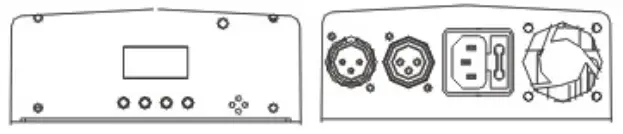
Display
Shows the various menus and selected functions
Buttons
| MENU | Selects the programming functions |
| DOWN | To go backward in the selected functions |
| UP | To go forward in the selected functions |
| ENTER | Confirms the selected functions |
Mains input
Connection to the power supply.
DMX input/output
For DMX 512 linking. Use a 3-pin XLR cables to link to the controller or to other units.
Main Functions
To select any of the given functions, press the MENU button up to where the required function is showing on the display. Select the function by pressing the ENTER button and the display will blink. Use the DOWN and UP buttons to change the mode. Once the required mode has been selected, press the ENTER button to confirm. To go back to the functions without any changes, press the MENU button again. Press and hold the MENU button for one second or wait for one minute to go back to the main menu.
The main functions are as below:
|
Menu | ADDR | 001-512 |
| CHND | 1CH/8CH/10CH | |
| SLMD | MAST | |
| SL1 | ||
| SL2 |
|
SHND | SH1 | |
| SH2 | ||
| SH3 | ||
| SH4 | ||
| SOUN | ON | |
| OFF | ||
| SENS | 000-100 | |
| LED | ON | |
| OFF | ||
| DISP→INVERT | ||
| PAN INVERT | YES | |
| NO | ||
| TILT INVERT | YES | |
| NO | ||
| TEST | Self-Test | |
| VER | Software Version | |
| RSET | RSET | |
DMX Address Setting
Press the MENU button to select . Press the ENTER button and the display will blink. Use the DOWN and UP buttons to choose the address to confirm. To go back to the functions without any changes press the MENU button again. Press and hold the MENU button for one second or wait for one minute to go back to the main menu.
Channel Mode
Press the MENU button to select . Press the ENTER button and the display will blink. Use the DOWN and UP buttons to select the Channel) mode, (8 Channel) mode or (10 Channel) mode. Once the mode has been selected, press the ENTER button to confirm. To go back to the functions without any changes press the MENU button again. Press and hold the MENU button for one second or wait for one minute to go back to the main menu.
Master Mode or Slave Mode
Press the MENU button to select . Press the ENTER button and the display will blink. Use the DOWN and UP buttons to select the (Slave 1), (Slave 2) or (Master) mode. Once the mode has been selected, press the ENTER button to confirm. To go back to the functions without any changes press the MENU button again. Press and hold the MENU button for one second or wait for one minute to go back to the main menu.
Show Mode
Press the MENU button to select . Press the ENTER button and the display will blink. Use the DOWN and UP buttons to select the (show 1) or (show 2) or (show 3) or (show 4) mode. Once the mode has been selected, press the ENTER button to confirm. To go back to the functions without any changes press the MENU button again. Press and hold the MENU button for one second or wait for one minute to go back to the main menu.
Sound Mode
Press the MENU button to select . Press the ENTER button and the display will blink. Use the DOWN and UP buttons to select the (sound on) or (sound off) mode. Once the mode has been selected, press the ENTER button to confirm. To go back to the functions without any changes press the MENU button again. Press and hold the MENU button for one second or wait for one minute to go back to the main menu.
Sound Sensitivity
Press the MENU and use the UP and DOWN buttons to select and select the sound sensitivity between value 0 and 100. Press the ENTER button for confirmation after value selection. To go back to the functions without any changes press the MENU button again.
Led Display
Press the MENU button to select . Press the ENTER button and the display will blink. Use the DOWN and UP buttons to select the (Led display on) or (Led display off) mode. Once the mode has been selected, press the ENTER button to confirm. To go back to the functions without any changes press the MENU button again. Press and hold the MENU button for one second or wait for one minute to go back to the main menu.
Display Inversion
Press the MENU button to select . Press the ENTER button to change the mode (display normal), it will be automatically saved after 8 seconds. Press the ENTER button again to select the mode (display inversion). To go back to the functions press the MENU button. Press and hold the MENU button for one second or wait for one minute to go back to the main menu. Display normal mode is for floor standing the unit. Display inversion mode is for hanging the unit upside down.
Pan Inversion
Press the MENU button to select . Press the ENTER button and the display will blink. Use the DOWN and UP buttons to select the (normal) or (pan inversion) mode. Once the mode has been selected, press the ENTER button to confirm. To go back to the functions without any changes press the MENU button again. Press and hold the MENU button for one second or wait for one minute to go back to the main menu.
Tilt Inversion
Press the MENU button to select . Press the ENTER button and the display will blink. Use the DOWN and UP buttons to select the (normal) or (tilt inversion) mode. Once the mode has been selected, press the ENTER button to confirm. To go back to the functions without any change press the MENU button again. Press and hold the MENU button for one second or wait for one minute to go back to the main menu.
Auto-Test
Press the MENU button to select . Press the ENTER button and the unit will run a self-test with its built-in programs. To go back to the functions without any changes press the MENU button again. Press and hold the MENU button for one second or wait for one minute to go back to the main menu.
Software version
Press the MENU button up to when the is blinking on the display. Pressing ENTER button and the display will show the version of software of the unit. To go back to the functions press the MENU button.
Reset
Press the MENU button to select . Press the ENTER button and all channels of the unit will return to their standard position.
How To Control The Unit
- Master/slave built-in preprogram function
- Universal DMX controller
There is no need to turn the unit off when you change the DMX address as new DMX address setting will take effect at once. Every time you turn the unit on, it will show “ ”on the display and move all the motors to their ‘home’ position and you may hear some noises for about 20 seconds. After that the unit will be ready to receive a DMX signal or run the built in programs.
Master/Slave Built In Preprogrammed Function
By linking the units in master/slave connection, the first unit will control the other units to give an automatic, sound activated, synchronized light show. This function is good when you want an instant show. You have to set the first unit as master and select show 1, show 2, show 3 or show 4 from the Show Mode. The other unigts must be set to either Slave 1 (normal) or Slave 2 (2 light show) mode. A DMX cable between the units for daisy chaining is needed.
light show
In slave mode, Slave 1 means the unit works normally and Slave 2 means 2-light show. In order to create a great light show, you can set Slave 2 on the second unit to get a random mirror image of master unit includes pan and tilt inversion.
DMX Controller
By using a universal DMX controller to control the units, you will need to set a DMX address from 1 to 512 so that the units can receive a DMX Press the ENTER button and the display will blink. Use the DOWN and UP buttons to change the DMX-512 address. Once the address has been selected, press the ENTER button to confirm. To go back to the functions without any changes press the MENU button again. Press and hold the MENU button one second or wait for one minute to go back to the main menu.
Please refer to the below diagram to address your first 4 units:
| Channel mode | Unit 1 Address | Unit 2 Address | Unit 3 Address | Unit 4 Address |
| 1 channel | 1 | 2 | 3 | 4 |
| 8 channel | 1 | 9 | 17 | 25 |
| 10 channel | 1 | 11 | 21 | 31 |
1 CHANNEL MODE
| Channel | Function | Value |
|
1 | Blackout | 000-007 |
| Show 1 | 008-067 | |
| Show 2 | 068-127 | |
| Show 3 | 128-187 | |
| Show 4 | 188-247 | |
| Random shows | 248-255 |
8 CHANNEL MODE
| Channel | Function | Value | Percent / Setting |
| 1 | Pan | 000-255 | Pan 0°~ 540° |
| 2 | Tilt | 000-255 | Tilt 0°~ 190° |
| 000-007 | White | ||
| 008-014 | Light Blue | ||
| 015-021 | Pink | ||
| 022-028 | Orange | ||
| 029-035 | Green | ||
| 3 | Colour | 036-042 043-049 | Blue Yellow |
| 050-056 | Red | ||
| 057-127 | Split colors | ||
| 128-189 | Color Scroll Fast to Slow | ||
| 190-193 | Stop | ||
| 194-255 | Color Scroll Slow to Fast |
| 000-007 | Gobo 1 (Open) | ||
| 008-015 | Gobo 2 | ||
| 016-023 | Gobo 3 | ||
| 024-031 | Gobo 4 | ||
| 032-039 | Gobo 5 | ||
| 040-047 | Gobo 6 | ||
| 048-055 | Gobo 7 | ||
| 056-063 | Gobo 8 | ||
| 064-071 | Gobo 1 Shake | ||
| 072-079 | Gobo 2 Shake | ||
| 080-087 | Gobo 3 Shake | ||
| 4 | Gobo | 088-095 096-103 | Gobo 4 Shake Gobo 5 Shake |
| 104-111 | Gobo 6 Shake | ||
| 112-119 | Gobo 7 Shake | ||
| 120-127 | Gobo 8 Shake | ||
| 128-189 | Gobo Scroll, Fast to Slow | ||
| 190-193 | Stop | ||
| 194-255 | Gobo Scroll , Slow to Fast | ||
| 120-127 | Gobo 8 Shake | ||
| 128-189 | Gobo Scroll, Fast to Slow | ||
| 190-193 | Stop | ||
| 194-255 | Gobo Scroll , Slow to Fast | ||
| 000-007 | Close | ||
| 008-015 | Open | ||
| 016-131 | Strobe Slow->Fast | ||
| 132-139 | Open | ||
| 5 | Shutter | 140-181 182-189 | Fast Close Slow Open Open |
| 190-231 | Fast Open Slow Close | ||
| 232-239 | Open | ||
| 240-247 | Random Strobe | ||
| 248-255 | Open | ||
| 6 | Pan/Tilt Speed | 000-255 | Fast -> Slow |
| 000-069 | Null | ||
| 070-079 | Blackout while Pan/Tilt Move | ||
| 080-089 | Null | ||
| 090-099 | Blackout when Color changes | ||
| 7 | Function | 100-109 110-119 | Null Blackout when Gobo changes |
| 120-199 | Null | ||
| 200-209 | Reset All | ||
| 210-249 | Null | ||
| 250-255 | Sound Active | ||
| 8 | Dimmer | 000-255 | 0~100% |
10 CHANNEL MODE
| Channel | Function | Value | Percent / Setting |
| 1 | Pan1 | 000 – 255 | Pan 0°~ 540° |
| 2 | Pan Fine | 000 – 255 | 0~100% |
| 3 | Tilt | 000-255 | Tilt 0°~ 190° |
| 4 | Tilt Fine | 000-255 | 0~100% |
| 000-007 | White | ||
| 008-014 | Light Blue | ||
| 015-021 | Pink | ||
| 022-028 | Orange | ||
| 029-035 | Green | ||
| 5 | Colour | 036-042 043-049 | Blue Yellow |
| 050-056 | Red | ||
| 057-127 | Split colors | ||
| 128-189 | Color Scroll Fast to Slow | ||
| 190-193 | Stop | ||
| 194-255 | Color Scroll Slow to Fast | ||
| 000-007 | Gobo 1 (Open) | ||
| 008-015 | Gobo 2 | ||
| 6 | Gobo | 016-023 024-031 | Gobo 3 Gobo 4 |
| 032-039 | Gobo 5 | ||
| 040-047 | Gobo 6 |
| 048-055 | Gobo 7 | ||
| 056-063 | Gobo 8 | ||
| 064-071 | Gobo 1 Shake | ||
| 072-079 | Gobo 2 Shake | ||
| 080-087 | Gobo 3 Shake | ||
| 088-095 | Gobo 4 Shake | ||
| 096-103 | Gobo 5 Shake | ||
| 104-111 | Gobo 6 Shake | ||
| 112-119 | Gobo 7 Shake | ||
| 120-127 | Gobo 8 Shake | ||
| 128-189 | Gobo Scroll, Fast to Slow | ||
| 190-193 | Stop | ||
| 194-255 | Gobo Scroll , Slow to Fast | ||
| 000-007 | Close | ||
| 008-015 | Open | ||
| 016-131 | Strobe Slow->Fast | ||
| 132-139 | Open | ||
| 7 | Shutter | 140-181 182-189 | Fast Close Slow Open Open |
| 190-231 | Fast Open Slow Close | ||
| 232-239 | Open | ||
| 240-247 | Random Strobe | ||
| 248-255 | Open | ||
| 8 | Pan/Tilt Speed | 000-255 | Fast -> Slow |
| 000-069 | Null Blackout while Pan/Tilt Move Null Blackout when Color changes Null Blackout when Gobo changes Null Reset All Null Sound Active | ||
| 070-079 | |||
| 080-089 | |||
| 090-099 | |||
| 9 | Function | 100-109 110-119 | |
| 120-199 | |||
| 200-209 | |||
| 210-249 | |||
| 250-255 | |||
| 10 | Dimmer | 000-255 | 0~100% |
Troubleshooting
Following are a few common problems that may occur during operation and some suggestions for easy troubleshooting:
- The unit does not work, no light and the fan does not work
- Check the connection of the power and the main fuse.
- Not responding to DMX controller
- DMX LED should be on. If not, check DMX cables to see if linked correctly.
- If the DMX address is showing but no response to the controller, check the address settings and DMX polarity.
- Try another DMX controller.
- No response to the sound
- Make sure the unit is not receiving a DMX signal.
- Check the microphone to see if it is good by tapping it. The microphone is located on the bottom plate of the unit.
Fixture Cleaning
The cleaning of external optical lenses must be carried out periodically to optimize light output. Cleaning frequency depends on the environment in which the fixture operates: damp, smoky or particularly dirty surrounding can cause a greater accumulation of dirt on the unit’s optics. Clean with a soft cloth using normal glass cleaning fluid or mild soapy water.
- Always dry the parts carefully.
- clean the external optics at least every 20 days.
 The Prolight Concepts Group Home Page