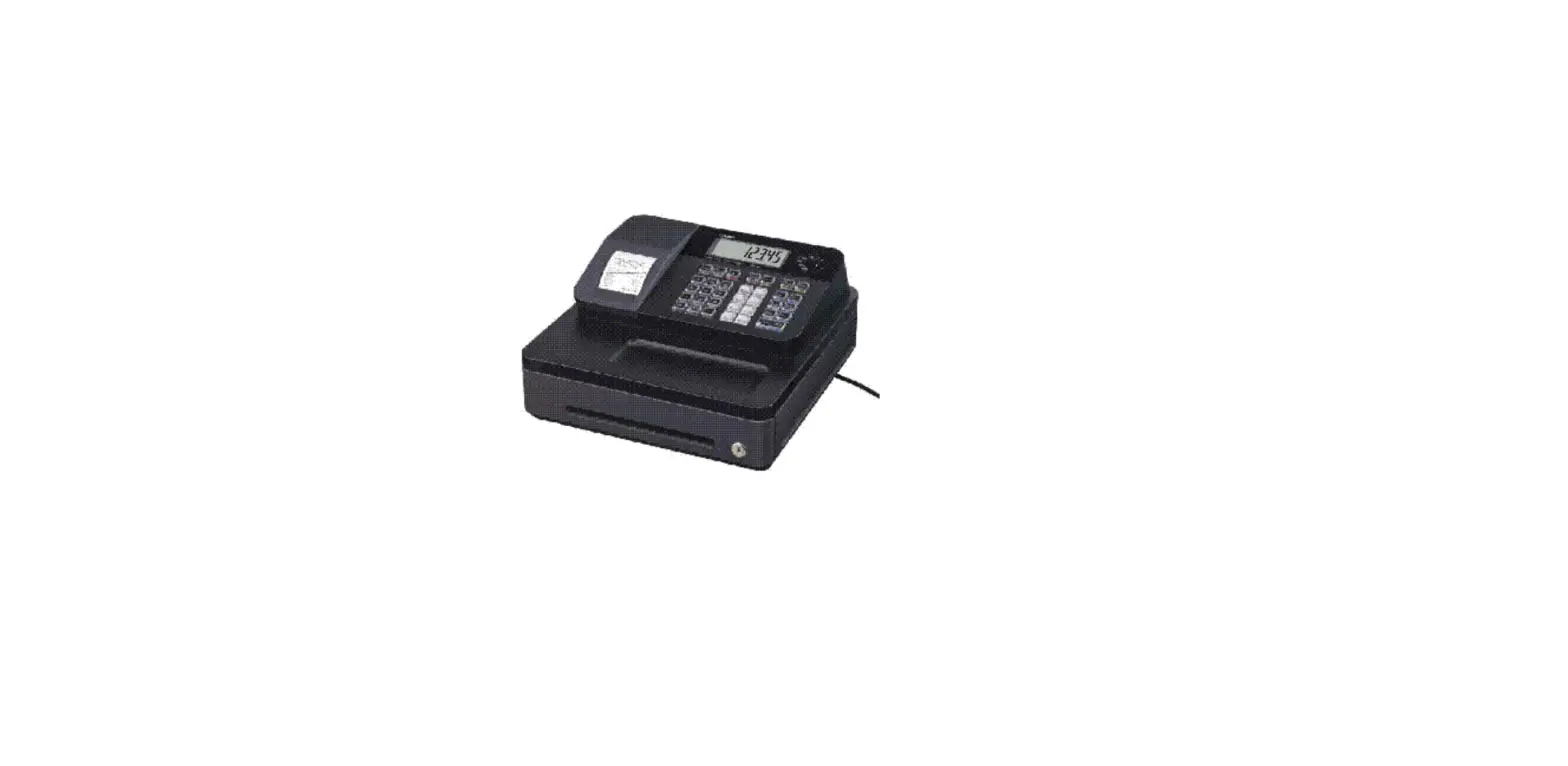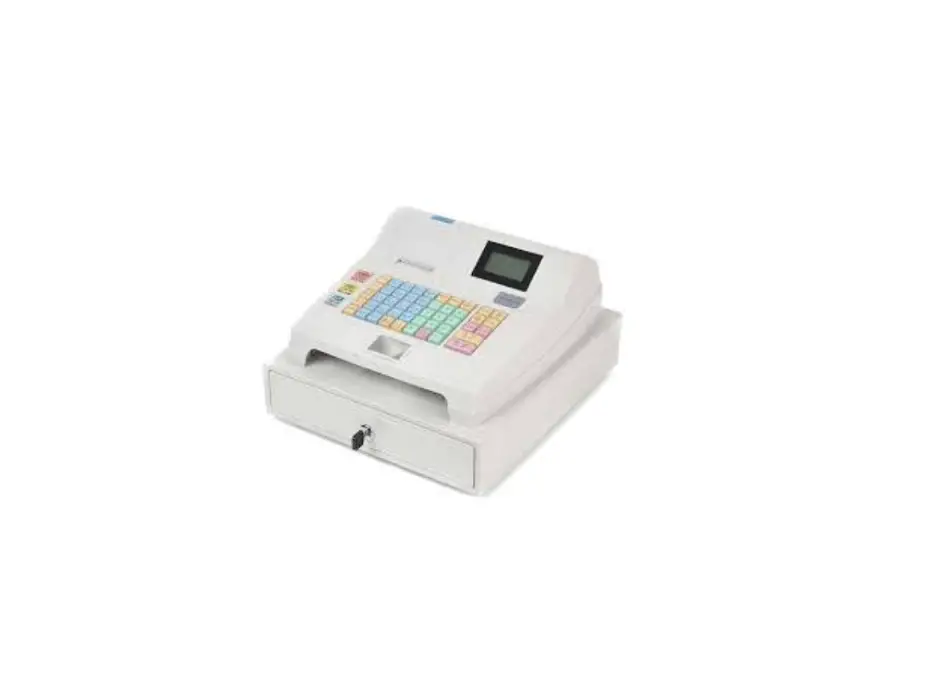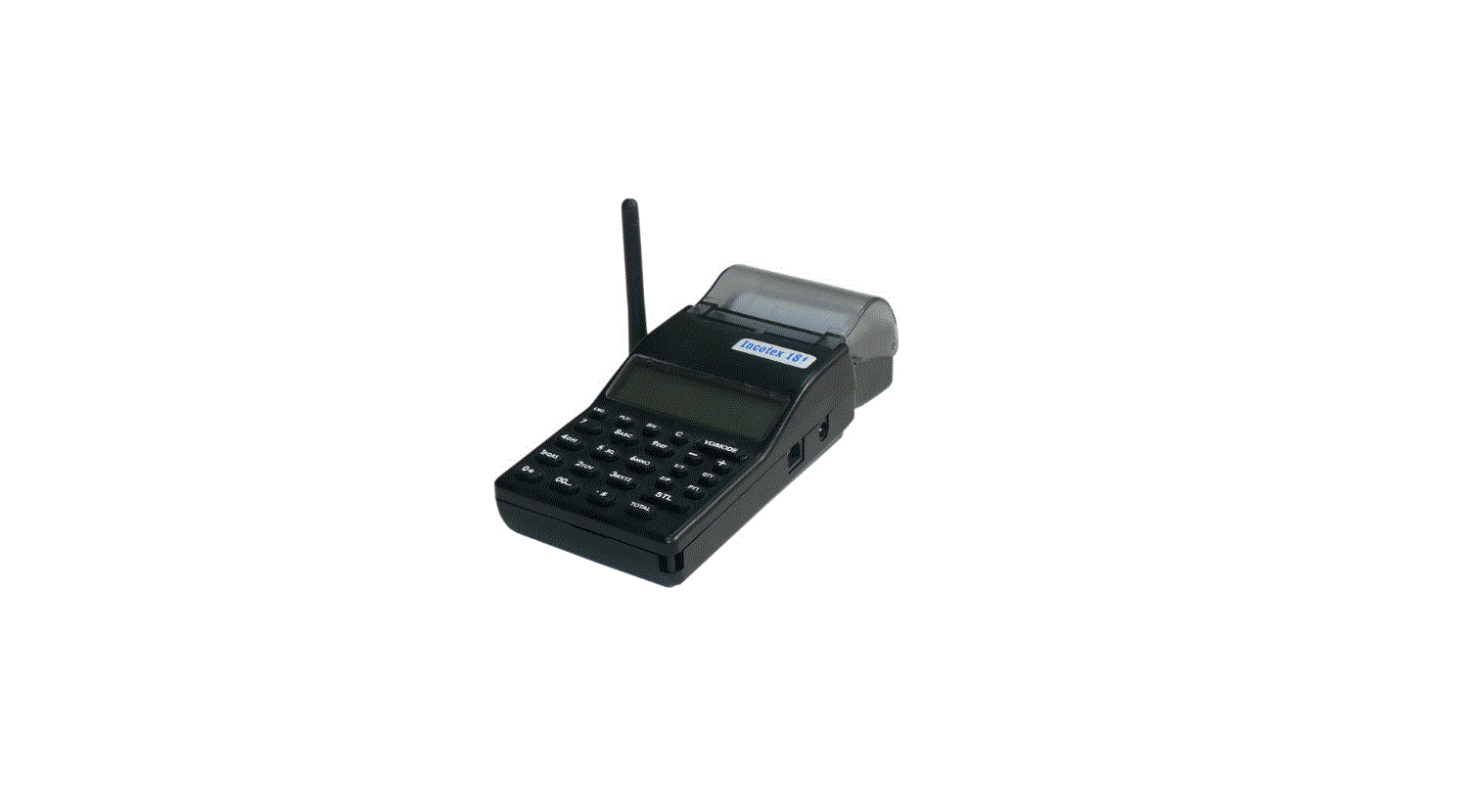

INCOTEX 181 Electronic Cash Registers User Manual
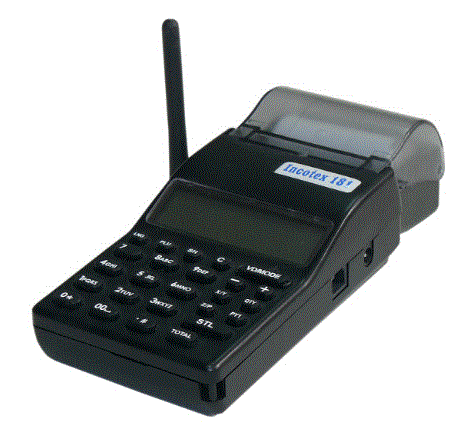
TIMS SIMPLIFIED MANUAL (INCOTEX 181)
- POWERING ON
- a. Hold
 the Button for 7 seconds (You see on ready/ You hear a BEEP SOUND)
 - b. Release your hand (machine starts initializing process and goes to MODE 1 —— after 7 seconds)
- a. Hold
- POWERING OFF
- a. Hold VD/MODE for 5 seconds till you see OFF RDY
- b. Release your hand. (Machine shall turn OFF immediately)
MODE OF OPERATIONS- MODE 1: REGISTRATION MODE
- MODE 2: X REPORT MODE
- MODE 3: Z REPORT MODE
- MODE 4: PROGRAMMING MODE
- MODE 5: SERVICE MODE `
NAVIGATING THROUGH THE MODES
- To get to the next mode press key.
TO NAVIGATE IN AND OUT OF THE MODES - a) Get in the mode
- Press
 the button once.
 - b) get out of the mode
- Press

 the Button for 7 seconds (You see on ready/ You hear a BEEP SOUND)
 the button once.
LOADING THERMAL ROLL
identify the thermal side of the roll by scratching the paper, Thermal side writes and load the thermal paper while facing the printer head. As illustrated bellow.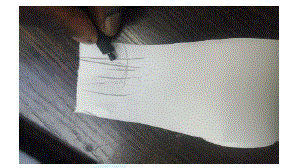
- open the roller cover
- Place thermal roll

- Close roller cover

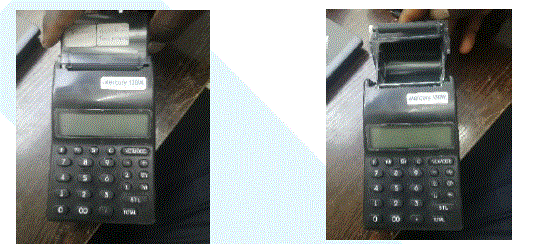
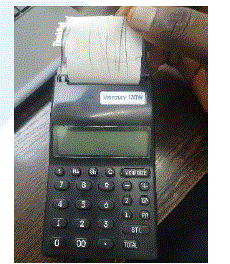
CONNECTING TIMS MACHINE TO WIFI NETWORK
- CONNECTING TO MOBILE/PHONE HOTSPOT
- Go to the mobile Hotspot setting and note down the Wi-Fi name and password (change the name to a simple name e.g., Wi-Fi name: Technical and Password:123456789).
- Go to TIMS machine (Mercury 181/130W/133)
- Power on and go to mode 1/Registration mode
- Press
 the button and Wait for the device to show F, Started.
 - Go to your mobile phone or Laptop.
- Go to the Wi-Fi list and connect to Wi-Fi broadcasted as (KRAMW0090009234)

- Go to your browser e.g., Chrome, Mozilla, or Firefox
- Enter the default IP address 192.168.1.1 on your Browser and search
- Enable Wi-Fi connection parameters
- Key in the SSID (WIFI name) and the
password for the Wi-Fi noted down in the first step. - Submit WIFI and log out
- Go to your Hotspot setting and turn on Hotspot and turn on mobile data.
- Go back to your TIMS device.
- Press
 the button on the machine.
 - Press 1 then the Button to make a connection test.
- When you get the connection test: Fault! Recheck you Wi-Fi name and password
- When you get the connection test: ok (well done Wi-Fi set up successfully done)
- Press to print a status report.
- Press
 to print a status report.
- CONNECTING TO WIFI FROM ROUTER
- Get the Wi-Fi name and Password from your IT Technician note down the Wi-Fi name and password (e.g., Wi-Fi name: Technical and Password:123456789).
- Go to TIMS machine (Mercury 181/130W/133)
- Power on and go to mode 1/Registration mode
- Press the button and Wait for the device to show F, Started.
- Go to your mobile phone or Laptop.
- Go to the Wi-Fi list and connect to Wi-Fi broadcasted as
(KRAMW0090009234) - Go to your browser e.g., Chrome, Mozilla, or Firefox
- Enter the default IP address 192.168.1.1 on your Browser and search
- Enable Wi-Fi connection parameters
- Key in the SSID (WIFI name) and the password for the Wi-Fi noted down in the first step.
- Submit WIFI and log out
- Go back to your TIMS device.
- Press the button on the machine.
- Press 1 then the Button to make a connection test.
- If you get a connection test: Fault! Recheck your Wi-Fi name and password and repeat the setup process.
- If you get connection test: ok (well-done Wi-Fi set up successfully done).
- Pressto print a status report.
 the button and Wait for the device to show F, Started.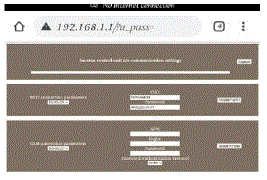
 the button on the machine.
 to print a status report.
MAKING A SALE (TYPE A INCOTEX 181)
Example Service charge link to PLU code 1 VAT 16%
amount inclusive of VAT = KSHS.500,000
STEPS OF MAKING SALES
- Go to Registration mode
- Press
- Key in Amount Inclusive of VAT. E.g., Kshs.500,000.00 then to store the amount.
- Press
 then
then  to store the amount.
 - Key in Item code/PLU code e.g., for Service charge key in 1
- Press
- Press and confirm the invoice. if the invoice is not correct void the sale/Invoice. Press then
 to void Sale
 - Press to issue out the receipt if correct.
 then
then  to store the amount.
 to void Sale
STEPS OF MAKING SALES USING QUANTITY.
- Go to Mode Registration
- Press
- Enter the number of quantities and press the button.
- Key in amount inclusive of VAT for a single quantity. then to store the amount.
- Press then to store the amount.
- Enter the PLU CODE number and the press machine will display the item/service being sold and the registered amount.
- Press STL to confirm the amount.
- press to issue out the receipt
MAKING SALES WITH BUYER’S PIN
Note: The operator must key in Buyer’s Pin with VAT Obligation during this procedure. If not sure kindly check with Itax Pin checker and confirm status.
- Go to Registration mode
- Press
- Press then
 to activate sales with the Buyer’s pin.
 - Press the corresponding key to enter the first letter of the pin.
For example, if P is the first letter press button once
- Press
 twice to switch to digits 123..
 - Key in the 9 digits of the pin
- Press twice to switch to capital letters ABC…
- Key in the last letter of the pin
For example, if the last letter is S press four times to select s. - Press to store the pin digits
- Enter the buyer’s exemption number. If not available press to skip to INVOICE.
- Enter the price which you want to sell at VAT inclusive clear decimal by pressing the (.) button then
- Enter the PLU CODE number and press
- Press then
- Enter the PLU CODE number and press
- Press the button to confirm the receipt printer
(IfINVOICE is not okay as per the sale VOID by pressing SH the 00 Button) - Press to issue out the receipt.
 to activate sales with the Buyer’s pin.
 twice to switch to digits 123..
CREDIT NOTE
Steps on how to make a credit note.
NOTE: Credit note to be made on the very same day or if made on a different day (Trader/operator to make sure He/she has made an invoice/s of amounts summing up to the same amount being credited.
MAKING A CREDIT NOTE
- Go to Registration mode
- Press to enter to the mode
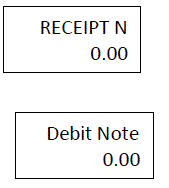
- Press to activate the credit note. The machine will display.
- Enter the relevant invoice number e.g., CU INVOICE NUMBER: 0090003440000000279 key only the last
digits after zeros (279)
- Press to store the CU invoice number. (It shall display)
- Make a sale/invoice as you made before.
Note: If you had made sales/invoices with the buyer’s pin. Start with the Pin after the above steps.
MAKING A DEBIT NOTE
- Press
 .
. - Enter the relevant invoice number e.g., CU INVOICE NUMBER: 0090003440000000279 key only the last digits after zeros (279)
- Press total (will indicate d 0.00)
- Enter the amount you want to debit and sell
 .
.MAKING MONTHLY REPORTS
SUMMARY REPORT
- Go to mod
- Press total
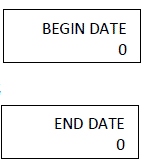
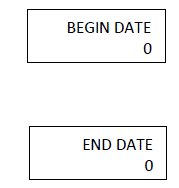
- Key in 1 then STL (Machine will request for the beginning date for the period
- Key in the beginning date in format (DDMMYY) e.g.,010122
- Press QTY it will display
- Key in the end date (DDMMYY) e.g., 310122
- Press VD/MODE to issue the periodic report.

DETAILED REPORT.
- Go to Z REPORT
- Press total
- Key in 4 then STL (Machine will request for the beginning date for the period
- Key in the beginning date in format (DDMMYY) e.g.,010122
- Press QTY it will display
- Key in the end date (DDMMYY) e.g., 310122
- Press VD/MODE to issue the periodic report.

PLU REPORT
- Go to mode 3
- Press
- Press
- Press
Printing a receipt copy
- Enter the relevant invoice number e.g., CU INVOICE NUMBER: 0090003440000000279 key in the last digits after zeros (279)
- Press SH QTY
Support Line: 0714 224 098/ 020 232 4766
Prepared by: Pergamon limited
Download PDF: INCOTEX 181 Electronic Cash Registers User Manual