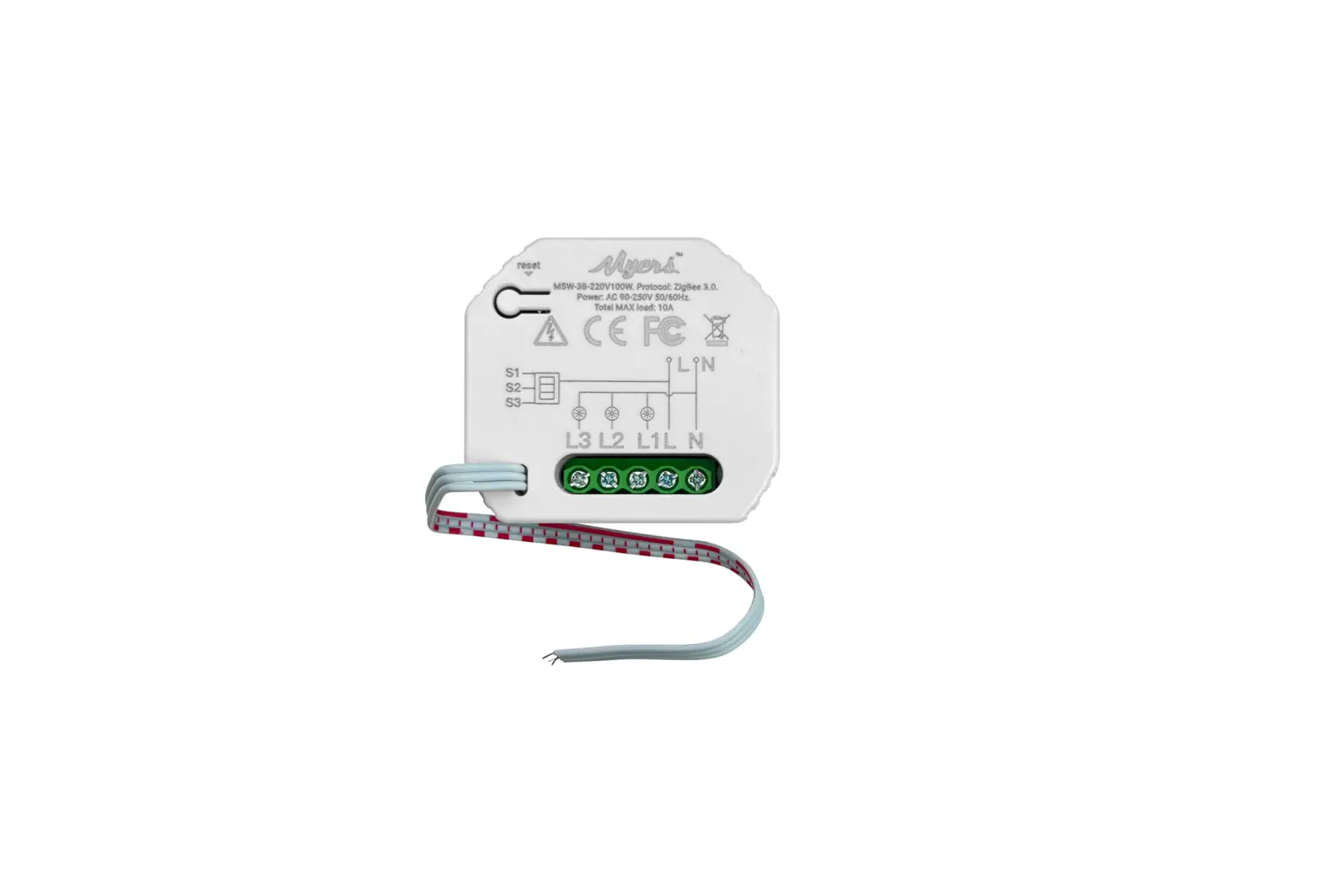
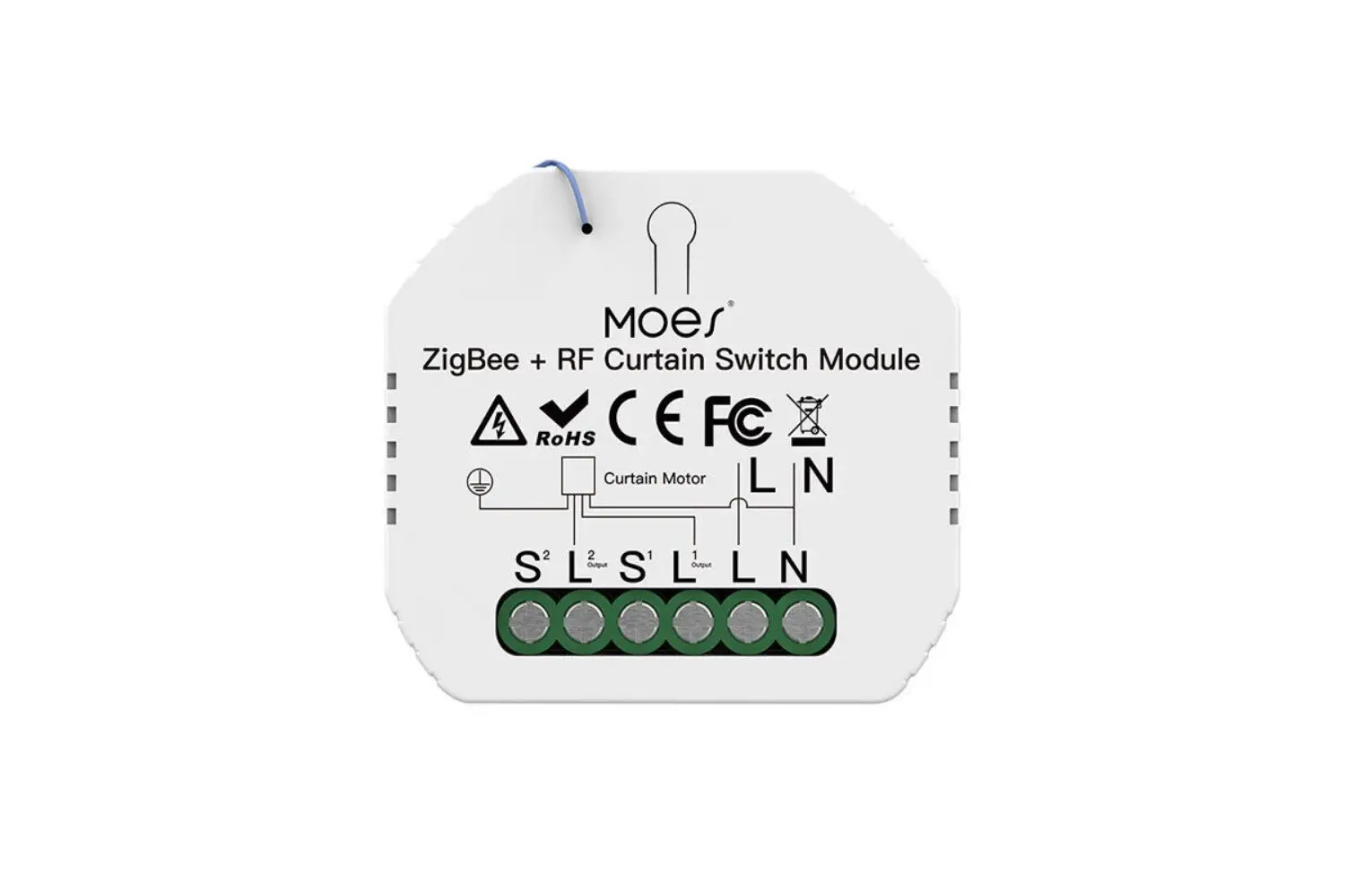
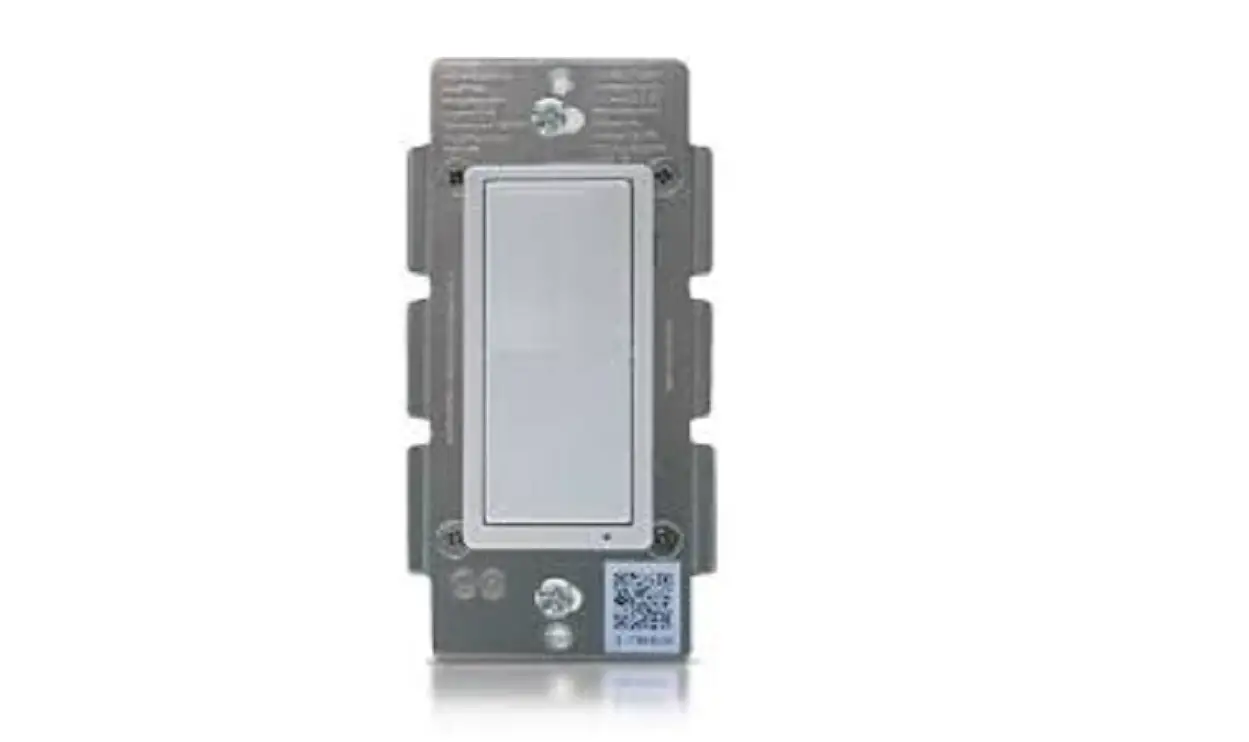
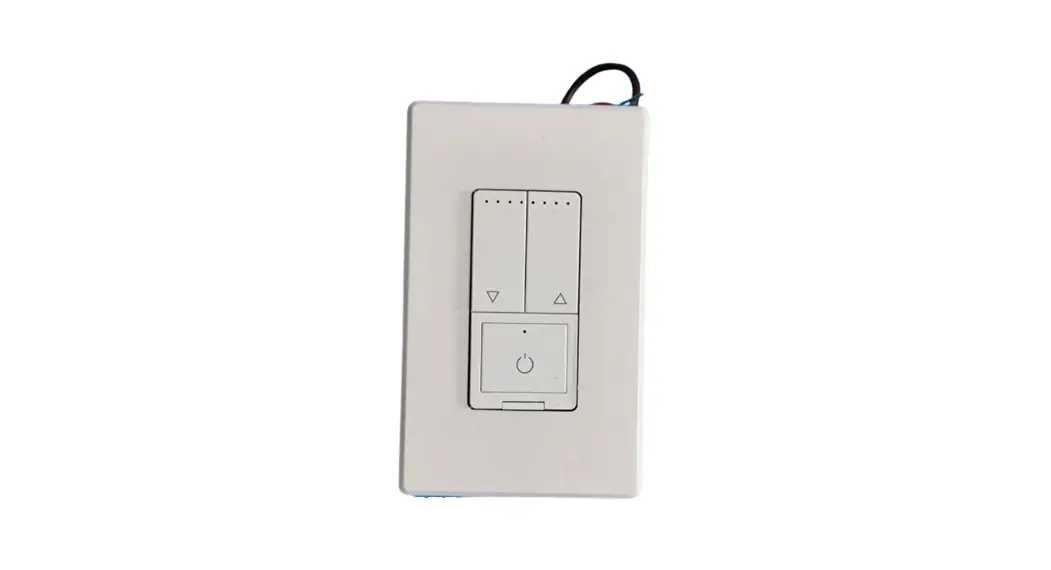
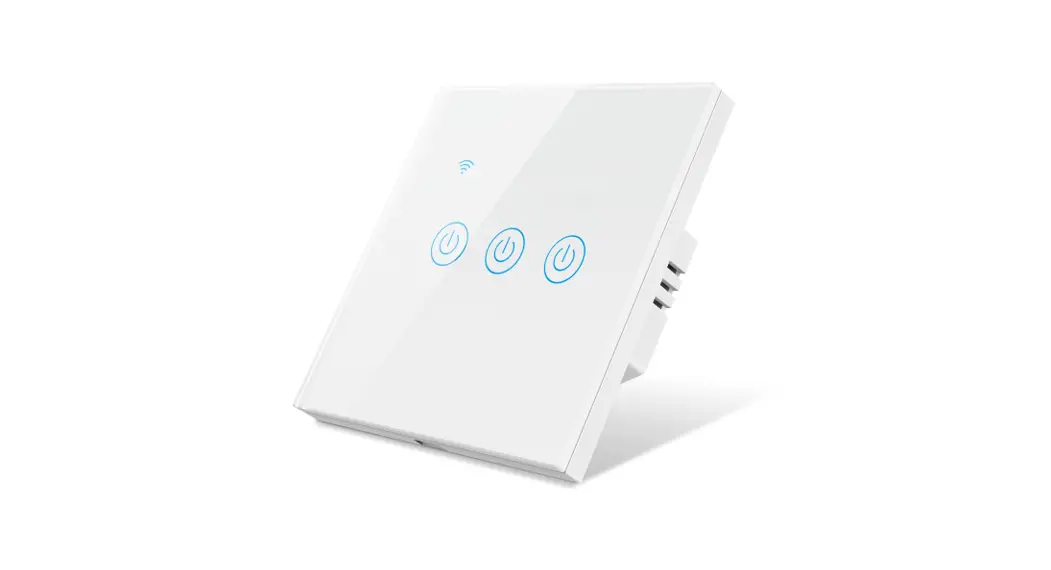
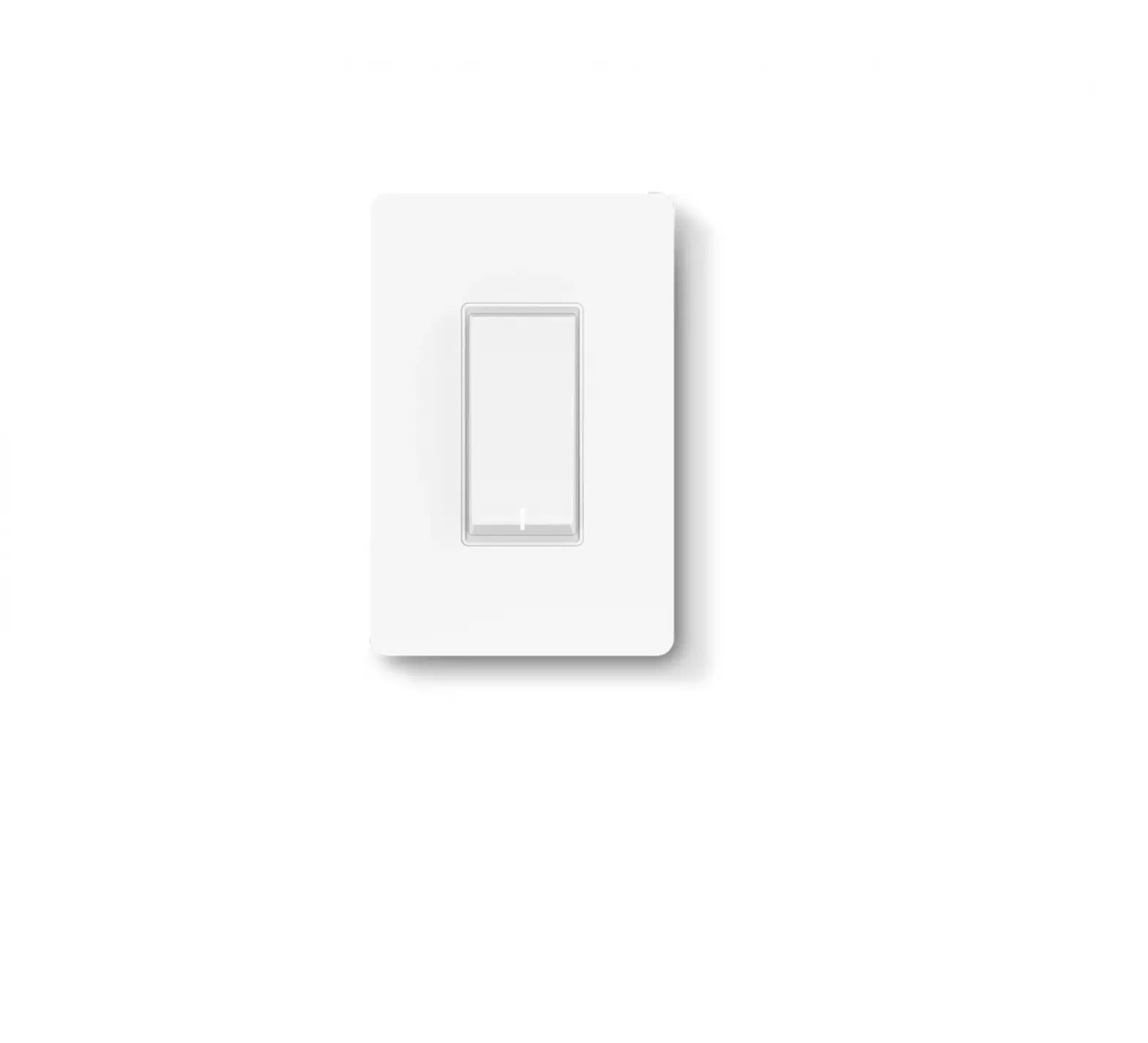
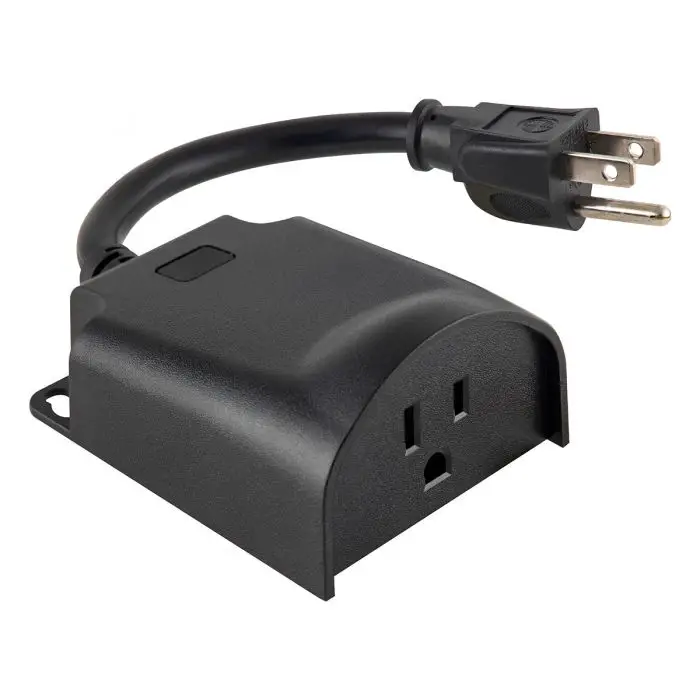
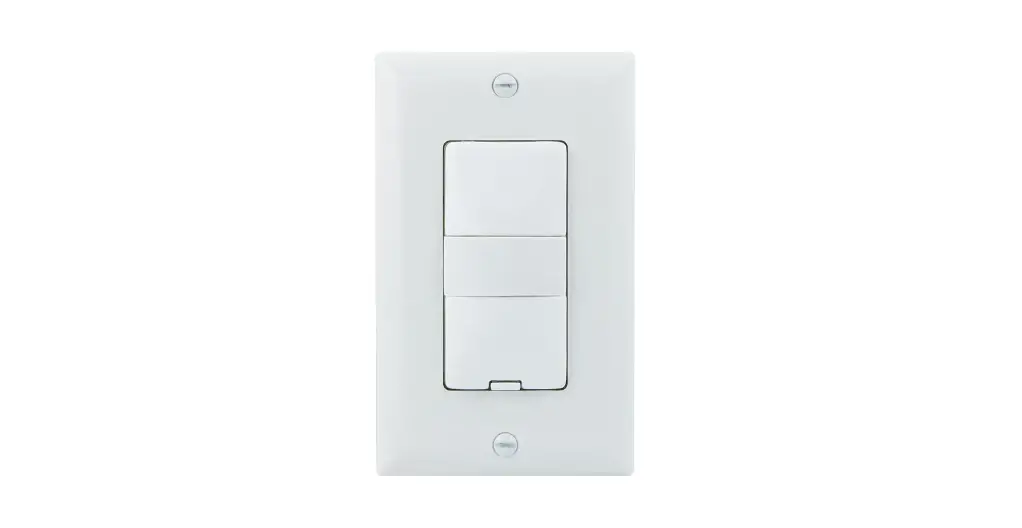
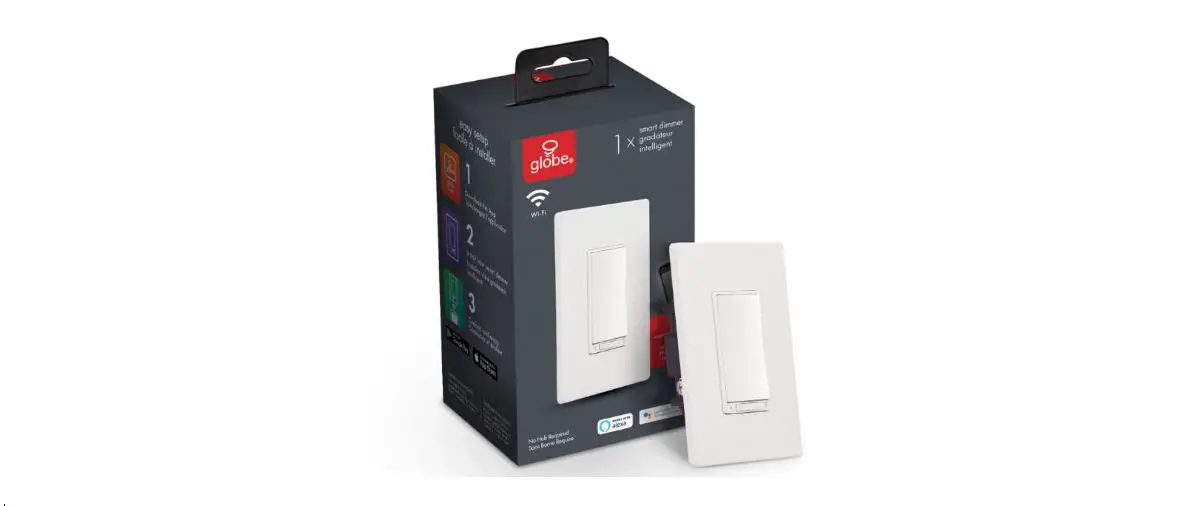
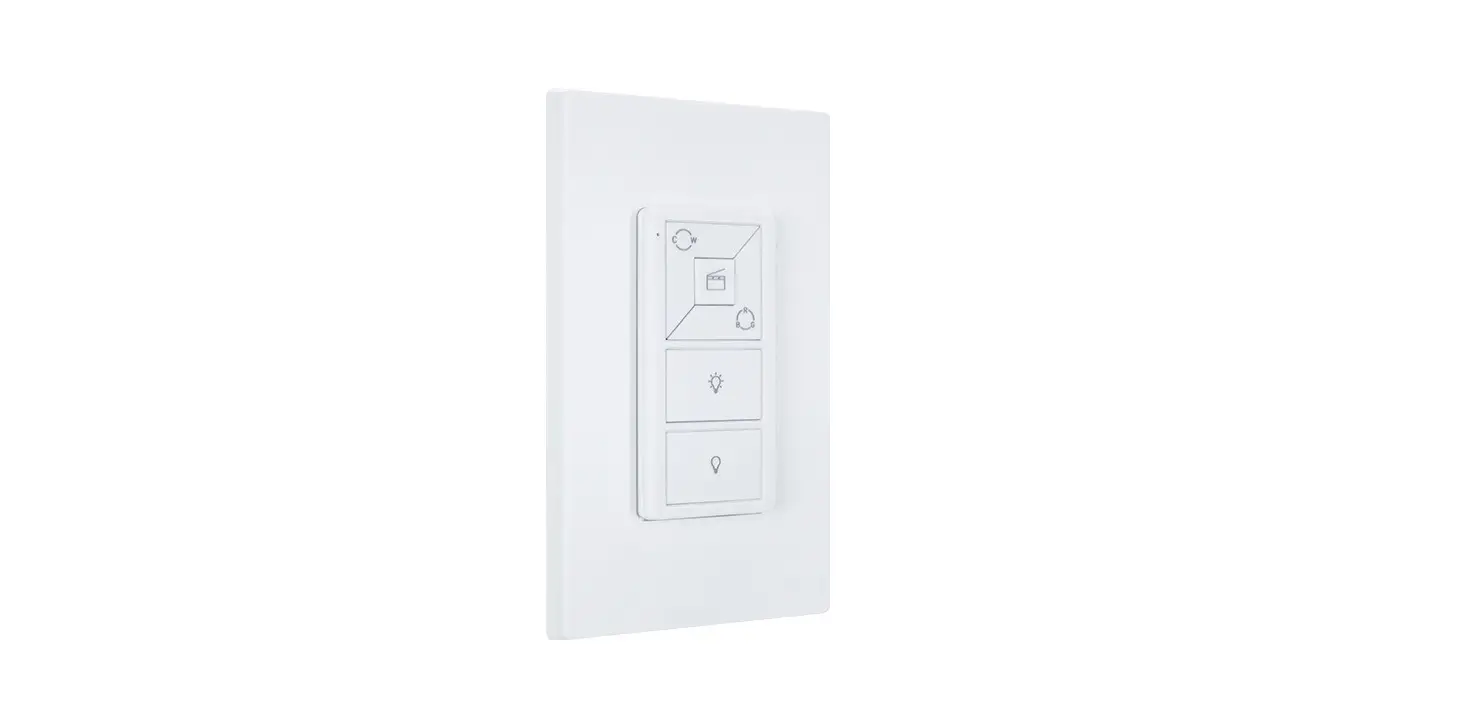
MSW-2B-220V100W ZB Smart Light Switch
Product Information: Smart Light Switch Myers MSW-2B-220V100W
ZB
The Smart Light Switch Myers MSW-2B-220V100W ZB is a premium
smart home system by Partizan. It requires a ZigBee Hub to connect
and configure the device. The device supports Partizan Cloud
Storage service and Partizan mobile application for iOS and
Android. The Partizan mobile application allows users to access
their account and devices from anywhere in the world. The device is
connected to the power grid using contacts L and N according to the
provided schemes. The device should be installed by qualified
specialists and the electrical network should be de-energized
before installation.
Product Usage Instructions:
- Install Partizan mobile application for iOS or Android using
the links provided in the user manual. - Sign in to your cloud account using the app or create a new
account. - Connect the ZigBee Hub to the Partizan mobile app.
- Connect the Smart Light Switch to the power grid using contacts
L and N according to the provided schemes. This should be done by
qualified specialists and the electrical network should be
de-energized before installation. - Press the Reset button or press the connected switch button 10
times with an interval of 0.5 seconds to reset the device. - Launch Partizan mobile application, click on ZigBee Hub in the
list of added devices and make sure the device is connected
correctly and turned on. - Click the + button in the upper right corner of the screen for
iOS or in the lower right corner of the screen for Android to add
the device to your account.
Smart Light Switch Myers MSW-2B-220V100W ZB
User manual
PREMIUM SMART HOME SYSTEMS by PARTIZAN
WWW.PARTIZAN.GLOBAL 2022
PREMIUM SMART HOME SYSTEMS by PARTIZAN
1. How to start ………………………………………………………………………………………………………………………………3 2. Main elements of the device ………………………………………………………………………………………………………..5 3. Connecting device to the power grid ……………………………………………………………………………………………..6 4. Adding device to Partizan mobile application ………………………………………………………………………………….8
4.1 Download and install Partizan mobile application……………………………………………………………………………8 4.2 Starting the device via ZigBee Hub…………………………………………………………………………………………………8 5. Control Screen ………………………………………………………………………………………………………………………….10 6. Settings Menu ………………………………………………………………………………………………………………………….11 6.1 Connection Settings …………………………………………………………………………………………………………………..11 6.2 Switch names ……………………………………………………………………………………………………………………………11 6.3 Schedule ……………………………………………………………………………………………………………………………………………… 12 6.4 Delete device…………………………………………………………………………………………………………………………….12
2
PREMIUM SMART HOME SYSTEMS by PARTIZAN 1. How to start
This device supports Partizan Cloud Storage service and Partizan mobile application for iOS and Android. Partizan Cloud Storage benefits:
Your data cannot be stolen or damaged. No one can access your devices, live and archived video without your permission. Access to your account and devices from anywhere in the world. Even mobile Internet is enough. Partizan app won “Best Mobile Video Surveillance App 2019” international award.
To take full advantage of the device, install Partizan mobile application for iOS or Android:
Partizan mobile application for iOS: https://apps.apple.com/app/partizan/id1473001227
Partizan mobile application for Android: https://play.google.com/store/apps/details?id=com.partizan.pro
3
PREMIUM SMART HOME SYSTEMS by PARTIZAN
To work with this device you need to sign in to your cloud account. Open the app, use an existing account or create a new one:
After signing into the cloud account you can go directly to device setting.
If you have any questions, please contact our technical support:
E-mail: [email protected] Skype: partizan-support Chat: +420 777 054 888 (Viber, Telegram, WhatsApp)
Technical support working time: https://partizan.global/support/ technical-support
Partizan software: https://apps.partizan.global/
4
PREMIUM SMART HOME SYSTEMS by PARTIZAN 2. Main elements of the device
WARNING! You will need a ZigBee Hub to connect and configure this device. Make sure it is available and connected to the Partizan mobile app.
L N L L1 L2 S1 S2 N
There are six contacts in the lower part of the device: · Contacts L1 and L2 are intended for connecting light devices · Contacts S1 and S2 are intended for connecting switches · L and N contacts are intended for power supply connection
5
Light
PREMIUM SMART HOME SYSTEMS by PARTIZAN 3. Connecting device to the power grid
The device is connected to the power grid using contacts L and N according to the following schemes: a) With switches:
L N L L1 L2 S1 S2 N
N L
6
Light Switch
Switch
Light
Light
PREMIUM SMART HOME SYSTEMS by PARTIZAN
b) Without switches
L N L L1 L2 S1 S2 N
N L
ATTENTION! Danger of electric shock! The connection must be performed by qualified specialists! Before installation, it is necessary to de-energize the electrical network (turn off the switch/circuit breaker/fuse)
7
PREMIUM SMART HOME SYSTEMS by PARTIZAN
4. Adding device to Partizan mobile application
4.1 Download and install Partizan mobile application
Partizan mobile application for iOS: https://apps.apple.com/app/partizan/id1473001227
Partizan mobile application for Android: https://play.google.com/store/apps/details?id=com.partizan.pro
4.2 Starting the device via ZigBee Hub
Launch Partizan mobile application. Click on ZigBee Hub in the list of added devices.
Make sure the device is connected correctly and turn on the power. Wait 10 seconds for the device to boot. Click the “+” button in the upper right corner of the screen for iOS or in the lower right corner of the screen for Android.
Before starting work, it is necessary to press the Reset button or press the connected switch button 10 times with an interval of 0.5 seconds to reset device. If the reset is done correctly, the device will beep and its indicator will flash blue.
8
PREMIUM SMART HOME SYSTEMS by PARTIZAN
Do not turn off the device and wait until it is connected and added to the device list of your ZigBee Hub!
9
PREMIUM SMART HOME SYSTEMS by PARTIZAN
5. Control Screen
On this screen you can control the device.
Control buttons
Control each dimmer separately
ontrol of both dimmers (adjusts both light sources to the same brightness by moving the scale on the touch screen)
10
PREMIUM SMART HOME SYSTEMS by PARTIZAN 6. Settings Menu
To enter the settings menu, press the gear icon on the control screen .
6.1 Connection Settings
In this menu, you can give a name to the device or view the connection ID.
6.2 Switch names
In this section, you can give the switches their own names for more comfortable use of the device.
11
PREMIUM SMART HOME SYSTEMS by PARTIZAN
6.3 Schedule
By clicking on the “+” a menu is displayed where you can give a name to the schedule, select the duration of the action, the action itself (Disable or Enable). You can receive notifications about the schedule on your mobile device. The schedule can be made recurring.
6.4 Delete device
To remove it, you must press “Delete device” button.
12
PREMIUM SMART HOME SYSTEMS by PARTIZAN
Technical support:
E-mail: [email protected] Skype: partizan-support Chat: +420 777 054 888 (Viber, Telegram, WhatsApp)
Technical support working time: https://partizan.global/support/technical-support Partizan software: https://apps.partizan.global/
13
 Partizan Software
 Support