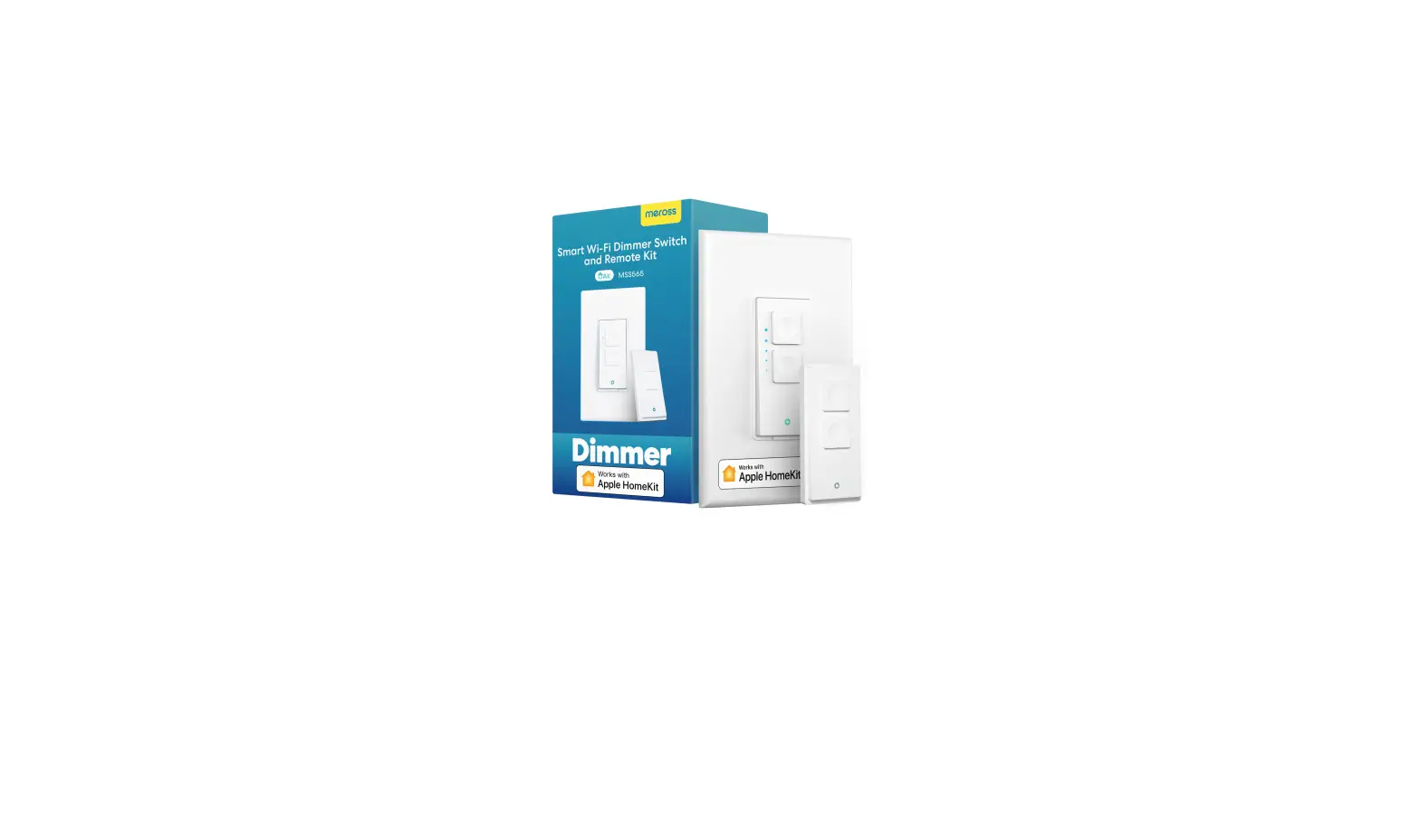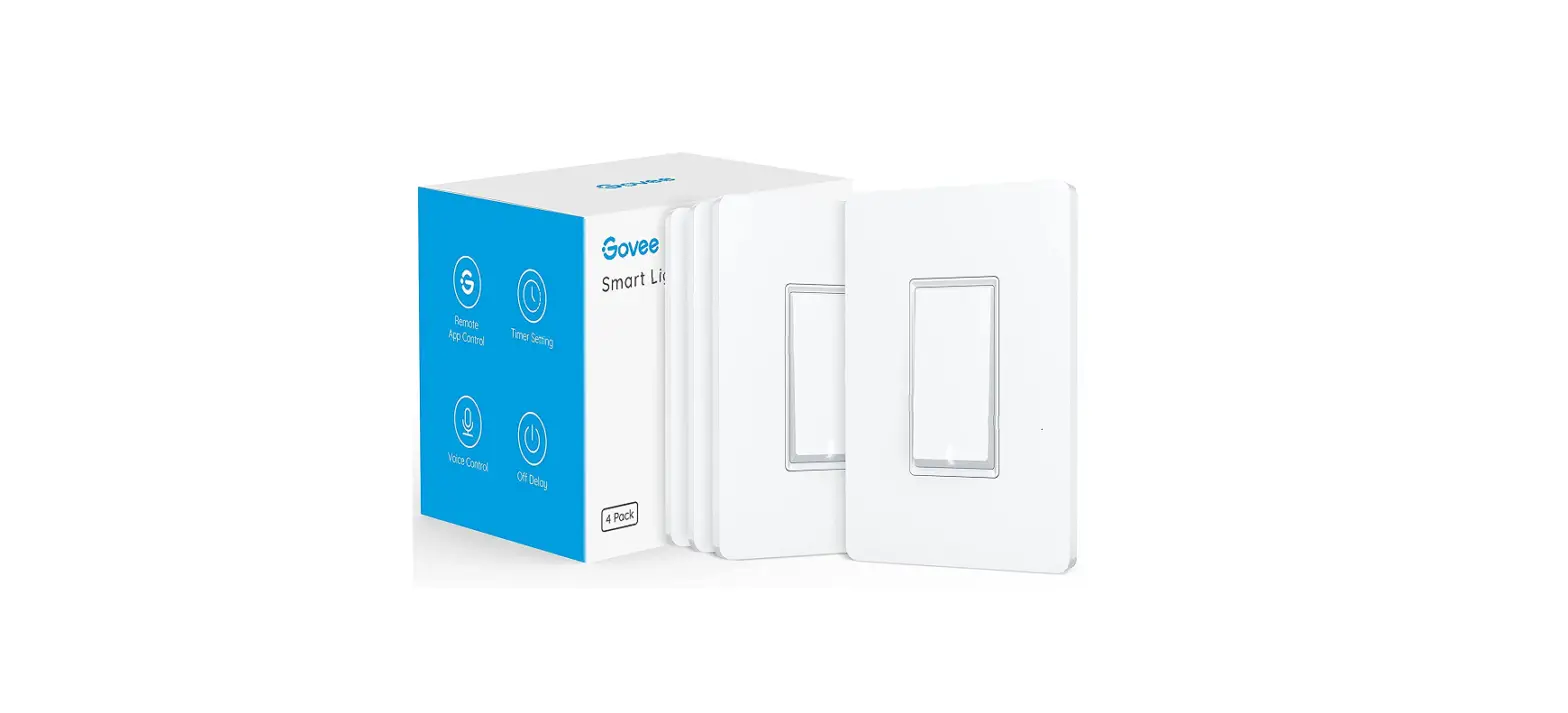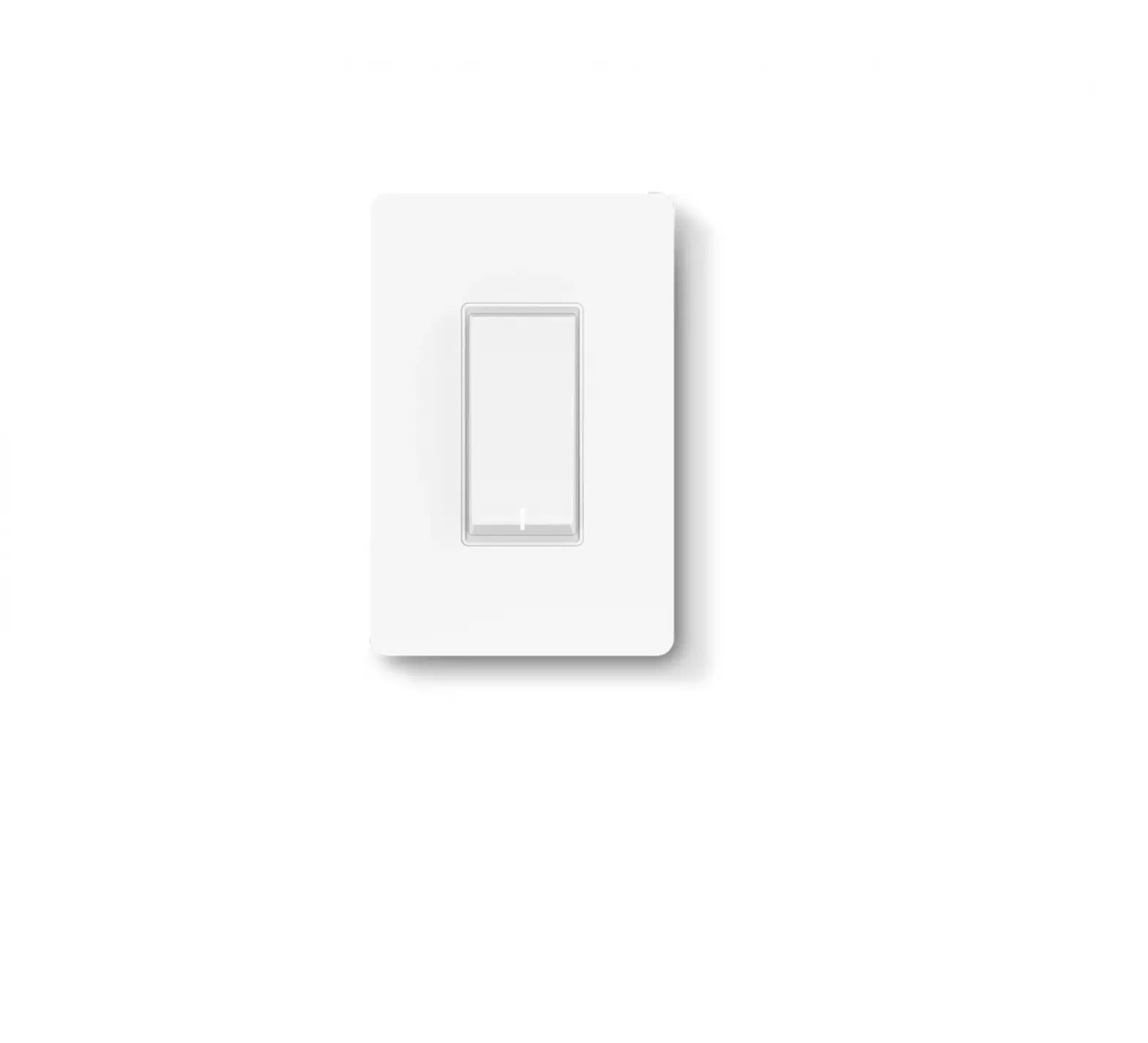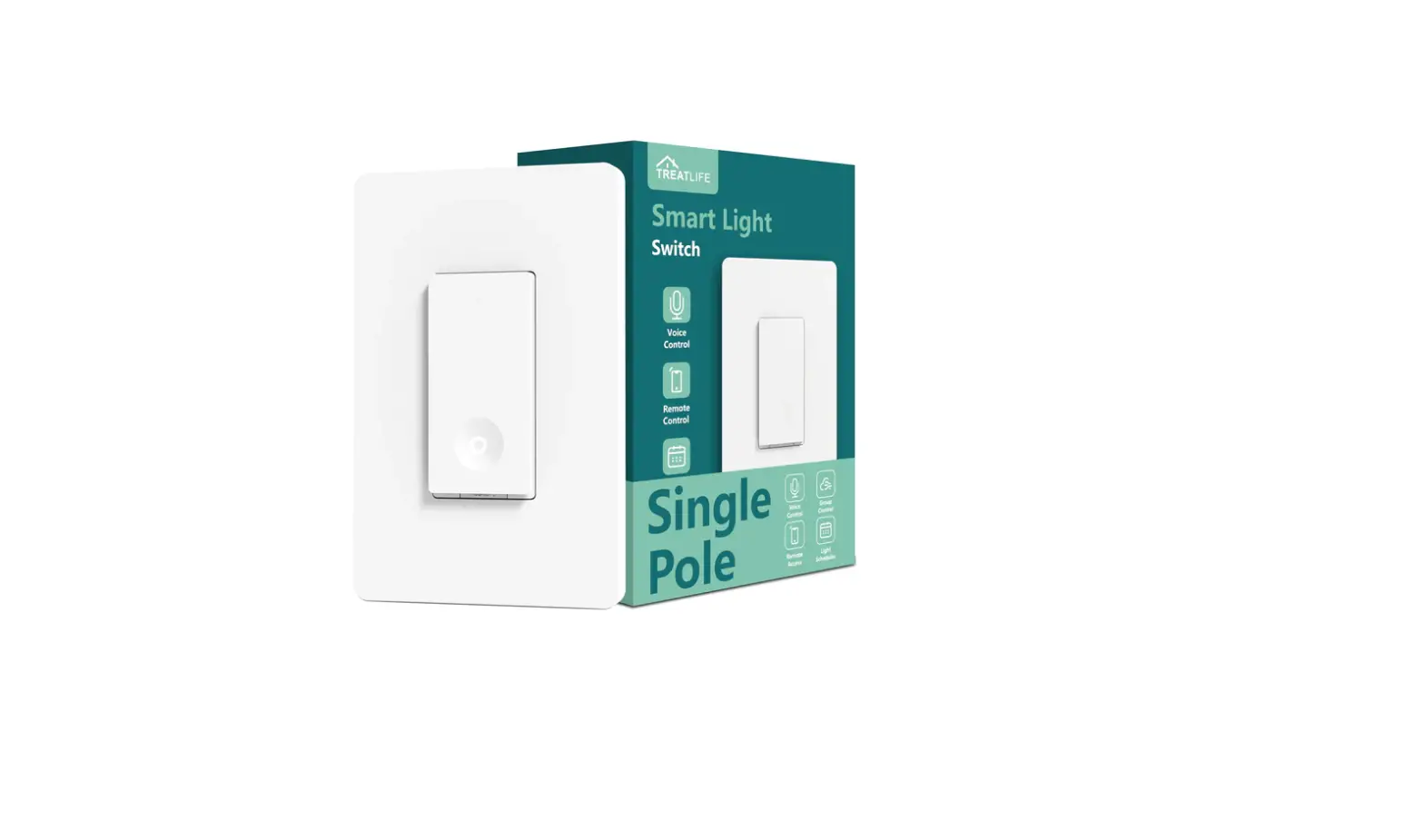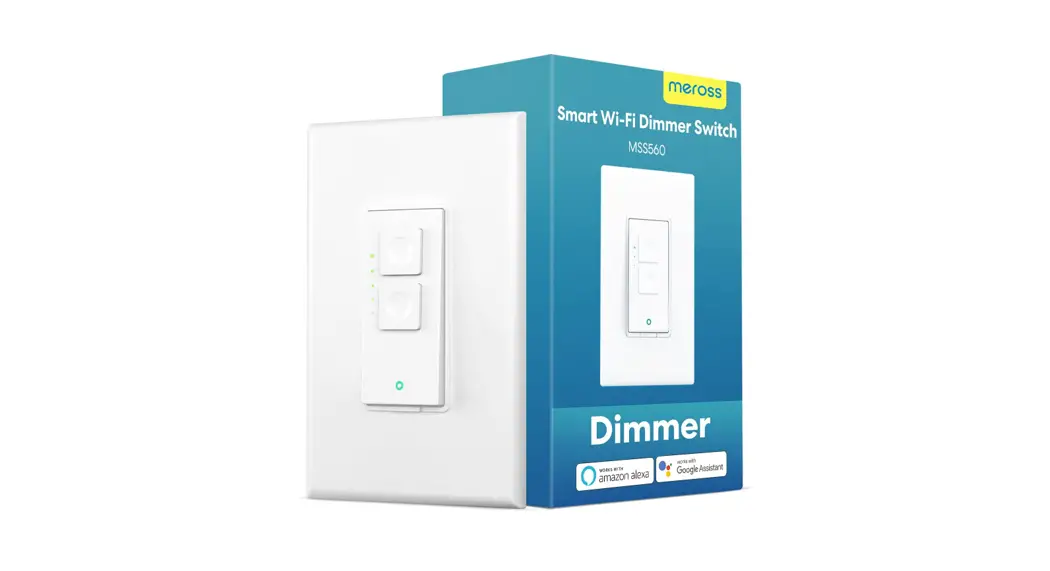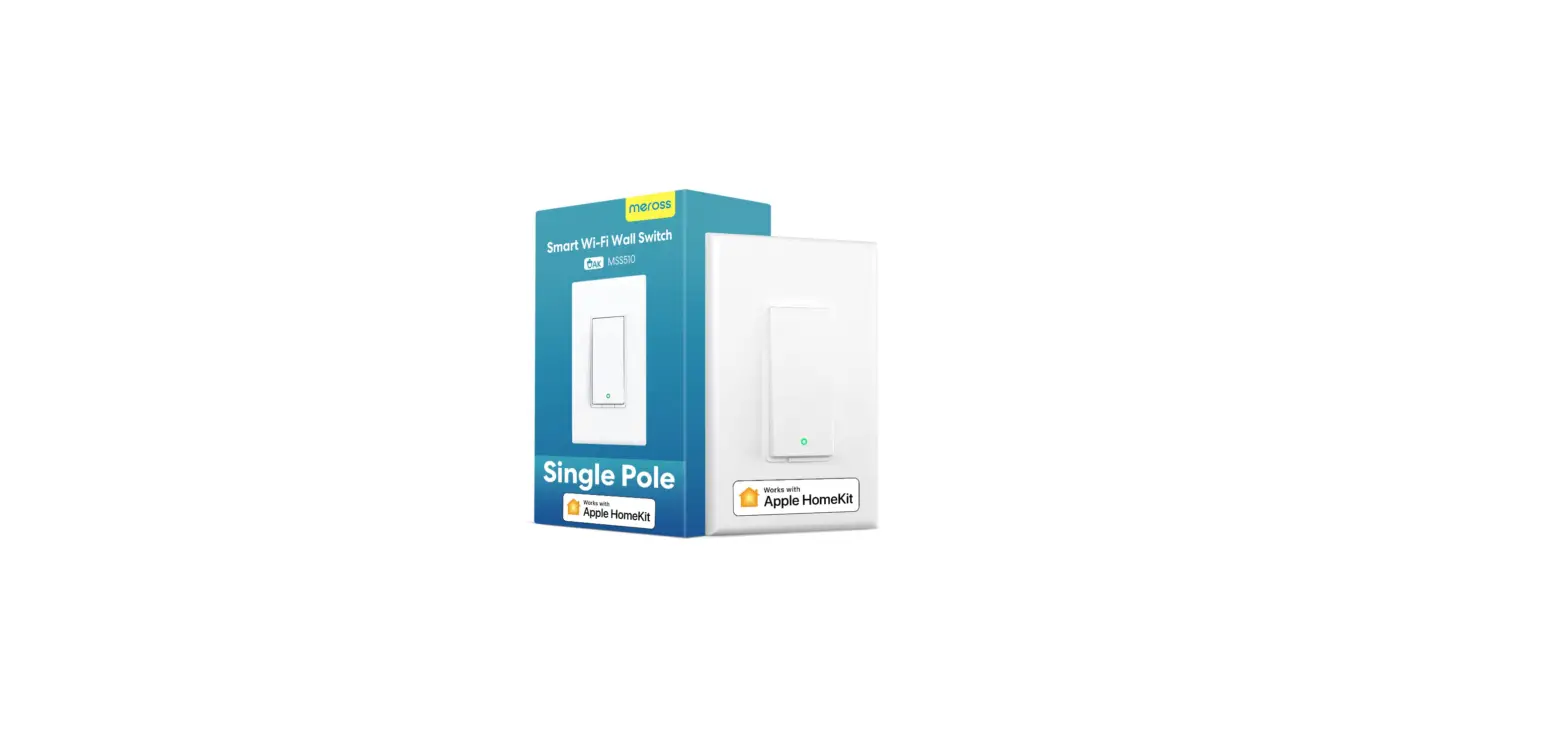

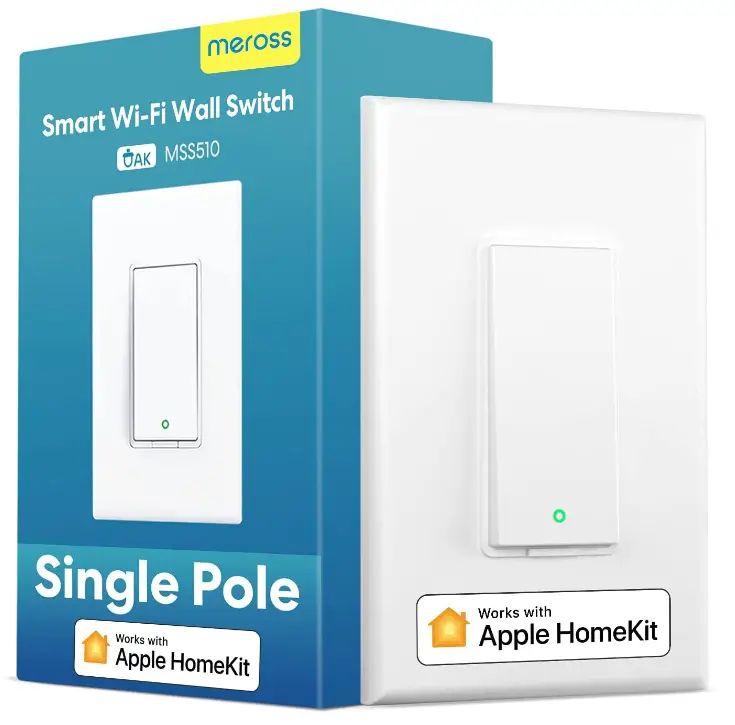
Meross MSS510 Smart Light Switch
Specification
- OPERATION MODE: ON-OFF
- CURRENT RATING: 4 Amps
- OPERATING VOLTAGE: 120 Volts
- CONTACT TYPE: Normally Open
- CONNECTOR TYPE: Clamp
- BRAND: meross
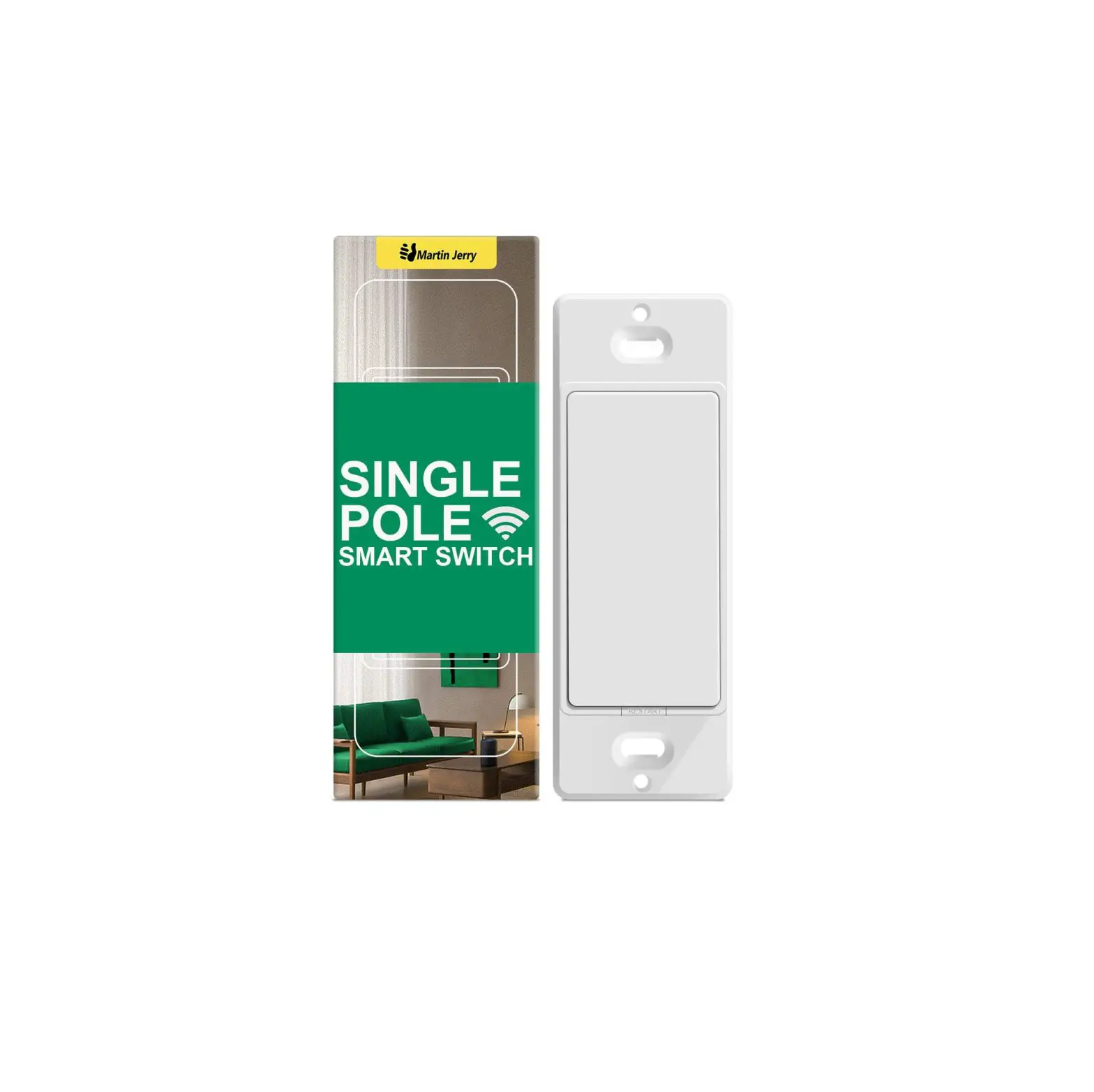
- SWITCH STYLE: Single Pole Light Switch
- TERMINAL: Spst
- MATERIAL: Flame retardant plastic
- ITEM DIMENSIONS LXWXH:7 x 2.8 x 1.5 inches
- FREQUENCY: 60 Hz
- OUTPUT: 400W INC, 150W CFL&LED.
- BUTTON: On/Off Button.
- ANTENNA: One internal antenna
- CERTIFICATIONS: FCC, IC, ETL
WARNING
RISK OF ELECTRIC SHOCK OR FIRE.
- Make sure the power is OFF at the circuit breaker for the wall switch you are replacing.
- The wall switch must be installed and used in accordance with the National Electric Code (NEC) or your local electrical code. If you are unfamiliar with these codes, or are uncomfortable performing the installation, please call a qualified electrician.
- Do not install the wall switch with wet hands or when standing on wet or damp surfaces.
- The wall switch is for North America only. Max 400W INC bulb, 150W CFL or LED bulb.
INSTALLATION GUIDE
BEFORE WE GET STARTED
- Replace single pole switch. Not compatible with 3 way or 4 way switch.*
- Neutral wire (white wire) is required.
- Only supports 2.4 GHz WI-Fi networks.
- A 3 or 4 way switch is a light that is controlled by more than one switch.
- Download the Meross app. You will need it to setup, manage and upgrade your smart device.
HARDWARE INSTALLATION
NOTE: You can also refer to the instructions in Meross app and follow it step by step.
- Make sure your traditional switch is single pole switch. This smart switch is not for 3 way or 4 way switches.
- Place your smartphone near the traditional switch to make sure the location is covered by strong Wi-Fi signal.
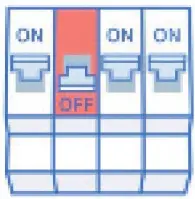
- Get you tools ready and turn off the power at the circuit breaker that controls the switch. Double check the power using a voltage detector.

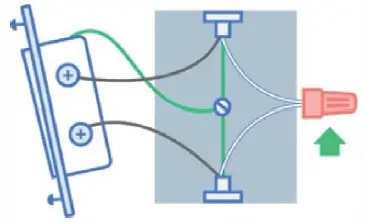
- Remove the faceplate and pull out the traditional switch. Finding the neutral wire (usually white) in your electrical box. This smart switch requires a neutral wire to work. Otherwise it won’t work.

- Unscrew the wires and connect them according to picture below.

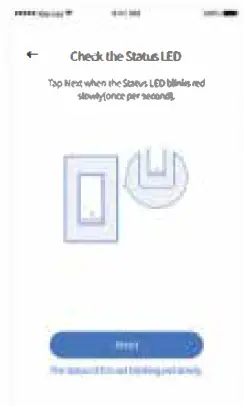
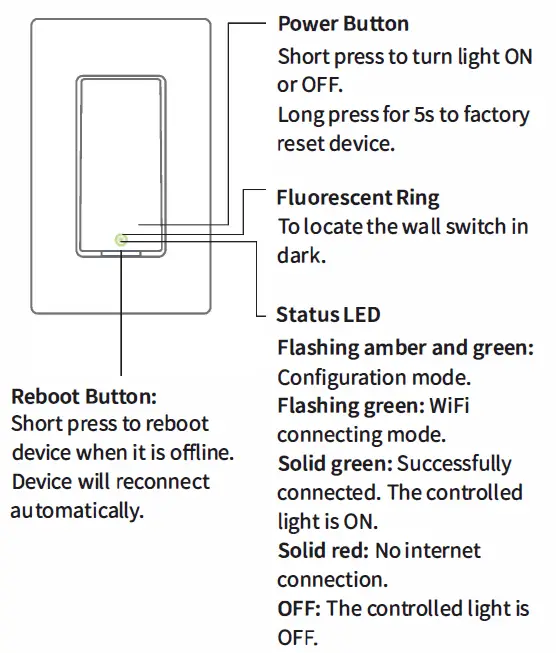
- Push the smart switch back into the box and turn the power on at the circuit breaker. If the switch works manually and the LED is flashing amber and green, then you are good to go for setting up. If not, please turn off the power at the circuit breaker and check the wiring.
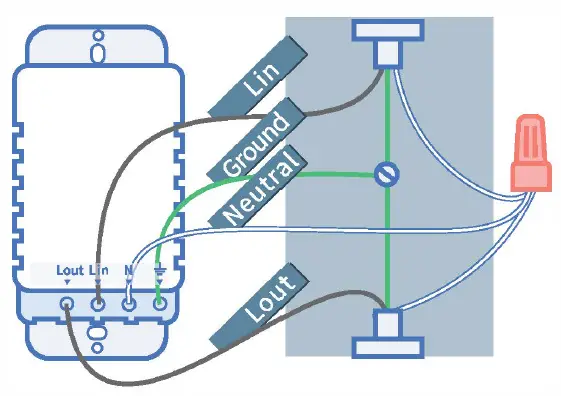
For more detailed information, please refer to the Merossapp.
SET UP THE DEVICE
- For Android user. Open Meross app and tap+ on the top right. Just follow the instructions in Meross app and you will set it up in minutes. If you want to use HomeKit with an iOS device after setup on Android. Just launch your Home app and scan or input the code printed on the device or user manual. No reset or extra configuration needed .

- For iOS user. Please follow instructions below.
- Please ensure that your iPhone or iPad is connecting to a 2.4GHz Wi-Fi. Or you may not be able to set it up.
- Please make sure you are having iOS 12 or above. We recommend you to upgrade to iOS 13 to have better HomeKit user experience.
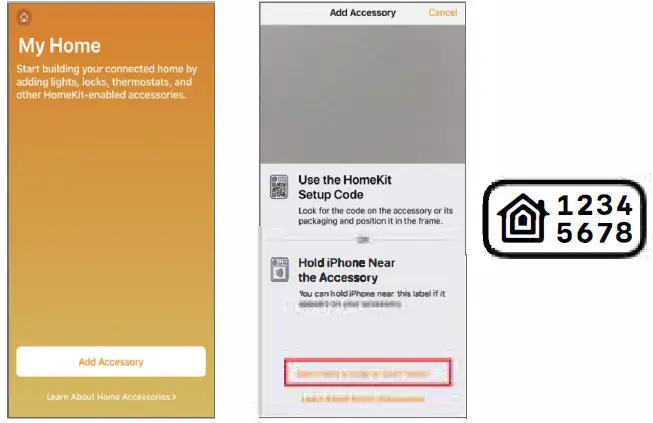
- Use Apple Home app instead of Meross app to set it up. Just launch your Home app and tap “Add Accessory” or+ on the top right and follow the instructions. It may take a few minutes and then you’ll be all set. The setup code is printed on the device and the user manual. Input the code on the label and wait. You should be able to set it up in a minute.

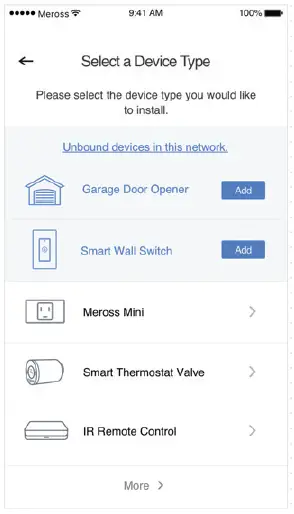
- After that, if you’d like to manage your MSS510 in Meross app, please connect to your home Wi-Fi and launch your Meross app and tap+ on the top right. It will help you find devices in the same Wi-Fi network. Just tap add and you’ll be able to manage MSS510 in Meross app. For example, upgrading firmware and binding to Amazon or Google voice assistants.

NOTE:
- According to Apple HomeKit, the only way to set up HomeKit accessory with iOS is Home app. If you don’t want to set up with Home app, you will have to use an Android device.
- lf you can’t setup the device with Home app. It might be that the iOS is having cache issue with Homekit device. Please try to
- Reset the smart device and kill the Home app and retry.
- RestartyouriOS and retry. (This is important.)
- Ensure that your iOS is connecting to 2.4G of your home Wi-Fi.
- Have your iOS forget all otherWi-Fi in your home.
You can also contact us at [email protected]. We are always happy to help.
HOW TO USE
GENERAL SETTINGS
- Device name: Change device name.
- LED: Turn on/off LED indicator.
- User manual: Check user manual.
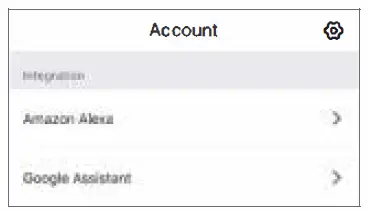
VOICE CONTROL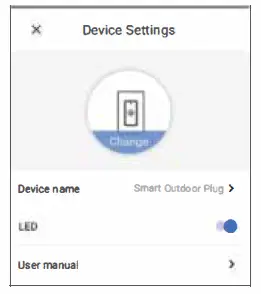
Amazon Alexa & Google Assistant: Check how to pair Amazon alexa and Google assistant on Account->lntegration.
APPLE HOMEKIT WITH SIRI AND REMOTE CONTROL (IOSONLY)
After you finish the setup process. You can control your device with Siri when your iOS is connected to your home Wi-Fi. Learn more at https://support apple com/en-us/HT208280
You can share control of your home to your family by inviting them. Learn more at https·//support apple com/en-us/HT208709 Please be noted that Home app can NOT control your device remotely unless you set up a home hub in your home. Apple requires this hub to fulfill remote control. Learn more at https·//support apple com/en-us/HT207057
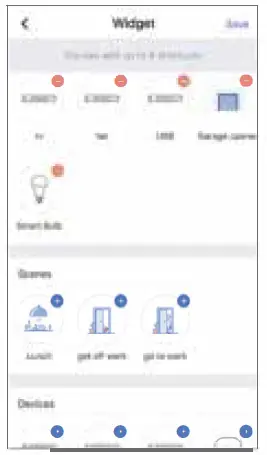
WIDGETS
Widgets are the quick access to your Meross devices and Scenes. To enable it, please go to Account-> Widget to add shortcuts first. And then follow below steps on your smartphones to activate them.
FOR IPHONES:
- Swipe to the right on your Home or Lock screen.
- Scroll down to the bottom of your widget list and then tap edit.
- Scroll down to find Meross and add it.
FOR ANDROID SMARTPHONES:
- On the home screen, tap and hold on an available space.
- Tap Widgets, find Meross widget and then add it.
FAQs
Please check the Status LED. If it is off:
· Make sure that you restore power to the wall switch at the circuit breaker.
· Make sure the wall switch is wired correctly. Please consult with a qualified electrician.
Please check the following:
· Check the main Wi-Fi’s Internet connection.
· Make sure that main Wi-Fi’s password hasn’t been changed.
· Do not use a metal faceplate with the wall switch as that will decrease the Wi-Fi signal.
· Short press the reboot button to reboot device. Device will reconnect automatically, no extra configuration needed.
If all else fails, please factory reset MSS510 and try to add it again.
VisitAccount->Amazon Alexa or Google Assistant page within Meross app for pairing instructions.
This is required by Apple iOS. If you want manage your device in Meross app, please launch your Meross app after the setup and tap+ on the top right. Meross app will find devices in the same Wi-Fi network.
Please make sure your iOS is connecting to the 2.4GHz of your home Wi-Fi and you are having iOS 12 or above. Restart your iOS will help due to some system cache issue.
Yes. Local control requires nothing additional, but HomeKit remote control requires you to install an iPad or HomePod or Apple TV in your house. Please go to Apple HomeKit website to learn more.
It says 15 amps because most house circuits are hooked up to 15 amp breakers, its only rated for 400W output to a light though. However you do no need your light switch to be capable of sending 15 amps to a light that would trip your breaker 400W is fine.
It works with the led can lights I use. It depends on whether or not the pool led light is able to be dimmed. Some can not be.
No more than 24 hours a day.
It is not z-wave. It is wifi only.
If used on the Apple echo system, or Alexa or Google so yes fully Scheduled if need be. Also Meross has app.
The light could be shut off on scheduled time period Five minutes 10 minutes whatever.
Yes, but was able to get them into the older switch electrical box.
No, it doesn’t.
We advice you use our meross app’s Routine function, or use the Routine feature of Alexa, Google, HomeKit, you can also implement the function of IF this Than That.
To use Google or Amazon’s voice control, you must use the latest version of the meross app to add devices before connecting to the Google Home app or Amazon Alexa app.