 LCBLUEREMOTE-W Remote Control
User Guide
LCBLUEREMOTE-W Remote Control
Hello
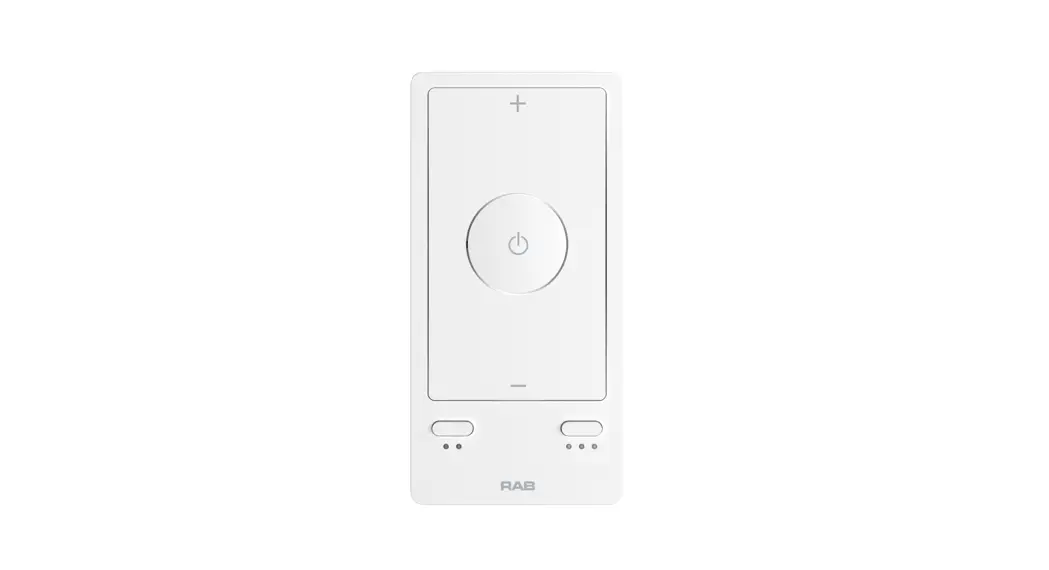
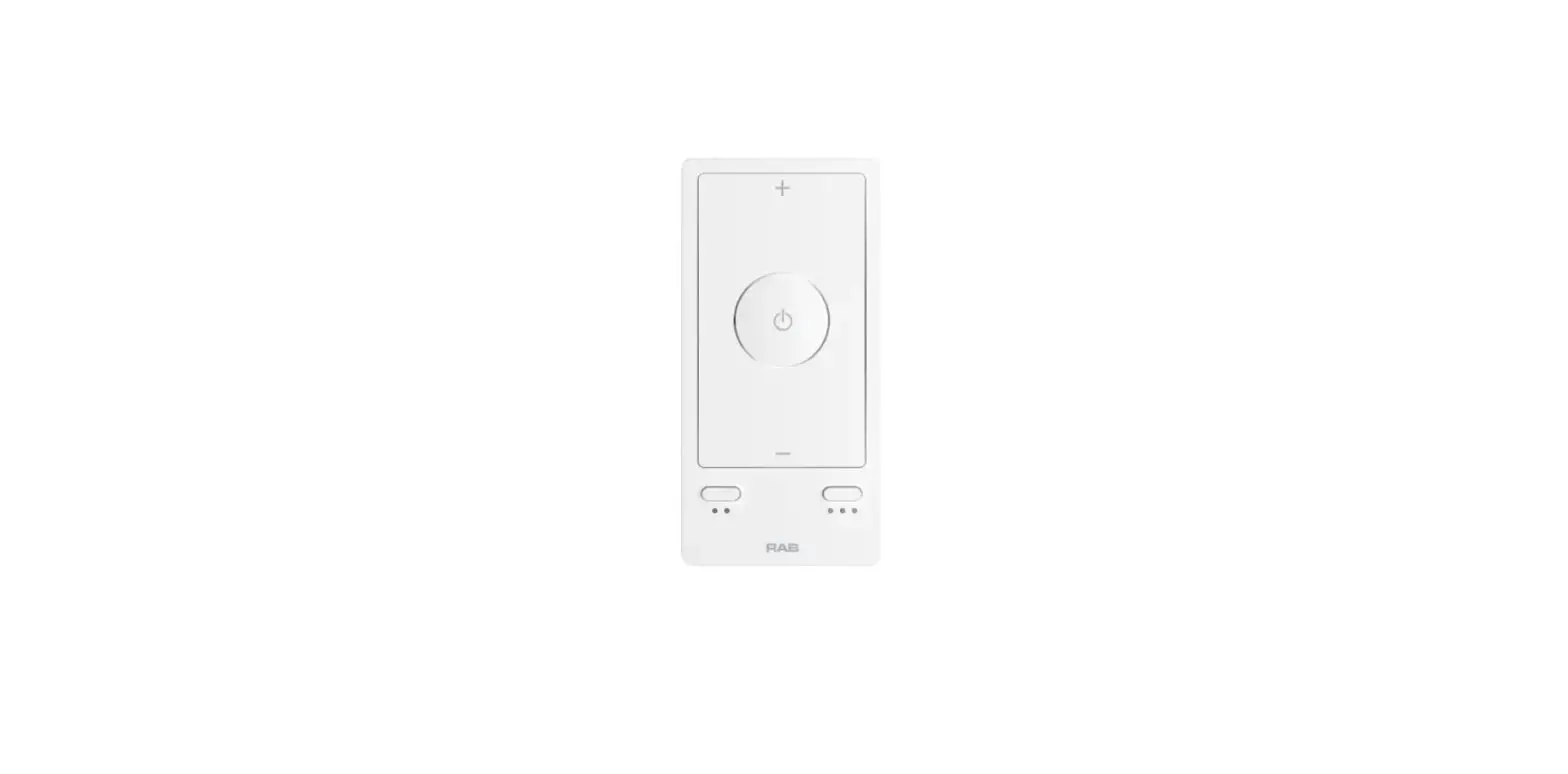
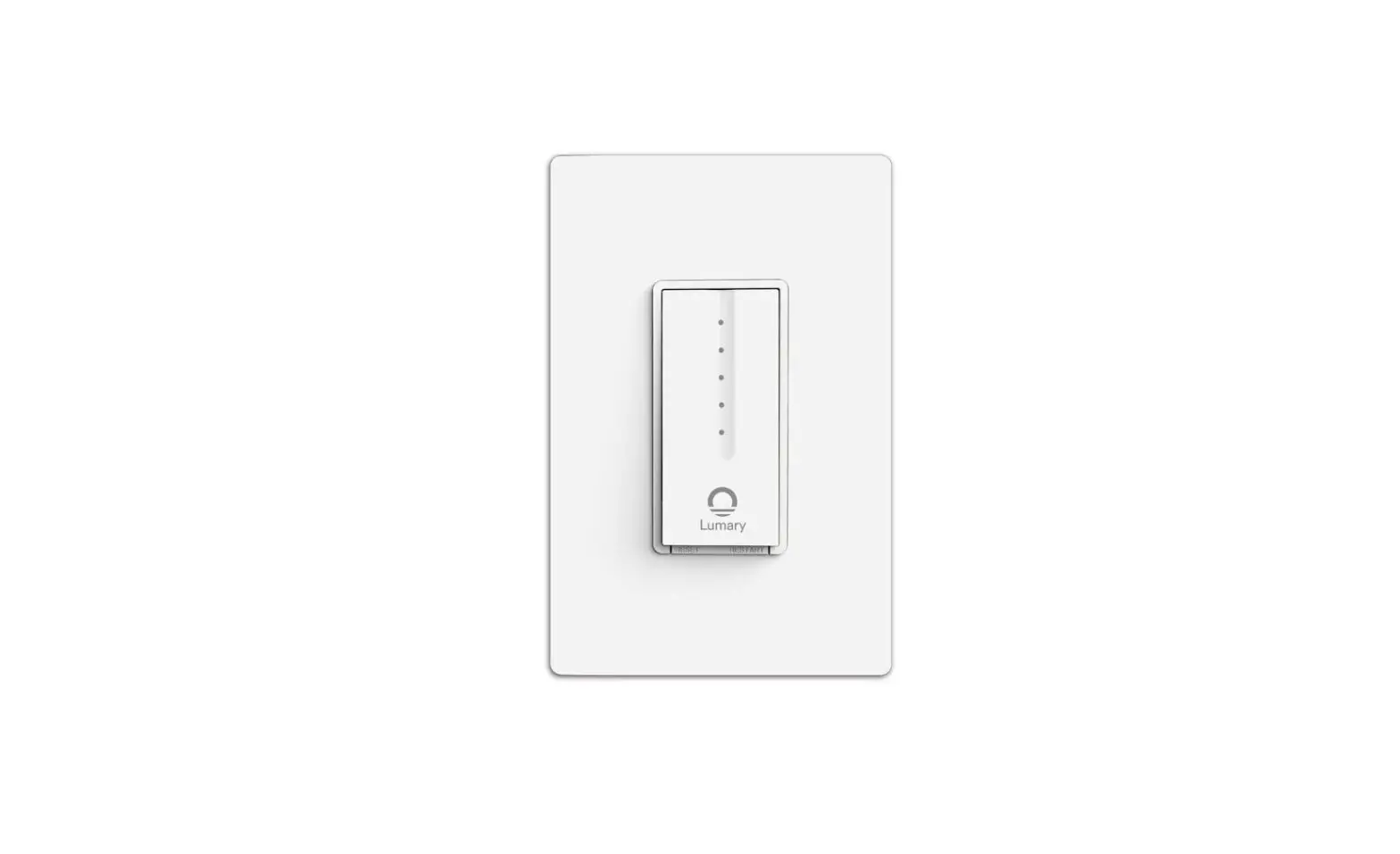
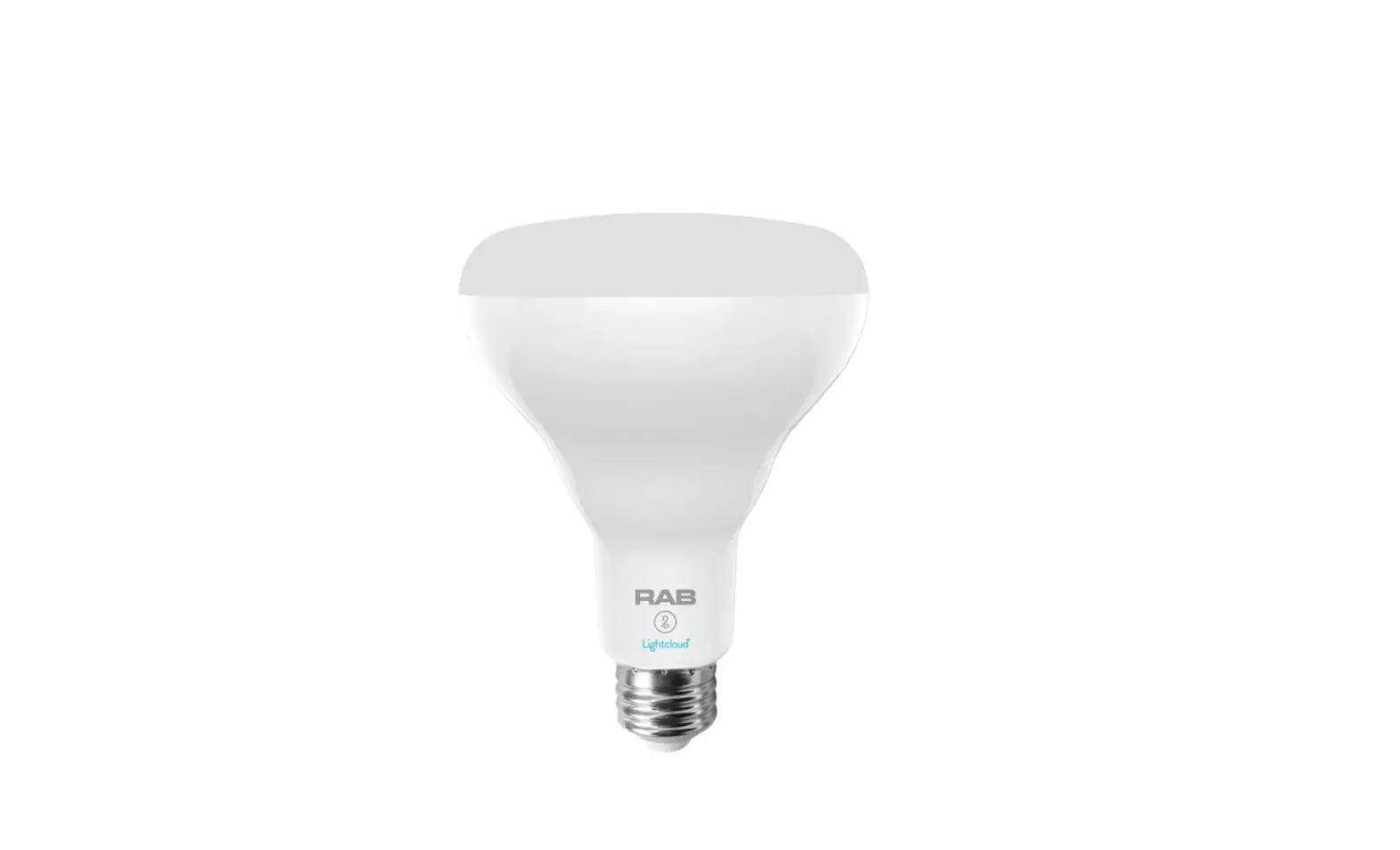
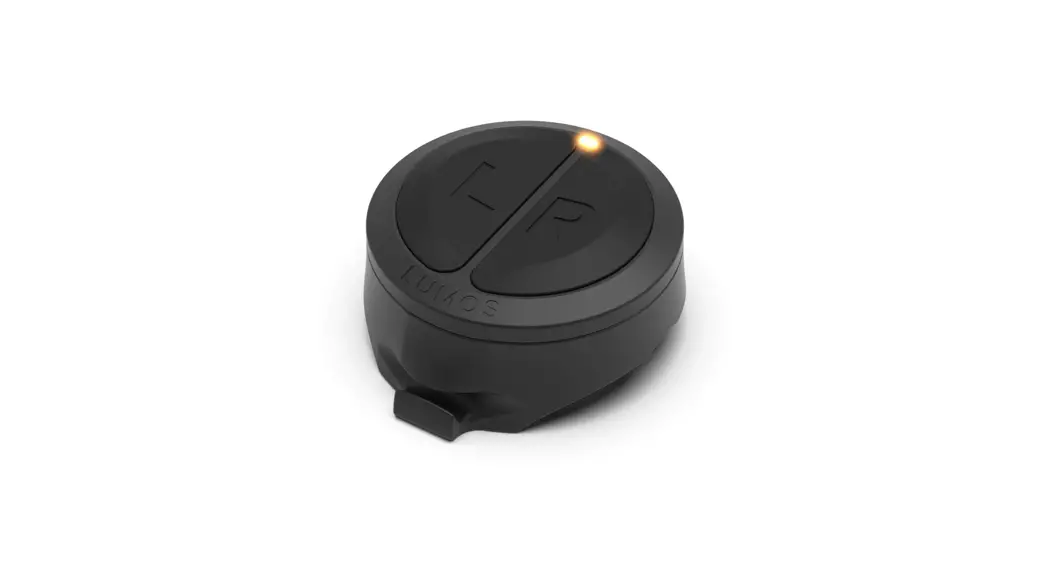
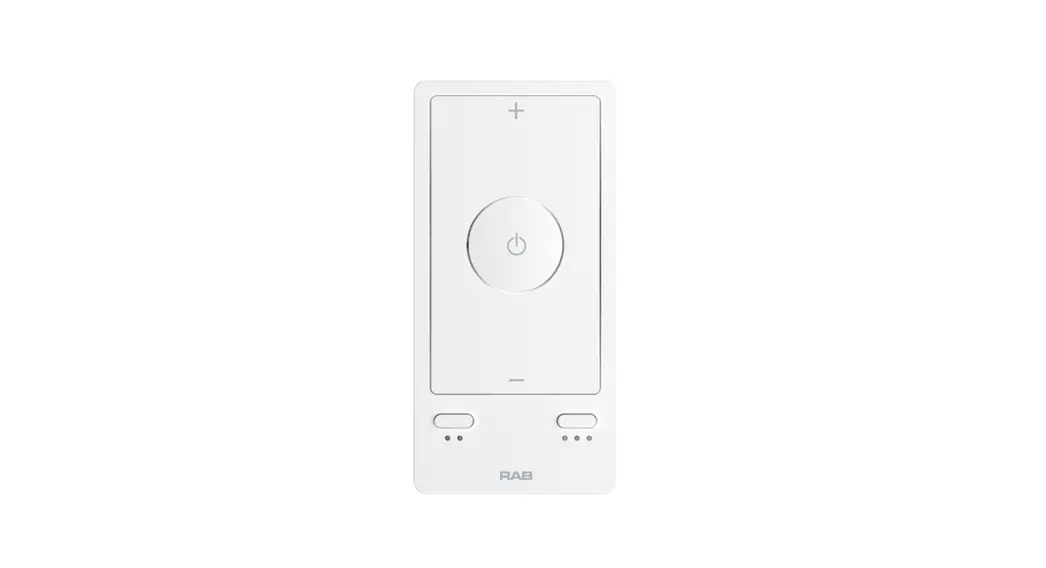
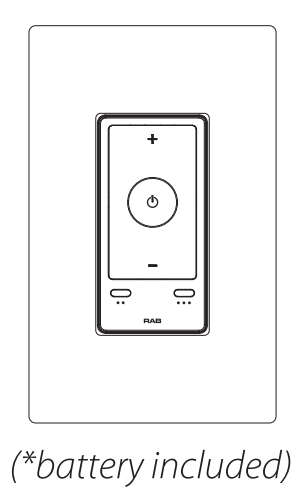
The Lightcloud Blue Remote lets you control your ightcloud Blue-enabled lighting from anywhere onsite. Manage on/off switching, dimming, color temperature tuning, and set programmable buttons for custom scenes. The Remote can be mounted to a single-gang wall box or directly to a wall.
Product Features
 | Wireless Control & Configuration |
 | Dimming |
 | olor Tuning |
 | Decorator Wall Plate |
Specifications
| Catalog Number: | Specifications: | |
| LCBLUEREMOTE/W | Voltage: 3V | Battery type: CR2032 |
| Amps: 10mA | Battery life : 2 years | |
| Range: 60ft | Warranty: 2 year limited | |
What’s in the Box
- (1) Lightcloud Blue Remote*
- (1) Faceplate bracket
- (4) Mounting screws
- (1) Installation guide
- (1) Backplate
- (1) Faceplate
Quick Setup
- Confirm your device is powered on.
- Download the Lightcloud Blue app from the Apple® App Store or Google® Play store.

- Launch the App and create an account.

- Tap the “add device” icon in the app to start connecting devices.
- Follow the remaining steps in the app. Create Areas, Groups, and Scenes to organize and control your devices.
- You’re all set!

Function
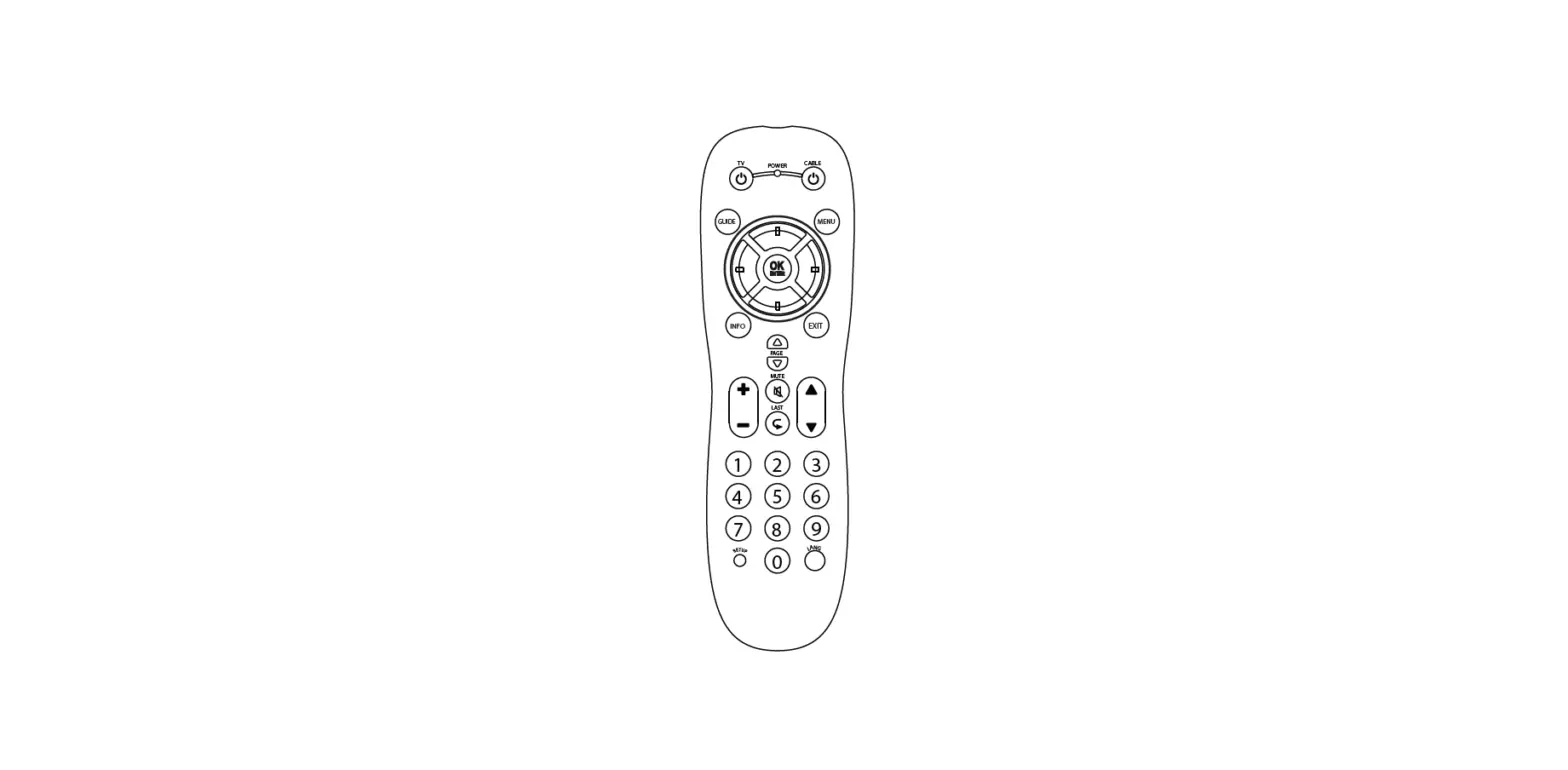
Remote button functions: 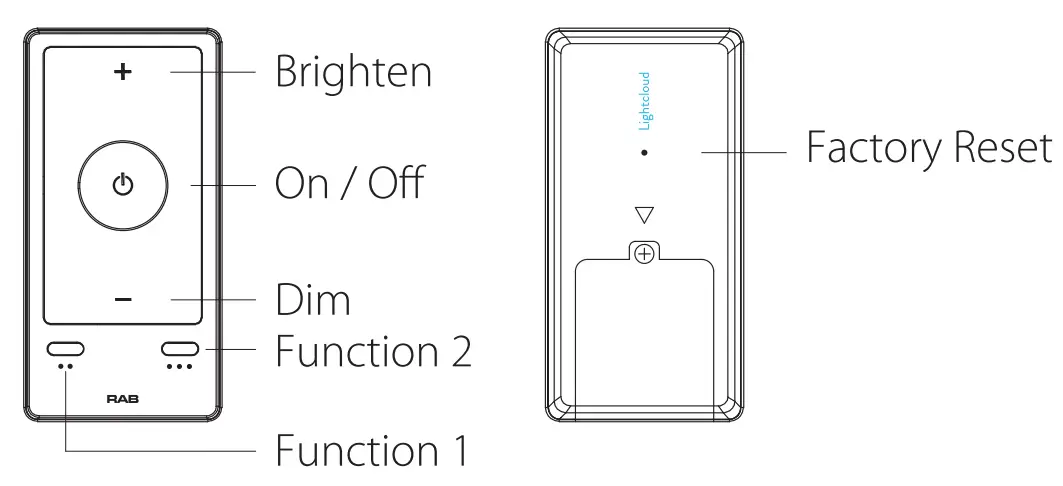
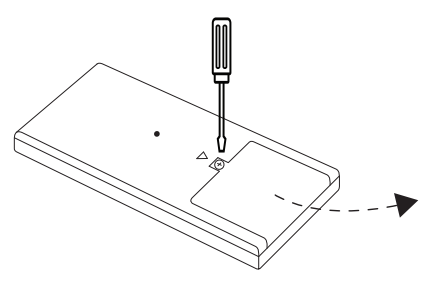
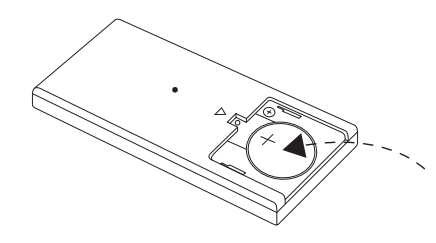
Installing or changing battery
- Remove the cover on the back

- Install CR2032 battery in the compartment positive (+) side up

- Replace back cover
Wall Mounting 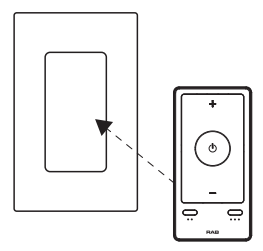 Screw backplate to the wall
 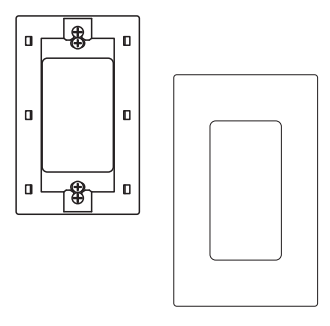 Snap the faceplate onto backplate
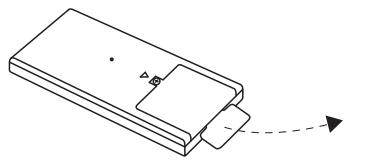 Remove the battery spacer
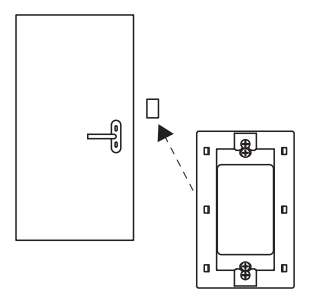 Attach remote to the faceplate
Reset
- Method 1: Press and hold the *RESET” button for 3s, A red indicator light will appear in the top left corner of the face of the remote when reset is complete.
- Method 2: Press and hold the “ON/OFF” and “Function 1” (..) buttons together for 5s. A red indicator light will appear in the top left corner of the face of the remote when reset is complete.
Functionality
Configuration
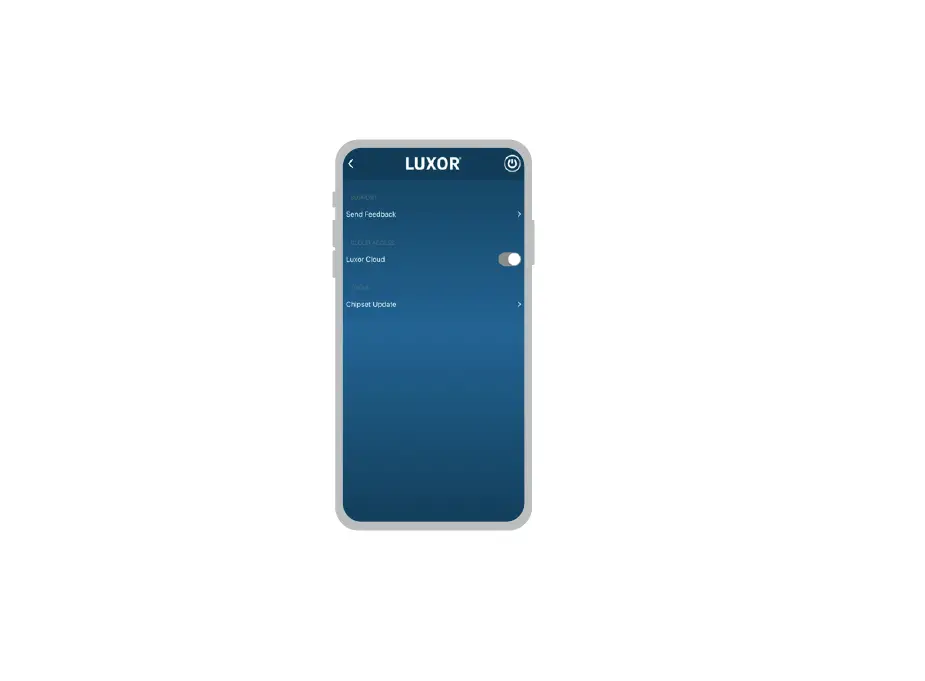
All configuration of Lightcloud Blue products may be performed using the Lightcloud Blue app.
WERE HERE TO HELP
1 (844) LIGHTCLOUD
1 (844) 544-4825
[email protected]
FCC Information:
This device complies with Part 15 of the FCC Rules. Operation is subject to the following two conditions: 1. This device may not cause harmful interference, and 2. This device must accept any interference received, including interference that may cause undesired operation.
Note: This device has been tested and found to comply with the limits for Class B digital devices pursuant to Part 15 Subpart B, of the FCC rules. These limits are designed to provide reasonable protection against harmful interference ina esidential environment. This equipment generates, uses, and can radiate radio frequency energy, and if not installed and used in accordance with the instruction manual, may cause harmful interference to radio communications. However, there is no guarantee that interference will not occur in a particular installation. If this equipment does cause harmful interference to radio or television reception, which can be determined by turning the equipment off and on, the user is encouraged to try and correct the interference by one or more of the following measures:
- Reorient or relocate the receiving antenna.
- Increase the separation between the equipment and receiver.
- Connect the equipment into an outlet on a circuit different from that to which the receiver is connected.
- Consult the dealer or an experienced radio/TV technician for help.
To comply with the FCC’s RF exposure limits for general population / uncontrolled exposure, this transmitter must be installed to provide a separation distance of at least 20 cm from all persons and must not be co-located or operating in conjunction with any other antenna or transmitter. The Manufacturer is not responsible for any radio or TV interference caused by unauthorized modifications to this equipment. Such modifications could void the user’s authority to operate the equipment.
CAUTION: Changes or modifications to this equipment not expressly approved by RAB Lighting may void the user’s authority to operate this equipment. This device and its antenna(s) must not be co-located or operation in conjunction with any other antenna or transmitter. Radiation Exposure Statement The device has been evaluated to meet general RF exposure requirement. in portable exposure condition without restriction.
Lightcloud Blue is a Bluetooth mesh wireless lighting control system that allows you to control RAB’s various compatible devices. With RAB’s patent-pending Rapid Provisioning technology, devices can be quickly and easily commissioned for residential and large commercial applications using the Lightcloud Blue mobile app.
Learn more at www.rablighting.com 1(844) LIGHTCLOUD 1(844) 544-4825
©2022 RAB LIGHTING Inc.
Made in China.
Pat. rablighting.com/ip