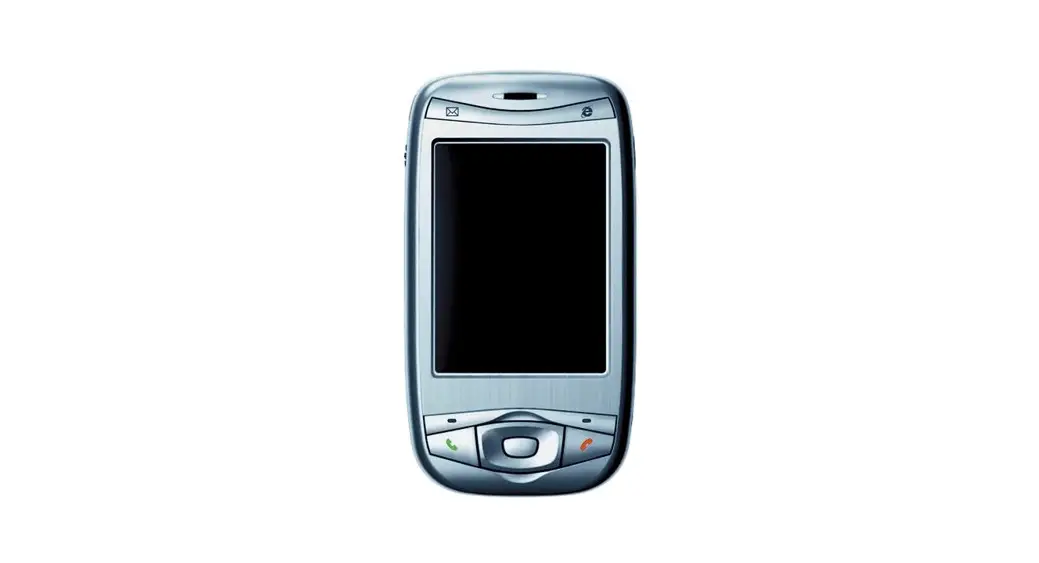
 HTC Wizard 200 Screen Cover Replacement
 HTC Wizard 200 Screen Cover Replacement
Installation of the screen cover on the HTC Wizard 200.
Written By: Kyle Champ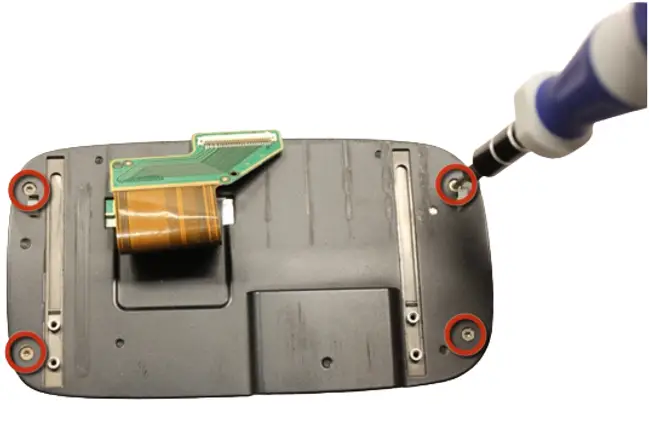
INTRODUCTION
This guide will explain how to install/remove the screen cover from the HTC Wizard 200.
 TOOLS:
- iFixit Opening Tool (1)
- Spudger (1)
- T5 Torx Screwdriver (1)
Step 1 — Battery
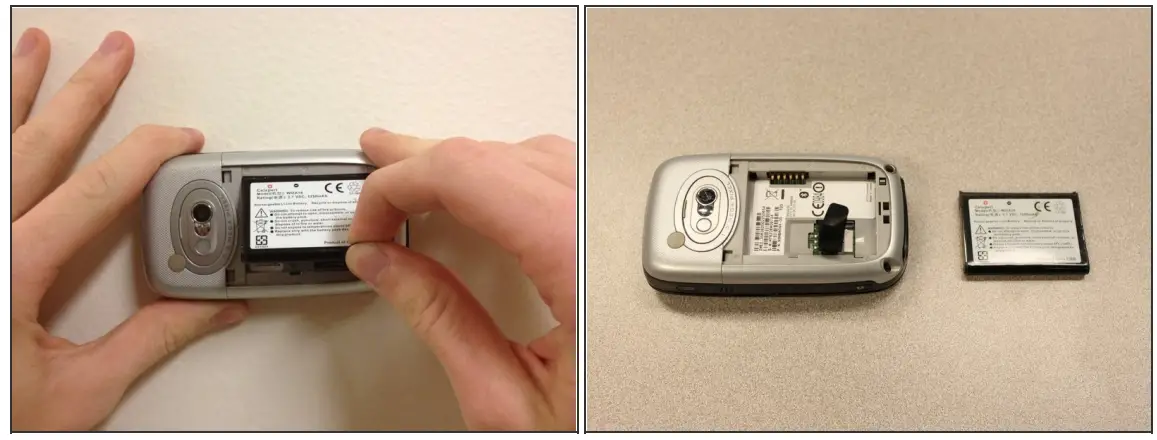
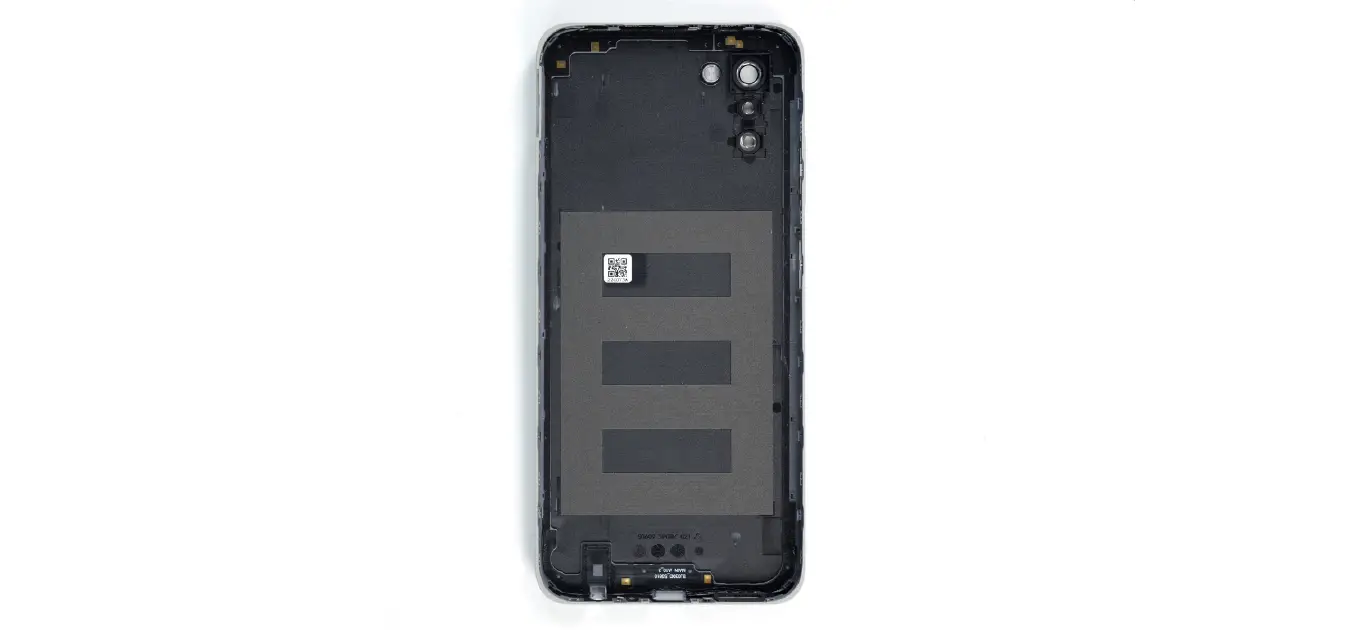
- To expose the battery, remove the outer case with your fingernail.
- Remove the battery by pulling the black tab.
Step 2 — Back Panel
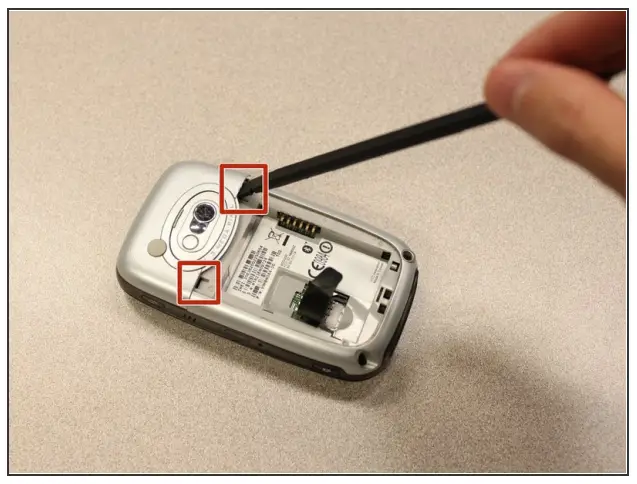
- Insert the flat end of the spudger into the two notches on the back of the camera cover and pry them up.
Step 3
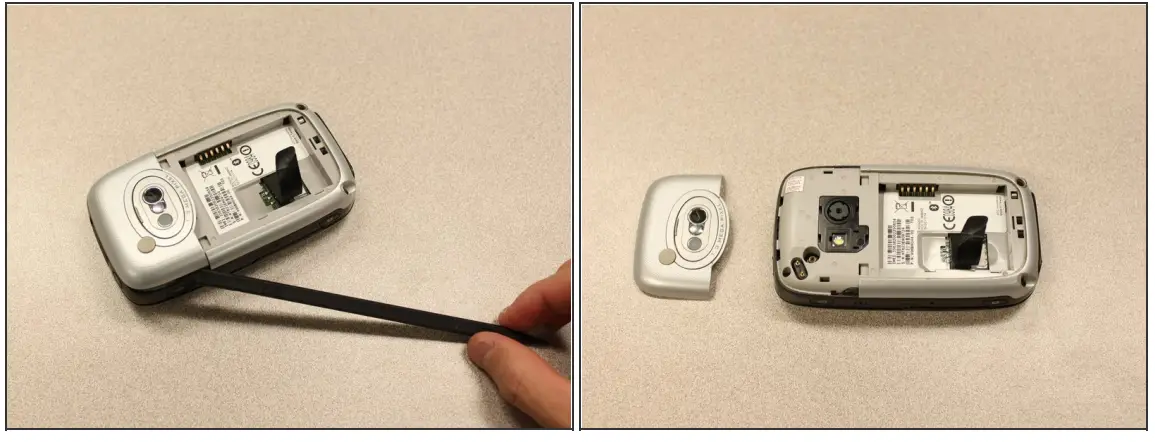
- Work the spudger around the edges of the camera cover until it comes off.
Step 4
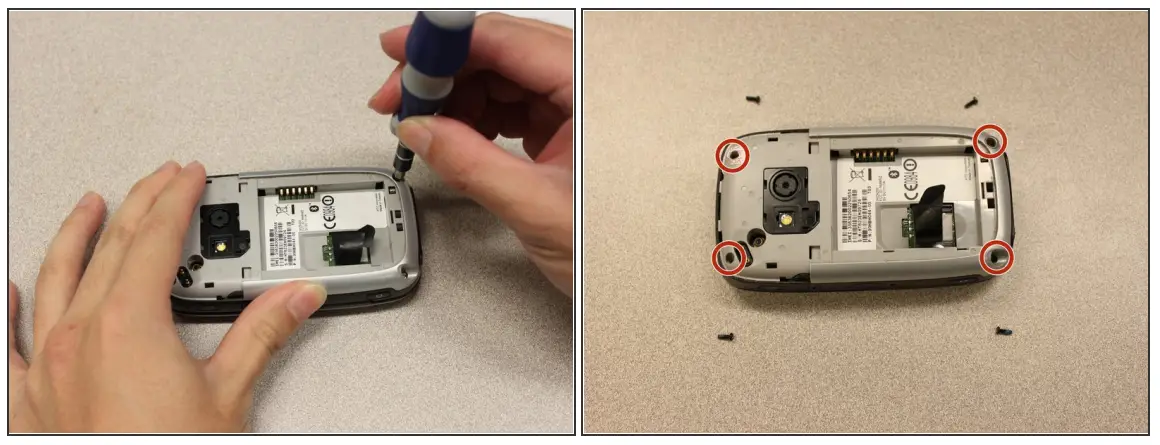
- Remove the four 6 mm screws with the T5 Torx screwdriver.
 One of the screws is under the “void” sticker.
Step 5
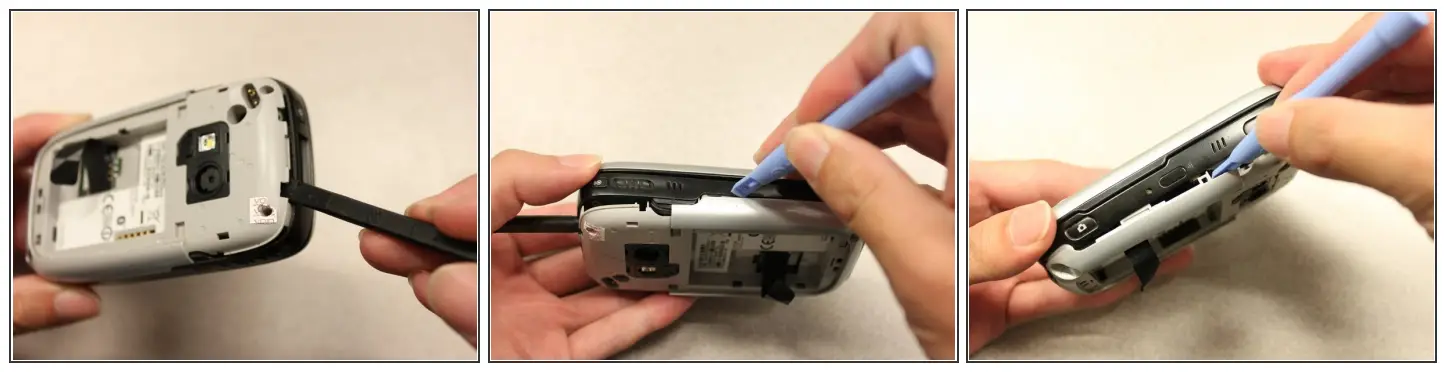
- Insert the flat end of an iFixit opening tool between the side and inner covers to create a gap.
- Work the tool around the edges until all the clips release.
Step 6

- Once all the clips are open, remove the inner panel from the phone.
Step 7 — Motherboard
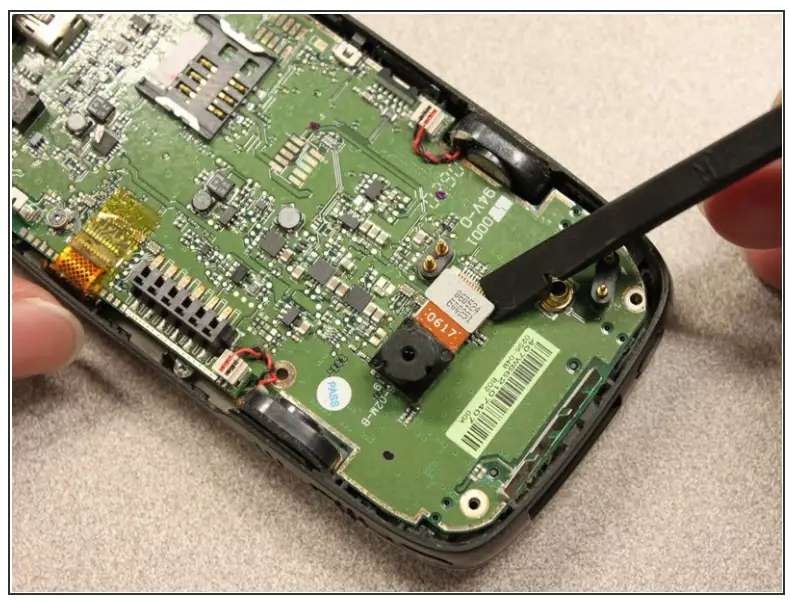
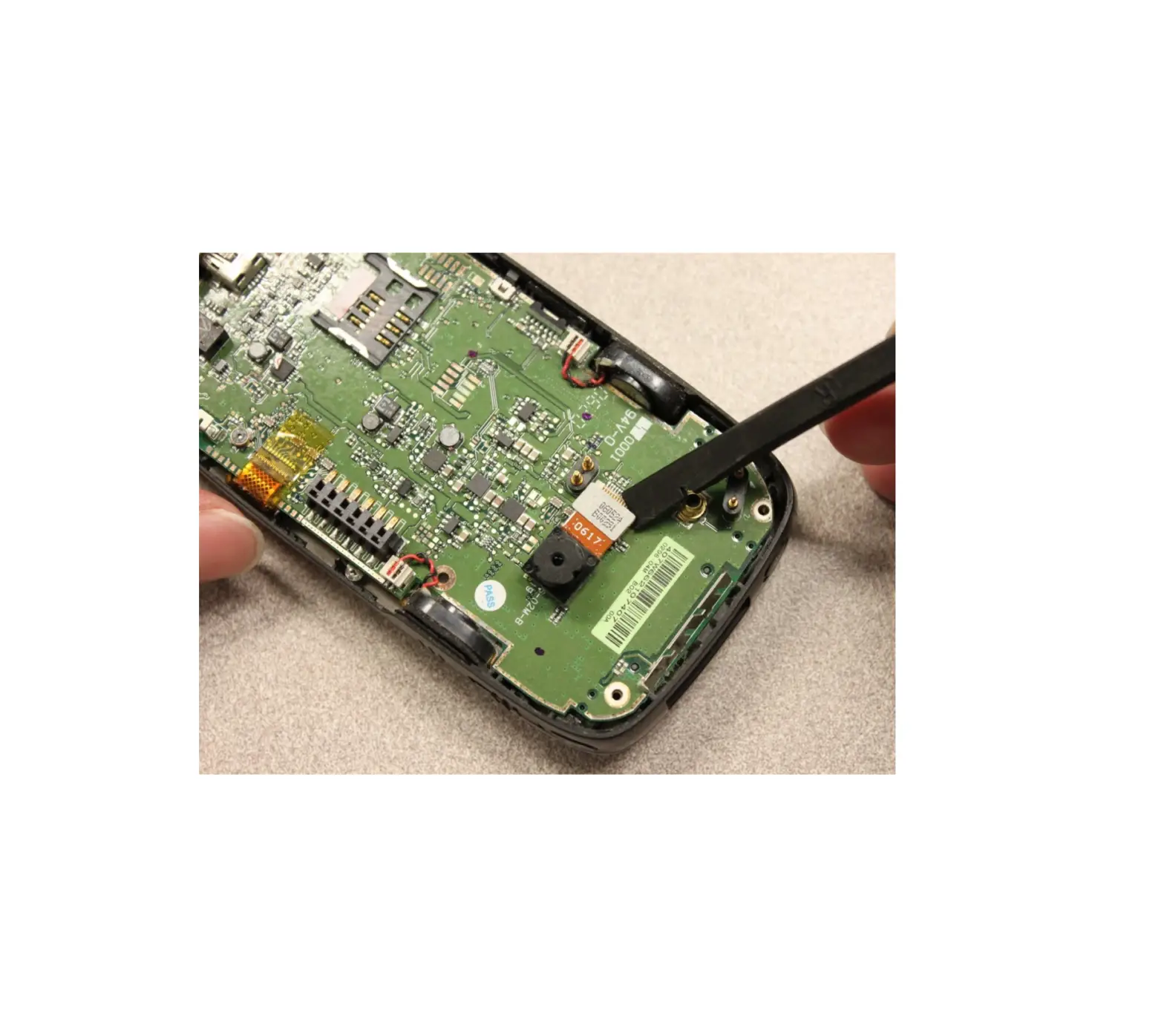
- Use the spudger to pry the camera off.
Step 8
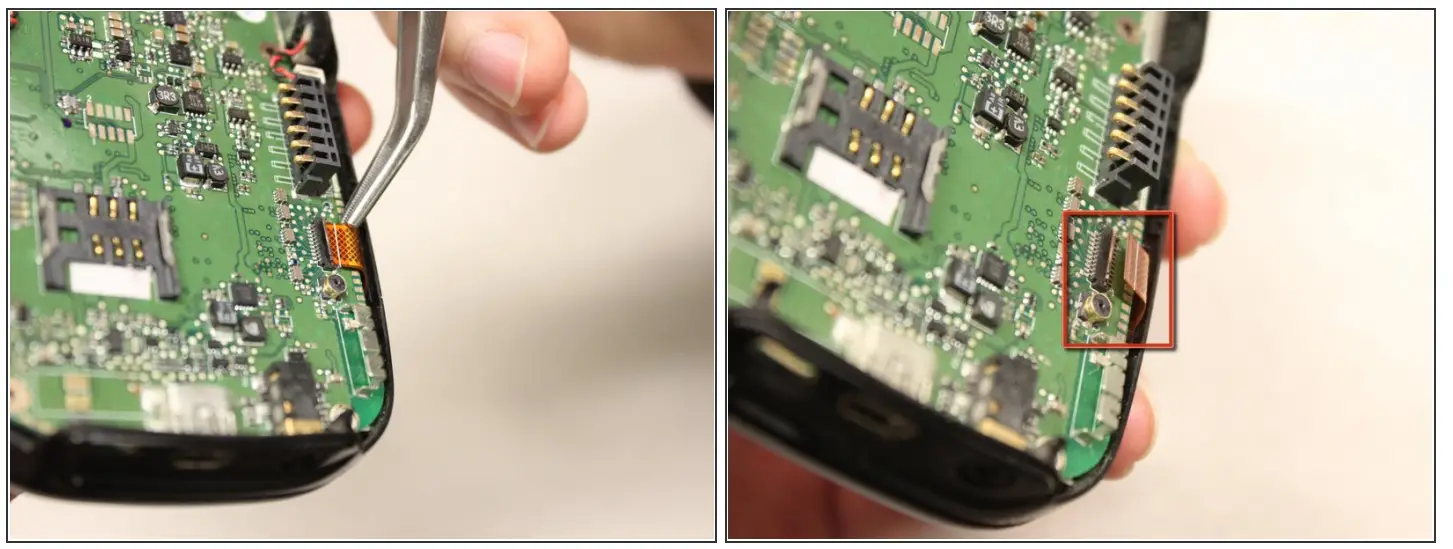
- Using tweezers, flip the connector latch away from the motherboard.
- Detach the flexible connection from under the connector latch.
Step 9
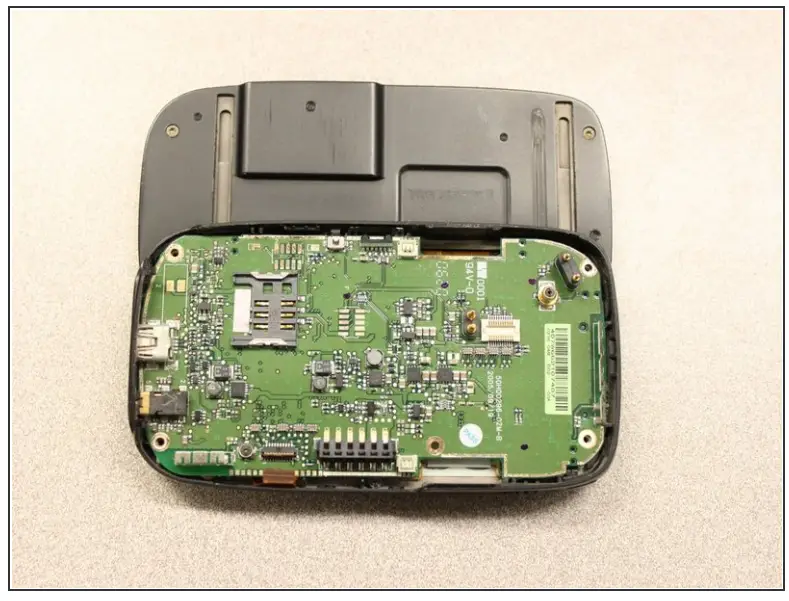
- Slide the keyboard into the open position.
Step 10
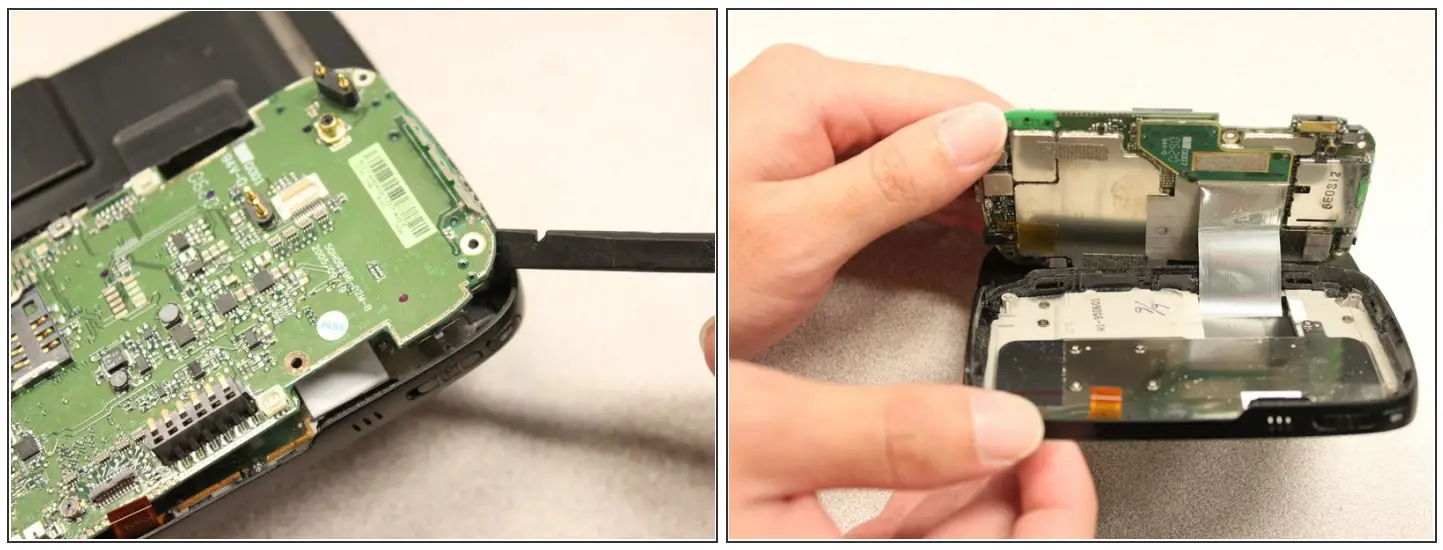
- Lift the motherboard out of the case using the spudger.
- Expose the underside of the motherboard using your hands.
Step 11
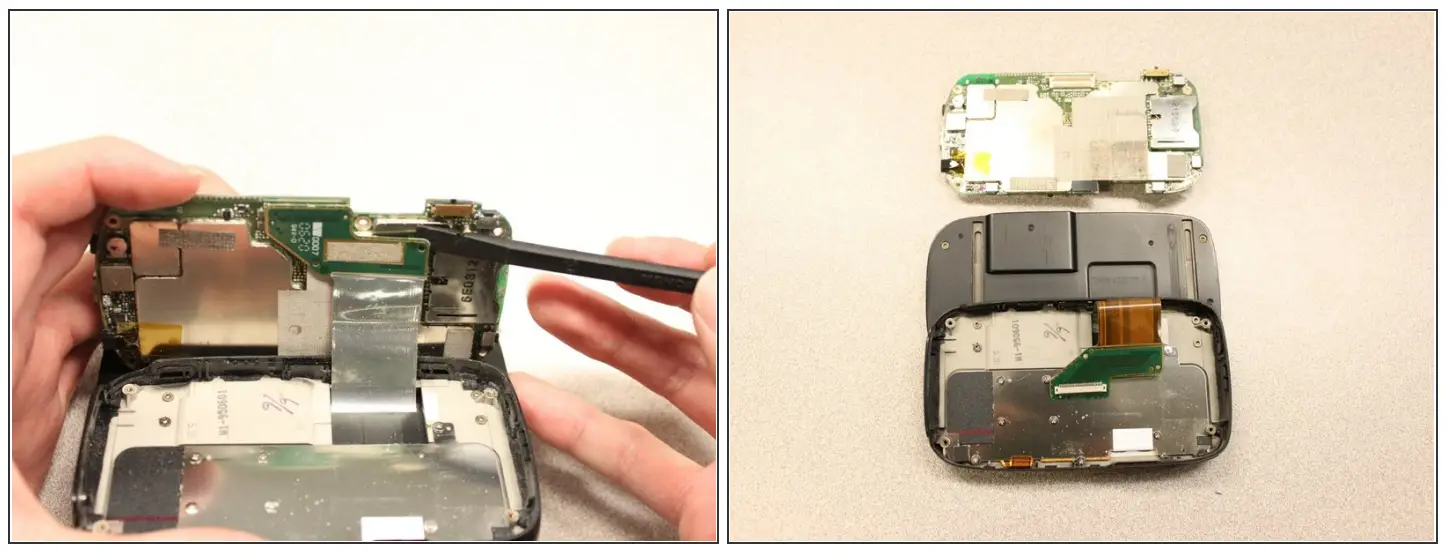
- Remove the flexible connection from the motherboard.
 Caution: Removing the connection too fast may cause damage to the connection and cables.
Step 12 — Keyboard Slider
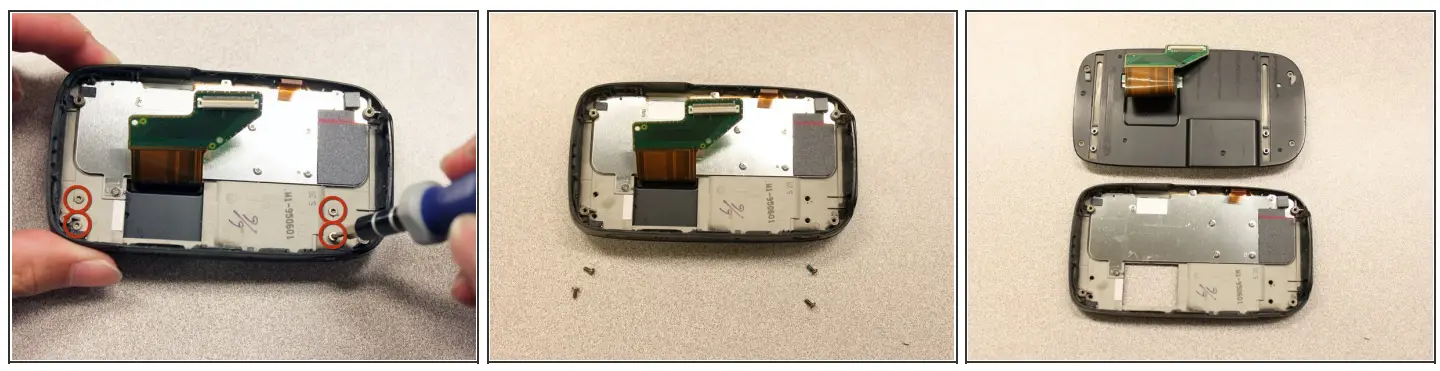
- Remove the four 5mm screws with the T5 Torx screwdriver.
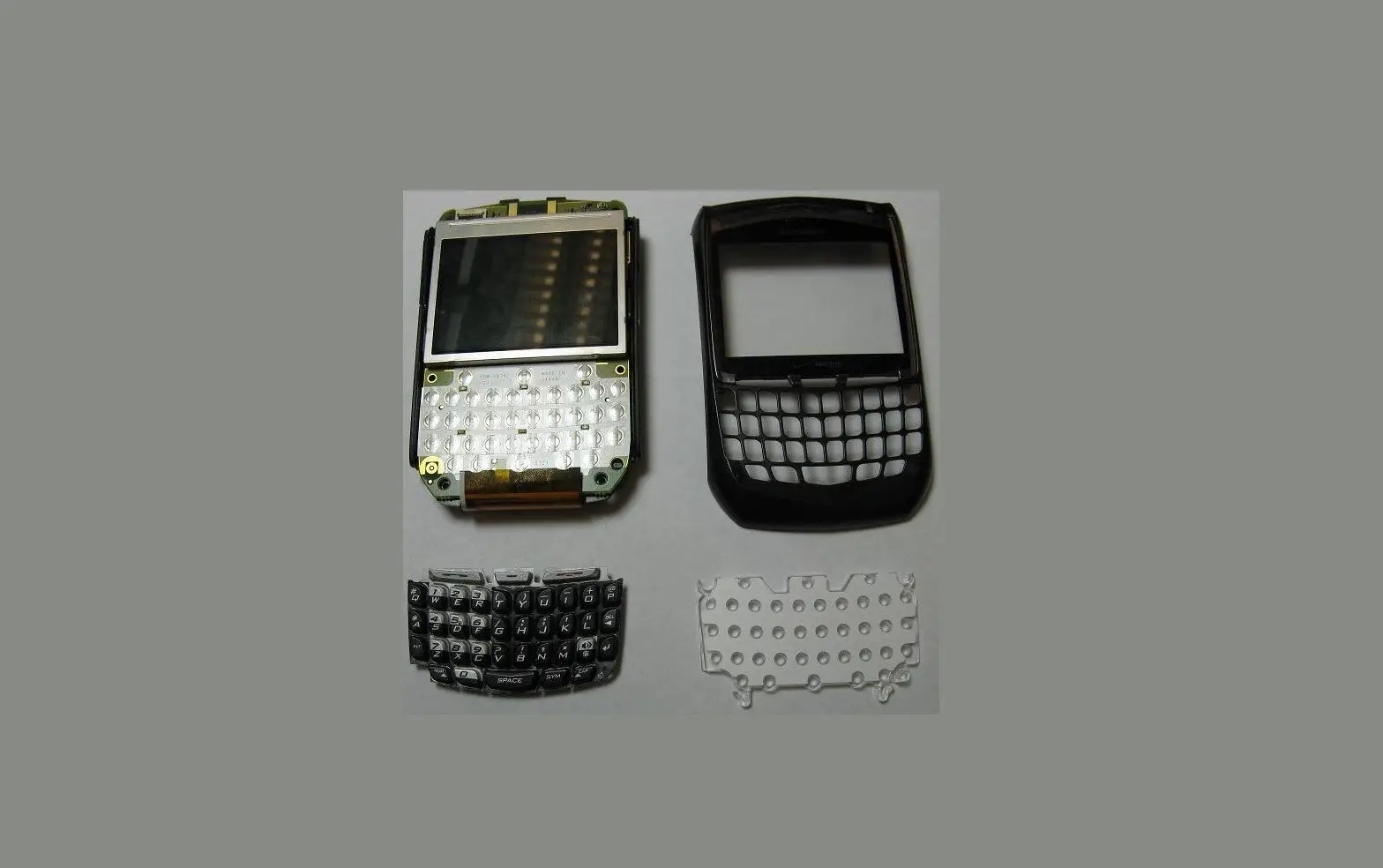
- Remove the keyboard slider from the main body.
Step 13 — Screen Cover
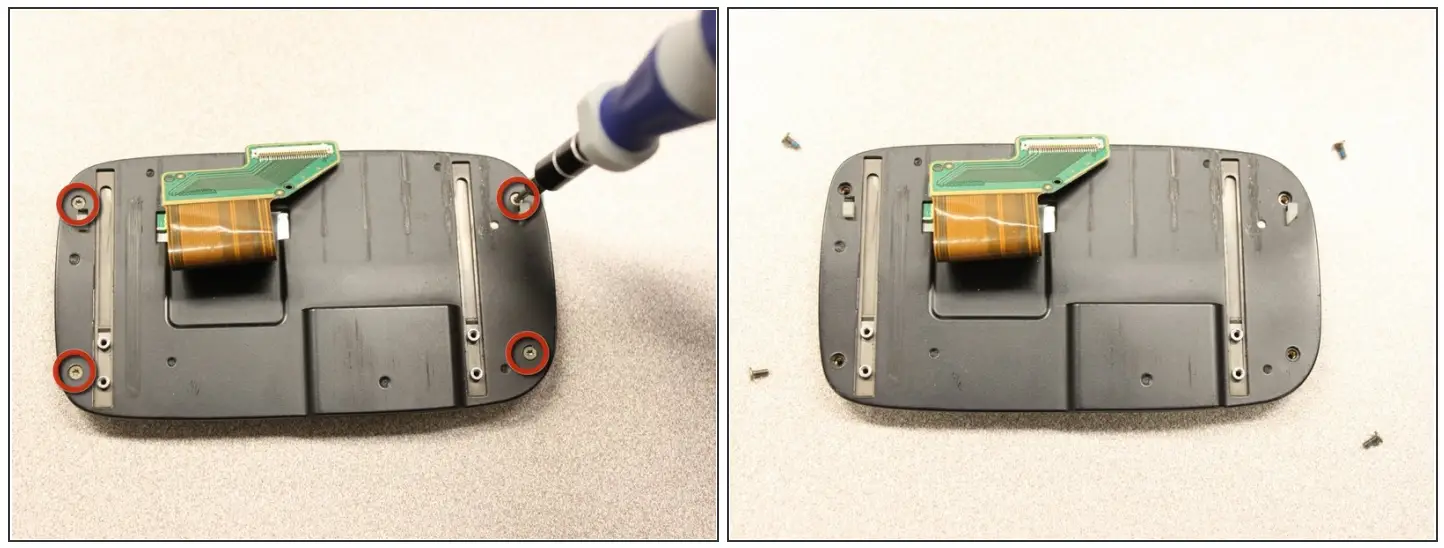
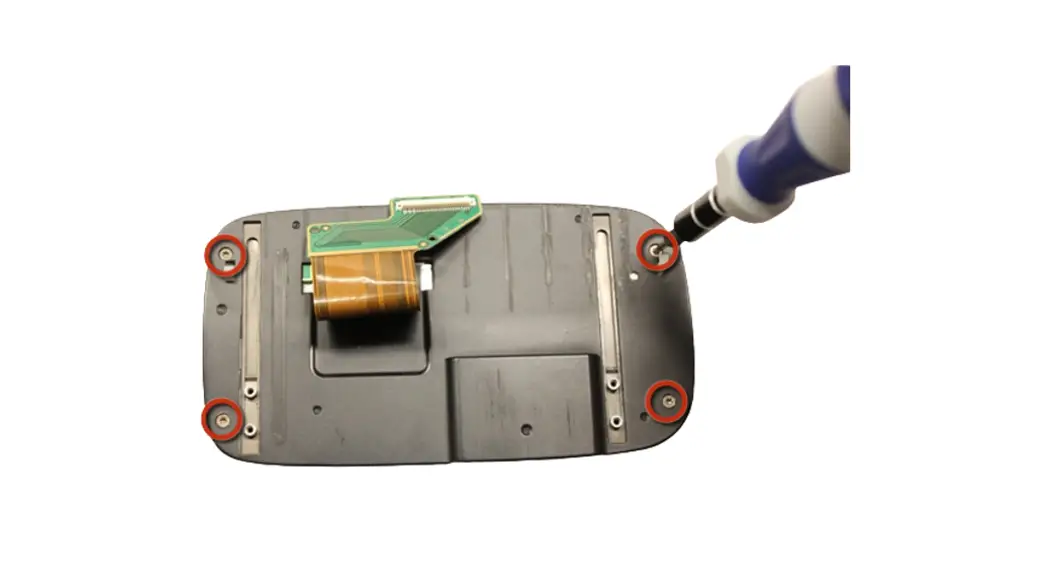
- Use the T5 Torx screwdriver to remove four 5mm screws that secure the back of the screen casing.
Step 14
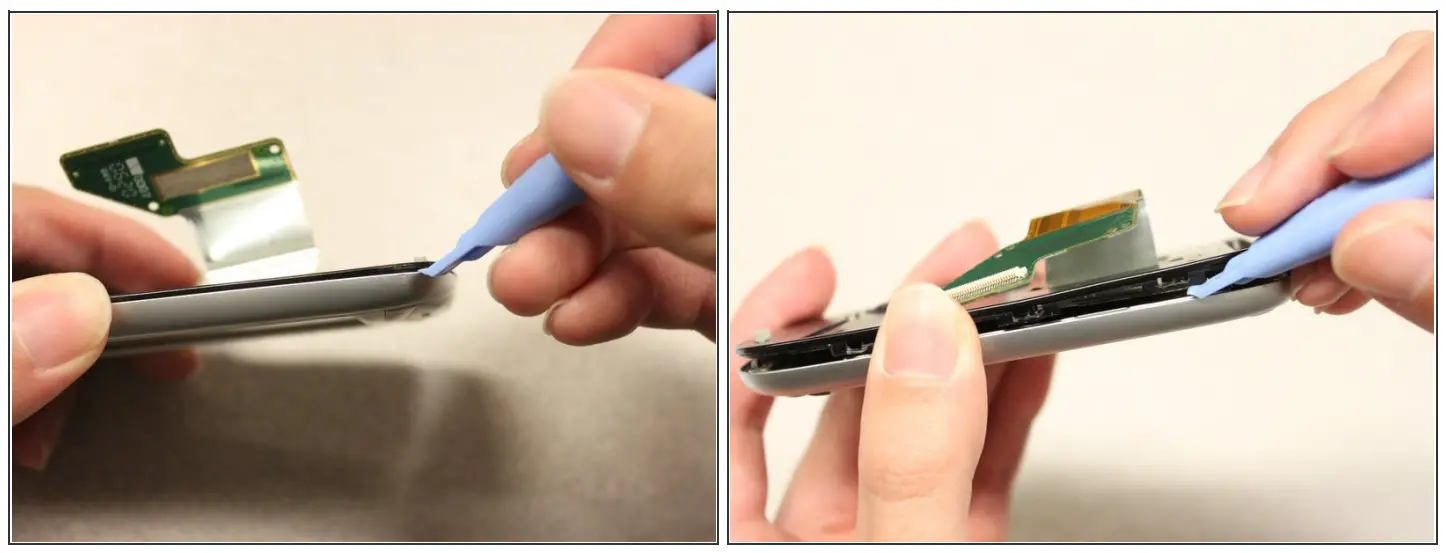
- Insert the plastic opening tool between the front panel and the rear panel and pry it open to reach the screen.
Step 15
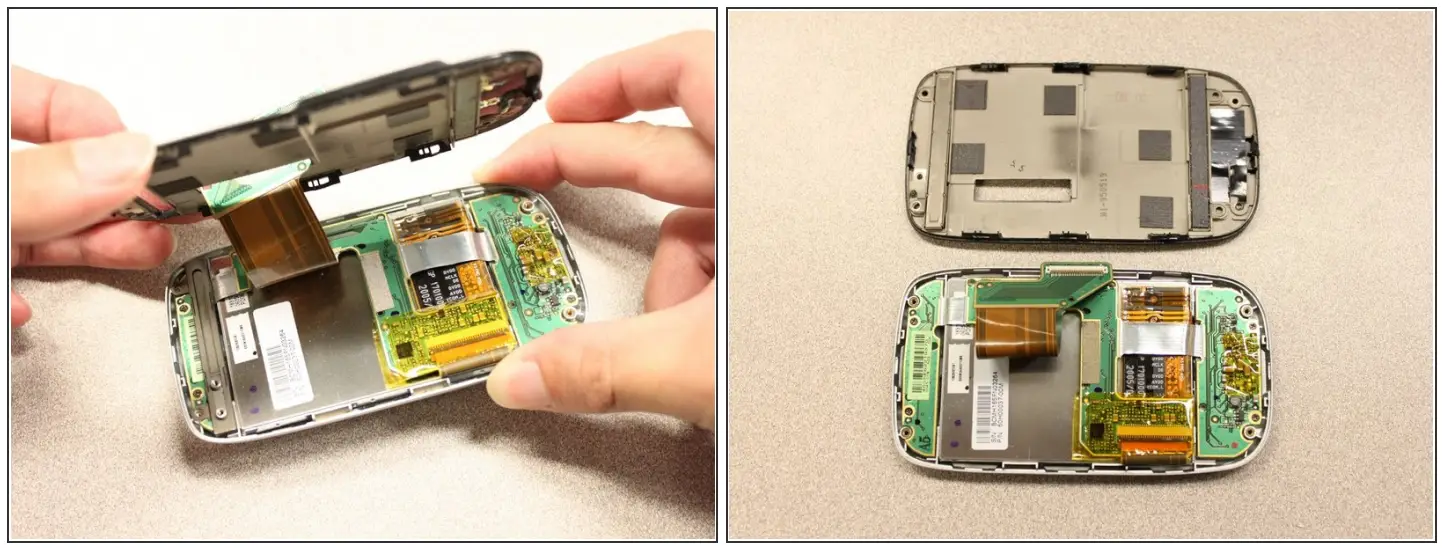
- Once the rear panel is loose, lift it off of the front panel.
- The flexible connection will pop loose.
Step 16
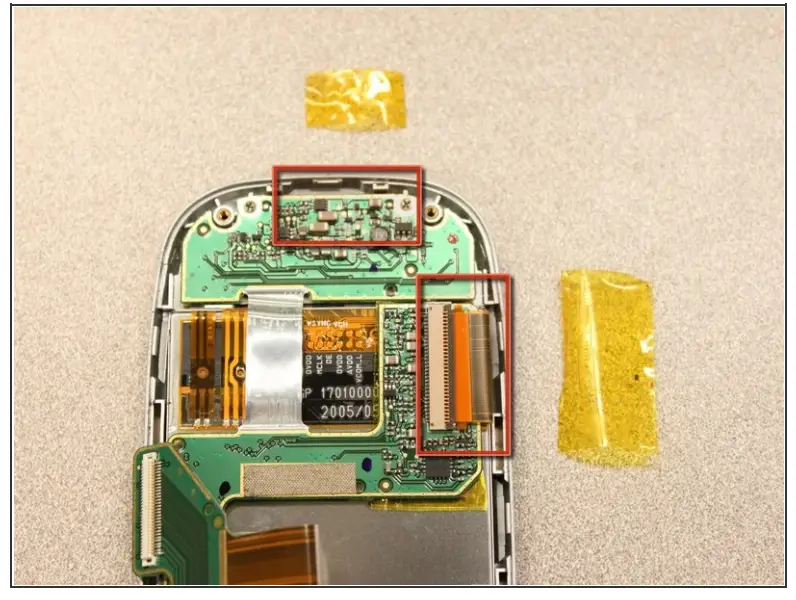
 Device rotated 90 degrees CCW.
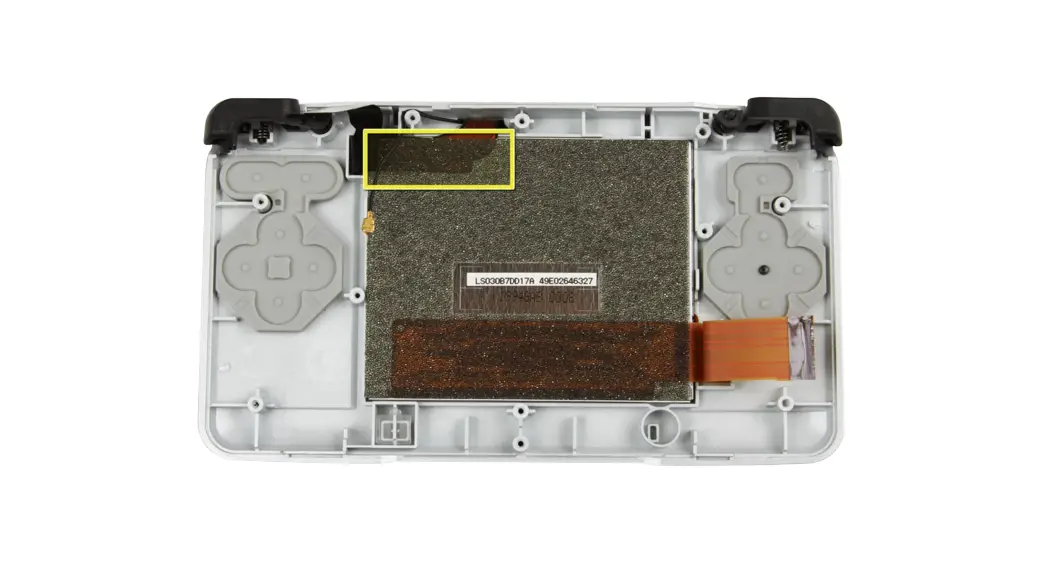
- Remove the yellow anti-static tape.
Step 17
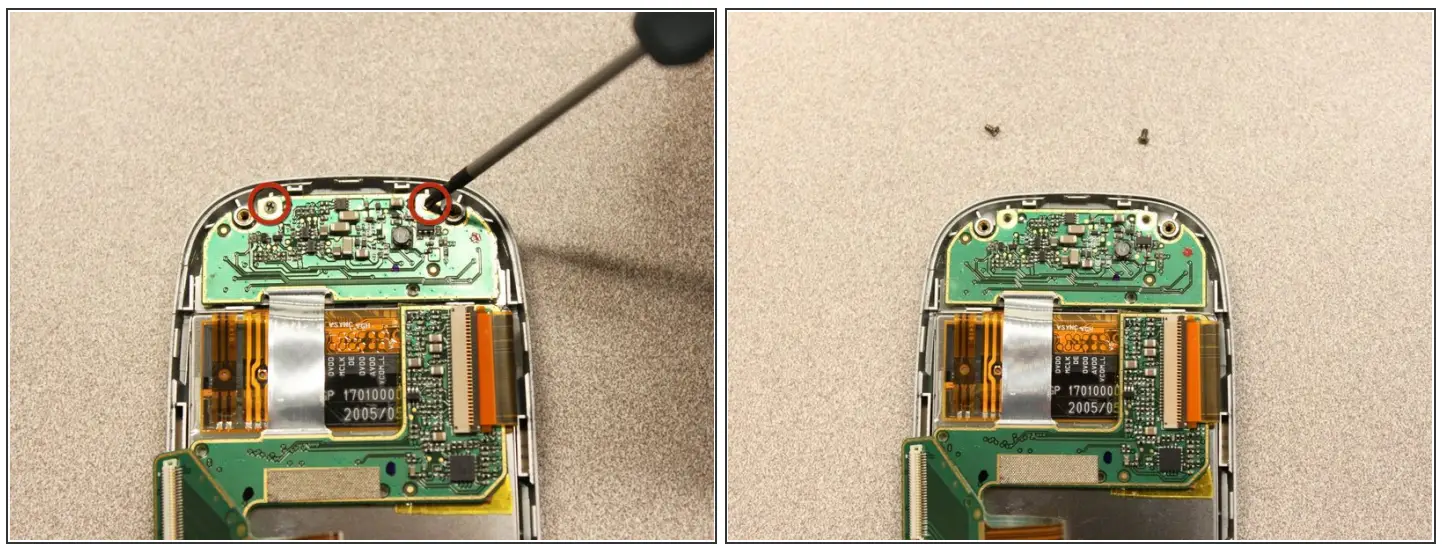
- Unscrew the two 3mm phillips #0 screws from the bottom of the device that secure the rigid-flex board to the screen panel.
Step 18
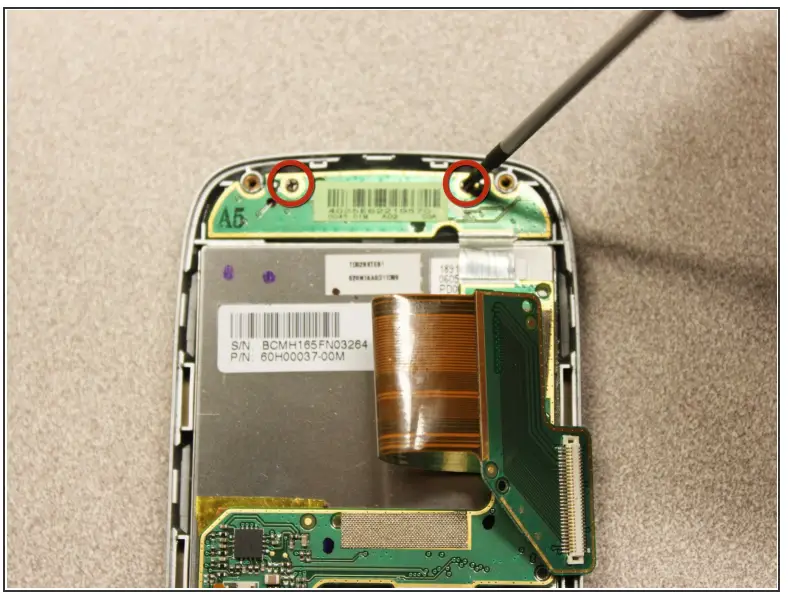
Device rotated 180 degrees CW.
- Unscrew the two 3mm phillips #0 screws from the top of the device that secures the rigid-flex board to the screen panel.
Step 19
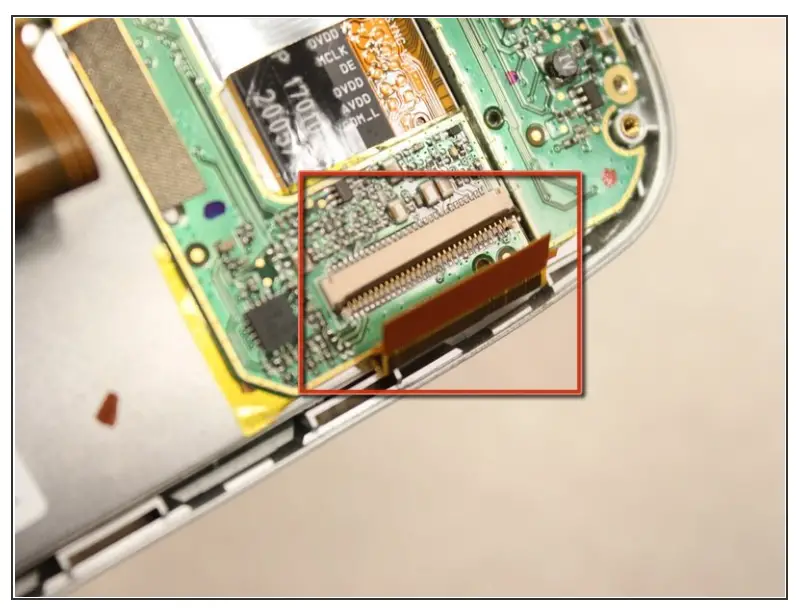
Device rotated 90 degrees CCW.
- Unhinge the flexible connection and use the tweezers to disconnect.
Step 20
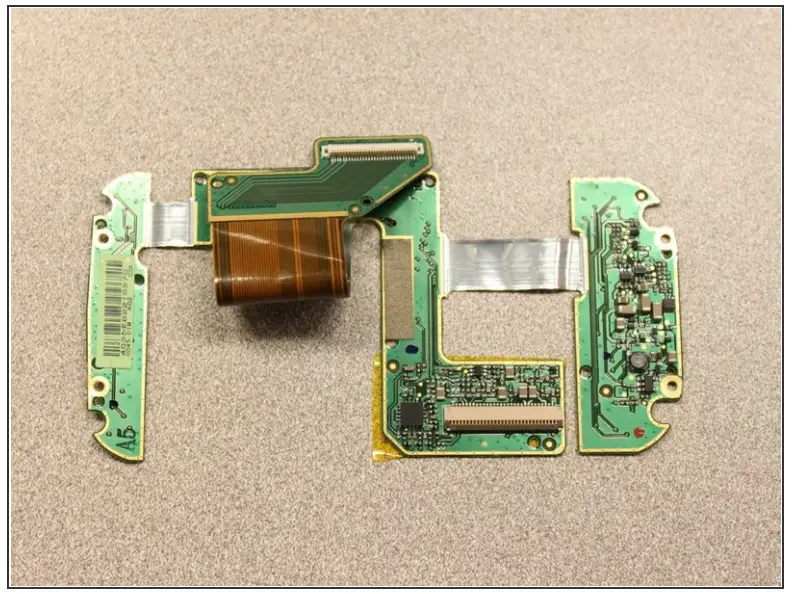
- Now that the rigid-flex board is loose, remove it from the screen.
To reassemble your device, follow these instructions in reverse order.
This document was generated on 2022-06-02 01:08:01 PM (MST).
HTC Wizard 200 Screen Cover Replacem…
Guide ID: 6836 -Draft: 2022-05-26
© iFixit — CC BY-NC-SA
www.iFixit.com
 Spudger: The Essential ESD-Safe Pry Tool - iFixit