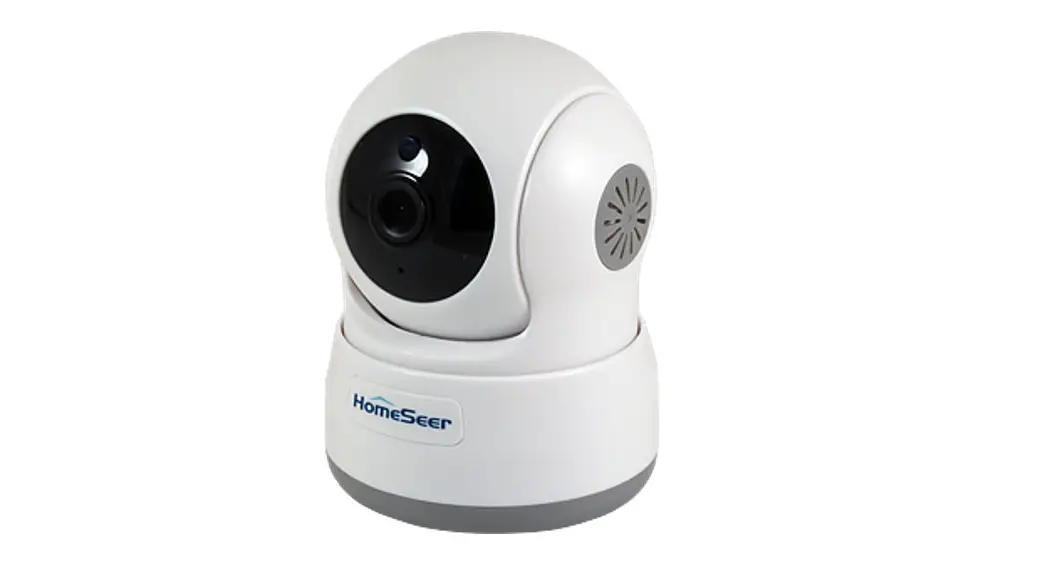
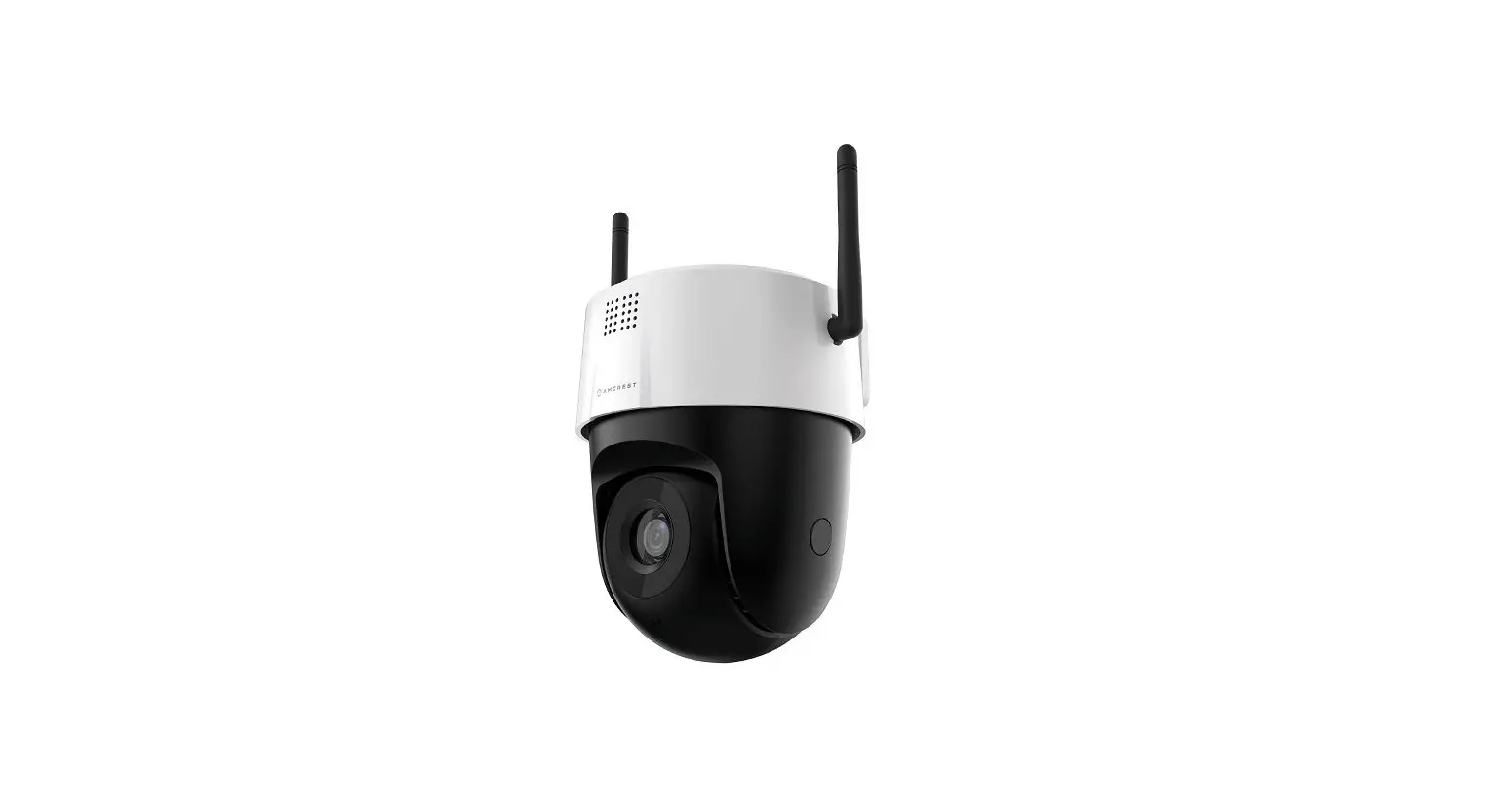
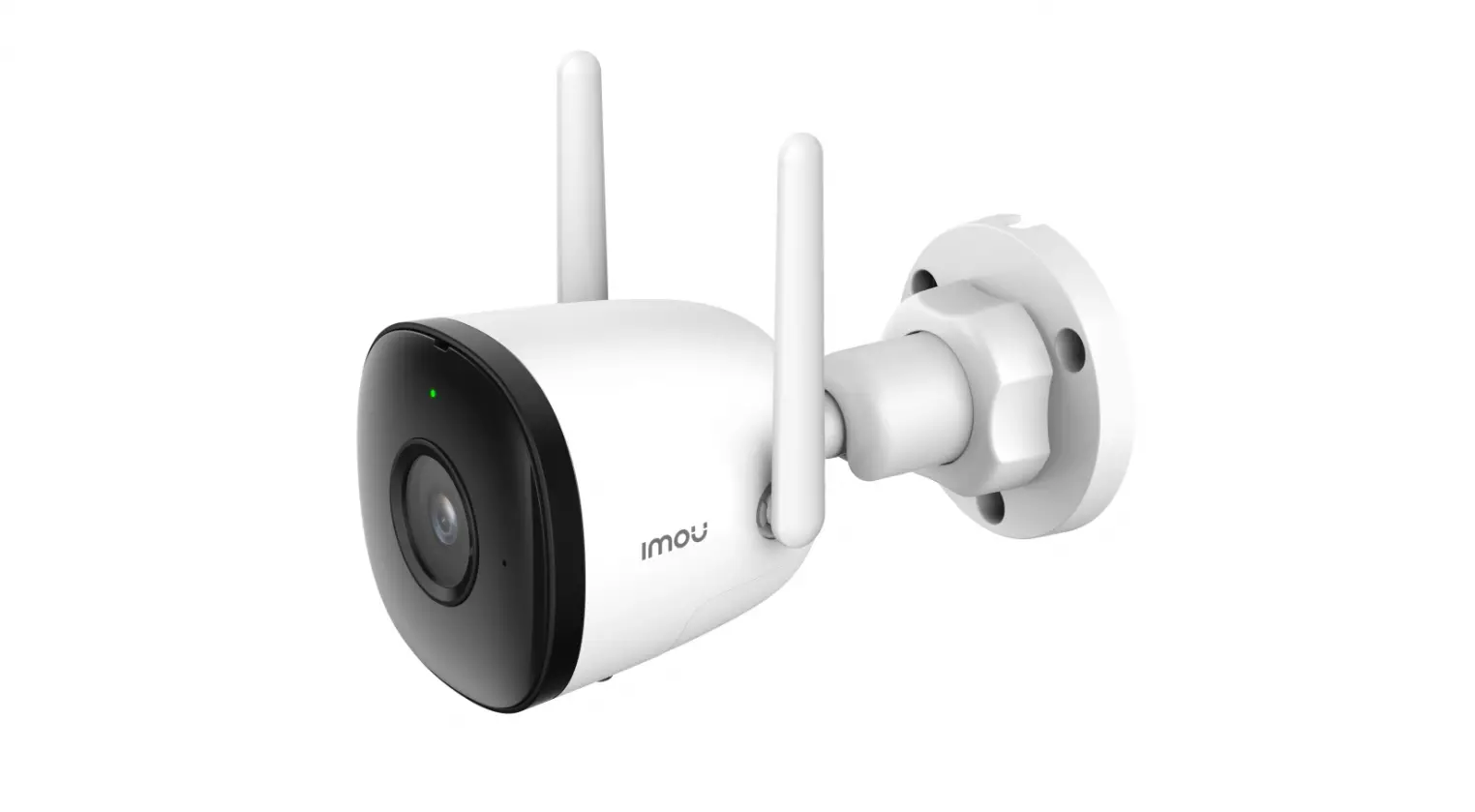
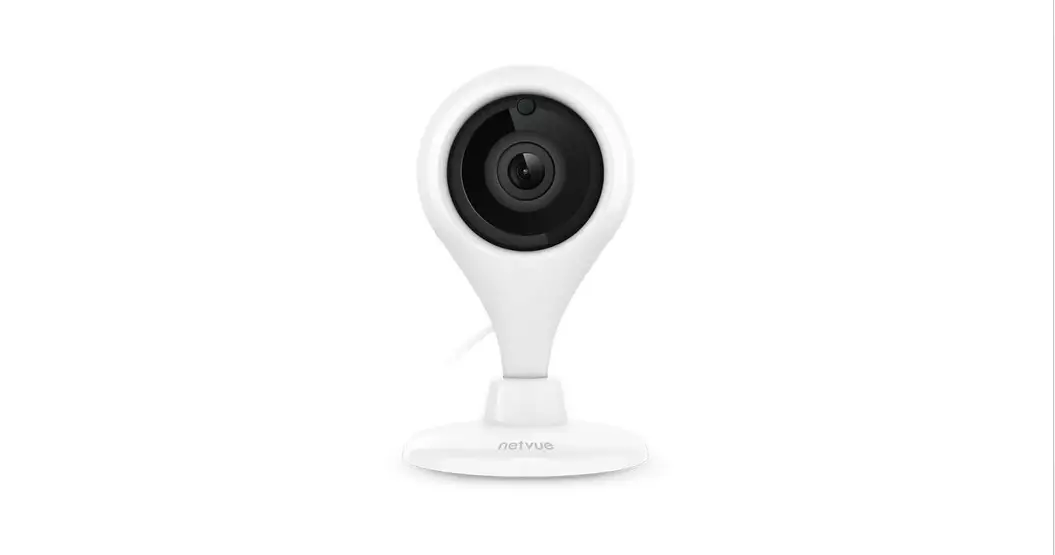
IPC2203 Mini Outdoor Full HD Camera Add on Device
Product Information:
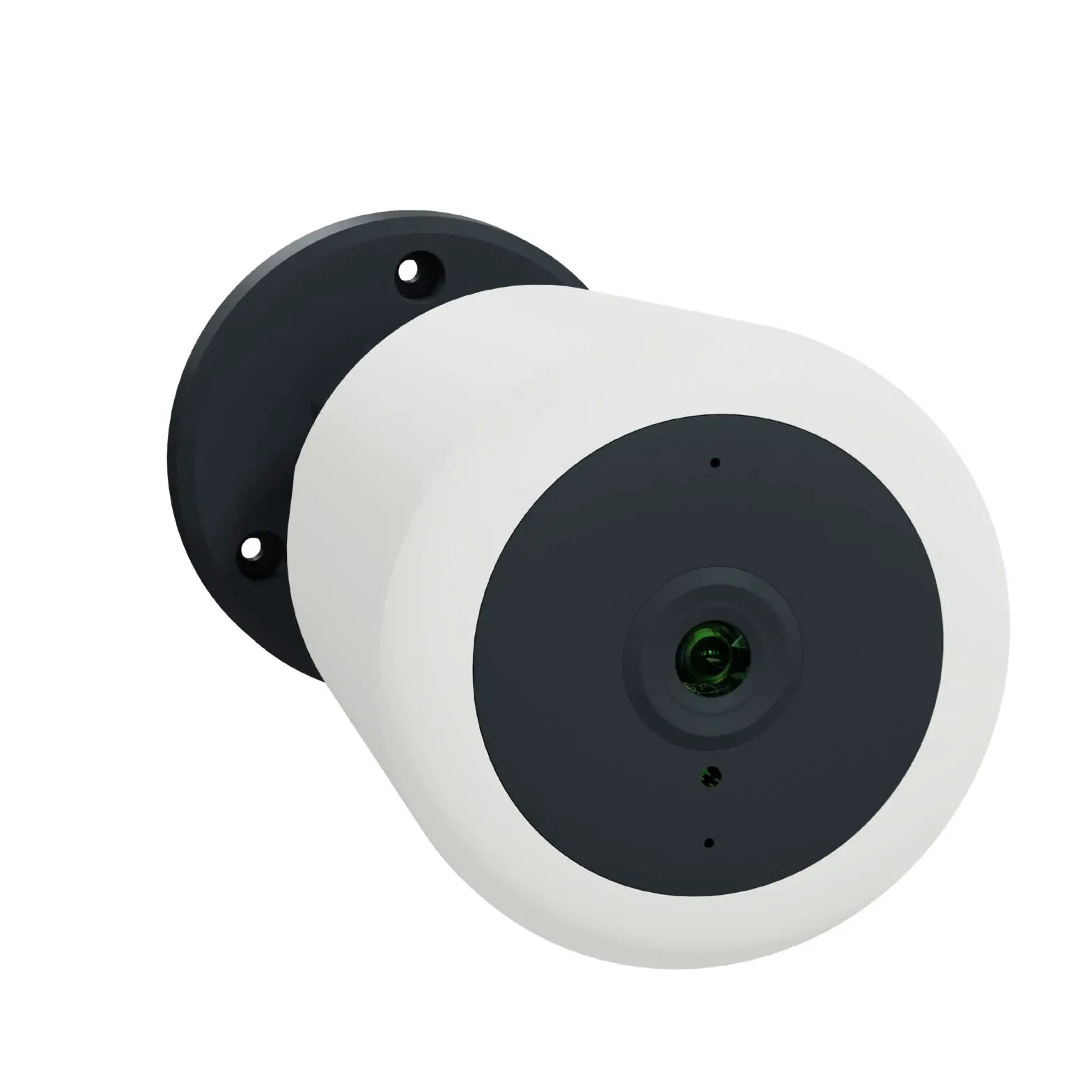
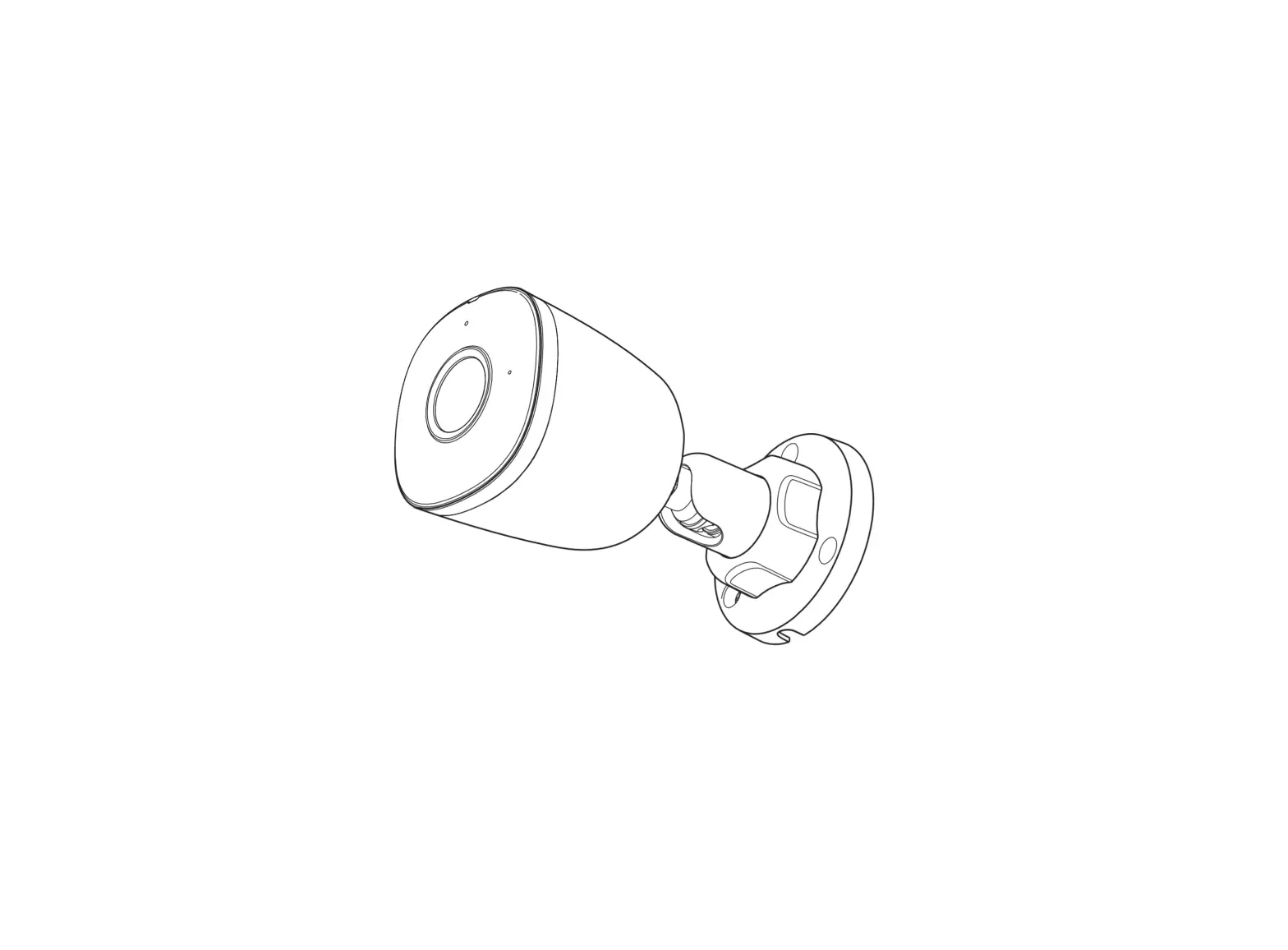
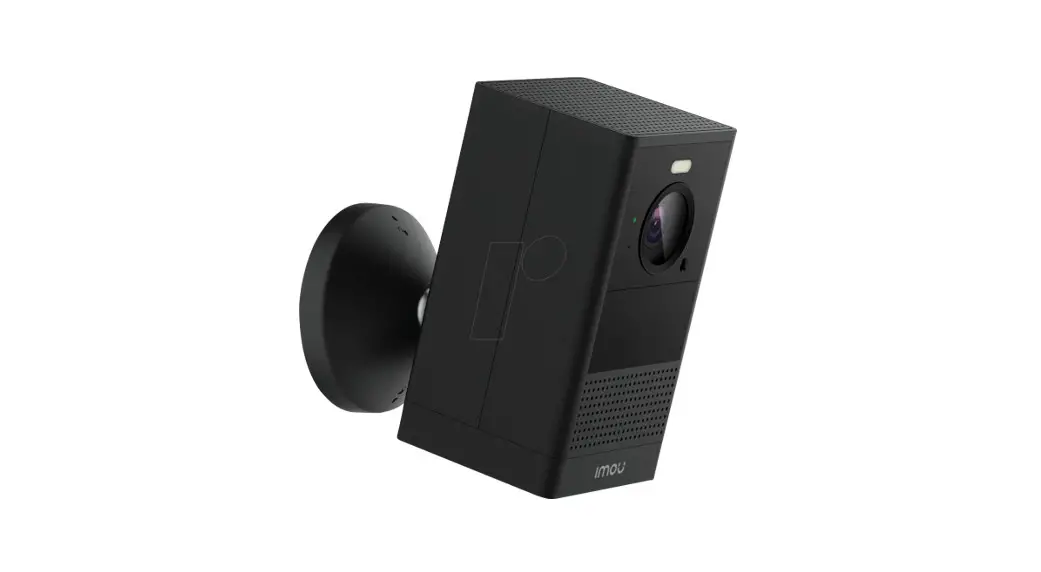
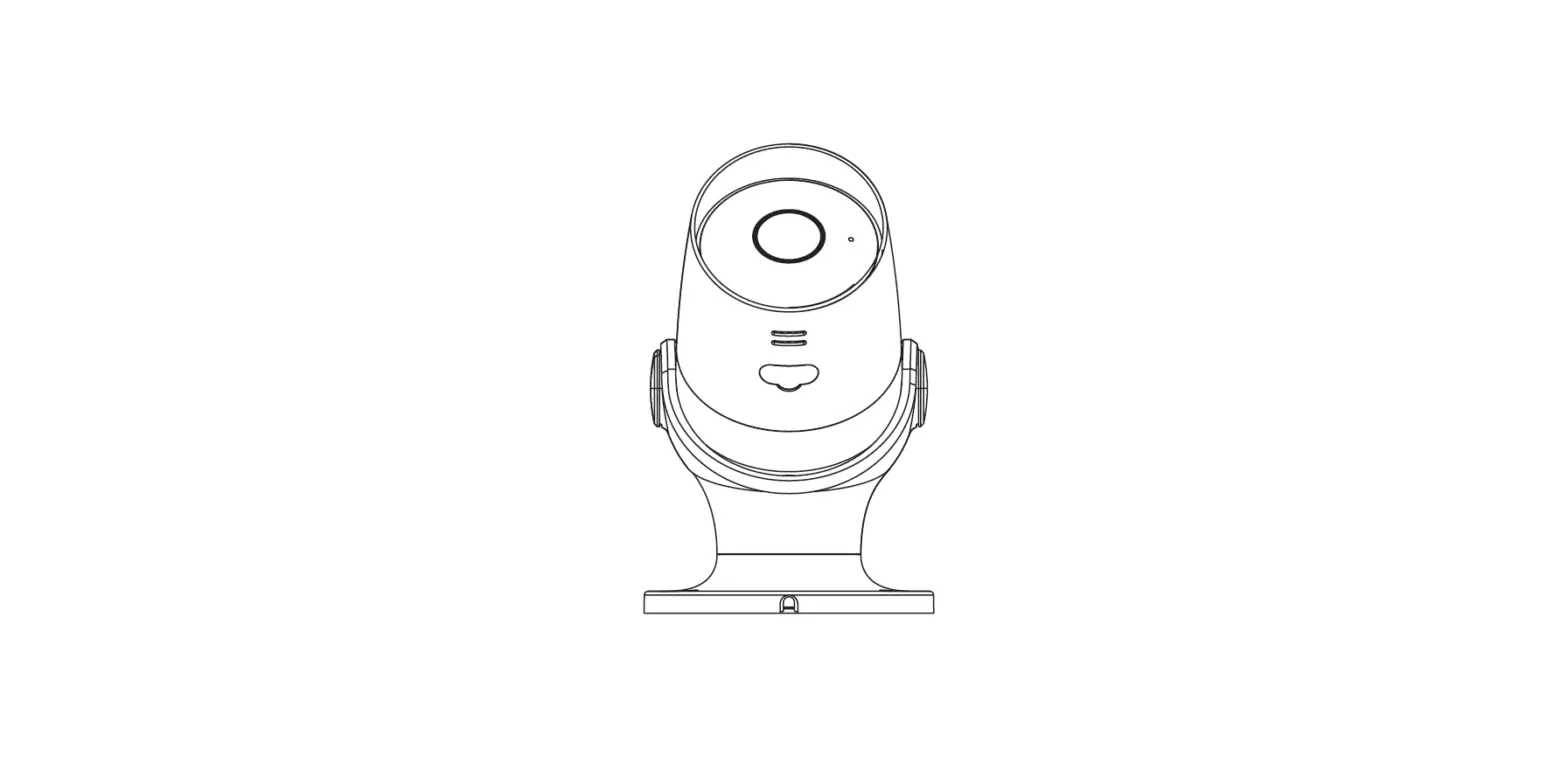
The Mini Outdoor Full HD Camera (Model No. IPC2203) is an add-on
device that can be used to enhance your Home8 system. It comes with
various accessories, including a power adapter, a wrench, power
waterproof cases, cable waterproof cases, and mounting accessories.
The camera operates on a 2.4GHz Wi-Fi signal for better
transmission distance and is not compatible with 5GHz Wi-Fi
networks. Please note that all Home8 add-on devices must be used
with Home8 systems.
To save video clips locally or enable continuous recording, you
will need a MicroSD card (FAT32, SDHC type). It is important to
insert the MicroSD card into the camera when it is powered off to
avoid any damage. Additionally, video recording services require a
subscription, so please visit our website for more information.
Product Usage Instructions:
Option 1: Add it with your existing Home8 system
Step 1: Assemble your device and
accessories
- Unpack your devices and accessories.
- Pair the device with the Security Shuttle within 1-10 feet to
ensure a stable connection.
Step 2: Power on the Camera and connect it to the
system
- Insert the MicroSD card into the Camera Card Slot before
powering up the Camera. You can also purchase a MicroSD card
separately. - Choose one of the following two methods for powering and
connecting:
1-A: Wireless
- Connect the included power adapter to the Camera’s power supply
interface. - Ensure the Camera is within range of your Wi-Fi network.
1-B: Wired
- Connect the PoE Injector (IEEE802.3af / 48VDC 0.5A) to your
home router using an Ethernet cable. - Using another Ethernet cable, connect the PoE Injector to the
Camera’s Ethernet interface. - Power on the PoE Injector.
Step 3: Add a device
Follow the instructions provided with your Home8 system to add
the Mini Outdoor Full HD Camera as a new device.
Step 4: Before mounting your device
- Before mounting the camera, ensure it is within the Security
Shuttle’s range by taking it to the desired location and plugging
it in. - Wait until you see live streaming video from the Home8 app
before proceeding with the mounting process.
Option 2: Add it with Virtual Gateway (without Security
Shuttle)
Step 1: Set up your smartphone
- Connect your smartphone to Wi-Fi.
- Download the Home8 app from the App Store, Google Play, or
Windows store and create an account.
Step 2: Assemble your device and
accessories
- Insert the MicroSD card into the Camera Card Slot before
powering up the Camera. You can also purchase a MicroSD card
separately. - Choose one of the following two methods for powering and
connecting:
2-A: Connect the Camera to your home router with an
Ethernet cable
Note: For optimal data transmission quality, the maximum length
of the Ethernet cable is 100 meters.
What’s inside:
Mini Outdoor Full HD Camera Add-on Device Quickstart Guide
Model No. IPC2203
1x Mini Outdoor Full HD Camera
1x Power Adapter
1x Wrench
Power Waterproof Cases
Cable Waterproof Cases
Mounting Accessories
To save video clips locally or turn on the continuous recording function, a MicroSD card (FAT32, SDHC type) is needed. Note:
1. Please insert the MicroSD card into the camera when it is powered off to avoid damage to the MicroSD card. 2. Video recording service require service subscription, please visit our website for more information
Operates on 2.4GHz Wi-Fi signal Note: 2.4GHz has better Wi-Fi transmission distance and is less prone to interruption from the obstruction of solid objects.
Virtual gateway does not support 5GHz Wi-Fi features.
All Home8 add-on devices have to work with Home8 systems.
Option 1: Add it with your existing Home8 system
Step 1: Assemble your device and accessories
1 . Unpack your devices and accessories. 2. Pair the device with the Security Shuttle within 1-10 feet
to make sure the connection is working well.
Step 2: Power on the Camera and connect it to the system
1 . Insert the microSD* card into the Camera Card Slot before powering up the Camera. You can also purchase a microSD Card at a later time.
Power8supply interface
11
10
Ethe9rnet interface * Ethernet cable is not included.
1-10 ft
WPS/RESET
2. There are two methods for powering and connecting. Please review the two options and decide which option you would like to use:
microSD Card Slot
* NOTE – microSD Card not included. FAT32, SDHC type.
1-A: Wireless
Connect the included power adapter to the Camera’s power supply interface.
Electrical Power
1-A
1-B: Wired Connect the PoE Injector (IEEE802.3af / 48VDC 0.5A) to your home
router with an Ethernet cable. Using the other Ethernet cable, connect
the PoE Injector to the Camera’s Ethernet interface.
Power on the PoE Injector.
* Note: PoE Injector and Ethernet cables are not included in the package.
Network data
Router
Network data
Electrical Power
PoE Injector (Not Included)
1-B
Router
Step 3: Add a device
1 . Open the Home8 app, tap on the menu button “Þ” and select ” Device Management “. 2. Press the add button ” + ” next to Camera List. 3. Follow the app instructions to scan the QR code located on the device. * Note: If the scan is incomplete, you will be asked to enter the serial number (SN) of the device.
Step 4: Before mounting your device
1 . Before mounting your camera, see if it is within the Security Shuttle’s range by taking the Camera to the place where you want it to be mounted and plug it in.
2. Wait until you see live streaming video from the Home8 app before mounting. 3. Go to Step 5.
2
Option 2: Add it with Virtual Gateway (without Security Shuttle)
Step 1: Set up your smartphone
1 . Connect your Smartphone to Wi-Fi. 2. Download the Home8 app from the App Store, Google Play, or Windows store and create an account.
Step 2: Assemble your device and accessories
1 . Insert the microSD* card into the Camera Card Slot before powering up the Camera. You can also purchase a microSD Card at a later time.
WPS/RESET
2. There are two methods for powering and connecting. Please review the two options and decide which option you would like to use:
microSD Card Slot
* NOTE – microSD Card not included. FAT32 SDCH type.
2-A: Connect the Camera to your home router with an Ethernet cable* and power on the camera. * For the best data transmission quality, the maximum length of Ethernet cable is 100 meters.
2-B: Connect the PoE Injector (IEEE802.3af / 48VDC 0.5A) to your home router with an Ethernet cable. Using the other Ethernet cable, connect the PoE Injector to the Camera’s Ethernet interface. Power on the PoE Injector. *Note: PoE Injector and Ethernet cables are not included in the package.
Power8supply interface
11
10
Ethe9rnet interface * Ethernet cable is not included.
Step 3: Add it to the System with Vitural Gateway
Note: Make sure your Wi-Fi router is on. Make sure the Wi-Fi of your smartphone is on 1. Tap the side bar “Þ” and select “Device Management”. 2. Select “IP Camera”. 3. Follow the on-screen instructions. When finished, press “Next”.
Next
Step 4: Sync Virtual Gateway with Wi-Fi Network
1. After scanning the QR code, select your Wi-Fi network and enter the password if necessary. When finished, tap “Join”.
2. Follow the on-screen instructions.
* Existing users:
Please swipe left across the screen
Continue to next page
3. After the activation is completed, you will see the message “System is ready!” on the screen. By tapping “OK”, a virtual gateway and the camera will be added to the device management page.
4. (2-A) You now can unplug the cable from the camera or leave it attached. 5. Go to Step 5.
Step 5: Installation
Both wall mounting and ceiling mounting are suitable for the Camera. Wall mounting will be the example in this section. If you decide to go with ceiling mounting as your method of installation, then you can use the wall mounting
Hole CMeiolinug nMtoiunntging
steps as a reference. 1. Drill the screw holes into the wall according to the drill template. 2. Route the corresponding cables.
Hole
Hole
1
3. Secure the camera to the wall with the supplied screws.
4. Adjust the surveillance angle.
· Loosen the adjusting nut.
· Adjust the pan direction [0° to 360°]. · Adjust the tilt direction [0° to 90°]. · Rotate the camera [0° to 360°] to adjust
3 Secure the Camera to the Wall
AdjuAsdtinjugsNtuintg Nut
the lens to the surveillance angle. · Tighten the adjusting nut to complete the installation.
0°~360°
4
0°~90°
axis Adjustment
0°~360°
Troubleshooting Tips
If you’re having trouble adding your device, you may need to reset it. · Use the wrench to open the cover which is located on the bottom of the camera. · Make sure the camera is powered off first. Press down and hold the RESET button for around 10 seconds until the
IR LED goes off, and then power on the camera. · Return to the app and follow the onscreen instructions.
3
V1.1