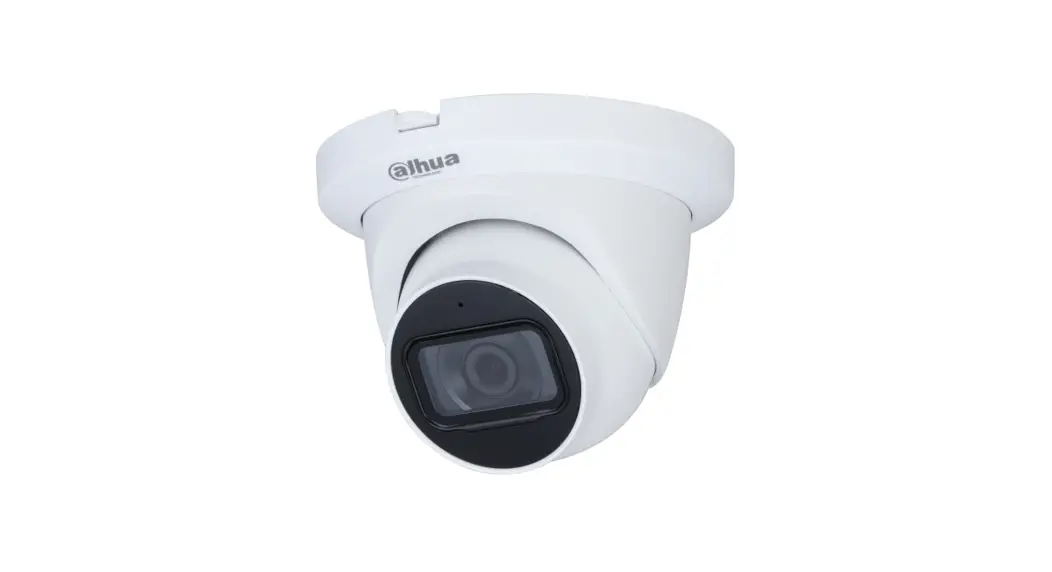
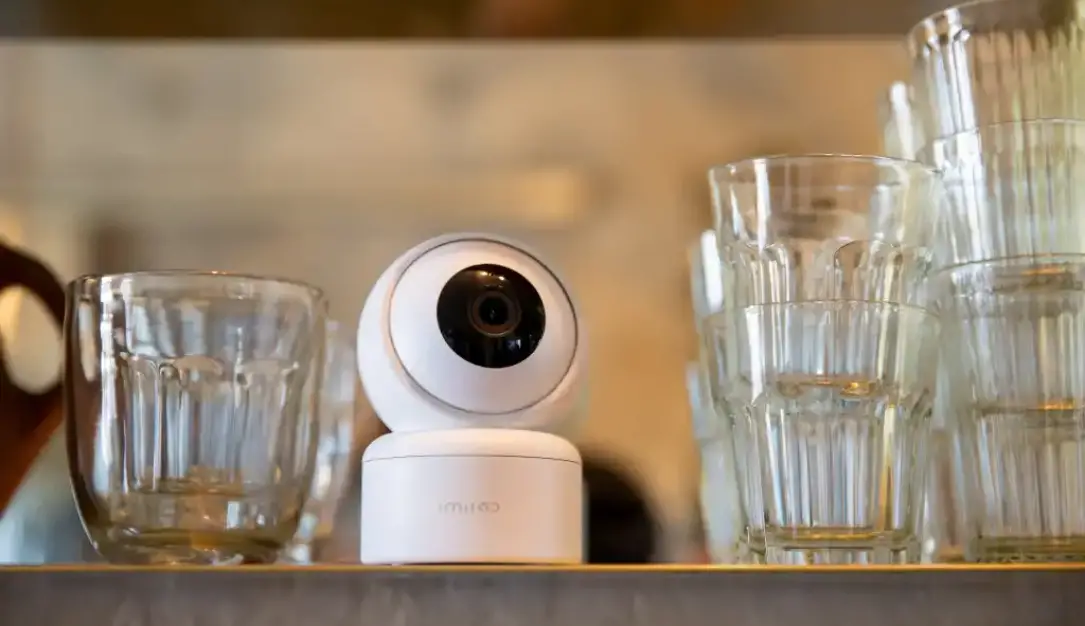
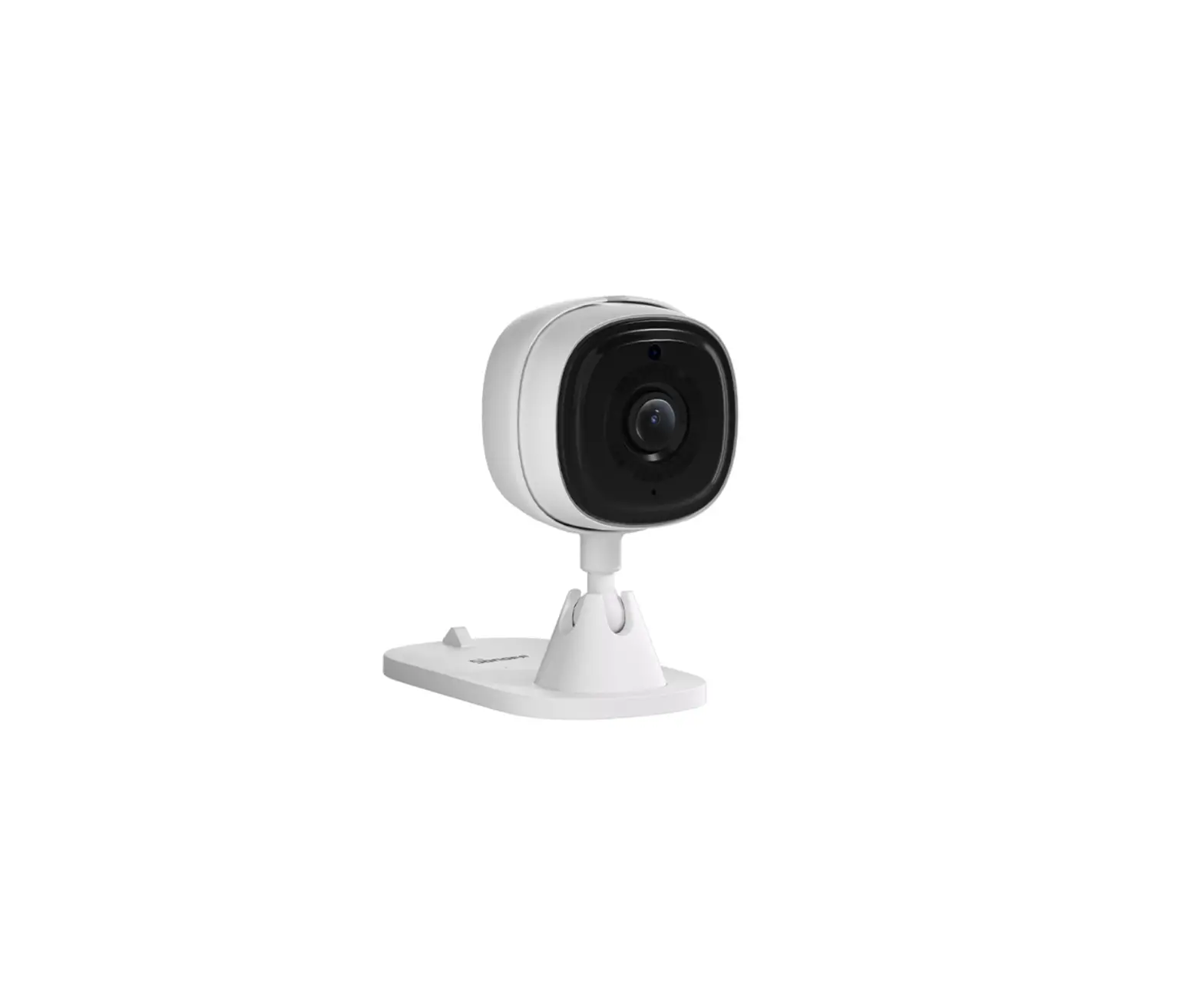
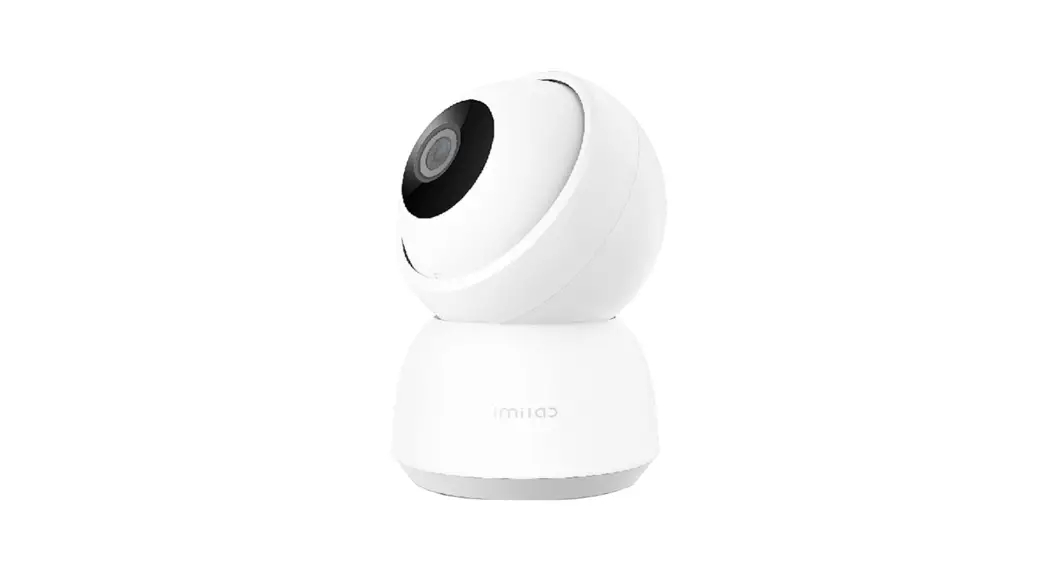
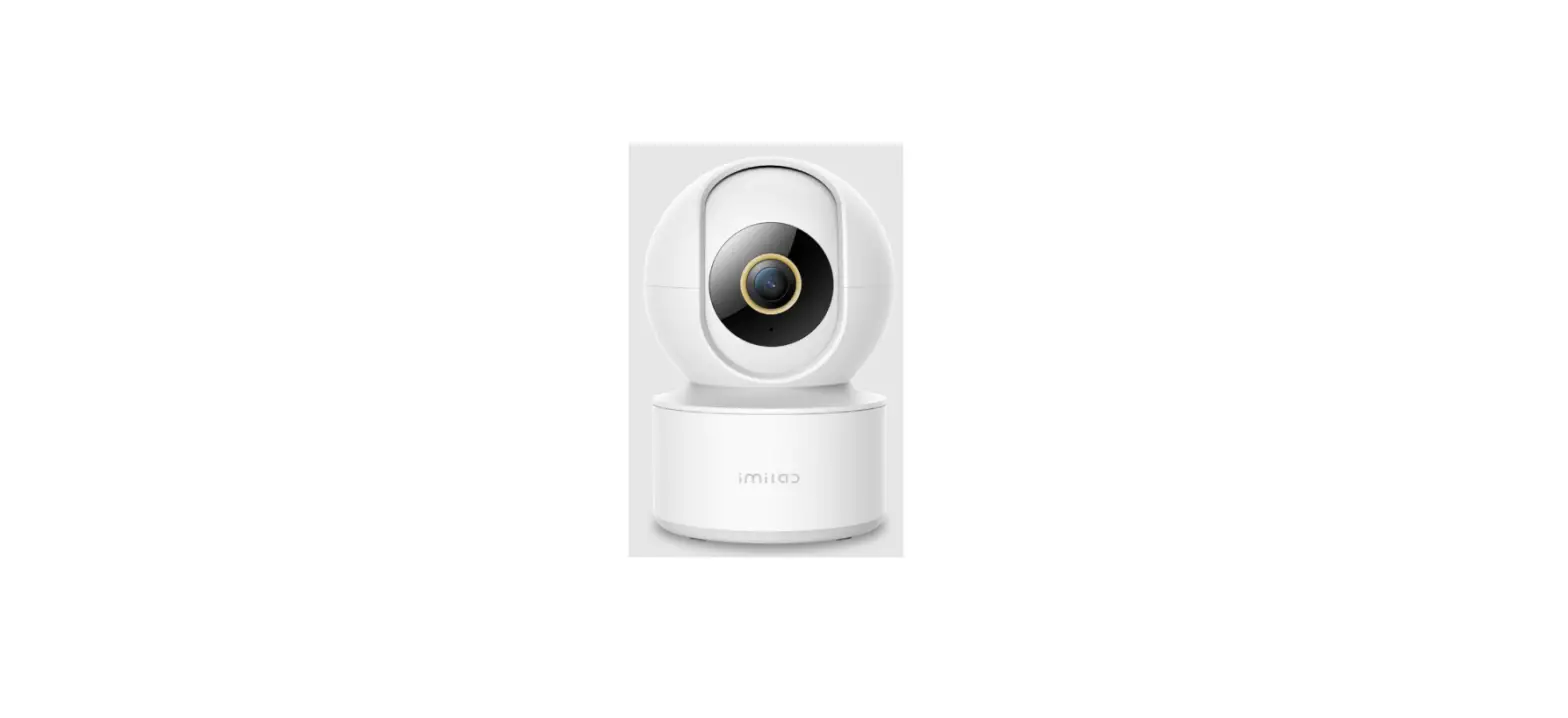
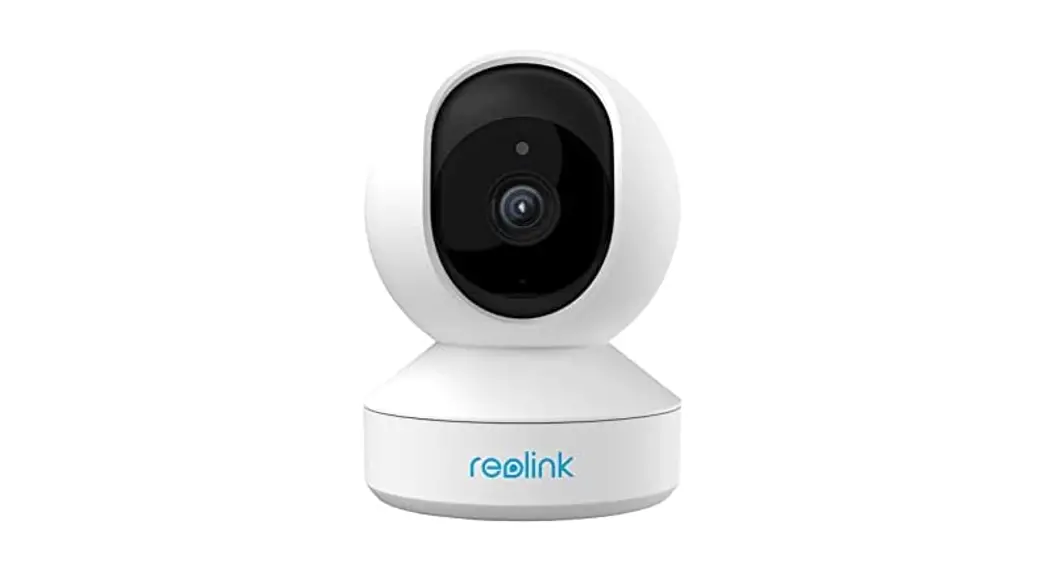
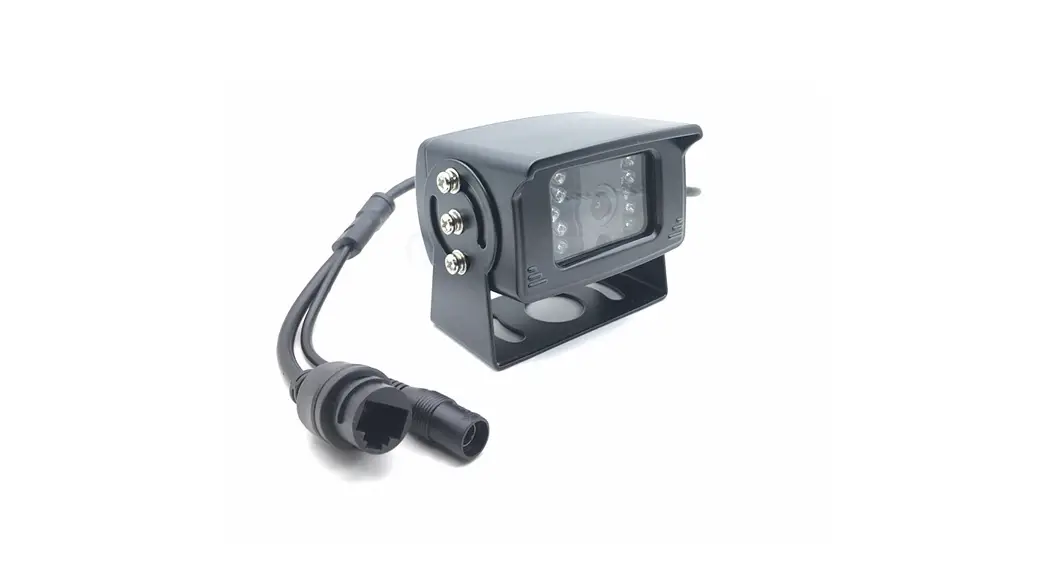
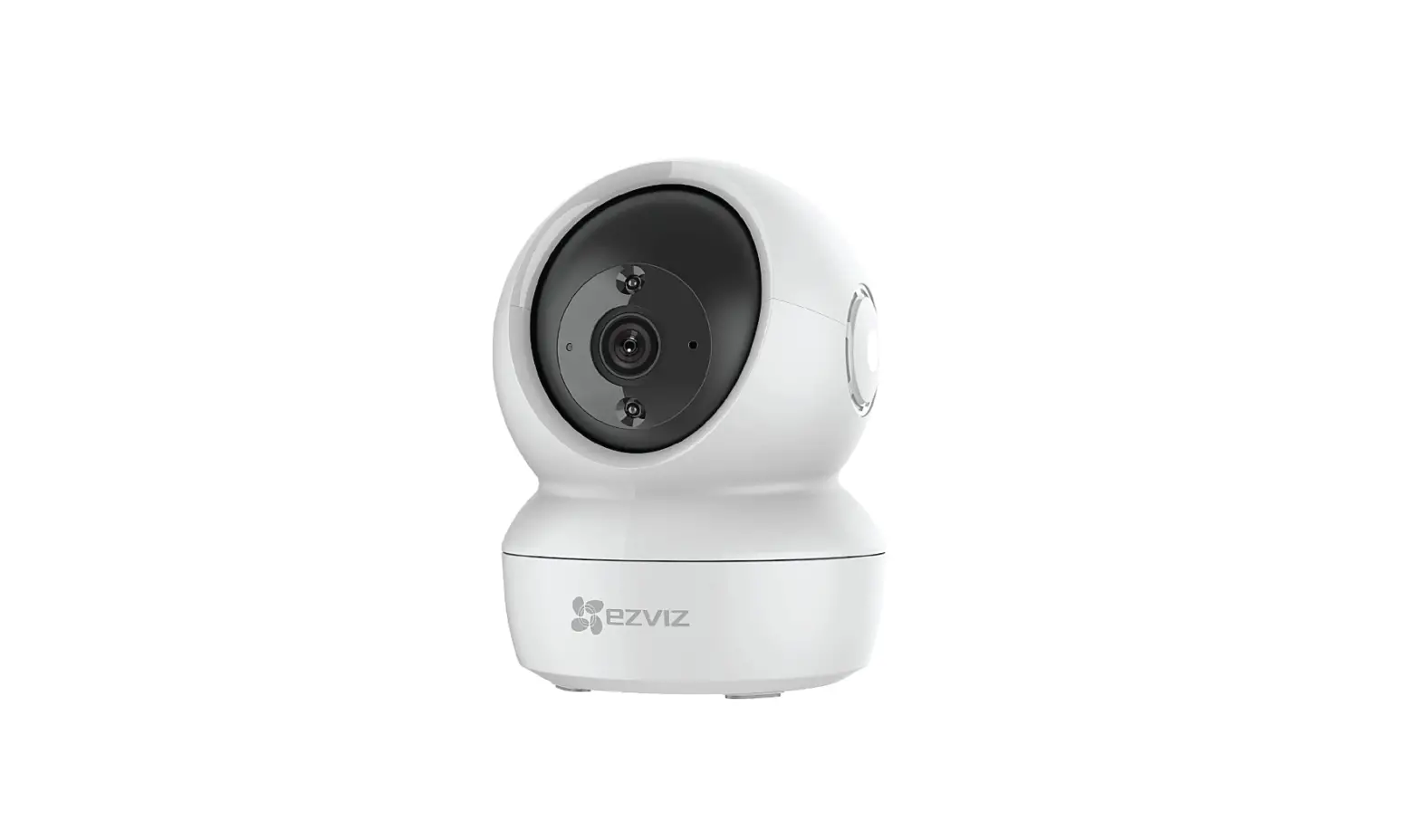
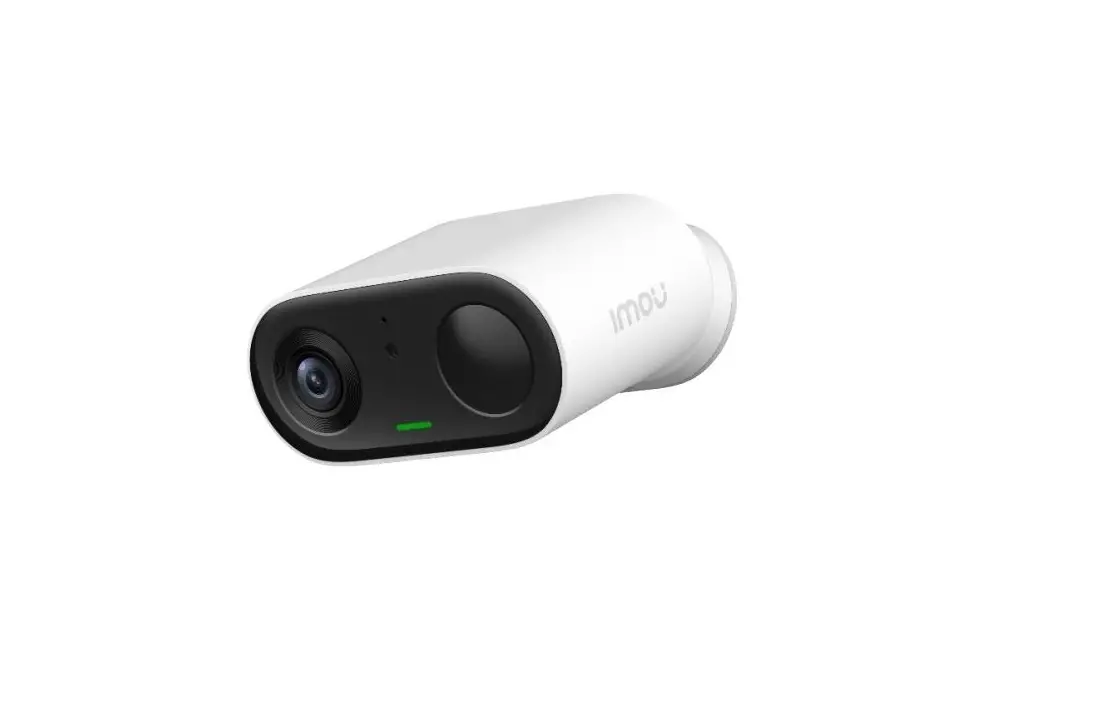
IPC2201 Twist HD Camera
Product Information:
The Twist HD camera (Model No. IPC2201) is an add-on device that
can be used with the existing Home8 system or as a standalone
camera. It comes with a power adapter and a power cable. To save
video clips locally or enable continuous recording, a MicroSD card
(FAT32, SDHC type) is required. The camera operates on a 2.4GHz
Wi-Fi signal, providing better transmission distance and less
interruption.
Product Usage Instructions:
Option 1: Add it with your existing Home8 system
Step 1: Assemble your device and accessories
- Unpack the Twist HD camera and its accessories.
- Pair the camera with the Security Shuttle within 1-10 feet to
ensure a stable connection. - Connect the included power adapter to the Twist HD camera and
plug it in.
Step 2: Add a device
- Open the Home8 app and tap on the menu button (represented by
three horizontal lines) and select Device Management. - Press the add button (+) next to Camera.
- Follow the app instructions to scan the QR code located on the
bottom of the camera. If the scan is incomplete, enter the serial
number (SN) of the device manually. - Once the activation is completed, the device will be added to
the device management page.
Step 3: Place your device
Prior to mounting the camera, ensure it is within the range of
the Security Shuttle.
- Take the camera to the desired room and plug it in.
- Access the Home8 app and tap on Video. Wait until you see live
streaming video from the app to confirm that it is connected to the
system. - Now, you can place your camera in the desired location and
start using it.
Option 2: Use as Standalone
Step 1: Set up your smartphone
- Connect your smartphone to Wi-Fi.
- Download the Home8 app from the App Store, Google Play, or
Windows store. - Follow the steps in the app to create an account.
Step 2: Assemble your device and accessories
- After powering on the camera, press the button on top of the
camera to switch to Local Mode. In Local mode, the left and right
LED indicators will respectively show a solid blue and purple
light.
Step 3: Add it to the System with Virtual Gateway
- Ensure that your Wi-Fi router is turned on and your
smartphone’s Wi-Fi is enabled. - In the Home8 app, tap the sidebar menu and select Device
Management. - Swipe left across the screen and select IP Camera.
- Follow the on-screen instructions and press Next when
finished.
Step 4: Sync Virtual Gateway with Wi-Fi Network
- Scan the QR code located on the bottom of the camera and tap
Close. - Access the Wi-Fi settings page by tapping Settings and connect
your smart device to the IP camera network. - Select the SSID marked as “miife,” followed by the last 6
digits of the camera’s serial number located on the bottom
(S/N__xxxxxx). - Follow the subsequent on-screen instructions to complete the
sync process.
Add-On Device Quickstart Guide
What’s inside:
99200297MIG
Twist HD camera Quickstart Guide
Model No. IPC2201
1x Twist HD Camera
1x Power Adapter
1x Power C.able
To save video clips locally or turn on the continuous recording function, a MicroSD card (FAT32, SDHC type) is needed. Note:
1. Please insert the MicroSD card into the camera when it is powered off to avoid damage to the MicroSD card.
2. Video recording service require service subscription, please visit our website for more information
Operates on 2.4GHz Wi-Fi signal Note: 2.4GHz has better Wi-Fi transmission distance and is less prone to
interruption from the obstruction of solid objects. Virtual gateway does not support 5GHz Wi-Fi features.
1
Add-On Device Quickstart Guide
Option 1: Add it with your existing home8 system Step 1: Assemble your device and accessories
1. Unpack your device and accessories. 2. Pair the Camera with the Security Shuttle within
1-10 feet to make sure the connection is working well. 3. Connect the included power adapter to theTwist HD
Camera and plug it in.
1-10 ft
2
Add-On Device Quickstart Guide
Step 2: Add a device
1 . Open the Home8 app, tap on the menu button ” ” and select “Device Management”.
2. Press the add button `+’ next to “Camera”. 3. Follow the app instructions to scan the QR code
located on the button of the device.
Note: If the scan is incomplete, you will be asked to enter the serial number (SN) of the device.
4. When the activation is completed, the device will be added to the device management page.
3
Add-On Device Quickstart Guide
Step 3: Place your device
Before you mount your device, see if it’s within Security Shuttle’s range. 1. Take it to the room you want to use it in and plug it in. 2. Access your Home8 app, tap on the Video, wait until
you see live streaming video from the app, it is connected to the system. Now you can place your camera and enjoy.
4
Add-On Device Quickstart Guide
Option 2: Use as Standalone Step 1: Set up your smartphone
1 . Connect your Smartphone to Wi-Fi. 2. Download the Home8 app from the App Store,
Google Play, or Windows store. 3. Follow the steps to create an account.
Step 2: Assemble your device and accessories
1. After the camera is powered on, short press the button on top of the camera to switch to “Local Mode”. In “Local mode”, the left and right LED indica -tors will respectively show a solid blue and purple light.
Mode Change Button
Local Mode
Blue Light
Purple Light
5
Add-On Device Quickstart Guide
Step 2: Add it to the System with Virtual Gateway
Note: Make sure your Wi-Fi router is on. Make sure the Wi-Fi of your smartphone is on
1. Tap the side bar ” ” to show the sidebar menu; then, tap “Device Management”.
2. Swipe left across the screen and select “IP Camera”. 3. Follow the on-screen instructions. When finished,
press “Next”.
6
Add-On Device Quickstart Guide
Step 3: Sync Virtual Gateway with Wi-Fi Network
1. After scanning the QR code located on the bottom of the camera, tap “Close”; then, tap “Settings” to access the Wi-Fi settings page to let your smart device connect to the IP camera network. Select the SSID marked as “miife”, followed by the last 6 digit of the camera’s serial number located on the buttom ( S/N__xxxxxx); then follow the subsequent on-screen instructions.
2. After connecting to the camera network, launch the app again. Select your Wi-Fi network and enter the password if necessary. When finished, tap “Join”.
7
Add-On Device Quickstart Guide
3. Follow the on-screen instructions. 4. After the activation is completed, you will see the
message “System is ready” on the screen. By click ing “OK”, a virtual Security Shuttle and the camera will be added to the device management page.
Troubleshooting Tips
If you’re having trouble adding your device, you may need to reset it. Remove the top cover and locate the pinhole. )»ÏËÕÉ©»»§À¶¡ÀËÏÀ»Ïػթ¶
you hear a beep. Return to Step 2 and add the device again.
Reset Button
8