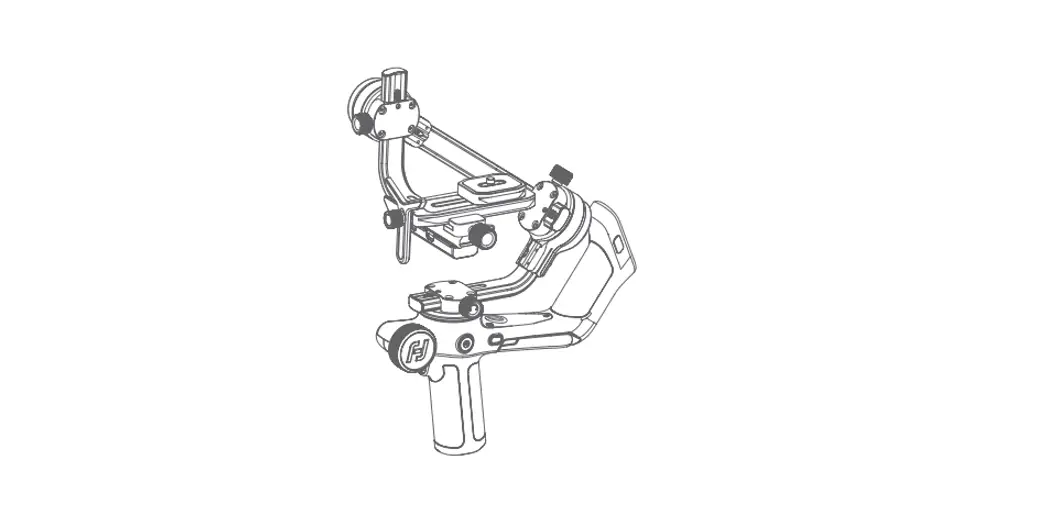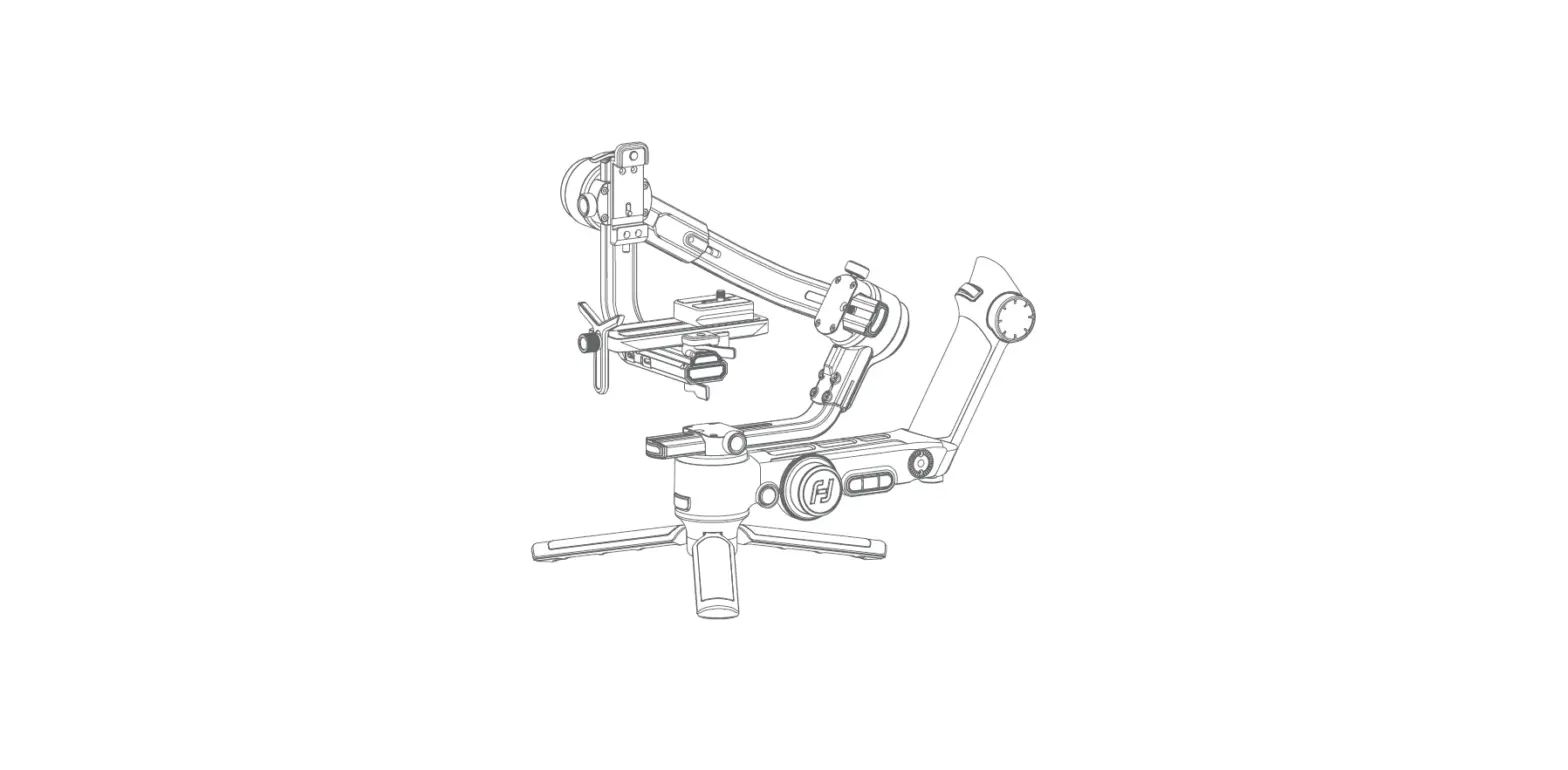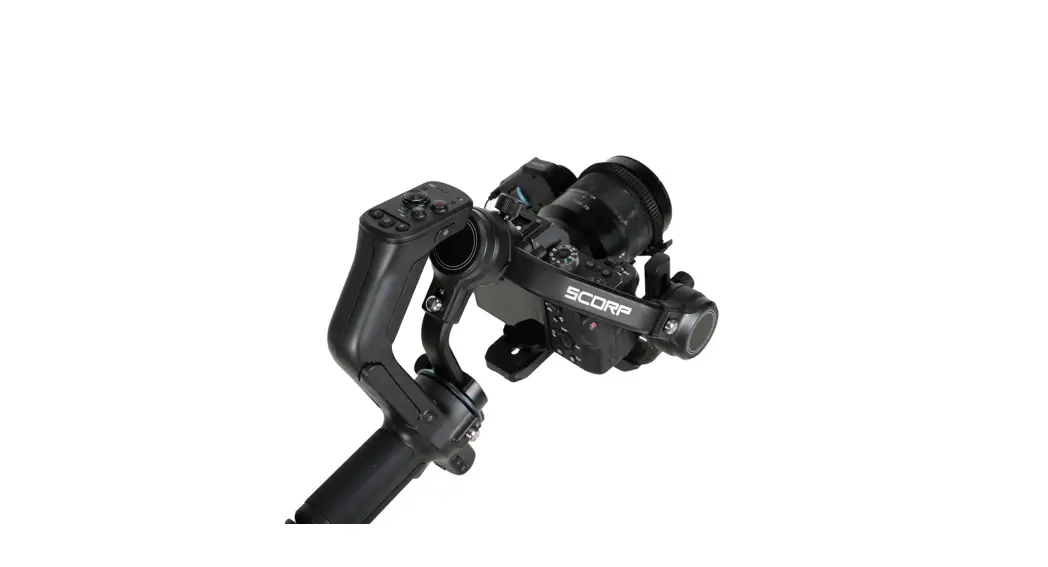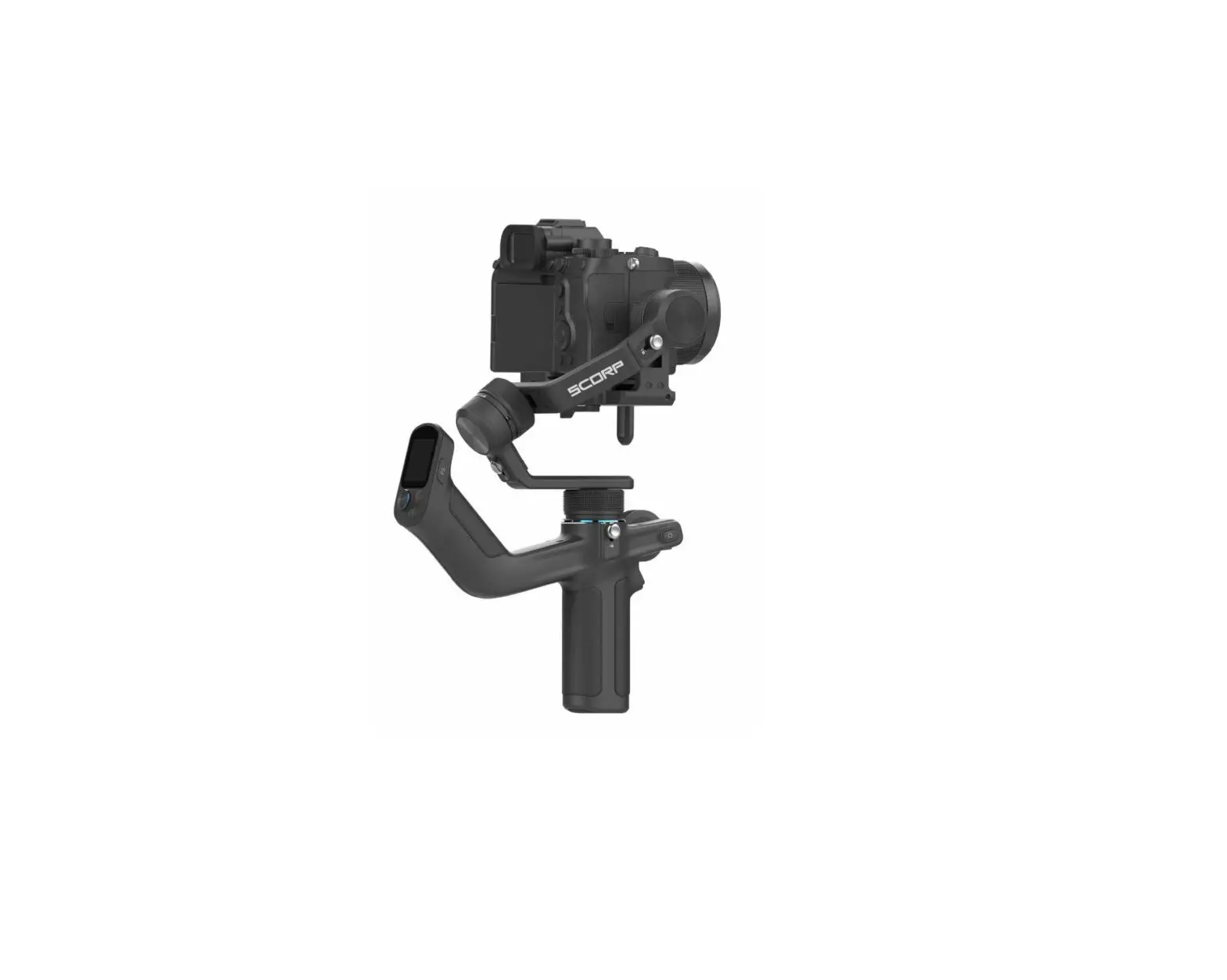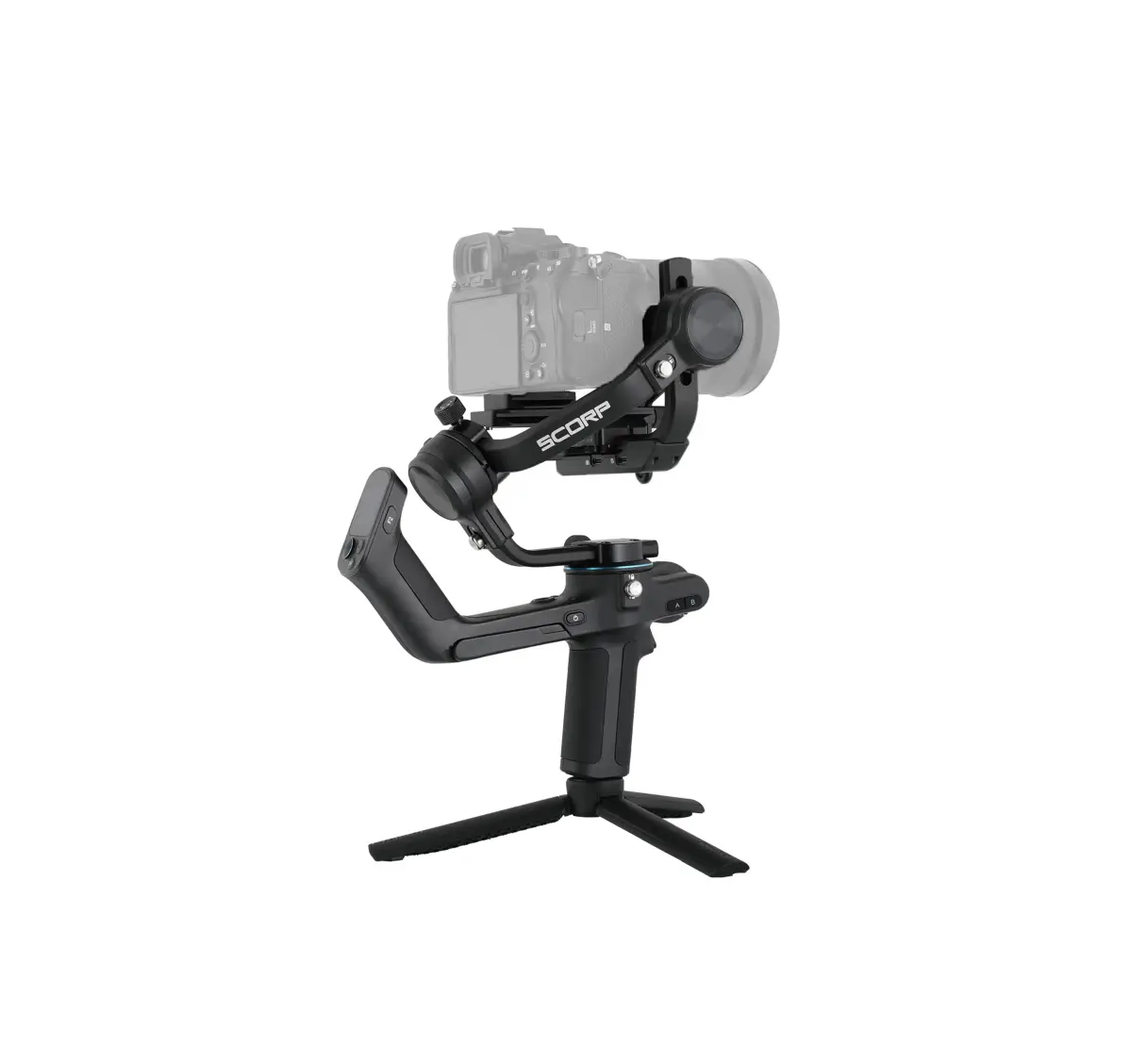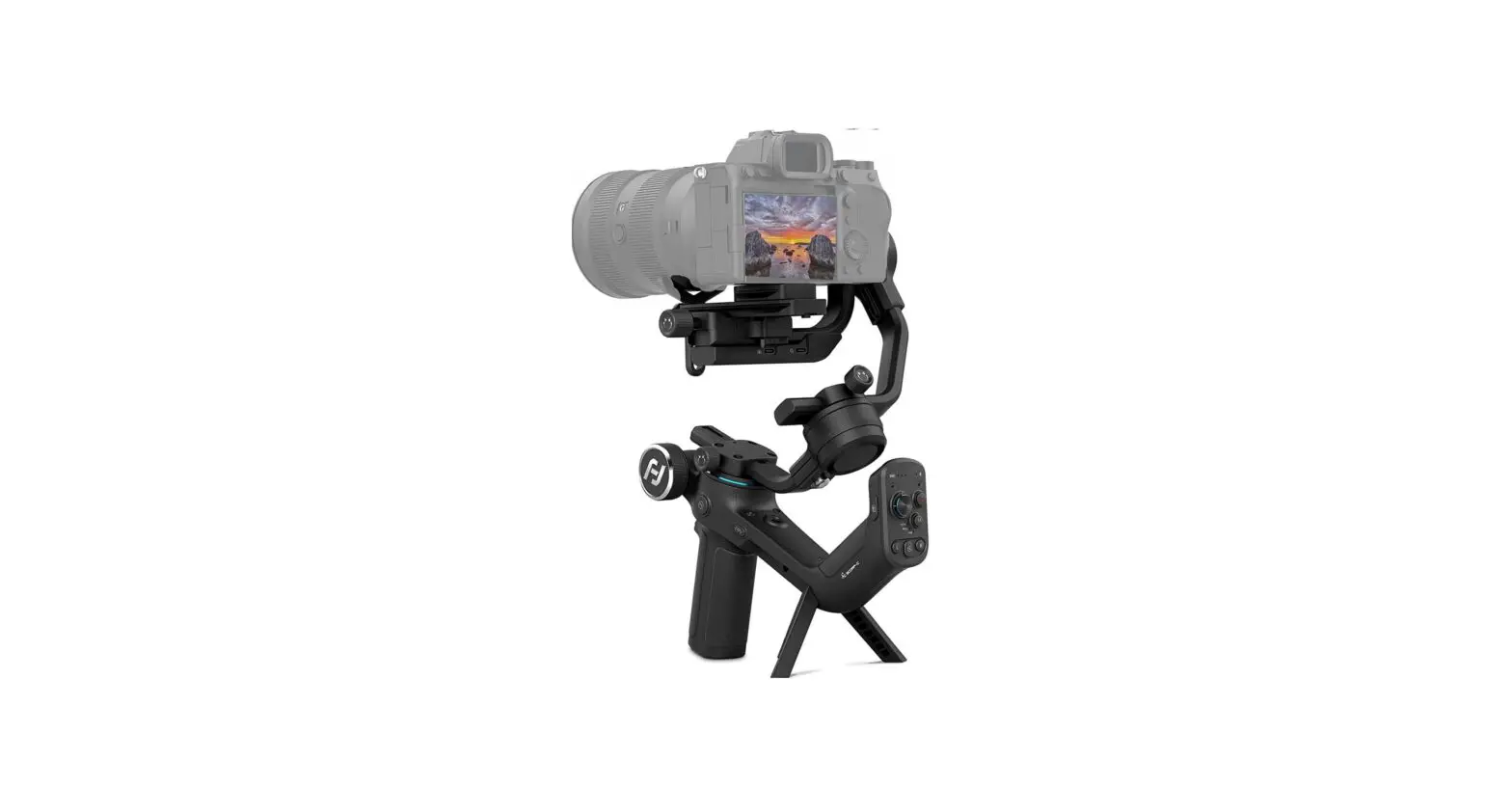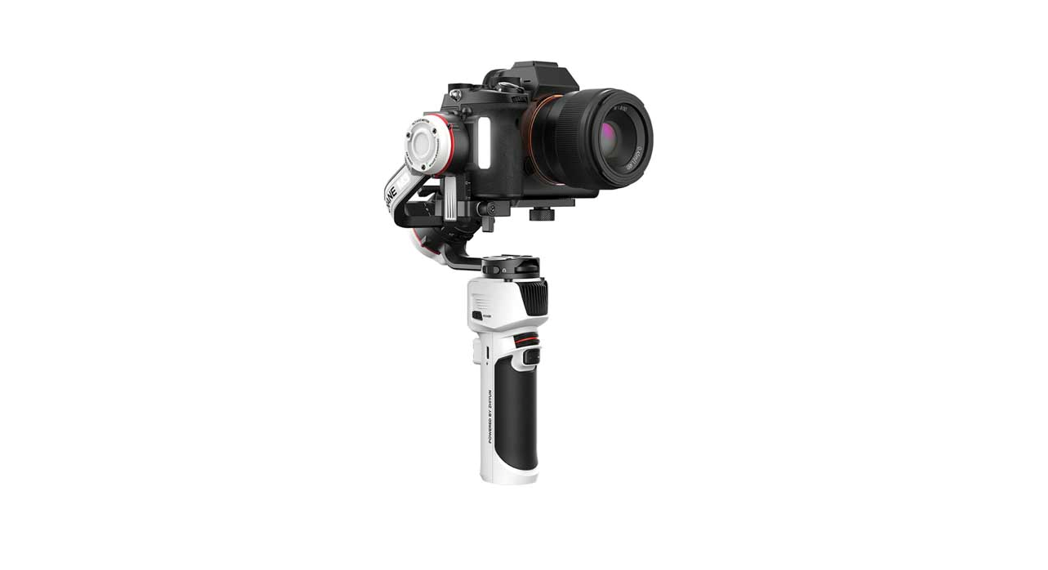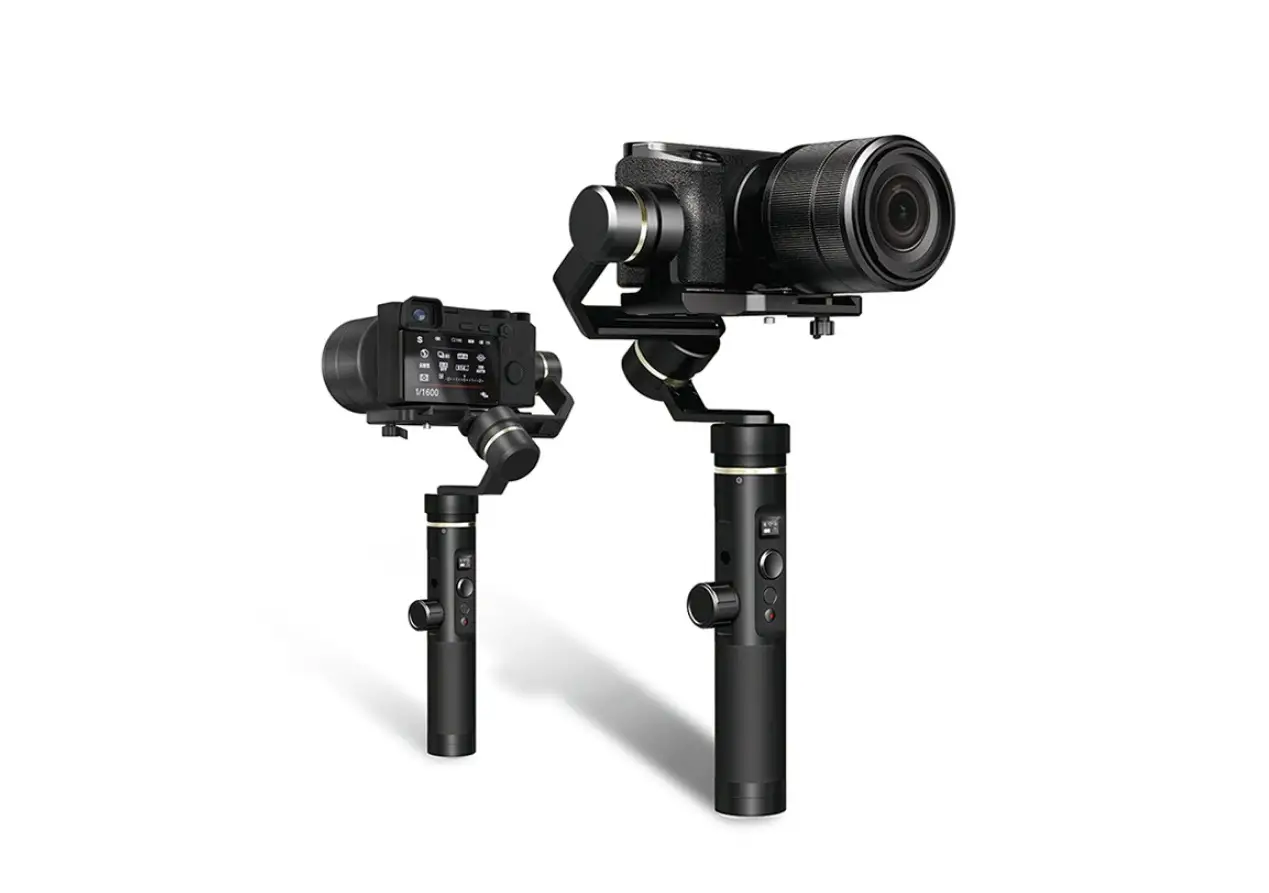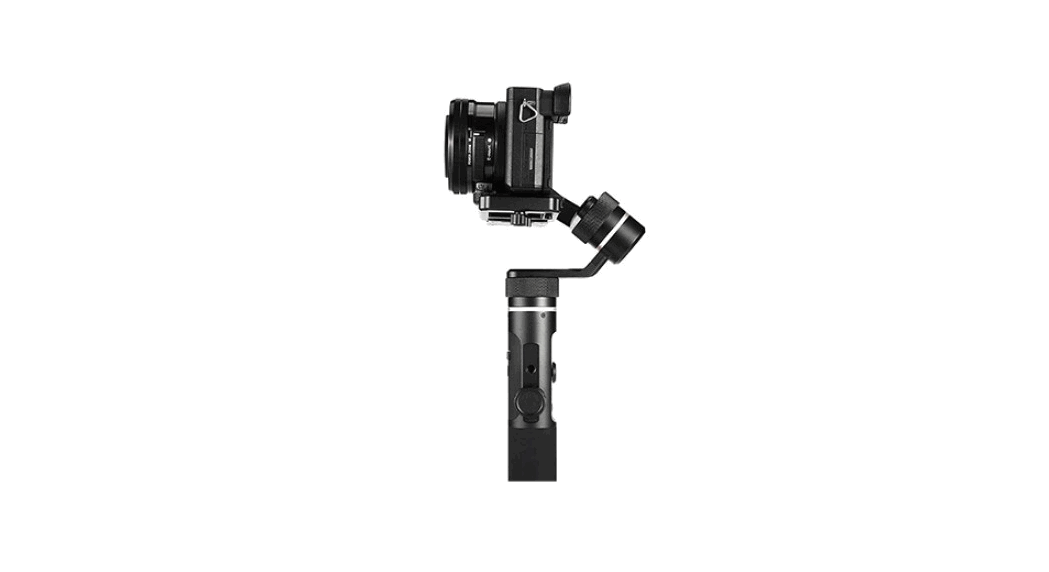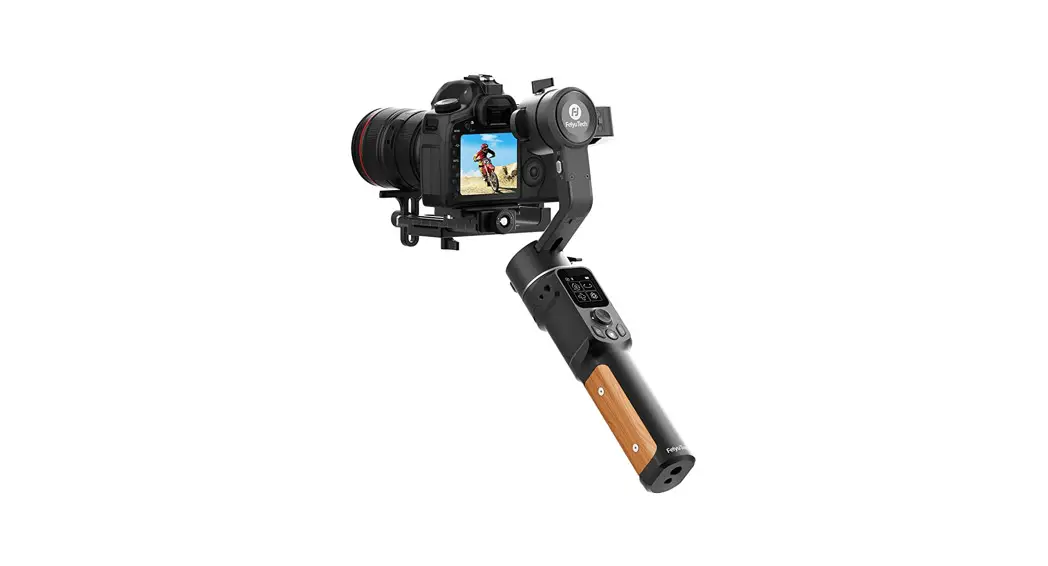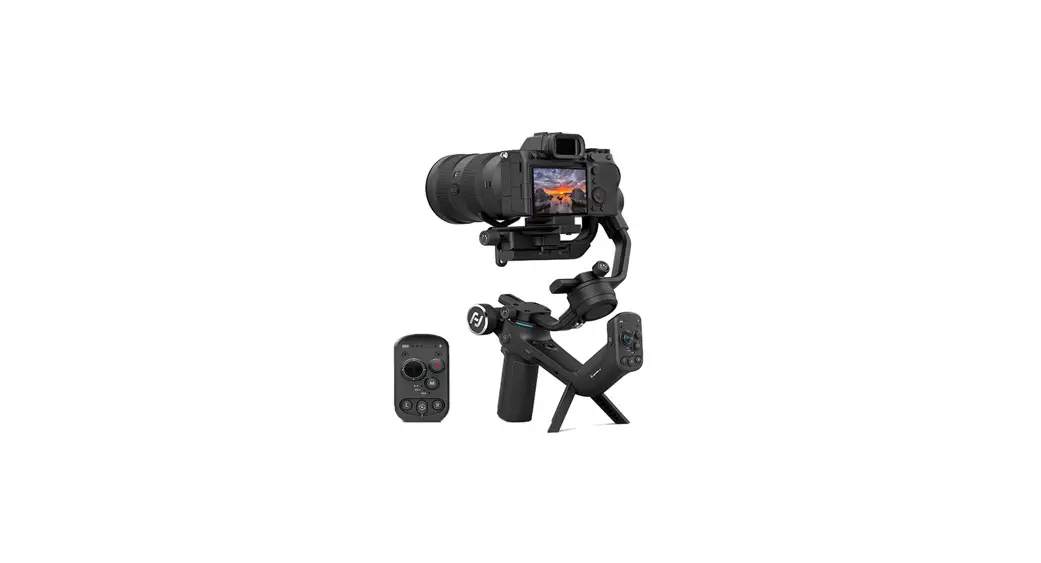
 Scorp Mini Handheld Gimbal Stabilizer
User Guide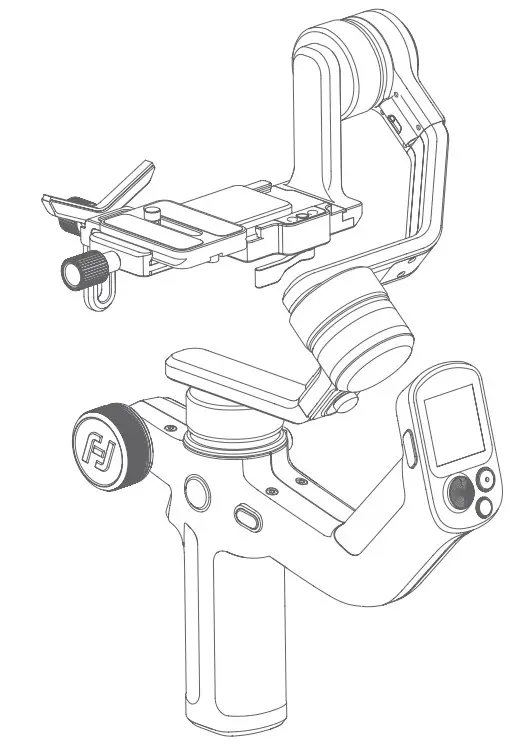
Tutorial Videos
 https://www.feiyu-tech.com/play/137.html
Overview
* Not include camera.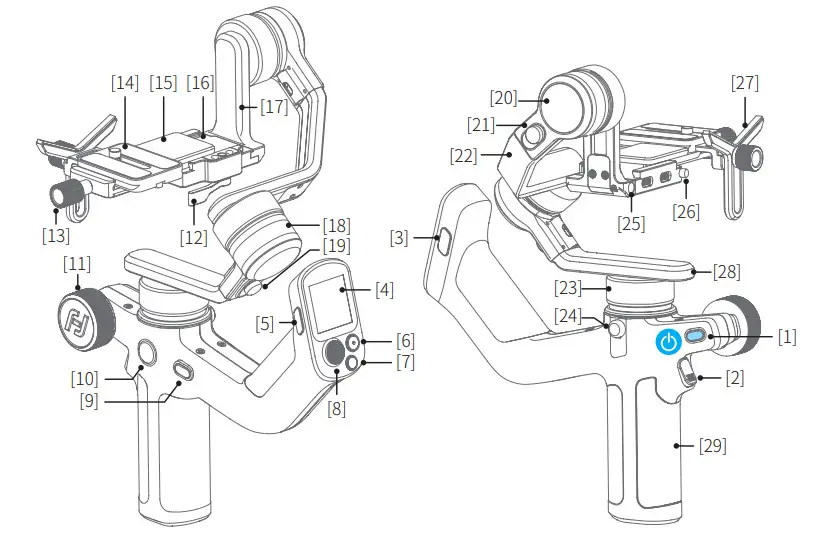
| [1] Power button | [16] Fixed plate |
| [2] Trigger button | [17] Slide arm |
| [3] F2 button | [18] Roll axis |
| [4] Touch screen | [19] Roll lock |
| [5] F1 button | [20] Tilt axis |
| [6] Shutter button | [21] Tilt lock |
| [7] Mode button | [22] Cross arm |
| [8] Joystick | [23] Pan axis |
| [9] FPV button | [24] Pan lock |
| [10] Knob function switching button | [25] Mounting hole for focus motor |
| [11] Multifunction knob | support rod |
| [12] Slider lock | [26] Slider safety lock |
| [13] Quick release plate safety lock | [27] Lens holder |
| [14] Quick release plate | [28] Versatile arm |
| [15] Fixed plate slider | [29] Handle |
User manual
Scan the QR code to get the latest user manual or download it from the official website.
 https://www.feiyu-tech.com/feiyu-scorp-mini/
Download the App
When mounting mirrorless camera, pocket camera or action camera on gimbal for shooting,
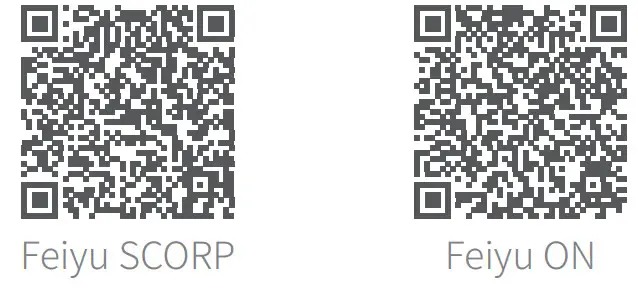
please download “Feiyu SCORP”.
When mounting smartphone on gimbal for shooting, please download “Feiyu ON”.
Scan the QR code to download the app, or search for “Feiyu SCORP”, “Feiyu ON” in the App
Store or Google Play.
* Feiyu SCORP: Requires iOS 10.0 or above, Android 6.0 or above.
Feiyu ON: Requires iOS 9.0 or above, Android 6.0 or above.
iOS
 https://apps.apple.com/cn/app/feiyu-scorp/id1568214103
https://itunes.apple.com/us/app/feiyu-on/id1170606381?mt=8
Android
 https://cdn1.feiyu-tech.com/dl/app/feiyu_scorp.apk
https://cdn1.feiyu-tech.com/dl/app/Feiyu_On.apk
Getting started
2.1 Charging
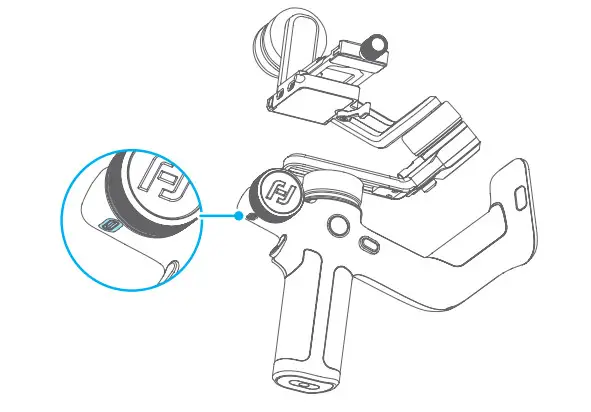
Please fully charge the battery before power on the gimbal for the first time.
Charging with USB 2.0 to Type-C cable, supports quick charge.
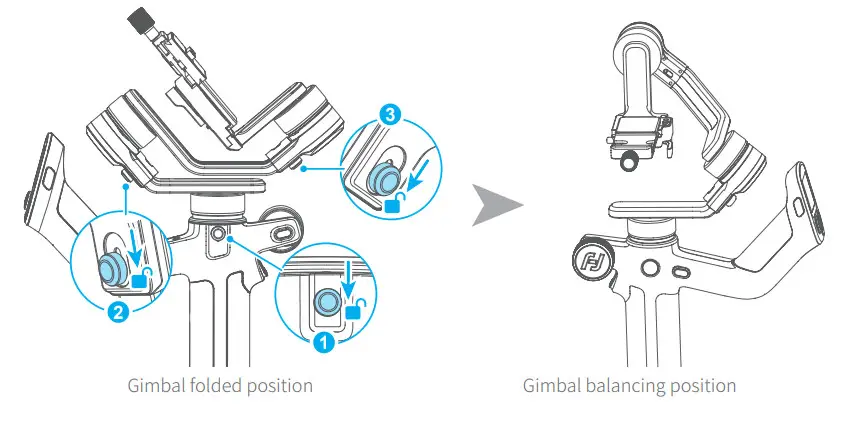
2.2 Adjust the gimbal to gimbal balancing position
The gimbal is folded by default, please unlock all the three axes and adjust the gimbal to gimbal balancing position, and then lock the three axes.
Mounting the Camera/Smartphone
Take camera mounting as an example.
Before mounting the camera, make sure the camera is ready for shooting (Install the camera lens, and the lens cover should be removed, the memory card and battery needs to be inserted to the camera, and battery is fully charged) , complete all the steps which mentioned in chapter “2. Getting started” and the gimbal is adjusted to gimbal balancing position. Make sure the gimbal is powered off or in sleep mode before mounting the camera.
3.1 Attach the quick release plate
Attach the quick release plate to camera by tightening the screw.
If the camera doesn’t have the 1/4-20 inch screw hole, please put the camera on mount adapter, which has 1/4-20 inch screw hole, and then mount it in above steps.
Users can mount smartphone into the optional smartphone holder, and follow the steps above to install it on the gimbal.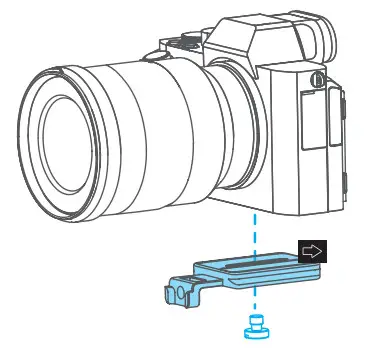
3.2 Install lens holder (Optional)
Install the lens holder on the quick release plate if needed, the rubber of the lens holder must be directly under the lens. It is recommended to use the lens holder when using a long or heavy lens.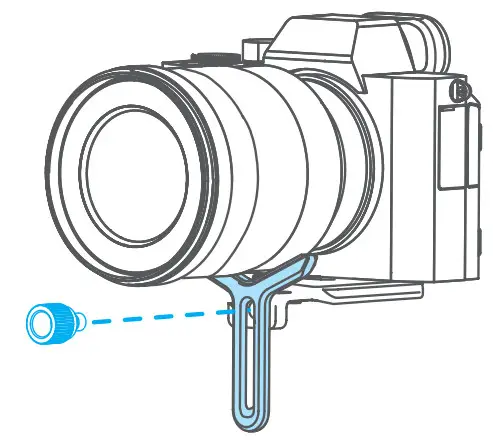
3.3 Mount camera on gimbal
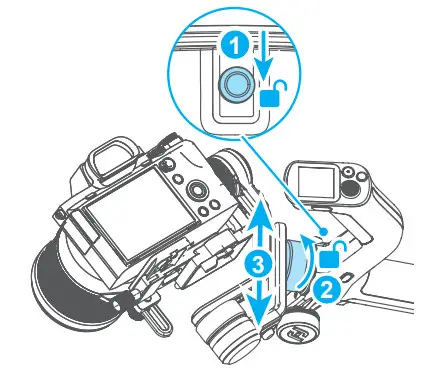
Unlock the quick release plate safety lock ① , install the plate with the mounted camera into the slot ② in direction of icon, lock the safety lock ① once the camera is roughly balanced. It is recommended to push the camera against the tilt axis. Unlock the slider lock ③ to move the camera left or right according to camera’s width, then lock the slider lock ③ . 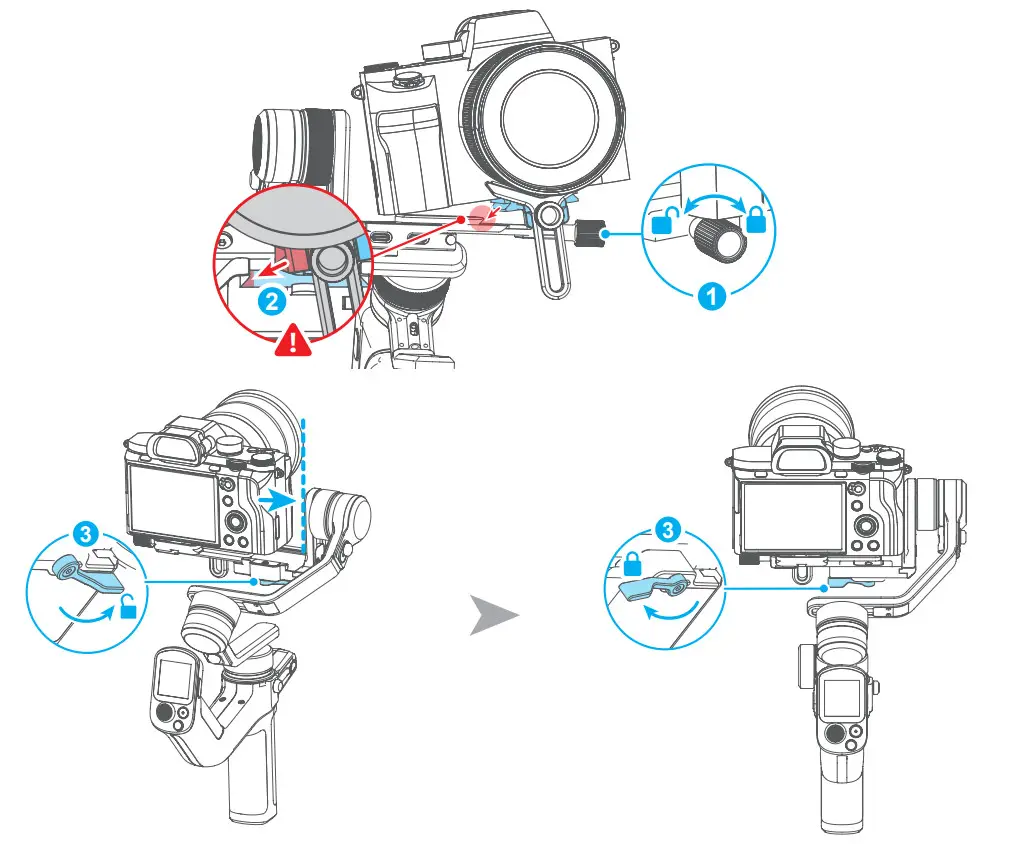
Gimbal Balancing
Please balance the gimbal before shooting. Take camera mounting as an example. Make sure the camera and lens are ready for shooting, and the gimbal is powered off or in sleep mode before balancing. It is recommended to hold up the camera first, then move the slide arm, cross arm and vertical arm.
Tutorial Videos
 https://www.feiyu-tech.com/play/137.html
4.1 Balancing the tilt axis
4.1.1 Balancing the vertical tilt
a. Unlock the tilt lock ①, and loosen the slide arm lock knob ②.
b. Rotate the tilt axis so that the camera lens is pointingupward. Check the direction which the lens tilts to.
c. If the lens tilts to one side, then the camera is that side heavy, move the slide arm ③ to the opposite direction, until the camera is steady pointing upward.
d. Tighten the slide arm lock knob ② while holding the camera.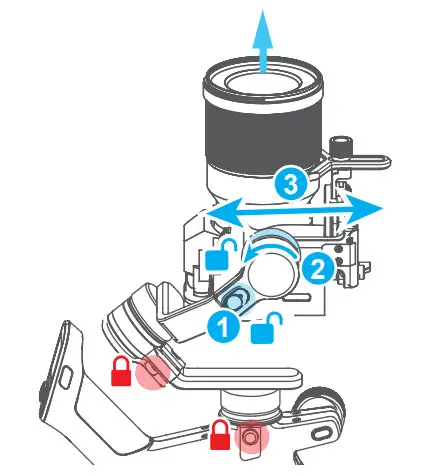
4.1.2 Adjust depth for the tilt axis
a. Rotate the tilt axis so that the camera lens is pointing forward. Check the direction which the lens tilts to.
b. If the lens tilts to one side, then the camera is that side heavy, unlock the quick release plate safety lock ① and then move the quick release plate to the opposite direction, until the camera is steady pointing forward. c. Lock the quick release plate safety lock ① while holding the camera.
The tilt axis is balanced when the camera is steady while tilted up or down by 45° .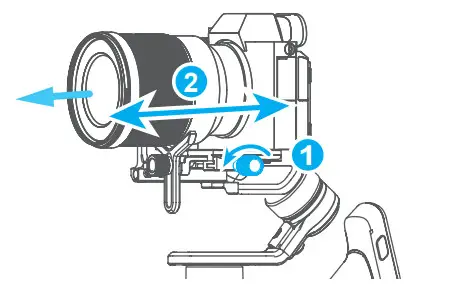
4.2 Balancing the roll axis
a. Unlock the roll lock ① , check the direction which the camera tilts to.
b. If the camera tilts to one side, then the camera is that side heavy, loosen the cross arm lock knob ② and then move the cross arm to the opposite direction, until the camera can stay still and horizontal to the ground.
c. Tighten the cross arm lock knob ② .
The roll axis is balanced when the camera can stay still and horizontal to the ground.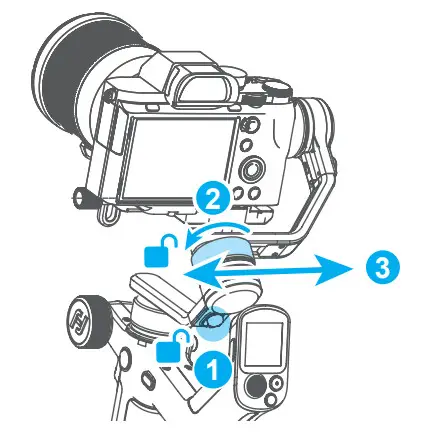
4.3 Balancing the pan axis
a. Unlock the pan lock ① . Hold the tripod, and tilt the gimbal forward until it is horizontal to the ground.
b. If the camera tilts to one side, then the camera is that side heavy, loosen the vertical arm lock knob ② and then move the vertical arm ③ to the opposite direction, until the camera can stay still and horizontal to the ground.
c. Tighten the vertical arm lock knob ② .
The pan axis is balanced when the camera can stay still and horizontal to the ground.
Operation
5.1 Power ON/ OFF
Before power on the gimbal, make sure you have balanced gimbal, and unlocked all the three axes. If you haven’t unlocked all the 3 axes, gimbal will enter sleep mode to protect itself. Please single tap power button to wake up gimbal after unlocked all the 3 axes.
! Please set motor power first after powering on gimbal for the first time or after changing a new camera/lens.
Long press the power button and release it when you hear the beep sound to power on/ off.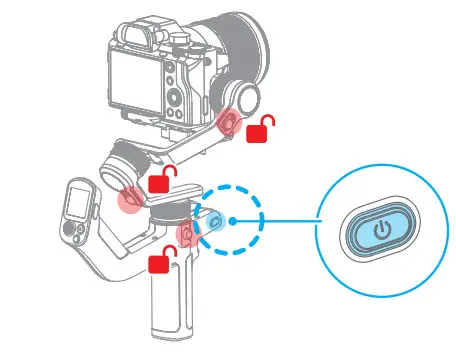
5.2 Button operation
Power button
Long press: Power on/off
Single tap: Wake up
Double tap: Enter sleep mode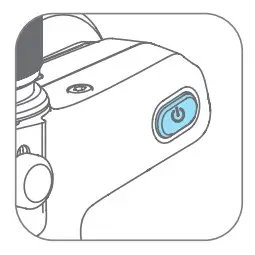
Trigger button
Double tap: Recenter
Triple tap: Enter/Exit selfie mode (Pan axis turn 180° )
Press and hold: PTF (Release to exit)
You can custom the function via APP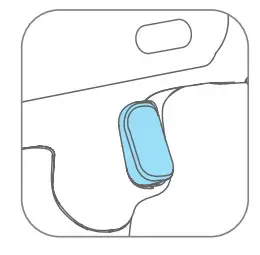
Shutter button*
Press half way: Focus
Single tap (Fully): Start/stop recording
Long press (Fully): Take photo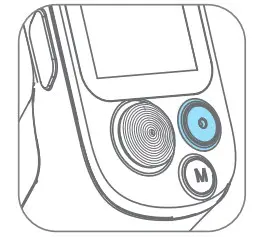
F1 button
Double tap: Enter/Exit portrait mode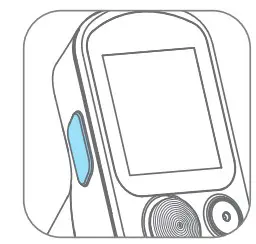
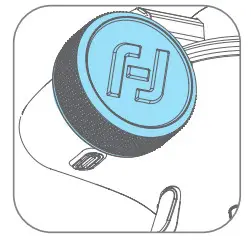
Multifunction knob Turn:
- Control the movement of the roll, tilt and pan axes.
- Control focus.
- Contol focus motor.
- Adjust the parameter in the touch screen.
Set current control option as option (1) or (2) or (3) through long press the knob function switching button or swipe up in home page.
Mode button
Single tap: Pan follow/Lock mode (Switch in turn)
Double tap: PTF
Triple tap: FPV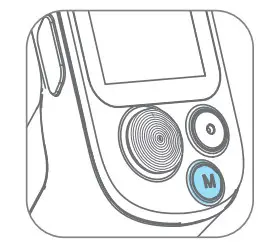
Joystick
Push: Control the movement of the tilt and pan axes.
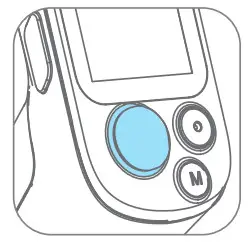
FPV button
Single tap: Enter/Exit FPV mode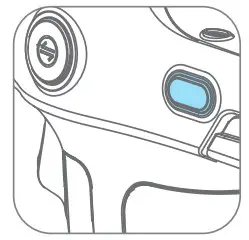
F2 button Single tap:
- Lock/Unlock screen (In home page)
- Return to home page (In other pages)

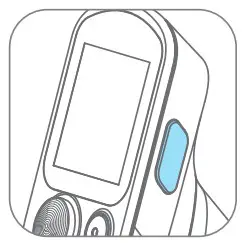
Knob function switching button
Single tap: Switch the control object while controlling the movement of the 3 axes (Tilt/Pan/Roll)
Long press: Switch the control options of Multifunction knob in turn (The movement of the 3 axes/Electronic focus/Focus motor)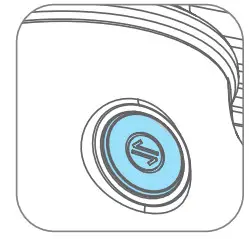
*Need to connect with camera. Refer to the camera compatibility list on https://www.feiyu-tech.com/feiyu-scorp-mini/
More button function introductions please refer to the user manual.
Specifications
| Product name | Feiyu SCORP-Mini 3-Axis Camera Handheld Stabilizer |
| Product model | Feiyu-F1 |
| Max. Tilt Range | +170° ~ -45° |
| Max. Roll Range | +40° ~ -40° |
| Max. Pan Range | 360° |
| Weight | About 787g |
| Payload Capability | About 1200g (Well-balanced) |
| Battery life | 13 Hours |
| Battery life | 13 Hours |
| Battery | 2500mAh |
| Operating Voltage | 6.8V-8.4V |
| Compatible | Mirrorless camera and pocket camera ( Sony, Canon, Nikon, Panasonic,etc. Please download the detailed manual for the specific compatible camera and lens ) , action camera like GoPro, and smartphone (Width: 52mm~82mm, thickness: < 8.9mm) |
Accessories
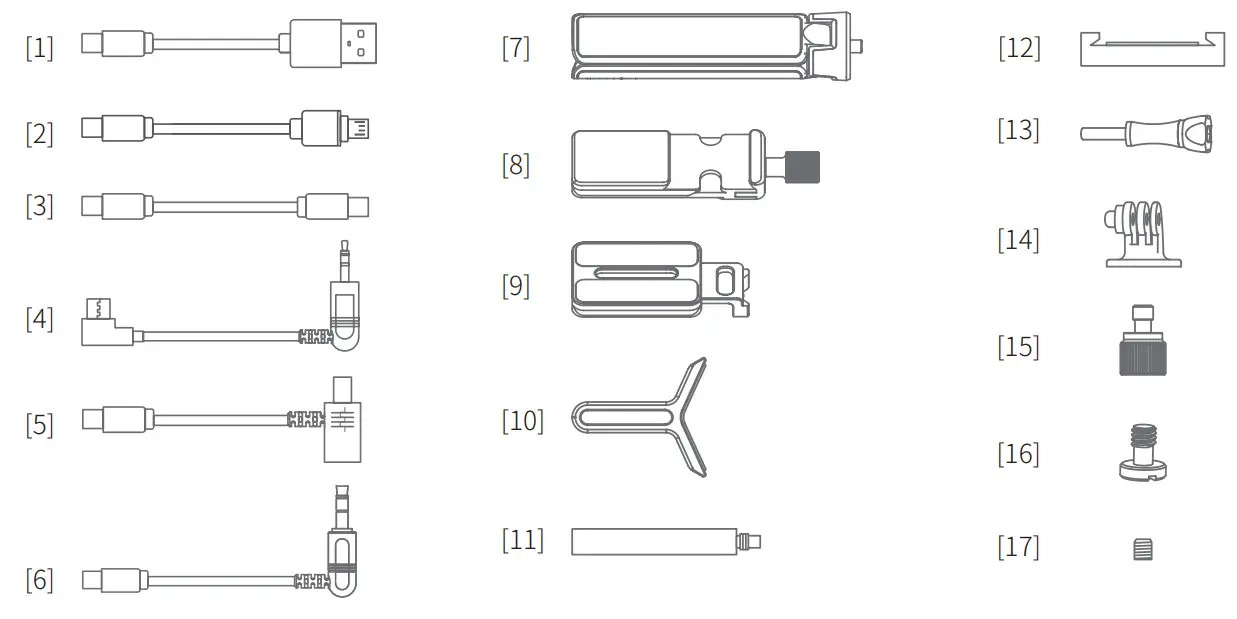
| [1] USB 2.0 to Type-C | [10] Lens holder |
| [2] Type-C to Micro | [11] Focus motor support rod |
| [3] Type-C to Type-C | [12] Smartphone holder |
| [4] Type-C to TRS2.5 | [13] Long thumb screw |
| [5] Type-C to Multi Sony shutter cable | [14] GoPro adapter |
| [6] Type-C to 2.5mm Panasonic shutter cable (DC2.5mm) | [15] Lens holder screw |
| [7] Tripod | [16] Camera fixed screw |
| [8] Fixed plate slider | [17] Fixed screw for support rod |
| [9] Quick release plate |
This document is subject to change without notice. If you have any questions about this document, please contact us by the following ways.
Manufactured by
Guilin Feiyu Technology Incorporated Company
Website: www.feiyu-tech.com E-mail: [email protected]
Tel: +86 773-2320865 400-990-6118 (Only for mainland China)
 FeiyuTech - Official Website
 Feiyu SCORP MINI-提握一体,全能王-飞宇稳定器