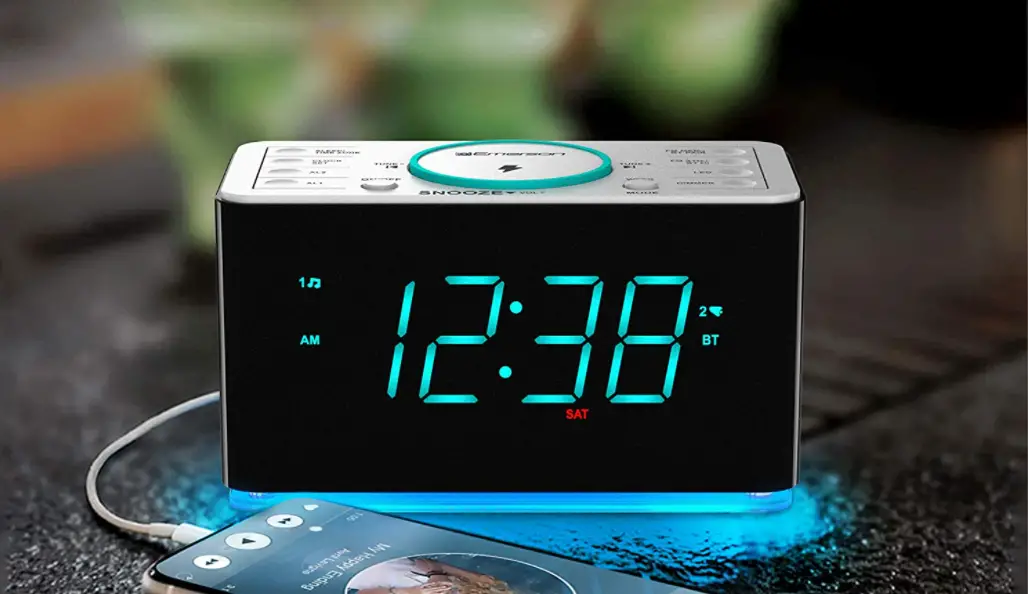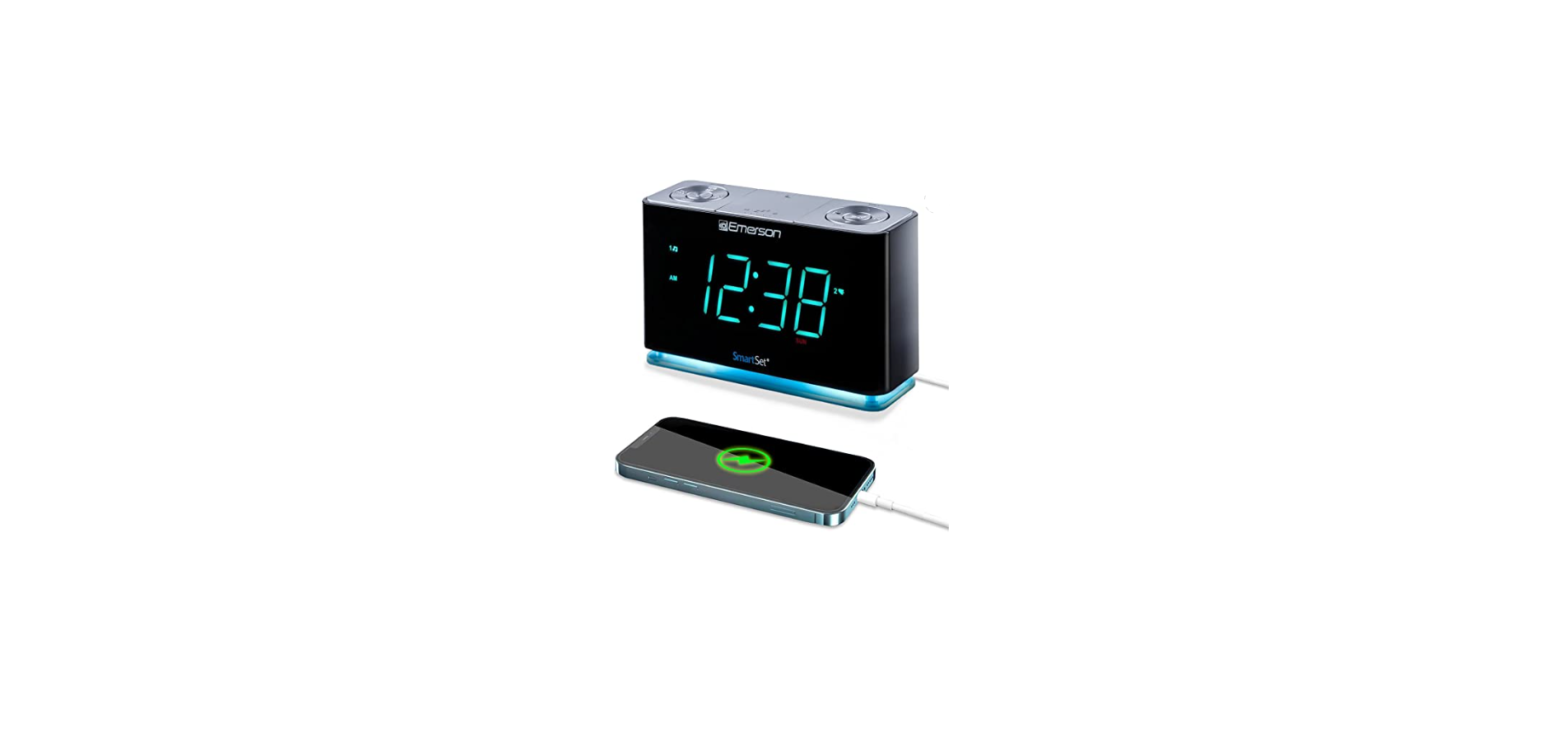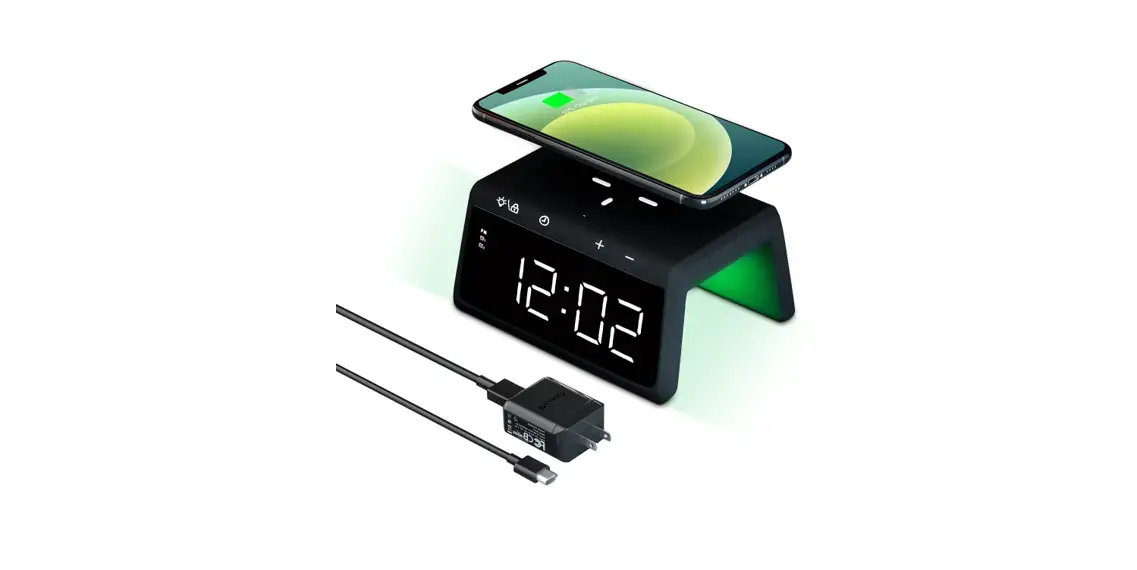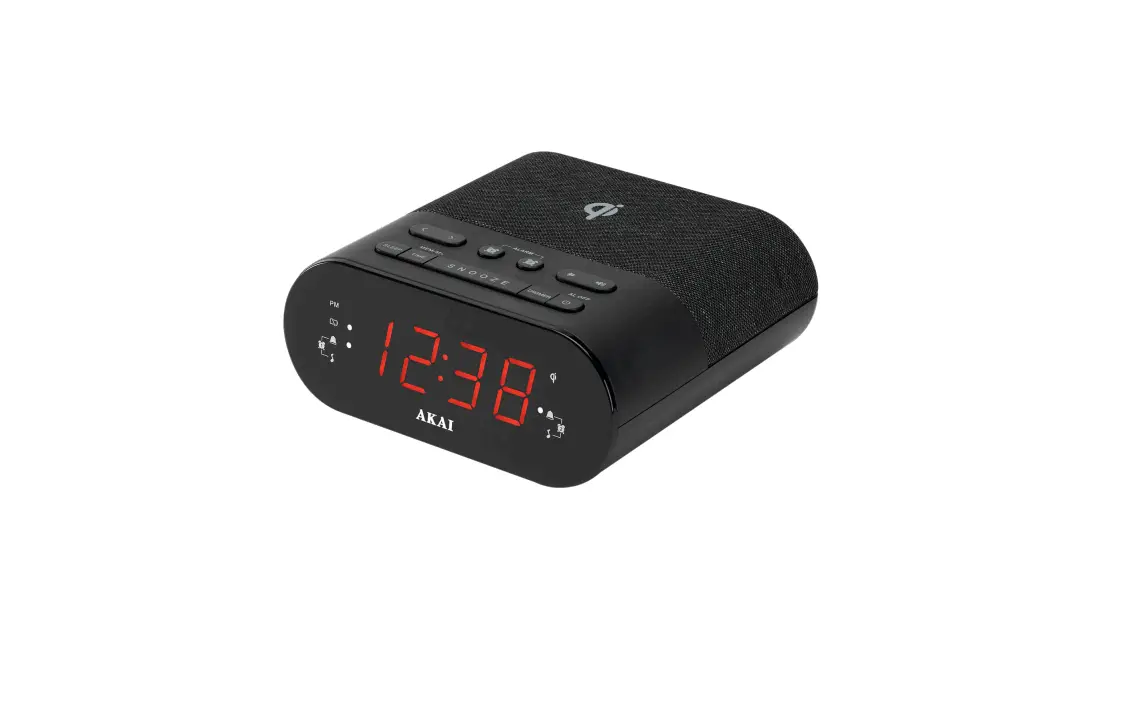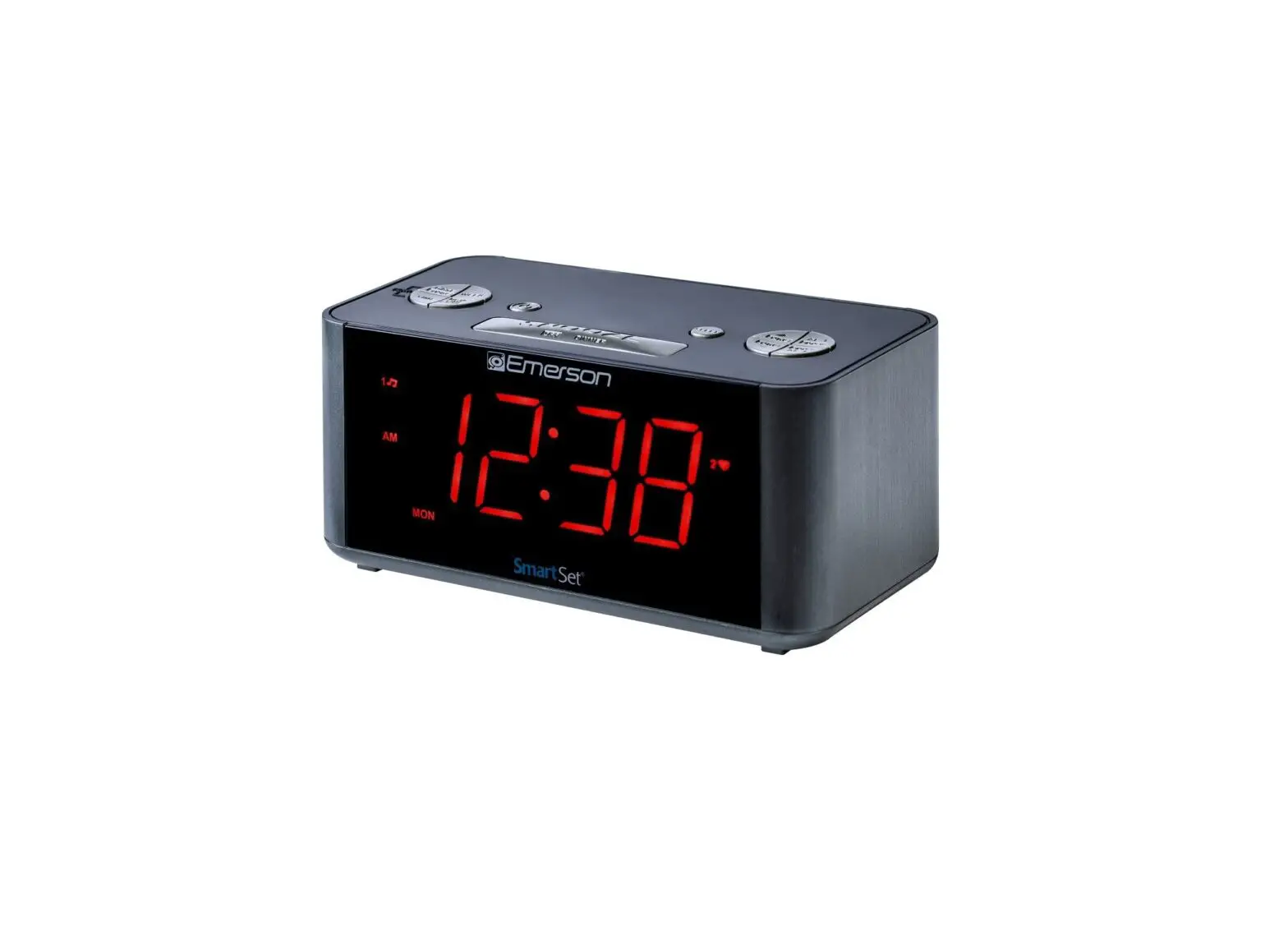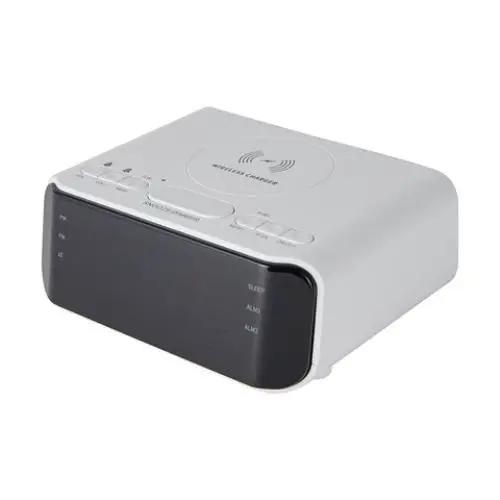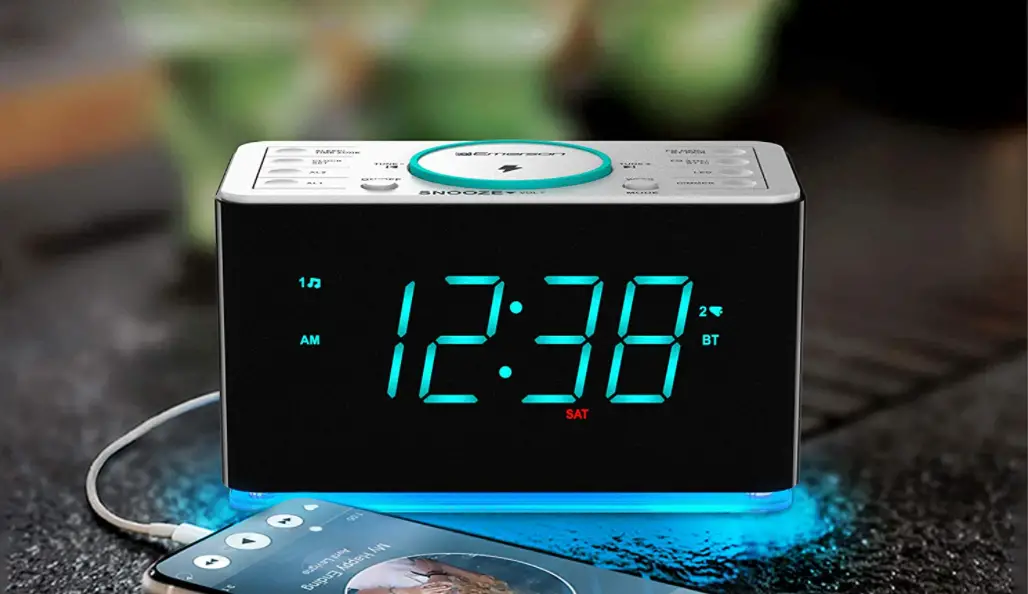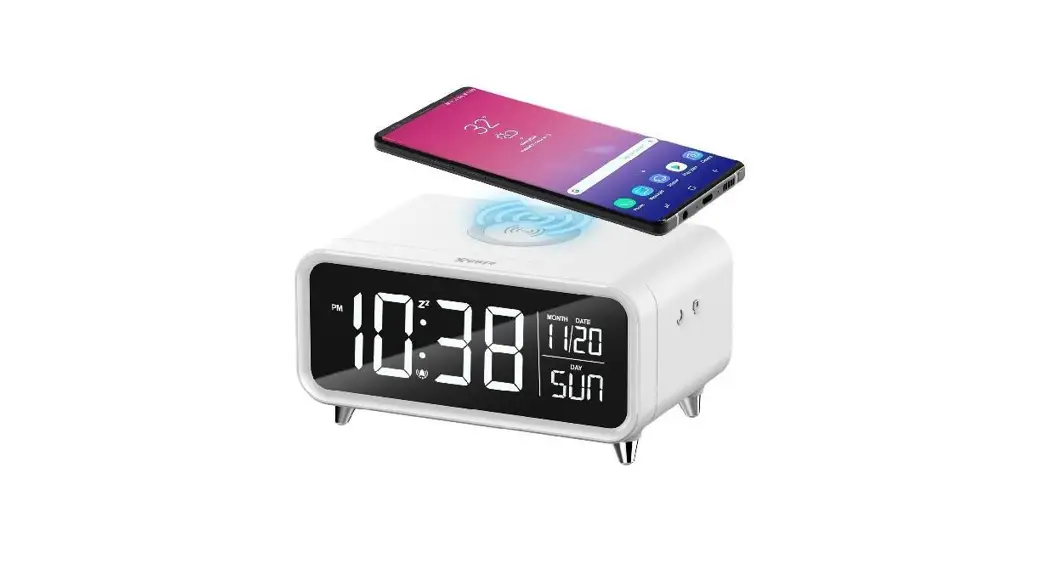

Emerson Radio ER100120, 10W Wireless Fast Charging Smartset Alarm Clock Radio
IMPORTANT SAFETY INSTRUCTIONS
- Read these instructions. Keep these instructions. Follow all instructions. Heed all warnings.
- Do not use this apparatus near water.
- Clean only with dry cloth.
- Do not block any ventilation openings. Install in accordance with the manufacturer’s instructions.
- Do not install near any heat sources such as radiators, heat registers, stoves, or other apparatus (including amplifiers) that produce heat.
- Do not defeat the safety purpose of the polarized or grounding-type plug. A polarized plug has two blades with one wider than the other. A grounding type plug has two blades and a third grounding prong. The wide blade or the third prong is provided for your safety. If the provided plug does not fit into your outlet, consult an electrician for replacement of the obsolete outlet.
- Protect the power cord from being walked on or pinched particularly at plugs, convenience receptacles, and the point where they exit from the apparatus.
- Only use attachments / accessories specified by the manufacturer.
- Unplug this apparatus during lightning storms or when unused for long periods of time.
- Refer all servicing to qualified service personnel. Servicing is required when the apparatus has been damaged in any way, such as power-supply cord or plug is damaged, liquid has been spilled or objects have fallen into the apparatus, the apparatus has been exposed to rain or moisture, does not operate normally, or has been dropped.
- Use only with the cart, stand, tripod, bracket, or table specified by the manufacturer, or sold with the apparatus.
- When a cart is used, use caution when moving the cart/apparatus combination to avoid injury from tip-over.
- The apparatus shall not be exposed to dripping or splashing and that no objects filled with liquids, such as vases, shall be placed on apparatus.
WARNING
- TO PREVENT ELECTRIC SHOCK HAZARD, DO NOT CONNECT TO MAINS POWER SUPPLY WHILE
- GRILLE IS REMOVED.TO REDUCE THE RISK OF FIRE OR ELECTRIC SHOCK, DO NOT EXPOSE THIS APPARATUS TO RAIN OR MOISTURE
Protect Your Furniture
This model is equipped with non-skid rubber ‘feet to to prevent the product from moving when you operate the controls. These feet are made from non-migrating rubber material specially formulated to avoid leaving any marks or stains on your furniture. However certain types of oil-based furniture polishes, wood preservatives, or cleaning sprays may cause the rubber ‘feet’ to soften and leave marks or a rubber residue on the furniture. To prevent any damage to your furniture we strongly recommend that you purchase small self-adhesive felt pads, available at hardware stores and home improvement centers everywhere, and apply these pads to the bottom of the rubber feet before you place the product on fine wooden furniture.
WARNING
- Do not ingest the battery,Chemical Burn Hazard
- This product contains a coin/button cell battery.
- If the coin/button is Swallowed, it can cause severe internal burns in just 2 hours and can lead to death.
- Keep new and used batteries away from children.
- If the battery compartment does not close securely, stop using the product and keep it away from children.
- If you think batteries might have been swallowed or placed inside any part of the body, seek imme diate medical attention.
Emerson SmartSet®
Thank you for purchasing this Emerson SmartSet® Dual Alarm Clock Radio. This clock radio uses Emerson’s patented SmartSet® Automatic Time Setting System. The first time you connect this clock radio to your AC outlet, and after every power interruption, within seconds the clock will automatically set itself to the correct Year, Month, Date, Day, and Time. In addition, all changes from Standard Time to Daylight Saving Time, and back to Standard Time, are made automatically. There are dual alarms that can be set and used independently, and both of the alarms can be programmed for everyday operation, weekdays only, or weekends only. There is a long life lithium battery installed in this clock radio when you buy it. This battery can maintain the time and alarm settings for 2 to 3 years, or even longer. We have taken every precaution to make sure this radio was in perfect working order when it left our factory. If you encounter any problems with the set up or operation of this item, please call the Emerson Consumer Products Corp., Customer Service Hotline, toll-free, at 1 -800-898-9020.
- Avoid installing this unit in places exposed to direct sunlight or close to heat-radiating appliances such as: electric heaters, on top of other stereo equipment that radiates heat, places lacking ventilation, dusty areas, places subject to constant vibration and/or humid or moist areas.
- Operate controls and switches as described in the manual.
- Before turning on the power, make certain that the AC adapter is properly installed.
- When moving the set,be sure to first disconnect the AC adapter.
Preparation for Use
- Remove the radio from the carton and remove all packing material from the radio.
- Save the packing material,if possible, in case the radio ever needs to be serviced or transported.
- The original carton and packing material is the only safeway to pack your radio to protect it from damage in transit.
- Remove any descriptive labels or stickers on the front or top of the cabinet.
- Do not remove any labels or stickers from the back or bottom of the cabinet.
- Note the serial number on the bottom of your radio and write this number in the space provided on the Warranty page of this manual.
- Place your radio on a level surface such as a table,desk or shelf,convenient to an AC outlet, out of direct sunlight,and away from sources of excess heat, dirt, dust, moisture, humidity, or vibration.
- Unwind the Line cord connecting the AC adapter and extend it to its full length.
- The FM antenna is built in to this cord.It must be fully extended to provide the best FM reception.
Power Source
This radio is designed to operate on normal 120V 60Hz AC power only.Do not attempt to operate the radio on any other power source. YOu could cause damage to the radio that is not covered by your warranty. This radio should be connected to an outlet that is always live. Do not connect it to an outlet that is controlled by a wall switch. When the power to the radio is interrupted, the built in lithium battery takes over to maintain the time and alarm settings. To maximize the life of the lithium battery keep the radio connected to a ‘live’ AC outlet at all times.
Package Contents
- ER100120
- POWER ADAPTER
- Owner’s Manual
- Read This Insert (Quick Start Guide)
Location of Controls and Indicators
FRONT PANEL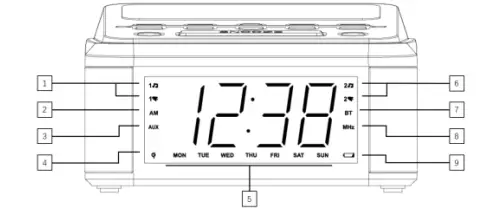 TOP PANEL
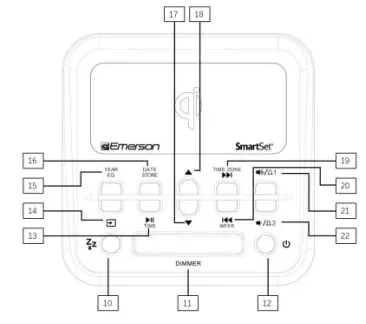 BACK PANEL
- ALARM 1 BUZZER / RADIO Indicators
- AM Indicator (‘On=AM, ‘Off=PM)
- AUX IN Indicator
- Qi Wireless Charger Indicator
- Day of Week Indicator
- ALARM 2 BUZZER/ RADIO Indicators
- BT Indicator (‘Solid’=Bluetooth connected)
- MHz Indicator (FM Radio Frequency)
- LOW BATTERY Indicator
- SLEEP Button
- SNOOZE/ DIMMER Button
- POWER(ON/Standby) Button
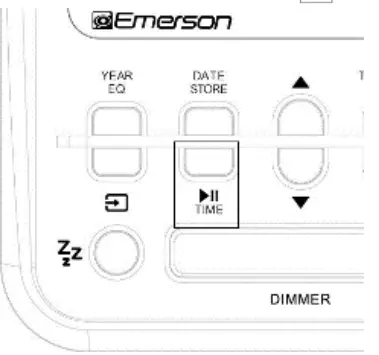
- PLAYI PAUSE/ TIME Button
- SOURCE Button
- EQ/YEAR Button
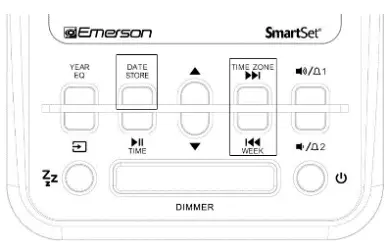
- STORE/ DATE Button
- DOWN Button
- UP Button
- NEXT/ TIME ZONE Button
- PREVIOUS / WEEK Button
- VOLUME + / ALARM 1 Button
- VOLUME – / ALARM 2 Button
- Backup Battery Compartment
- USB CHARGING Port
- DC Power IN Jack
- Stereo Earphone Jack
- AUX-IN Jack
- FM Pigtail Antenna Wire
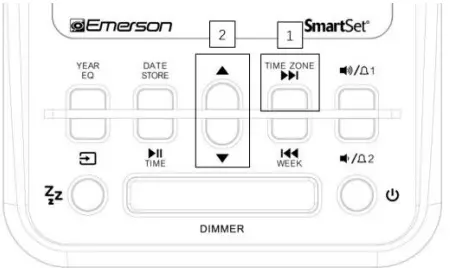
Setting the Time Zone
Initial Default Setting at Clock Mode IMPORTANT:
The first time you connect your new SmartSet® clock radio to the AC outlet the internal computer will automatically set the time correctly for the Eastern Time Zone, which is the initial default setting. The display will scan for a few seconds and then show the correct Day and Time in the Eastern zone. If you live in the Eastern Time zone, there’s nothing else to do. Your clock is set correctly and running. If you do not live in the Eastern Time zone you must change the default zone display to your own zone. You only do this one time and the Smart Set will remember the new default zone setting and will always return to that setting after a power interruption. There are 7 time zones programmed into your Smart Set clock radio as follows:
ZONE 1 — Atlantic Time
ZONE 2 — Eastern Time (Default Setting)
ZONE 3 — Central Time
ZONE 4 — Mountain Time
ZONE 5 — Pacific Time
ZONE 6 — Yukon Time
ZONE 7 — Hawaiian Time
- Press TIM E ZONE
- Press UP or DOWN
Setting the Clock Manually
Date Display and Adjustments
To see the correct date at any time, press and hold the DATE button. The display changes from time to Month and Date (MM/DD). For example, Apr 16th will appear as “ 4.16 “. When you release the DATE button the display returns to the correct time. To adjust the Date manually, keep holding the DATE button and press UP or DOWN buttons.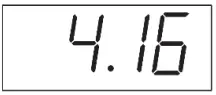
Year Display and Adjustments
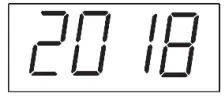
To see the correct year, depress the YEAR buttons, the display changes from time to year. When you release the YEAR button, the display returns to the correct time. To adjust the Year manually, keep holding the YEAR button and press UP or DOWN buttons.
Manual Time Adjustments
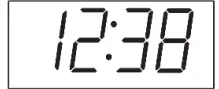
Some people like to set their clocks 5 to 10 minutes fast to make sure that they will always be on time. Even though the SmartSet® sets the time by itself, you still have the option of adjusting the time manually if you wish. To manually adjust the time display press and hold the TIME button, and press either the UP or DOWN buttons to adjust the time display ahead or back as desired. Each press of the UP or DOWN buttons will change the display by one minute. If you hold the UP or DOWN buttons the display will continue to change. The display will change slowly at first, one minute at a time. But if you continue holding the UP or DOWN buttons, the display will change rapidly. NOTE: If you manually adjust the time, your new setting is entered into the SmartSet® memory. If the power is interrupted, the display will return to your new setting, not the original setting, when the power is restored.
Daylight Saving and Leap Year Adjustments
All Daylight Saving and Leap Year adjustments are made automatically by the SmartSet® internal computer as follows:
Start of Daylight Saving Time:
At ‘2:00 AM’ on the 2nd Sunday in March, the clock will automatically advance to ‘3:00 AM”.
End of Daylight Saving Time:
At ‘3:00 AM’ on the 1st Sunday in November, the clock will automatically reset to ‘2:00 AM”.
Note: If you do not want the clock to adjust itself according to Daylight Saving time automatically, you can disable it by pressing and hold TIME and WEEK for 1 second, then the display will show “dSt” – “OFF”, which means the auto Daylight Saving time is disabled; by doing so again, the display will show “dSt” – “ON”, which means the auto Daylight Saving time is enabled.
Leap Year:
At “12:00 Midnight’ on February 28th, the calendar display will change to ‘2.29”.
Setting the Alarm
Note: Alarm settings can only be checked and adjusted in Standby Mode, where the function of Radio, Bluetooth and AUX are disabled (Indicator of MHz, BT and AUX are off). Your SmartSet® clock radio has two separate alarms that can be set and used independently. You may use the alarms to wake two people at different times, or you may use one alarm for weekdays and the other for weekend wake up times.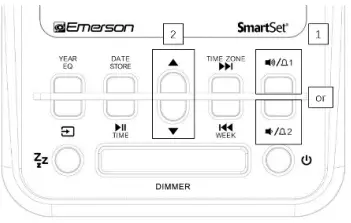
Adjust the Wake Up Time
- The procedure for adjusting the wake up time is the same for both Alarm 1 and Alarm 2.
- Press and hold either the ALARM 1 or ALARM 2 setting button. The display will change from the current time to the Alarm 1 or Alarm 2 wake up time.
- While holding the ALARM 1or ALARM 2 setting button, press either the UP or DOWN button to move the display ahead or back to your desired wake up time.
- When the desired wake up time appears on the display, release the UP or DOWN buttons.
- NOTE: Be sure that you have set the wake up time correctly by observing the AM indicator. If the
- AM indicator is ‘On ‘ the wake up time is ‘AM”. If the
- AM indicator is ‘Off’. the wake up time is “PM”.
- When the desired wake up time (AM or PM) appears on the display, release the ALARM 1 or ALARM 2 setting buttons
Selecting the Alarm Week Mode
- Your SmartSet® clock radio allows you to select from among three different alarm operation modes for either alarm. The alarm modes are:
- Everyday – the alarm will turn on all 7 days.
- Weekdays only – the alarm will only turn on Monday through Friday;
- Weekends only – the alarm will only turn on Saturday and Sunday

- To check the Alarm Mode setting for Alarm1. press the ALARM 1 setting button.
- The display will show the Alarm 1 wake up time and the DAY OF WEEK indicators will show you the alarm mode which is selected.
- If all 7 indicators are ‘On’, the Everyday mode is selected.
- If only the MON(Monday) through FRI(Friday) indicators are ‘On’, the Weekdays only mode is selected.
- If only the SAT(Saturday) and SUN(Sunday) indicators are ‘On’, the Weekends only mode is selected.
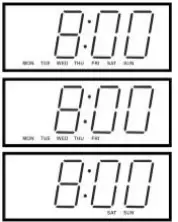
To change the Alarm Mode setting for Alarm 1, hold the ALARM 1 setting button and press the WEEK button until the DAY OF WEEK indicators show the desired mode setting, Weekdays only, Weekends only, or Everyday operation. Release the ALARM MODE and ALARM 1 setting buttons and the display will return to the current time. Follow the same procedure to select the desired Alarm Mode for Alarm 2 if necessary.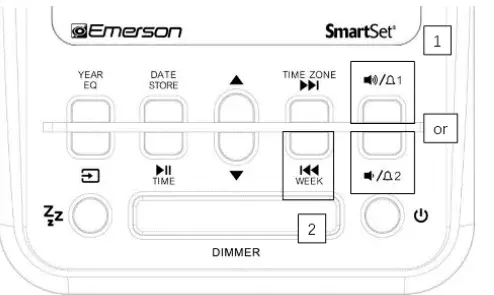
Checking The Wake Up Times And Alarm
Mode
Whenever you want to check the wake up time or the alarm mode settings, simply press either the ALARM 1 or ALARM 2 setting buttons. The display will change from current time to wake up time and the DAY OF WEEK indicators will show you the alarm mode which is currently selected. Release the ALARM 1 or ALARM 2 setting buttons to return to current time.
Activating and Deactivating the Alarm
- Press and release the “AL1/AL2” button continuously to turn On your desired Alarm Mode: Wake to Radio or Wake to Buzzer.
- When the `1♫/2♫’ indicator glows, the wake up to Radio alarm will be On.
- When the ‘1 / 2 ’ indicator glows, the wake up to Buzzer alarm will be On.
- To completely turn Off the alarm, press and release “AL1/AL2” button continuously until the Radio `1♫/2♫’ indicator or the Buzzer ‘1 / 2 ’ indicator is Off.
Snooze Alarm
When the alarm comes On, press the “SNOOZE” button to pause it for 9 minutes. Alarm indicator will flash during Snooze Alarm mode. To turn off Snooze Alarm, press the “POWER” button once.
Note: If not turned off, the Snooze Alarm will only be active for one hour
Listening to FM Radio
Turn FM On and Off
- Press the POWER button to turn the unit ‘On’.
- Press SOURCE button to get FM frequency and “MHz” indicator displayed
- Set the VOLUME by pressing VOLUME + or VOLUME – to a level that is neither too high nor too inaudible.
- When you are finished listening, press the POWER button to turn the radio ‘Off’. The “MHz” indicator goes off as you do so.
Receive your desired station with the TUNING control:
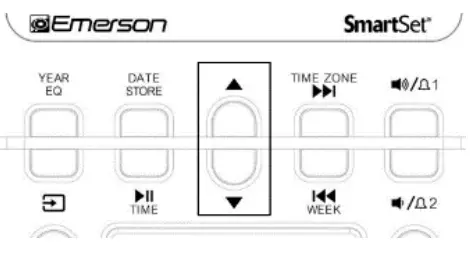
- Press UP or DOWN slightly, the receiving frequency will increment or decrement by one step
- Press and hold TUNE + or TUNE – for one second then release, Auto Station Seeking will be engaged, the receiving frequency will increment or decrement automatically until a station with acceptable reception is found.

AMS – Auto Memory Saving
- Turn on FM as described above
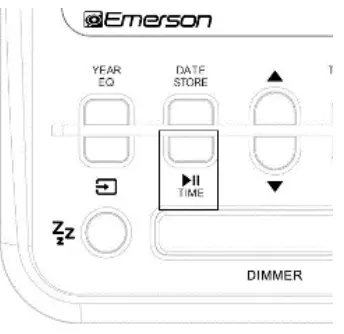
- Press and hold PLAY / PAUSE button for a second, the display shows the FM frequency shows and start to scan automatically from 87.5MHz to 108MHz
- When FM broadcast is detected, the station will be played for a second or so, and the station frequency will be automatically stored into the memory in serial sequence starting from P01, then P02, and so forth, until the whole FM frequency range from 87.5MHz to 108MHz has been gone through, or all the 50 station memories are fully filled with the detected stations
- After the auto scanning and saving is complete, you can press NEXT and PREVIOUS button to explore and select the detected stations stored in the memory for listening

Storing and Recalling Radio Station Memory Manually
When you have a few favorite radio stations to listen to, you may like to save them into a specific memory location, and pick one out of them in a few seconds without needing to search it each time. Our digital tuning technology allows you to do this easily by following the following steps:
Storing to the Memory
- Make sure the radio is ON and FM is selected.
- Tune to the desired station by the TUNING control as described.
- Press STORE, “P XX” blinks, indicating the memory location to store the currently listening station.
- While “P XX” is blinking, press TUNE + or TUNE – can change the memory location from 1 through 10.
- For i.e., “P 03”means the current listening station is about to stored into the 3rd location of the memory
- After deciding the memory location, press STORE again, the currently listening station is stored.
- The display will turn to the frequency of the stations afterwards, and after a few seconds, the current time shows.
Recalling Station from the Memory
- Make sure the radio is ON and FM is selected.
- Press NEXT or PREVIOUS, “P XX” shows on the display, and the station according to the memory location is tuned.
- Repeatedly pressing NEXT or PREVIOUS can change the memory location from 1 through up to maximum 50, and the station stored in the location is tuned once the location is changed to.
- The display will turn to the frequency of the stations afterwards, and after a few seconds, the current time shows.
Listening to Bluetooth Speaker
Turn On to Bluetooth
- Press POWER to turn on the unit
- Press SOURCE to select Bluetooth (BT) mode, BT

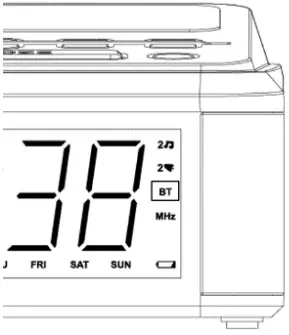
Indicator lights up◼
- If the BT indicator is lit consistently, it means that a device has connected with it, you can start listening from the connected device by start playing from it.
- ◼ If the BT indicator is flashing, it is to say that no device is connected to it yet, you can operate from the phone for pairing. See Paring Up.

Pairing Up with a Music Bluetooth Device (Phone, Pad, etc.)
- Make sure Bluetooth is in pairing mode by observing if the BT indicator is flashing
- If the BT indicator is lit up consistently, it tells that your Bluetooth speaker is already connected to a device. If you wish to disconnect from the connected device and pair up with a new one, press and hold PLAY/PAUSE button until the BT indicator starts to flash, the previously connected device is now disconnected and ready to pair up with other device
- Make sure your music device to pair is turned on at Bluetooth
- While BT indicator is flashing, find “ER100120” from the Bluetooth device, and select it for connection. There will be tone of alert after successfully paired up and connected
- Now the BT indicator lights up consistently with the Bluetooth music device paired and connected

Enjoy Playback with Bluetooth
- After connected with a Bluetooth device, BT indicator lights up consistently, now you can start playback by streaming the music to the speaker wirelessly.
- Start playing form the Bluetooth device by pressing PLAY on the APP of the player.
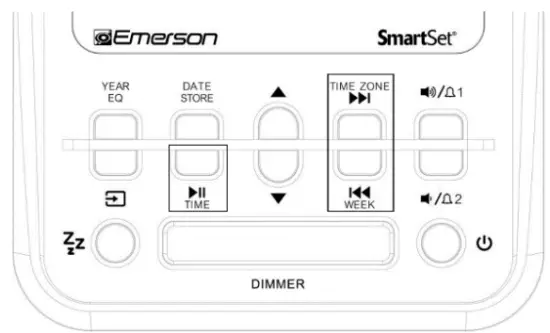
- While playing, if you wish to pause, press PLAY / PAUSE button, another press on it to resume playback.
- To skip to the next or the the previous sound track, press NEXT or PREVOUS
Note: PLAY/PAUSE, NEXT, PREVOUS control requires the connected Bluetooth device to support AVRCP Bluetooth profile, and the playback APP is also concerned in realizing the said controls.
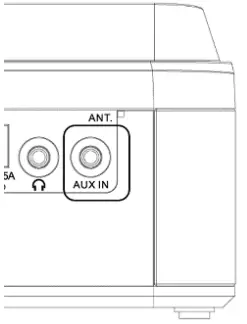
AUX IN Jack for External Music
- This clock radio is equipped with AUX IN jack to enjoy iPod, MP3 player music or other audio source.
- Turn on me Clock radio by pressing me RADIO ON/OFF button.
- Connect your iPod, MP3 player or other audio source from its earphone jack to the clock radio AUX IN jack with cable with 2 ends 3.5mm stereo plug.
- “AUX” indicator will light on when you power on the unit and change to AUX function by pressing SOURCE button.
- Start to play iPod, MP3 or other audio player, and set the player volume to maximum.
- Adjust the main unit volume to your desired level.

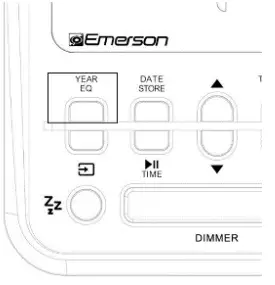
EQ for Music Listening
- The clock radio is equipped with EQ (Equalizer) to enable you to enjoy stereo listening different acoustic setting to fit the music or audience experience.
- While listening with FM, Bluetooth or AUX, press EQ button to see and change the EQ setting modes:
- ◼ POP – POPULAR
- ◼ rOC – ROCK
- ◼ JA2 – JAZZ
- ◼ CLC – CLASSIC
- ◼ FLT – FLAT
- The first press on EQ button will show the current setting, the second press will cause to change the EQ mode cyclically.

Enjoying Stereo via Earphone Jack
- Press the “POWER” button to turn the unit On.
- Press the “SOURCE” button to select and listen to your desired audio source (Bluetooth or Radio).
- Adjust the output volume to relatively low volume.
- Connect your headphone plug into the 3.5mm earphone jack to enjoy streaming stereo through your headphone.
Note: If an alarm is set and your headphone is still connected to the unit, Wake to Radio/Buzzer alarm will go off on the speaker and your headphone at the same time when alarm comes.
CAUTION: Prolonged use of headphone at high volume may cause irreparable hearing loss. We strongly advise you to adjust the headphone volume to a reasonable level. The higher the volume for a prolonged time, the higher the risk of damaging your hearing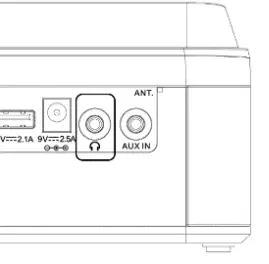
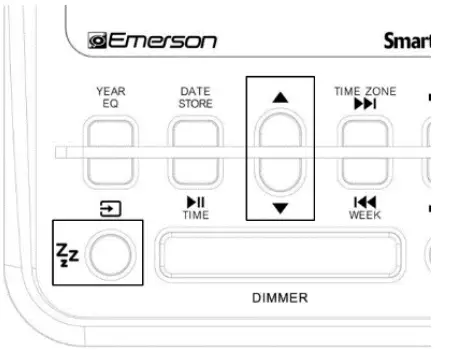
Sleeping to Music Timer
- Power on and select the desired function to listen.
- Press SLEEP button, the digit shows how many minutes to automatically turn the unit off, it starts at 10 minutes.
- Press SLEEP again, the Sleep Timer increases by 10 minutes. As you repeatedly press SLEEP and the timer reaches 90 minutes, another press will change the timer down to 2 minutes, the minimum Sleep Timer to set.
- While Sleep Timer is showing on the display, press UP or DOWN can change it in 1 minute basis for increment or decrement.
- Leave the set Sleep Timer for a while, the current time shows again. The unit automatically turns off to Standby mode after the Sleep Timer counts down to time up.
- If you want to turn of the radio before timer runs up, press POWER can switch it off to Standby and cancel the Sleep Timer.

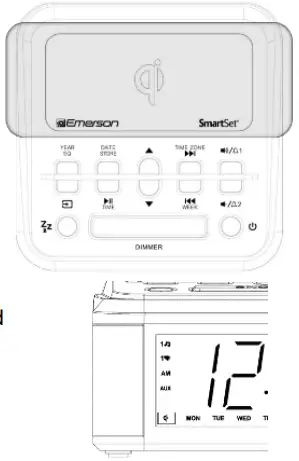
Qi Wireless Charging
- The clock radio is equipped with Qi wireless charging. You can enjoy tetherless charging by simply put your phone of the charging pad, if your phone supports Qi wireless charging.
- Make sure your phone is compatible with Qi wireless charging
- Before you put it on the charging pad of the clock radio, make sure your phone is not wrapped with a case which contains metal. Conductive material placed on the charging pad can cause energy loss and temperature rise that leads to unexpected harm
- Place your Qi enabled phone on the charging pad, move it around slightly to let the center of charging pad aligns with the perceptive coil of the phone, then Qi indicator will light up in red consistently, which tells that charging is in progress
- If the Qi indicator flashes, it is to tell that there is foreign object (usually conductive metal object) is on the pad, or is place inbetween the phone’s back and the center of the charging pad.
- The clock radio supports Qi 5W and fast charging.

USB Charging
The Clock Radio has a USB port at the back, which can provide up to 5V 2.1A to charge devices like mobile phone, tablet etc.
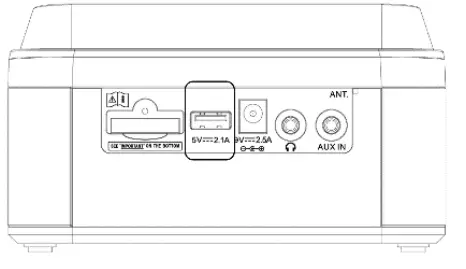
Note: Current drawn from the unit may vary due to different charging cable condition, battery characteristic or the power management design of the charged device.
Changing the Lithium Battery
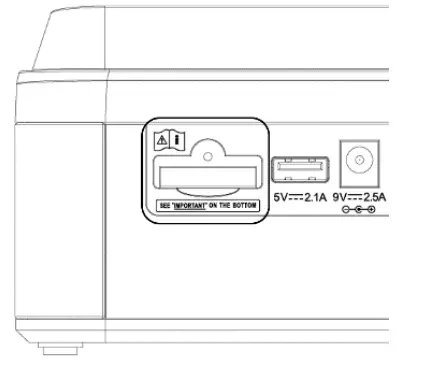
- The lithium backup battery needs replacement when the
- LOW BATTERY indicator flashes, otherwise, the time and alarm settings will be lost/reset after a power outage.
- Leave the AC adapter connected to your AC outlet to retain memory while the original battery is removed.
- Unscrew the battery holder from the cabinet with a small screwdriver and insert a new battery with the same CR2032 or equivalent type into the holder the same way, observing the positive (+) polarity before sliding the holder back into the slot. The LOW BATTERY indicator should then be Off.
Changing the Lithium Battery
Care Of Cabinets
If the cabinet becomes dusty,wipe it with a soft cloth. If the cabinet becomes smudged or dirty, clean it with a soft, slightly dampened cloth. Never allow water or any liquid to get inside the cabinet. Never use any abrasive cleaners or cleaning pads as these will damage the finish of your radio.
Lithium Battery Precautions
Dispose of the old battery properly.Do not leave it lying around where a young child or pet could play with or swallow it. If the battery is swallowed,
contact a physician immediately. The battery may explode if mistreated. Do not attempt to recharge it or disassemble it. Do not dispose of the old battery in a fire.
Changing the Lithium Battery
Emerson Radio Corp. warrants this product to be free from manufacturing defects in original material, including original parts, and workmanship under normal home use and conditions (“manufacturing defect”) for a period of ninety (90) days from date of original purchase in, and if used in the United States. Should service be necessary under this warranty, Emerson will provide the following at our Return Repair Facility provided the manufacturing defect is verified along with the date of purchase
- Repair service for ninety (90) days from date of original purchase at no charge for labor and parts.
- To Receive Authorization to Return a Defective Item, please contact Emerson Customer Service at 1-800-898-9020 or at http://www.emersonradio.com/ service/return-policy.
- Have your Model number, Serial Number and dated Proof of Purchase with you when you cal In the event the product must be returned to Emerson:
- Pack the unit in a well-padded heavy corrugated box.
- Please insure the item is well padded to avoid damage while in transit back to our facility.
- If the item incurs damage, it will NOT be replaced and the consumer will be responsible for return freight costs to receive their same unit back.
- Enclose your check or money order payable to Emerson Radio in the amount of $10 to cover return shipping and handling costs.
- Enclose a note with your name, address, phone number, Return Authorization number and brief reason for returning the unit.
- Enclose a copy of your proof of purchase (warranty service will not be provided without dated proof of purchase).
- Ship the unit prepaid via UPS or parcel post (SHIP INSURED and obtain a tracking number).
NOTE
This warranty does not cover:
- Damage to equipment not properly connected to the product.
- Cost incurred in the shipping of the product to and from Emerson’s Return Facility.
- Damage or improper operation of unit caused by customer abuse, misuse, negligence or failure to follow operating instructions (including cleaninng instructions) provided with the product.
- Ordinary adjustments to the product which can be performed by customer as outlined in the owner’s manual.
- Signal reception problems caused by external antenna or cable systems.
- Products not purchased in the United States.
- Damage to product if used outside the United States.
WARRANTY
THIS WARRANTY IS NON-TRANSFERABLE AND APPLIES ONLY TO THE ORIGINAL PURCHASER AND DOES NOT EXTEND TO SUBSEQUENT OWNERS OF THE PRODUCT. ANY APPLICABLE IMPLIED WARRANTIES, INCLUDING THE WARRANTY OF MERCHANTABILITY, ARE LIMITED IN DURATION TO A PERIOD OF THE EXPRESSED WARRANTY AS PROVIDED HEREIN BEGINNING WITH THE DATE OF ORIGINAL PURCHASE AT RETAILAND NO WARRANTIES, WHETHER EXPRESSED OR IMPLIED, SHALLAPPLY TO THE PRODUCT THEREAFTER. EMERSON MAKES NOO WARRANTY AS TO THE FITNEss OF THE PRODUCT FOR ANY PARTICULAR PURPOSE OR USE.THE EXTENT OF EMERSON RADIO CORP’S LIABILITY UNDER THIS LIMITED WARRANTY IS THE REPAIR OR REPLACEMENT PROVIDED ABOVE AND, IN NO EVENT, SHALL EMERSON RADIO CORP’S LIABILITY EXCEED THE PURCHASE PRICE PAID BY THE PURCHASER OF THE PRODUCT. UNDER NO CIRCUMSTANCES SHALL EMERSON RADIO CORP. BE LIABLE FORANY LOSS, DIRECT, INDIRECT, INCIDENTAL, SPECIAL, OR CONSEQUENTIAL DAMAGE ARISING OUT OF OR IN CONNECTION WITH THE USE OF THIS PRODUCT. THIS WARRANTY IS VALID ONLY IN THE UNITED STATES OF AMERICA.THIS WARRANTY GIVES YOU SPECIFIC LEGAL RIGHTS. HOWEVER, YOU MAY HAVE OTHER RIGHTS WHICH MAY VARY FROM STATE TO STATE. SOME STATES DO NOT ALLOW LIMITATIONS ON IMPLIED WARRANTIES OR EXCLUSION OF CONSEQUENTIAL DAMAGE, THEREFORE THESE RESTRICTIONS MAY NOT APPLY TO YOU.
EMERSION SERVICE
- FOR ADDITIONAL SET-UP OR OPERATING ASSISTANCE
- PLEASE CALL:
- 1-800-898-9020
- FOR CUSTOMER SERVICE, PLEASE E-MAIL TO:
- [email protected]
- OR WRITE TO:
- Emerson Radio Corp.
- Consumer Affairs Dept.
- 35 Waterview Blvd
- Parsippany, NJ 07054
Radiation Exposure Statement
This equipment complies with FCC/IC radiation exposure limits set forth for an uncontrolled environment. This equipment should be installed and operated with minimum distance 20cm between the radiator & your body
IC warning
This device contains licence-exempt transmitter(s)/receiver(s) that comply with Innovation, Science and Economic Development Canada’s licence-exempt RSS(s). Operation is subject to the following two conditions:
- This device may not cause interference; and
- This device must accept any interference, including interference that may cause undesired operation of the device.
FCC Information
This equipment has been tested and found to comply with the limits for a Class B digital device, pursuant to Part 15 of the FCC Rules. These limits are designed to provide reasonable protection against harmful interference in a residential installation. This equipment generates, uses, and can radiate radio frequency energy and, if not installed and used in accordance with the instructions, may cause harmful interference to radio communications. However, there is no guarantee that interference will not occur in a particular installation. If this equipment does cause harmful interference to radio or television reception, which can be determined by turning the equipment off and on, the user is encouraged to try to correct the interference by one or more of the following measures:
- Reorient or relocate the receiving antenna.
- Increase the separation between the equipment and receiver.
- Connect the equipment into an outlet on a circuit different from that to which the receiver is connected.
- Consult the dealer or an experienced radio/TV technician for help.
This device complies with Part 15 of the FCC Rules. Operation is subject to the following two conditions:
- This device may not cause harmful interference, and
- This device must accept any interference received, including interference that may cause undesired operation.
Changes or modifications not expressly approved by the party responsible for compliance could void the user’s authority to operate the equipment.
FAQS
Press and hold the button labeled Alarm 1 to activate the alarm time adjustment. While holding the button, use the Tune up or Tune down control options. The changes work in the same manner as changing the general time. Select and hold the Alarm 2 button and use the same controls to adjust the time.
To completely turn Off the alarm, press the AL 1 or AL2 button repeatedly until the Radio· 11J/21J’ indicator or the Buzzer’ 1•-12•’ indicator is Off
To completely turn Off the alarm, press the AL1 or AL2 button repeatedly until the Radio `1♫/2♫’ indicator or the Buzzer `1 /2 ‘ indicator is Off.
Our Smartset technology automatically sets your clock to the correct Year, Month, Day and Time as soon as you plug it in. Just select your time zone and the built-in computer does everything else for you immediately.
When the Alarm comes ON , press SNOOZE button z22, to pause it for 9 minutes . Snooze Alarm will not repeat after one hour. To turn off Snooze Alarm \ mode ,press the POWER button once
Whenever you want to check the wake up time or the alarm mode settings, simply press either the ALARM 1 or ALARM 2 setting buttons. The display will change from correct time to wake up time and the DAY OF WEEK indicators will show you the alarm mode which is currently selected
Press The AL1or AL2 buttons repeatedly until they disappear. For instance, if you have alarm 1 set, press alarm 1 and it will show it with musical notes to wake by music, press again and a buzzer will appear to wake by a buzzer noise and when you press it again it’ll disappear and that deactivates the alarm
Press the POWER button to turn the unit ON Press the SOURCE button to select Bluetooth (bt) mode ( “BT” flashes for pairing) Enable your Bluetooth device and select CKS1507 from its Available/Paired device list.
Radio-controlled clocks typically check the time only every hour, or every two hours, and radio-controlled watches only perhaps three times a day. This is to conserve the battery, as the reception unit takes more power than the clock/watch mechanism.
Check that the power supply is in full working order. Change the current battery for a fresh one and reset your clock. It can take quite a few minutes for the clock to pick up the MSF radio signal, so be patient. Try rotating the clock
Atomic or Radio Controlled clocks and watches achieve accurate time because they are controlled by radio transmitters which themselves receive their time signals from Caesium Atomic clocks. These clocks have an accuracy of 1 second in a million years
Our Smartset technology automatically sets your clock to the correct Year, Month, Day and Time as soon as you plug it in. Just select your time zone and the built-in computer does everything else for you immediately.
A clock radio is an alarm clock and radio receiver integrated in one device. The clock may turn on the radio at a designated time to wake the user, and usually includes a buzzer alarm. Typically, clock radios are placed on the bedside stand.
An Android has a default alarm duration of 10 minutes. Unlike the iPhone, you can change how long an Android alarm rings for. You can change the ‘silences after’ setting in the settings tab related to the alarm
Alarm clocks did exist before the snooze function, so there was already a standard gear setup that innovators had to work with. Getting the gear teeth to line up to allow for exactly ten minutes wasn’t possible, so they had to choose between setting it at nine minutes and a few seconds or a little bit over ten minutes