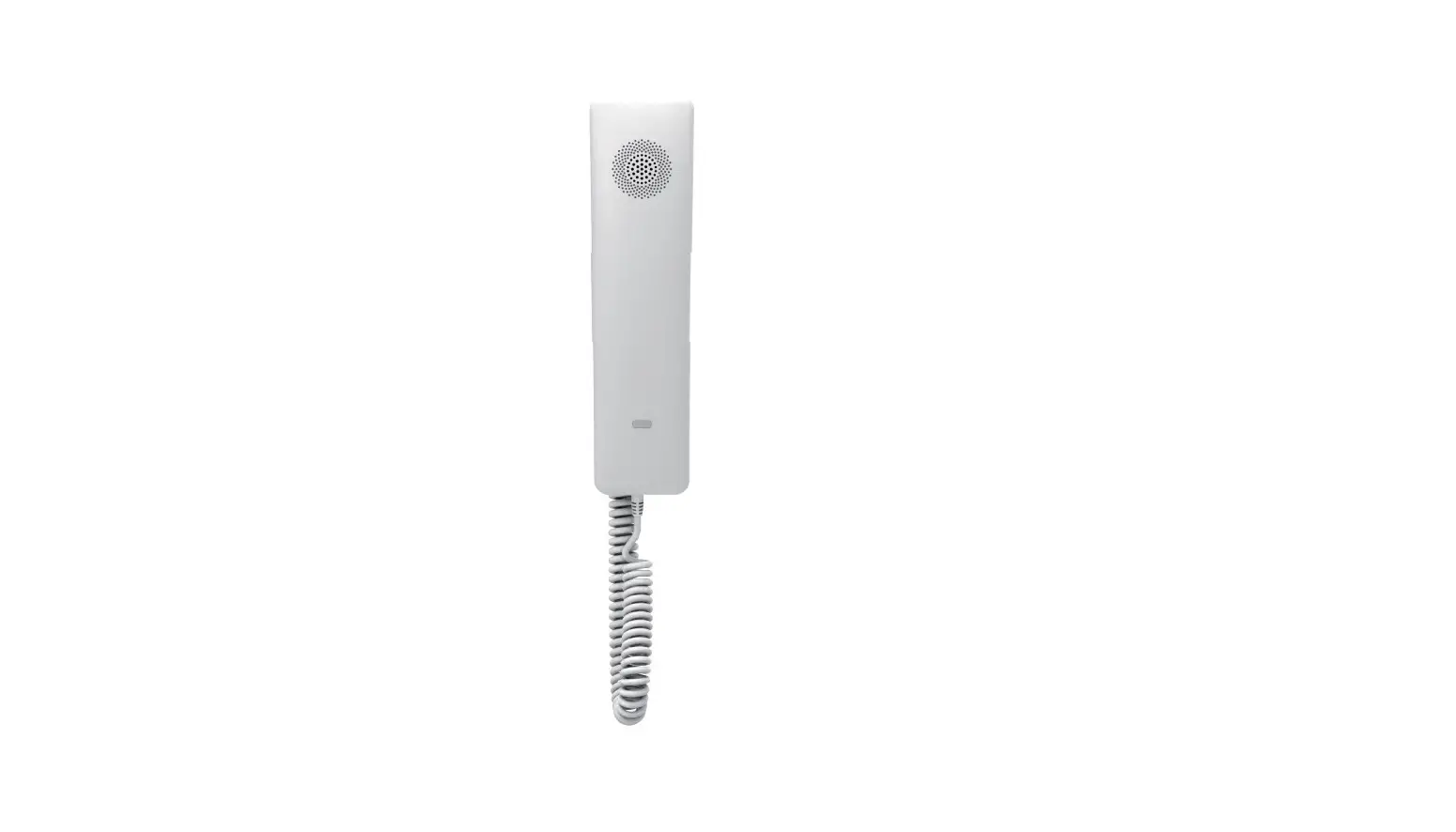
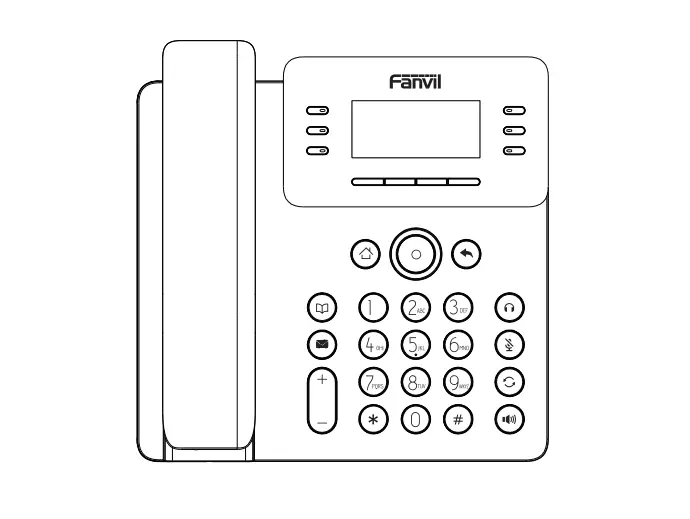
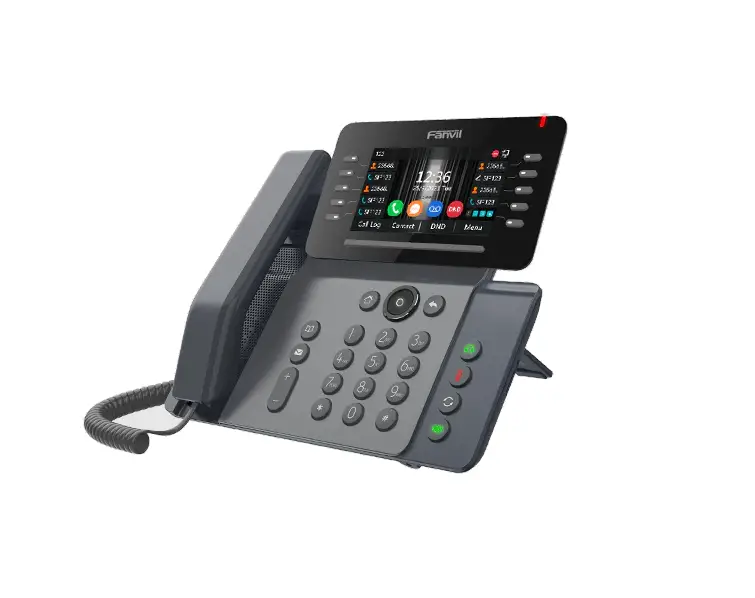
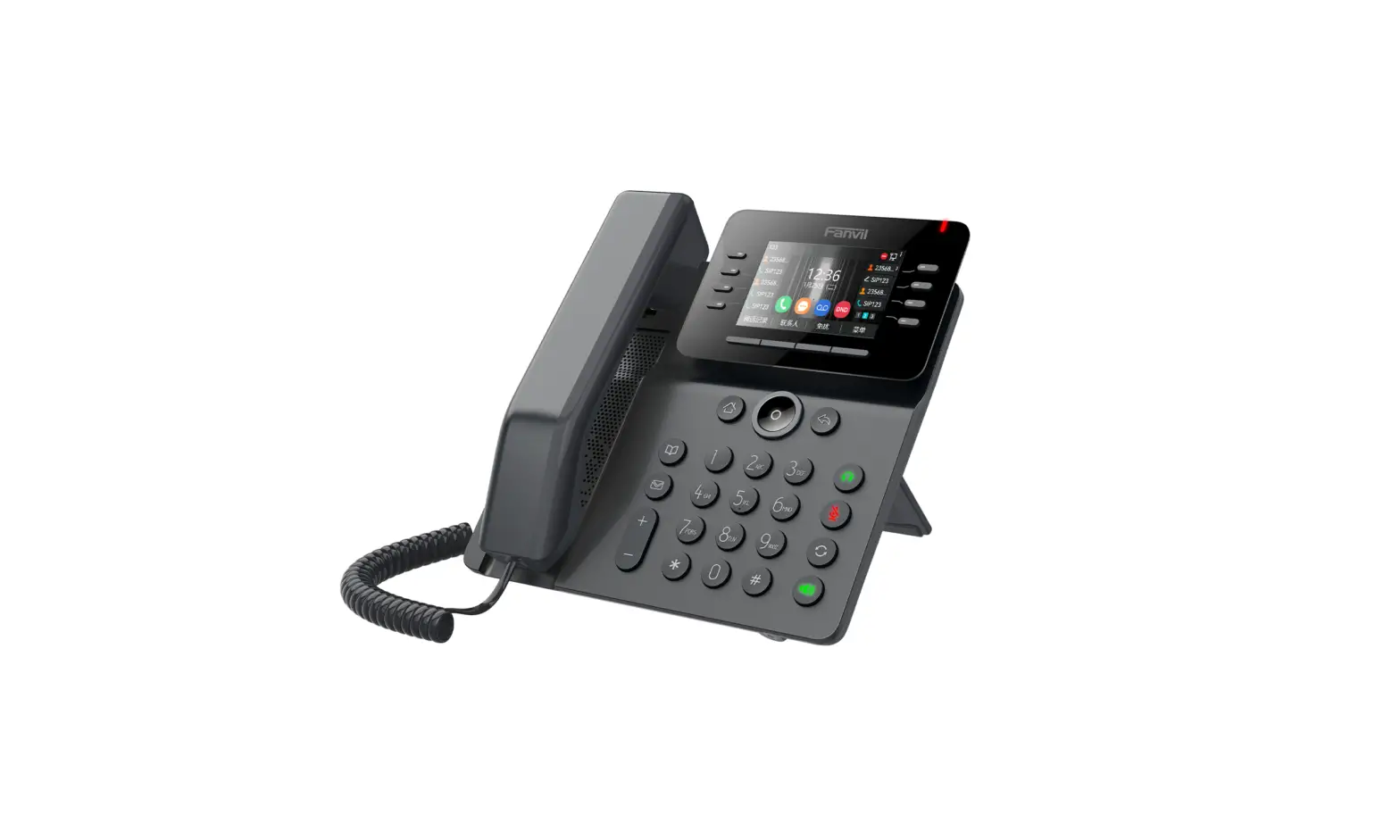
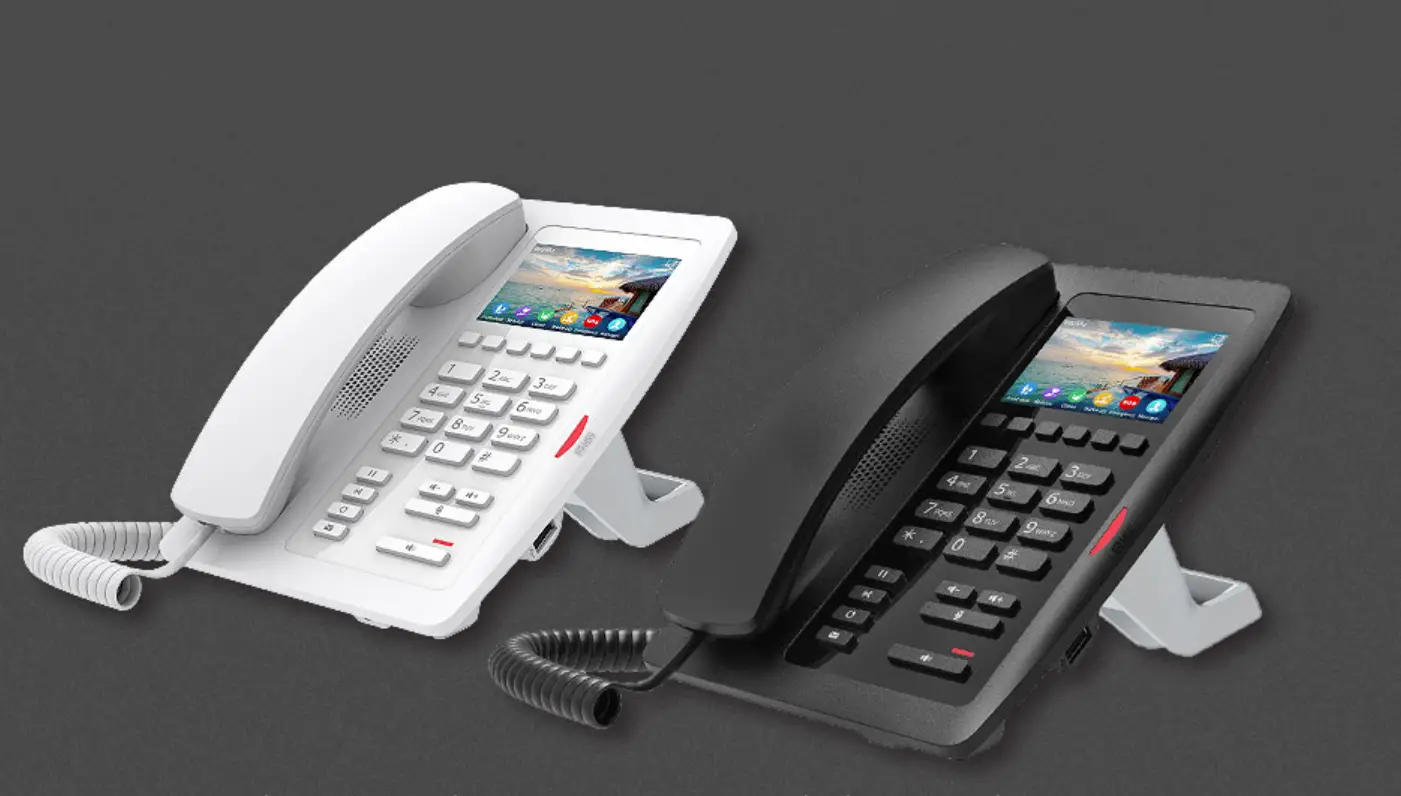
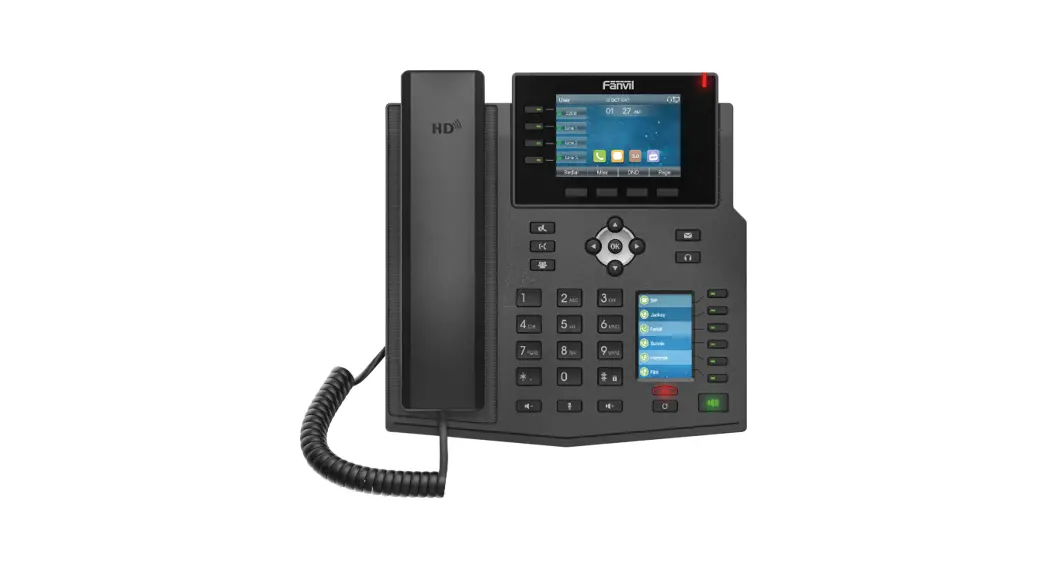
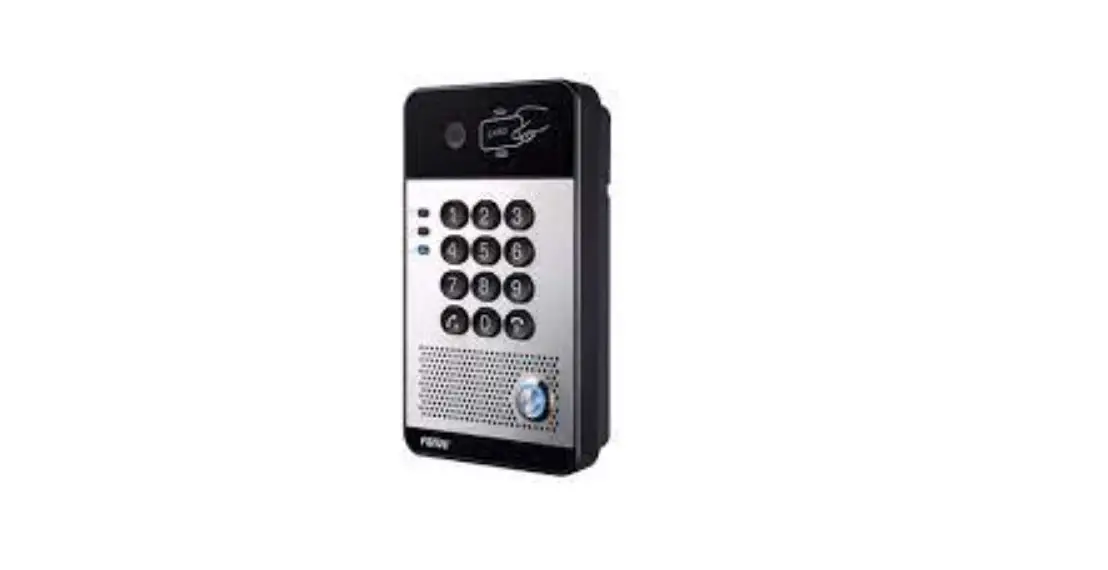
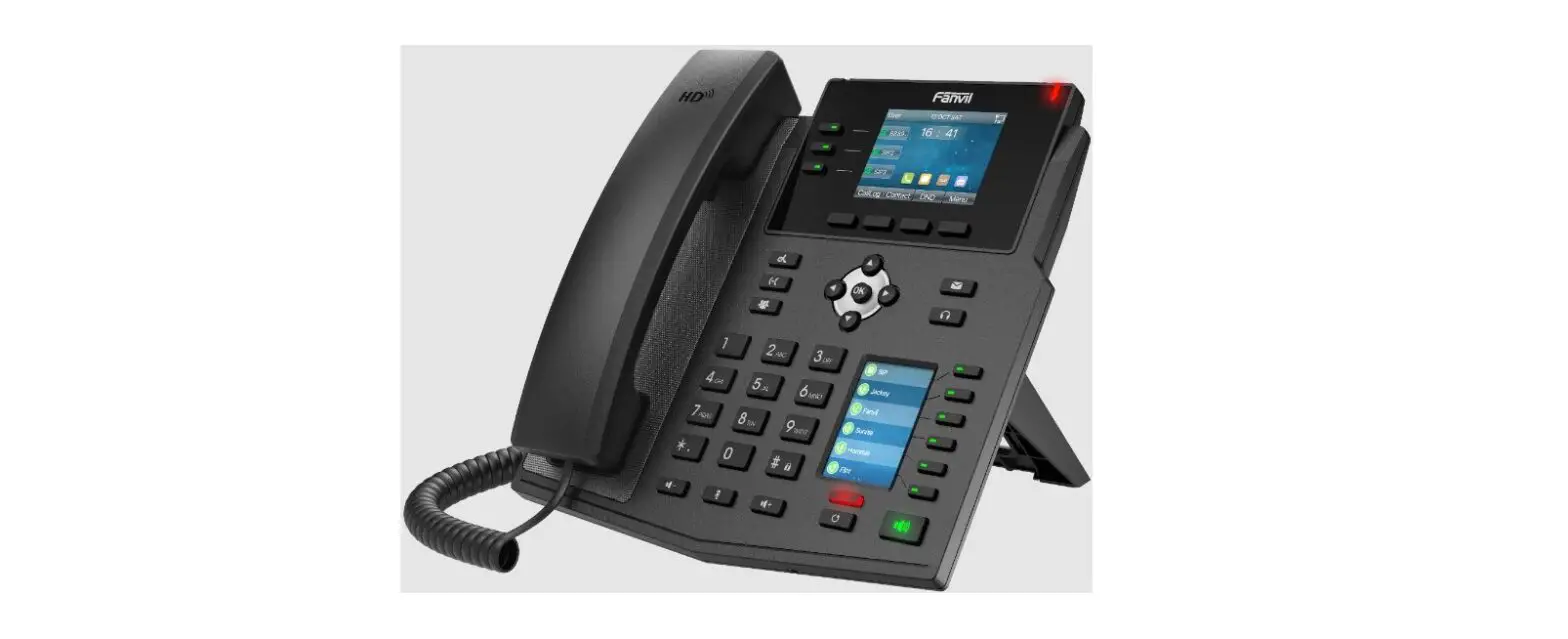
H3, H5 Hotel Phone
Product Information:
The Hotel Phone – H3 & H5 is a telephone device designed for
use in hotel environments. It features a keypad with various keys
that provide specific functions, such as speaker, hold, transfer,
redial, MWI (Message Waiting Indicator), DSS (Direct Station
Selection) keys, volume control, mute, and speaker keys. The device
also has a message waiting/incoming call indicator that flashes
when there is an incoming call or a waiting message. The phone can
be configured with network settings and an SIP telephony service to
enable making and receiving phone calls.
Product Usage Instructions:
1. Connection Methods:
Please follow the steps below to connect the necessary
components to the corresponding ports:
- Connect the power adapter to the designated port.
- Connect the network cable to the network port.
- Connect a PC to the PC port.
- Connect the handset to the handset port.
2. Phone Settings:
2.1 Getting IP Address:
The device is set to use DHCP by default. After connecting the
phone line, it will automatically obtain an IP address from the
DHCP server (router).
2.2 Checking IP Address:
To check the IP address, pick up the handset or press the
hands-free key and input “# * 111” or long press “#” to hear the IP
address information. On the LCD screen, you can also press “#”
during standby time to display the IP address (only supported for
H5).
2.3 How to Enter into Web Setting Interface:
- Connect the telephone and a PC in the same LAN.
- Open the Internet Explorer (IE) browser on the PC.
- Enter the telephone IP address in the address bar.
- Enter “admin” as both the username and password.
- Click the “Logon” button to enter the web setting
interface.
2.4 SIP Setting:
- In the web setting interface, select “Line” and then
“SIP”. - Fill in the following items: Server Address, Account Name,
Phone Number, and Password. - Click the “Apply” button to save the configuration.
2.5 Memory Key Setting:
- In the web setting interface, select “Function key” and then
“Function key”. - Select the desired function and fill in the corresponding
number in the value field.
3. Basic Operation:
3.1 Making a Call:
To make a call, you can either use the dial pad or a memory
button. Lift the handset or press the hands-free key, dial the
number on the dial pad or press a memory key (ending with “#”), and
then hang up the handset to end the call.
3.2 Answering a Call:
When your telephone rings and the light flashes, lift the
handset or press the hands-free key to start talking. Hang up the
handset to end the call.
3.3 Holding a Call:
If you are on a call and want to put it on hold, press the Hold
key. To retrieve a held call, press the Hold key again.
3.4 Redialing:
To redial the last number you dialed, lift the handset or press
the hands-free key and press the Redial key.
3.5 Transferring a Call:
To transfer a call, please refer to the additional instructions
provided in the user manual or contact customer support for further
assistance.
Hotel Phone – H3 & H5 Quick Installation Guide
Connection methods Please connect power adapter, network, PC, and handset to the corresponding ports as described in
below picture.
2/6
1 Introduction to the Phone User Interface
1.1 Keypad
Speaker
Hold key Transfer key Redial key MWI key
DSS Keys
Message waiting / Incoming call indicator
Volume Control key Mute key Speaker key
The above picture shows the keypad layout of the device. Each key provides its own specific function. User should refer to the illustration in this section about the usage of each key and the description in this document about each function.
Message waiting / Incoming call indicator – The light flashes when the telephone rings for incoming calls, and when a message is waiting if the Messages Waiting Indication (MWI) is supported in the telephone system.
DSS keys – You could customize these DSS keys with some preset functions. Standard Telephone Keys – The 12 standard telephone keys provide the same function as standard
telephones Hold key – You could hold a call by pressing the key. Transfer key – You could transfer a call by pressing the key. Redial key- By pressing `Redial’ button, user can redial the last dialed number. MWI key- When have a voicemail, press “information” key, you can consult to the message. Volume -/+ – By pressing `Volume -/+’ button, user can adjust the volume. Microphone Mute – User can mute the microphone with this button during talking mode. Hands-free Speaker – By pressing this button once, user can turn on the audio channel of hands-free
speaker.
3/6
2 Phone Settings
In order to get the device ready for making and receiving phone calls, the device must be configured with correct network configurations and with an SIP telephony service.
The SIP must be configured properly to be able to provide telephony service.
2.1 Getting IP address
DHCP is the default setting in Network, and telephone will get the IP address from DHCP server(Router) after the line connected.
There are three common IP configuration modes. Dynamic Host Configuration Protocol (DHCP) This is the automatic configuration mode by getting
network configurations from a DHCP server. Users need not to configure any parameters manually. All configuration parameters will be getting from DHCP server and applied to the device. This is recommended for most users. Static IP Configuration This option allows user to configure each IP parameters manually, including IP Address, Subnet Mask, Default Gateway, and DNS servers. This is usually used in an office environment or by professional users. PPPoE This option is often used by users who connect the device to a broadband modem or router. To establish a PPPoE connection, user should configure username and password provided by the service provider.
2.2 Checking IP address
Pick up the handset or press hands-free key, please input “# * 111” button or Long press “#” button, then you can hear the IP address voice information.
The LCD can display the IP address when the standby time is pressed with the “#” button.(Only support for H5)
2.3 How to enter into web setting interface
Set the telephone through web interface. Connect the telephone and PC in the same LAN. Run the IE in the PC, and input the telephone IP in address bar. Input the User name and password, both of them are admin. Click Logon button to enter into the web setting interface.
4/6
2.4 SIP Setting
Enter into the web setting interface, select Line->SIP, and fill in the items below. Server Address Account Name Phone Number Password
Click the Apply button to save the Configuration, that you can make a call after the SIP registration is successful.
2.5 Memory key setting
Enter into the web setting interface, select Function key->Function key. Select the function and fill in the number in the value items.
5/6
3 Basic Operation
3.1 Making call
There are two ways to make a call, using dial pad or memory button. Lift the handset or press hands-free key. Dial the number on the dial pad or press memory key, end with # as default. End a call, hang up handset.
3.2 Answering call
When your telephone rings and the light flashes. Lift the handset or hands-free key and start to talk. End a call, hang up handset.
3.3 Holding call
While on a call, press the “Hold” key. To retrieve a held call, press the “Hold” key again.
3.4 Redialing
Press redial to dial the last number you dialed. Lift handset or hands-free key. Press Redial to dial the last number you dialed.
3.5 Transfer Call
To perform a blind transfer: During a call, press Transfer. The active call is held. From the Dialer, place a call to the person you want to transfer the call to. Press”#” or “Transfer” button. The call automatically transfers to the person you specified.
To transfer a call: During a call, press Transfer. The active call is held. From the Dialer, place a call to the person you want to transfer the call to. Press “Redial” button. the second call connected, and you can talk with the person.
Press “Transfer” button. The call automatically transfers to the person you specified.
6/6