SER0033 BCS Tools and iX Developer
Product Information
Product Name: Energy Meter
Model Number: SER0033_V. 1. 0. 0
Release Date: 2022-12
Product Usage Instructions
Step 1: Function and Area of Use
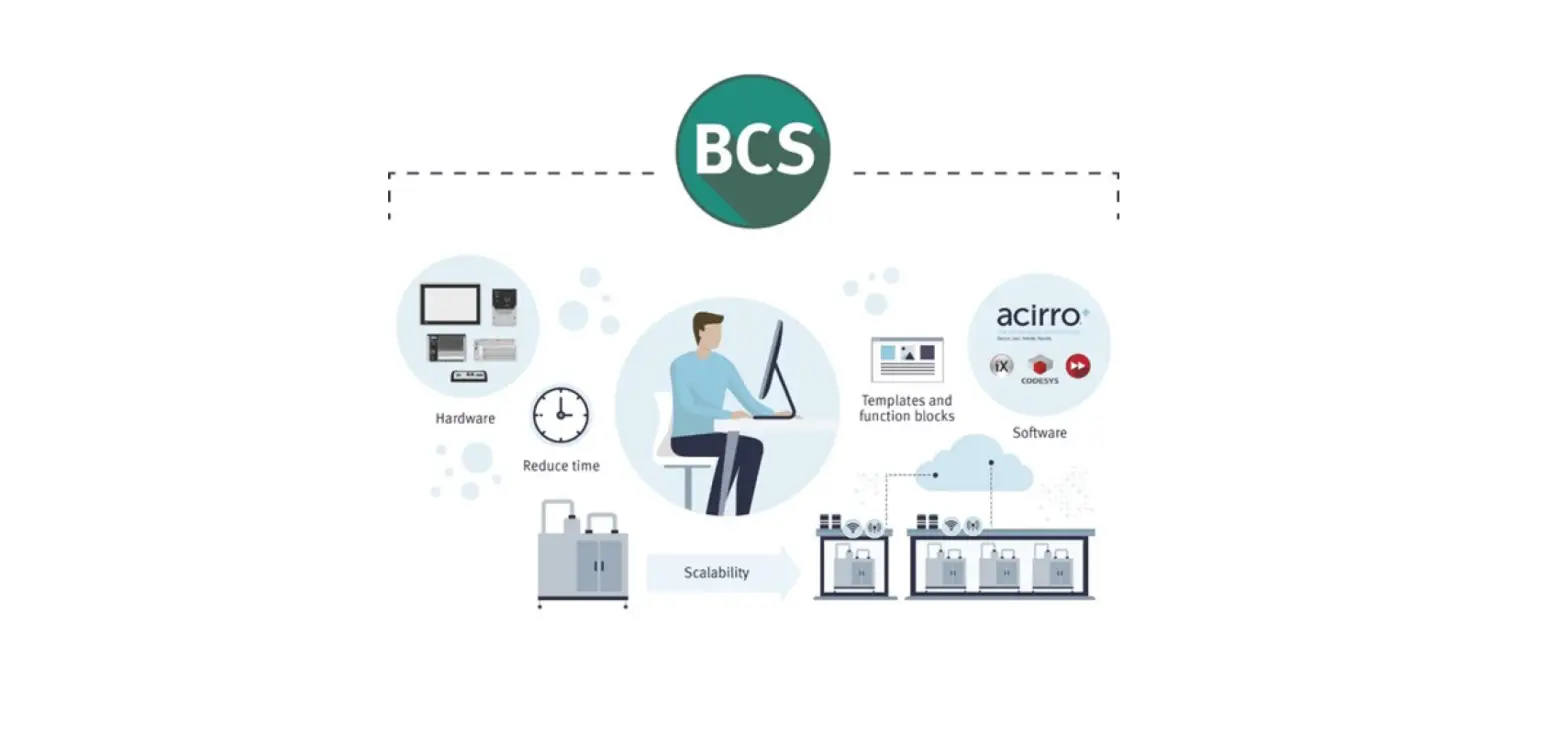
The Energy Meter is designed to save time when setting up BCS
Tools for Modbus communication with the WAGO energy meter. It also
includes an iX Developer example to display the data.
Step 2: About this Document
This quick start guide is not a complete manual but serves as an
aid for quickly and easily setting up a normal application. To
ensure a stable application, use the recommended hardware,
software, drivers, and utilities.
Step 3: Table of Contents
The table of contents provides an overview of the document’s
sections and topics.
Step 4: Wiring RS485
Refer to the wiring instructions provided in the manual for
connecting the RS485 interface.
Step 5: Importing the Library
WAGOEnergyMeter
- Open BCS Tools.
- Go to File > Project Archive.
- Click on “Extract Archive…”.
Step 6: Create and Configure Your BCS Tools
Project
The following chapter explains two methods to configure your
project for using the WAGO energy meter:
Method 1: Project Archive for Nexto Xpress XP325
- Open BCS Tools.
- Go to File > Project Archive.
- Click on “Extract Archive…” to import the project
archive.
Method 2: Manual Import
To manually import the necessary files:
- Follow the instructions provided in the manual to import the
required files manually.
Step 7: About Beijer Electronics
For any further assistance or feedback, please contact Beijer
Electronics at [email protected].
Step 8: Contact Us
If you have any questions or need support, please reach out to
our customer service team at the provided contact information.
Quick start guide
Setting up proj ects for Energy Meter
SER0033 BCS Tools and iX Developer example proj ects
Setting up proj ects for Energy Meter BCS Tools and iX example
SER0033_V. 1. 0. 0 2022-12
1 Function and area of use
The purpose of this SER object is to save you a lot of time when setting up BCS Tools for Modbus communication with the WAGO energy meter.
You will also find an iX Developer example to display these data.
2 About this document
This quick start document should not be considered as a complete manual. It is an aid to be able to startup a normal application quickly and easily.
Copyright © Beijer Electronics, 2022 This documentation (below referred to as `the material’) is the property of Beijer Electronics. The holder or user has a non-exclusive right to use the material. The holder is not allowed to distribute the material to anyone outside his/her organization except in cases where the material is part of a system that is supplied by the holder to his/her customer. The material may only be used with products or software supplied by Beijer Electronics. Beijer Electronics assumes no responsibility for any defects in the material, or for any consequences that might arise from the use of the material. It is the responsibility of the holder to ensure that any systems, for whatever applications, which is based on or includes the material (whether in its entirety or in parts), meets the expected properties or functional requirements. Beijer Electronics has no obligation to supply the holder with updated versions.
Use the following hardware, software, drivers and utilities in order to obtain a stable application:
In this document we have used following software and hardware · iX Developer 2.40 SP7 · BCS Tools 3.34 or later · Nexto Xpress 325 (Firmware version 1.11.10.0) · WAGO Energy Meter 879-3000
For further information refer to · iX Developer Reference Manual (MAxx831) · iX Developer User’s Guide (MAxx832) · WAGO Energy Meters User Guide (Documentation/ m087930x0-00000000-0en) · Beijer Electronics knowledge database, HelpOnline
This document and other quick start documents can be obtained from our homepage. Please use the address [email protected] for feedback.
Normal.dotm, 2020-12-15
2 (16)
Setting up proj ects for Energy Meter BCS Tools and iX example
SER0033_V. 1. 0. 0 2022-12
3 Table of Contents
1 Function and area of use. . . . . . . . . . . . . . . . . . . . . . . . . . . . . . . . . . . . . . . . . . . . . . . . . . . . . . . . . . . . . . . . . . . . . . . . . . . . . . . . . . . . . . . . . . 2
2 About this document . . . . . . . . . . . . . . . . . . . . . . . . . . . . . . . . . . . . . . . . . . . . . . . . . . . . . . . . . . . . . . . . . . . . . . . . . . . . . . . . . . . . . . . . . . . . . . . 2
3 Table of Contents. . . . . . . . . . . . . . . . . . . . . . . . . . . . . . . . . . . . . . . . . . . . . . . . . . . . . . . . . . . . . . . . . . . . . . . . . . . . . . . . . . . . . . . . . . . . . . . . . . . 3
4 Wiring RS485. . . . . . . . . . . . . . . . . . . . . . . . . . . . . . . . . . . . . . . . . . . . . . . . . . . . . . . . . . . . . . . . . . . . . . . . . . . . . . . . . . . . . . . . . . . . . . . . . . . . . . . . . 4
5 Create and configure your BCS Tools proj ect . . . . . . . . . . . . . . . . . . . . . . . . . . . . . . . . . . . . . . . . . . . . . . . . . . . . . . . . . . . . . . . . . 4 Pr oj ect ar chive f or Next o Xpr ess XP325. . . . . . . . . . . . . . . . . . . . . . . . . . . . . . . . . . . . . . . . . . . . . . . . . . . . . . . . . . . . . . . . . . 4 Impor t par t s f or ot her PLCs. . . . . . . . . . . . . . . . . . . . . . . . . . . . . . . . . . . . . . . . . . . . . . . . . . . . . . . . . . . . . . . . . . . . . . . . . . . . . . . . 7
Import the library WAGOEnergyMeter. . . . . . . . . . . . . . . . . . . . . . . . . . . . . . . . . . . . . . . . . . . . . . . . . . . . . . . . . . . . . . . . . . . . . . . . . . . . . . 7
6 iX proj ect exemple . . . . . . . . . . . . . . . . . . . . . . . . . . . . . . . . . . . . . . . . . . . . . . . . . . . . . . . . . . . . . . . . . . . . . . . . . . . . . . . . . . . . . . . . . . . . . . . 13 Conf i gur e cont r ol l er sect i on . . . . . . . . . . . . . . . . . . . . . . . . . . . . . . . . . . . . . . . . . . . . . . . . . . . . . . . . . . . . . . . . . . . . . . . . . . . . . . 13 Di spl ay of l i ne val ues . . . . . . . . . . . . . . . . . . . . . . . . . . . . . . . . . . . . . . . . . . . . . . . . . . . . . . . . . . . . . . . . . . . . . . . . . . . . . . . . . . . . . . 14 Cur r ent Runt i me/ Hi st or y Scr een . . . . . . . . . . . . . . . . . . . . . . . . . . . . . . . . . . . . . . . . . . . . . . . . . . . . . . . . . . . . . . . . . . . . . . . . . 15
7 About Beij er Electronics . . . . . . . . . . . . . . . . . . . . . . . . . . . . . . . . . . . . . . . . . . . . . . . . . . . . . . . . . . . . . . . . . . . . . . . . . . . . . . . . . . . . . . . . 16 Cont act us. . . . . . . . . . . . . . . . . . . . . . . . . . . . . . . . . . . . . . . . . . . . . . . . . . . . . . . . . . . . . . . . . . . . . . . . . . . . . . . . . . . . . . . . . . . . . . . . . . . . 16
Normal.dotm, 2020-12-15
3 (16)
Setting up proj ects for Energy Meter BCS Tools and iX example
4 Wiring RS485
SER0033_V. 1. 0. 0 2022-12
5 Create and configure your BCS Tools proj ect
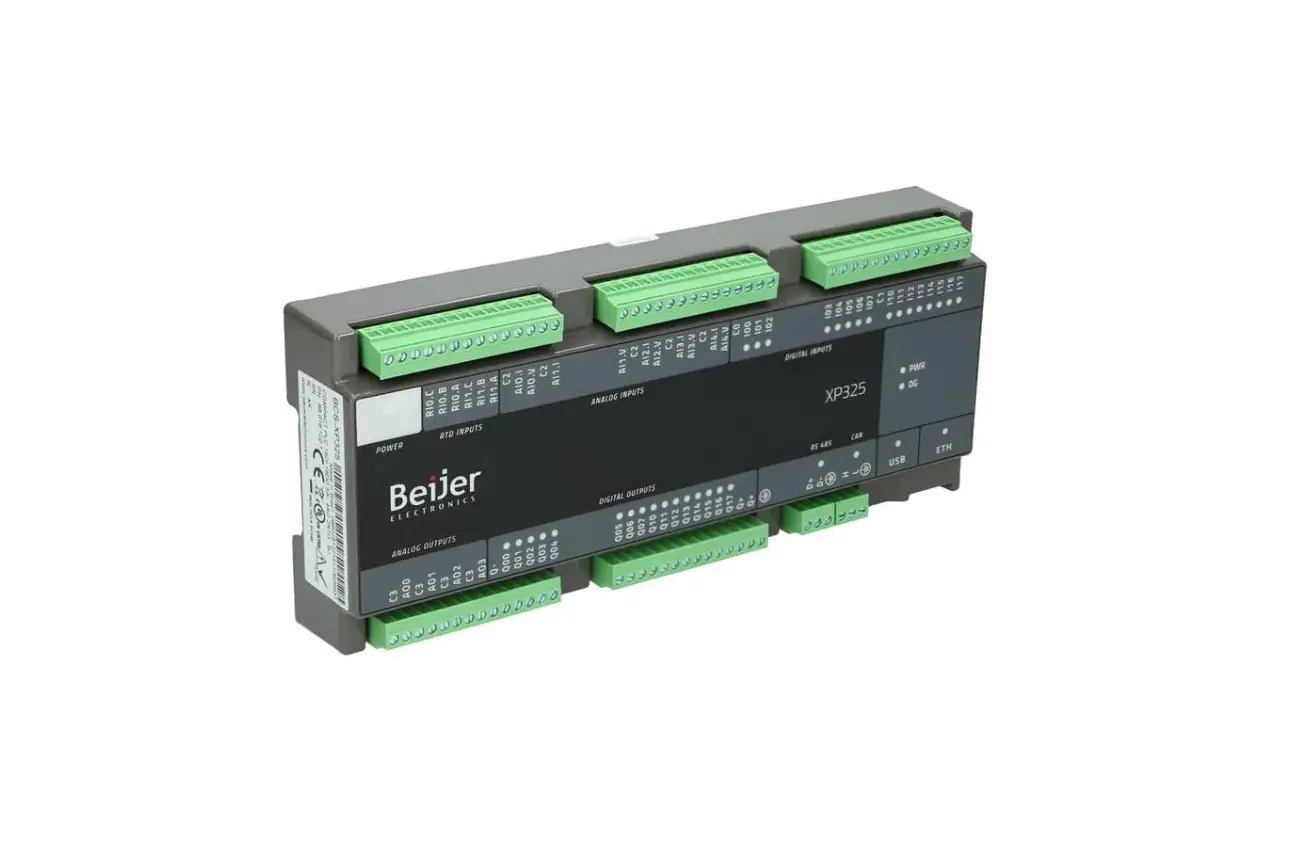
The following chapter describes two ways to configure your project to use the WAGO energy meter. In the first method, we will use a project archive which is a ready-to-use project for the Nexto Xpress XP325. In the second method, you will have to import everything manually.
Proj ect archive for Nexto Xpress XP325
This file contains a BCS Tools project that is configured and ready to be used for a Nexto controller. Inside the project you will find a library that contains structures to organize all the data of the energy meter, a GVL_IO file where all the variables are declared and a Modbus Symbol RTU master already configured and mapped.
1. In BCS Tools, go to File Project Archive and click on Extract Archive…
Normal.dotm, 2020-12-15
4 (16)
Setting up proj ects for Energy Meter BCS Tools and iX example
SER0033_V. 1. 0. 0 2022-12
2. Open SER0033_BCS-Nexto_EnergyMeter_V1.0.0.0.projectarchive.
3. Set the path to the folder of your project and select : Extract.
4. Modbus communication is configured on COM1 of the controller. Please refer to the documentation of the PLC and the WAGO energy meter for the wiring. In our case, we use a serial link of type RS-485.
5. In the COM1 serial port settings, you must ensure that the serial type is correct. The baud rate and parity should be similar to the energy meter (see documentation).
5 (16)
Normal.dotm, 2020-12-15
Setting up proj ects for Energy Meter BCS Tools and iX example Select Advnaced settings, and enable RS-485 Termination.
SER0033_V. 1. 0. 0 2022-12
6. In the Modbus Device Mapping section, you will find the WAGO energy meter variables mentioned in the user guide.
7. You are now ready to read the information from the energy meter with the modbus protocol !
Normal.dotm, 2020-12-15
6 (16)
Setting up proj ects for Energy Meter BCS Tools and iX example
SER0033_V. 1. 0. 0 2022-12
Import parts for other PLCs
If you are not using a Nexto Xpress, you can always import parts manually into your project.
Import the library WAGOEnergyMeter
1. In BCS Tools, go to the Devices section and double-click on Library Manager (1). 2. Inside Library Manager, click on Add Library(2). A new window appears. 3. Select Advance (3), Library Repository (4), and click on Install… (5).
Normal.dotm, 2020-12-15
7 (16)
Setting up proj ects for Energy Meter BCS Tools and iX example
SER0033_V. 1. 0. 0 2022-12
4. Open the file SER0033_BCS-Nexto_EnergyMeter.compiled-library.
5. Select the library and close the window :
6. Go to section Miscellaneous, select the library and click on OK.
Normal.dotm, 2020-12-15
7. You have now imported a library that contains all the structures that will organize the energy meter data.
8 (16)
Setting up proj ects for Energy Meter BCS Tools and iX example
SER0033_V. 1. 0. 0 2022-12
Import the variables file
1. In BCS Tools, go to the Devices section, right-click on the folder UserGVLs and select Add Object Global Variable List…
You want to give it the name GVL_IO.
2. Then right-click on the GVL_IO file and select “Import from CSV…”
3. Open the file SER0033_BCS_GVL_IO.csv
9 (16)
Normal.dotm, 2020-12-15
Setting up proj ects for Energy Meter BCS Tools and iX example
Modbus Mapping
1. In our case, we use MODBUS Symbol RTU Master with a Modbus device.
SER0033_V. 1. 0. 0 2022-12
2. In SER folder, you’ll find a CSV file that contains the mapping and the requests of the modbus protocol.
3. You can import this file by right clicking on MODBUS_Device, Import form CSV… then open SER0033_BCS_ModbusMapping.csv.
4. In the serial port settings, you must make sure that the serial type is correct. The baud rate and parity should be similar to the energy meter (see documentation).
10 (16)
Normal.dotm, 2020-12-15
Setting up proj ects for Energy Meter BCS Tools and iX example
SER0033_V. 1. 0. 0 2022-12
Import Symbol configuration In order to establish communication between your PLC and your HMI, you must configure the Symbol section.
1. In BCS Tools, go to the Devices section and right-click on Application. Select Add Object and click on Symbol Configuration…
2. In the new window, click on Add and then on Build in the Symbol Configuration section.
Normal.dotm, 2020-12-15
11 (16)
Setting up proj ects for Energy Meter BCS Tools and iX example 3. Check the box next to GVL_IO.
SER0033_V. 1. 0. 0 2022-12
4. Finally, go in Build and click on Generate Code. 5. Everything is now ready for BCS Tools !
Normal.dotm, 2020-12-15
12 (16)
Setting up proj ects for Energy Meter BCS Tools and iX example
SER0033_V. 1. 0. 0 2022-12
6 iX proj ect exemple
In the SER folder, you will find a sample project to display the most important data of the WAGO energy meter. In this chapter, we will explain the content of each screen
To open the sample project, simply unzip SER0033_WAGOEnergyMeterIHM.zip, which you will find in the SER folder, and run WAGOEnergyMeterIHM.neoproj.
Configure controller section
In iX Developer, don’t forget to configure your controller by going to Tags (1) Controllers(2).
All energy meter variables are linked to “Controller1”.
Select “Controller1” and check the configuration with Controller…(3) and Settings… (4).
1 2
3 4
Note: The HMI tags for iX Developer and the energy meter is located in file: SER0033_WAGOEnergyMeterIHMTags.xls In the list of project tags, you will find several tags that are not in the xls file. They are just used for the CurrentHistory screen. This file can be used as a base to create your own iX application.
13 (16)
Normal.dotm, 2020-12-15
Setting up proj ects for Energy Meter BCS Tools and iX example
SER0033_V. 1. 0. 0 2022-12
Display of line values
Once you have opened the project, you will see several screens in the Screens section. You can find 4 similar screens like the one below. One for the three lines (L1, L2, L3) and one for the total of the values of the three lines ().
Software Version
Serial Number
Actual Tariff
Change Line Screen
iX Developer: L1 Screen
14 (16)
Normal.dotm, 2020-12-15
Setting up proj ects for Energy Meter BCS Tools and iX example
SER0033_V. 1. 0. 0 2022-12
Current Runtime/ History Screen
The data logger collects the current values of the three lines every 10 seconds and stores them for 10 days. It is possible to modify these parameters in the data logger section. This screen displays the values of these currents in graph form. There are three curves for the three lines and one curve for the total current values.
Backward 25%
Enter History Mode
Last Sample Forward 100%
iX Developer: CurrentHistory Screen
ZoomIn
ZoomOut PanUp
PanDown Reset View Legend
Normal.dotm, 2020-12-15
15 (16)
Setting up proj ects for Energy Meter BCS Tools and iX example
SER0033_V. 1. 0. 0 2022-12
7 About Beij er Electronics
Beijer Electronics is a multinational, cross-industry innovator that connects people and technologies to optimize processes for business-critical applications. Our offer includes operator communication, automation solutions, digitalization, display solutions and support. As experts in user-friendly software, hardware and services for the Industrial Internet of Things, we empower you to meet your challenges through leading-edge solutions.
Beijer Electronics is a BEIJER GROUP company. Beijer Group has a sale over 1.6 billion SEK in 2021 and is listed on the Nasdaq Stockholm Main Market under the ticker BELE. www.beijergroup.com
Contact us
Global offices and distributors
Normal.dotm, 2020-12-15
16 (16)
 Innovations in industrial digital technology | Ependion
 Contact us - Beijer Electronics
 Help online - tree view - Beijer Electronics