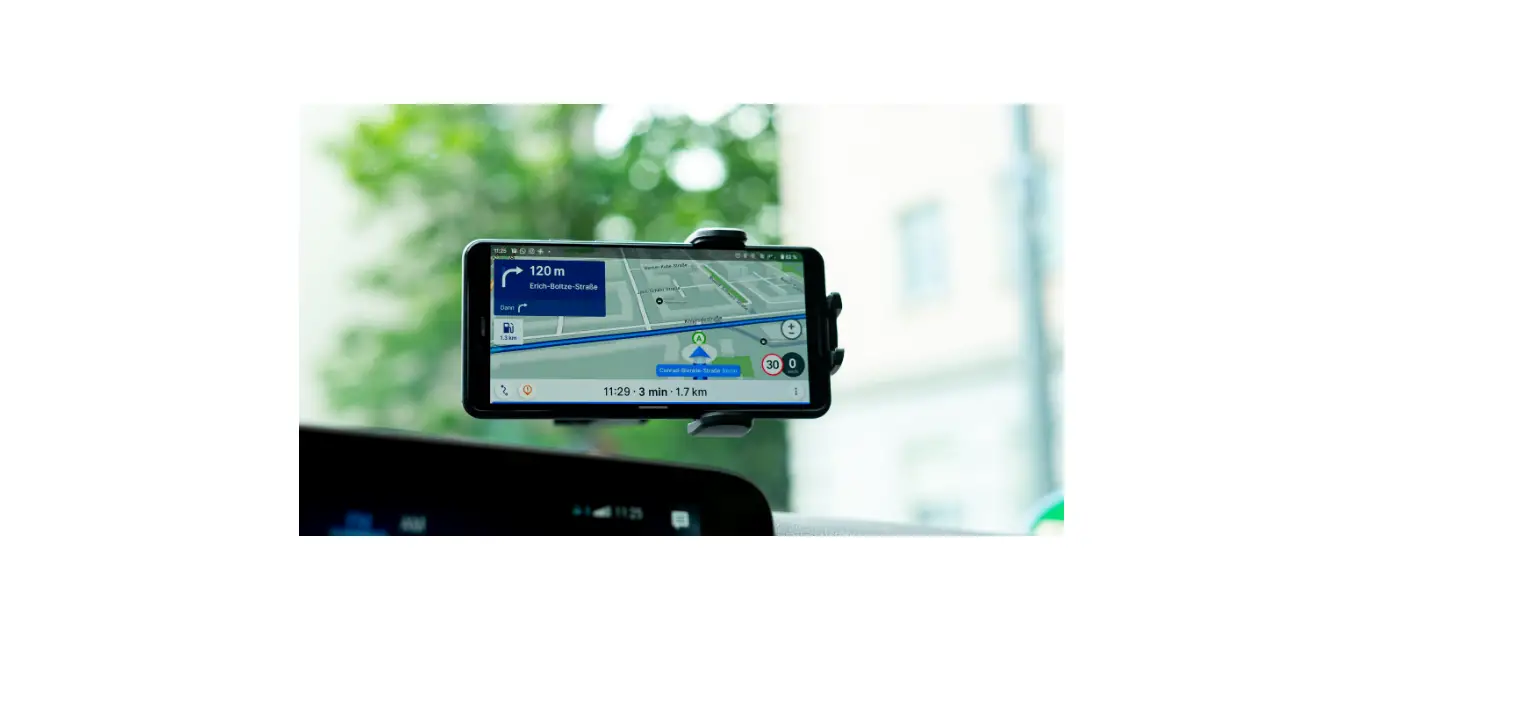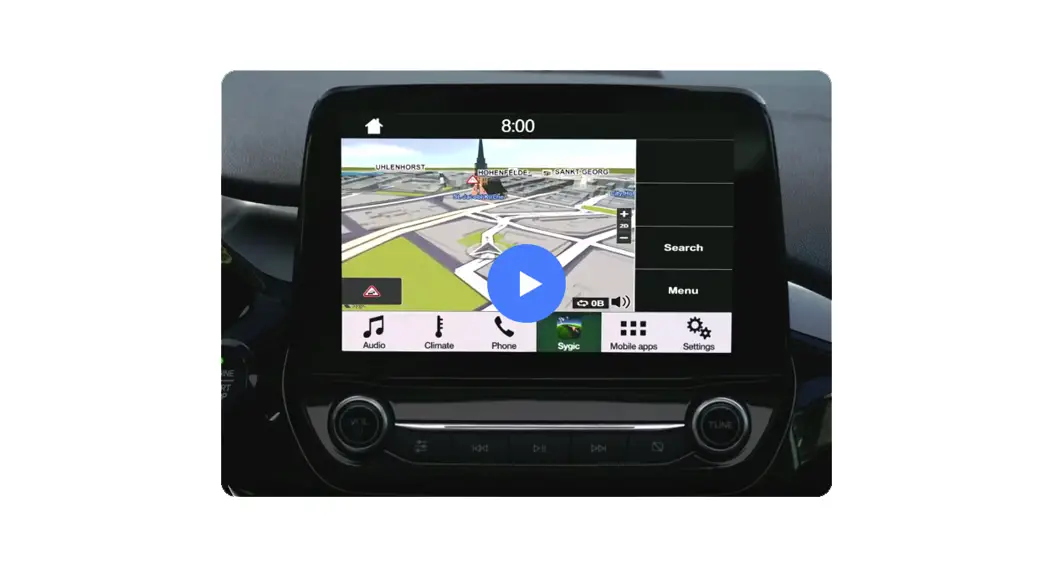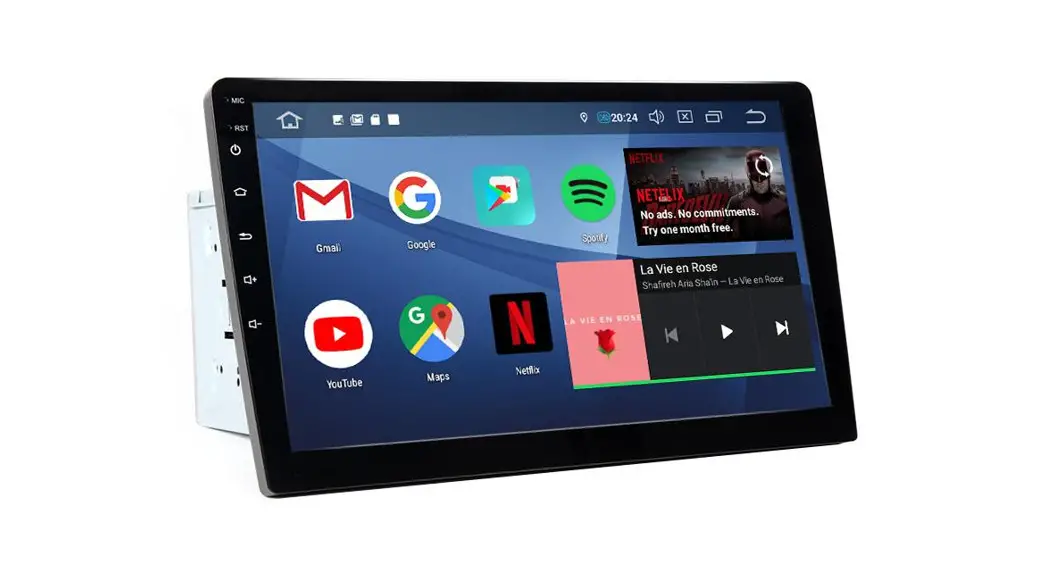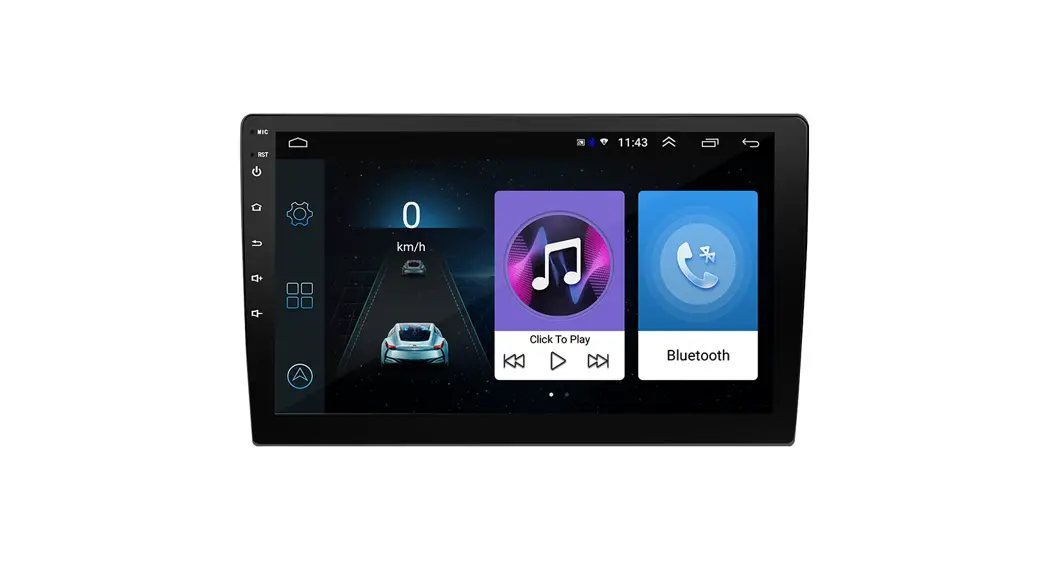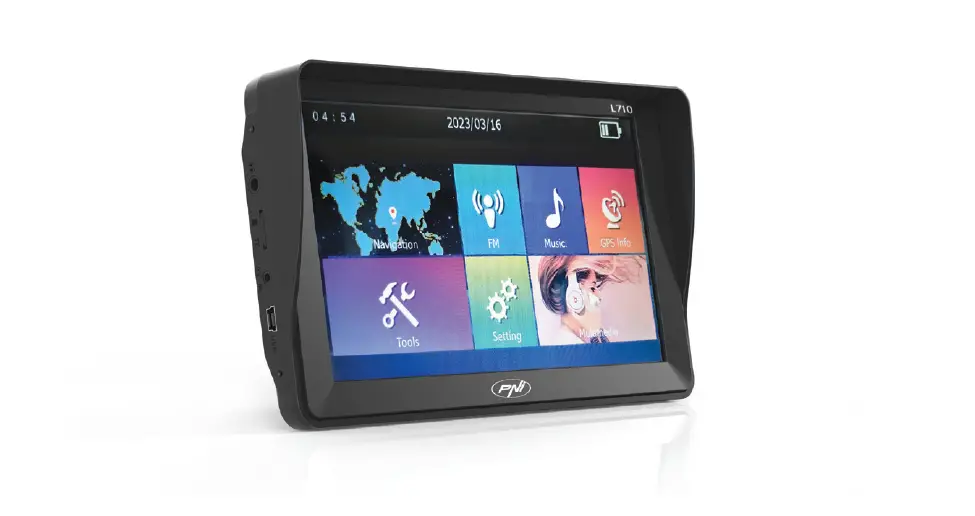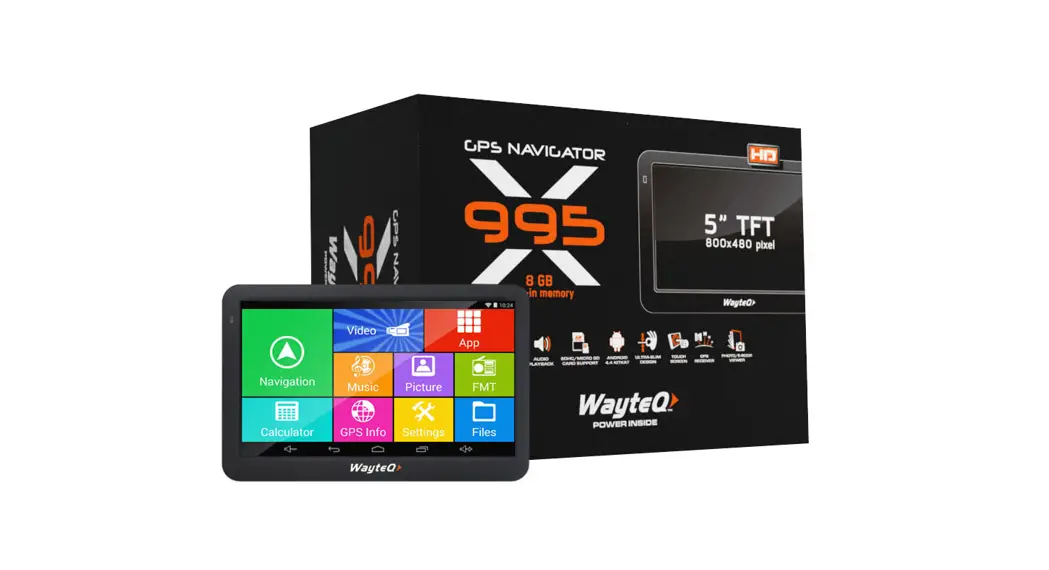
 x995 Android GPS navigation
User Guide
WARNINGS AND NOTES
- This device is only for helping with navigation on the road, and cannot be used for precise direction and distant measuring.
- The planned route is only a suggestion. It is the responsibility of the user to observe traffic rules, signs on signboards and roads, and signs of signaling lamps.
Don’t try to repair the device by yourself. Don’t try to open or disassemble the product. Don’t try to modify the software of the device. Don’t use any software with the device that is illegal or not compatible with it. If any fault happens because those mentioned above mentioned is not observed it can invalidate the warranty.
Removing or harming the warranty label placed on the device can also invalidate the warranty.
TECHNICAL SPECIFICATION
| CPU | MediaTek MTK8127 |
| RAM Memory | 1 GB |
| Internal flash | 8 GB |
| LCD screen | 5″ TFT LCD, 800×480 pixel |
| Memory Extensibility | microSD memory card, max. 32 GB |
| USB | Mini USB connector |
| Speaker | Integrated |
| Headphone output | 2.5 mm stereo jack |
| GPS receiver | MT6627 |
| Battery | Built-in, Lithium-Ion |
| Charging current | DC 5V / 2 A |
| Car charger | DC 12-24V/2.5A — 5V/2A |
| Operating system | Android 4.4.2 |
| Navigation software | Optional |
| FM Transmitter | Integrated |
| Bluetooth speakerphone | Supported |
| Operating conditions | 5°C — 40°C operating -10°C — 50°C storage 86KPa — 106KPa atmospherical pressure 35% — 80% RH operating 30% — 90% RH storage |
CONTROLS
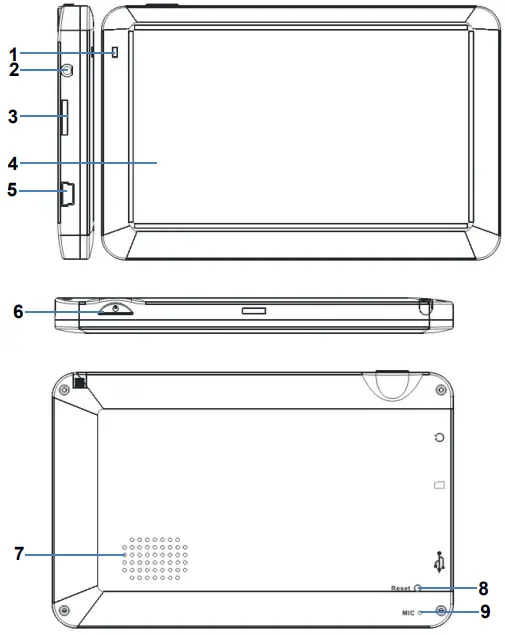
- Notification LED
- Earphone output
- MicroSD memory card
- LCD touchscreen
- Mini USB charging and data socket
- Power ON/OFF switch
- Speaker
- RESET button
- Microphone
CHARGING WITH THE AC CHARGER
WARNING: During charging, the LED glows in red color. Do not disconnect the device from the charger until charging is complete and the LED glows in blue color. Charge the device when the battery level is low.
Connecting the car charger
Use a continuous power supply with the supplied car charger when the device is in use.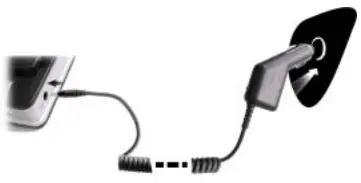 WARNING: in order to avoid sudden power surges, attach the device only after you have started the engine.
 Indicator of the fully charged battery.
Battery
The device can be operated between 5 – 40°C, and it can be stored safely between-10 – 50°C. Do not expose the device to high temperatures or hot environments for a prolonged time. For example, do not leave the device exposed to direct sunlight in the car. To avoid damage to the device, keep it away from harsh environments.
Please follow the local guidelines and regulations before you dispose of the battery.
USING THE DEVICE
5.1 Turn ON/OFF
In order to turn on the device, press the POWER button for 3 seconds. You will see the following screen when the system is started and it is ready to use:
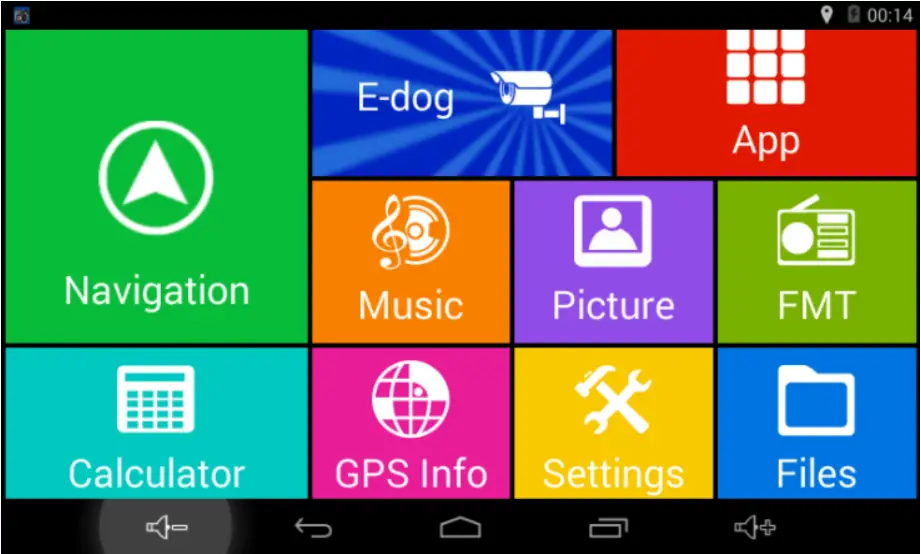 Main functions:
- Navigation application launcher
- Music/Video playback, photo viewer
- Application list
- FM transmitter
- File manager
- Calculator
- GPS receiver status and information
- Settings
In order to turn off the device: press and hold the POWER button for 2 seconds. A dialog box will appear. Select the “Power off” menu item to safely shut down the device.
5.2 Status bar At the bottom and top of this screen, the status bar contains the following icons: Back, Home, Recently viewed applications, and Volume up/down adjustments. It also displays the current time, Wi-Fi status, Bluetooth status, Battery level, and other notifications.
  | On any functional screen, tap this icon to go back to one screen or exit the application. |
 | On any functional screen, tap this icon to go to the Home screen |
 | Shows a list of thumbnail images of applications you’ve recently opened. To reopen an application, touch its thumbnail image. To remove a thumbnail from the list, swipe it up or down. |
 | Current time |
 | Wi-Fi connection and signal strength |
 | Battery level. It will turn orange when the battery is low and turns red when the battery level is critically low. |
5.3 Navigation
After installing Sygic navigation software it is needed to turn on the Wifi function device (there is no need for an Internet connection) after turning on the device. This is because the software needs to identify the device. For that reason, it is suggested that before starting the navigation software turn on Wifi function for a couple of seconds. After this Wifi function can be turned off. If it is not done Sygic software won’t be loaded. If the device is not turned off and only switched to sleep mode then the suggestions above are not needed to be done.
5.4 FM Transmitter 
Using an FM transmitter, you can wirelessly forward the sound of the applications to your car stereo.
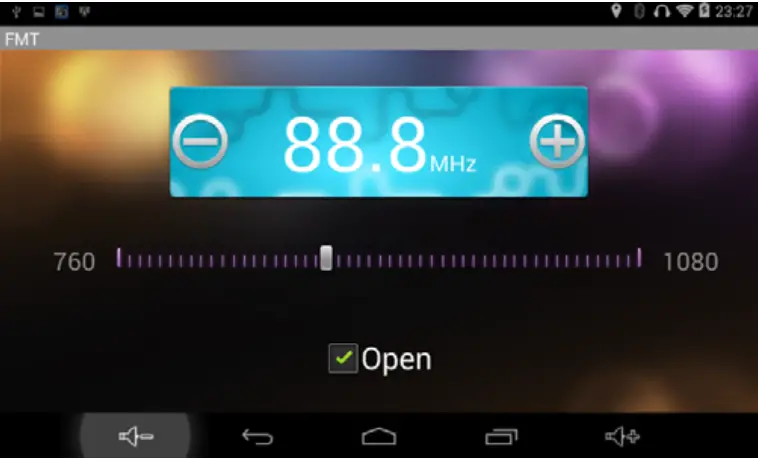
Tap the „Open” label. With the + and – buttons you can choose an appropriate frequency. Tune your car stereo to this frequency.
Remark:
You should choose a frequency that is not used in your area to avoid any interference.
Using the FM transmitter requires a connected car charger.
4.4 GPS Info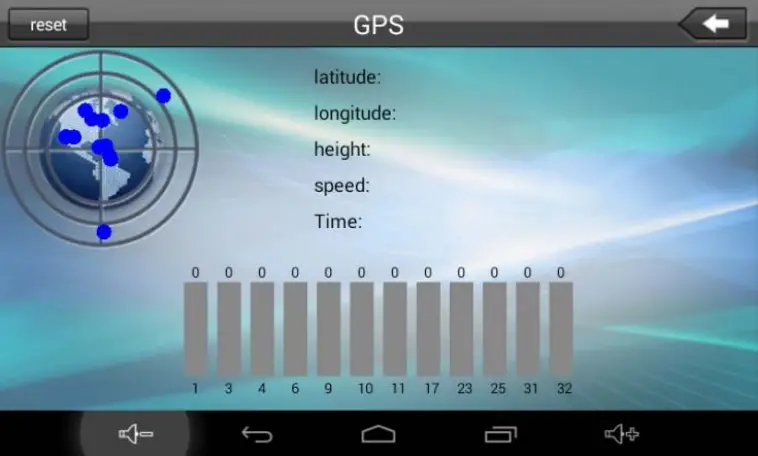
With this application, you can check the status of the GPS receiver without any navigation software.
DECLARATION OF CONFORMITY (ex.)
The importer states, that this product complies with the conditions of use, and is in accordance with regulations, there is a product sticker on it, and have a warranty card and a user’s manual in the box.
Based on a statement issued by the manufacturer, the product will be placed on the market with CE marking.
© 2016 All Rights Reserved, WayteQ Europe Ltd.
IMPORTER / DISTRIBUTOR:
WayteQ Europe Ltd.
6th Gubacsi str.
BUDAPEST, 1097
HUNGARY
Phone: +36-1 21 73 632
www.wayteq.eu
[email protected]
WARNING: WayteQ reserves the right to change the user manual without any notice. The parameters of the product can change without any notice.
 WayteQ Europe