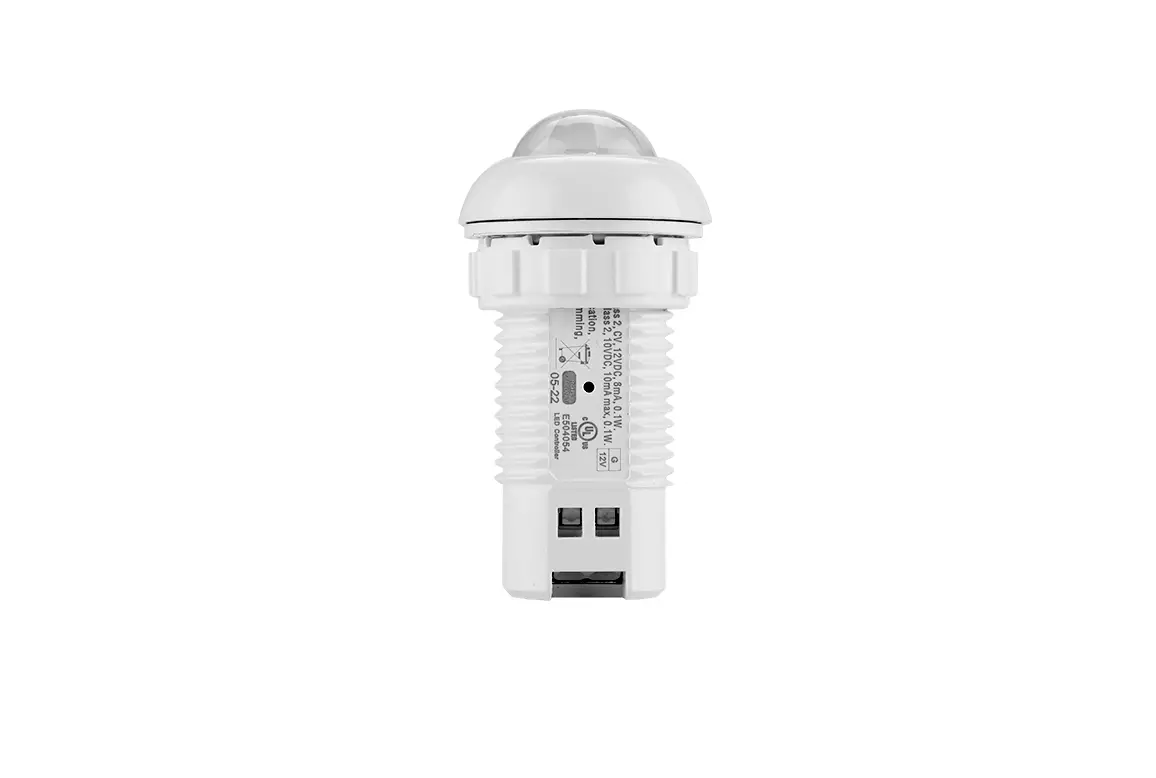
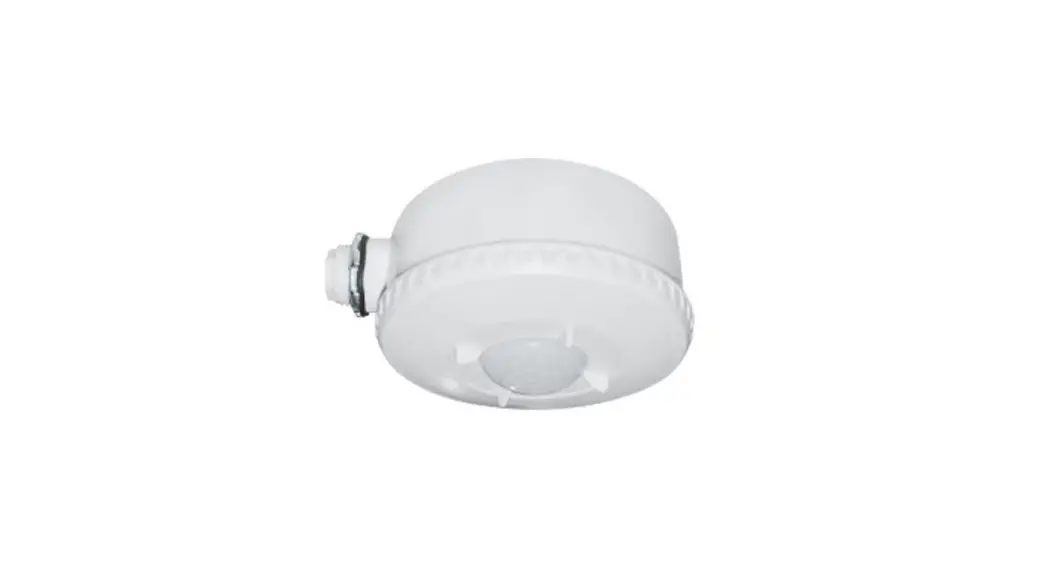
IOS-DOV-D-WH PIR Technology 0-10 V Dimming Occupancy Sensor
Product Information: Product Name: IOS-DOV-D-WH Product
Type: PIR Technology 0-10 V Dimming Occupancy Sensor Manufacturer:
Intermatic Incorporated Input Voltage: – Electronic Ballast (LED) –
Tungsten – Standard Ballast Class 2 Dimming Output Coverage:
General Use, Resistive, Motor Specifications: – Input
Voltage: 120-277 VAC, 50/60 Hz – Maximum Load: – 600 VA, 120 VAC;
1385 W, 277 VAC – 1000 W, 120 VAC; 1385 W, 277 VAC – 660 VA, 120
VAC; 1100 VA, 220 VAC; 1520 VA, 277 VAC – Dimming Output: 0-10 VDC,
120 mA maximum current sink – Maximum Load: – 12 A, 120-277 VAC –
10 A, 125/250/277 VAC – 1/6 HP, 120/240 VAC – PIR Coverage: up to
35 ft. (10.66 m) Installation Instructions: 1. Always switch
OFF the electrical power before installing the sensor and ensure
that the sensor ratings are appropriate for the luminaire being
controlled. 2. Wire the sensor according to the wiring diagram
(Diagram 1). 3. Attach the sensor to the junction box using two
screws (Refer to Diagram 2). 4. Attach the panel cover and wall
plate (Refer to Diagram 2). DIP Switch Programming: Time
Delay: – DIP1: Off/On – DIP2: Off/On – DIP3: Off/On – Refer to the
table provided to set the desired time delay. Occupancy and Vacancy
Mode Selection (DIP 4): – DIP4: On/Off – ON: Occupancy (Auto On)
Mode – OFF: Vacancy (Manual On) Mode Dimmer Synchronization (DIP
5): – DIP5: On/Off – ON: Enables the second sensor to control both
ON/OFF and dimming light level of the light fixture. – OFF: Enables
the second sensor to only control ON/OFF of the light fixture. (If
using one sensor, leave the setting in the ON position)
Walk-Through Mode (DIP 6): – DIP6: On/Off – ON: Enables walk
through mode. The load will be turned ON for 2 minutes when motion
is detected. If no motion is detected after 90 seconds, the load
will be turned OFF 30 seconds later. If motion is detected after 90
seconds, the load will refer to the time delay setting. For more
information, visit Intermatic’s website at www.intermatic.com.
IOS-DOV-D-WH
PIR Technology 0-10 V Dimming Occupancy Sensor
Input Voltage Electronic Ballast (LED) Tungsten Standard Ballast Class 2 Dimming Output General Use Resistive Motor Coverage
WARNING Risk of Fire or Electric Shock
· Turn OFF power at circuit breaker or fuse and test that the power is OFF before wiring. · To be installed and/or used in accordance with appropriate electrical codes and regulations. · If you are not sure about any part of these instructions, consult a qualified electrician. · Use this device only with copper or copper clad wire. · INDOOR USE ONLY
OVERVIEW
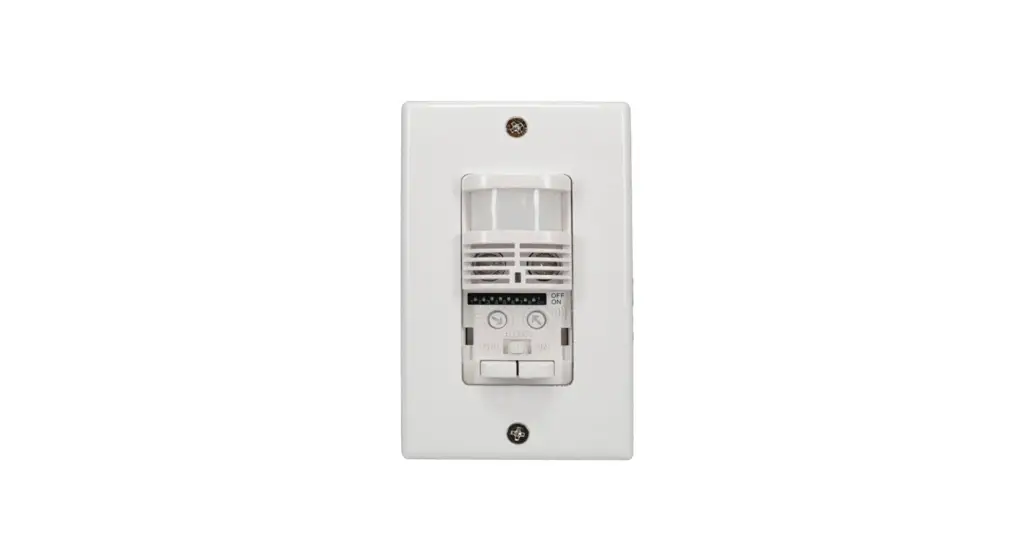
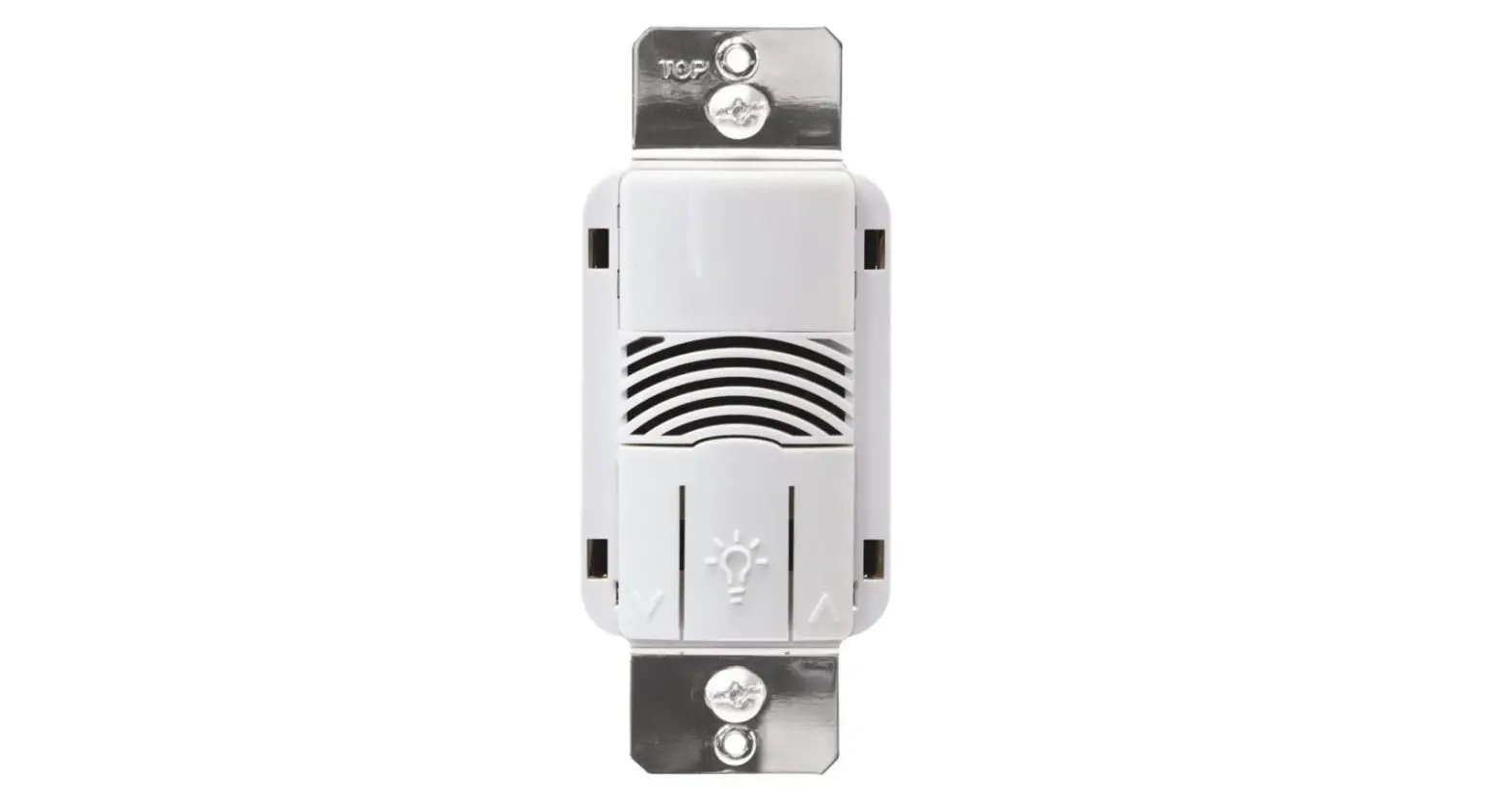
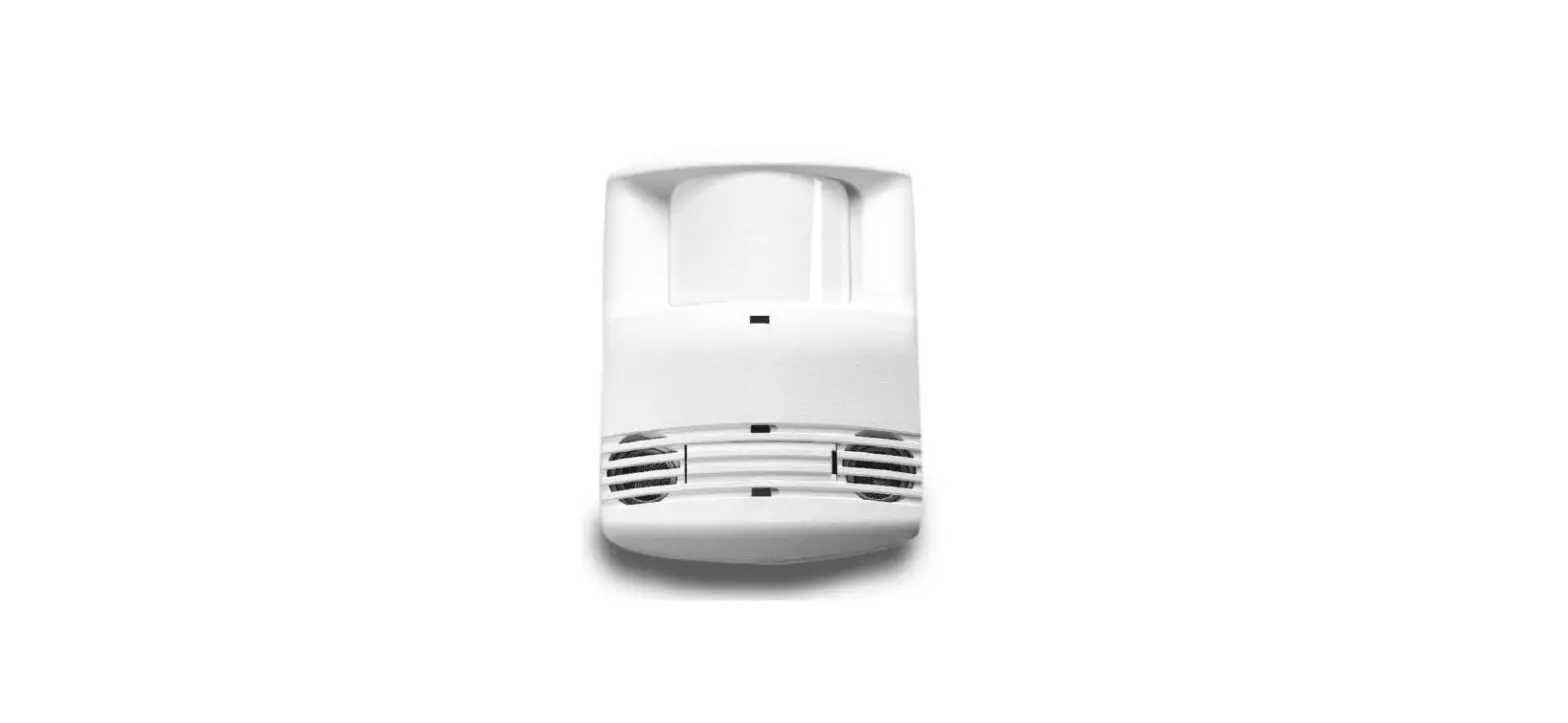
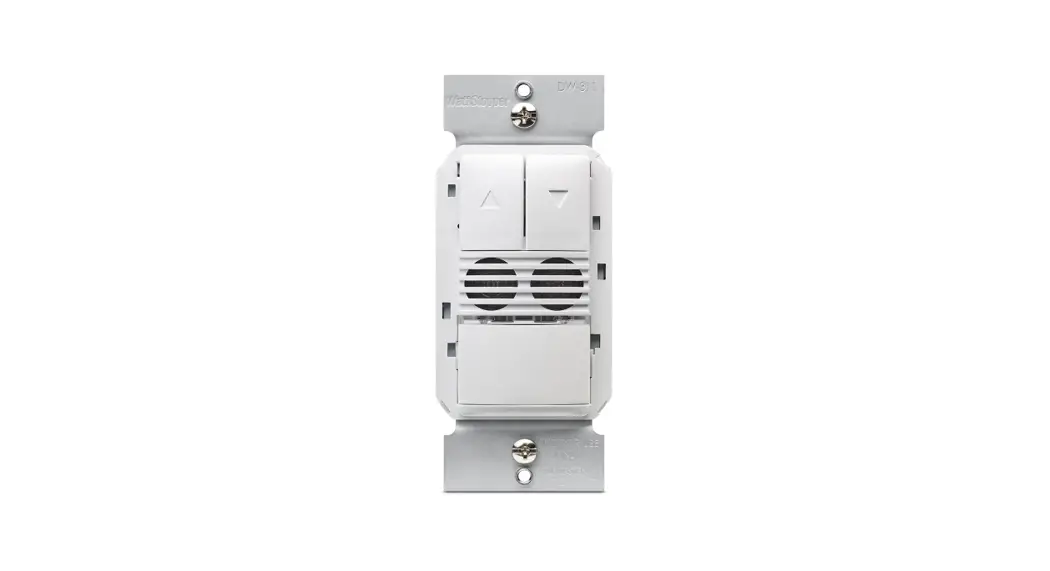
Intermatic’s IOS-DOV-D-WH PIR technology 0-10 V dimming occupancy sensor can turn lights ON and OFF based on occupancy and allow the user to increase or decrease the lighting level.
SPECIFICATIONS
Diagram 1 – Wiring Diagram
Neutral
White
Hot Black Green
Red Violet (0-10V+) Pink (0-10V-)
0- 10 V Dimming Light Fixture
(for multi-way to other wall switch sensor) Yellow
120-277 VAC, 50/60 Hz 600 VA, 120 VAC; 1385 W, 277 VAC 1000 W, 120 VAC; 1385 W, 277 VAC 660 VA, 120 VAC; 1100 VA, 220 VAC; 1520 VA, 277 VAC 0-10 VDC, 120 mA maximum current sink 12 A, 120-277 VAC 10 A, 125/250/277 VAC 1/6 HP, 120/240 VAC PIR: up to 35 ft. (10.66 m)
Diagram 2 – Installation Diagram 3 – Traveler Wiring Diagram
*Note: Ground wire is REQUIRED for Multi-Way Wiring.
Neutral
White
Hot
Black
Red
0- 10 V Dimming
Violet (0-10V+)
Light Fixture
Green
Pink (0-10V-) ( for multi-way to other wall switch sensor)
Yellow
Neutral Black Green
White
Red Violet (0-10V+) Pink (0-10V-)
( for multi-way to other wall switch sensor) Yellow
LED Indicators · Red LED Blinking: PIR sensor detects motion Manual Up / Down Buttons: · To turn ON the light, press the up arrow when the light is OFF. To turn OFF the
light, press the down arrow when the light is ON. · To adjust the light level, Press and hold the up arrow to increase light
level and release at desired light level. Press and hold the down arrow to decrease light level and release at desired light level.
INSTALLATION
1. Always switch OFF the Electrical power before installing the sensor and make sure the sensor ratings are appropriate for the luminaire being controlled.
2. Wire the sensor according to the wiring diagram. (Refer To Diagram 1) 3. Attach sensor to junction box with 2 screws. (Refer To Diagram 2) 4. Attach Panel cover and wall plate. (Refer To Diagram 2)
DIP SWITCH PROGRAMMING
Time Delay
Time Delay: The time delay setting assigns the duration for the lighting to stay ON after no movement is detected. The time delay is controlled by DIP switches 1 through 3. Refer to the following table to set the time delay.
Time Delay
DIP1
DIP2
DIP3
30 sec
Off
Off
Off
2 min
On
Off
Off
4 min
Off
On
Off
8 min
On
On
Off
10 min
Off
Off
On
15 min – Default
On
Off
On
20 min
Off
On
On
INTERMATIC INCORPORATED | 1950 Innovation Way, Suite 300 | Libertyville, Illinois 60048 | www.intermatic.com
30 min
On
On
On
Occupancy and Vacancy Mode Selection (DIP 4) Use DIP 4 to select Occupancy or Vacancy mode
DIP Switch ON OFF
Mode Occupancy (Auto On) Vacancy (Manual On)
Dimmer Synchronization (DIP 5)
The DIP 5 controls the Dimmer Synchronization mode when the multi-way function (Diagram 3) is used. If you turn DIP 5 ON, the second sensor can turn the light fixture ON/OFF and control the dimming light level. If you turn DIP 5 OFF, the second sensor can only turn the light ON/OFF. (If using one sensor, leave the setting in the ON position)
Walk-Through Mode (DIP 6)
Turn DIP 6 ON to enable “walk through mode”. In this mode, the load will be turned ON for 2 minutes when motion is detected. If no motion is detected after 90 seconds, the load will be turned OFF 30 seconds later. If a motion is detected after 90 seconds, the load will refer to the Time delay setting.
Ambient Light Level (DIP 7)
To set the ambient light level, turn ON DIP 7 and wait for 30 seconds for the light level to calculate the current ambient light in the room. Once programmed, If there is greater ambient light than the setting the light will not turn on. If there is less ambient light than the setting the light will activate.
N/A (DIP 8)
Not Applicable for this model.
PIR SENSITIVITY AND MODE SELECTION
Mode Selection
PIR Sensitivity
DIP Switch
Down Button
Up Button
PIR Sensitivity
Turn the variable resistor to adjust PIR sensitivity. It can be set from 60% to 100%.
Mode Selection
The mode selection switch is used to select ON, Auto or OFF mode
· ON: Lights Always ON
· Auto: Detection determines when the lights turn ON and OFF (Occupancy or Vacancy mode)
· OFF: Lights Always OFF
LIGHT LEVEL PROGRAMMING
High-Trim, Low-Trim and Initial On Light Level Activation Programming
Before setting the 3 light levels, you must enter the set/program mode. Put the mode selection switch to the OFF position and press the UP and Down button together. The sensor is in set/program mode when there is a solid Red LED illuminated. To pick which setting you would like to change click the up-arrow button until you see the Red LED blink in accordance to which setting you would like to change. (1 Blink High-Trim, 2 Blinks Low-Trim, 3 Blinks – Initial On Level) A. High-Trim Setting:
When the Red LED flashes one time per period, press the “up” and “down” button together to start to set the High-Trim level. Click the up arrow the number of times in accordance with the chart below for your desired setting. Once complete press the “up” and “down” button’s together to save. If complete with all programing needs return sensor to auto mode.
High End Trim 80% 90% 100%
Number of clicks on Up Arrow to set 1- click 2- click
3- click -Default
B. Low-Trim Setting:
When the Red LED flashes two times per period, press the “up” and “down” button together to start to set the Low-Trim level. Click the down arrow the number of times in accordance with the chart below for your desired setting. Once complete press the “up” and “down” button’s together to save. If complete with all programming needs return sensor to auto mode.
Low End Trim 10% 20% 30%
Number of clicks on Down Arrow to set 1- click -Default 2- click 3- click
C. Initial On Activation Light Level Setting:
When the Red LED flashes three times per period, press the “up” and “down” button together to start to set the Initial On Activation Light level. Click the up arrow the number of times in accordance with the chart below for your desired setting. Once complete press the “up” and “down” button’s together to save. If complete with all programming needs return sensor to auto mode.
Initial On Activation Level 10% 20% 30% 40% 50% 60% 70% 80% 90% 100%
Number of clicks on Up Arrow to set 1- clicks 2- clicks 3- clicks 4- clicks
5- clicks – Default 6- clicks 7- clicks 8- clicks 9- clicks 10- clicks
NOTE: You cannot program the initial on activation light level setting below the selected Low-Trim or above the selected High-Trim. (Example: High-Trim is set at 90%. Initial On Activation cannot be higher than 90%, Low-Trim is set at 30%, Initial On Activation cannot be below 30%) (If error, LED will blink constant red)
D. Factory/Default Reset:
If you want to reset the sensor to factory settings, put the mode switch to the “ON” position and press the “Up” and “Down” arrows together and hold. The Red LED will flash 2 times and the sensor will reset to the factory/default settings. The factory/ default settings are as follows: (High-Trim: 100%, Low-Trim: 10%, Initial On: 50%)
5-YEAR LIMITED WARRANTY
Warranty service is available by either (a) returning the product to the dealer from whom the unit was purchased or (b) completing a warranty claim online at www.intermatic.com. This warranty is made by: Intermatic Incorporated, Customer Service 1950 Innovation Way, Suite 300, Libertyville, IL 60048. For warranty service go to: www.Intermatic.com or call 815-675-7000.
158–02531
 intermatic.com