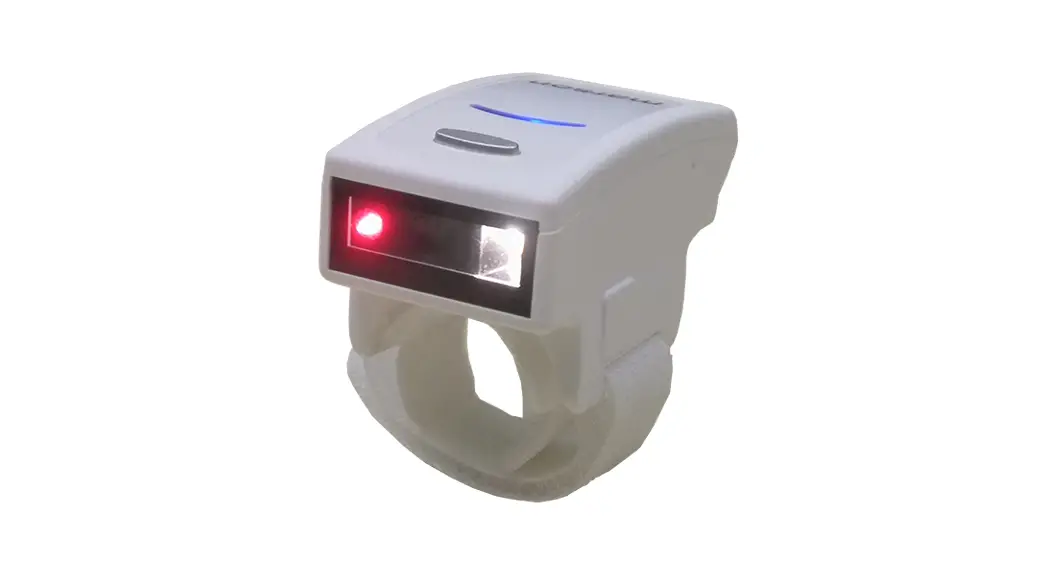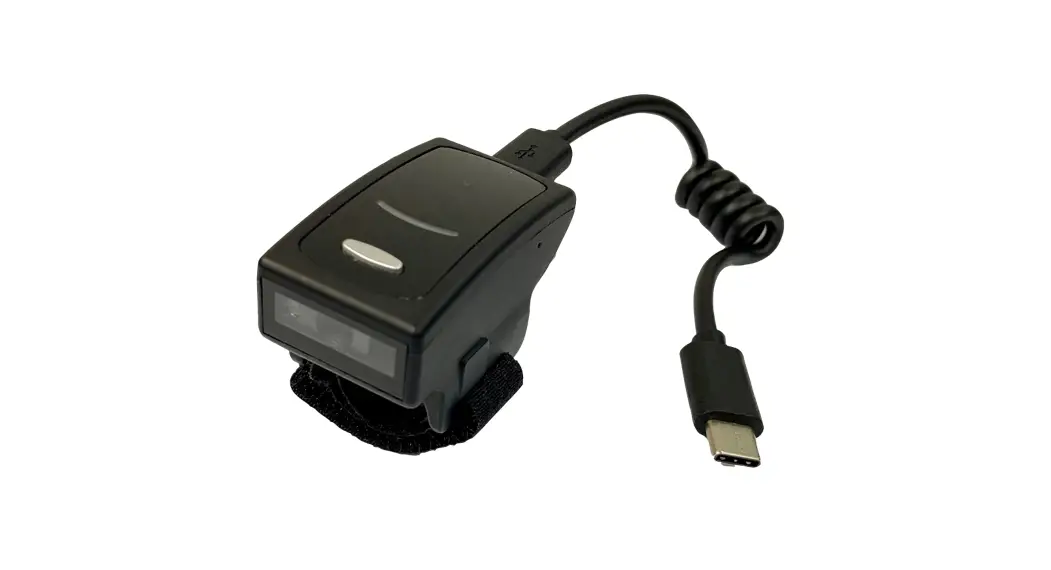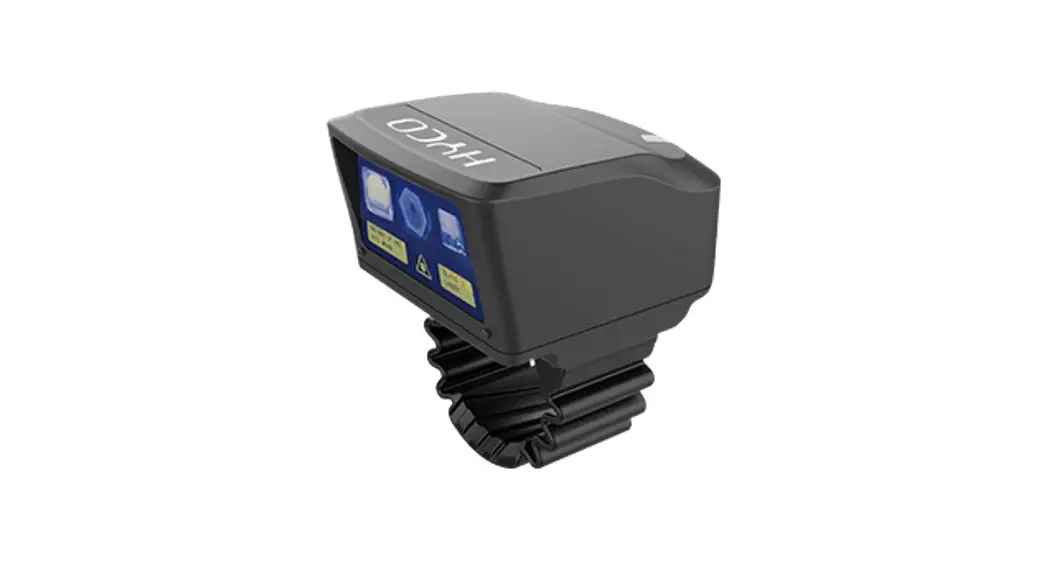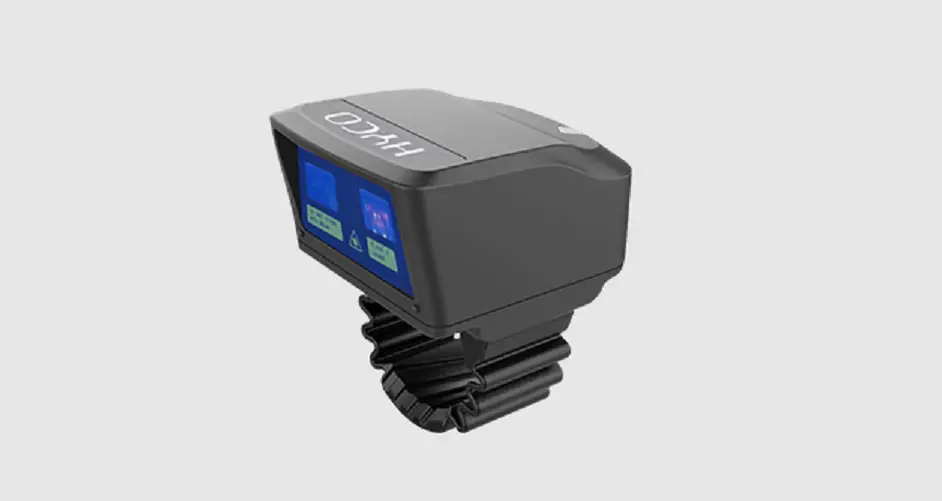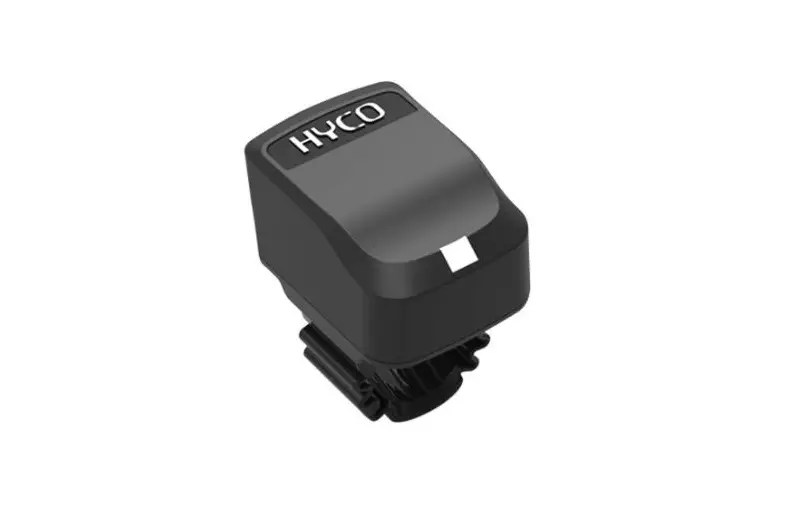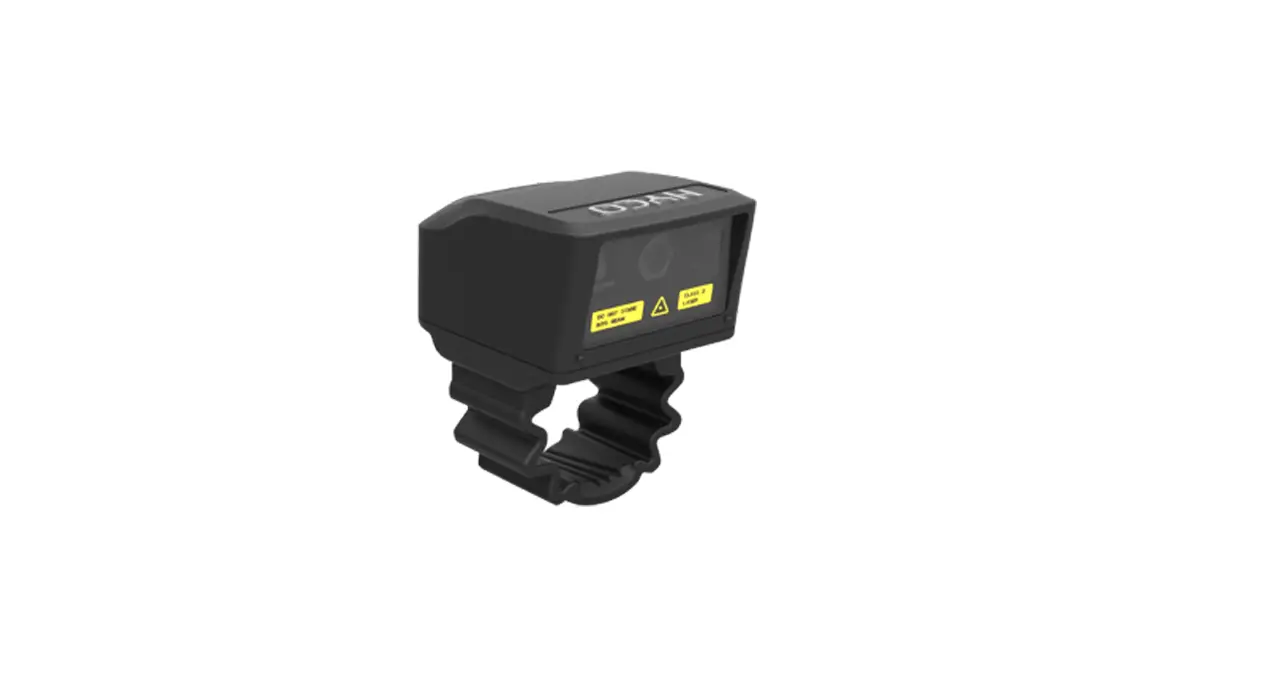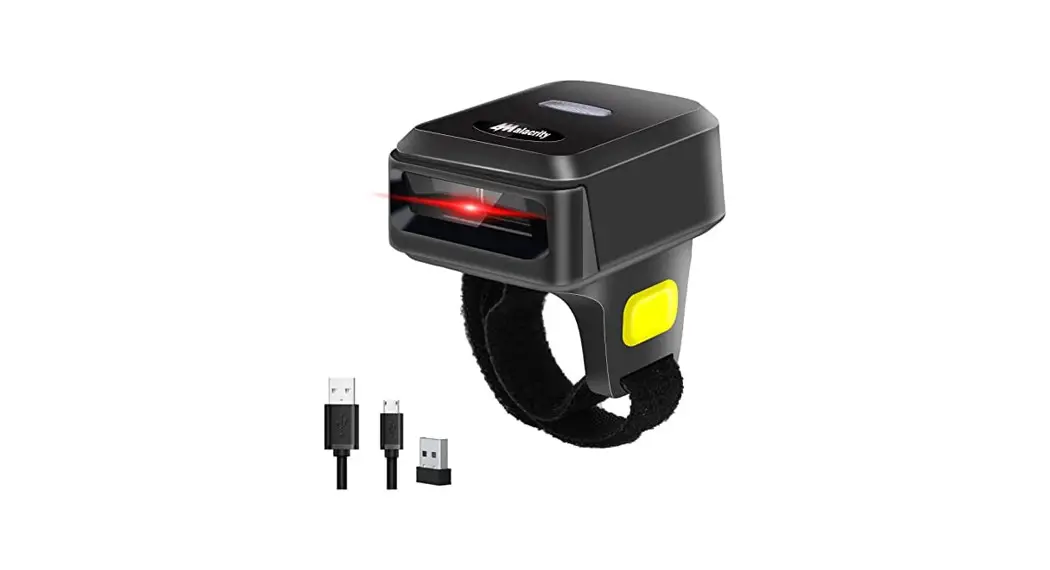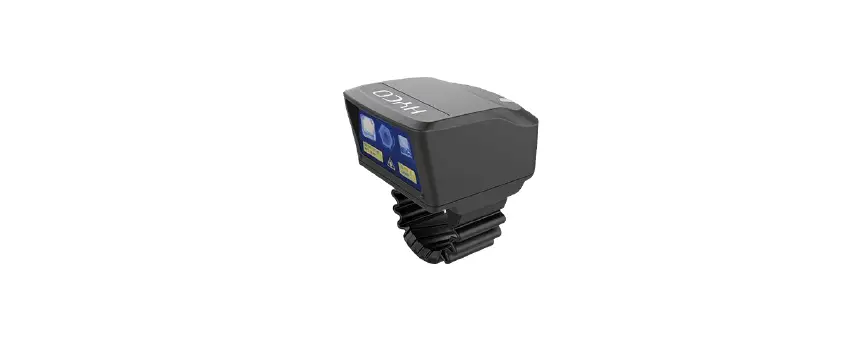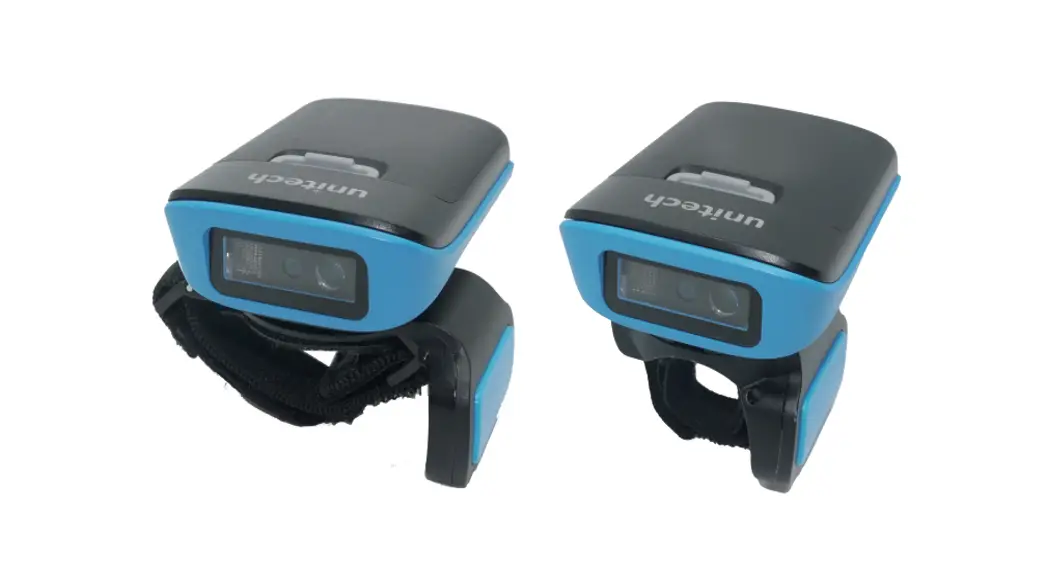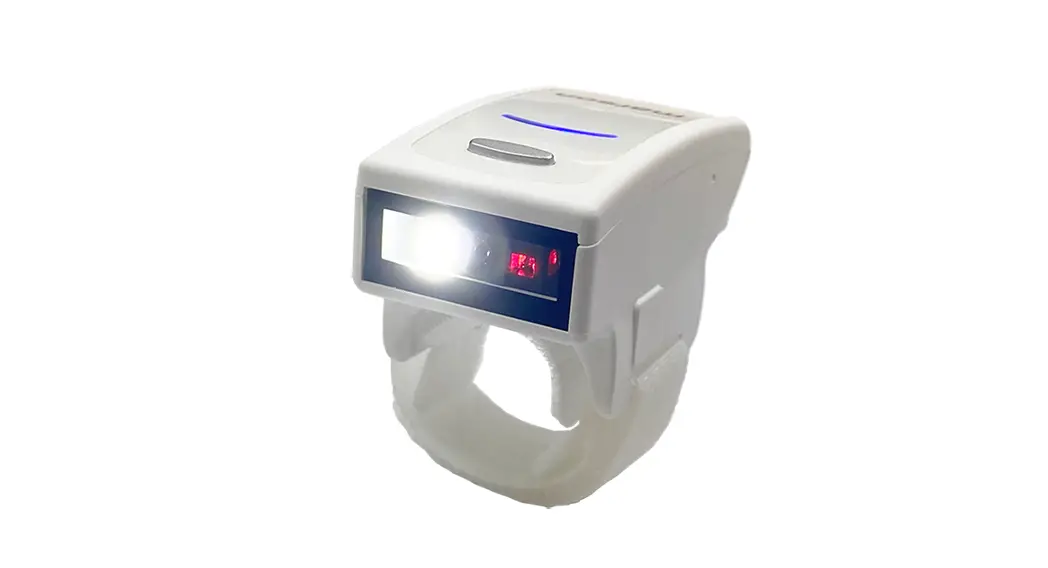
 2D Wireless Ring
Barcode Scanner
Quick Guide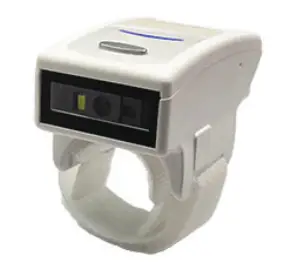
FCC WARNING STATEMENT
This device complies with Part 15 of the FCC Rules. Operation is subject to the following two conditions:
- this device may not cause harmful interference, and
- this device must accept any interference received, including interference that may cause undesired operation.
This equipment has been tested and found to comply with the limits for a Class B digital device, pursuant to Part 15 of the FCC Rules. These limits are designed to provide
reasonable protection against harmful interference in a residential installation.
This equipment generates, uses, and can radiate radio frequency energy and, if not installed and used in accordance with the instructions, may cause harmful interference to radio communications. However, there is no guarantee that interference will not occur in a particular installation. If this equipment does cause harmful interference to radio or television reception, which can be determined by turning the equipment off and on, the user is encouraged to try to correct the interference by one or more of the following measures:
- Reorient or relocate the receiving antenna.
- Increase the separation between the equipment and receiver.
- Connect the equipment to an outlet on a circuit different from that to which the receiver is connected.
- Consult the dealer or an experienced radio/TV technician for help.
Any changes or modifications not expressly approved by the party responsible for compliance could void the user’s authority to operate the equipment.
CE MARKING AND EUROPEAN UNION COMPLIANCE
Testing for compliance with CE requirements was performed by an independent laboratory. The unit under test was found compliant with all the applicable Directives, 2014/30/EU, 2014/35/EU, and 2014/53/EU.
WASTE ELECTRICAL AND ELECTRONIC EQUIPMENT
The WEEE directive places an obligation on all EU-based manufacturers and importers to take-back electronic products at the end of their useful life.
ROHS STATEMENT OF COMPLIANCE
This product is compliant with Directive 2002/95/EC.

WARNING AND CAUTION
 Take any metals into contact with the terminals in connectors.
- Use the scanner where any inflammable gases are.
 If the following condition occurs, immediately power off the host computer, disconnect the interface cable, and contact your nearest dealer.
- Smoke, abnormal odors, or noises come from the scanner.
- Drop the scanner so as to affect the operation or damage its housing.
Do not do the behavior below.
- Put the scanner in places with excessively high temperatures such as exposure to direct sunlight.
- Use the scanner in extremely humid areas or drastic temperature changes.
- Place the scanner in oily smoke or steam environment such as a cooking range.
- Be covered or wrapped up in the scanner in a bad-ventilated area such as under a cloth or blanket.
 Insert or drop foreign materials or water into scanning windows or vents.
- Use the scanner while the hand is wet or damp.
- Use the scanner with anti-slip gloves containing plasticizer and chemicals or organic solvents such as benzene, thinner, insecticide, etc to clean the housing. Otherwise, it could not result in fire and electrical shock but housing may be broken and injured.
- Scratch or modify the scanner and bend, twist, pull, or heat its interface cable.
- Put heavy objects on the interface cable.
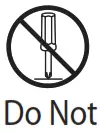 Insert or drop foreign materials or water into scanning windows or vents.
Do not stare at the light source from the scanning window or do not point the scanning window at other people’s eyes or eyesight may be damaged by direct exposure under light.
 Do not put the scanner on an unstable or inclined plane.
The scanner may drop, creating injuries.Once the interface cable is damaged such as exposed or broken copper wires, stop using it immediately and contact your dealer. Otherwise, it could result in fire or electrical shock.
INTRODUCTION
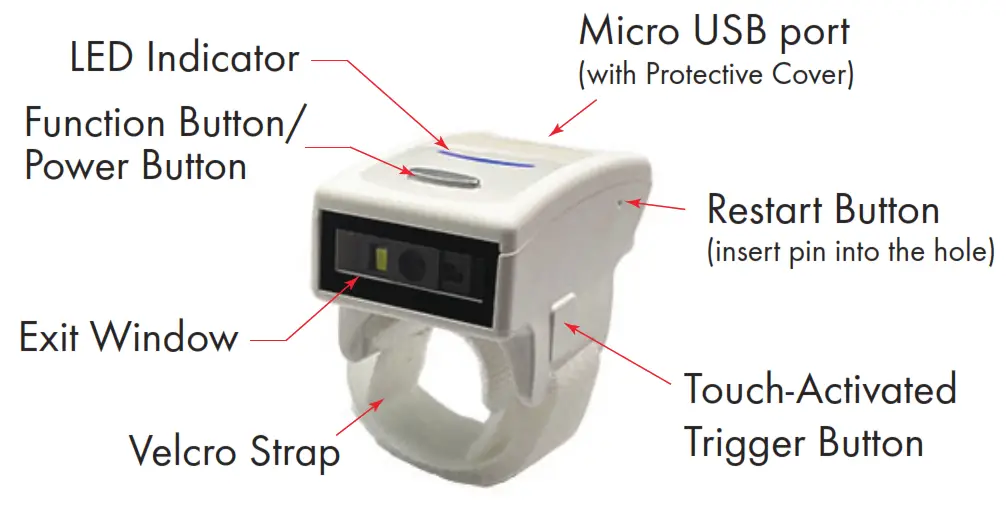
SPECIFICATIONS
| Sensor | Area Image Sensor |
| Resolution | 5mil/ 0.1mm (1D), 10mil/ 0.25mm (2D) |
| Indicator | LED, Buzzer |
| PCS | 25% |
| Color | Black or White |
| Profile | BT HID, BT SPP, USB HID, USB VCP, Memory |
| Battery Life | 4000 scans (1 scan/ 5 sec) |
| Charge Time | 2.5 hours (fully charged) |
| Radio | Bluetooth 5.0 dual mode (Class2) |
| Coverage | 20M/66ft. (line of sight) |
| Symbologies | All major 1D & 2D barcodes |
BEEPER INDICATION
| Single beep | Good read |
| Single short beep | The scanner reads a Code39 of ASCII in the configuration procedure |
| Two beeps | i. Wireless connection ii. The scanner successfully reads a configuration barcode |
| Three beeps | Wireless disconnection |
| Three short beeps | i. The scanner reads a barcode while disconnected. ii. The scanner reads an unexpected barcode during the configuration procedure. (scan [ABORT] to abort and start over) iii. Memory Full |
| Four beeps (Hi-Lo-Hi-Lo) | Out of range/Poor connection |
| Five beeps | Low power |
LED INDICATION
| Off | Standby or Power off |
| Flashing Blue | Disconnected or Discoverable |
| One Green Flash | Good Read |
| Flashing Red | Low power |
| Solid Red | Charging |
OUT OF THE BOX
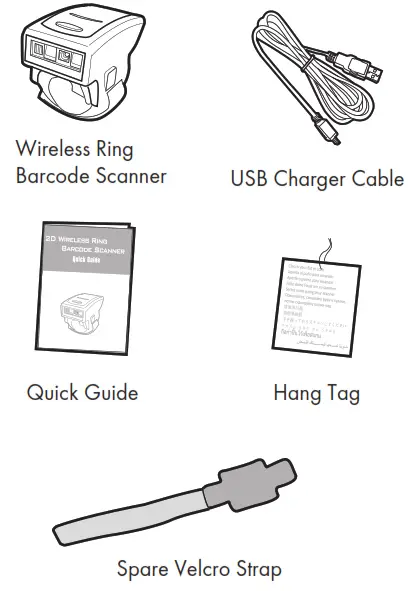
CHARGING THE BATTERY
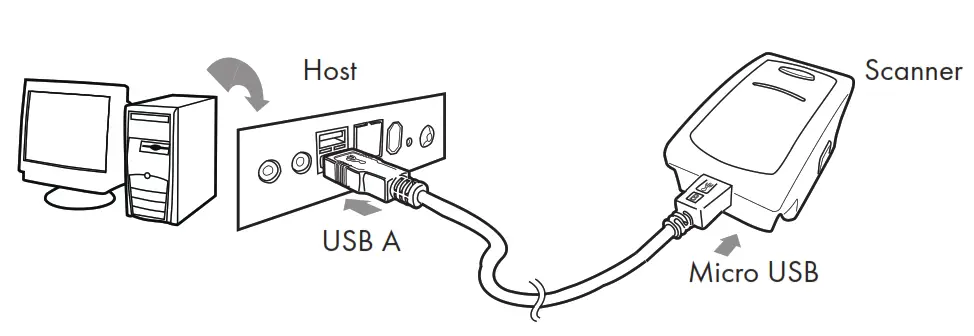
- Flip open the micro USB port on the scanner.
- Insert the micro USB connector into the port on the scanner and the USB A connector into a USB port on the host PC.
- Keep charging until the red LED indicator turns off.
STEP 1 – GETTING STARTED
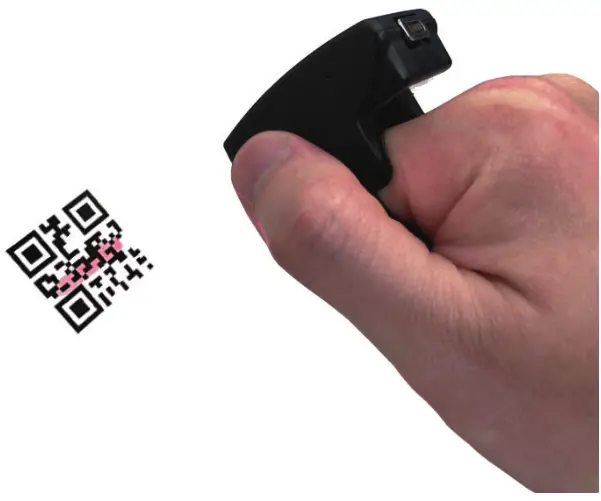
- Pull open the long end and insert your index finger through the loop.

- Adjust and attach the long end for a comfortable fit.

- Clench your fist and use your thumb to tap the touch-activated trigger button. A gentle touch on the button will work; there is no need to press with force.

- Aim at the barcode you wish to scan.

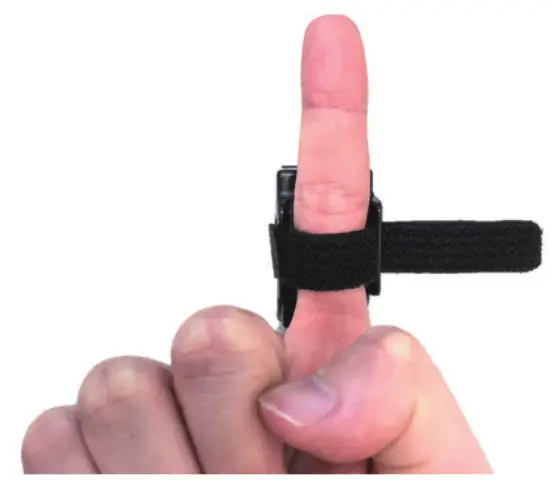
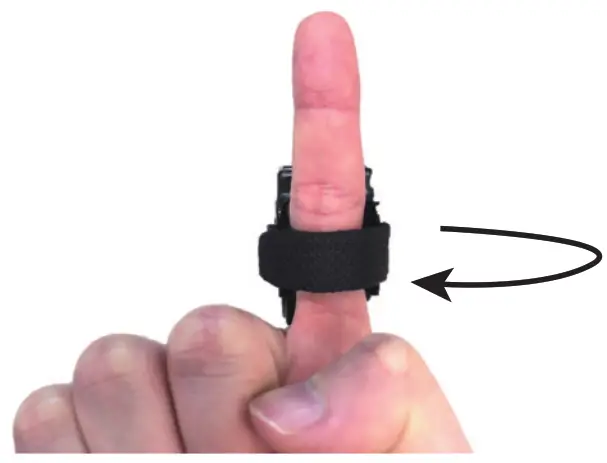
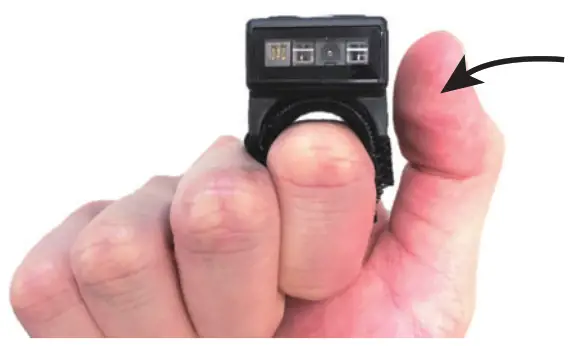
ATTENTION
- If either your hand or the Velcro strap is soaking wet, the Laser beam may automatically light up without a touch trigger. The scanner can still work well in this condition but it will waste battery power, so it is recommended to dry both your hand and the Velcro strap.
- The following gloves have been tested to be working with the touch-activated button: a latex examination glove, an antistatic glove, a white cotton glove (with or without latex coating), a safety glove, and a rubber glove. However, it is still recommended to operate with bare hand or thin glove to ensure the responsiveness of the button.
- Don’t need to tighten the Velcro strap too much. Just make the strap fit your finger so that the scanner will not easily move while being touched for the trigger. We also suggest releasing the strap from your finger for 1 minute after 2 hours of continuous use if your finger feels uncomfortable.
STEP 2 – BUTTON PREFERENCE
Scan one of the below configuration barcodes to determine which touch-sensing button to enable according to your habit:
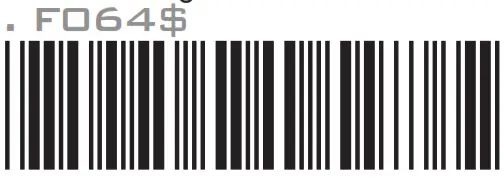 | Right Button Only [ For Left-handed User ] |
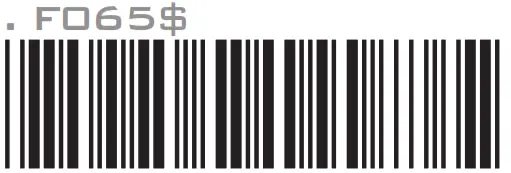 | Left Button Only [ For Right-handed User ] |
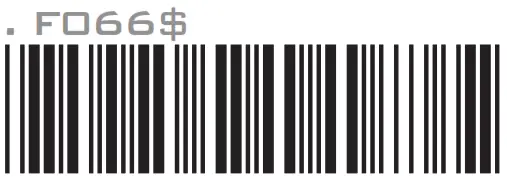 | Both Buttons |
STEP 3 – INTERFACE SELECTION
Scan one of the below configuration barcodes to determine your interface:
| BT HID [ Recommended ] | 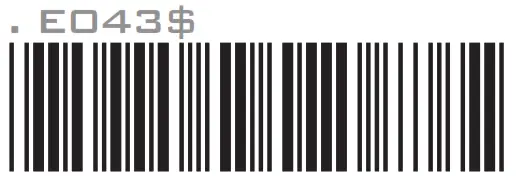 |
| BT SPP | 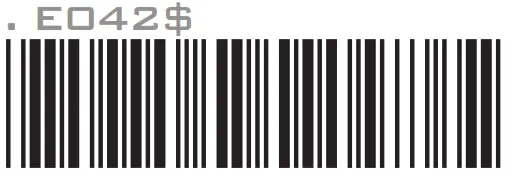 |
| USB HID | 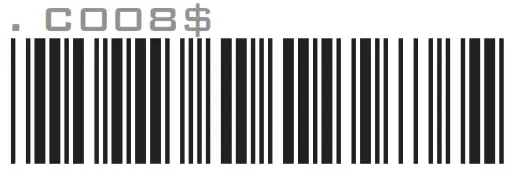 |
| USB VCP | 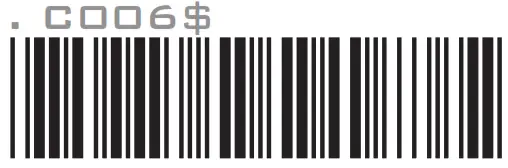 |
| Memory Mode | 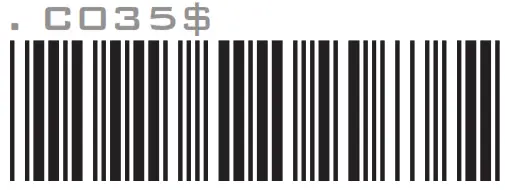 |
1. BT HID, BT SPP – Emulates a Bluetooth HID keyboard or Bluetooth serial device, please see next page for details.
4. Memory Mode – Emulates a USB mass storage device that collects barcode off-line, please see pages 24 – 28 for details.
GETTING CONNECTED 
There are two modes of wireless communication:
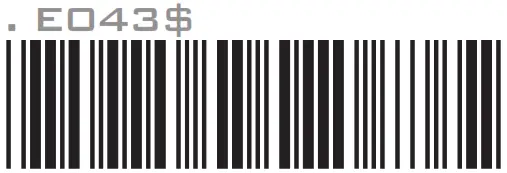 | BT mode – HID [ Recommended ] |
- Press the power button to activate the scanner.
- Scan [DISCONNECT]
- Scan [BT mode – HID]; the scanner will emit several beeps.
- Select “Wireless Scanner” from the discovered device list.
- If the Bluetooth application requests a Pincode, see the next page PINCODE SETUP, otherwise please skip this step.
- The scanner will beep twice to verify the connection.
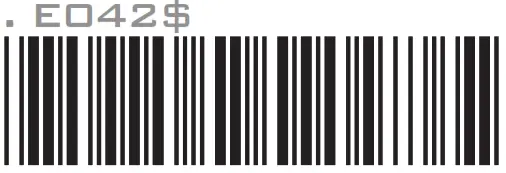 | BT mode – SPP |
- Press the power button to activate the scanner.
- Scan [DISCONNECT]
- Scan [BT mode – SPP]; the scanner will emit several beeps.
- Select “Wireless Scanner” from the discovered device list.
If a pin code is requested, enter default Pincode “1234”. - Open serial communication software with com port
(see Device Manager) properly set up. - The scanner will beep twice to verify the connection.
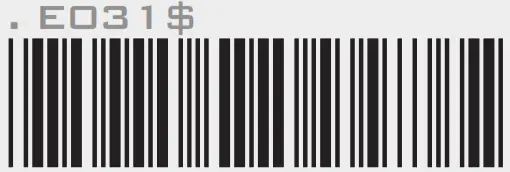 | Disconnect |
PINCODE SETUP
STEP 1
| Pincode Start | 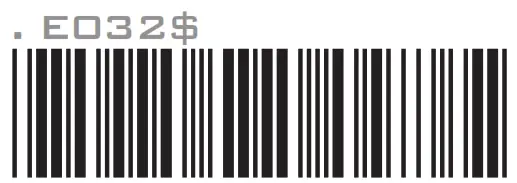 |
STEP 2
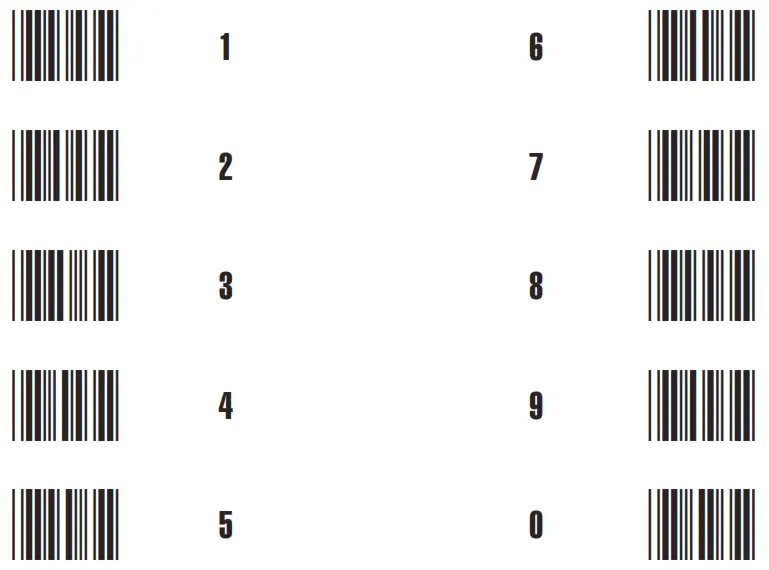
Scan numeric barcodes (see NUMERIC BARCODES section on the next pages) based on the pin code generated by the Bluetooth application.
STEP 3
| Enter |  |
STEP 4
| Pincode Stop | 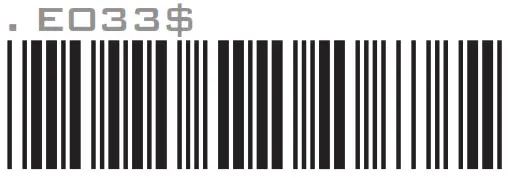 |
NUMERIC BARCODES
POWER OFF TIMEOUT
The period of inactivity before auto power-off.
Variable Timeout
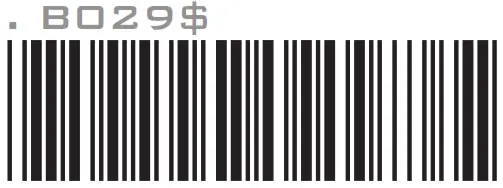
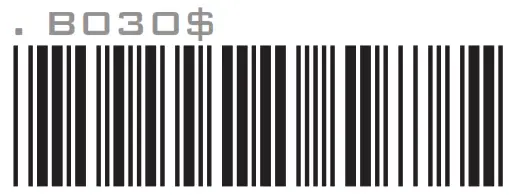 | SET MINUTE (Range: 00 ~ 60) |
 | SET SECOND (Range: 00 ~ 59) |
The default timeout is 00 minutes and 30 seconds.
For example, to set the timeout as 5 minutes 30 seconds:
- Scan [Set Minute]
- Scan [0] & [5] on page 13 & 14.
- Scan [Set Minute]
- Scan [Set Second]
- Scan [3] & [0] on page 13 & 14.
- Scan [Set Second]
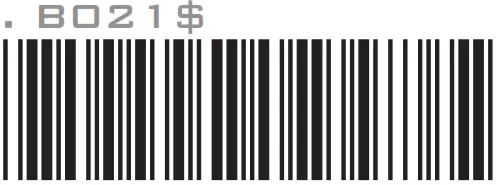
No Timeout (Scanner Always On)
 | DISABLE TIMEOUT |
Warning! This will cause the battery to drain quickly.
SMARTPHONE/TABLET TOUCH KEYBOARD
Please follow the below instructions to toggle the touch keyboard on a smartphone/tablet.
iOS
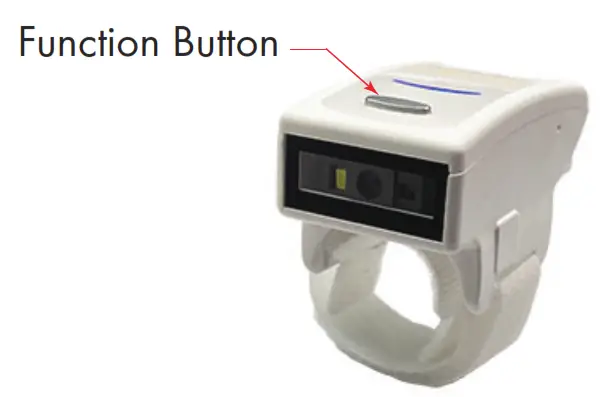
To toggle the iOS touch keyboard, please simply press the function button.
Android
- Enter “Settings”
- Enter “Language & input”
- In Keyboard & input window, tap “Default” to continue.
- Turn off “Hardware – Physical keyboard”, and the Touch The keyboard will function properly again.
GENERAL SETTINGS
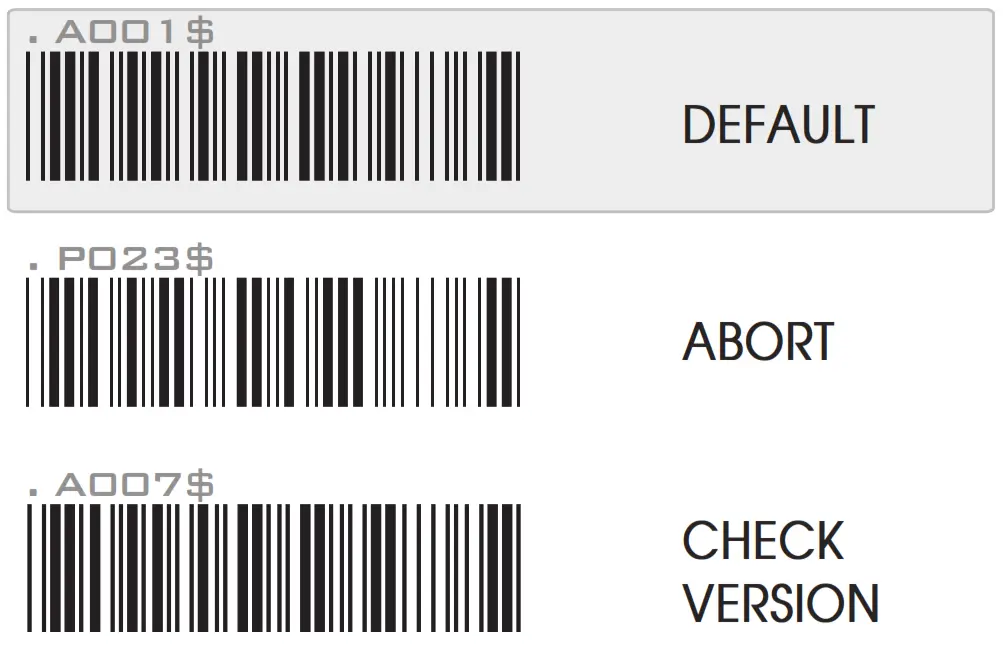
BEEPER
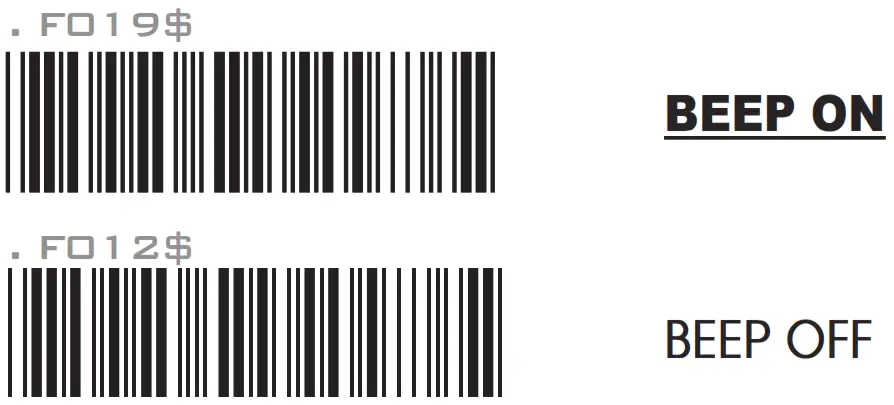
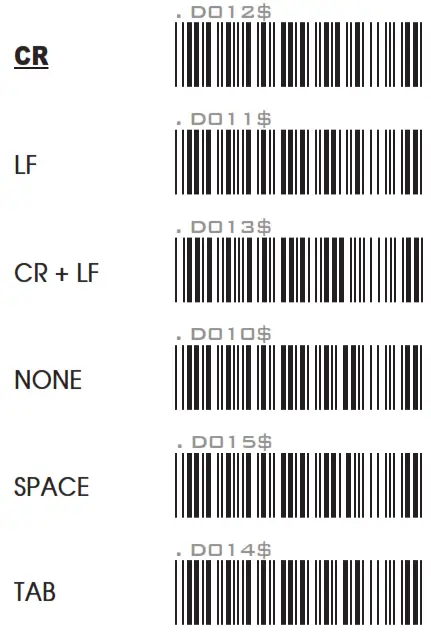
TERMINATOR
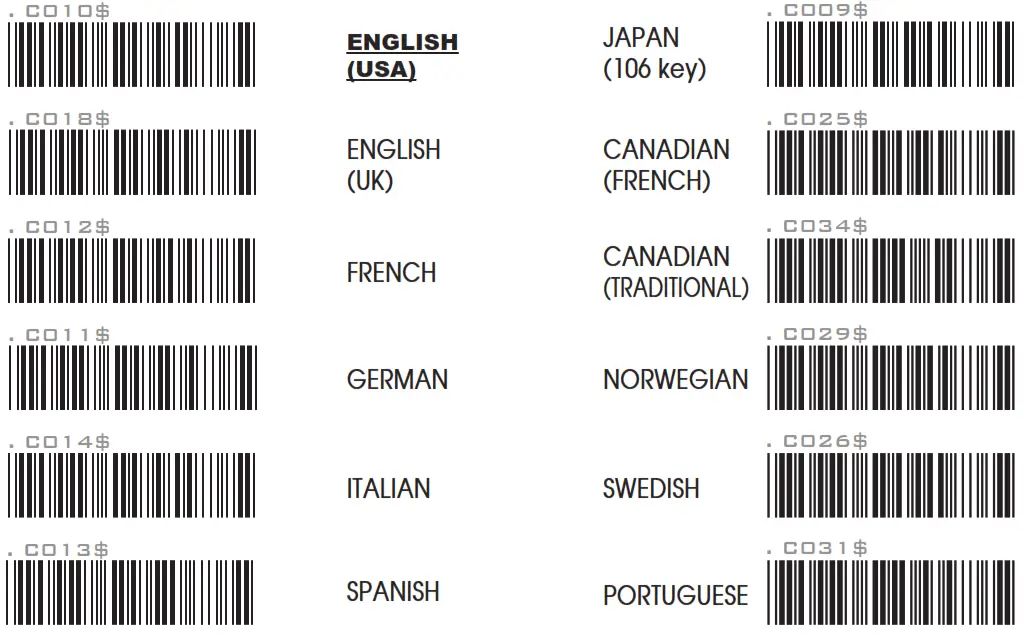
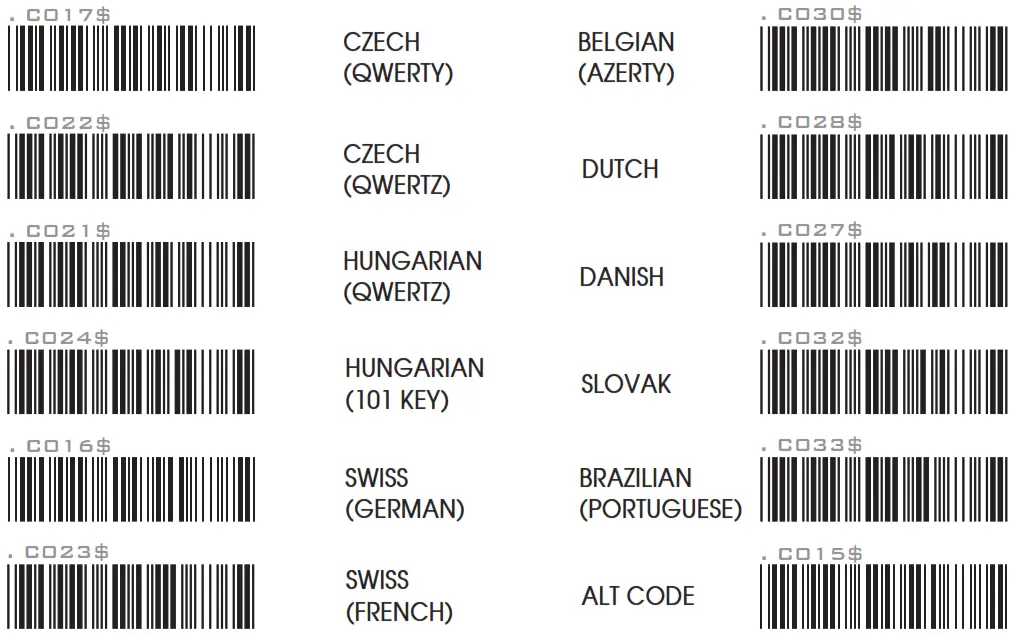
KEYBOARD LAYOUT
ENABLE SYMBOLOGIES
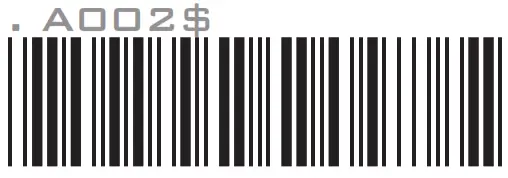 | ENABLE ALL CODE |
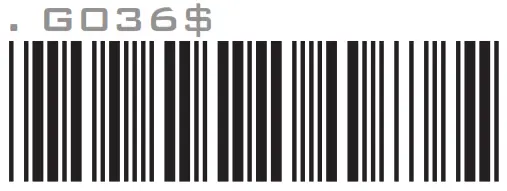 | ENABLE ALL 1D CODE |
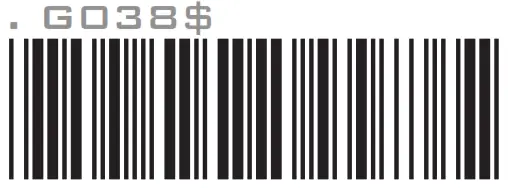 | ENABLE ALL 2D CODE |
 MEMORY MODE
| MEMORY MODE | 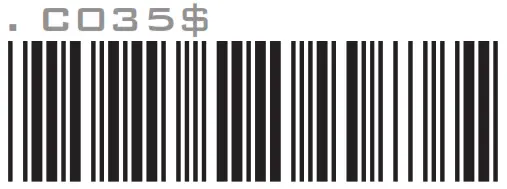 |
After scanning the above barcode, the scanner will be able to collect barcode data offline. The barcode data will be stored in the format of: < Date >, < Time >, < Barcode Data > < CR >
To retrieve stored data, please connect the scanner to the host with a cable, and access the removable storage device “MiniScan” from which you may open or copy the file “BARCODE.txt” to your computer.
To delete ONE stored data, please scan below the barcode. Alternatively, you may press the function button once.
| DELETE LAST DATA | 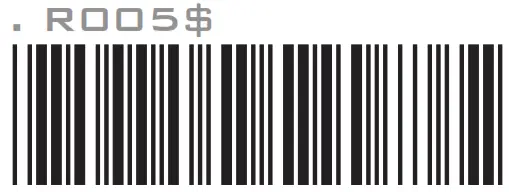 |
To delete ALL stored data, simply delete the file “BARCODE.txt” in the removable storage device “MiniScan” until you hear two beeps.
MEMORY MODE DATE & TIME SETUP
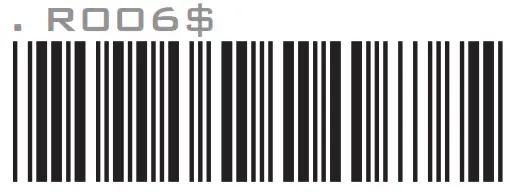 | SET DATE |
Example: To set Date to 2022-08-01 (Year-Month-Day):
- Scan [Set Date]
- Scan [2], [2], [0], [8], [0], [1] on page 13 & 14.
- Scan [Set Date]
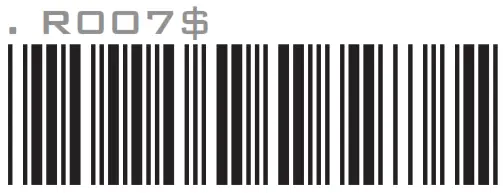 | SET TIME |
Example: To set Time to 08:10:30 am (Hr:Min: Sec)
- Scan [Set Time]
- Scan [0], [8], [1], [0], [3], [0] on page 13 & 14.
- Scan [Set Time]
* Full drain of the battery may cause the Time and Date to stop.
To avoid this, please, please fully charge the scanner for at least 1 hour before use.
MEMORY MODE DATA FORMAT
| DATA FORMAT | 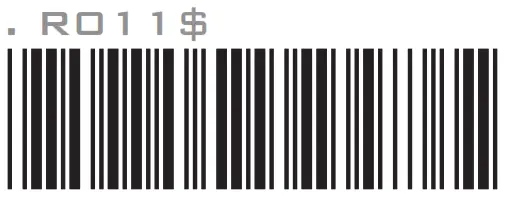 |
The default Data Format is <Date>, <Time>, <Barcode Data> only below are all items available for display and their codes:
| Code | Code | Code | Item |
| 2 | Date | 3 | Time |
| 4 | Barcode Data |
Example:
To change Data Format to <Barcode Data>, <Date>, <Time>
- Scan [Data Format]
- Scan [4], [2], [3] on page 13.
- Scan [Data Format]
| FIELD SEPARATOR (DELIMITER) | 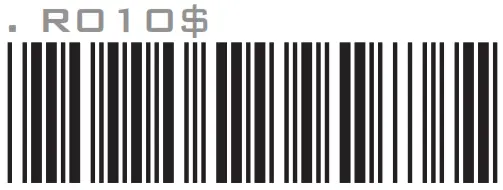 |
The default is a comma (, ) You may replace it with any alphanumeric characters from the full ASCII table in the Full User’s Manual.
Example: To change Field Separator to Semicolon ( ; )
- Scan [Field Separator]
- Scan [ ; ] from the full ASCII table.
- Scan [Field Separator]
MEMORY MODE DATE FORMAT
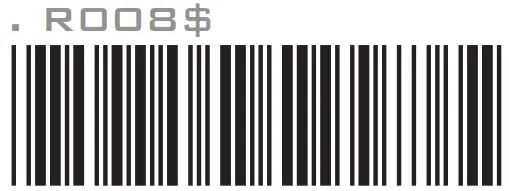 | DATE FORMAT |
The default Date Format is DD/MM/YYYY (Code = 09), below is a full list of available formats and their setup codes:
| Code | Format | Code | Format |
| 1 | DD-MM-YYYY | 9 | DD/MM/YYYY |
| 2 | MM-DD-YYYY | 10 | MM/DD/YYYY |
| 3 | DD-MM-YY | 11 | DD/MM/YY |
| 4 | MM-DD-YY | 12 | MM/DD/YY |
| 5 | YYYY-MM-DD | 13 | YYYY/MM/DD |
| 6 | YY-MM-DD | 14 | YY/MM/DD |
| 7 | DD-MM | 15 | DD/MM |
| 8 | MM-DD | 16 | MM/DD |
Example:
To set the Date Format to MM/DD/YY (Code =12)
- Scan [Date Format]
- Scan [1], [2] on page 13.
- Scan [Date Format]
MEMORY MODE TIME FORMAT
| TIME FORMAT | 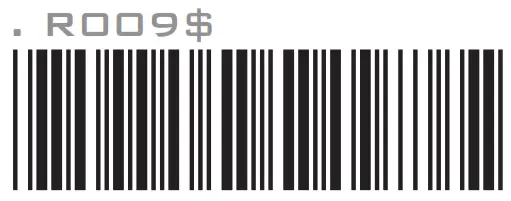 |
The default Time Format is HH:MM: SS (Code = 01), below are available formats and their setup codes:
| Code | Format | Code | Format |
| 1 | HH:MM: SS | 2 | HH: MM |
Example:
To set Time Format to HH:MM (Code = 02)
- Scan [Time Format]
- Scan [0], [2] on page 13 & 14
- Scan [Time Format]
HOW TO REMOVE VELCRO STRAP
| 1. Pull open the long end. | 2. Pull out the long end through the slot. |
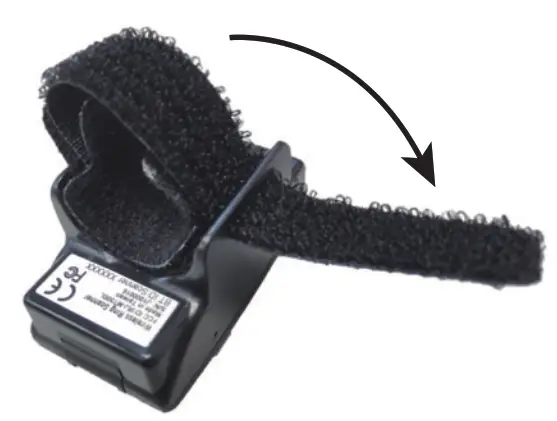 | 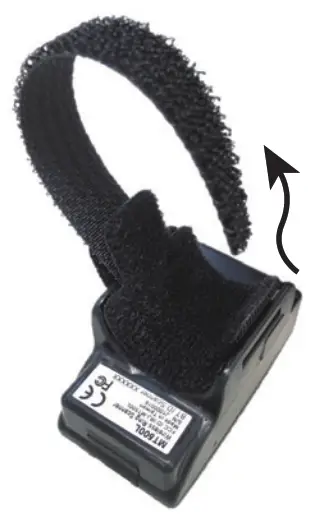 |
| 3. Pull open the short end on the other side. | 4. Remove the whole Velcro strap from the scanner by pulling the long end. |
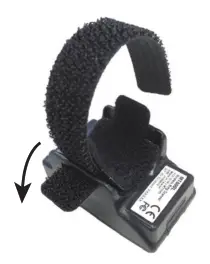 | 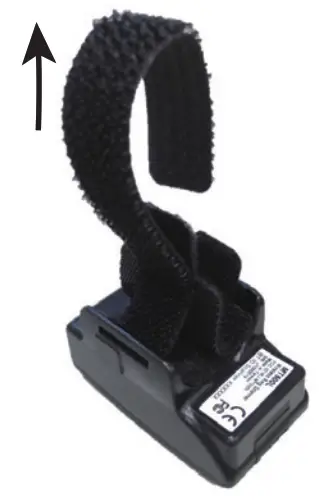 |
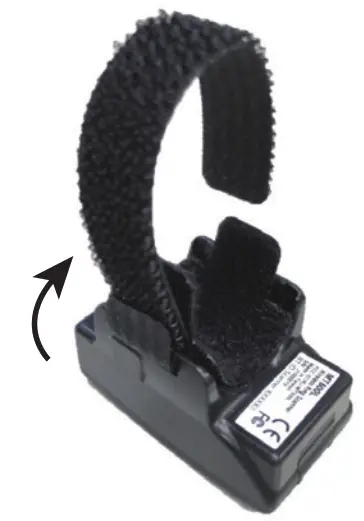
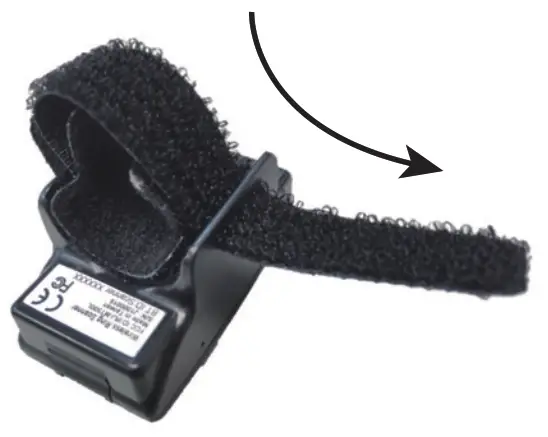
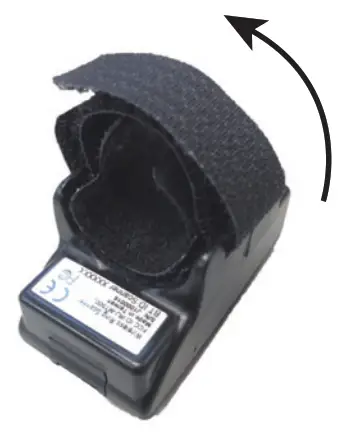
HOW TO INSTALL VELCRO STRAP
| 1. Insert the short end through the slot, with Velcro’s side facing upwards. | 2. Attach the short end to the long end to close. |
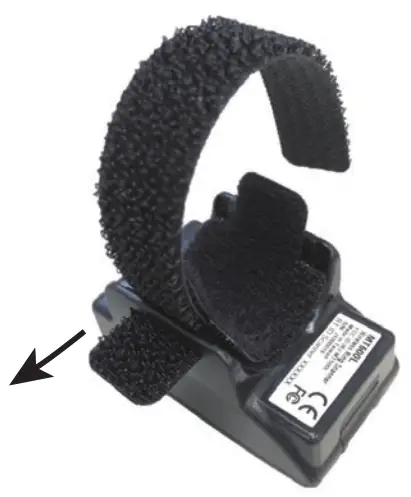 |  |
| 3. Insert the long end through the other slot, with Velcro’s side facing upwards. | 4. Attach the long end to itself to close. |
 |  |
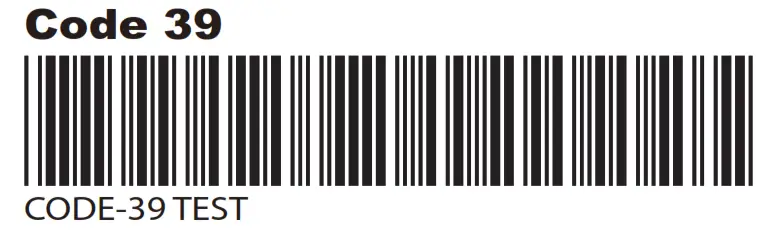
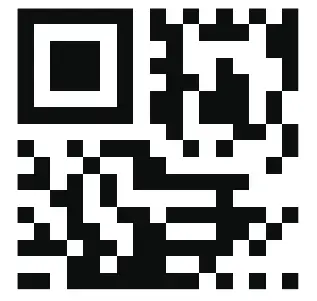
TEST BARCODES
 | 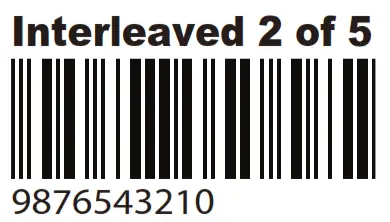 |
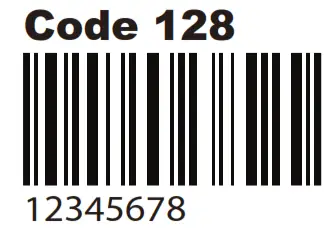 | 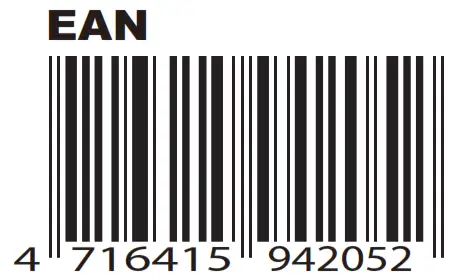 |
| QR Code
| Micro QR Code
|
 |  |
PDF417

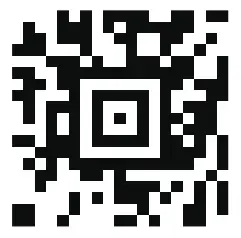
| Data Matrix | Aztec |
 |  |
For a full user’s manual, please contact your local distributor.
2D Ring Barcode Scanner Quick Guide (Rev2)
P/N: 8012-0075010