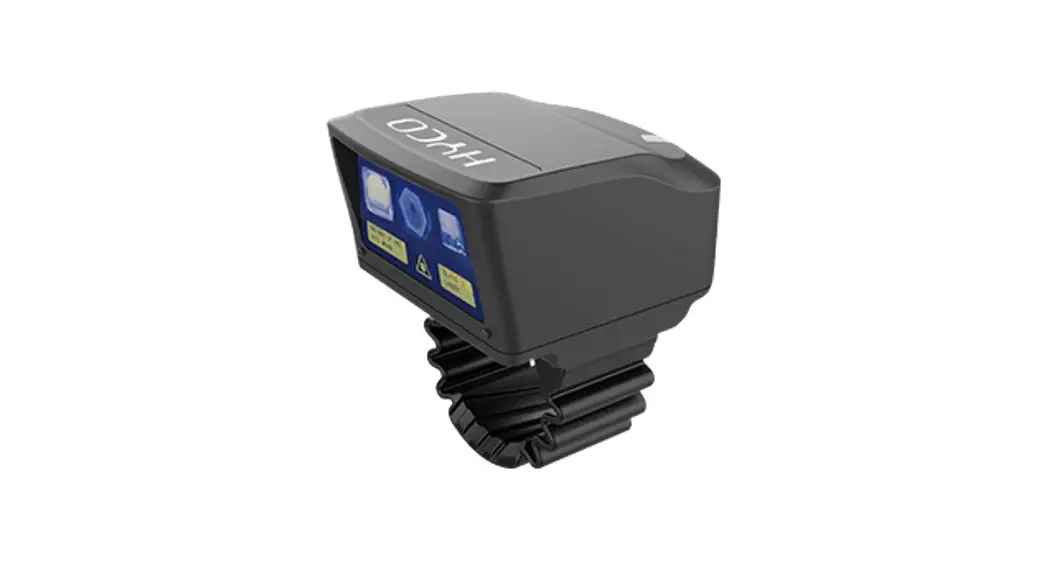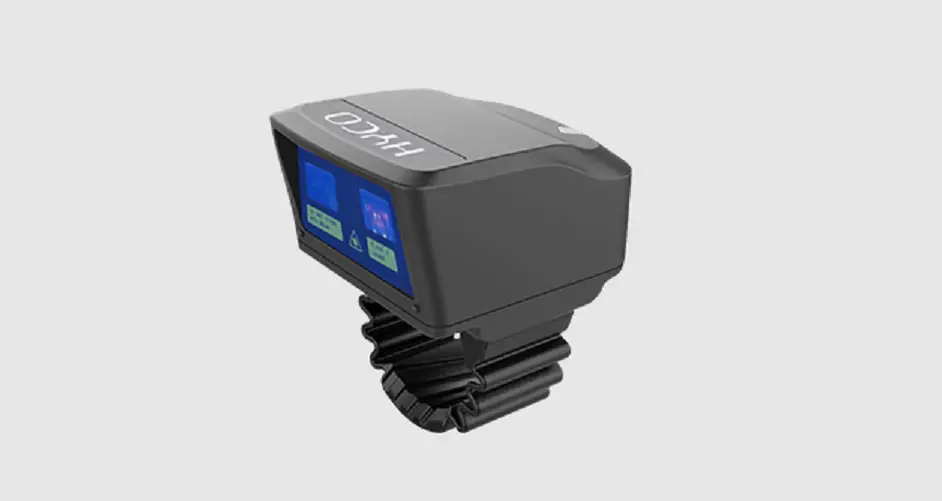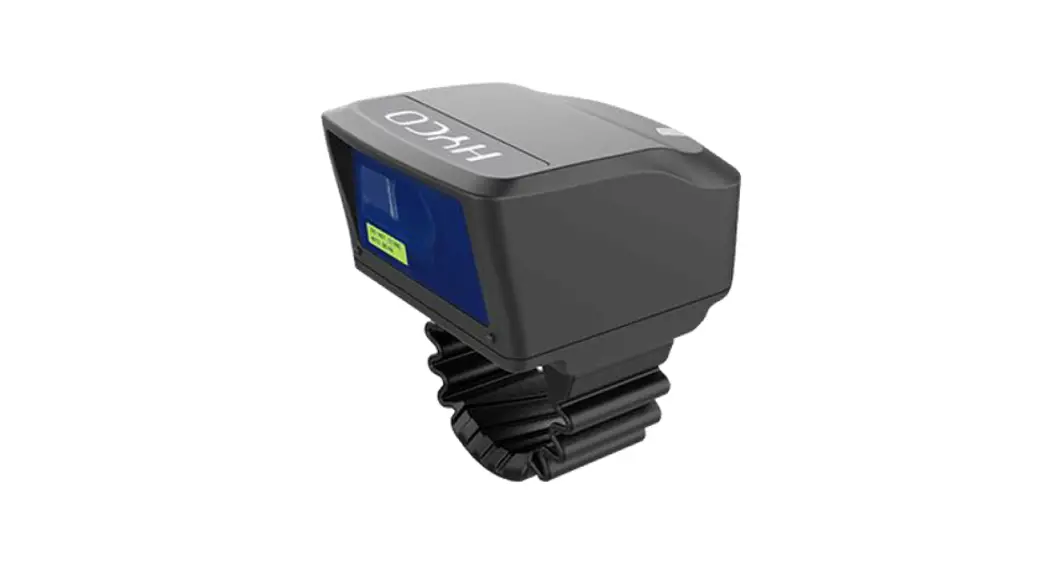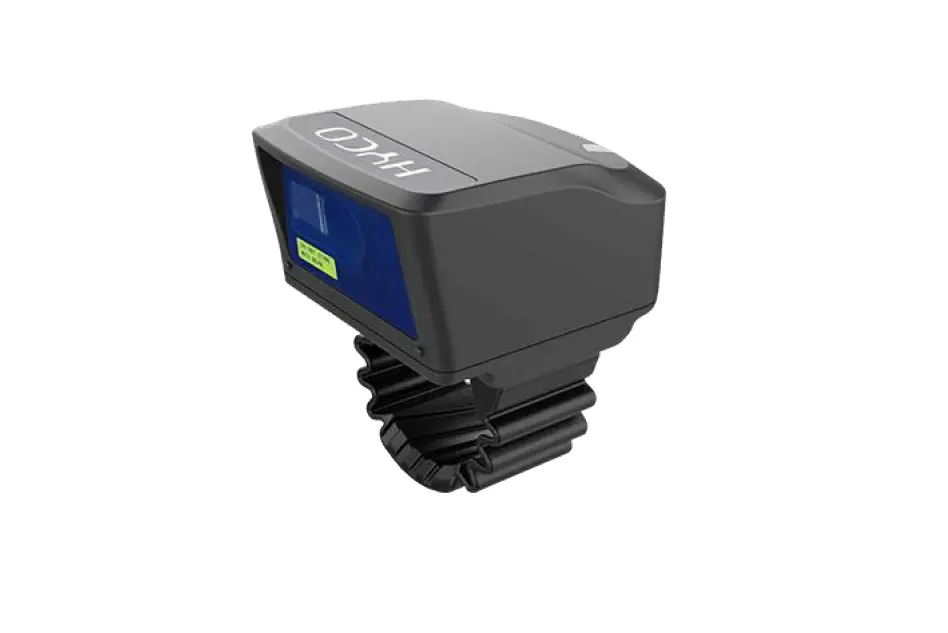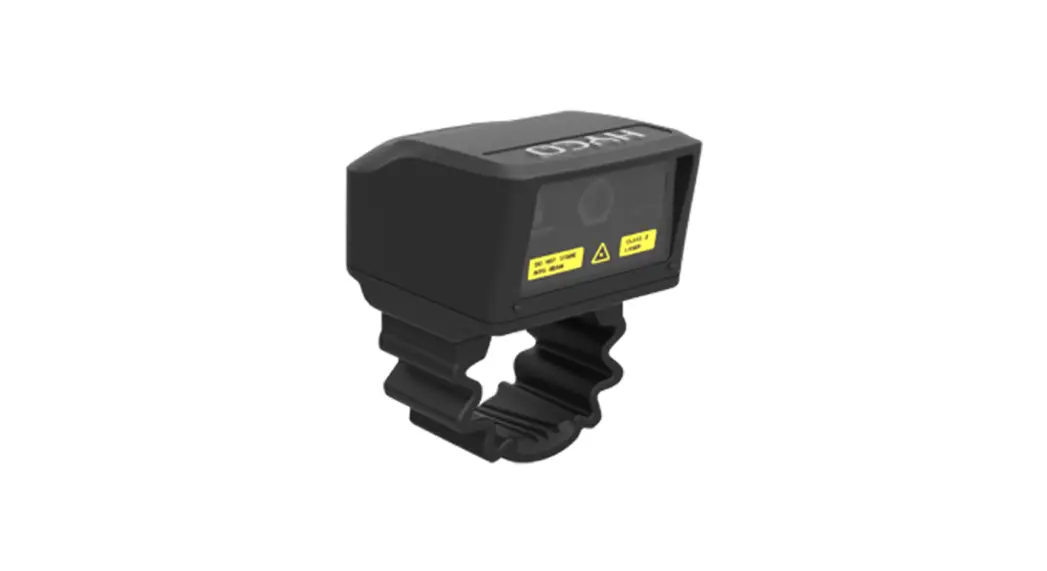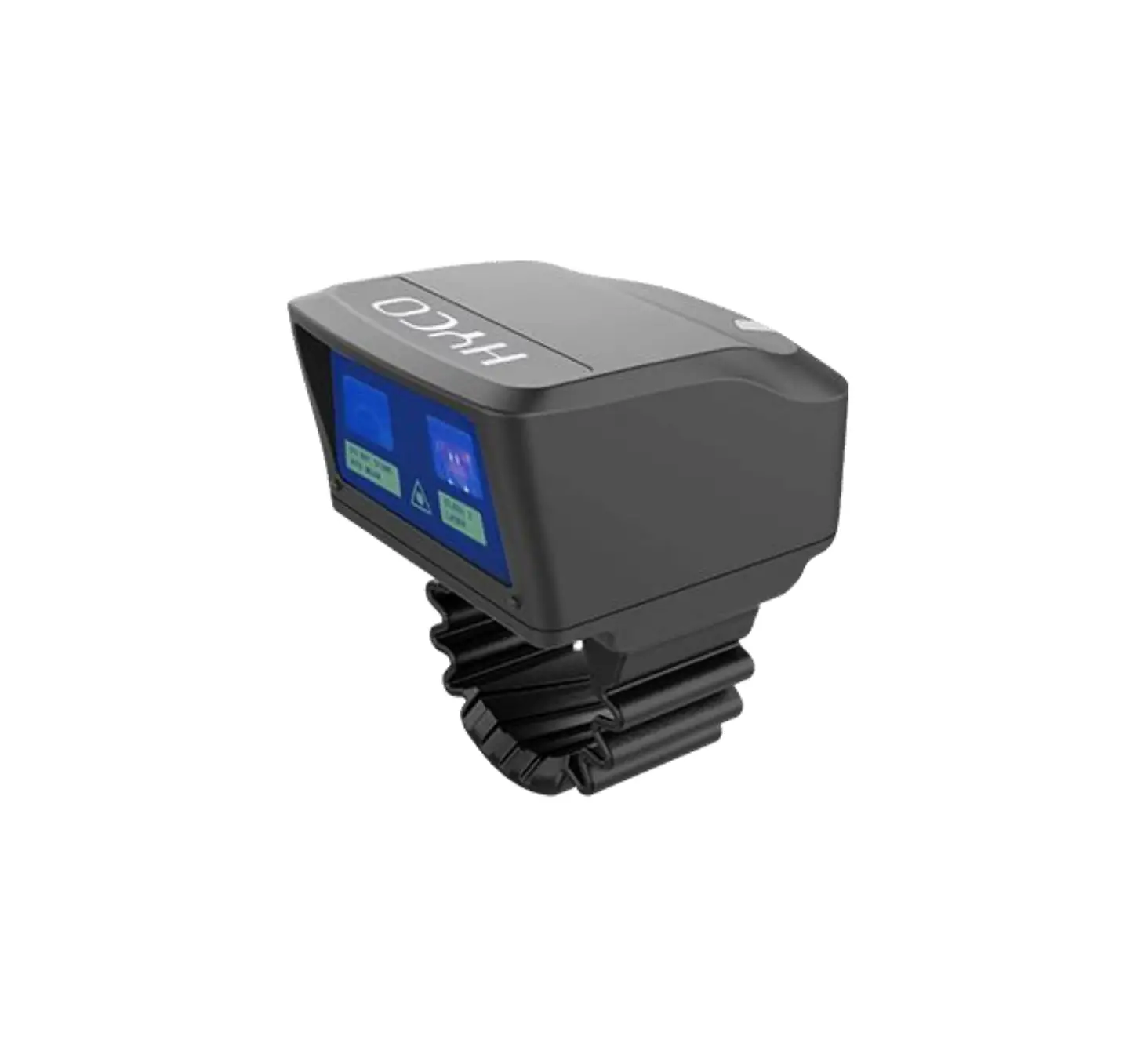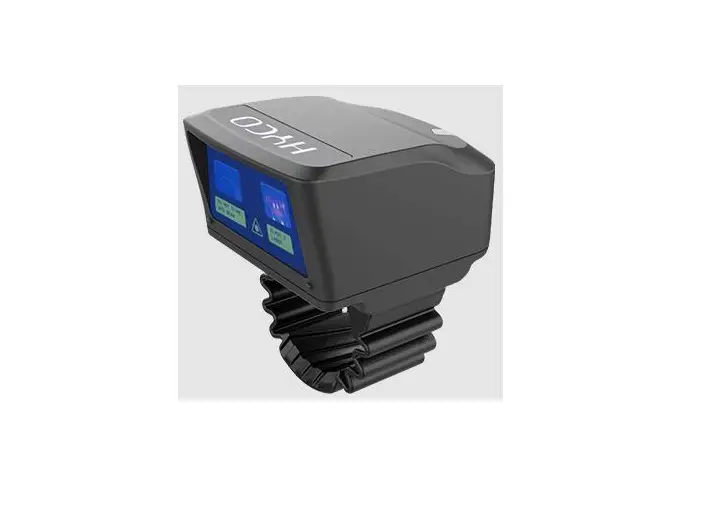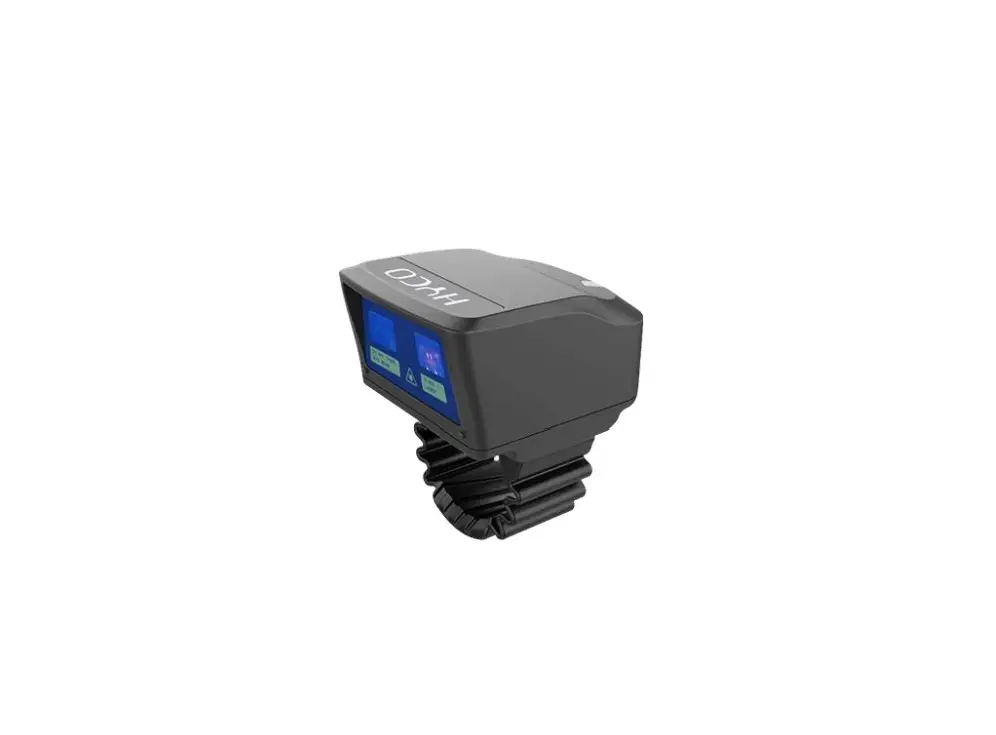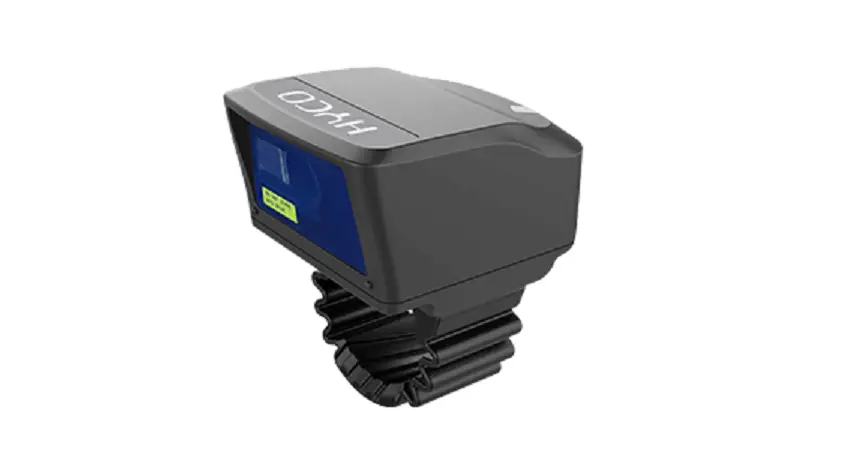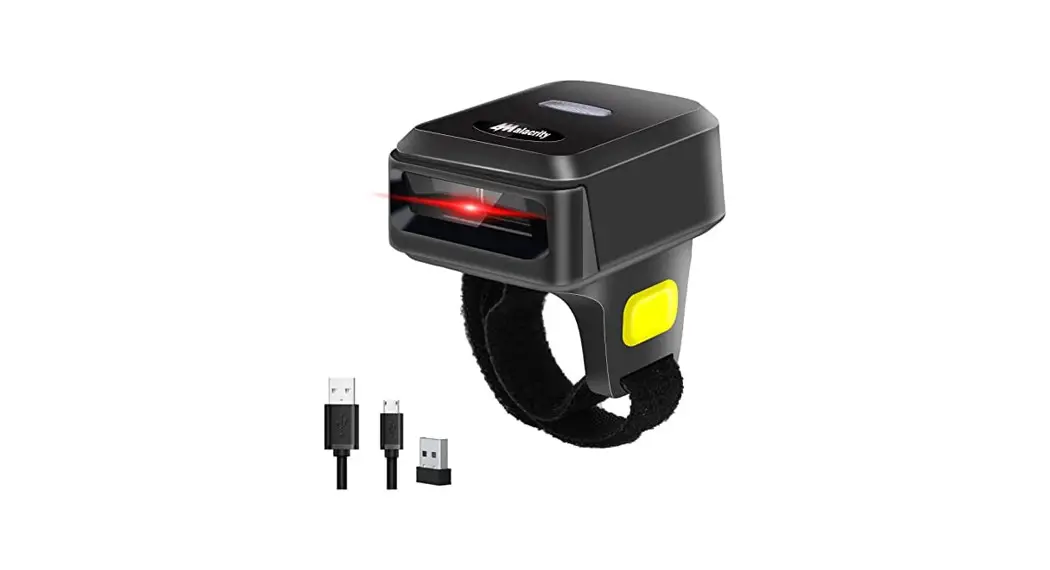

W28 Series Product
2D Ring Scanner
User Manual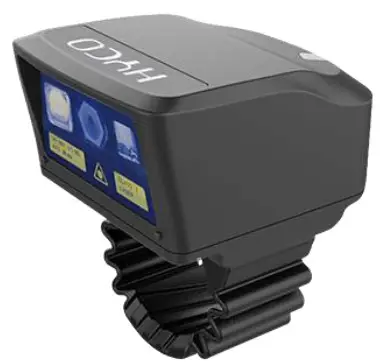
www.hycoiot.com
W28 Series Product 2D Ring Scanner User Manual
Disclaimer
Disclaimer @2018 Shanghai Hypo Geneon Technology Co., Ltd. All rights reserved.
Please read through the manual carefully before using the product and operate it according to the manual. It is advised that you should keep this manual for future
reference.
Do not disassemble the device or remove the seal label from the device. Otherwise, Shanghai Hypo Geneon Technology Co., Ltd. does not assume responsibility for the
warranty or replacement.
All pictures in this manual are for reference only and actual product may differ.
Regarding to the product modification and update, Shanghai Hypo Geneon Technology Co., Ltd. reserves the right to make changes to any software or product to improve reliability, function, or design at any time without notice. Besides, the information contained herein is subject to change without prior notice.
The products depicted in this manual may include software copyrighted by Shanghai Hyco Geneon Technology Co., Ltd. or a third party. The user, corporation or individual, shall not duplicate, in whole or in part, distribute, modify, decompile, disassemble, decode, reverse engineer, rent, transfer or sublicense such software
without prior written consent from the copyright holders.
This manual is copyrighted. No part of this publication may be reproduced or used in any form without written permission from Hyco.
Please visit www.hycoiot.com or check the latest version of the specification sheet for the latest product information
Design
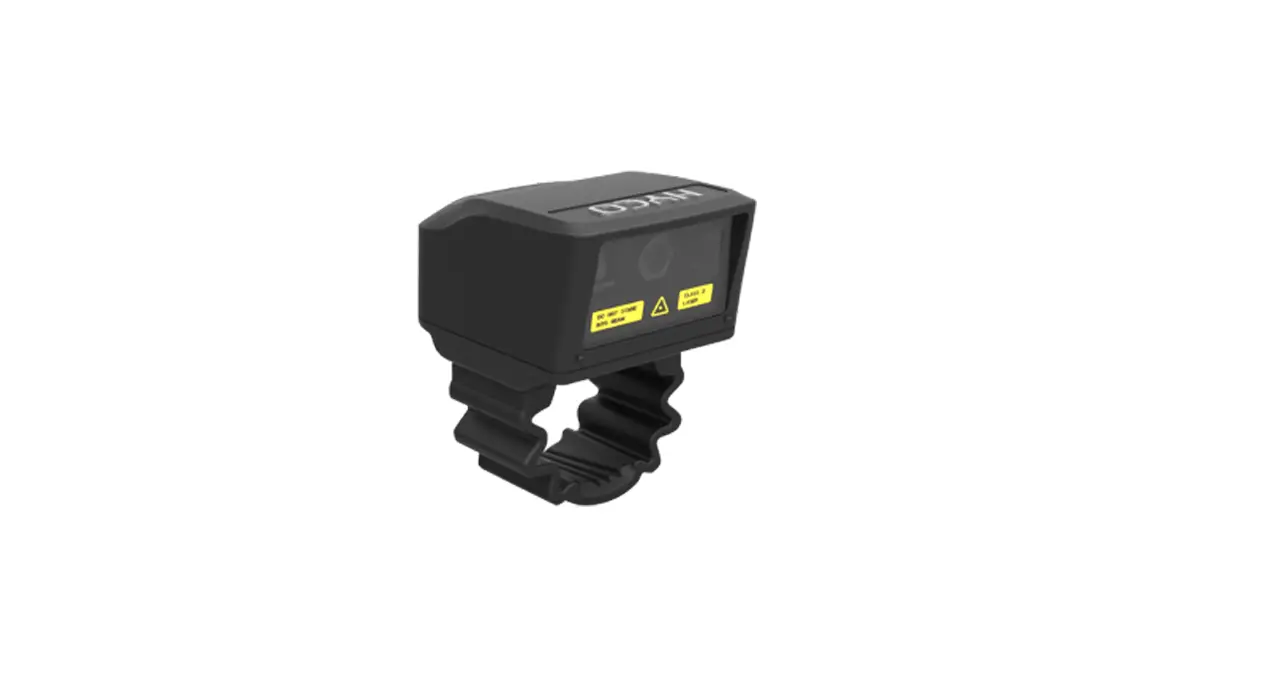
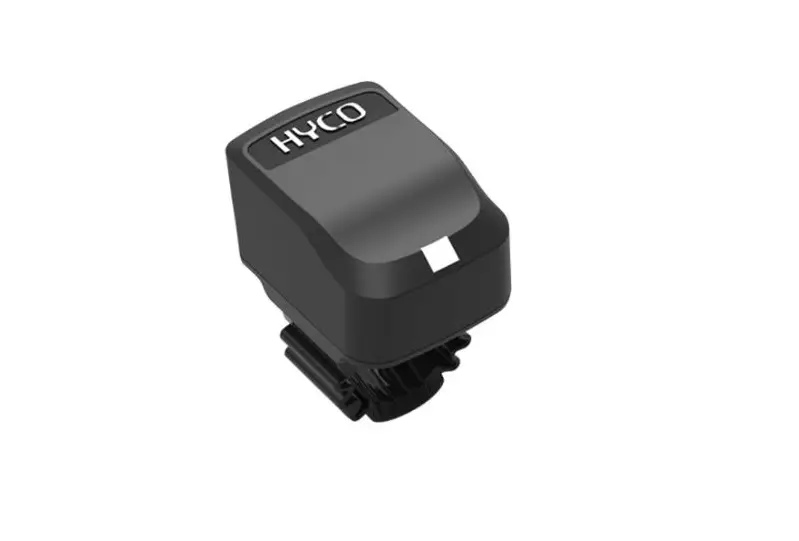
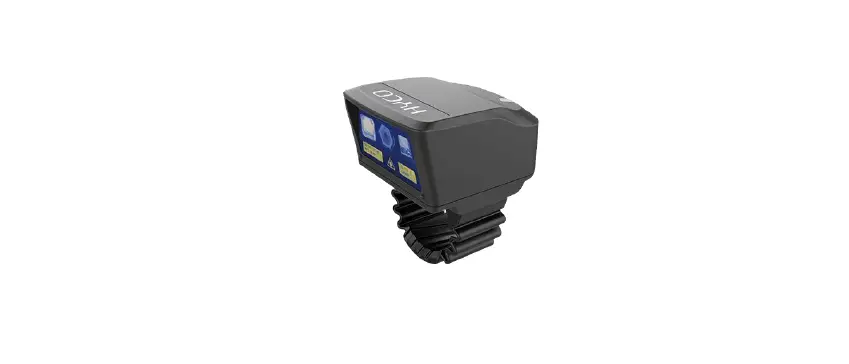
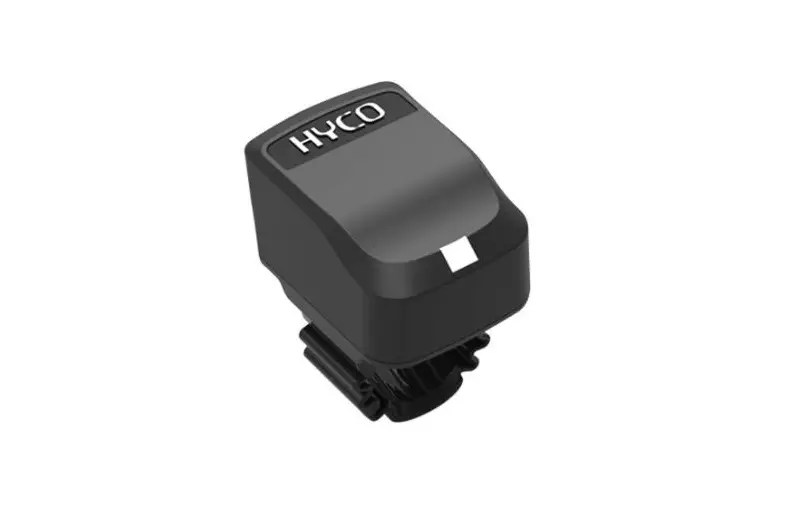
Ring Scanner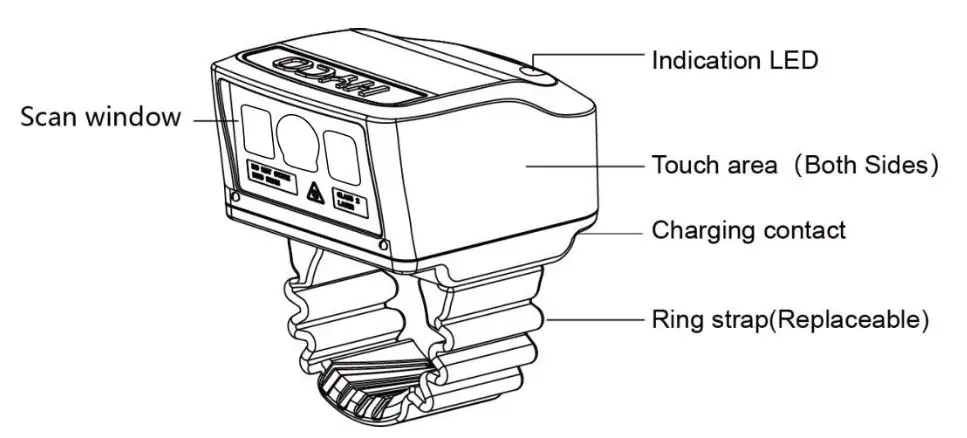
* Wearing: wear on index finger on left or right hand
* Scanning: touch either side of ring body with thumb finger to trigger the scanning
Ring scanner charging cradle(Bluetooth Receiver)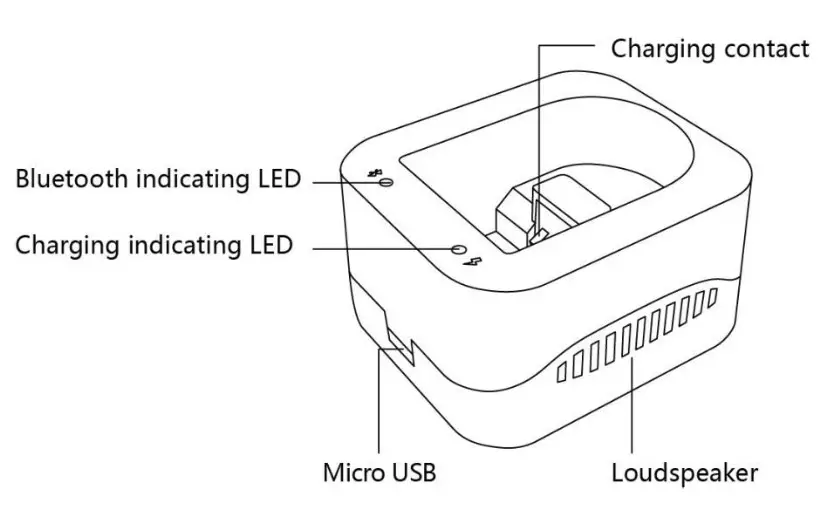
Charging
- Charging Ring Scanner
 Charging Illustration 1 Charging Illustration 2
* Connect the Ring scanner charging cradle to power, click the ring scanner into the bottom of cradle with the scan window upward. Please note the power contacts of the ring and cradle must be touched.
* The red light indicates it is in charging, when the green light turns on, it’s finished charging.
Warning: don’t look straightly into the scan window when scanning in case of harm to eyes. - Take the Ring Scanner out of the Ring scanner charging cradle
Hold the middle of the ring scanner gently and pull out upward from the cradle.
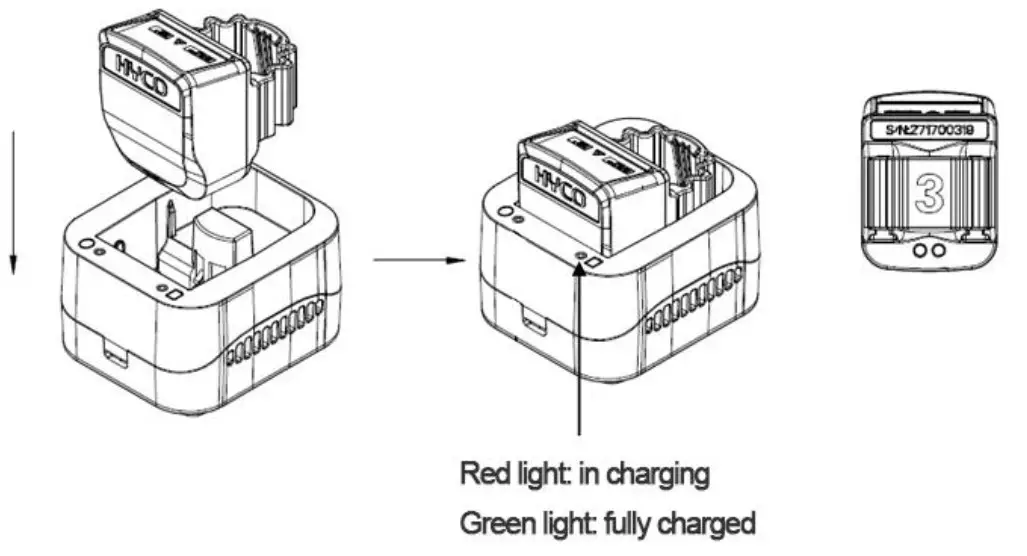 Charging Illustration 1 Charging Illustration 2
Ring Scanner Modes
- SPP Mode (default factory settings)
Charging cradle connection and program docking mode To connection with PC via USB cradle, scan COMMON code, and scanning barcode is available. (Random terminal system is acceptable with the cradle)
In this protocol transmission mode, if you need different system programs docking, please get the relevant development SDK at the official website or contact the
relevant agent technical support. - HID Mode
Use the terminal device directly. Output barcodes in HID keyboard mode searched by default Bluetooth. According to the actual system, scan the barcode corresponding to the system and connect. If the device is connected to IOS smart phone/tablet, scan the IOS code to read the barcodes.
 If the device is connected to ANDROID smart phone/tablet, scan the ANDROID code to read the barcodes.
 If the device is connected to WINDOWS smart phone/tablet, scan the WINDOWS code to read the barcodes.
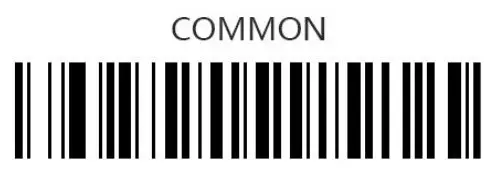 To connection with PC via USB cradle, scan COMMON code, and scanning barcode is available. (Random terminal system is acceptable with the cradle)
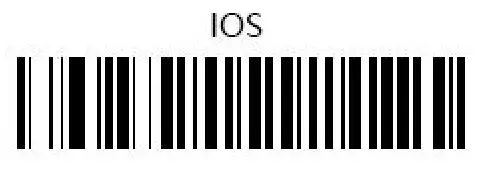 If the device is connected to IOS smart phone/tablet, scan the IOS code to read the barcodes.
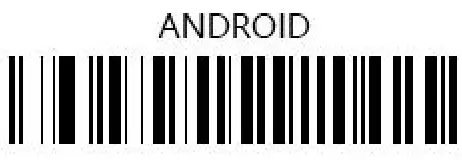 If the device is connected to ANDROID smart phone/tablet, scan the ANDROID code to read the barcodes.
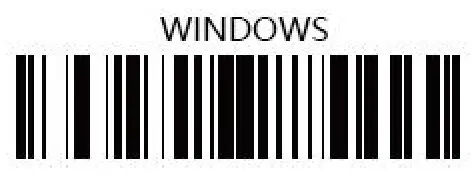 If the device is connected to WINDOWS smart phone/tablet, scan the WINDOWS code to read the barcodes.
Bluetooth connection
Connect with PC:
Connect the cradle with the PC with USB, and the green light means normal connection. After 15 seconds, scan the Bluetooth connection barcode with the ring scanner, and a blue light indicates successful connection.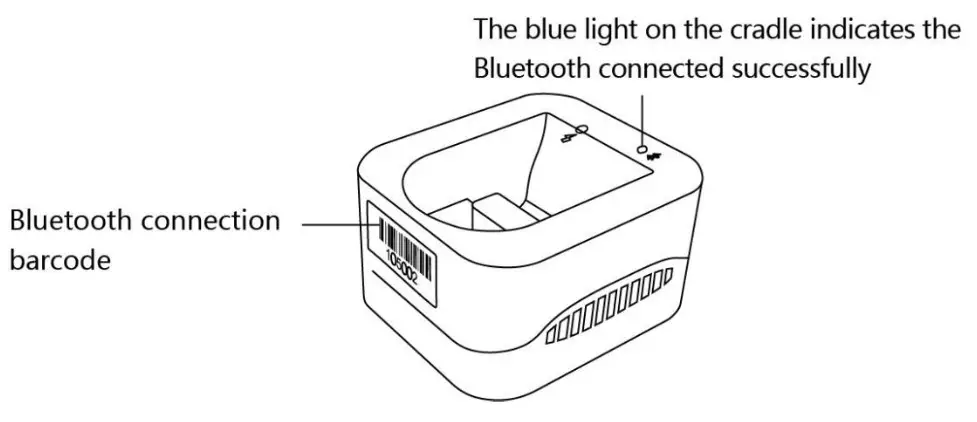
Connect with Android smart phone/tablet: First, find the Bluetooth connection barcode on the side of the cradle, scan it with the ring scanner, and change the Bluetooth name to the serial number so that the device can be found;
Then open ‘Bluetooth Search’ at the setting menu, find the Bluetooth serial number in the list and connect. Green light indicates successful connection.
Components
| Components | Quantity | Usage |
 Ring Scanner Ring Scanner | 1 | 1.Reading Barcodes/2D codes 2.Bluetooth slave |
 Ring Cradle Ring Cradle | 1 | 1.Charging cradle 2.Bluetooth receiver |
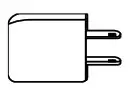 Charging Adapter Charging Adapter | 1 | Connect adapter to power with USB cable |
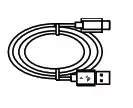 USB cable USB cable | 1 | 1.Connect charger to USB port 2.Connect charger to charging adapter |
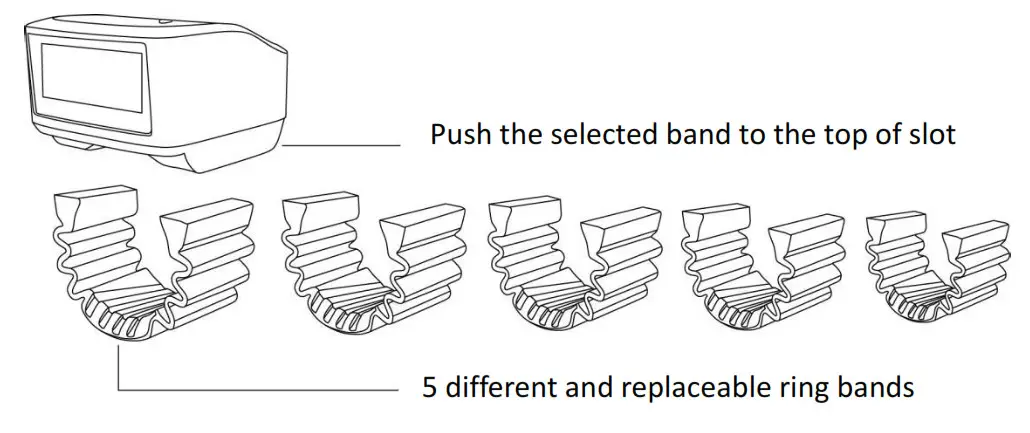
 Ring Band (Swappable) Ring Band (Swappable) | 1 | 10 pcs in different sizes |
 Certificate Certificate | 1 | Factory certification |
 User Manual User Manual | 1 | Device description and usage instruction |
Specifications
| Model | W28 |
| Scanner | HYCO CMOS-Sensor Scanner |
| Resolution | 1280×800 pixcels |
| Code Reading | Barcodes/2D codes |
| Scanning Distance | Long, general or macro type |
| Weight | 20g |
| Dimensions (W*D*H) | 38.6mm*29.0mm*22.1mm |
| Ring Bands | 10 pcs in different sizes |
| Bluetooth | BT4.2, BLE |
| LED Indicator | RGB LED (programmable) |
| Vibration Indicator | Supported |
| Battery | [email protected] |
| Charging Cradle | With USB dongle and Bluetooth adapter |
| Battery Life | 8 hours (when fully charged with 15-20cm depth of field, and scanning once every 5 seconds) |
| Scanning Trigger | Touch-to-scan |
| IP Level | IP66 |
| Drop Test | 3 meters |
| Operating Temperature | -10℃ to 50℃ (14℉ to 122℉) |
| Humidity | 0%-95%RH (non condensing) |
Note: For Ring Scanner and Ring scanner charging cradle, operating temperature is -10°C to 50°C
★ The technical specifications of this product are subject to change without notice.
Functions
- Scanning
Wear on left or right index finger, touch left or right side of ring and aim at the barcode, the ring light turns green, it starts to scan. - Ring Bands
Firstly, straightly pull out ring band from the slot, then choose another ring band and push it to the top of slot.
- Ring Indicator
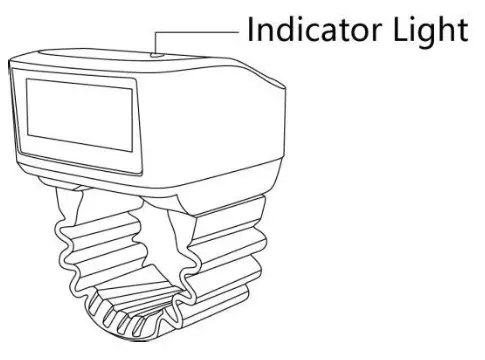
 * The green light indicates successful scanning.
* The red light flashing indicates low battery.
* The green light keeping on for 1 second indicates successful Bluetooth connection.
* The blue light keeping on for 1 second indicates Bluetooth disconnection.
* The red, green and blue light flashing indicates restartin - Bluetooth can’t connect
Normally, if the Bluetooth light doesn’t turn on, user can scan the barcode “Reset Bluetooth Name”, wait for 10 seconds, and reconnect. Scan the barcode “Restore factory settings”, the ring will disconnect Bluetooth connection with terminal devices, and all the settings will change to factory default.
 - Charging cradle light indicator
The blue light indicates successful Bluetooth connection between ring scanner and cradle. The red light off while the green light on in charging indicates fully charged.
 - Wake up ring in charging
The ring doesn’t work when in charging, while it could be waked up by touching either side of ring three times. - Laser calibration
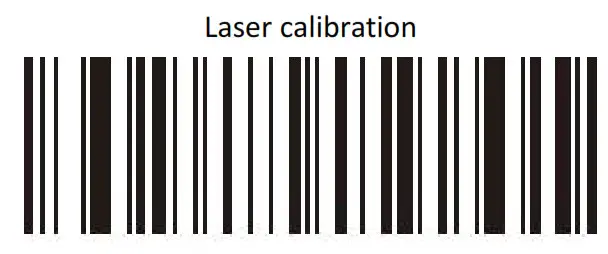
If laser length changes longer or shorter, please stop scanning, touch ring for 4 seconds once and repeat several times to get it right. If it’s still abnormal, please scan the barcode “Automatic calibration”. After scan the barcode “Automatic laser calibration”, the ring turns on purple, put it on the table, wait for 15 seconds until the purple light turns off. The ring laser is
calibrated right and functions normally. - Code system on/off
1. Basic setting. 4 default code systems on: EAN13, EAN128, CODE128, CODE39; in which CODE128 and CODE39 read at least 2 characters;
2. Extended setting. 9 default code systems on: EAN8, EAN13, EAN128, UPCA, UPCE, CODE128, CODE39,CODE93, ITF25; in which CODE128 reads at least 1 character; ITF25 only reads 14 characters as default. If a code system and code length are not included please contact technical support and local distributor.
 - Touch switches on both sides
The touch switch on the left and right sides of the ring scanner are both on by default.
If you need to turn off one side, please use the following barcodes to turn it on/off.
 * The green light indicates successful scanning.
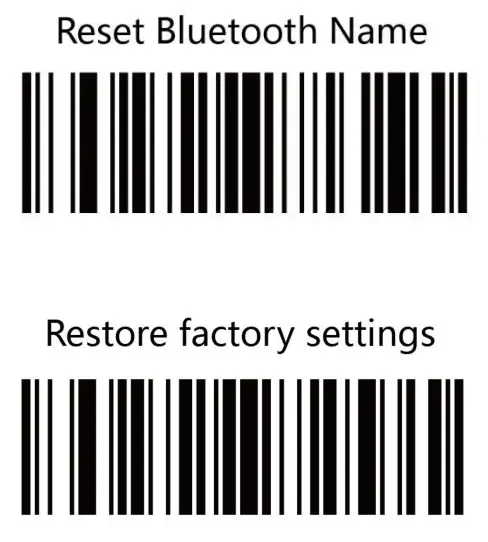 Scan the barcode “Restore factory settings”, the ring will disconnect Bluetooth connection with terminal devices, and all the settings will change to factory default.
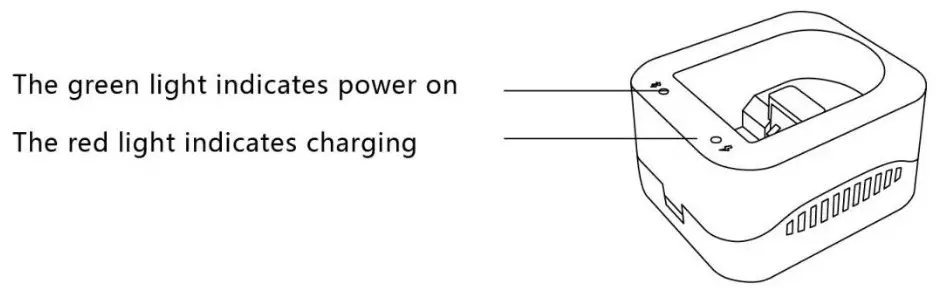 The red light off while the green light on in charging indicates fully charged.
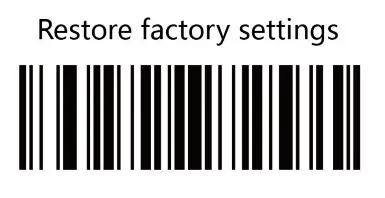 After scan the barcode “Automatic laser calibration”, the ring turns on purple, put it on the table, wait for 15 seconds until the purple light turns off. The ring laser is
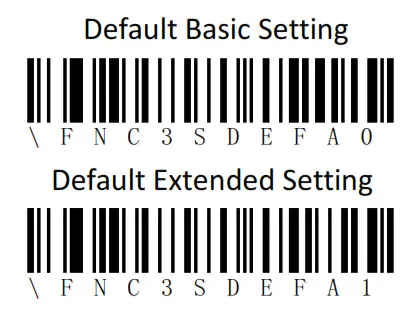 If a code system and code length are not included please contact technical support and local distributor.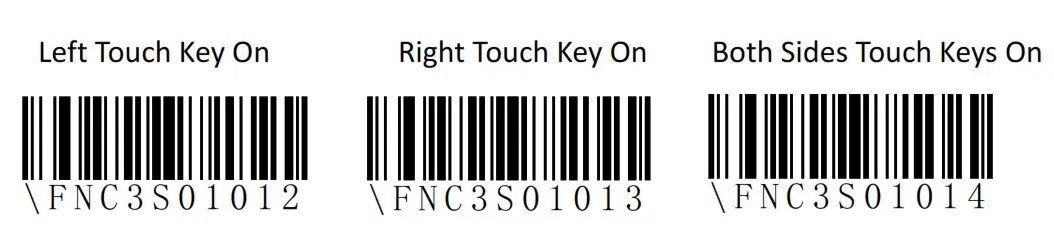
Service
Warranty: one year for ring scanner, half year for battery and accessories.
Notice
» The ring window must be kept clean. Improper usage will breach the limited warranty clause.
» Avoid rough objects scratching the window.
» Remove stains from window by soft cloth.
» Do not spray any liquid onto the window.
» Use cleaning water to clean.
Function barcodes setup
Change function of scanning after scanning the following barcodes: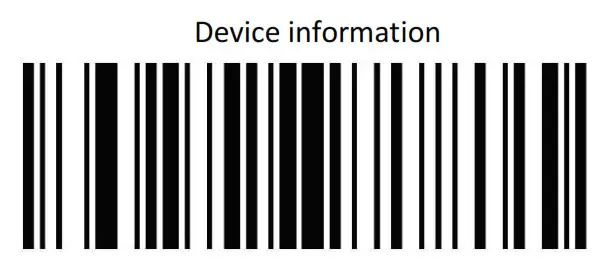 “Device information” barcode includes device information (e.g. serial number, version number, Bluetooth version information).
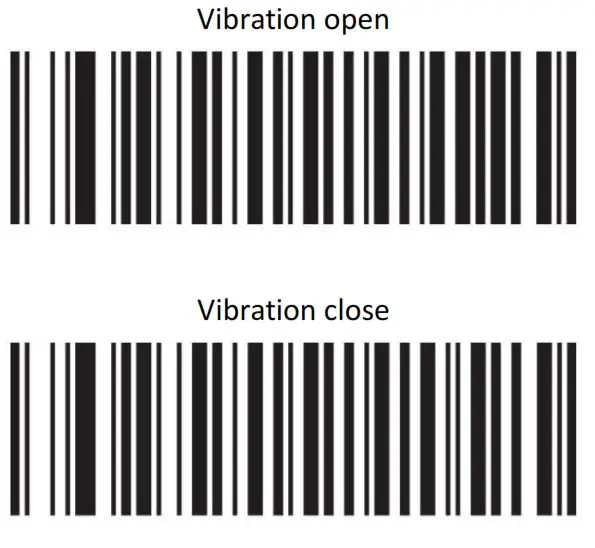 Scan function code “Vibration Open” to activate vibration function, Scan function code “Vibration close” to close vibration function,
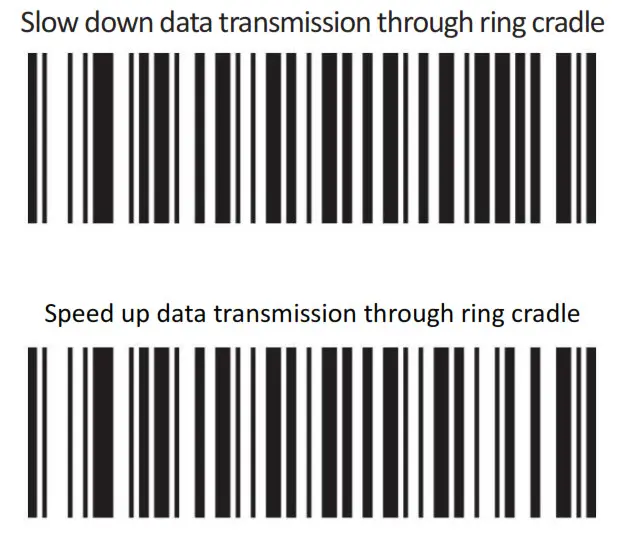 In HID mode, scan the barcode “Speed up data transmission through ring cradle”, it can accelerate the data transmission speed between the cradle and computer; scan the barcode “Slow down data transmission through ring cradle”, it can slow down the data transmission between the cradle and computer.
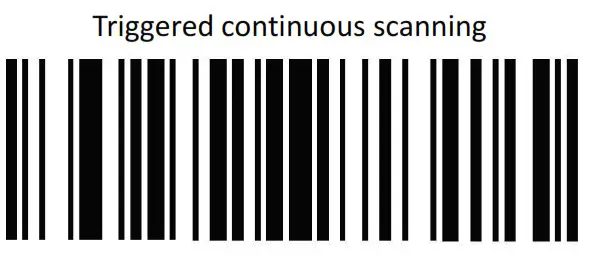 Scan the barcode “Triggered continuous scanning”, ring could keep scanning when user keeps touching the ring.
If user wants to change to common scanning, scan the “Manual Trigger Mode” bar code.
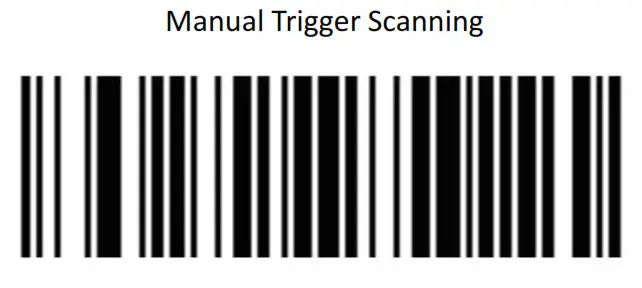 “Manual Trigger Mode” is set by default, user needs to touch ring once to scan once. Automatic Interval Scanning
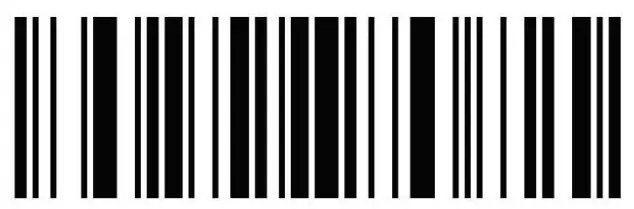 After scan “Automatic interval scanning” bar code, ring could automatically scan every 0.5 ~ 3 seconds without touching (2 seconds by default)
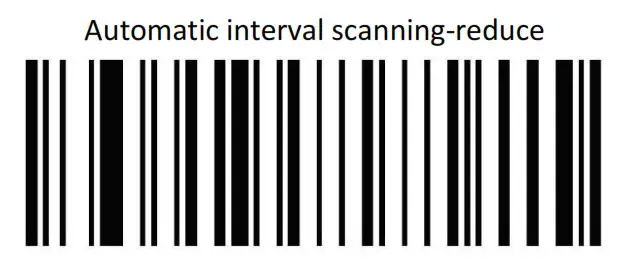 After scan “Automatic interval scanning-reduce” barcode, it can expedite the scanning speed once by 0.5 second, the fastest scanning speed is scanning once every 0.5 second.
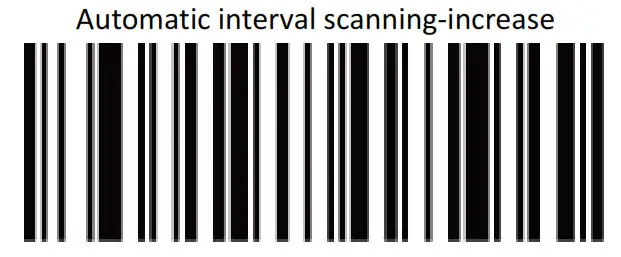 After scan “Automatic interval scanning-increase” barcode, it can slow down the scanning speed once by 0.5 second, the slowest scanning speed is scanning once every 3 seconds.
Scan angle adjustment
According to different barcode length, user needs to change laser length to achieve better scanning effect.
- Scan “Laser calibration” barcode to activate the function, the ring light turns white and begins to automatically and intermittently scan.

- After scan “Widen” barcode, the laser length becomes long; after scan “short ” barcode, the scan angle becomes short.
 Note: do not extend or shorten more than 10 times one time.
 - Scan “Confirm” barcode, the ring light turns yellow and white, the laser length is confirmed.

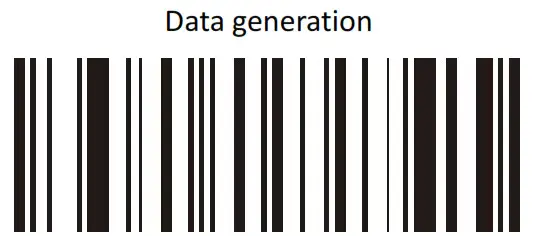
- Scan “Data generation” barcode, the ring light turns yellow and red, and then turns purple for a while. The laser length is set successfully after the purple light turns off.

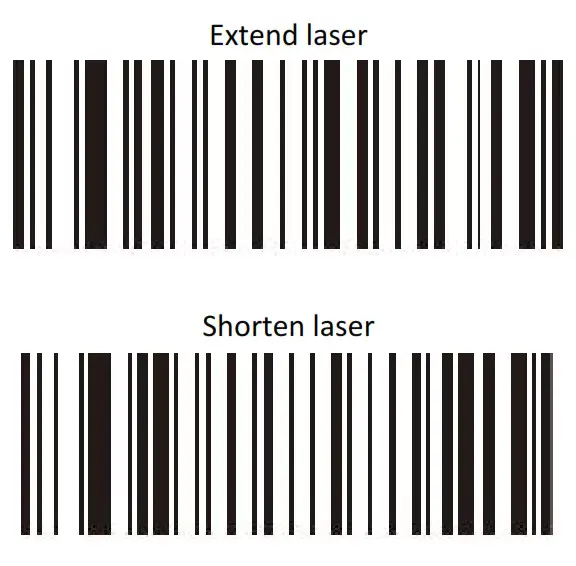 Note: do not extend or shorten more than 10 times one time.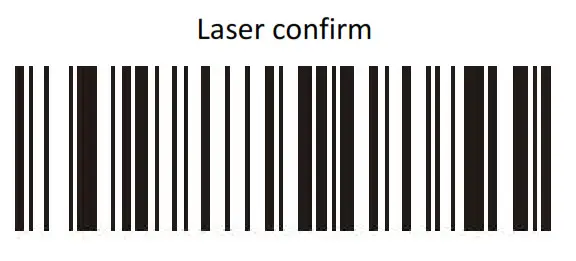
Common functional barcodes
To meet different needs for customers, there are some functional barcodes used to meet the requirements for different customers.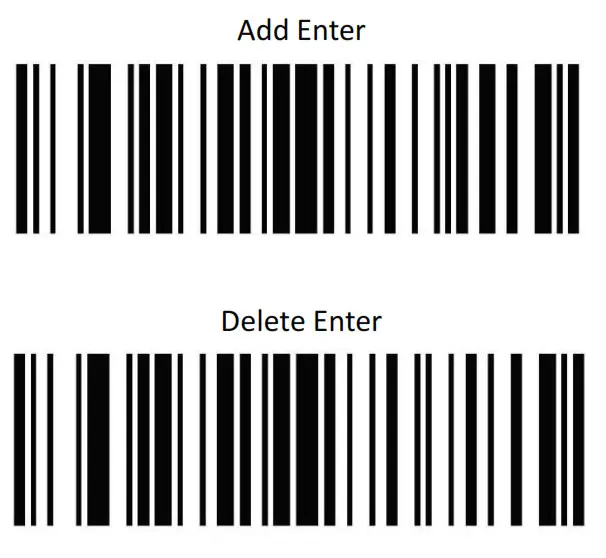
After scan “Add Enter” barcode, it can automatically move to next line in the text field after each scanning. If user wants to close the function, scan “Delete Enter”
barcode.
After scan “Add the tab” barcode, it can automatically moveto next line in excel after each scanning. If user wants toclose the function, scan “Delete the tab” barcode.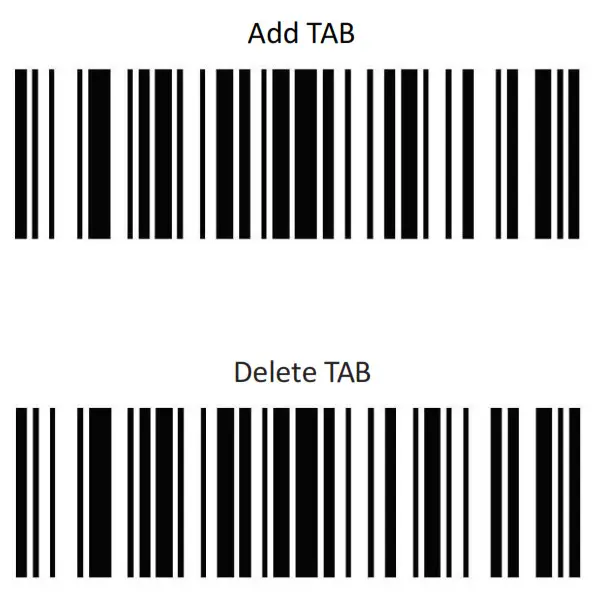
HYCO Technology
Website: www.hycoiot.com
Email: [email protected]
 Ultra-low power consumption Ring scanners, wireless indictors,smart watch, wearable IoT