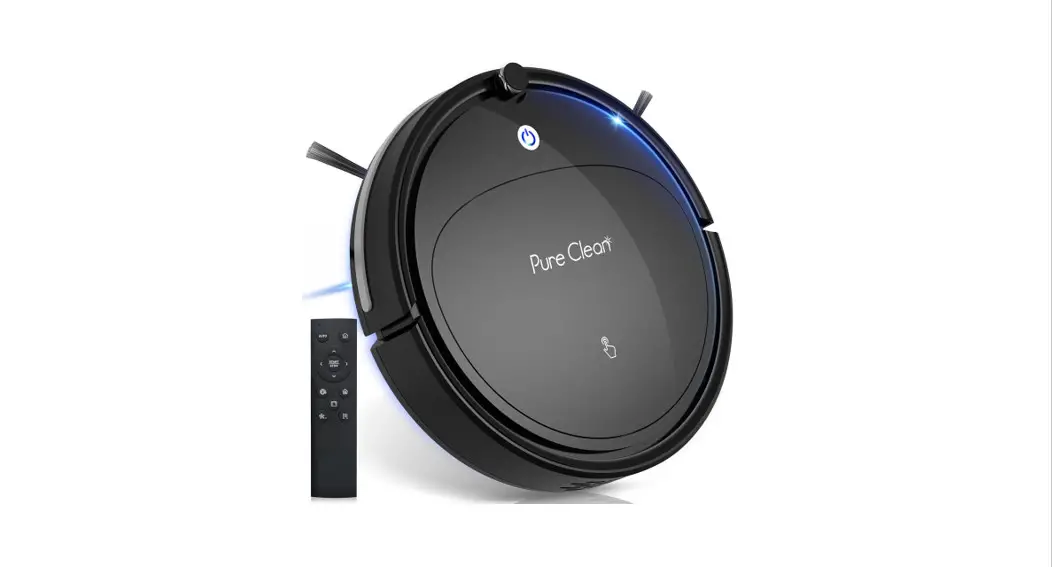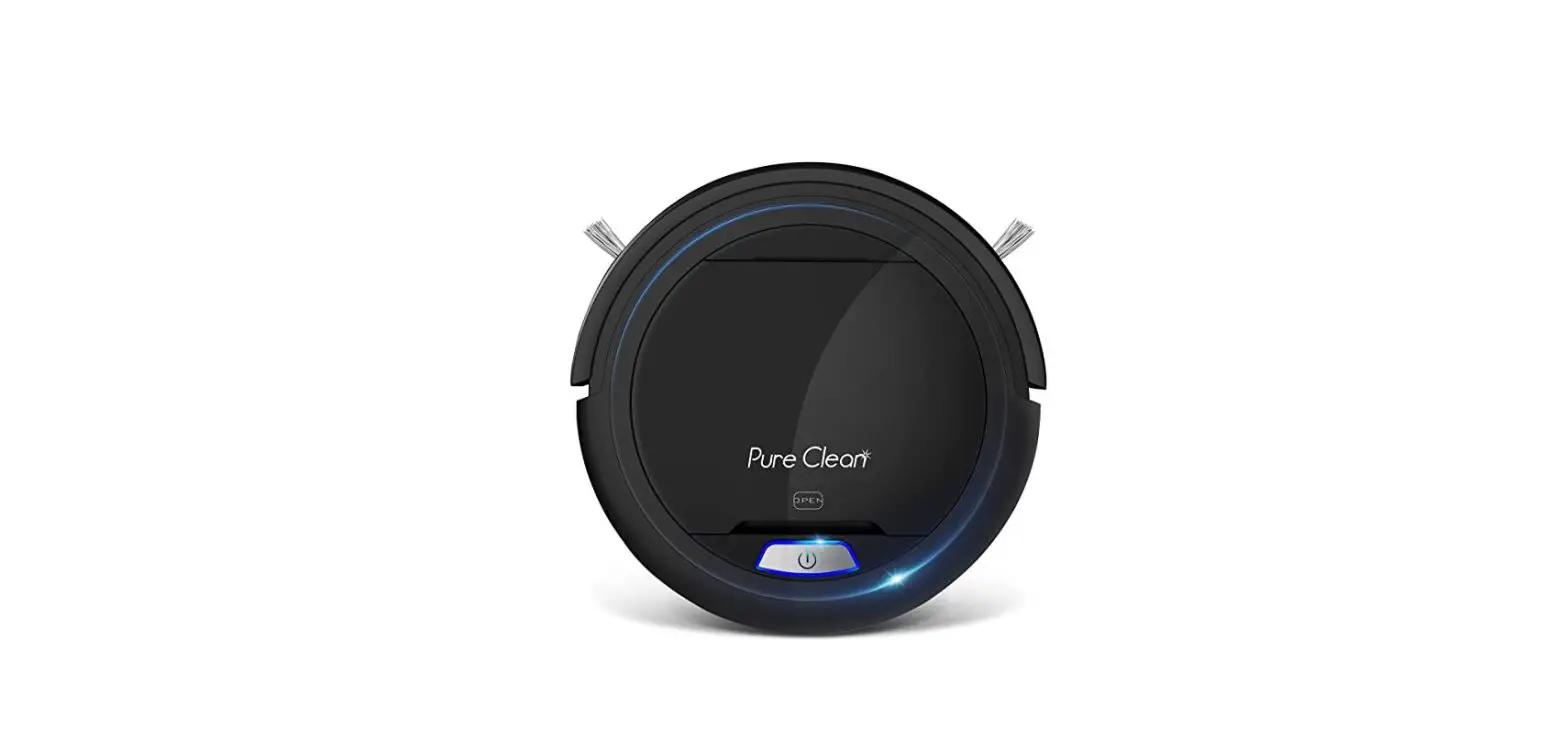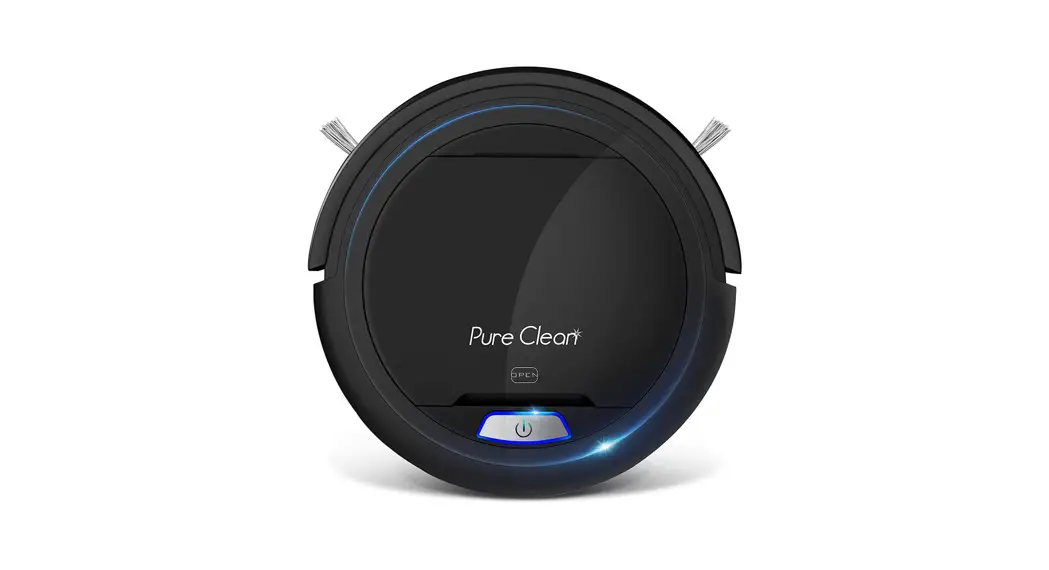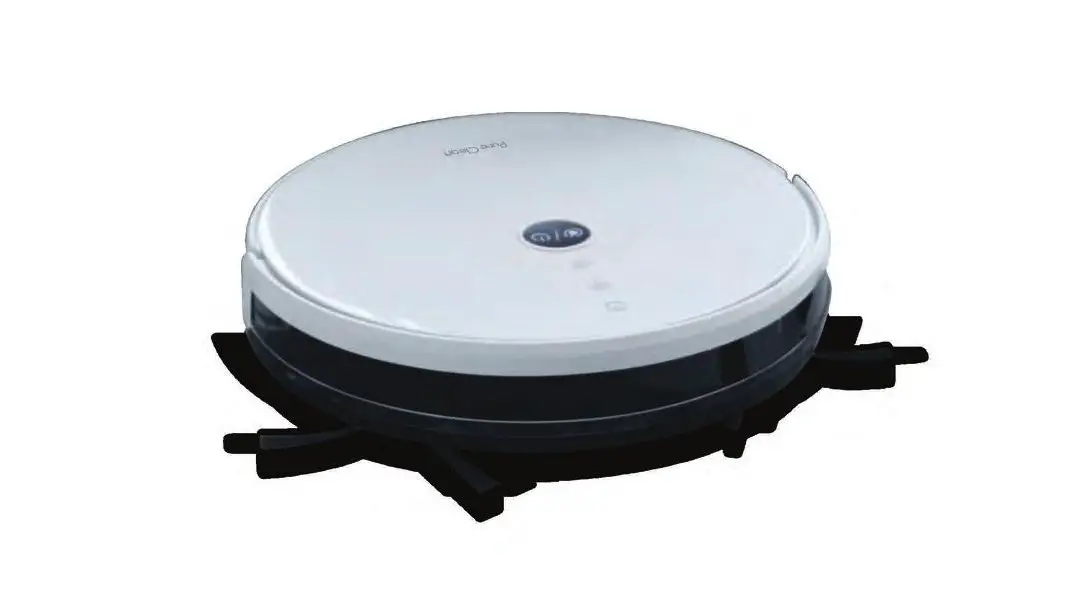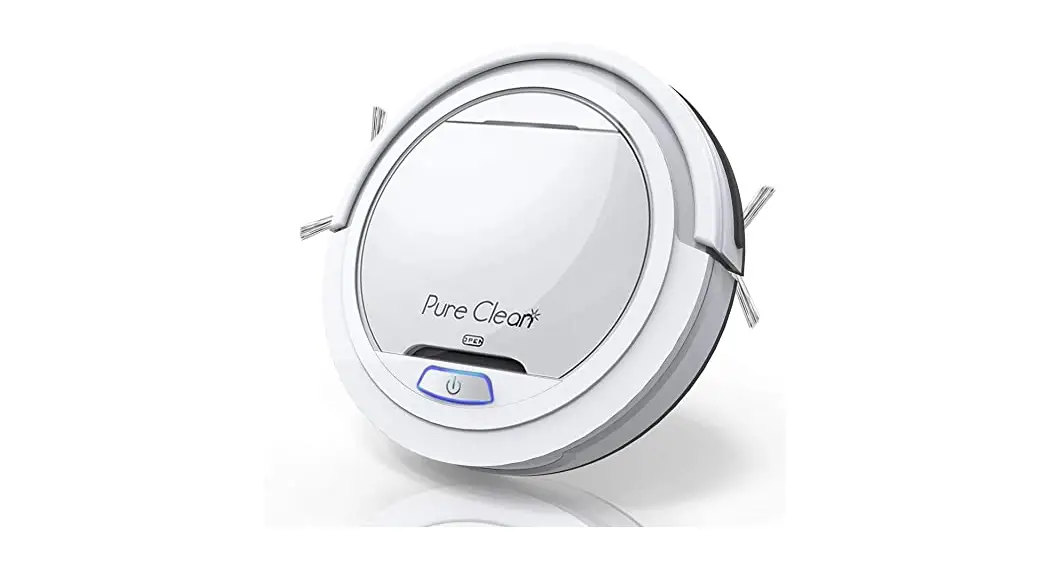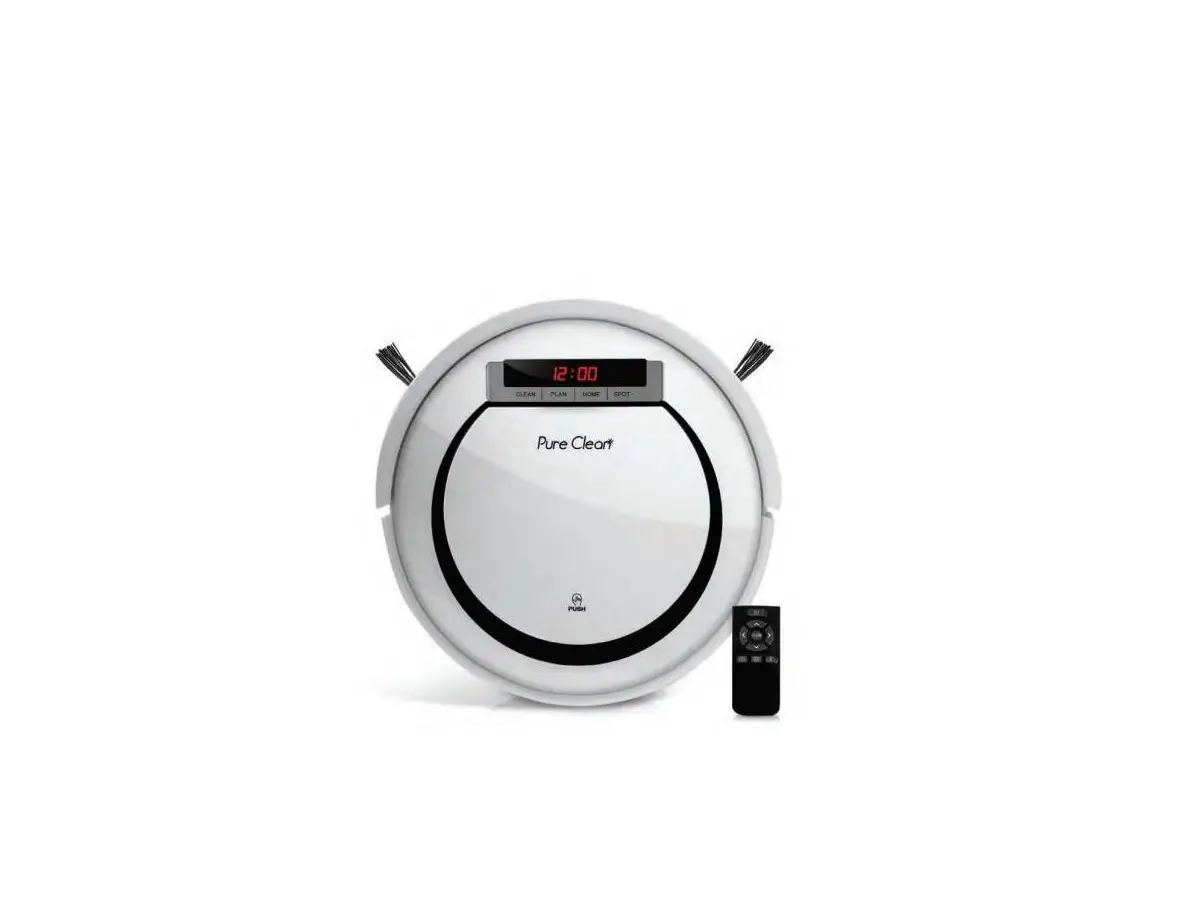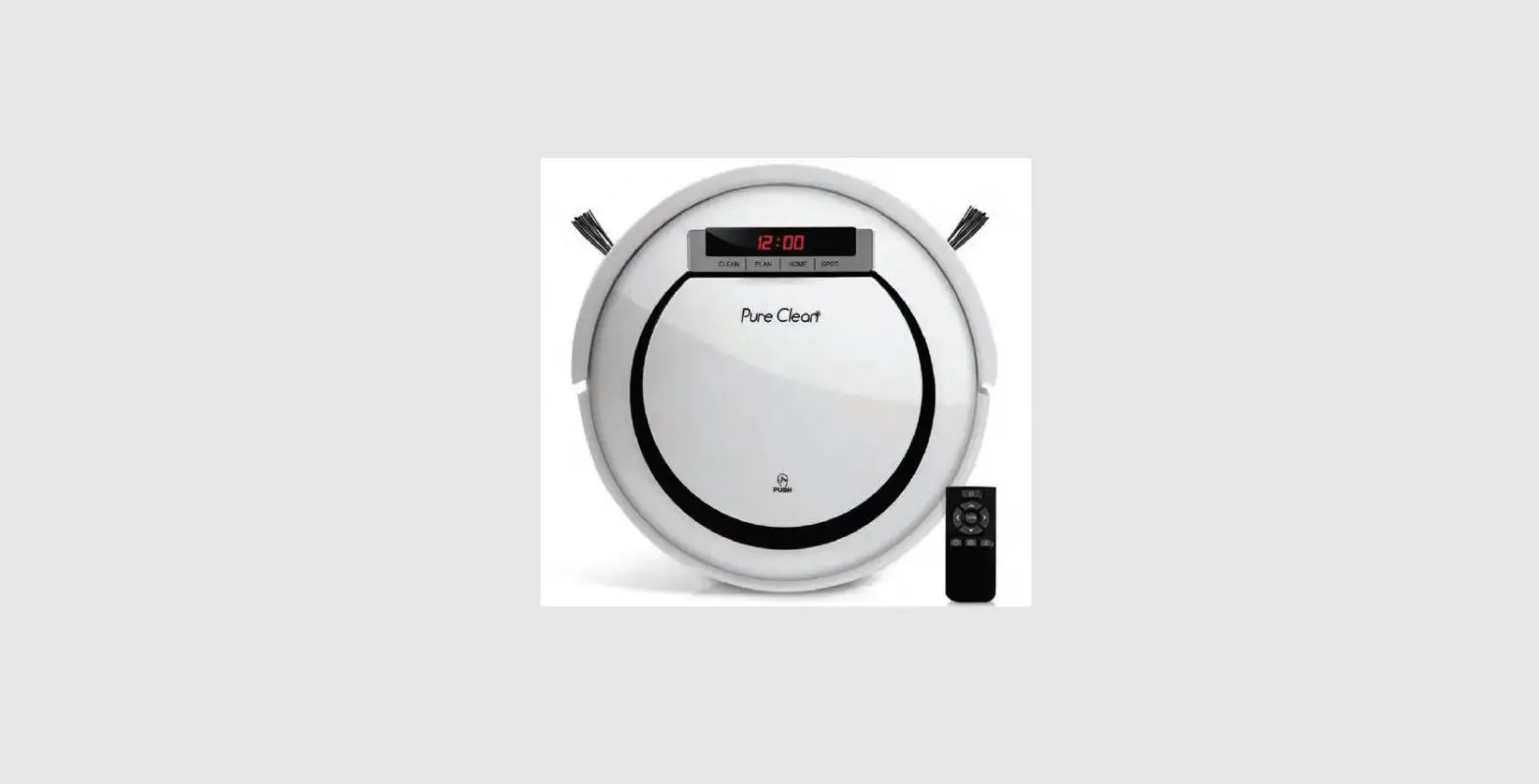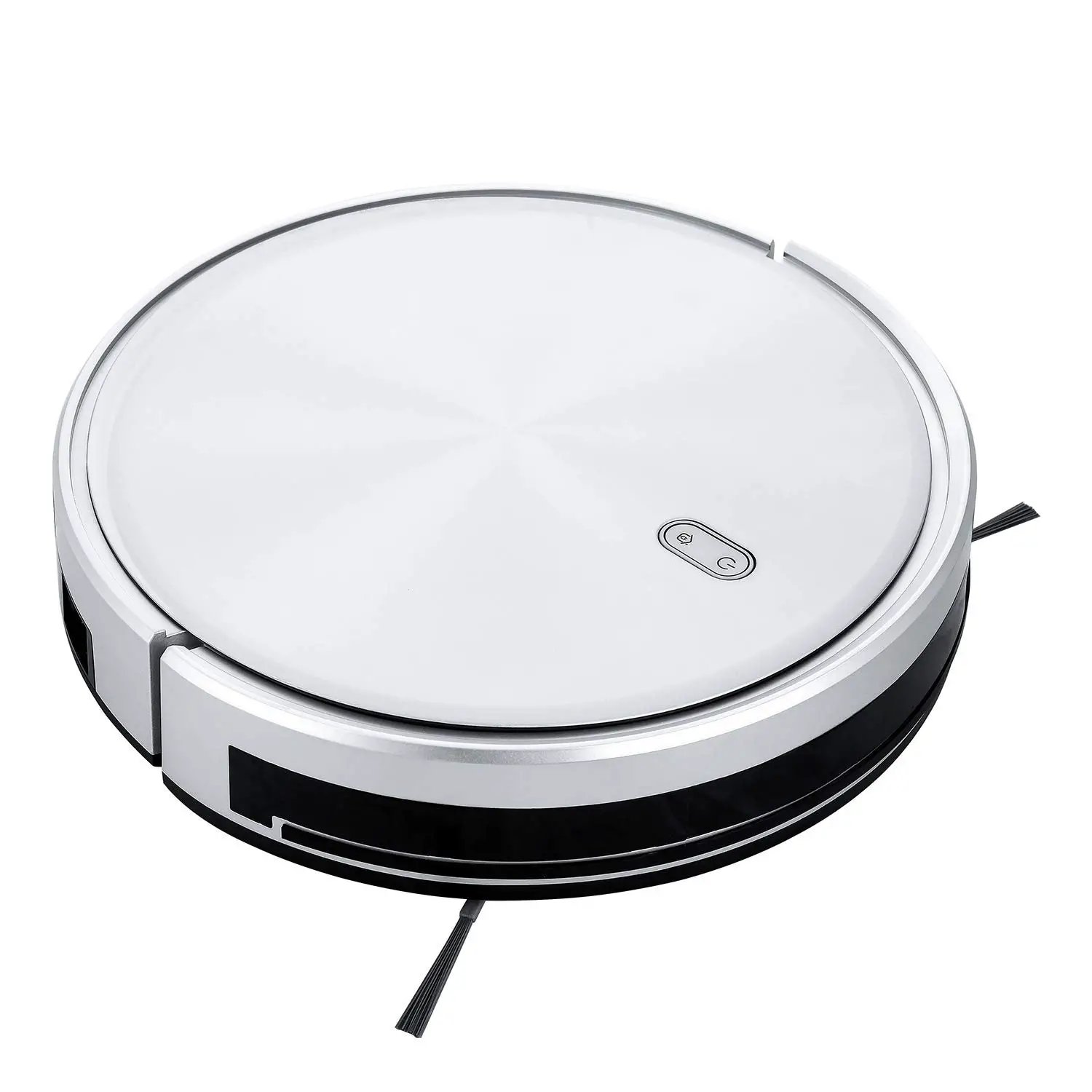
PUCRC675 Smart Vacuum Cleaner
User Guide
Pure Clean Smart Vacuum Cleaner
Wifi Connection Troubleshooting Guide
1. Dual Band Router Problem
Problem Description:
- “EZ Mode” connection failed.
- “Find Device” in the first step of the connection page and did not turn green.
- “AP Mode” connection failed.
Solution: Log in to the router’s official website address, to name the 2.4G and 5G band WiFi, and then connect the mobile phone to the 2.4G band WiFi to connect the device.
2. Router Overload
Problem Description: EZ mode” and “AP mode” connection failed to 2.4G wifi.
Cause: Too many devices connected to the router that leads to router congestion.
Verification Method: Use phone A to send out a WiFi (hot spot), and then use phone B to connect the hot spot sent out by mobile phone A, and then follow the prompts of app to connect the device to check whether the connection is successful.
3. Router Security Issues
a. “Anti scratch network” mode: Check and turn on the router’s “anti scratch network” mode.
b. “Firewall” mode: Check and turn o the “firewall” mode of the router
c. “Don’t show or hide this WiFi” function: Check and turn off “don’t show/hide this WiFi” function.
4. Precautions in the process of equipment configuration
a. Do not charge the device while connecting
b. Make sure to enter the correct Wi-Fi name and password, as it is case sensitive.
c. When the app prompt you to press and hold the button, wait for 3-5 seconds, then press and hold the button. Do not let the robot enter the “network connecting mode” in advance.
d. When the “EP mode” fails, please change to “AP mode” according to the prompt of app to continue the connection.
PLEASE UPDATE THE APP TO THE LATEST VERSION
Pure Clean Smart Vacuum Cleaner
Wifi Connection Troubleshooting Guide
Questions? Issues?
We are here to help!
Phone: (1) 718-535-1800
Email: [email protected]
 Pyle USA Electronics | Home Audio | Car Audio & More