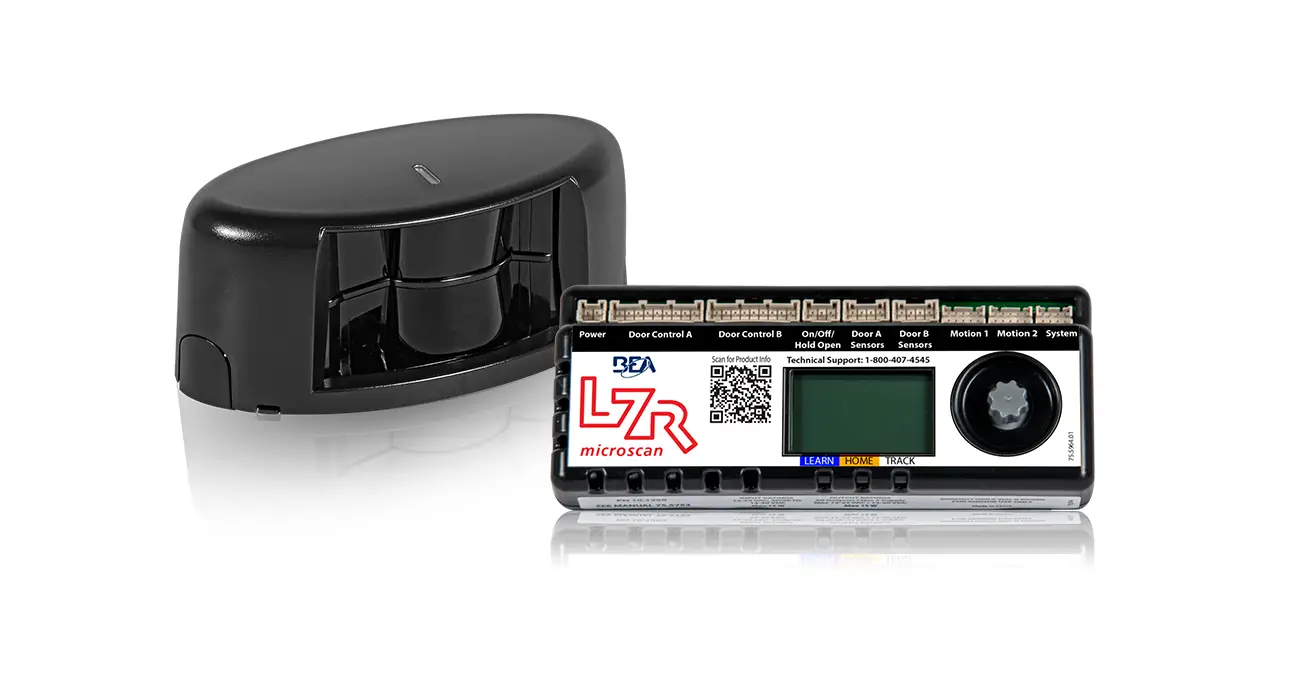
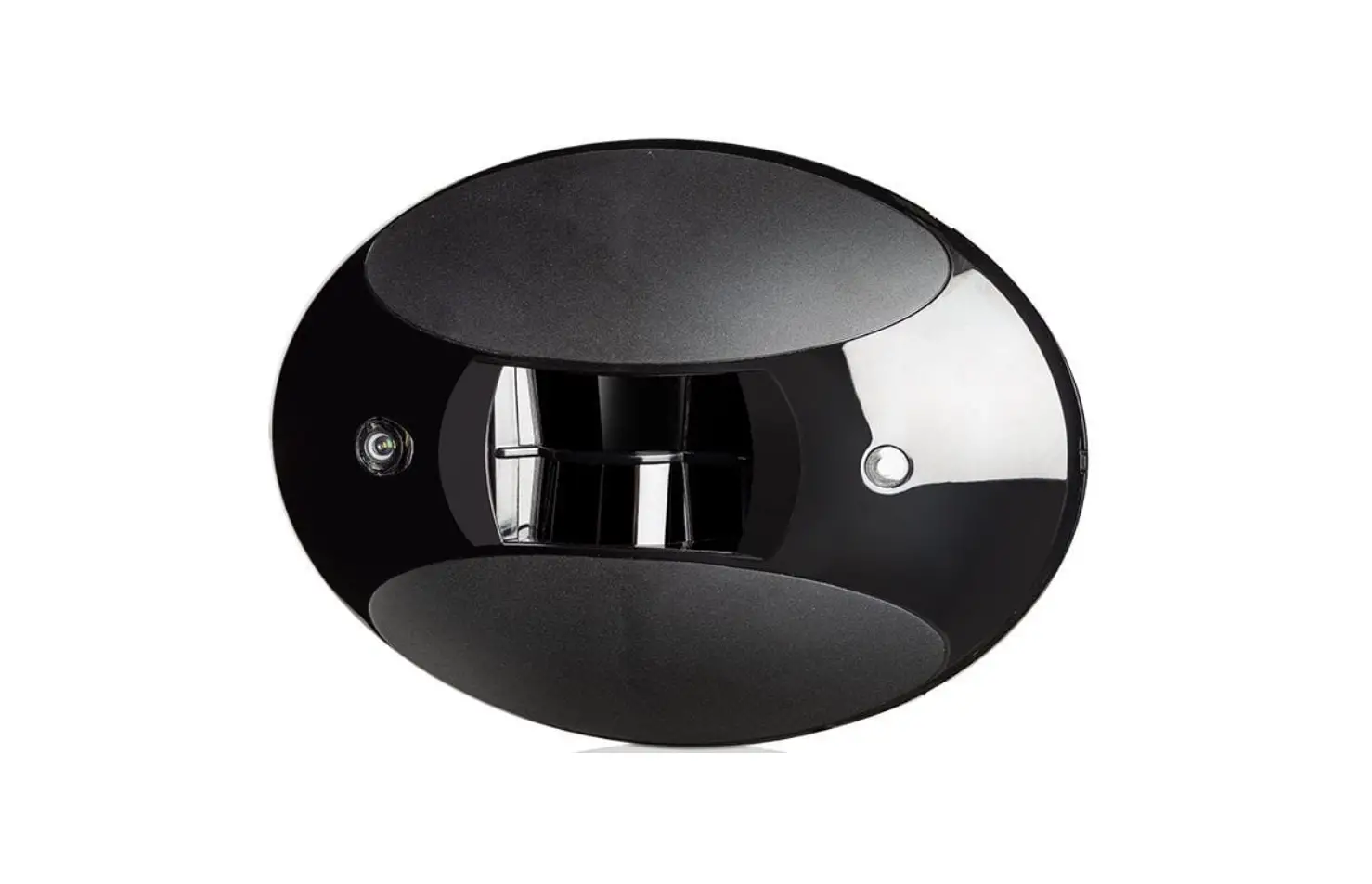
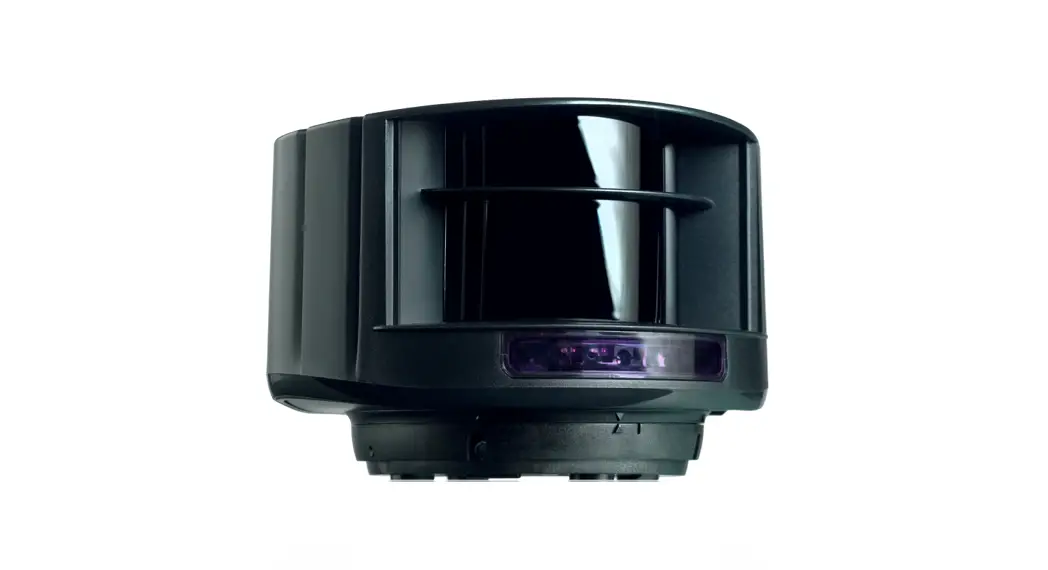
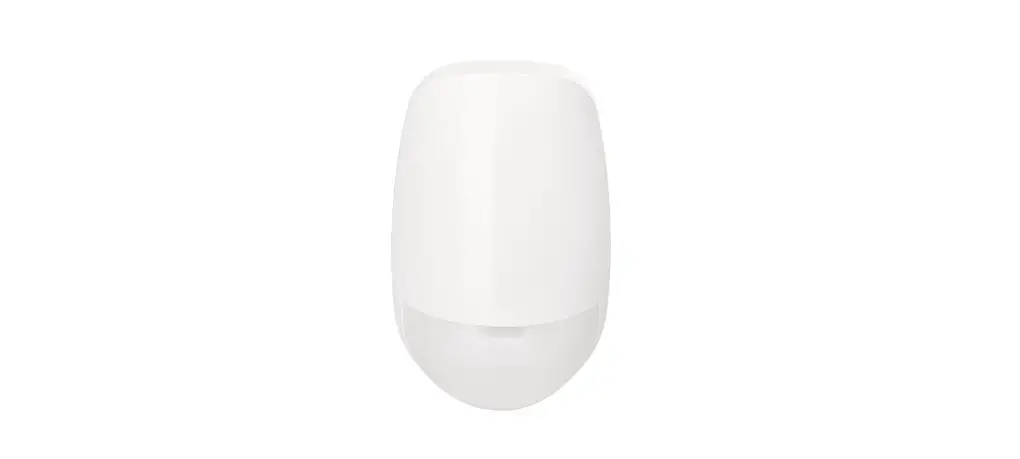
LZR-WIDESCAN Industrial Sensor
Product Information
The product is an opening, presence, and safety sensor designed
for industrial doors. It is equipped with a LASER scanner and uses
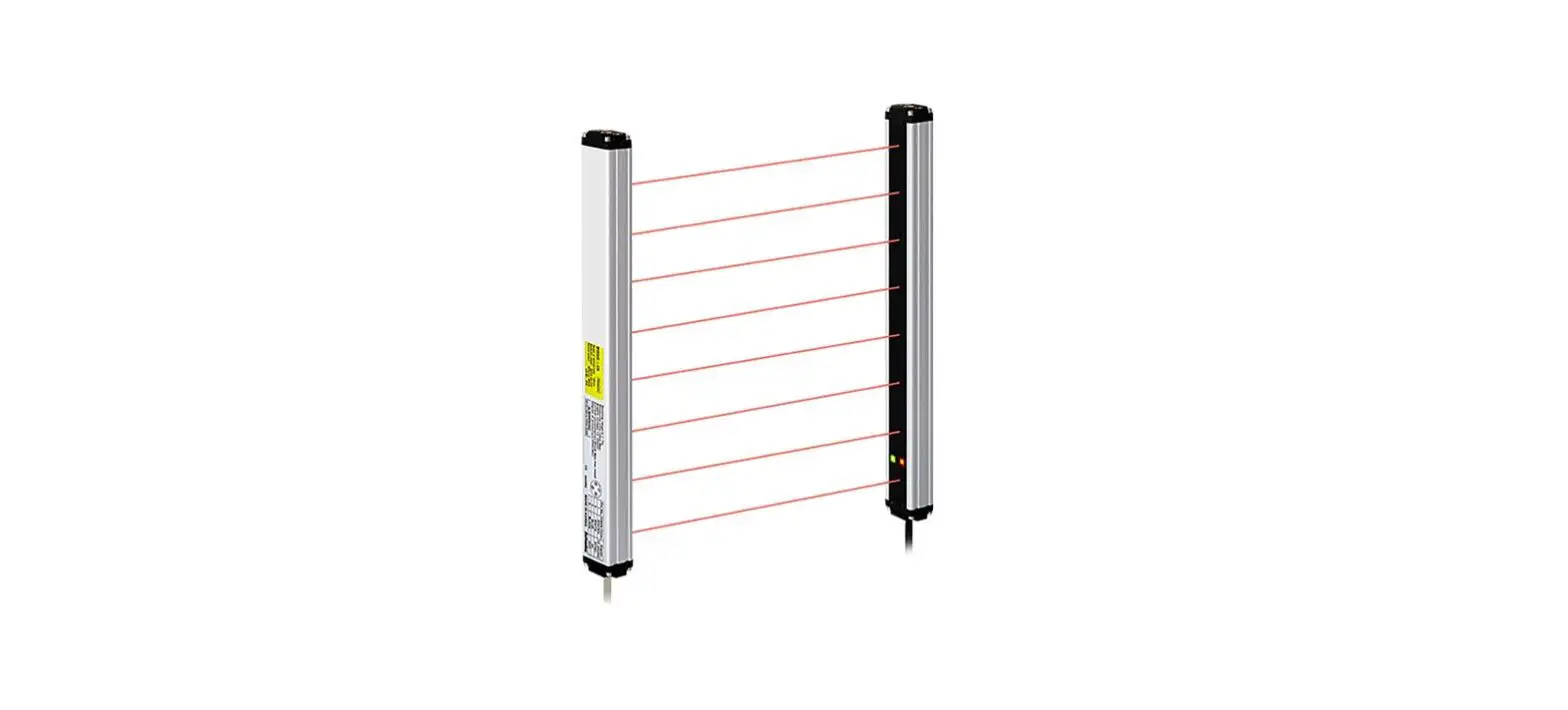
time-of-flight measurement with 7 laser curtains to detect motion,
presence, height, and speed. The sensor has adjustable detection
settings and a maximum detection field of up to 19’6″. It operates
using IR laser technology for invisible detection and red visible
laser technology for precise positioning during installation. The
sensor is powered by a supply voltage of 30 VDC and has low power
consumption. It also features Bluetooth communication for remote
control and LED signals for output status, remote control response,
and error signals. The sensor has dimensions of 7 3/4 (H) x 6 (W) x
4 (D) inches and is made of PC/ASA material in black color. It has
rotation angles and tilt angles on the bracket for flexible
mounting and is rated NEMA 4/IP65 for protection against dust and
water. The sensor complies with various international norms and
standards for safety and performance.
Product Usage Instructions
- Before starting the installation or programming process, make
sure you have the following:
- BEA Remote Control
- LZR-WIDESCAN mobile app (not required but highly
recommended) - Programming Guide (75.0048) – for detailed programming
instructions - LZR-WIDESCAN Menu Tree (78.8004) – highly recommended when
programming via LCD menu
provided website.
sensor in the desired location.
the on-screen instructions to connect to the sensor.
Tree for navigation guidance.
detection mode, detection field, mounting height, and reflectivity
factor can be adjusted depending on user settings.
to precisely adjust the position of the detection field. However,
avoid staring into the beam.
and placards are in place to ensure safety compliance.
to ensure that the sensor/device system performance meets local,
national, and international regulations, codes, and standards.
EN
LZR®-WIDESCAN
OPENING, PRESENCE, & SAFETY SENSOR FOR INDUSTRIAL DOORS
PROGRAMMING
Visit website for available languages of this document.
Download the installation app!
WHAT YOU’LL NEED
12:00 Welcome
Hello
John Doe
What would you like to do?
Search for sensor Go offline
LZR-WIDESCAN mobile app (not required, but highly recommended)
75.0048.03 LZR-WIDESCAN Programming 20230401
BEA Remote Control
DOCUMENTS: Programming Guide (75.0048) LZR-WIDESCAN Menu Tree (78.8004) highly recommended when programming via LCD menu
Page 1 of 30
TECHNICAL SPECIFICATIONS
Technology Detection mode Max. detection field Thickness of first curtain Typ. mounting height Min. reflectivity factor Typ. min. object size Testbody Emission characteristics
IR laser: Red visible laser: Supply voltage Power consumption Response time
Output
Input
Bluetooth communication
LED signals Dimensions Material / Color Rotation angles on bracket Tilt angles on bracket Protection degree Temperature range Norm conformity
LASER scanner, time-of-flight measurement (7 laser curtains)
Motion, presence, height, and speed
Width: 1.2 × mounting height Depth: 1.2 × mounting height
adjustable, depending on user settings
1/4 inch
6’6″ 32′
> 2 % (of floor and object) (measured at max. 19’6″ in safety field)
6″ @ 19’6″ (in proportion to object distance)
27 1/ 2″ × 11 3/4″× 7 3/4″
wavelength 905 nm; output power 0.10mW (CLASS 1) wavelength 635 nm; output power 0.95mW (CLASS 2)
12 24 VAC -10/+20%
12 30 VDC ±10% @ sensor terminal
< 2.5 W (heating: off)
< 10 W, max 15 W (heating: eco or auto)
Typ. 230 ms; max. 800 ms (depending on immunity settings)
2 solid-state relays ( galvanic isolation, polarity free ) 24 VAC / 30 VDC (max. switching voltage) 100 mA (max. switching current)
– in switching mode: NO/NC – in frequency mode: pulsed signal (f= 100 Hz ±10%)
1 electro-mechanic relay (galvanic isolation, polarity free) 42 VAC/VDC (max. switching voltage) 500 mA (max. switching current)
30 VDC (max. switching voltage)
low < 1 V
high > 10 V (voltage threshold)
Operating bandwidth: 2402 – 2480 MHz Max. transmitted power: 12 dBm
2 tri-colored LED: Output status / remote control response / error signals 1 blue LED: bluetooth status
7 3/4″ (H) x 6″ (W) x 4″ (D) (approx.)
PC/ASA / Black
45° to the right, 15° to the left ( lockable )
-10 5°
NEMA 4 / IP65
-22 140 °F
IEC 61000-6-2 IEC 61000-6-3 IEC 60950-1
IEC 60825-1 ISO 13849-1 Pl “d”/ CAT2 IEC 62061 SIL 2
Specifications are subject to change without prior notice. All values measured in specific conditions.
BEA, INC. INSTALLATION/SERVICE COMPLIANCE EXPECTATIONS
BEA, Inc., the sensor manufacturer, cannot be held responsible for incorrect installations or incorrect adjustments of the sensor/device; therefore, BEA, Inc. does not guarantee any use of the sensor/ device outside of its intended purpose.
BEA, Inc. strongly recommends that installation and service technicians be AAADM-certified for pedestrian doors, IDA-certified for doors/gates, and factory-trained for the type of door/gate system.
Installers and service personnel are responsible for executing a risk assessment following each installation/service performed, ensuring that the sensor/device system performance is compliant with local, national, and international regulations, codes, and standards.
Once installation or service work is complete, a safety inspection of the door/gate shall be performed per the door/gate manufacturer’s recommendations and/or per AAADM/ANSI/DASMA guidelines (where applicable) for best industry practices. Safety inspections must be performed during each service call examples of these safety inspections can be found on an AAADM safety information label (e.g. ANSI/DASMA 102, ANSI/DASMA 107, UL294, UL325, and International Building Code).
Verify that all appropriate industry signage, warning labels, and placards are in place.
75.0048.03 LZR-WIDESCAN Programming 20230401
Page 2 of 30
SAFETY
CLASS 1 LASER PRODUCT CLASS 2 LASER RADIATION
DURING INSTALLATION DO NOT STARE INTO BEAM
IEC 60825-1
The device emits invisible (IR) and visible laser radiations that can be activated during the installation process to adjust precisely the position of the detection field.
The visible laser beams are inactive during normal functioning.
Do not stare into visible laser beams.
CAUTION! Use of controls, adjustments, or performance of procedures other than those specified herein may result in hazardous radiation exposure.
Do not look directly into the laser emitter or the visible red laser beams.
The door control unit and the header cover profile must be correctly grounded.
Only trained and qualified personnel are recommended to install and set up the sensor.
Following installation, always test for proper operation before leaving the premises.
The warranty is invalid if unauthorized repairs are made or attempted by unauthorized personnel.
LED SIGNALS & SYMBOLS
LED on
LED off
LED flashing
LED flashing quickly
LED flashing slowly
x LED flashing
x times
GENERAL
x
Unlocked Teach-in status Troubleshooting
FIELD-SPECIFIC PROGRAMMING All fields Motion field Pull-cord
75.0048.03 LZR-WIDESCAN Programming 20230401
DETECTION
Motion detection Pull-cord detection Presence detection Safety detection
SMARTPHONE
Not connected
Connected
Presence field Safety field
Setting any field width or depth to 000 will eliminate that field along with its associated LED flash.
Page 3 of 30
DESCRIPTION
6
1
2 3
4 5
1. main connector 2. protection film 3. laser window 4. USB cap 5. LED display 6. cover 7. cover lock 8. cable passage 9. LCD screen 10. keypad 11. tilt angle adjustment screw (1) 12. parallel angle adjustment screw (2) 13. lateral angle lock screw (1) 14. mounting bracket 75.0048.03 LZR-WIDESCAN Programming 20230401
7 8 9 10
11 12 13 reverse side 14
Page 4 of 30
MOTION
BASIC PRINCIPLES
There are 3 main functions that create 3 overlapping detection fields, each with certain detection characteristics:
SENSOR DETECTS IF: – motion in motion field – certain object type – certain direction
SENSOR DETECTS IF: – presence in presence field – certain object type
SENSOR DETECTS IF: – presence in safety field
PRESENCE
SAFETY
There are 4 additional opening functions. All detection functions can be combined to trigger a specific output.
Motion +: detection of other moving object type in motion field Pull-cord: detection of object in learned, pull-cord zone Speed: detection of object with a minimum speed Height: detection of object with a minimum height
The sensor carries out a 3D object analysis and detects depending on height, width, depth, direction, and speed.
H D
H
D
W
W
75.0048.03 LZR-WIDESCAN Programming 20230401
Page 5 of 30
PROGRAMMING
BEA offers 3 ways to set up and program the LZR-WIDESCAN: LCD, remote control, and mobile app. Each step in the programming instructions will illustrate all 3 options.
BEA highly recommends downloading the LZR-WIDESCAN mobile app.
The mobile app is an incredibly useful tool for mechanical installation verification and setup/ programming.
See LZR-WIDESCAN Mobile App Registration (75.0029) for information regarding app registration and Bluetooth-pairing sensors.
BEFORE GETTING STARTED
Before beginning any programming, be sure to complete the following pre-check. Not doing so could result in teach-in errors that will delay the programming process.
Make sure the blue protection film and cover are removed!
Check your profile setting before beginning installation.
12:00 Welcome
Hello
John Doe
What would you like to do?
Search for sensor Go offline
“First Installation” profile has a simplified list of settings.
“Fine tuning” profile has the full list of settings. This should be used for installations requiring more customization.
The teach-in zone (i.e. square in front of the 2 visible spots) must be completely clear.
A teach-in must be launched each time a sensor angle has been changed.
Use the VIEWER feature of the mobile app to verify the field size each time a field is modified.
12:00
Welcome WS-1234567
75.0048.03 LZR-WIDESCAN Programming 20230401
Page 6 of 30
1 TEACH-IN: INSTALL
VIA MOBILE APP (preferred)
1. Verify settings from the physical installation, and then follow the prompt for the teach-in process to begin.
2. Clear the area and press “Start teach-in process” at the bottom of the screen. 3. The app will notify when the teach-in is complete. Press “OK” to move forward to
Outputs.
VIA REMOTE CONTROL
1. Launch a teach-in by remote control. The teach-in process will start after 5 seconds. 2. Wait while the position, angle, and height are learned and the background is analyzed. 3. The teach-in will end automatically.
5 s
10 s
12:00
Teach-in WS-1234567
12:00
Teach-in WS-1234567
Please clear the highlighted zone.
Start teach-in process Start teach-in process
The teach-in was successful.
Start teach-in process OK
H
5
W D
Instructions for a walk teach-in may be found in the Appendix, pages 29 30.
VIA LCD (not preferred)
To change a setting, see page 27 for How To Use the LCD, and use the following menu paths.
Main menu Quick Start Teach In
Install* Install Left*
Install Right*
Pull Cord Walk Safety Walk Presence Walk Motion Walk All Background
basic teach-in to be used when permanent objects are in the default learn area learns the area to the left of the left red spot; same size as Install teach-in area to be used when permanent objects are in the default learn area learns the area to the right of the right red spot; same size as Install teach-in area can only set Pull Cord #1; allows 60 seconds to reach desired pull cord learn area learns and sets the Safety field; see Appendix for more information learns and sets the Presence field; see Appendix for more information learns and sets the Motion field; see Appendix for more information learns and sets all fields; see Appendix for more information evaluates the background area of the overall field; does not calculate tilt, azimuth, and height
* teach-in option only samples a portion of the overall field to assess; does not set field size/shape 75.0048.03 LZR-WIDESCAN Programming 20230401
Page 7 of 30
Outputs
2 ASSIGN OUTPUT FUNCTIONS, OUTPUT LOGIC, AND HOLD TIMES
VIA MOBILE APP (preferred)
1. Once the teach-in is complete, review the three Outputs settings and make adjustments as necessary.
To make an adjustment, simply click on the edit icon beside the current setting.
12:00
Outputs WS-1234567
12:00
Outputs WS-1234567
12:00
Outputs WS-1234567
2. You can also set Pull Cords (3 max.)
To set a Pull Cord, simply swipe left on the “Create pull cord” option and click “Install.”
12:00
Pull cords WS-1234567
12:00
Pull cords WS-1234567
12:00
Pull cords WS-1234567
Go to the position where you want to learn a virtual pull cord.
Start pull cord learning
The pull cord is now active Ok
VIA REMOTE CONTROL
To change an Output setting, the remote control key sequence is as follows:
When programming each of the parameters listed below you must always enter 3 digits for the given parameter. Be sure to enter all digits quickly to avoid a time-out. If you do not want to change the setting of an output, select 0.
1st digit = Output 1 2nd digit = Output 2 3rd digit = Relay EXAMPLE: If your desired outputs are Motion or Pull-Cord (Output 1), Pull-Cord (Output 2), and Safety (relay), you must use the following remote control key sequence:
Out1 Funct.
no change
motion or pull-cord
presence or safety
presence
Out2 Funct.
no change
motion or pull-cord
presence or safety
presence
Relay Funct.
no change
motion or pull-cord
motion
presence
Out1 Logic*
N.O.
Out2 Logic*
N.O.
Relay Logic*
passive** active***
Out1 Holdtime 100 ms
1 s
3 s
5 s
Out2 Holdtime 100 ms
1 s
3 s
5 s
Relay Holdtime 100 ms
1 s
3 s
5 s
safety safety safety N.C. N.C.
10 s 10 s 10 s
pull-cord pull-cord pull-cord
motion + speed
presence + height motion +
speed
motion + height
motion + height
motion + height
motion pull-cord
safety motion pull-cord safety motion pull-cord safety
motion pull-cord presence motion pull-cord presence motion pull-cord presence
* output status during non-detection ** passive = de-energized when in detection or loss of power ***active: energized when in detection or loss of power
30 s
1 min
5 min
10 min
20 min
30 s
1 min
5 min
10 min
20 min
30 s
1 min
5 min
10 min
20 min
75.0048.03 LZR-WIDESCAN Programming 20230401
Page 8 of 30
2 ASSIGN OUTPUT FUNCTIONS, OUTPUT LOGIC, AND HOLD TIMES (cont.)
VIA LCD (not preferred)
To change a setting, see page 27 for How To Use the LCD, and use the following menu paths.
Main menu In-Out Out1 Funct: Mot Pull Pres / Mot Pull Safe / Mot+ & Height / Mot+ & Speed / Pull Cord / Safety / Presence / Mot Pull / Motion / Not Used Out2 Funct: Mot Pull Pres / Mot Pull Safe / Mot+ & Height / Pres & Height / Pull Cord / Safety / Presence / Mot Pull / Motion / Not Used Relay Funct: Mot Pull Pres / Mot Pull Safe / Mot+ & Height / Mot+ & Speed / Pull Cord / Safety / Presence / Mot Pull / Motion / Not Used > More Out1 Logic: NC / NO Out1 Holdtime: 20 min / 10 min / 5 min / 1 min / 30 s / 10 s / 5 s / 3 s / 1 s / 100 ms Out1 Test: On / Off Out2 Logic: NC / NO Out2 Holdtime: 20 min / 10 min / 5 min / 1 min / 30 s / 10 s / 5 s / 3 s / 1 s / 100 ms Out2 Test: On / Off Relay Logic: Active NO NC / Passive NC NO Relay Holdtime: 20 min / 10 min / 5 min / 1 min / 30 s / 10 s / 5 s / 3 s / 1 s / 100 ms Relay Test: On / Off
75.0048.03 LZR-WIDESCAN Programming 20230401
Page 9 of 30
3 PROGRAM FIELD SETTINGS
The WIDESCAN has three outputs that can be configured to motion, presence, and/or safety functions depending on your application. See below for an explanation of each field and how they work, and associated LED colors. See pages 11 18 for how to make adjustments to each field using the mobile app, remote control, and LCD menu.
The motion field detects objects moving through the programmed field. · The max width, depth, start are adjustable nearly to the inch. · You can select settings to only identify objects moving in certain directional patterns (see Direction setting). · You can also choose an Object Type to reject pedestrians and only detect vehicles.
MOTION
SAFETY
PRESENCE
PULL CORDS
75.0048.03 LZR-WIDESCAN Programming 20230401
This field is defaulted to relay 3. When setting parameters for this field, the LED illuminates solid green.
A virtual pull cord is a smaller detection zone that triggers the door to open when an object is present within it during a desired amount of time (minimum presence time).
· You can program up to three virtual pull cords. · In order to use this function:
– the sensor must know its environment: teach-in install is OK – the corresponding wires must be connected to the door activation input
(relay output by default) – the output or relay function must be set to “motion or pull cord” (factory
value) or “pull cord”
When this field is in detection or when setting parameters for this field, the LED quickly flashes green.
The presence field detects objects (moving or stationary) through the programmed field.
· The max width, depth, start are adjustable nearly to the inch. · You can also choose an Object Type to reject pedestrians and only detect
vehicles. · The maximum presence time feature allows the sensor to be more adaptable
to the environment.
This field is defaulted to relay 2. When setting parameters for this field, the LED illuminates solid red.
The safety field detects objects (moving or stationary) through the programmed field.
· The max width and depth are adjustable nearly to the inch. · The maximum presence time feature allows the sensor to be more adaptable
to the environment and incorporates a height filter (less than 18″). · The uncovered zone feature helps the sensor to not detect smaller objects
that are close to the ground.
This field is defaulted to relay 1. When setting parameters for this field, the LED quickly flashes red.
Page 10 of 30
3 PROGRAM FIELD SETTINGS
MOTION
SETTINGS EXPLAINED
FIELD WIDTH
When facing the door, this is the measurement that extends from the center to the left and right sides equally.
FIELD STOP
When facing the door, this is the measurement (also considered depth) that extends straight out from the door.
FIELD START
When facing the door, this is the distance from the threshold that the field coverage begins (i.e. the closest part of the field to the door).
start
stop width
For all three of the above parameters, the maximum reachable dimensions will automatically adapt according to mounting height.
To eliminate a field, set the width or stop field to 000.
OBJECT TYPE This setting offers a filtering aspect to reject detection of certain objects based on their perceived width. Vehicle XL: the sensor will only detect large objects and rejects smaller vehicles such as bicycles and narrow forklifts. Vehicle: the sensor will detect all vehicles no matter their size, but rejects pedestrians. Any: the sensor detects all objects regardless of size (with respect to the typical minimum object size see Technical Specifications, page 2).
DIRECTION This setting offers a filtering aspect to reject objects that are not moving in a desired direction.
ANY
UNI 100% (default)
UNI REV
bidirectional detection approaching and going unidirectional detection approaching with
away
cross traffic rejection
UNI 100%+
unidirectional detection with inversion only going away
UNI
unidirectional detection approaching with cross traffic rejection
unidirectional detection approaching in any direction
+1m in front of door : bidirectional detection without cross traffic rejection (distance between object and sensor decreases)
IMMUNITY This setting allows for increasing or reducing the sensitivity of the field for detecting an object. Setting 1 is the most sensitive and will detect quickly. Using higher sensitivity settings can help eliminate unwanted or nuisance detections.
75.0048.03 LZR-WIDESCAN Programming 20230401
Page 11 of 30
3 PROGRAMSeFttiInEgsLD SETTINGS
VIA MOBILE APP (preferred)
Once the outputs are assigned, review the MOTION FIELD settings and make adjustments as necessary. To make an adjustment, simply click and slide or click on the edit icon beside the current setting.
MOTION
12:00
Settings WS-1234567
It is considered best practice to verify field dimensions in the Viewer screen. Enable Object Display to view the relative position of objects in the field.
VIA REMOTE CONTROL
To change a setting, the remote control key sequence is as follows:
…
Field width Field stop Field start Object type Direction Immunity
X X X 000 (min) 460 (max) X X X 000 (min) 460 (max) X X X 000 (min) 460 (max)
default = 240 in default = 287 in default = 000 in
ANY UNI 100%
1
2
3
4
vehicle XL vehicle
any
UNI REV UNI 100%+ UNI
5
VIA LCD (not preferred)
To change a setting, see page 27 for How To Use the LCD, and use the following menu paths.
Main menu Motion Field Width: 0 999, default = 240.1 Field Stop: 0 999, default = 287.4 Object Type: any / vehicle / vehicle depth > More Immunity: 1 / 2 / 3 / 4 / 5 Field Start OFF: 0 999, default = 0.0 Direction: UNI / UNI 100%+ / UNI REV / UNI 100% / any
75.0048.03 LZR-WIDESCAN Programming 20230401
Page 12 of 30
3 PROGRAM FIELD SETTINGS
SETTINGS EXPLAINED
PULL CORDS
TEACH-IN This function performs a teach-in for the designated virtual pull cord.
OBJECT TYPE This setting offers a filtering aspect to reject detection of certain objects based on their perceived width. Pedestrian: the sensor will only detect pedestrians and rejects larger objects such as vehicles. Vehicle XL: the sensor will only detect large objects and rejects smaller vehicles such as bicycles and narrow forklifts. Vehicle: the sensor will detect all vehicles no matter their size, but rejects pedestrians. Any: the sensor detects all objects regardless of size (with respect to the typical minimum object size see Technical Specifications, page 2).
MINIMUM PRESENCE TIME
This setting allows an object to be detected after it’s present within the field within for a certain amount of time. For instance, if your minimum presence time is set to 3 seconds, an object that is present within the field for longer than 3 seconds will be detected.
To delete the virtual “Pull-Cord” zone, simply relaunch a Pull-Cord teach-in without standing in the scanning zone. After 1 minute, the sensor flashes 5x orange. Push UNLOCK LOCK LOCK to exit the adjustment mode.
MAXIMUM PRESENCE TIME
This feature is not configurable by the installer. The maximum presence time for the Presence field will dictate the maximum presence time for any pull cords that are programmed.
This setting allows an object to be detected within the field for a certain amount of time. For instance, if your max. presence time is set to 5 minutes, an object that remains within the field for longer than 5 minutes will no longer be detected.
75.0048.03 LZR-WIDESCAN Programming 20230401
Page 13 of 30
Settings
3 PROGRAM FIELD SETTINGS
VIA MOBILE APP (preferred)
Once the outputs are assigned, review the PRESENCE FIELD settings and make adjustments as necessary. To make an adjustment, simply click on the edit icon beside the current setting.
PULL CORDS
12:00
Settings WS-1234567
It is considered best practice to verify field dimensions in the Viewer screen. Enable Object Display to view the relative postioin of objects in the field.
VIA REMOTE CONTROL
To change a setting, the remote control key sequence is as follows:
.
Teach-in Object type Min. pres. time
0 sec
#1 pedestrian
1 sec
#2 2 sec
#3 3 sec
4 sec
5 sec
vehicle XL vehicle
any
6 sec
7 sec
8 sec
stop
1. To create a virtual pull cord, launch a pull cord teach-in and stand in the area you wish to create the pull cord. The LED will quickly flash red-green for 5 seconds to acknowledge your presence.
2. When the teach-in process begins, DO NOT MOVE. The LED will slowly flash red-green to indicate that the teach-in is in progress.
3. The LED will begin quickly flashing green (or stop flashing at all) when the teach-in is complete. If the LED flashes orange, refer to the Troubleshooting section to identify the error and remedy.
VIA LCD (not preferred)
To change a setting, see page 27 for How To Use the LCD, and use the following menu paths. Via LCD, you may only program one pull-cord.
Main menu Others PullMinTime: 0 / 1 / 2 / 3 / 4 / 5 / 6 / 7 / 8 / 9 PullObjType: any / vehicle / vehicle depth
75.0048.03 LZR-WIDESCAN Programming 20230401
DO NOT MOVE
5 Page 14 of 30
3 PROGRAM FIELD SETTINGS
PRESENCE
SETTINGS EXPLAINED
FIELD WIDTH
When facing the door, this is the measurement that extends from the center to the left and right sides equally.
FIELD STOP
When facing the door, this is the measurement (also considered depth) that extends straight out from the door.
FIELD START
When facing the door, this is the distance from the threshold that the field coverage begins (i.e. the closest part of the field to the door).
start
stop width
For all three of the above parameters, the maximum reachable dimensions will automatically adapt according to mounting height.
To eliminate a field, set the width or stop field to 000.
OBJECT TYPE This setting offers a filtering aspect to reject detection of certain objects based on their perceived width. Vehicle XL: the sensor will only detect large objects and rejects smaller vehicles such as bicycles and narrow forklifts. Vehicle: the sensor will detect all vehicles no matter their size, but rejects pedestrians. Any: the sensor detects all objects regardless of size (with respect to the typical minimum object size see Technical Specifications, page 2).
MAXIMUM PRESENCE TIME
This setting allows an object to be detected within the field for a certain amount of time. For instance, if your max. presence time is set to 5 minutes, an object that remains within the field for longer than 5 minutes will no longer be detected.
Be aware that the chosen setting for the Presence field also dictates the max. presence time for any virtual pull cords.
IMMUNITY This setting allows for increasing or reducing the sensitivity of the field for detecting an object. Setting 1 is the most sensitive and will detect quickly. Using higher sensitivity settings can help eliminate unwanted or nuisance detections.
75.0048.03 LZR-WIDESCAN Programming 20230401
Page 15 of 30
Settings
3 PROGRAM FIELD SETTINGS
VIA MOBILE APP (preferred)
Once the outputs are assigned, review the PRESENCE FIELD settings and make adjustments as necessary. To make an adjustment, simply click and slide or click on the edit icon beside the current setting.
PRESENCE
12:00
Settings WS-1234567
It is considered best practice to verify field dimensions in the Viewer screen. Enable Object Display to view the relative postioin of objects in the field.
VIA REMOTE CONTROL
To change a setting, the remote control key sequence is as follows:
….
Immunity i Max. presence time i Field inversion i
2 30 min
Off
Field width Field stop Field start Object type Max. pres. time Immunity
X X X 000 (min) 460 (max) X X X 000 (min) 460 (max) X X X 000 (min) 460 (max)
default = 240 in default = 080 in default = 000 in
30 sec 1
1 min 2
2 min 3
5 min 4
10 min 5
30 min
vehicle XL vehicle 60 min 120 min
any infinite
VIA LCD (not preferred)
To change a setting, see page 27 for How To Use the LCD, and use the following menu paths.
Main menu Presence Field Width: 0 999, default = 240.1 Field Stop: 0 999, default = 78.7 Object Type: any / vehicle / vehicle depth > More Immunity: 1 / 2 / 3 / 4 / 5 Field Start OFF: 0 999, default = 0.0 PresTime: Infinite / 120 min / 60 min / 30 min / 10 min / 5 min / 2 min / 1 min / 30 s
75.0048.03 LZR-WIDESCAN Programming 20230401
Page 16 of 30
3 PROGRAM FIELD SETTINGS
SETTINGS EXPLAINED
FIELD WIDTH When facing the door, this is the measurement that extends from the center to the left and right sides equally.
FIELD STOP When facing the door, this is the measurement (also considered depth) that extends straight out from the door.
For both of the above parameters, the maximum reachable dimensions will automatically adapt according to mounting height.
To eliminate a field, set field width or field stop to 000.
SAFETY
stop width
MAXIMUM PRESENCE TIME
This setting allows an object to be detected within the field within a certain amount of time. For instance, if your max. presence time is set to 5 minutes, an object that remains within the field for 10 minutes will no longer trigger detection after the first 5 minutes.
Note that within the Safety field, this feature is only applicable for objects less than 1’6″ high.
Be aware that the chosen setting for the Presence field also dictates the max. presence time for any virtual pull cords.
IMMUNITY This setting allows for increasing or reducing the sensitivity of the field for detecting an object. Setting 1 is the most sensitive and will detect quickly. Using higher sensitivity settings can help eliminate unwanted or nuisance detections.
UNCOVERED ZONE This setting virtually elevates the ground to avoid detections of leaves, snow, trash, etc. Be aware that an object smaller than the chosen value will not be detected.
75.0048.03 LZR-WIDESCAN Programming 20230401
Page 17 of 30
Settings
3 PROGRAM FIELD SETTINGS
VIA MOBILE APP (preferred)
Once the outputs are assigned, review the SAFETY FIELD settings and make adjustments as necessary. To make an adjustment, simply click and slide or click on the edit icon beside the current setting.
Immunity i
2
It is considered best practice to verify field dimensions in the Viewer screen. Enable Object Display to view the relative postioin of objects in the field.
VIA REMOTE CONTROL
To change a setting, the remote control key sequence is as follows:
..
SAFETY
12:00
Settings WS-1234567
Field depth i
Immunity i
2
Field inversion i
Off
Field width Field stop Max. pres. time Immunity Uncovered zone
X X X 000 (min) 460 (max)
X X X 000 (min) 460 (max)
30 sec
1 min
1
2
2″
3.9″
default = 240 in
default = 016 in
2 min
5 min
3
4
5.9″
9.8″
10 min 5
13.8″
30 min 19.7″
60 min 120 min infinite
29.5″
39.4″
49.2″
VIA LCD (not preferred)
To change a setting, see page 27 for How To Use the LCD, and use the following menu paths.
Main menu Presence Field Width: 0 999, default = 240.1 Field Stop: 0 999, default = 15.7 > More Immunity: 1 / 2 / 3 / 4 / 5 PresTime: Infinite / 120 min / 60 min / 30 min / 10 min / 5 min / 2 min / 1 min / 30 s UncovZone: 49.2 / 39.4 / 29.5 / 19.7 / 13.8 / 9.8 / 5.9 / 3.9 / 2
75.0048.03 LZR-WIDESCAN Programming 20230401
Page 18 of 30
4 ADDITIONAL SETTINGS
HEIGHT TRIGGER
When one of the outputs has been assigned Motion + Height (or output 2 is assigned Presence + Height), the Height Trigger function signals the door to open when the object is taller than the selected value and ignore an object that is shorter than the selected value. For example, if the Height Trigger is set at 7’6″, objects approaching that are shorter than 7’6″ will not cause detection and objects taller than 7’6″ will cause the door to open.
shorter than 7’6″
taller than 7’6″
object ignored
object detected
When using Height Trigger, detection occurs closer to the door. If your application requires a partial open, see Application Note 78.6xxx for more information. This function is not able to be modified via remote control.
VIA MOBILE APP
Navigate to the SPEED | HEIGHT screen to access Minimum Height Limit. To change the setting, simply click on the edit icon beside the current setting.
12:00
Settings
WS-1234567
Speed | Height
Additional Settings
Speed limit i Min height limit i
3.1 mph 4.5 fps 88.6 Inches
VIA LCD
To change a setting, see page 27 for How To Use the LCD, and use the following menu paths.
Main menu Others HeightMin: 157.5″ / 137.3″ / 127.9″ / 118.1″ / 108.3″ / 98.4″ / 88.6″ (default) / 78.7″ / 68.9″ NOTE: Each of these available parameters is higher than XX inches. I.e. If the parameter 108.4 is chosen, the sensor will detect objects with a MINIMUM height of 108.4 inches.
75.0048.03 LZR-WIDESCAN Programming 20230401
Page 19 of 30
4 ADDITIONAL SETTINGS
SPEED TRIGGER
By default, all objects that move slower than the selected value will activate the output. This function helps to trigger the door open in the case of late / slow-moving objects in close proximity to the door.
This function is not able to be modified via remote control.
VIA MOBILE APP
Navigate to the SPEED | HEIGHT screen to access Speed Limit. To change the setting, simply click on the edit icon beside the current setting.
12:00
Settings
WS-1234567
Speed | Height
Additional Settings
Speed limit i Min height limit i
3.1 mph 4.5 fps 88.6 Inches
VIA LCD
To change a setting, see page 27 for How To Use the LCD, and use the following menu paths.
Main menu Others SpeedMax: 31 mph / 28 mph / 24.8 mph / 21.7 mph / 18.6 mph / 15.5 mph / 12.4 mph / 9.3 mph / 6.2 mph / 3.1 mph NOTE: Each of these available parameters is slower than XX mph. I.e. If the parameter 15.5 is chosen, the sensor will detect objects moving at speeds SLOWER than 15.5 mph.
75.0048.03 LZR-WIDESCAN Programming 20230401
Page 20 of 30
4 ADDITIONAL SETTINGS
FIELD SHIFT
This feature can be used to shift the placement of the overall field to the left or right, maximum 15.7 inches.
VIA MOBILE APP
Navigate to the ADDITIONAL SETTINGS screen to access Field Shift. To change the setting, simply click on the edit icon beside the current setting.
12:00
Settings
WS-1234567
Speed | Height
Additional Settings
Field Shift i
0 Inches
Heating i
OFF
Number of curtains i
7
Anti-masking hol… i
Partial 5 min
Test input logic i
Low
Test input mode i
Monitoring Auto
Background integrati… i
Standard
VIA REMOTE CONTROL
To change a setting, the remote control key sequence is as follows:
15.7″
11.8″
7.9″
3.9″
0″
3.9″
7.9″
11.8″
15.7″
shifts field to the left
shifts field to the right
VIA LCD
To change a setting, see page 27 for How To Use the LCD, and use the following menu paths.
Main menu
Quick Start
> More
Lateral Offset Note: Negative numbers shift the field to the left, positive numbers shift the field to the right.
0″ 3.9″ 7.9″ 11.8″ 15.7″ -15.7″ -11.8″ -7.9″ -3.9″
75.0048.03 LZR-WIDESCAN Programming 20230401
Page 21 of 30
4 ADDITIONAL SETTINGS
HEATING FUNCTION
The sensor is equipped with a heater that warms the sensor to ensure optimal performance of the electronics and to keep the lens clear and dry. CAUTION: The sensor draws considerably more power (increase to 1.25 A @ 12 VDC / 0.625 A @ 24 VDC) with the heating function ON. Reference the Technical Specifications to ensure you have enough available power.
This function is not able to be modified via remote control.
VIA MOBILE APP
Navigate to the ADDITIONAL SETTINGS screen to access Heating. To change the setting, simply click on the edit icon beside the current setting.
12:00
Settings
WS-1234567
Speed | Height
Additional Settings
Field Shift i
0 Inches
Heating i
OFF
Number of curtains i
7
Anti-masking hol… i
Partial 5 min
Test input logic i
Low
Test input mode i
Monitoring Auto
Background integrati… i
Standard
VIA LCD
To change a setting, see page 27 for How To Use the LCD, and use the following menu paths.
Main menu Quick Start > More Heating: auto / eco / off (default)
The following additional settings available in the mobile app or LCD menus should only be used under BEA advisement for troubleshooting purposes:
· Presettings · Number of curtains · Antimasking hold time
· Test input logic · Test input mode · Background integration
75.0048.03 LZR-WIDESCAN Programming 20230401
Page 22 of 30
5 FINISH
1
2
3
Lock the sensor position by firmly fastening the angle lock screw.
Reclip the sensor cover horizontally (as shown) and close it.
Lock the cover by turning the lock screw clockwise.
75.0048.03 LZR-WIDESCAN Programming 20230401
Page 23 of 30
TROUBLESHOOTING
N E1: CPU-XXX
E1
1
E2: XXX PWR
E2
2
E2: IN SUPPLY E2: TEMP
E3: RXTX PWM E4: FRONTFACE
E5
5
E5: INSTALL E5: FLATNESS
E5: MASKING E5: TILT
E5: AZIMUTH
E5: HEIGHT
EEPROM / Watchdog test
The sensor encounters an internal problem
Cycle power. If error returns, replace sensor. Cycle power. If error returns, replace sensor.
The ADP supply is faulty
Cycle power. If error returns, replace sensor.
The LZR supply is faulty
1. Check power supply (Diagnostics menu in LCD) to ensure it is within specified range.
2. Cycle power. If error returns, replace sensor.
The 5V supply is faulty
1. Check power supply (Diagnostics menu in LCD) to ensure it is within specified range.
2. Cycle power. If error returns, replace sensor.
The power supply is too low or too high 1. Check power supply (Diagnostics menu in LCD) to ensure it is within specified range.
2. Cycle power. If error returns, replace sensor.
The internal temperature is too low or too high
Check the sensor temperature (Diagnostics menu in LCD) to ensure it is within specified range.
1. Check power supply (Diagnostics menu in LCD) to ensure it is within specified range.
2. Cycle power. If error returns, replace sensor.
Set Heating mode to “auto.”
Protect the sensor from direct exposure to heat or cold.
DCA Communication error
Contact BEA Technical Support.
Front face masking
Remove blue protection film.
Ensure the cover is either completely removed or latched in the closed position.
Clean the sensor lens with appropriate material.
Check for frost/ice on te lens. Use Heating function, if necessary.
Ensure no object (goal post, low ceiling, etc.) is obstructing the sensor view.
The sensor requires a teach-in
Launch teach-in after angle adjustment. All presence/safety outputs are activated.
Install teach-in is required after power- Launch a teach-in. on, curtain disabling, or factory reset
Faulty teach-in because the sample area is not flat
1. Make sure that the teach-in zone is clear of objects. 2. Make sure that any drains/washouts (i.e. holes) are covered with
cardboard. 3. Launch an install teach-in. Or launch an Install Right or Install
Left teach-in if objects are permanent and unmovable, yet still obstructing a successful teach-in.
A portion of the sensor’s view is blocked during the Install Teach-in
1. Determine if the masked area will affect sensor performance (think “If I can’t see it, it can’t see me”).
2. Walk-test the patterns to ensure good detection and operation.
Faulty teach-in due to tilt angle (i.e. tilted too far away from or too close to the door)
1. Adjust tilt angle (Diagostics menu in LCD). Note: max. 15°
2. Launch an install teach-in.
Change Force Tilt from “auto” to “manual.”
Faulty teach-in due to lateral angle (i.e. rotated too far clockwise or counterclockwise on the bracket)
1. Adjust lateral angle (Diagostics menu in LCD). Note: max. 45° Launch an install teach-in.
Change Force Azimuth from “auto” to “manual.”
Faulty teach-in due to mounting height Adjust mounting height (max. 32′, min. 6’6″).
Launch install teach-in.
Troubleshooting continues on next page…
75.0048.03 LZR-WIDESCAN Programming 20230401
Page 24 of 30
TROUBLESHOOTING
E5
5
E5: TIME-OUT
E5: FORCED
E6: FQ OUT
E6
6
E8: …
E8
8
Solid ORANGE LED remains on
Fault teach-in
Tilt angle, azimuth angle, or height has been manipulated Faulty sensor output 1
Relaunch install teach-in. Make sure that there is no motion detection during at least 5 seconds when LED starts flashing red/green.
Slightly change your position and relaunch an install teach-in.
Nothing; this is a notification that the tilt angle, azimuth angle, or height has not been automatically calculated by the sensor.
Replace sensor.
Faulty detection engine
Cycle power. If error returns, replace sensor.
The sensor encounters a memory problem
Replace sensor.
3 sec
ORANGE LED is on for 3 sec. (masking)
Door does not react
Sensor does not react to remote control
Sensor placed in a corner and perpendicular to a wall
Masking: obstacle high up in front of door
Service mode is activated
Incorrect outputs (if occuring in Motion field, it is likely that Motion+Height is selected)
Incorrect wiring
Incorrect door control programming
Sensor is password-protected
Motion detection starts too late
Negative angle is too large
Tilt sensor to shift detection field. Ignore warning: Reduce number of curtains (QUICK START > MORE > Nb curtains). Ignore warning: Exit service mode (see page 9). Check output functions and adjust accordingly.
Verify wiring. Contact door manufacturer. Enter correct password. If you forgot the code, cut and restore power supply in order to access the sensor without entering a password during 1 minute. Reduce angle of the sensor.
Can’t find your answer? Visit BEAsensors.com or scan QR code for Frequently Asked Questions!
©BEA | Original Instructions | PLEASE KEEP FOR FURTHER USE – DESIGNED FOR COLOR PRINTING
Tech Support & Customer Service: 1-800-523-2462 | General Tech Questions: [email protected] | Tech Docs: www.BEAsensors.com 75.0048.03 LZR-WIDESCAN Programming 20230401
Page 25 of 30
APPENDIX
75.0048.03 LZR-WIDESCAN Programming 20230401
Page 26 of 30
HOW TO USE THE LCD
Máosre
SHORT PRESS
Enter the LCD menu. Select a folder, parameter, or value. Confirm a value and exit edit mode.
PRESS 2X
Activate red spots on floor.
LONG PRESS
Launch POSITION WIZARD.
Return to previous menu or display.
Scroll up or down. Press and hold to adjust screen brightness.
Select your Language before entering the first LCD menu.
Within the first 30 seconds of power-on of the sensor or later in the diagnostics menu.
Access advanced adjustments.
Password
Enter a Password if necessary.
XXXX
>Diagnóosticos Go to the Diagnostics menu.
Parameter Value
Displayed value = Factory value
Parameter Value
Displayed value = Saved value
HOW TO USE THE REMOTE CONTROL
After unlocking, the red LED flashes and the sensor can be adjusted by remote control.
If the red LED flashes quickly after unlocking, enter an access code from 1 to 4 digits. If you do not know the access code, cycle power.
To end an adjustment session, always lock the sensor.
…
.
…. ..
If necessary, select the corresponding detection field before selecting the parameter and changing the value. The second LED indicates the detection field.
75.0048.03 LZR-WIDESCAN Programming 20230401
x
x = number of flashes = value of paramter
= field width 2.35m
2x
1x
3x
1x
5x
Page 27 of 30
HOW TO USE THE REMOTE CONTROL
… MOTION
. PULL-CORD
…. PRESENCE .. SAFETY
Without selecting a color key, all 3 detection field widths (motion, presence, safety) are adjusted at the same time.
To save an access code via the remote control:
To delete an access code via the remote control:
Enter the existing code If the access code is unknown, cycle power to delete the existing access code. For the first minute, you can access the sensor without an access code.
QUICK REFERENCE – COMMON KEY SEQUENCES:
Activate red spots on floor
Teach-in: install
Teach-in: pull-cord
.
Restoring
75.0048.03 LZR-WIDESCAN Programming 20230401
Page 28 of 30
TEACH-IN: WALK
You can also reshape one or more detection fields by walking around the requested field (steps 1 3). It is possible to cut into the existing field from the border or to extract a field within the detection field (step 4).
Make sure the field is larger than desired. The existing field size can be reduced and adapted, but cannot exceed the configured size.
1 LAUNCH A WALK TEACH-IN
Choose the desired field(s) by LCD or remote control:
Quick Start > TeachIn > Walk All: Motion, Presence, and Safety field Quick Start > TeachIn > Walk Motion: Motion field only Quick Start > TeachIn > Walk Presence: Presence field only Quick Start > TeachIn > Walk Safety: Safety field only
LEFT LED
… …. ..
2 GO TO STARTING POINT
Step away from the detection field and remove any objects (ladder, tools etc). Go to the starting position of your detection field (see 1st picture below). The delay after which the teach-in is launched is 60 seconds by LCD (adjustable to 30 or 120 sec via Quick Start > More > TeachInDelay). The delay by remote control is 5 seconds.
60 SEC / 5 SEC
3 DO NOT MOVE
The sensor learns its background as long as the LED flashes red-green.
continued on next page…
75.0048.03 LZR-WIDESCAN Programming 20230401
Page 29 of 30
TEACH-IN: WALK
4 START WALKING
When LED flashes green, hold one arm in the air and slowly start walking the trace of the desired field shape. Then, stop and wait until LED stops flashing.
CUT-OUT START outside of the max. detection field. STOP outside the max. detection field.
EXTRACT
START anywhere in the max. detection field. STOP close to the starting point.
Max field Walk field
The teach-in was either successful or not (see TROUBLESHOOTING).
OR
ADD TRACE / INVERT FIELD:
Using the remote control, you can add a trace of the field shape to all fields or one in particular (step 1).
You can invert each detection field (i.e. make the inactive side of the walked trace active) via LCD (Motion/Presence/Safety > More > Field inversion) or remote control. See image to the right for inversion of the field pictured above (bottom right). This feature is only available after a walk teach-in; standard setting will not allow for field inversion.
Always verify the field dimensions via the Field Display option on the LCD screen (Diagnostics > FieldDisplay).
To delete a trace, simply relaunch a walk teach-in and clear the respective detection zone for 15 seconds.
Max field Walk field
OR
5
… …. ..
75.0048.03 LZR-WIDESCAN Programming 20230401
Page 30 of 30
 Homepage | BEA Sensors
 Homepage | BEA Sensors