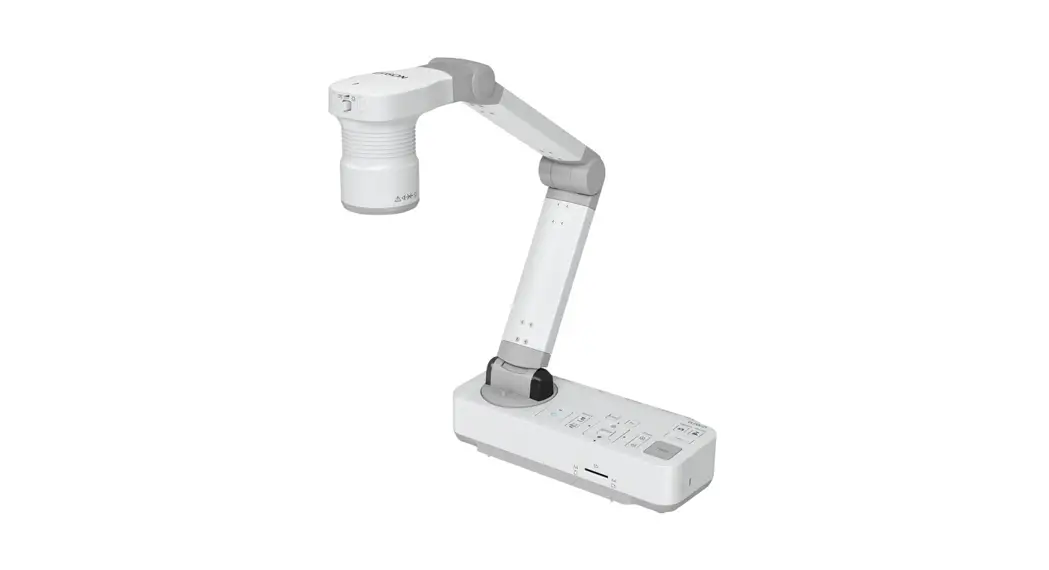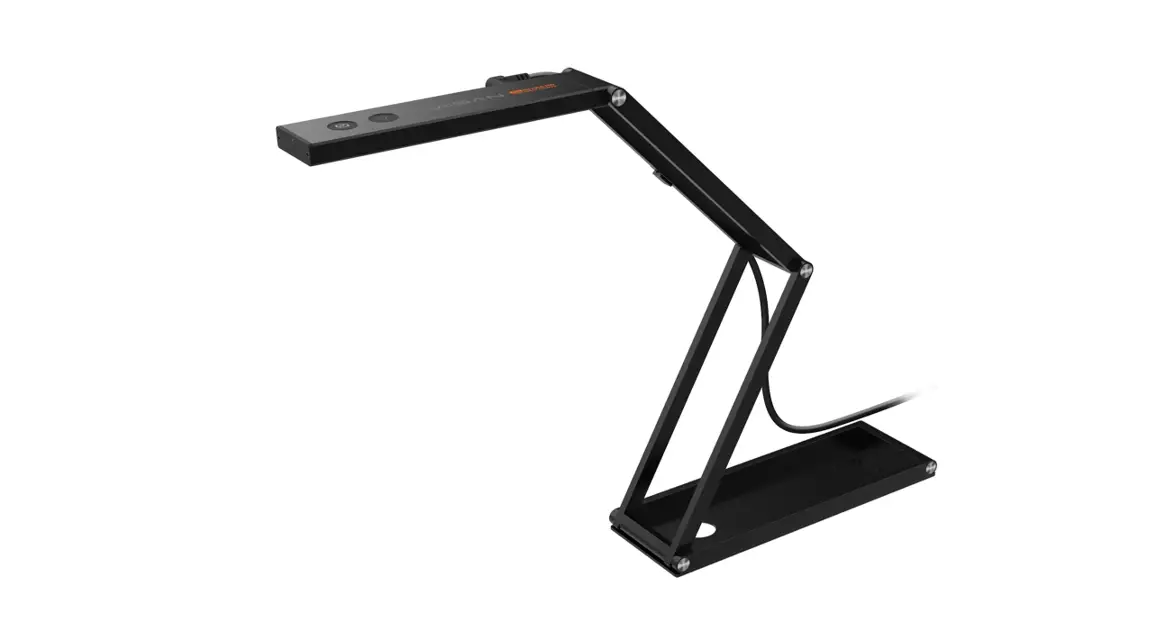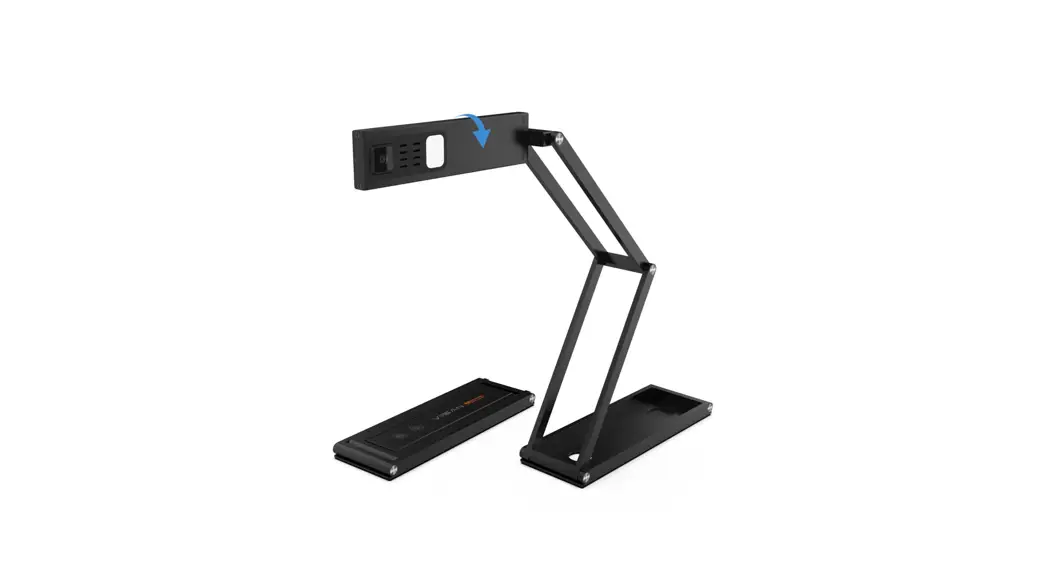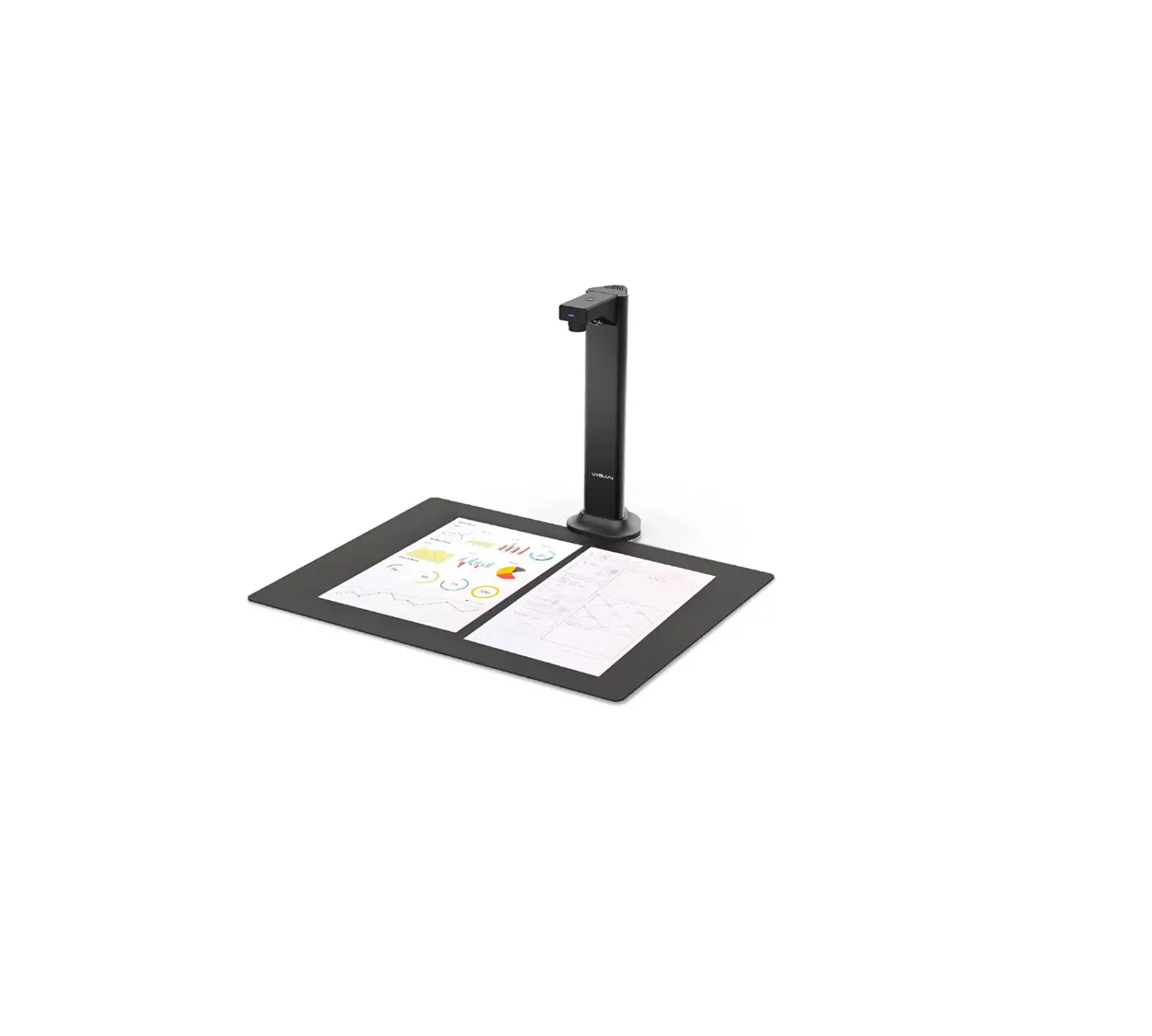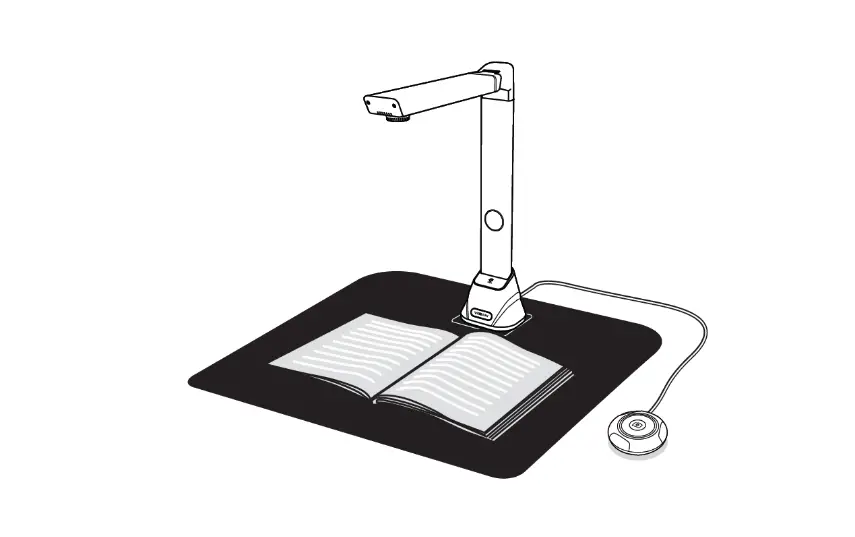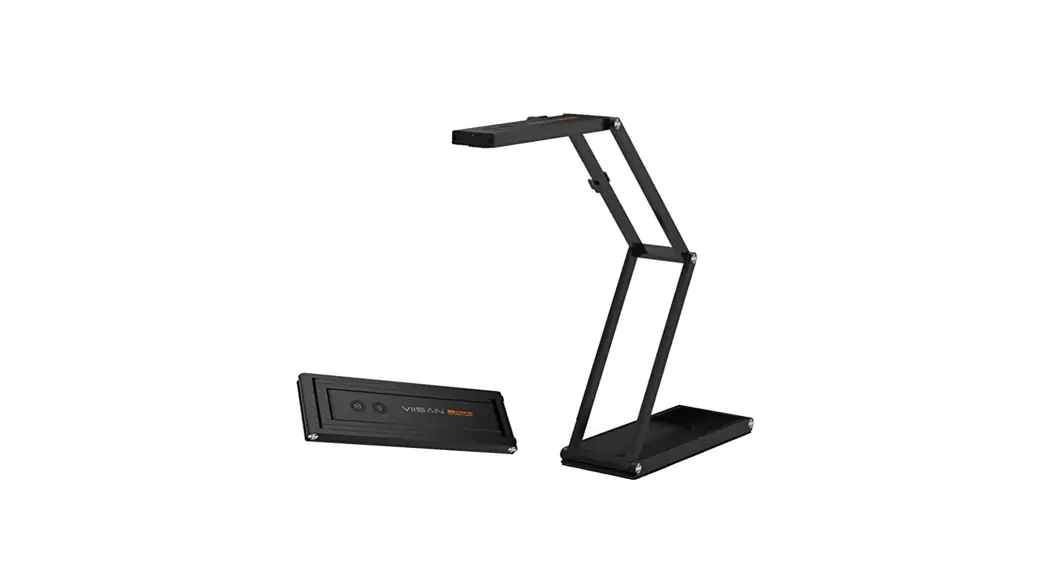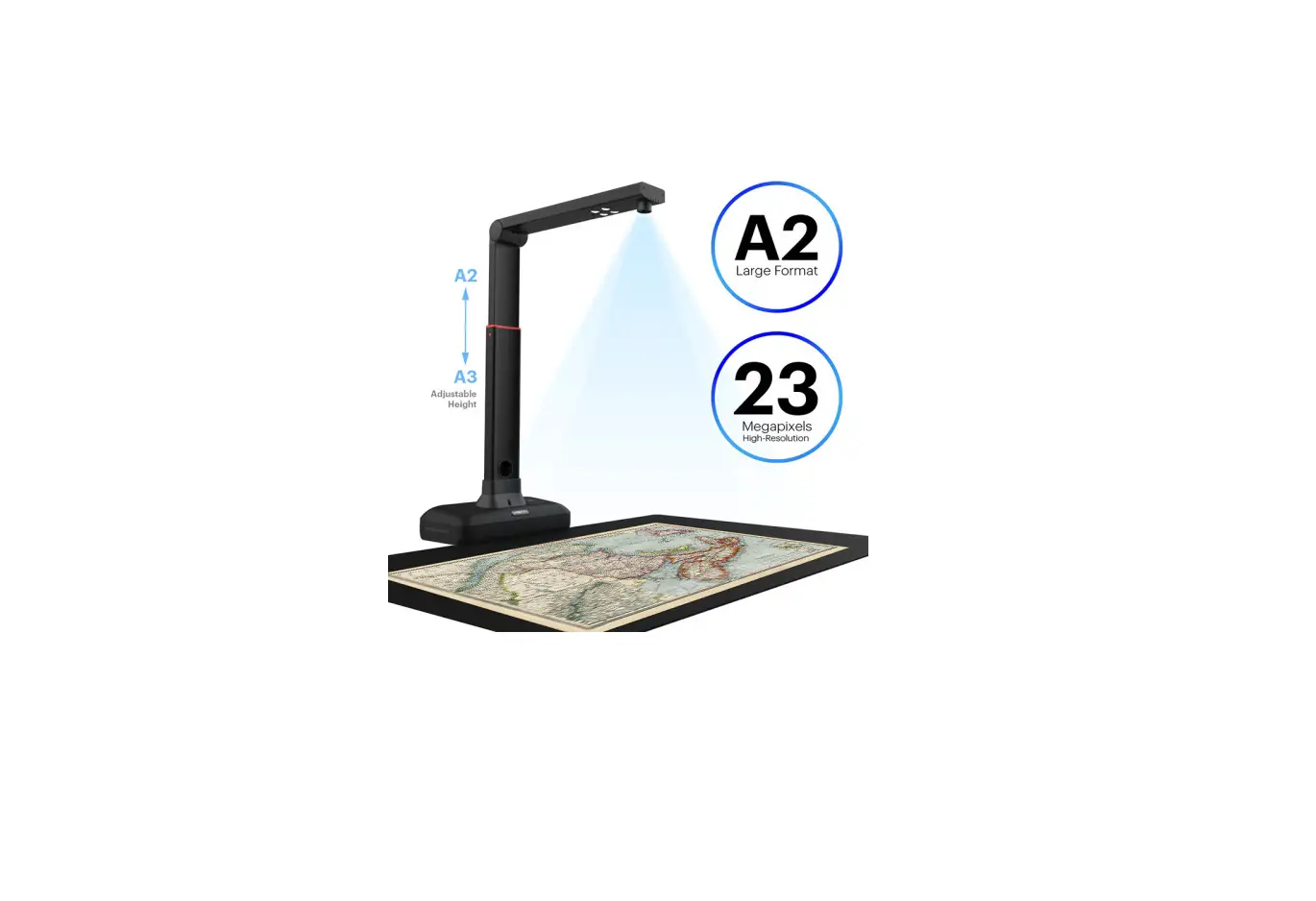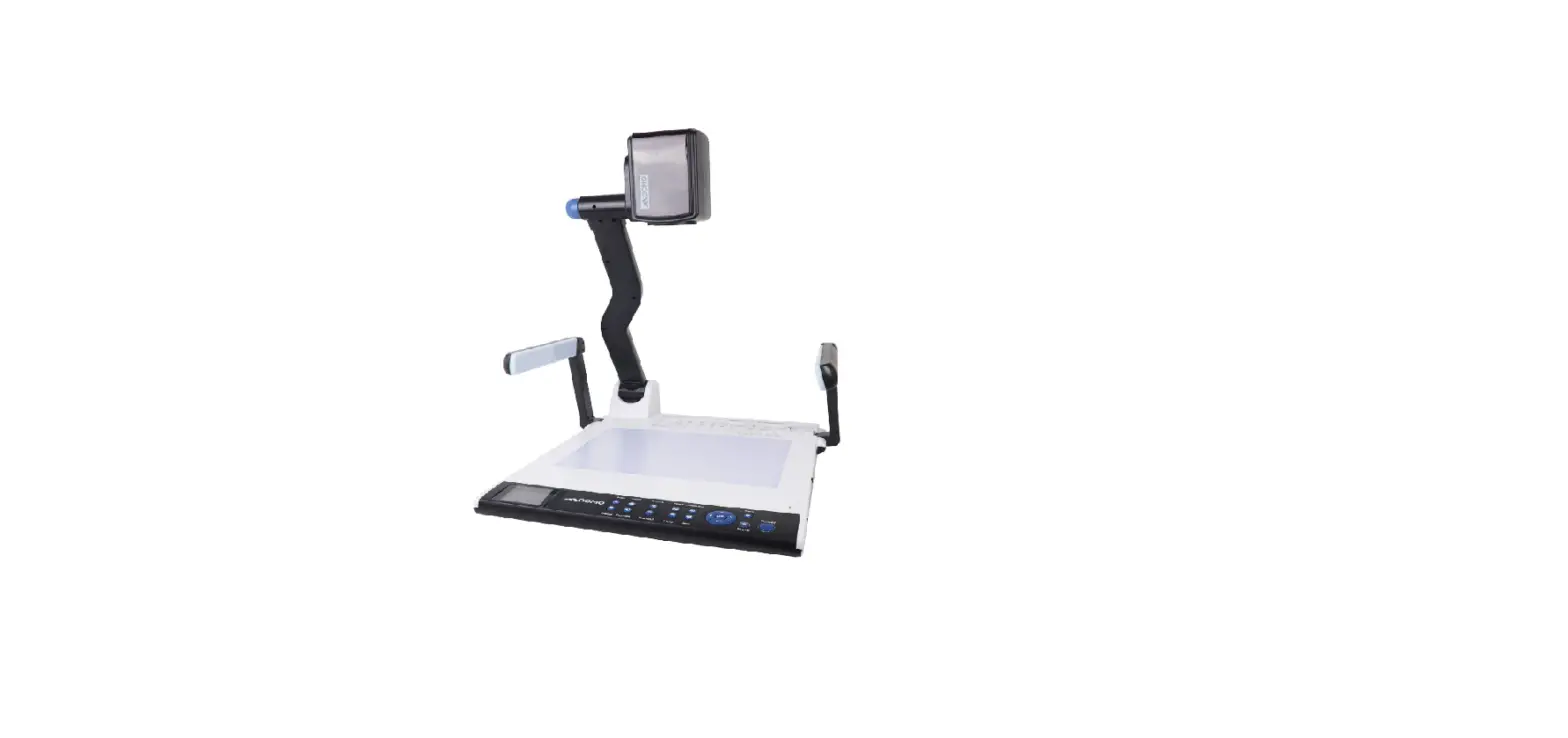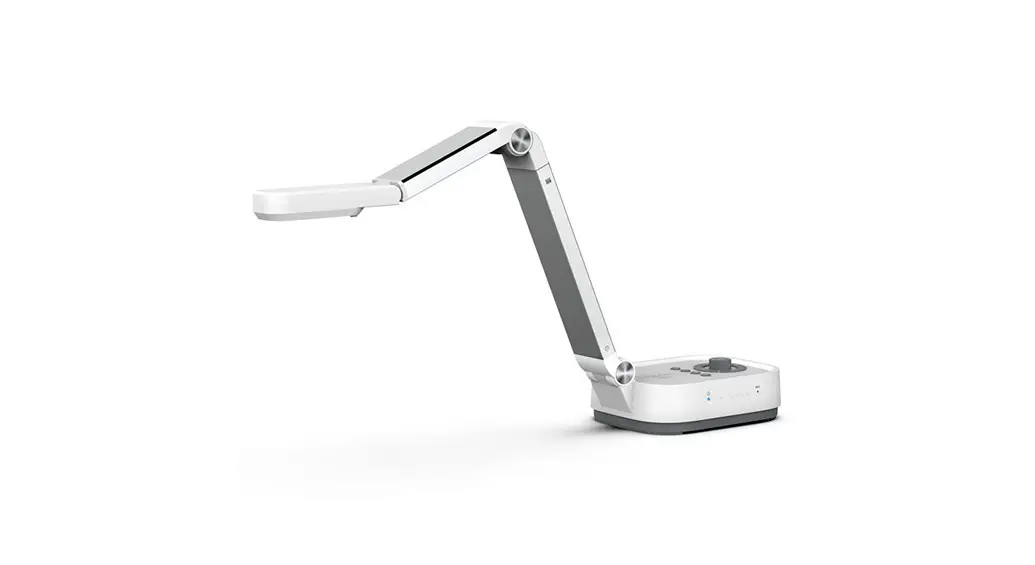

P4W 4K Wireless Document Camera
Quick Start Guide
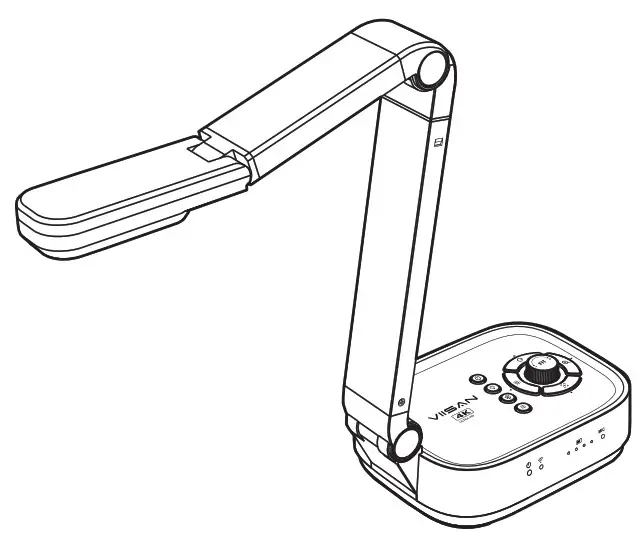
Please read this guide before using the product.
Step 1. Instructions
Thank you for purchasing the VIISAN product. The P4W is a 4K wireless visualizer for use in digital teaching and distance learning. This quick start guide briefly describes the steps to start using this document camera. If you have any technical or service questions about the product, please E-mail our customer service using [email protected] then we will provide you with service and support.
Limited Warranty
This product provides limited warranty continues for one (1) year from the date of purchase.
Warranty Exclusions
The following circumstances excluded from warranty coverage:
- Product damage caused by catastrophes, thunder stroke, faulty electric power, and environmental factors.
- Defacing of product labeling (label alterations and falsifying, serial number missing, serial number no longer discernible, serial number invalid). All serial numbers are recorded and tracked for warranty purposes.
- Unauthorized changes of non-parts, modifications or alterations, parts removal in or to the products.
- Damage caused by operator error or operator fails to comply user manual instruction, such as, but not limited to improper storage resulting in product get wet, corrosion, ell off, squeezed or exposed to inadequate temperature/humid environment.
- Accessories or packing material such as boxes, user manual, etc.
Safety & Environmental Information
- This device complies with part 15 of the FCC rules and CE certification.
- Discarded electrical and electronic appliances are recyclable and should separate from household waste. Please actively support in conserving resources and protecting the environment by returning this appliance to the collection centers.
System Requirements
| Intel i3 Processor or Higher |
| USB Port |
| At least 4GB RMB (Recommended 8GB) |
| 20GB Available HDD Space |
| Windows & Chrome Extension |
Step 2. Specifications
| Image Sensor | 1/3.06”, 13 MP CMOS Sensor |
| F/NO (Infinite) | 2.2 |
| TV lines | 1100 |
| Max. Shooting Area | 430mm x 320mm (17″x12.6″) |
| Max. HDMI Output Resolution / FPS | 3840×2160@30fps (4K, 16:9) |
| USB Output Resolution / FPS | 4192×3104@10fps, 3840×2160@30fps 1920×1080@30fps, 1280×720@30fps 1024×768@30fps, 640×360@30fps |
| Video Format | H.264 / MJPG / YUY2 |
| Focus | Auto / Manual |
| Lamp | LED |
| Image Rotation | 0° / 90° / 180° / 270° / Flip / Mirror |
| PTZ | Yes |
| Freeze | Yes |
| Power Frequency | 50 / 60 Hz |
| Wireless Compatibility | 802.11a/b/g/n/ac |
| Wireless Working Frequency | 5 GHz / 2.4 GHz |
| Dual mode | AP / Station DHCP (Server / Client) |
| Microphone | Built-in Omnidirectional Microphone |
| Connectivity | USB (Type-C) / HDMI / WiFi |
| Microphone | Built-in Omnidirectional Microphone 1kHz(0dB=1V/Pa) Min-45 Nom-42 Max-39 dB |
| Powered By | USB Type-C (5V / 1A) |
| Built-in Battery | Battery Work 9 Hours |
| Protocol | UVC / UAC Compliant |
| Soupport OS | Windows & Chrome Extension |
| Dimensions | Extended: 347x115x381 mm Closed: 242x115x87 mm |
| Net Weight | 1.36Kg |
NOTE: Specifications are subject to change without notice
Step 3. Unpacking
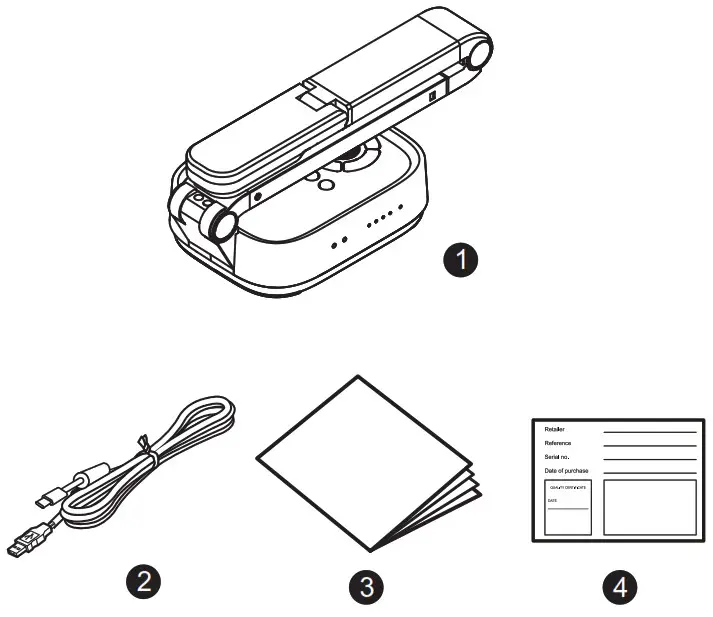
Before use, make sure the following items are included in the package.
If anything is missing, contact the retailer where you purchased the product.
- 4K Wireless Document Camera
- USB Type-C Cable
- Quick Start Guide
- Warranty Card

Step 4. Parts Descriptions
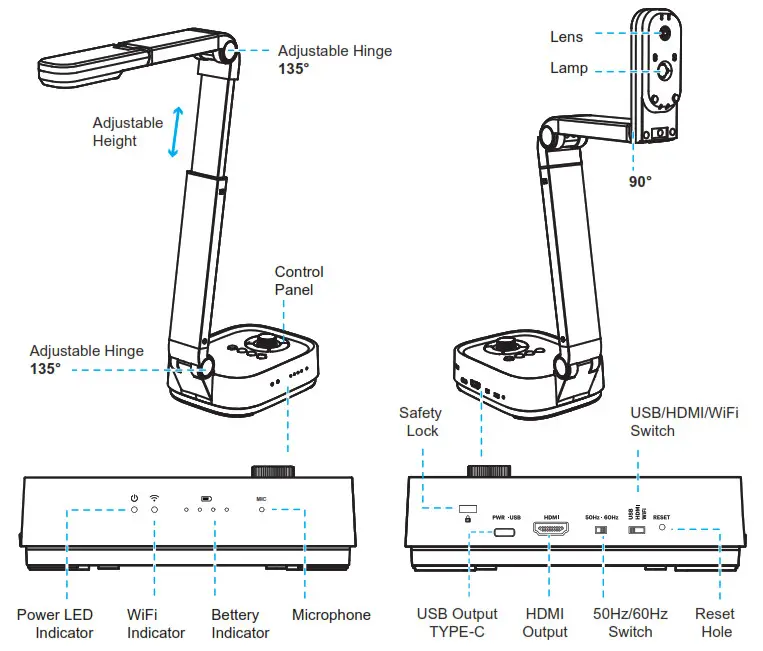
Control Panel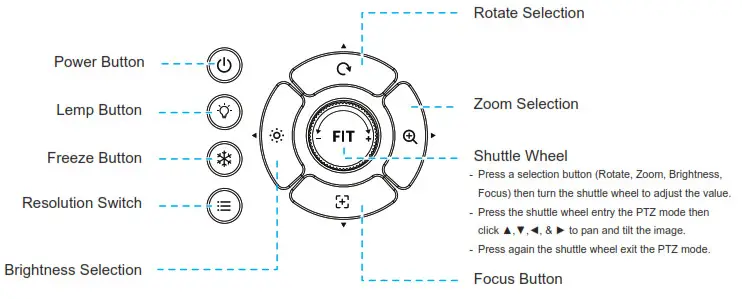
Step 5. Start Using
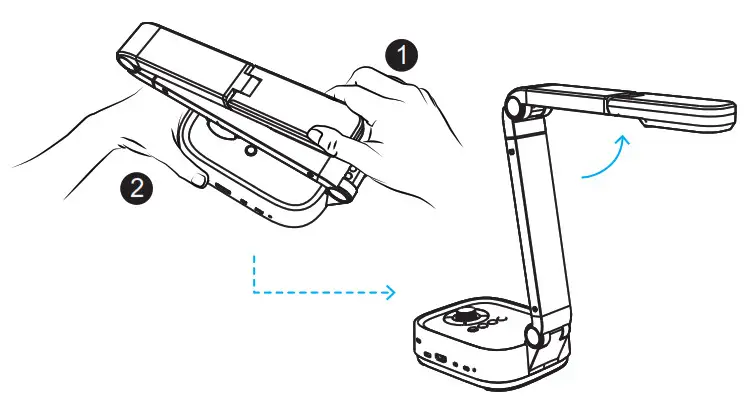
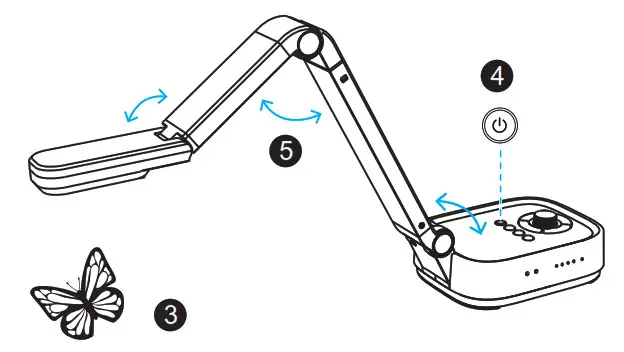
- Start by lifting the camera head.
- Press against the base plate of the device.

- Place an object to be displayed under the camera.
- Press the power button to turn on the power.
- Adjust the arm to change the height and position for capturing your object.

Power Button Lemp Button Freeze Button Resolution Switch Brightness Selection
Step 6. USB & HDMI Connections
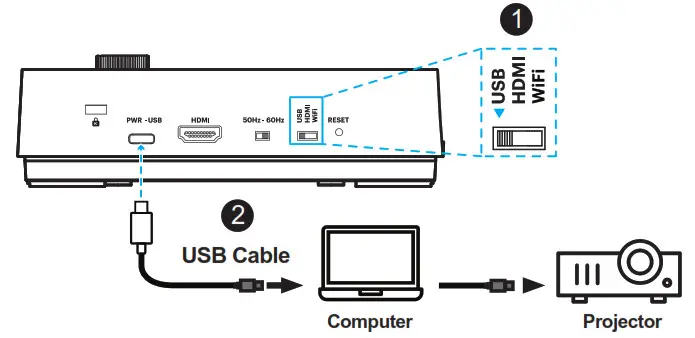
USB Mode Connection
- Switch to the USB connection mode.
- Plug the supplied USB type-C cable to the P4W and connect another end into the comptuer’s USB port.

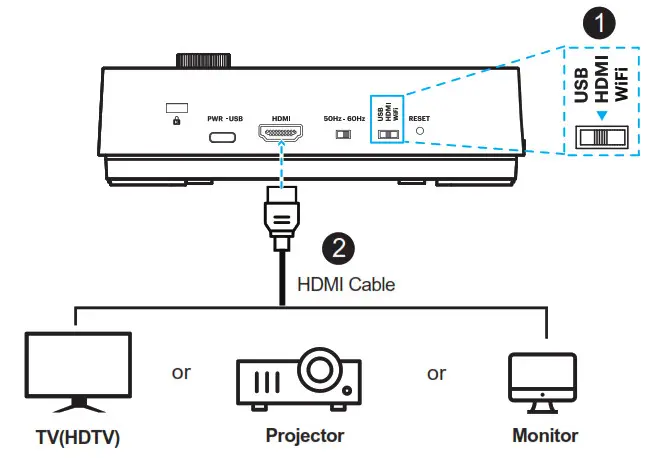
HDMI Mode Connection
- Switch to the HDMI connection mode.
- Plug the HDMI cable to the P4W device and connect enothet end into a projector, monitor or TV(HDTV).

Step 7. Wi-Fi Connection
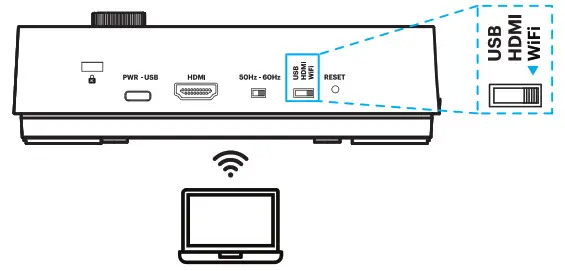
Network Connection
- Switch to the Wi-Fi mode and the Wi-Fi LED indicator will be emitted Green light with flashing.
- Open the wireless network list on the computer.
- Select the [P4W_5G_xxxxxx] in the network list, and input the password for connection (default: 88889999) to start the connection.
- When the connection is successful, the Wi-Fi LED indicator will emit Green light.

Log in to the web page
- Open the web browser, and enter the default IP [192.168.100.1] in the address bar.
- Enter the login account [admin] and default password [9999], and click Login.
- After logging to the web page, you can do the live preview and configure the settings on the web page.
Download Software
VIISAN P4W is a standard UVC camera, you can use it with a variety of software as long as they recognize the video source coming from a UVC camera. For example, you can use it with third-party video conferencing software like Zoom, Microsoft Teams, or Google Meet. However, to get the full functionality of this 4K document camera, we’d recommend using it with VIISAN VisualCam software and you can download this free software from VIISAN’s website at the below link.
https://www.viisan.com/en/download/index.html

VIISAN Technology Co., Ltd.
www.viisan.com
Customer service: [email protected]