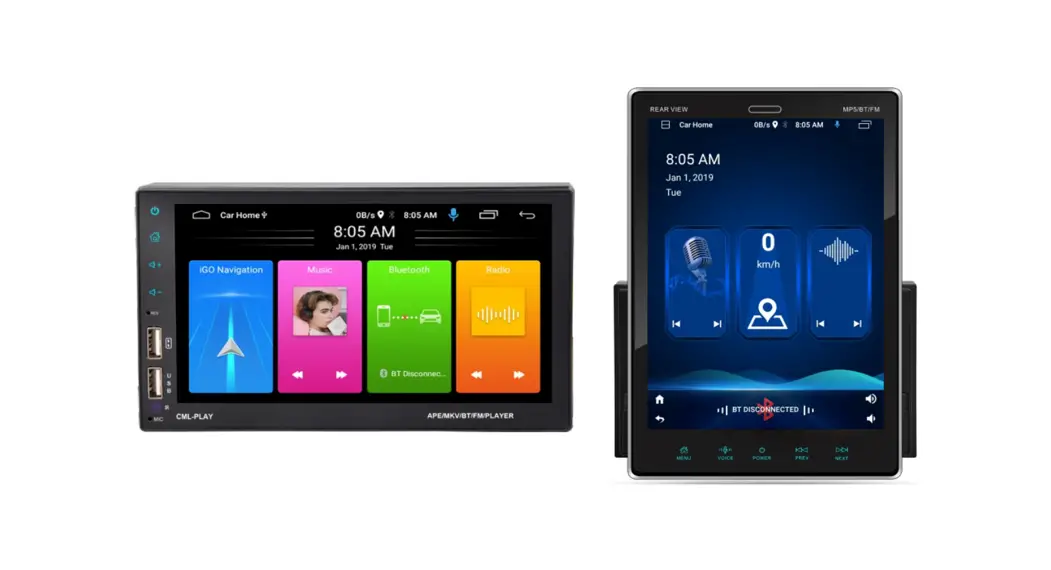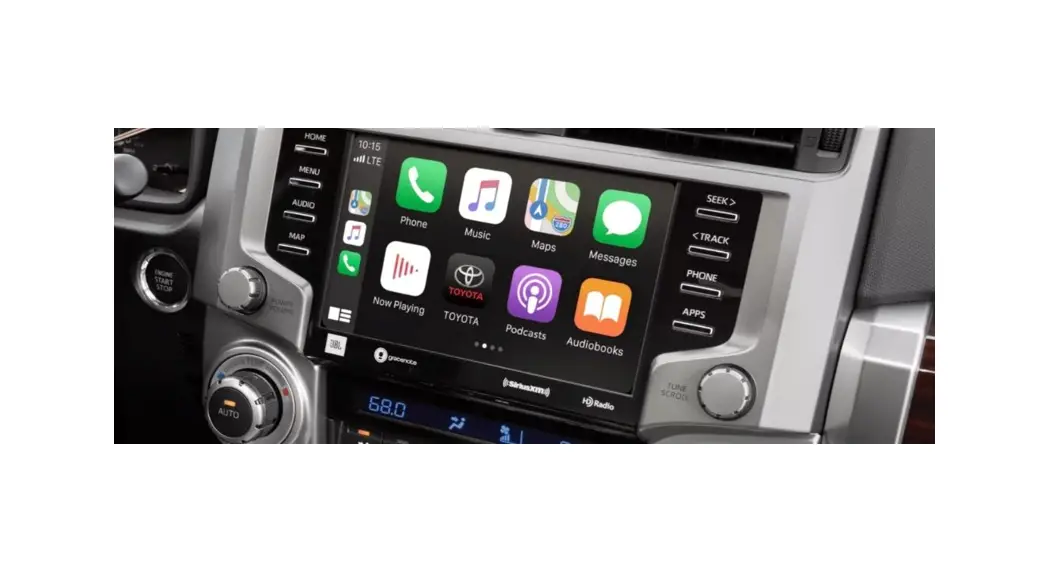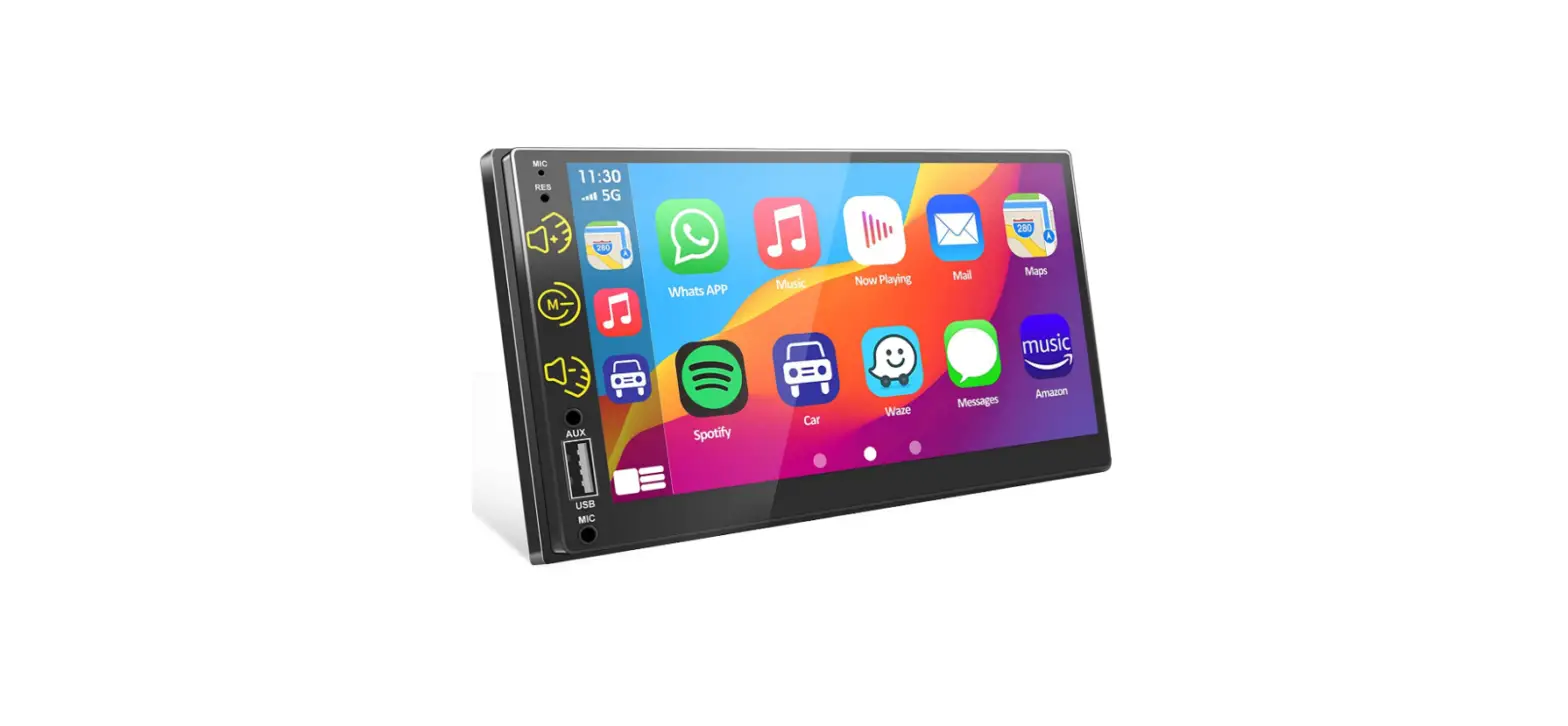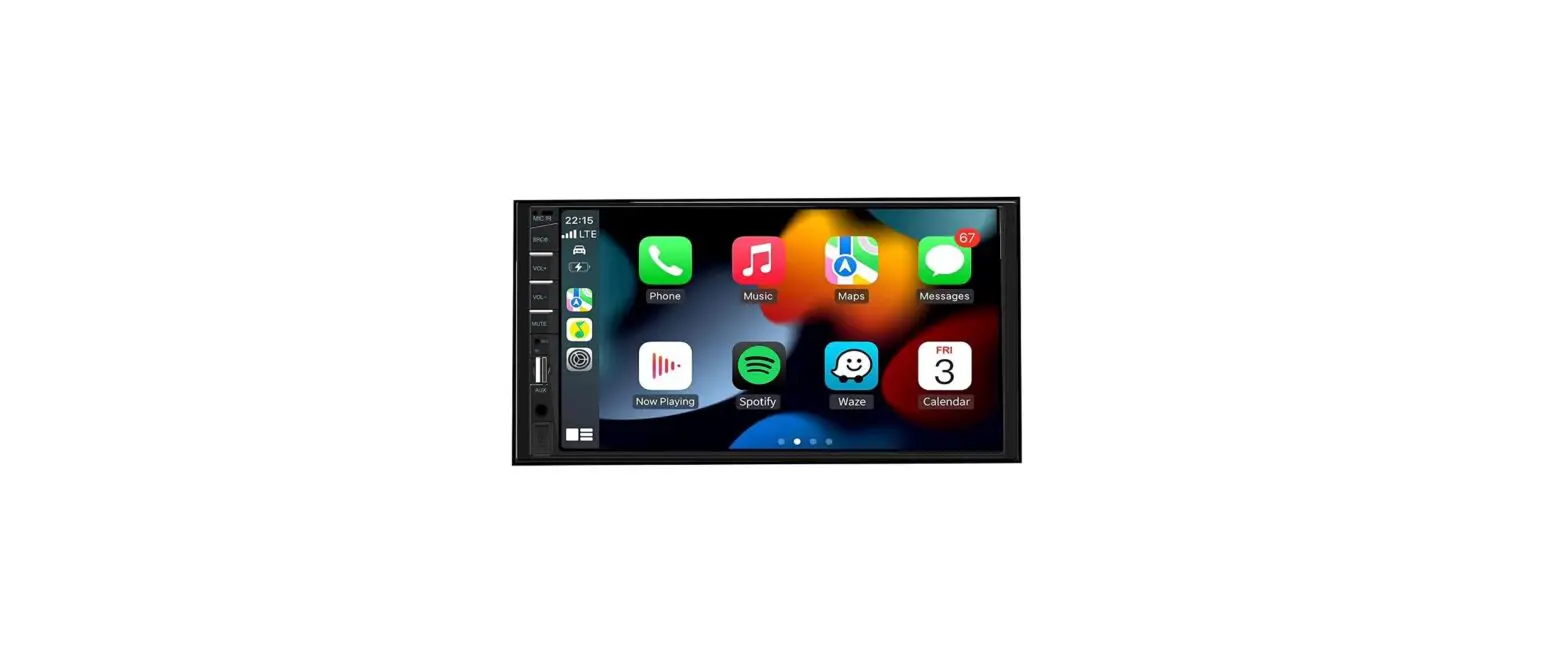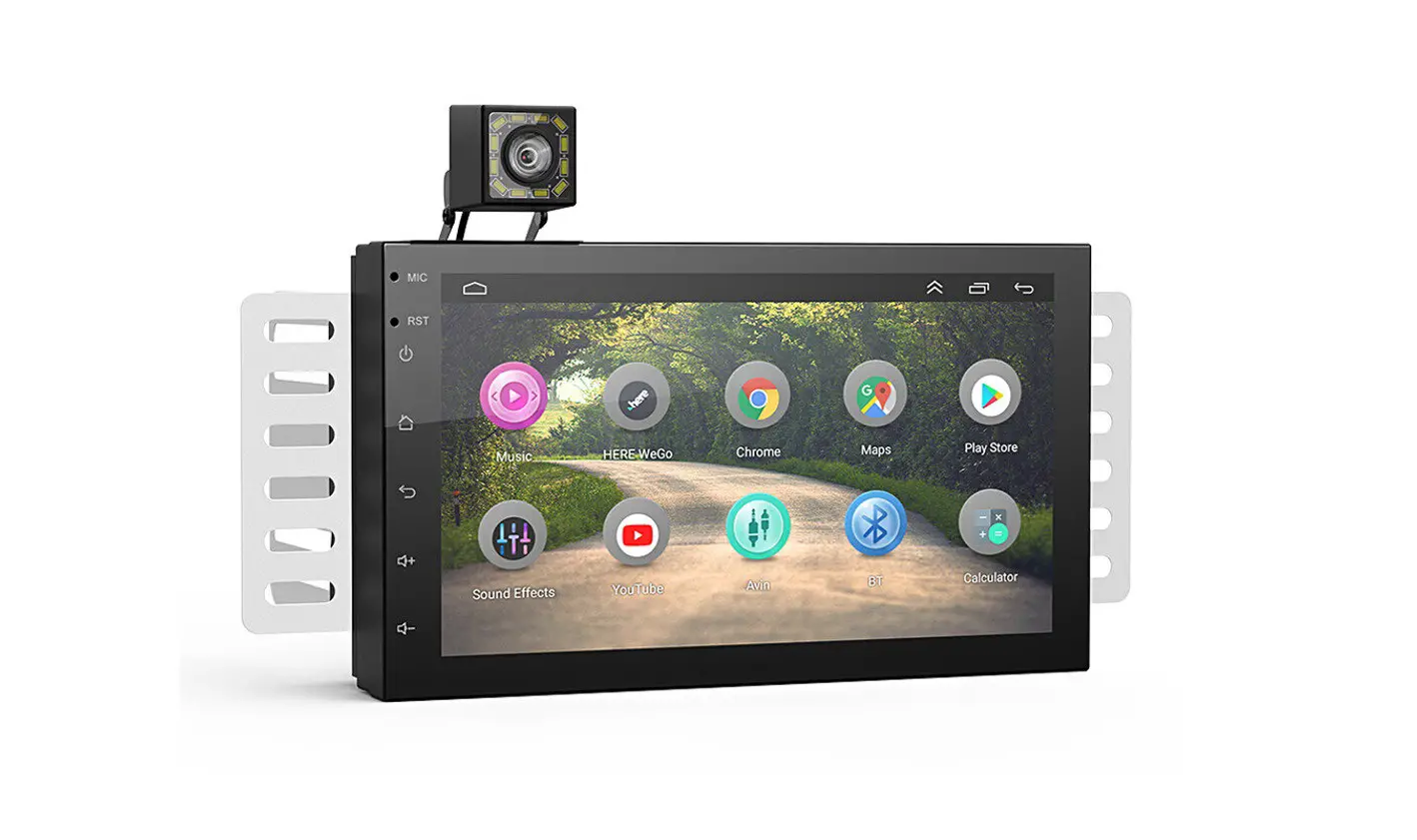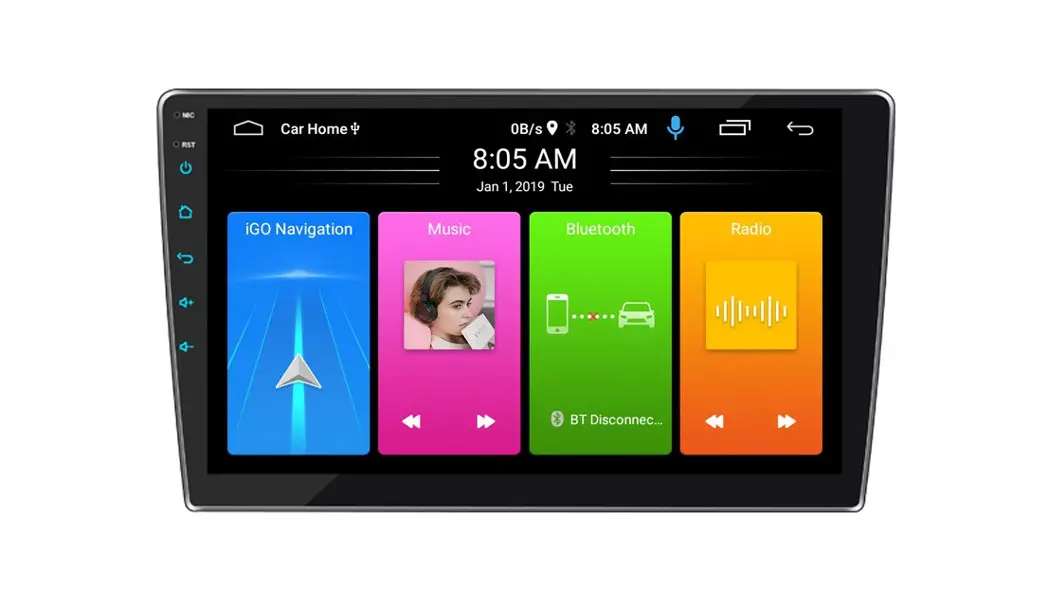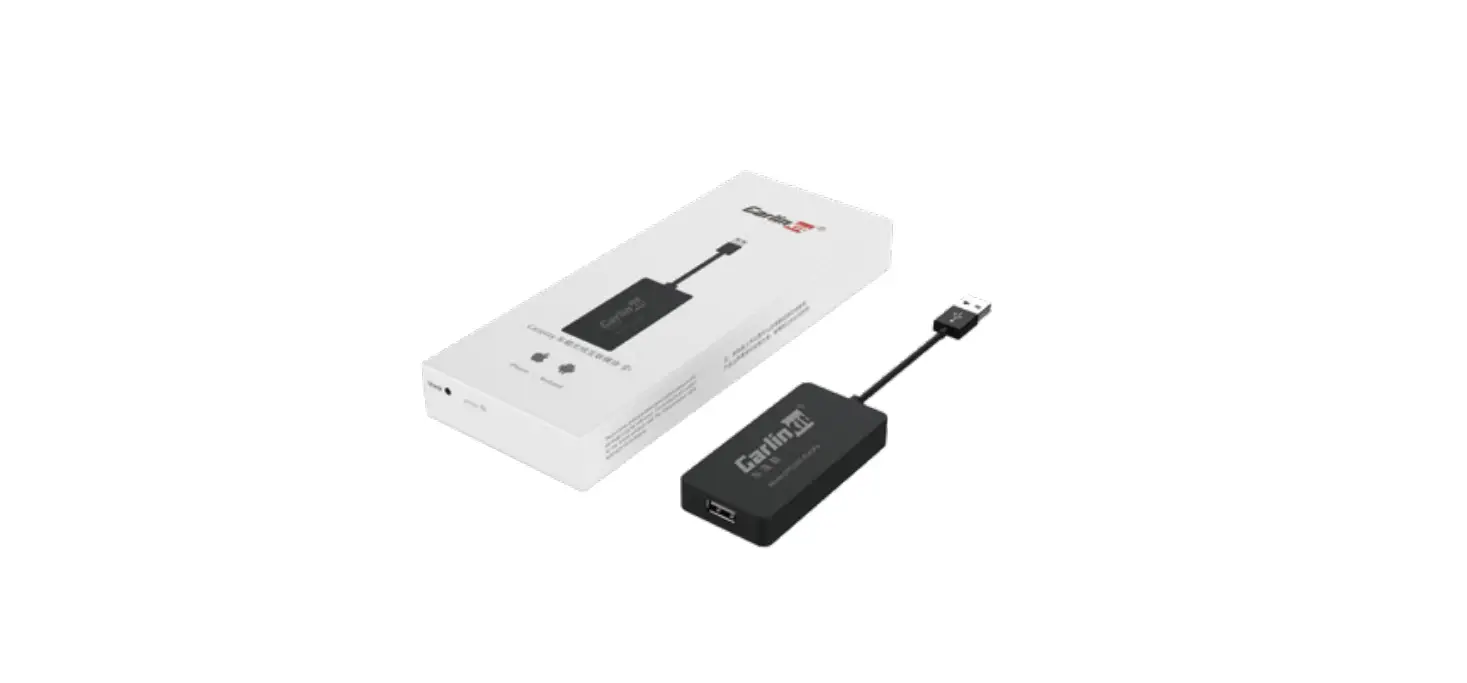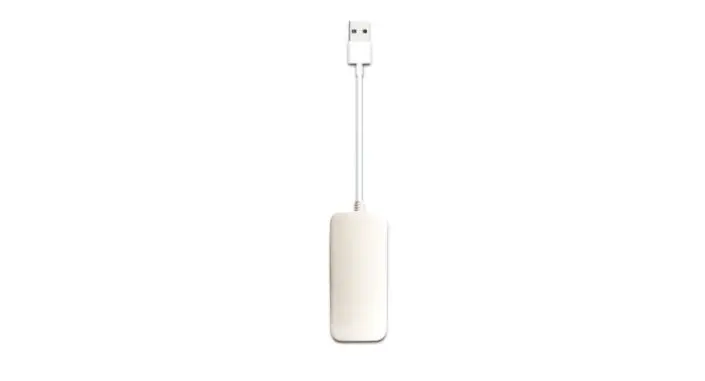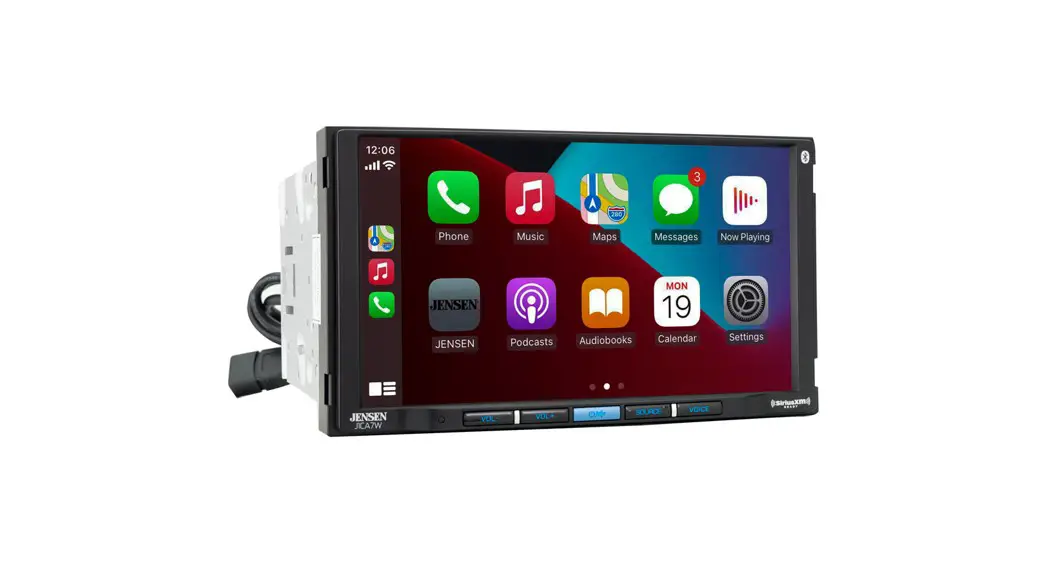
podofo Car Stereo Compatible with Apple Carplay and Android Auto
Preface
In order to prevent injuries and fires, please pay attention to the following instruction
* Warning
- Please do not install or repair the product by yourself Ask the professional worker install the products
- Please do not watching the video when you are driving
- Please pay attention about this manual installation
- Pleae do not get the device wet when washing car, this may cause short circuit
- Precautions
- The rear view image function only for accessibility, please pay attention the real conditions
* Attention
- Pleae do not get wet
- Date setting need you cut down the power then connect the power again the time and date setting can saved
- Make sure drive saftly
- Make sure following the drive rules
- If the video function will affect your driving safe, please turn off the video
- Never watching the video before you parking the saftly place
- In order to be able at any time to deal with road and traffic conditions , please lower the volume when driving
- To your safe, some funciton can not use like play video
- This device can test the speed. when your speed get into some date, the system will stop play video
- Make sure when you power on the device you have power the engine
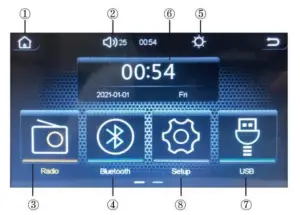
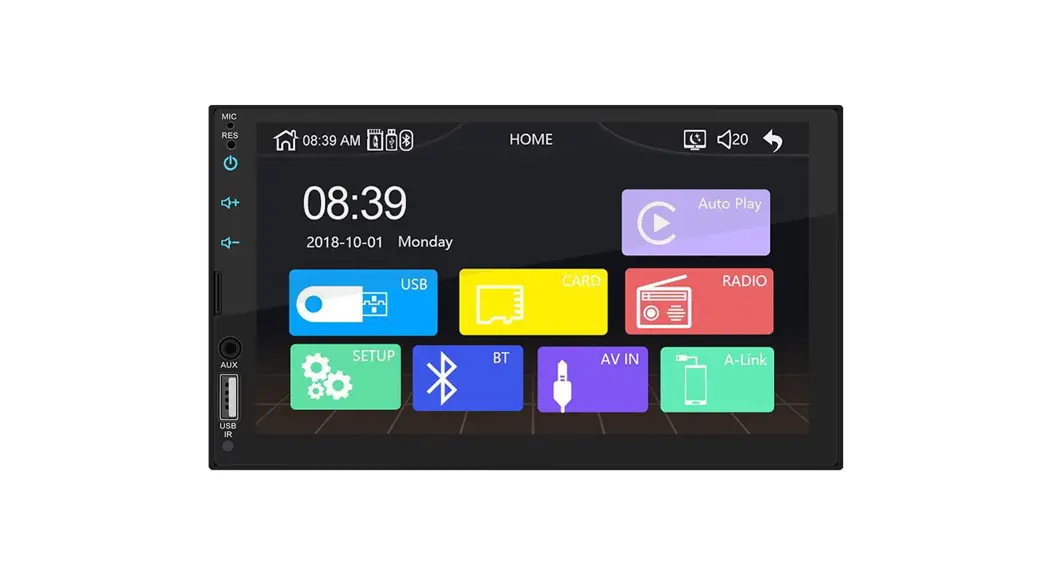
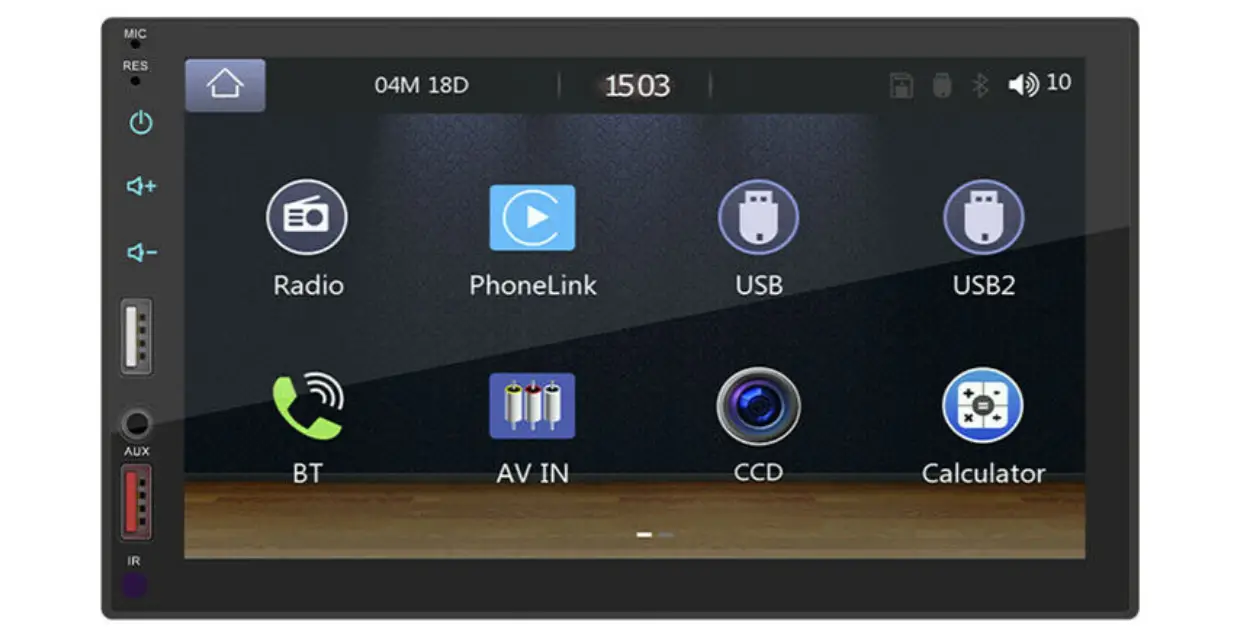
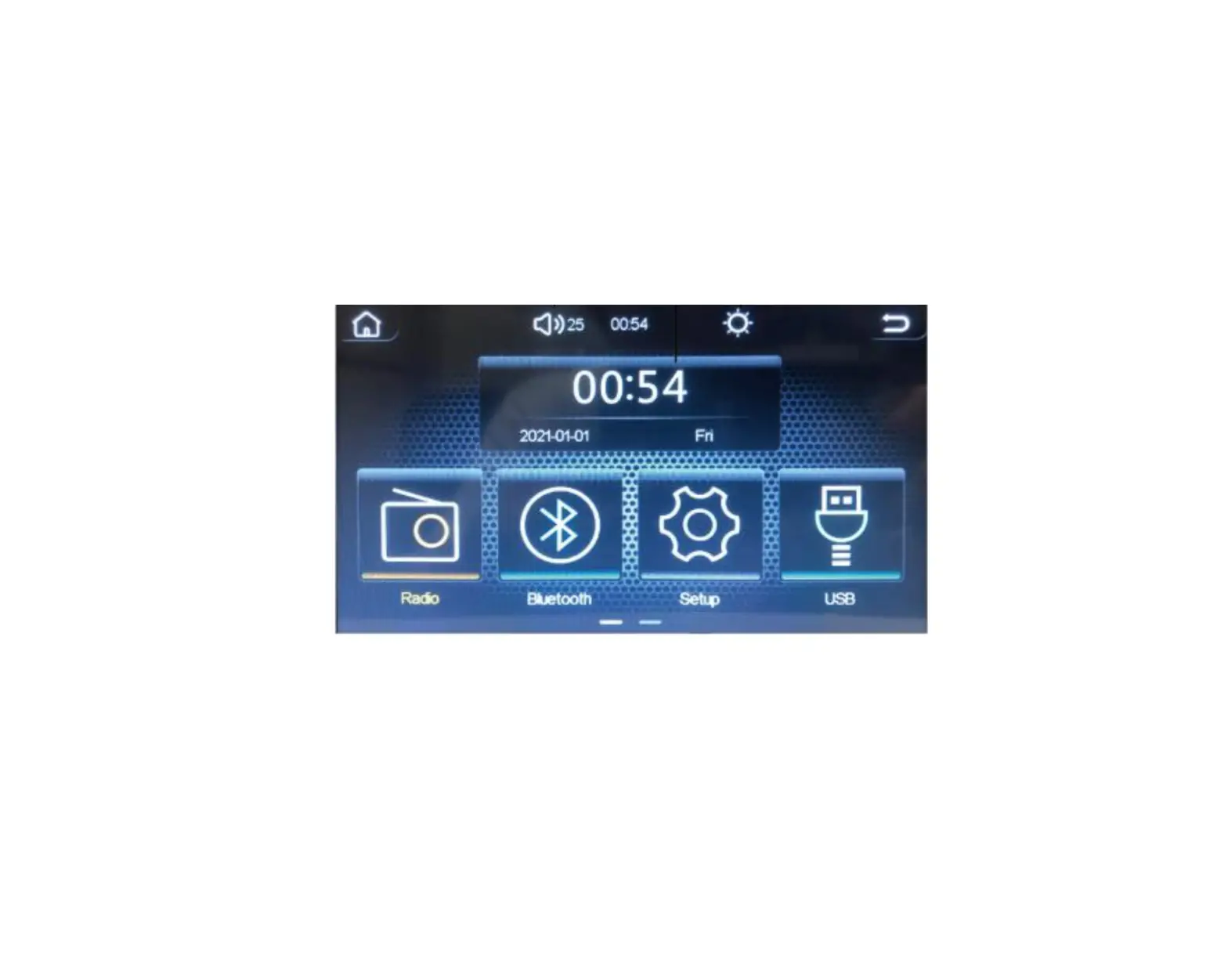
- Home
Press this button enter into home page - Volume
Press this button adjust the volume+/- - Radio
Press this button, enter into radio setting - Bluetooth
Press this button, enter into bluetooth setting - Day/Night
Press this button enter into day/night black light setting - Time
Date and time setting - USB
Press this button, enter into USB menu - Setup
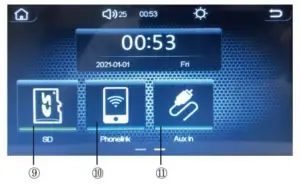
Press this button, enter into setup setting - SD
Press this button, enter into SD menu - Phone link
Press this button, enter into phone link setting - AUX
Press this button enter into AUX setting - FCAM
Press this button enter into FCAM menu - RCAM
Press this button enter inot RCAM menu
FM radio feature and Basic Operation
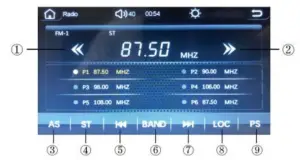
 Press this button, enter into backrward station searching
- Press this button, enter into forward station seraching
- AS ENTERAM1/2
- Stereo
 Searching-up station
- Band Band Switch (FM1/2/3,AM 1/2)
- Searching-down station
- DX/LOC Local Stations
- PS ENTER FM 1/2/3
 Press this button, enter into backrward station searching
 Press this button, enter into forward station seraching
 Searching-up station
 Searching-down station
Bluetooth Feature and Basic Operation
Bluetooth version: V4.2+BR+EDR+BLE
Support A2DP\AVCTP\AVDTP\AVRCP\HFP\SPP\ATT\GAP\ GATT\RFCOMM\SDP\L2 CAP
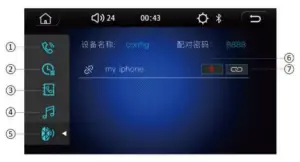
 Press this button enter into calling menu
 Press this button enter into call history menu
- Press this button enter into phone book menu
 Press this button enter into bluetooth music menu
 Press this button enter into bluetooth connection menu
 Press this button delet the connected phone
- Press this button connect /disconnect the phone bluetooth
 Press this button enter into calling menu
 Press this button enter into call history menu
 Press this button enter into bluetooth music menu
 Press this button enter into bluetooth connection menu
 Press this button delet the connected phone
 Press this button connect /disconnect the phone bluetooth
USB/SD play feature and Basic Operation
Play music
Support MP3/WMA/AAC/WAVE/FLAC/APE/OGG/M4A(QT)/RA MP3\ WMA \AAC\ WAVE\FLAC\APE\OGG\M4A(QT)\RA ;
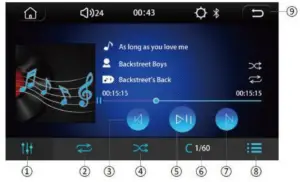
 Press this button enter into audio setting
 Press this button enter into loop
 Press this button enter into previous play
 Press this button enter into shuffle playback
- Press this button enter into stop/play
 Press this button enter into number keyboard
- Press this button enter into next track
 Press this button enter into play list
 Press this button quit the play list menu
 Press this button enter into audio setting
 Press this button enter into loop
 Press this button enter into previous play
 Press this button enter into shuffle playback
 Press this button enter into number keyboard
 Press this button enter into play list
 Press this button quit the play list menu
Video play
Support DIVX\AVI\MKV\QT\MPG\ASF\FLV\RMVB\ TS;
 Press this button enter into previous play
 Press this button enter into Play/stop
 Press this button enter into Next track
 Press this button enter into loop
- Press this button enter into shuffle playback
 Press this button enter into video zoom
 Press this button enter into next page SOD
- Press this button enter into video setting
- Press this button enter into display setting
- Press this button enter into number keyboard
- Press this button enter into music disply list
 Press this button enter into previous page SOD

 Press this button enter into previous play
 Press this button enter into Play/stop
 Press this button enter into Next track
 Press this button enter into loop
 Press this button enter into shuffle playback
 Press this button enter into video zoom
 Press this button enter into next page SOD
 Press this button enter into previous page SOD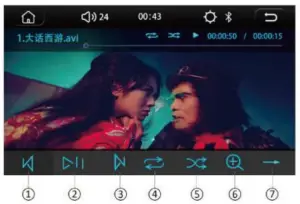
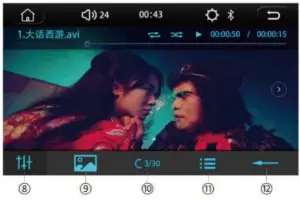
Image display and Basic Operation
Support JPG/BMP/PNG
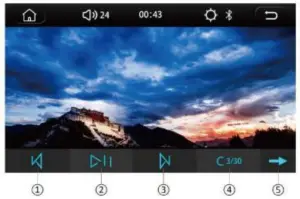
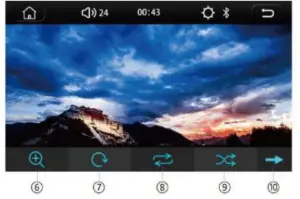
- Press this button enter into last image display
- Press this button enter into stop/play
- Press this button enter into next image display
 Press this button enter into number keyboard
- Press this button enter into next page SOD
- Press this button zoom the image
 Press this button evert the image
- Press this button enter inti loop
- Press this button enter into shuffle playback
- Press this button enter into last page SOD
 Press this button enter into number keyboard
 Press this button evert the image
Phone link feature and Basic Operation
Attention: Before use phone link please select the phone type Phone link for Android open the development option and USB adjust in your phone Phone link for iphone can use the Carplay menu
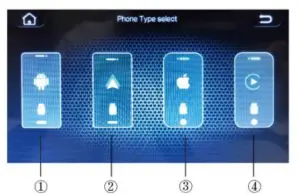
- Press this button enter into Android pho111e link menu
- Press this button enter into Android Auto menu
- Press this button enter into lphone phone link menu
- Press this button enter into lphone Car Play menu
Phone link problems
- Phone link mirror control need connect the bluetooth first
- Phone link for wireless, the radio had WIFI funciton can use
- Phone link wireless can not support Mirror control
- Some parts of Android need open the full dispaly in Android apk management-Auto link
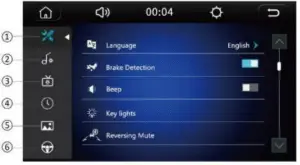
 Press this button enter into general setting menu
- Press this button enter into audio setting
- Press this button enter into display setting
- Press this button enter into date setting
- Press this button enter into wallpaper setting
 Press this button enter into steering wheel control setting
 Press this button enter into general setting menu
 Press this button enter into audio setting
 Press this button enter into display setting
 Press this button enter into date setting
 Press this button enter into wallpaper setting
 Press this button enter into steering wheel control setting
Wires Diagram
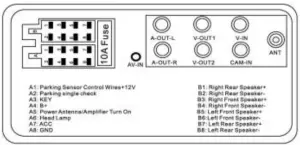
Remote control feature and Basic operation
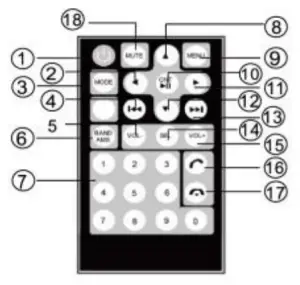
- Power switch
- ◄ Right
- Mode switch
- Last song
- Volume+
- Band/Automatid Station search
- Digital key
- ▲ UP
- Menu
- Confirm/Play/Pause
- ► Left
- ▼ Down
- Next song
- Choice
- Volume
- Answer the phone
- Hang UP
- MUTE