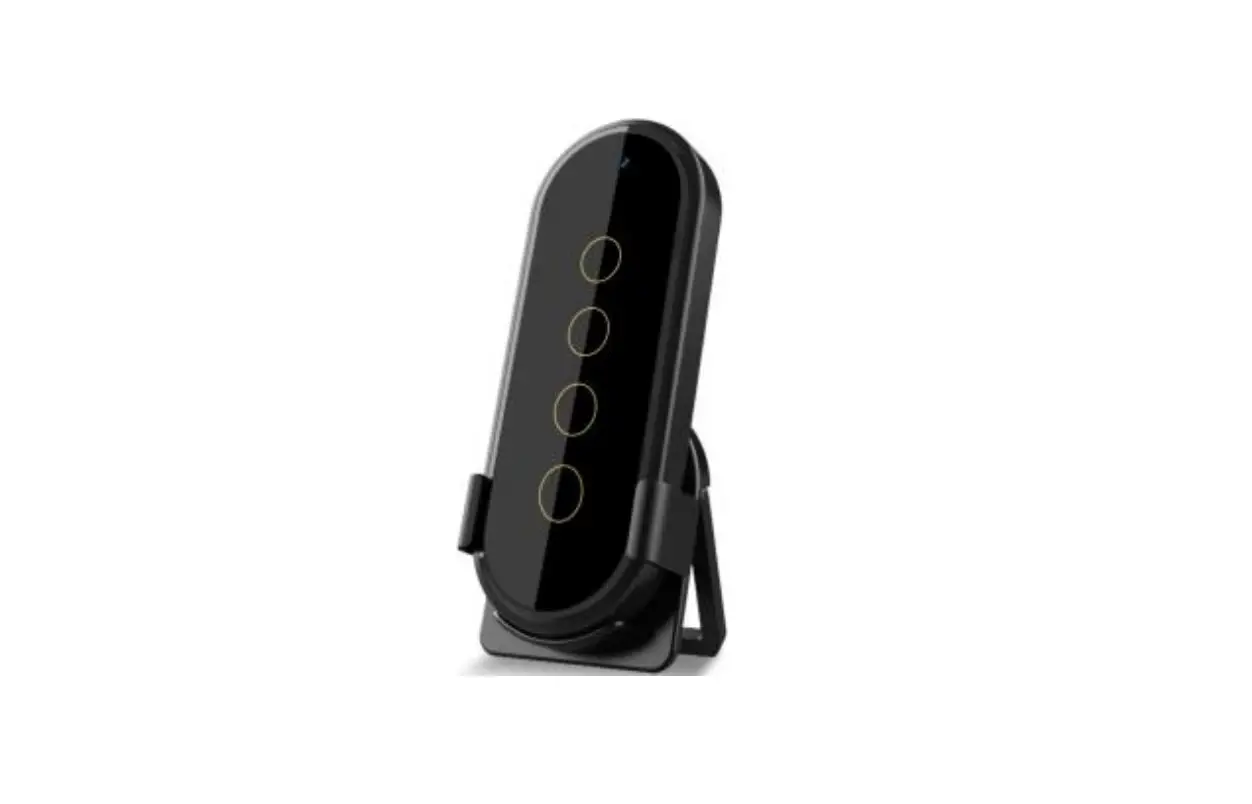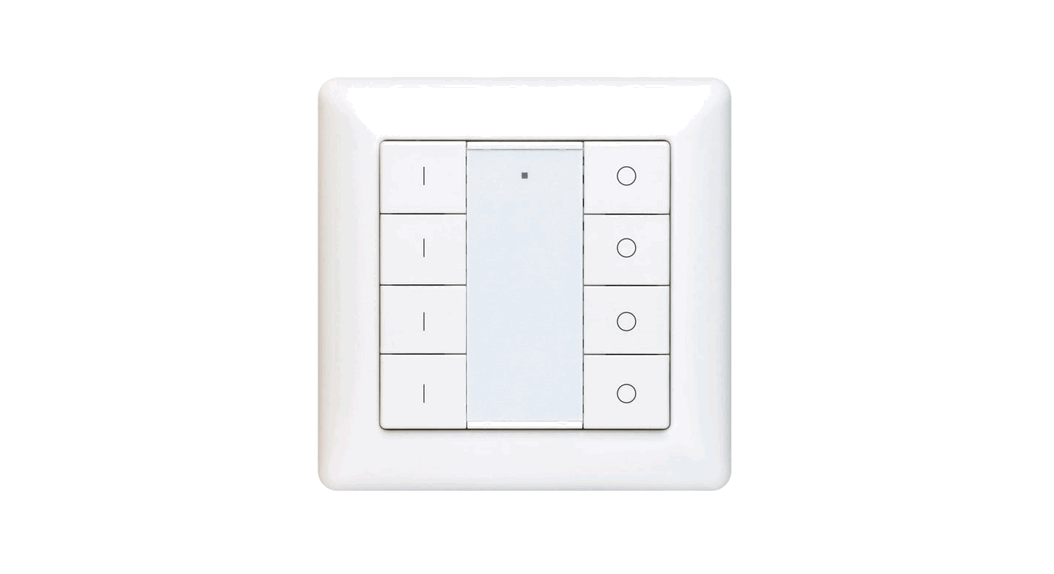
 Vesternet Zigbee Wall Controller – 4 Button
VES-ZB-WAL-011 Zigbee Wall Controller
Important: Read All Instructions Prior to Installation
Function introduction
 |  |
Product Data
| Protocol | ZigBee 3.0 |
| Operation Voltage | 3VDC (CR2450) |
| Transmission Frequency | 2.4GHz |
| Transmission Range (free field) | 30m |
| Protection Type | IP20 |
| Dimming Range | 0.1%-100% |
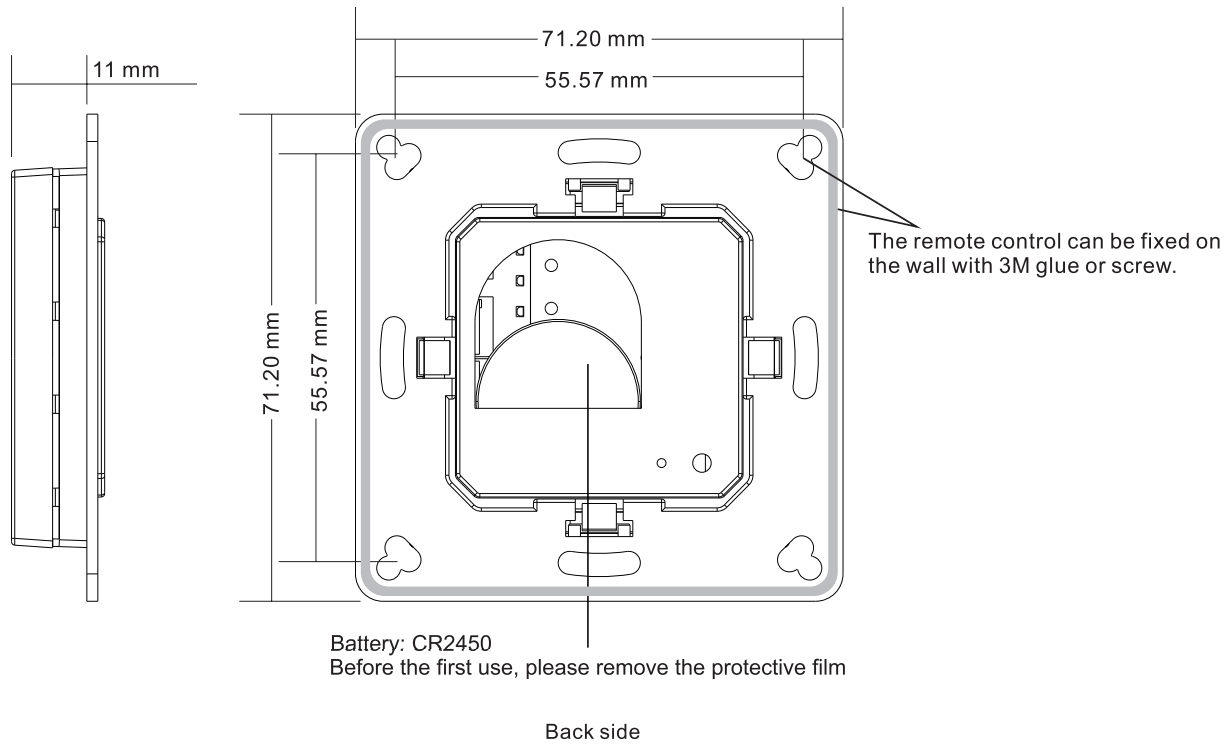
| Dimensions | 71.2×71.2×13.6rrirn |
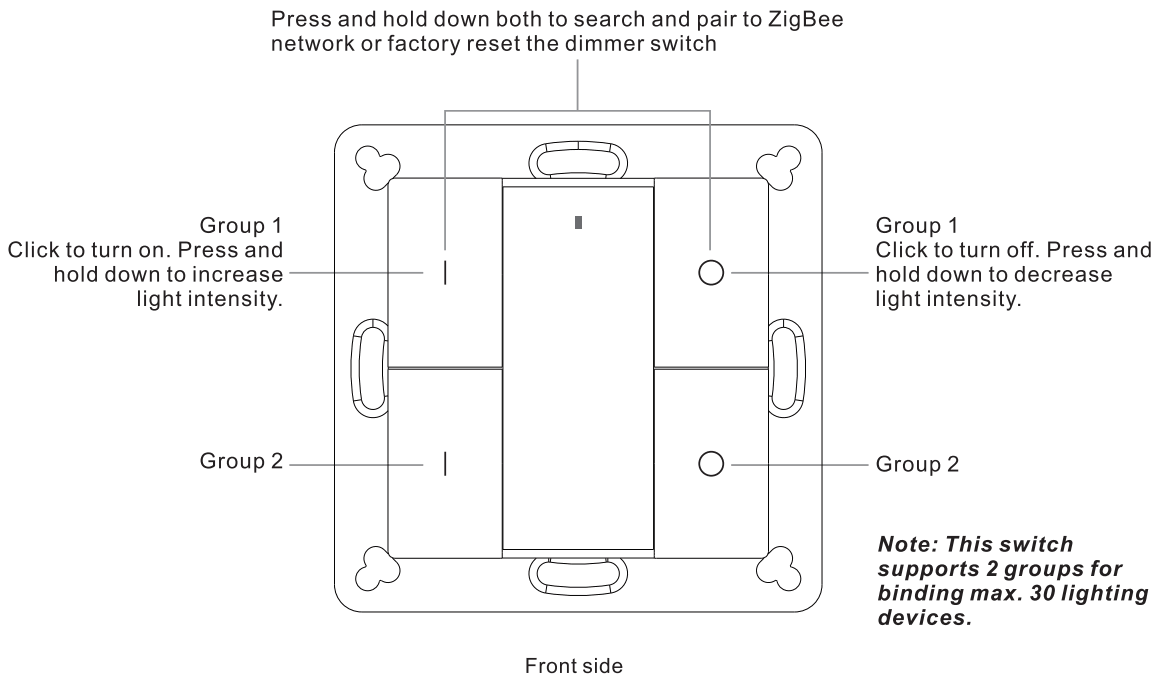
- ZigBee dimmer switch based on ZigBee 3.0
- Enables to pair ZigBee lighting devices via touchlink commissioning without coordinator
- Supports find and bind mode to pair with ZigBee lighting devices
- Supports 2 groups for binding max. 30 lighting devices
- 2.4 GHz global operation
- Long battery life mesh technology
- Transmission range up t o 30m
- Compatible with universal ZigBee Gateway products
- Compatible with universal single color ZigBee lighting devices
- Basic
- Power Configuration
- Identify
- Diagnostics
Output clusters:
- Identify
- Group
- On/off
- Level control
- Ota
Safety & Warnings
- This device contains a button lithium battery that shall be stored and disposed properly.
- DO NOT expose the device to moisture.
- Do not ingest battery, Chemical Burn Hazard
- This product contains a coin / button c e l l battery. If the coin / button cell battery is swallowed, it can cause severe internal burns i n just 2 hours and can lead to death
- Keep new and used batteries away from children.
- If the battery compartment does not close securely, stop using the product and keep it away from children.
- If you think batteries might have been swallowed or placed inside any part of the body, seek immediate medical attention
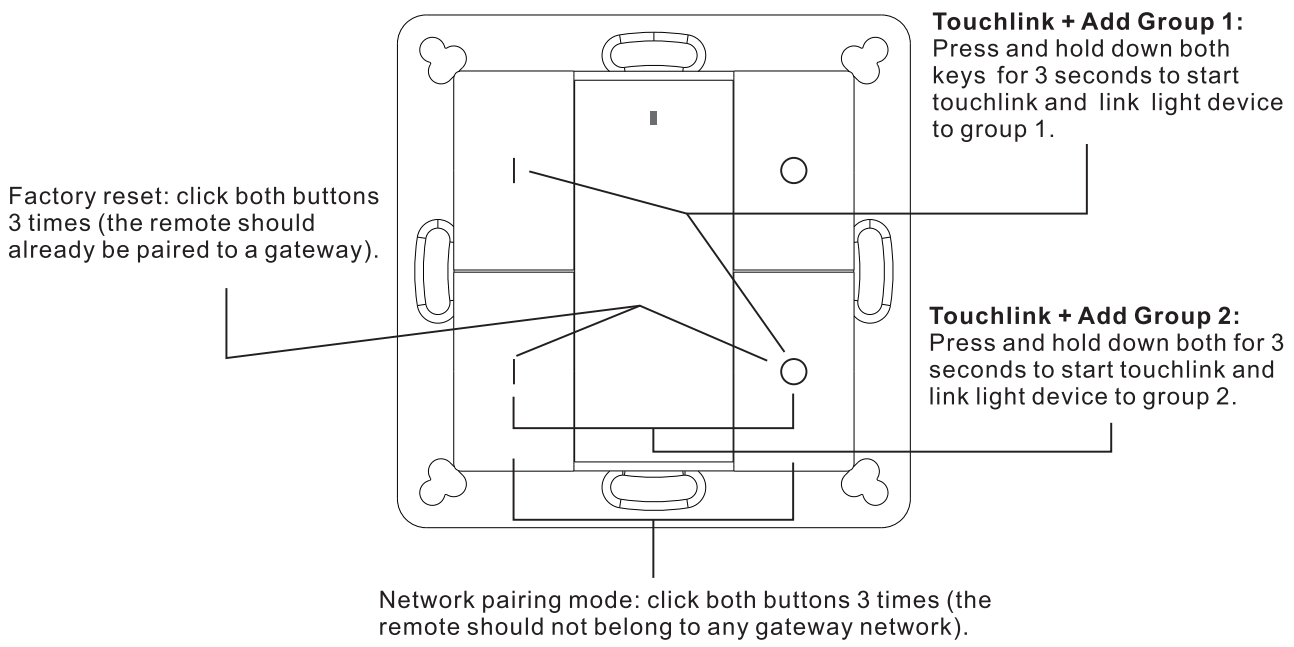
Quick Start (Simplified operation compared to standard operations in the part “Operation”)
Operation
1. This ZigBee Dim remote i s a wireless transmitter that communicates with a variety of ZigBee compatible systems. This transmitter sends wireless radio signals that are used to remotely control a compatible system.
2. This ZigBee remote supports 2 groups for binding max. 30 lighting devices and enables to control single color ZigBee lighting devices.
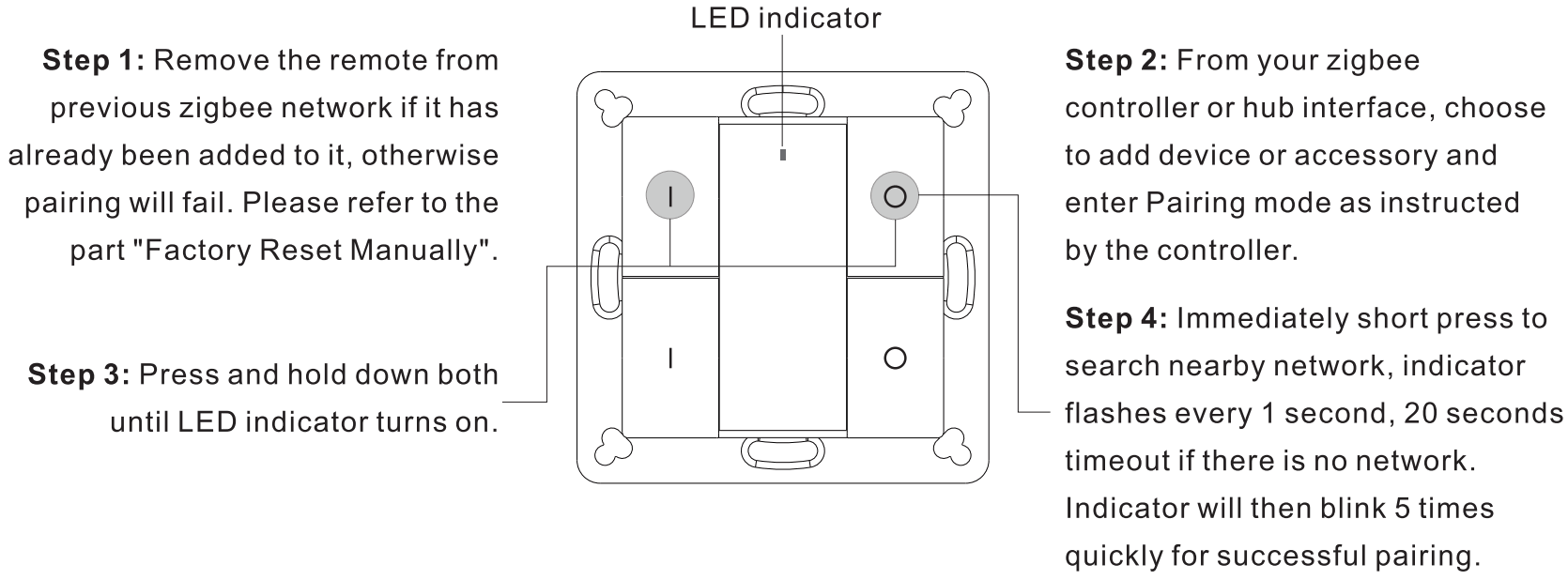
3. Zigbee Network Pairing through Coordinator or Hub (Added t o a Zigbee Network)
Note:
- After pairing successfully, the remote information will appear on the controller or hub interface.
- No remote information will appear on the hub interface if pairing to Philips Hue Bridge.
4. TouchLink to a Zigbee Lighting Device
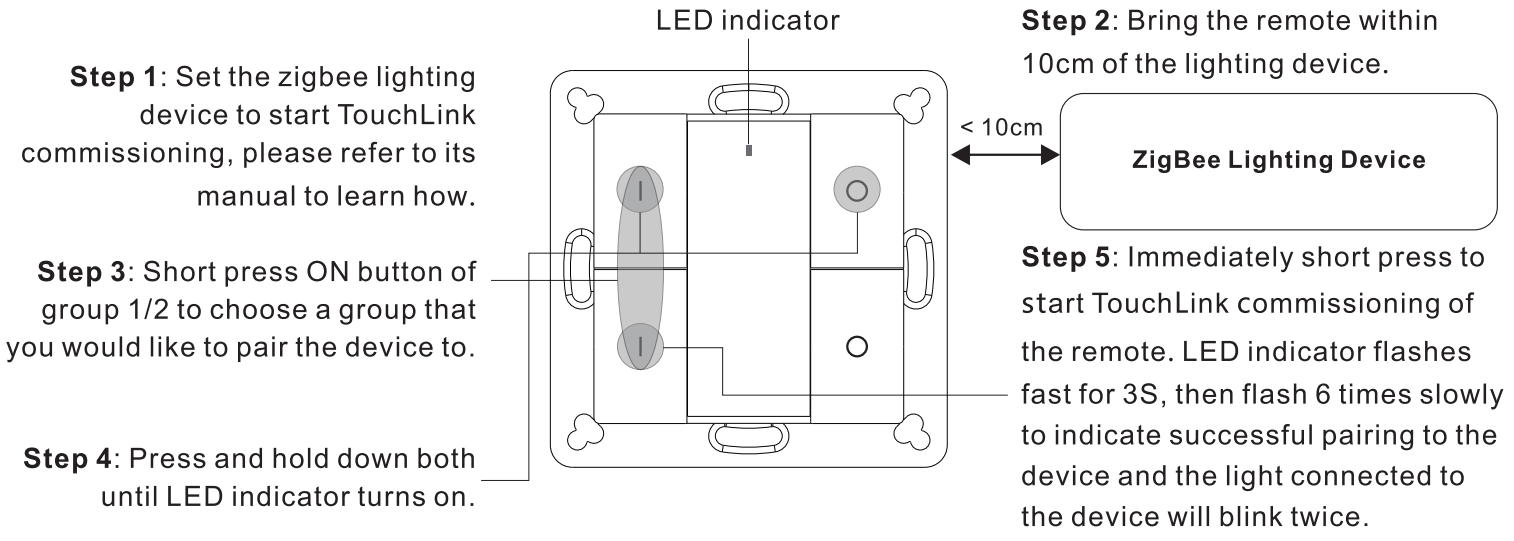
Note:
- Directly TouchLink (both not added to a ZigBee network), please first factory reset both the remote and device, each remote can link with max. 30 devices, please make sure the first linked device i s always powered on when touchlink the remote with 2nd device and more devices.
- TouchLink after both added to a ZigBee network, each device can link with max. 30 remotes.
- To control by both remote and hub, add both remote and device to network first then TouchLink, after TouchLink, the device can be controlled by the linked remotes and Zigbee hub together.
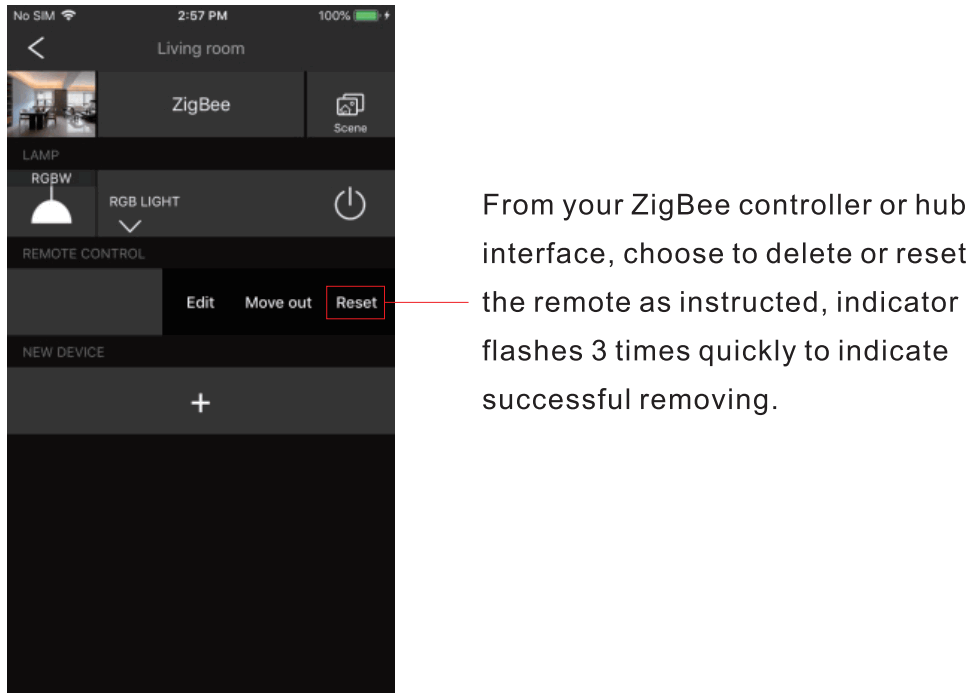
5. Removed from a Zigbee Network through Coordinator or Hub Interface
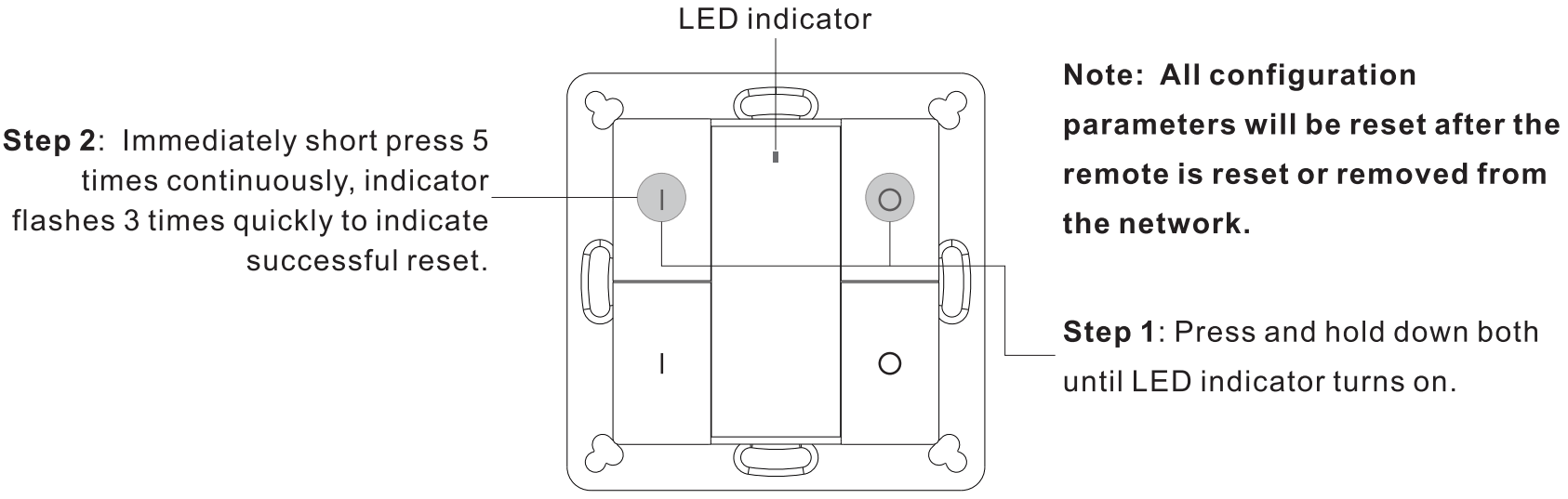
6. Factory Reset Manually
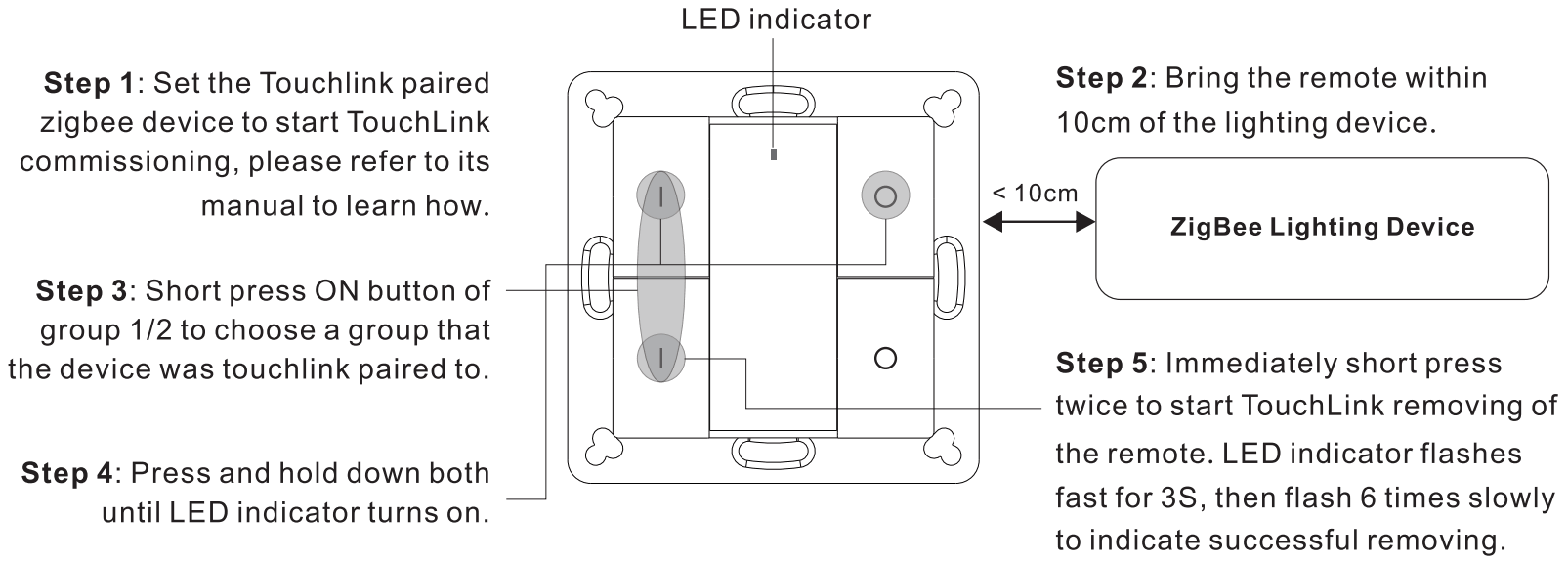
7. Remove a Touchlink Paired ZigBee Lighting Device
8. Factory Reset a Lighting Device (Touch Reset)
Note: the device shall be added to a network, the remote added to the same one or not added to any network.
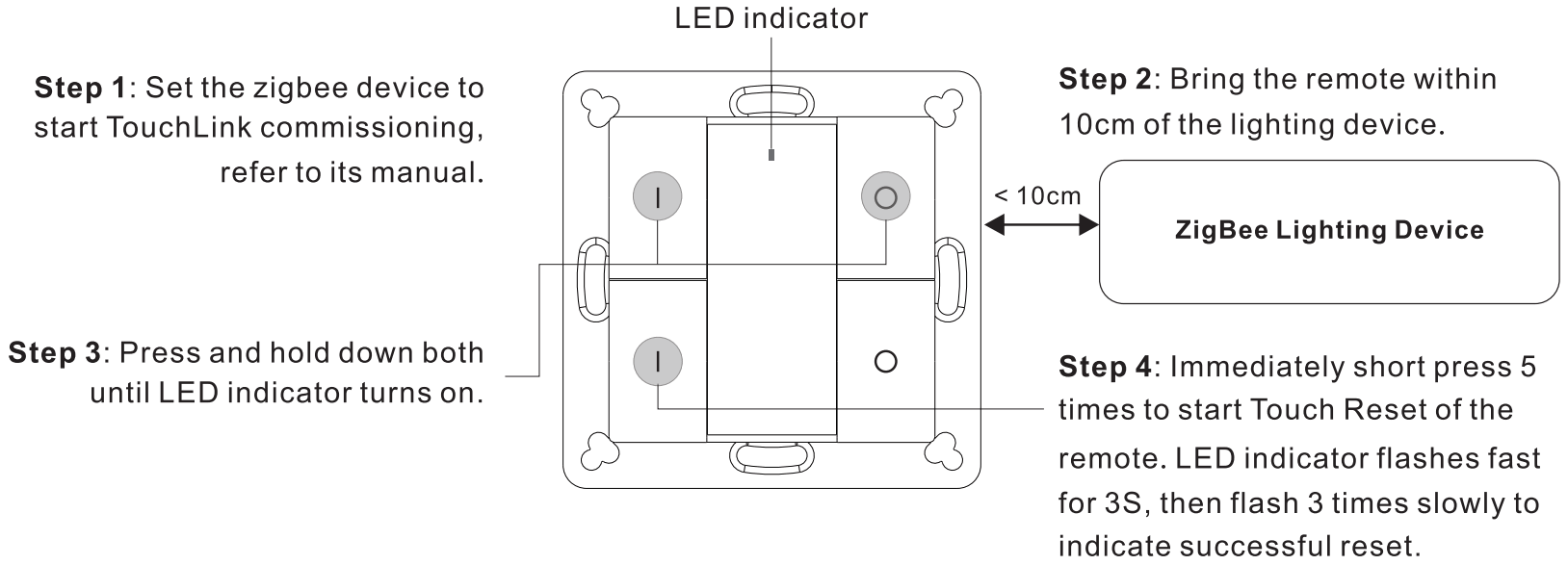
9. Find and Bind a Zigbee Lighting Device
Note: Make sure the device and remote already added to the same zigbee network.
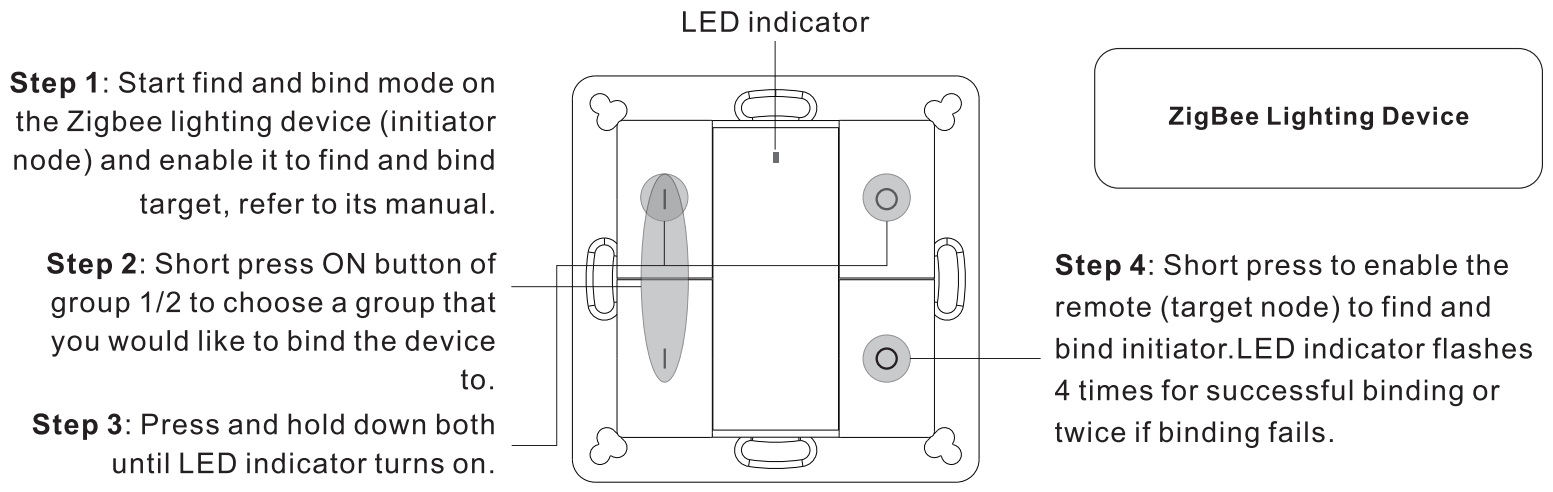
Note: Each remote can bind max. 30 lighting devices.
10. Find and Unbind a Zigbee Lighting Device
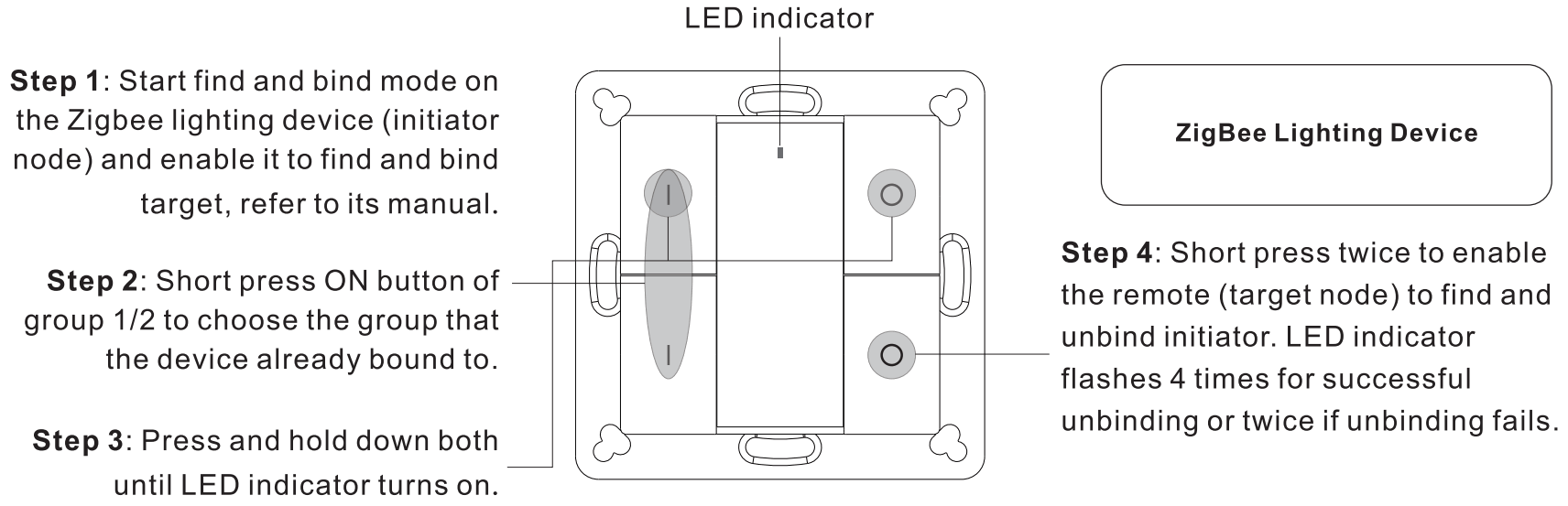
11. Clear All Find and Bind Mode Paired Lighting Devices
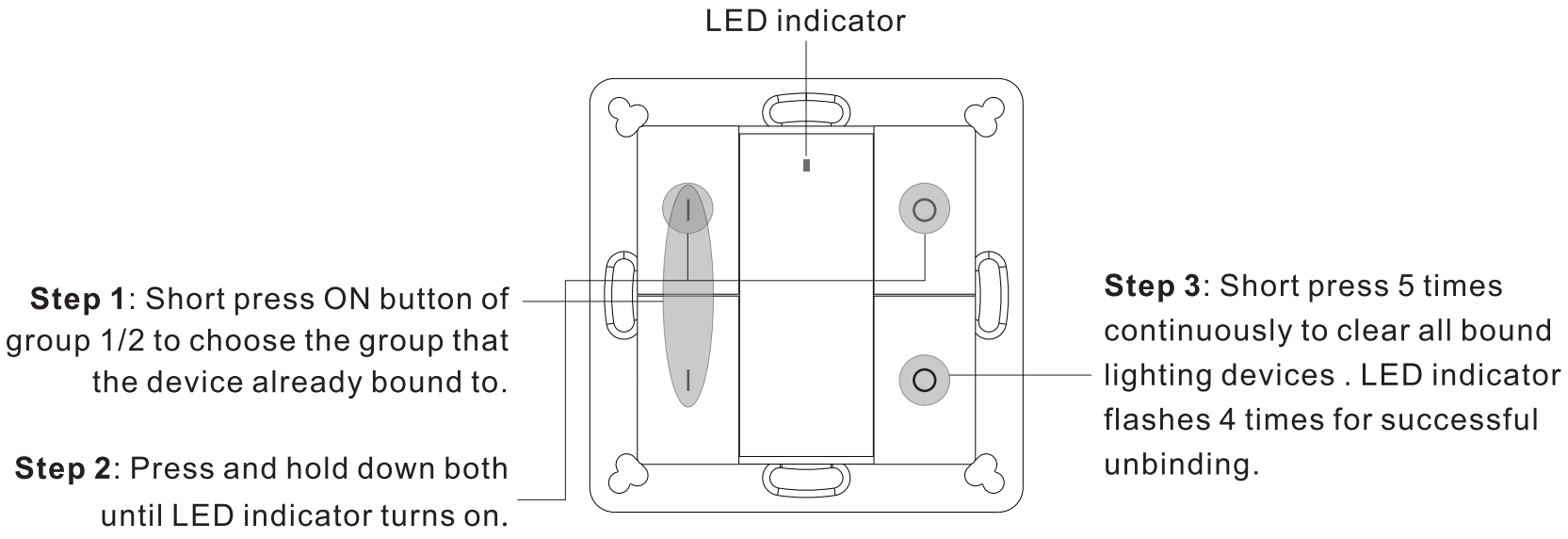
12. Setup a Network & Add Devices to the Network (No Coordinator or Hub Required)
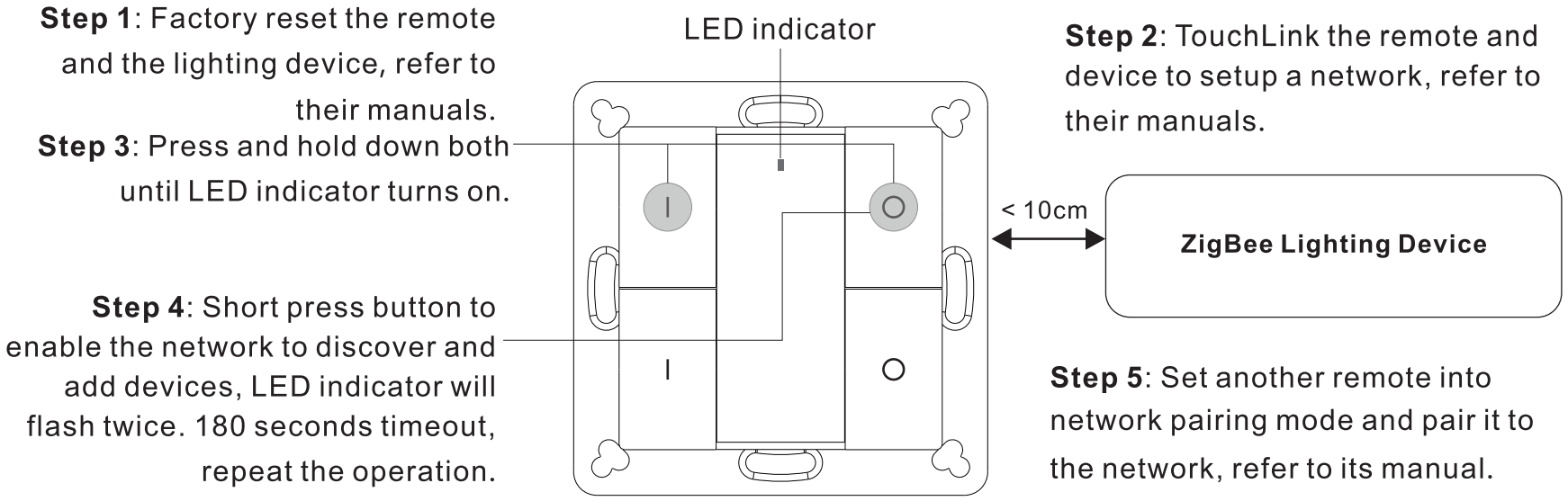
Step 6 : Add more remotes t o the network as you would like.
Step 7 : Factory reset the lighting devices that you would like then add them t o the network, refer to their manuals.
Step 8 : Touchlink to pair the added remotes and lighting devices , refer to their manuals. Each remote can link with max. 30 lighting devices. Each lighting device can be linked by max. 30 remotes.
13. OTA
The remote supports firmware updating through OTA, and will acquire new firmware from zigbee controller or hub every 10 minutes automatically.
14. How to Check Whether the Remote Belongs to a Network or not
Short press any button, indicator blinking means the remote has already been added to a network. No blinking of indicator means the remote does not belong t o any network.
15. Battery Power Monitor Function
The remote will report battery power value to the coordinator under following situations:
- When powered on.
- When short pressing both I and ◯ buttons o f group 2 simultaneously.
- When operating the switch t o send data packets (over 4 hours since last operation).
- When added to the network by a coordinator.
Installation
1.Remove battery insulator
- Use tool to open the silicone gel battery cover

- Pull out the battery insulator

- Install the silicone .battery cover back

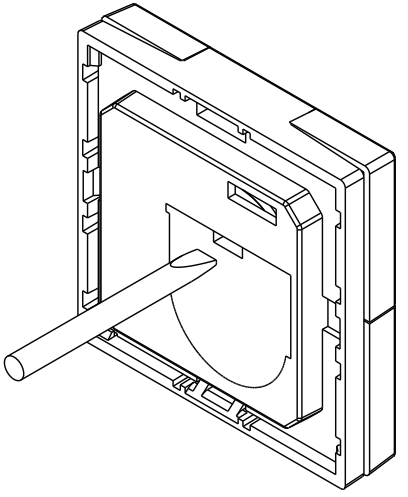
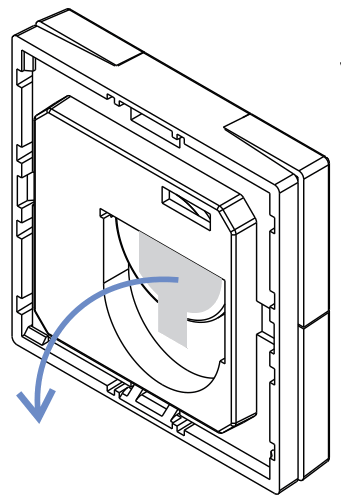
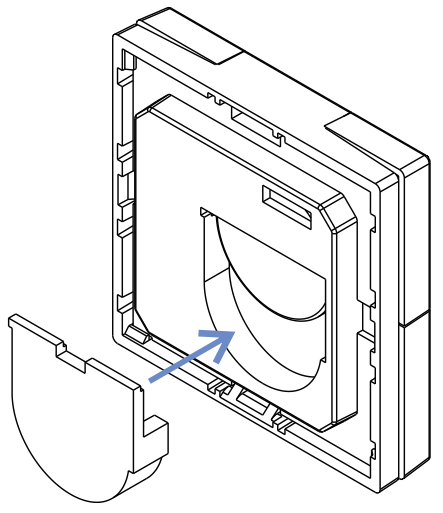
2.Install the controller to wall(2 methods)
Method 1:Stick 3M glue on the back of the bracket and then stick the bracket to the wall
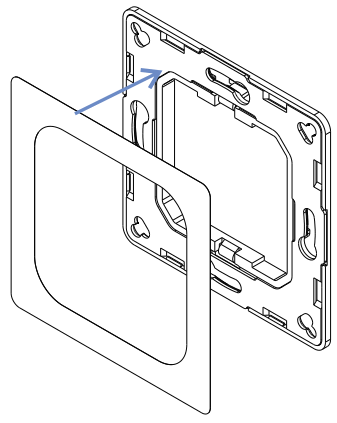
Method 2:Screw the bracket to the wall
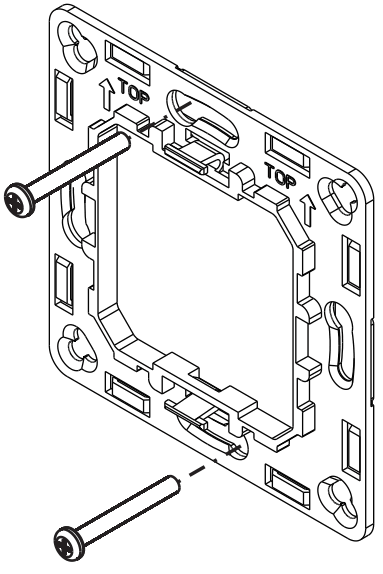
After the bracket is fixed,clip the frame and control part to the bracket in sequence
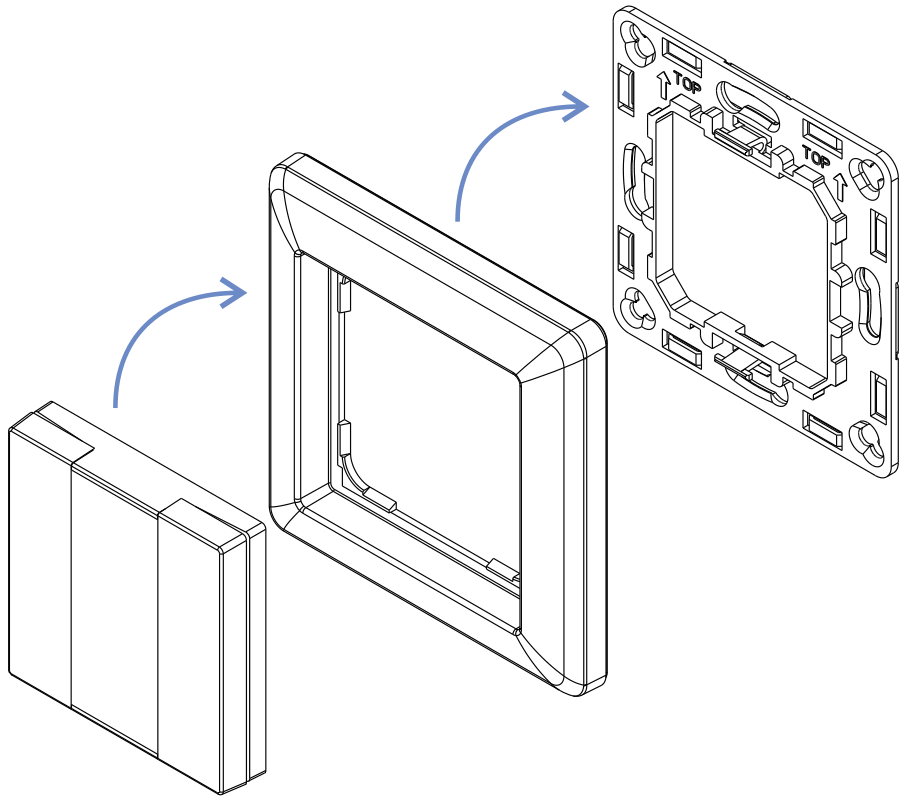
Mounting
The key part of this controller is an universal one, especially rotary standard switch element that can be integrated in numerous frames by different manufactures as below list:
| BERKER | S1, B1, B3, B7 glass |
| GIRA | Standard55, E2, Event, Esprit |
| JUNG | A500, Aplus |
| MERTEN | M-smart, M-Arc, M-Plan |
 CAUTION
Risk of explosion if the battery is replaced by an incorrect type
- replacement of a battery with an incorrect type that can defeat a safeguard (for example, i n the case of some lithium battery types);
- disposal of a battery into fire or a hot oven, or mechanically crushing or cutting of a battery, that can result i n an explosion;
- leaving a battery i n an extremely high temperature surrounding environment that can result i n an explosion or the leakage of flammable liquid or gas;
- a battery subjected to extremely low air pressure that may result i n an explosion or the leakage of flammable liquid or gas.
 VES-ZB-WAL-011