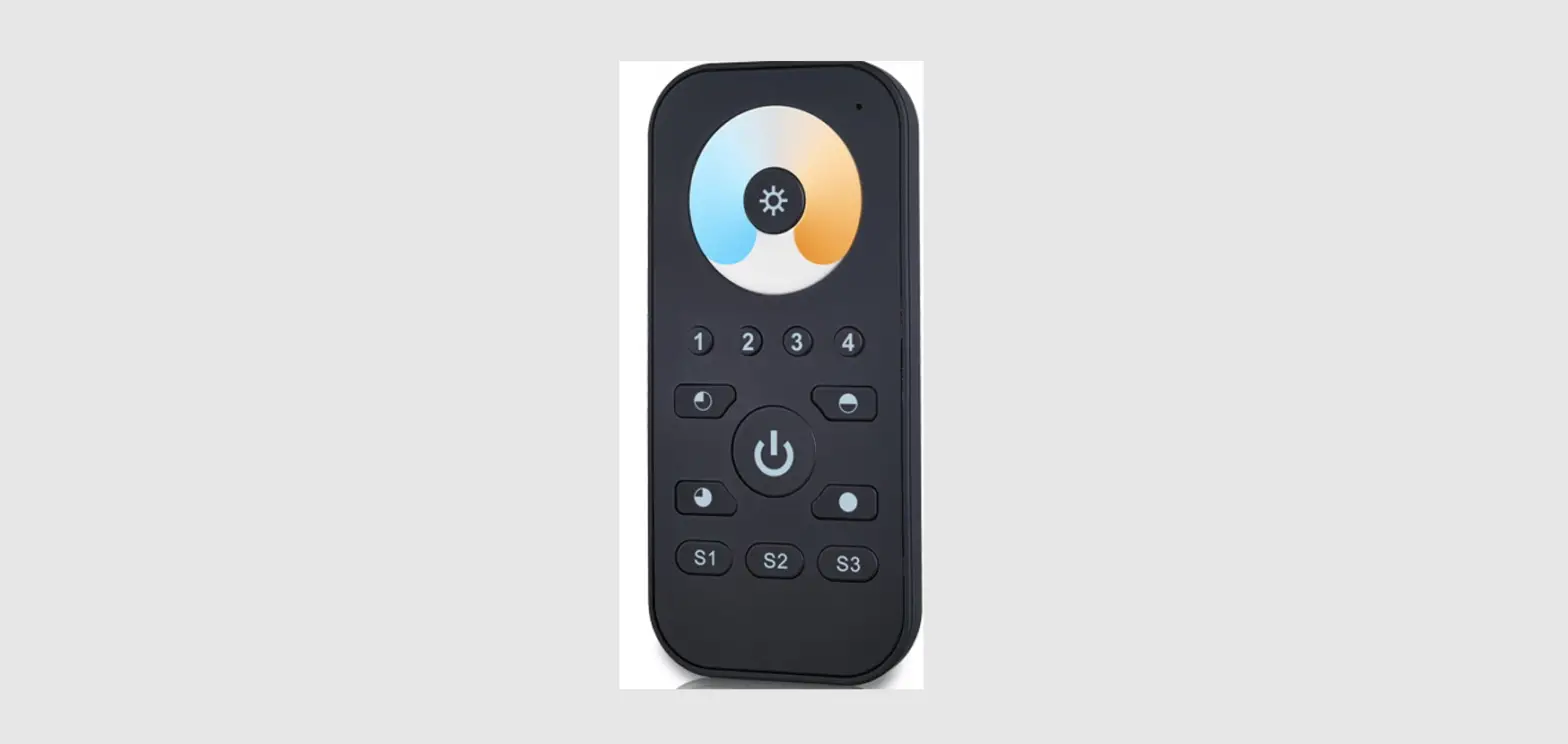
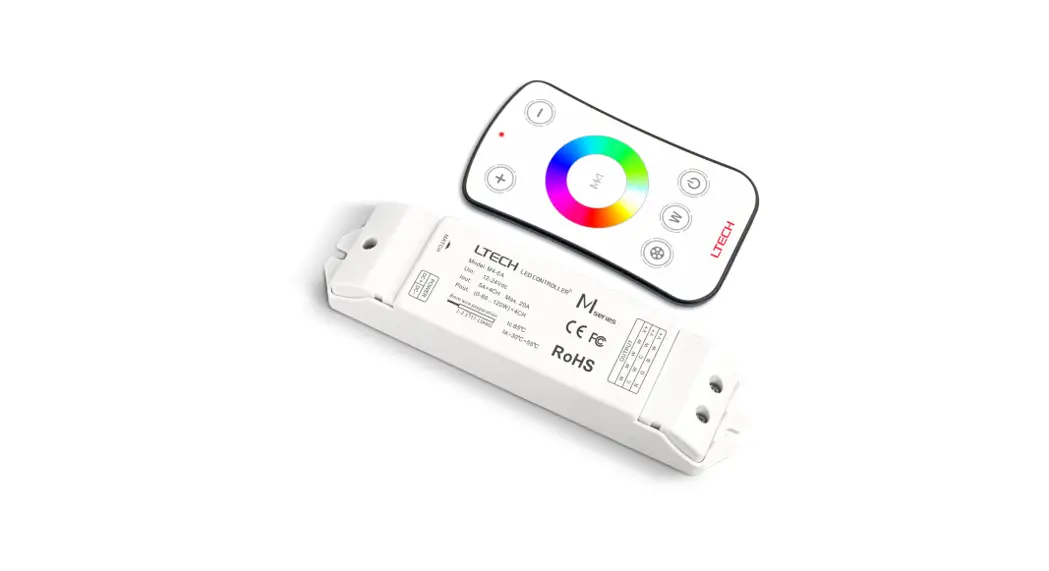
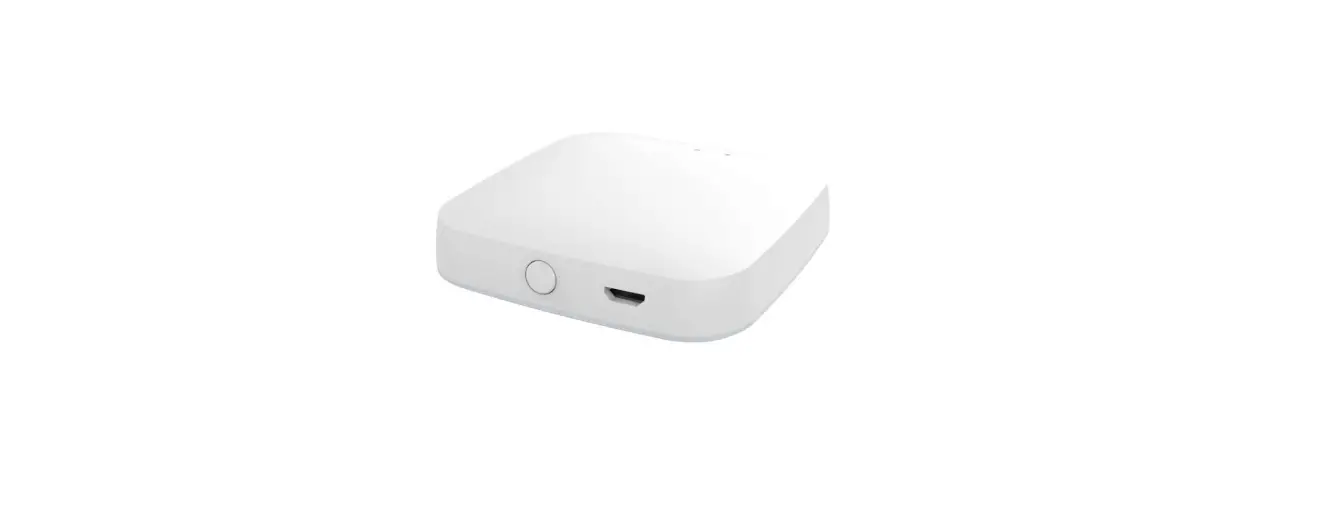
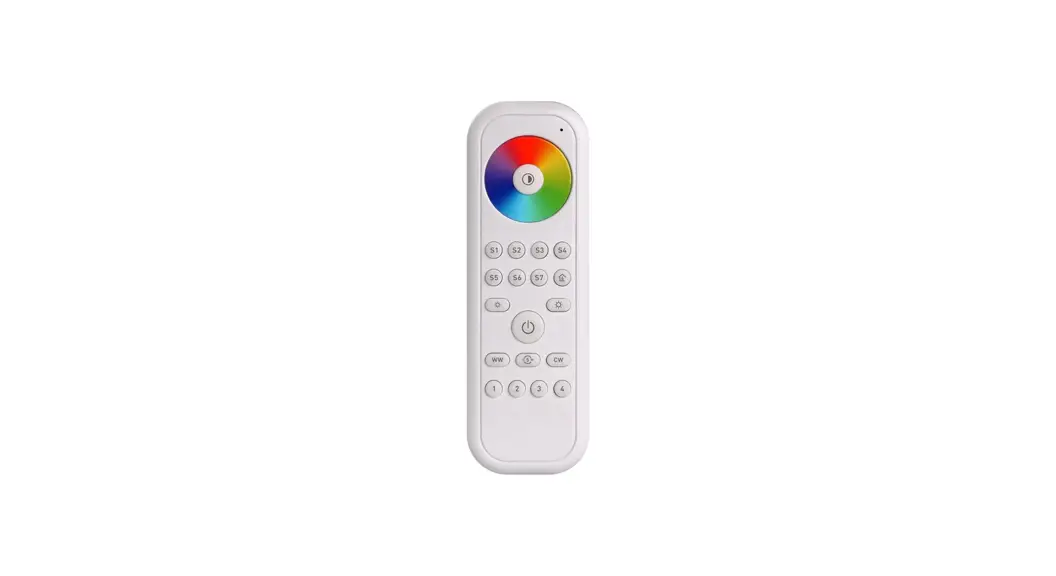
RGBW Remote
Product Information
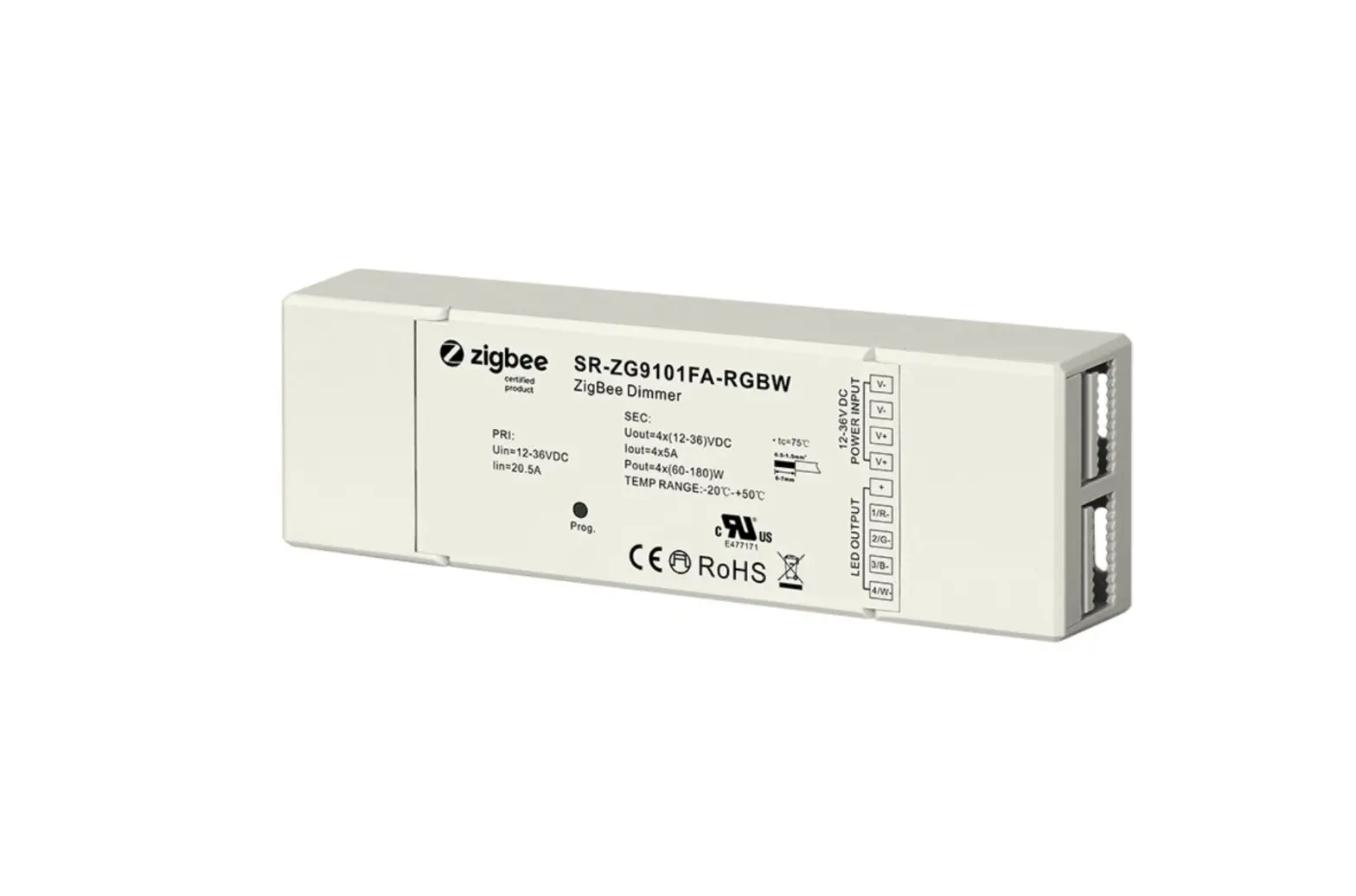
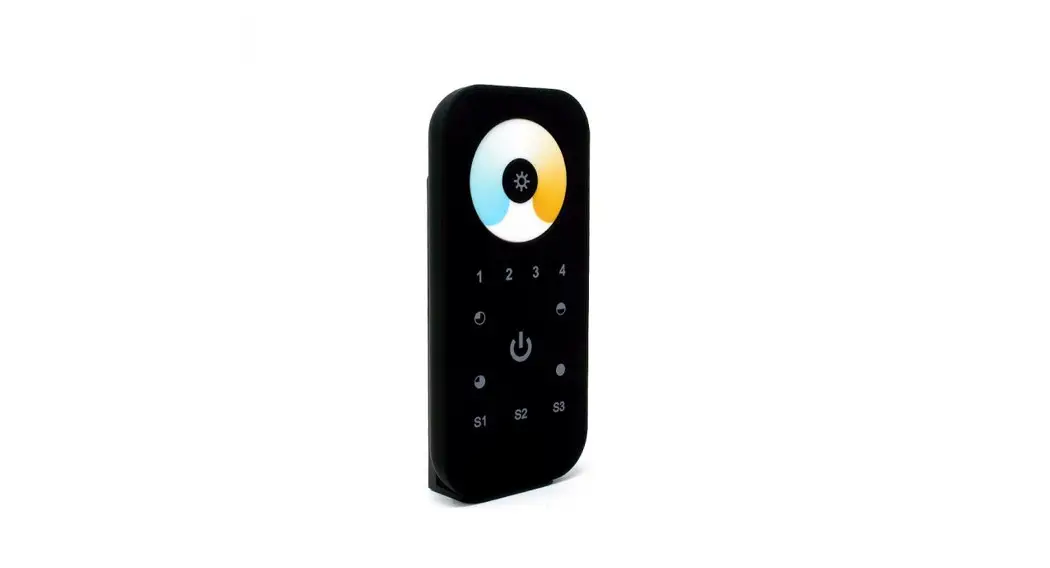
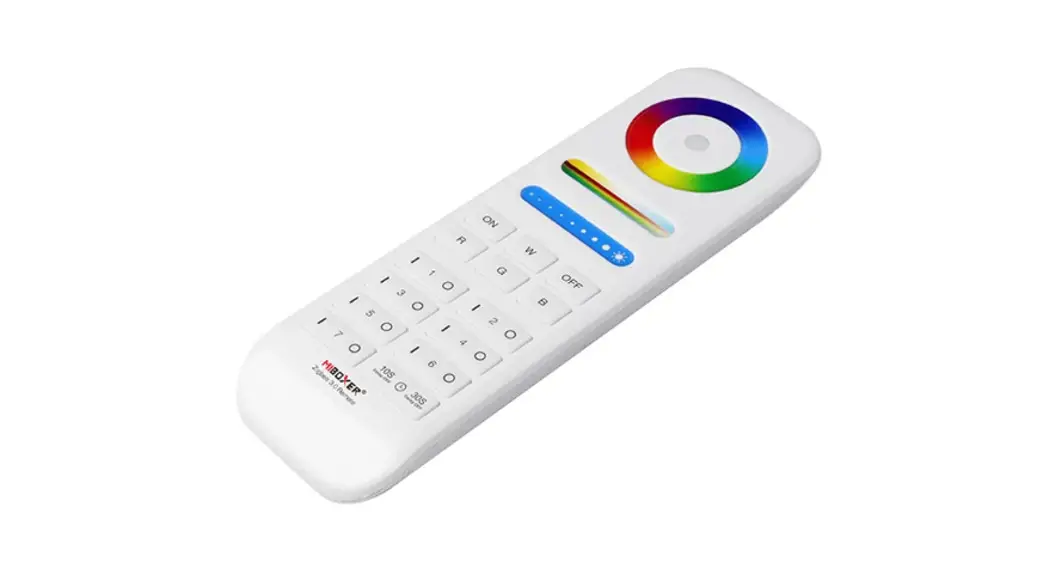
The ZigBee RGBW Remote is a wireless transmitter that
communicates with a variety of ZigBee compatible systems. It
supports 4 groups for binding a maximum of 30 lighting devices and
enables control of RGB ZigBee lighting devices. The remote operates
on a transmission frequency of 2.4GHz and has a transmission range
of 30 meters in a free field. It is powered by 3 AAA batteries and
has a dimension of 120x55x17mm. The remote is IP20 rated for
protection against solid objects and does not provide water
resistance.
Function Introduction
The remote control has several functions:
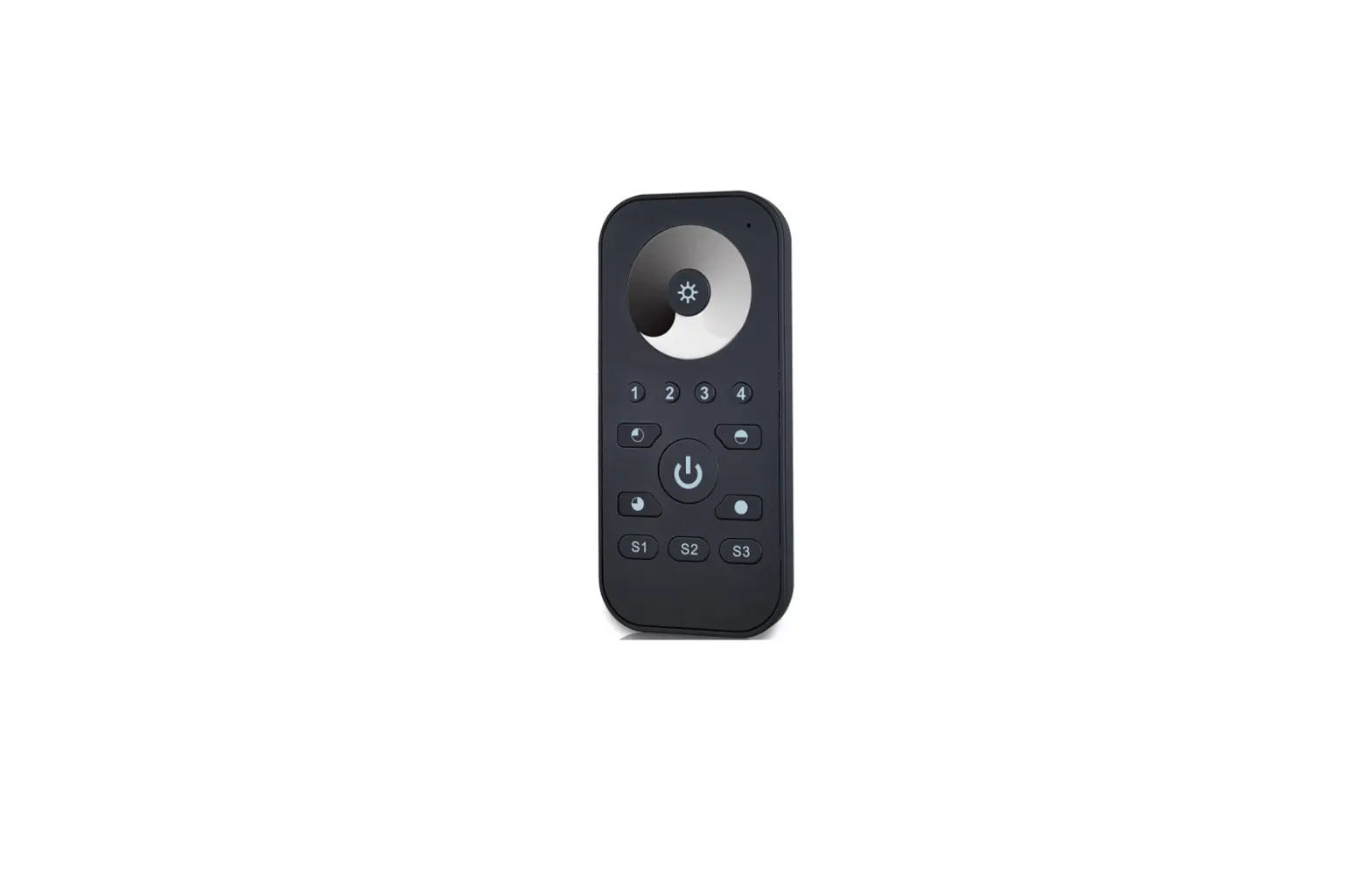
- Turn on/off all groups
- Turn on/off corresponding group
- Adjust color temperature smoothly
- Turn on/off the chosen group/groups
- Enter touchlink pairing mode
- Adjust W channel light intensity smoothly
- Decrease light intensity
- Activate the remote
- Play/pause built-in RGB color changing effect
- Speed up/down the effect
- Choose the group
- Enter touchlink pairing mode and add light device to the
group - Increase light intensity
- Switch CW, NW, WW mixed by RGB
- Turn off RGB channels
- Save colors
- Recall saved colors
ZigBee Clusters Supported by This Remote
The remote supports the following ZigBee clusters:
- Input clusters
Product Usage Instructions
To pair the ZigBee RGBW Remote with a ZigBee compatible system,
follow these steps:
- Remove the remote from any previous ZigBee network it may have
been added to. If not removed, pairing will fail. Refer to the
Factory Reset Manual for instructions. - From your ZigBee controller or hub interface, choose to add a
device or accessory and enter Pairing mode as instructed by the
controller. - Press and hold down the remote’s button until the LED indicator
turns on.
Note:
- After successful pairing, the remote information will appear on
the controller or hub interface. - If pairing to a Philips Hue Bridge, no remote information will
appear on the hub interface.
ZigBee RGBW Remote
70100073 Revised 20220912
Important: Read All Instructions Prior to Installation
Revision Log ON/OFF button function Group buttons function Operation Chapter 4
Previous Version Turn on/off all groups Hold to turn on/off corresponding group Touchlink only has normal operation mode
Function introduction
When controls RGB+CCT light devices, keep short pressing to turn on CCT channels and get 25% ww+75% cw, 50% ww+50% cw, 75% ww+25% cw, 100% ww+0% cw, 0% ww+100% cw one by one. Press and hold to adjust color temperature smoothly.
20220912 Revision Turn on/off the chosen group/groups Hold to enter touchlink pairing mode Touchlink shortcut operation mode added
Indicator: indicate the state of remote control
W
Color wheel
When controls RGBW light devices, keep short pressing to turn on the 4th channel W and get 25%, 50%, 75%, 100%, 0% intensity one by one. Press and hold to adjust W channel light intensity smoothly.
Press and hold down to decrease light intensity ON/OFF button, click to activate the remote, once activated, the indicator turns on, click to turn on/off the chosen group/groups
Click to play / pause 1 built-in RGB color changing effect, Press and hold down to speed up/down the effect
W+
S1
S2
S3
Group numbers: click to choose the group, multiple groups can be chosen by clicking group numbers one by one within 3 seconds, press and hold down to enter touchlink pairing mode and add light device to the group Press and hold down to increase light intensity
Click to switch CW, NW, WW mixed by RGB, double click to turn off RGB channels
Press and hold down to save colors; Click to recall the saved colors
Front side
Product Data Protocol
Operation Voltage Transmission Frequency Transmission Range (free field)
Protection Type Dimming Range
Dimension Protection Grade
ZigBee 3.0 4.5V(3xAAA battery)
2.4GHz 30m IP20
0.1%-100% 120x55x17mm
IP20
· ZigBee RGBW remote based on ZigBee 3.0 · Enables to control RGB, RGBW and RGB+CCT lighting devices · High sensitive & high stable touch color wheel, fast & precise color control · Battery powered remote with low power consumption · Enables to pair ZigBee lighting devices through touchlink commissioning · Supports find and bind mode to pair with ZigBee lighting devices · Supports 4 groups for binding max. 30 lighting devices · 2.4 GHz global operation · Transmission range up to 30m · Compatible with universal ZigBee Gateway products · Compatible with universal RGBW and RGB+CCT ZigBee lighting devices
Magnetic Bracket
ZigBee Clusters Supported by This Remote Are As Follows:
Input clusters:
· Basic
· Power Configuration
· Identify
· Diagnostics
Output clusters: · Identify · Group
· Scene
· On/off
· Level control
· Ota
Safety & Warnings
· This device contains AAA batteries that shall be stored and disposed properly. · DO NOT expose the device to moisture.
· Color control
Operation
1.This ZigBee RGBW remote is a wireless transmitter that communicates with a variety of ZigBee compatible systems. This transmitter sends wireless radio signals that are used to remotely control a compatible system.
4.5V(3xAAA battery) Bottom side
2.This ZigBee remote supports 4 groups for binding max. 30 lighting devices and enables to control RGB ZigBee lighting devices.
3. Zigbee Network Pairing through Coordinator or Hub (Added to a Zigbee Network)
Step 1: Remove the remote from previous zigbee network if it has already
been added to it, otherwise pairing will fail. Please refer to the part “Factory Reset Manually”.
Step 4: Immediately short press to search nearby network, indicator
flashes every 1 second, 20 seconds timeout if there is no network. Indicator
will then blink 5 times quickly for successful pairing.
W
W+
S1
S2
S3
LED indicator
Step 2: From your zigbee controller or hub interface, choose to add device or accessory and enter Pairing mode as instructed by the controller.
Step 3: Press and hold down until LED indicator turns on.
Note: 1) After pairing successfully, the remote information will appear on the controller or hub interface. 2) No remote information will appear on the hub interface if pairing to Philips Hue Bridge.
5. Removed from a Zigbee Network through Coordinator or Hub Interface
4. TouchLink to a Zigbee Lighting Device 1) Normal Operation
Step 1: Set the zigbee lighting device to start TouchLink commissioning, please
refer to its manual to learn how.
Step 4: Short press any button to choose a group to touchlink.
Step 5: Press and hold down until LED indicator blinks once and stay solid on.
LED indicator
W
< 10cm
ZigBee Lighting Device
W+
S1
S2
S3
Step 2: Bring the remote within 10cm of the lighting device.
Step 3: Short press to activate the remote, LED indicator turns on.
Step 6:Immediately short press to start TouchLink commissioning of the remote. LED indicator flashes fast for 3S, then flash 6 times slowly to indicate successful pairing to the device and the light connected to the device will blink twice.
6. Factory Reset Manually
Step 1: Press and hold down until LED indicator turns on.
From your ZigBee controller or hub interface, choose to delete or reset the remote as instructed, indicator flashes 3 times quickly to indicate successful removing.
W
W+
S1
S2
S3
LED indicator
Note: All configuration parameters will be reset after the remote is reset or removed from the network.
Step 2: Immediately short press 5 times continuously, indicator flashes 3 times quickly to indicate successful reset.
2) Shortcut Operation
Step 1: Set the zigbee lighting device to start TouchLink commissioning, please
refer to its manual to learn how.
Step 4: Press and hold down to enter touchlink pairing mode and add light
device to corresponding group.
LED indicator
W
< 10cm
ZigBee Lighting Device
W+
S1
S2
S3
Step 2: Bring the remote within 10cm of the lighting device. Step 3: Short press to activate the remote, LED indicator turns on.
Step 5: LED indicator flashes fast for 3S, then flash 6 times slowly to indicate successful pairing to the light device and the light connected to the device will blink twice.
Note: 1) Directly TouchLink (both not added to a ZigBee network), each remote can link with 30 devices. 2) TouchLink after both added to a ZigBee network, each remote can link with max. 30 devices. 3) For Hue Bridge & Amazon Echo Plus, add remote and device to network first then TouchLink. 4) After TouchLink, the remote can control the linked lighting devices.
7. Remove a Touchlink Paired ZigBee Lighting Device
Step 1: Set the Touchlink paired zigbee device to start TouchLink
commissioning, please refer to its
manual to learn how.
LED indicator
W
< 10cm
ZigBee Lighting Device
Step 4: Short press the group button that the device was linked to.
Step 5: Press and hold down until LED indicator blinks once and stay solid on.
W+
S1
S2
S3
Step 2: Bring the remote within 10cm of the lighting device. Step 3: Short press to activate the remote, LED indicator turns on.
Step 6: Immediately short press twice to start TouchLink removing of the remote. LED indicator flashes fast for 3S, then flash 6 times slowly to indicate successful removing.
10. Find and Unbind a Zigbee Lighting Device
Step 1: Start find and bind mode on the
ZigBee lighting device (initiator node)
and enable it to find and unbind target,
refer to its manual.
W
Step 3: Short press the group button that the device already bound to.
Step 4:Press and hold down until LED indicator blinks once and stay solid on.
W+
S1
S2
S3
LED indicator
ZigBee Lighting Device
Step 2: Short press to activate the remote, LED indicator turns on. Step 5:Short press twice to enable the remote (target node) to find and unbind initiator. LED indicator flashes 4 times for successful unbinding or twice if unbinding fails.
8. Factory Reset a Lighting Device (Touch Reset) Note: the device shall be added to a network, the remote added to the same one or not added to any network.
Step 1: Set the zigbee device to start TouchLink commissioning, refer to its
manual.
LED indicator
W
< 10cm
ZigBee Lighting Device
Step 3: Press and hold down until LED indicator turns on.
W+
S1
S2
S3
Step 2: Bring the remote within 10cm of the lighting device.
Step 4:Immediately short press 5 times to start Touch Reset of the remote. LED indicator flashes fast for 3S, then flash 3 times slowly to indicate successful reset.
11. Clear All Find and Bind Mode Paired Lighting Devices of a Group LED indicator
W
Step 2: Short press to choose the group that you would like to unbind all devices.
Step 3:Press and hold down until LED indicator blinks once and stay solid on.
W+
S1
S2
S3
Step 1: Short press to activate the remote, LED indicator turns on.
Step 4:Short press 5 times continuously to clear all bound lighting devices with this group. LED indicator flashes 4 times for successful unbinding.
9. Find and Bind a Zigbee Lighting Device Note: Make sure the device and remote already added to the same zigbee network.
Step 1: Start find and bind mode on the Zigbee lighting device (initiator node)
LED indicator
and enable it to find and bind target,
refer to its manual.
W
ZigBee Lighting Device
Step 3: Short press a group button that you would like to bind the device to.
Step 4:Press and hold down until LED indicator blinks once and stay solid on.
Note: Each remote can bind max. 30 lighting devices.
W+
S1
S2
S3
Step 2: Short press to activate the remote, LED indicator turns on.
Step 5:Short press to enable the remote (target node) to find and bind initiator. LED indicator flashes 4 times for successful binding or twice if binding fails.
12. Setup a Network & Add Devices to the Network (No Coordinator or Hub Required)
Step 1: Factory reset the remote and the lighting device, refer to their manuals.
Step 2: TouchLink the remote and device to setup a network, refer to their
manuals.
LED indicator
W
< 10cm
ZigBee Lighting Device
Step 3:Press and hold down until LED indicator turns on.
Step 4: Short press button S1 to enable the network to discover and add devices,
LED indicator will flash twice. 180 seconds timeout, repeat the operation.
W+
S1
S2
S3
Step 5:Set another remote into network pairing mode and pair it to the network,
refer to its manual.
Step 6: Add more remotes to the network as you would like. Step 7: Factory reset the lighting devices that you would like then add them to the network, refer to their manuals. Step 8: Touchlink to pair the added remotes and lighting devices, refer to their manuals. Each remote can link with max. 30 lighting devices. Each lighting device can be linked by max. 30 remotes.
13. OTA
The remote supports firmware updating through OTA, and will acquire new firmware from zigbee controller or hub every 10 minutes automatically.
14. How to Check Whether the Remote Belongs to a Network or not Activate the remote by clicking All On/Off button (indicator on), then short press any other buttons except group buttons, indicator blinking 3 times means the remote does not belong to any network, blinking once or twice means it has already been added to a network.
15. Battery Power Monitor Function The remote will report battery power value to the coordinator under following situations: · When powered on. · When short pressing both S2 and S3 buttons simultaneously. · When operating the switch to send data packets (over 4 hours since last operation). · When added to the network by a coordinator.