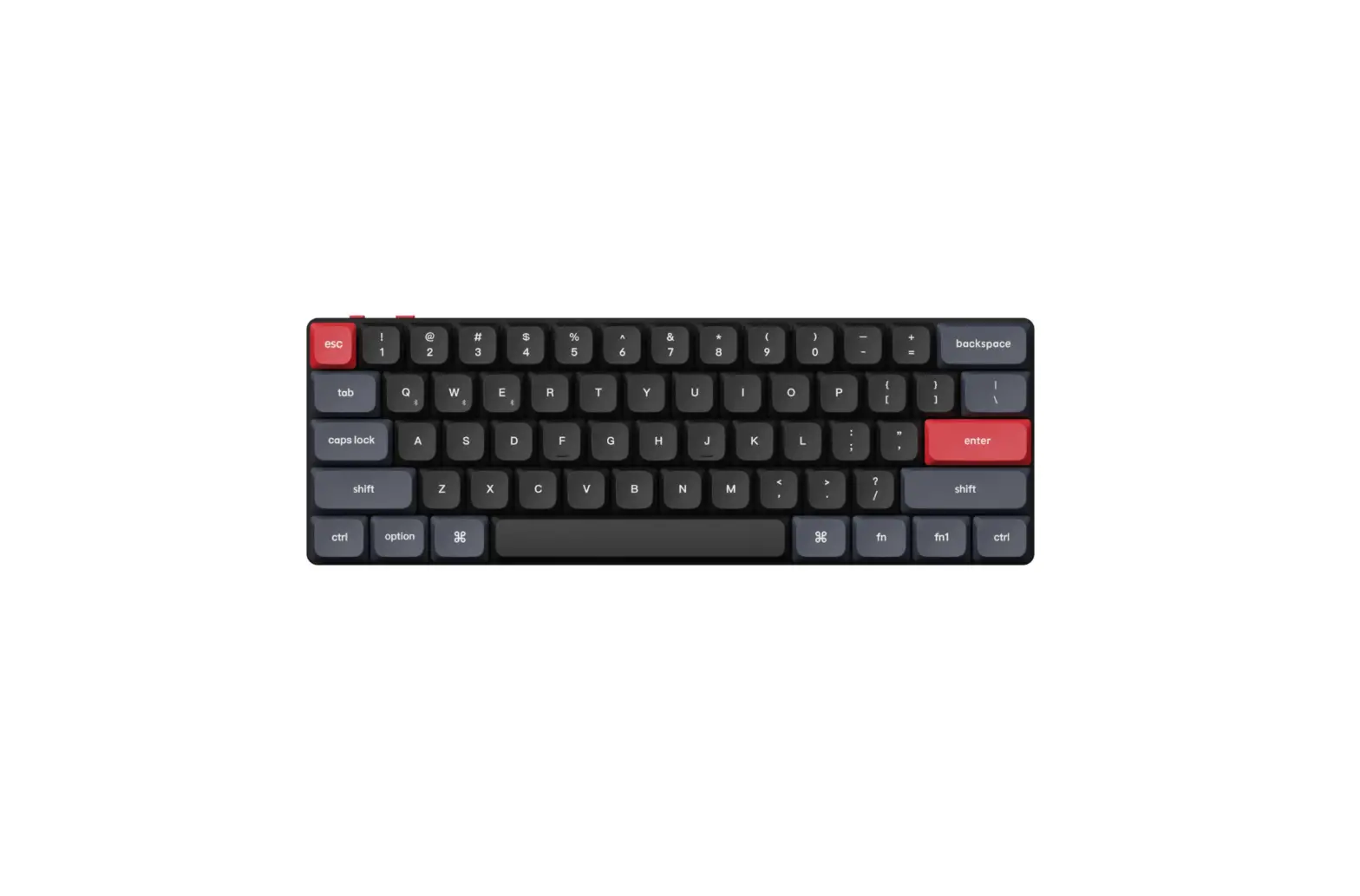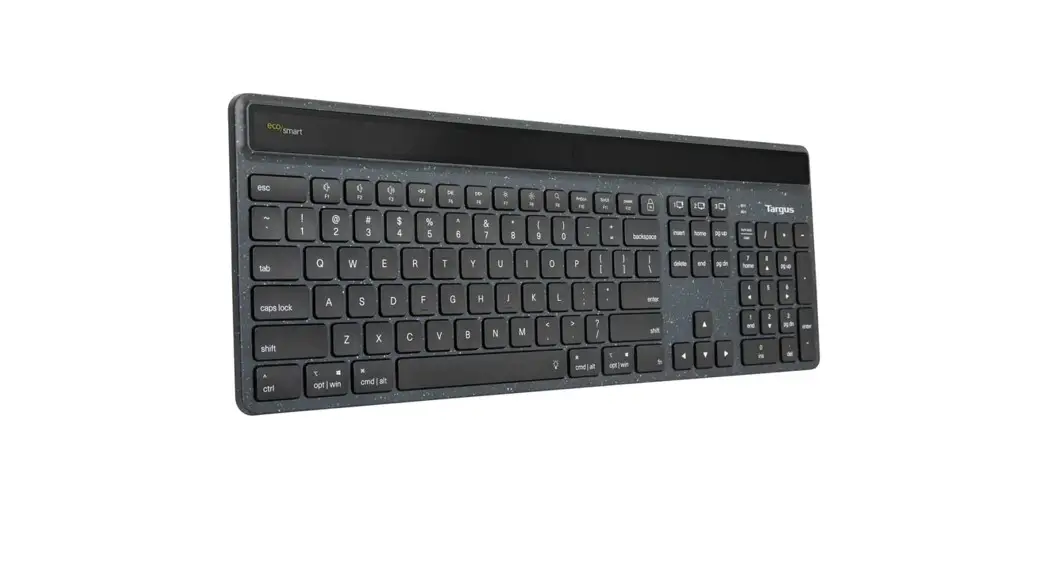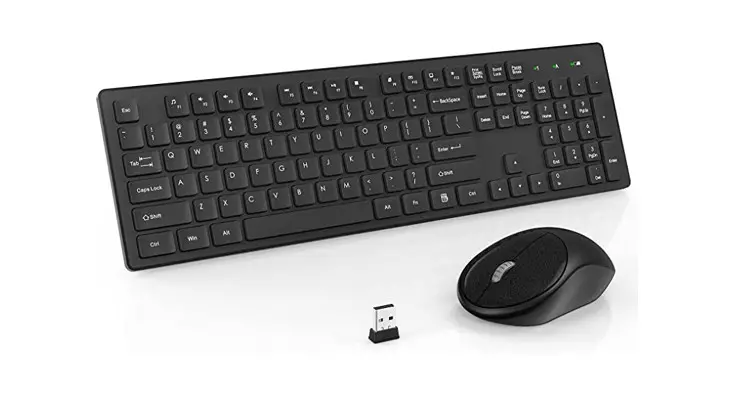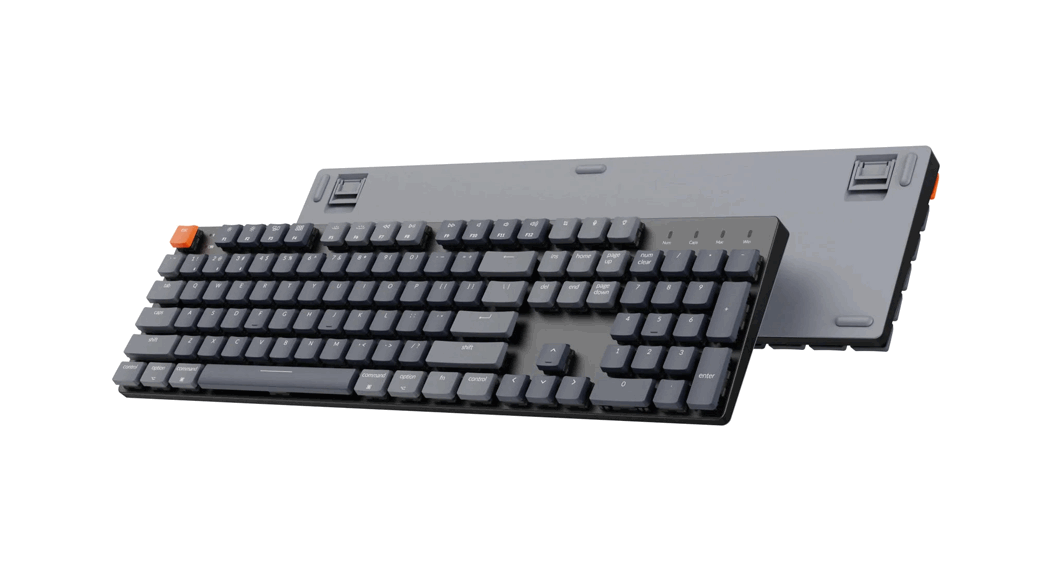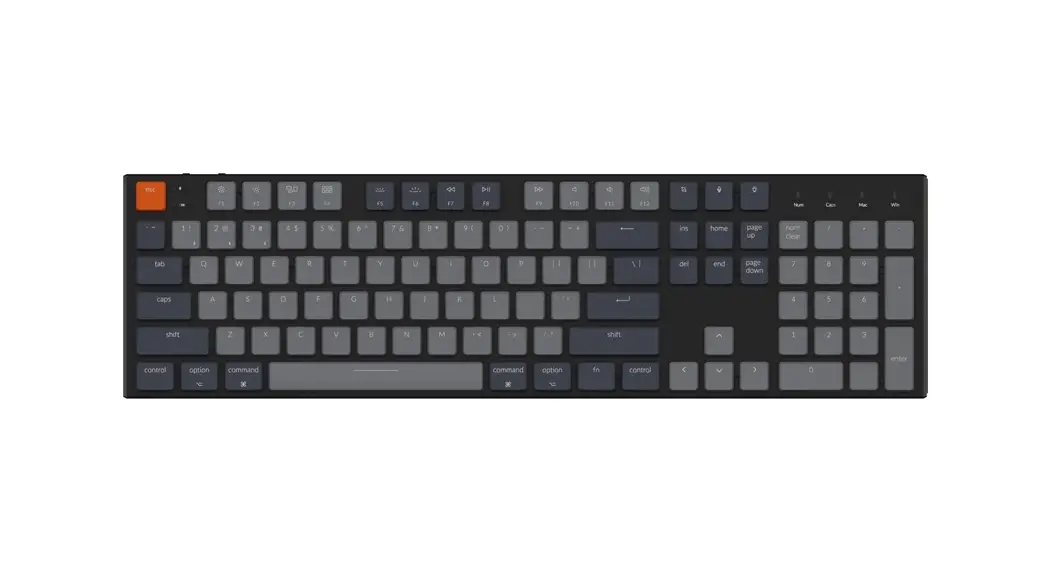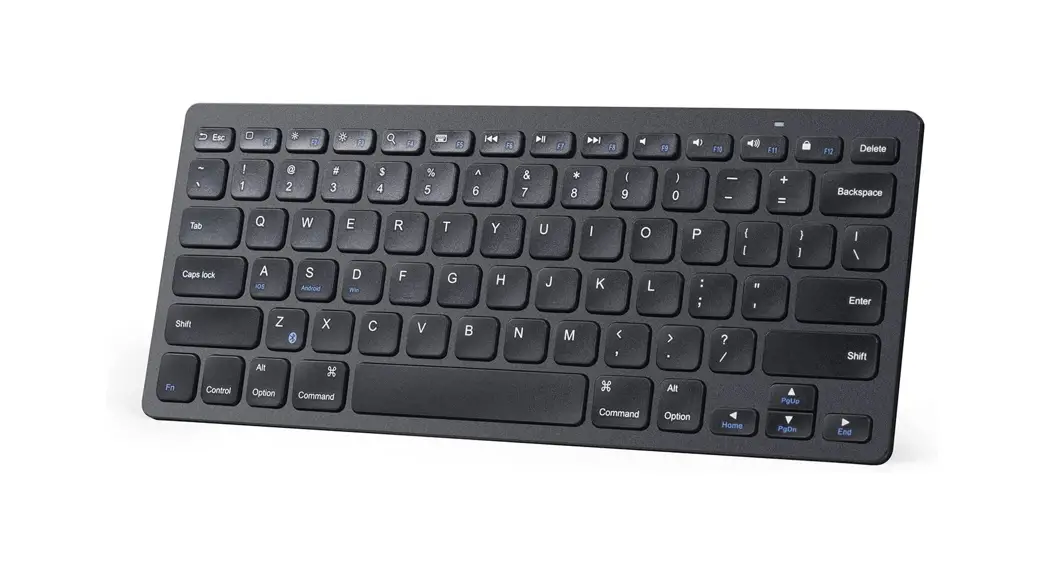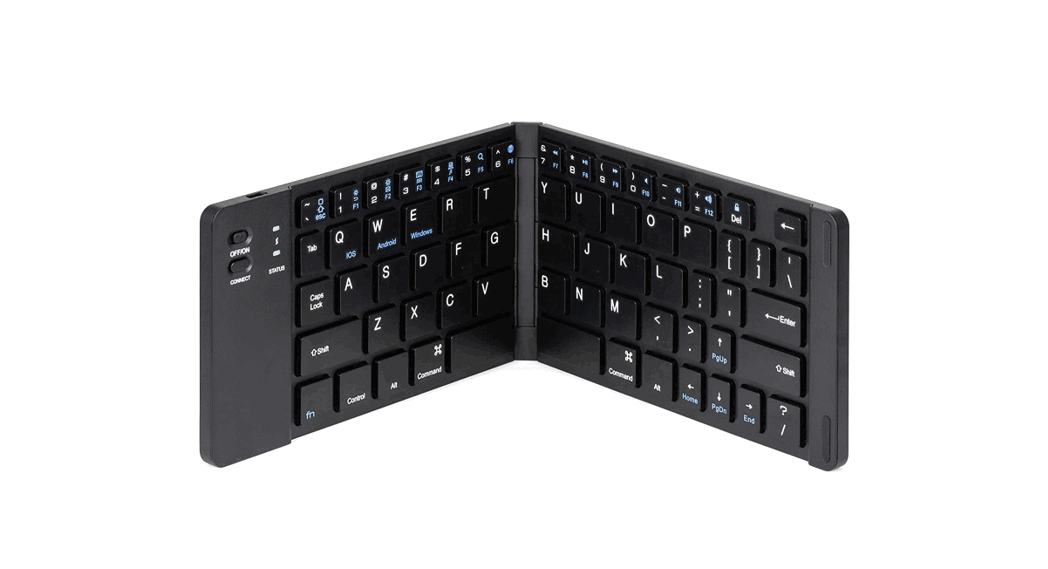

 242726456 Sleek and Portable Wireless Keyboard
User Guide
Typing on the go!
Pairs with Bluetooth® devices
Charging your keyboard:
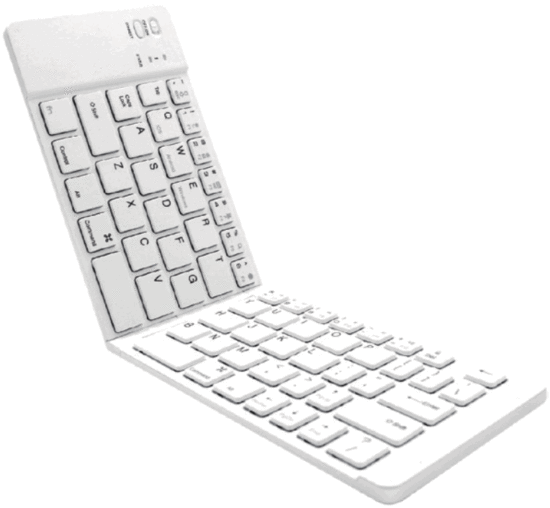
To charge your TYPE keyboard you will need the connect the micro-USB cable to the micro USB port on the top right side of the keyboard. You will know it’s charging when you see the stoplight turn red, if you see a red and blue light that means your keyboard is switched on and charging. For a full battery leave the keyboard plugged in for 2-3 hours, and the red light will shut off indicating the keyboard is fully charged. On a full battery, the TYPE keyboard will give you up to 60 days of power on standby. Depending on how often the keyboard is used that time frame can vary.
Prepare your keyboard to connect:
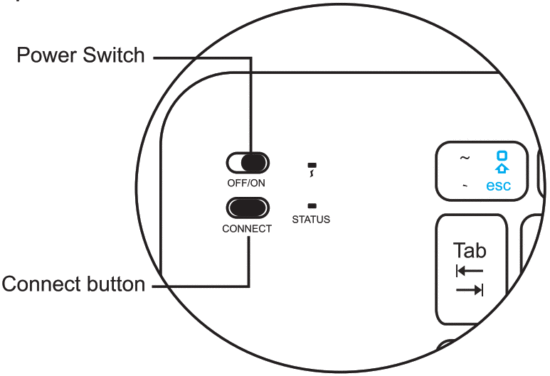
- Before using your TYPE Keyboard make sure it has a full battery.
- Press the connect button, and the blue status light will turn on and begin to flash.
- Now the keyboard is ready to be connected.
- Go to ‘Settings’ on your device -> Bluetooth, and choose ‘TYPE keyboard’ on your list.
- Review the next page for instructions on how to connect with your specific device.
For windows supported devices:
- Click the windows start icon on the bottom left corner of your screen.
- Go to the settings gear icon.
- Select the devices icon and make sure the Bluetooth tab is switched to ‘ON’.
- Select ‘Add a Bluetooth device’. 5. Find the TYPE keyboard on your list and click to connect.
For smartphone and tablet devices:
- Go to the settings icon on your home page.
- Select Bluetooth and make sure the tab is switched to ‘ON’.
- Find TYPE keyboard on your list and click to connect.
For Mac:
Click on the Apple icon and select ‘System Preference’ from the drop-down. Click on Bluetooth and look for TYPE, then choose ‘Pair’.
Pairing your device with TYPE and other audio products:
Your device can connect to the TYPE keyboard and pair with most audio devices (speakers/headphones) simultaneously.
| Key | Fn+On IOS | Fn + on Android | Fn + on Windows | Fn Windows w/o Fn |
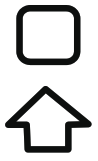 | Home | Horne | ESC | |
 | Brightness down | Return | F1 | 1 |
  | Brightness up | F2 | 2 | |
 | Virtual keyboard | Menu | F3 | 3 |
 | Screen capture | Media player | F4 | 4 |
 | Search | Search | F5 | 5 |
 | Language exchange | Language exchange | F6 | 6 |
 | Previous track | Previous track | F7 | 7 |
 | Play/pause | Play/pause | F8 | 8 |
 | Next track | Next track | F9 | 9 |
 | Mute | Mute | F10 | 0 |
 | Volume down | Volume down | F11 | |
 | Volume up | Volume up | F12 | |
 | Screen lock | Screen lock | Screen lock | Del |
Note:
Function key features may have variations depending on the operation system version and devices.
© 2019. All rights reserved to 18G Designs and Logistics DBA Fashion
www.justfashionit.com