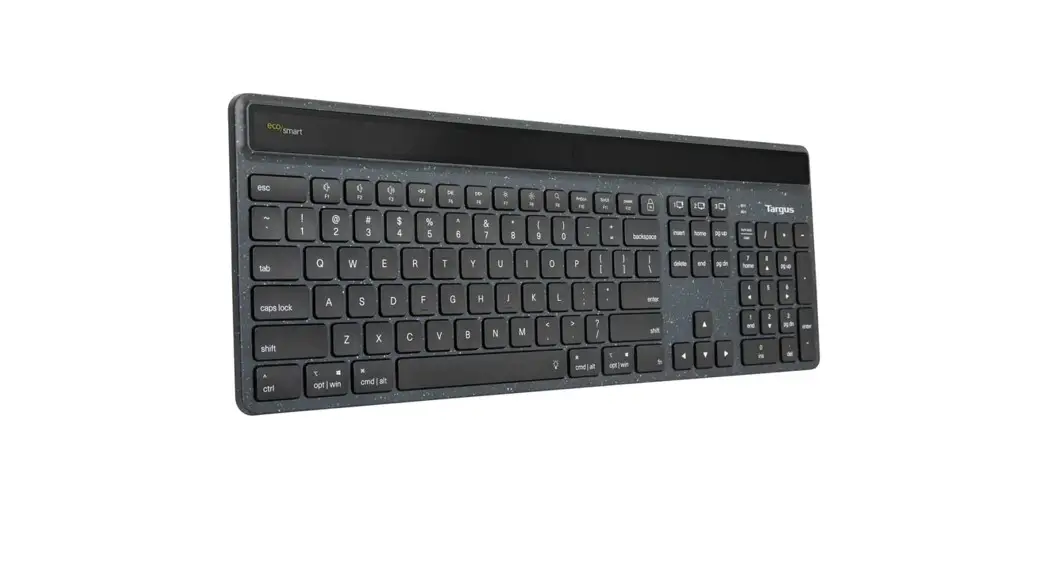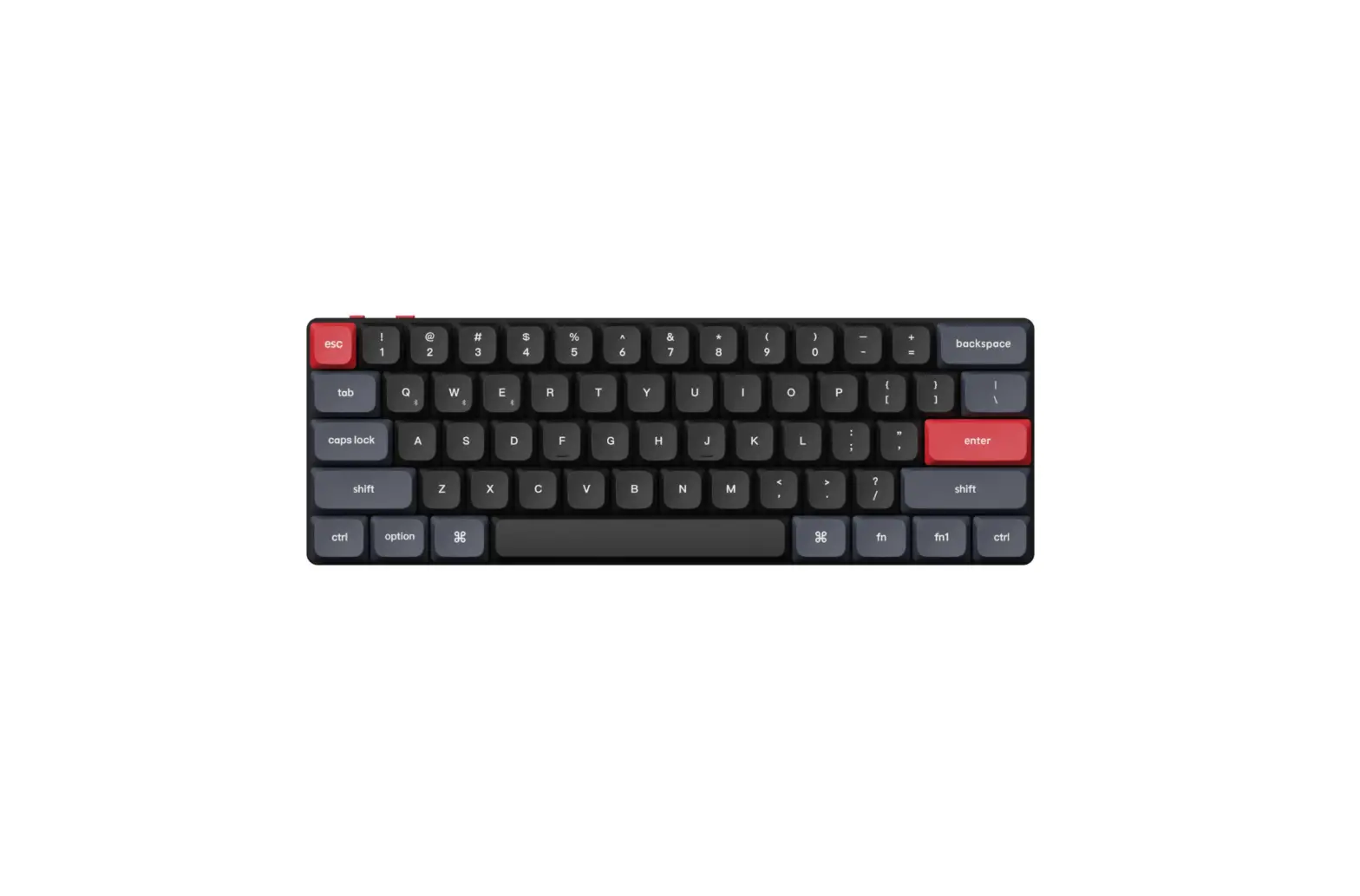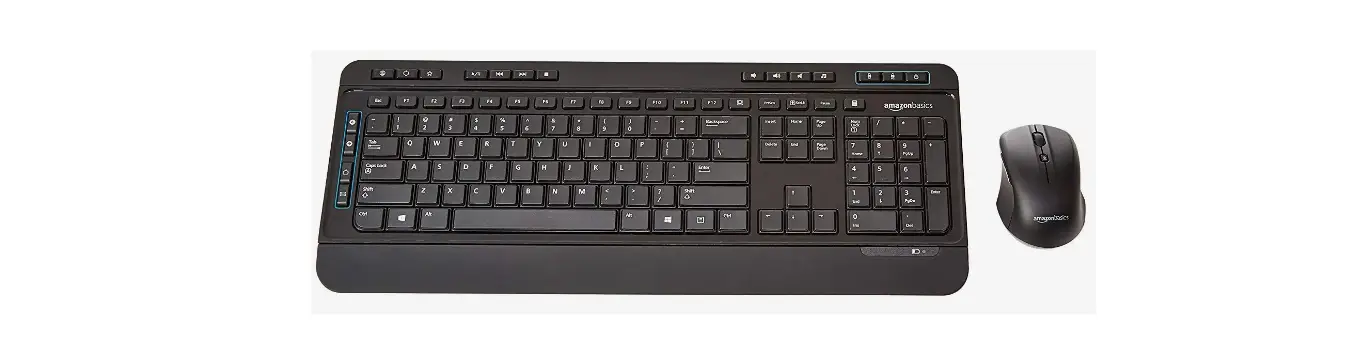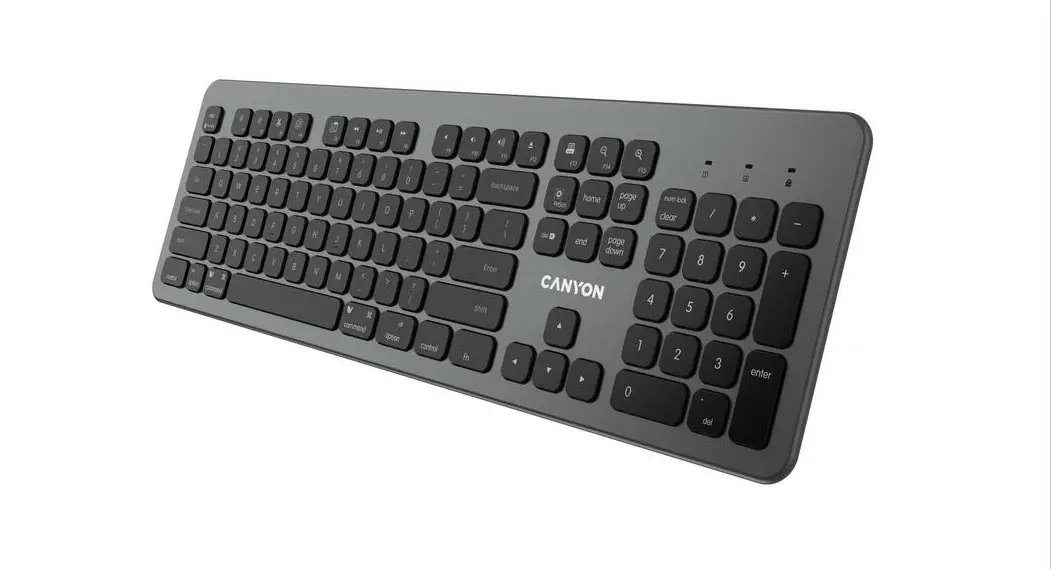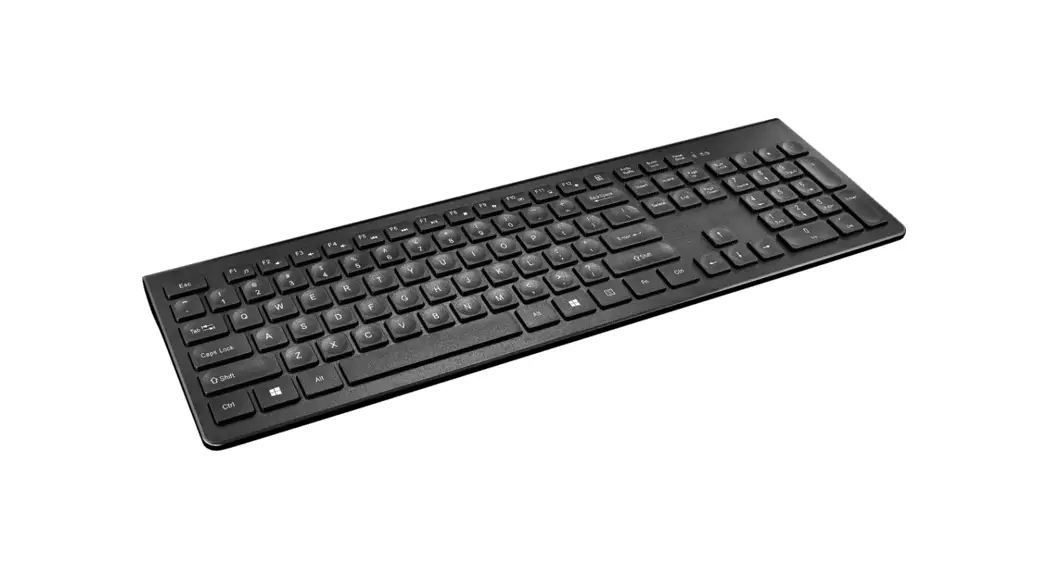
 Wireless Keyboard
Quick setup guide
BE-PKRFKB
Before using your new product, please read these instructions to prevent any damage.
Package contents
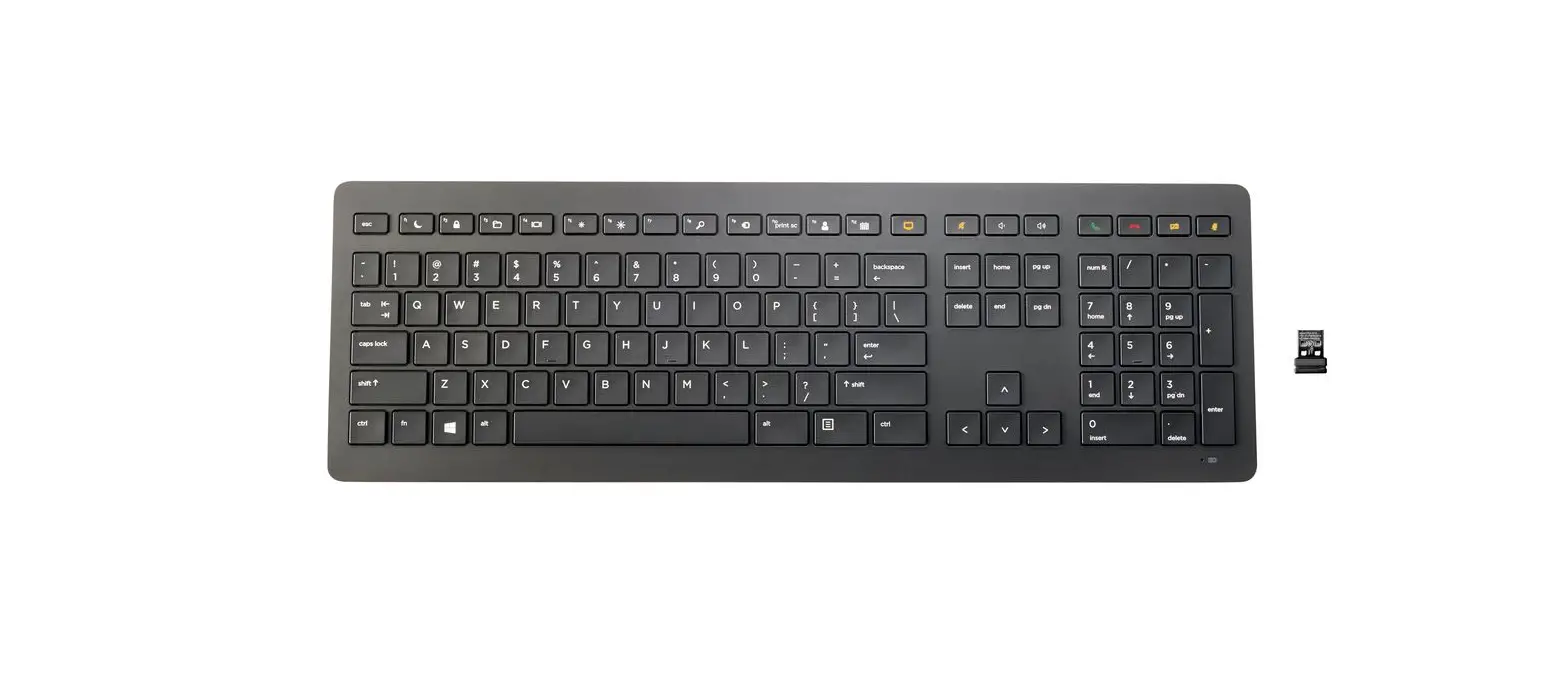
- Wireless keyboard
- USB receiver
- AAA batteries (2)
- Quick Setup Guide
Features
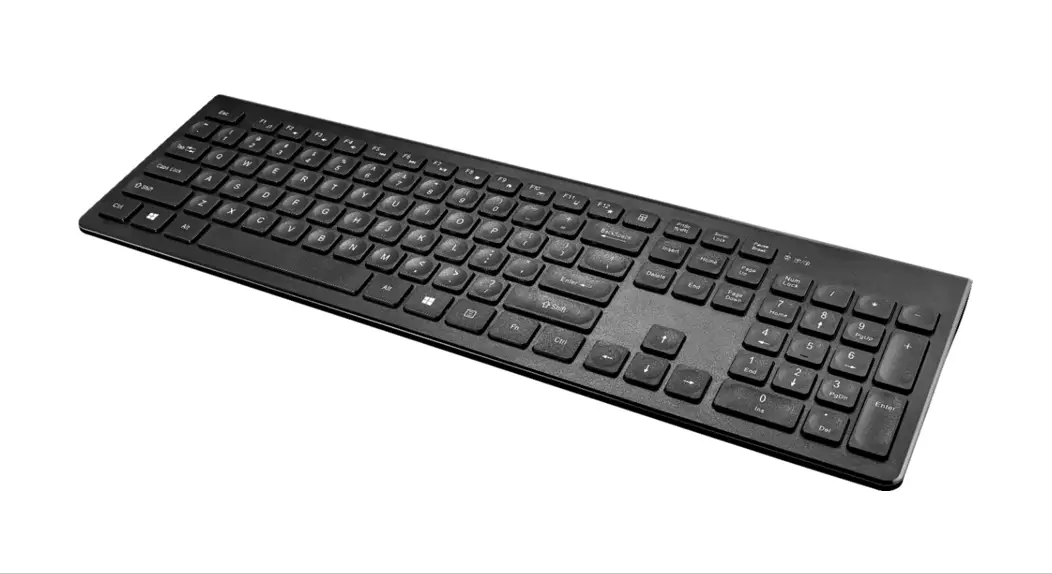
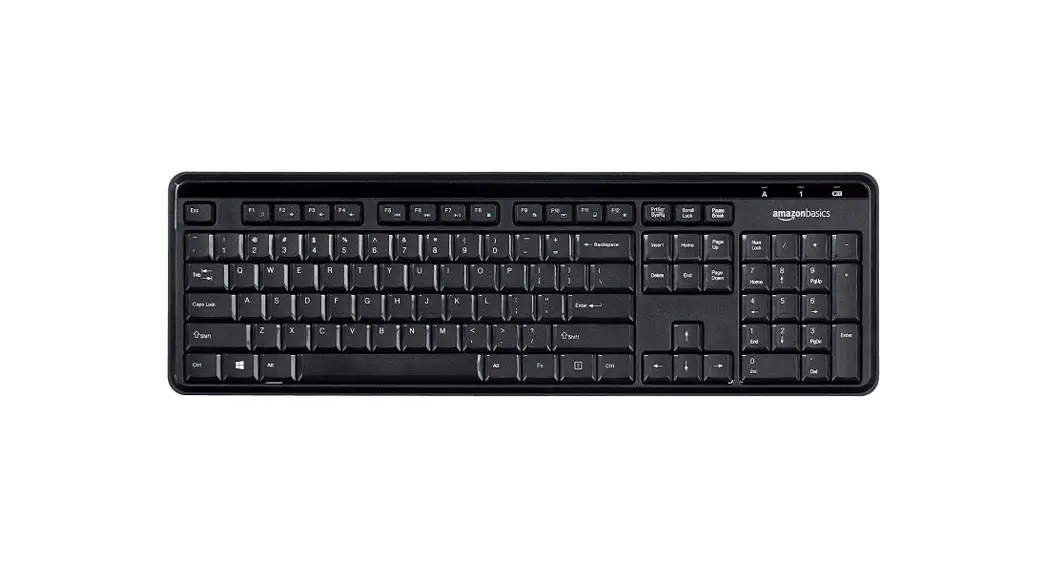
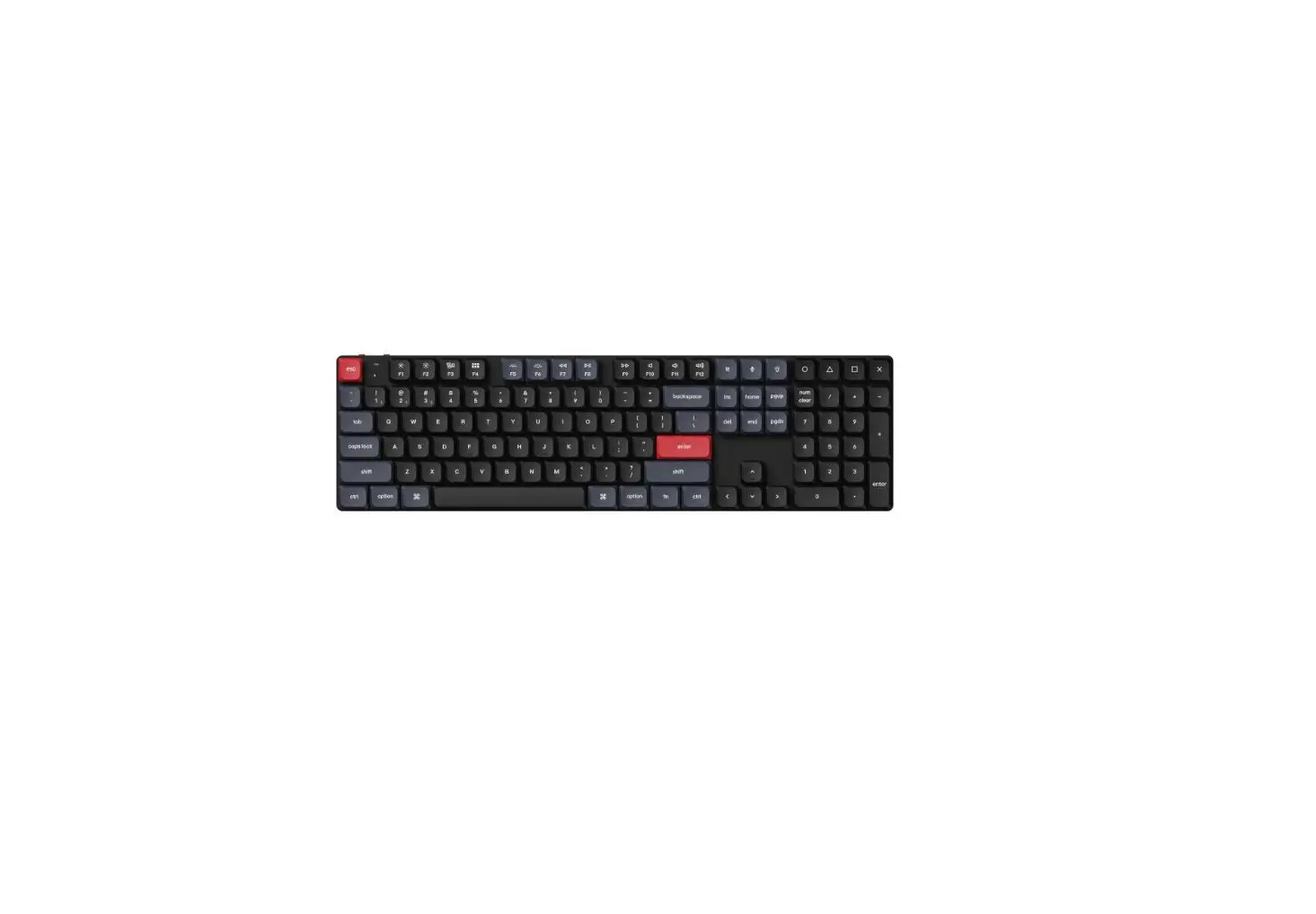
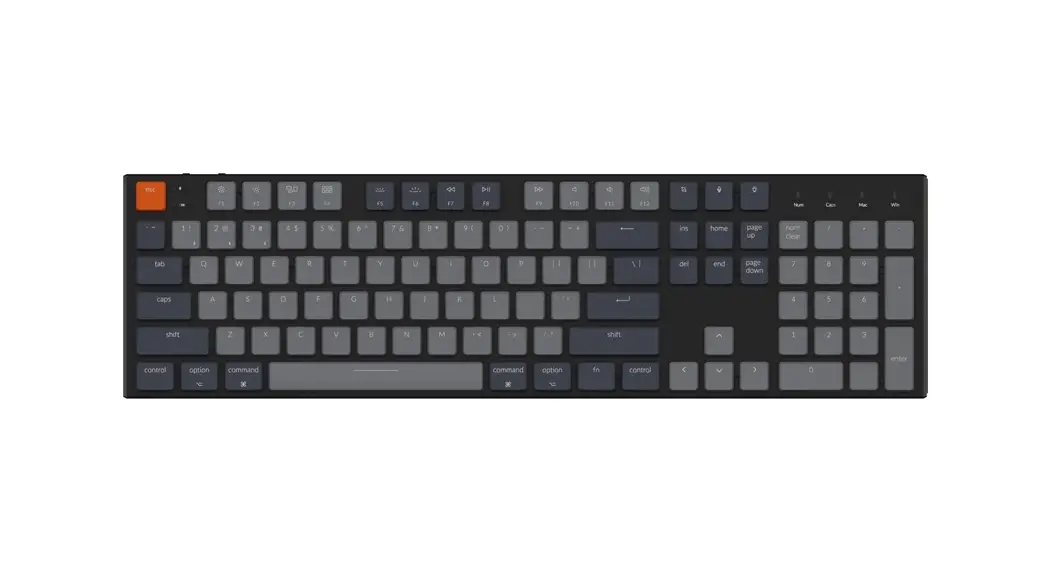
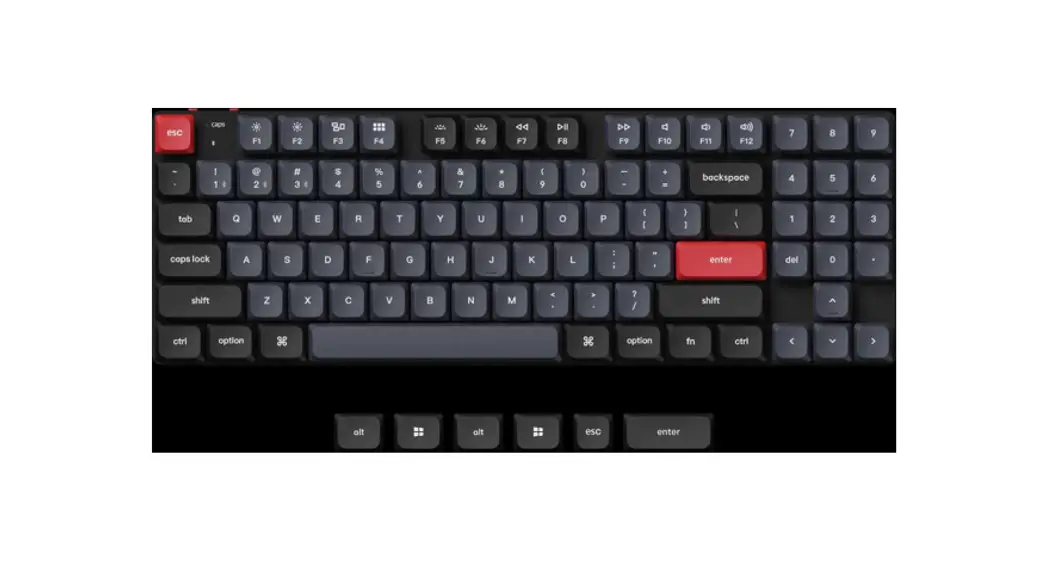
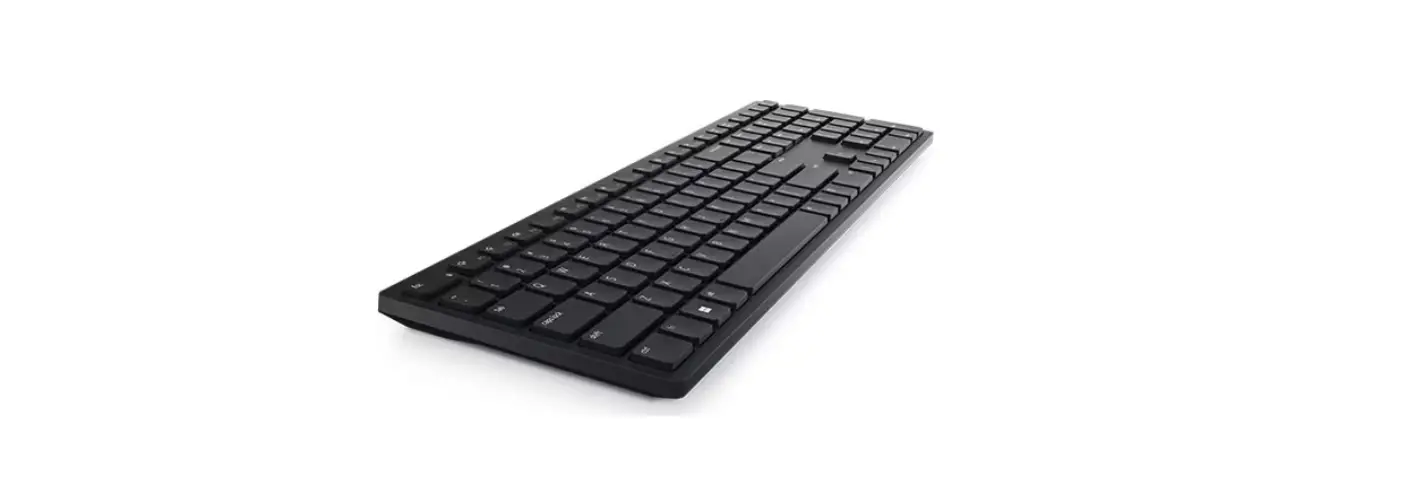
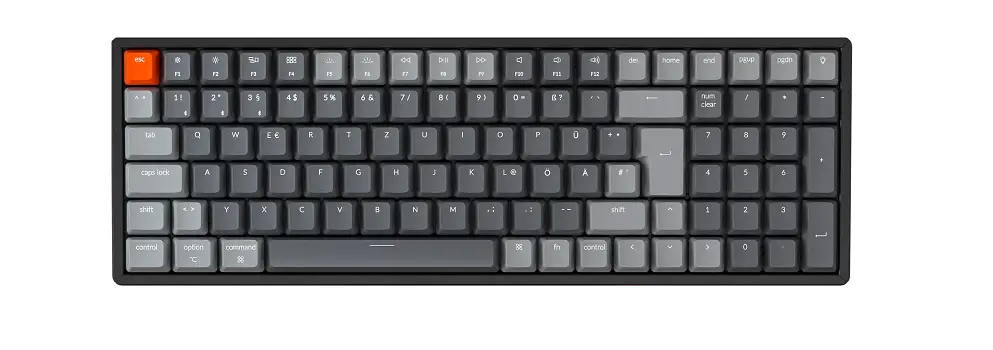
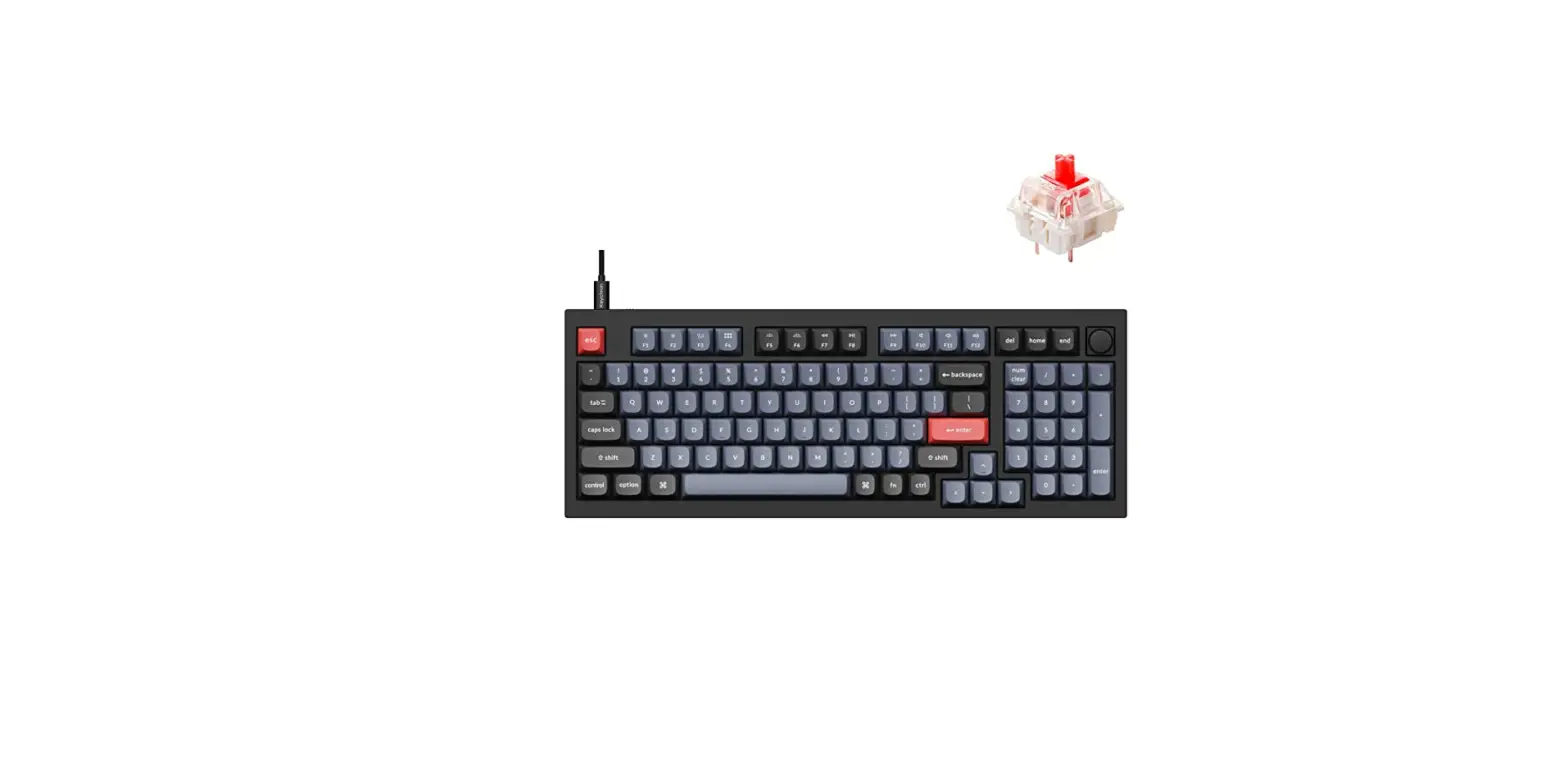
- Full keyboard layout with 106 keys
- Built-in shortcuts for email, web browser, and media player
- USB plug and play
- Auto sleep mode saves battery life
System requirements
- Windows® 10 or macOS 10.12 or higher
- One available USB port
Features
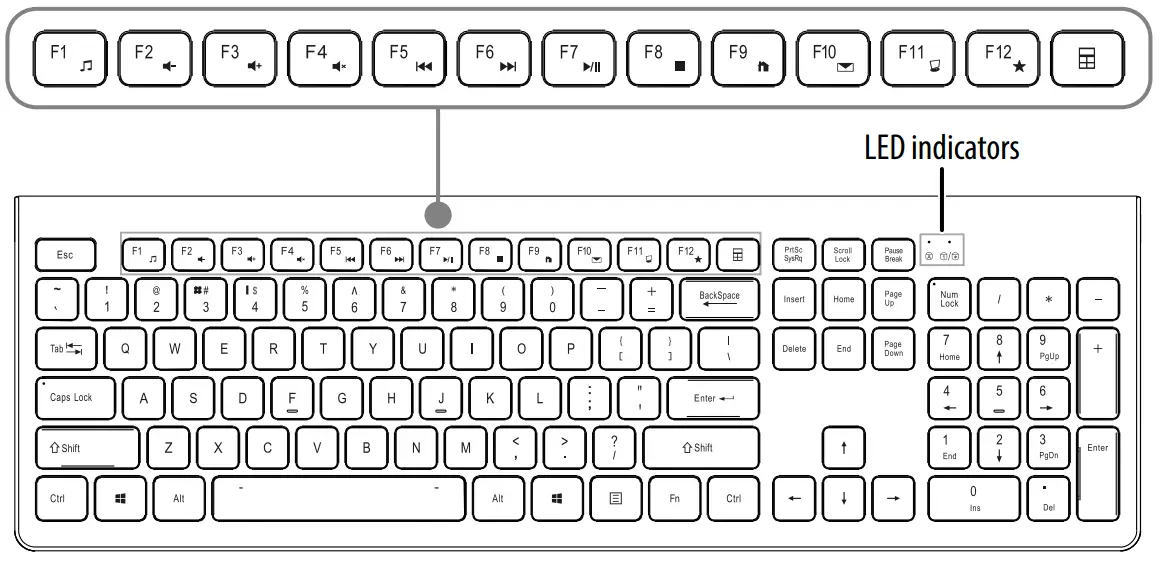
Shortcut keys
| Icon | Function | FN Combination | Description |
| Media Select | Fn+F1 | Select media player |
| Volume down (Voice-) | Fn+F2 | Decrease volume |
| Volume up (Voice+) | Fn+F3 | Increase volume |
| Mute | Fn+F4 | Mute all media-sound |
| Previous | Fn+F5 | Rewind media track |
| Next | Fn+F6 | Forward media track |
| Play/Pause | Fn+F7 | Play or pause media |
| Stop (Media) | Fn+F8 | Stop media |
| Homepage | Fn+F9 | Open home page |
| Default E-mail application | Fn+F10 | Open default email application |
| This PC | Fn+F11 | Open This PC window |
| Favorites | Fn+F12 | Open Favorites window |
| Calculator | Launch computer calculator | |


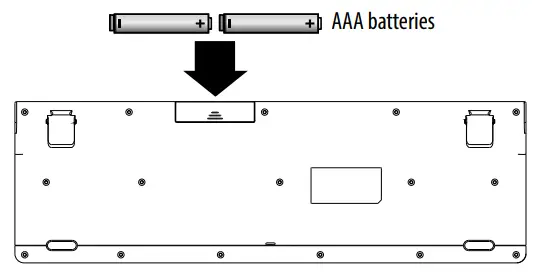
Installing the batteries
- Take the battery cover off.
- Insert two AAA batteries (included) into the battery compartment. Make sure that the + and – signs match the symbols in the compartment.
- Replace the cover.
Note: Because there is no power switch, the keyboard automatically turns on when the batteries are inserted. In lieu of a power switch, the keyboard has a “sleep mode”,
which automatically turns it off when it is inactive for ten seconds and turns it on again when you begin using it.
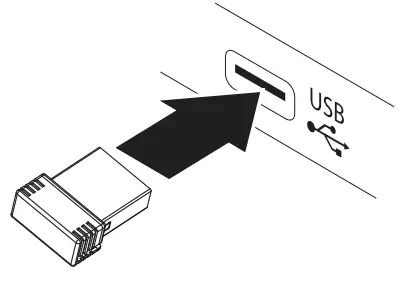
Connecting your keyboard to your computer
- Plug the USB receiver into the USB port on your computer. The computer automatically detects the keyboard and you can immediately begin using it.
If the keyboard does not work:
- Re-plug the USB receiver into the USB port on your computer, then press ESC+K on the keyboard to pair. The LED indicator on the keyboard flashes steadily while in pairing mode (10 seconds). After pairing successfully, the LED turns off.
- Check the batteries in your keyboard. The LED indicator blinks for 10 seconds when the batteries are low.
LED indicators
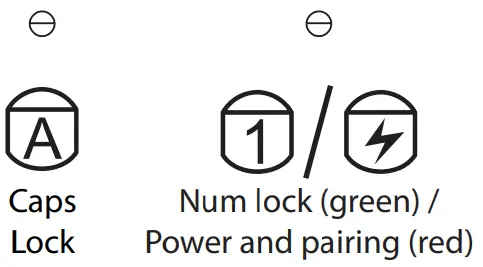
| Function | Description |
| Power ON | Red LED is on for 10 seconds, then turns off. |
| Low battery warning | Red LED blinks for 10 seconds. |
| Pairing | Red LED blinks for 10 seconds after pressing ESC+K keys. |
| Paired successfully | After pressing the Connect button, the LED blinks, then lights solid for 10 seconds. |
| Pairing failed | After pressing the Connect button, the LED blinks for 10 seconds, then turns off. |
Cleaning your keyboard
Wipe the keyboard with a damp, lint-free cloth.
Troubleshooting
My keyboard is not working.
- Make sure that your keyboard is turned on.
- Move your keyboard closer to your computer.
- Make sure that your computer meets the system requirements.
- Make sure that your keyboard and USB receiver are paired by pressing the ESC+K keys on the keyboard.
- Replace the keyboard batteries.
- Try connecting your USB receiver into a different USB port on your computer.
- Try removing or moving other wireless devices away from the computer to prevent interference.
Specifications
Keyboard:
- Dimensions (H×W×D): .8 × 5.5 × 17.4 in. (2.0 × 14 × 44.1 cm)
- Weight: 16.6 oz. (0.5 kg)
- Operation voltage: 3 V
- Operating systems: Microsoft Windows 10, macOS 10.12 or newer
- Working distance: 8~10 meters in open space
USB receiver: - Dimensions (H×W×D): .6 × .2 × .7 in. (1.4 × .6 × 1.8 cm)
- Weight: .04 oz. (1.1 g)
- Interface: USB 1.1, 2.0, 3.0
Legal notices
All other devices shall bear the following statement in a conspicuous location on the device:
FCC Statement
This device complies with Part 15 of the FCC Rules. Operation is subject to the following two conditions: (1) this device may not cause harmful interference, and (2) this device must accept any interference received, including interference that may cause undesired operation. This equipment has been tested and found to comply with the limits for a Class B digital device, pursuant to Part 15 of the
FCC Rules. These limits are designed to provide reasonable protection against harmful interference in a residential installation. This equipment generates, uses, and can radiate radio frequency energy and, if not installed and used in accordance with the instructions, may cause harmful interference to radio communications. However, there is no guarantee that interference will not occur in a particular installation. If this equipment does cause harmful interference to radio or television reception, which can be determined by turning the equipment off and on, the user is encouraged to try to correct the interference by one or more of the following measures:
- Reorient or relocate the receiving antenna.
- Increase the separation between the equipment and receiver.
- Connect the equipment into an outlet on a circuit different from that to which the receiver is connected.
- Consult the dealer or an experienced radio/TV technician for help.
Warning: Changes or modifications not expressly approved by the party responsible for compliance could void the user’s authority to operate the equipment.
RSS-Gen and RSS-247 statement
This device complies with Industry Canada license-exempt RSS standard(s). Operation is subject to the following two conditions: (1) this device may not cause interference, and (2) this device must accept any interference, including interference that may cause undesired operation of the device.
RSS-102 statement
This equipment complies with Industry Canada radiation exposure limits set forth for an uncontrolled environment.
One-year limited warranty
Visit www.bestbuy.com/bestbuyessentials for details.
Contact Best Buy essentials
For customer service, call 866-597-8427 (U.S. and Canada)
www.bestbuy.com/bestbuyessentials
Best Buy essentials is a trademark of Best Buy and its affiliated companies.
Distributed by Best Buy Purchasing, LLC
7601 Penn Ave South, Richfield, MN 55423 U.S.A.
©2021 Best Buy. All rights reserved.
V3 ENGLISH 21-0445
 Best Buy Essentials - Best Buy