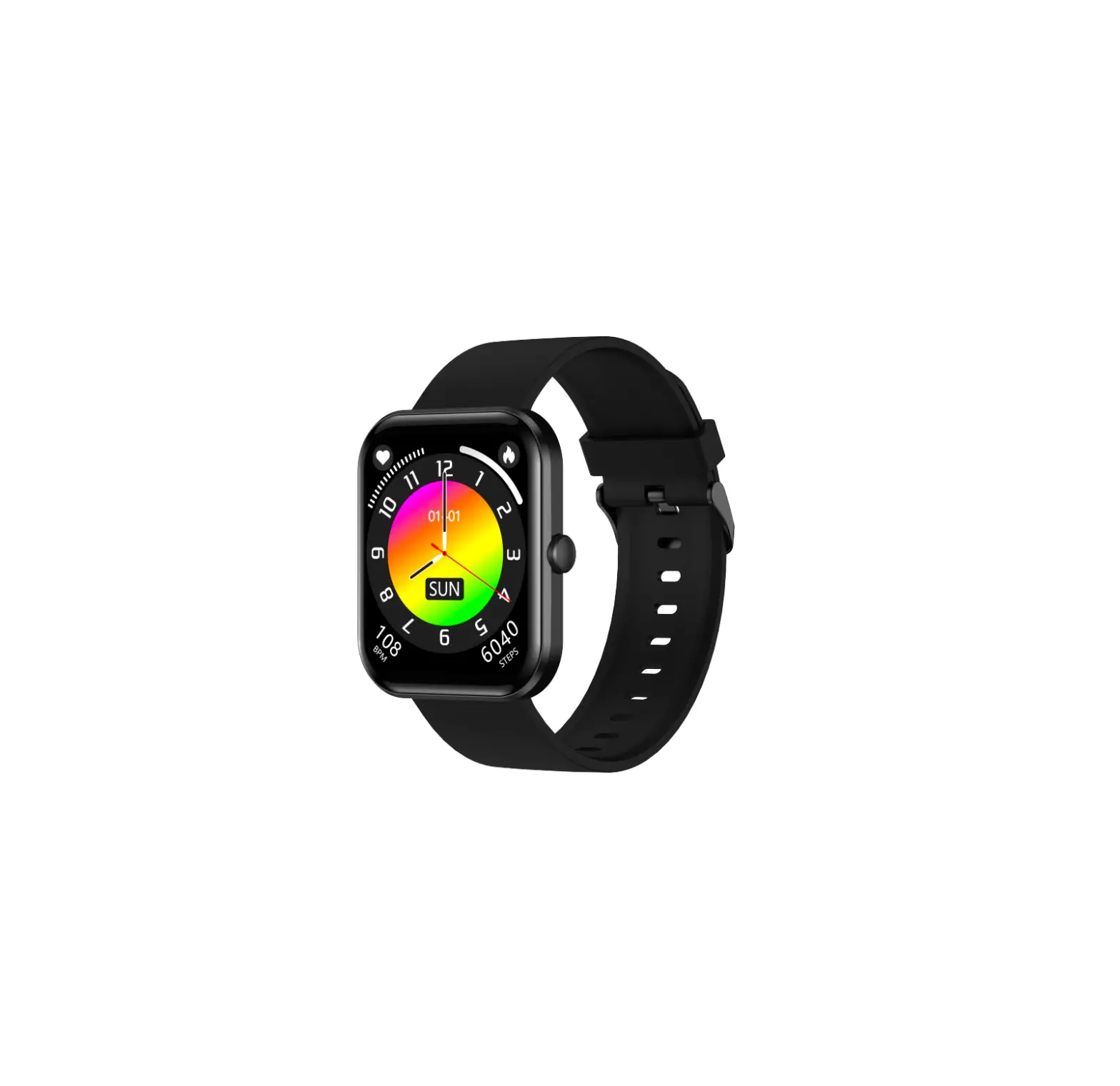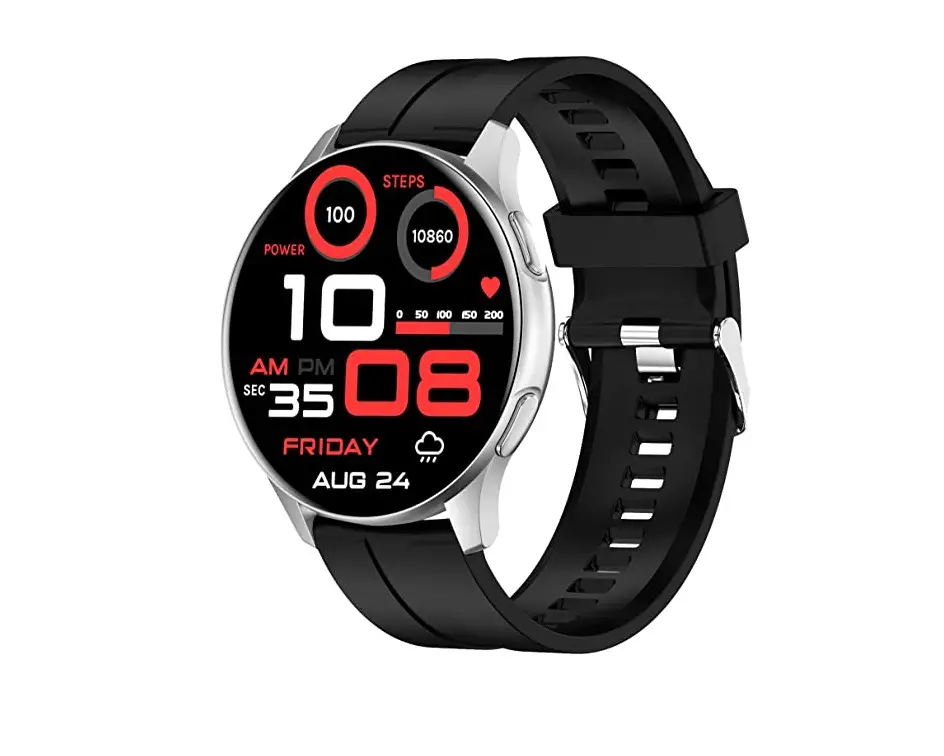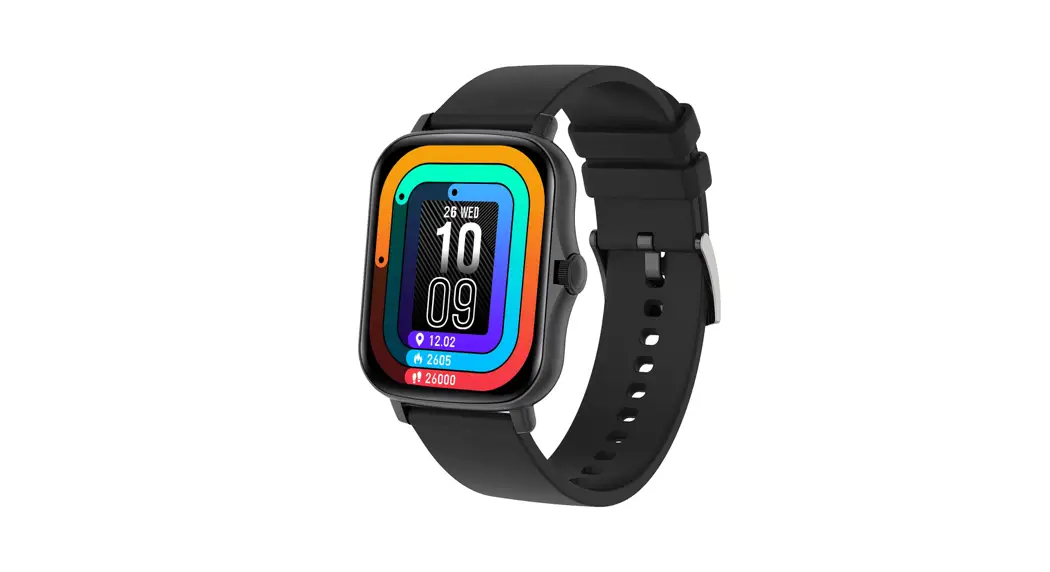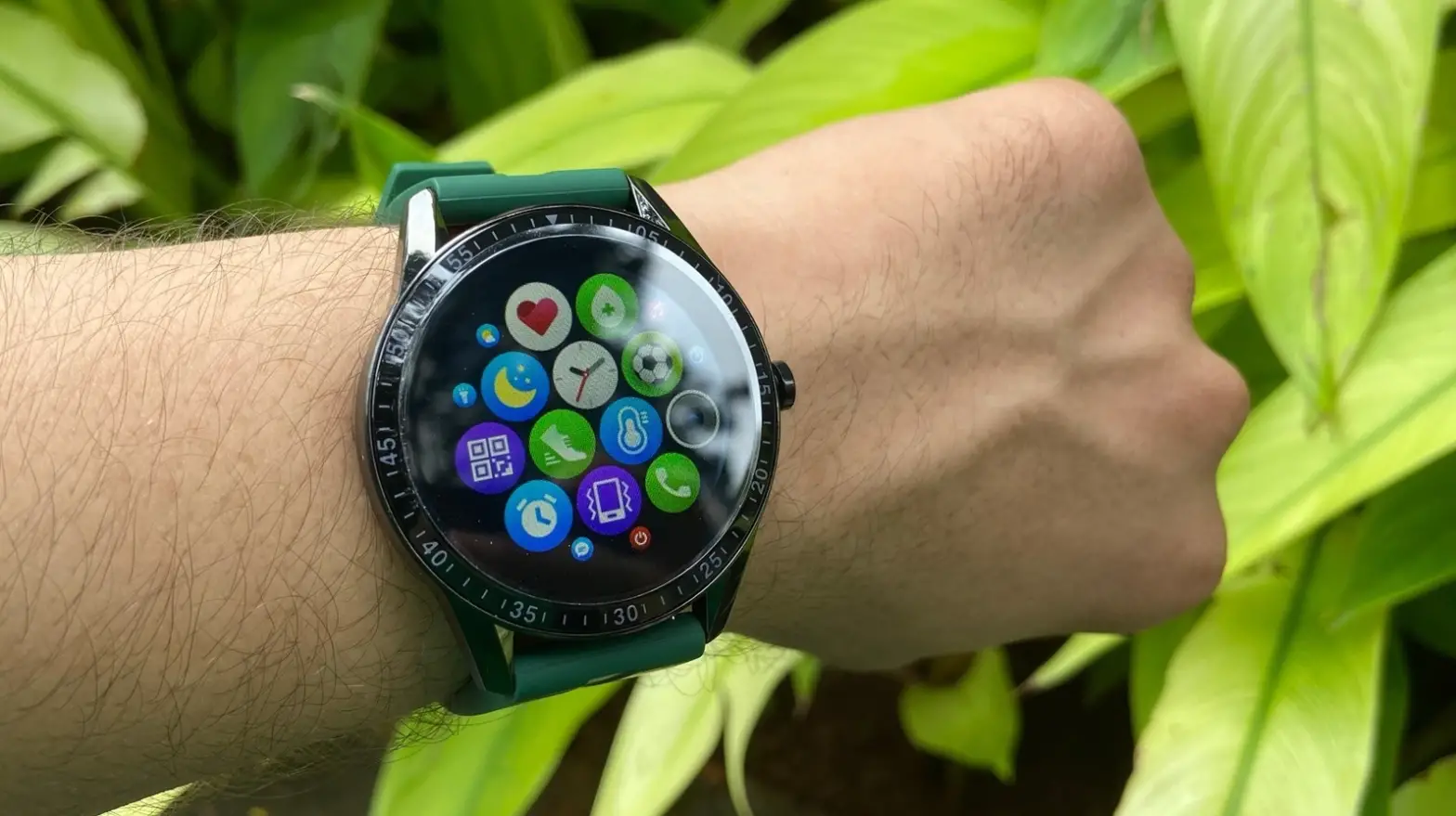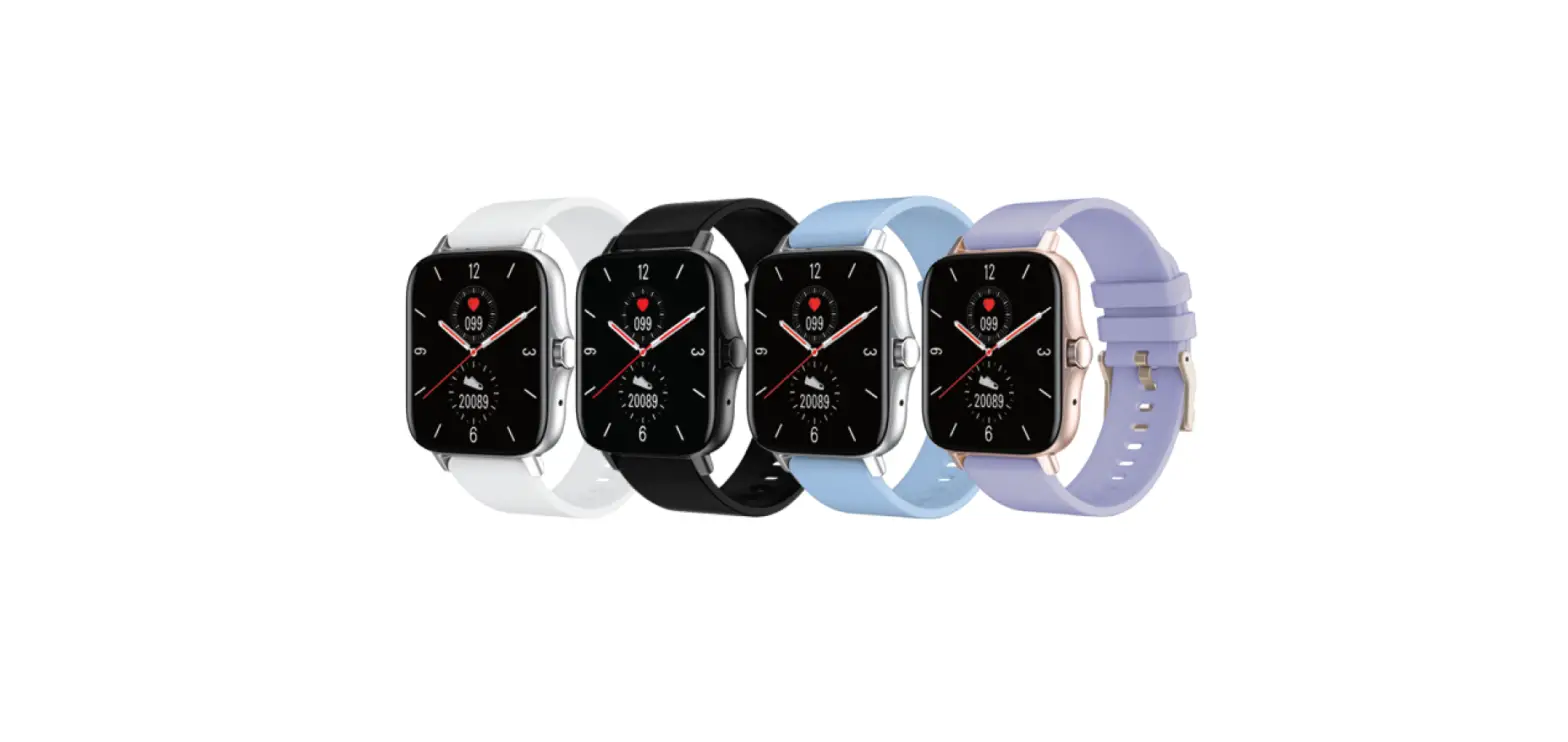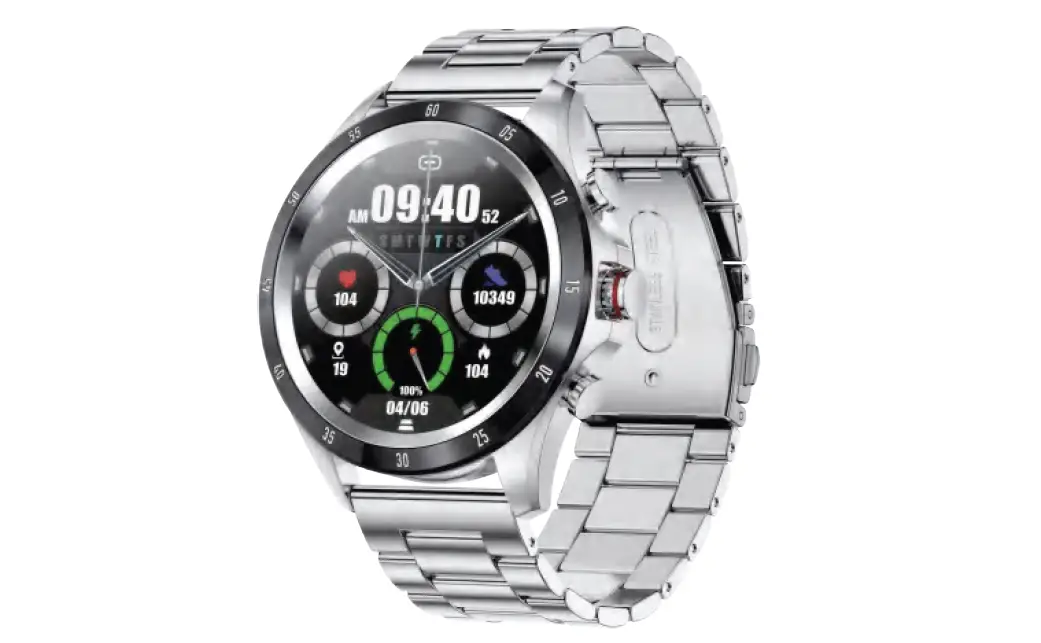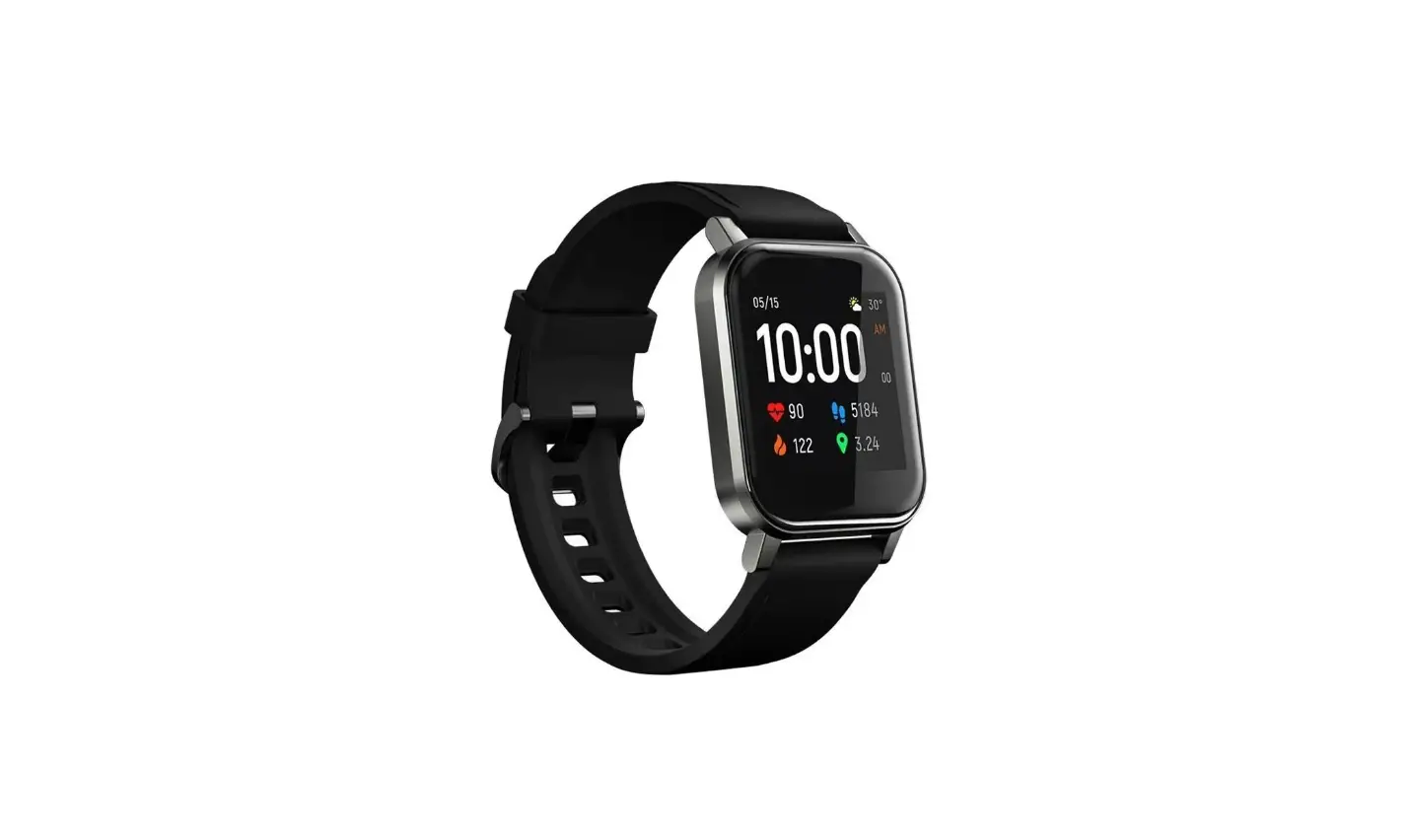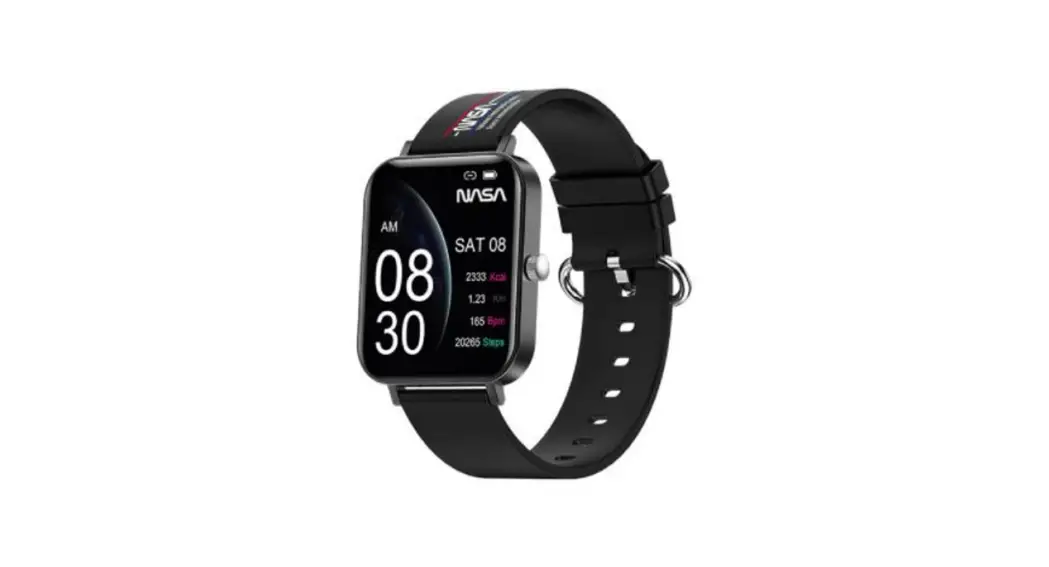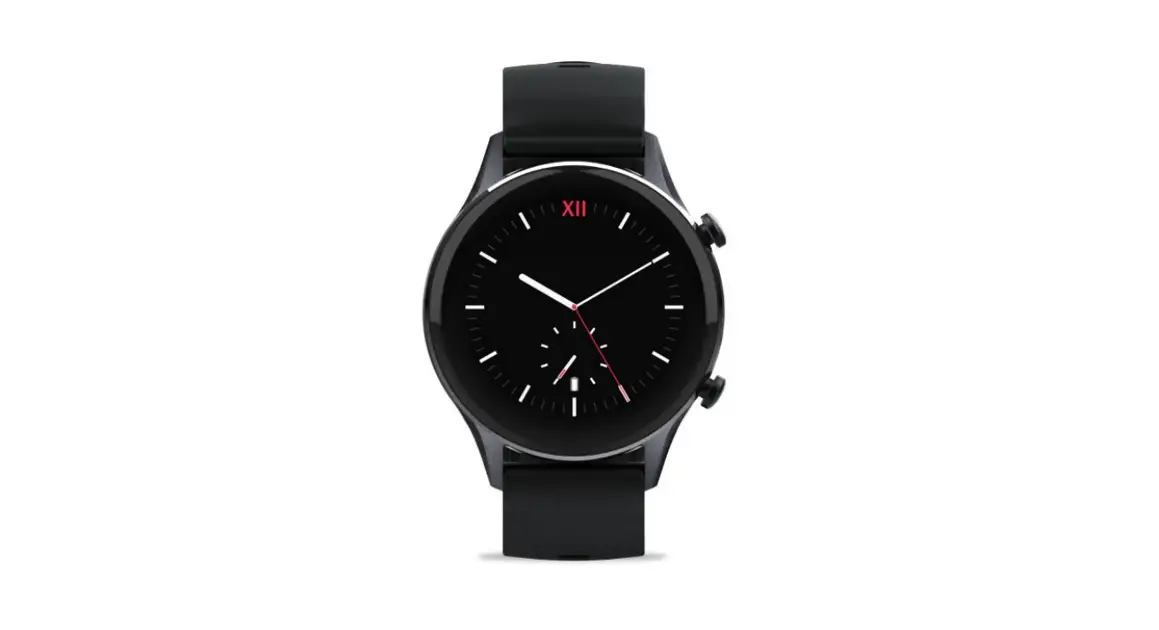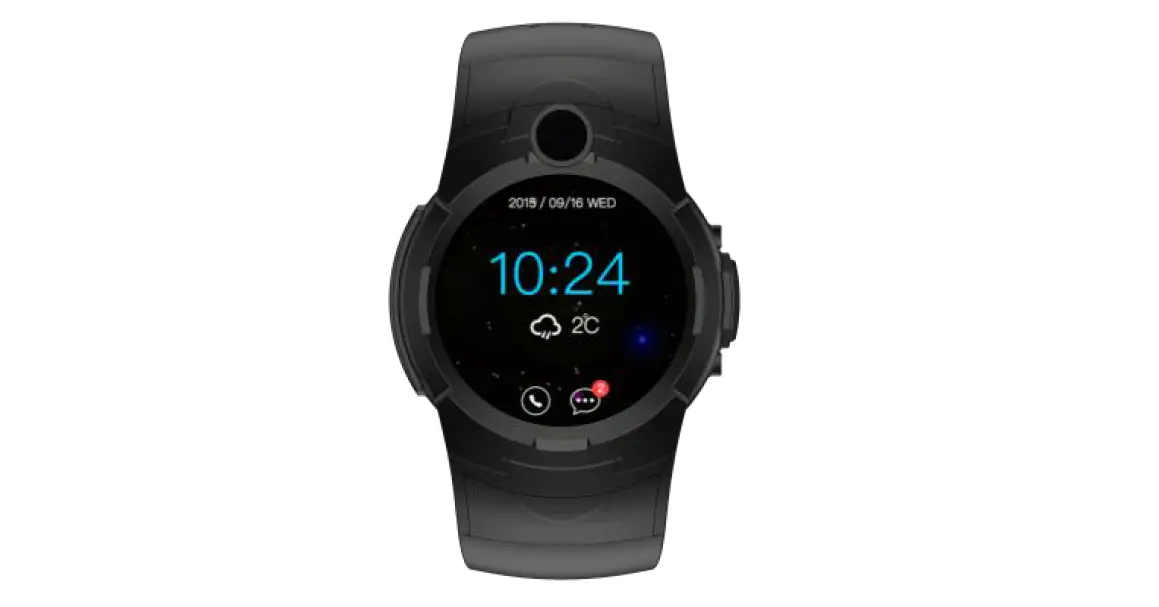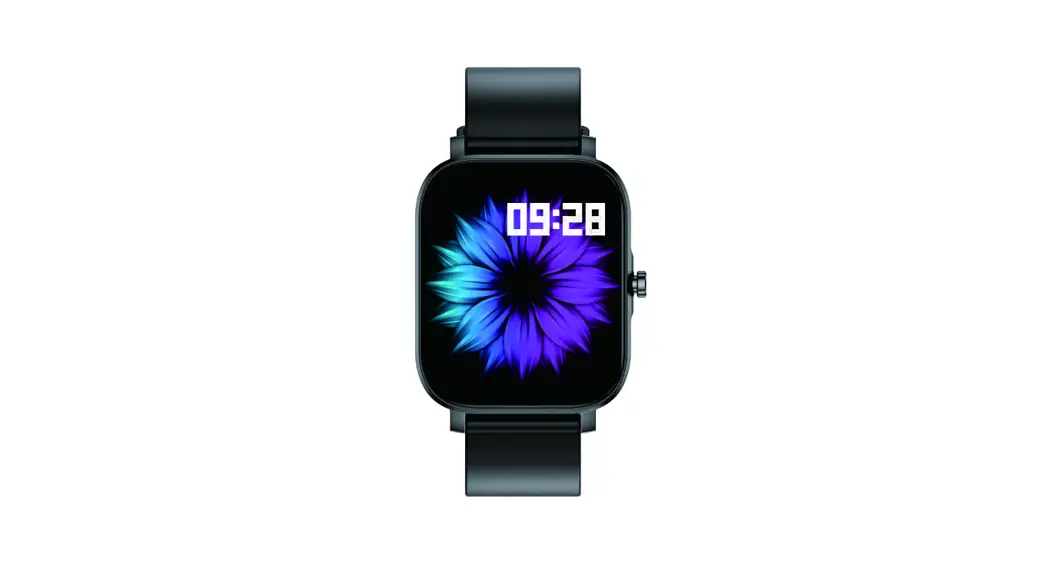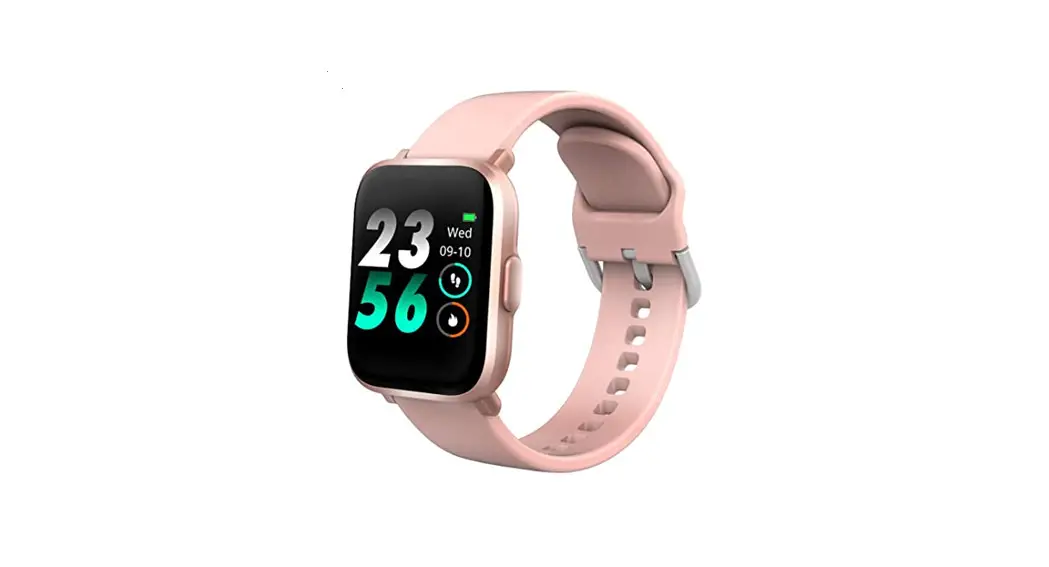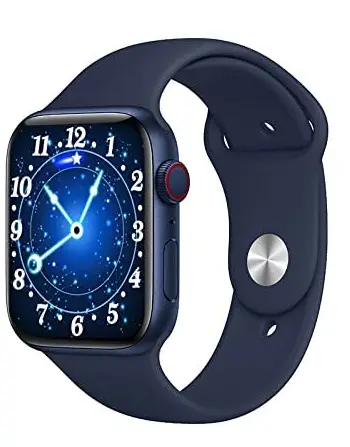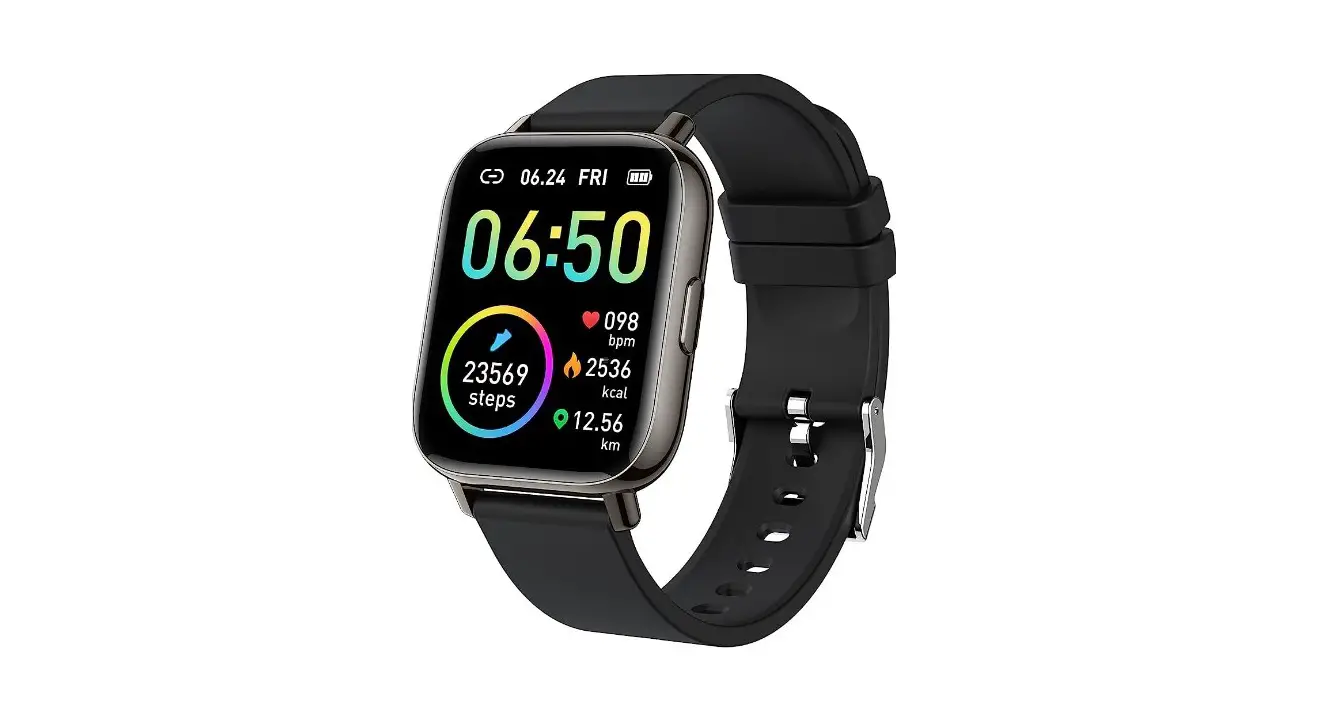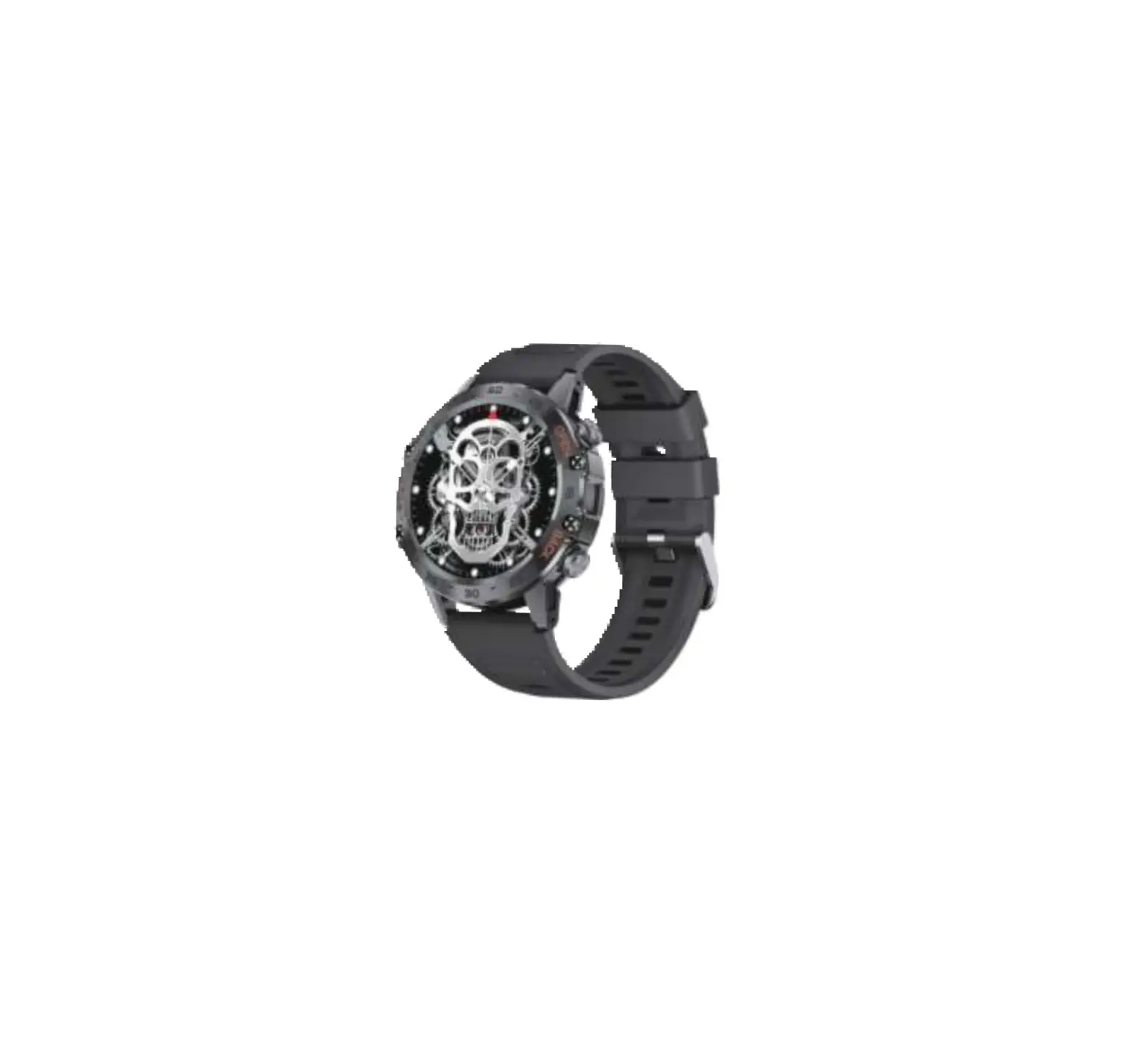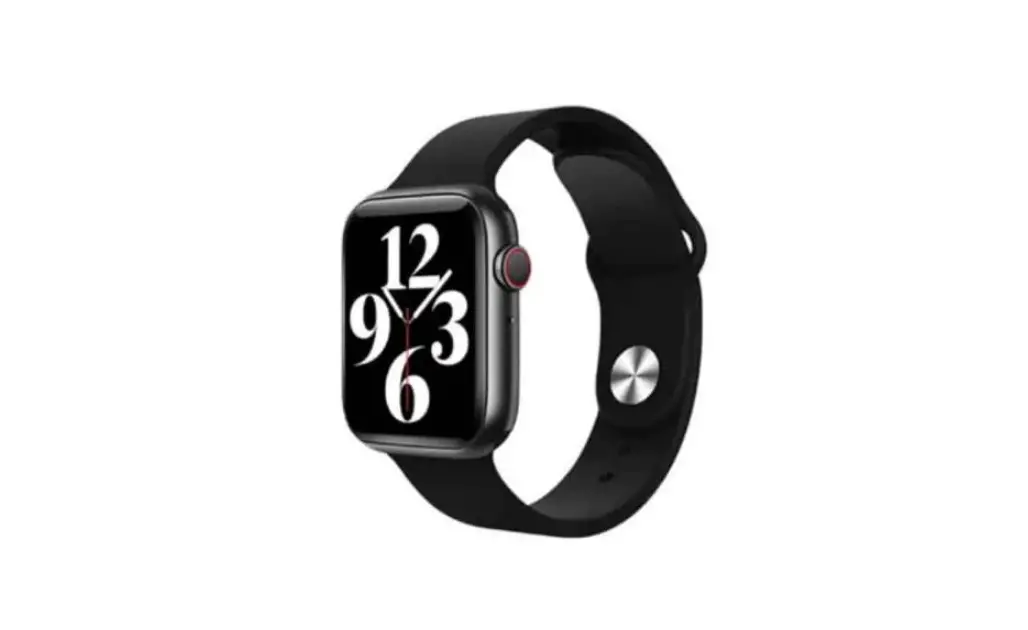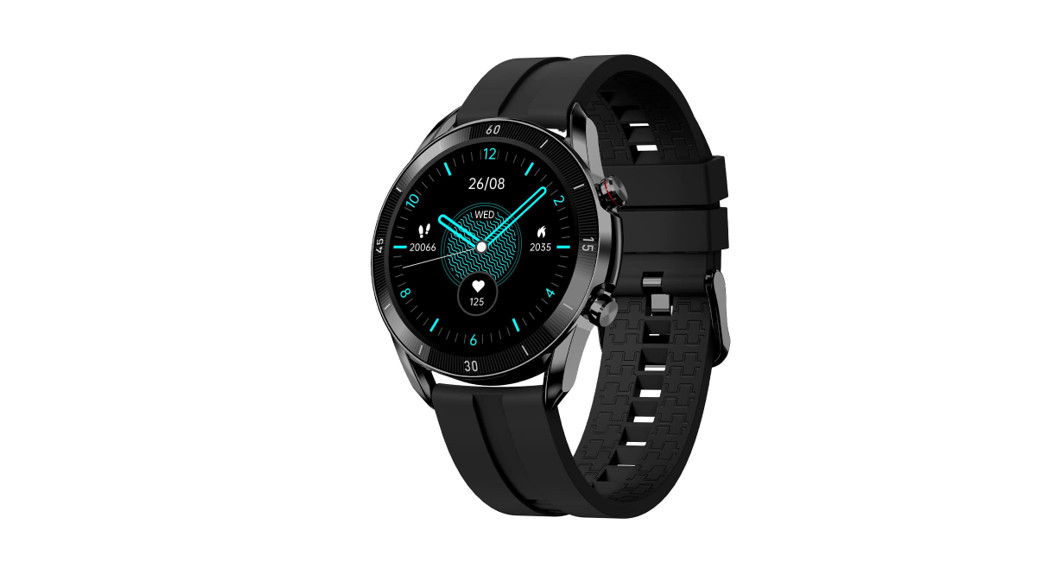

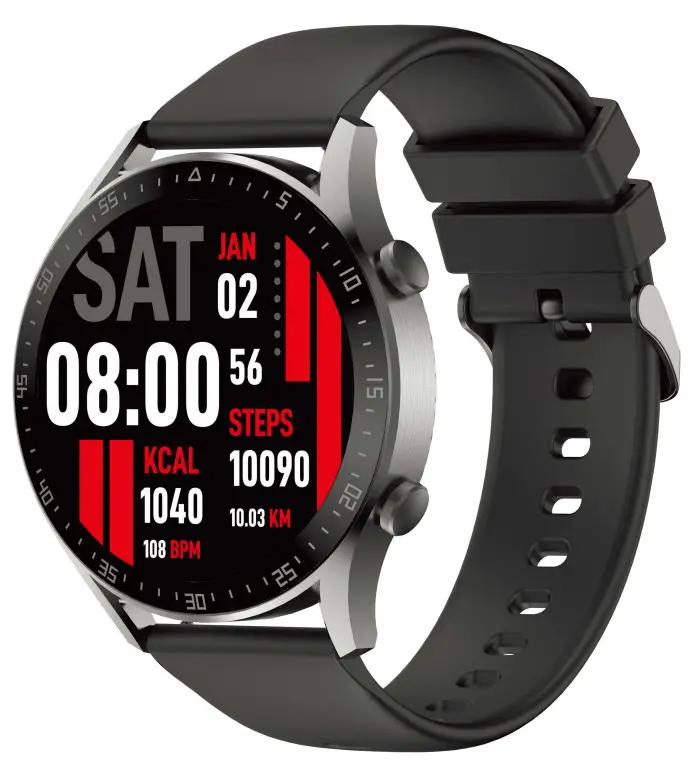
BSW042
Smart Watch
User Manual
Downloading and connecting of smart watch with Da Fit APP
- Download and install Do Fit APP
- Scan OR code with a mobile phone to download APP.
- For the I0S system, select APP Store, and search for Do Fit App.
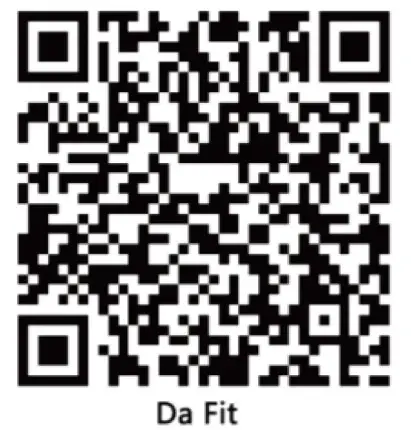 http://plus.crrepa.com/app-download/dafit
Android system, select Google Play to download and install Do Fit App. Or scan OR code to download
Note: your mobile phone must support Android 5.1 or I0S 9 .0 or above, and Bluetooth 4.0 or above.
Connect smart watch with Da Fit APP 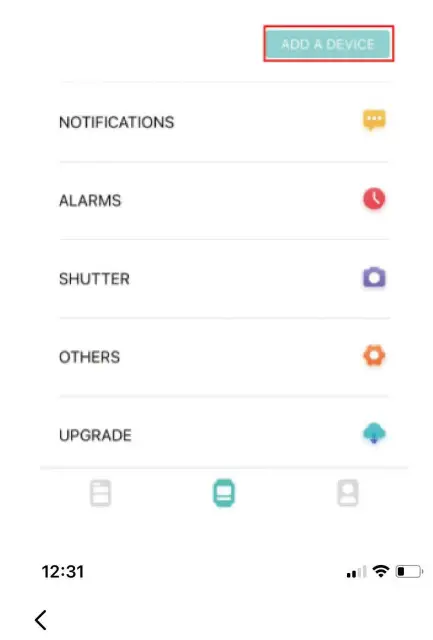
Click on “Add Device” to connect the smartwatch
ADDA DEVICE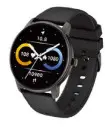 FBBSW042
Click on your device in the device list scanned. Connect it directly to the Android system. 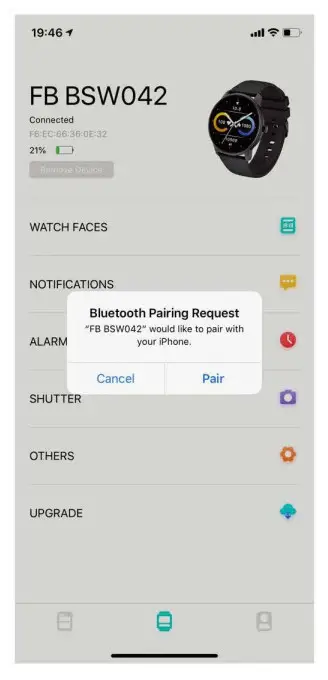
The IOS system will show a Bluetooth pairing request and you can click on Bluetooth “Pairing” to confirm. 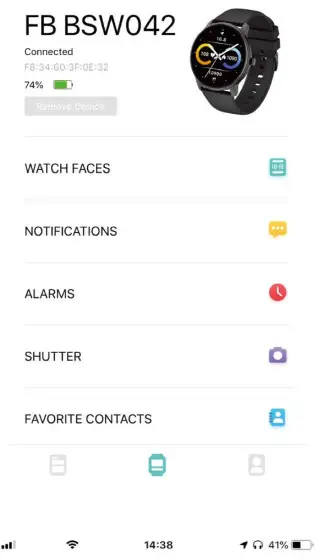
Successfully connected 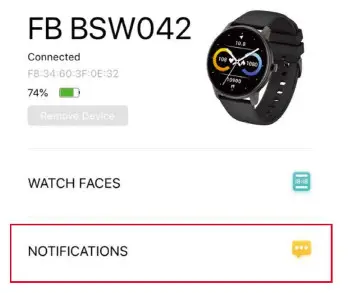
For both android & iOS click on Notifications Tab in the Dafit app 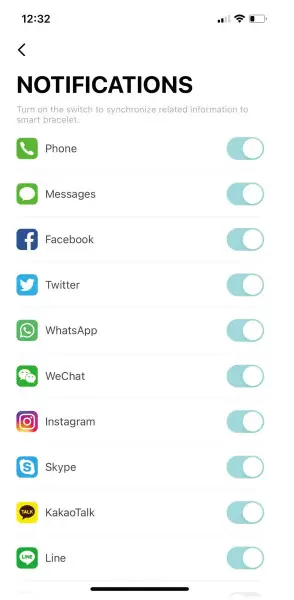
Enable all the notifications for ease of use
BLUETOOTH CALLING FUNCTION
This watch comes with a special feature of Bluetooth calling. The user can make calls without having to open the phone. You can also view the call history of the watch. You need to keep the connection between the watch and the phone stable when using the Phone Call function. The watch also has a microphone and a speaker built-in for the ease of talking through the watch and hear music, phone calls, and other notifications Follow the steps to activate the calling function and much more.
Part A- How to connect
- Step 1: After connecting the watch to the Da Fit App, you need to go the Bluetooth settings of the phone and pair the watch there as shown below.
For iOs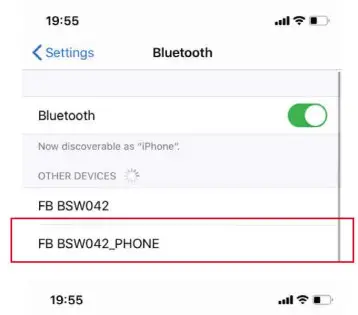
Switch on the Bluetooth in the phone’s Bluetooth settings and you shall see the an available device as “FB BSWO42_PHONE” 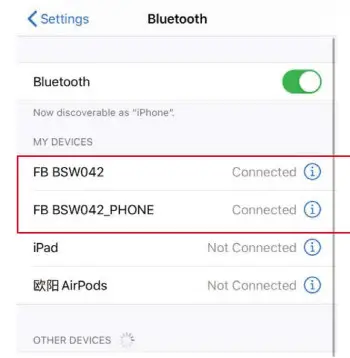
It shall show Connected
For Android 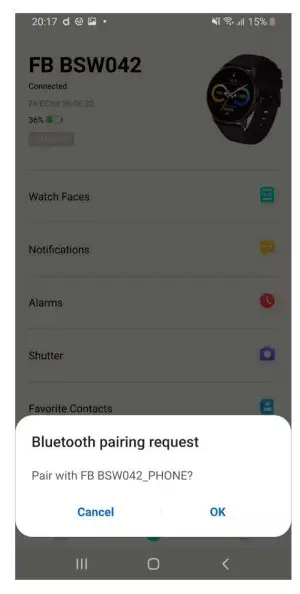
Accept the Bluetooth Pairing Request 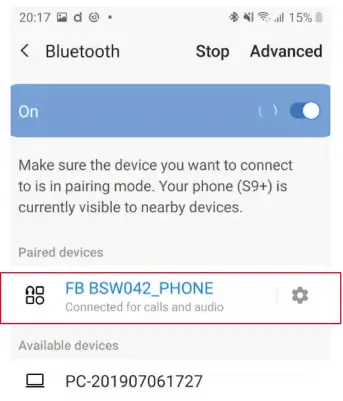
Once accepted you can see the following screens saying “Connected for calls & audio”
Step 2: Go to the watch and swipe left to the phone function 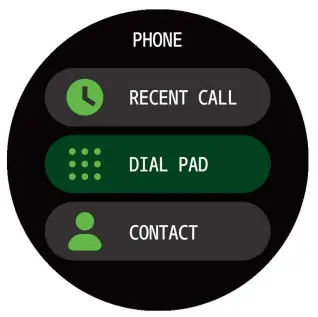
- After successfully connecting the Bluetooth you will get this screen.

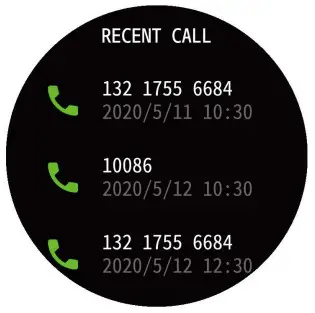
- Upon clicking on the recent call you can see the recent calls of your device

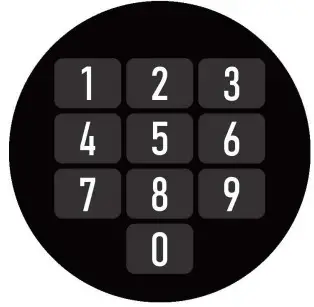
- When you click on the dial pad you shall get this screen on your watch

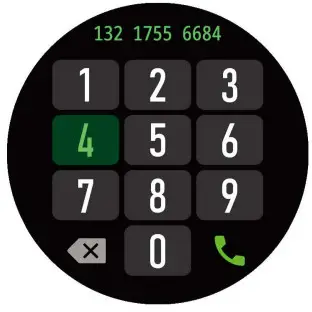
- Once you dial the number the call button on the right corner shall appear

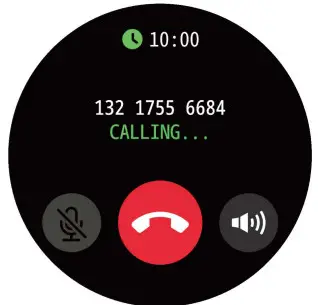
- If you click the dial button, you can see that the number is dialing

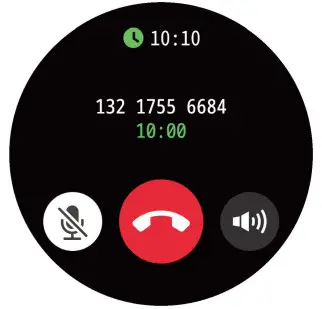
- Through the microphone vailable in the watch you can talk through the watch and adjust the speaker volume by the + &- sign on the watch and disconnect the call.
Part B-How to disconnect
To disconnect the Bluetooth calling the user simply has to go to the phone’s Bluetooth setting and “unpair” the FB BSWO42_PHONE device
Part C-Add contacts
- You can add up to 8 contacts – Add the contacts from the Daft App. Go to “Favourite Contacts” and add contacts. The selected contacts will get synced to your watch.
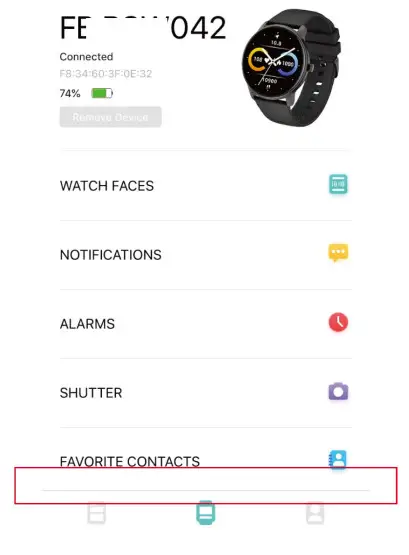
lick on Favorite Contact to add the contacts 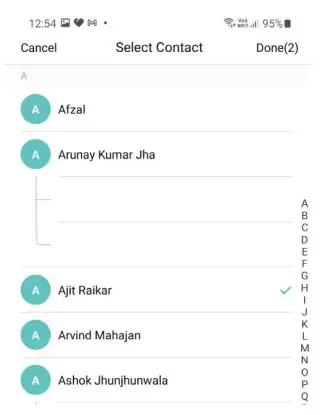
Select the contacts you want to add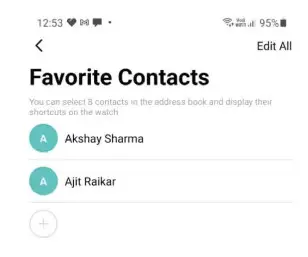
The contacts will get added.
Part D-Switch between Phone / Watch
Switch Between Watch / Phone During an Active Call: If your watch is connected to the Phone via Bluetooth, all calls will come on the watch by default. If you want to change the call to the phone, during an active call, simply click on the Handset earpiece icon to select it. The call will then come on your phone.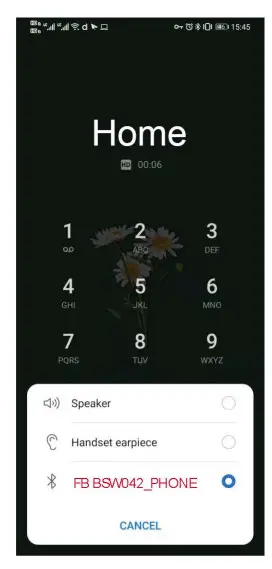
Port_E-Battery_Advisory Battery
- The battery lasts for 5 to 5 days with Bluetooth calling mode enabled.
- If the Bluetooth calling mode is disabled then the battery can last for 7 days.
- On standby, the battery can stay for as long as 20 days.
- Advisory- To conserve battery, It is advised to turn off the Bluetooth when not in use.
Functions Navigation
The screen can be navigated by sliding left/right or sliding up/down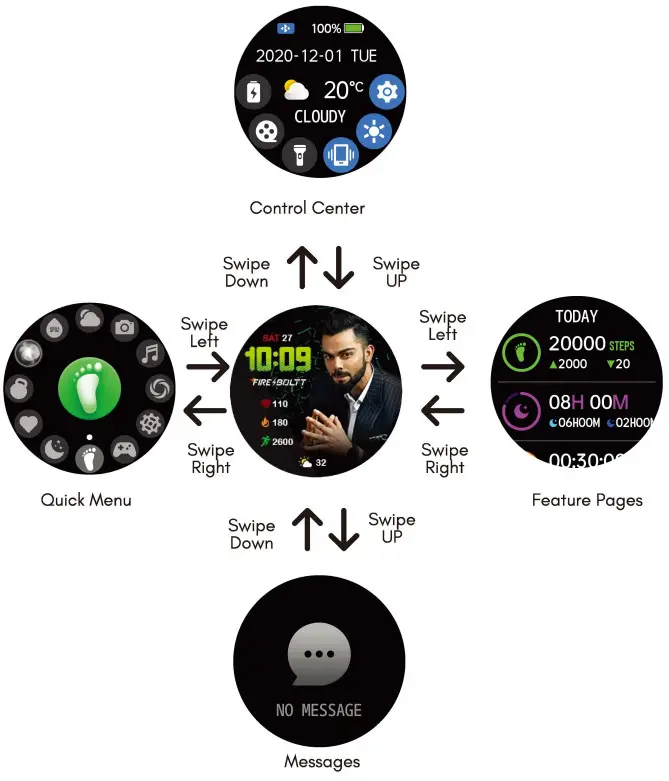 Watch Face Functions Navigation and Button Instructions
The watch features a full touch control screen with a reflective display and two buttons
Functions Navigation
The screen can be navigated by sliding left/right or sliding up/down By default, the watch face page displays, and on the watch face page, you can:
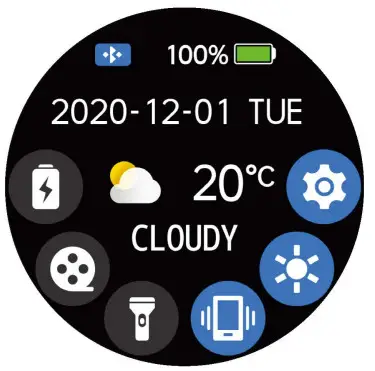
- Slide down to view watch settings.

- Battery Saver
- Theatre
- Flashlight
- Vibrate
- Brightness
- Settings
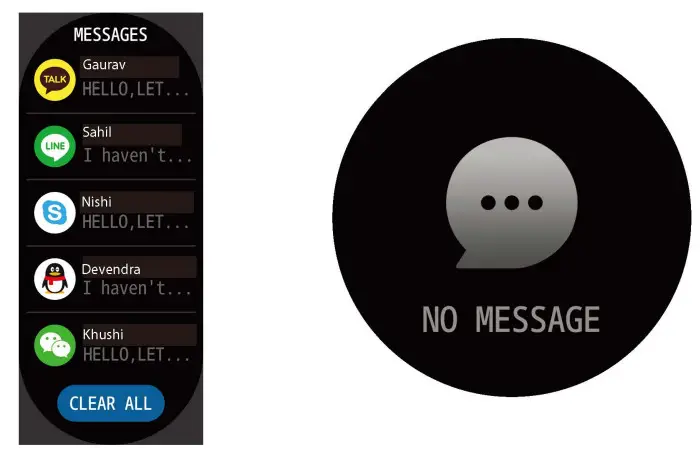
- Slide up to view messages and other notifications.