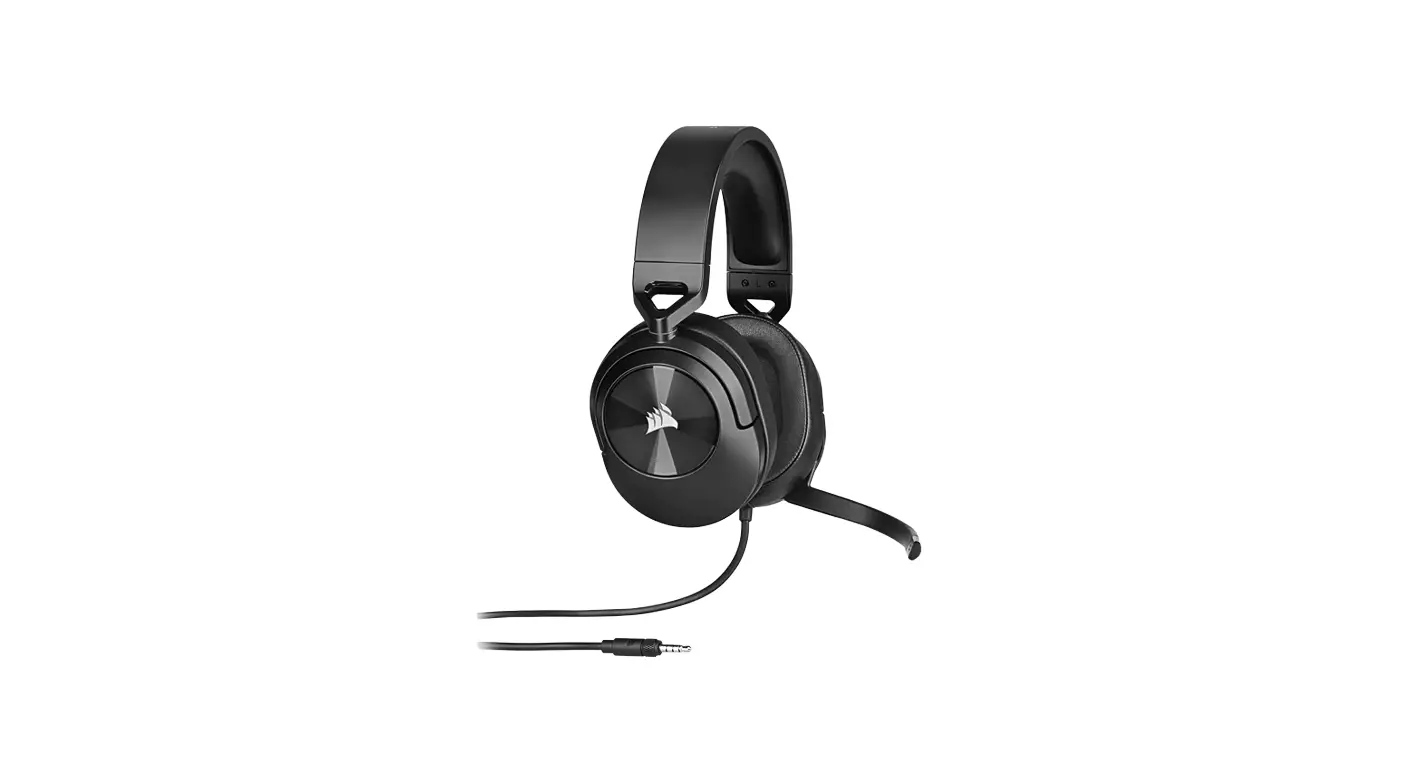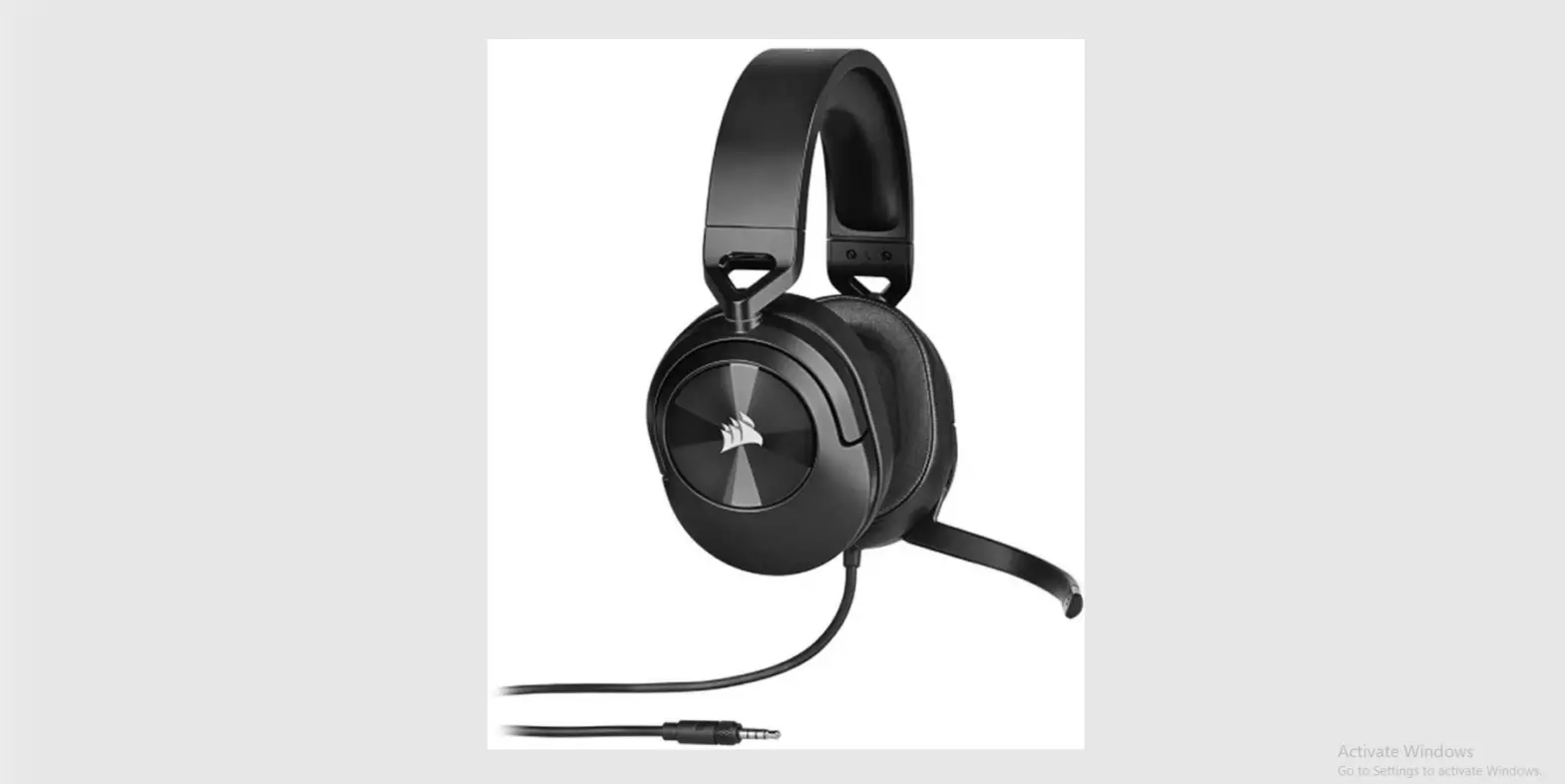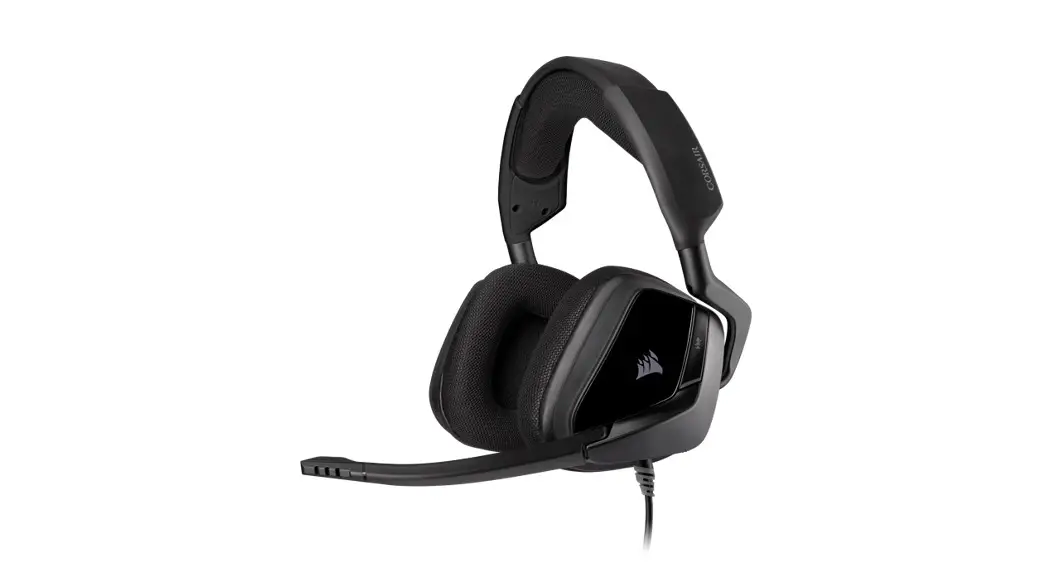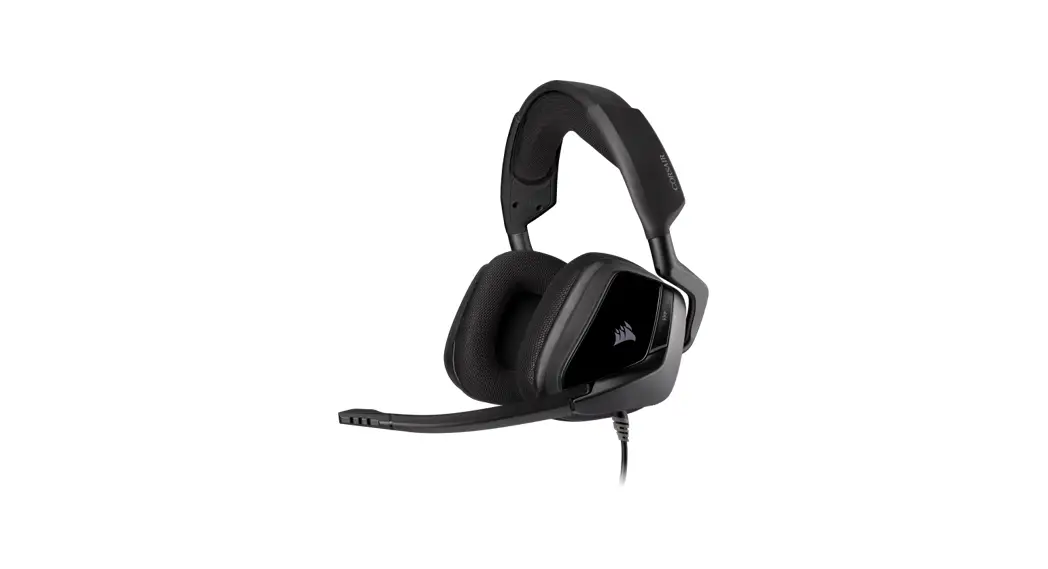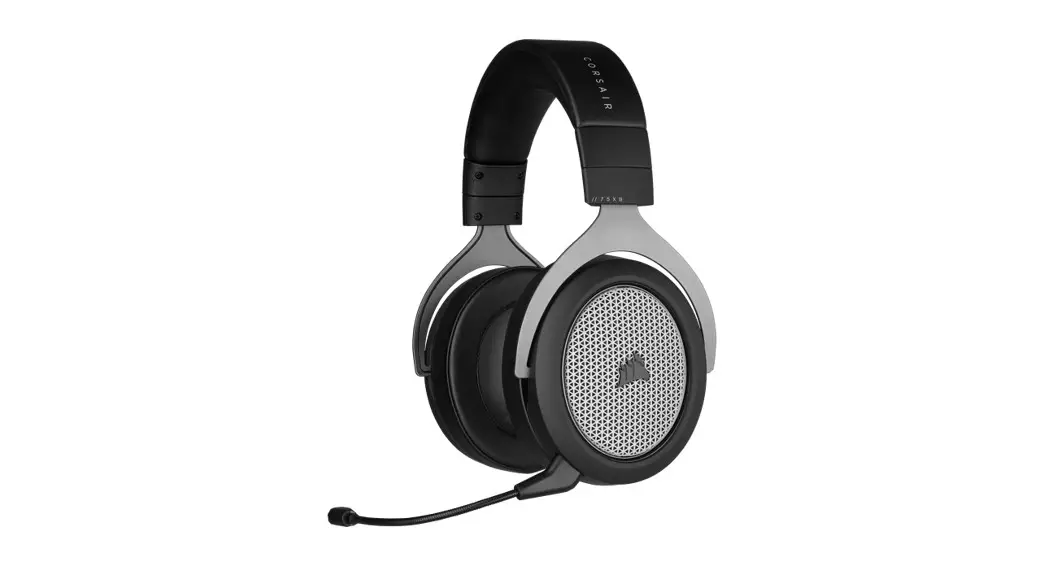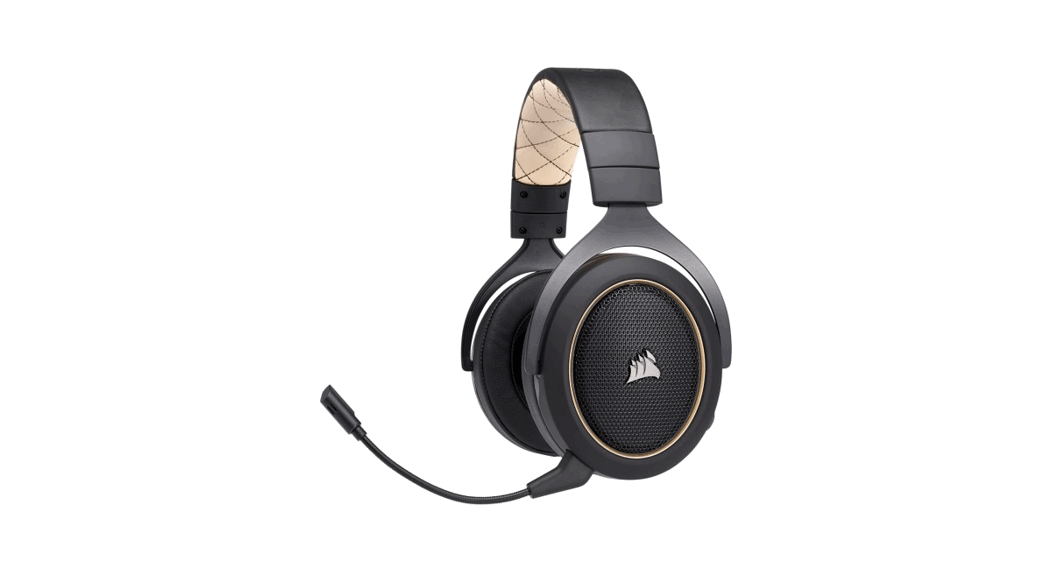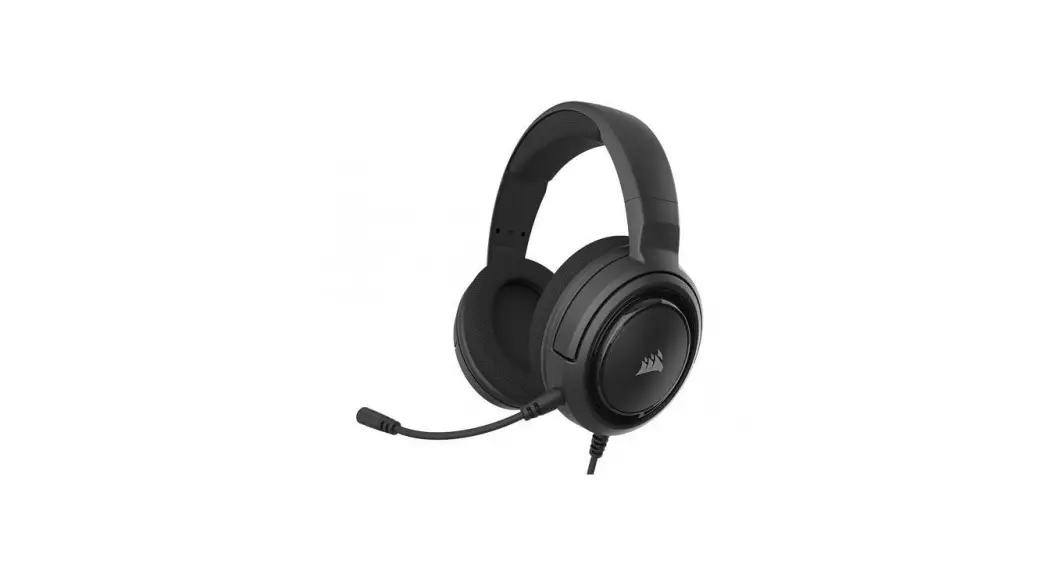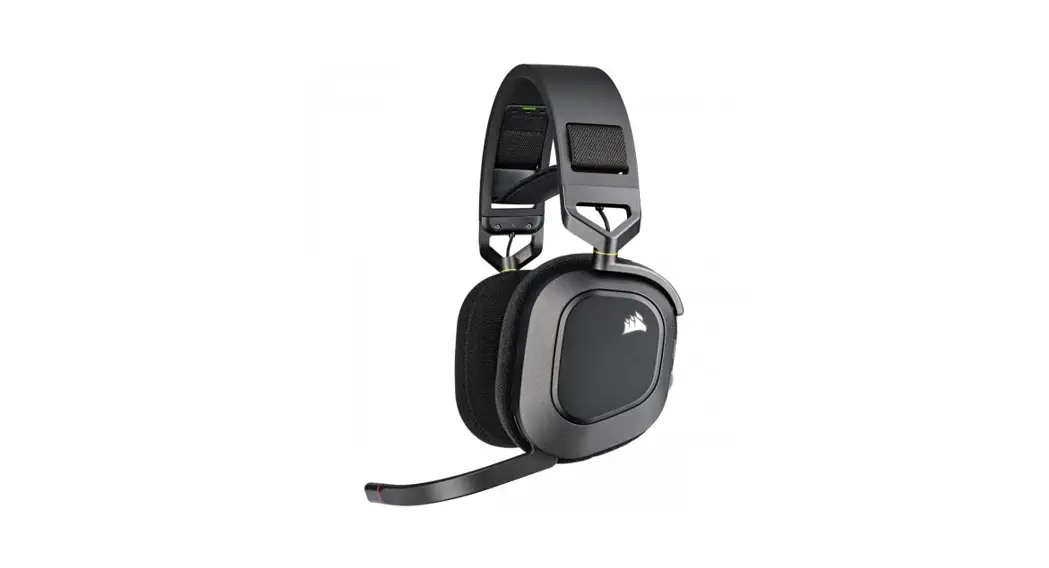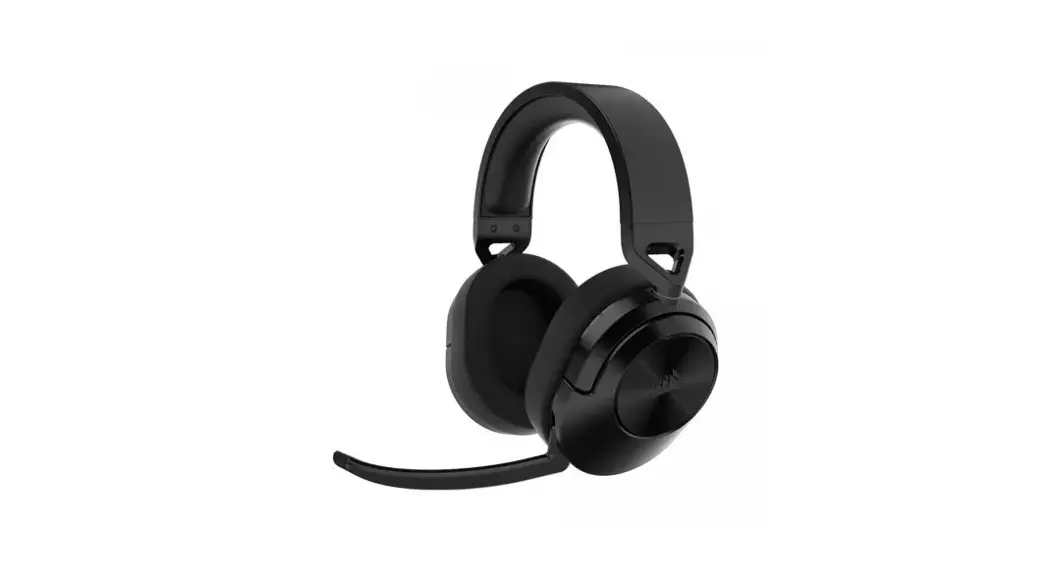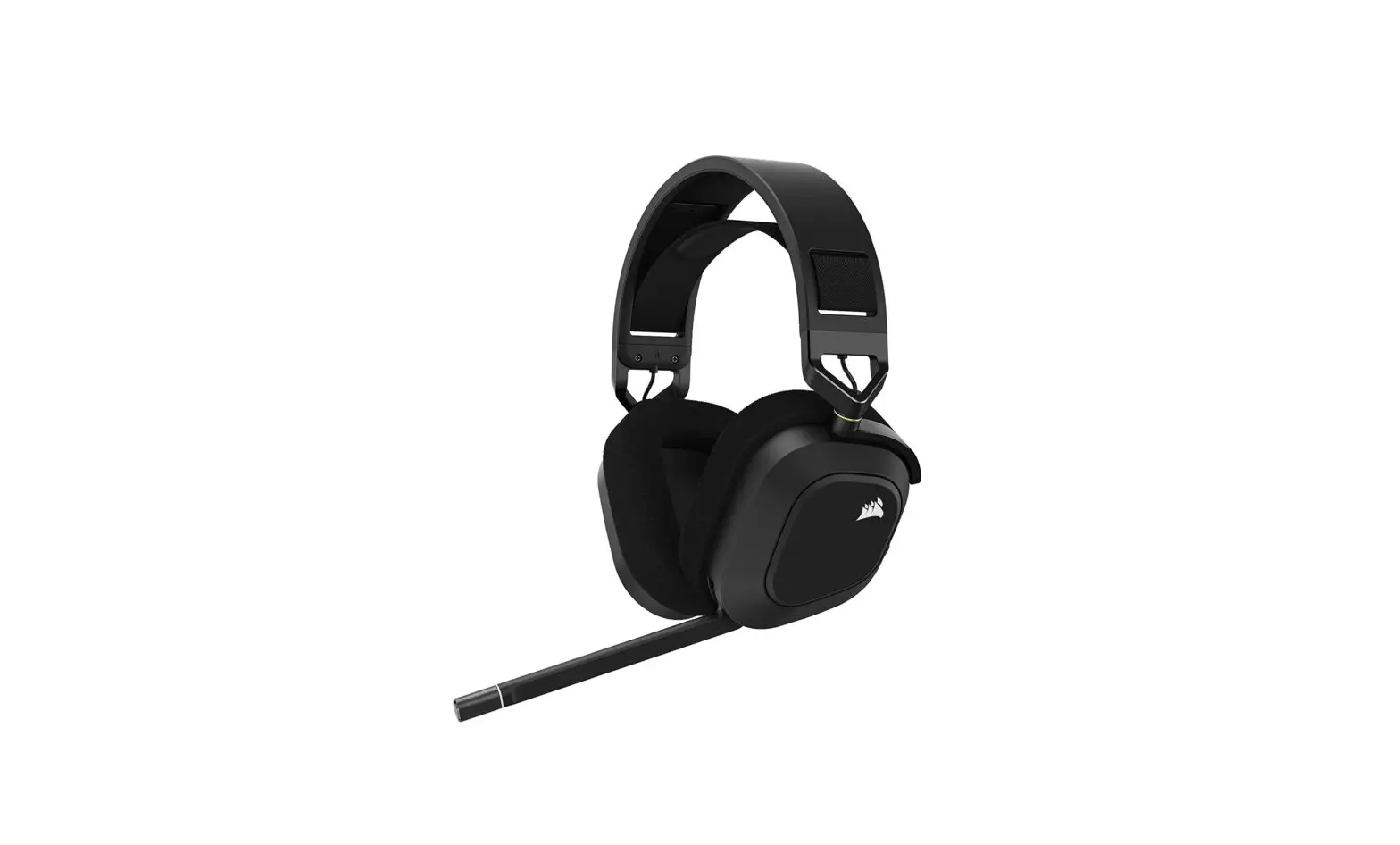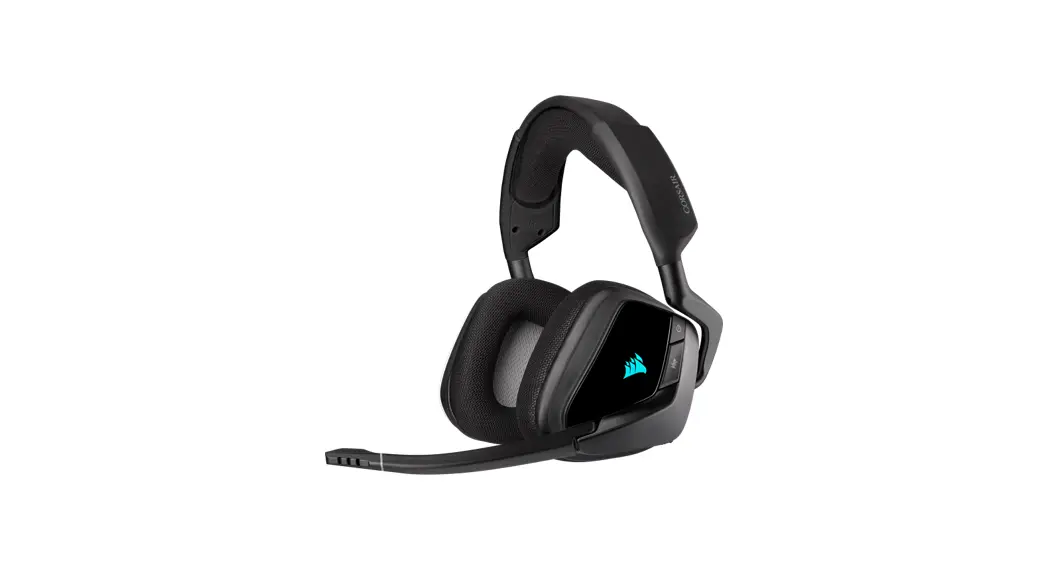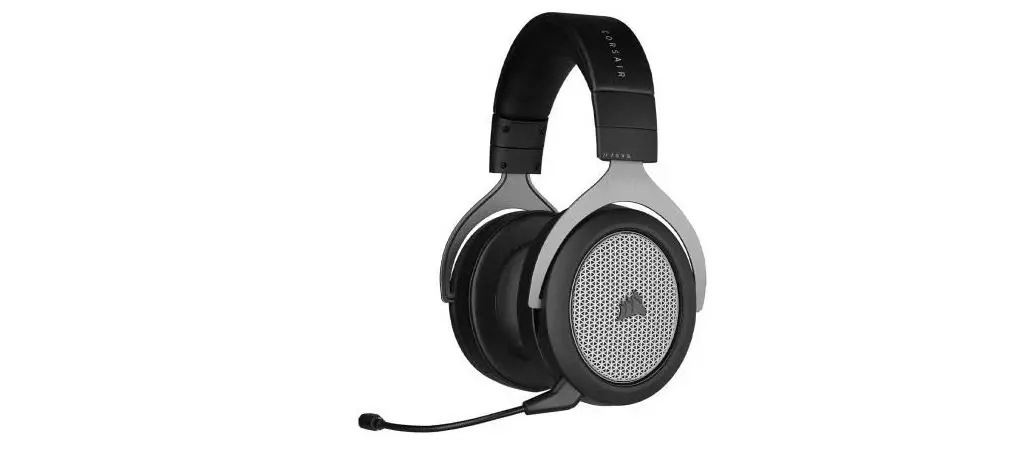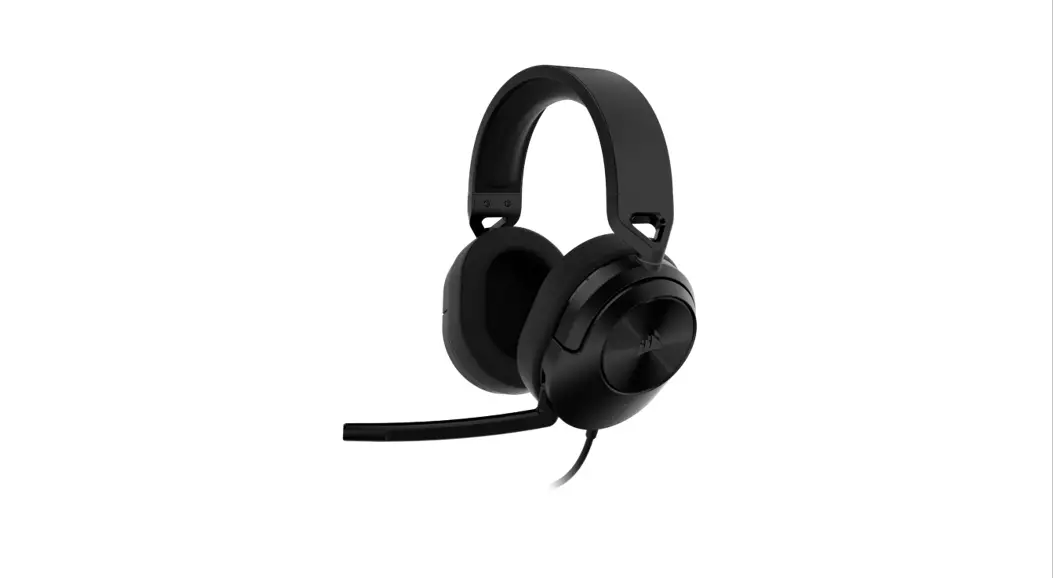

HS55 Surround Gaming Headset
User Guide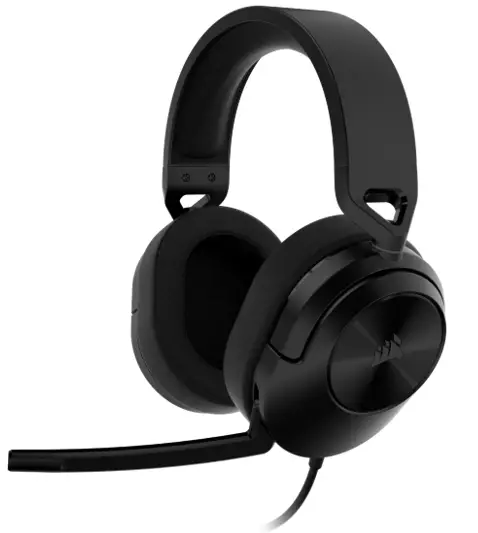
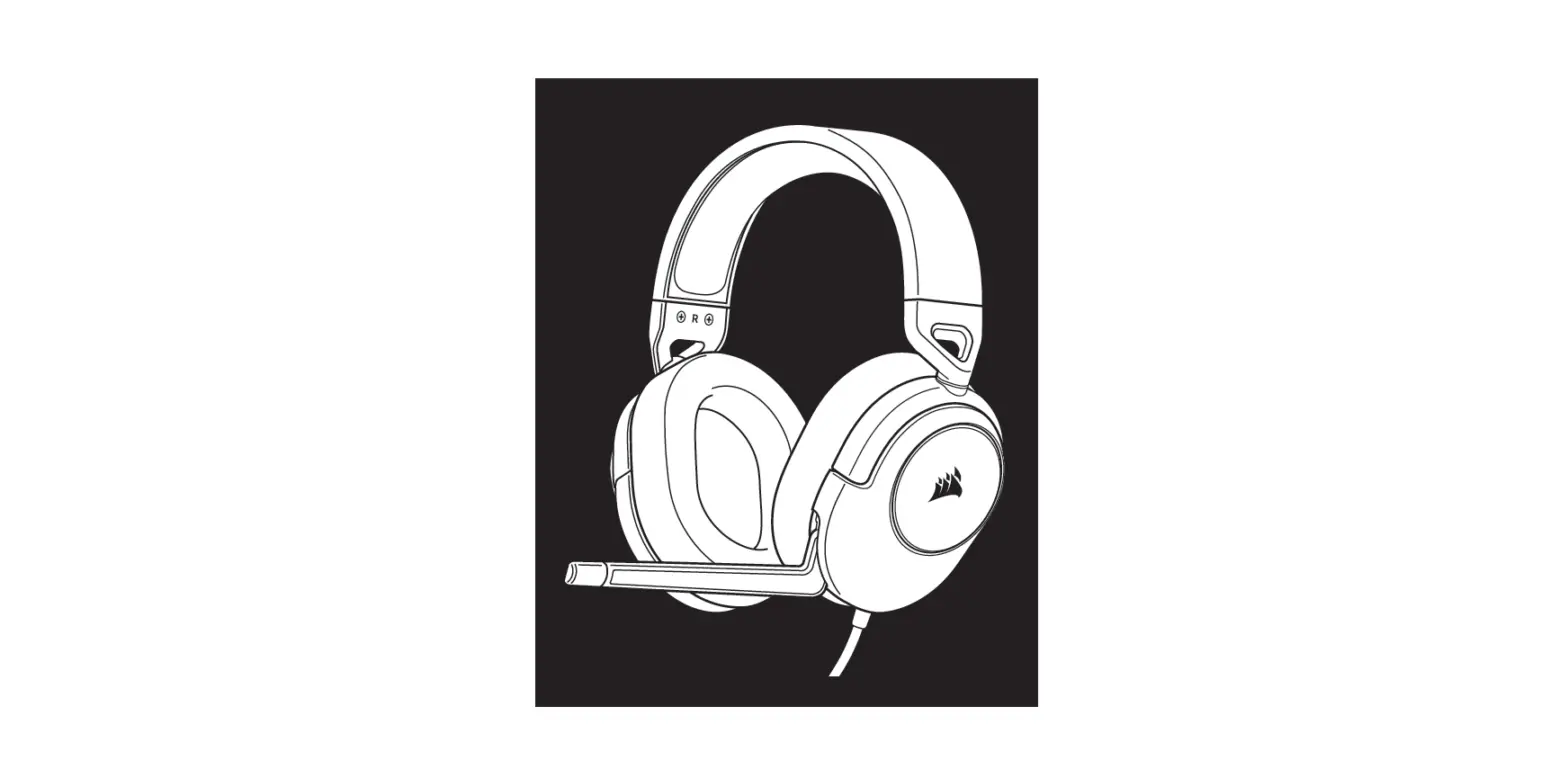
CONTENTS, CONTROLS, AND FEATURES
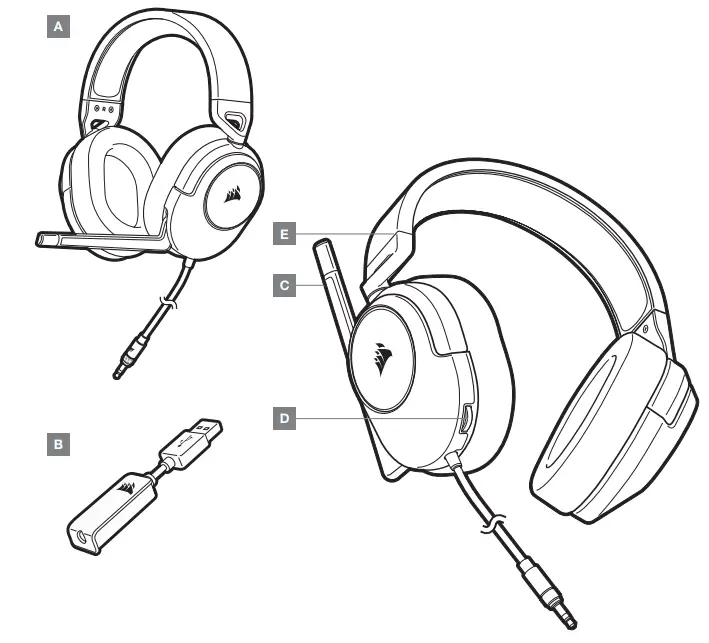
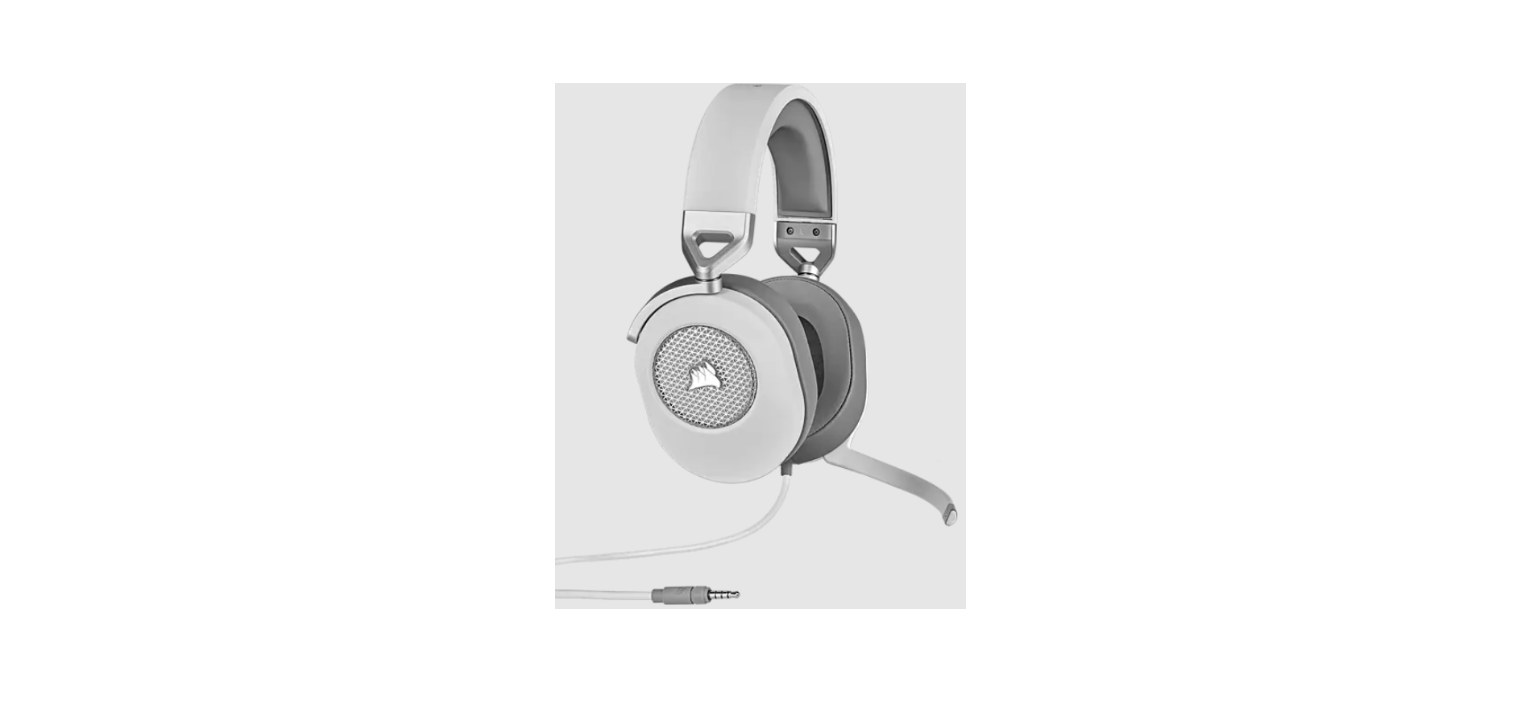
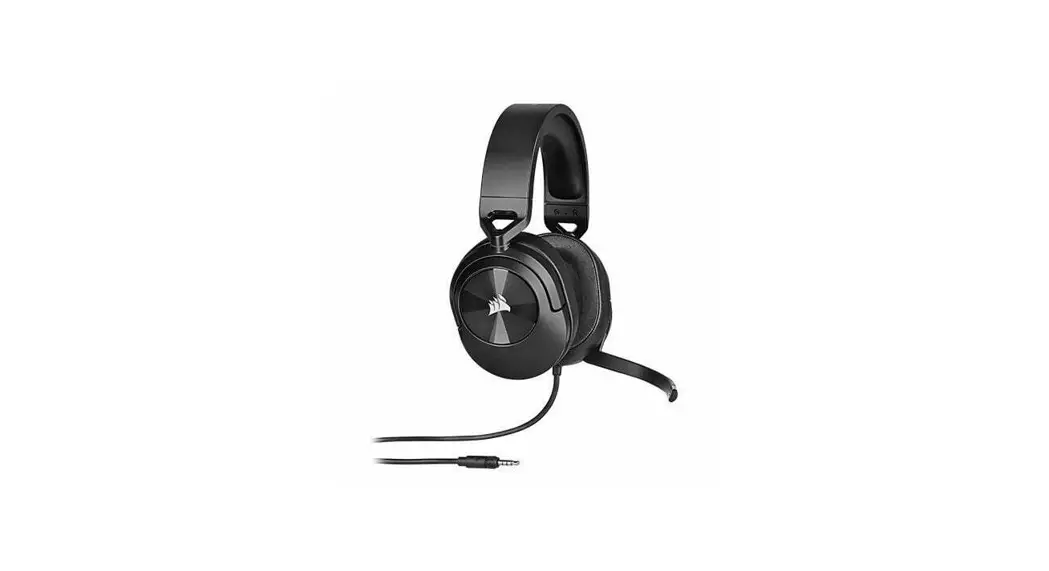
A — CORSAIR HS55 SURROUND
B — 7.1 SURROUND SOUND USB ADAPTER
C — MICROPHONE
D — VOLUME CONTROL
E — HEADBAND ADJUSTMENT
GETTING STARTED
The HS55 SURROUND is a multi-platform headset that operates in two audio modes: Stereo and 7.1 surround sound. In stereo mode, you can connect the 3.5mm jack into any PC, Mac, PS4, PS5, Nintendo Switch, or mobile device.
The included 7.1 surround sound USB adapter enables virtual 7.1 surround sound on a PC.
Remember that powering the 7.1 surround sound USB adapter requires a high power (USB 2.0 or better) port.
Some USB ports on older keyboards and monitors do not support high-power devices.
Place the headset on your head and adjust the headband for a comfortable fit.
The plush memory foam ear pads enable the HS55 SURROUND headset to fit comfortably so you can play for hours without fatigue.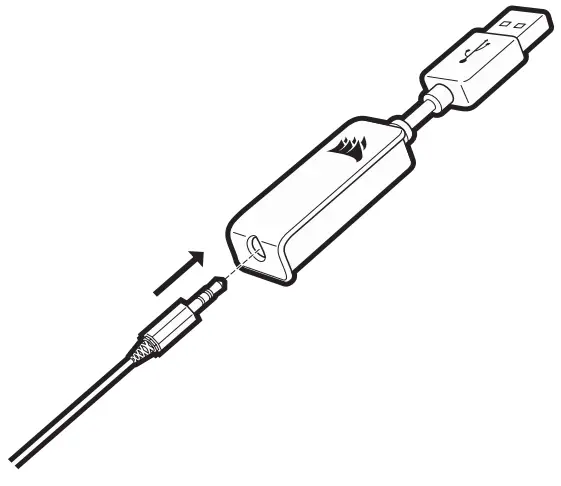
CORSAIR iCUE
Go to corsair.com/support/downloads to download the CORSAIR iCUE software. Using iCUE software will enable the full feature set of the HS55 SURROUND headset. The 7.1 surround sound USB adapter must be connected to your PC to use iCUE software.
Note: If the headset is used without software, some features will be disabled.
> Install the iCUE software on a PC running Windows 10 or later.
> After installation is complete, reboot your PC and launch iCUE.
iCUE software can be used to:
> Select and customize audio equalizer (EQ) settings.
> Set 7.1 surround sound on or off.
The software’s built-in documentation explains how to use the HS55 SURROUND’s features in greater detail.
GENERAL TIPS
Download the CORSAIR iCUE software from corsair.com/support/downloads.
Don’t be afraid to use the software equalizer to adjust the audio quality to your liking. EQ presets have been provided for popular gaming and media types.
Prolonged listening at high volumes may adversely affect your hearing. Take breaks between sessions and always begin with the volume at the lowest possible level before increasing.
ADJUSTMENT
As with any audio product, reduce the volume before trying it with an audio source the first time. You can adjust the volume with:
> The volume controller on the headset at the bottom corner of your left earcup.
> The standard Windows audio controller can also be used to adjust the volume.
> Once an audio source is playing, set the volume to a comfortable level.
MICROPHONE ADJUSTMENT
Flip-up microphone to mute. Flip-down microphone to unmute. Bend the flexible microphone boom to best fit near the left corner of your mouth. We’ve found that about a 30-degree bend is a good place to start, but feel free to increase or decrease this if your mic is too loud or too soft.
Enjoy your HS55 SURROUND headset! If you have any questions or comments, see the back panel of this guide for contact information.
Manufactured under license from Dolby Laboratories. Dolby, Dolby Audio, and the double-D symbol are trademarks of Dolby Laboratories Licensing Corporation.
| WEB: corsair.com PHONE: (888) 222-4346 SUPPORT: support.corsair.com | BLOG: corsair.com/blog FORUM: forum.corsair.com YOUTUBE: youtube.com/corsairhowto |
| © 2022 CORSAIR MEMORY, Inc. All rights reserved. CORSAIR and the sails logo are registered trademarks in the United States and/or other countries. All other trademarks are the property of their respective owners. Products may vary slightly from those pictured. 49-002542 AA |  | |
 PC Components | Gaming Gear | CORSAIR
 Home - Corsair Community