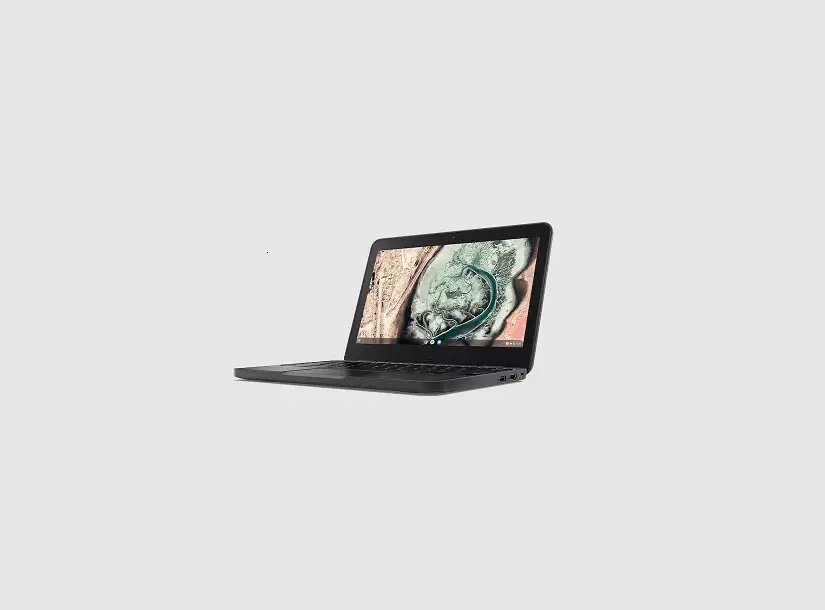
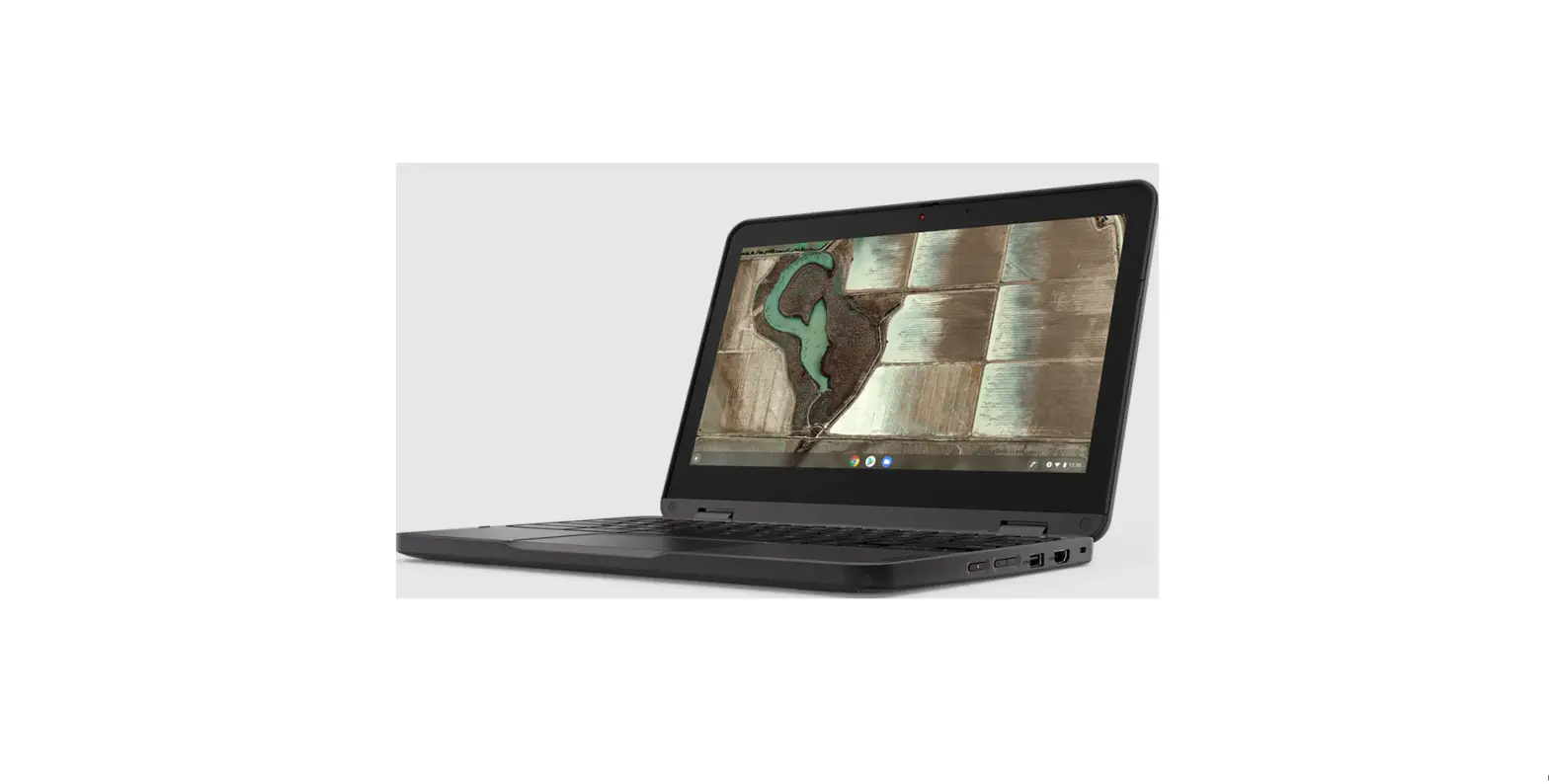
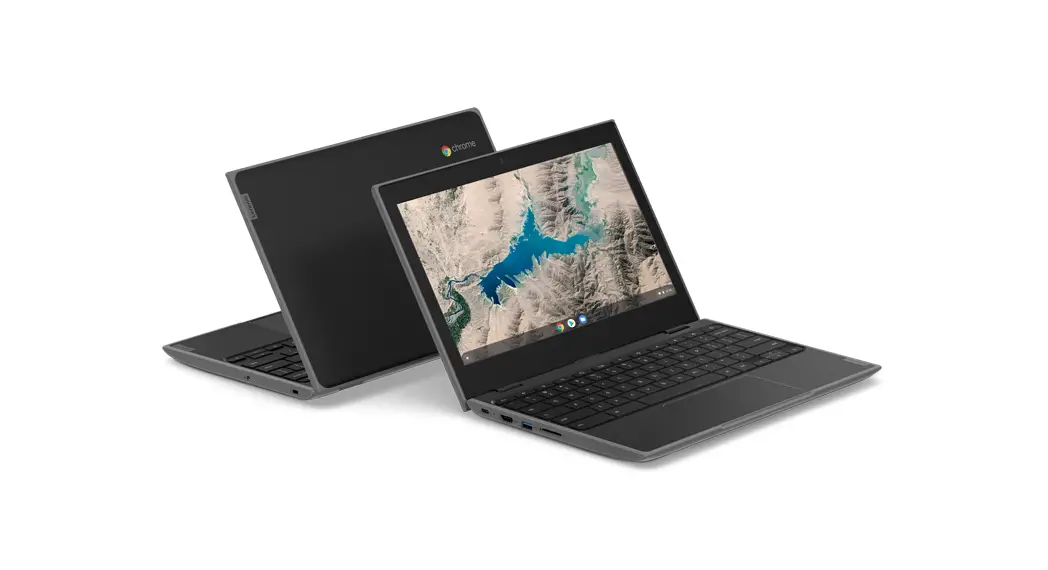
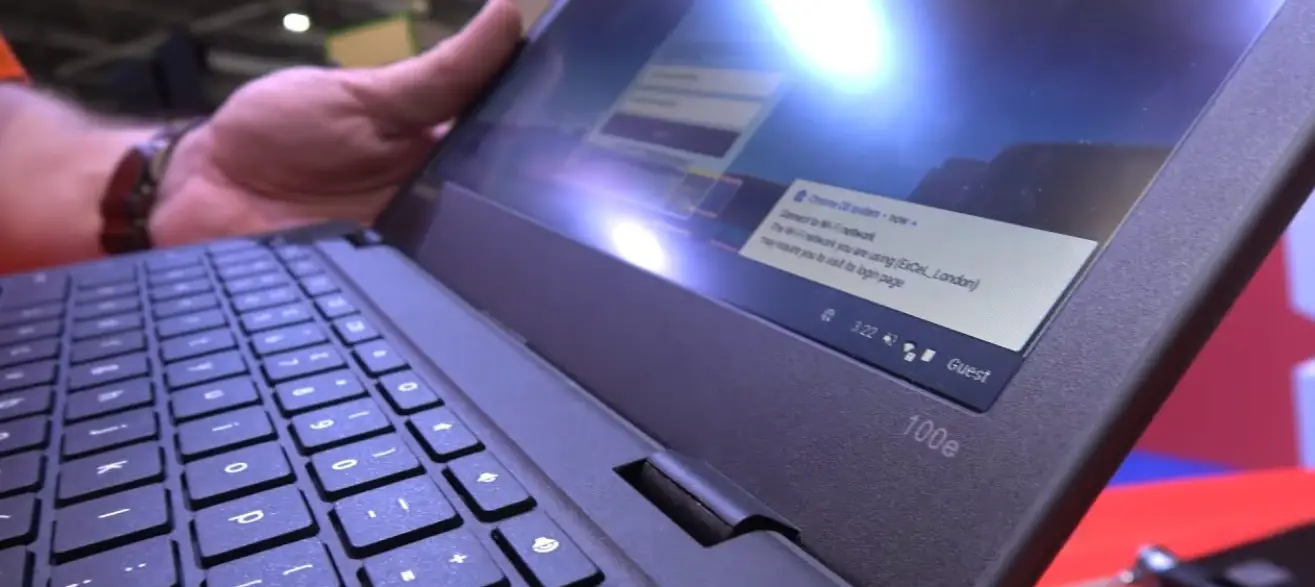
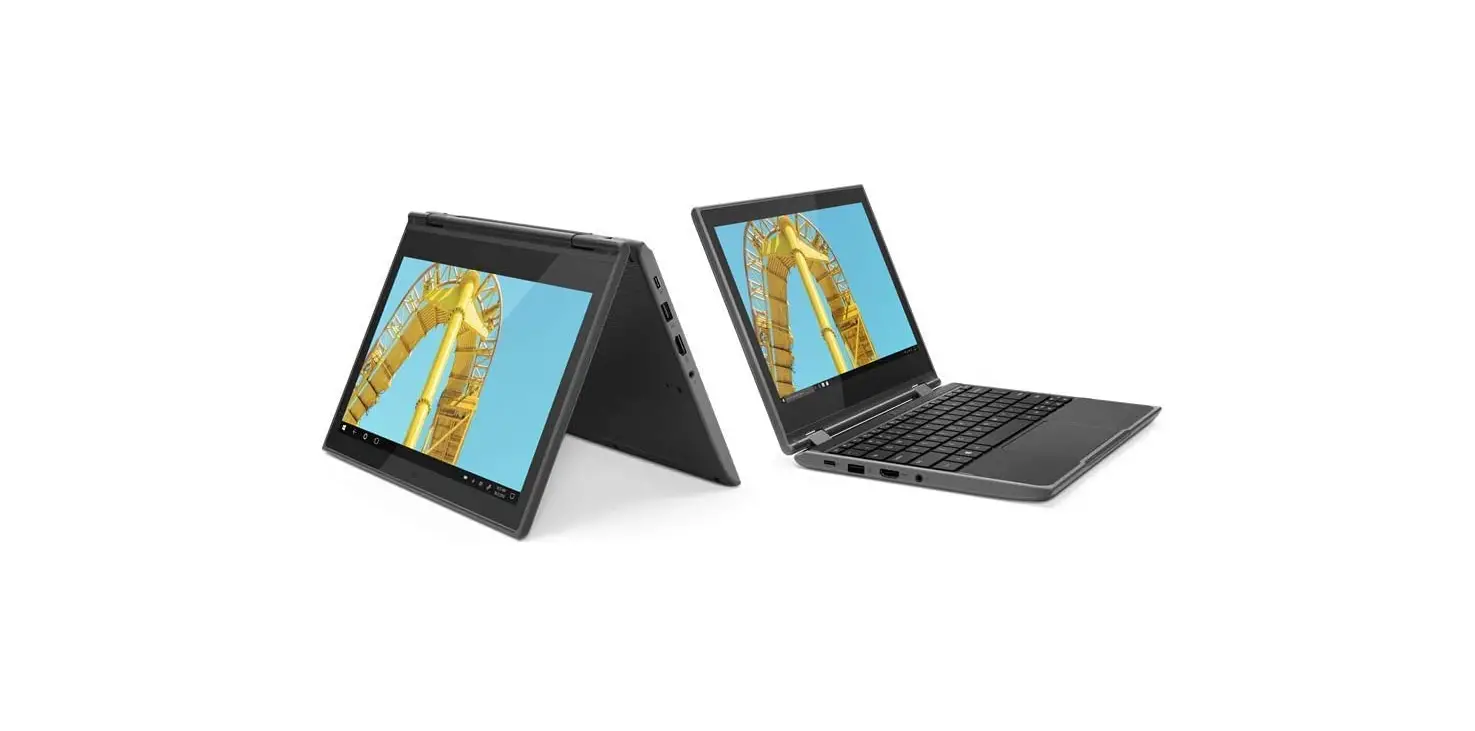
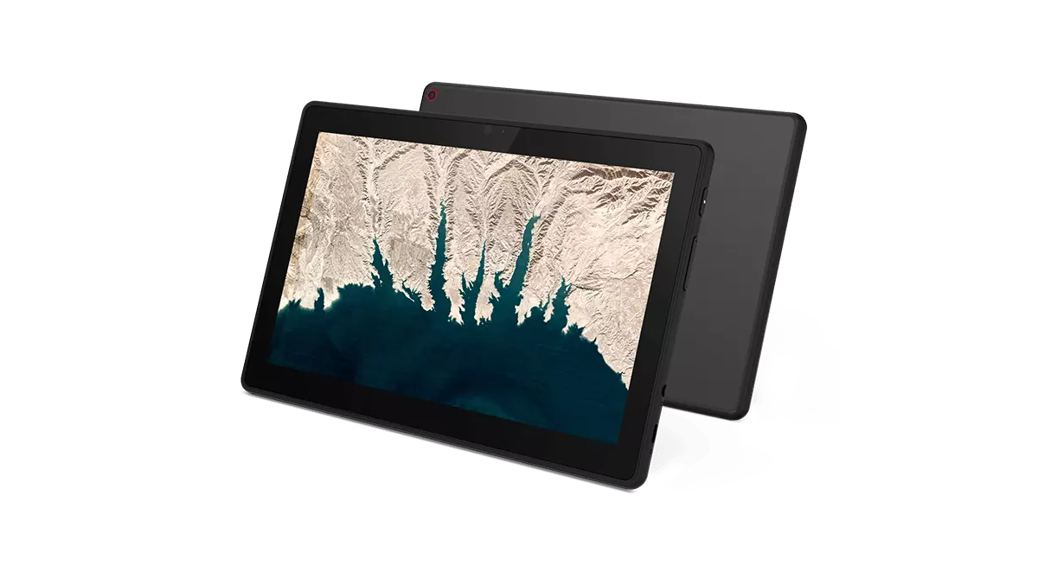
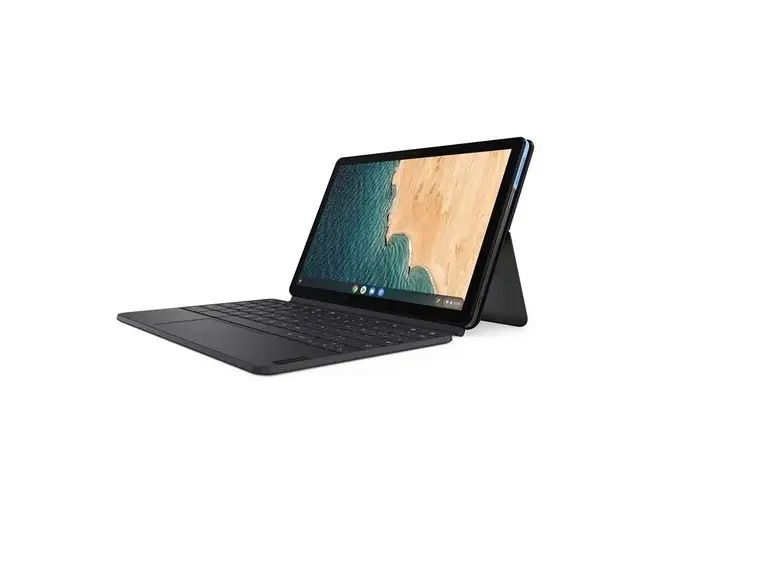
SlimTech for Lenovo 100e/100w Chromebook 3rd Gen
Product Information: SlimTech Lenovo 100e/100w 3rd Gen
The SlimTech Lenovo 100e/100w 3rd Gen is a device case that
provides protection to your Lenovo 100e/100w 3rd Gen device. The
product is designed with a keyboard that can be attached securely
to the bottom case. The case is made with durable materials that
protect your device from drops, scratches, and other damages. The
product is also eco-friendly, as the bottom shell is recyclable
when the feet and foam are removed.
Product Usage Instructions
Installation:
- Slide the device keyboard under the bottom case’s left side
clip. - Press the other side of the keyboard down to snap into the
right side clip securely. - Push the keyboard forward until it is flush with the front edge
of the bottom case. - Close the device screen and carefully press the rear corner
clips to snap onto the keyboard. - Slide the top case down, to secure the screen behind the side
clips, until the device reaches the case’s top edge. - Press the lower side clips over the device, with pressure from
both sides, to snap into place securely. - Close the case and press on the clips located on the bottom of
the top case. Make sure the clips are securely attached.
Removal:
CRITICAL! FOLLOW STEPS 1-3 IN ORDER. Failure to do so may
result in damage to the device.
- Unhook the 3 clips located on the top case’s rear, near the
spine. - Push the lower left and right side clips outward to release the
bottom of the top case from the device. - Start sliding the top case off by pushing up with your fingers
on the bottom corners. - Gently slide the top case up and off the device to release it
from the upper side clips. - Gently push the rear clips down to unhook from the device.
- Push the left and right side clips down past the device, one
side at a time, to release it from the bottom case.
Now that you know how to install and remove your SlimTech Lenovo
100e/100w 3rd Gen case, you can enjoy the protection and durability
it provides to your device. For more information, visit
GumdropCases.com.
1
Slide the device keyboard under the bottom case’s left side clip.
2
Press the other side of the keyboard down
to snap into the right side clip securely.
INSTALLATION
3
Push the keyboard forward until it is flush with the front edge of the bottom case.
4
Close the device screen and carefully press the
rear corner clips to snap onto the keyboard.
5
Slide the top case down, to secure the screen behind the side clips, until the device reaches the case’s top edge.
6
Press the lower side clips over the device, with pressure from both sides, to snap into place securely.
7
Close the case and press on the clips located on the bottom of the top case. Make sure the clips are securely attached
GumdropCases.com
Congratulations on your new case!
SlimTech Lenovo 100e/100w 3rd Gen
REMOVAL
CRITICAL!
FOLLOW STEPS 1 – 3 IN ORDER
Failure to do so may result in damage to the device.
1
Unhook the 3 clips located on the top case’s
rear, near the spine.
2
Push the lower left and right side clips outward to release the bottom of the top case from the device.
3
Start sliding the top case off by pushing up with your fingers on the bottom corners.
4
Gently slide the top case up and off the device to release it from the upper side clips.
5
Gently push the rear clips down to
unhook from the device.
6
Push the left and right side clips down past the device, one side at a time, to release it from the bottom case.
The bottom shell is recyclable if the feet and foam are removed!
GumdropCases.com
SlimTech Lenovo 100e/100w 3rd Gen