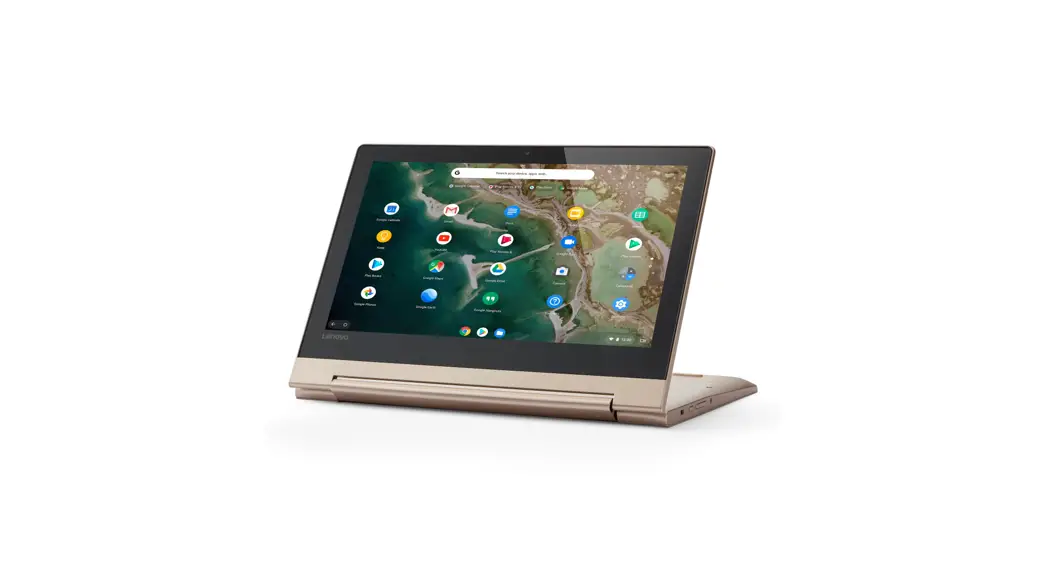
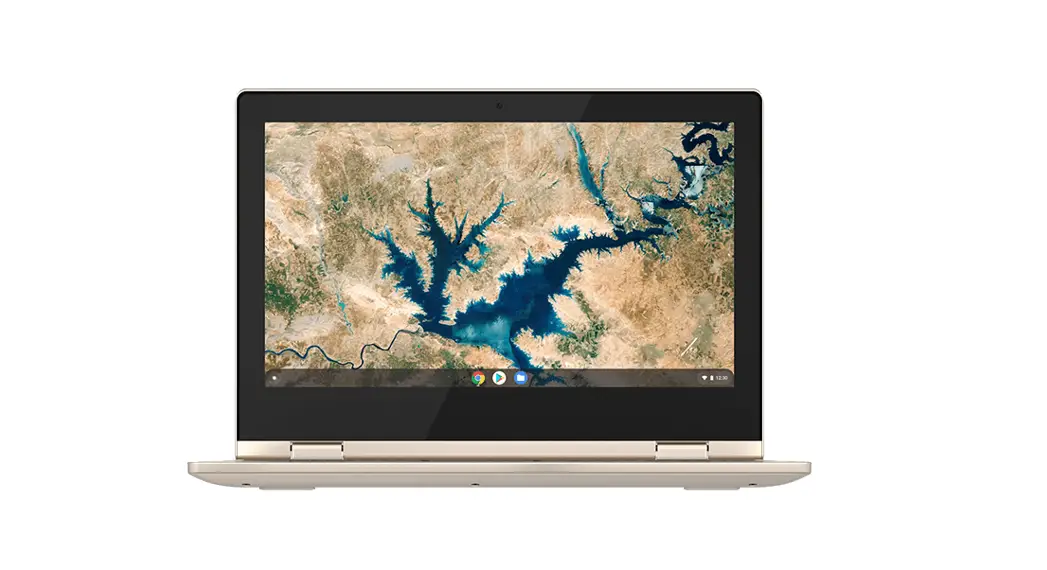
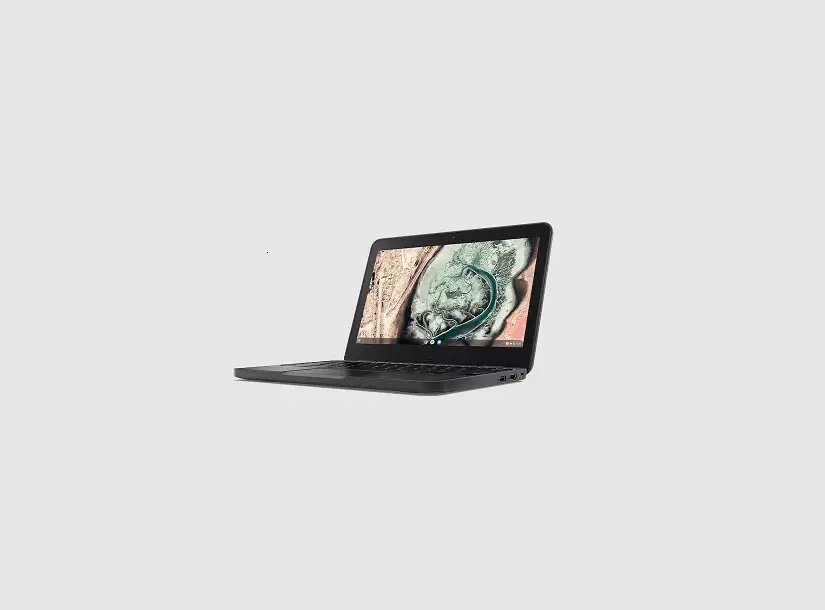
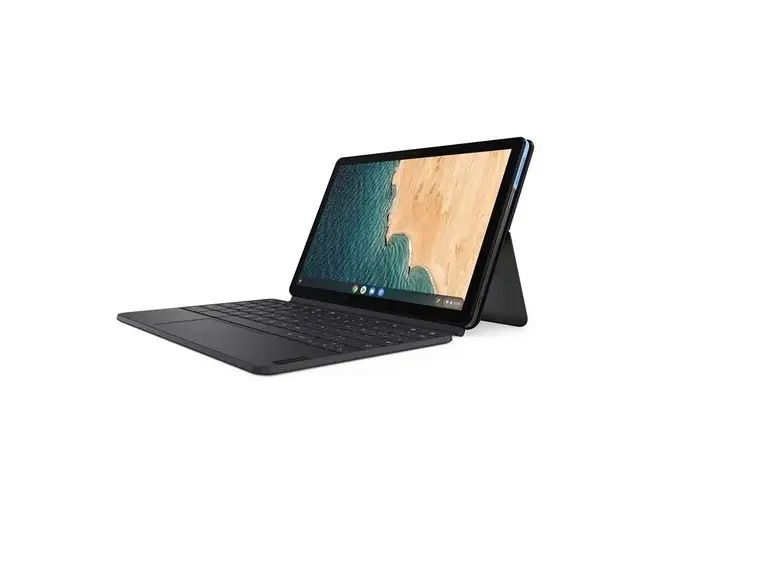
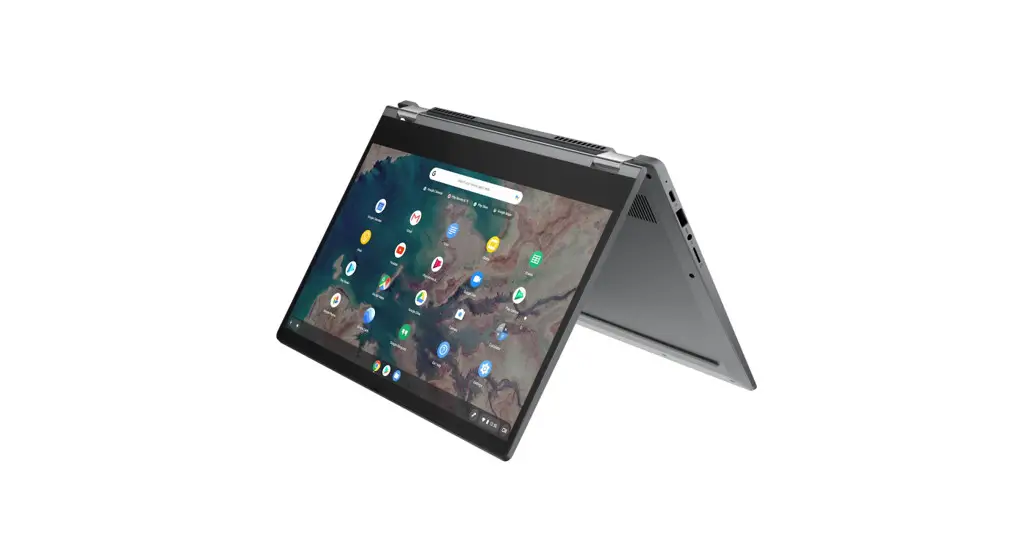
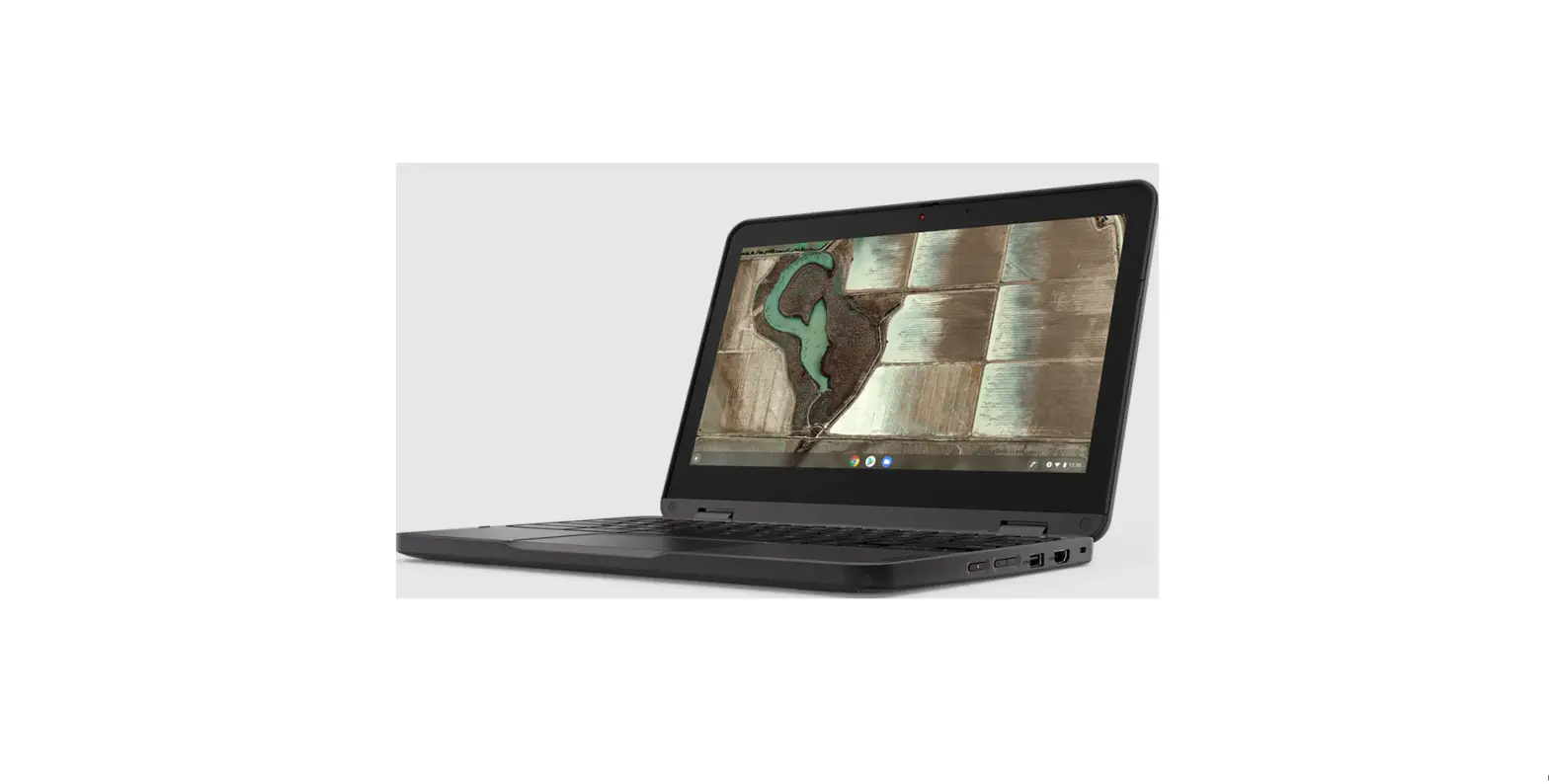
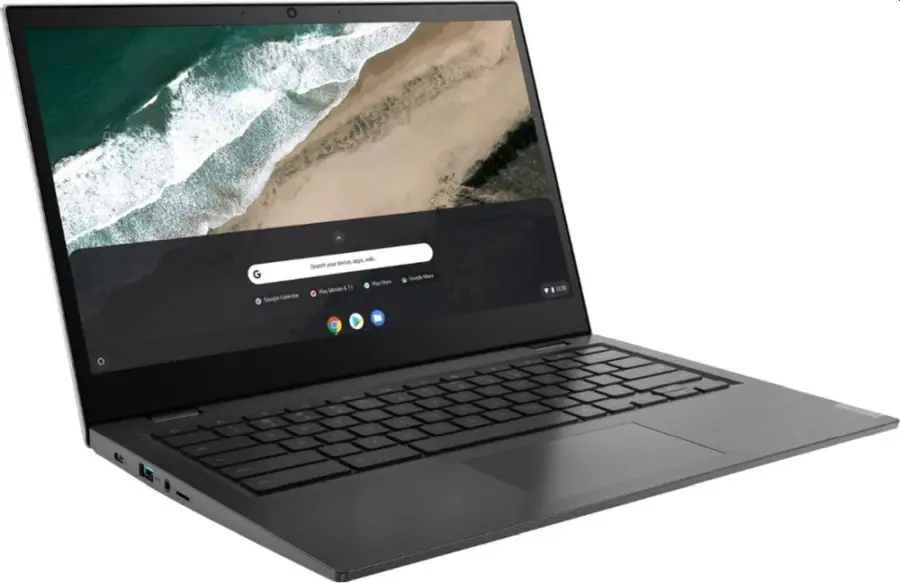
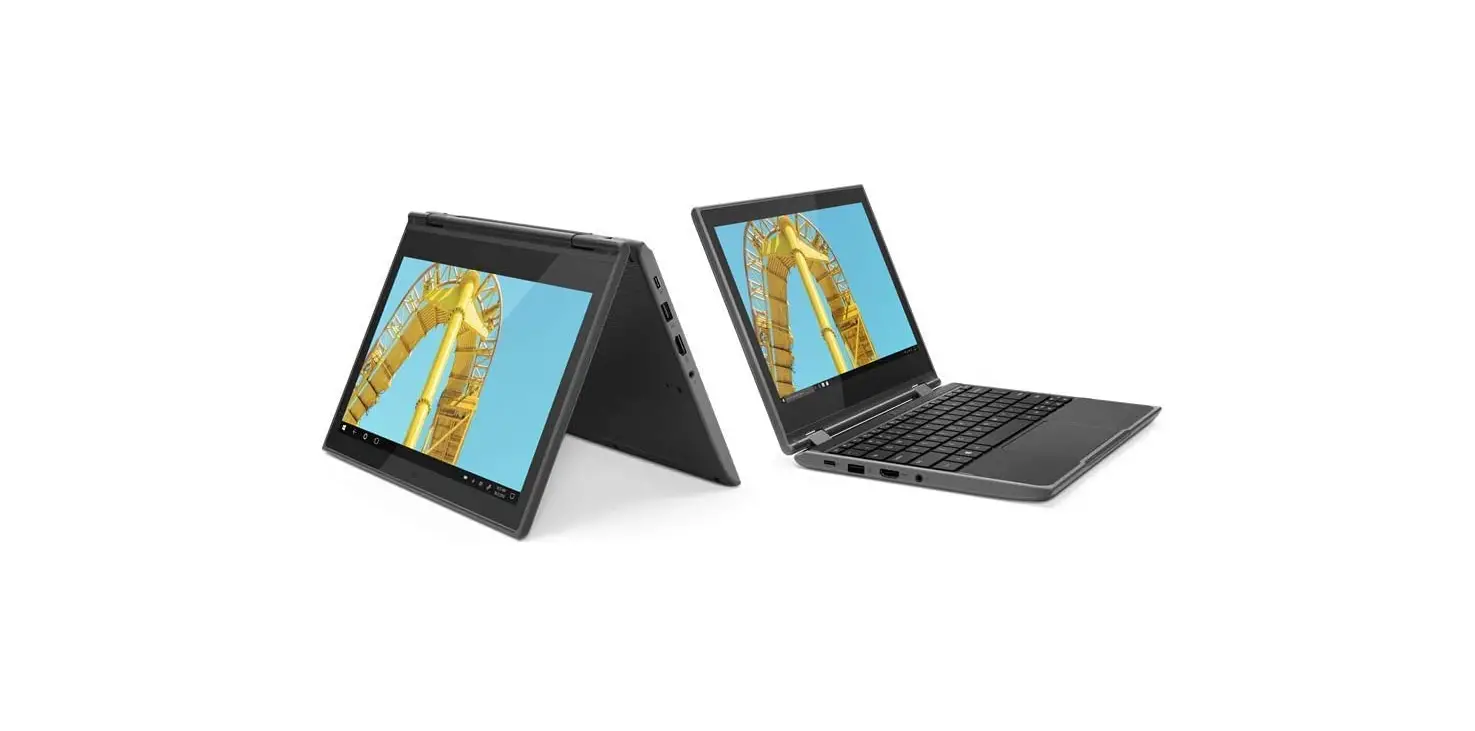
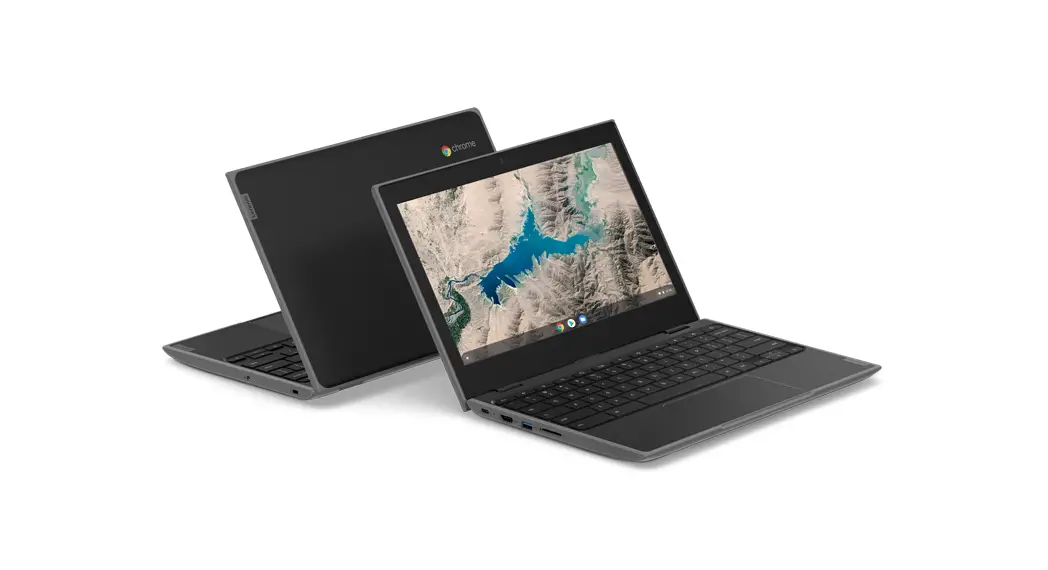
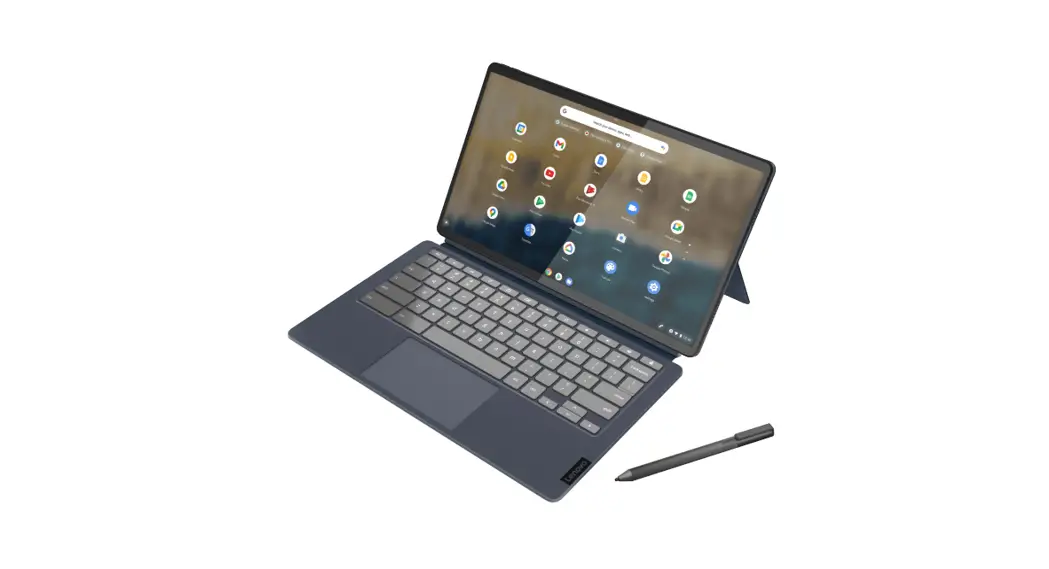
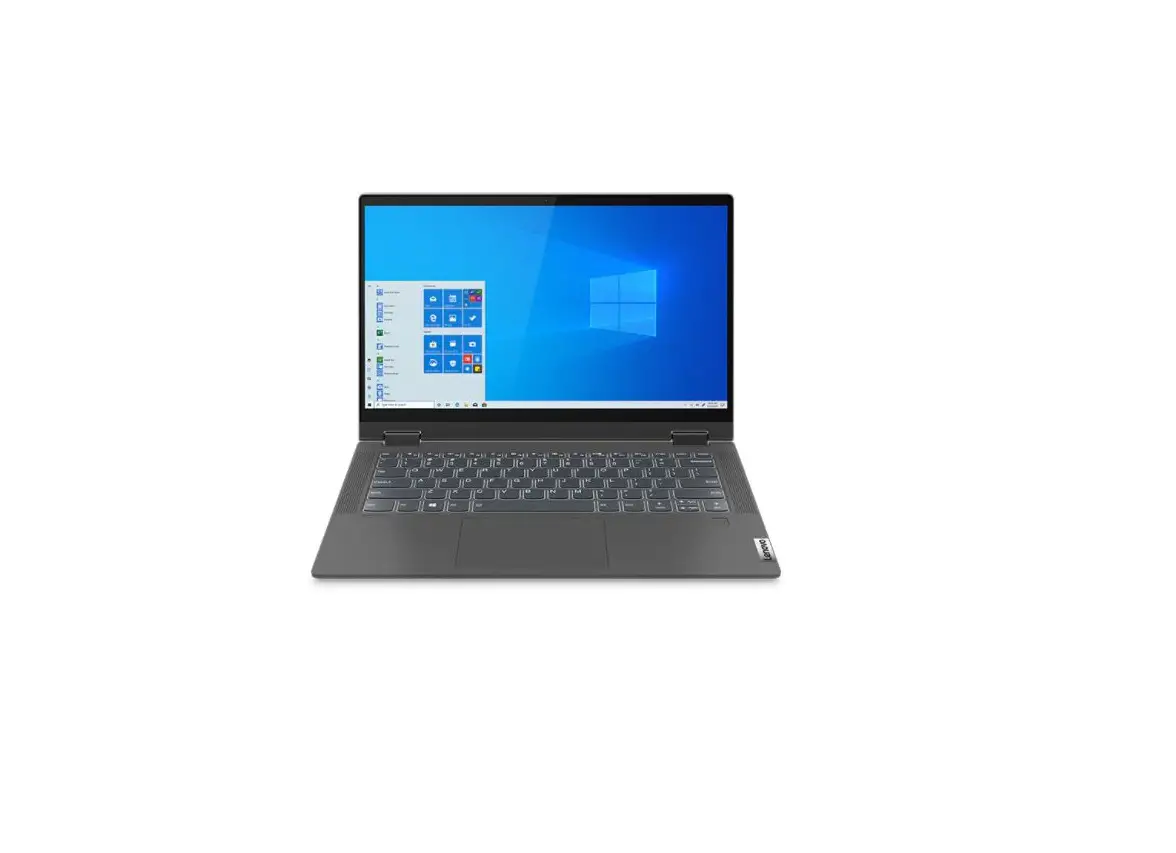
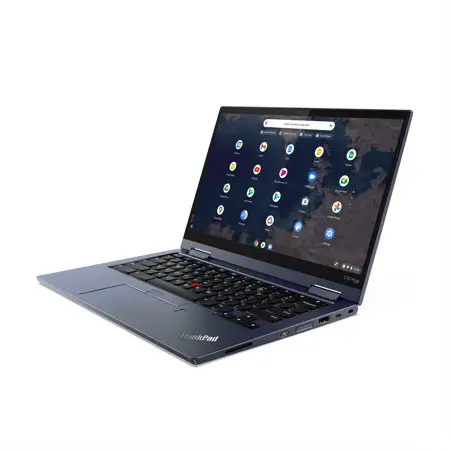
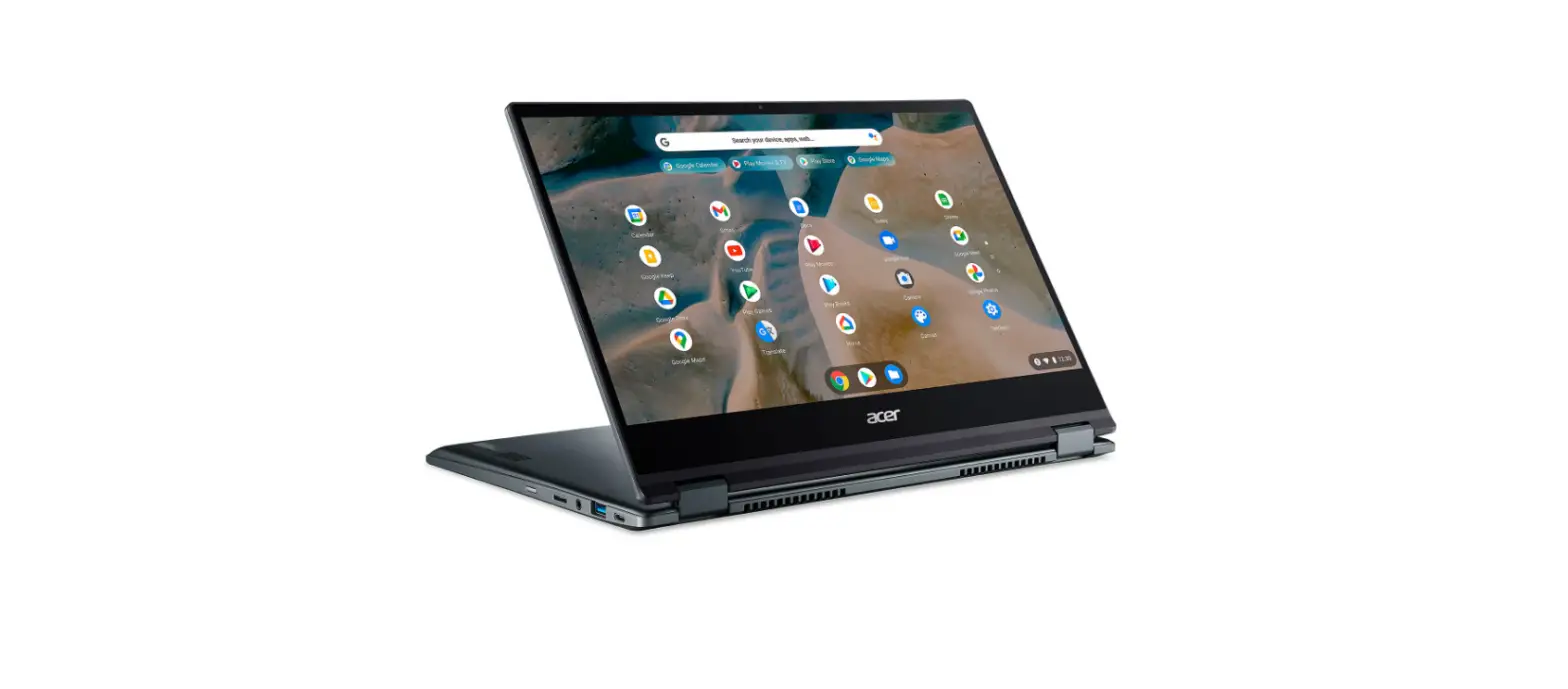
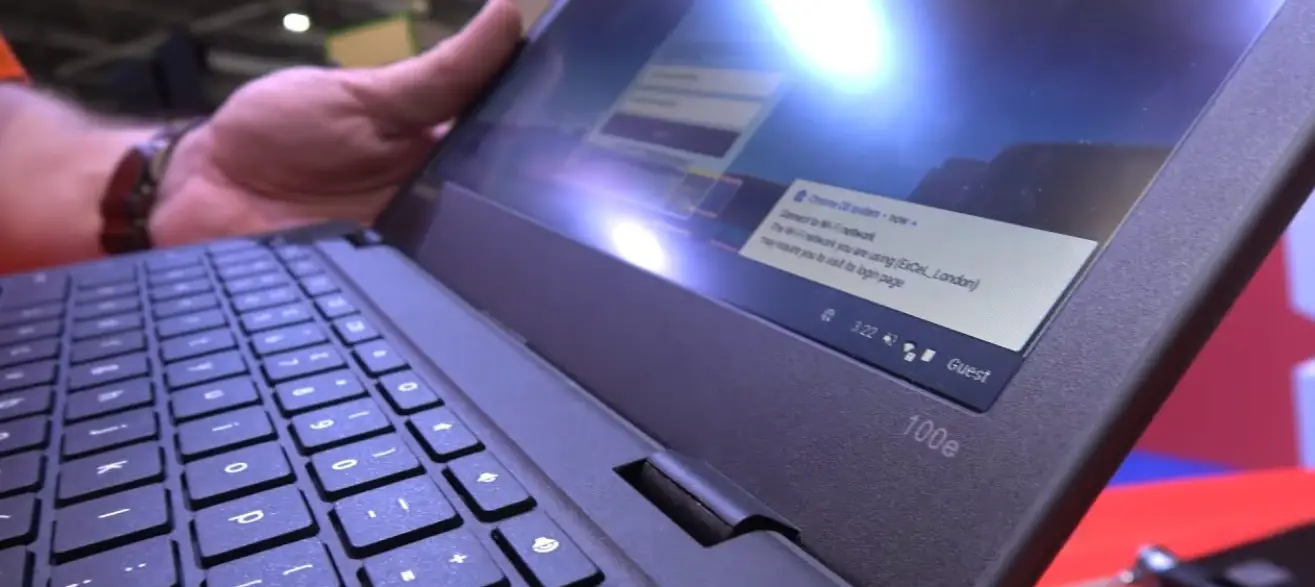
IdeaPad Flex 3i Chromebook Laptop
IdeaPad Flex 3i Chromebook (12, 8) User Guide
Product Information:
Model name: IP Flex 3 Chrome 12IAN8
Machine type (MT): 82XH
Chapter 1. Meet your Chromebook
Front
- 1. Microphone(s): Capture or record sound and voice.
- 2. Camera: Capture still and moving images for taking photos,
recording videos, and video chatting. - Camera cover: Cover or uncover the camera lens. Note: The
camera cover helps you better protect your privacy. - Camera light: If the light is on, the camera is in use.
- Screen: Display text, graphics, and videos. The screen supports
multi-touch function. - Wireless antennas: Send and receive radio waves for the
built-in wireless LAN (local area network) and Bluetooth
module.
Base
- 1. Speakers: Produce sound.
- 2. Keyboard: Enter characters and interact with programs. Note:
The keyboard also includes hotkeys and function keys for changing
settings and performing tasks quickly. - 3. Touchpad: Perform finger touch and all the functions of a
traditional mouse. Note: The touchpad also supports multi-touch
function.
Left
- 1. Charging light: Indicate the AC power status and the battery
status. Refer to AC power status indicator behavior on page 9. - 2. USB (3.2 Gen 1) Type-A connector: This connector is designed
as the primary power input connector. When not connected with the
power adapter, it can also be used to connect: - Combo audio jack
- microSD card slot
Product Usage Instructions:
Chapter 2. Get started with your Chromebook
- Charge your Chromebook: Connect the power adapter to the USB
Type-A connector on the left side of the base. - Lock your Chromebook: Use the appropriate method to lock your
Chromebook for security. - Connect to Wi-Fi: Follow the instructions to connect your
Chromebook to a Wi-Fi network. - Get to know YOGA modes: Familiarize yourself with the different
YOGA modes of your Chromebook. - Use the keyboard shortcuts: Utilize the keyboard shortcuts for
quick access to settings and tasks. - Use the touchpad: Use the touchpad for navigating and
interacting with your Chromebook. - Use the camera: Capture photos, record videos, and video chat
using the built-in camera. - Use audio: Adjust audio settings and listen to sound from the
speakers. - Connect to an external display: Connect your Chromebook to an
external display using appropriate cables and adapters. - Connect to Bluetooth devices: Pair and connect your Chromebook
with Bluetooth devices. - Set the power plan: Customize the power plan settings according
to your preferences.
Chapter 3. Help and support
- Frequently asked questions: Find answers to common questions
about your Chromebook. - Lenovo Customer Support Center: Contact Lenovo’s customer
support for assistance. - Get help from Google: Access Google’s support resources for
additional help.
Appendix A. Open source information
Refer to Appendix A in the user manual for open source
information.
Appendix B. Notices and trademarks
Refer to Appendix B in the user manual for notices and
trademarks related to the product.
IdeaPad Flex 3i Chromebook (12, 8) User Guide
Read this first Before using this documentation and the product it supports, ensure that you read and understand the following: · Safety and Warranty Guide · Setup Guide · Generic Safety and Compliance Notices
First Edition (February 2023) © Copyright Lenovo 2023. LIMITED AND RESTRICTED RIGHTS NOTICE: If data or software is delivered pursuant to a General Services Administration “GSA” contract, use, reproduction, or disclosure is subject to restrictions set forth in Contract No. GS35F-05925.
Contents
Discover your Chromebook . . . . . . . . . . . ii
Chapter 1. Meet your Chromebook . . . 1
Front . . . . . . . . . . . . . . . . . . . . 1 Base . . . . . . . . . . . . . . . . . . . . 2 Left . . . . . . . . . . . . . . . . . . . . 3 Right . . . . . . . . . . . . . . . . . . . . 4 Features and specifications . . . . . . . . . . . 5 Statement on USB transfer rate . . . . . . . . . 6 Operating environment . . . . . . . . . . . . . 6
Chapter 2. Get started with your Chromebook . . . . . . . . . . . . . . . 9
Charge your Chromebook . . . . . . . . . . . . 9 Lock your Chromebook. . . . . . . . . . . . . 9 Connect to Wi-Fi . . . . . . . . . . . . . . 10 Get to know YOGA modes . . . . . . . . . . 10 Use the keyboard shortcuts . . . . . . . . . . 11
Use the touchpad . . . . . . . . . . . . . . 12 Use the camera . . . . . . . . . . . . . . . 13 Use audio . . . . . . . . . . . . . . . . . 13 Connect to an external display . . . . . . . . . 14 Connect to Bluetooth devices . . . . . . . . . 14 Set the power plan . . . . . . . . . . . . . 14
Chapter 3. Help and support . . . . . 15
Frequently asked questions . . . . . . . . . . 15 Lenovo Customer Support Center . . . . . . . 15 Get help from Google . . . . . . . . . . . . 16
Appendix A. Open source information . . . . . . . . . . . . . . . 19
Appendix B. Notices and trademarks . . . . . . . . . . . . . . . 21
© Copyright Lenovo 2023
i
Discover your Chromebook
Thank you for choosing a Lenovo® ChromebookTM! We are dedicated to delivering the best solution to you.
Before starting your tour, please read the following information: · This guide applies to Lenovo product model(s) listed below. Illustrations in this guide may look slightly
different from your product model.
Model name IP Flex 3 Chrome 12IAN8 IP Flex 3 Chrome 12IAN8 1
Machine type (MT) 82XH 82XH
· For further compliance information, refer to the Generic Safety and Compliance Notices at https://pcsupport.lenovo.com/docs/generic_notices.
· Depending on the model, some optional accessories, features, software programs, and user interface instructions might not be applicable to your Chromebook.
· Documentation content is subject to change without notice. To get the latest documentation, go to https://pcsupport.lenovo.com.
Chapter 1. Meet your Chromebook
Front
Item 1 2
3
Controls & Connectors Microphone(s) Camera
Camera cover
4
Camera light
5
Screen
6
Wireless antennas
Description
Capture or record sound and voice.
Capture still and moving images for taking photos, recording videos, and video chatting.
Cover or uncover the camera lens. Note: The camera cover helps you better protect your privacy.
If the light is on, the camera is in use.
Display text, graphics, and videos. The screen supports multi-touch function. Note: The antennas are not visible from the outside of the computer.
Send and receive radio waves for the built-in wireless LAN (local area network) and Bluetooth module. Note: The antennas are not visible from the outside of the computer.
© Copyright Lenovo 2023
1
Base
Item 1 2
Controls & Connectors Speakers Keyboard
3
Touchpad
Description
Produce sound.
Enter characters and interact with programs. Note: The keyboard also includes hotkeys and function keys for changing settings and performing tasks quickly.
Perform finger touch and all the functions of a traditional mouse. Note: The touchpad also supports multi-touch function.
2 IdeaPad Flex 3i Chromebook (12, 8) User Guide
Left
Item 1
2
Controls & Connectors Charging light
Multi-purpose USB Type-C® connector
3
USB (3.2 Gen 1) Type-A connector
4
Combo audio jack
5
microSD card slot
Description
Indicate the ac power status and the battery status. Refer to “AC power status indicator behavior” on page 9.
This connector is designed as the primary power input connector. When not connected with the power adapter, it can also be used to connect:
· devices that utilize the USB data transfer technology, and
· display devices
Note: When connecting display devices, you need to use appropriate cables and adapters (if needed) according to the connection capabilities of the display device.
Connect a USB-compatible device, such as a USB keyboard, a USB mouse, a USB storage device, or a USB printer.
Connect headphones or headsets with a 3.5 mm (0.14 inch), 4-pole plug. Note: This jack does not support standalone external microphones. If you use headsets, choose one with a single plug.
Insert a microSD card into the slot for data transfer or storage.
Chapter 1. Meet your Chromebook 3
Right
Item 1
Controls & Connectors Power button
2
Volume buttons
3
USB (3.2 Gen 1) Type-A connector
4
HDMITM connector
5
Nano security-lock slot
Description
Press the button to turn on the computer or put the computer into sleep mode. Notes: When you finish working with your Chromebook, shut it down to save power.
· Click in the system tray.
· Press the power button.
Press the button to increase or decrease the system volume.
Connect a USB-compatible device, such as a USB keyboard, a USB mouse, a USB storage device, or a USB printer.
Connect to a compatible digital audio device or video monitor, such as an HDTV.
Lock your computer to a desk, table, or other fixtures through a compatible security cable lock. See “Lock your Chromebook” on page 9.
4 IdeaPad Flex 3i Chromebook (12, 8) User Guide
Features and specifications
Note: Specifications might change without notice. Some specifications are model-specific and might not apply to the computer model that you purchased.
Specifications Dimensions ac power adapter Battery pack
Microprocessor Memory Storage device
Screen Keyboard
Descriptions
· Width: 284 mm (11.18 inches) · Depth: 210 mm (8.27 inches) · Thickness: 18.4 mm (0.72 inches)
· Input: 100 V ac240 V ac, 50 Hz60 Hz · Output: 15 V dc, 3 A/20 V dc, 3.25 A · Power: 45 W/65 W
· Capacity: 47 Wh · Number of cells: 3 Note: The battery capacity is the typical or average capacity as measured in a specific test environment. Capacities measured in other environments may differ but are no lower than the rated capacity (see product label). To view the microprocessor information of your computer, type system information in the search box and then press Enter.
· Type: LPDDR5 · Number of physical slots: 0
· Type: Embedded Multi Media card 5.1 · Bus: eMMC5.1 · Capacity: 64G or 128G Note: The capacity of the storage device displayed in the operating system is typically lower than the nominal capacity.
· Size: 309.88 mm (12.2 inches) · Display resolution: 1920 × 1200 pixels
· Function keys · Hotkeys · Keyboard backlight *
Chapter 1. Meet your Chromebook 5
Specifications
Descriptions
Connectors and slots
· Combo audio jack · USB Type-A connector × 2
Power output up to 5 V and 0.9 A
· Multi-purpose USB Type-C connector
Supports SuperSpeed USB 10 Gbps Supports DisplayPort Alt Mode (DisplayPort 1.4 compliant) Supports power output up to 15 W (5 V, 3 A) Supports USB Power Delivery · HDMI connector
Supports 2560 × 1400 at 60 Hz as specified in HDMI 1.4 · microSD card slot
Note: Data rates and performance ratings are dependent on connected devices and cables if they are used. For DisplayPort connection through a USB Type-C port, the listed maximum output capacity is only available on external displays with a DisplayPort, a Mini DisplayPort, or a USB Type-C port that supports DisplayPort Alternate Mode. For connections using a converter or an adapter, the actual output resolution may be lower.
Security
· Nano security-lock slot
Network
· Bluetooth and Wi-Fi combo adapter
* for selected models
Statement on USB transfer rate
Depending on many factors such as the processing capability of the host and peripheral devices, file attributes, and other factors related to system configuration and operating environments, the actual transfer rate using the various USB connectors on this device will vary and will be slower than the data rate listed below for each corresponding device.
USB device USB 3.2 Gen 1 USB 3.2 Gen 2 USB4 Gen 2 × 2 USB4 Gen 3 × 2
Data rate (Gbit/s) 5 10 20 40
Operating environment
Maximum altitude (without pressurization) 3048 m (10 000 ft)
Temperature · Operating: 5°C to 35°C (41°F to 95°F) · Storage: 5°C to 43°C (41°F to 109°F)
6 IdeaPad Flex 3i Chromebook (12, 8) User Guide
Note: When you charge the battery, its temperature must be no lower than 10°C (50°F). Relative humidity · Operating: 8% to 95% at wet-bulb temperature 23°C (73°F) · Storage: 5% to 95% at wet-bulb temperature 27°C (81°F)
Chapter 1. Meet your Chromebook 7
8 IdeaPad Flex 3i Chromebook (12, 8) User Guide
Chapter 2. Get started with your Chromebook
Charge your Chromebook
The USB Type-C connector on your Chromebook works as the power connector. Plug in the ac power adapter to charge the built-in battery pack and provide power to the Chromebook.
Connect to ac power CAUTION: All plugs must be firmly and securely inserted into receptacles.
1. Connect the power cord to the ac power adapter. 2. Plug the power adapter into the USB Type-C connector of the Chromebook. 3. Plug the power cord into an electrical outlet.
AC power status indicator behavior The ac power status indicator is next to the USB Type-C connector. The following table shows the indicator behaviors and the indicated power and battery status.
AC power status indicator on (red)
on (amber)
on (green) off
Power status plugged in
plugged in
plugged in unplugged
Battery status
being charged, remaining power is less than 5% being charged, remaining power is between 5% and 97% fully charged (97% to 100%)
discharging
Lock your Chromebook
Lock your Chromebook to a desk, table, or other fixtures through a compatible security cable lock.
© Copyright Lenovo 2023
9
Note: The slot supports cable locks that conform to the Kensington NanoSaver® lock standards using CleatTM locking technology. You are responsible for evaluating, selecting, and implementing the locking device and security feature. Lenovo is not responsible for the locking device and security feature. You can purchase the cable locks at https://smartfind.lenovo.com.
Connect to Wi-Fi
To connect your Chromebook to Wi-Fi: 1. Click your account picture. 2. Click the network icon and turn on the wireless feature. 3. Select an available network to connect. Provide required information if needed.
Get to know YOGA modes
Your computer display can be rotated to any angle up to 360 degrees. Attention: · Do not rotate the computer display with too much force, or apply too much force to the upper-right or
upper-left corner of the computer display. Otherwise, the computer display or hinges might get damaged. · The keyboard and the pointing devices are automatically disabled in stand mode, tent mode, and tablet
mode. Use the touch screen to control your computer instead. Your Chromebook features the following four modes. You can switch among different modes according to your preference.
10 IdeaPad Flex 3i Chromebook (12, 8) User Guide
Notebook mode
Stand mode
Tent mode
Tablet mode
Use the keyboard shortcuts
The function keys on the keyboard help you work more easily and effectively.
Go to the previous page Reload your current page Hide the tabs and the App Launcher in full-screen mode Show all windows in overview mode Decrease the brightness of the computer screen Increase the brightness of the computer screen
Chapter 2. Get started with your Chromebook 11
Turn on/off the microphone Mute the speakers Decrease the volume
Increase the volume
Lock the computer screen *
Your Chromebook also supports some key combinations.
ctrl +
alt +
+ L ctrl + alt + ? *alt + *alt +
Take a screenshot Switch the Caps Lock function
Lock your computer screen
View all keyboard shortcuts Turn off the keyboard backlight and decrease the brightness Turn on the keyboard backlight and increase the brightness
* for selected models
To change the keyboard settings: 1. Click the setting icon in the system tray, and then click Device Keyboard. 2. Follow the on-screen instructions to change the settings as you prefer.
Use the touchpad
The entire touchpad surface is sensitive to finger touch and movement. You can use the touchpad to perform all the pointing, clicking, and scrolling functions of a traditional mouse.
Use the touch gestures
Notes: · When using two or more fingers, ensure that you position your fingers slightly apart. · Some gestures are only available when you are using certain apps. · If the touchpad surface is stained with oil, turn off the Chromebook first. Then, gently wipe the touchpad
surface with a soft and lint-free cloth moistened with lukewarm water or computer cleaner.
12 IdeaPad Flex 3i Chromebook (12, 8) User Guide
Tap once to select or open an item.
Tap twice quickly to display a shortcut menu.
Two-finger zoom in or zoom out.
Scroll through items.
Open the task view.
Show the current window.
To change the settings: 1. Click the setting icon in the system tray, and then click Device Touchpad. 2. Follow the on-screen instructions to change the settings as you prefer.
If Enable tap-to-click is turned on, you can tap or press the touchpad. Otherwise, you can only press the touchpad to achieve the clicking function of a traditional mouse.
Use the camera
The built-in camera can be used for video calling or video conferencing. The indicator next to the camera turns on when the camera is activated.
To take photos with the camera: 1. Click the Launcher button, and then click All apps. 2. Click Camera. 3. Click the camera icon.
Use audio
You can connect headphones or a headset with a 3.5-mm (0.14-inch), 4-pole plug to the audio connector to listen to the sound from your Chromebook.
To play a saved audio or video: 1. Click the Launch button, and then select Files.
Chapter 2. Get started with your Chromebook 13
2. Double-click a file to open it in the media player. To adjust the volume, click the account picture, and then adjust the volume as you prefer.
Connect to an external display
You can use the Chromebook’s USB Type-C connectors to connect a projector or an external display. 1. Use a USB Type-C to USB Type-C cable (not supplied) to connect your Chromebook to an external display. Note: If the external display does not support input through USB Type-C connector, you may need to purchase and use adapters. Lenovo provides various USB Type-C accessories at https:// www.lenovo.com/accessories, to help you expand your computer functionality. 2. Connect the external display to an electrical outlet. 3. Turn on the external display.
To change display settings: 1. Click your account picture, and then click Settings. 2. In the Device section, click Displays. 3. Follow the on-screen instructions to change the display settings as you desire.
Connect to Bluetooth devices
Your Chromebook supports Bluetooth feature. You can connect your Chromebook to a Bluetooth keyboard, mouse, speakers, or other Bluetooth devices. Note: The Bluetooth devices must be within a short distance, usually 10 meters (33 feet), from the Chromebook.
1. Click your account picture, and then click the Bluetooth icon. 2. Turn on Bluetooth. 3. Select the device you want to pair and follow the on-screen instructions.
Set the power plan
For ENERGY STAR® compliant Chromebooks, the following power plan takes effect when your Chromebooks have been idle for a specified duration:
Table 1. Default power plan (when plugged into ac power)
· Turn off the display: After seven minutes and 30 seconds · Put the Chromebook into sleep: After eight minutes and 30 seconds
To reset the power plan to achieve the best balance between performance and power saving: 1. Click the setting icon in the system tray, and then click Device Power. 2. Follow the on-screen instructions to change the settings as you prefer.
14 IdeaPad Flex 3i Chromebook (12, 8) User Guide
Chapter 3. Help and support
Frequently asked questions
Questions
Solutions
What do I do if my Chromebook stops responding?
1. Press and hold the power button until the Chromebook turns off. Then, restart the Chromebook.
2. If step 1 does not work:
· For models with an emergency reset hole: Insert a straightened paper clip into the emergency reset hole to cut off power supply temporarily. Then, restart the Chromebook with ac power connected.
· For models without an emergency reset hole:
For models with the removable battery, remove the removable battery and disconnect all power sources. Then, reconnect to ac power and restart the Chromebook.
For models with the built-in battery, disconnect all power sources. Press and hold the power button for about seven seconds. Then, reconnect to ac power and restart the Chromebook.
1. Carefully unplug the ac power adapter and turn off the Chromebook immediately. The more quickly you stop the current from passing through the Chromebook the more likely you will reduce damage from short circuits.
What do I do if I spill liquid on the Chromebook?
Attention: Although you might lose some data or work by turning off the Chromebook immediately, leaving the Chromebook on might make your Chromebook unusable.
2. Do not try to drain out the liquid by turning over the Chromebook. If your Chromebook has keyboard drainage holes on the bottom, the liquid will be drained out through the holes.
3. Wait until you are certain that all the liquid is dry before turning on your Chromebook.
How do I disinfect my Chromebook?
1. Squeeze out excess liquid from wipe or disinfecting cloth before using. Recommended wipes are hydrogen peroxide wipes and alcohol based wipes. Do not use wipes containing sodium hypochlorite (bleach).
2. Gently wipe the Chromebook thoroughly, being careful to ensure no liquid drips into the Chromebook. Do not wipe on connector pins.
3. After disinfecting, follow the cleaning procedure from the wipe supplier to minimize chemical buildup of disinfectant residue.
4. Always allow the Chromebook to completely dry prior to any use.
How do I find accessibility information?
For more information about cleaning and disinfecting, go to https:// support.lenovo.com/in/en/solutions/ht035676.
https://www.lenovo.com/accessibility
Lenovo Customer Support Center
If you have tried to correct the problem yourself and still need help, you can call Lenovo Customer Support Center.
© Copyright Lenovo 2023
15
Before you contact Lenovo Record product information and problem details before you contact Lenovo.
Production inforamtion
· Product name · Machine type and serial number
Problem symptoms and details
· What is the problem? Is it continuous or intermittent? · Any error message or error code? · What operating system are you using? Which version? · Which software applications were running at the time
of the problem? · Can the problem be reproduced? If so, how?
Note: The product name and serial number can usually be found on the bottom of the computer, either printed on a label or etched on the cover.
Telephone numbers For a list of the Lenovo Support phone numbers for your country or region, go to https://pcsupport.lenovo.com/supportphonelist for the latest phone numbers.
Note: Phone numbers are subject to change without notice. If the number for your country or region is not provided, contact your Lenovo reseller or Lenovo marketing representative.
Services available during the warranty period · Problem determination – Trained personnel are available to assist you with determining if you have a
hardware problem and deciding what action is necessary to fix the problem. · Lenovo hardware repair – If the problem is determined to be caused by Lenovo hardware under warranty,
trained service personnel are available to provide the applicable level of service. · Engineering change management – Occasionally, there might be changes that are required after a product
has been sold. Lenovo or your reseller, if authorized by Lenovo, will make selected Engineering Changes (ECs) that apply to your hardware available.
Services not covered · Replacement or use of parts not manufactured for or by Lenovo or nonwarranted parts · Identification of software problem sources · Configuration of UEFI BIOS as part of an installation or upgrade · Changes, modifications, or upgrades to device drivers · Installation and maintenance of network operating systems (NOS) · Installation and maintenance of programs
For the terms and conditions of the Lenovo Limited Warranty that apply to your Lenovo hardware product, go to:
· https://www.lenovo.com/warranty/llw_02 · https://pcsupport.lenovo.com/warrantylookup
Get help from Google
After signing in to your Chromebook, start Get Help from the app Launcher. The Get Help app provides comprehensive instructions on using your Chromebook.
In addition, if you are interested in visiting the Chromebook Help Center and Community, go to
16 IdeaPad Flex 3i Chromebook (12, 8) User Guide
http://support.google.com/chromebook. Chapter 3. Help and support 17
18 IdeaPad Flex 3i Chromebook (12, 8) User Guide
Appendix A. Open source information
Your Chromebook may include software made publicly available by Google and other third parties, including software licensed under the General Public License and/or the Lesser General Public License (the “open source software”).
You may obtain a copy of the corresponding source code for any such open source software licensed under the General Public License and/or the Lesser General Public License (or any other license requiring us to make a written offer to provide corresponding source code to you) from Lenovo for a period of three years without charge except for the cost of media, shipping, and handling, upon written request to Lenovo. This offer is valid to anyone in receipt of this device. You may send your request in writing to the address below accompanied by a check or money order for $5 to:
Lenovo Legal Department Attn: Open Source Team / Source Code Requests 8001 Development Dr. Morrisville, NC 27560
As part of your request, please include a “UNAME” and a “CHROME VERSION” of this device available by typing: “Chrome://system” in a Chrome Browser’s address bar. Be sure to provide a return address.
The open source software is distributed in hope it will be useful, but WITHOUT ANY WARRANTY; without even the implied warranty of MERCHANTABILITY or FITNESS FOR A PARTICULAR PURPOSE. See for example the GNU General Public License and/or the Lesser General Public License for more information.
To view additional information regarding licenses, acknowledgments and required copyright notices for the open source software used in your device, type: “Chrome://credits” in the Chrome Browser’s address bar.
This device may include certain pre-installed application programs or pre-configured links for downloading application programs published by parties other than Lenovo. Such third-party application programs may include open source software made publicly available by the respective publishers of those application programs. You may obtain the corresponding source code for any such open source software directly from the publisher of the applicable application program, to the extent permitted under the relevant open source software license agreement. Additional information is provided by the publisher of each application program within the menu structure of its application program.
© Copyright Lenovo 2023
19
20 IdeaPad Flex 3i Chromebook (12, 8) User Guide
Appendix B. Notices and trademarks
Notices
Lenovo may not offer the products, services, or features discussed in this document in all countries. Consult your local Lenovo representative for information on the products and services currently available in your area. Any reference to a Lenovo product, program, or service is not intended to state or imply that only that Lenovo product, program, or service may be used. Any functionally equivalent product, program, or service that does not infringe any Lenovo intellectual property right may be used instead. However, it is the user’s responsibility to evaluate and verify the operation of any other product, program, or service.
Lenovo may have patents or pending patent programs covering subject matter described in this document. The furnishing of this document does not give you any license to these patents. You can send license inquiries, in writing, to:
Lenovo (United States), Inc. 8001 Development Drive Morrisville, NC 27560 U.S.A. Attention: Lenovo Director of Licensing
LENOVO PROVIDES THIS PUBLICATION “AS IS” WITHOUT WARRANTY OF ANY KIND, EITHER EXPRESS OR IMPLIED, INCLUDING, BUT NOT LIMITED TO, THE IMPLIED WARRANTIES OF NON-INFRINGEMENT, MERCHANTABILITY OR FITNESS FOR A PARTICULAR PURPOSE. Some jurisdictions do not allow disclaimer of express or implied warranties in certain transactions, therefore, this statement may not apply to you.
Changes are made periodically to the information herein; these changes will be incorporated in new editions of the publication. To provide better service, Lenovo reserves the right to improve and/or modify the products and software programs described in the manuals included with your computer, and the content of the manual, at any time without additional notice.
The software interface and function and hardware configuration described in the manuals included with your computer might not match exactly the actual configuration of the computer that you purchase. For the configuration of the product, refer to the related contract (if any) or product packing list, or consult the distributor for the product sales. Lenovo may use or distribute any of the information you supply in any way it believes appropriate without incurring any obligation to you.
The products described in this document are not intended for use in implantation or other life support applications where malfunction may result in injury or death to persons. The information contained in this document does not affect or change Lenovo product specifications or warranties. Nothing in this document shall operate as an express or implied license or indemnity under the intellectual property rights of Lenovo or third parties. All information contained in this document was obtained in specific environments and is presented as an illustration. The result obtained in other operating environments may vary.
Lenovo may use or distribute any of the information you supply in any way it believes appropriate without incurring any obligation to you.
Any references in this publication to non-Lenovo Web sites are provided for convenience only and do not in any manner serve as an endorsement of those Web sites. The materials at those Web sites are not part of the materials for this Lenovo product, and use of those Web sites is at your own risk.
© Copyright Lenovo 2023
21
Any performance data contained herein was determined in a controlled environment. Therefore, the result obtained in other operating environments may vary significantly. Some measurements may have been made on development-level systems and there is no guarantee that these measurements will be the same on generally available systems. Furthermore, some measurements may have been estimated through extrapolation. Actual results may vary. Users of this document should verify the applicable data for their specific environment. This document is copyrighted by Lenovo and is not covered by any open source license, including any Linux® agreement(s) which may accompany software included with this product. Lenovo may update this document at any time without notice. For the latest information or any questions or comments, contact or visit the Lenovo Web site: https://pcsupport.lenovo.com Trademarks LENOVO and LENOVO logo are trademarks of Lenovo. ENERGY STAR is a registered trademark of the U.S. Environmental Protection Agency. Google, Google Keep, and Chromebook are trademarks or registered trademarks of Google LLC. DisplayPort is a trademark of the Video Electronics Standards Association. The terms HDMI and HDMI High-Definition Multimedia Interface, and the HDMI logo are trademarks or registered trademarks of HDMI Licensing Administrator, Inc. in the United States and other countries.NanoSaver and Cleat are trademarks or registered trademarks of ACCO Brands. USB Type-C is a registered trademark of USB Implementers Forum. Wi-Fi is a registered trademark of Wi-Fi Alliance. All other trademarks are the property of their respective owners.
22 IdeaPad Flex 3i Chromebook (12, 8) User Guide
References
 Keeping your computer clean – Notebooks, All-In-One Desktops, Tiny-In-One, and Monitors - Lenovo Support IN
 Lenovo Accessories & Software - Shop Now | Lenovo US
-
Official Lenovo Laptop, Accessories & PC Support - Lenovo Support US
-
(English) Generic Safety and Compliance Notices - Lenovo Support US
-
SupportPhoneList - Lenovo Support US
-
Lenovo Warranty Check/Lookup | Check Warranty Status | Lenovo Support US
-
SmartFind web
-
SmartFind web
-
Keeping your computer clean – Notebooks, All-In-One Desktops, Tiny-In-One, and Monitors - Lenovo Support IN
-
Accessibility Features Content | Lenovo US
-
Lenovo Accessories & Software - Shop Now | Lenovo US
-
Lenovo Limited Warranty - 02 (LLW-02) - Lenovo Support US
 Keeping your computer clean – Notebooks, All-In-One Desktops, Tiny-In-One, and Monitors - Lenovo Support IN
 Lenovo Accessories & Software - Shop Now | Lenovo US
 Official Lenovo Laptop, Accessories & PC Support - Lenovo Support US
 SmartFind web