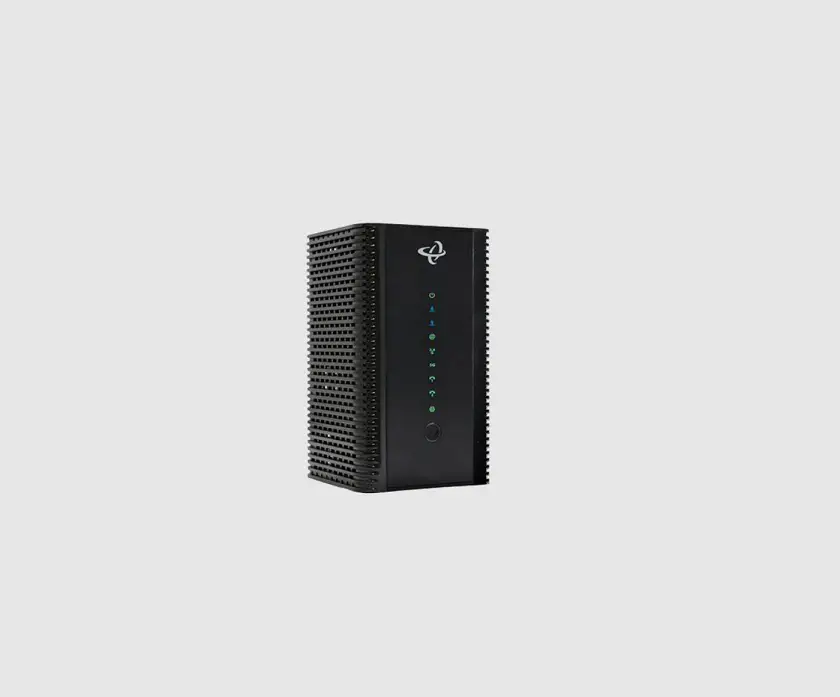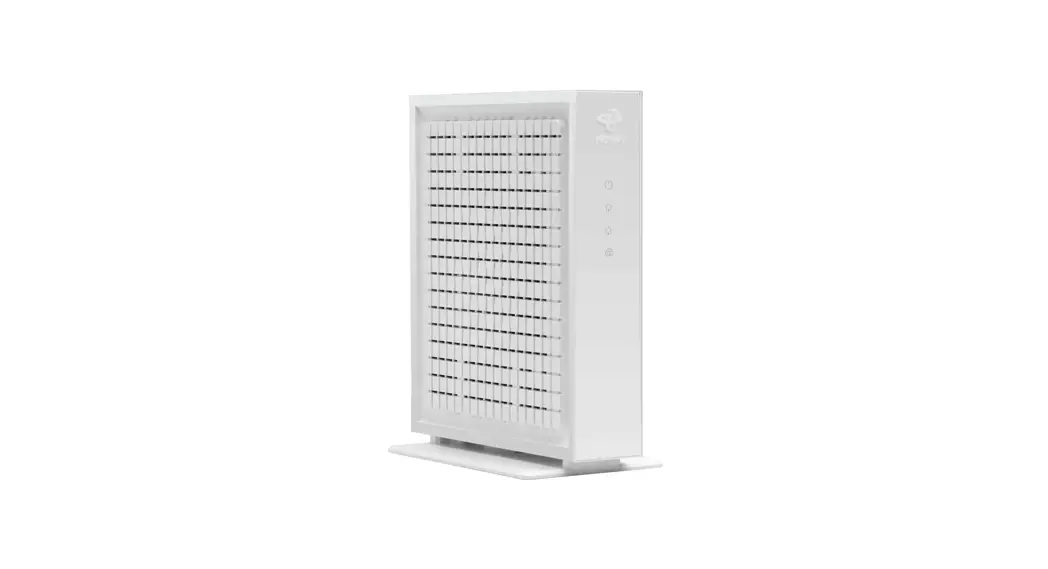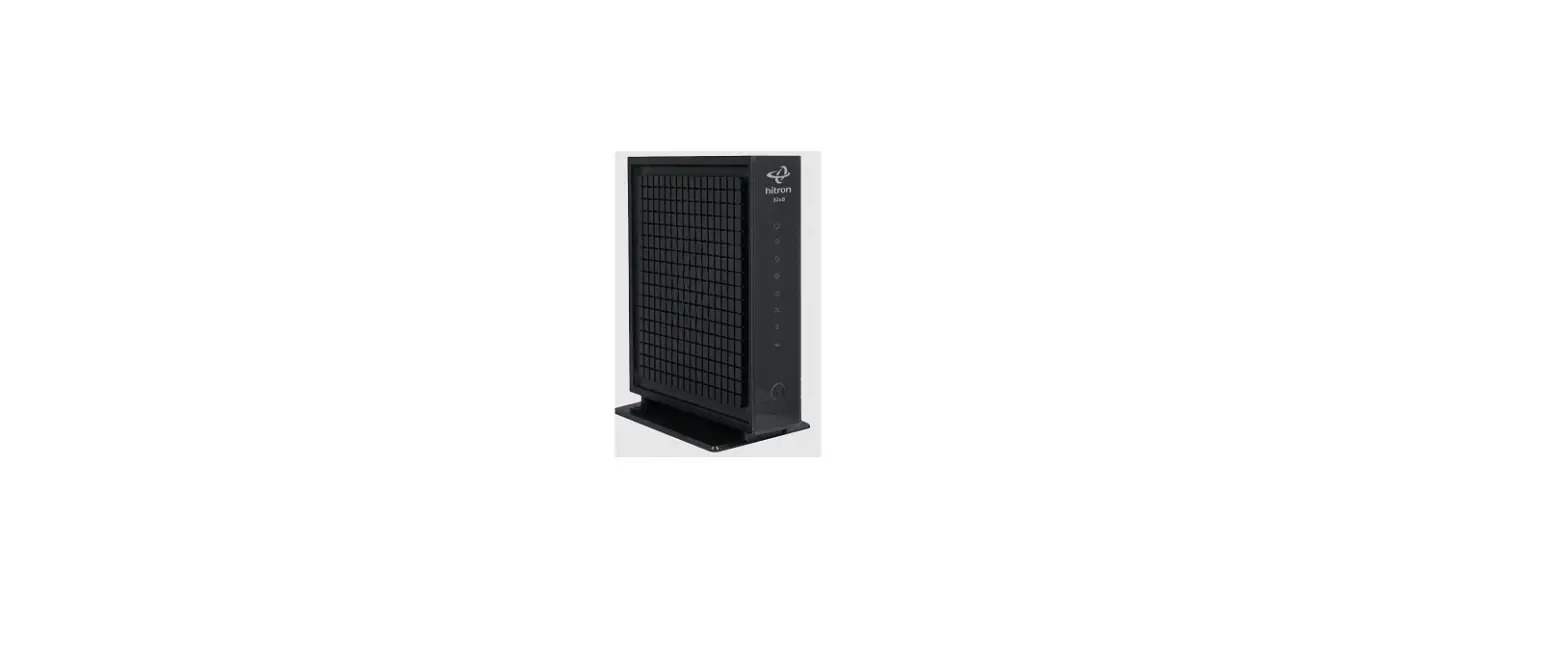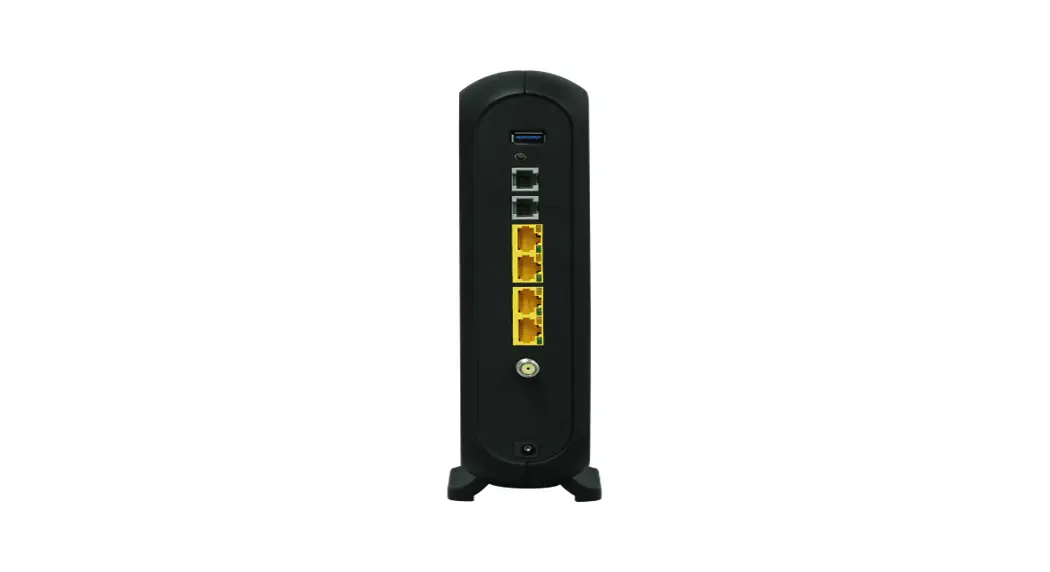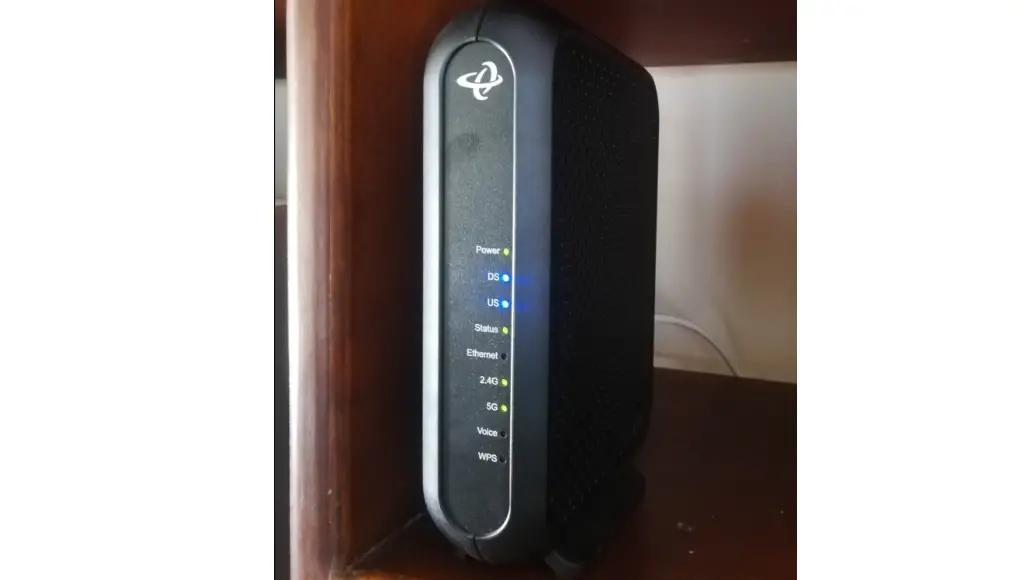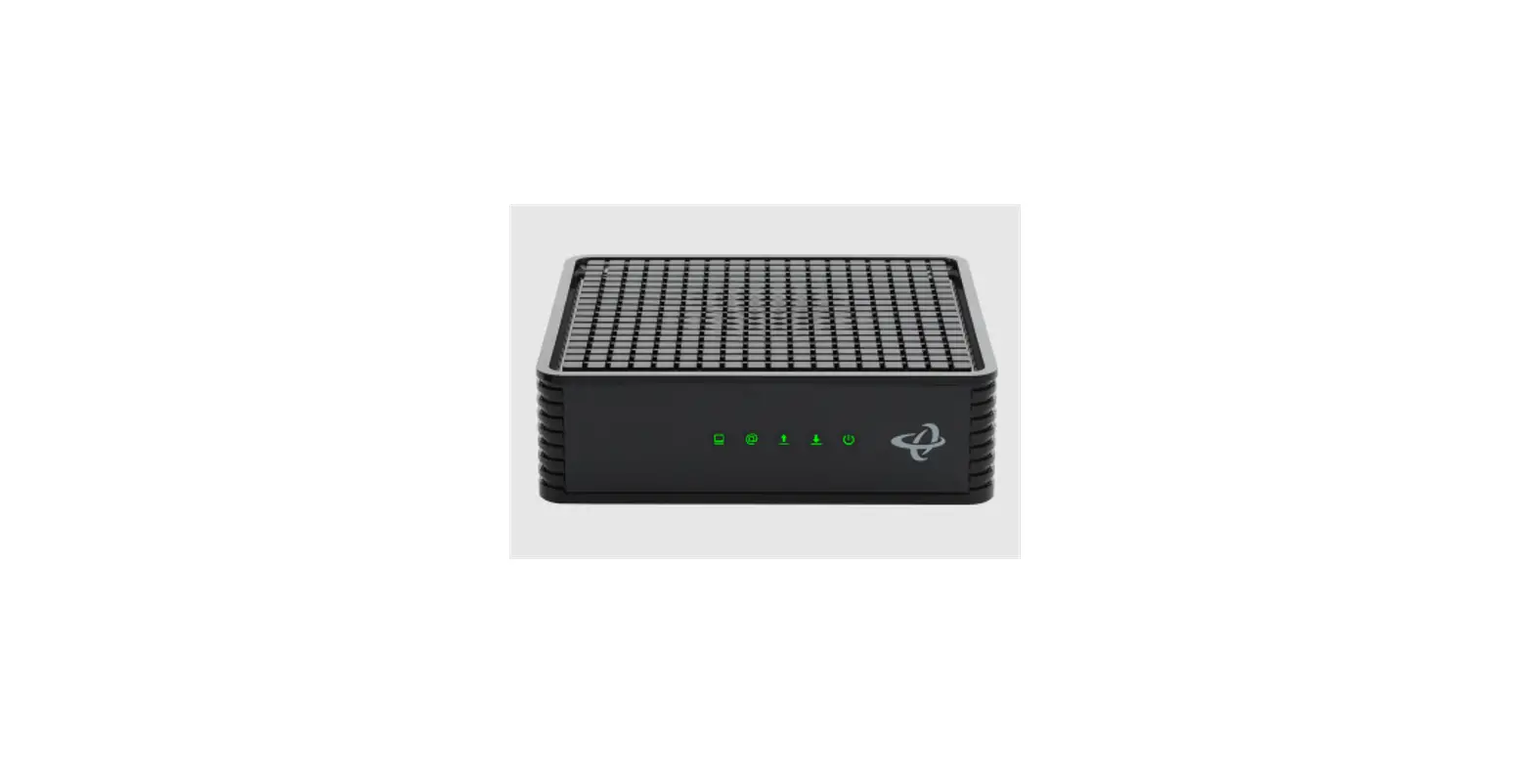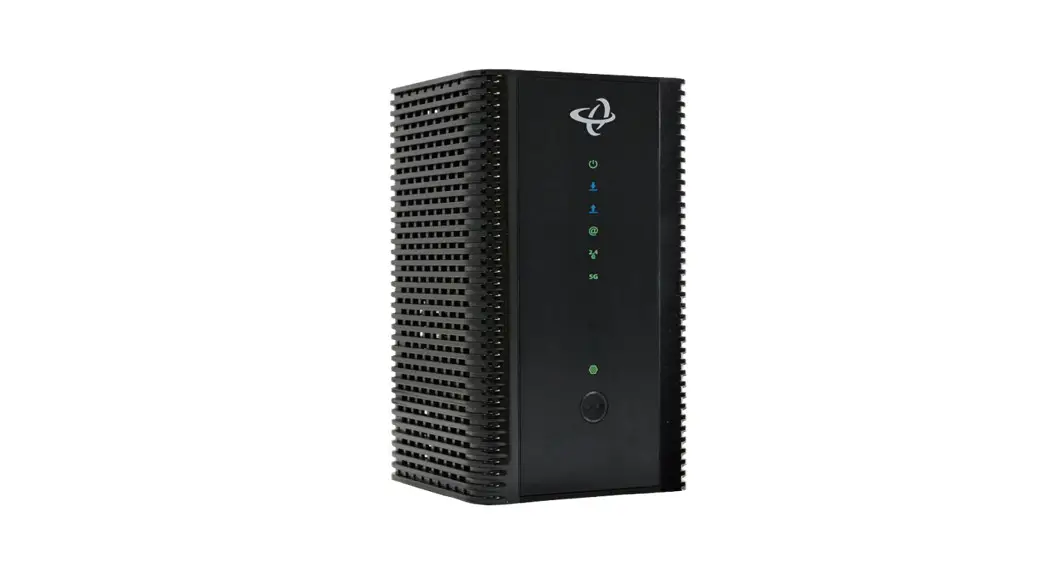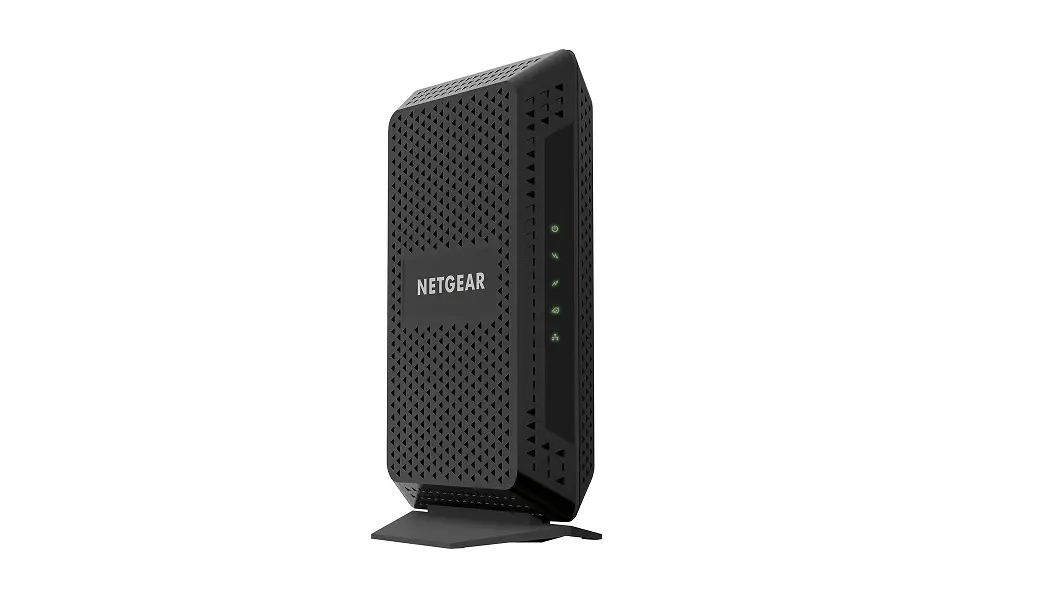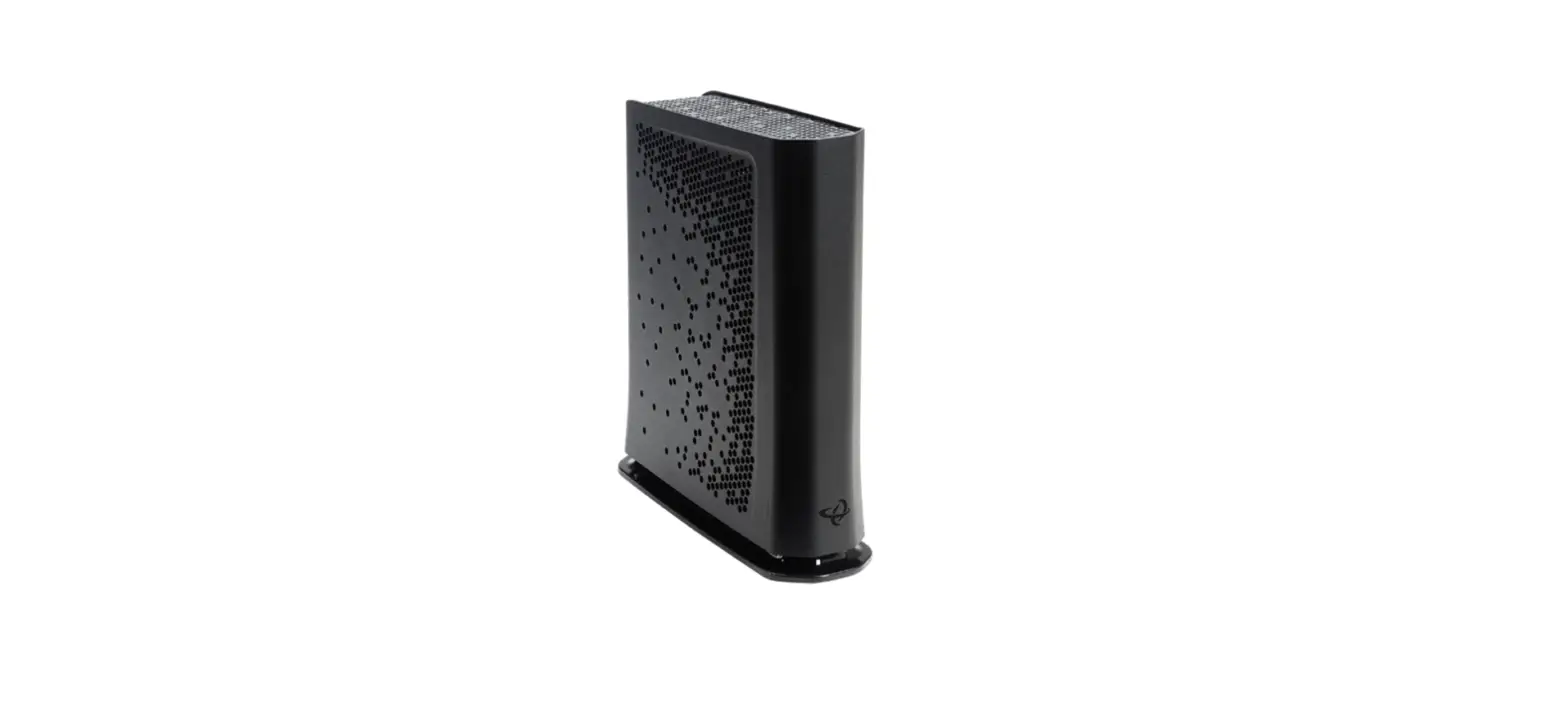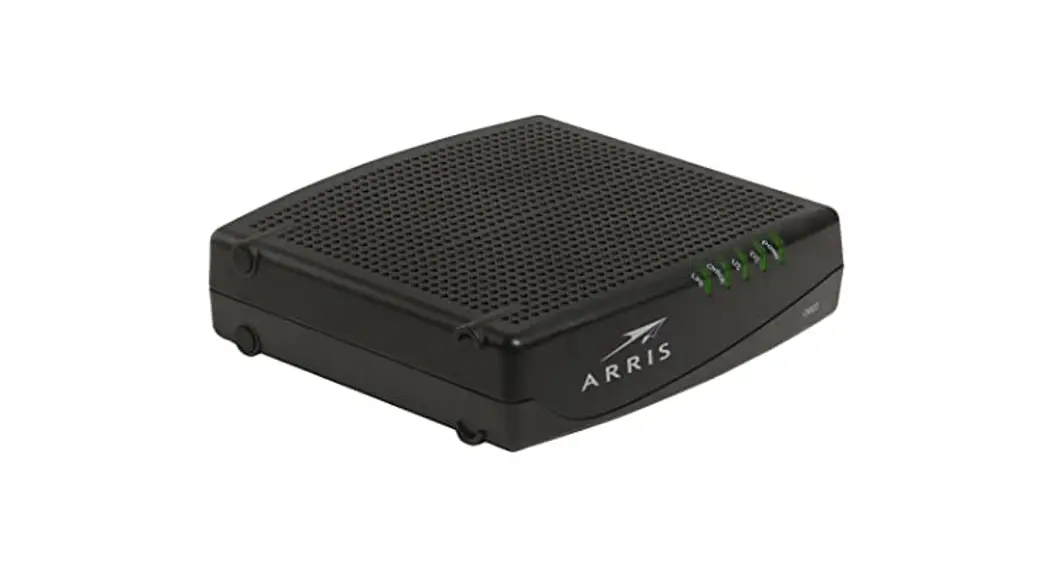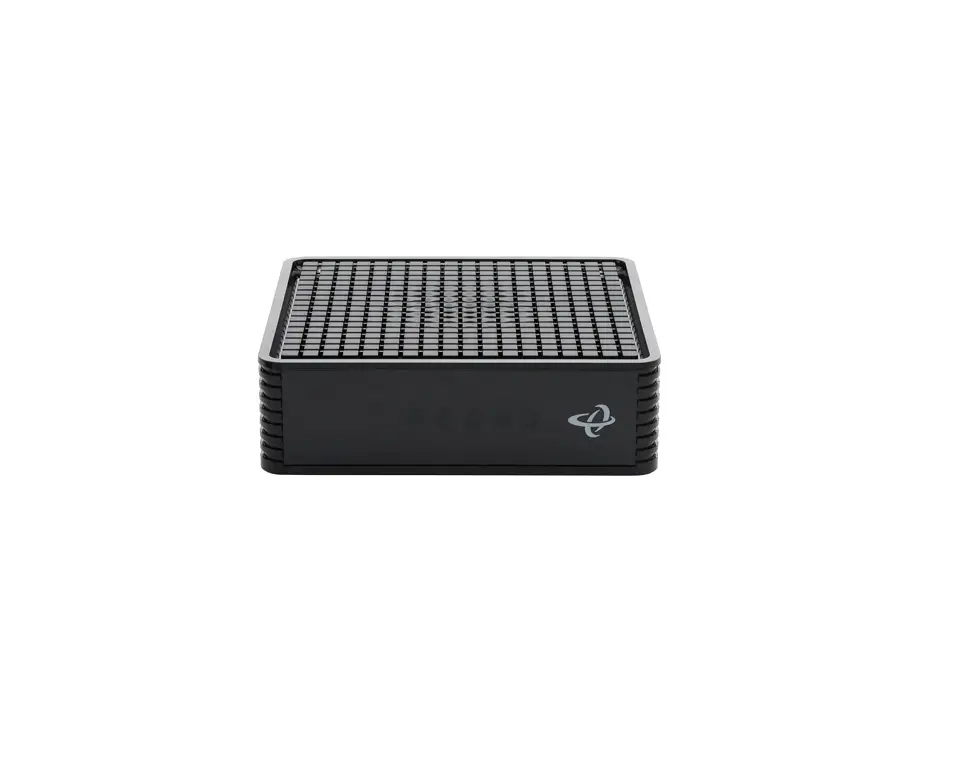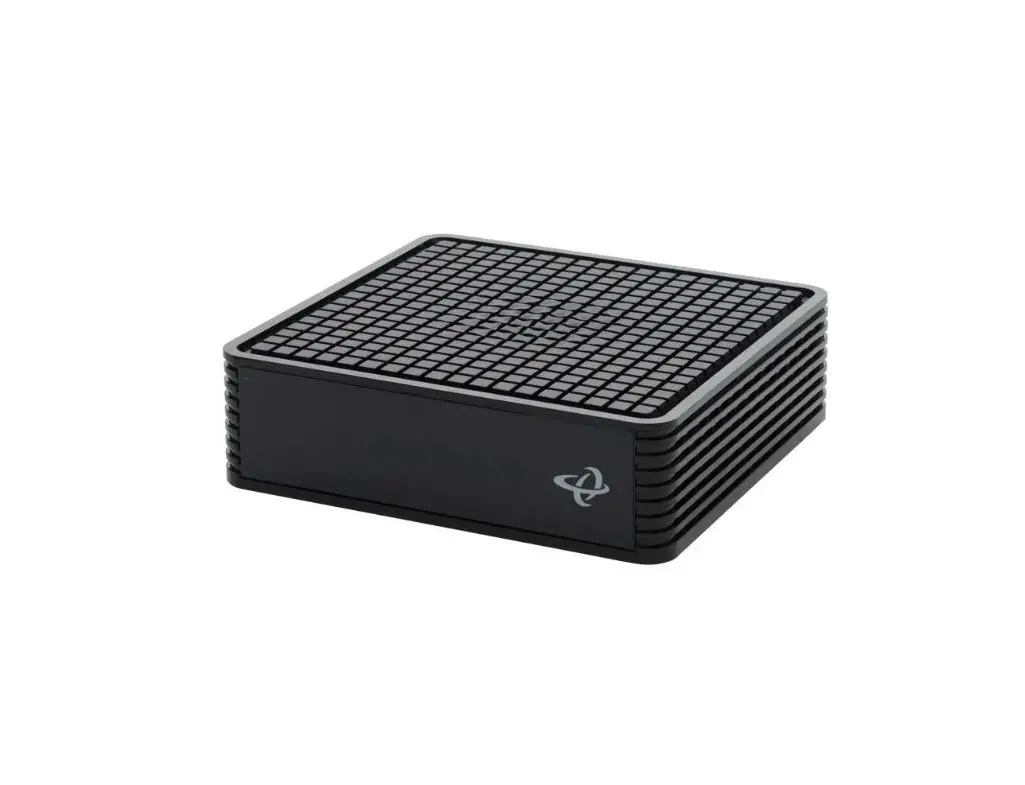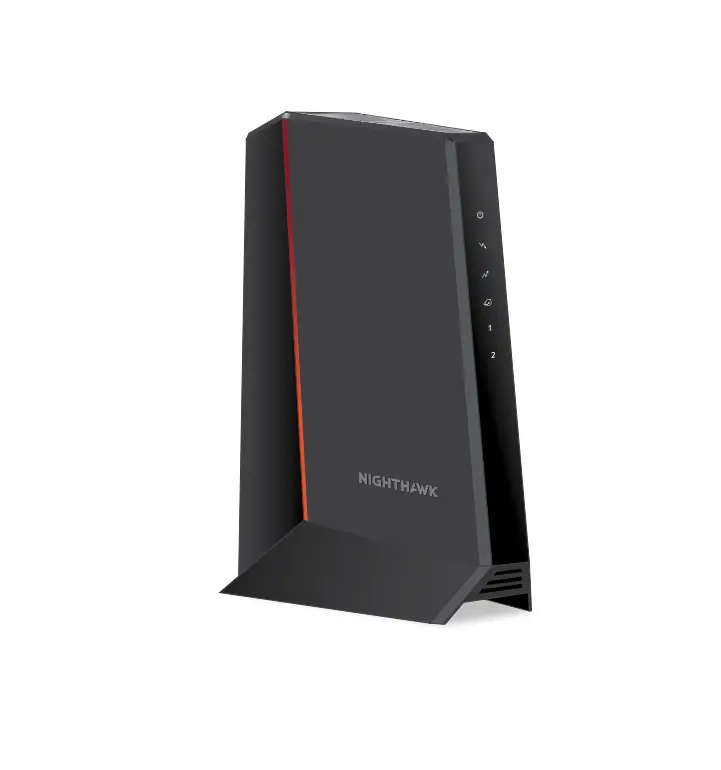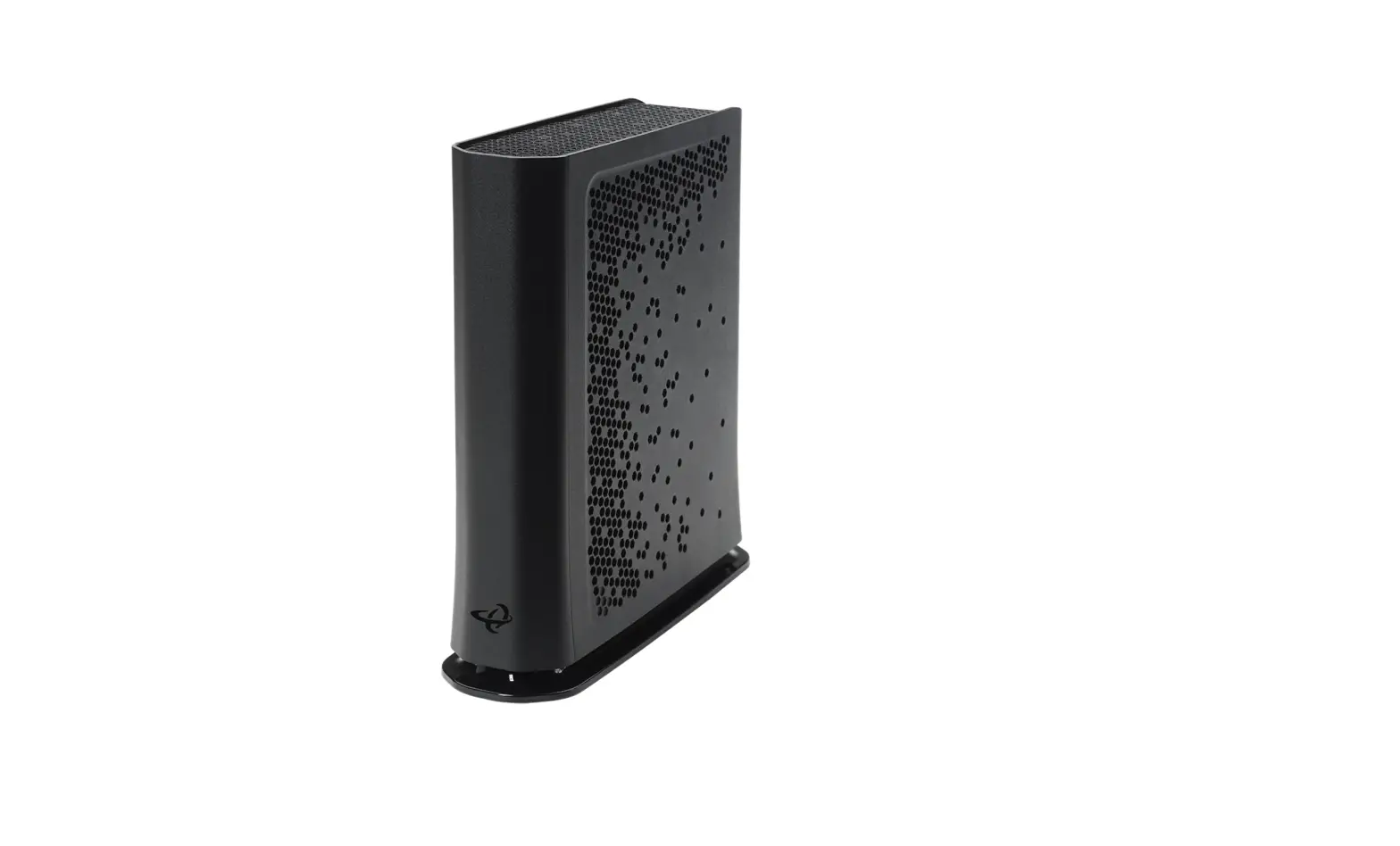
Hitron Technologies CODA5x1xQ series Cable Modem Router User Guide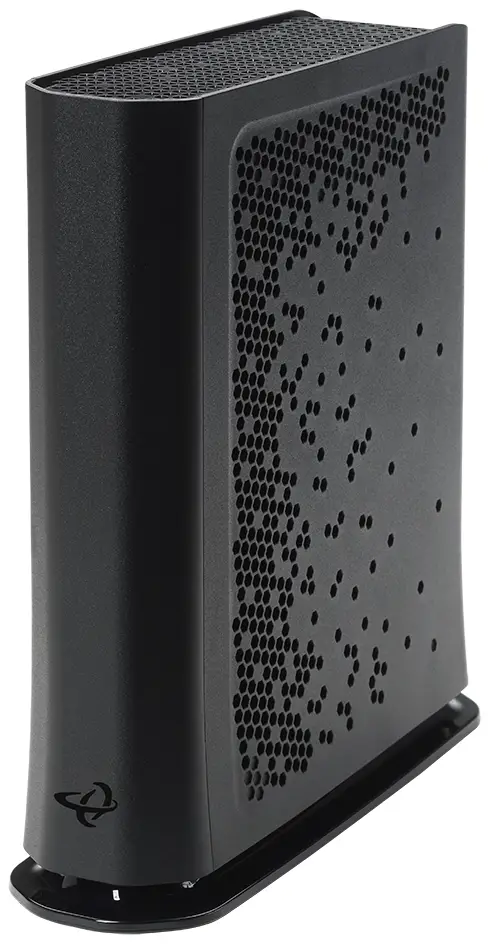
Product Overview
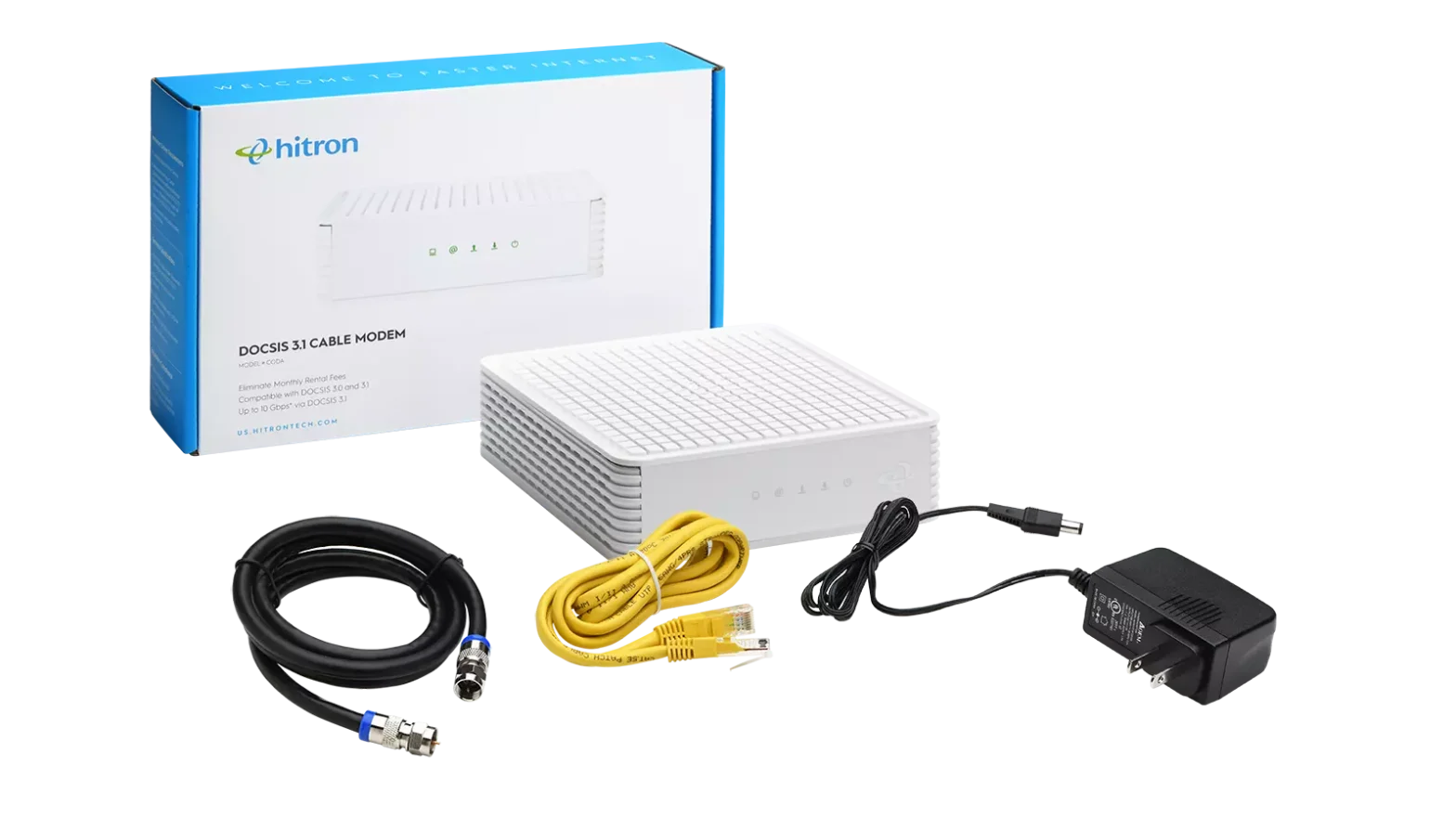
Check the box contents
Look in the box and make sure you have the following:
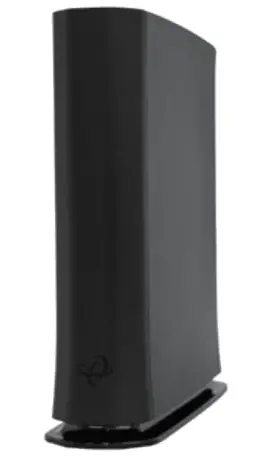
- CODA5x1xQ

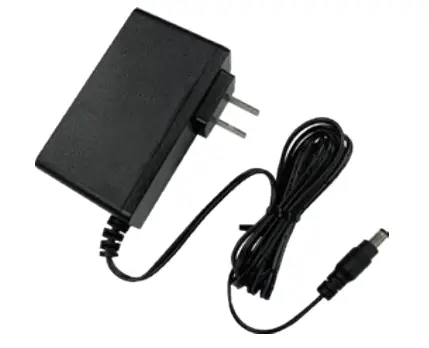
- POWER ADAPTER

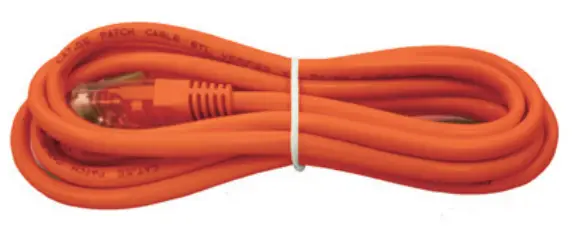
- ETHERNET CABLE

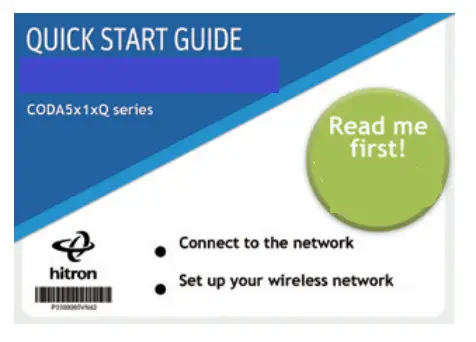
- QUICK START GUIDE

Connect the cable port
Connect the device’s coax CABLE connector to a cable outlet in your home.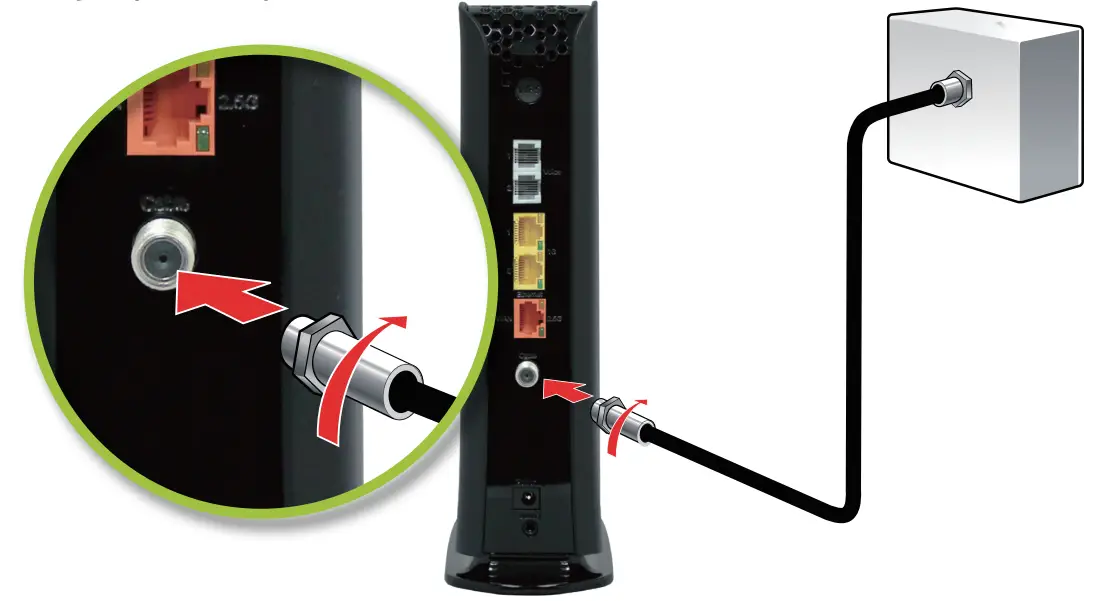
Connect the power adapter
Connect the included power adapter from the POWER port to a wall outlet.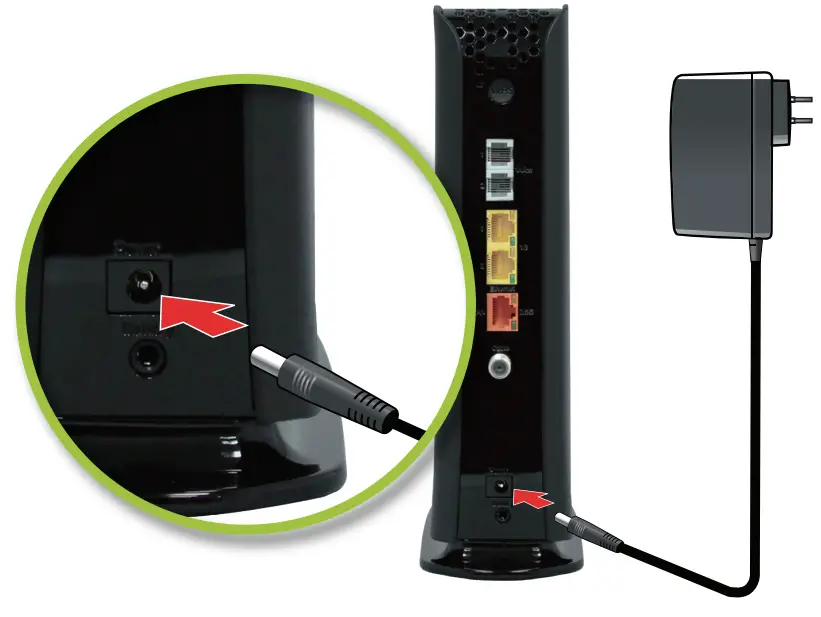
Access LAN for initial configuration
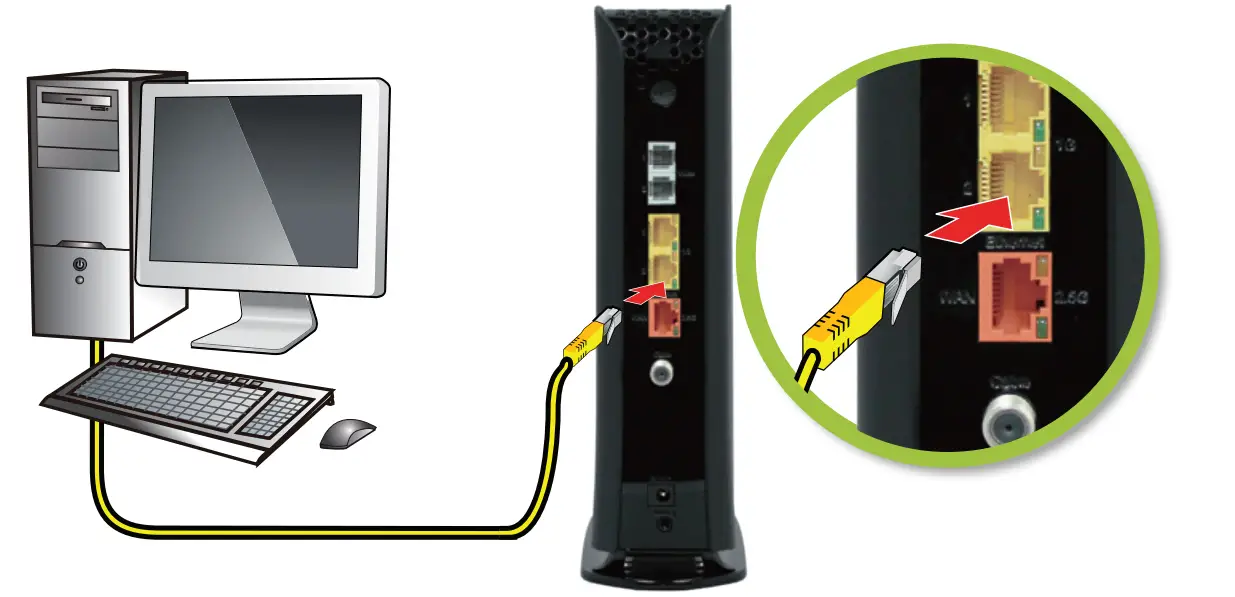
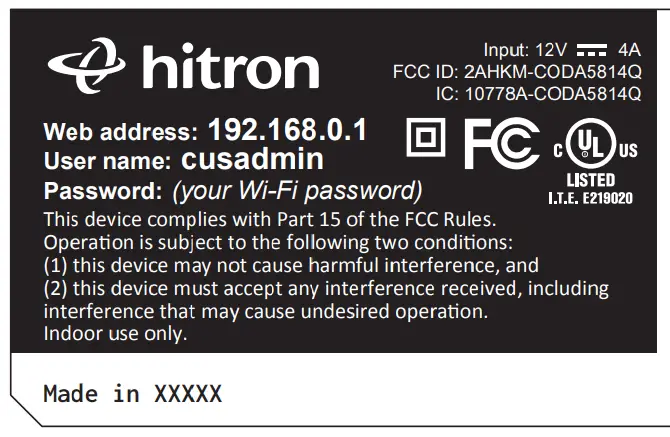
To complete initial setup, your CODA will launch Easy Connect user interface on the first connected device. You can access it using a laptop connected by a Ethernet cable or any mobile device with the default Wi-Fi network name/password found on the back label of your new CODA.
- Ethernet Method

- Wi-Fi Method

User configuration
For initial setup, click “LET’S GO” to test your connection and enter your preferred SSID and Passphrase. The Wi-Fi Passphrase will also act as your administrator password (log with username “cusadmin” the next time you visit 192.168.0.1). Make sure to complete the Easy Connect walk-through so it does not come back.
Note: If the CODA receives a factory reset request, the Easy Connect interface will appear again.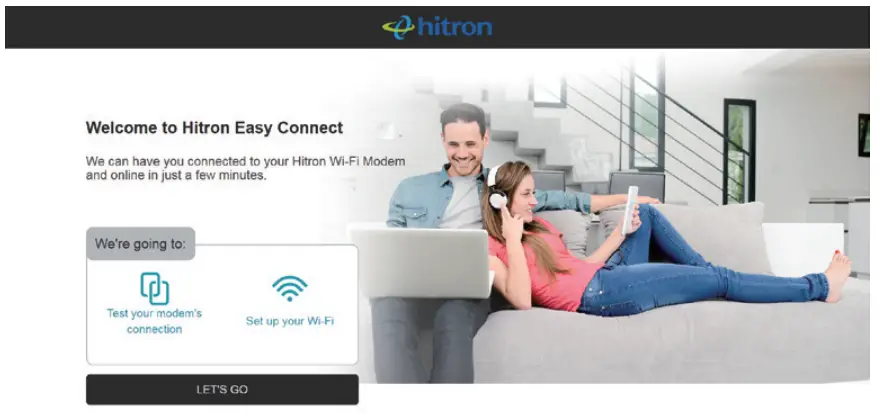
Connect a telephone device (optional)
Connect any LINE port to a telephone. This is required only if you have ordered telephone service.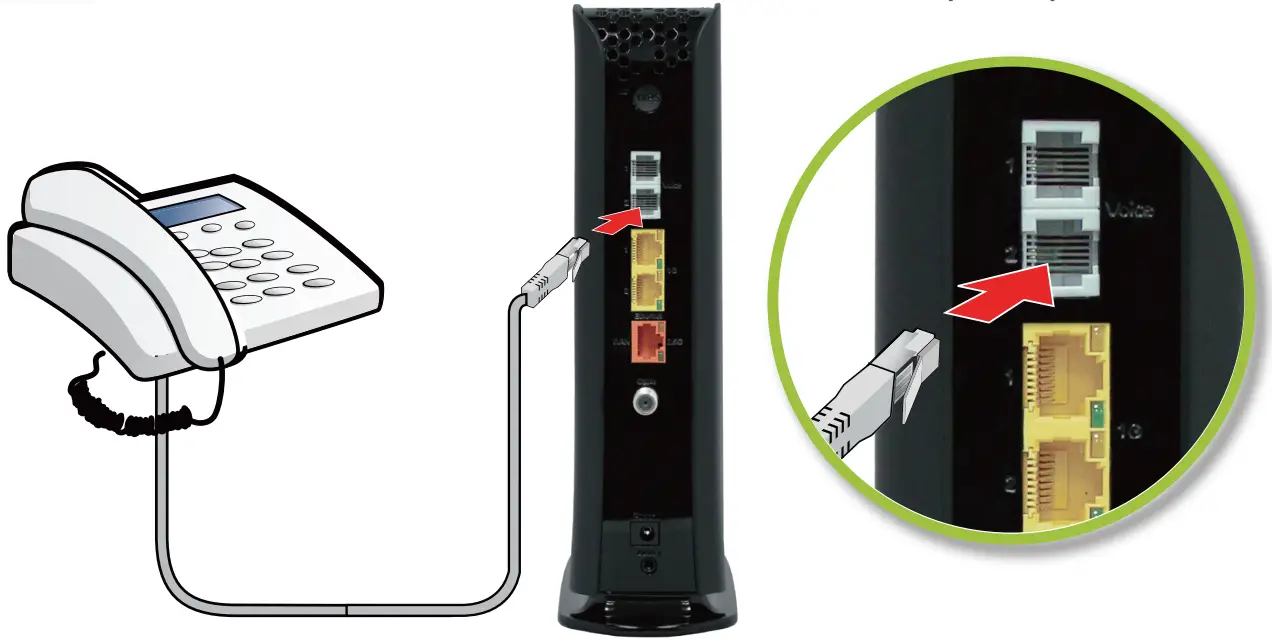
Wireless devices (optional)
You can now connect your wireless devices with the correct SSID and Passphrase chosen in Step 5.
OPTIONAL: To connect a wireless device with the Wi-Fi Protected Setup button (WPS), You need to first access the GUI with the user “cusadmin” and your Wi-Fi Passphrase as password, enter the Wireless page to enable WPS and set Encrypt Mode to AES then save the changes. Press the WPS button on the CODA and on the device you wish to connect. You will have 2 minutes to complete the pairing process.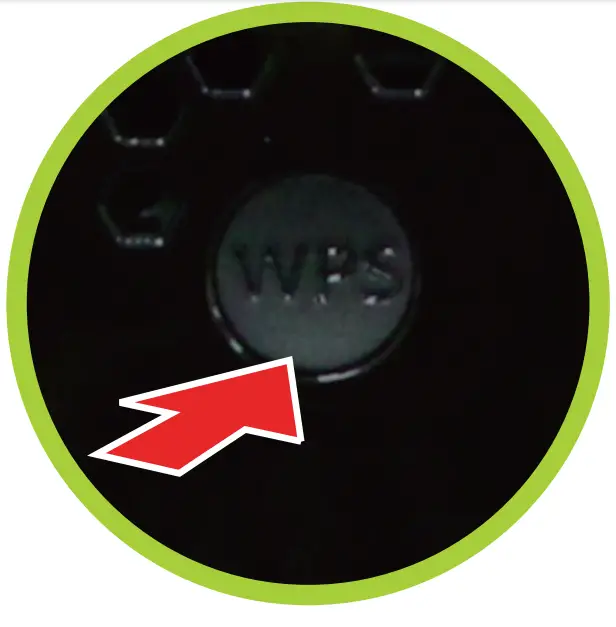
Setup complete
Congratulations! You have successfully set up your CODA. If you have any problems, see the section below for help identifying the problem.
IP addresses
If your CODA is successfully connected to the network (see LED display) but you cannot access the Internet from a connected device, your device’s IP address may be set up incorrectly.
In your device’s control panel, ensure that the device is configured to receive an IP address automatically (recommended) or that it has a static IP address in the following range: 192.168.0.2~192.168.0.253. For more information, consult your operating system’s documentation.
LED display
| LED Color | State |
| Green – Slow Blinking | Booting |
| White/Green – Alternating | Establishing DOCSIS |
| White – Slow Blinking | Service Provisioning |
| White – Steady | Online &. Active (Normal state) |
| Cyan – Steady | Online & Active but all WiFi disabled |
| Cyan – Slow Blinking | Software upgrade in progress |
| LED Color | State |
| Blue- Slow Blinking | WPS Sync |
| Blue – Steady (60 seconds) | WPS Paired |
| Light blue – Steady | A phone is off-hook (if equipped) |
| Red – Blinking | DOCSIS Issue |
| Red – Slow Blinking | Service Provisioning issue |
| Red – Steady | Hardware Failure |
Safety Warnings
WARNING/ ATTENTION
Risk of electrical shock. Do not expose the device to water or moisture.
The device is a high-performance communications device designed for home and office environments. Do not use the device outdoors. Keep the device in an environment between 0°C ~ 40°C (32°F ~104°F). To avoid overheating, do NOT place any object on top of the device. Do not restrict the flow of air around the device. The manufacturer assumes no liabilities for damage caused by any improper use of the device.
DISCLAIMER
The manufacturer assumes no liabilities with respect to the contents of this document. The manufacturer also reserves the right to revise this document or update the content thereof without any obligation to notify any person of such revisions or amendments. Specifications subject to change without notice.
CAUTION
The cable distribution system should be grounded (earthed) in a accordance with ANS/NFPA 70, the National Electrical Code (NEC), in particular Section 820.93, Grounding of Outer Conductive Shield of a Coaxial Cable.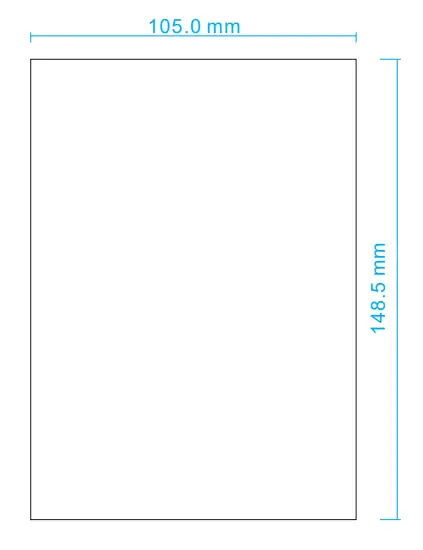
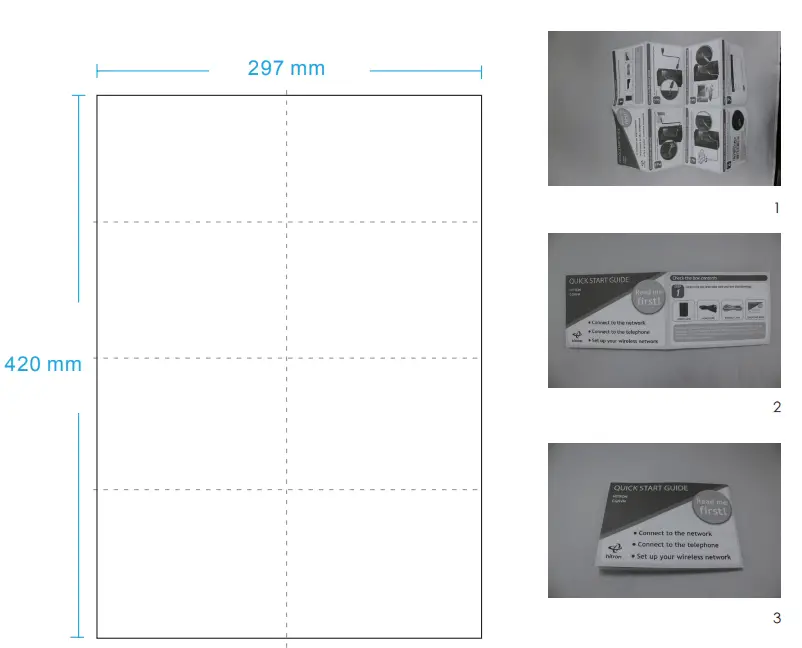
- Simile paper
- 105×148.5mm
- Double-sided black printing
- Printed content as attachments

Project Part Name: Warning Icon Part Number
p3300076VN42Description:
Safety and Certified WarningVersion 1A** Dwg No: Material: 100P Coating  PPANISSNO
Date: 2022/07/07 Designed by Daisy Wang Checked by Approve by-date

 PP
PPFCC STATEMENTS

Federal Communication Commission Interference Statement
This equipment has been tested and found to comply with the limits for a Class B digital device, pursuant to Part 15 of the FCC Rules. These limits are designed to provide reasonable protection against harmful interference in a residential installation. This equipment generates, uses and can radiate radio frequency energy and, if not installed and used in accordance with the instructions, may cause harmful interference to radio communications. However, there is no guarantee that interference will not occur in a particular installation. If this equipment does cause harmful interference to radio or television reception, which can be determined by turning the equipment off and on, the user is encouraged to try to correct the interference by one of the following measures:
- Reorient or relocate the receiving antenna.
- Increase the separation between the equipment and receiver.
- Connect the equipment into an outlet on a circuit different from that to which the receiver is connected.
- Consult the dealer or an experienced radio/TV technician for help.
FCC Caution: Any changes or modifications not expressly approved by the party responsible for compliance could void the user’s authority to operate this equipment. This device complies with Part 15 of the FCC Rules. Operation is subject to the following two conditions.
- This device may not cause harmful interference, and
- this device must accept any interference received, including interference that may cause undesired operation.
This device is restricted for indoor use.
IMPORTANT NOTE:
FCC Radiation Exposure Statement: This equipment complies with FCC radiation exposure limits set forth for an uncontrolled environment. This equipment should be installed and operated with minimum distance 48cm between the radiator & your body
FCC regulations restrict the operation of this device to indoor use only.
Industry Canada statement
This device contains licence-exempt transmitter(s)/receiver(s) that comply with Innovation, Science and Economic Development Canada’s licence-exempt RSS(s). Operation is subject to the following two conditions.
- This device may not cause interference.
- This device must accept any interference, including interference that may cause undesired operation of the device.
The device for operation in the band 5150–5250 MHz is only for indoor use to reduce the potential for harmful interference to co-channel mobile satellite systems.
IMPORTANT NOTE:
IC Radiation Exposure Statement: This equipment complies with IC RSS-102 radiation exposure limits set forth for an uncontrolled environment. This equipment should be installed and operated with minimum distance 28 cm between the radiator & your body
UL statement
Output of the external power source shall complied with ES1 and PS2 requirements, output rating 12 Vdc, minimum 4.5 A with minimum rated ambient temperature 40°C and evaluated in accordance to IEC 60950-1 and/or IEC 62368-1. Ensure to connect the power cord of power adapter to a socket-outlet with earthing connection.