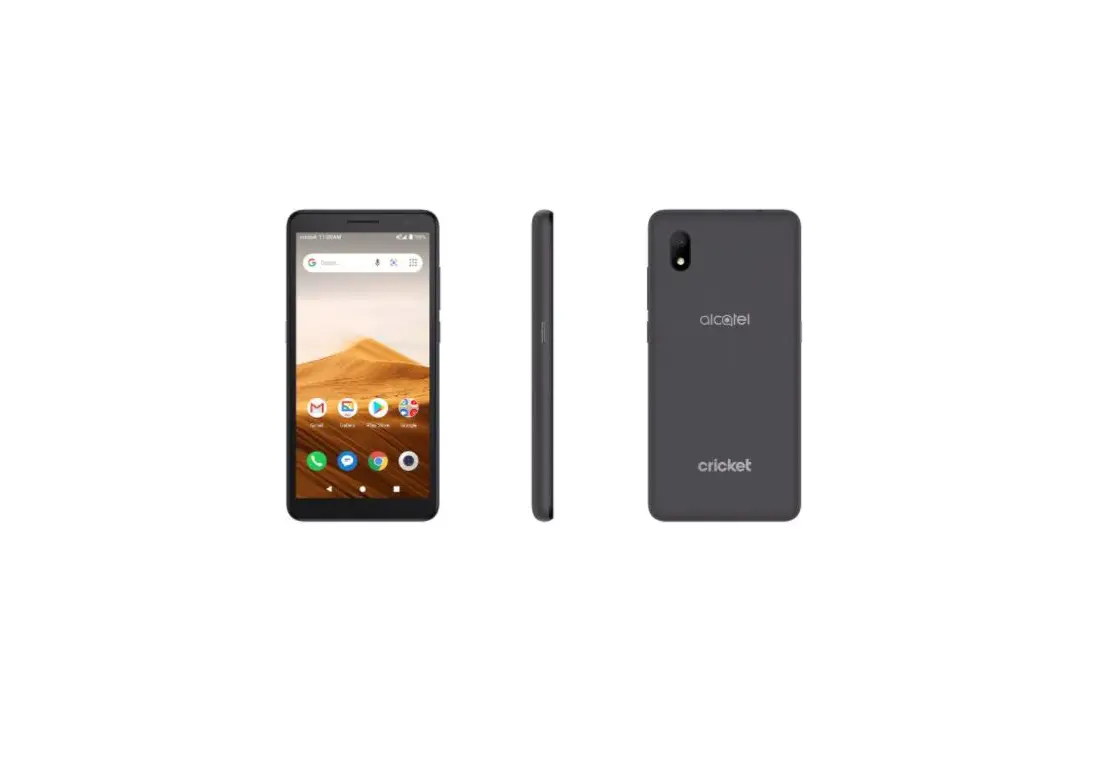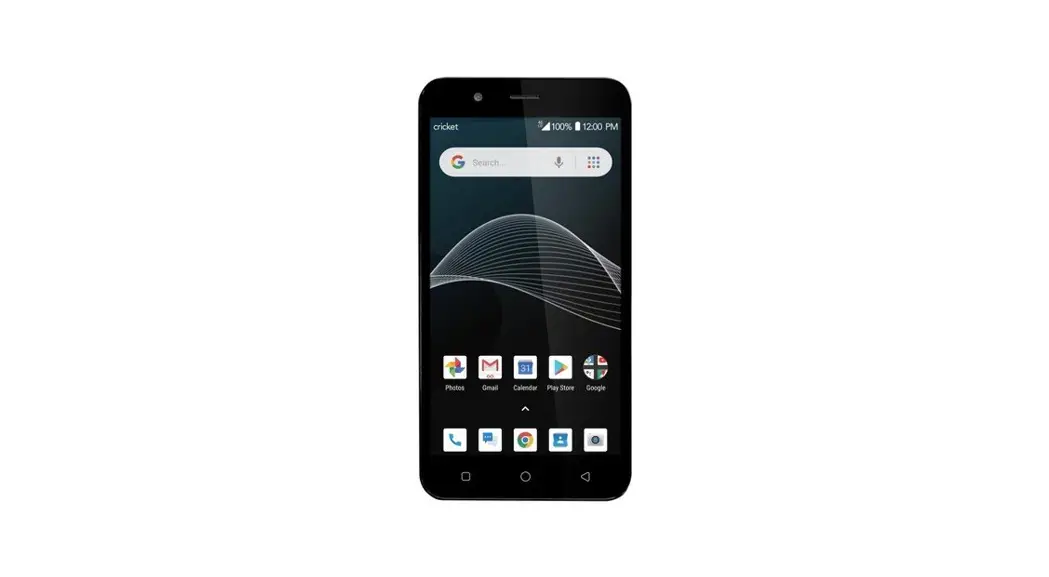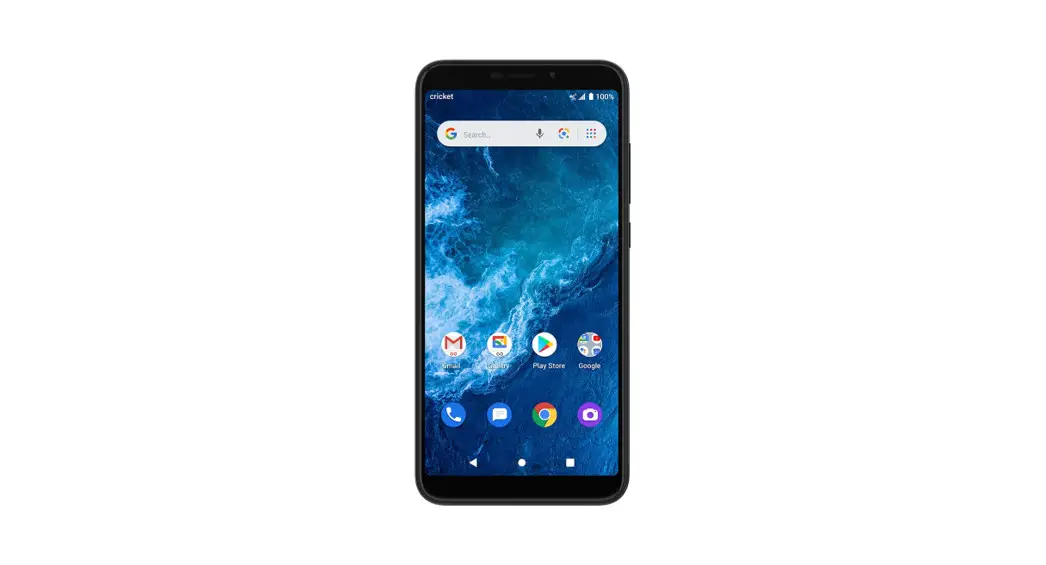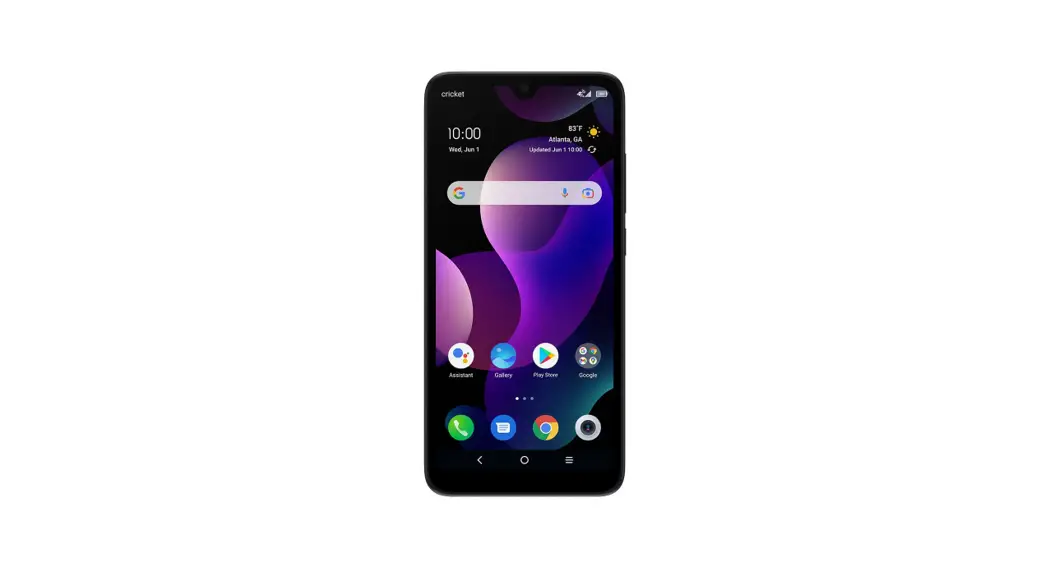
cricket wireless Alcatel APPRISE Smartphone User Manual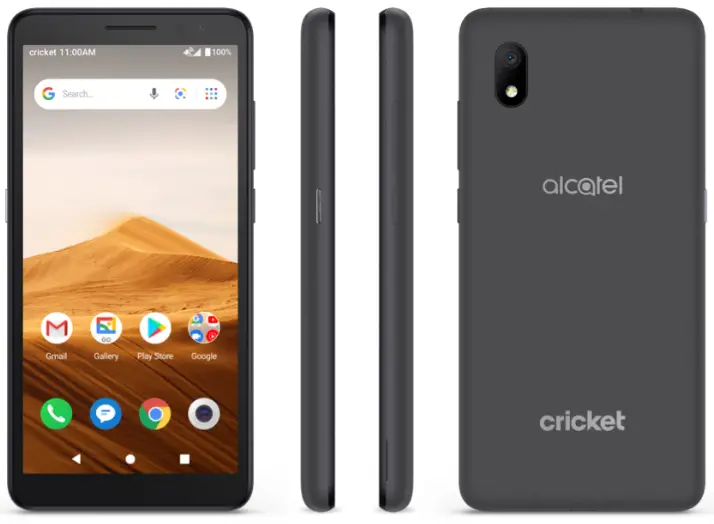
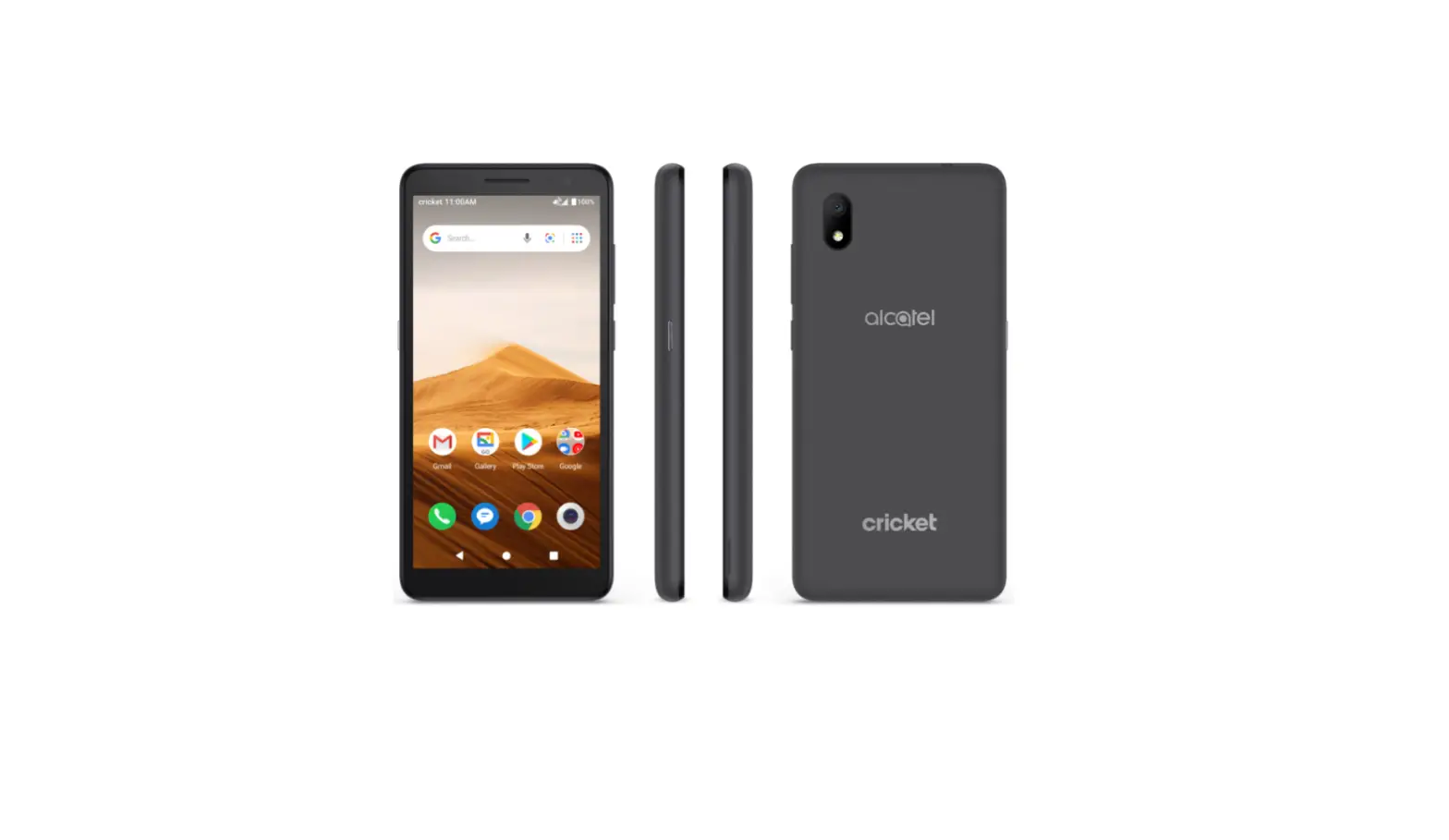
Getting to Know your Alcatel APPRISE

Phone Setup
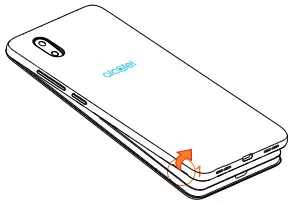
- Remove back cover by gently pulling up on the indentation on the bottom left of the cover.

- Insert the nano SIM card and microSD™ card* with gold contacts facing down.

- Ensure that nano SIM and microSDTM cards have been properly secured.

- Put the back cover on.
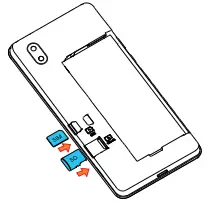
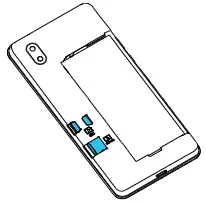
microSDTM card sold seperately
WARNING: To avoid damage to the phone, only use the standard NANO SIM card provided by your service provider.
Touch screen
Navigating your phone
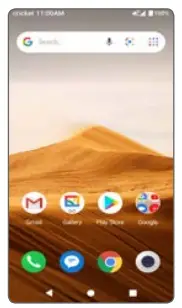
- Use your fingertip to tap the screen.
- Use quick flicks of your finger on the touch screen to swipe up, down, left, or right.
- Tap
 Back to return to the previous screen.
 - Tap
 Home at any time to return to the home screen.
 - Tap
 Recent apps to access recently viewed apps.
 - Swipe up to access applications on your phone.
 Back to return to the previous screen.
 Home at any time to return to the home screen.
 Recent apps to access recently viewed apps.
Notification panel
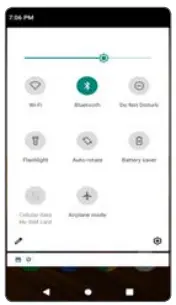
To access alerts, including new messages, emails, and software updates:
- From the top of the home screen, drag your finger down to view the notification panel.
- Swipe right or left to clear individual notifications or tap CLEAR ALL to clear all.
- With the notification panel open, tap the top of the screen again and drag down to see the Quick Settings menu.
- Tap
 to access the complete Settings menu.
 to access the complete Settings menu.
Personalize
Set wallpaper
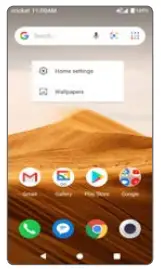
- To change your home or lock screen wallpaper, touch and hold a blank part of the home screen and tap
 WALLPAPERS.
 - Select a wallpaper and tap
 Set wallpaper to set the image and then select whether you want it to appear on the lock screen, home screen, or both. You can also tap
  My photos for additional options.
 WALLPAPERS.
 Set wallpaper to set the image and then select whether you want it to appear on the lock screen, home screen, or both. You can also tap
  My photos for additional options.
Add to home screen
To add app shortcuts, swipe up to access applications, press and hold the desired app, and drag it to the home screen.
Organize home screens
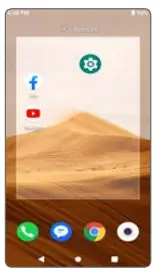
- To move an app shortcut, press and hold it and then drag it to a new location. To delete it, drag it on top of «X Remove» at the top of the screen.
- To create a folder, press and hold an app shortcut and drag it on top of another, then release.
- To rename a folder, press the folder title to type a new name.
Convenient Services & Features
Cricket Services
These services make using Cricket even better and easier.
 myCricket: Check account balance, make a quick payment, view usage and access support from the palm of your hand.
 Visual Voicemail: Quickly view, access and play back your voicemail messages. Easily save important numbers to your Favorites list and respond to messages by calling back or texting.
Additional Features
 Smart Manager: Automatically scans and optimizes your phone to ensure it operates in top form.
 Set screen lock: Enable an unlock method to keep your phone secure. Select Swipe, Pattern, PIN, Password, or Face Recognition*. Face Recognition will unlock your phone by using the front camera to register your face.
Face recognition may not be as secure as Pattern, Pin, or Password locks.
More information
On the web
Detailed support information including device specifications and a full user’s manual are available at www.cricketwireless.com/support/devices.
On the phone
- Call Customer Care at 1-855-246-2461 or
- Dial 611 from your cell phone.
Accessories
For more information about accessories, please visit your local Cricket store or go to www.cricketwireless.com/shop/accessories.
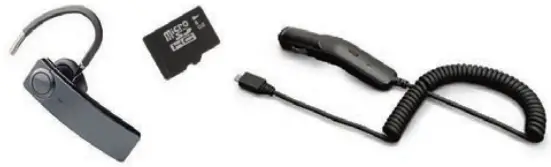
Note: Store and online inventories may vary.
Product meets FCC Radio Frequency Exposure Guidelines–FCC ID 2ACCJH124.
This device complies with Part 15 of the FCC Rules. Operation is subject to the following two conditions:
- this device may not cause harmful interference, and
- this device must accept any interference received, including interference that may cause undesired operation.
© 2020 Cricket Wireless LLC. All rights reserved. Cricket and the Cricket logo are registered trademarks under license to Cricket Wireless LLC. Other marks are the property of their respective owners. microSD logo is a trademark of SD-3C, LLC.
Alcatel is a trademark of Nokia used under license by TCL Communication Technology Holdings Limited. APPRISETM is a trademark of TCL Communication Technology Holdings Limited. © 2020 TCT Mobile Limited. All rights reserved. TCL Communication Technology Holdings Limited reserves the right to alter material or technical specification without prior notice.
All “Signature” ringtones embedded in this phone have been composed, arranged and mixed by NU TROPIC (Amar Kabouche).
Calls and Voicemail
HD Voice Capable
Enjoy clearer conversations and reduced background noise with HD Voice*.
Make a call
- From the home screen, tap
 Phone.
 - Type a name or phone number, or select one of the following options:
 : To manually enter a phone number.
 : To choose from frequently called contacts.
 : To choose from a list of people who you have recently called or have called you.
 : To make a call from your contacts list.
 Phone.
 : To manually enter a phone number.
 : To choose from frequently called contacts.
 : To choose from a list of people who you have recently called or have called you.
 : To make a call from your contacts list.
Check voicemail
- From the home screen, tap Phone, then tap
- Press and hold the 1 key
 .
.
 .
.Call waiting
Call waiting allows you to answer a second call while putting your existing call on hold. While on a call, you will hear a tone if another call comes in. : To answer the incoming call.
 : To switch between active calls.
 : To merge calls.
 : To end a call.
To experience Cricket HD Voice, both callers must have a compatible HD Voice capable smartphone and make the call over Cricket’s LTE Network or a compatible network. Cricket’s LTE coverage is not equivalent to its overall network coverage. HD Voice calls made on a compatible device and on the LTE network may not experience an HD Voice connection at times of network congestion. Other carriers’ networks may interoperate with Cricket’s LTE network to support an HD Voice call.
Text and picture messaging
Send a text message
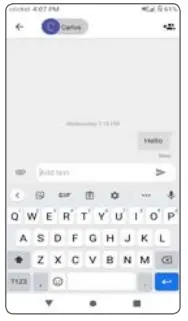
- From the home screen, tap
 Messaging.
 - Tap
 New message button to start a new text message.
 - In the To field, enter a number or a contact name, or select a contact from Favorites or All Contacts.
- Tap the Type message field and enter your message.
- Tap
 to send the message.
 Messaging.
 New message button to start a new text message.
 to send the message.
Send a picture message
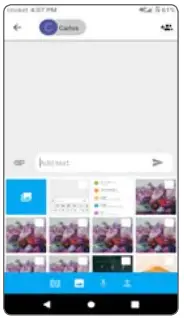
- Follow steps 1-4 above.
- Tap the
 Paper Clip.
 - Tap
 Picture and select desired picture or tap the
  Camera icon to take a picture to attach.
 - Tap to send the message.
 Paper Clip.
 Picture and select desired picture or tap the
  Camera icon to take a picture to attach.
Gmail setup
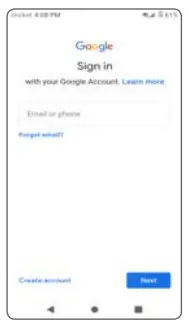
- From the home screen, tap
 Google, then tap
  Gmail.
 - Enter your email address and tap NEXT and enter your password and then tap NEXT again.
- Confirm email account settings and tap NEXT.
- Enter your name which will be displayed on outgoing mails, and then tap FINISH.
 Gmail.
Create and send an email message
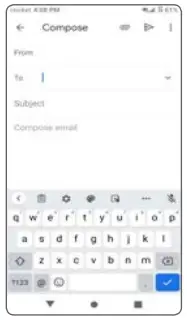
- From the home screen, tap
 Google, then tap Gmail.
 - To compose a new message, tap
 .
. - Tap the To field and enter email address or name.
- Enter a subject and email message.
- To attach files to the email message, tap the
 Paper Clip icon and make your selection.
 - Tap
 Send icon to send the message.
 Google, then tap
  .
. Paper Clip icon and make your selection.
 Send icon to send the message.
Camera and video
Take a picture and video
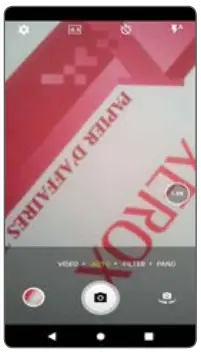
- From the home screen, tap Camera
 .
. - Zoom in and out by pinching with your fingers.
- Tap the Shutter
 or press the Volume Key to take a photo.
 - In Video mode, tap Record
 to start recording. Tap it again to stop recording.
 - Take a photo while in Video mode by tapping Shutter
 .
.
 .
. or press the Volume Key to take a photo.
 to start recording. Tap it again to stop recording.
 .
.Modes and settings
Slide left or right on the camera screen to switch between modes.
- Filter
Tap Filter to apply a live filter to your photos. - Pano
Tap Pano to capture a panoramic photo. Tap the shutter button and move the phone steadily along in the direction indicated on the screen. The photo will be saved when all the slots are filled, or when pressing the shutter button again.
Google applications
Google apps are preinstalled on your phone to improve work efficiency and help you enjoy life.
Access Google applications
From the home screen, tap  Google.
Google Go
Google Go is a web browser you can use to surf the Internet.
YouTube
YouTube is an online video-sharing application where users can upload, view, and share videos. Available content includes video clips, TV clips, music videos, and other content
Assistant
Press your phone’s dedicated Google Assistant button to quickly ask for help, check the news, make a phone call, and more.
Maps
Google Maps offers satellite imagery, street maps, 360° panoramic views of streets, real-time traffic conditions, and route planning.
Google Pay
Google Pay is a simple and fast secure payment service that provides the necessary functions for checkout, allowing you to settle your bills online and in stores with ease.
 Cell Phone Accessories: Cases, Chargers & More | Cricket Wireless