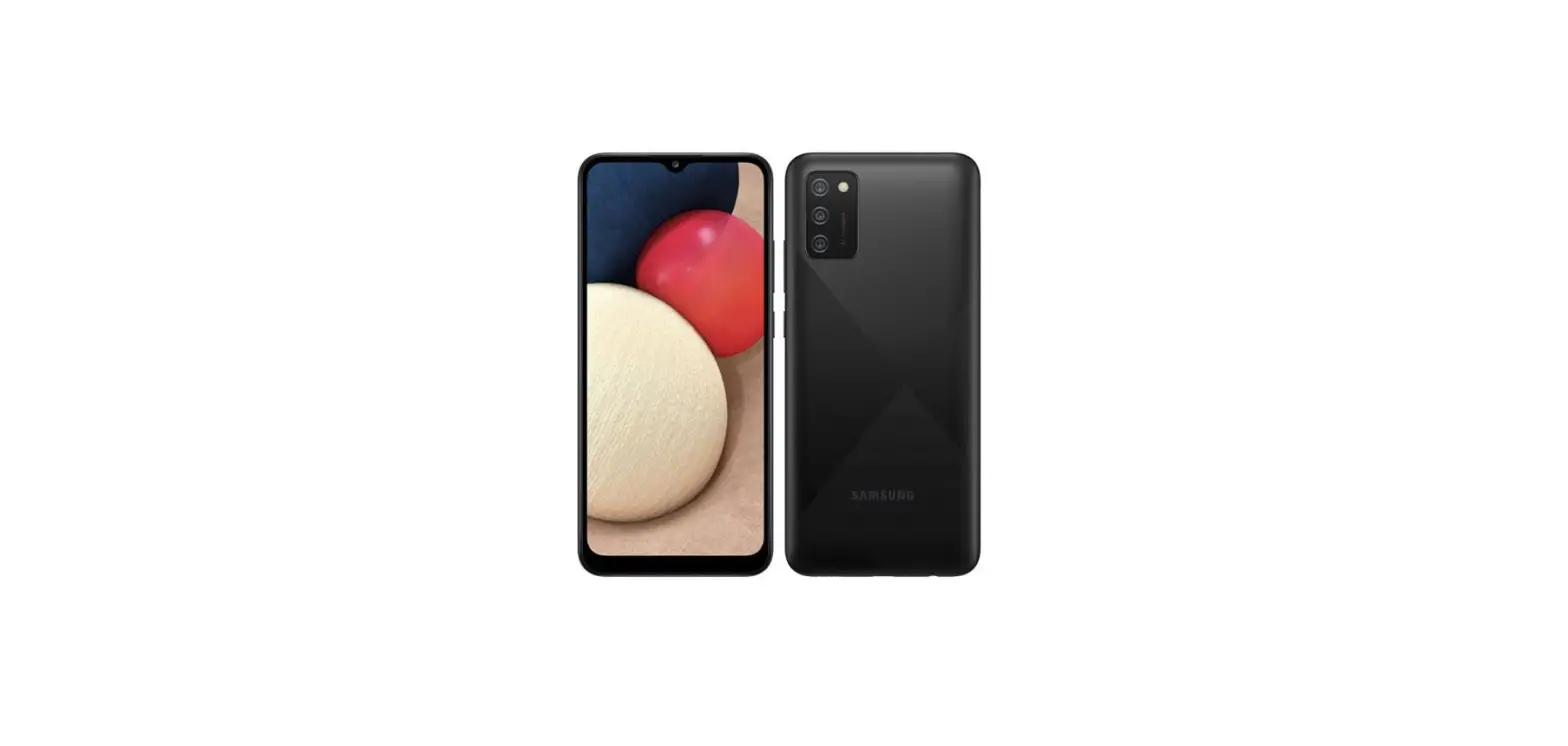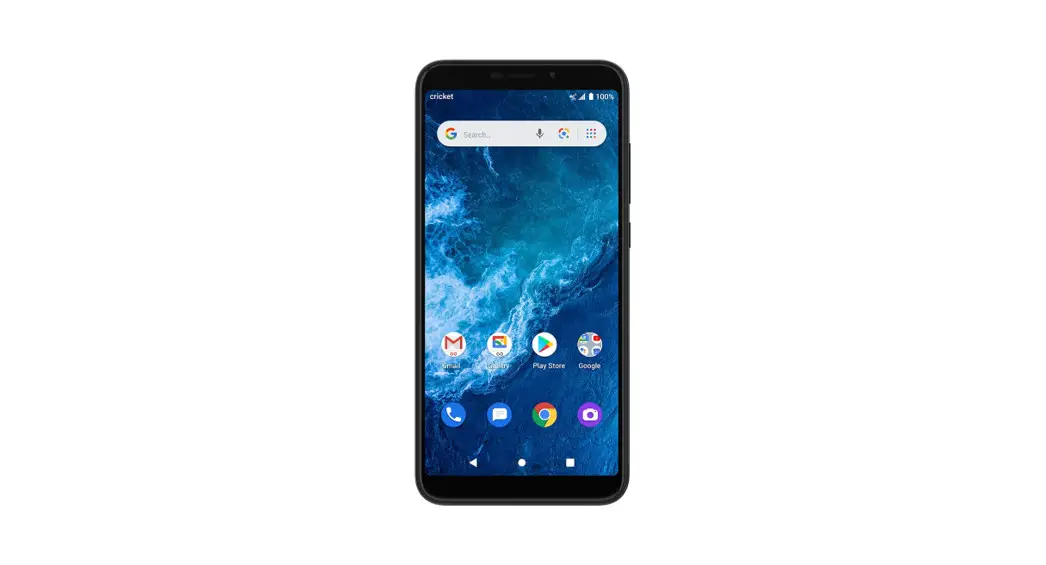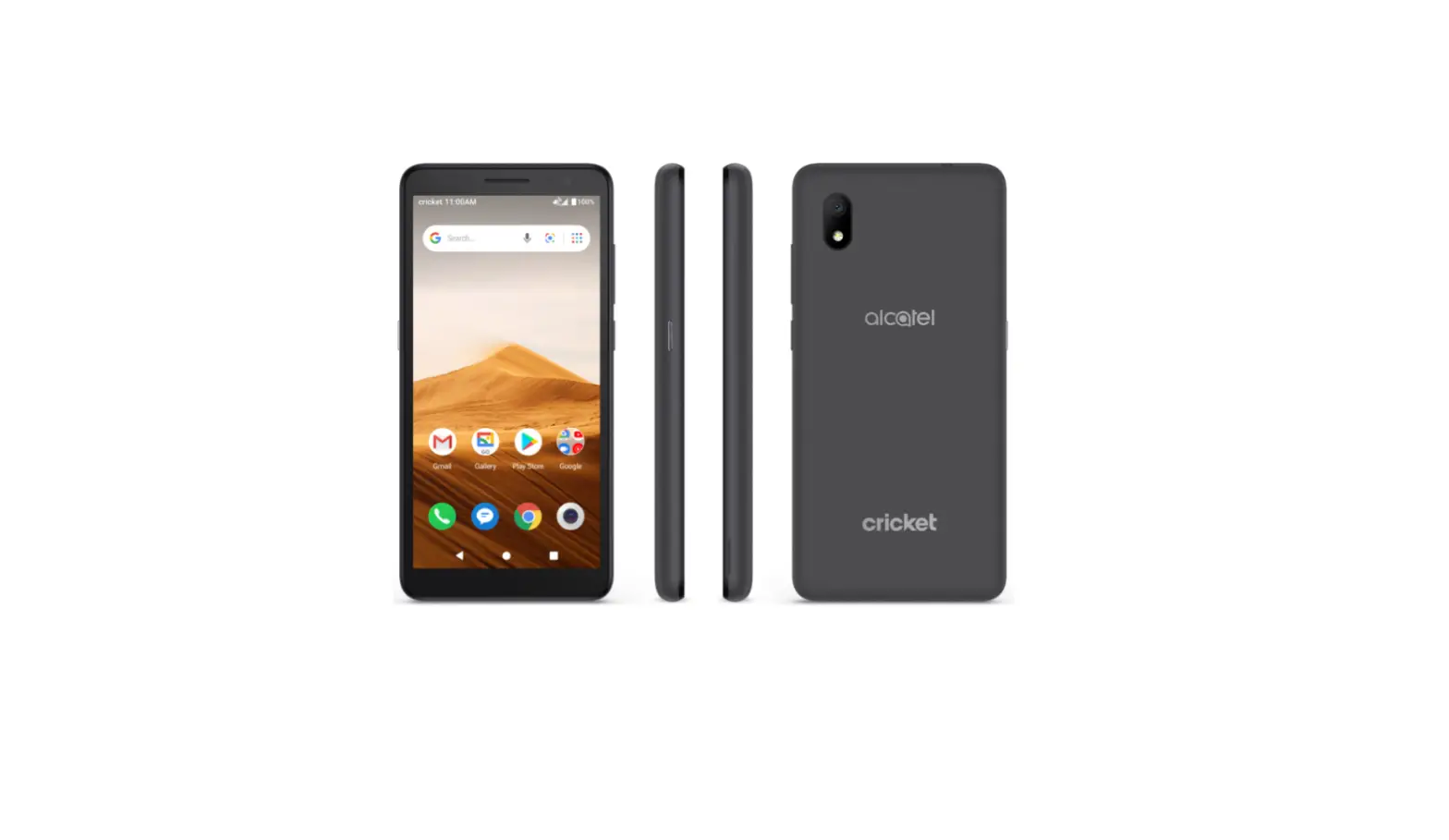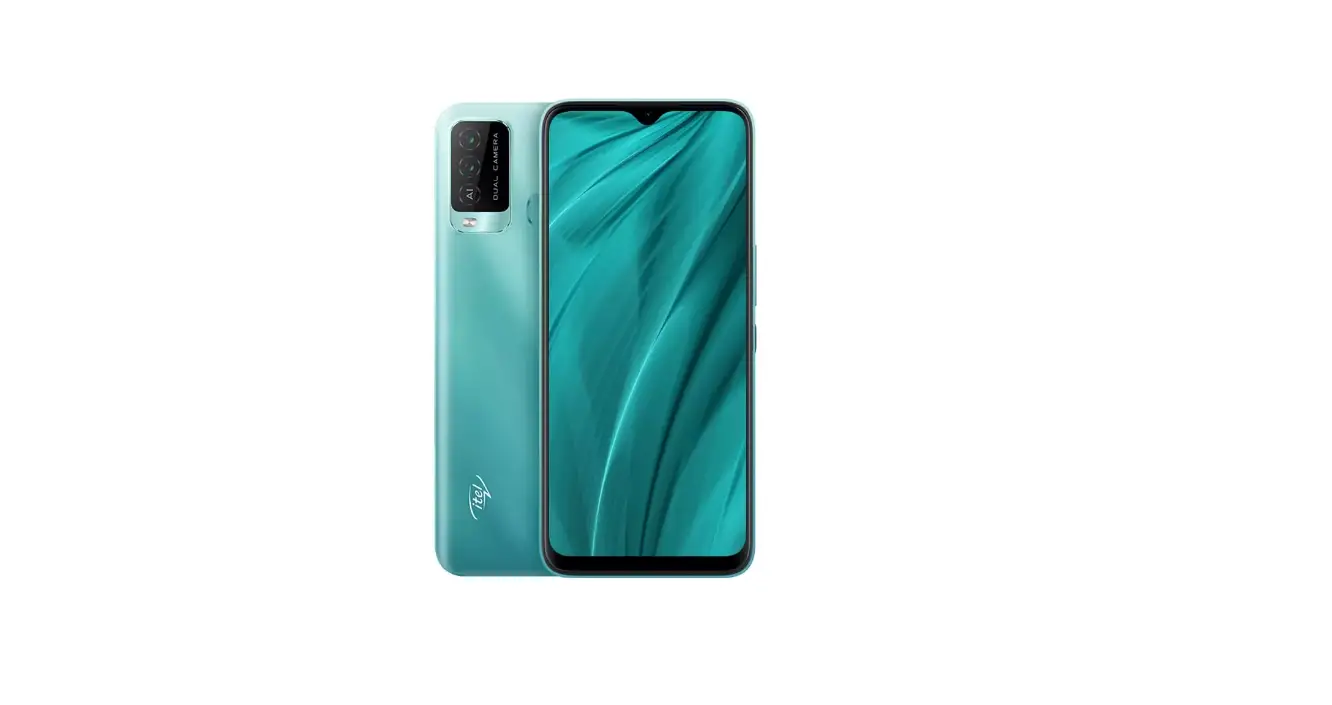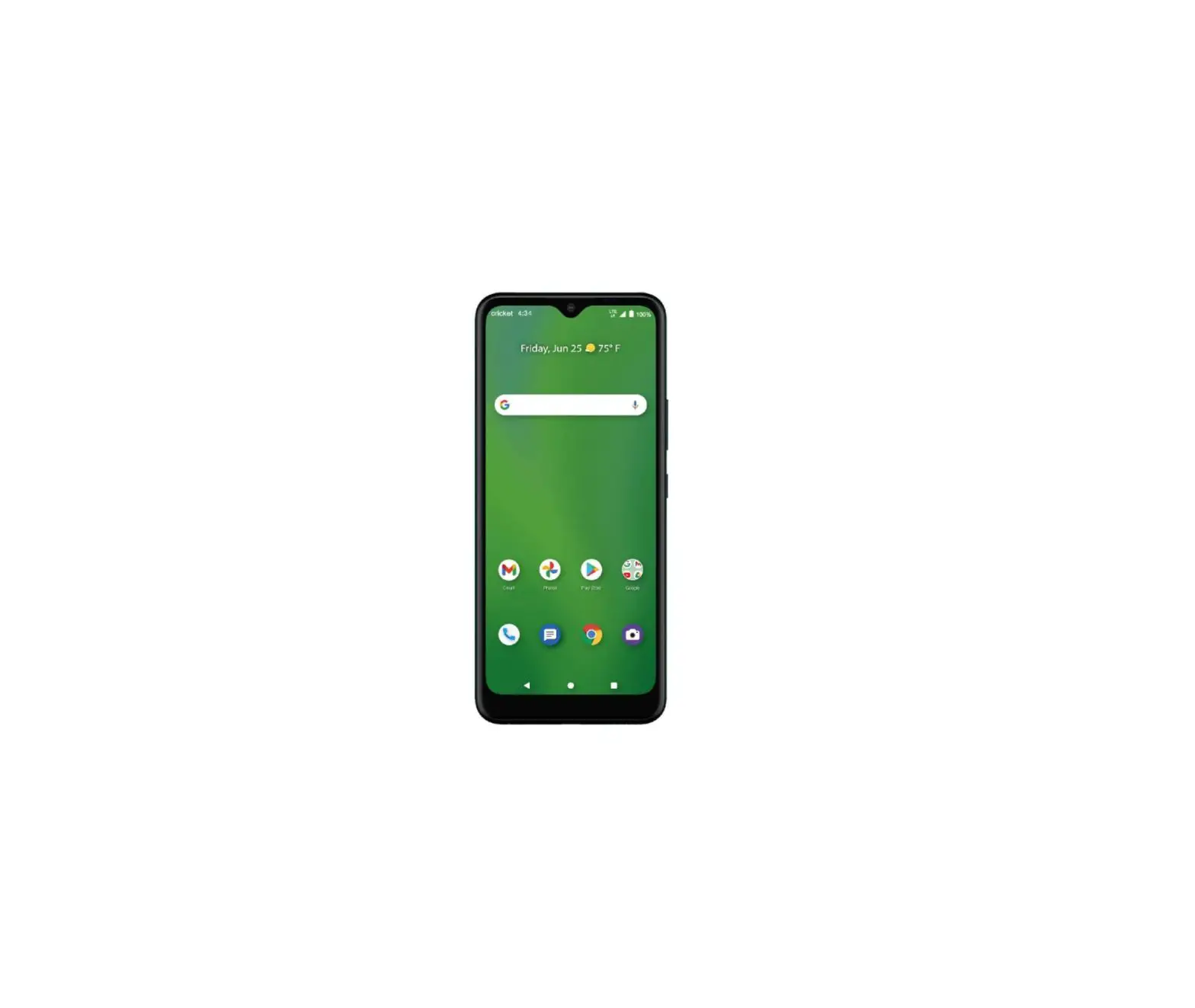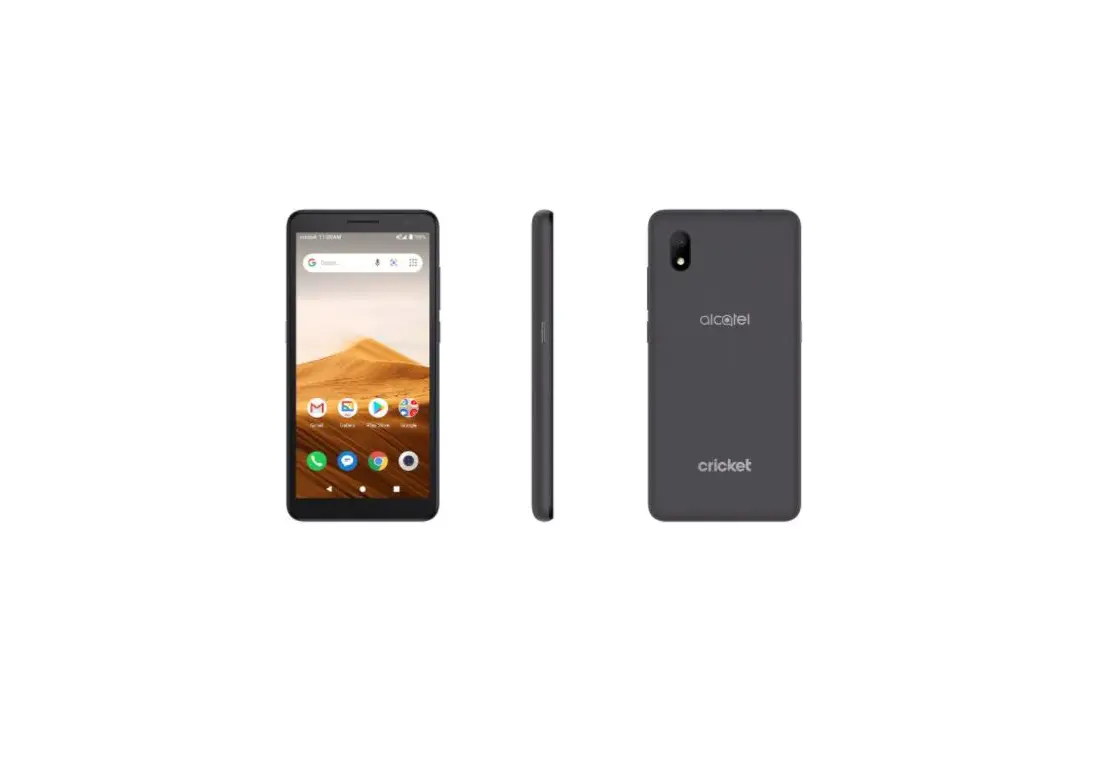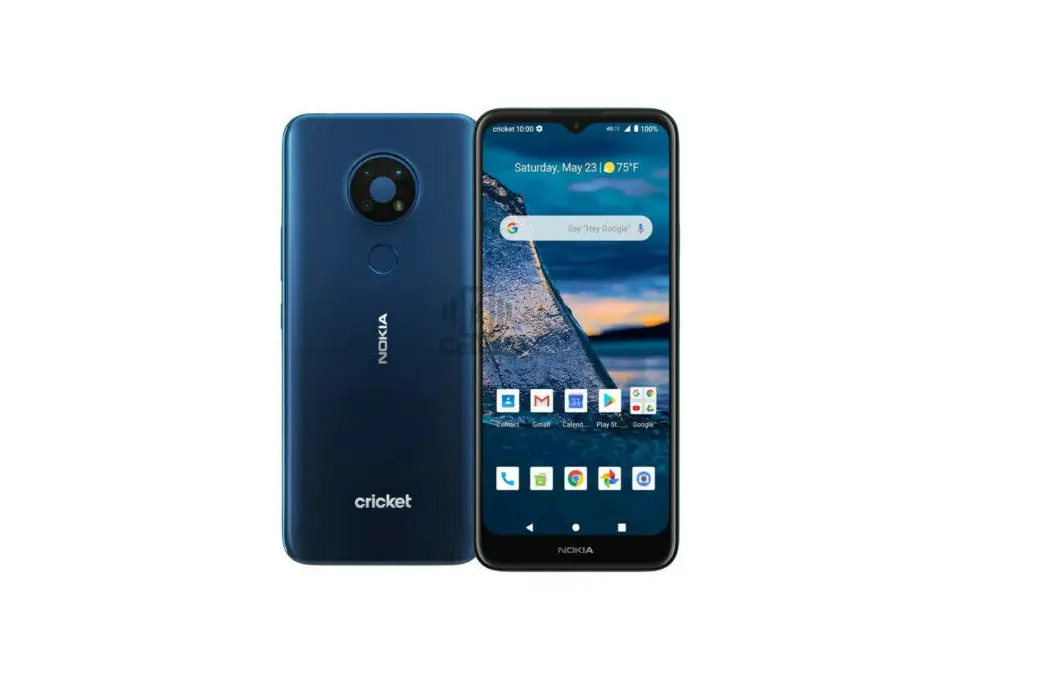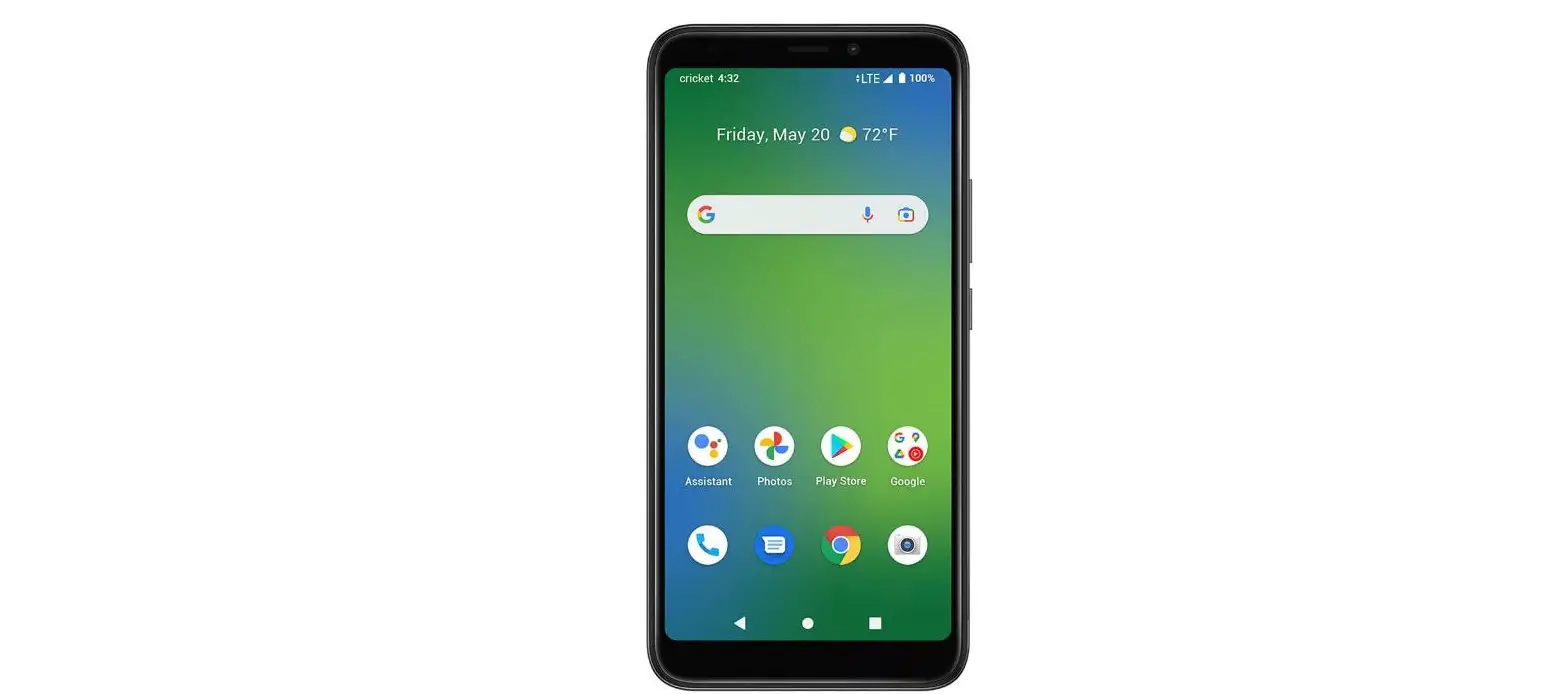

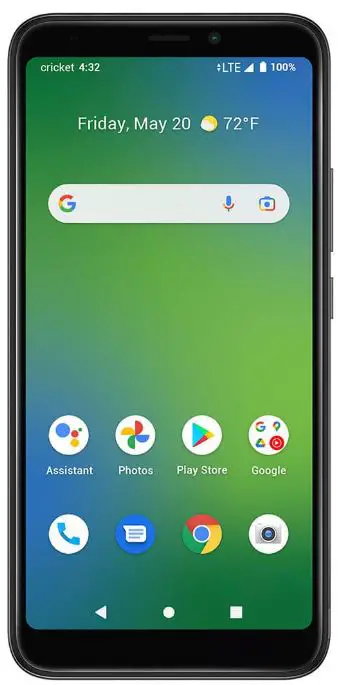
cricket SL100EA Vision Plus Smartphone
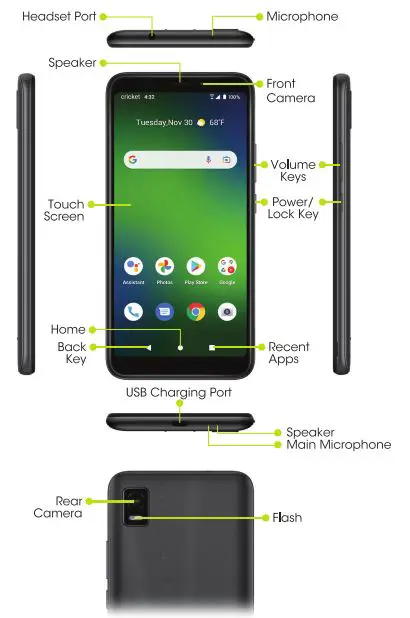
Getting to Know Your Cricket’ Vision Plus
Setting Up Your Phone
Insert a SIM/microSD*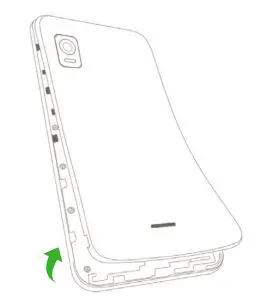
- Lift the back cover at the notch on the lower left corner of the device, then firmly peel back the flexible cover to remove it.
- If there is a previously installed SIM card, slide the card from right to left to remove it.
- Hold the new SIM with metallic contacts facing down and the cut at the top left corner. Slide the card into the SIM slot.
- Hold the microSD card (sold separately) with metallic contacts facing down and the cut side on the right. Slide the card into the microSD slot.
- Replace the cover on the back of the phone and ensure proper assembly by pressing and clicking around the cover’s edges.
- Press and hold the Power/ Lock key until the device turns on.
Charge using the AC Adapter
- Connect one end of the data cable to the USB port located on the bottom of your phone.
- Connect the other end to the power adapter.
- Connect the power adapter to an electrical outlet to fully charge your phone.
WARNING!
To avoid damage to the phone, do not use any other kind of SIM card or any non-standard Nano SlM card cut from a SIM card. You can get a standard Nano SlM card from your service provider.
Using the Touch Screen
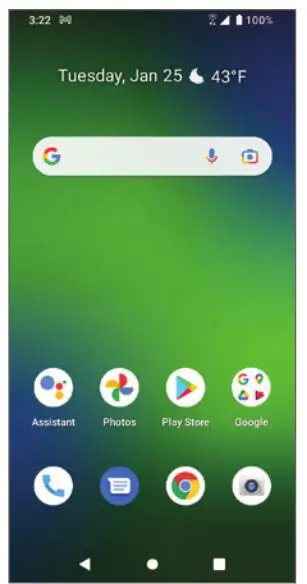
- Swipe up on the screen to unlock.
- Use your fingertip to lightly tap the screen.
- Use quick flicks of your finger on the touch screen to swipe up down, left and right.
- Spread two fingers apart or pinch them together on the screen to zoom in or out on a web page or image.
- To return to the previous screen,tap the Back key
 .
. - Tap the Home key
 at any time to return to the main Home screen. Touch and hold the Home keyto access Google Assistant.
 - Tap the Recent apps key
 to access recently viewed apps.
 - Swipe up from the bottom of the Home screen too access applications on your phone.
 .
. at any time to return to the main Home screen. Touch and hold the Home key
 to access recently viewed apps.
Notification Panel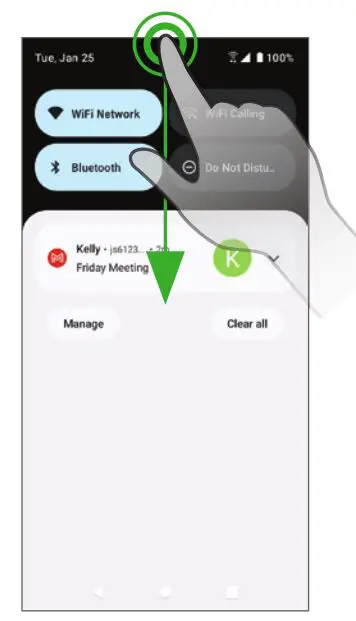
- Swipe down on the Status bar to open the Notification panel.
- Swipe left or right on a notification to delete it, or tap CLEAR ALL to clear all event-based notifications (other ongoing notifications will remain).
- From the Notification panel. swipe down again to access the quick Settings panel. Tap a setting to turn it on/off, or tap Settings
 to access full Settings.
 to access full Settings.
Personalizing Your Screen
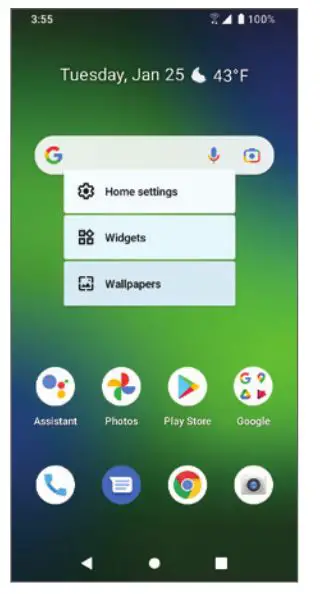
Set your wallpaper
- Touch and hold an empty space on the Home screen and tap Wallpapers.
- Select a wallpaper and tap Set wallpaper. Choose to set the wallpaper for the Home screen, Lock screen, or both.
Add app shortcuts
- To add an app to the Home screen swipe up from the bottom of the Home screen to access the Apps drawer. Touch and drag an app which will reveal the Home screen Let go in the position you wish.
Organize your Home screens
- Touch and hold the app, or folder.
- Drag the item to the desired position and then release.
Create App Folders
- From the Home screen, touch and hold an app then drag it over to another app to create a folder
- Drag more apps to the folder to add them.
- To name or rename the folder, open the folder, tap the title bar, and enter the desired name.
Delete app shortcuts or folders
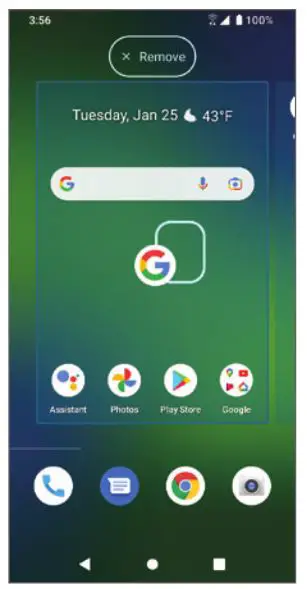
- From the Home screen, touch and hold an app shortcut or folder, then drag it up to
 Remove at the top of the screen to delete it from the Home screen.
 Remove at the top of the screen to delete it from the Home screen.
Call Family & Friends


Make a Call
- From the Home screen, tap Phone
 .
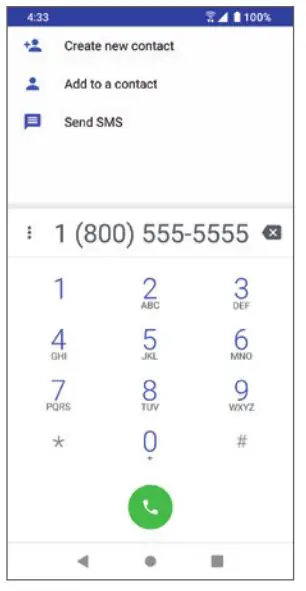
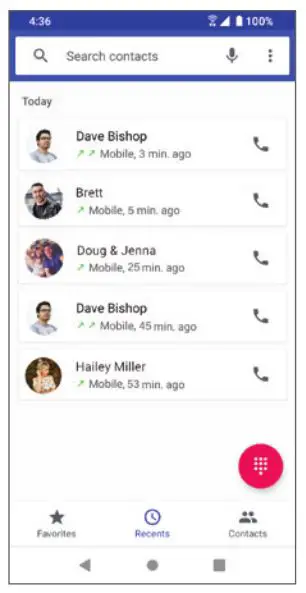
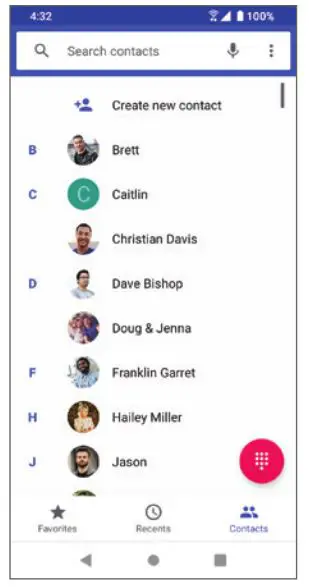
. - Make a call by selecting one of the following options:
- Enter a phone number into the keypad, and tap Call
 .
. - Choose a recently called contact in Recents
 .
. - Choose a saved contact in Contacts

- Choose a favorite contact in Favorites
 .
.
- Enter a phone number into the keypad, and tap Call
 .
. .
. .
.
 .
.Visual voicemail
- Swipe up on the Home screen and tap Visual Voicemail
 .
. - Select a message to play.
 .
.Use call waiting
- While on a call, you will hear a tone if another call comes in.Swipe up to accept and place the current call on hold, or swipe down to reject the call. The Caller will be sent to voicemail.
- Tap
 to merge calls or tap
 to Switch between active calls.
 to merge calls or tap
 to Switch between active calls.
More Information
On the web
Detailed support information, including device specifications and troubleshooting, is available at www.cricketwireless.com/support/devices.
On the phone
- Call Customer Care at 1-855-246-2461 or
- Dial 611 from your cell phone.
Accessories
For more information concerning accessories, please visit your local Cricket store location or go to
www.cricketwireless.com/shop/accessories.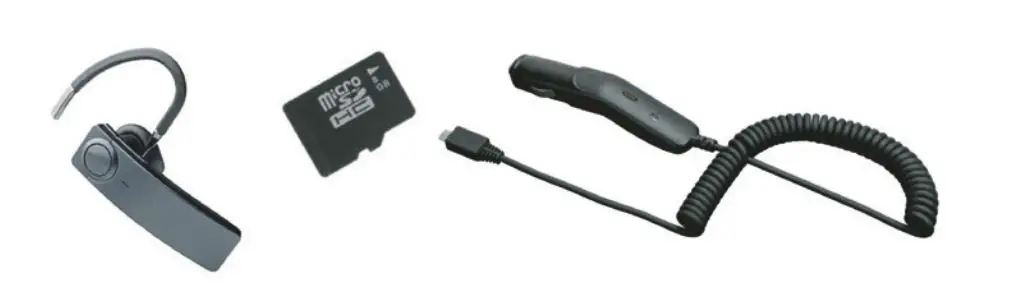
Note: Store and online inventories may vary.
Product meets FCC Radio Frequency Exposure Guidelines-FCC ID 2A28USL100EA. This device complies with Part 15 of the FCC Rules. Operation is subject to the following fwo conditions:
- This device may not cause harmful interference
- This device must accept any interference received, including interference that may cause undesired operation.
2022 Cricket Wireless LLC. All rights reserved. Cricket and the Cricket logo are registered frademarks under license fo Cricket Wireless LLC. Ofher marks are the property of their respective owners. microsDXCIM logo is a rademark of SD-3C, LLC.
Text and Picture Messaging
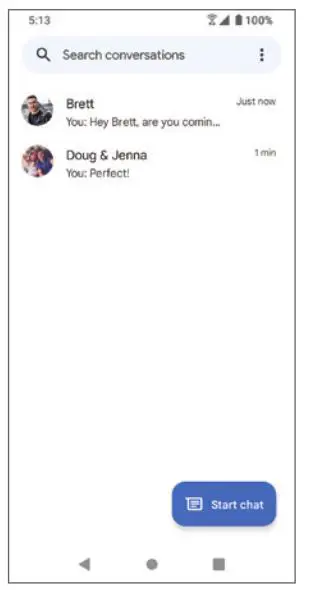
Send a text message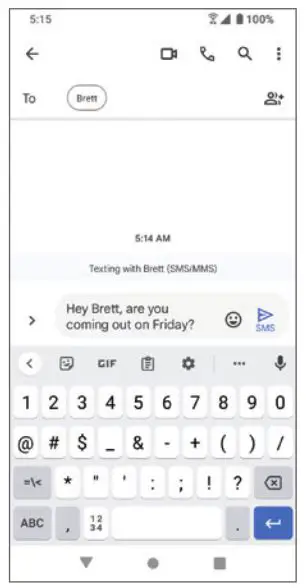
- From the Home screen, tap Messages
 .
. - Tap
 Start chat to create a new message or start a new group chat.
 - Enter the recipient(s) name from your contact list or phone number in the To field
- Type your message and tap
 to send the message.
 .
. Start chat to create a new message or start a new group chat.
 to send the message.
Send a picture message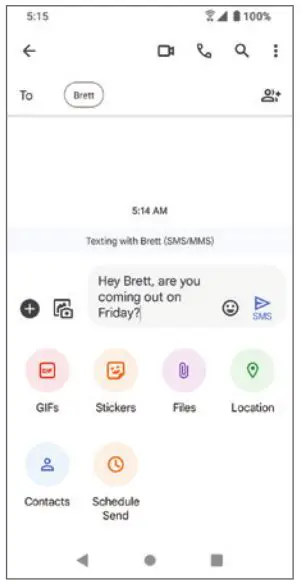
- From the Home screen, tap Messages
- Tap Start chat | to create a new message or stat a new group chat.
- Enter the recipient(s) name from your contact list or phone number in the To field
- Type your message.Tap> to attach a file to a message. Tap
 to add an attachment, tap
  to select or take a photo or photos to add.
 - Tap to send the message.
 to add an attachment, tap
  to select or take a photo or photos to add.
Note: Please dont text and drive.
Email
Email setup (Gmail, Yahoo!, etc.)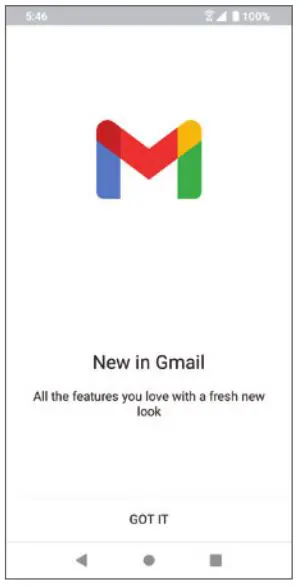
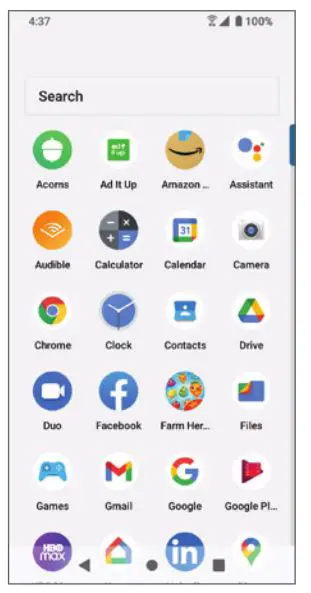
- From the Home screen, Swipe up to access apps.Tap Gmail
 .
. - Follow the steps to set up your account.
 .
.Create and send an email message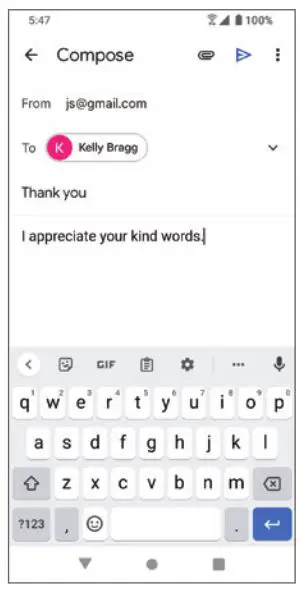
- Tap
 from the Inbox screen to compose a new message.
 - Enter the recipient(s) email address in the To field.To add a carbon copy or blind carbon copy, tap v.
- Enter the subject and content of your message. To add attachments, tap
 and select Attach file.
 - Tapto send.
 from the Inbox screen to compose a new message.
 and select Attach file.
Note: To set up a corporate email account, contact your IT administrator.
Useful Features
 Display Brightness: Swipe down from the Status bar twice to open the Quick Settings panel. Slide the adjustment bar to brighten or dim the display. For Adaptive brightness, go to Settings >Display> Adaptive brightness. Tap Adaptive brightness to turn it on
 or off
 Flashlight: Swipe down from the Status bar to open the Quick Settings panel. Tap Flashlight to turn it on or off.
 Battery Saving Mode: Swipe down on the Status bar twice to open the Quick Settings panel.Tap Battery Saver
  to turn it on or off.
 Screen Record: Swipe down on the status bar twice to open the Quick Settings panel. Tap Screen Record Start to record “on Screen actions”.
 Display Brightness: Swipe down from the Status bar twice to open the Quick Settings panel. Slide the adjustment bar to brighten or dim the display. For Adaptive brightness, go to Settings
  or off
 Flashlight: Swipe down from the Status bar to open the Quick Settings panel. Tap Flashlight
 Battery Saving Mode: Swipe down on the Status bar twice to open the Quick Settings panel.Tap Battery Saver
  to turn it on or off.
 Screen Record: Swipe down on the status bar twice to open the Quick Settings panel. Tap Screen Record Start
 Cricket Services
These services make using Cricket even better and easier.
 MyCricket: Access billing. Make a quick payment, view usage and access support from the palm of your hand.
 Visual Voicemail: Quickly view, access, and play back your voicemail messages. Easily save important numbers and respond to messages by calling back or texting.
 MyCricket: Access billing. Make a quick payment, view usage and access support from the palm of your hand.
 Visual Voicemail: Quickly view, access, and play back your voicemail messages. Easily save important numbers and respond to messages by calling back or texting.
Apps on Google Play”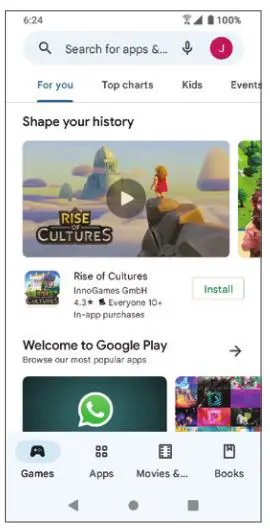
Access Google Play
- From the Home screen, tap Play Store
 .
. - Enter your existing GoogleTM account login or create one following the steps on the screen.
 .
.Navigate Google Play
- Tap a category to browse apps, games, movies, and music organized by popularity or category.
- Tap the Google Play search bar to search the Play Store for a specific game or app.
- To install, tap the app and follow the instructions. Once installed, you will see a notification in the Notifications panel. Open the app from this notification or by locating it in the apps drawer.
Note: A payment method, such as Google Wallet, is required to purchase apps.
Camera and Video
Take a picture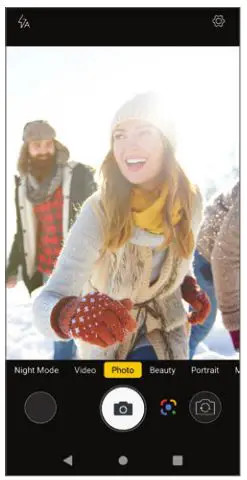
- From the Home screen, tap
 Camera .
 - Position the object or landscape in the viewfinder.
- Tap to take the picture. It will be automatically saved to Photos
 .
.
 Camera .
 .
.Make a video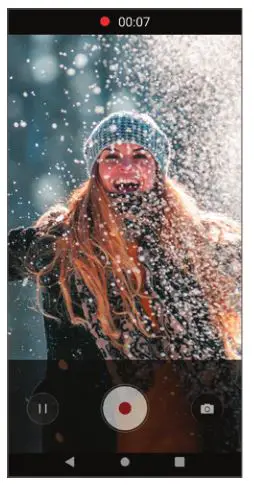
- Swipe right to Video and tap
 in the bottom center of the Screen to start recording a video.
 - Tap
 to stop recording.The video will be automatically saved to Photos .
 - Tap to take pictures while recording.The photo will be automatically saved to Photos.
 in the bottom center of the Screen to start recording a video.
 to stop recording.The video will be automatically saved to Photos
Share a picture or video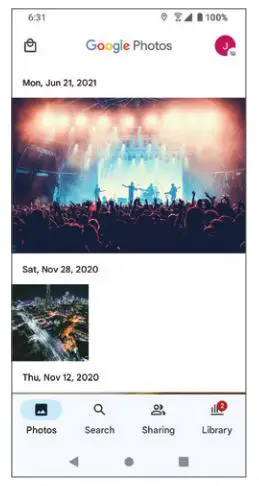
- From the Home screen, tap Photos .
- Tap a photo or video, and then tap Share
 and select an option for sharing.
 and select an option for sharing.