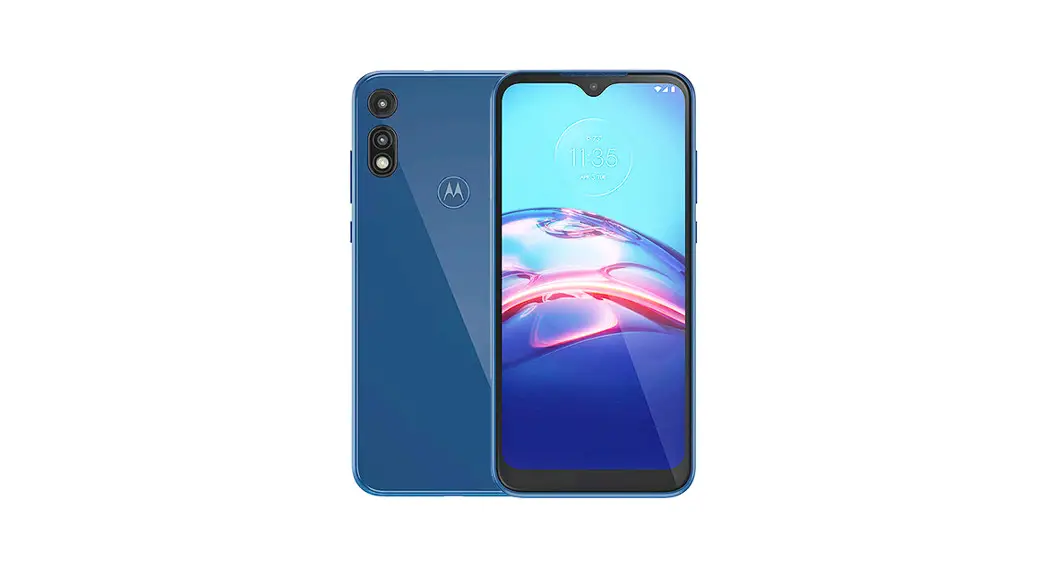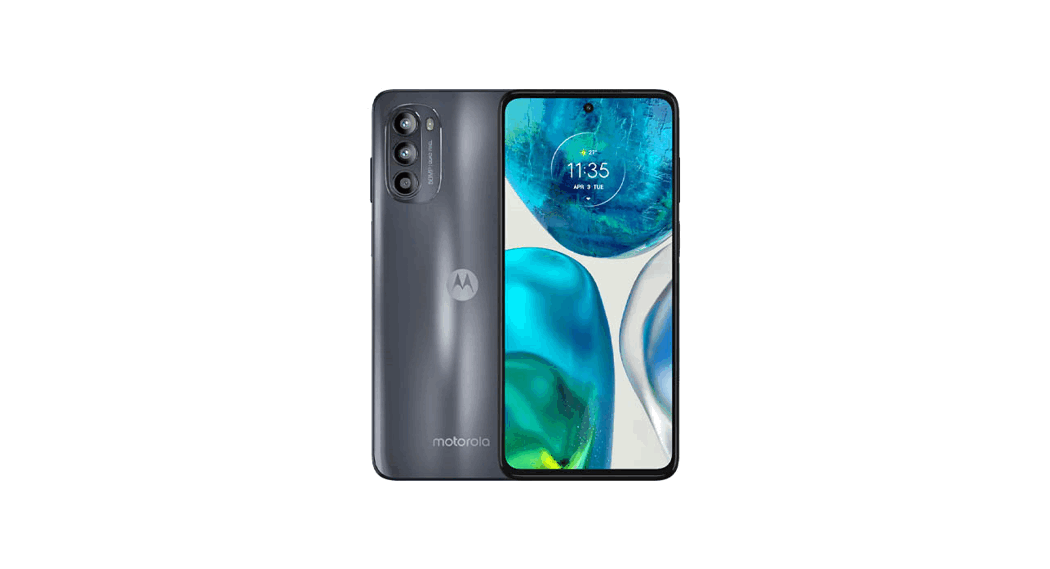

cricket wireless Moto G Stylus Smartphone
Product Information
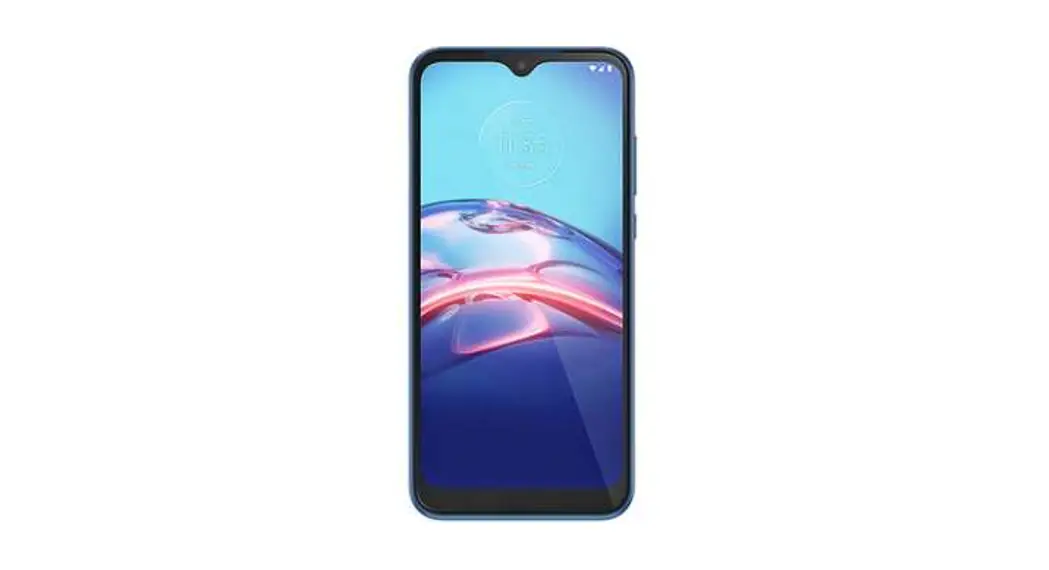
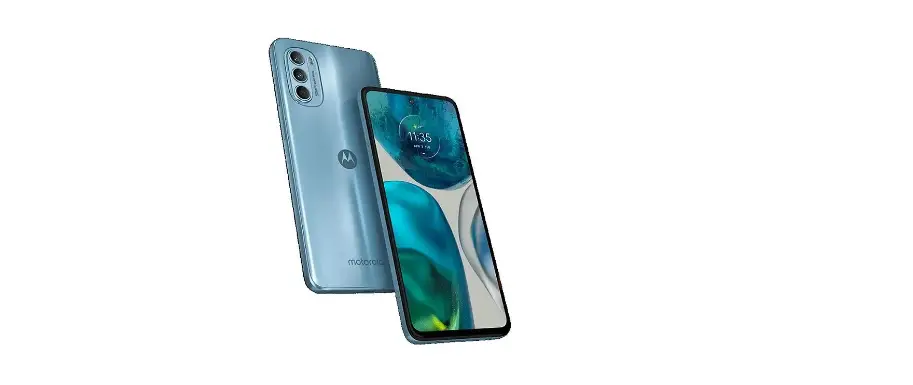
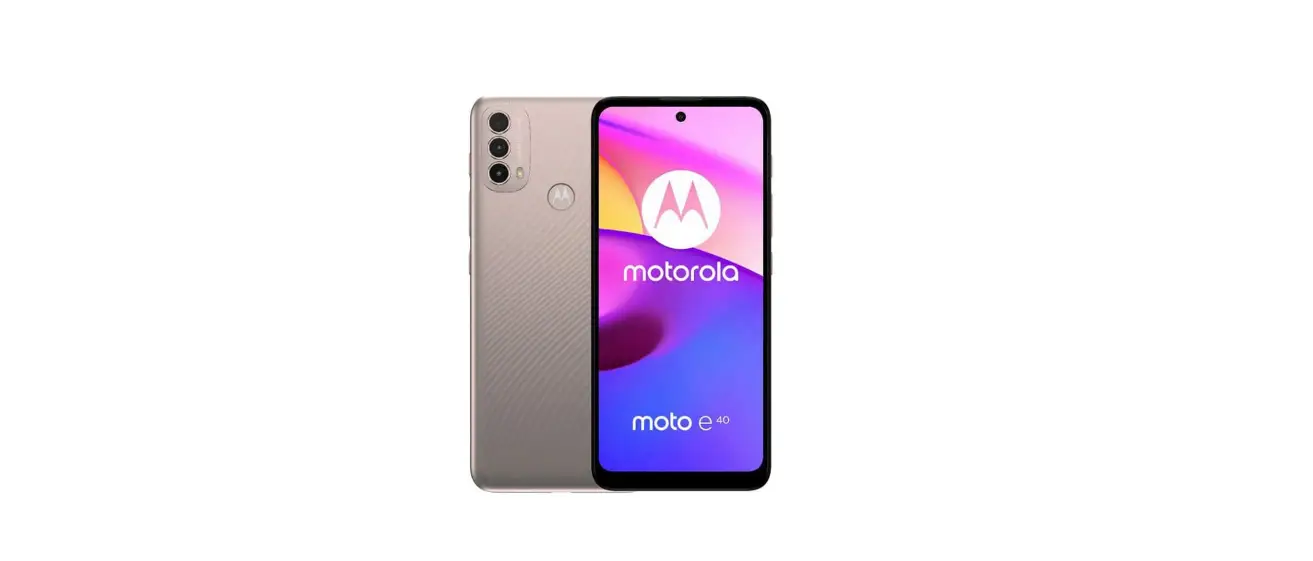
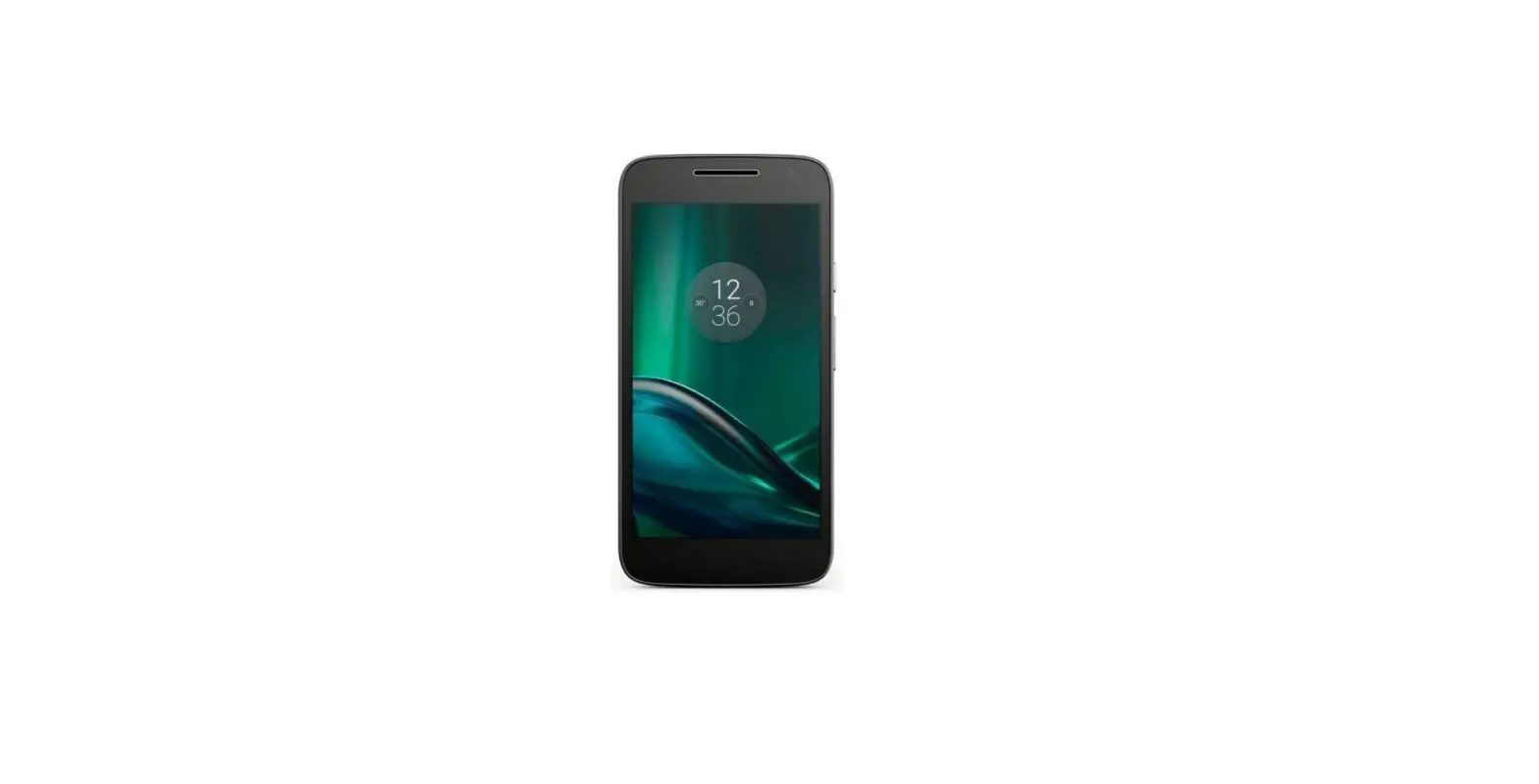
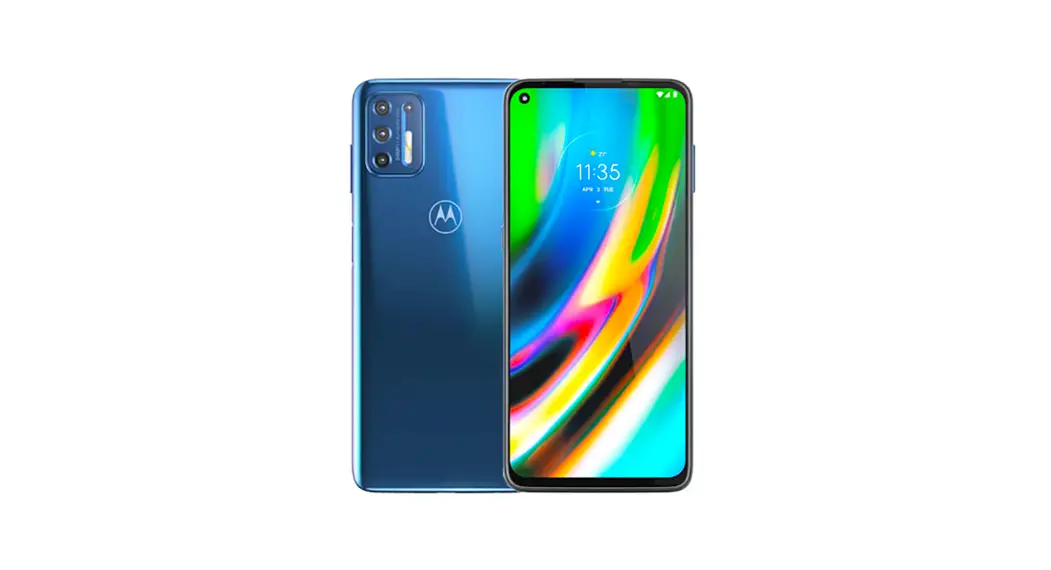
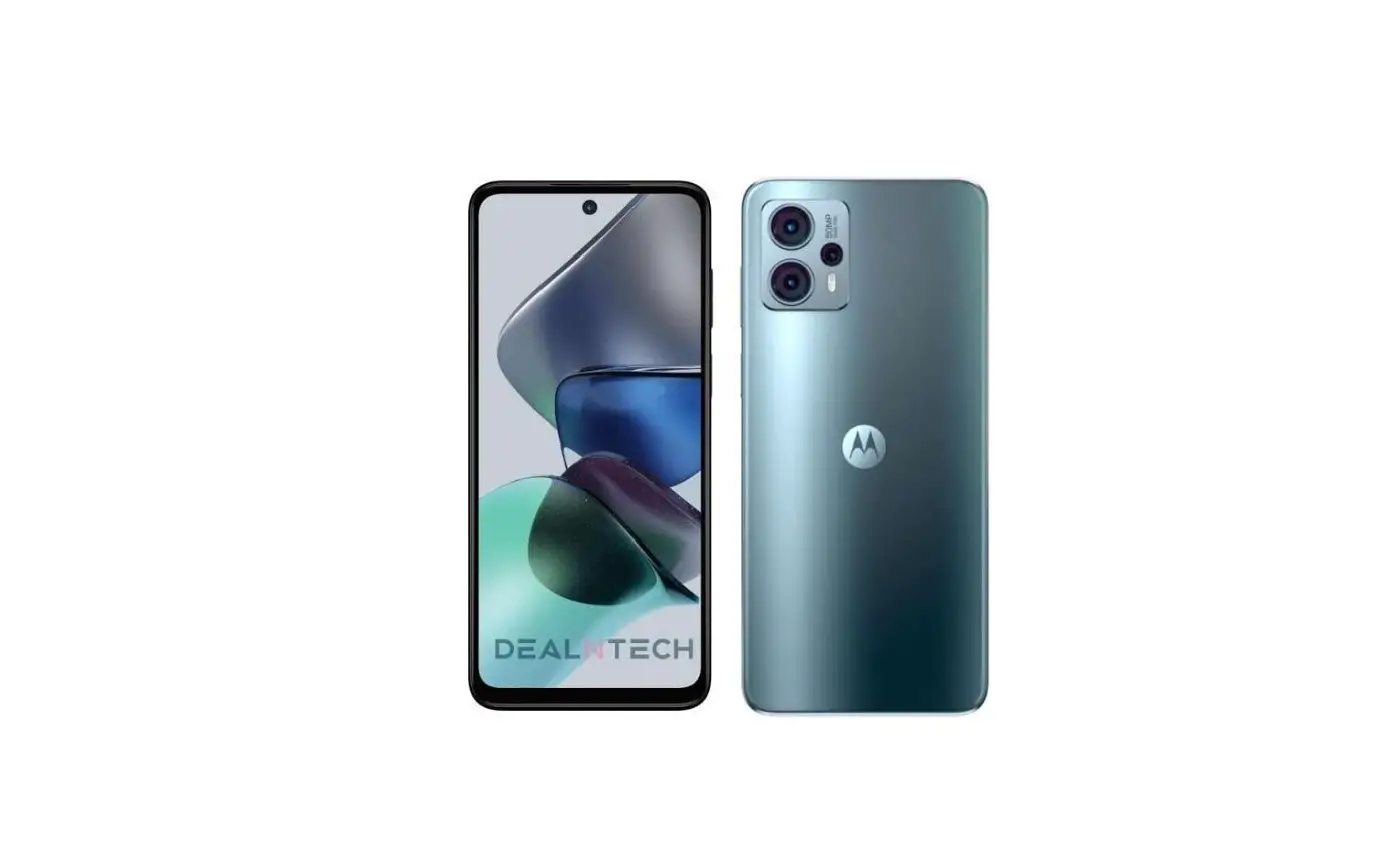
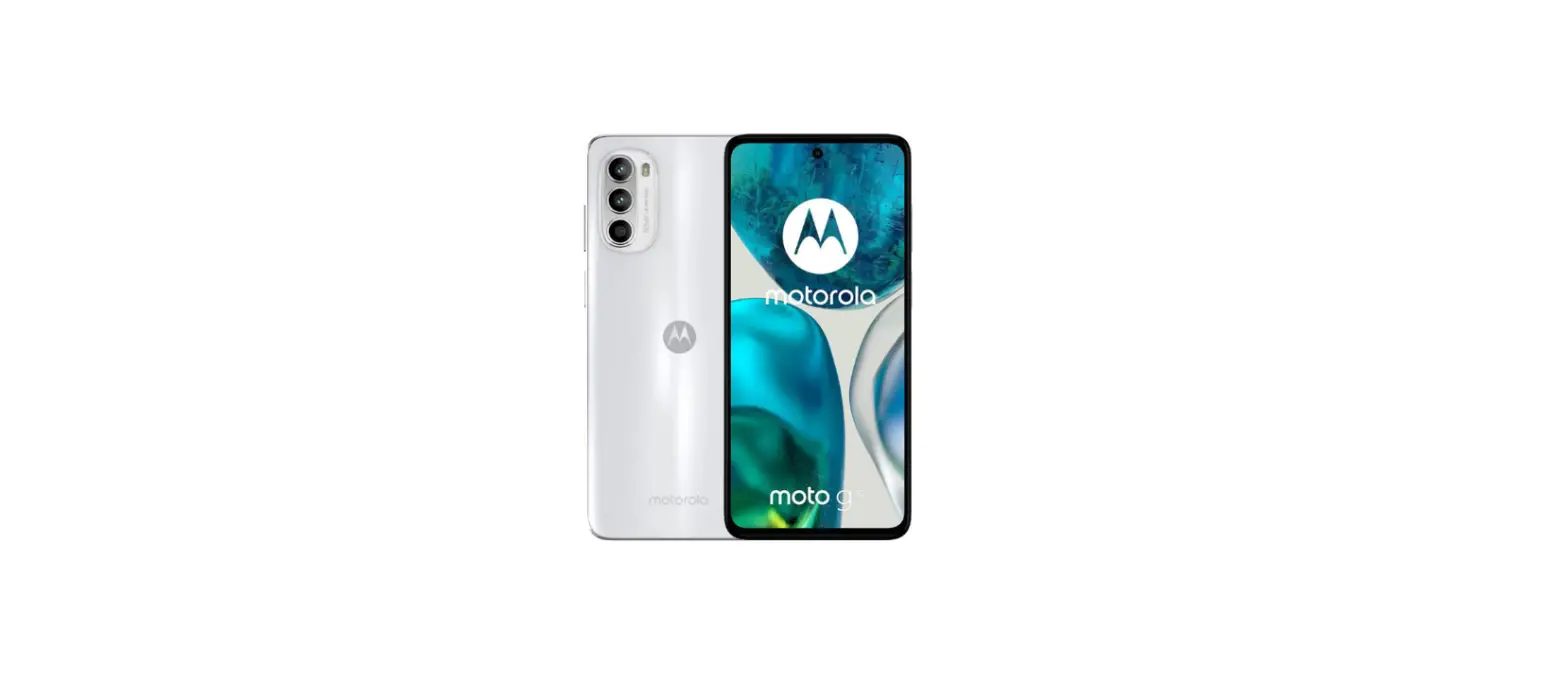
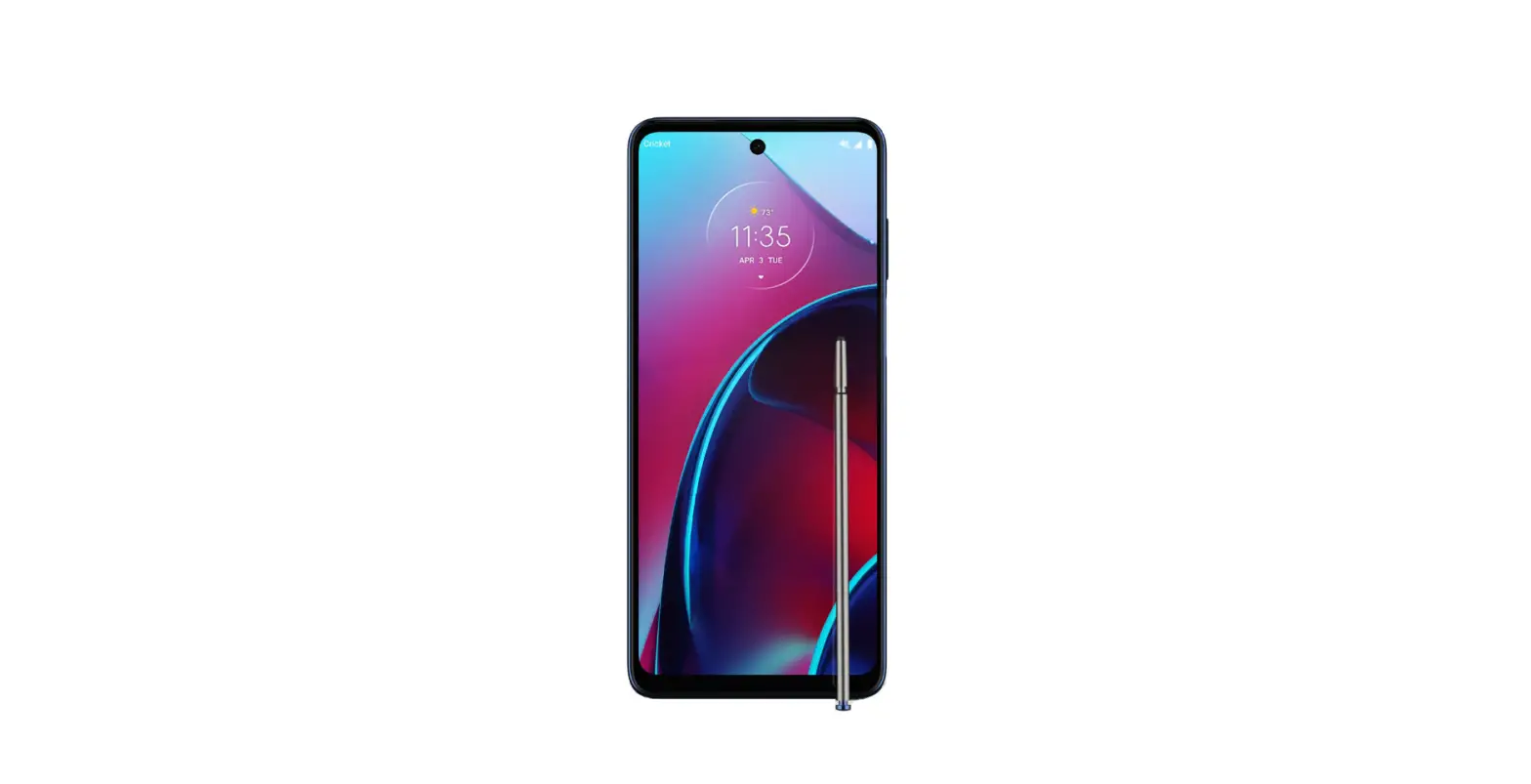
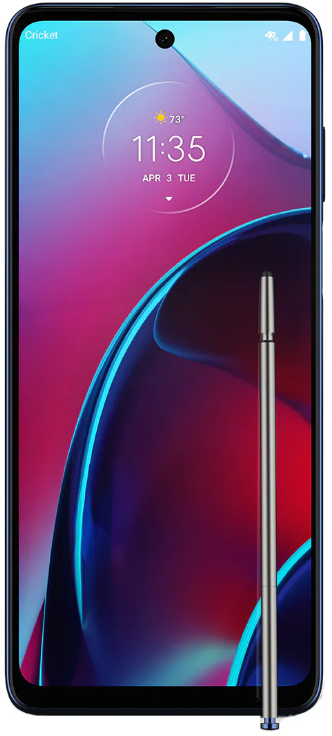
The Moto G Stylus is a smartphone that comes with a stylus for precision work. It has a 6.4-inch Full HD+ display and is powered by a Qualcomm Snapdragon 665 processor. The phone has a triple rear camera setup, which includes a 48-megapixel primary camera, a 16-megapixel ultra-wide-angle lens, and a 2-megapixel macro lens. The front camera is a 16-megapixel sensor. It has a 4,000mAh battery with support for fast charging and runs on Android 10.
Product Usage
Phone Setup
To set up the Moto G Stylus, please follow these steps:
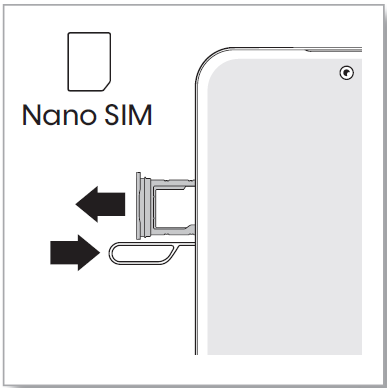
- Insert the SIM tool into the hole next to the tray to pop out the tray.
- Insert the SIM card with the gold contacts down and add a microSD card (optional, sold separately) for additional storage, then gently push the tray into the slot. To avoid damage to the phone, only use the SIM included in the box or provided to you by Cricket.
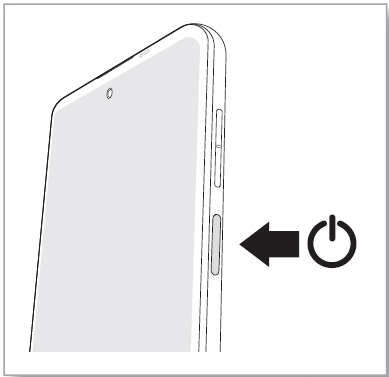
- Press and hold the Power button to turn on the phone, then follow the prompts to get started. Note: To turn off your phone, press the Power and Volume Up buttons at the same time.
Using the Stylus
The stylus is located on the bottom right-hand side of the phone and can be removed by pushing it out. To customize stylus settings, go to Settings > Stylus on the screen.
Using the Touch Screen
The Moto G Stylus has a touch screen. To use the touch screen, simply tap or swipe the screen with your finger.
Customizing Home Screens
The Moto G Stylus allows you to personalize your home screen with apps, widgets, wallpapers, and styles. To do this, touch and hold a blank part of the home screen, then select Home settings, Widgets, Wallpapers, or Personalize.
Calls & Voicemail
To make a call, tap Phone from the home screen. To check voicemail, tap Phone > and then touch and hold 1. During a call, you can start another call, switch between them, or join them in a 3-way call. The first call goes on hold if you answer the second call. To switch between calls, tap . The first call goes on hold when you tap . To join the calls after the second call answers, tap.
Text & Picture Messaging
To send a text message, tap Messages from the home screen. Tap Start chat to write a new message. In the To field, enter a number or a contact name. Type your message and tap to send it. You can also attach a file or insert from Drive to select a picture or file.
Additional Information
For detailed support information, including device specifications and the full user manual, visit www.motorola.com/support. For information on accessories, visit www.cricketwireless.com/shop/accessories or visit your local Cricket retailer.
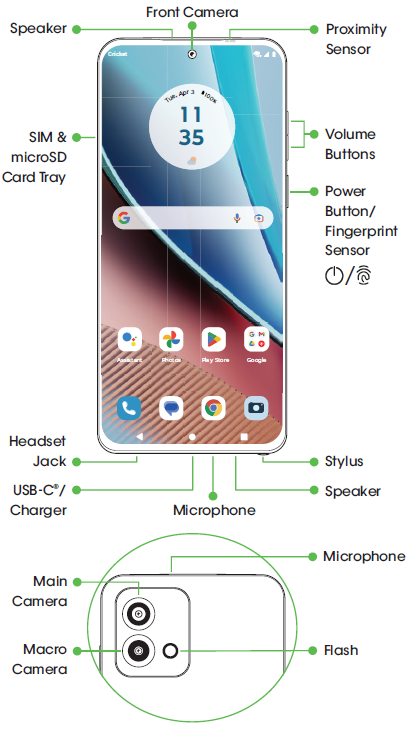
Getting to know your moto g stylus
Before using your phone, please read the legal, safety, and regulatory information provided with your product.
Phone setup
- Insert the SIM tool into the hole next to the tray to pop out the tray.

- Insert the SIM card with the gold contacts down, add a microSD card
 (optional, sold separately) for additional storage, then gently push the tray into the slot. To avoid damage to the phone, only use the SIM included in the box or provided to you by Cricket.
- Press and hold the Power button to turn on the phone, then follow the prompts to get started.
Note: To turn off your phone, press the Power and Volume Up buttons at the same time.
 (optional, sold separately) for additional storage, then gently push the tray into the slot. To avoid damage to the phone, only use the SIM included in the box or provided to you by Cricket.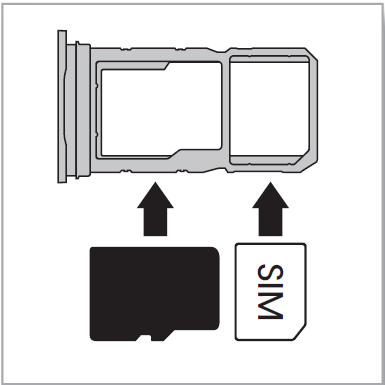
Stylus
Navigate apps, take notes, handwrite text, edit screenshots, and more.
- To remove the stylus, push the stylus inward to release it, then pull it out.
- To store the stylus, insert it into the slot, then push it until it locks in place.
- To set up your stylus, swipe up from the home screen and tap
 Settings > Stylus.
 Settings > Stylus.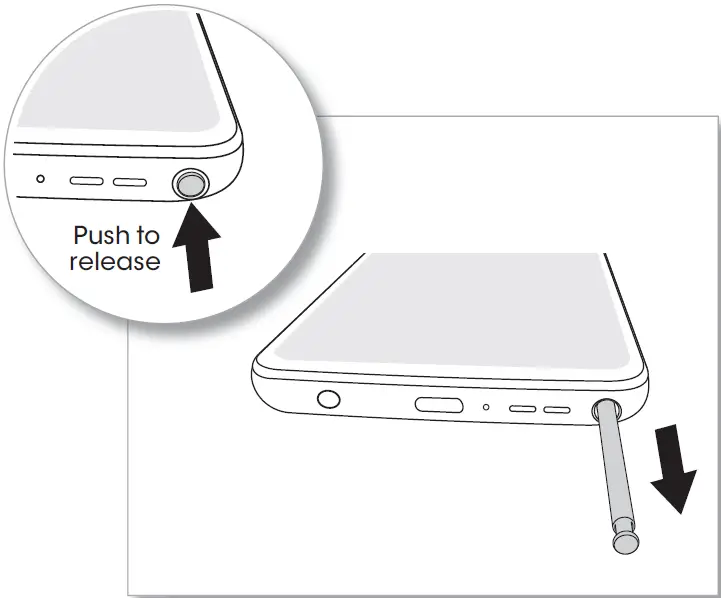
Touch screen
Using the touchscreen
- Swipe up from the home screen to see all your apps.
- Tap Back
 to go to the previous screen.
 - Tap Home
 to return to the home screen.
 - Tap Recents
 to see your recent apps (or browser tabs), and tap an app to reopen it.
 - Touch and hold Home to launch the Google Assistant.

 to go to the previous screen.
 to return to the home screen.
 to see your recent apps (or browser tabs), and tap an app to reopen it.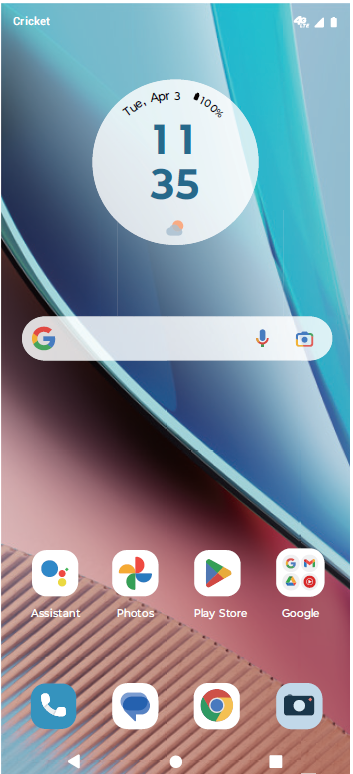
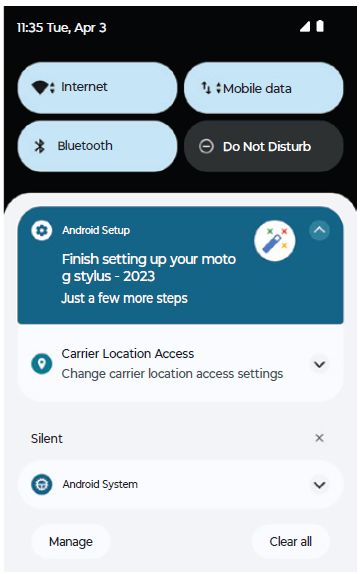
Notifications panel
View a quick summary of alerts on your phone.
- View: Swipe down from the top of any screen to open notifications.
- Manage: Tap to view notification settings.
- Clear: Swipe left or right, or tap Clear all to remove all.

Personalize
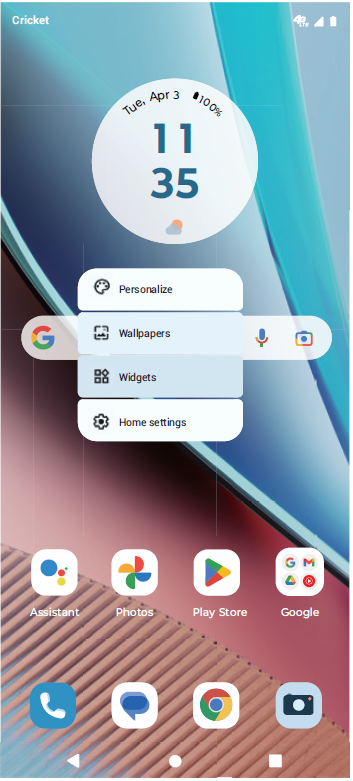
Customizing home screens
Personalize your home screen with apps, widgets, wallpapers, and styles. Touch and hold a blank part of the home screen, then select Home settings, Widgets, Wallpapers, or Personalize.
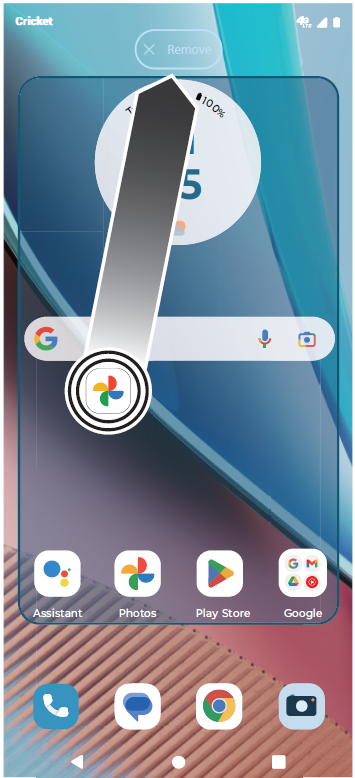
Organizing home screens
- To move or delete a widget, shortcut, or folder, touch and hold it, and then drag it to a new location or to Remove.
- To create a folder, touch and hold an icon, and drag it on top of another icon.
- To rename a folder, tap it, tap the folder name, and tap the folder name field to show the keyboard.

Calls & voicemail
Making a call
- From the home screen, tap
 Phone.
 - Select an option to place a call:
- Dialpad:
 Manually enter telephone numbers.
 - Favorites:
 Choose from your favorite contacts.
 - Recents:
 Retry or return recent calls.
 - Contacts:
 Call a saved contact from your address book.
- Dialpad:
 Choose from your favorite contacts.
 Retry or return recent calls.
 Call a saved contact from your address book.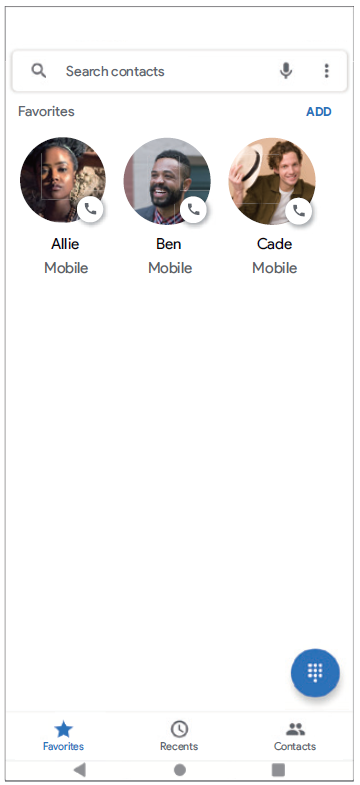
Using call waiting
During a call, you can start another call, switch between them, or join them in a 3-way call:
- To answer an incoming call, swipe up to answer the call or swipe down to reject the call.
- The first call goes on hold if you answer the second call. To switch between calls, tap
 .
.
- The first call goes on hold if you answer the second call. To switch between calls, tap
- To dial a second call, tap
 , enter a number, then tap
 to call it.
- The first call goes on hold when you tap. To join the calls after the second call answers, tap
 .
.
- The first call goes on hold when you tap
 .
. , enter a number, then tap
 to call it.
 .
.Checking voicemail
Appears in the status bar when you have new voicemail. To hear it, tap Phone >
 and then touch and hold 1.
Text & picture messaging
Sending a text message
- From the home screen, tap Messages.
- Tap
 to write a new message.
 - In the To field, enter a number or a contact name.
- Type your message.
- Tap
 to send the message.
 Messages.
 to write a new message.
 to send the message.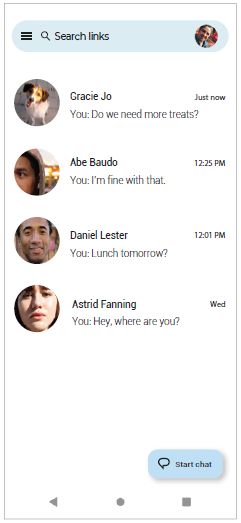
Sending a message with an attachment
- Follow steps 1 – 4 above.
- Add an attachment:
- Tap
 to attach a GIF or a contact, share your location, and more.
 - Touch and hold
 to create a voice recording.
 - Tap
 to attach a photo from the gallery or take and attach a new photo.
- Tap
- Tap
 .
.
Tip: To send a message later, touch and hold (or ), then select a send time or set your own.
 to attach a GIF or a contact, share your location, and more.
 to create a voice recording.
 to attach a photo from the gallery or take and attach a new photo.
 .
.Setting up email
The first time you turned on your phone, you probably set up or logged in to your Google account—that sets up the Gmail app for one account.
To add additional accounts:
- From the home screen, swipe up and tap Settings.
- Tap Passwords & Accounts.
- Tap + Add account.

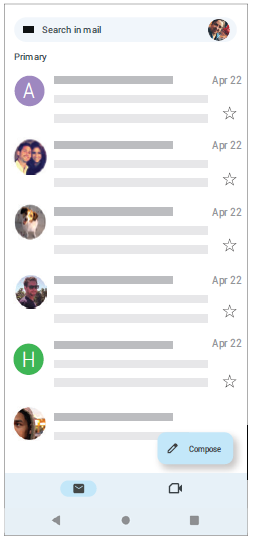
Creating & sending an email message
- From the home screen, tap the Google folder >
 Gmail.
 - To create a new message, tap
 .
. - Enter a message recipient, or subject, and type your message.
- To attach files, tap
 > Attach file or Insert from Drive to select a picture or file.
 - When you are ready to send your message, tap
 .
.
 Gmail.
 .
. > Attach file or Insert from Drive to select a picture or file.
 .
.Value added services
These services make using Cricket even better and easier!
Cricket Services
 myCricket: Access billing, make a quick payment, view usage, and access support from the palm of your hand.
 Visual Voicemail: Quickly view, access, and play back your voicemail messages. Easily save important numbers to your Favorites list, and respond to messages by calling back or texting.
 theSCOOP: Get news, local weather, sports scores, entertainment and more right to your phone.
 myCricket: Access billing, make a quick payment, view usage, and access support from the palm of your hand.
 Visual Voicemail: Quickly view, access, and play back your voicemail messages. Easily save important numbers to your Favorites list, and respond to messages by calling back or texting.
 theSCOOP: Get news, local weather, sports scores, entertainment and more right to your phone.
Useful features
- Flashlight: Swipe down twice on the Status bar to open the Quick Settings panel. Tap
 Flashlight to turn it on or off.
 - Battery Saving Mode: Swipe down twice on the Status bar to open the Quick Settings panel. Swipe left on the panel and tap
 Battery Saver to turn it on or off.
 Flashlight to turn it on or off.
 Battery Saver to turn it on or off.
Apps on Google Play
Accessing Google Play
- From the home screen, tap
 Play Store.
 - Use your existing Google account to log in, or create an account by following the on-screen instructions.
 Play Store.
Navigating Google Play
Find apps, games, and more in Play Store.
- Tap a category to browse popular apps, games, movies, and music organized by popularity or category.
- Tap the search bar at the top of the screen to search for a specific game or app.
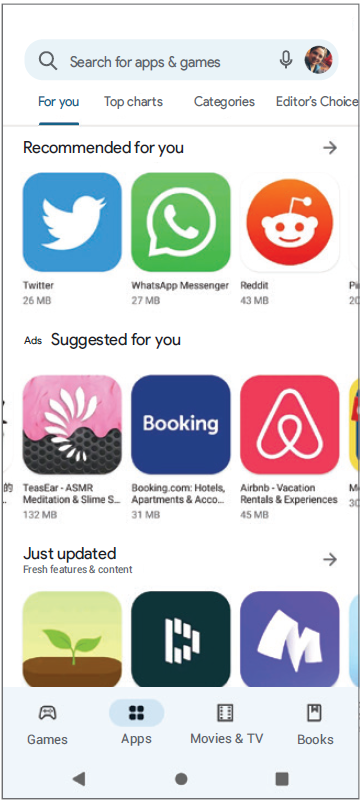
To install an app, tap it and follow the instructions.
Note: A Google Wallet™ payment method is required to purchase apps.
Camera & video
Taking a picture
Take crisp, clear photos with the front or back camera.
- From the home screen, tap Camera.
- Swipe the screen left or right to change photo modes.
- Tap
 or press the Volume Up or Down button to take a photo.
 - Tap
 to switch to front camera.
 Camera.
 or press the Volume Up or Down button to take a photo.
 to switch to front camera.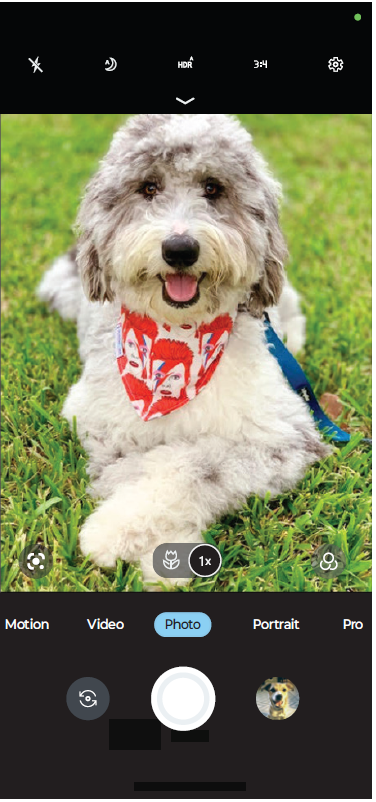
Viewing pictures
Tap to go to your photo gallery. Or, from the home screen, tap
 Photos.
Taking a video
- From the camera viewfinder, tap Video.
- To start recording, tap
 .
. - To stop recording, tap
 .
.
 .
. .
.Sending a picture
View a photo or video from your gallery, then tap .
.
Unique Moto features
Explore special features designed to save you time and make your day easier. From the home screen, swipe up and tap the Moto folder > Moto > =: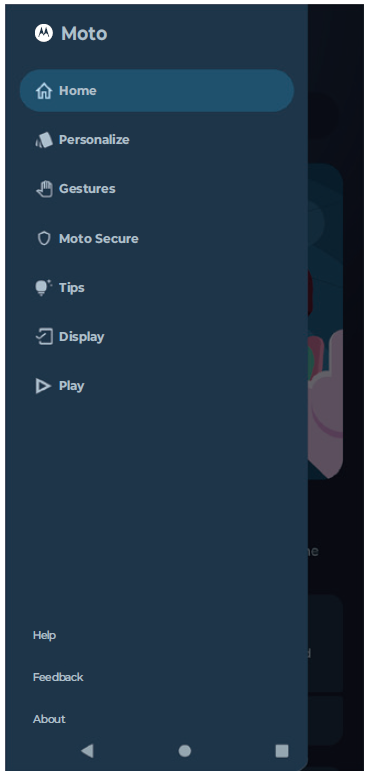
- Personalize: Customize your phone with Themes, wallpaper, Layout, and more.
- Gestures: Control your phone with gestures, such as touching and holding the screen with three fingers to take a screenshot, turning on the flashlight with two chopping motions, and silencing your phone during an incoming call by picking it up.
- Moto Secure: Manage network security, control app permissions, and even create a secret folder for your most sensitive data.
- Tips: Find details of your phone’s latest features.
- Display: Turn on Peek Display and Attentive Display to optimize how you interact with your display.
- Play: Set to focus on gaming, enjoy easy media controls when screen is off, and experience optimal audio.
More information
On the web
Detailed support information, including device specifications and the full user manual, is available at www.motorola.com/support.
On the phone
- Call Customer Care at 1-855-246-2461 or
- Dial 611 from your phone
Accessories
Cricket offers a full line of accessories. For more information, go to www.cricketwireless.com/shop/accessories or visit your local Cricket retailer.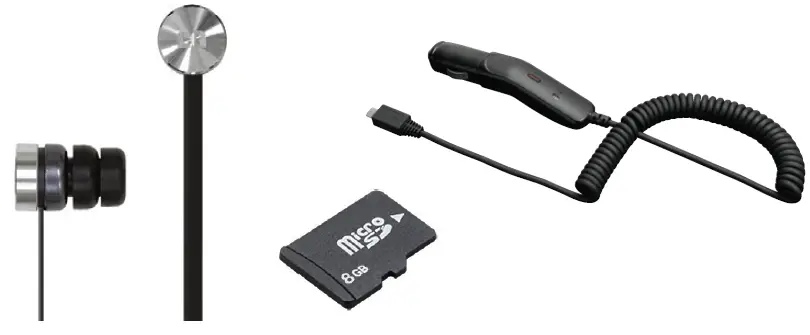
Note: Store and online inventories may vary.
MOTOROLA, the stylized M logo, MOTO, and the MOTO family of marks are trademarks or registered trademarks of Motorola Trademark Holdings, LLC. Google, Android, Google Play and other marks are trademarks of Google Inc. microSD Logo is a trademark of SD-3C, LLC. USB Type-C® and USB-C® are registered trademarks of USB Implementers Forum. All other product or service names are the property of their respective owners. © 2023 Motorola Mobility LLC. All rights reserved.
© 2023 Cricket Wireless LLC. All rights reserved. Cricket and the Cricket logo are registered trademarks under license to Cricket Wireless LLC.
- Product ID: moto g stylus – 2023 (Model XT2317-1)
Manual Number: 711608072301-B
Motorola Mobility LLC
222 W. Merchandise Mart Plaza
Chicago, IL 60654.
www.motorola.com.
Printed in China.
 motorola | Smartphones, Accessories & Smart Home Devices
 Cell Phone Accessories: Cases, Chargers & More | Cricket Wireless
 Home | Motorola Support US